
Introduction to Linux OS AUBG ICo SCIS Team

Introduction to Linux OS AUBG ICo. SCIS Team Prof. Volin Karagiozov March, 09 – 10, 2013 SWU, Blagoevgrad
Outline • • • Input/output redirection, pipes Filters, wild cards File system and access modes Protecting files and directories Sharing files The power of the “command line”
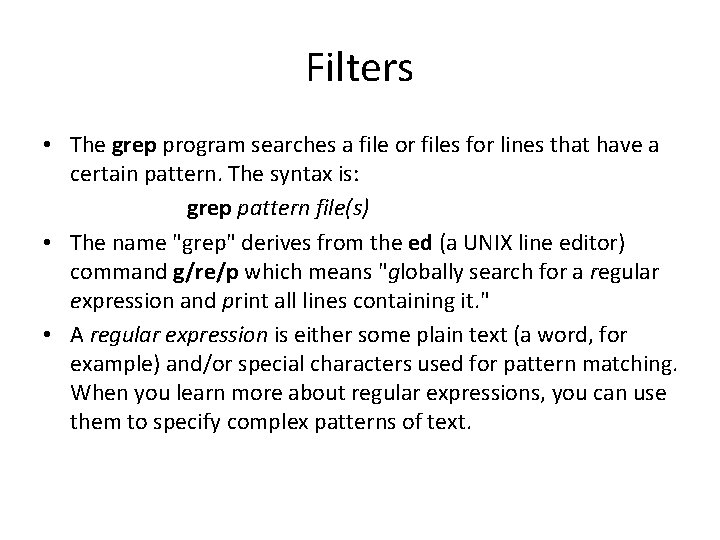
Filters • The grep program searches a file or files for lines that have a certain pattern. The syntax is: grep pattern file(s) • The name "grep" derives from the ed (a UNIX line editor) command g/re/p which means "globally search for a regular expression and print all lines containing it. " • A regular expression is either some plain text (a word, for example) and/or special characters used for pattern matching. When you learn more about regular expressions, you can use them to specify complex patterns of text.
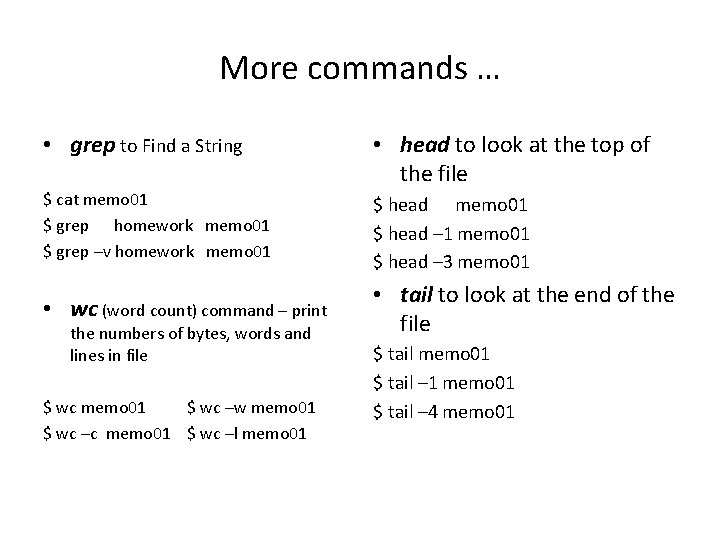
More commands … • grep to Find a String • head to look at the top of the file $ cat memo 01 $ grep homework memo 01 $ grep –v homework memo 01 $ head – 1 memo 01 $ head – 3 memo 01 • wc (word count) command – print • tail to look at the end of the file the numbers of bytes, words and lines in file $ wc memo 01 $ wc –w memo 01 $ wc –c memo 01 $ wc –l memo 01 $ tail – 1 memo 01 $ tail – 4 memo 01
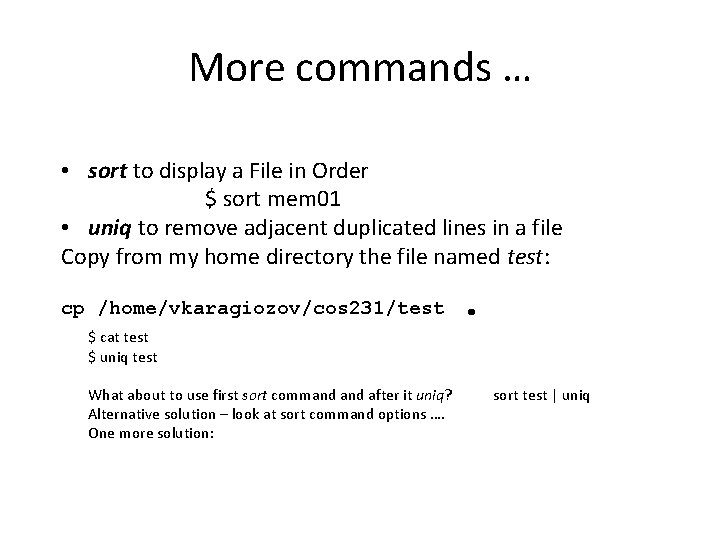
More commands … • sort to display a File in Order $ sort mem 01 • uniq to remove adjacent duplicated lines in a file Copy from my home directory the file named test: cp /home/vkaragiozov/cos 231/test $ cat test $ uniq test What about to use first sort command after it uniq? Alternative solution – look at sort command options …. One more solution: . sort test | uniq sort –u test awk ’ a[$0]++ == 0 ’ test
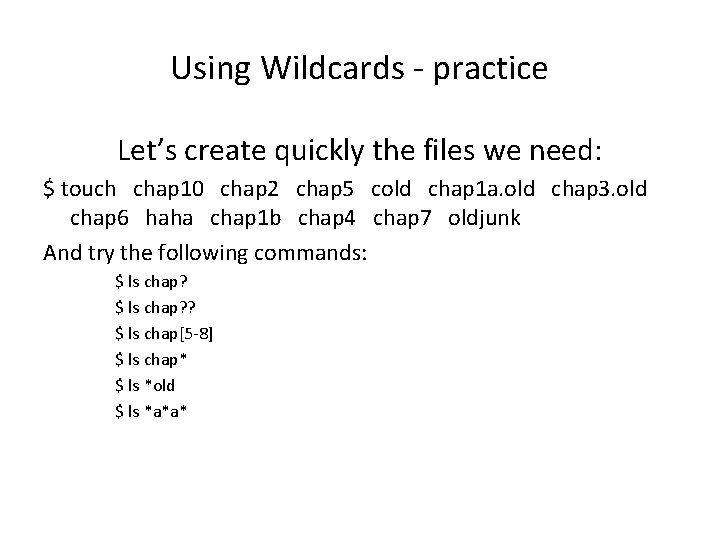
Using Wildcards - practice Let’s create quickly the files we need: $ touch chap 10 chap 2 chap 5 cold chap 1 a. old chap 3. old chap 6 haha chap 1 b chap 4 chap 7 oldjunk And try the following commands: $ ls chap? ? $ ls chap[5 -8] $ ls chap* $ ls *old $ ls *a*a*
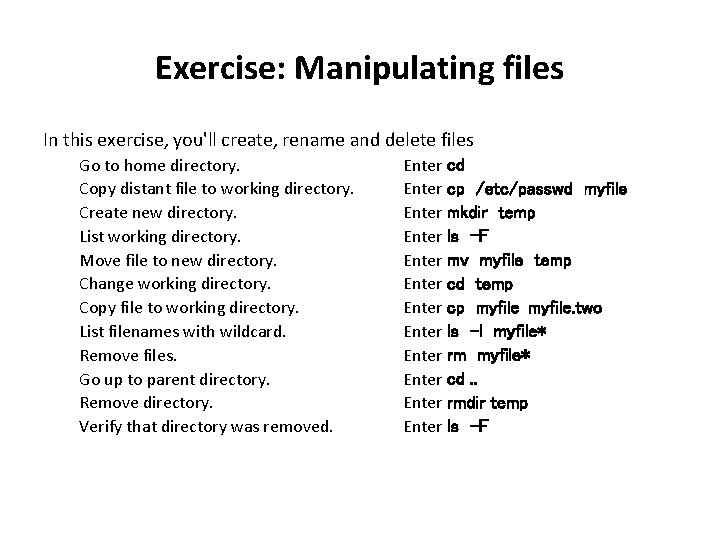
Exercise: Manipulating files In this exercise, you'll create, rename and delete files Go to home directory. Copy distant file to working directory. Create new directory. List working directory. Move file to new directory. Change working directory. Copy file to working directory. List filenames with wildcard. Remove files. Go up to parent directory. Remove directory. Verify that directory was removed. Enter cd Enter cp /etc/passwd myfile Enter mkdir temp Enter ls -F Enter mv myfile temp Enter cd temp Enter cp myfile. two Enter ls -l myfile* Enter rm myfile* Enter cd. . Enter rmdir temp Enter ls -F
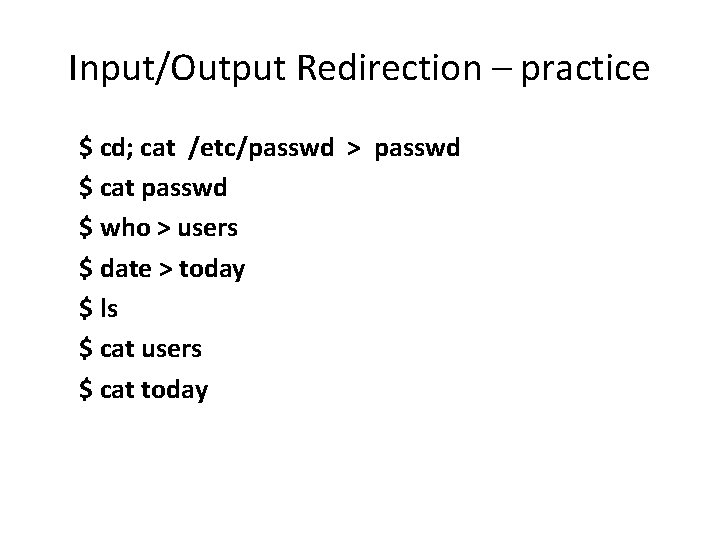
Input/Output Redirection – practice $ cd; cat /etc/passwd > passwd $ cat passwd $ who > users $ date > today $ ls $ cat users $ cat today
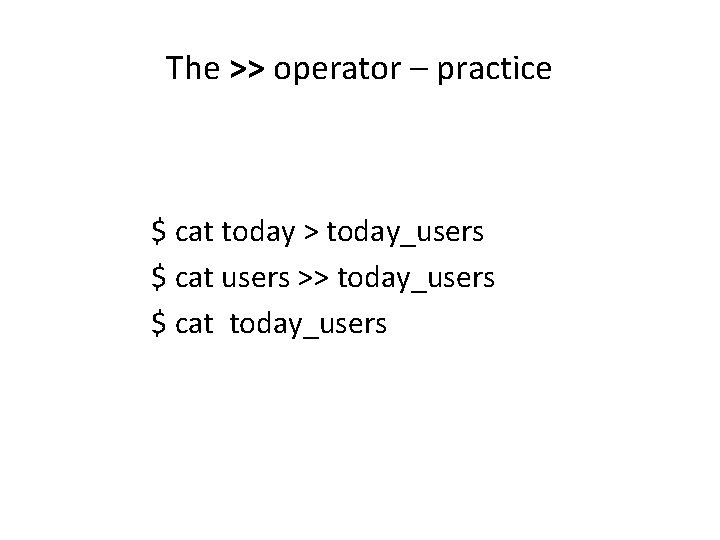
The >> operator – practice $ cat today > today_users $ cat users >> today_users $ cat today_users
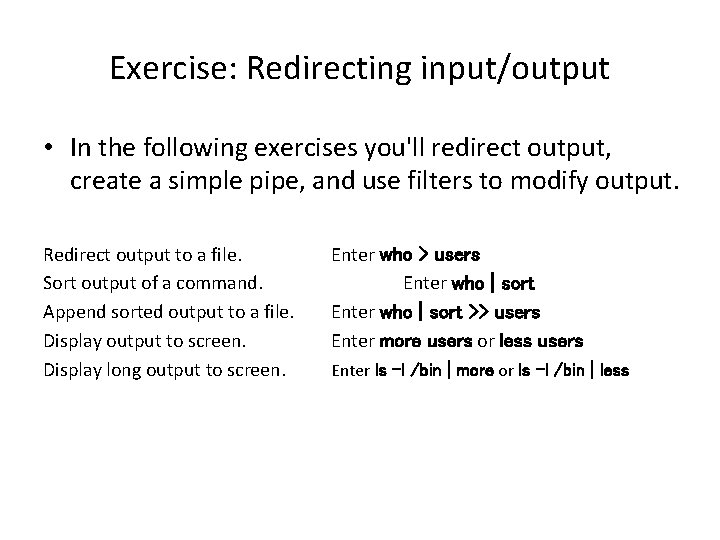
Exercise: Redirecting input/output • In the following exercises you'll redirect output, create a simple pipe, and use filters to modify output. Redirect output to a file. Sort output of a command. Append sorted output to a file. Display output to screen. Display long output to screen. Enter who > users Enter who | sort >> users Enter more users or less users Enter ls -l /bin | more or ls -l /bin | less
What did we learn so far? • • • Special Characters & Quoting Characters Using whereis and which to Find Utilities Using diff to Compare Two Files Compressing the files File and Directory Wildcards Creating Directories Removing Files and Directories Standard Input and Standard Output Input/Output and Standard Error Redirection Pipes and Filters
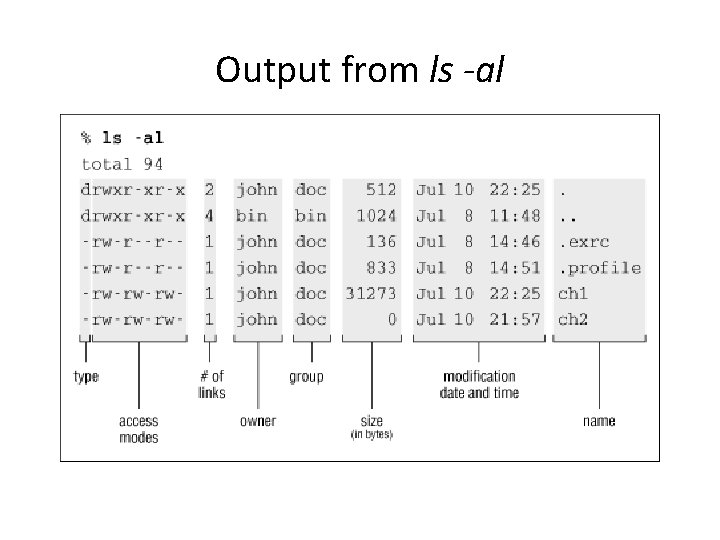
Output from ls -al
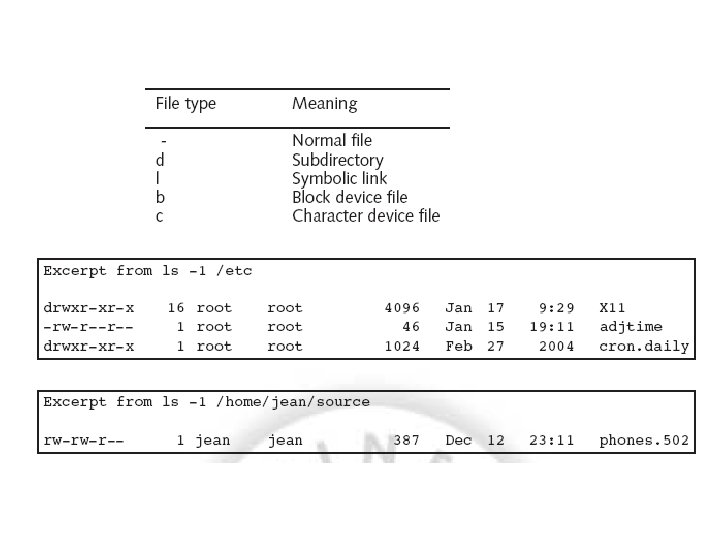
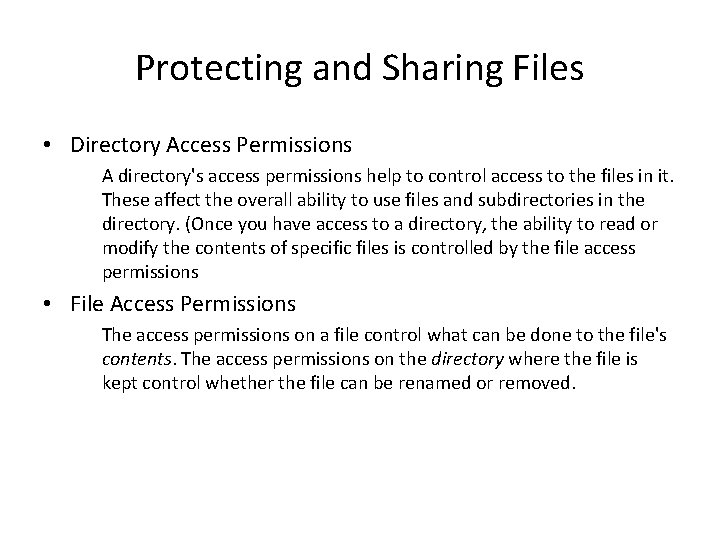
Protecting and Sharing Files • Directory Access Permissions A directory's access permissions help to control access to the files in it. These affect the overall ability to use files and subdirectories in the directory. (Once you have access to a directory, the ability to read or modify the contents of specific files is controlled by the file access permissions • File Access Permissions The access permissions on a file control what can be done to the file's contents. The access permissions on the directory where the file is kept control whether the file can be renamed or removed.
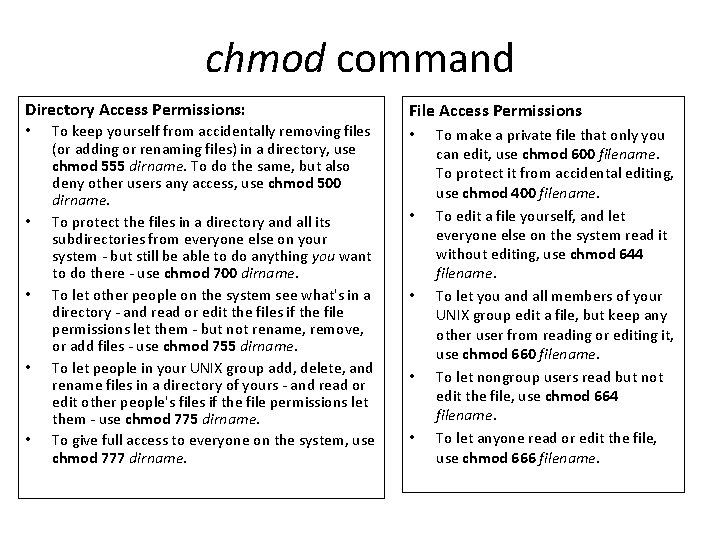
chmod command Directory Access Permissions: • • • To keep yourself from accidentally removing files (or adding or renaming files) in a directory, use chmod 555 dirname. To do the same, but also deny other users any access, use chmod 500 dirname. To protect the files in a directory and all its subdirectories from everyone else on your system - but still be able to do anything you want to do there - use chmod 700 dirname. To let other people on the system see what's in a directory - and read or edit the files if the file permissions let them - but not rename, remove, or add files - use chmod 755 dirname. To let people in your UNIX group add, delete, and rename files in a directory of yours - and read or edit other people's files if the file permissions let them - use chmod 775 dirname. To give full access to everyone on the system, use chmod 777 dirname. File Access Permissions • • • To make a private file that only you can edit, use chmod 600 filename. To protect it from accidental editing, use chmod 400 filename. To edit a file yourself, and let everyone else on the system read it without editing, use chmod 644 filename. To let you and all members of your UNIX group edit a file, but keep any other user from reading or editing it, use chmod 660 filename. To let nongroup users read but not edit the file, use chmod 664 filename. To let anyone read or edit the file, use chmod 666 filename.
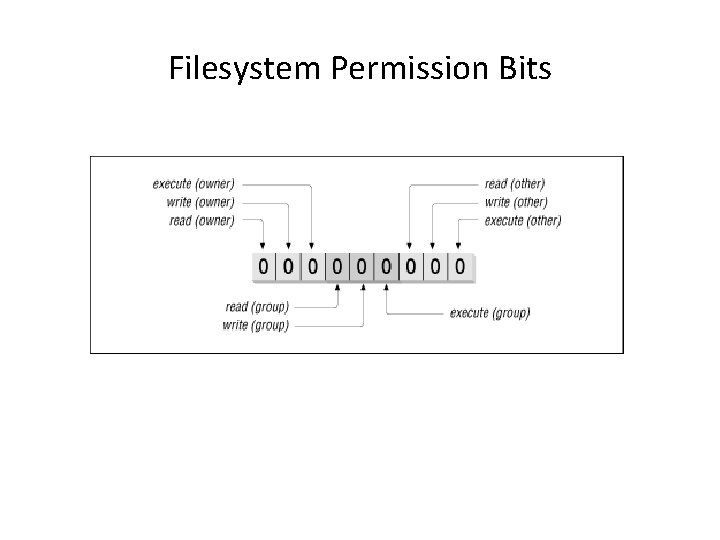
Filesystem Permission Bits
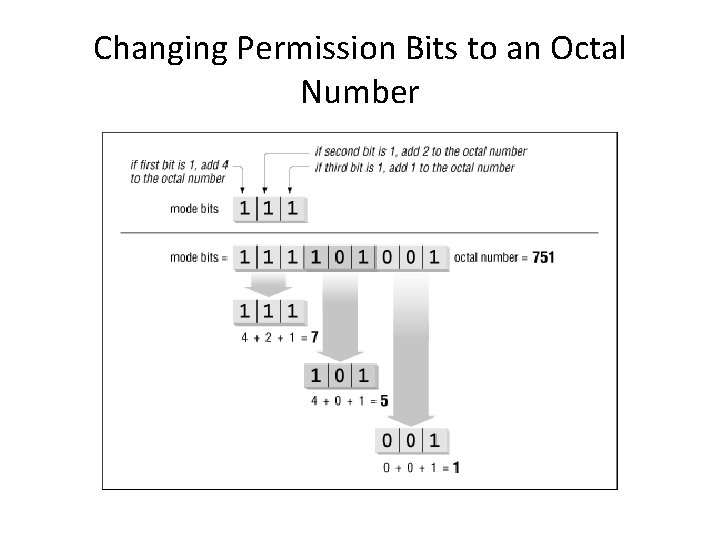
Changing Permission Bits to an Octal Number
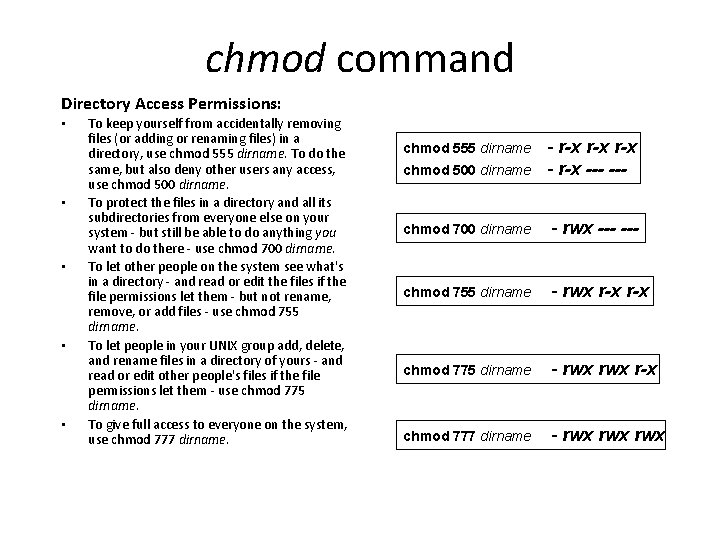
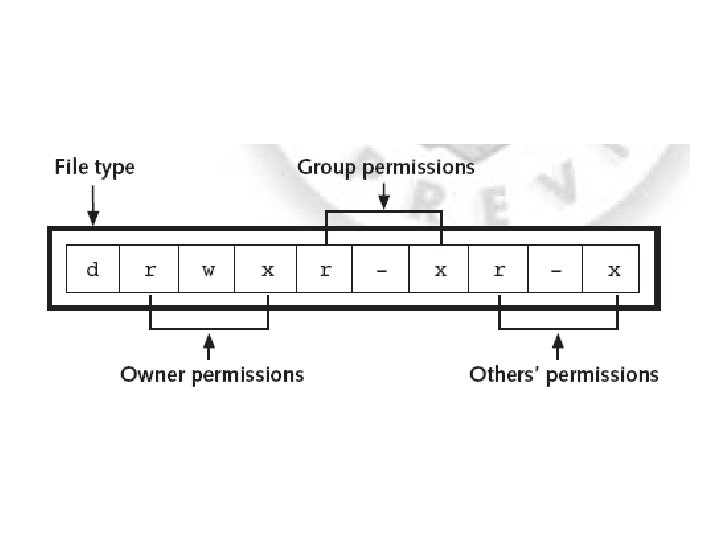
chmod command Directory Access Permissions: • • • To keep yourself from accidentally removing files (or adding or renaming files) in a directory, use chmod 555 dirname. To do the same, but also deny other users any access, use chmod 500 dirname. To protect the files in a directory and all its subdirectories from everyone else on your system - but still be able to do anything you want to do there - use chmod 700 dirname. To let other people on the system see what's in a directory - and read or edit the files if the file permissions let them - but not rename, remove, or add files - use chmod 755 dirname. To let people in your UNIX group add, delete, and rename files in a directory of yours - and read or edit other people's files if the file permissions let them - use chmod 775 dirname. To give full access to everyone on the system, use chmod 777 dirname. chmod 500 dirname - r-x r-x --- --- chmod 700 dirname - rwx --- chmod 755 dirname - rwx r-x chmod 775 dirname - rwx r-x chmod 777 dirname - rwx rwx chmod 555 dirname
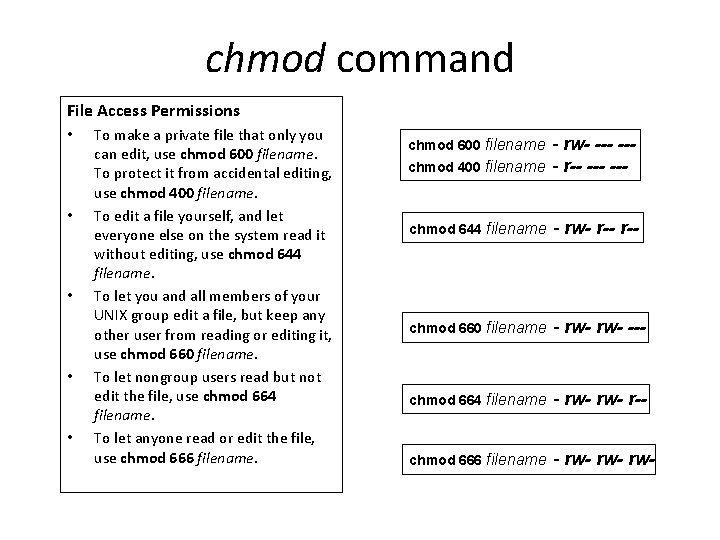
chmod command File Access Permissions • • • To make a private file that only you can edit, use chmod 600 filename. To protect it from accidental editing, use chmod 400 filename. To edit a file yourself, and let everyone else on the system read it without editing, use chmod 644 filename. To let you and all members of your UNIX group edit a file, but keep any other user from reading or editing it, use chmod 660 filename. To let nongroup users read but not edit the file, use chmod 664 filename. To let anyone read or edit the file, use chmod 666 filename. - rw- --chmod 400 filename - r-- --chmod 600 filename chmod 644 filename - rw- r-- chmod 660 filename - rw- --- chmod 664 filename - rw- r-- chmod 666 filename - rw- rw-
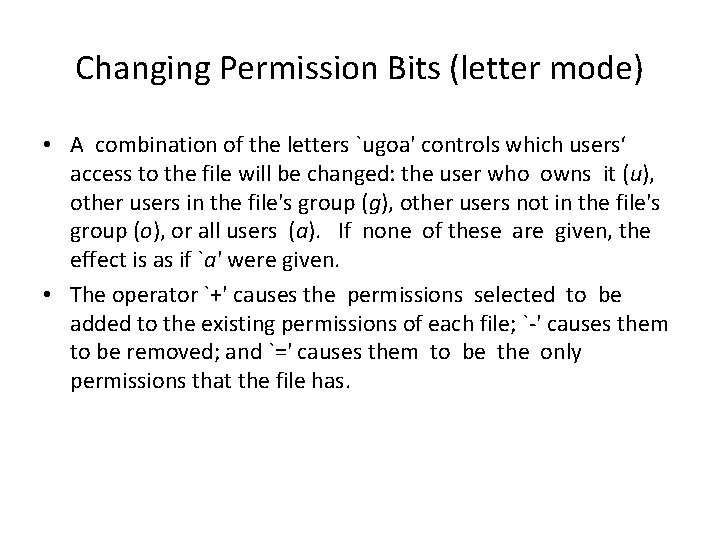
Changing Permission Bits (letter mode) • A combination of the letters `ugoa' controls which users‘ access to the file will be changed: the user who owns it (u), other users in the file's group (g), other users not in the file's group (o), or all users (a). If none of these are given, the effect is as if `a' were given. • The operator `+' causes the permissions selected to be added to the existing permissions of each file; `-' causes them to be removed; and `=' causes them to be the only permissions that the file has.
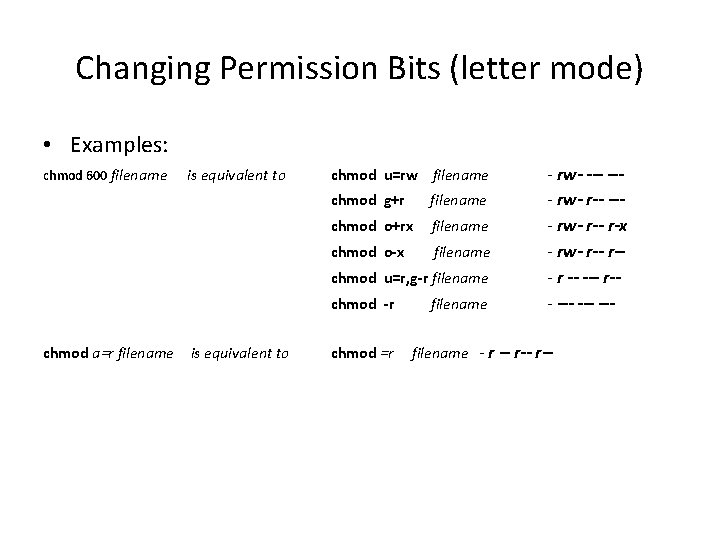
Changing Permission Bits (letter mode) • Examples: chmod 600 filename is equivalent to chmod u=rw filename chmod g+r filename chmod o+rx filename chmod o-x filename chmod u=r, g-r filename chmod -r chmod a=r filename is equivalent to chmod =r filename - rw- --- rw- r-- --- rw- r-x - rw- r-- r -- --- r-- --- --- filename - r -- r--
Protecting Files with the Sticky Bit • UNIX directory access permissions say that if a user has write permission on a directory, he/she can rename or remove files there, even files that don't belong to her. Many newer versions of UNIX have a way to stop that. The owner of a directory can set its sticky bit (mode 1000). The only people who can rename or remove any file in that directory are the file's owner, the directory's owner, and the superuser.
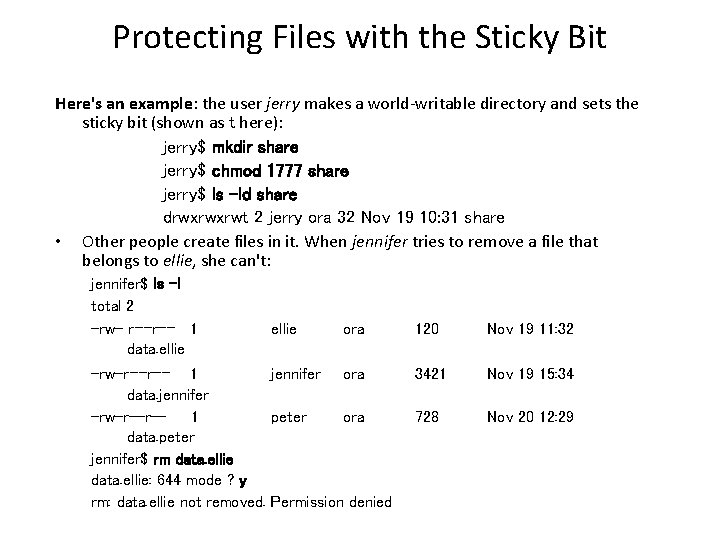
Protecting Files with the Sticky Bit Here's an example: the user jerry makes a world-writable directory and sets the sticky bit (shown as t here): jerry$ mkdir share jerry$ chmod 1777 share jerry$ ls -ld share drwxrwxrwt 2 jerry ora 32 Nov 19 10: 31 share • Other people create files in it. When jennifer tries to remove a file that belongs to ellie, she can't: jennifer$ ls -l total 2 -rw- r--r-- 1 data. ellie ora -rw-r--r-- 1 jennifer ora data. jennifer -rw-r--r-1 peter ora data. peter jennifer$ rm data. ellie: 644 mode ? y rm: data. ellie not removed. Permission denied 120 Nov 19 11: 32 3421 Nov 19 15: 34 728 Nov 20 12: 29
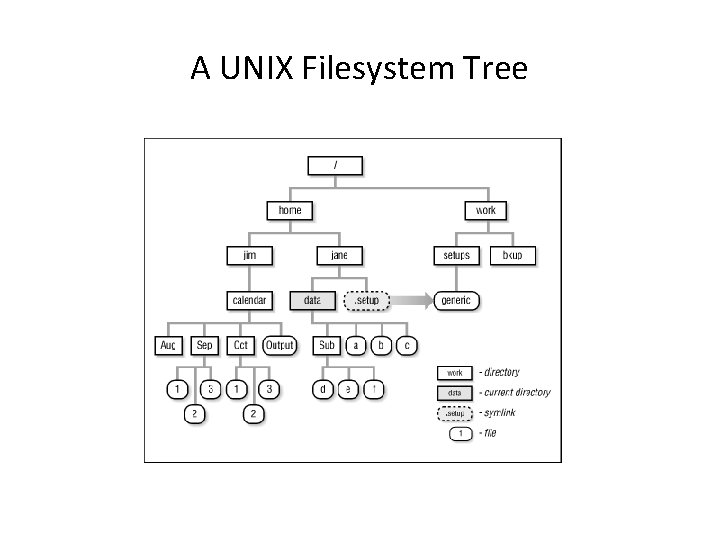
A UNIX Filesystem Tree
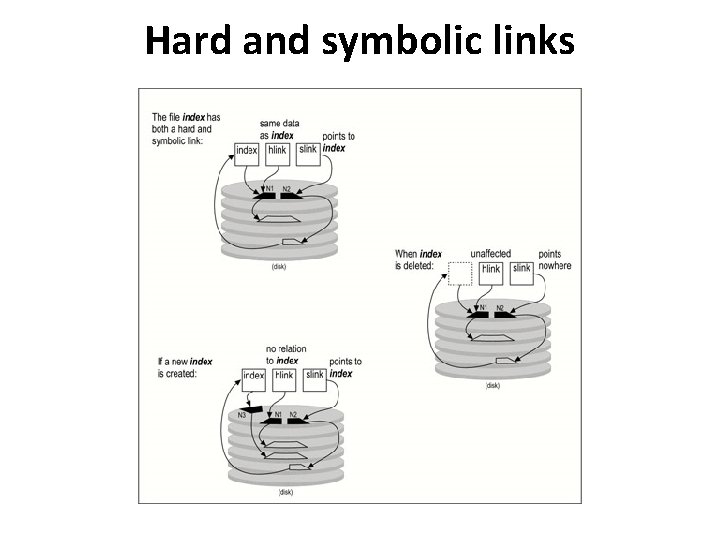
Links • In addition to moving and copying files, UNIX systems also allow you to link them - to have two filenames, perhaps in different directories or even on different filesystems, that point to the same file. We talk about why you'd want to do that, the difference between "hard" and "soft" links, how to create links. UNIX provides two different kinds of links: – Hard links – Symbolic links (also called soft links or symlinks)
Hard links • With a hard link, two filenames (i. e. , two directory entries) point to the same inode and the same set of data blocks. All UNIX versions support hard links. They have two important limitations: 1. a hard link can't cross a filesystem (i. e. , both filenames must be in the same filesystem), and 2. you can't create a hard link to a directory (i. e. , a directory can only have one name). • They have two important advantages: 1. the link and the original file are absolutely and always identical, and 2. the extra link takes no disk space (except an occasional extra disk block in the directory file).
Symbolic links • With a symbolic link, there really are two different files. One file contains the actual data; the other file just contains the name of the first file and serves as a "pointer. " We call the pointer the link. The system knows that whenever it opens a link, it should read the contents of the link, and then access the file that really holds the data you want. All Berkeley UNIX systems and System V. 4 support symbolic links. Symbolic links are infinitely more flexible than hard links. 1. They can cross filesystems, or even computer systems (if you are using NFS or RFS). 2. You can make a symbolic link to a directory. A symbolic link has its own inode and takes a small amount of disk space to store.
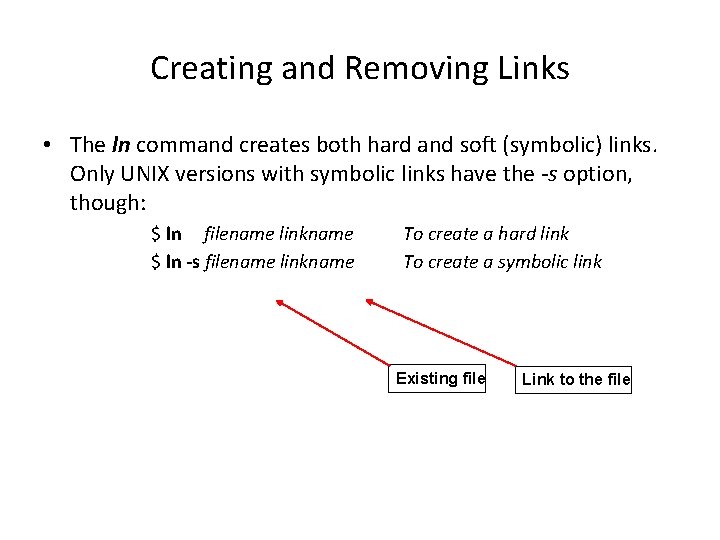
Creating and Removing Links • The ln command creates both hard and soft (symbolic) links. Only UNIX versions with symbolic links have the -s option, though: $ ln filename linkname $ ln -s filename linkname To create a hard link To create a symbolic link Existing file Link to the file
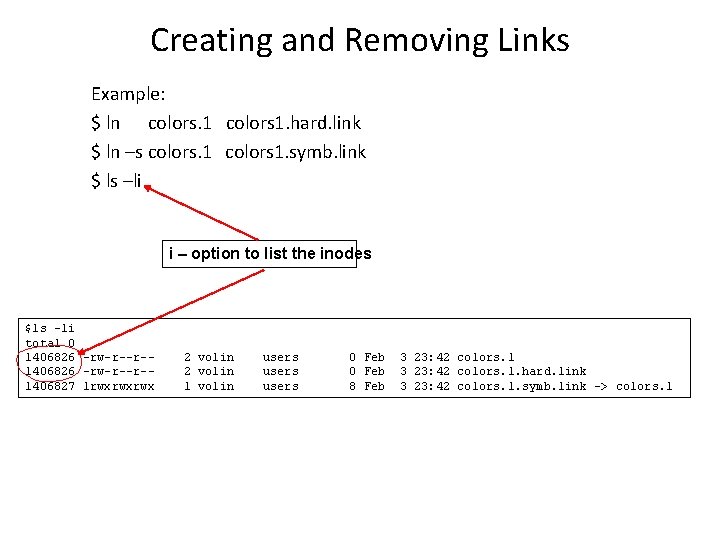
Creating and Removing Links Example: $ ln colors. 1 colors 1. hard. link $ ln –s colors. 1 colors 1. symb. link $ ls –li i – option to list the inodes $ls -li total 0 1406826 -rw-r--r-1406827 lrwxrwxrwx 2 volin 1 volin users 0 Feb 8 Feb 3 23: 42 colors. 1. hard. link 3 23: 42 colors. 1. symb. link -> colors. 1
Hard and symbolic links
chmod and symbolic links • chmod never changes the permissions of symbolic links; the chmod system call cannot change their permissions. This is not a problem since the permissions of symbolic links are never used.

What did we learn recently? • • Protecting and Sharing Files Directory Access Permissions File Access Permissions chmod command Protecting Files with the Sticky Bit Links – hard and symbolic links Creating and removing links
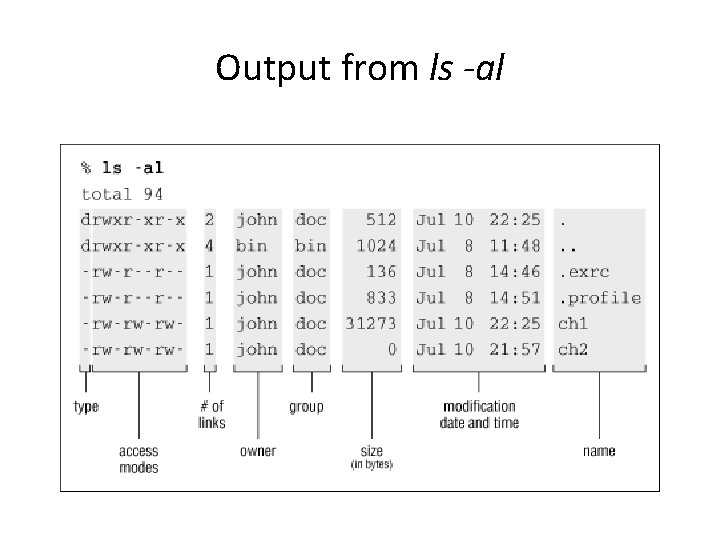
Output from ls -al
![Changing the ownership of files chown command chown [options] newowner files Change the ownership](http://slidetodoc.com/presentation_image/0859aef0fcbf5e3f5126ced41d98aed2/image-36.jpg "Changing the ownership of files chown command chown [options] newowner files Change the ownership")
Changing the ownership of files chown command chown [options] newowner files Change the ownership of one or more files to newowner. (Note: The BSD version lets you change the group as well. ) newowner is either a user ID number or a login name located in /etc/passwd. Options -h change the owner on symbolic links. Normally, chown acts on the file referenced by a symbolic link, not on the link itself. -R Recursively descend through the directory, including subdirectories and symbolic links, resetting the ownership ID. Example: $ chown user_name test $ chown user_name. group_name test
![Changing the group ownership of files chgrp command chgrp [options] newgroup files Change the](http://slidetodoc.com/presentation_image/0859aef0fcbf5e3f5126ced41d98aed2/image-37.jpg "Changing the group ownership of files chgrp command chgrp [options] newgroup files Change the")
Changing the group ownership of files chgrp command chgrp [options] newgroup files Change the ownership of one or more files to newgroup is either a group ID number or a group name located in /etc/group. You must own the file or be a privileged user to succeed with this command. Options -h Change the group on symbolic links. Normally, chgrp acts on the file referenced by a symbolic link, not on the link itself. -R Recursively descend through the directory, including subdirectories and symbolic links, setting the specified group ID as it proceeds.
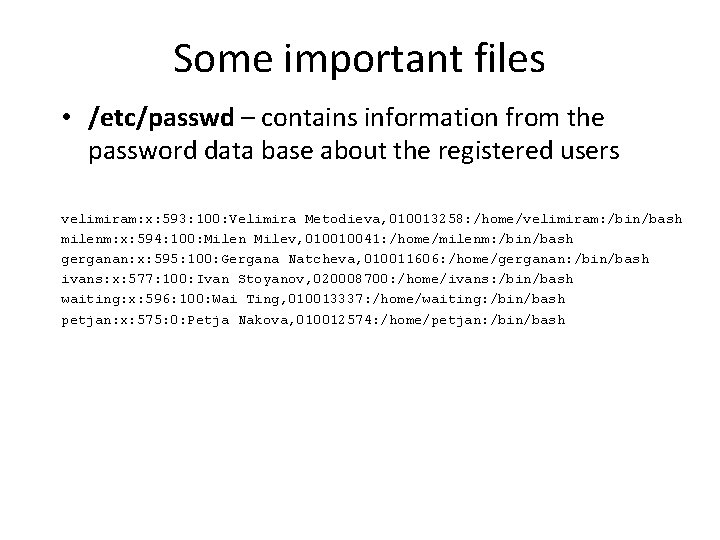
Some important files • /etc/passwd – contains information from the password data base about the registered users velimiram: x: 593: 100: Velimira Metodieva, 010013258: /home/velimiram: /bin/bash milenm: x: 594: 100: Milen Milev, 010010041: /home/milenm: /bin/bash gerganan: x: 595: 100: Gergana Natcheva, 010011606: /home/gerganan: /bin/bash ivans: x: 577: 100: Ivan Stoyanov, 020008700: /home/ivans: /bin/bash waiting: x: 596: 100: Wai Ting, 010013337: /home/waiting: /bin/bash petjan: x: 575: 0: Petja Nakova, 010012574: /home/petjan: /bin/bash
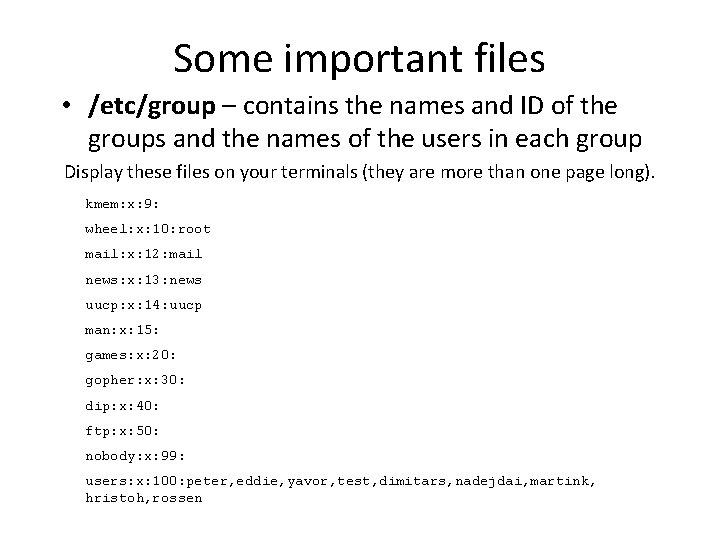
Some important files • /etc/group – contains the names and ID of the groups and the names of the users in each group Display these files on your terminals (they are more than one page long). kmem: x: 9: wheel: x: 10: root mail: x: 12: mail news: x: 13: news uucp: x: 14: uucp man: x: 15: games: x: 20: gopher: x: 30: dip: x: 40: ftp: x: 50: nobody: x: 99: users: x: 100: peter, eddie, yavor, test, dimitars, nadejdai, martink, hristoh, rossen
![Check your UID and group(s) id command id [ -a ] List user and](http://slidetodoc.com/presentation_image/0859aef0fcbf5e3f5126ced41d98aed2/image-40.jpg "Check your UID and group(s) id command id [ -a ] List user and")
Check your UID and group(s) id command id [ -a ] List user and group IDs; list all groups with -a. Example: $ id uid=578(volin) gid=100(users) groups=100(users) or $ id user_name
![Translate utility - tr tr [options] [string 1 [string 2]] Copy standard input to](http://slidetodoc.com/presentation_image/0859aef0fcbf5e3f5126ced41d98aed2/image-41.jpg "Translate utility - tr tr [options] [string 1 [string 2]] Copy standard input to")
Translate utility - tr tr [options] [string 1 [string 2]] Copy standard input to standard output, performing substitution of characters from string 1 to string 2 or deletion of characters in string 1. Options -d Delete characters in string 1 from output. -s Squeeze out repeated output characters in string 2.
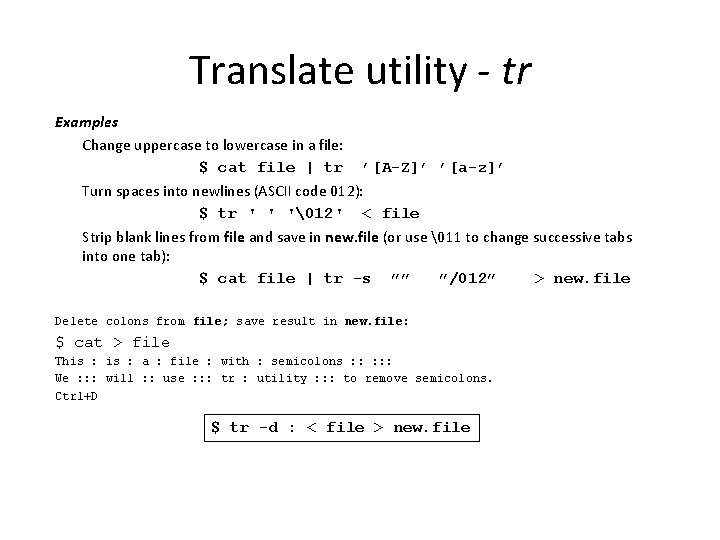
Translate utility - tr Examples Change uppercase to lowercase in a file: $ cat file | tr ’[A-Z]’ ’[a-z]’ Turn spaces into newlines (ASCII code 012): $ tr ' ' '12' < file Strip blank lines from file and save in new. file (or use 11 to change successive tabs into one tab): $ cat file | tr -s ”” ”/012” > new. file Delete colons from file; save result in new. file: $ cat > file This : a : file : with : semicolons : : : We : : : will : : use : : : tr : utility : : : to remove semicolons. Ctrl+D $ tr -d : < file > new. file
![The tee Utility tee [options] [files] Duplicate the standard input; send one copy to](http://slidetodoc.com/presentation_image/0859aef0fcbf5e3f5126ced41d98aed2/image-43.jpg "The tee Utility tee [options] [files] Duplicate the standard input; send one copy to")
The tee Utility tee [options] [files] Duplicate the standard input; send one copy to standard output and another copy to files. Options -a Append output to files. -i Ignore all interrupts. Examples Display a who listing on the screen, and store it in two files: $ who | tee userlist ttylist $ ls –la $ cat userlist ttylist
![cut utility cut - remove sections from each line of files cut [OPTION]. .](http://slidetodoc.com/presentation_image/0859aef0fcbf5e3f5126ced41d98aed2/image-44.jpg "cut utility cut - remove sections from each line of files cut [OPTION]. .")
cut utility cut - remove sections from each line of files cut [OPTION]. . . [FILE]. . . Print selected parts of lines from each FILE to standard output. Options: -d, --delimiter=DELIM use DELIM instead of TAB for field delimiter -f, --fields=LIST select only these fields; -c, --characters=LIST select only these characters Examples • Extract usernames and real names from /etc/passwd: cut -d: -f 1, 5 /etc/passwd • Find out who is logged on, but list only login names: who | cut -d" " -f 1 • Cut characters in the fourth column of file, and paste them back as the first column in the same file: cut -c 4 file | paste - file
![paste command paste [options] files Merge corresponding lines of one or more files into](http://slidetodoc.com/presentation_image/0859aef0fcbf5e3f5126ced41d98aed2/image-45.jpg "paste command paste [options] files Merge corresponding lines of one or more files into")
paste command paste [options] files Merge corresponding lines of one or more files into vertical columns, separated by a tab. Options - Replace a filename with the standard input. -d'char' Separate columns with char instead of a tab. char can be any regular character or the following escape sequences: n Newline t Tab Backslash Empty String Examples • Create a three-column file from files x, y, and z: paste x y z > file • List users in two columns: who | paste - -
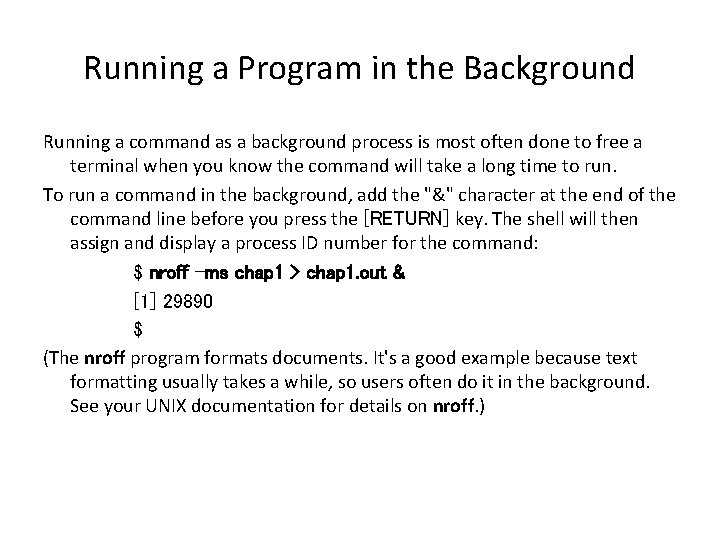
Running a Program in the Background Running a command as a background process is most often done to free a terminal when you know the command will take a long time to run. To run a command in the background, add the "&" character at the end of the command line before you press the [RETURN] key. The shell will then assign and display a process ID number for the command: $ nroff -ms chap 1 > chap 1. out & [1] 29890 $ (The nroff program formats documents. It's a good example because text formatting usually takes a while, so users often do it in the background. See your UNIX documentation for details on nroff. )
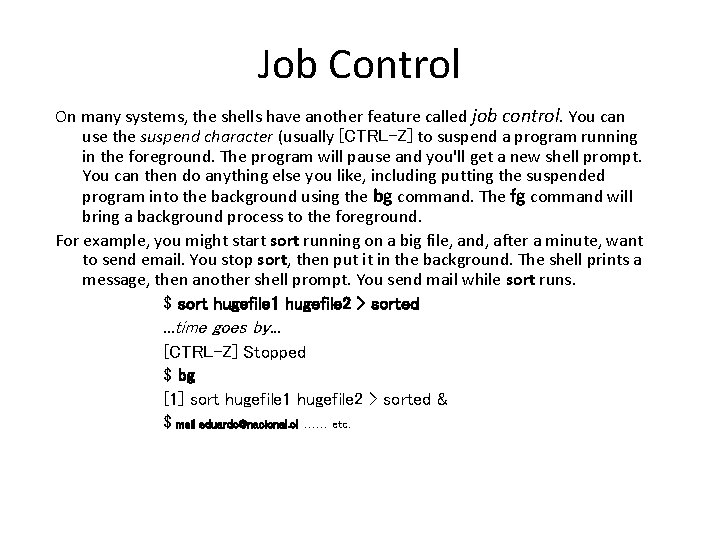
Job Control On many systems, the shells have another feature called job control. You can use the suspend character (usually [CTRL-Z] to suspend a program running in the foreground. The program will pause and you'll get a new shell prompt. You can then do anything else you like, including putting the suspended program into the background using the bg command. The fg command will bring a background process to the foreground. For example, you might start sort running on a big file, and, after a minute, want to send email. You stop sort, then put it in the background. The shell prints a message, then another shell prompt. You send mail while sort runs. $ sort hugefile 1 hugefile 2 > sorted . . . time goes by. . . [CTRL-Z] Stopped $ bg [1] sort hugefile 1 hugefile 2 > sorted & $ mail eduardo@nacional. cl …… etc.
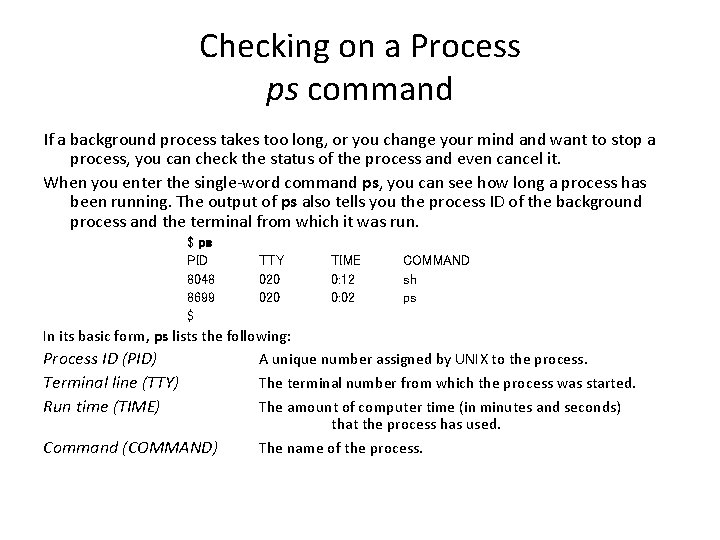
Checking on a Process ps command If a background process takes too long, or you change your mind and want to stop a process, you can check the status of the process and even cancel it. When you enter the single-word command ps, you can see how long a process has been running. The output of ps also tells you the process ID of the background process and the terminal from which it was run. $ ps PID 8048 8699 $ TTY 020 TIME 0: 12 0: 02 COMMAND sh ps In its basic form, ps lists the following: Process ID (PID) A unique number assigned by UNIX to the process. Terminal line (TTY) The terminal number from which the process was started. Run time (TIME) The amount of computer time (in minutes and seconds) that the process has used. Command (COMMAND) The name of the process.
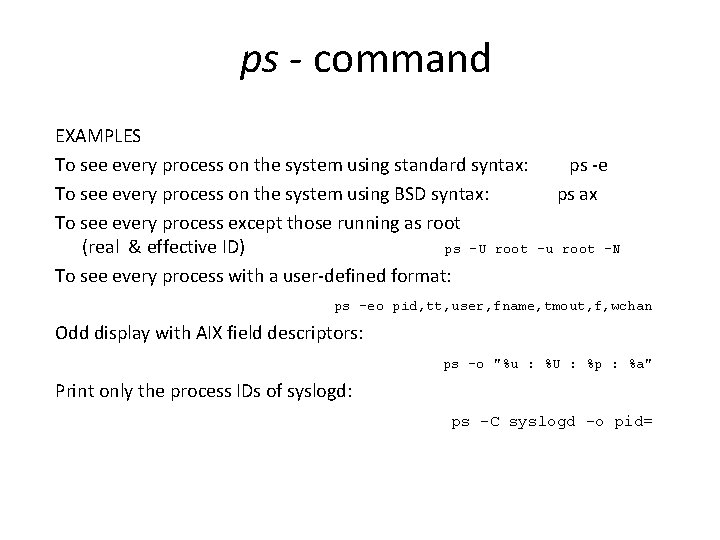
ps - command EXAMPLES To see every process on the system using standard syntax: ps -e To see every process on the system using BSD syntax: ps ax To see every process except those running as root (real & effective ID) ps -U root -u root -N To see every process with a user-defined format: ps -eo pid, tt, user, fname, tmout, f, wchan Odd display with AIX field descriptors: ps -o "%u : %U : %p : %a" Print only the process IDs of syslogd: ps -C syslogd -o pid=
Controlling processes • For every process that is created the UNIX operating system stores information including • its real UID, GID and its effective UID and GID • the code and variables used by the process (its address map) • the status of the process • its priority • its parent process Try ps –ax command
Canceling a Process The kill command aborts a process. The command's format is: kill PID(s) kill terminates the designated process IDs (shown under the PID heading in the ps listing). If you do not know the process ID, do a ps first to display the status of your processes. In the following example, the "sleep n" command simply causes a process to "go to sleep" for n number of seconds. We enter two commands, sleep and who, on the same line, as a background process.
![Example $ (sleep 60; who) & [1] 21087 $ ps PID TTY TIME COMMAND](http://slidetodoc.com/presentation_image/0859aef0fcbf5e3f5126ced41d98aed2/image-52.jpg "Example $ (sleep 60; who) & [1] 21087 $ ps PID TTY TIME COMMAND")
Example $ (sleep 60; who) & [1] 21087 $ ps PID TTY TIME COMMAND 20055 4 0: 10 sh 21087 4 0: 01 sh 21088 4 0: 00 sleep 21089 4 0: 02 ps $ kill 21088 Terminated $ tom tty 2 Aug 30 11: 27 grace tty 4 Aug 30 12: 24 tim tty 5 Aug 30 07: 52 dale tty 7 Aug 30 14: 34 We decided that 60 seconds was too long a time to wait for the output of who The ps listing showed that sleep had the process ID number 21088, so we u this PID to kill the sleep process. You should see a message like "terminate or "killed"; if you don't, use another ps command to be sure the process has killed. The who command is executed immediately, since it is no longer waiting on sleep; it lists the users logged into the system.
Problem checklist • The process didn't die when I told it to. Some processes can be hard to kill. If a normal kill of these processes is not working, enter "kill -9 PID". This is a sure kill and can destroy almost anything, including the shell that is interpreting it. In addition, if you've run an interpreted program (like a shell script), you may not be able to kill all dependent processes by killing the interpreter process that got it all started; you may need to kill them individually. However, killing a process that is feeding data into a pipe will generally kill any processes receiving that data.

- Slides: 54