
INTRODUCTION TO LABVIEW EG 1003 LAB 10 OVERVIEW
INTRODUCTION TO LABVIEW EG 1003 | LAB 10

OVERVIEW • • • Objective Background Information Materials Procedure Assignment Closing Figure 1: Lab. VIEW courtesy of CIOL 1
OBJECTIVE • Understand the logic of graphical programming in Lab. VIEW • Design two systems in Lab. VIEW: • Heating and cooling system • Lighting system • Obtain physical data with the virtual instruments 2
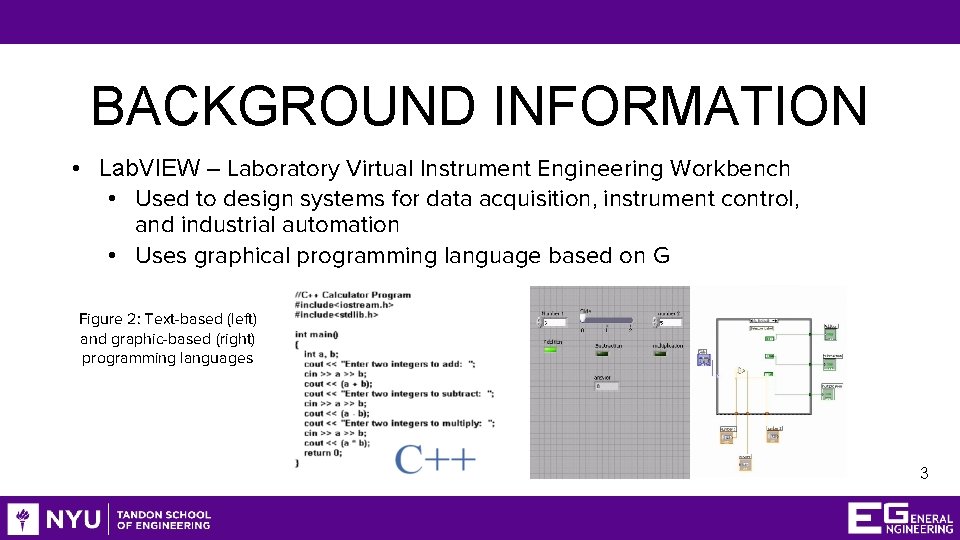
BACKGROUND INFORMATION • Lab. VIEW – Laboratory Virtual Instrument Engineering Workbench • Used to design systems for data acquisition, instrument control, and industrial automation • Uses graphical programming language based on G Figure 2: Text-based (left) and graphic-based (right) programming languages 3
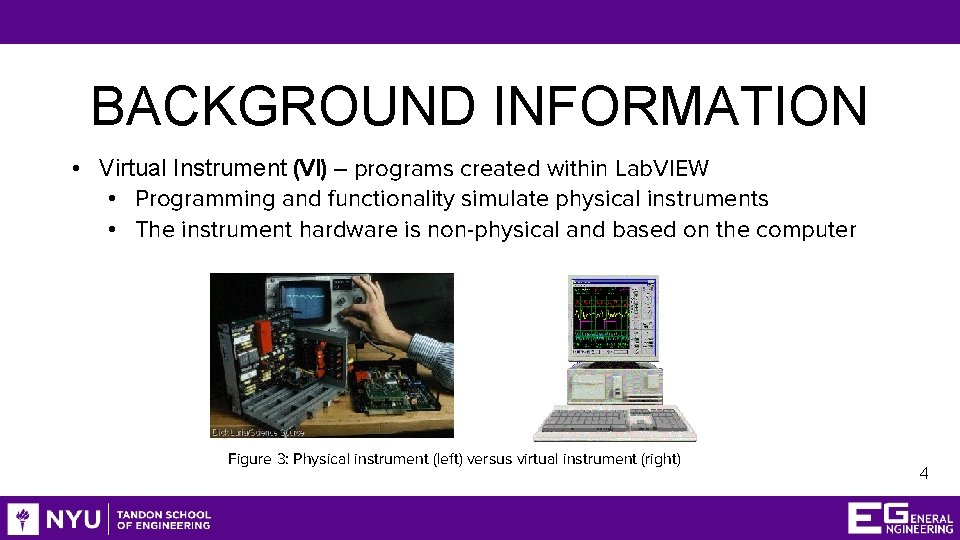
BACKGROUND INFORMATION • Virtual Instrument (VI) – programs created within Lab. VIEW • Programming and functionality simulate physical instruments • The instrument hardware is non-physical and based on the computer Figure 3: Physical instrument (left) versus virtual instrument (right) 4

BACKGROUND INFORMATION • The Lab. VIEW interface: Front panel – where the program is controlled and executed, and the user interacts with the instrument Back panel – backend where the program is written 5
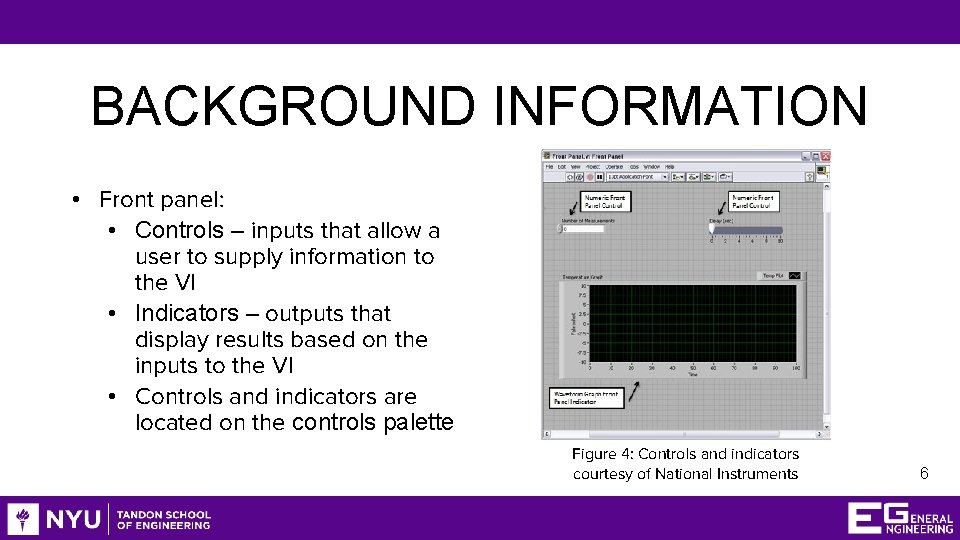
BACKGROUND INFORMATION • Front panel: • Controls – inputs that allow a user to supply information to the VI • Indicators – outputs that display results based on the inputs to the VI • Controls and indicators are located on the controls palette Figure 4: Controls and indicators courtesy of National Instruments 6
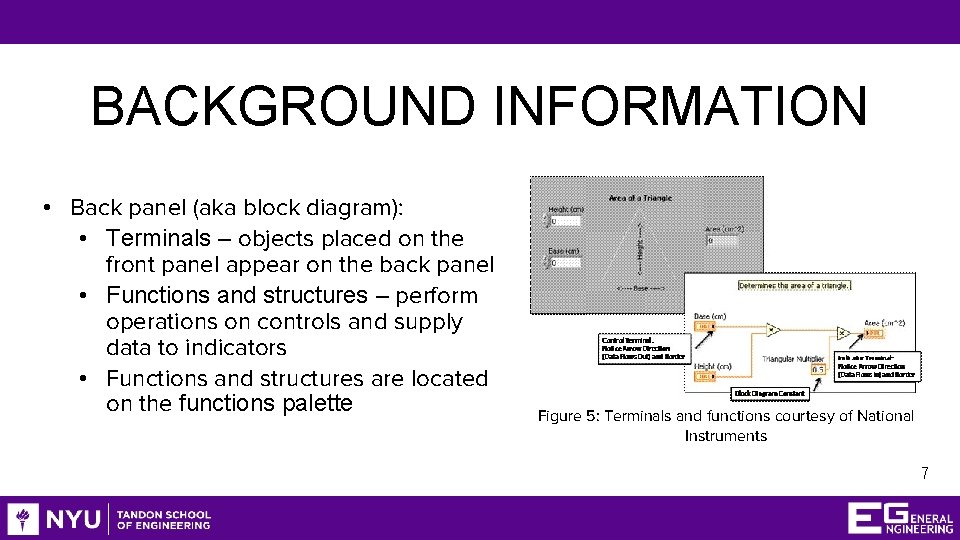
BACKGROUND INFORMATION • Back panel (aka block diagram): • Terminals – objects placed on the front panel appear on the back panel • Functions and structures – perform operations on controls and supply data to indicators • Functions and structures are located on the functions palette Figure 5: Terminals and functions courtesy of National Instruments 7
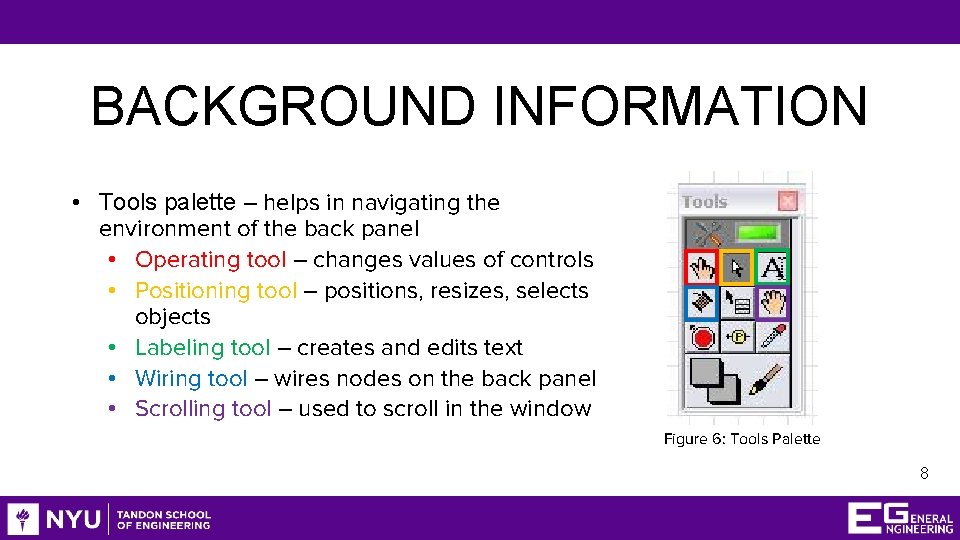
BACKGROUND INFORMATION • Tools palette – helps in navigating the environment of the back panel • Operating tool – changes values of controls • Positioning tool – positions, resizes, selects objects • Labeling tool – creates and edits text • Wiring tool – wires nodes on the back panel • Scrolling tool – used to scroll in the window Figure 6: Tools Palette 8
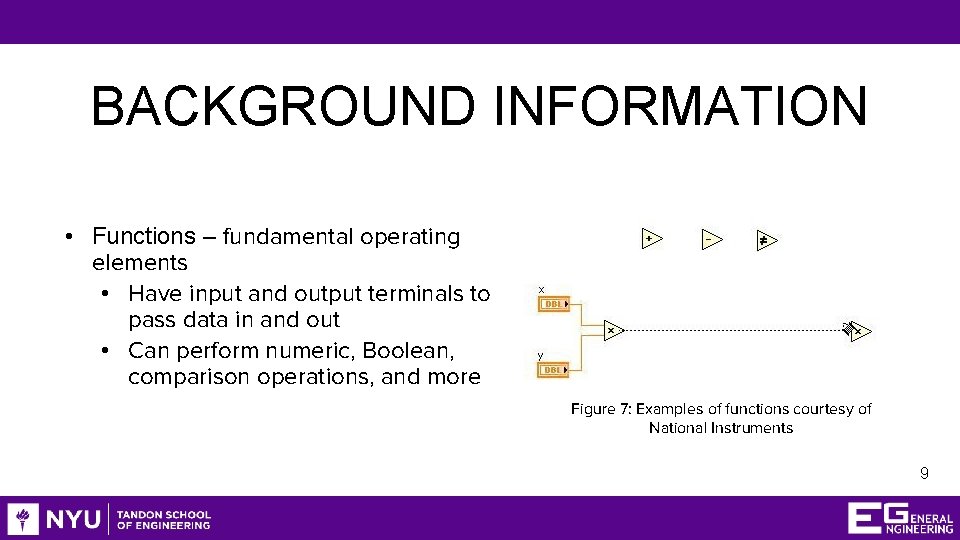
BACKGROUND INFORMATION • Functions – fundamental operating elements • Have input and output terminals to pass data in and out • Can perform numeric, Boolean, comparison operations, and more Figure 7: Examples of functions courtesy of National Instruments 9
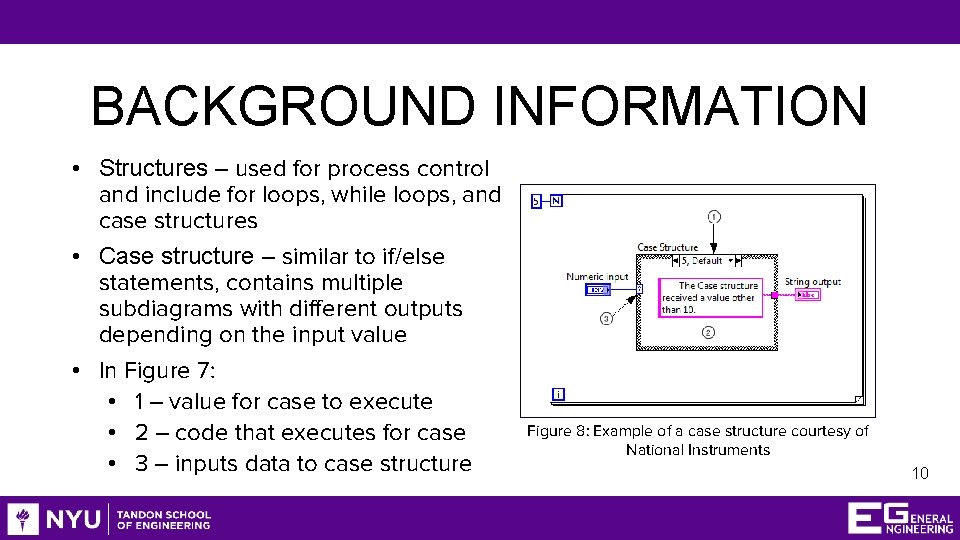
BACKGROUND INFORMATION • Structures – used for process control and include for loops, while loops, and case structures • Case structure – similar to if/else statements, contains multiple subdiagrams with different outputs depending on the input value • In Figure 7: • 1 – value for case to execute • 2 – code that executes for case • 3 – inputs data to case structure Figure 8: Example of a case structure courtesy of National Instruments 10
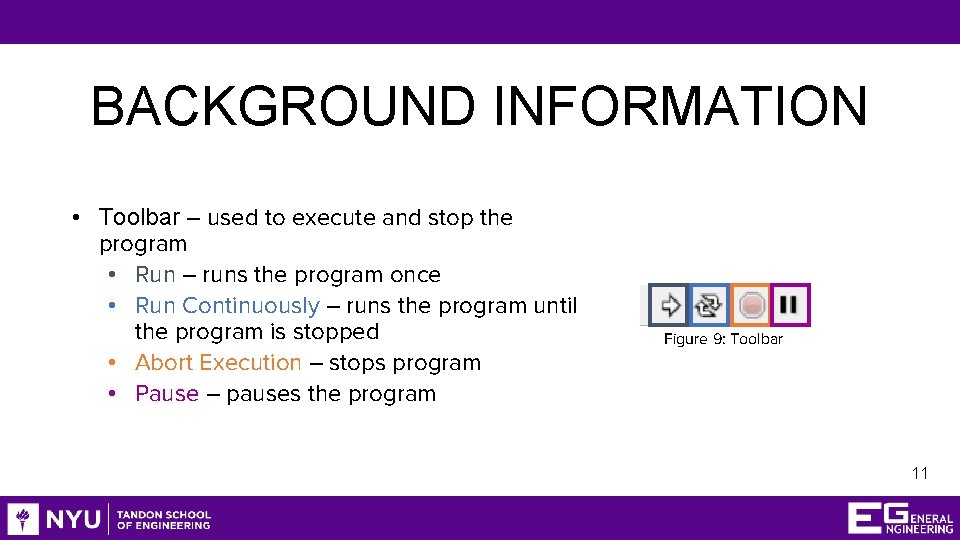
BACKGROUND INFORMATION • Toolbar – used to execute and stop the program • Run – runs the program once • Run Continuously – runs the program until the program is stopped • Abort Execution – stops program • Pause – pauses the program Figure 9: Toolbar 11
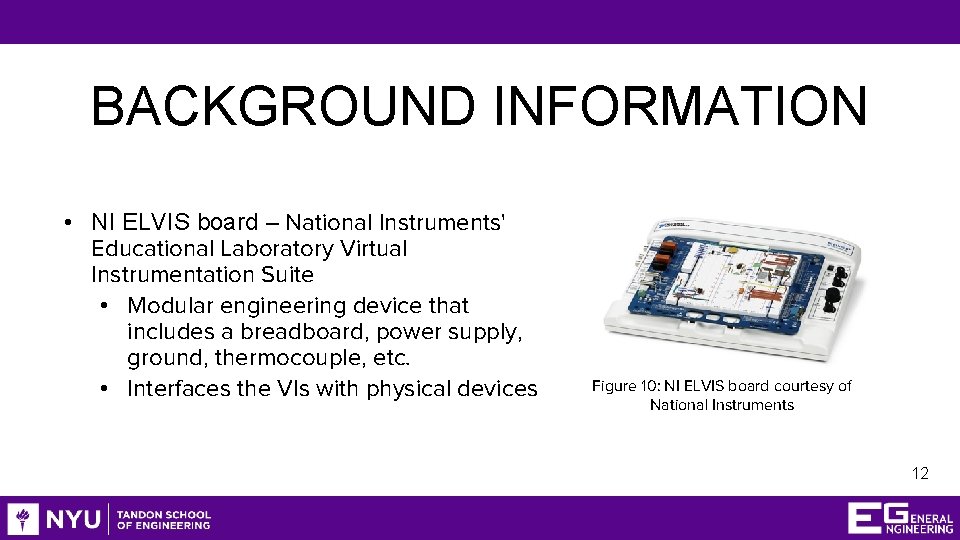
BACKGROUND INFORMATION • NI ELVIS board – National Instruments' Educational Laboratory Virtual Instrumentation Suite • Modular engineering device that includes a breadboard, power supply, ground, thermocouple, etc. • Interfaces the VIs with physical devices Figure 10: NI ELVIS board courtesy of National Instruments 12
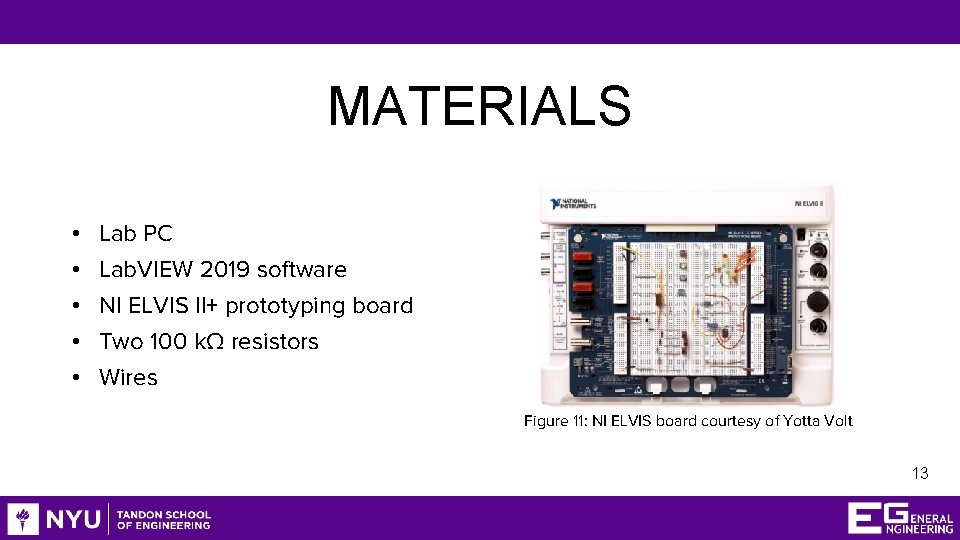
MATERIALS • • • Lab PC Lab. VIEW 2019 software NI ELVIS II+ prototyping board Two 100 kΩ resistors Wires Figure 11: NI ELVIS board courtesy of Yotta Volt 13
PROCEDURE • System 1: Heating and Cooling System • Must be able to be controlled manually or automatically • In manual mode: • The heater and AC can be turned on/off by the user • In automatic mode: • The AC turns on when the temperature is above 80˚F • The heater turns on when the temperature is below 60˚F • Both are turned off when the temperature is between 60 -80˚F 14
PROCEDURE • System 1: Heating and Cooling System • Steps to create the VI are explicitly laid out in the manual • Next, the system will be wired and interfaced with a heat cube: • A physical device that houses a heater, fan, and thermocouple • Download and import the pre-written sub-VIs into Lab. VIEW • Edit the heating and cooling system VI with the sub-VIs • Wire the system on the NI ELVIS board • Test to observe if the heat cube can be controlled with the VI 15
PROCEDURE • System 2: Lighting System • Control the lights in four rooms • Turn off all the lights with a master switch (similar to a circuit breaker) • Wired and interfaced with the NI ELVIS board: • Utilize the NI ELVISmx Digital Writer function in Lab. VIEW • Control the LEDs on the NI ELVIS board with the VI 16
ASSIGNMENT • Submit a ZIP file of both VIs (in VI file format) to the EG 1003 website by 11: 59 PM the night before your next lab • Team lab report: • Answer discussion questions in manual • Include screenshots of the Lab. VIEW Vis • Only include the lighting system in the Procedure section of the report • Due at 11: 59 PM the night before Lab 11 • No team presentation 17
CLOSING • Take screenshots of the VIs • Save and send the VIs to you and your teammates • Take turns using the software • Submit all work electronically • Clean up workstations • Return all unused materials to the TA 18

QUESTIONS?
- Slides: 20