
Introduction to Lab VIEW Electrical Wiring Music Instrument
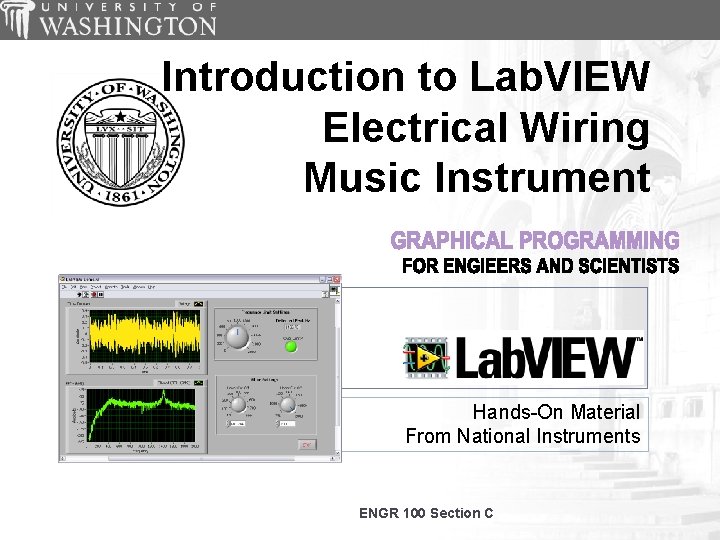
Introduction to Lab. VIEW Electrical Wiring Music Instrument Hands-On Material From National Instruments ENGR 100 Section C
Course Goals Become comfortable with the Lab. VIEW environment and data flow execution Ability to use Lab. VIEW to integrate HW/SW and create your personal music instrument. Lab. VIEW Concepts Find and use math and complex analysis functions Work with data types, such as Boolean, integer, and Displaying ENGR 100 Section C
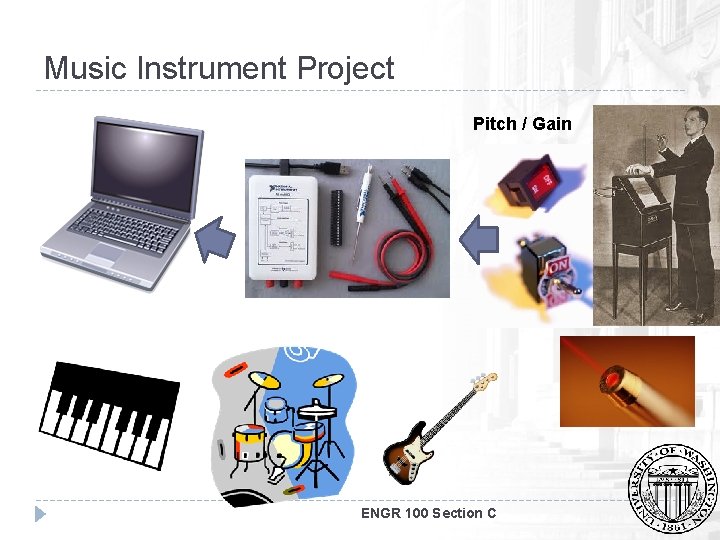
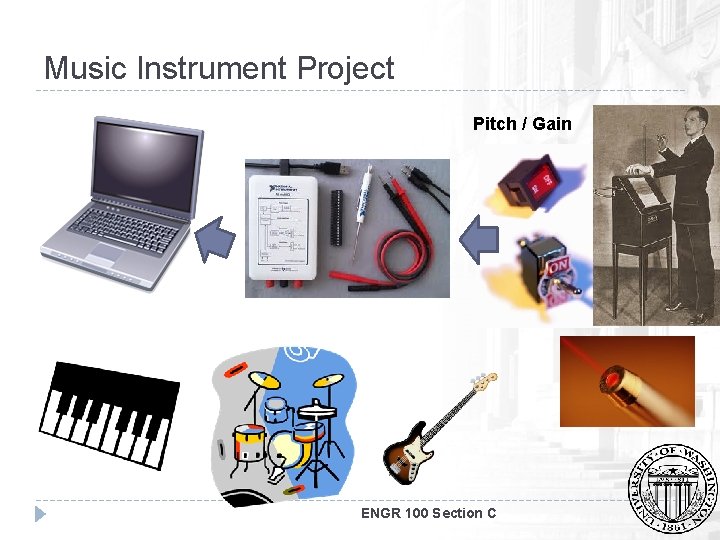
Music Instrument Project Pitch / Gain ENGR 100 Section C
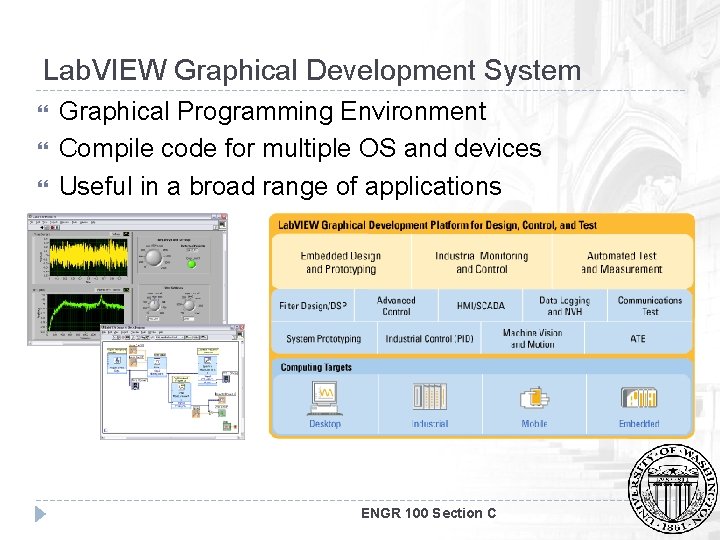
Lab. VIEW Graphical Development System Graphical Programming Environment Compile code for multiple OS and devices Useful in a broad range of applications ENGR 100 Section C

The NI Approach – Integrated Hardware Platforms PXI Modular Instrumentation High-Speed. High-Resolution Multifunction Dynamic Instrument Data Acquisition Signal Acquisition Control Digitizers and DMMs Laptop PC Desktop PC Digital I/O Counter/ Timers Machine Vision Motion Control Signal Conditioning and Switching Unit Under Test ENGR 100 Section C Distributed I/O and Embedded Control PDA
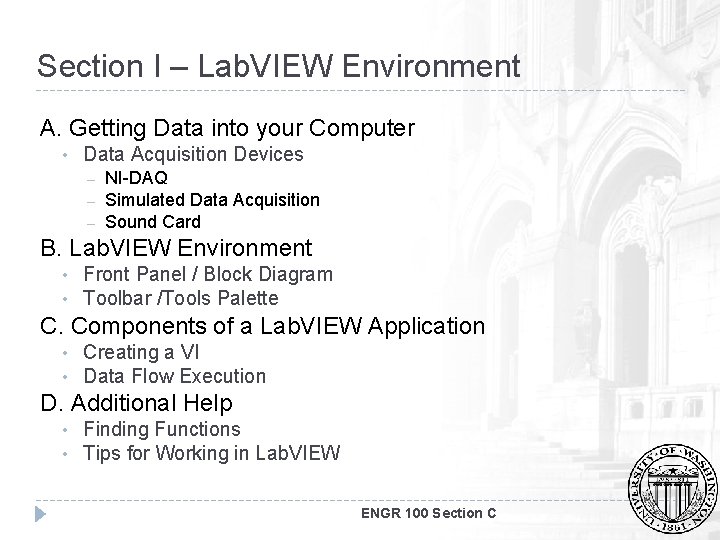
Section I – Lab. VIEW Environment A. Getting Data into your Computer • Data Acquisition Devices – – – NI-DAQ Simulated Data Acquisition Sound Card B. Lab. VIEW Environment • • Front Panel / Block Diagram Toolbar /Tools Palette C. Components of a Lab. VIEW Application • • Creating a VI Data Flow Execution D. Additional Help • • Finding Functions Tips for Working in Lab. VIEW ENGR 100 Section C
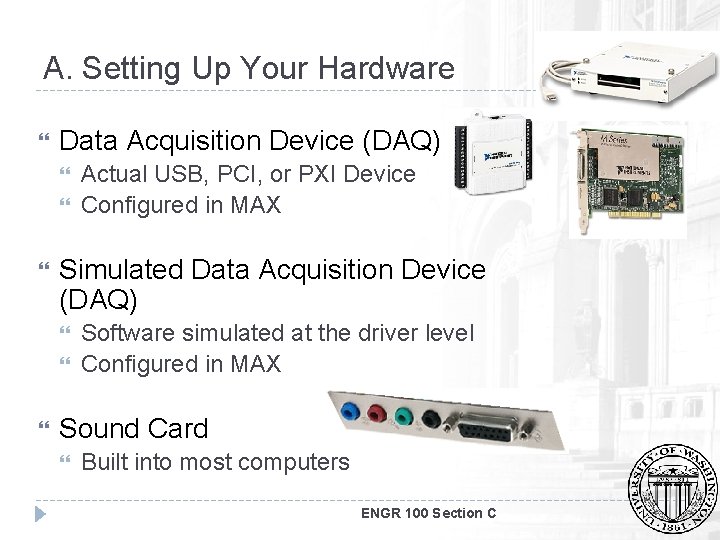
A. Setting Up Your Hardware Data Acquisition Device (DAQ) Simulated Data Acquisition Device (DAQ) Actual USB, PCI, or PXI Device Configured in MAX Software simulated at the driver level Configured in MAX Sound Card Built into most computers ENGR 100 Section C
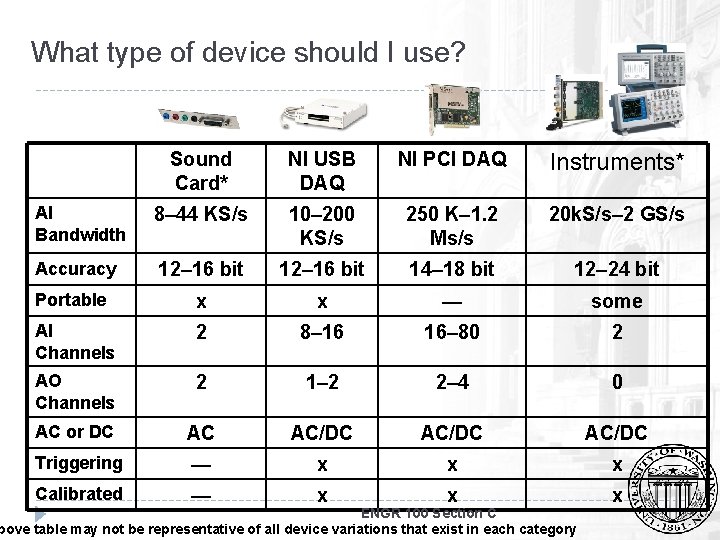
What type of device should I use? Sound Card* NI USB DAQ NI PCI DAQ Instruments* AI Bandwidth 8– 44 KS/s 10– 200 KS/s 250 K– 1. 2 Ms/s 20 k. S/s– 2 GS/s Accuracy 12– 16 bit 14– 18 bit 12– 24 bit Portable x x — some AI Channels 2 8– 16 16– 80 2 AO Channels 2 1– 2 2– 4 0 AC or DC AC AC/DC Triggering — x x x Calibrated — x x x ENGR 100 Section C bove table may not be representative of all device variations that exist in each category
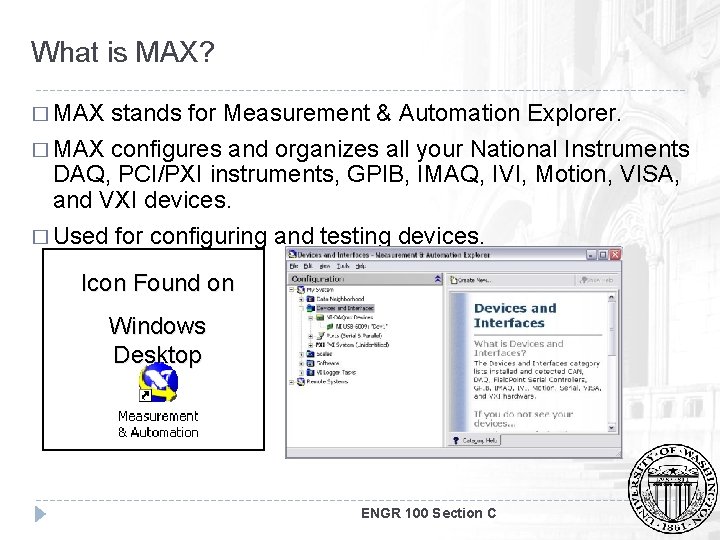
What is MAX? � MAX stands for Measurement & Automation Explorer. � MAX configures and organizes all your National Instruments DAQ, PCI/PXI instruments, GPIB, IMAQ, IVI, Motion, VISA, and VXI devices. � Used for configuring and testing devices. Icon Found on Windows Desktop ENGR 100 Section C
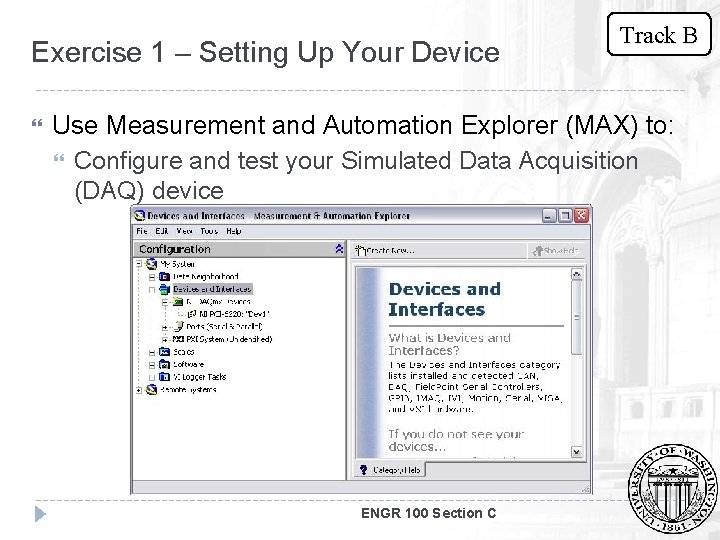
Exercise 1 – Setting Up Your Device Track B Use Measurement and Automation Explorer (MAX) to: Configure and test your Simulated Data Acquisition (DAQ) device ENGR 100 Section C
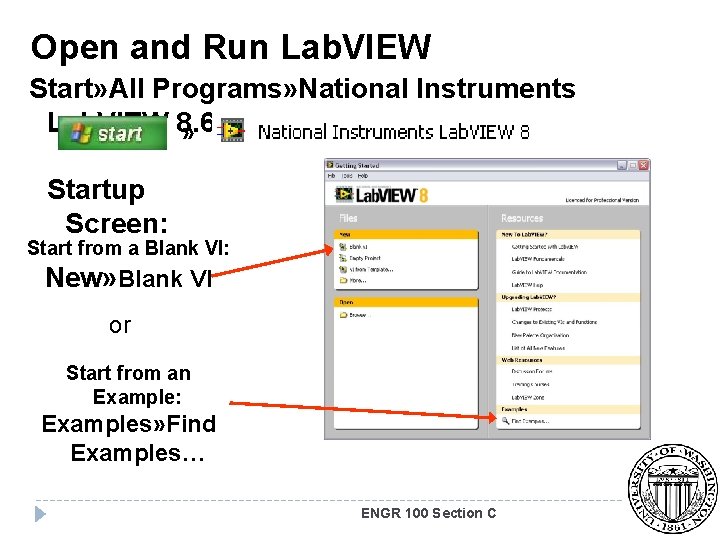
Open and Run Lab. VIEW Start» All Programs» National Instruments Lab. VIEW 8. 6 » Startup Screen: Start from a Blank VI: New» Blank VI or Start from an Example: Examples» Find Examples… ENGR 100 Section C
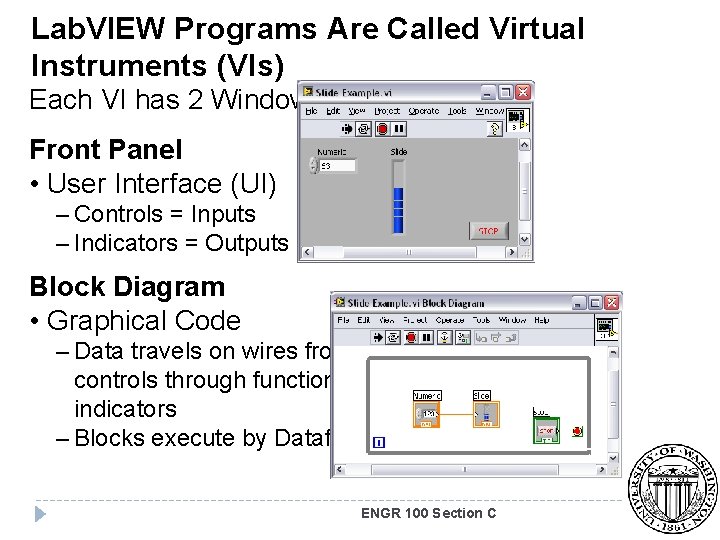
Lab. VIEW Programs Are Called Virtual Instruments (VIs) Each VI has 2 Windows Front Panel • User Interface (UI) – Controls = Inputs – Indicators = Outputs Block Diagram • Graphical Code – Data travels on wires from controls through functions to indicators – Blocks execute by Dataflow ENGR 100 Section C
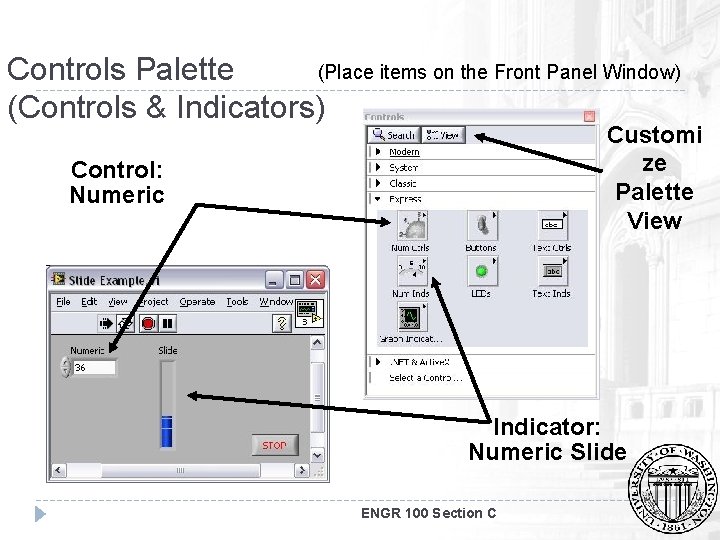
(Place items on the Front Panel Window) Controls Palette (Controls & Indicators) Customi ze Palette View Control: Numeric Indicator: Numeric Slide ENGR 100 Section C
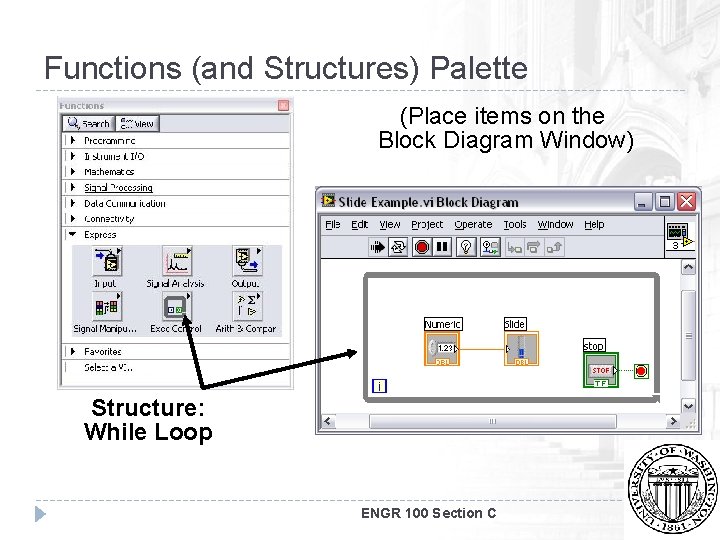
Functions (and Structures) Palette (Place items on the Block Diagram Window) Structure: While Loop ENGR 100 Section C
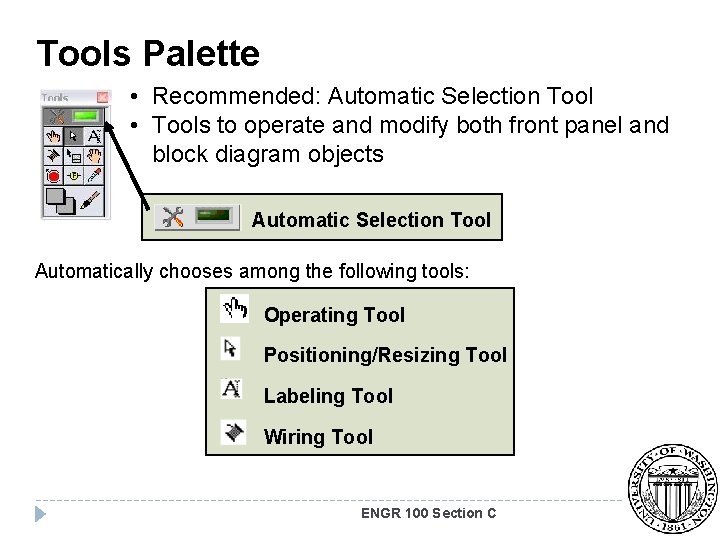
Tools Palette • Recommended: Automatic Selection Tool • Tools to operate and modify both front panel and block diagram objects Automatic Selection Tool Automatically chooses among the following tools: Operating Tool Positioning/Resizing Tool Labeling Tool Wiring Tool ENGR 100 Section C
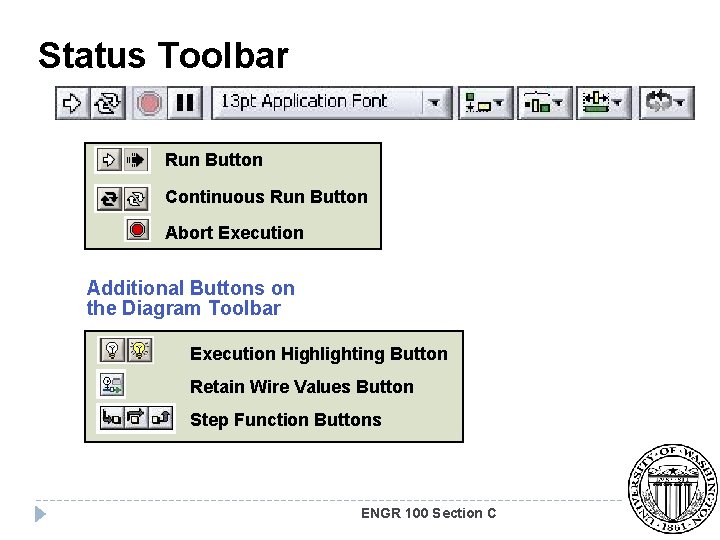
Status Toolbar Run Button Continuous Run Button Abort Execution Additional Buttons on the Diagram Toolbar Execution Highlighting Button Retain Wire Values Button Step Function Buttons ENGR 100 Section C
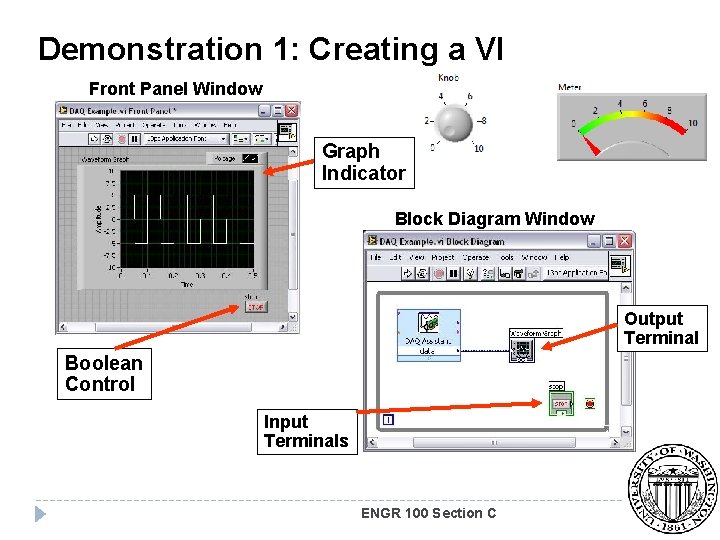
Demonstration 1: Creating a VI Front Panel Window Graph Indicator Block Diagram Window Output Terminal Boolean Control Input Terminals ENGR 100 Section C
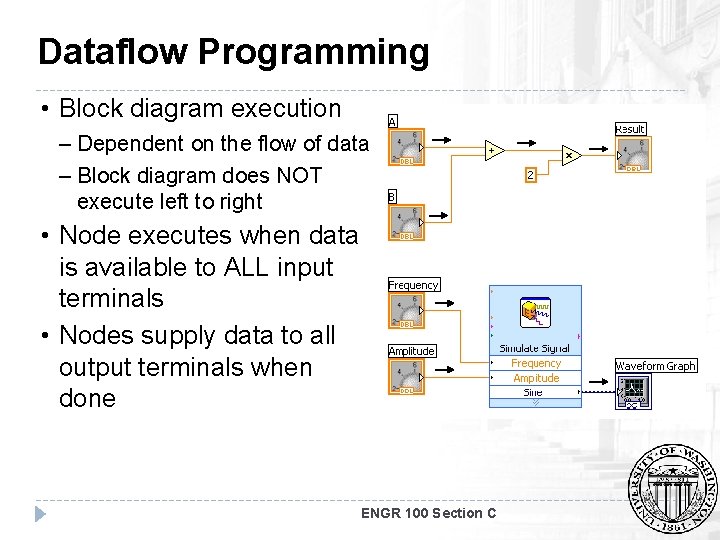
Dataflow Programming • Block diagram execution – Dependent on the flow of data – Block diagram does NOT execute left to right • Node executes when data is available to ALL input terminals • Nodes supply data to all output terminals when done ENGR 100 Section C
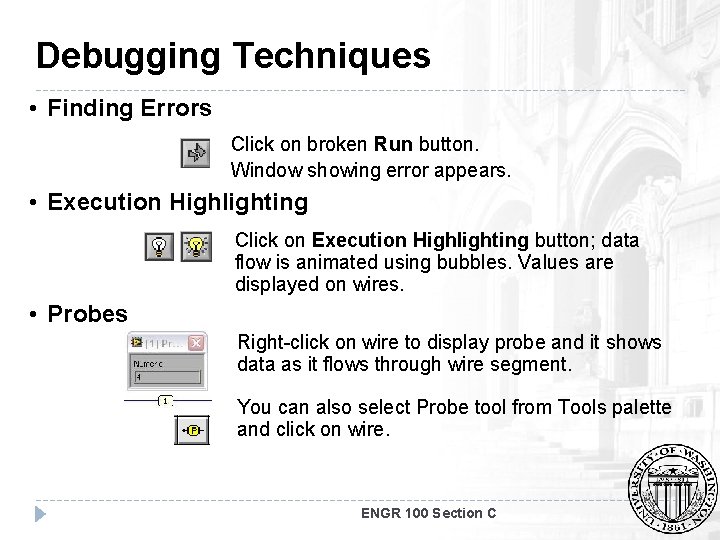
Debugging Techniques • Finding Errors Click on broken Run button. Window showing error appears. • Execution Highlighting Click on Execution Highlighting button; data flow is animated using bubbles. Values are displayed on wires. • Probes Right-click on wire to display probe and it shows data as it flows through wire segment. You can also select Probe tool from Tools palette and click on wire. ENGR 100 Section C
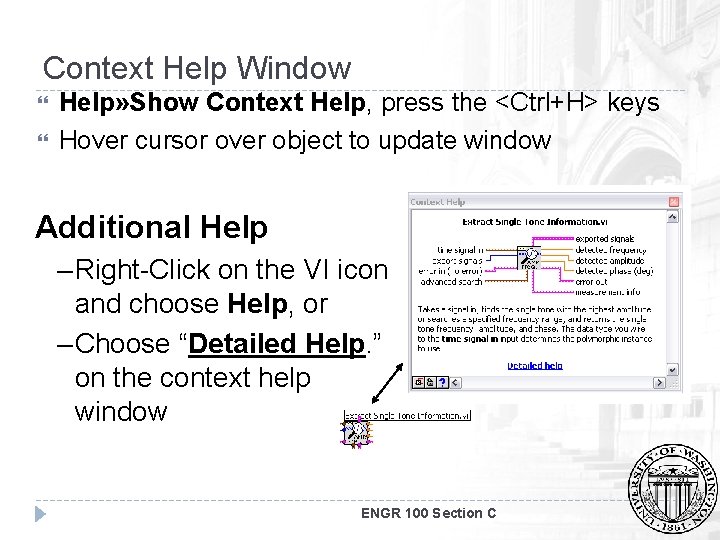
Context Help Window Help» Show Context Help, press the <Ctrl+H> keys Hover cursor over object to update window Additional Help – Right-Click on the VI icon and choose Help, or – Choose “Detailed Help. ” on the context help window ENGR 100 Section C
Tips for Working in Lab. VIEW Keystroke Shortcuts <Ctrl+H> – Activate/Deactivate Context Help Window <Ctrl+B> – Remove Broken Wires From Block Diagram <Ctrl+E> – Toggle Between Front Panel and Block Diagram <Ctrl+Z> – Undo (Also in Edit Menu) Tools» Options… – Set Preferences in Lab. VIEW VI Properties–Configure VI Appearance, Documentation, etc. ENGR 100 Section C
Section II – Elements of Typical Programs A. Loops • • While Loop For Loop B. Functions and Sub. VIs • • • Types of Functions Creating Custom Functions (Sub. VI) Functions Palette & Searching C. Decision Making and File IO • • • Case Structure Select (simple If statement) File I/O ENGR 100 Section C
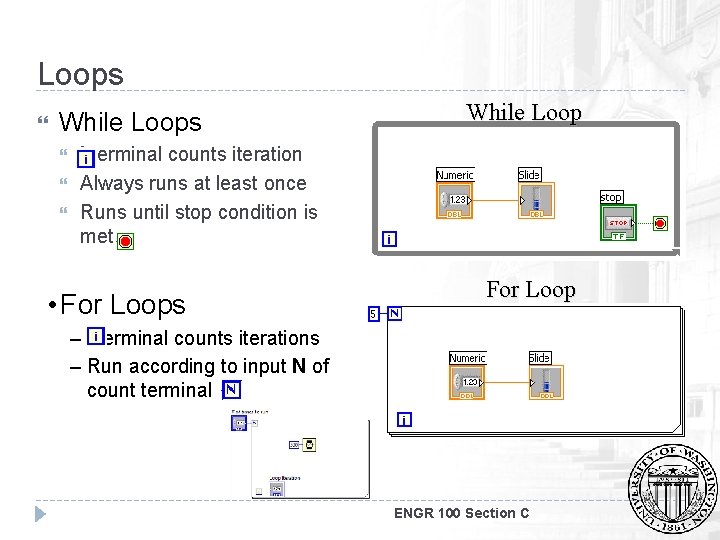
Loops While Loop i terminal counts iteration Always runs at least once Runs until stop condition is met • For Loops For Loop – i terminal counts iterations – Run according to input N of count terminal ENGR 100 Section C
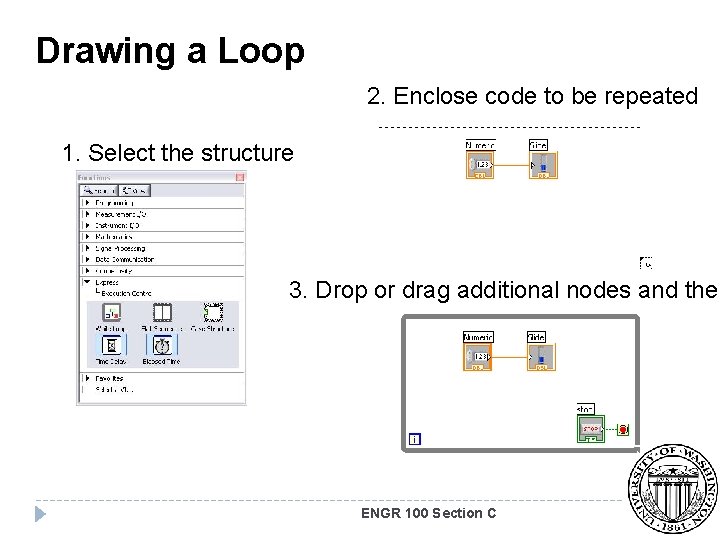
Drawing a Loop 2. Enclose code to be repeated 1. Select the structure 3. Drop or drag additional nodes and then ENGR 100 Section C
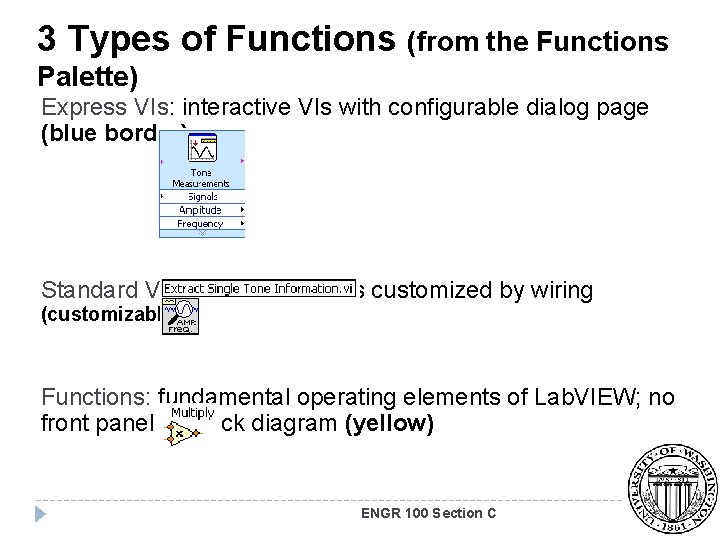
3 Types of Functions (from the Functions Palette) Express VIs: interactive VIs with configurable dialog page (blue border) Standard VIs: modularized VIs customized by wiring (customizable) Functions: fundamental operating elements of Lab. VIEW; no front panel or block diagram (yellow) ENGR 100 Section C
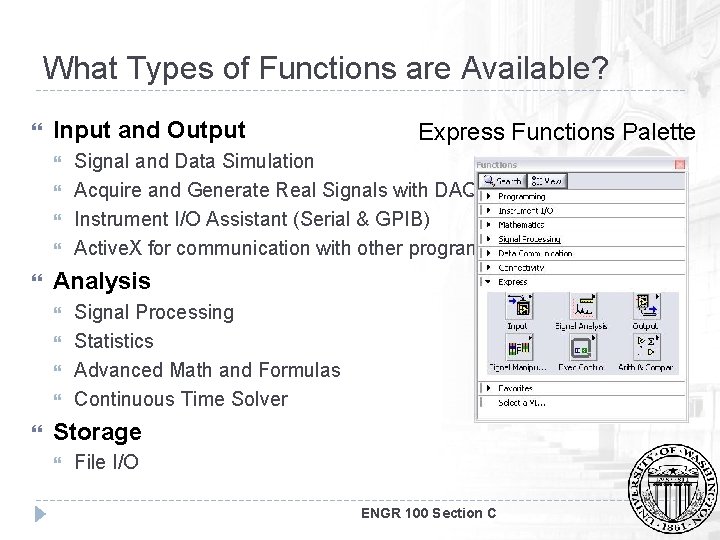
What Types of Functions are Available? Input and Output Signal and Data Simulation Acquire and Generate Real Signals with DAQ Instrument I/O Assistant (Serial & GPIB) Active. X for communication with other programs Analysis Express Functions Palette Signal Processing Statistics Advanced Math and Formulas Continuous Time Solver Storage File I/O ENGR 100 Section C
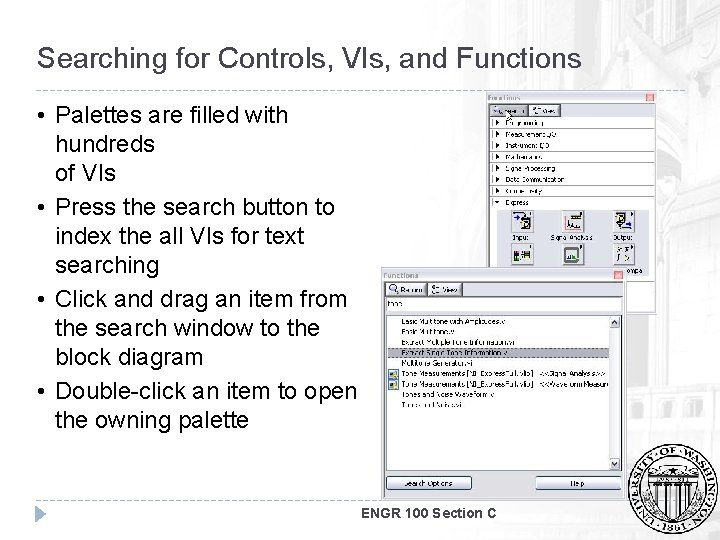
Searching for Controls, VIs, and Functions • Palettes are filled with hundreds of VIs • Press the search button to index the all VIs for text searching • Click and drag an item from the search window to the block diagram • Double-click an item to open the owning palette ENGR 100 Section C
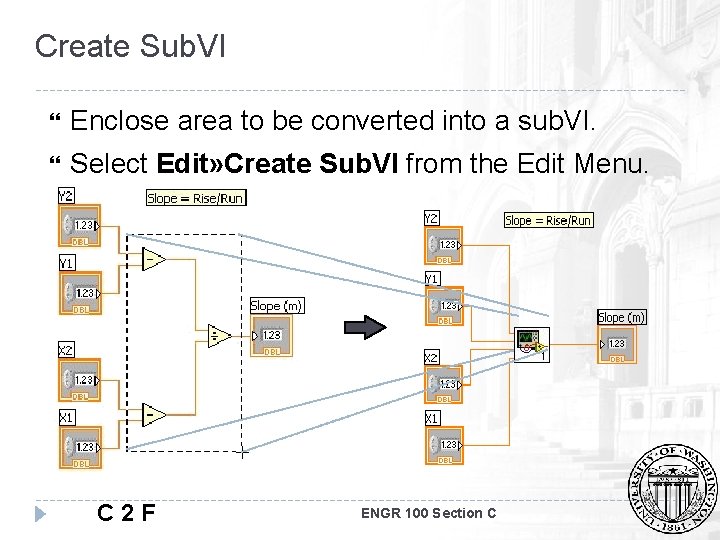
Create Sub. VI Enclose area to be converted into a sub. VI. Select Edit» Create Sub. VI from the Edit Menu. C 2 F ENGR 100 Section C
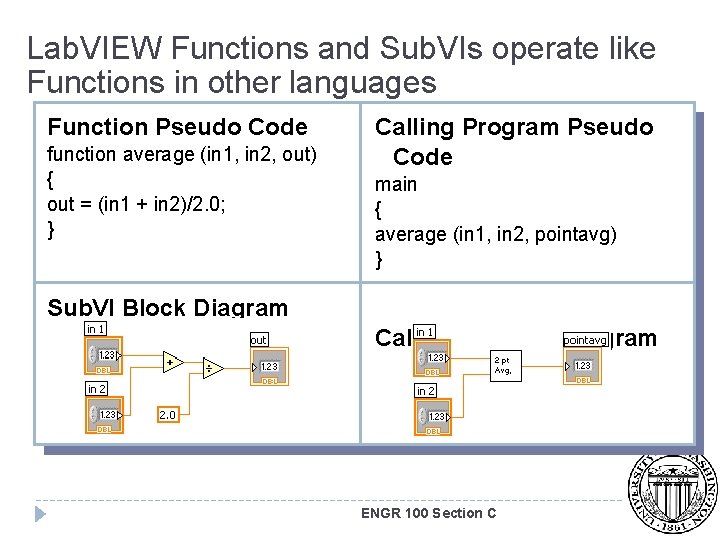
Lab. VIEW Functions and Sub. VIs operate like Functions in other languages Function Pseudo Code function average (in 1, in 2, out) { out = (in 1 + in 2)/2. 0; } Calling Program Pseudo Code main { average (in 1, in 2, pointavg) } Sub. VI Block Diagram Calling VI Block Diagram ENGR 100 Section C
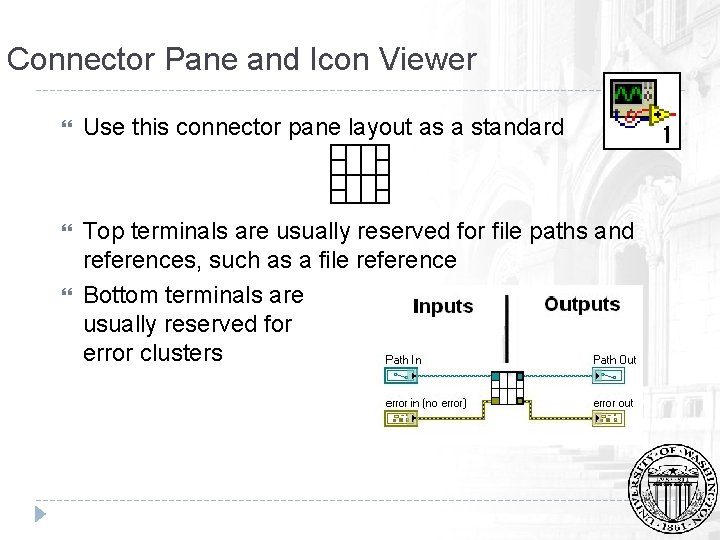
Connector Pane and Icon Viewer Use this connector pane layout as a standard Top terminals are usually reserved for file paths and references, such as a file reference Bottom terminals are usually reserved for error clusters
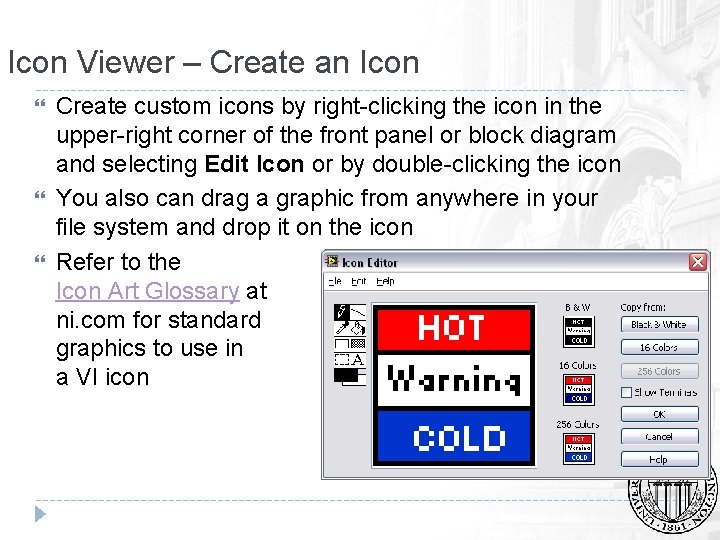
Icon Viewer – Create an Icon Create custom icons by right-clicking the icon in the upper-right corner of the front panel or block diagram and selecting Edit Icon or by double-clicking the icon You also can drag a graphic from anywhere in your file system and drop it on the icon Refer to the Icon Art Glossary at ni. com for standard graphics to use in a VI icon
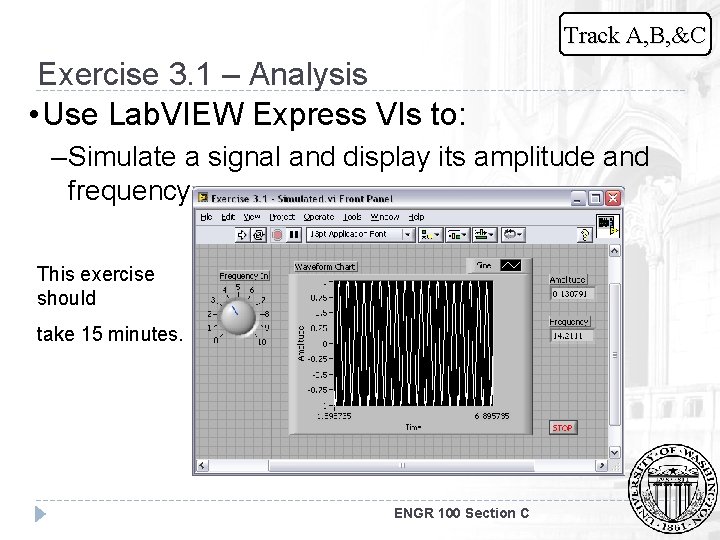
Track A, B, &C Exercise 3. 1 – Analysis • Use Lab. VIEW Express VIs to: – Simulate a signal and display its amplitude and frequency This exercise should take 15 minutes. ENGR 100 Section C
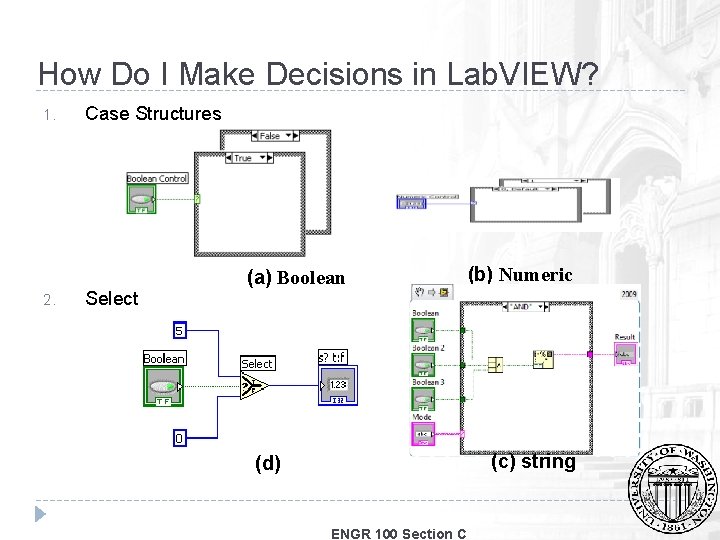
How Do I Make Decisions in Lab. VIEW? 1. 2. Case Structures Select (a) Boolean (b) Numeric (c) string (d) ENGR 100 Section C
Case structure Homework Practice Problem 1 Create the required VI(s) to achieve the following tasks. Requirements: 1. Create a basic calculator function with the ability to add, subtract, multiply, and divide two numbers and display the output 2. Allow the program to keep on running until a stop button is pressed. ENGR 100 Section C
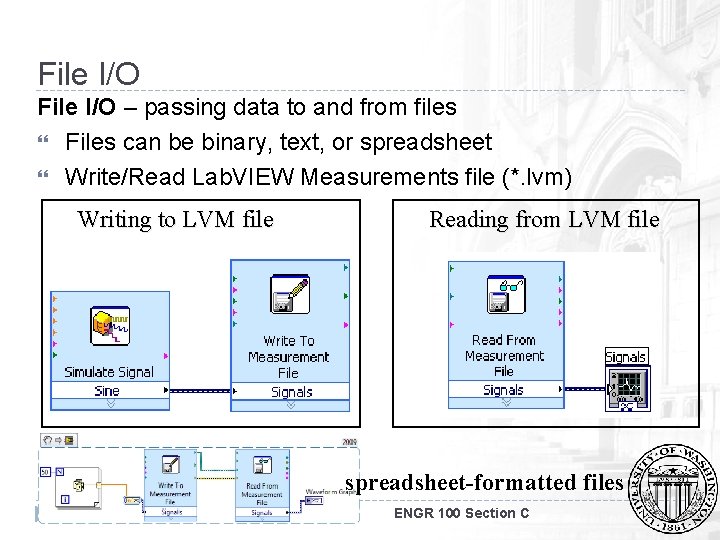
File I/O – passing data to and from files Files can be binary, text, or spreadsheet Write/Read Lab. VIEW Measurements file (*. lvm) Writing to LVM file Reading from LVM file spreadsheet-formatted files ENGR 100 Section C
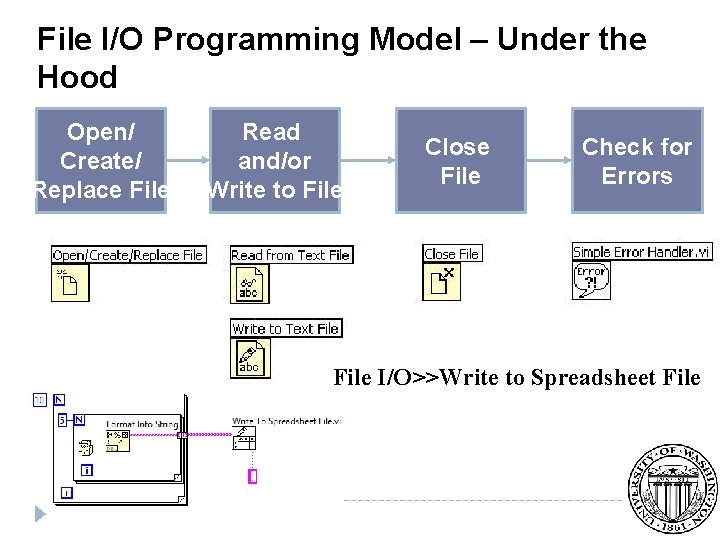
File I/O Programming Model – Under the Hood Open/ Create/ Replace File Read and/or Write to File Close File Check for Errors File I/O>>Write to Spreadsheet File
Section III – Presenting your Results A. Displaying Data on the Front Panel • • • Controls and Indicators Graphs and Charts Loop Timing B. Signal Processing • • Math. Script Arrays Clusters Waveforms ENGR 100 Section C
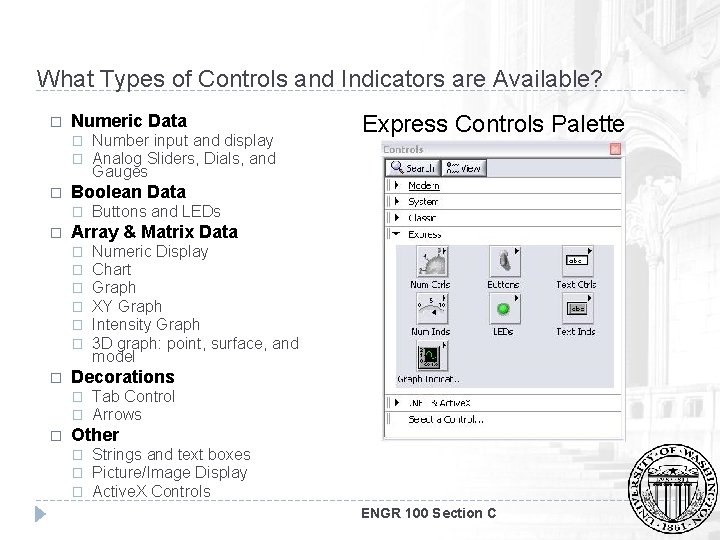
What Types of Controls and Indicators are Available? � Numeric Data � � � Boolean Data � � Numeric Display Chart Graph XY Graph Intensity Graph 3 D graph: point, surface, and model Decorations � � � Buttons and LEDs Array & Matrix Data � � � � Number input and display Analog Sliders, Dials, and Gauges Express Controls Palette Tab Control Arrows Other � � � Strings and text boxes Picture/Image Display Active. X Controls ENGR 100 Section C
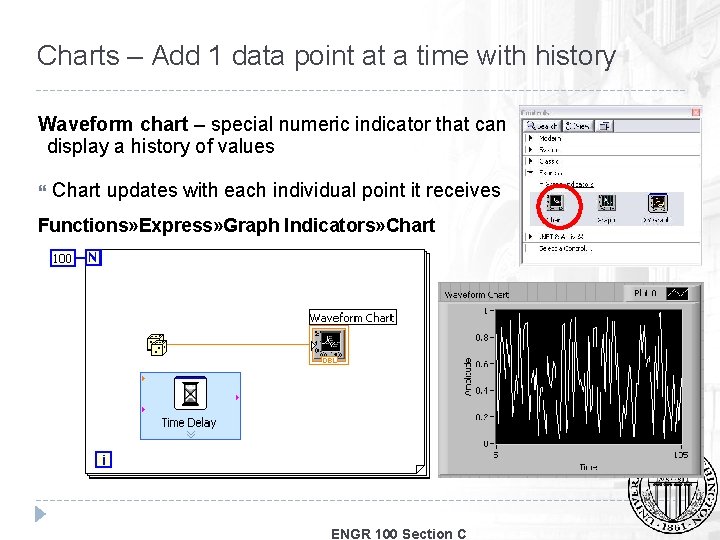
Charts – Add 1 data point at a time with history Waveform chart – special numeric indicator that can display a history of values Chart updates with each individual point it receives Functions» Express» Graph Indicators» Chart ENGR 100 Section C
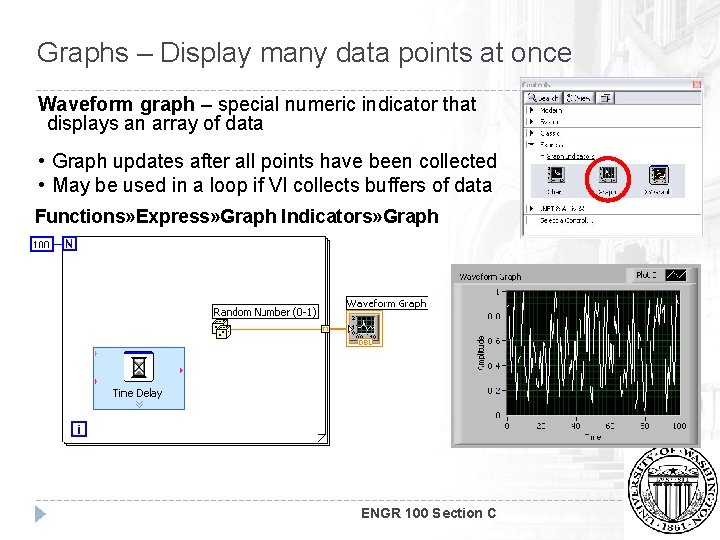
Graphs – Display many data points at once Waveform graph – special numeric indicator that displays an array of data • Graph updates after all points have been collected • May be used in a loop if VI collects buffers of data Functions» Express» Graph Indicators» Graph ENGR 100 Section C
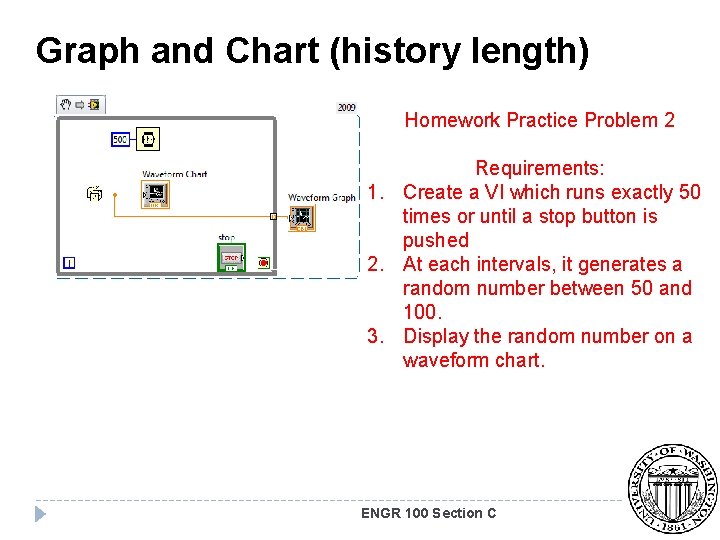
Graph and Chart (history length) Homework Practice Problem 2 Requirements: 1. Create a VI which runs exactly 50 times or until a stop button is pushed 2. At each intervals, it generates a random number between 50 and 100. 3. Display the random number on a waveform chart. ENGR 100 Section C
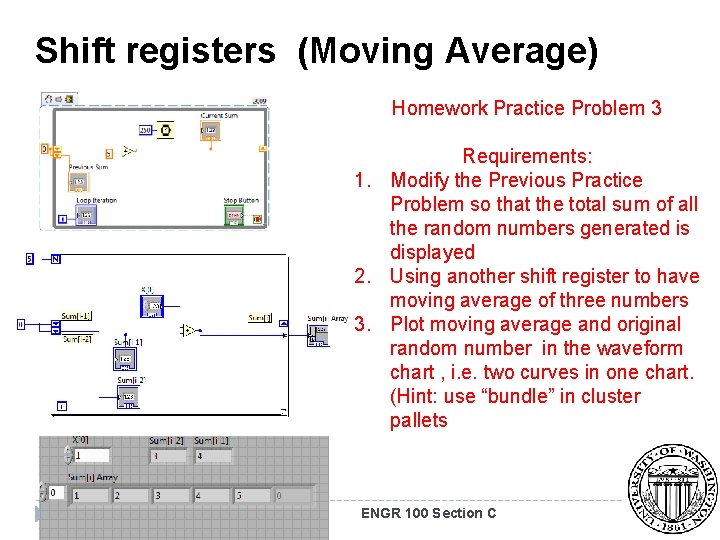
Shift registers (Moving Average) Homework Practice Problem 3 Requirements: 1. Modify the Previous Practice Problem so that the total sum of all the random numbers generated is displayed 2. Using another shift register to have moving average of three numbers 3. Plot moving average and original random number in the waveform chart , i. e. two curves in one chart. (Hint: use “bundle” in cluster pallets ENGR 100 Section C
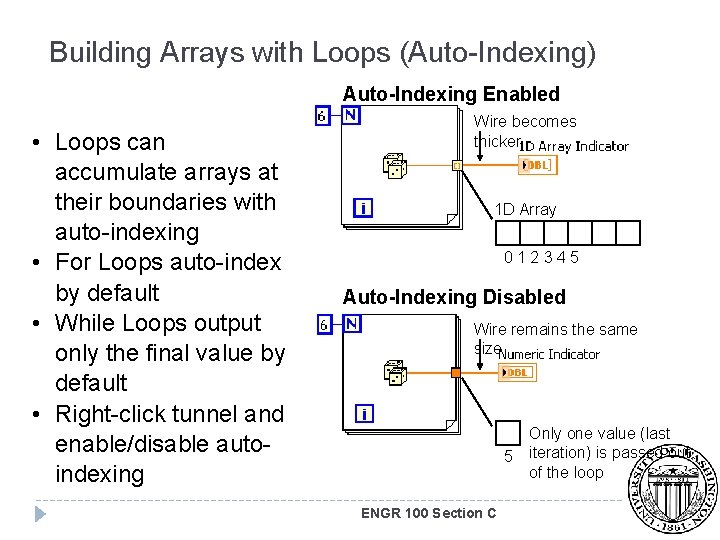
Building Arrays with Loops (Auto-Indexing) Auto-Indexing Enabled • Loops can accumulate arrays at their boundaries with auto-indexing • For Loops auto-index by default • While Loops output only the final value by default • Right-click tunnel and enable/disable autoindexing Wire becomes thicker 1 D Array 012345 Auto-Indexing Disabled Wire remains the same size 5 ENGR 100 Section C Only one value (last iteration) is passed out of the loop
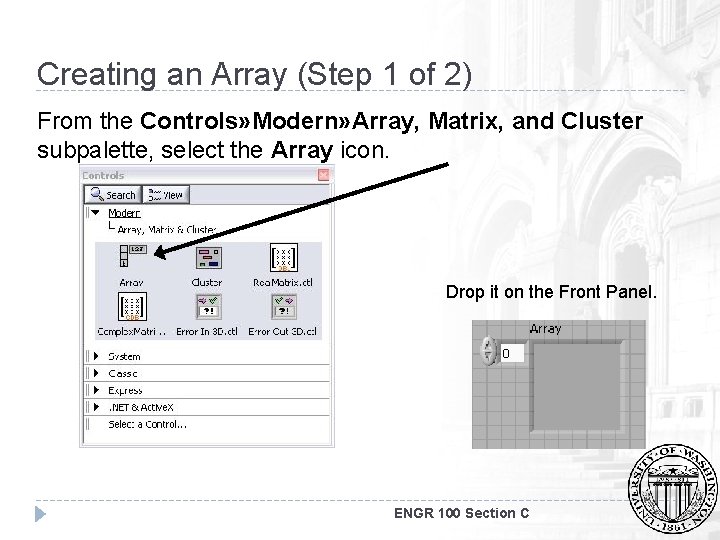
Creating an Array (Step 1 of 2) From the Controls» Modern» Array, Matrix, and Cluster subpalette, select the Array icon. Drop it on the Front Panel. ENGR 100 Section C
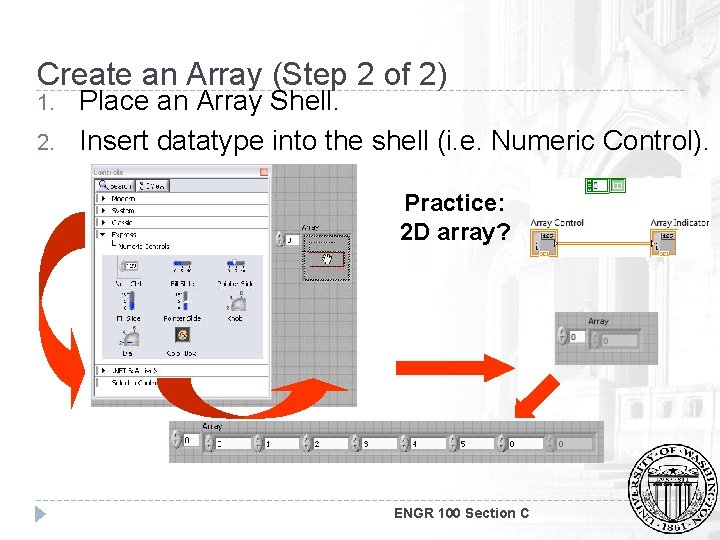
Create an Array (Step 2 of 2) 1. 2. Place an Array Shell. Insert datatype into the shell (i. e. Numeric Control). Practice: 2 D array? ENGR 100 Section C
Array Homework Practice Problem 4 Requirements: 1. Generate an array of 20 random numbers. 2. Find the maximum, minimum, and mean of the array using a shift register. 3. Modify the array by multiplying the fifth element by 5 ENGR 100 Section C
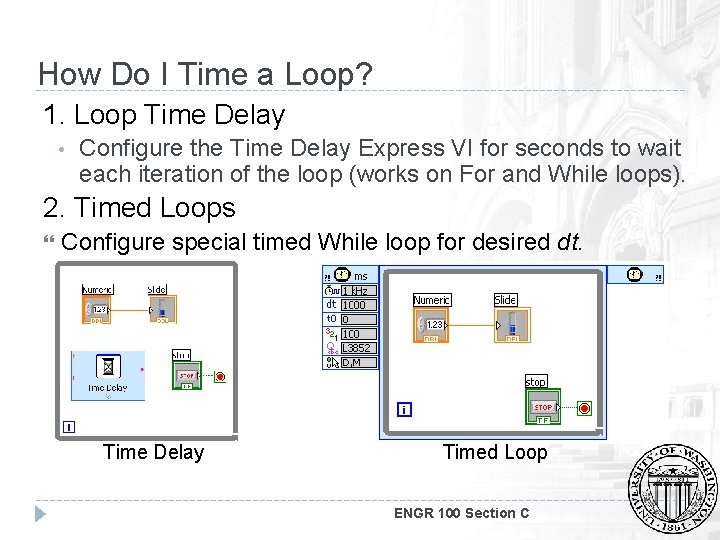
How Do I Time a Loop? 1. Loop Time Delay • Configure the Time Delay Express VI for seconds to wait each iteration of the loop (works on For and While loops). 2. Timed Loops Configure special timed While loop for desired dt. Time Delay Timed Loop ENGR 100 Section C
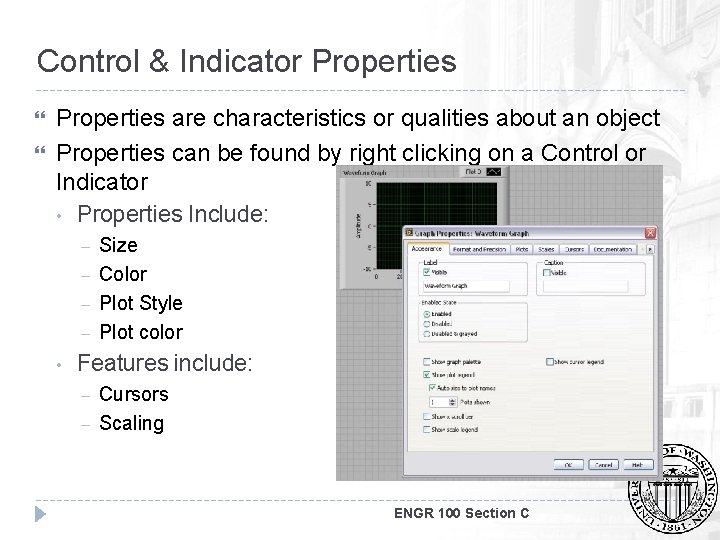
Control & Indicator Properties are characteristics or qualities about an object Properties can be found by right clicking on a Control or Indicator • Properties Include: – – • Size Color Plot Style Plot color Features include: – – Cursors Scaling ENGR 100 Section C
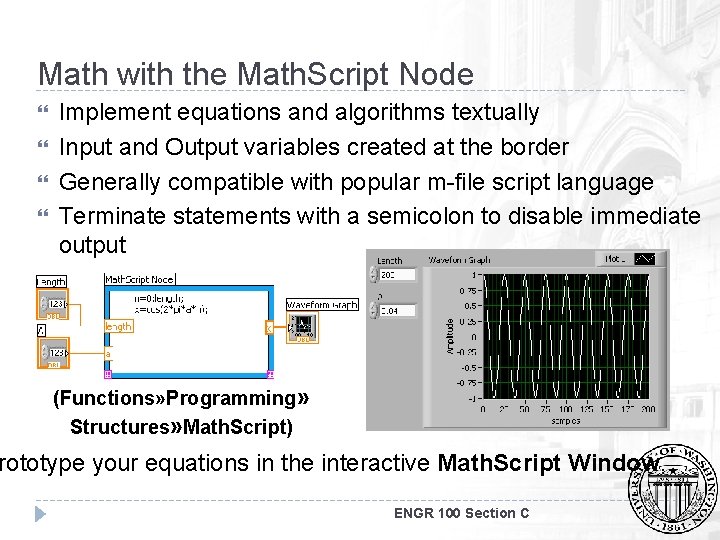
Math with the Math. Script Node Implement equations and algorithms textually Input and Output variables created at the border Generally compatible with popular m-file script language Terminate statements with a semicolon to disable immediate output (Functions» Programming» Structures» Math. Script) rototype your equations in the interactive Math. Script Window. ENGR 100 Section C
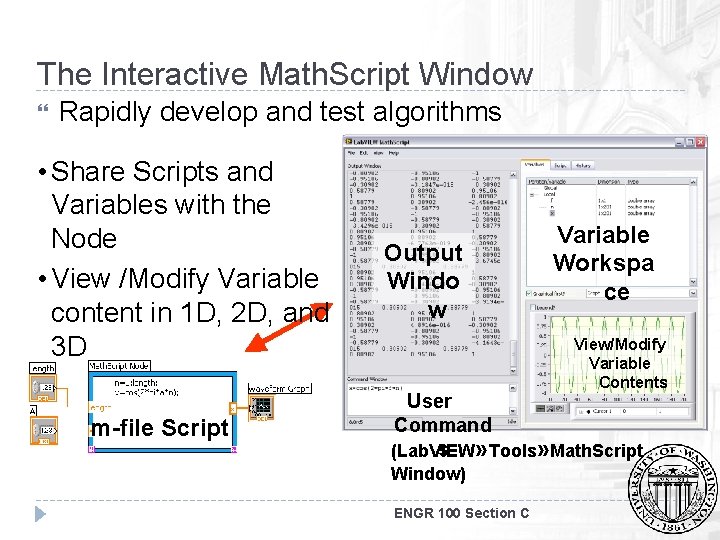
The Interactive Math. Script Window Rapidly develop and test algorithms • Share Scripts and Variables with the Node • View /Modify Variable content in 1 D, 2 D, and 3 D m-file Script Output Windo w Variable Workspa ce View/Modify Variable Contents User Command s » Tools» Math. Script (Lab. VIEW Window) ENGR 100 Section C
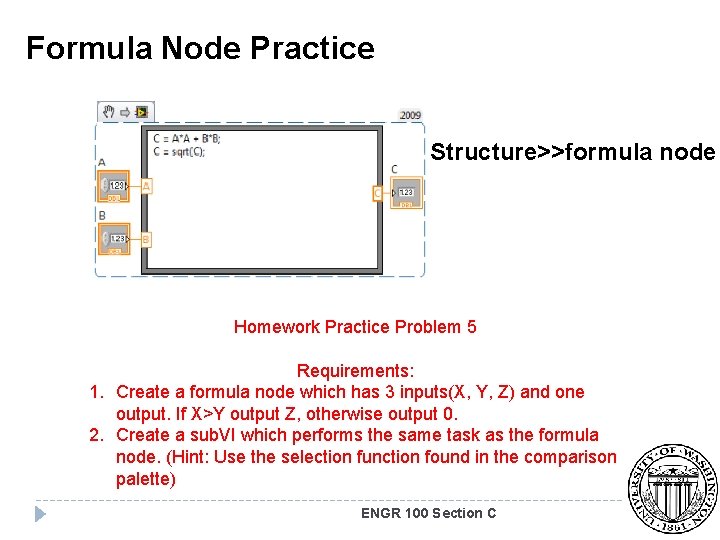
Formula Node Practice Structure>>formula node Homework Practice Problem 5 Requirements: 1. Create a formula node which has 3 inputs(X, Y, Z) and one output. If X>Y output Z, otherwise output 0. 2. Create a sub. VI which performs the same task as the formula node. (Hint: Use the selection function found in the comparison palette) ENGR 100 Section C
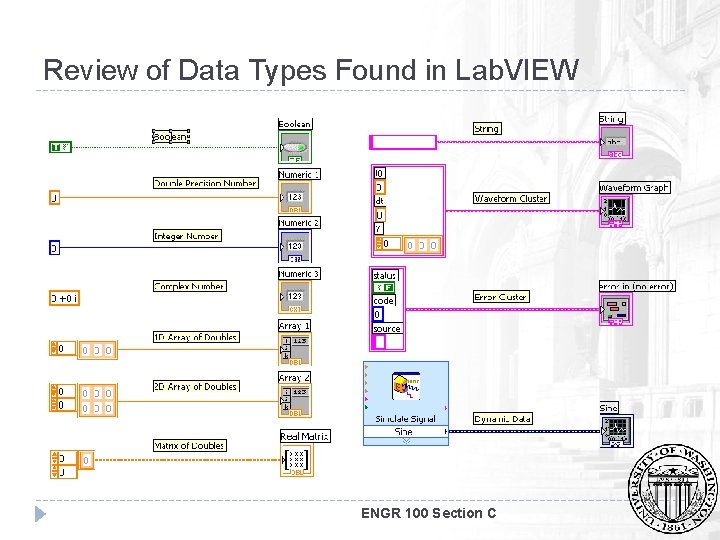
Review of Data Types Found in Lab. VIEW ENGR 100 Section C
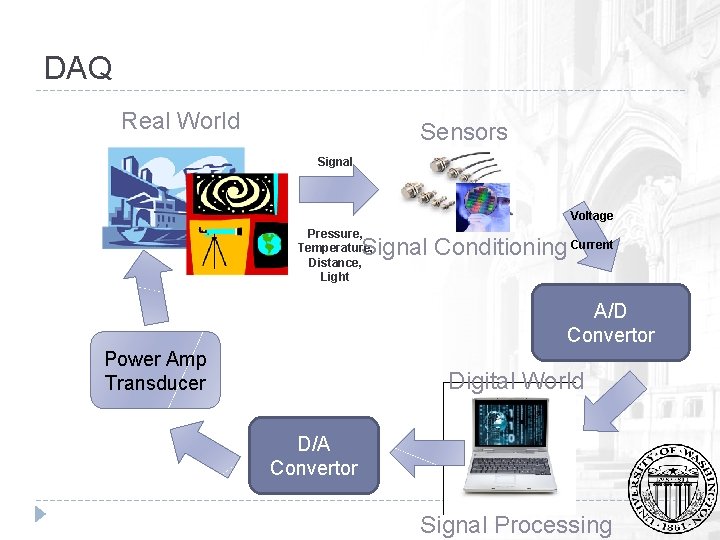
DAQ Real World Sensors Signal Voltage Pressure, Temperature, Distance, Light Signal Conditioning Current A/D Convertor Power Amp Transducer Digital World D/A Convertor Signal Processing
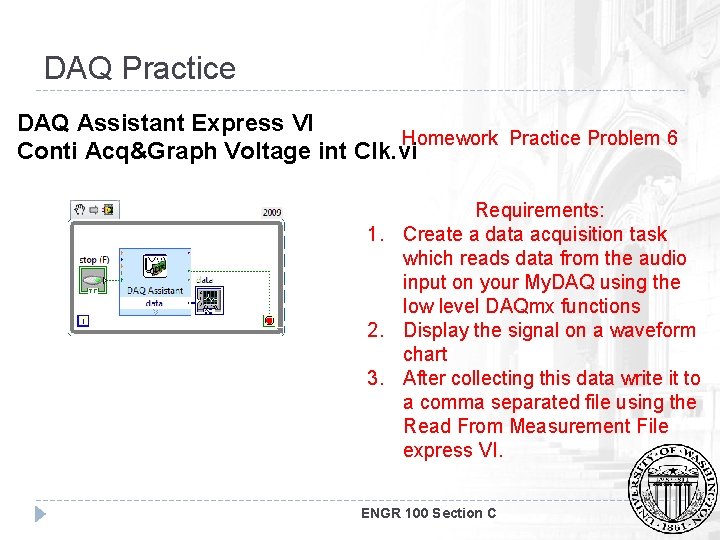
DAQ Practice DAQ Assistant Express VI Homework Practice Problem 6 Conti Acq&Graph Voltage int Clk. vi Requirements: 1. Create a data acquisition task which reads data from the audio input on your My. DAQ using the low level DAQmx functions 2. Display the signal on a waveform chart 3. After collecting this data write it to a comma separated file using the Read From Measurement File express VI. ENGR 100 Section C
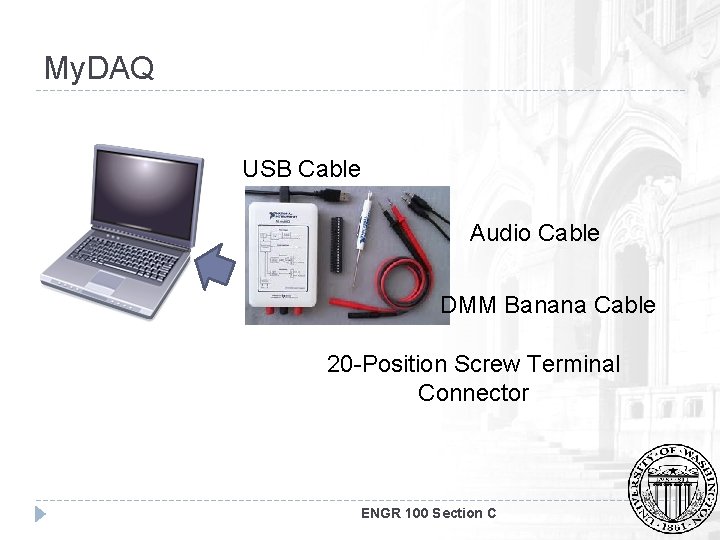
My. DAQ USB Cable Audio Cable DMM Banana Cable 20 -Position Screw Terminal Connector ENGR 100 Section C
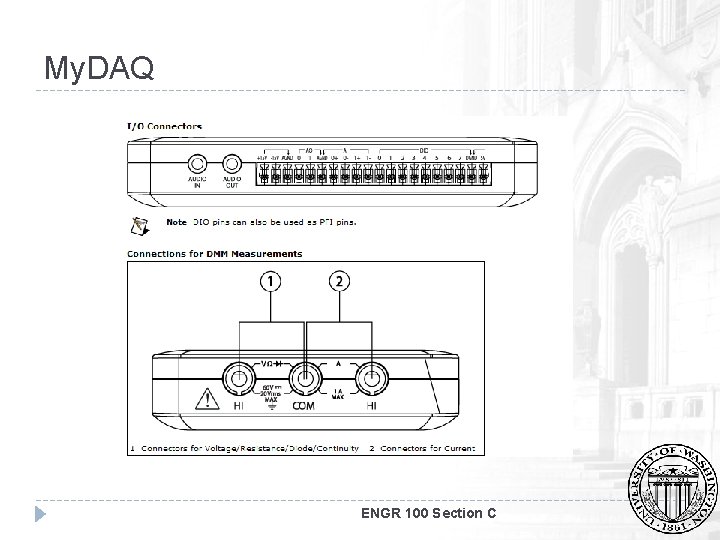
My. DAQ ENGR 100 Section C
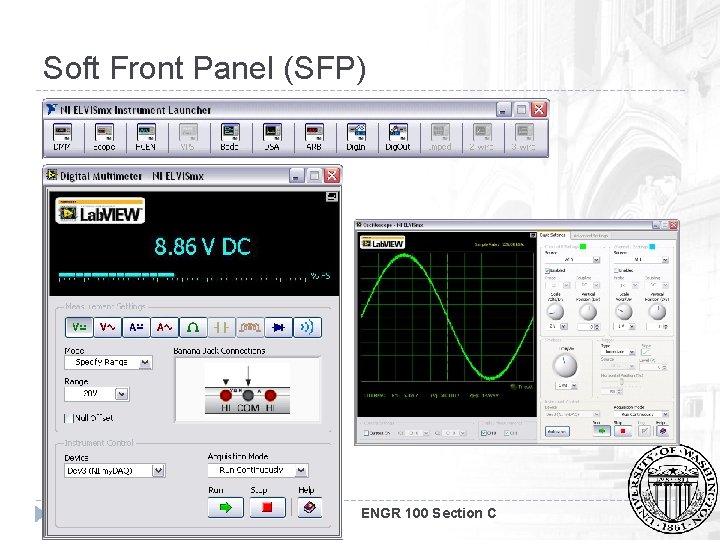
Soft Front Panel (SFP) ENGR 100 Section C
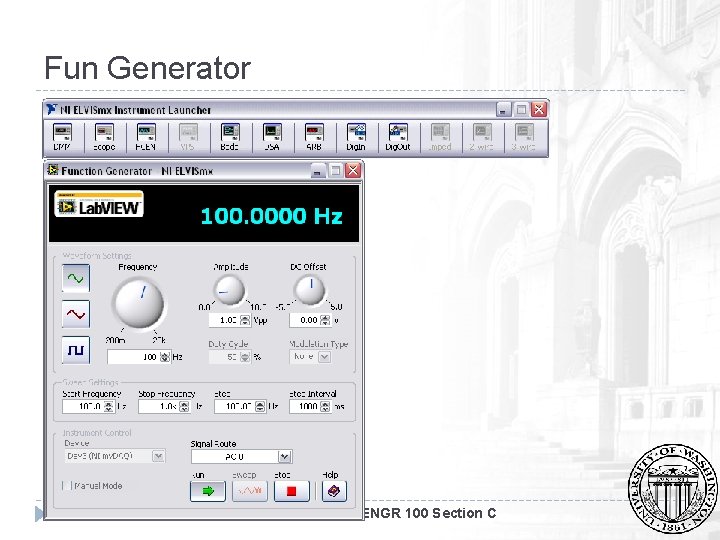
Fun Generator ENGR 100 Section C
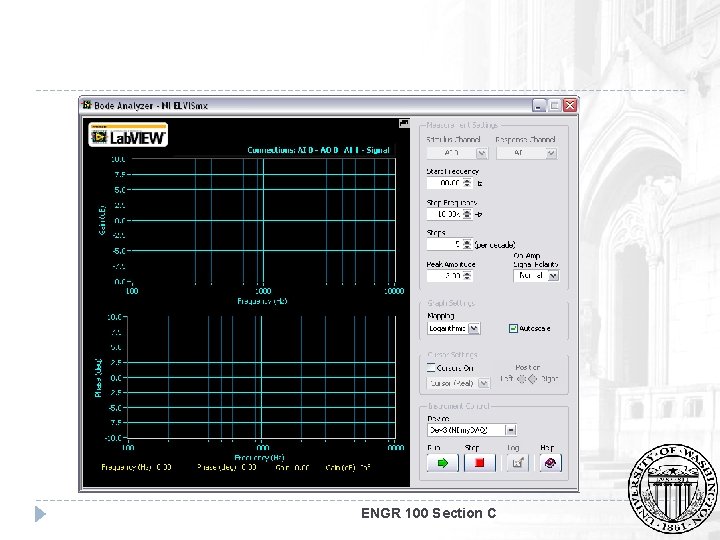
ENGR 100 Section C
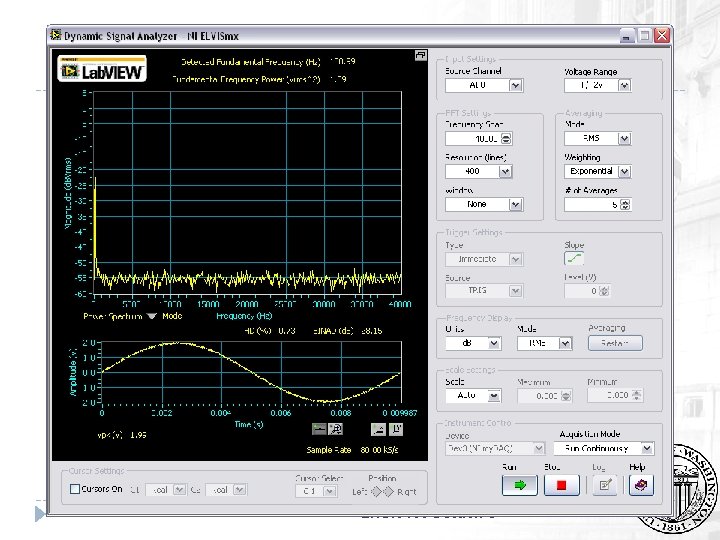
ENGR 100 Section C
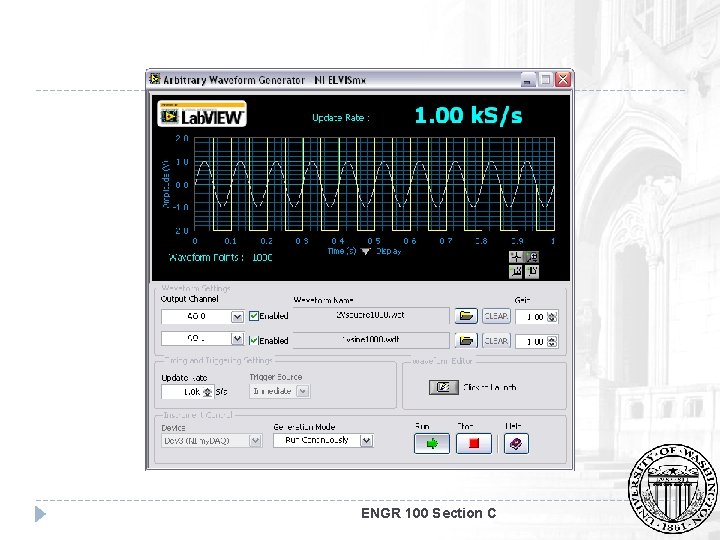
ENGR 100 Section C
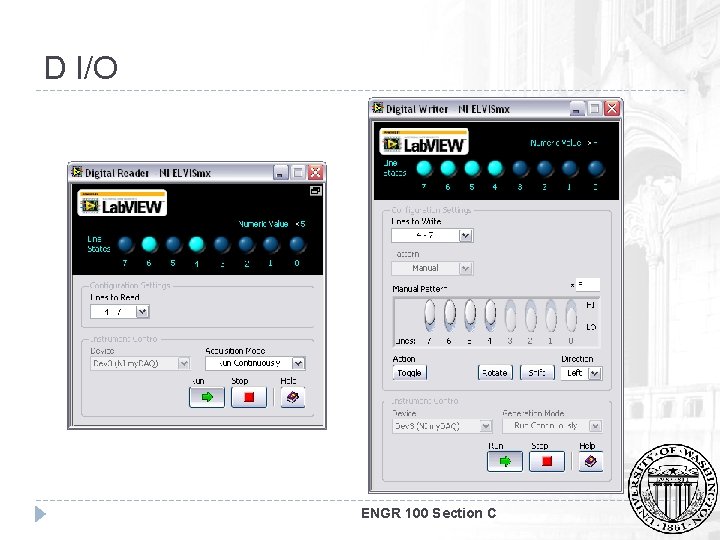
D I/O ENGR 100 Section C
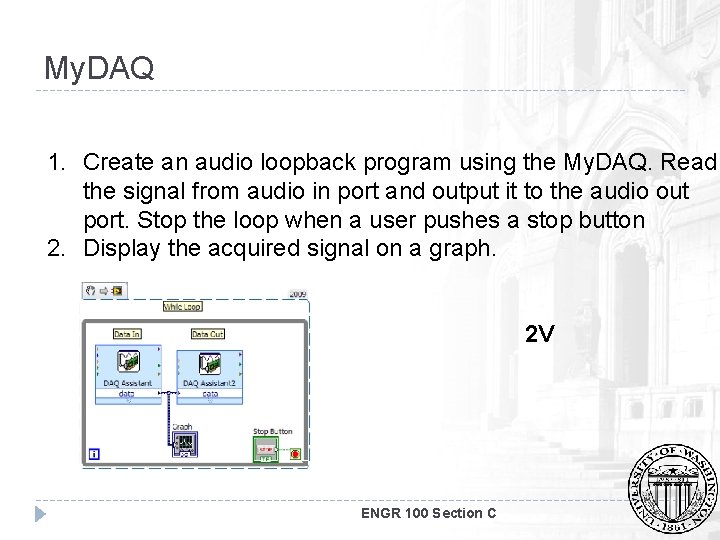
My. DAQ 1. Create an audio loopback program using the My. DAQ. Read the signal from audio in port and output it to the audio out port. Stop the loop when a user pushes a stop button 2. Display the acquired signal on a graph. 2 V ENGR 100 Section C
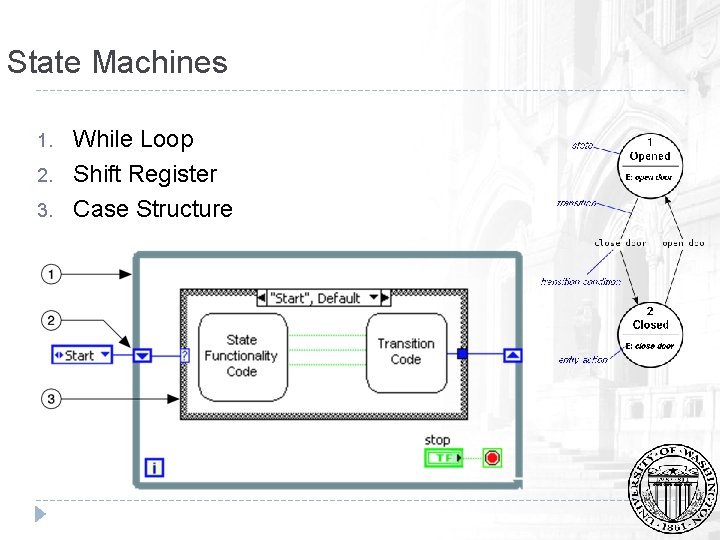
State Machines 1. 2. 3. While Loop Shift Register Case Structure
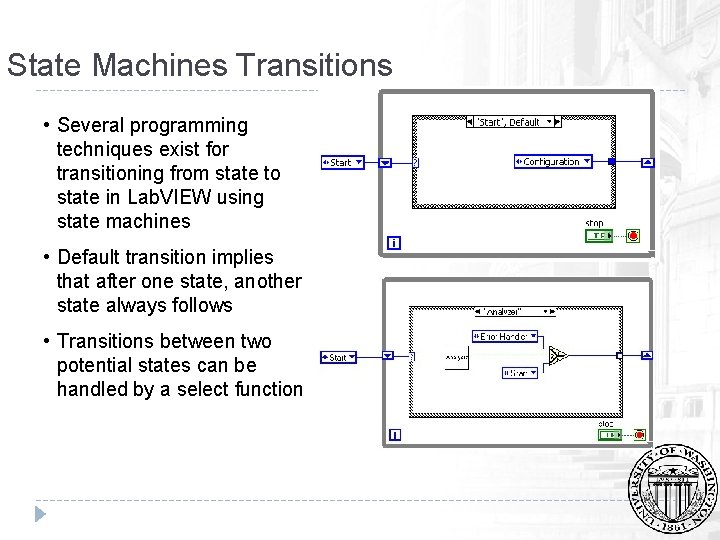
State Machines Transitions • Several programming techniques exist for transitioning from state to state in Lab. VIEW using state machines • Default transition implies that after one state, another state always follows • Transitions between two potential states can be handled by a select function
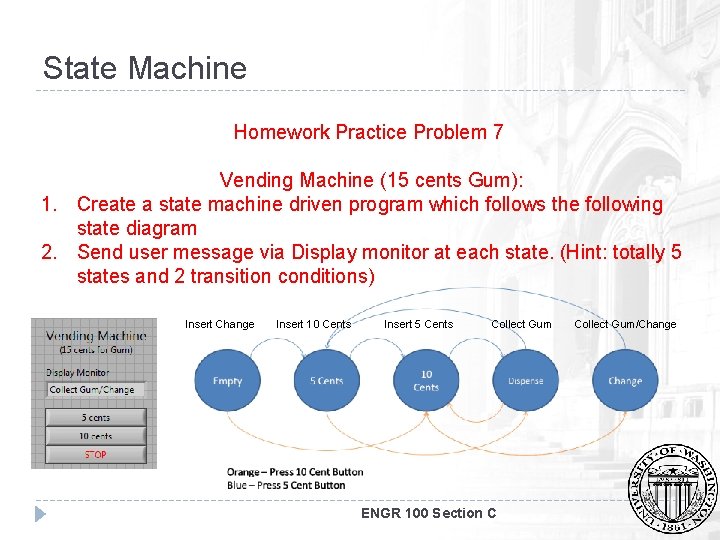
State Machine Homework Practice Problem 7 Vending Machine (15 cents Gum): 1. Create a state machine driven program which follows the following state diagram 2. Send user message via Display monitor at each state. (Hint: totally 5 states and 2 transition conditions) Insert Change Insert 10 Cents Insert 5 Cents Collect Gum ENGR 100 Section C Collect Gum/Change
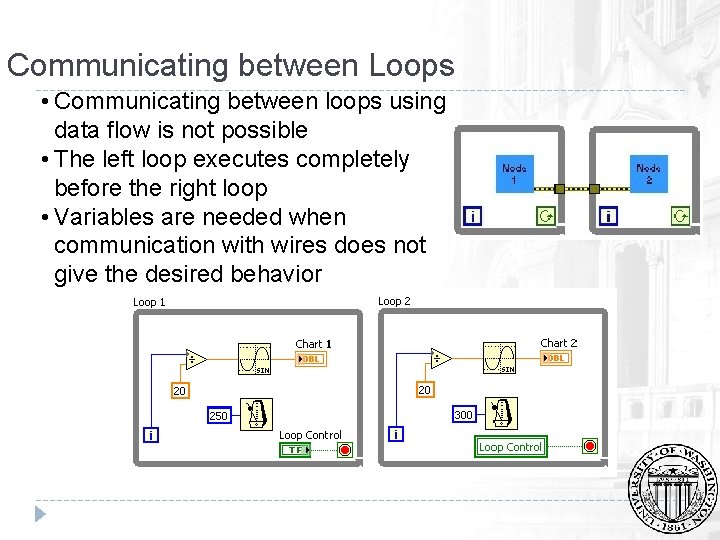
Communicating between Loops • Communicating between loops using data flow is not possible • The left loop executes completely before the right loop • Variables are needed when communication with wires does not give the desired behavior
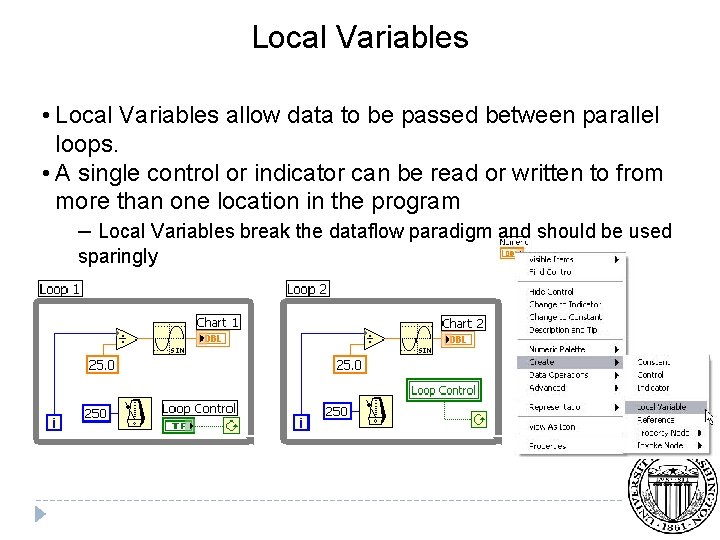
Local Variables • Local Variables allow data to be passed between parallel loops. • A single control or indicator can be read or written to from more than one location in the program – Local Variables break the dataflow paradigm and should be used sparingly
Creating a Local Variable - Walk Through In this example we will see how Local Variables allow us to share data between parallel loops. We will create a program that toggles two separate LEDs using one switch. It also stops two loops with one button. Create the block diagram and front panel show in the notes.
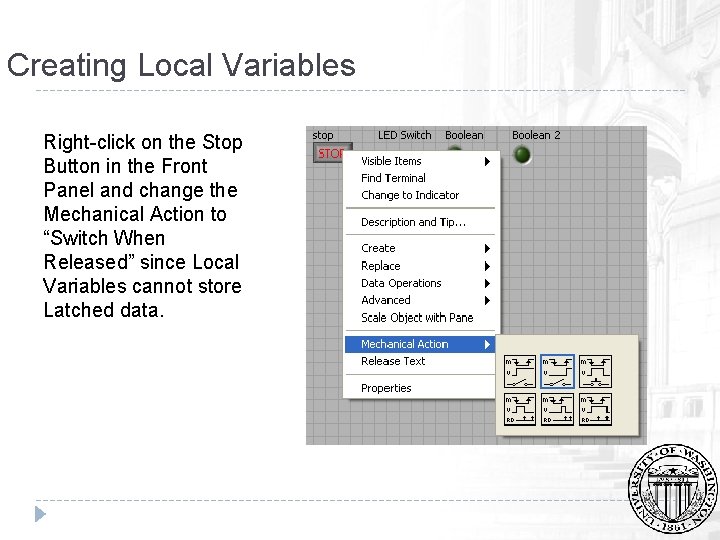
Creating Local Variables Right-click on the Stop Button in the Front Panel and change the Mechanical Action to “Switch When Released” since Local Variables cannot store Latched data.
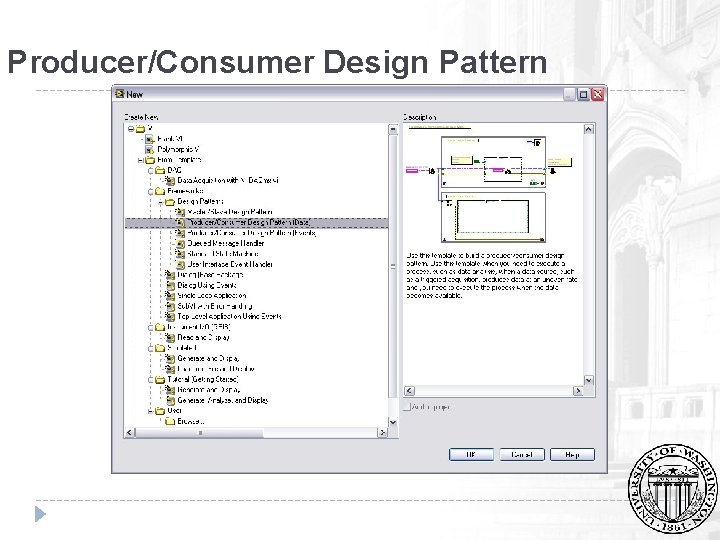
Producer/Consumer Design Pattern
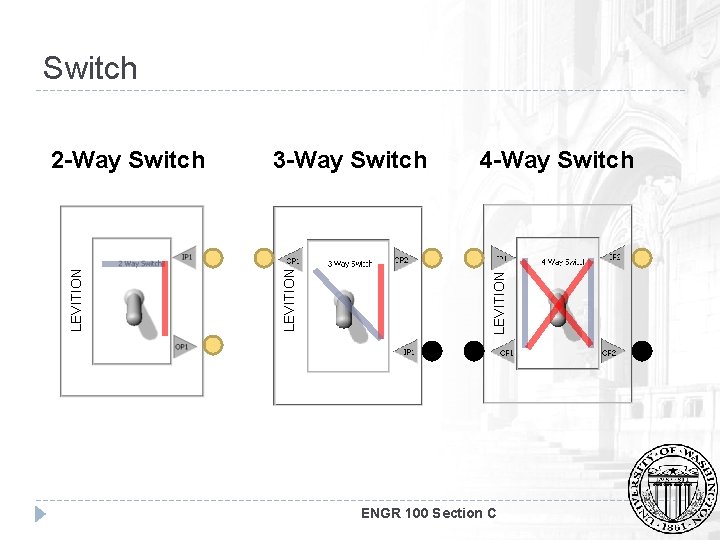
Switch 4 -Way Switch LEVITION 3 -Way Switch LEVITION 2 -Way Switch ENGR 100 Section C
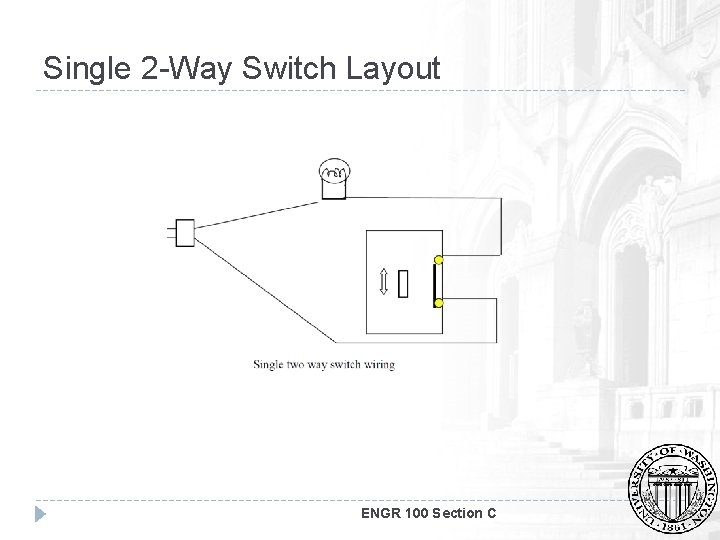
Single 2 -Way Switch Layout ENGR 100 Section C
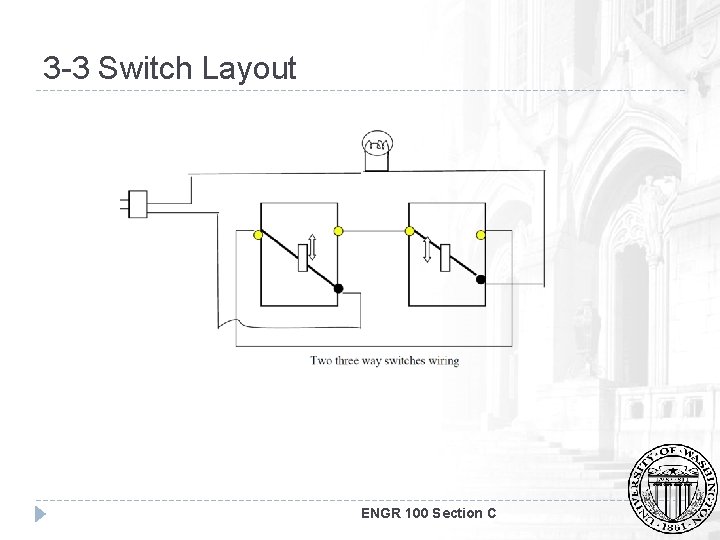
3 -3 Switch Layout ENGR 100 Section C
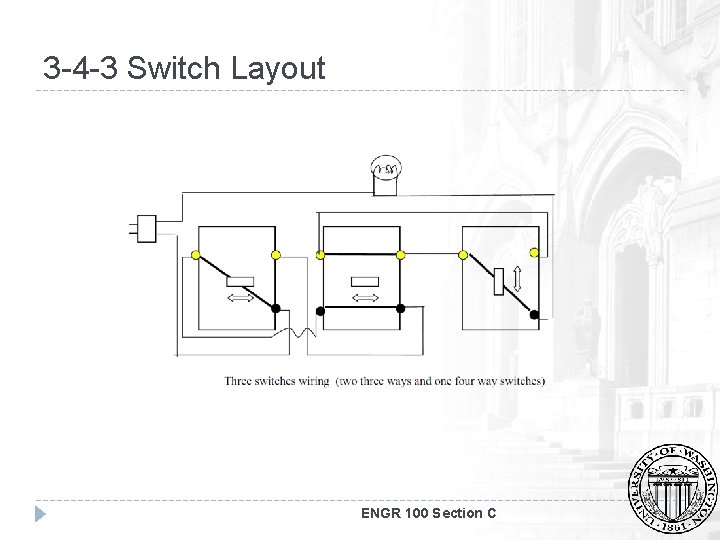
3 -4 -3 Switch Layout ENGR 100 Section C
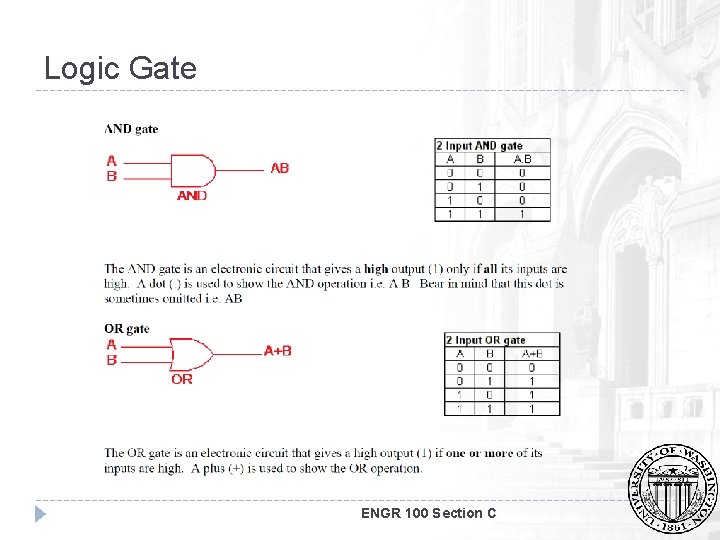
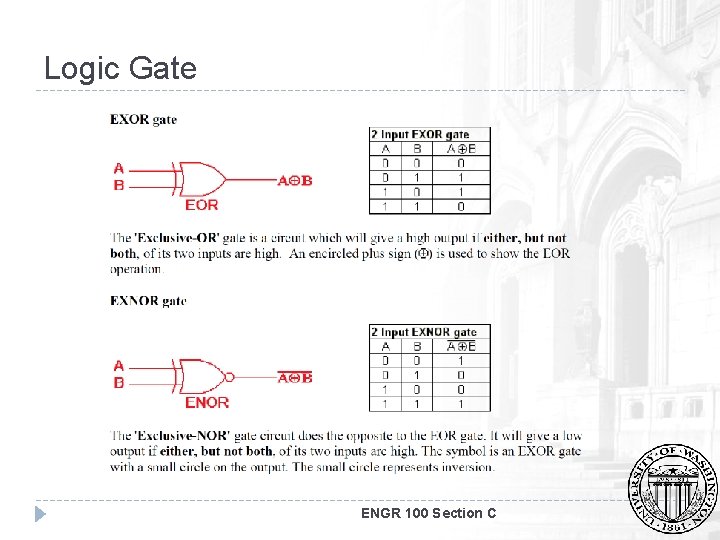
Logic Gate ENGR 100 Section C
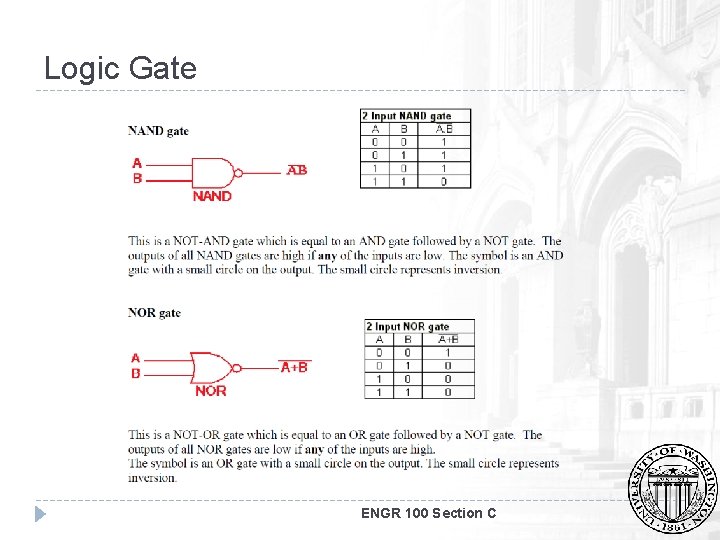
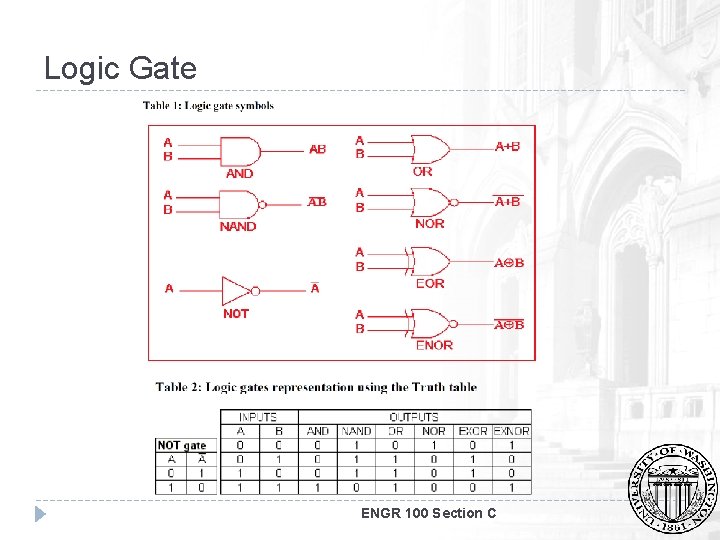
Logic Gate ENGR 100 Section C
Logic Gate ENGR 100 Section C
Logic Gate ENGR 100 Section C
Music Instrument Project Pitch / Gain ENGR 100 Section C
Digital I/O Hysteresis Analog signal Vin(t) +5 v Digital signal 01011… Pull down resistor Contact bounce ENGR 100 Section C
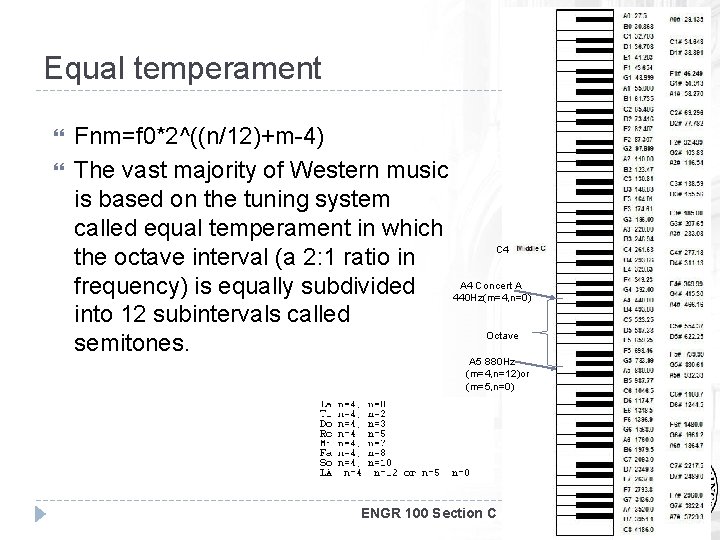
Equal temperament Fnm=f 0*2^((n/12)+m-4) The vast majority of Western music is based on the tuning system called equal temperament in which C 4 the octave interval (a 2: 1 ratio in A 4 Concert A frequency) is equally subdivided 440 Hz(m=4, n=0) into 12 subintervals called Octave semitones. A 5 880 Hz (m=4, n=12)or (m=5, n=0) ENGR 100 Section C
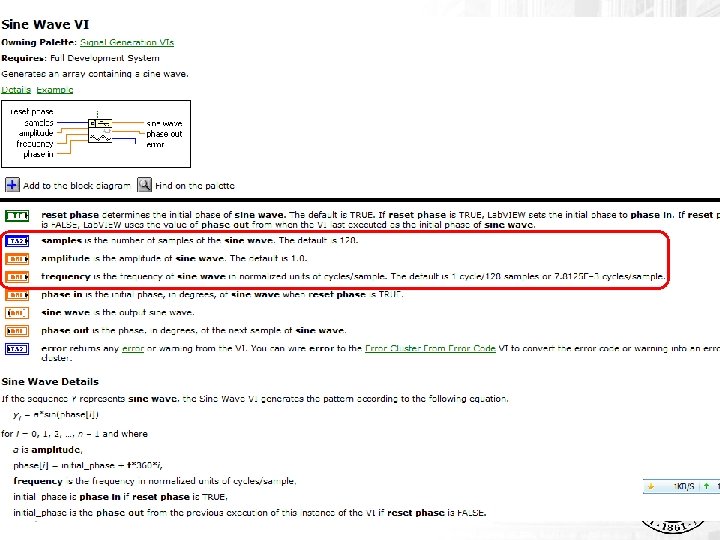
Sine Wave VI ENGR 100 Section C
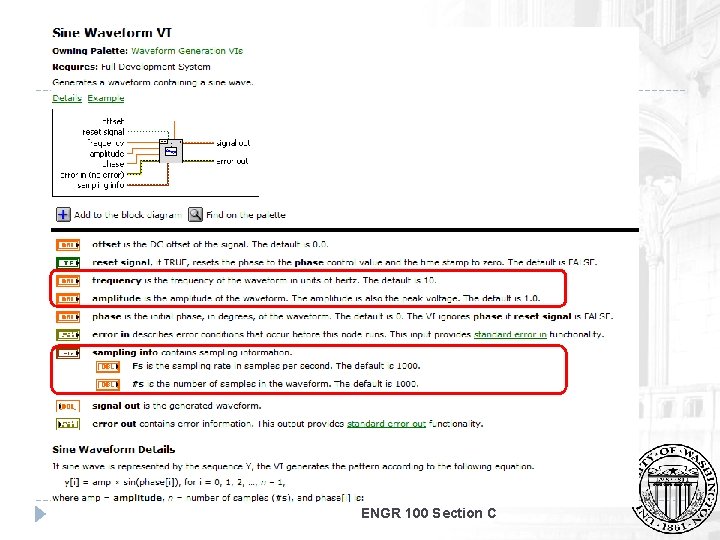
ENGR 100 Section C
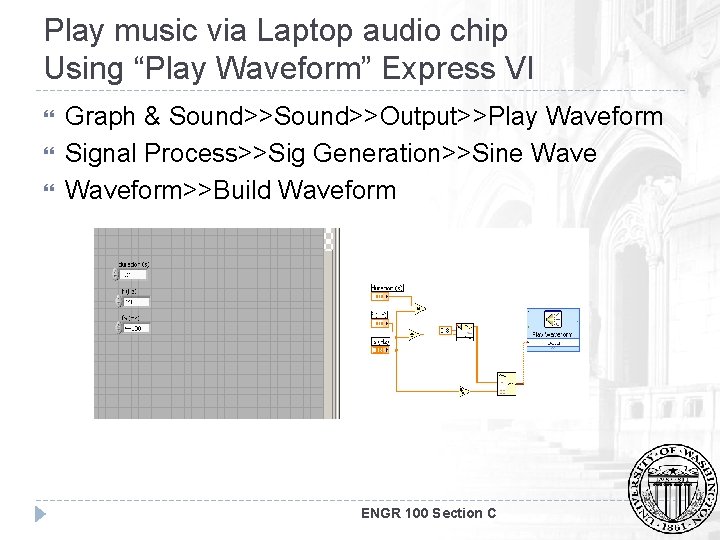
Play music via Laptop audio chip Using “Play Waveform” Express VI Graph & Sound>>Output>>Play Waveform Signal Process>>Sig Generation>>Sine Waveform>>Build Waveform ENGR 100 Section C
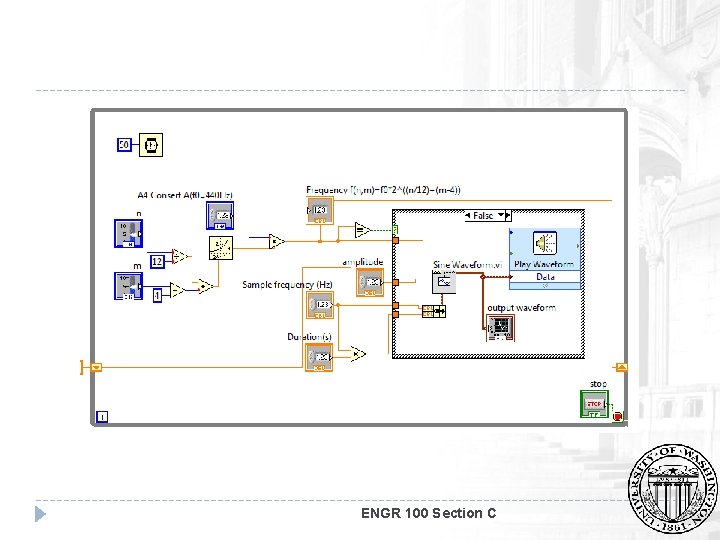
ENGR 100 Section C
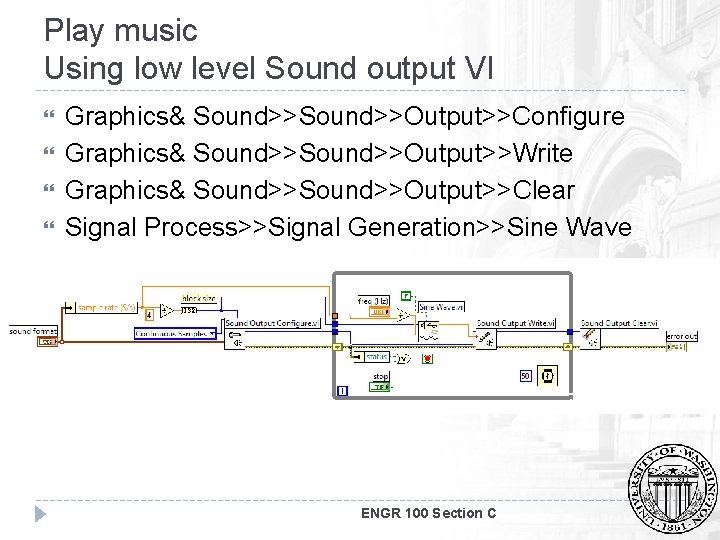
Play music Using low level Sound output VI Graphics& Sound>>Output>>Configure Graphics& Sound>>Output>>Write Graphics& Sound>>Output>>Clear Signal Process>>Signal Generation>>Sine Wave ENGR 100 Section C
Play music Homework Practice Problem 8 Procedure: Create the required VI(s) to play sound at certain freq. Requirements: 1. Modify the play music using express vi with Sampling Frequency (=44. 1 k. Hz), A 4 Concert Frequency (f 0=440 Hz), Duration(=0. 1 s) , Frequency fnm (=f 0*2^((n/12)+m-4)), numeric control n (integer 0~12), m(integer 0~12) 2. Add a while loop and shift register so that the sound will be played when the value of frequency fnm is ENGR 100 Section C changed.
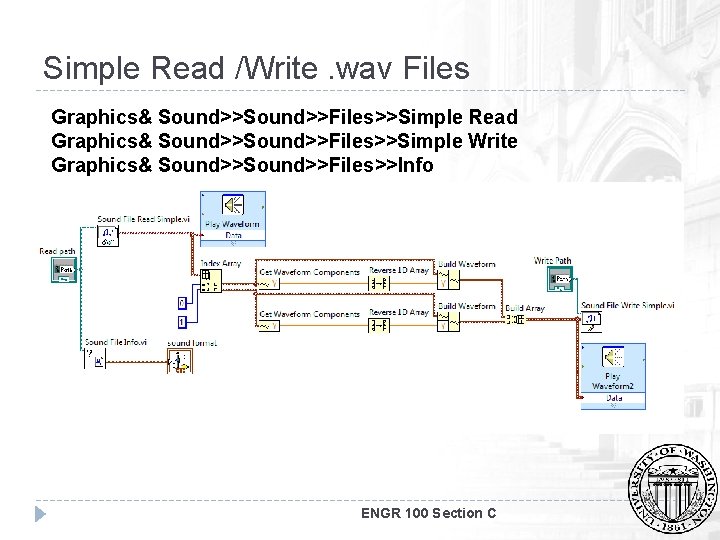
Simple Read /Write. wav Files Graphics& Sound>>Files>>Simple Read Graphics& Sound>>Files>>Simple Write Graphics& Sound>>Files>>Info ENGR 100 Section C
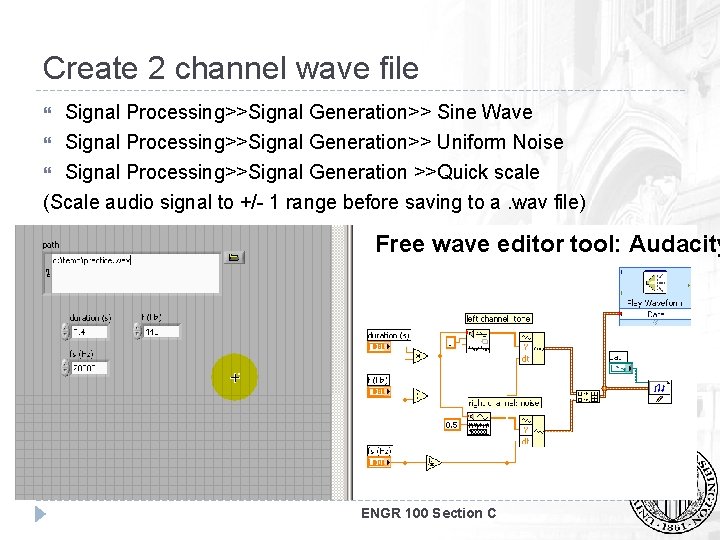
Create 2 channel wave file Signal Processing>>Signal Generation>> Sine Wave Signal Processing>>Signal Generation>> Uniform Noise Signal Processing>>Signal Generation >>Quick scale (Scale audio signal to +/- 1 range before saving to a. wav file) Free wave editor tool: Audacity ENGR 100 Section C
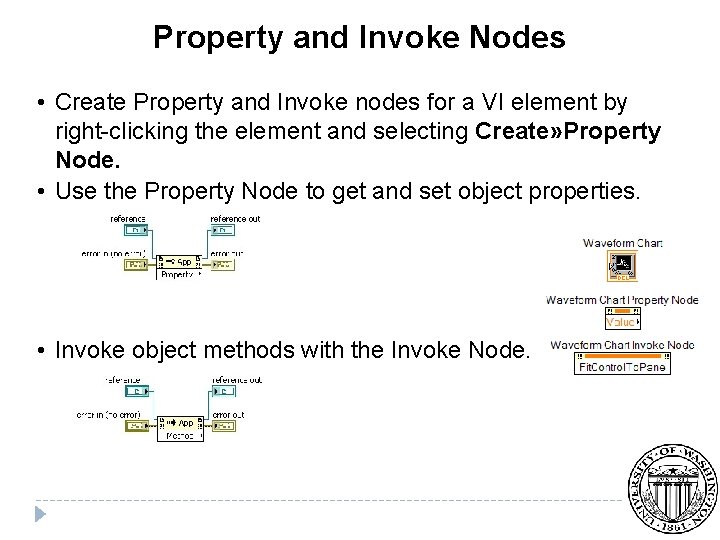
Property and Invoke Nodes • Create Property and Invoke nodes for a VI element by right-clicking the element and selecting Create» Property Node. • Use the Property Node to get and set object properties. • Invoke object methods with the Invoke Node.
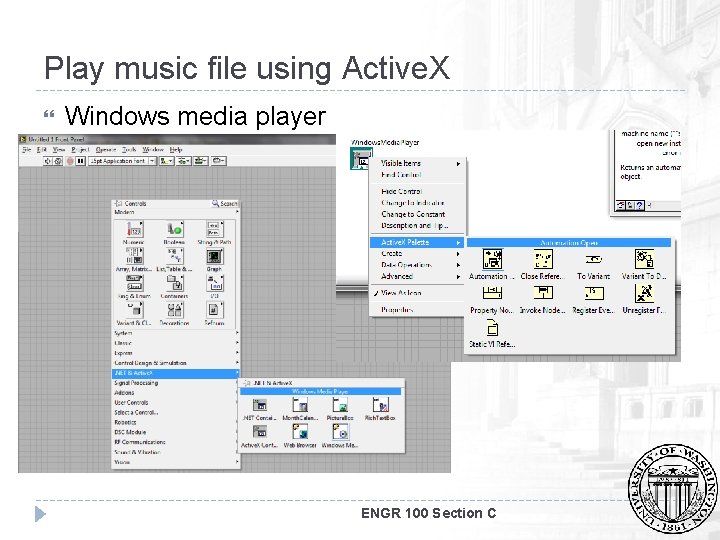
Play music file using Active. X Windows media player ENGR 100 Section C
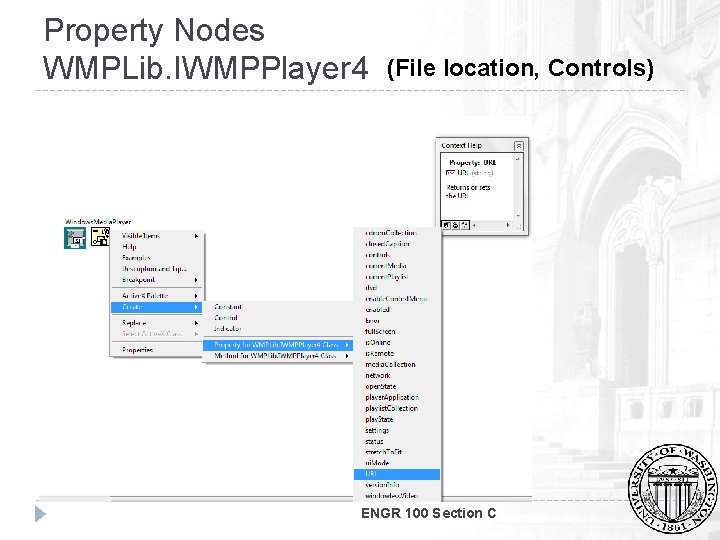
Property Nodes WMPLib. IWMPPlayer 4 (File location, Controls) ENGR 100 Section C
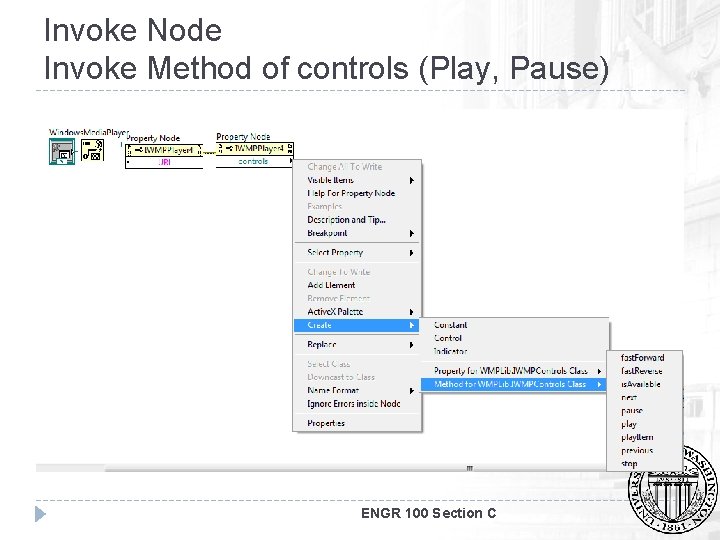
Invoke Node Invoke Method of controls (Play, Pause) ENGR 100 Section C
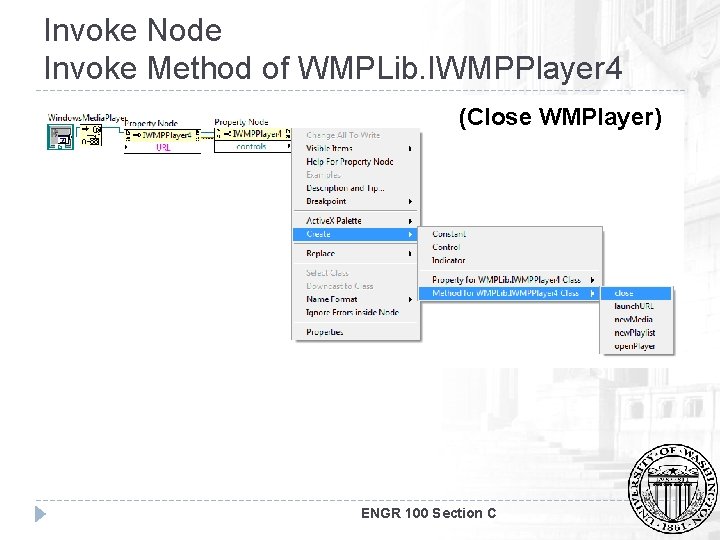
Invoke Node Invoke Method of WMPLib. IWMPPlayer 4 (Close WMPlayer) ENGR 100 Section C
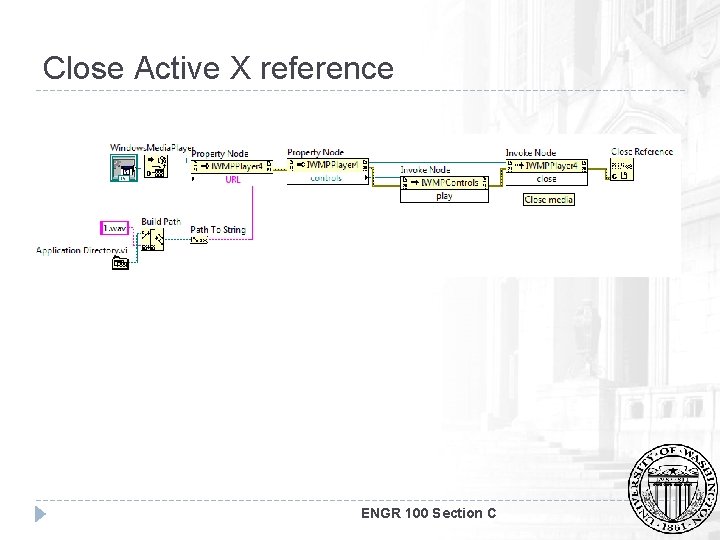
Close Active X reference ENGR 100 Section C
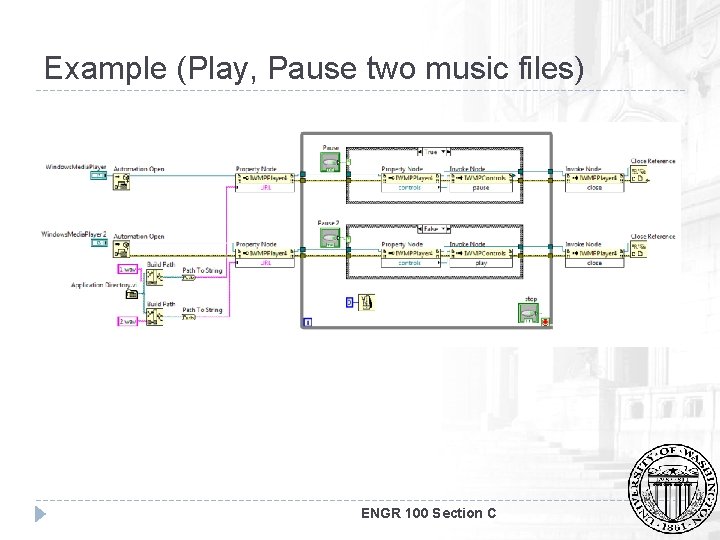
Example (Play, Pause two music files) ENGR 100 Section C
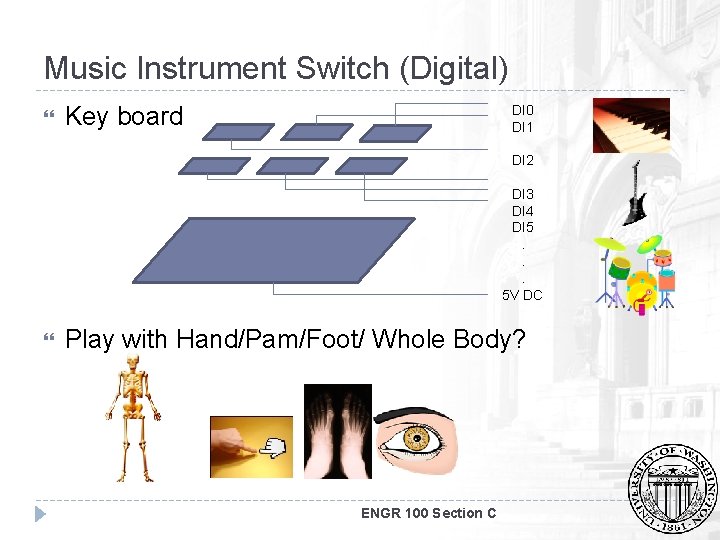
Music Instrument Switch (Digital) Key board DI 0 DI 1 DI 2 DI 3 DI 4 DI 5. . . 5 V DC Play with Hand/Pam/Foot/ Whole Body? ENGR 100 Section C
Music Instrument Switch (Analog) Voltage /Current Variation Capacitance Variation Inductance Variation Resistance Variation(Potentiometer) Distance Variation Acoustic Sensor Microphone Optical Sensor (Photo-Diode + Opamp) Optical Theremin ENGR 100 Section C
- Slides: 99