
Introduction to Jupyter and EGI Notebooks Big Data

Introduction to Jupyter and EGI Notebooks Big Data 2019 Conference Giuseppe La Rocca – giuseppe. larocca@egi. eu eosc-hub. eu @EOSC_eu Dissemination level: Public http: //go. egi. eu/bigdata 2019 EOSC-hub receives funding from the European Union’s Horizon 2020 research and innovation programme under grant agreement No. 777536.

2
Training objectives • Learn the basics of EGI notebooks - Jupyter • Hands on practice with the EGI notebooks service - Basic data import, processing and visualisation • Git. Hub, Zenodo, Binder - Sharing & re-executing notebooks • Other possibilities - Working with big data (EGI Data. Hub with Notebooks) - How to become a user 3
Agenda Session 1 (13: 30 -15: 10): • Introduction to EGI and the EGI Notebooks service (talk) • Hands-on - Exercise 1 – Getting started Exercise 2 – Get some data and plot it - A real notebook example • Other Notebooks features (demo) Session 2 (15: 30 -17: 00): • Binder, Git. Hub, Zenodo – Sharing, Identifying, Re-executing notebooks - Talks + hands-on exercises • Accessing big data from notebooks – EGI Data. Hub (demo) • Become a user - Notebooks in EOSC (talk) Feedback forms (10’) 4

Overview of EGI 5
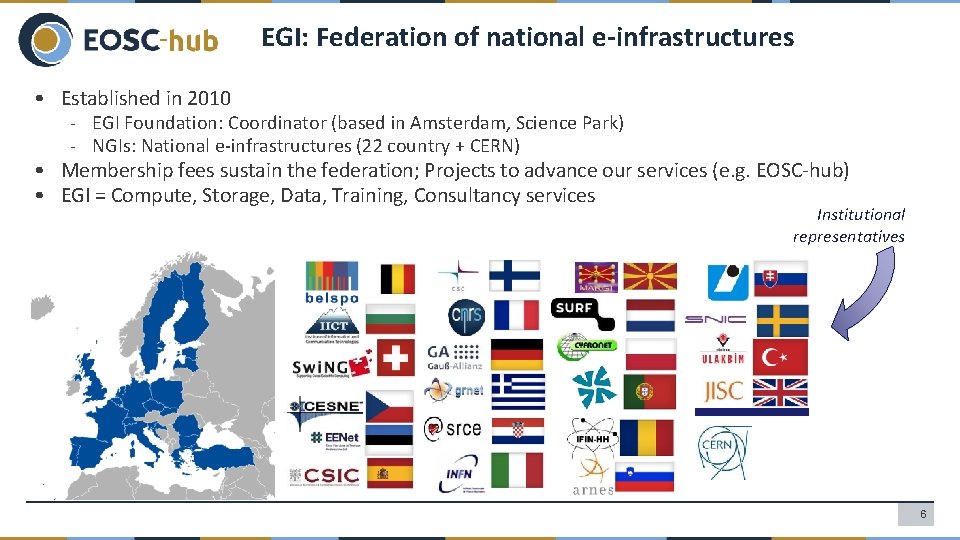
EGI: Federation of national e-infrastructures • Established in 2010 - EGI Foundation: Coordinator (based in Amsterdam, Science Park) - NGIs: National e-infrastructures (22 country + CERN) • Membership fees sustain the federation; Projects to advance our services (e. g. EOSC-hub) • EGI = Compute, Storage, Data, Training, Consultancy services Institutional representatives 6
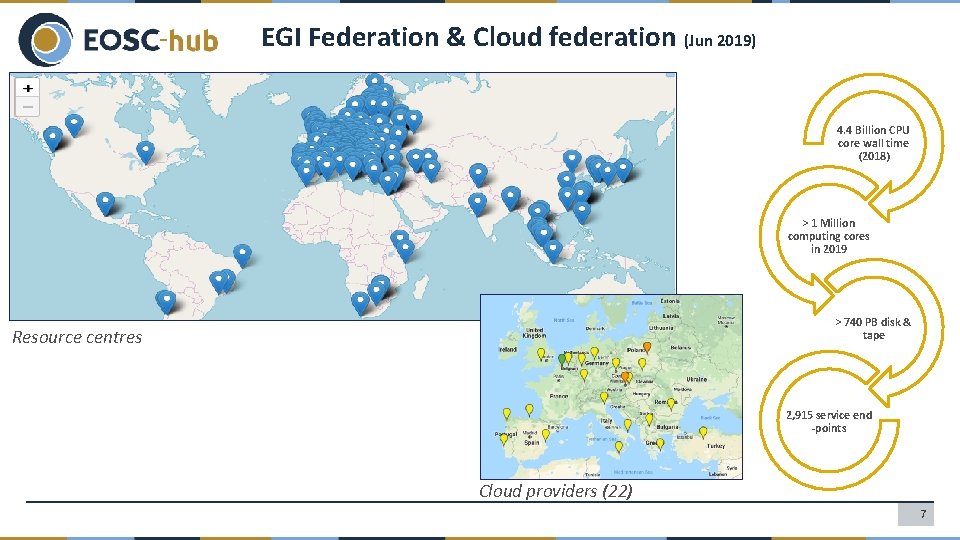
EGI Federation & Cloud federation (Jun 2019) 4. 4 Billion CPU core wall time (2018) > 1 Million computing cores in 2019 > 740 PB disk & tape Resource centres 2, 915 service end -points Cloud providers (22) 7

A global system of e-Infrastructures 8
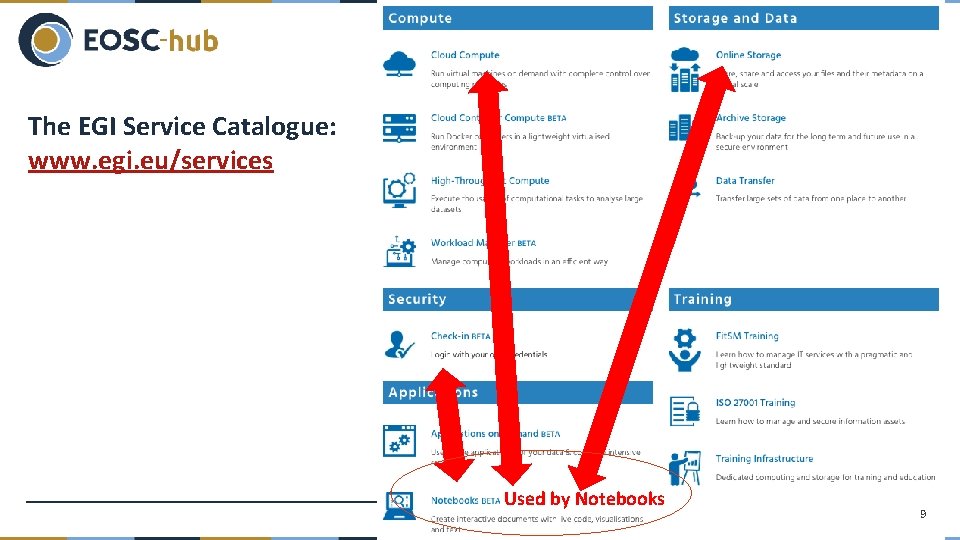
The EGI Service Catalogue: www. egi. eu/services Used by Notebooks 9
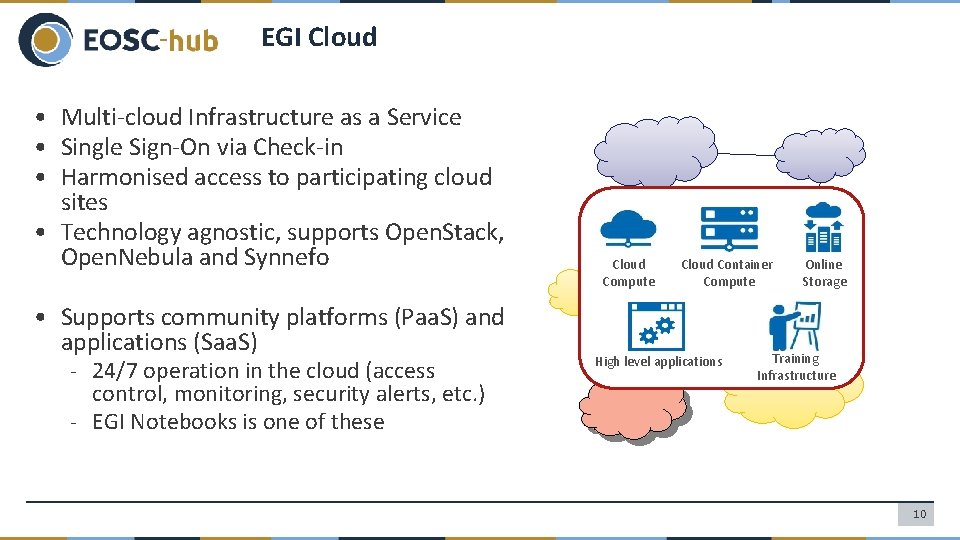
EGI Cloud • Multi-cloud Infrastructure as a Service • Single Sign-On via Check-in • Harmonised access to participating cloud sites • Technology agnostic, supports Open. Stack, Open. Nebula and Synnefo • Supports community platforms (Paa. S) and applications (Saa. S) - 24/7 operation in the cloud (access control, monitoring, security alerts, etc. ) - EGI Notebooks is one of these Cloud Compute Cloud Container Compute High level applications Online Storage Training Infrastructure 10
EGI Notebooks ‘Jupyter as a Service’ in the EGI Cloud 11
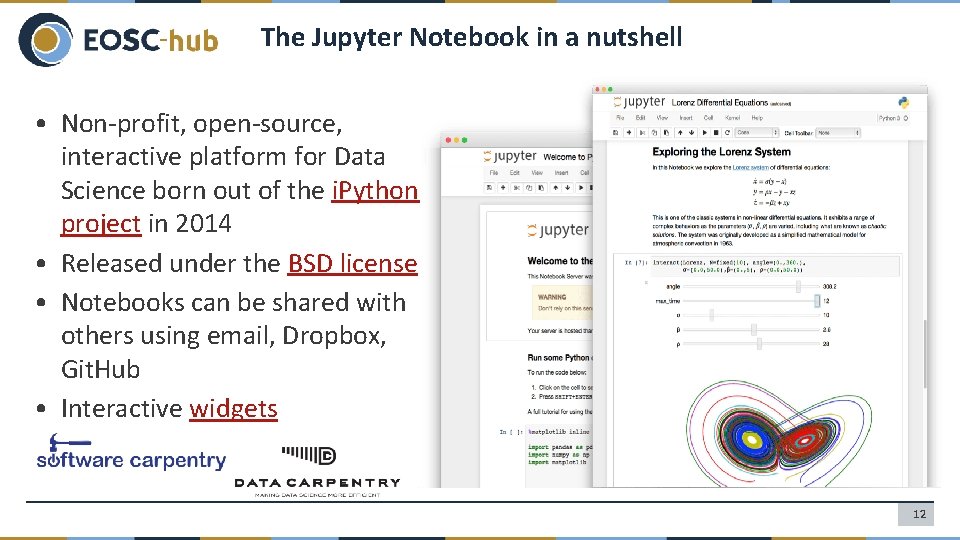
The Jupyter Notebook in a nutshell • Non-profit, open-source, interactive platform for Data Science born out of the i. Python project in 2014 • Released under the BSD license • Notebooks can be shared with others using email, Dropbox, Git. Hub • Interactive widgets 12
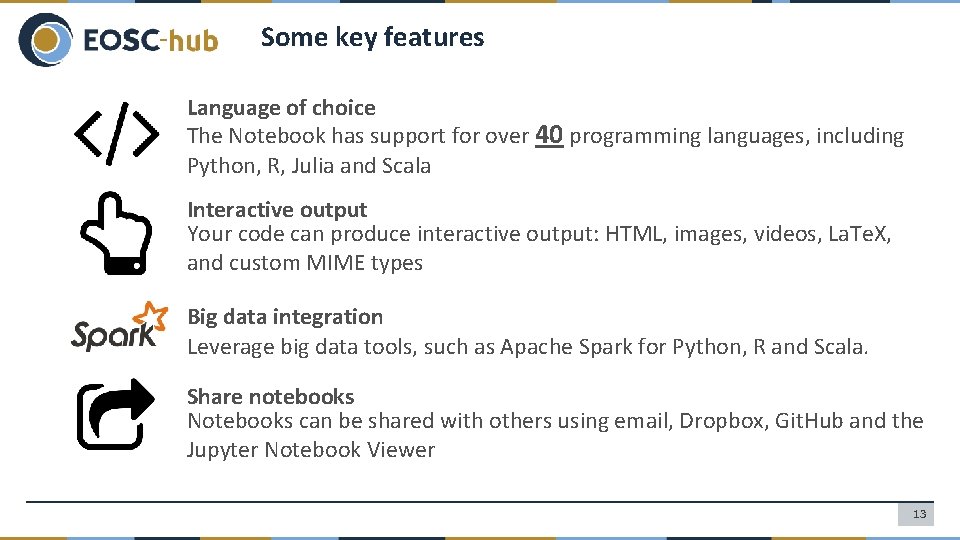
Some key features Language of choice The Notebook has support for over 40 programming languages, including Python, R, Julia and Scala Interactive output Your code can produce interactive output: HTML, images, videos, La. Te. X, and custom MIME types Big data integration Leverage big data tools, such as Apache Spark for Python, R and Scala. Share notebooks Notebooks can be shared with others using email, Dropbox, Git. Hub and the Jupyter Notebook Viewer 13
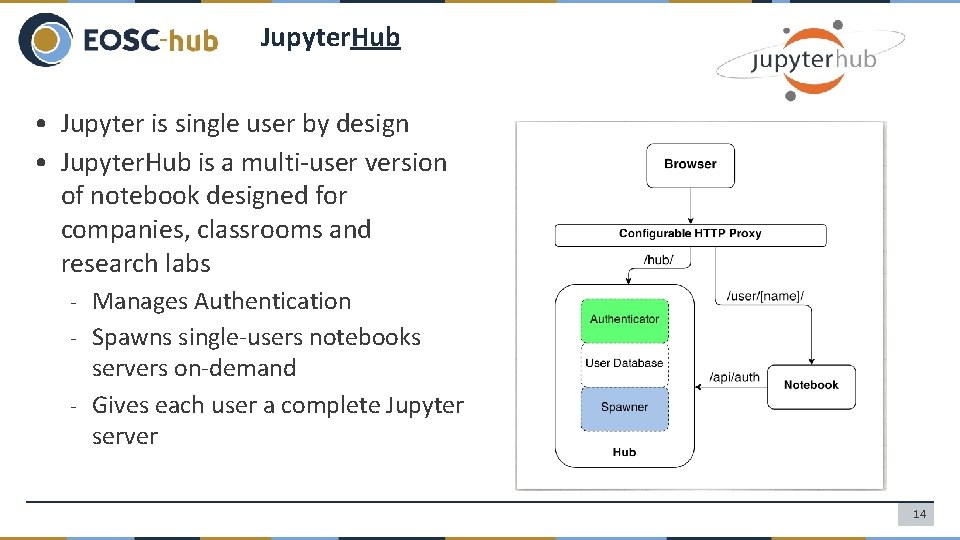
Jupyter. Hub • Jupyter is single user by design • Jupyter. Hub is a multi-user version of notebook designed for companies, classrooms and research labs - Manages Authentication - Spawns single-users notebooks servers on-demand - Gives each user a complete Jupyter server 14
EGI Notebooks • Jupyter. Hub hosted in the EGI Cloud - Offers Jupyter notebooks ‘as Service’ - One-click solution: login and start using • Extra EGI Features: - Login with the EGI AAI Check-In service - Persistent storage for notebooks - Use EGI computing and storage resources from your notebooks 15
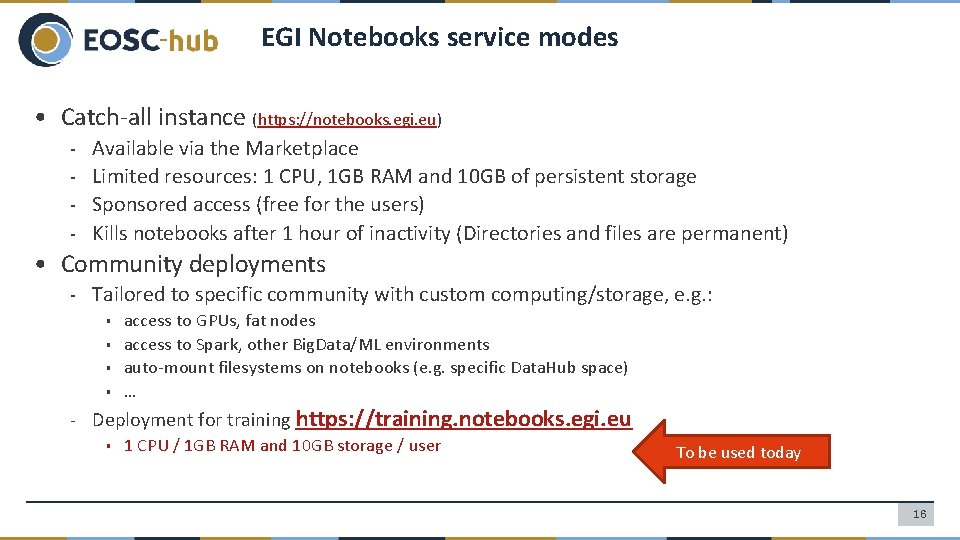
EGI Notebooks service modes • Catch-all instance (https: //notebooks. egi. eu) - Available via the Marketplace Limited resources: 1 CPU, 1 GB RAM and 10 GB of persistent storage Sponsored access (free for the users) Kills notebooks after 1 hour of inactivity (Directories and files are permanent) • Community deployments - Tailored to specific community with custom computing/storage, e. g. : access to GPUs, fat nodes ▪ access to Spark, other Big. Data/ML environments ▪ auto-mount filesystems on notebooks (e. g. specific Data. Hub space) ▪ … ▪ - Deployment for training https: //training. notebooks. egi. eu ▪ 1 CPU / 1 GB RAM and 10 GB storage / user To be used today 16
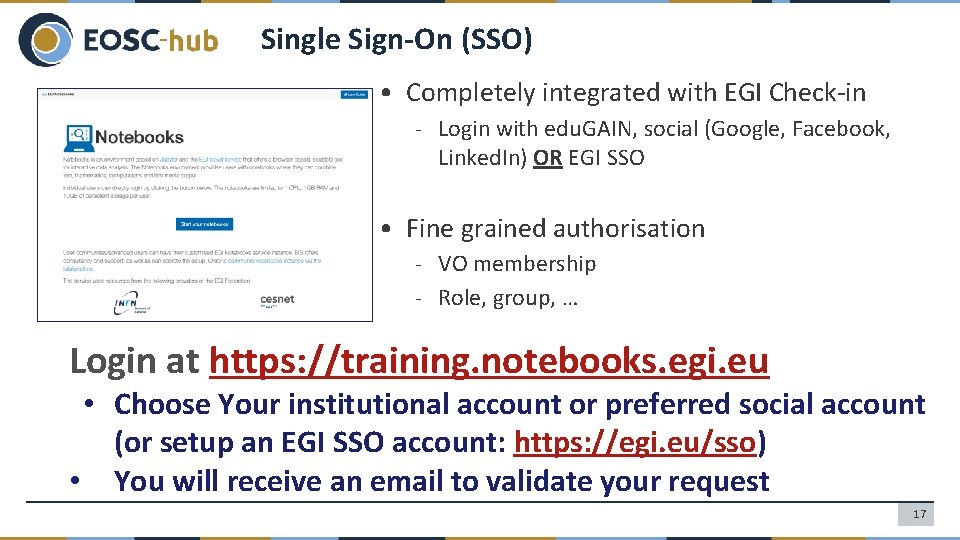
Single Sign-On (SSO) • Completely integrated with EGI Check-in - Login with edu. GAIN, social (Google, Facebook, Linked. In) OR EGI SSO • Fine grained authorisation - VO membership - Role, group, … Login at https: //training. notebooks. egi. eu • Choose Your institutional account or preferred social account (or setup an EGI SSO account: https: //egi. eu/sso) • You will receive an email to validate your request 17
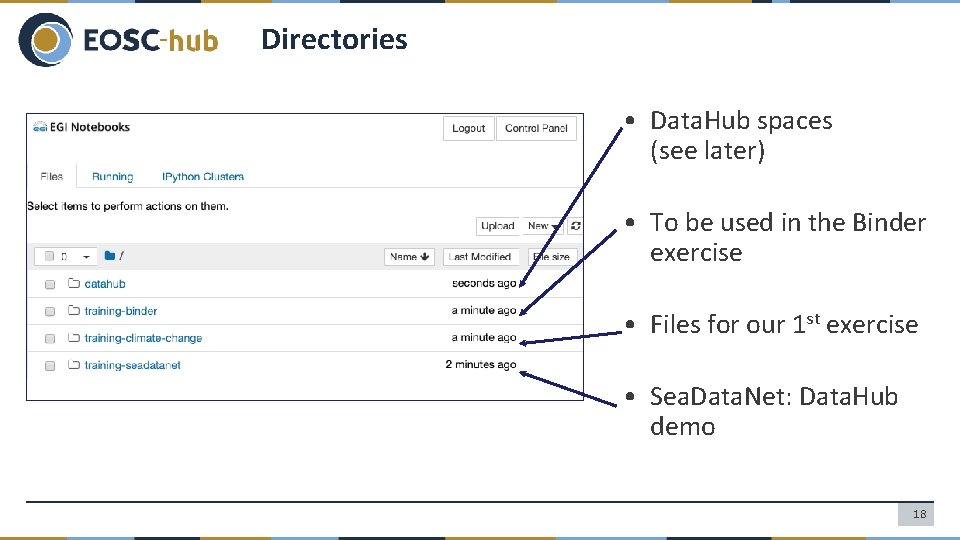
Directories • Data. Hub spaces (see later) • To be used in the Binder exercise • Files for our 1 st exercise • Sea. Data. Net: Data. Hub demo 18
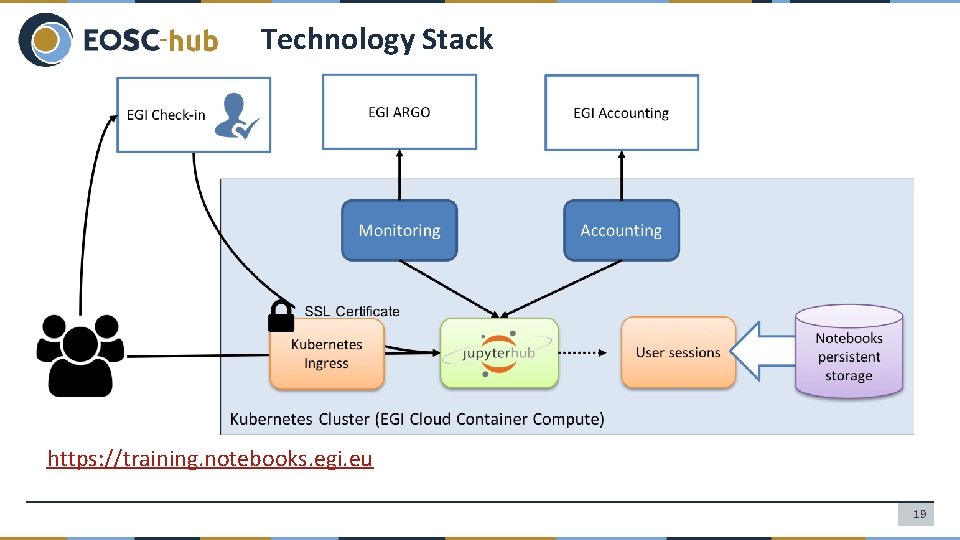
Technology Stack https: //training. notebooks. egi. eu 19
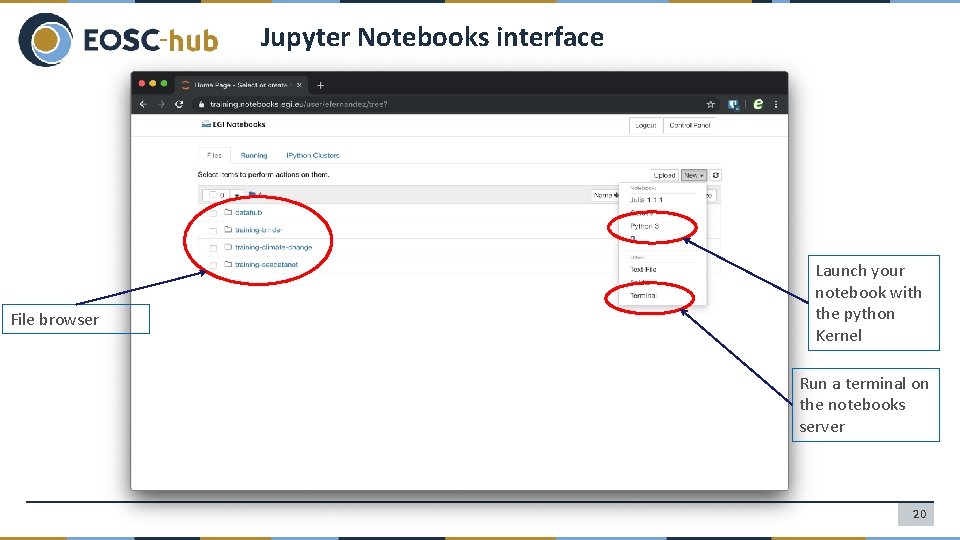
Jupyter Notebooks interface File browser Launch your notebook with the python Kernel Run a terminal on the notebooks server 20
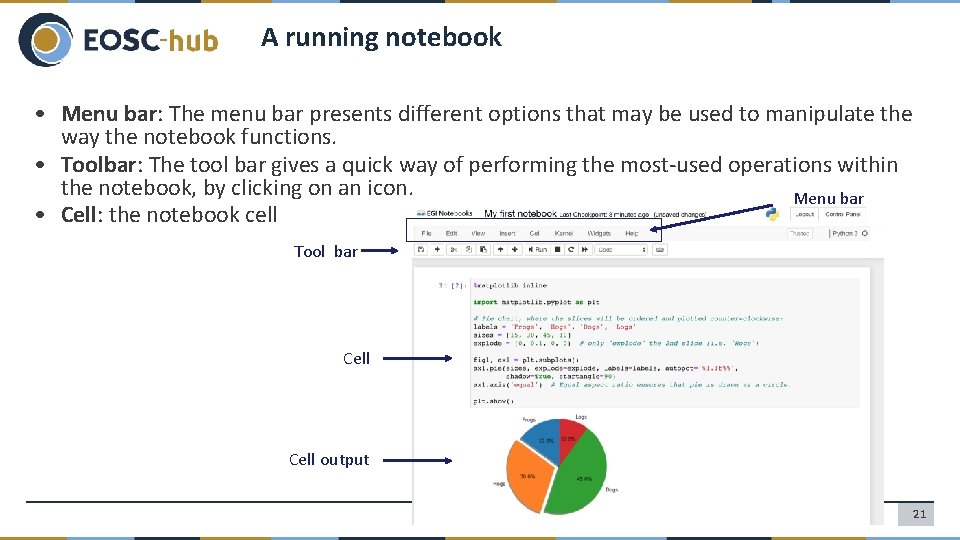
A running notebook • Menu bar: The menu bar presents different options that may be used to manipulate the way the notebook functions. • Toolbar: The tool bar gives a quick way of performing the most-used operations within the notebook, by clicking on an icon. Menu bar • Cell: the notebook cell Tool bar Cell output 21
Structure of a notebook • The notebook consists of a sequence of cells. - A cell is a multiline text input field - The execution behaviour of a cell is determined by the cell’s type. • There are three types of cells: Code, Markdown, and Raw cells. Code cells allow you to edit and write new code, with full syntax highlighting and tab completion. The programming language you use depends on the kernel Markdown cells allow to alternate descriptive text with code Raw cells provide a place in which you can write output directly. Raw cells are not evaluated by the notebook 22
Shortcuts The essential shortcuts to remember are the following: Shift-Enter: run cell. • Execute the current cell, show any output, and jump to the next cell below. If Shift-Enter is invoked on the last cell, it makes a new cell below. This is equivalent to clicking the Cell, Run menu item, or the Play button in the toolbar. Esc: Command mode. • In command mode, you can navigate around the notebook using keyboard shortcuts. Enter: Edit mode. • In edit mode, you can edit text in cells 23
Hands-on http: //go. egi. eu/notebooks-training Check examples on: Training instance > Hands-on 24
- Slides: 24