
Introduction to HTML 5 Noor Hazlinda binti Ali
Introduction to HTML 5 Noor Hazlinda binti Ali BSc (Hons) Cog. Sc
Welcome to HTML Workshop n Objective: ¨ to give you the skills to create HTML webpages and the necessary background knowledge to know when and how to use HTML 5.
Welcome to HTML Workshop n Requirements: ¨ Web Browser – Google Chrome ¨ Notepad
<P>ARE YOU READY? </P>
What is HTML? HTML – Hyper. Text Markup Language n Web browser READ and INTERPRET a html document n The main purpose of HTML: n ¨ to make the content of the HTML-document accessible to the web browsers.
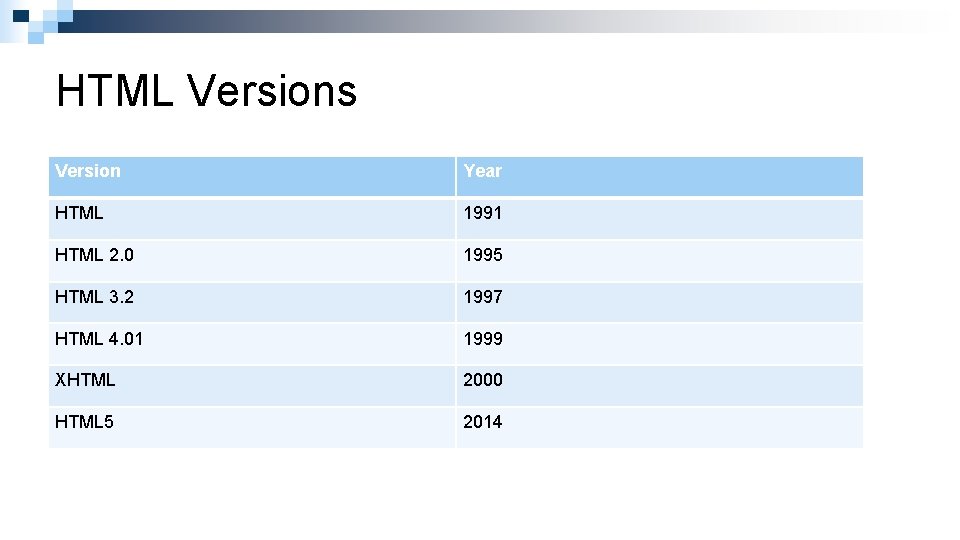
HTML Versions Version Year HTML 1991 HTML 2. 0 1995 HTML 3. 2 1997 HTML 4. 01 1999 XHTML 2000 HTML 5 2014
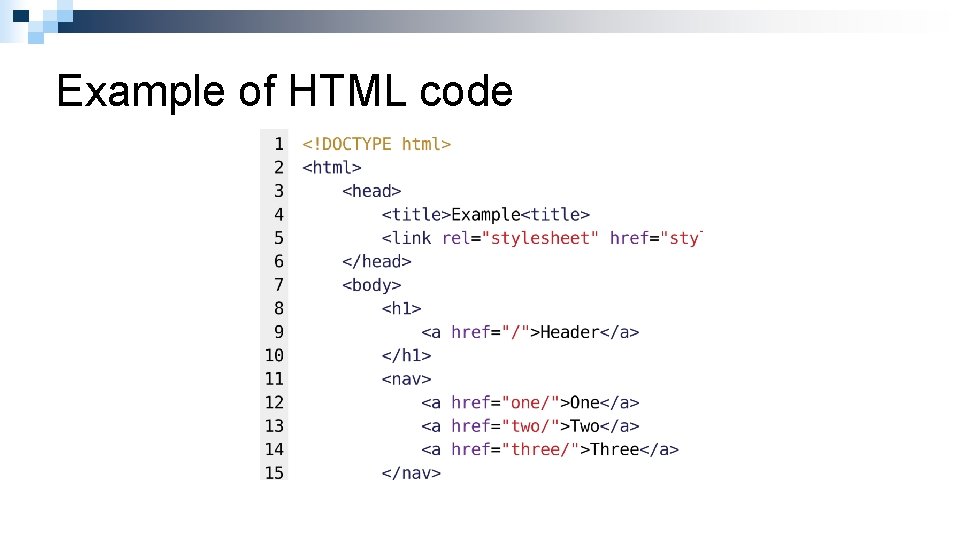
Example of HTML code
The Structure of HTML n Before you start to use HTML, it is important for you to understand the structure of HTML.
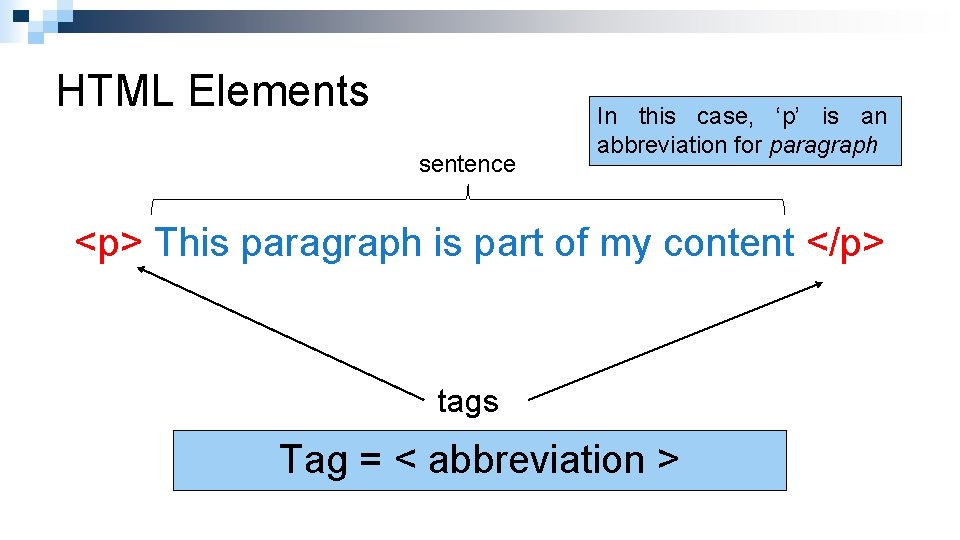
HTML Elements sentence In this case, ‘p’ is an abbreviation for paragraph <p> This paragraph is part of my content </p> tags Tag = < abbreviation >
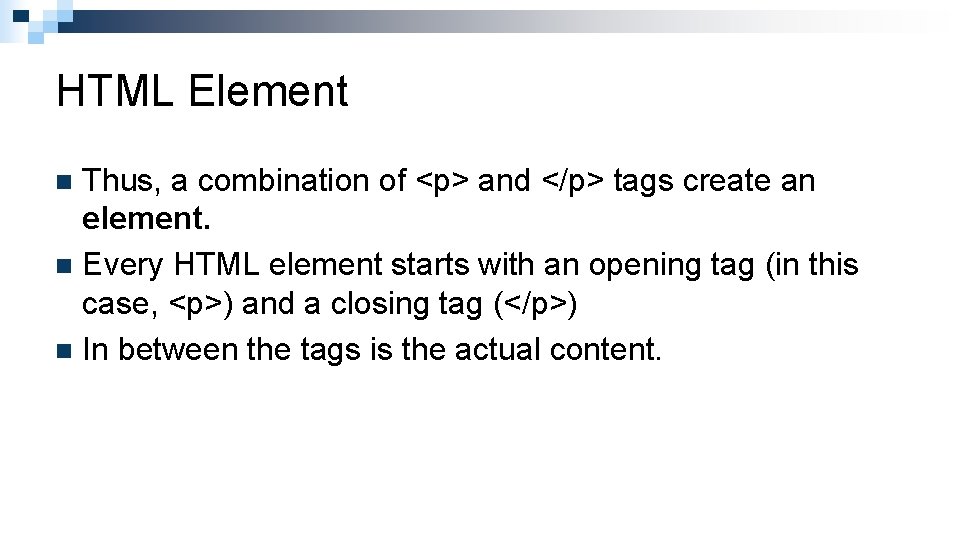
HTML Element Thus, a combination of <p> and </p> tags create an element. n Every HTML element starts with an opening tag (in this case, <p>) and a closing tag (</p>) n In between the tags is the actual content. n
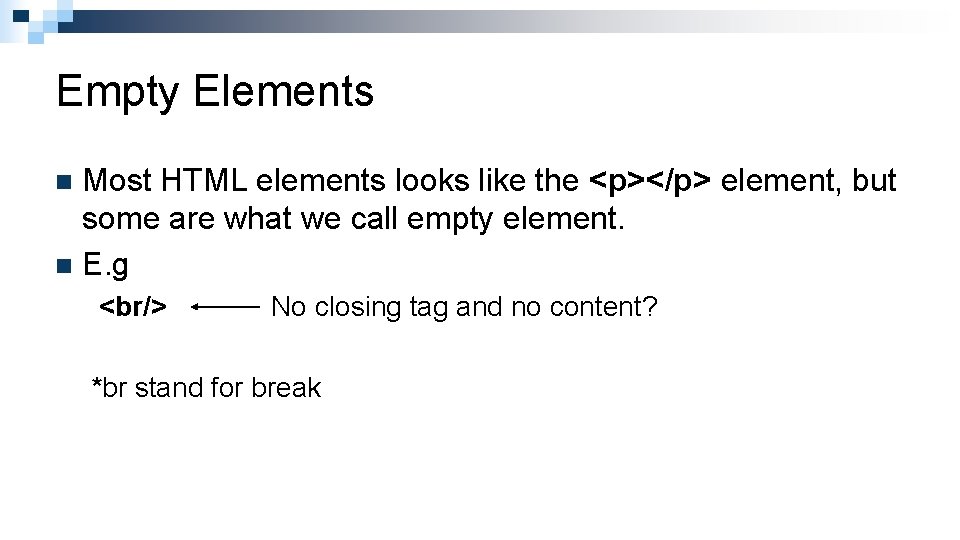
Empty Elements Most HTML elements looks like the <p></p> element, but some are what we call empty element. n E. g n <br/> No closing tag and no content? *br stand for break
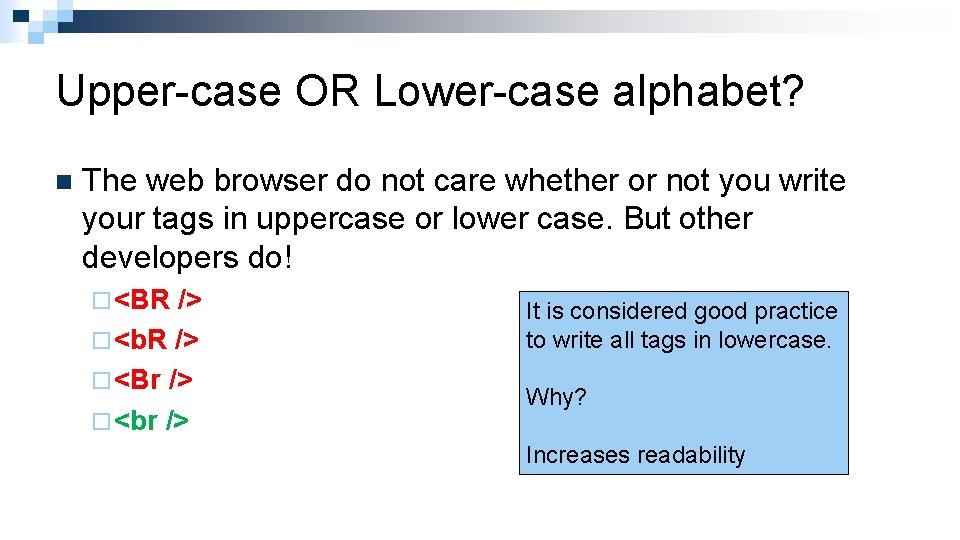
Upper-case OR Lower-case alphabet? n The web browser do not care whether or not you write your tags in uppercase or lower case. But other developers do! ¨ <BR /> ¨ <b. R /> ¨ <Br /> ¨ It is considered good practice to write all tags in lowercase. Why? Increases readability
Okay Let’s Start writing the HTML! n Open your notepad. n Write your code n Rename, save as. html files n Now you are good to go!
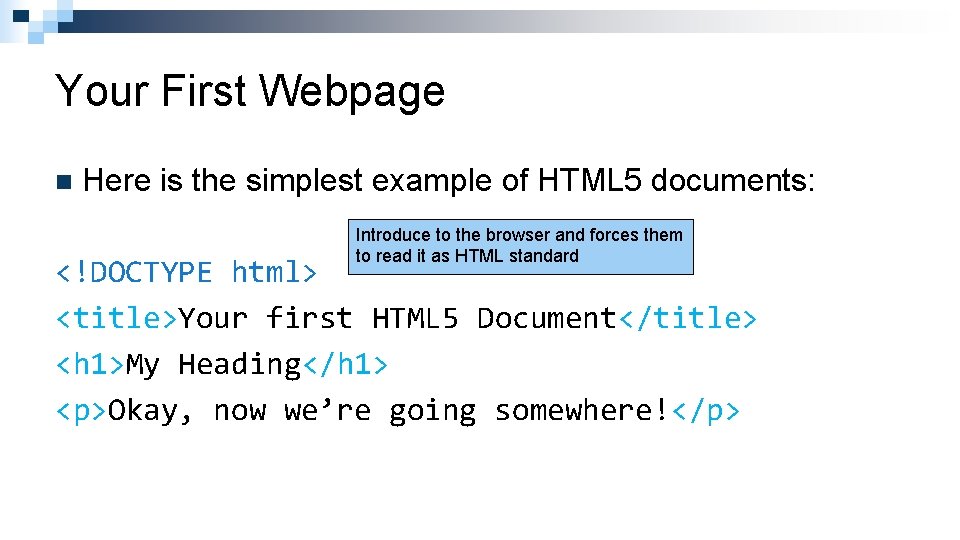
Your First Webpage n Here is the simplest example of HTML 5 documents: Introduce to the browser and forces them to read it as HTML standard <!DOCTYPE html> <title>Your first HTML 5 Document</title> <h 1>My Heading</h 1> <p>Okay, now we’re going somewhere!</p>
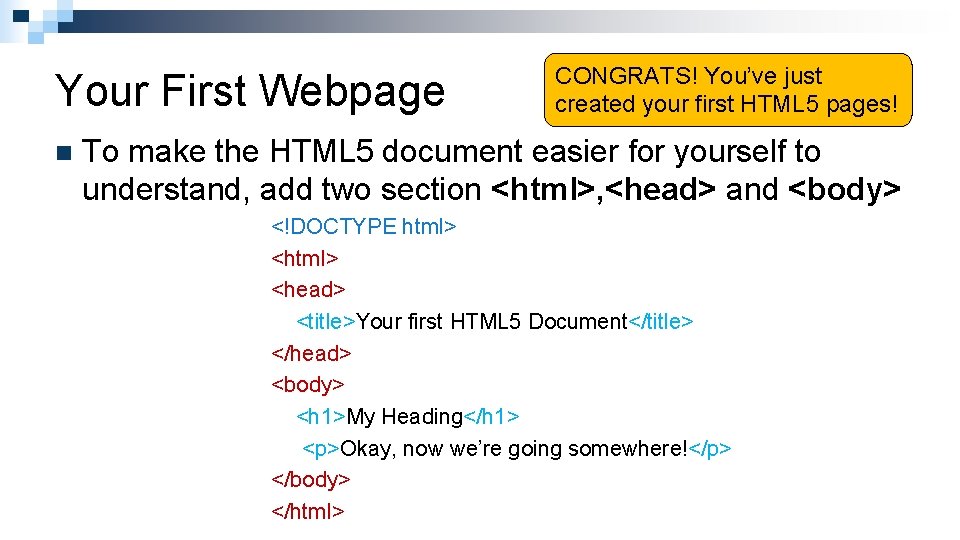
Your First Webpage n CONGRATS! You’ve just created your first HTML 5 pages! To make the HTML 5 document easier for yourself to understand, add two section <html>, <head> and <body> <!DOCTYPE html> <head> <title>Your first HTML 5 Document</title> </head> <body> <h 1>My Heading</h 1> <p>Okay, now we’re going somewhere!</p> </body> </html>
HTML BASICS
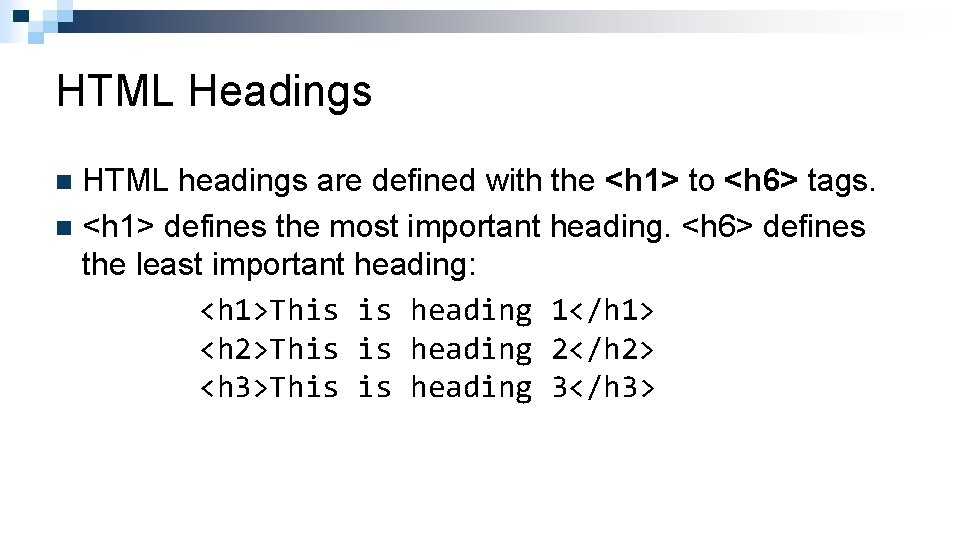
HTML Headings HTML headings are defined with the <h 1> to <h 6> tags. n <h 1> defines the most important heading. <h 6> defines the least important heading: <h 1>This is heading 1</h 1> <h 2>This is heading 2</h 2> <h 3>This is heading 3</h 3> n
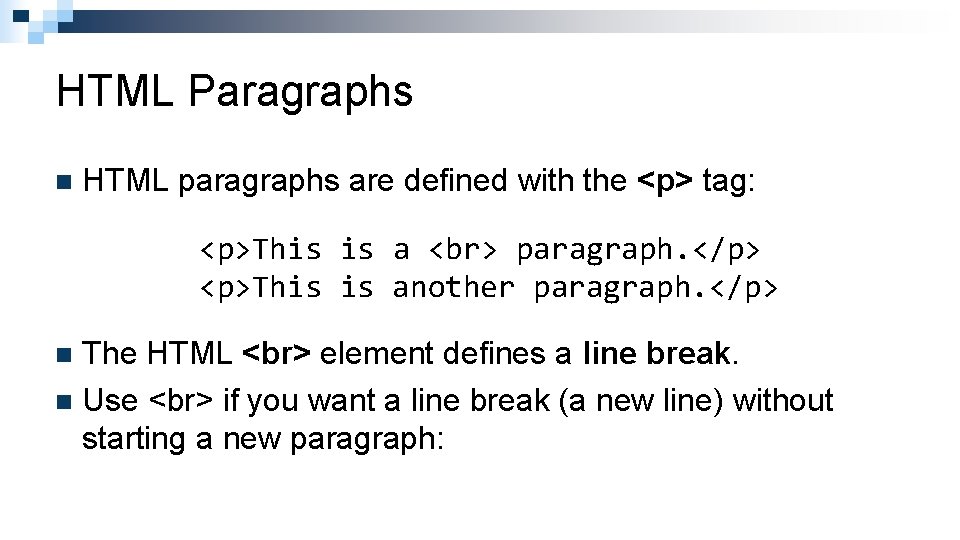
HTML Paragraphs n HTML paragraphs are defined with the <p> tag: <p>This is a paragraph. </p> <p>This is another paragraph. </p> The HTML element defines a line break. n Use if you want a line break (a new line) without starting a new paragraph: n
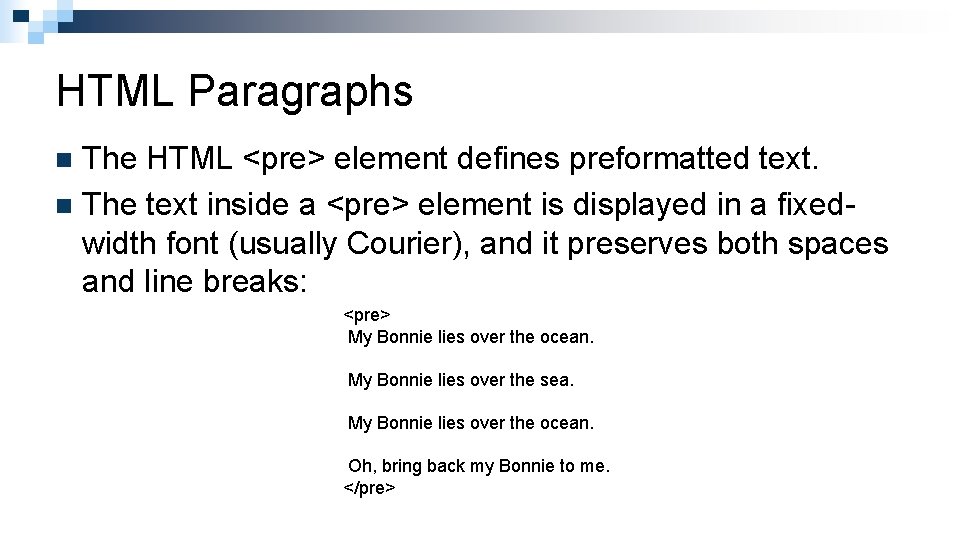
HTML Paragraphs The HTML <pre> element defines preformatted text. n The text inside a <pre> element is displayed in a fixedwidth font (usually Courier), and it preserves both spaces and line breaks: n <pre> My Bonnie lies over the ocean. My Bonnie lies over the sea. My Bonnie lies over the ocean. Oh, bring back my Bonnie to me. </pre>
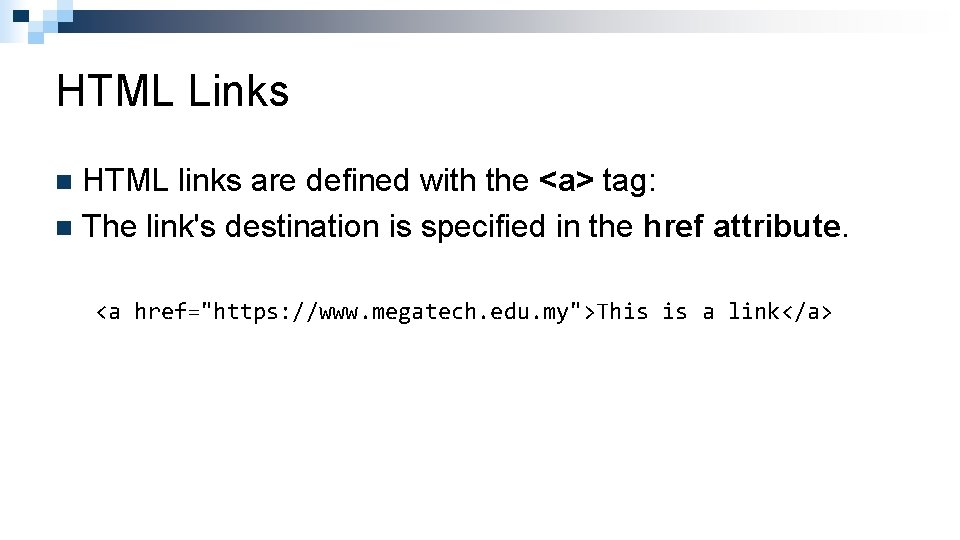
HTML Links HTML links are defined with the <a> tag: n The link's destination is specified in the href attribute. n <a href="https: //www. megatech. edu. my">This is a link</a>
HTML Images HTML images are defined with the <img> tag. n The source file (src), alternative text (alt), width, and height are provided as attributes: n <img src="pic_mountain. jpg" alt="Mountain View" style="width: 304 px; height: 228 px; ">
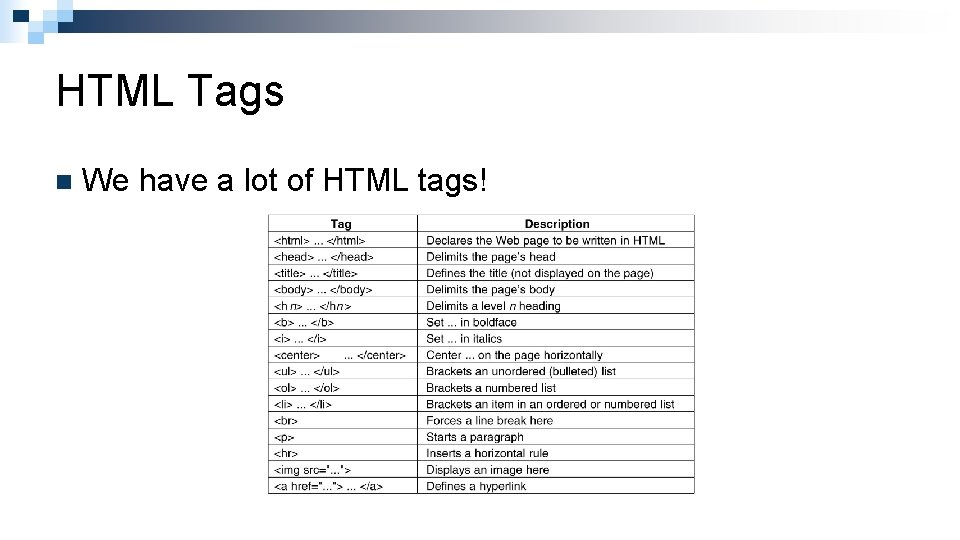
HTML Tags n We have a lot of HTML tags!
HTML Forms n The HTML <form> element defines a form that is used to collect user input: <form>. form elements. </form>
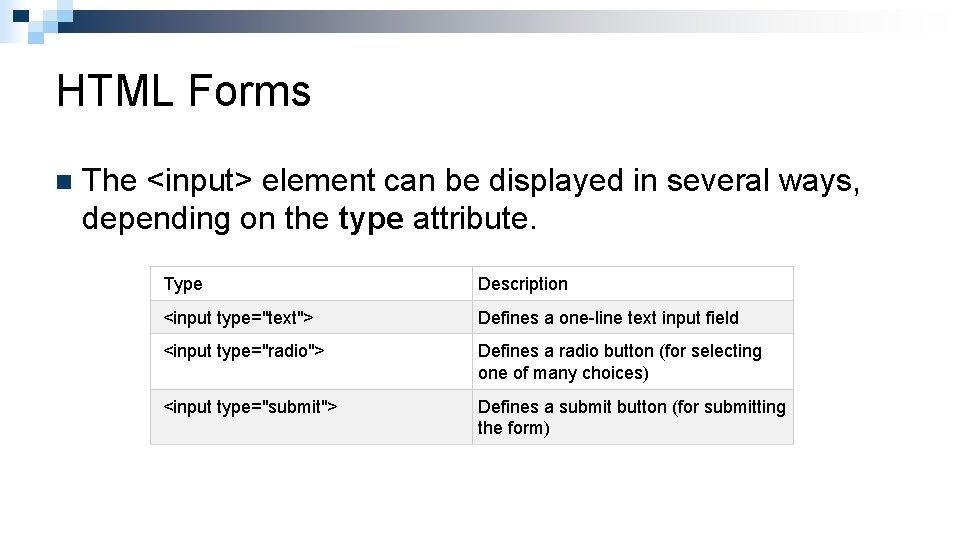
HTML Forms n The <input> element can be displayed in several ways, depending on the type attribute. Type Description <input type="text"> Defines a one-line text input field <input type="radio"> Defines a radio button (for selecting one of many choices) <input type="submit"> Defines a submit button (for submitting the form)
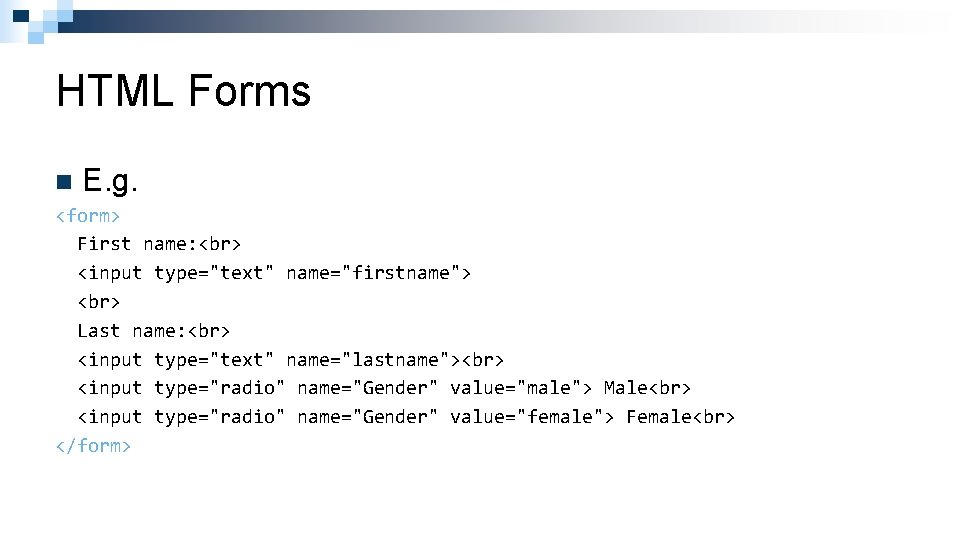
HTML Forms n E. g. <form> First name: <input type="text" name="firstname"> Last name: <input type="text" name="lastname"> <input type="radio" name="Gender" value="male"> Male <input type="radio" name="Gender" value="female"> Female </form>
HTML Styles - CSS stands for Cascading Style Sheets. n CSS describes how HTML elements are to be displayed on screen, paper, or in other media. n CSS saves a lot of work. It can control the layout of multiple web pages all at once. n
HTML Styles - CSS n CSS can be added to HTML elements in 3 ways: ¨ Inline - by using the style attribute in HTML elements ¨ Internal - by using a <style> element in the <head> section ¨ External - by using an external CSS file
HTML Styles - CSS n The most common way to add CSS, is to keep the styles in separate CSS files. However, here we will use inline and internal styling, because this is easier to demonstrate, and easier for you to try it yourself.
Inline CSS An inline CSS is used to apply a unique style to a single HTML element. n An inline CSS uses the style attribute of an HTML element. n
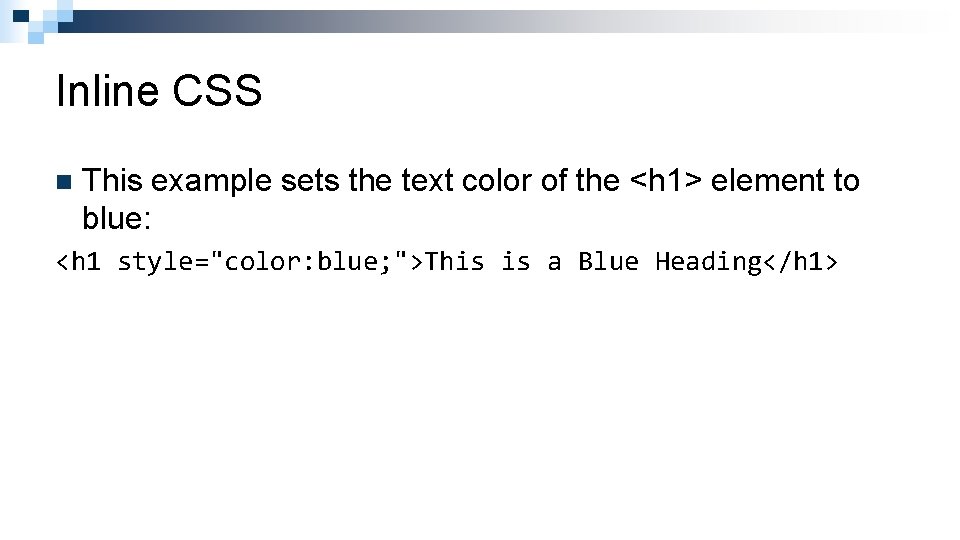
Inline CSS n This example sets the text color of the <h 1> element to blue: <h 1 style="color: blue; ">This is a Blue Heading</h 1>
Internal CSS An internal CSS is used to define a style for a single HTML page. n An internal CSS is defined in the <head> section of an HTML page, within a <style> element. n
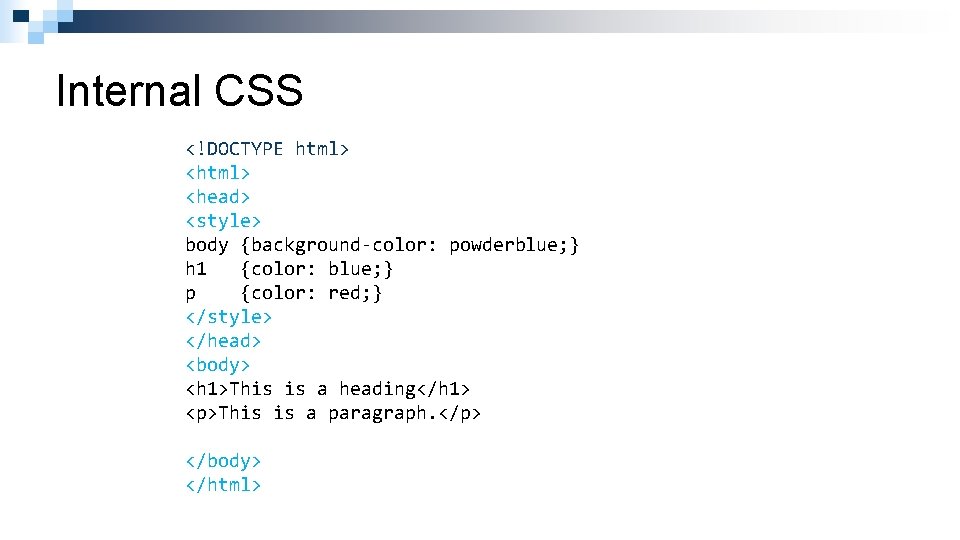
Internal CSS <!DOCTYPE html> <head> <style> body {background-color: powderblue; } h 1 {color: blue; } p {color: red; } </style> </head> <body> <h 1>This is a heading</h 1> <p>This is a paragraph. </p> </body> </html>
External CSS An external style sheet is used to define the style for many HTML pages. n With an external style sheet, you can change the look of an entire web site, by changing one file! n To use an external style sheet, add a link to it in the <head> section of the HTML page. n
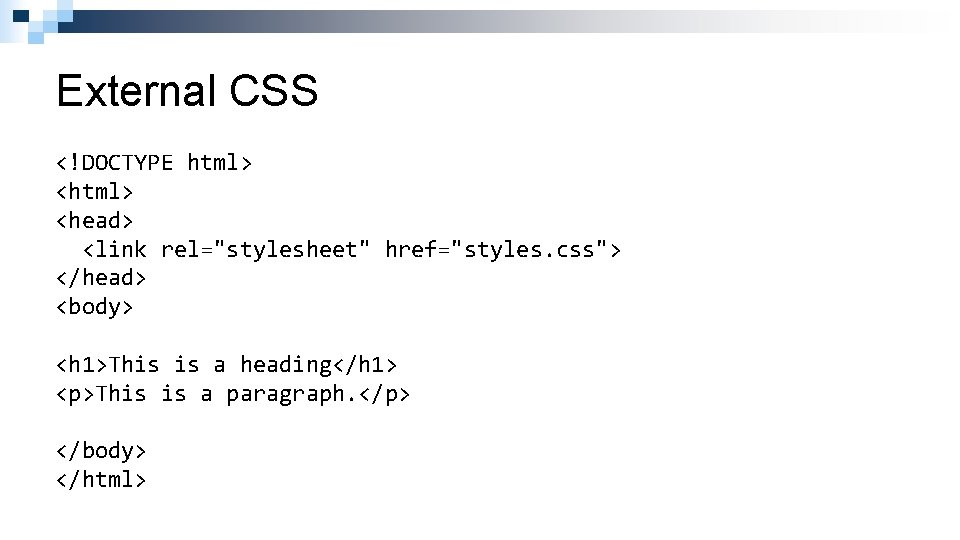
External CSS <!DOCTYPE html> <head> <link rel="stylesheet" href="styles. css"> </head> <body> <h 1>This is a heading</h 1> <p>This is a paragraph. </p> </body> </html>
- Slides: 34