
Introduction to HTML 1 Forms Forms add the
- Slides: 49
Introduction to HTML 1
Forms § Forms add the ability to web pages to not only provide the person viewing the document with dynamic information but also to obtain information from the person viewing it, and process the information. Objectives: Upon completing this section, you should be able to 1. Create a FORM. 2. Add elements to a FORM. (Common Gateway Interface). 3. Define CGI 4. 5. § § Describe the purpose of a CGI Application. Specify an action for the FORM. Forms work in all browsers. Forms are Platform Independent. 2
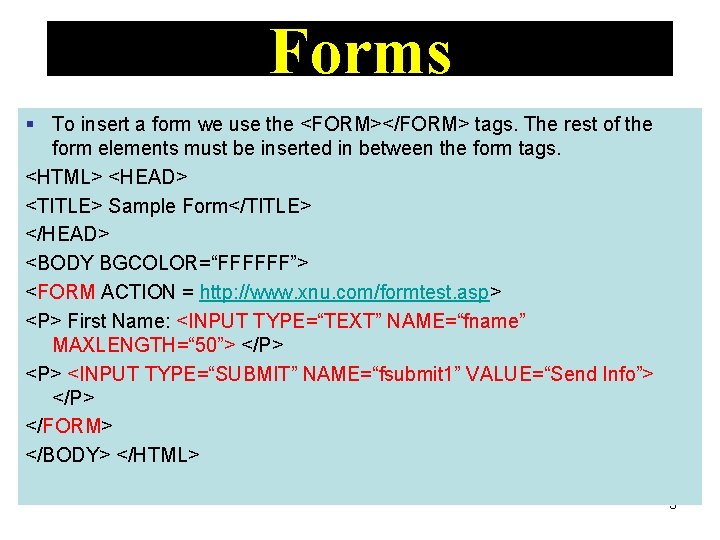
Forms § To insert a form we use the <FORM></FORM> tags. The rest of the form elements must be inserted in between the form tags. <HTML> <HEAD> <TITLE> Sample Form</TITLE> </HEAD> <BODY BGCOLOR=“FFFFFF”> <FORM ACTION = http: //www. xnu. com/formtest. asp> <P> First Name: <INPUT TYPE=“TEXT” NAME=“fname” MAXLENGTH=“ 50”> </P> <INPUT TYPE=“SUBMIT” NAME=“fsubmit 1” VALUE=“Send Info”> </P> </FORM> </BODY> </HTML> 3
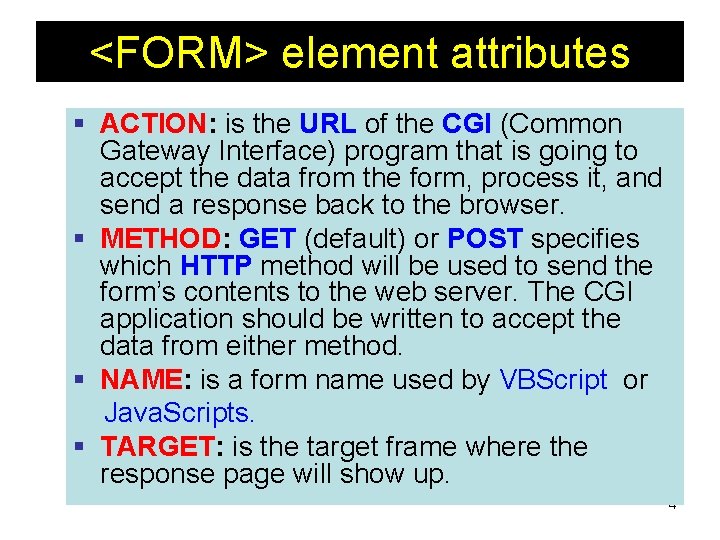
<FORM> element attributes § ACTION: is the URL of the CGI (Common Gateway Interface) program that is going to accept the data from the form, process it, and send a response back to the browser. § METHOD: GET (default) or POST specifies which HTTP method will be used to send the form’s contents to the web server. The CGI application should be written to accept the data from either method. § NAME: is a form name used by VBScript or Java. Scripts. § TARGET: is the target frame where the response page will show up. 4
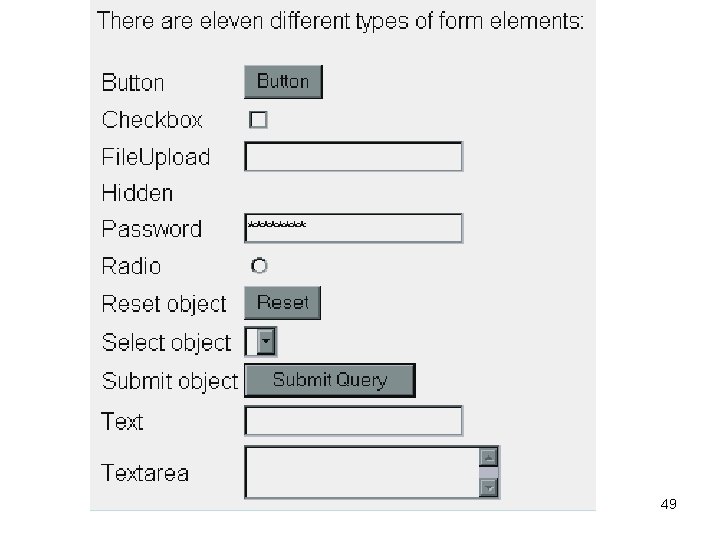
Form Elements § Form elements have properties: Text boxes, Password boxes, Checkboxes, Option(Radio) buttons, Submit, Reset, File, Hidden and Image. § The properties are specified in the TYPE Attribute of the HTML element <INPUT></INPUT>. 5
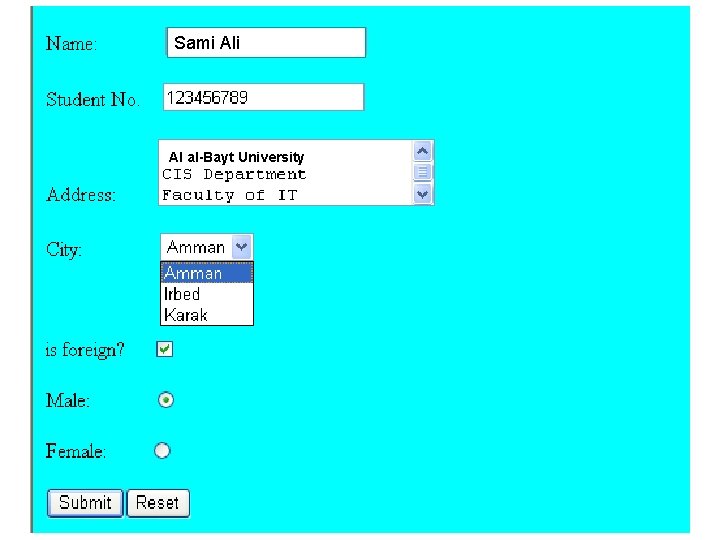
Sami Al al-Bayt University 6
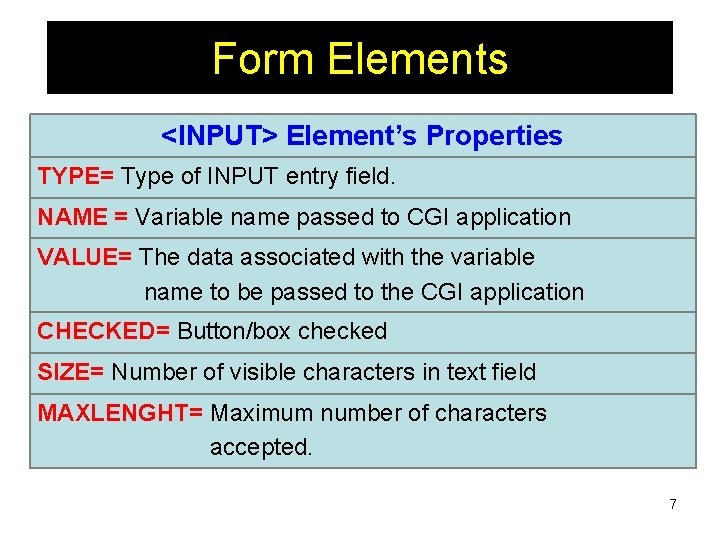
Form Elements <INPUT> Element’s Properties TYPE= Type of INPUT entry field. NAME = Variable name passed to CGI application VALUE= The data associated with the variable name to be passed to the CGI application CHECKED= Button/box checked SIZE= Number of visible characters in text field MAXLENGHT= Maximum number of characters accepted. 7
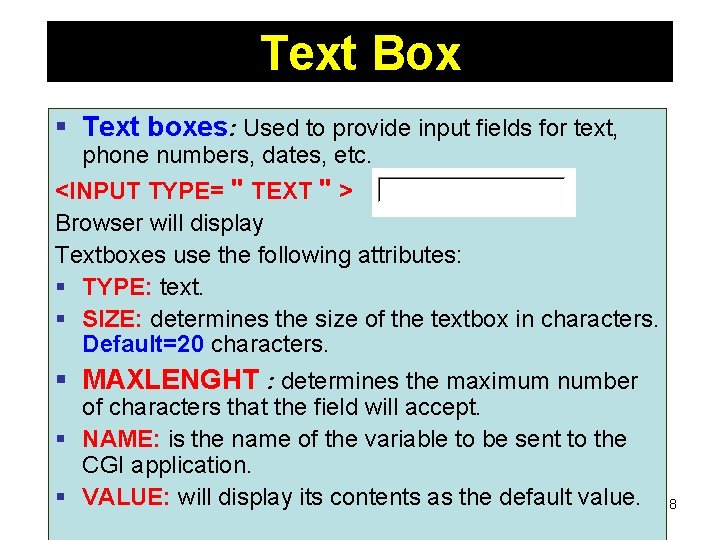
Text Box § Text boxes: Used to provide input fields for text, phone numbers, dates, etc. <INPUT TYPE= " TEXT " > Browser will display Textboxes use the following attributes: § TYPE: text. § SIZE: determines the size of the textbox in characters. Default=20 characters. § MAXLENGHT : determines the maximum number of characters that the field will accept. § NAME: is the name of the variable to be sent to the CGI application. § VALUE: will display its contents as the default value. 8
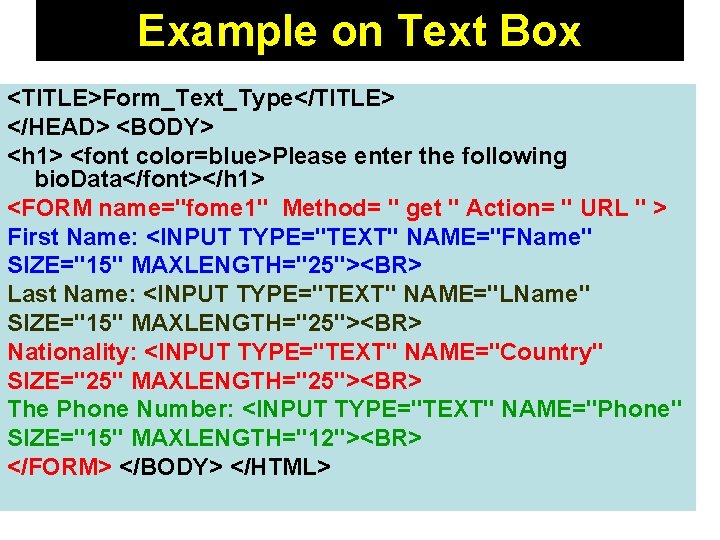
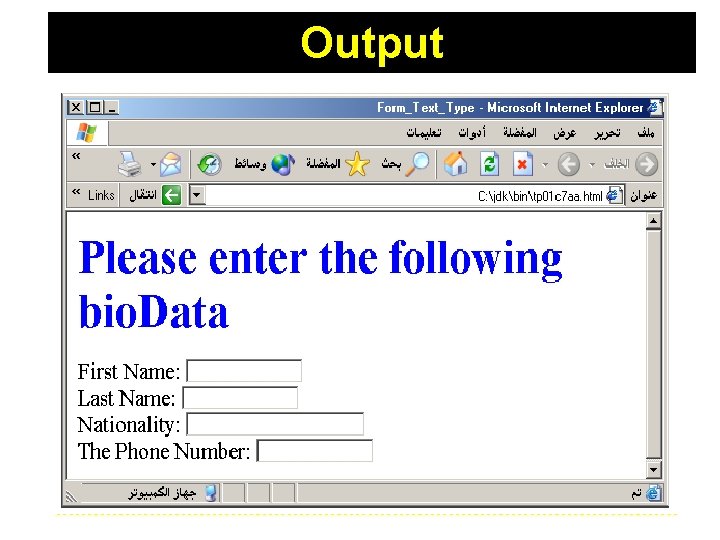
Example on Text Box <TITLE>Form_Text_Type</TITLE> </HEAD> <BODY> <h 1> <font color=blue>Please enter the following bio. Data</font></h 1> <FORM name="fome 1" Method= " get " Action= " URL " > First Name: <INPUT TYPE="TEXT" NAME="FName" SIZE="15" MAXLENGTH="25"><BR> Last Name: <INPUT TYPE="TEXT" NAME="LName" SIZE="15" MAXLENGTH="25"><BR> Nationality: <INPUT TYPE="TEXT" NAME="Country" SIZE="25" MAXLENGTH="25"><BR> The Phone Number: <INPUT TYPE="TEXT" NAME="Phone" SIZE="15" MAXLENGTH="12"><BR> </FORM> </BODY> </HTML> 9
Output 10
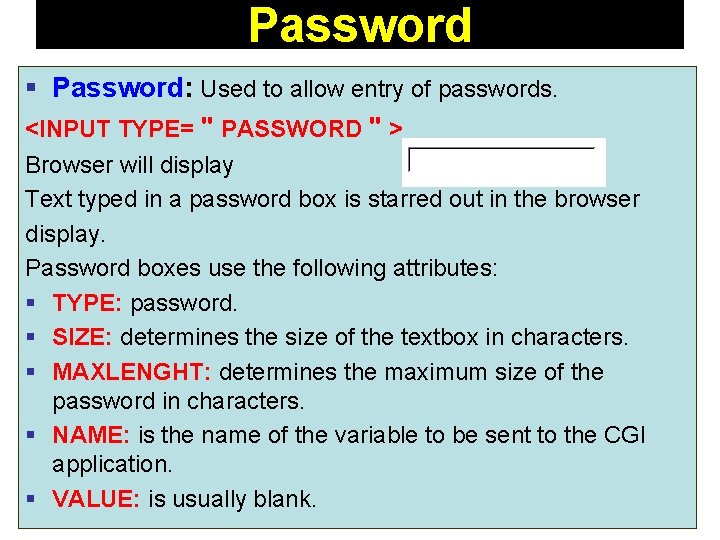
Password § Password: Used to allow entry of passwords. <INPUT TYPE= " PASSWORD " > Browser will display Text typed in a password box is starred out in the browser display. Password boxes use the following attributes: § TYPE: password. § SIZE: determines the size of the textbox in characters. § MAXLENGHT: determines the maximum size of the password in characters. § NAME: is the name of the variable to be sent to the CGI application. § VALUE: is usually blank. 11
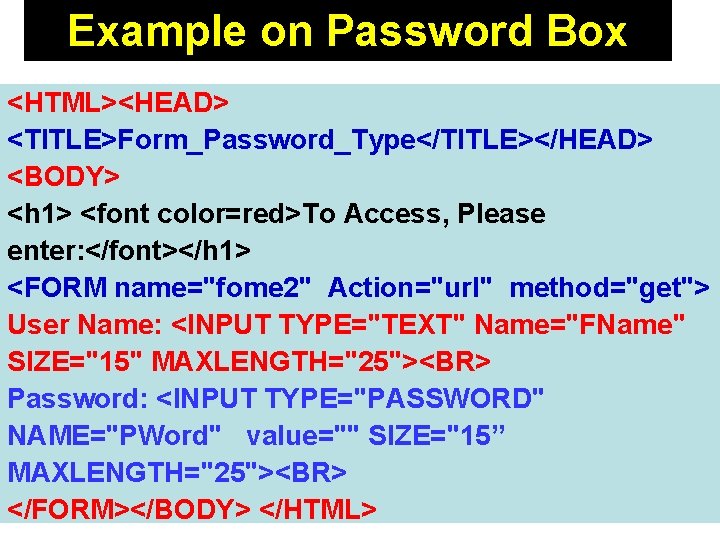
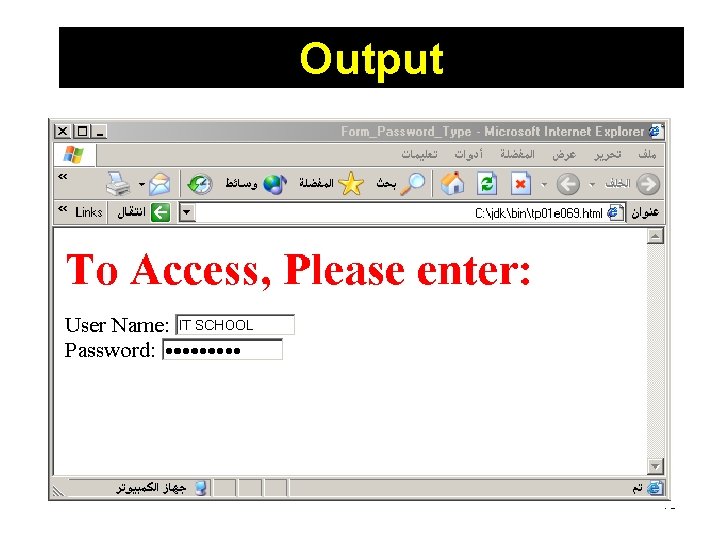
Example on Password Box <HTML><HEAD> <TITLE>Form_Password_Type</TITLE></HEAD> <BODY> <h 1> <font color=red>To Access, Please enter: </font></h 1> <FORM name="fome 2" Action="url" method="get"> User Name: <INPUT TYPE="TEXT" Name="FName" SIZE="15" MAXLENGTH="25"><BR> Password: <INPUT TYPE="PASSWORD" NAME="PWord" value="" SIZE="15” MAXLENGTH="25"><BR> 12 </FORM></BODY> </HTML>
Output 13
Hidden § Hidden: Used to send data to the CGI application that you don’t want the web surfer to see, change or have to enter but is necessary for the application to process the form correctly. <INPUT TYPE=“HIDDEN”> Nothing is displayed in the browser. Hidden inputs have the following attributes: § TYPE: hidden. § NAME: is the name of the variable to be sent to the CGI application. § VALUE: is usually set a value expected by the CGI application. 14
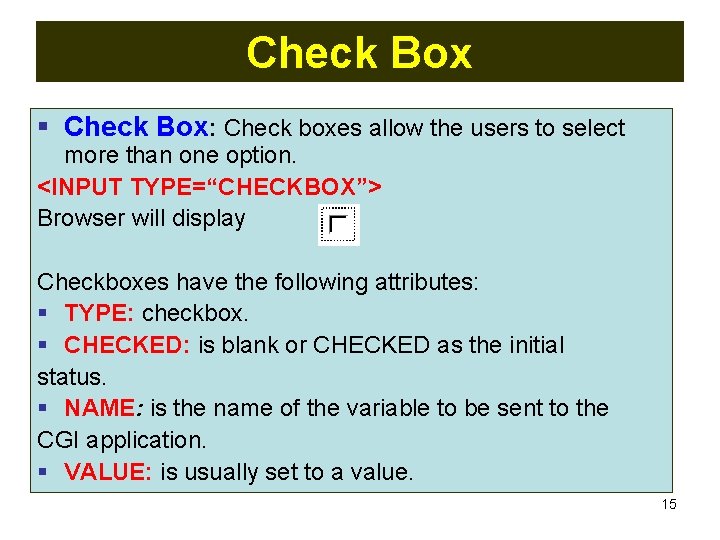
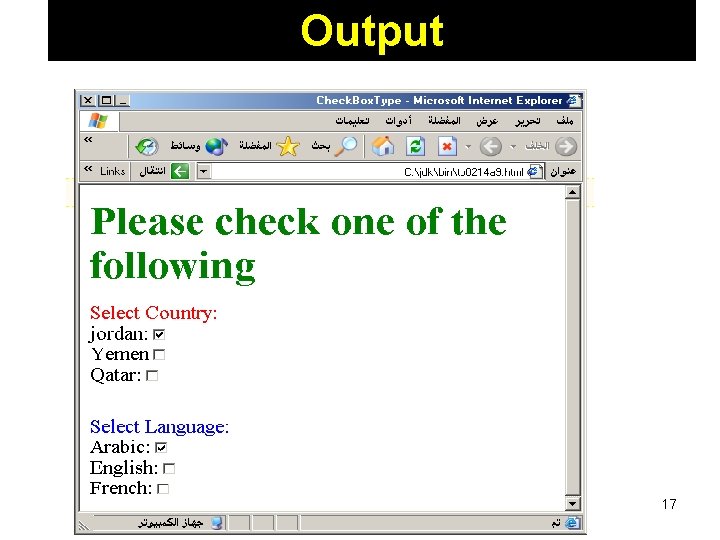
Check Box § Check Box: Check boxes allow the users to select more than one option. <INPUT TYPE=“CHECKBOX”> Browser will display Checkboxes have the following attributes: § TYPE: checkbox. § CHECKED: is blank or CHECKED as the initial status. § NAME: is the name of the variable to be sent to the CGI application. § VALUE: is usually set to a value. 15
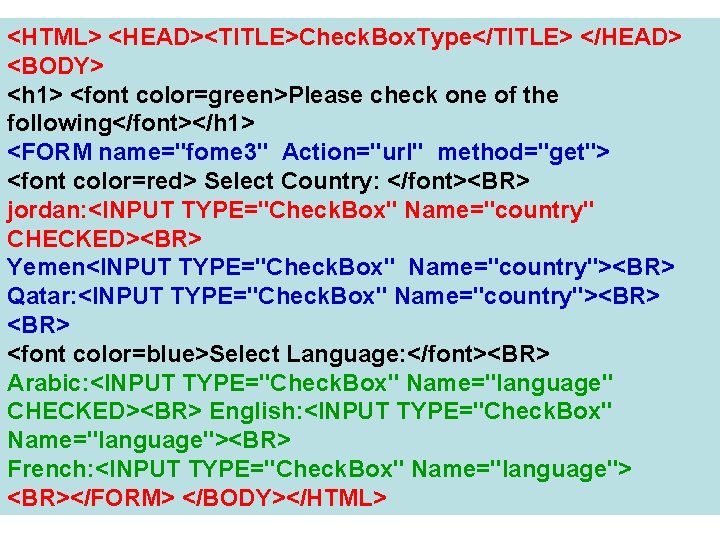
<HTML> <HEAD><TITLE>Check. Box. Type</TITLE> </HEAD> <BODY> <h 1> <font color=green>Please check one of the following</font></h 1> <FORM name="fome 3" Action="url" method="get"> <font color=red> Select Country: </font><BR> jordan: <INPUT TYPE="Check. Box" Name="country" CHECKED><BR> Yemen<INPUT TYPE="Check. Box" Name="country"><BR> Qatar: <INPUT TYPE="Check. Box" Name="country"><BR> <font color=blue>Select Language: </font><BR> Arabic: <INPUT TYPE="Check. Box" Name="language" CHECKED><BR> English: <INPUT TYPE="Check. Box" Name="language"><BR> French: <INPUT TYPE="Check. Box" Name="language"> <BR></FORM> </BODY></HTML> 16
Output 17
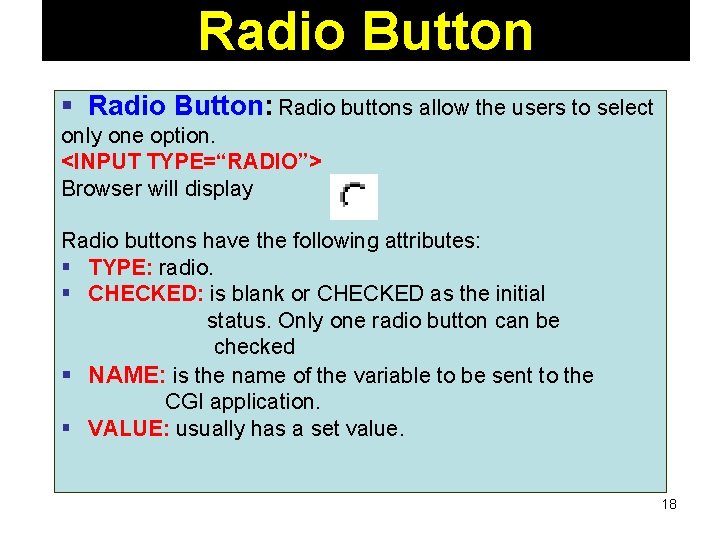
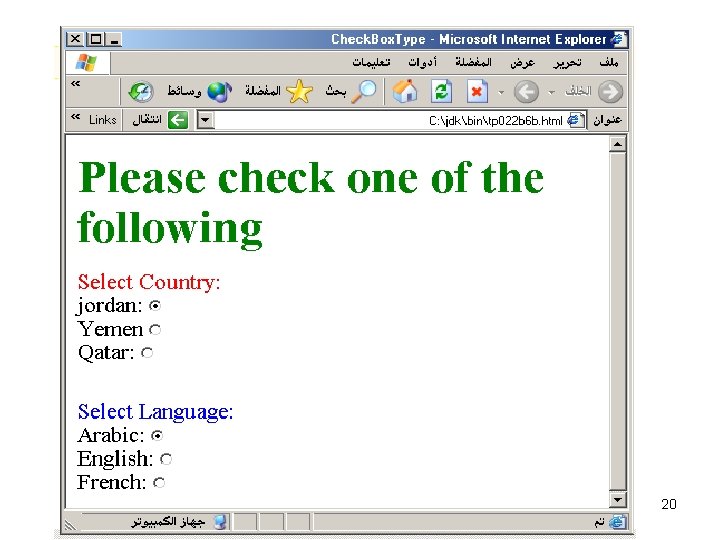
Radio Button § Radio Button: Radio buttons allow the users to select only one option. <INPUT TYPE=“RADIO”> Browser will display Radio buttons have the following attributes: § TYPE: radio. § CHECKED: is blank or CHECKED as the initial status. Only one radio button can be checked § NAME: is the name of the variable to be sent to the CGI application. § VALUE: usually has a set value. 18
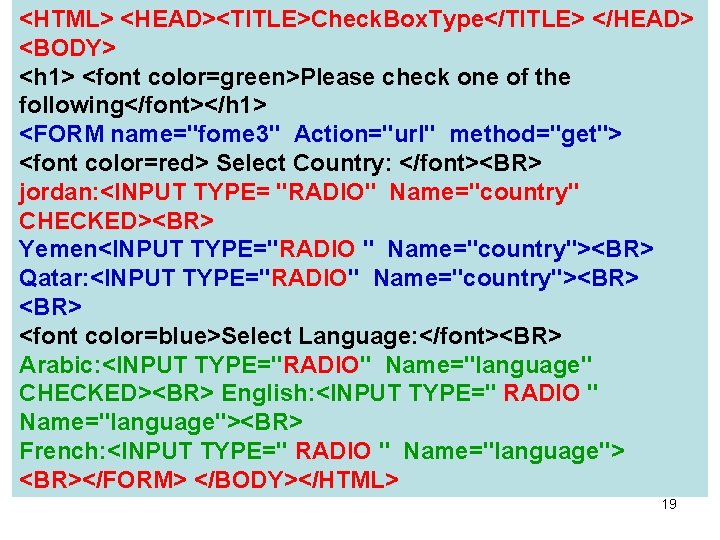
<HTML> <HEAD><TITLE>Check. Box. Type</TITLE> </HEAD> <BODY> <h 1> <font color=green>Please check one of the following</font></h 1> <FORM name="fome 3" Action="url" method="get"> <font color=red> Select Country: </font><BR> jordan: <INPUT TYPE= "RADIO" Name="country" CHECKED><BR> Yemen<INPUT TYPE="RADIO " Name="country"><BR> Qatar: <INPUT TYPE="RADIO" Name="country"><BR> <font color=blue>Select Language: </font><BR> Arabic: <INPUT TYPE="RADIO" Name="language" CHECKED><BR> English: <INPUT TYPE=" RADIO " Name="language"><BR> French: <INPUT TYPE=" RADIO " Name="language"> <BR></FORM> </BODY></HTML> 19
20
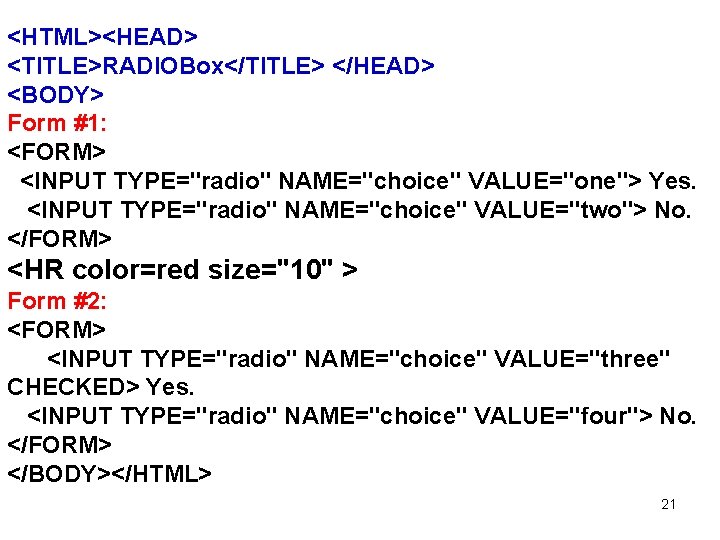
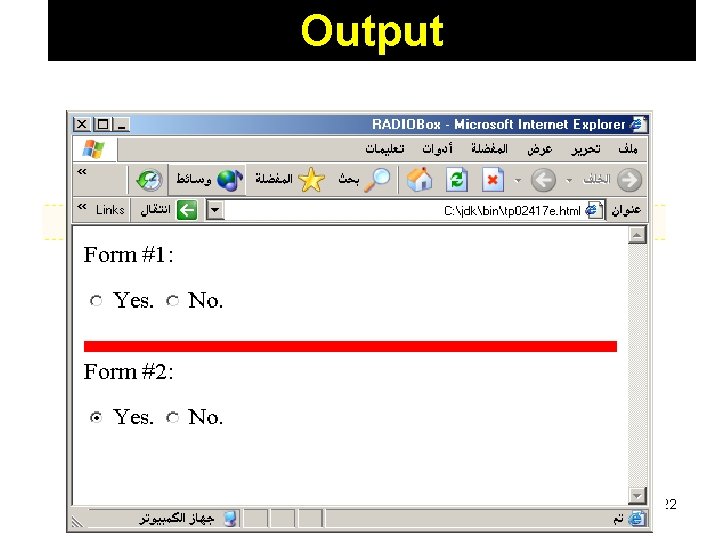
<HTML><HEAD> <TITLE>RADIOBox</TITLE> </HEAD> <BODY> Form #1: <FORM> <INPUT TYPE="radio" NAME="choice" VALUE="one"> Yes. <INPUT TYPE="radio" NAME="choice" VALUE="two"> No. </FORM> <HR color=red size="10" > Form #2: <FORM> <INPUT TYPE="radio" NAME="choice" VALUE="three" CHECKED> Yes. <INPUT TYPE="radio" NAME="choice" VALUE="four"> No. </FORM> </BODY></HTML> 21
Output 22
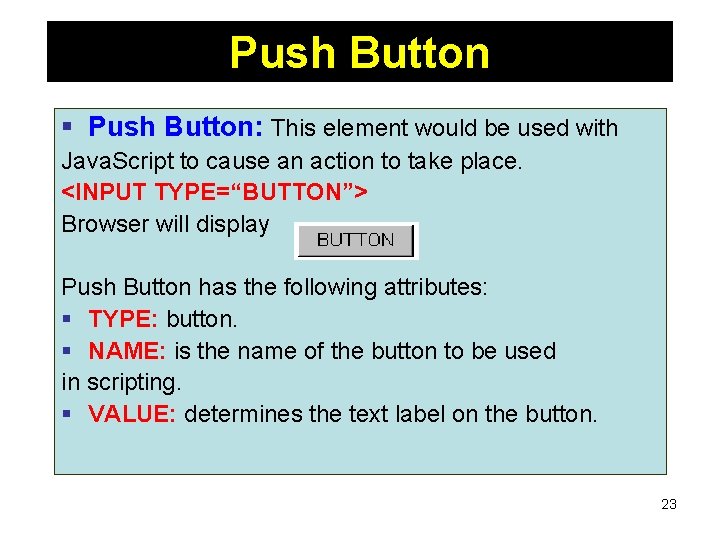
Push Button § Push Button: This element would be used with Java. Script to cause an action to take place. <INPUT TYPE=“BUTTON”> Browser will display Push Button has the following attributes: § TYPE: button. § NAME: is the name of the button to be used in scripting. § VALUE: determines the text label on the button. 23
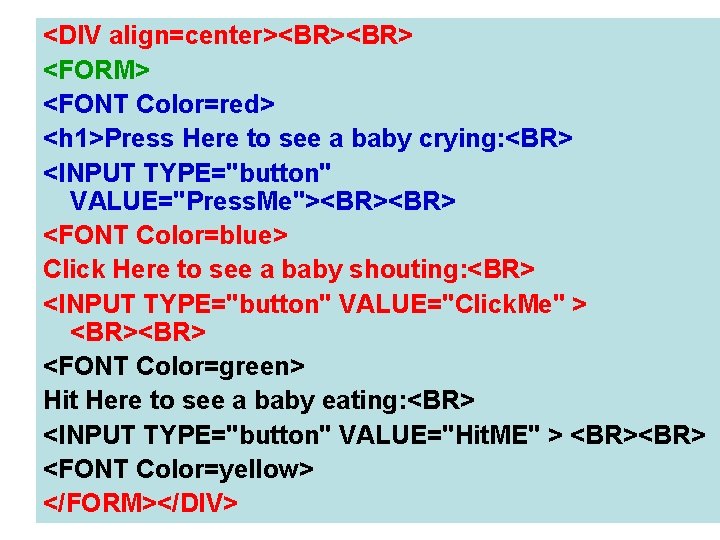
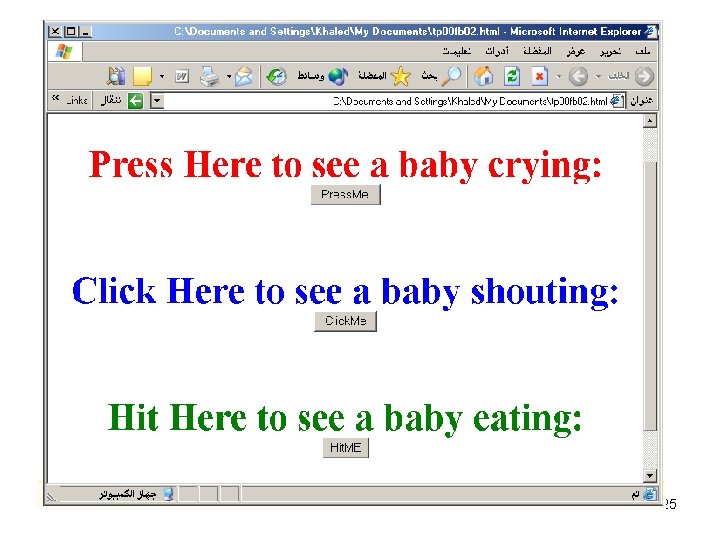
<DIV align=center><BR> <FORM> <FONT Color=red> <h 1>Press Here to see a baby crying: <BR> <INPUT TYPE="button" VALUE="Press. Me"><BR> <FONT Color=blue> Click Here to see a baby shouting: <BR> <INPUT TYPE="button" VALUE="Click. Me" > <BR> <FONT Color=green> Hit Here to see a baby eating: <BR> <INPUT TYPE="button" VALUE="Hit. ME" > <BR> <FONT Color=yellow> 24 </FORM></DIV>
25
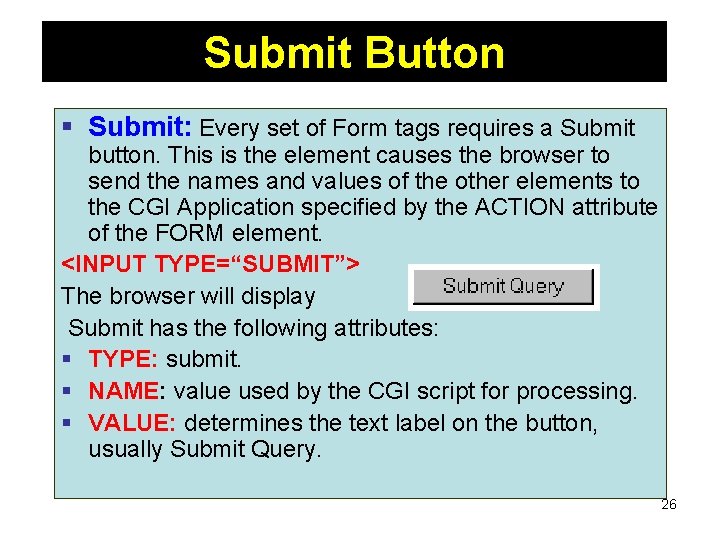
Submit Button § Submit: Every set of Form tags requires a Submit button. This is the element causes the browser to send the names and values of the other elements to the CGI Application specified by the ACTION attribute of the FORM element. <INPUT TYPE=“SUBMIT”> The browser will display Submit has the following attributes: § TYPE: submit. § NAME: value used by the CGI script for processing. § VALUE: determines the text label on the button, usually Submit Query. 26
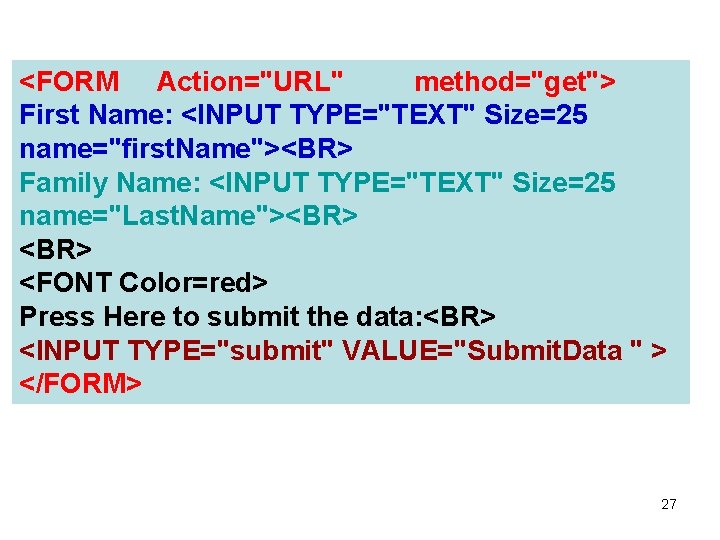
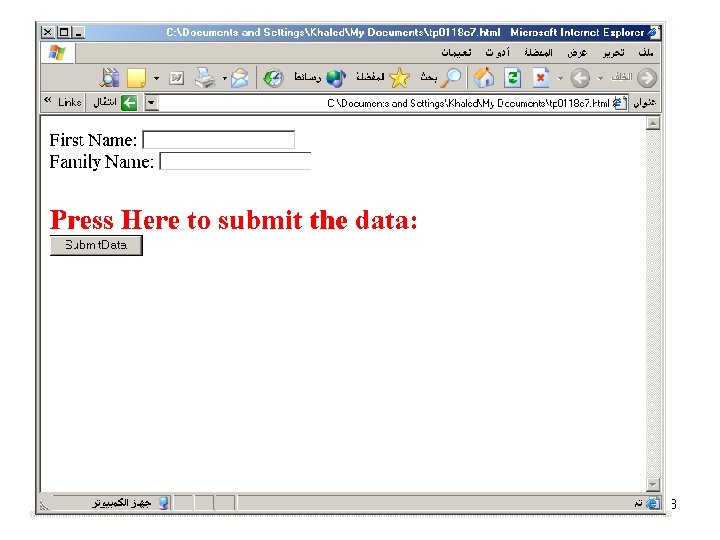
<FORM Action="URL" method="get"> First Name: <INPUT TYPE="TEXT" Size=25 name="first. Name"><BR> Family Name: <INPUT TYPE="TEXT" Size=25 name="Last. Name"><BR> <FONT Color=red> Press Here to submit the data: <BR> <INPUT TYPE="submit" VALUE="Submit. Data " > </FORM> 27
28
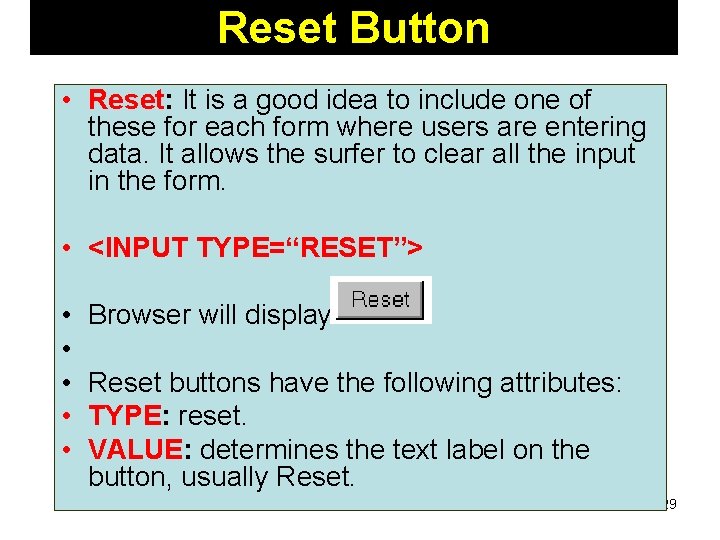
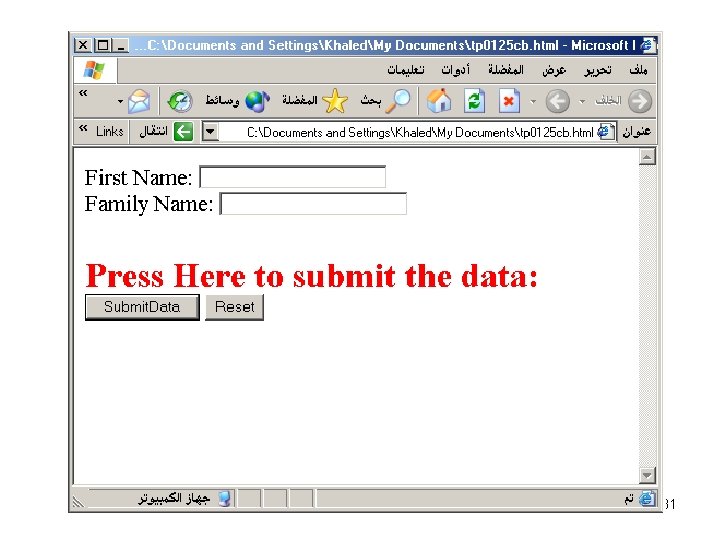
Reset Button • Reset: It is a good idea to include one of these for each form where users are entering data. It allows the surfer to clear all the input in the form. • <INPUT TYPE=“RESET”> • • • Browser will display Reset buttons have the following attributes: TYPE: reset. VALUE: determines the text label on the button, usually Reset. 29
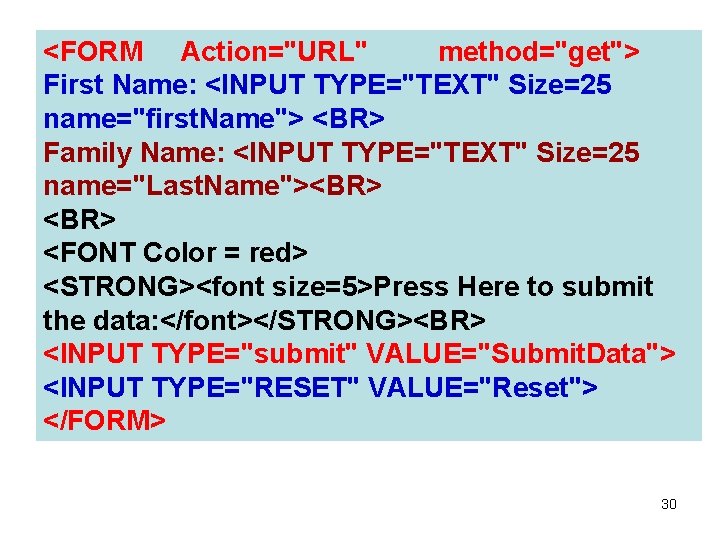
<FORM Action="URL" method="get"> First Name: <INPUT TYPE="TEXT" Size=25 name="first. Name"> <BR> Family Name: <INPUT TYPE="TEXT" Size=25 name="Last. Name"><BR> <FONT Color = red> <STRONG><font size=5>Press Here to submit the data: </font></STRONG><BR> <INPUT TYPE="submit" VALUE="Submit. Data"> <INPUT TYPE="RESET" VALUE="Reset"> </FORM> 30
31
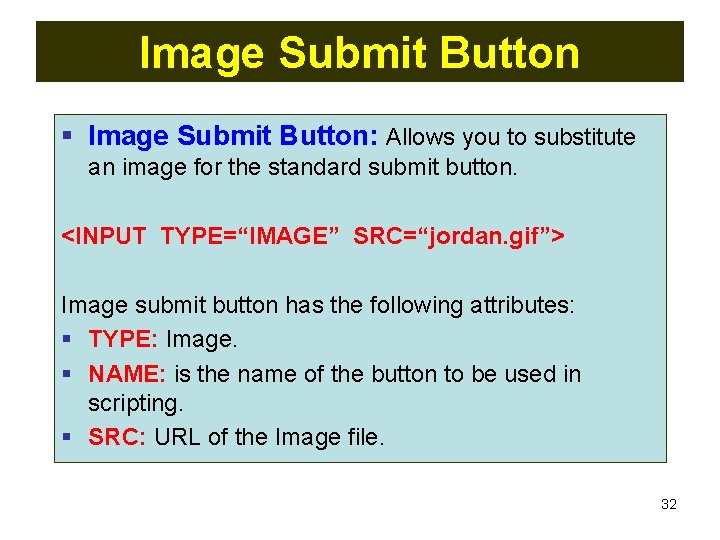
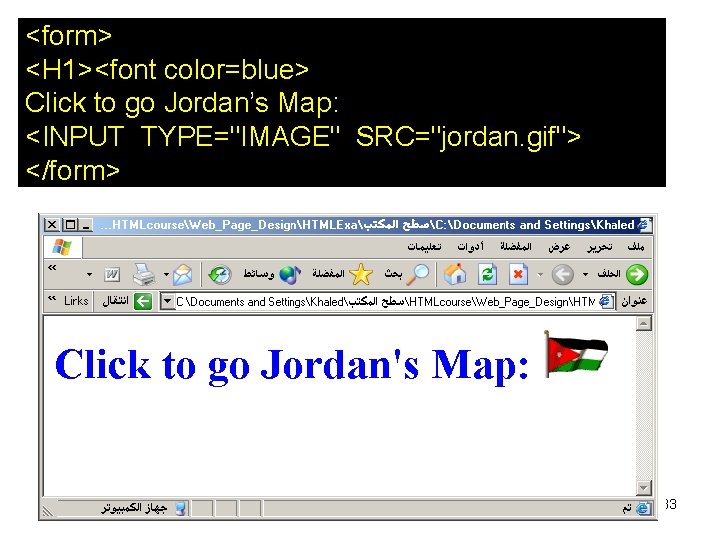
Image Submit Button § Image Submit Button: Allows you to substitute an image for the standard submit button. <INPUT TYPE=“IMAGE” SRC=“jordan. gif”> Image submit button has the following attributes: § TYPE: Image. § NAME: is the name of the button to be used in scripting. § SRC: URL of the Image file. 32
<form> <H 1><font color=blue> Click to go Jordan’s Map: <INPUT TYPE="IMAGE" SRC="jordan. gif"> </form> 33
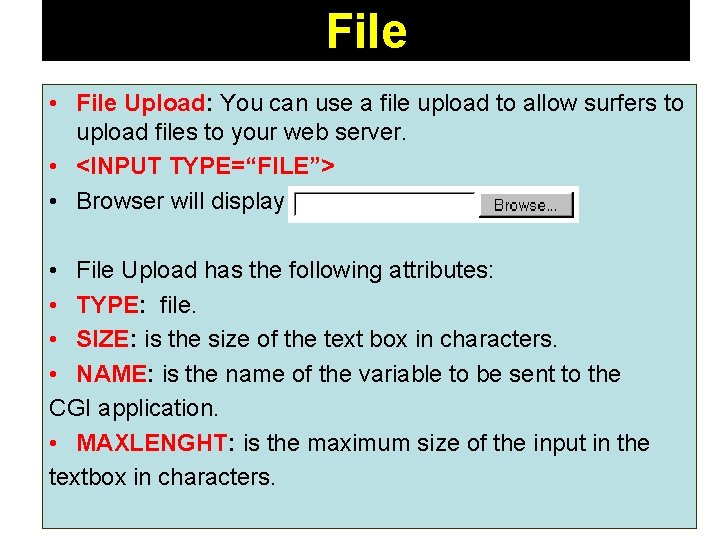
File • File Upload: You can use a file upload to allow surfers to upload files to your web server. • <INPUT TYPE=“FILE”> • Browser will display • File Upload has the following attributes: • TYPE: file. • SIZE: is the size of the text box in characters. • NAME: is the name of the variable to be sent to the CGI application. • MAXLENGHT: is the maximum size of the input in the textbox in characters. 34
<BODY bgcolor=lightblue> <form> <H 3><font color=forestgreen> Please attach your file here to for uploading to My <font color =red>SERVER. . . <BR> <INPUT TYPE="File" name="my. File" size="30"> <INPUT TYPE="Submit" value="Submit. File"> </form> </BODY> 35
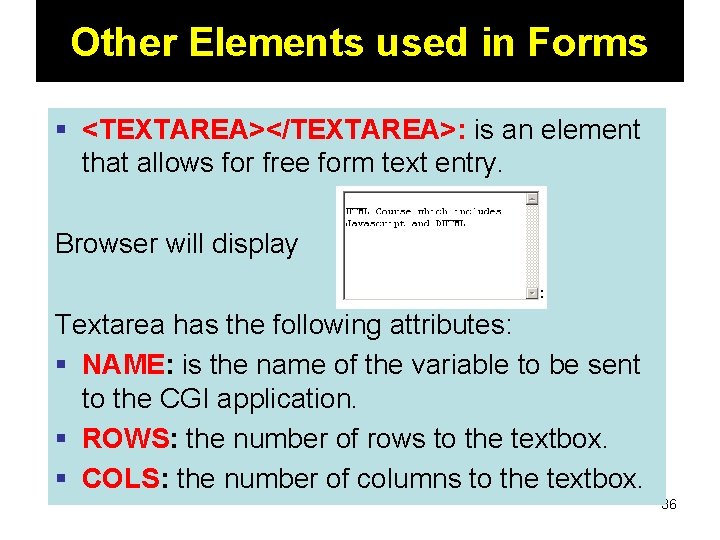
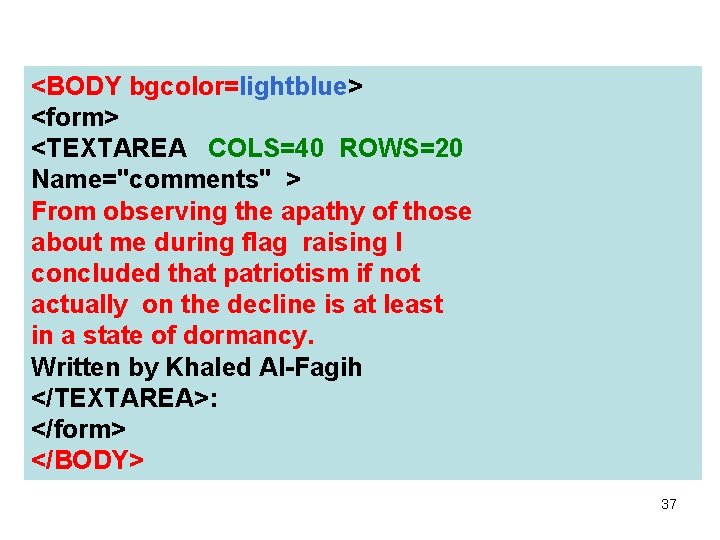
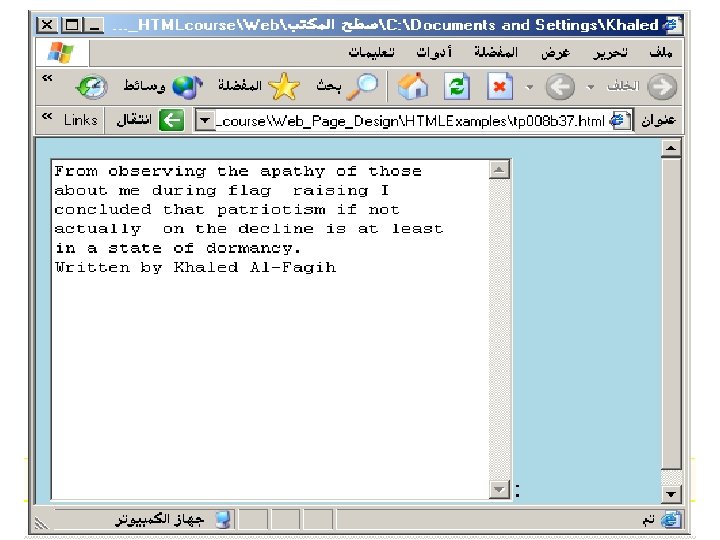
Other Elements used in Forms § <TEXTAREA></TEXTAREA>: is an element that allows for free form text entry. Browser will display Textarea has the following attributes: § NAME: is the name of the variable to be sent to the CGI application. § ROWS: the number of rows to the textbox. § COLS: the number of columns to the textbox. 36
<BODY bgcolor=lightblue> <form> <TEXTAREA COLS=40 ROWS=20 Name="comments" > From observing the apathy of those about me during flag raising I concluded that patriotism if not actually on the decline is at least in a state of dormancy. Written by Khaled Al-Fagih </TEXTAREA>: </form> </BODY> 37
38
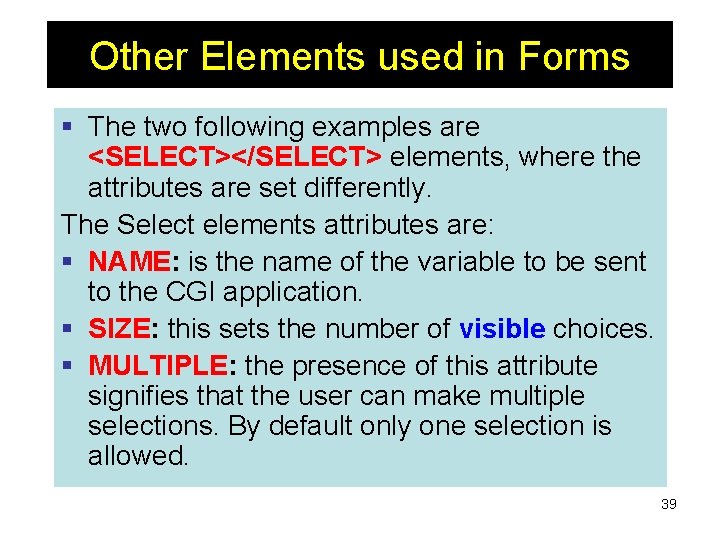
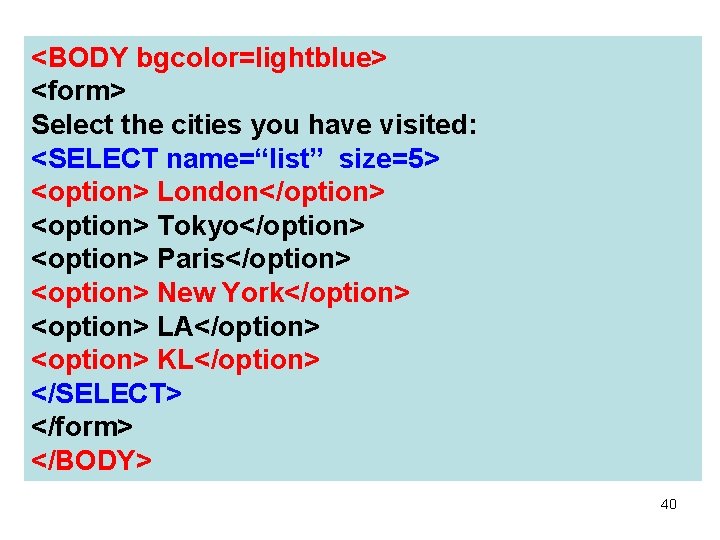
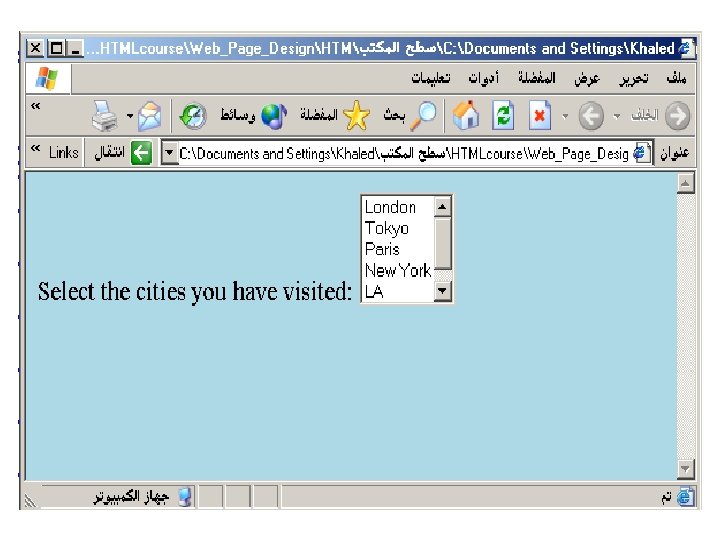
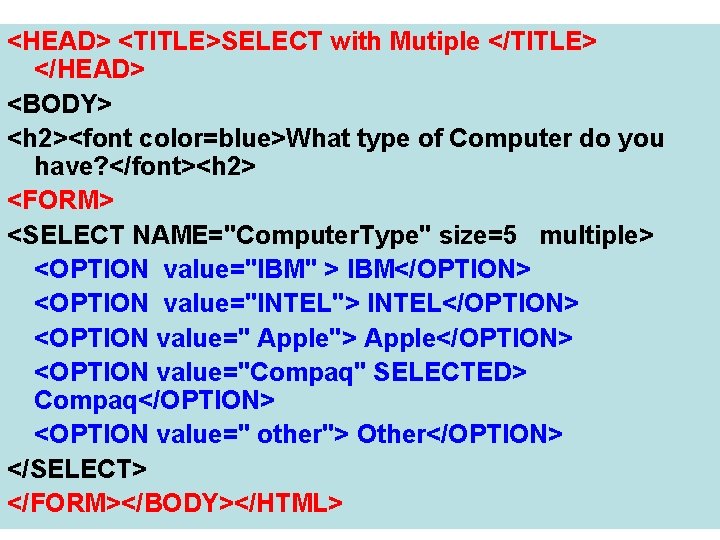
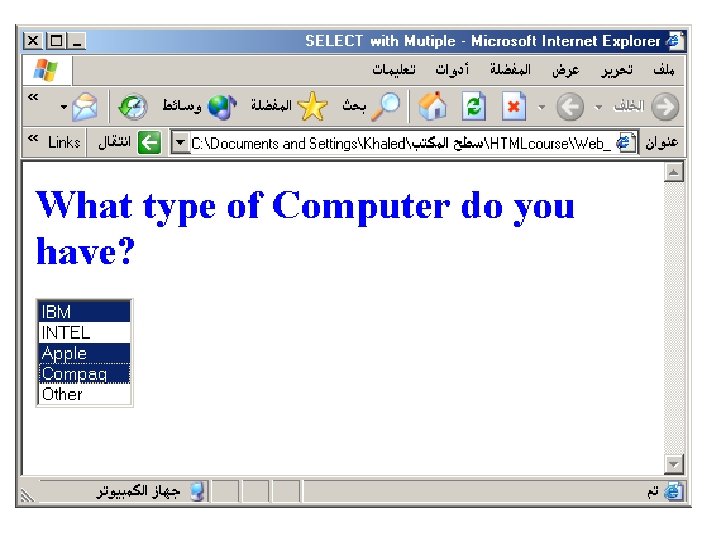
Other Elements used in Forms § The two following examples are <SELECT></SELECT> elements, where the attributes are set differently. The Select elements attributes are: § NAME: is the name of the variable to be sent to the CGI application. § SIZE: this sets the number of visible choices. § MULTIPLE: the presence of this attribute signifies that the user can make multiple selections. By default only one selection is allowed. 39
<BODY bgcolor=lightblue> <form> Select the cities you have visited: <SELECT name=“list” size=5> <option> London</option> <option> Tokyo</option> <option> Paris</option> <option> New York</option> <option> LA</option> <option> KL</option> </SELECT> </form> </BODY> 40
41
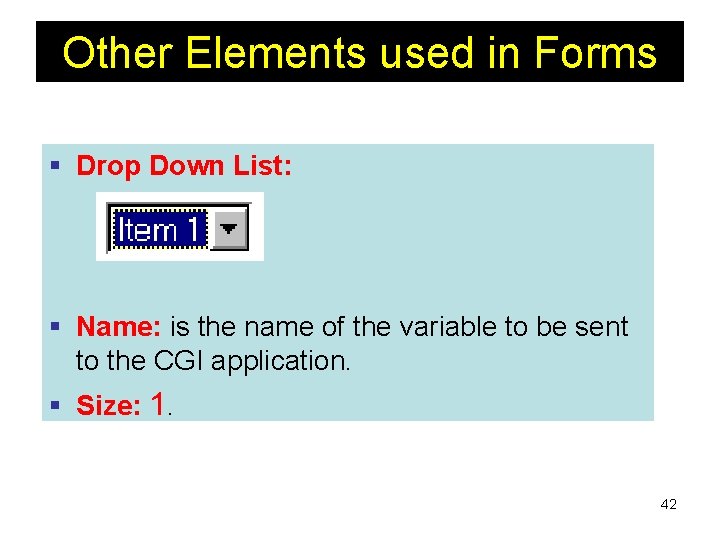
Other Elements used in Forms § Drop Down List: § Name: is the name of the variable to be sent to the CGI application. § Size: 1. 42
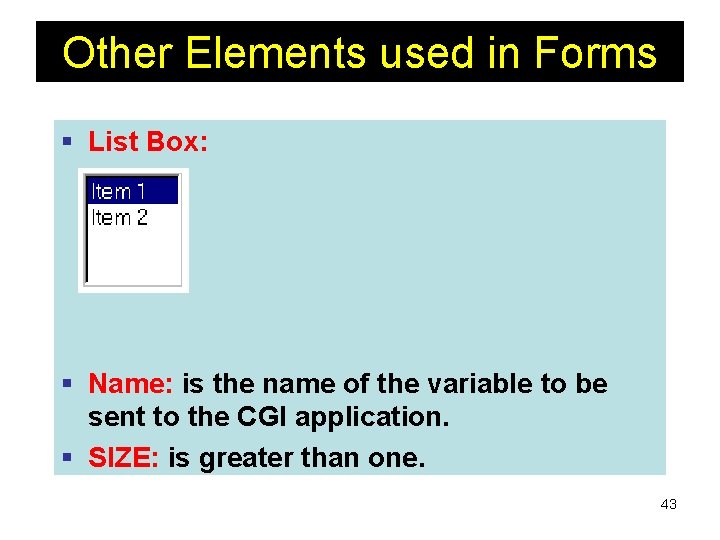
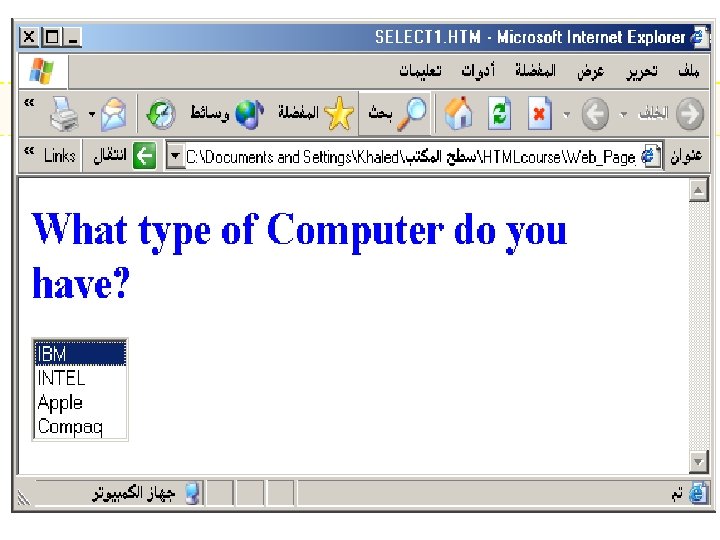
Other Elements used in Forms § List Box: § Name: is the name of the variable to be sent to the CGI application. § SIZE: is greater than one. 43
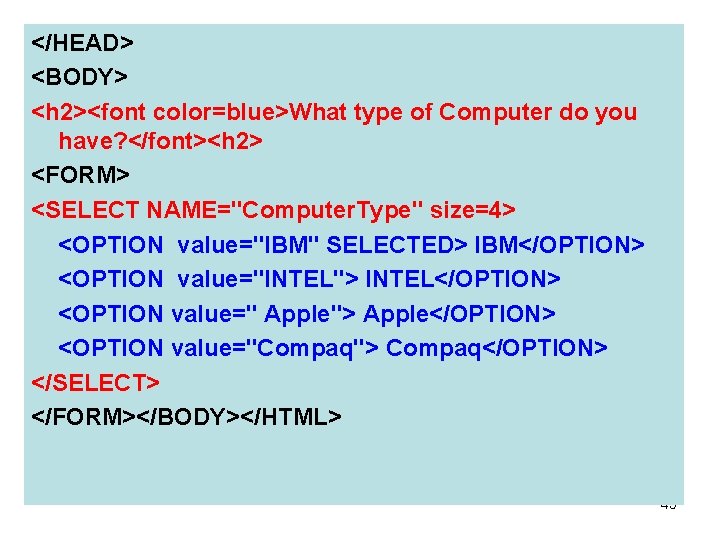
Other Elements used in Forms § Option The list items are added to the <SELECT> element by inserting <OPTION></OPTION> elements. The Option Element’s attributes are: § SELECTED: When this attribute is present, the option is selected when the document is initially loaded. It is an error for more than one option to be selected. § VALUE: Specifies the value the variable named in the select element. 44
</HEAD> <BODY> <h 2><font color=blue>What type of Computer do you have? </font><h 2> <FORM> <SELECT NAME="Computer. Type" size=4> <OPTION value="IBM" SELECTED> IBM</OPTION> <OPTION value="INTEL"> INTEL</OPTION> <OPTION value=" Apple"> Apple</OPTION> <OPTION value="Compaq"> Compaq</OPTION> </SELECT> </FORM></BODY></HTML> 45
46
<HEAD> <TITLE>SELECT with Mutiple </TITLE> </HEAD> <BODY> <h 2><font color=blue>What type of Computer do you have? </font><h 2> <FORM> <SELECT NAME="Computer. Type" size=5 multiple> <OPTION value="IBM" > IBM</OPTION> <OPTION value="INTEL"> INTEL</OPTION> <OPTION value=" Apple"> Apple</OPTION> <OPTION value="Compaq" SELECTED> Compaq</OPTION> <OPTION value=" other"> Other</OPTION> </SELECT> 47 </FORM></BODY></HTML>
48
49