
Introduction to High Performance Computing And Linux Michael





![FORMAT OF UNIX COMMANDS • command [option. . . ] [filename. . . ]](https://slidetodoc.com/presentation_image_h/324d4dcb4d15acd2a3b11061b9a44025/image-28.jpg "FORMAT OF UNIX COMMANDS • command [option. . . ] [filename. . . ]")
![DISPLAYING CONTENTS OF A TEXT_FILE… CONTINUED cat [options] filename [filename … ] This command](https://slidetodoc.com/presentation_image_h/324d4dcb4d15acd2a3b11061b9a44025/image-33.jpg "DISPLAYING CONTENTS OF A TEXT_FILE… CONTINUED cat [options] filename [filename … ] This command")
![USING FIND • Searches recursively for specified file • find [-H] [-L] [-P] path_list](https://slidetodoc.com/presentation_image_h/324d4dcb4d15acd2a3b11061b9a44025/image-41.jpg "USING FIND • Searches recursively for specified file • find [-H] [-L] [-P] path_list")


- Slides: 61
Introduction to High Performance Computing And Linux Michael Griffiths and Norbert Gyenge Corporate Information and Computing Services The University of Sheffield www. sheffield. ac. uk/cics/research
Objectives 1. 2. 3. 4. 5. 6. 7. Understand what High Performance Computing is Be able to access remote HPC Systems by different methods Run Applications on a remote HPC system Manage files using the Linux Operating Systems Know how to use the different kinds of file storage systems Run applications using a Scheduling System Know how to get more resources and how to get resources dedicated for your research 8. Know how to enhance your research through shell scripting 9. Know how to get help and training
Course Format 1. 2. 3. 4. Presentation Slides Demonstrations Practice Sessions Material Based on Research Case Scenarios
Outline 1. 2. 3. 4. 5. What is High Performance Computing? Accessing HPC at The University of Sheffield The File System and Using the Shell Using Storage and Managing Data Using the Shell to run Programs
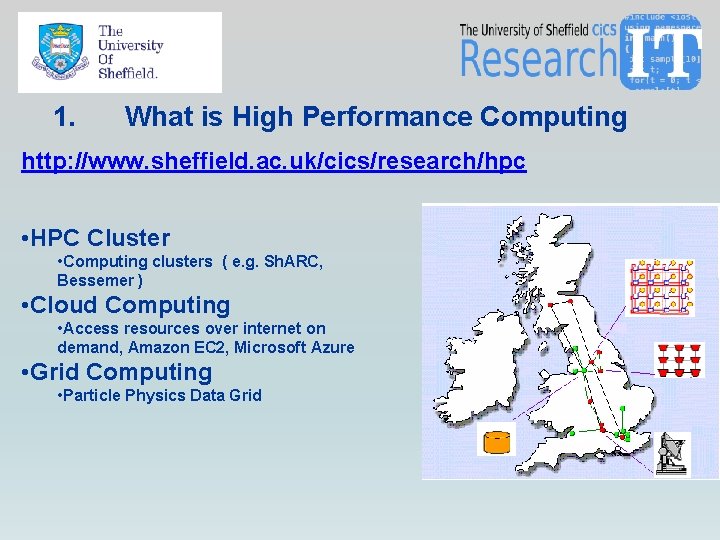
1. What is High Performance Computing http: //www. sheffield. ac. uk/cics/research/hpc • HPC Cluster • Computing clusters ( e. g. Sh. ARC, Bessemer ) • Cloud Computing • Access resources over internet on demand, Amazon EC 2, Microsoft Azure • Grid Computing • Particle Physics Data Grid
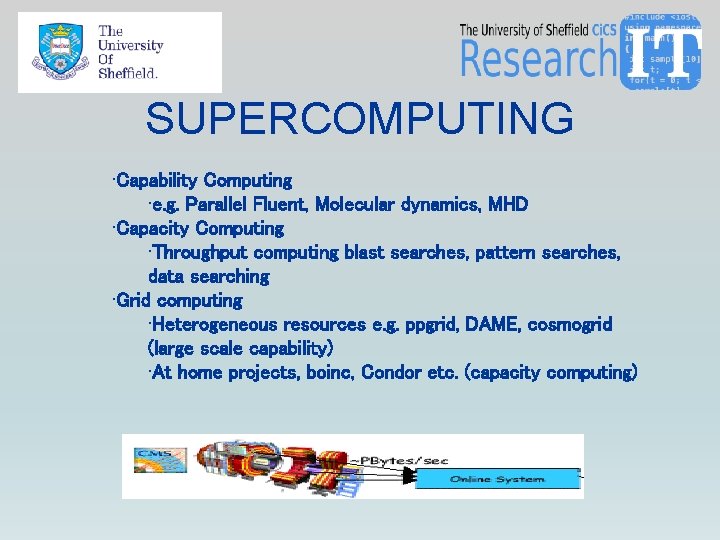
SUPERCOMPUTING • Capability Computing • e. g. Parallel Fluent, Molecular dynamics, MHD • Capacity Computing • Throughput computing blast searches, pattern searches, data searching • Grid computing • Heterogeneous resources e. g. ppgrid, DAME, cosmogrid (large scale capability) • At home projects, boinc, Condor etc. (capacity computing)
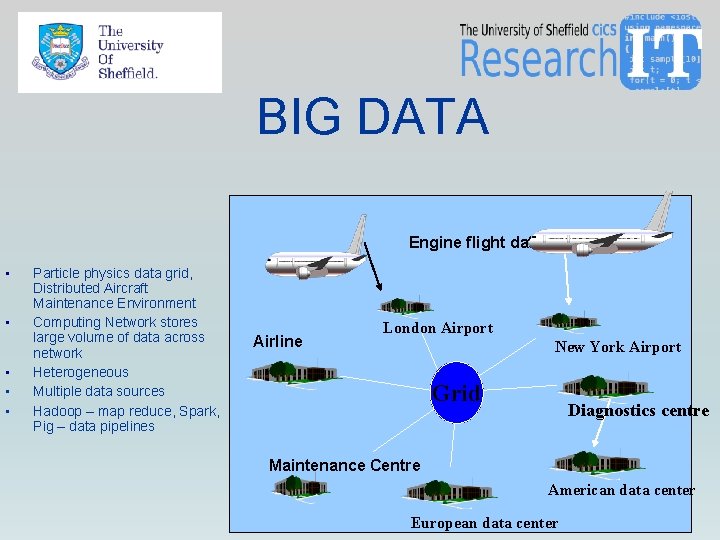
BIG DATA Engine flight data • • • Particle physics data grid, Distributed Aircraft Maintenance Environment Computing Network stores large volume of data across network Heterogeneous Multiple data sources Hadoop – map reduce, Spark, Pig – data pipelines Airline London Airport New York Airport Grid Diagnostics centre Maintenance Centre American data center European data center
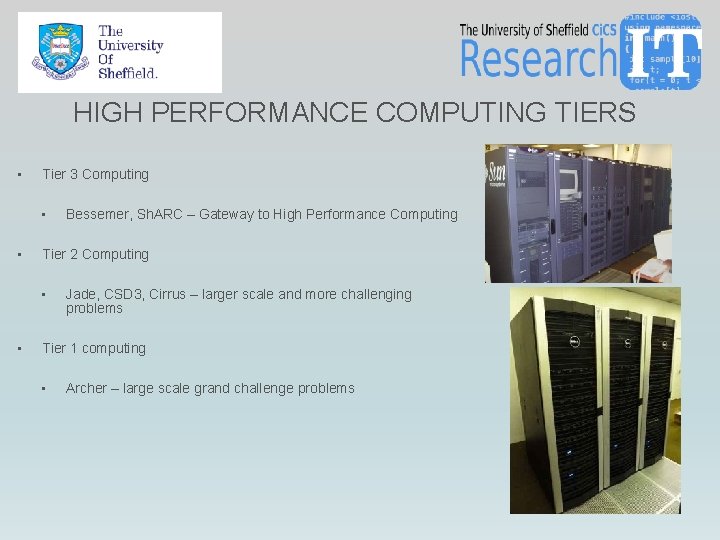
HIGH PERFORMANCE COMPUTING TIERS • Tier 3 Computing • • Tier 2 Computing • • Bessemer, Sh. ARC – Gateway to High Performance Computing Jade, CSD 3, Cirrus – larger scale and more challenging problems Tier 1 computing • Archer – large scale grand challenge problems
PROJECTS • Atomistic & Mesoscale Simulations for Radioactive Waste Disposal • Biomineralization and Biomimetics • Computational Biology • INSIGNEO - Institute for in silico medicine • Designing Nanomaterials for Energy Applications • Large Scale Calculations for Aerospace & Energy Applications • Molecular Ecology Group, Genomics • MHD Wave Coupling in the Solar Atmosphere
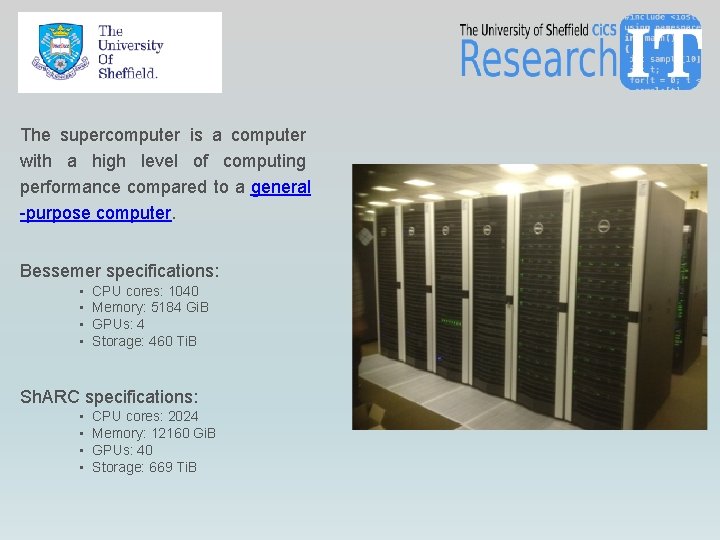
The supercomputer is a computer with a high level of computing performance compared to a general -purpose computer. Bessemer specifications: • • CPU cores: 1040 Memory: 5184 Gi. B GPUs: 4 Storage: 460 Ti. B Sh. ARC specifications: • • CPU cores: 2024 Memory: 12160 Gi. B GPUs: 40 Storage: 669 Ti. B
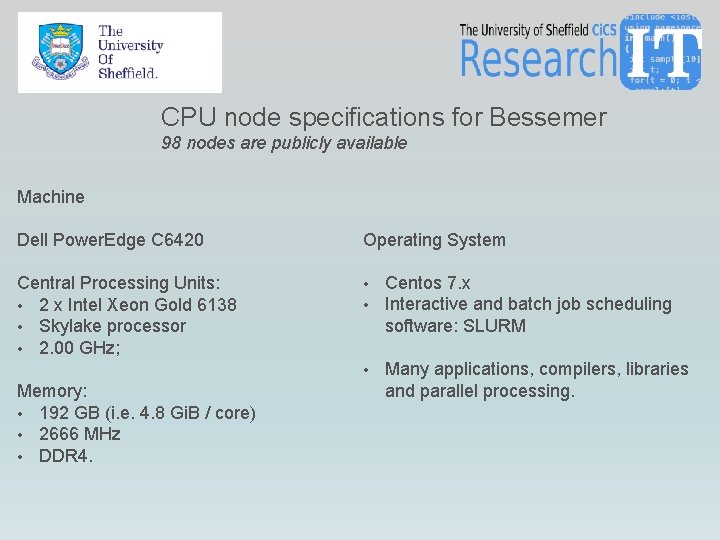
CPU node specifications for Bessemer 98 nodes are publicly available Machine Dell Power. Edge C 6420 Operating System Central Processing Units: • 2 x Intel Xeon Gold 6138 • Skylake processor • 2. 00 GHz; • • Centos 7. x Interactive and batch job scheduling software: SLURM • Many applications, compilers, libraries and parallel processing. Memory: • 192 GB (i. e. 4. 8 Gi. B / core) • 2666 MHz • DDR 4.
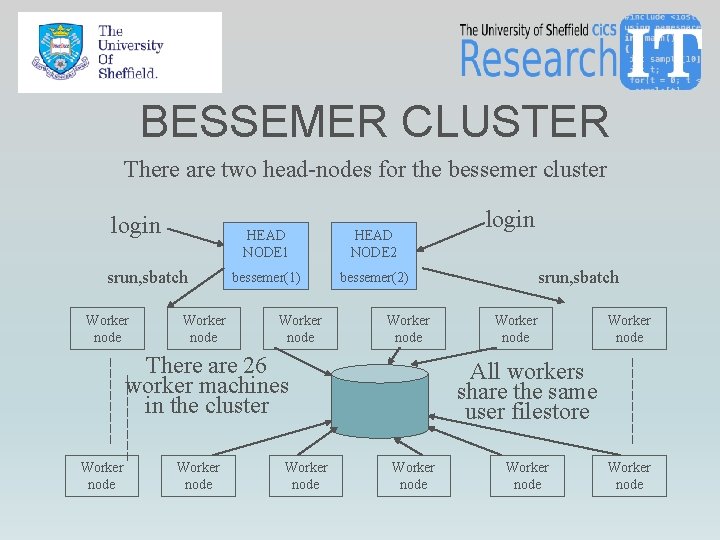
BESSEMER CLUSTER There are two head-nodes for the bessemer cluster login srun, sbatch Worker node HEAD NODE 1 HEAD NODE 2 bessemer(1) bessemer(2) Worker node There are 26 worker machines in the cluster Worker node login srun, sbatch Worker node All workers share the same user filestore Worker node
GETTING HELP • HPC web site home page • • http: //www. shef. ac. uk/cics/research Sh. ARC Documentation • http: //www. sheffield. ac. uk/cics/research/hpc/ • Training (also uses the learning management system) • • Discussion Group (based on google groups) • • http: //www. shef. ac. uk/cics/research/training https: //groups. google. com/a/sheffield. ac. uk/forum/? hl=en-GB#!forum/hpc E-mail the group hpc@sheffield. ac. uk Help on google groups http: //www. sheffield. ac. uk/cics/groups Contacts • research-it@sheffield. ac. uk
ACCESSING HPC AT THE UNIVERSITY OF SHEFFIELD https: //www. sheffield. ac. uk/cics/research/hpc/register All staff and research students are entitled to use sharc Staff can have an account by simply emailing research-it@sheffield. ac. uk
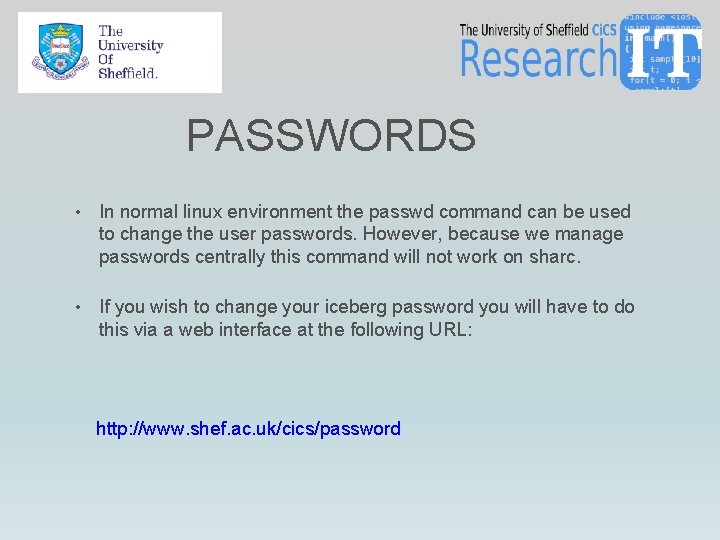
PASSWORDS • In normal linux environment the passwd command can be used to change the user passwords. However, because we manage passwords centrally this command will not work on sharc. • If you wish to change your iceberg password you will have to do this via a web interface at the following URL: http: //www. shef. ac. uk/cics/password
DEMONSTRATION 1 • Research computing website • Bessemer documentation • HPC Discussion group • Checking and Changing your password
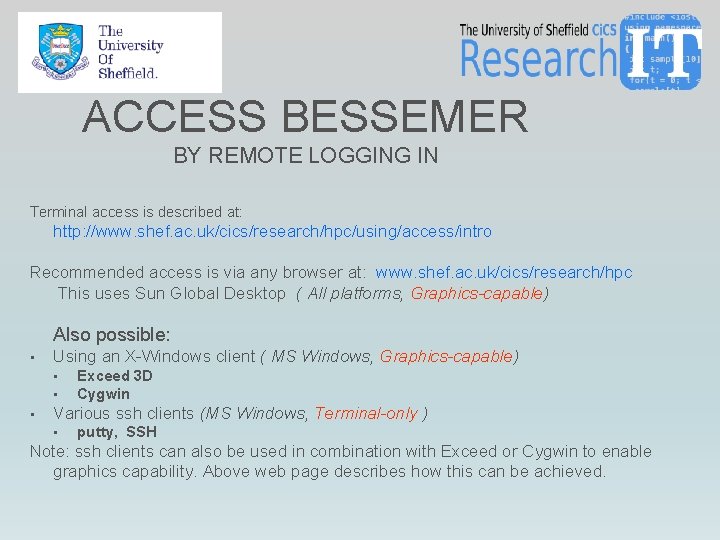
ACCESS BESSEMER BY REMOTE LOGGING IN Terminal access is described at: http: //www. shef. ac. uk/cics/research/hpc/using/access/intro Recommended access is via any browser at: www. shef. ac. uk/cics/research/hpc This uses Sun Global Desktop ( All platforms, Graphics-capable) Also possible: • Using an X-Windows client ( MS Windows, Graphics-capable) • • • Exceed 3 D Cygwin Various ssh clients (MS Windows, Terminal-only ) • putty, SSH Note: ssh clients can also be used in combination with Exceed or Cygwin to enable graphics capability. Above web page describes how this can be achieved.
SECURE SHELL • Program to log into another computer over a network • Execute commands on a remote machine • Move files from one machine to another • Provides strong authentication and secure communications over insecure channels. • Intended as a replacement for rlogin, rsh, rcp, and rdist.
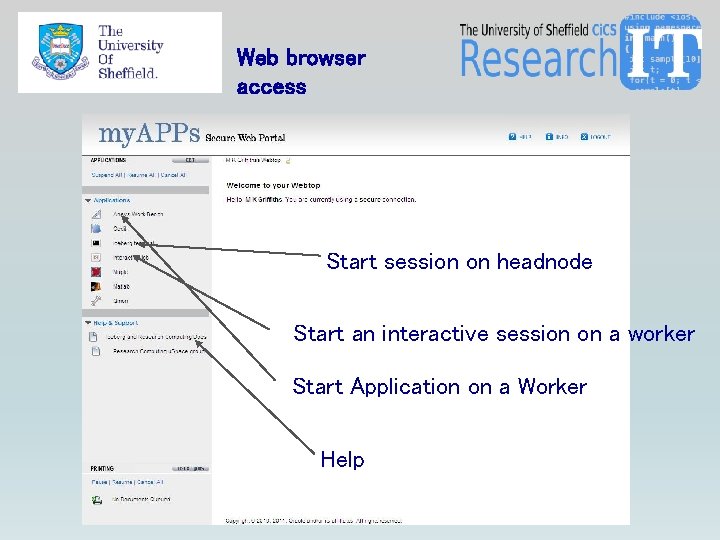
Web browser access Start session on headnode Start an interactive session on a worker Start Application on a Worker Help
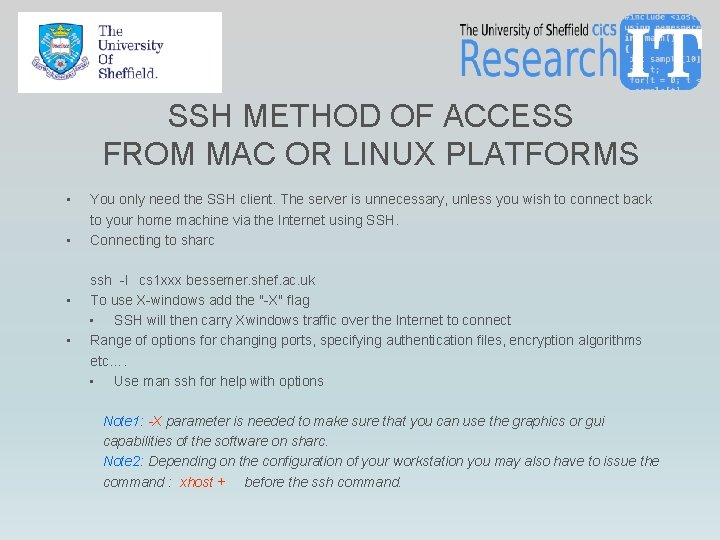
SSH METHOD OF ACCESS FROM MAC OR LINUX PLATFORMS • • You only need the SSH client. The server is unnecessary, unless you wish to connect back to your home machine via the Internet using SSH. Connecting to sharc ssh -l cs 1 xxx bessemer. shef. ac. uk To use X-windows add the "-X" flag • SSH will then carry Xwindows traffic over the Internet to connect Range of options for changing ports, specifying authentication files, encryption algorithms etc…. • Use man ssh for help with options Note 1: -X parameter is needed to make sure that you can use the graphics or gui capabilities of the software on sharc. Note 2: Depending on the configuration of your workstation you may also have to issue the command : xhost + before the ssh command.
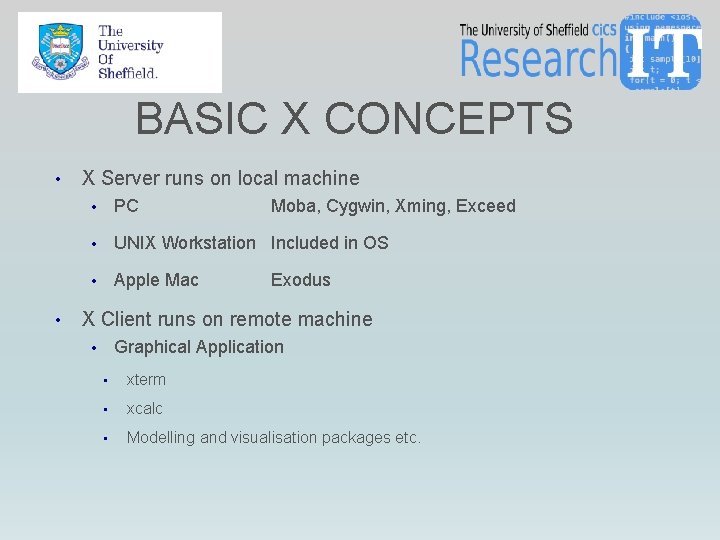
BASIC X CONCEPTS • • X Server runs on local machine • PC Moba, Cygwin, Xming, Exceed • UNIX Workstation Included in OS • Apple Mac Exodus X Client runs on remote machine Graphical Application • • xterm • xcalc • Modelling and visualisation packages etc.
WHAT IS ‘SHELL’ ? • Provides an Interface to the UNIX Operating System • It is a command interpreter • Built on top of the kernel • Enables users to run services provided by the UNIX OS • In its simplest form a series of commands in a file is a shell program that saves having to retype commands to perform common tasks. • Shell provides a secure interface between the user and the ‘kernel’ of the operating system.
SOME BASIC RULES • Unix is case sensitive. • Commands are in lower case. • Backspace and/or Del Keys correct typing errors. If the terminal parameters are not correctly set; try Ctrl+H • Ctrl+C Aborts a program or command. • You can use the arrow keys to recall previous commands, optionally edit and execute them.
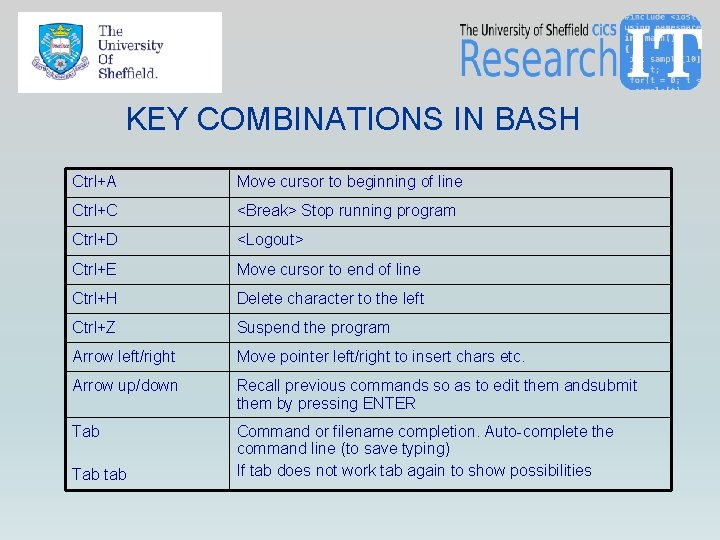
KEY COMBINATIONS IN BASH Ctrl+A Move cursor to beginning of line Ctrl+C <Break> Stop running program Ctrl+D <Logout> Ctrl+E Move cursor to end of line Ctrl+H Delete character to the left Ctrl+Z Suspend the program Arrow left/right Move pointer left/right to insert chars etc. Arrow up/down Recall previous commands so as to edit them andsubmit them by pressing ENTER Tab Command or filename completion. Auto-complete the command line (to save typing) If tab does not work tab again to show possibilities Tab tab
DEMONSTRATION 2 • Logging into bessmer (start an interactive session) • Sunglobal desktop • Putty • Moba x-term • Transferring files to and from sharc • For the practice sessions you can use the linux cheat sheet at • http: //rcg. group. shef. ac. uk/courses/linux/shell-cheatsheet. html
PRACTICE SESSION 1 • Problem 1 -2 on the worksheet • Start an interactive session on sharc using the Sun Global Desktop • Start a file transfer client and move files to and from sharc • Extract the course examples, change directory to a directory you will be using for the course and type mkdir ddp cd ddp tar –zxvf /usr/local/courses/hpc_intro_long. tgz
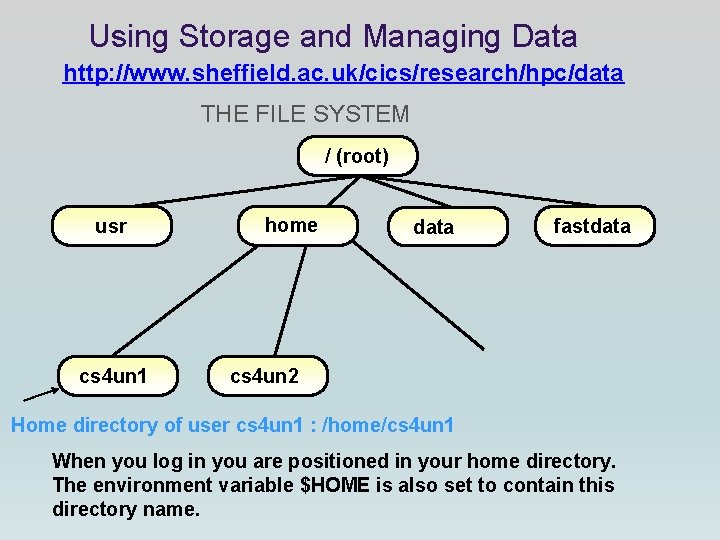
Using Storage and Managing Data http: //www. sheffield. ac. uk/cics/research/hpc/data THE FILE SYSTEM / (root) usr cs 4 un 1 home data fastdata cs 4 un 2 Home directory of user cs 4 un 1 : /home/cs 4 un 1 When you log in you are positioned in your home directory. The environment variable $HOME is also set to contain this directory name.
FORMAT OF UNIX COMMANDS • command [option. . . ] [filename. . . ] eg: ls ls -l tutorial more tutorial
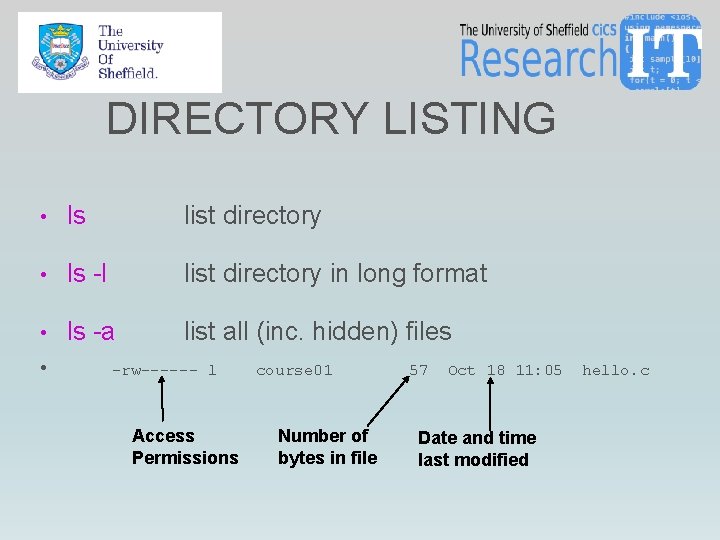
DIRECTORY LISTING • ls list directory • ls -l list directory in long format • ls -a list all (inc. hidden) files • -rw------ l Access Permissions course 01 Number of bytes in file 57 Oct 18 11: 05 Date and time last modified hello. c
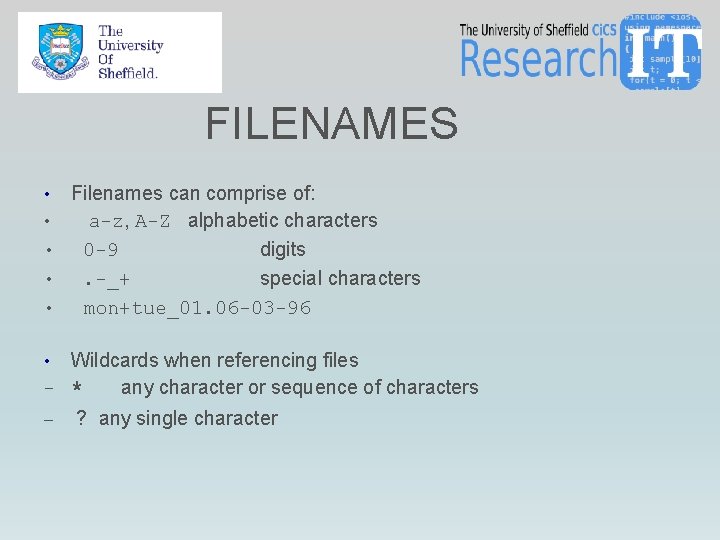
FILENAMES Filenames can comprise of: • a-z, A-Z alphabetic characters • 0 -9 digits • . -_+ special characters • mon+tue_01. 06 -03 -96 • Wildcards when referencing files – * any character or sequence of characters • – ? any single character
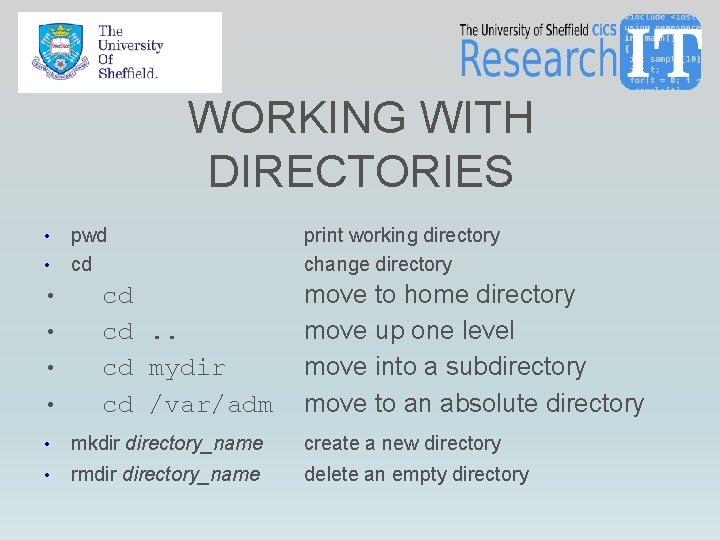
WORKING WITH DIRECTORIES • • • pwd cd cd cd. . cd mydir cd /var/adm print working directory change directory move to home directory move up one level move into a subdirectory move to an absolute directory • mkdir directory_name create a new directory • rmdir directory_name delete an empty directory
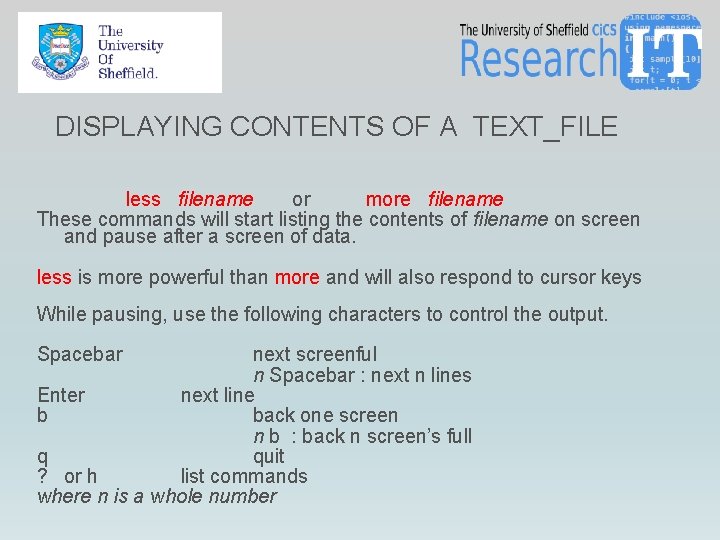
DISPLAYING CONTENTS OF A TEXT_FILE less filename or more filename These commands will start listing the contents of filename on screen and pause after a screen of data. less is more powerful than more and will also respond to cursor keys While pausing, use the following characters to control the output. Spacebar next screenful n Spacebar : next n lines Enter next line b back one screen n b : back n screen’s full q quit ? or h list commands where n is a whole number
DISPLAYING CONTENTS OF A TEXT_FILE… CONTINUED cat [options] filename [filename … ] This command will output the contents of filename[s] to standard-output ( normally screen) without pausing. Following options are useful; -v display non-printing characters -n display with lines numbered on the left • tail [-n] filename This command lists the last n lines of a text file. If number [n] is omitted it is assumed to be 10. •
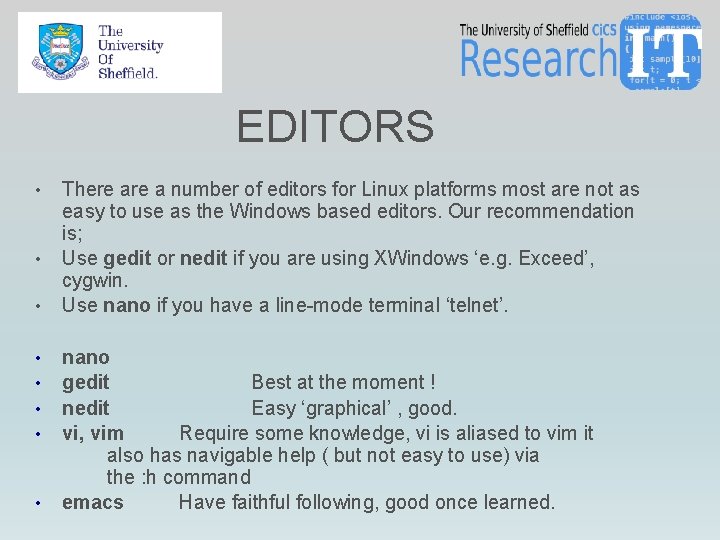
EDITORS • • There a number of editors for Linux platforms most are not as easy to use as the Windows based editors. Our recommendation is; Use gedit or nedit if you are using XWindows ‘e. g. Exceed’, cygwin. Use nano if you have a line-mode terminal ‘telnet’. nano gedit Best at the moment ! nedit Easy ‘graphical’ , good. vi, vim Require some knowledge, vi is aliased to vim it also has navigable help ( but not easy to use) via the : h command emacs Have faithful following, good once learned.
DEMONSTRATION 3 • Case Study • Cochleal Implant Data • See course examples audio data • How many files, folders and how big? • Messy data! • Demonstration of navigating and listing the folder system
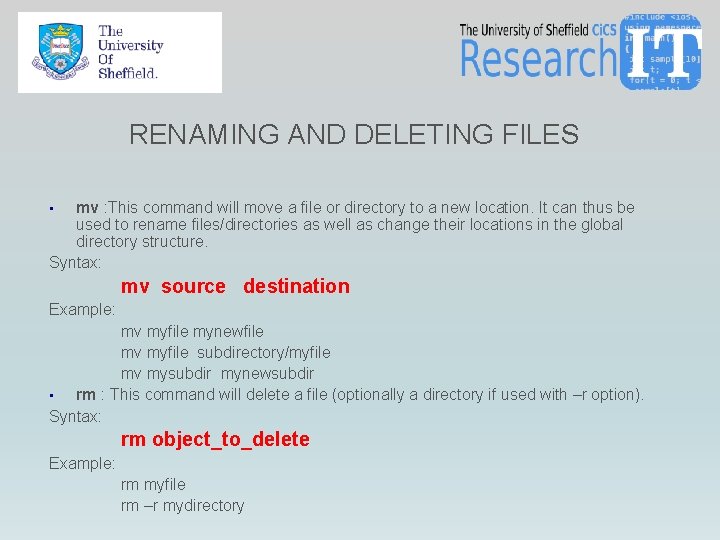
RENAMING AND DELETING FILES mv : This command will move a file or directory to a new location. It can thus be used to rename files/directories as well as change their locations in the global directory structure. Syntax: • mv source destination Example: mv myfile mynewfile mv myfile subdirectory/myfile mv mysubdir mynewsubdir • rm : This command will delete a file (optionally a directory if used with –r option). Syntax: rm object_to_delete Example: rm myfile rm –r mydirectory
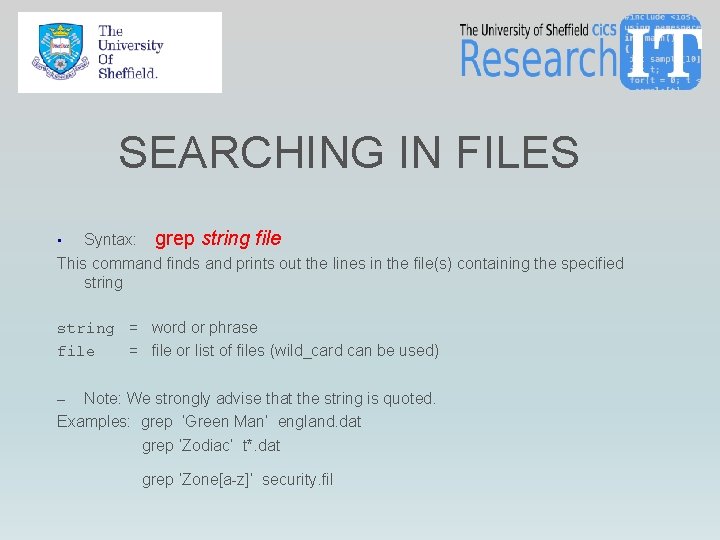
SEARCHING IN FILES • Syntax: grep string file This command finds and prints out the lines in the file(s) containing the specified string = word or phrase file = file or list of files (wild_card can be used) Note: We strongly advise that the string is quoted. Examples: grep ‘Green Man’ england. dat grep ‘Zodiac’ t*. dat – grep ‘Zone[a-z]’ security. fil
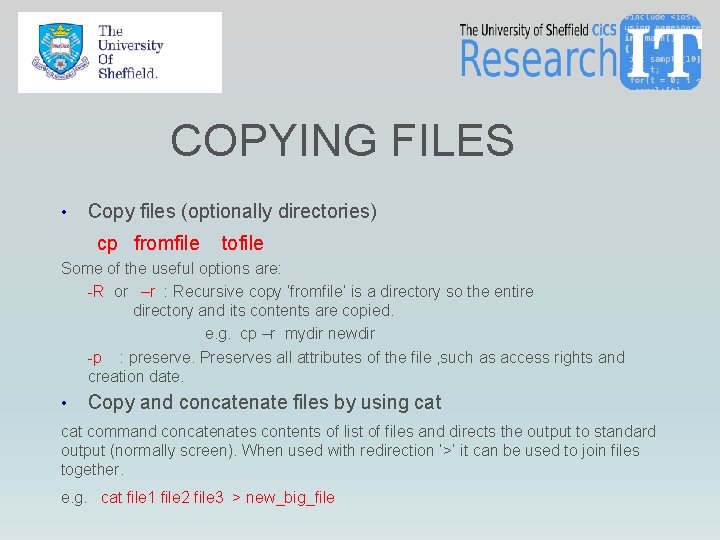
COPYING FILES • Copy files (optionally directories) cp fromfile tofile Some of the useful options are: -R or –r : Recursive copy ‘fromfile’ is a directory so the entire directory and its contents are copied. e. g. cp –r mydir newdir -p : preserve. Preserves all attributes of the file , such as access rights and creation date. • Copy and concatenate files by using cat command concatenates contents of list of files and directs the output to standard output (normally screen). When used with redirection ‘>’ it can be used to join files together. e. g. cat file 1 file 2 file 3 > new_big_file
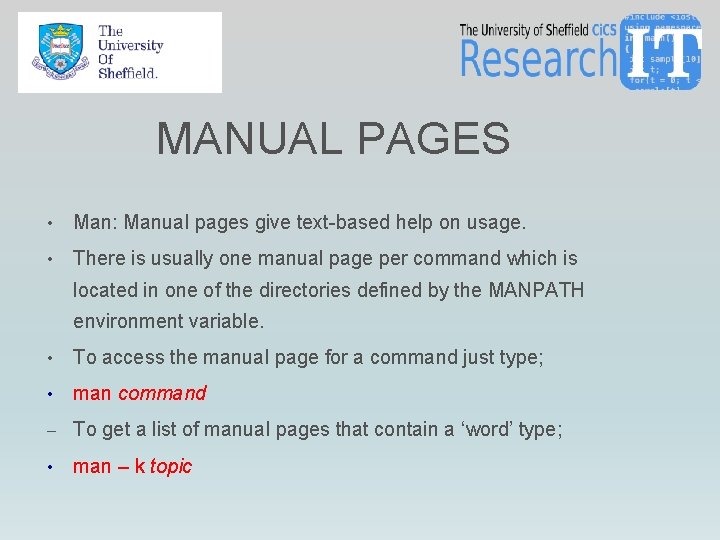
MANUAL PAGES • Man: Manual pages give text-based help on usage. • There is usually one manual page per command which is located in one of the directories defined by the MANPATH environment variable. • To access the manual page for a command just type; • man command – To get a list of manual pages that contain a ‘word’ type; • man – k topic
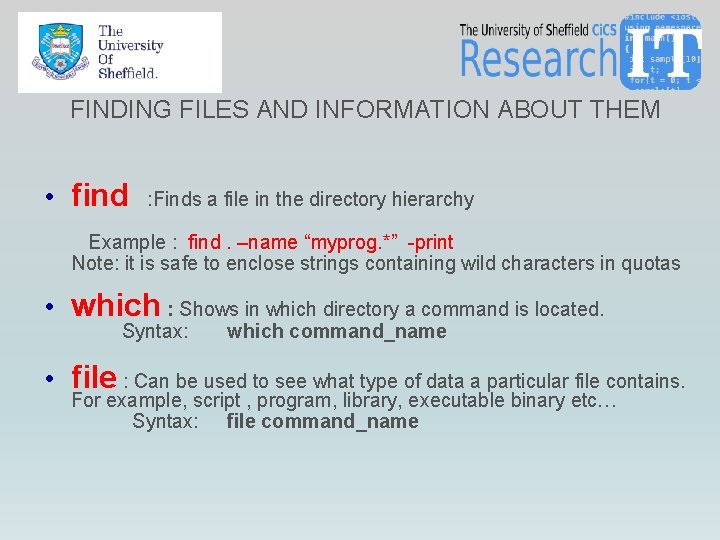
FINDING FILES AND INFORMATION ABOUT THEM • find : Finds a file in the directory hierarchy Example : find. –name “myprog. *” -print Note: it is safe to enclose strings containing wild characters in quotas • which : Shows in which directory a command is located. Syntax: which command_name • file : Can be used to see what type of data a particular file contains. For example, script , program, library, executable binary etc… Syntax: file command_name
USING FIND • Searches recursively for specified file • find [-H] [-L] [-P] path_list options action • -H L P control the treatment of symbolic links ( not of concern in an average user's directory) Options: • -name filename • ( e. g. -name diary. txt ) • -size nnn ( e. g. -size +10 M ) • -atime nnn (time last accessed) (e. g. -atime -3 ) • -mtime nnn (time last modified) (e. g. -mtime -7 ) • Note: number can be minus (-) to indicate less then , plus(+) to indicate more than or without a sign to indicate exactly.
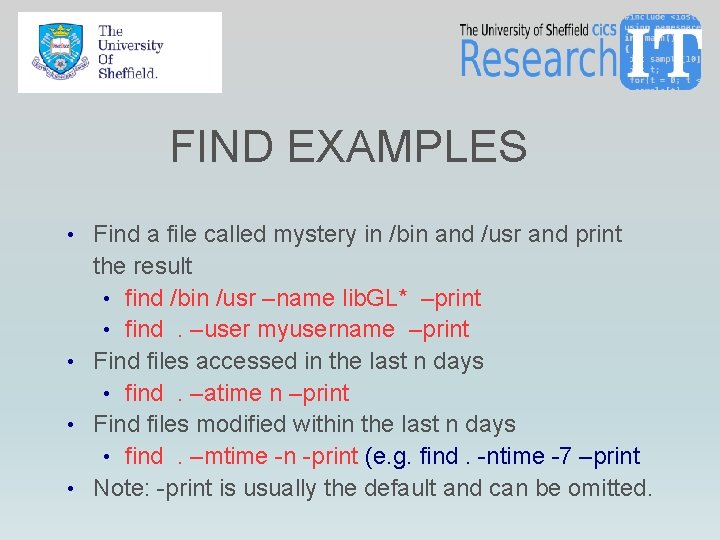
FIND EXAMPLES • Find a file called mystery in /bin and /usr and print the result • find /bin /usr –name lib. GL* –print • find . –user myusername –print • Find files accessed in the last n days • find . –atime n –print • Find files modified within the last n days • find . –mtime -n -print (e. g. find. -ntime -7 –print • Note: -print is usually the default and can be omitted.
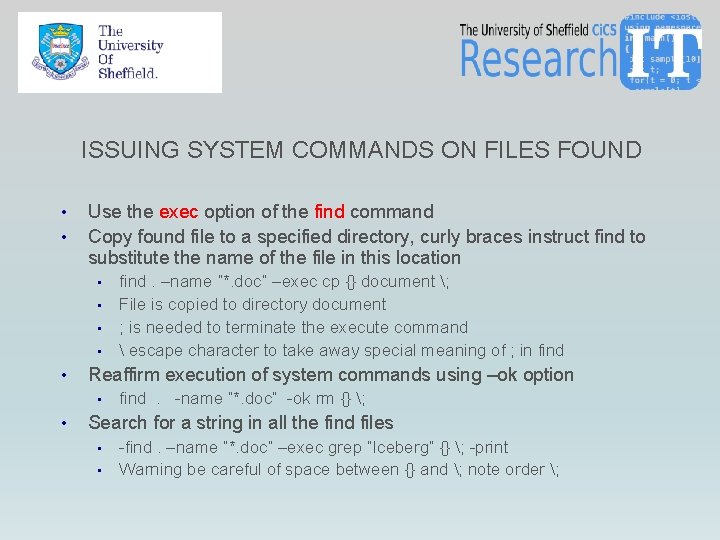
ISSUING SYSTEM COMMANDS ON FILES FOUND • • Use the exec option of the find command Copy found file to a specified directory, curly braces instruct find to substitute the name of the file in this location • • • Reaffirm execution of system commands using –ok option • • find. –name “*. doc” –exec cp {} document ; File is copied to directory document ; is needed to terminate the execute command escape character to take away special meaning of ; in find . -name “*. doc” -ok rm {} ; Search for a string in all the find files • • -find. –name “*. doc” –exec grep “Iceberg” {} ; -print Warning be careful of space between {} and ; note order ;
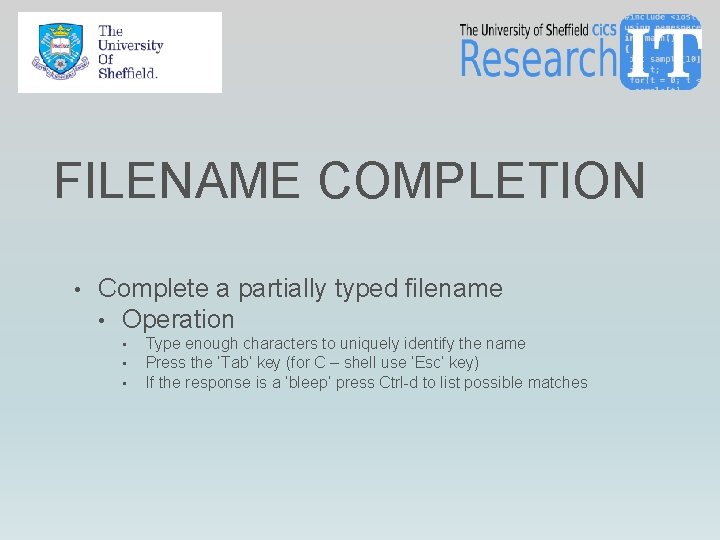
FILENAME COMPLETION • Complete a partially typed filename • Operation • • • Type enough characters to uniquely identify the name Press the ‘Tab’ key (for C – shell use ‘Esc’ key) If the response is a ‘bleep’ press Ctrl-d to list possible matches
REPEATING PREVIOUS COMMANDS • Operation • history • !! • !n • !str List previous commands re-run last command re-run the nth command last command starting with str eg: !vi • Setup • Add the following to your. cshrc file • set history=40
PRACTICE SESSION 2 • • Problem 3 -6 on the worksheet Hint use our cheatsheet at • http: //rcg. group. shef. ac. uk/courses/linux/shell-cheatsheet. html List files in the course directory • Investigate the contents of the application folders • ls /usr/local/packages 6 • ls /etc • Looking at Files – using the editors try creating a new file • Use the shell commands to copy and move files between directories • Use the find command to rename files in the audiodata folder so that they are appended with a. txt •
USING STORAGE AND MANAGING DATA http: //www. sheffield. ac. uk/cics/research/hpc/data • • • Storage allocations for each area are as follows: • On /home 10 GBytes • On /data 100 GBytes • No limits on /fastdata Check your usage and allocation often to avoid exceeding the quota by typing quota If you exceed your quota, you get frozen and the only way out of it is by reducing your filestorage usage by deleting unwanted files via the RM command ( note this is in CAPITALS ). Requesting more storage: Email research-it@sheffield. ac. uk to request for more storage. Excepting the /scratch areas on worker nodes, the view of the filestore is the same on every worker.
TRANSFERRING FILES TO/FROM SHARC Summary of file transfer methods as well as links to downloadable tools for file transfers to sharc are published at: http: //www. shef. ac. uk/cics/research/hpc/data • Command line tools such as scp, sftp and gftp are available on most platforms. • Can not use ftp ( non-secure ) to iceberg. • Graphical tools that transfer files by dragging and dropping files between windows are available winscp, coreftp, filezilla, cyberduck
PITFALLS WHEN TRANSFERRING FILES ftp is not allowed to by sharc. Only sftp is accepted. Do not use spaces ‘ ’ in filenames. Linux do not like it. Secure file transfer programs ‘sftp’ classify all files to be transferred as either ASCII_TEXT or BINARY. • All SFTP clients attempt to detect the type of a file automatically before a transfer starts but also provide advanced options to manually declare the type of the file to be transferred. • Wrong classification cause problems particularly when transfers take place between different operating systems such as between Linux and Windows. • If you are transferring ASCII_TEXT files to/from windows/Linux, to check that transfers worked correctly while on sharc, type; cat –v journal_file If you see a ^M at the end of each line you are in trouble !!! CURE: dos 2 unix wrong_file on sharc • • •
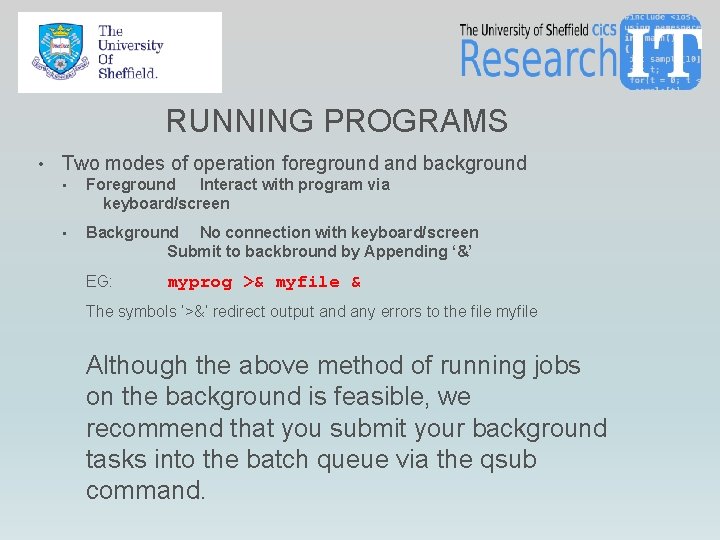
RUNNING PROGRAMS • Two modes of operation foreground and background • Foreground Interact with program via keyboard/screen • Background No connection with keyboard/screen Submit to backbround by Appending ‘&’ EG: myprog >& myfile & The symbols ‘>&’ redirect output and any errors to the file myfile Although the above method of running jobs on the background is feasible, we recommend that you submit your background tasks into the batch queue via the qsub command.
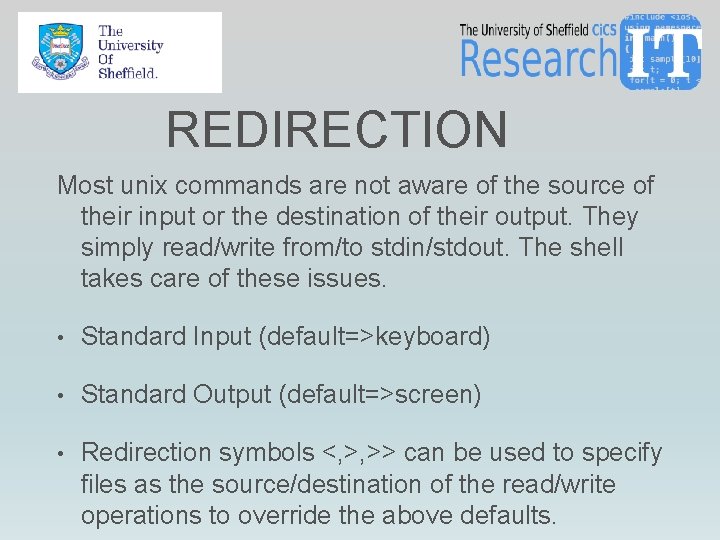
REDIRECTION Most unix commands are not aware of the source of their input or the destination of their output. They simply read/write from/to stdin/stdout. The shell takes care of these issues. • Standard Input (default=>keyboard) • Standard Output (default=>screen) • Redirection symbols <, >, >> can be used to specify files as the source/destination of the read/write operations to override the above defaults.
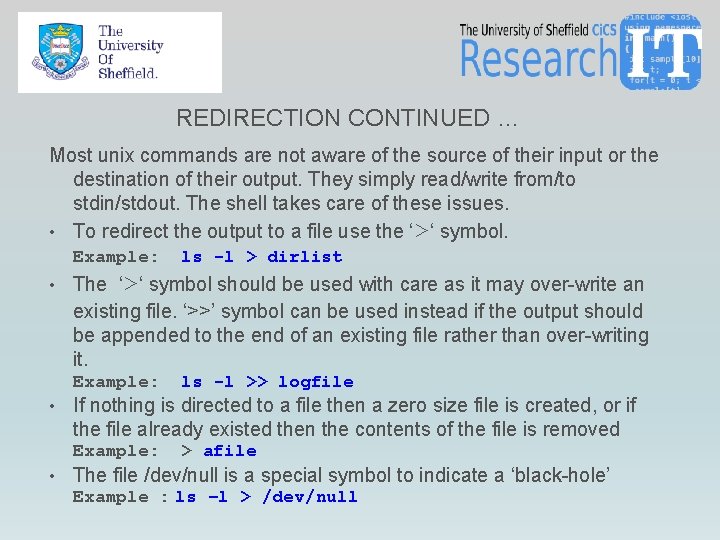
REDIRECTION CONTINUED … Most unix commands are not aware of the source of their input or the destination of their output. They simply read/write from/to stdin/stdout. The shell takes care of these issues. • To redirect the output to a file use the ‘>‘ symbol. Example: • The ‘>‘ symbol should be used with care as it may over-write an existing file. ‘>>’ symbol can be used instead if the output should be appended to the end of an existing file rather than over-writing it. Example: • ls -l >> logfile If nothing is directed to a file then a zero size file is created, or if the file already existed then the contents of the file is removed Example: • ls -l > dirlist > afile The file /dev/null is a special symbol to indicate a ‘black-hole’ Example : ls –l > /dev/null
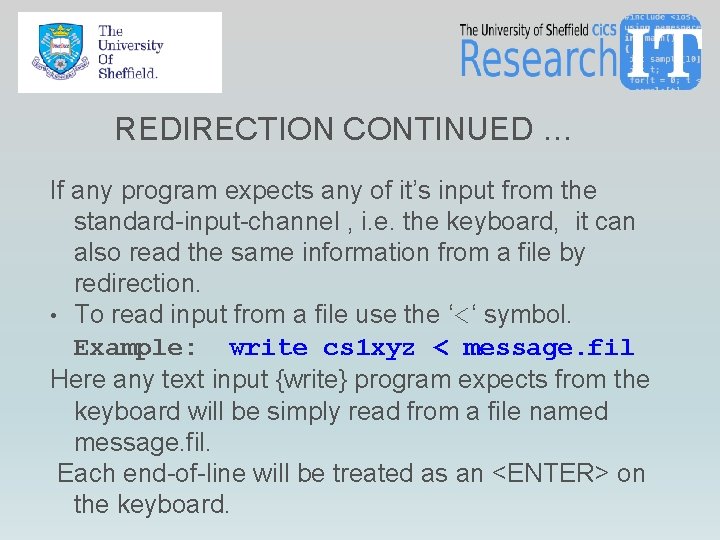
REDIRECTION CONTINUED … If any program expects any of it’s input from the standard-input-channel , i. e. the keyboard, it can also read the same information from a file by redirection. • To read input from a file use the ‘<‘ symbol. Example: write cs 1 xyz < message. fil Here any text input {write} program expects from the keyboard will be simply read from a file named message. fil. Each end-of-line will be treated as an <ENTER> on the keyboard.
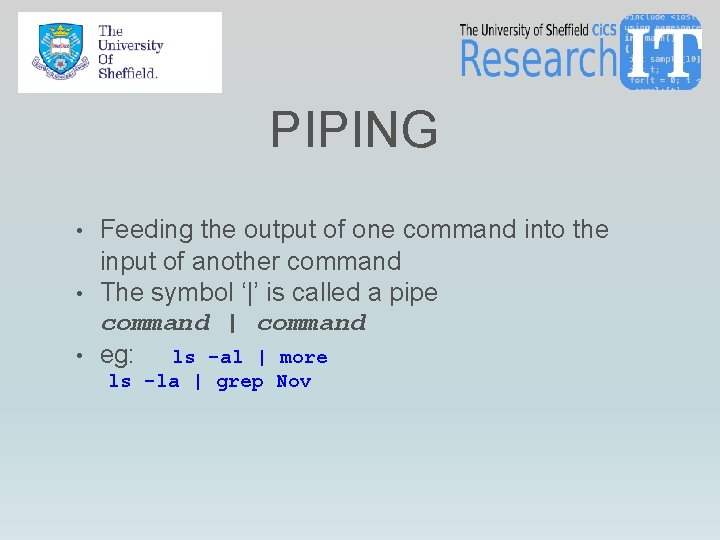
PIPING • Feeding the output of one command into the input of another command • The symbol ‘|’ is called a pipe command | command • eg: ls -al | more ls -la | grep Nov
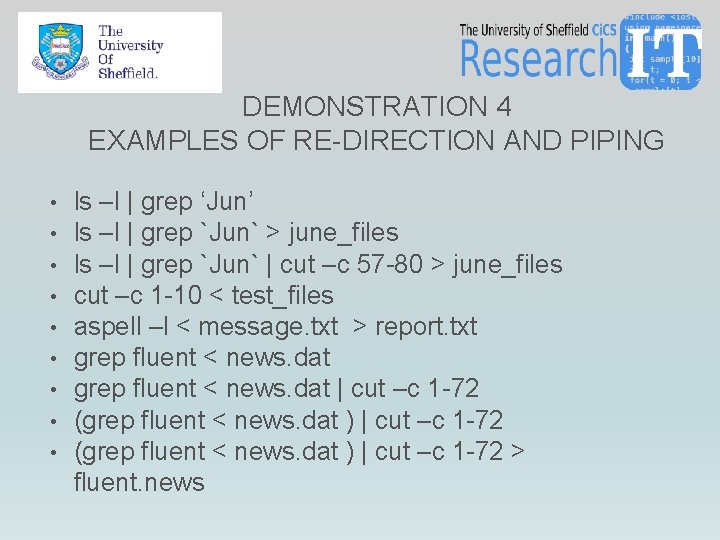
DEMONSTRATION 4 EXAMPLES OF RE-DIRECTION AND PIPING • • • ls –l | grep ‘Jun’ ls –l | grep `Jun` > june_files ls –l | grep `Jun` | cut –c 57 -80 > june_files cut –c 1 -10 < test_files aspell –l < message. txt > report. txt grep fluent < news. dat | cut –c 1 -72 (grep fluent < news. dat ) | cut –c 1 -72 > fluent. news
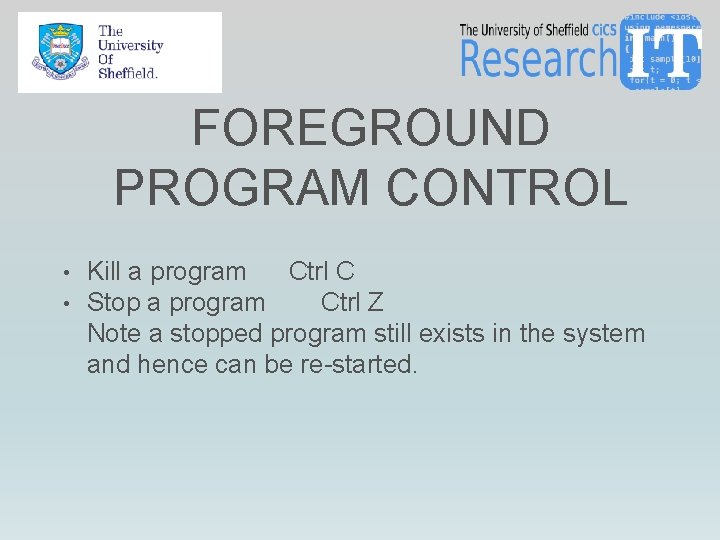
FOREGROUND PROGRAM CONTROL • Kill a program • Stop a program Ctrl C Ctrl Z Note a stopped program still exists in the system and hence can be re-started.
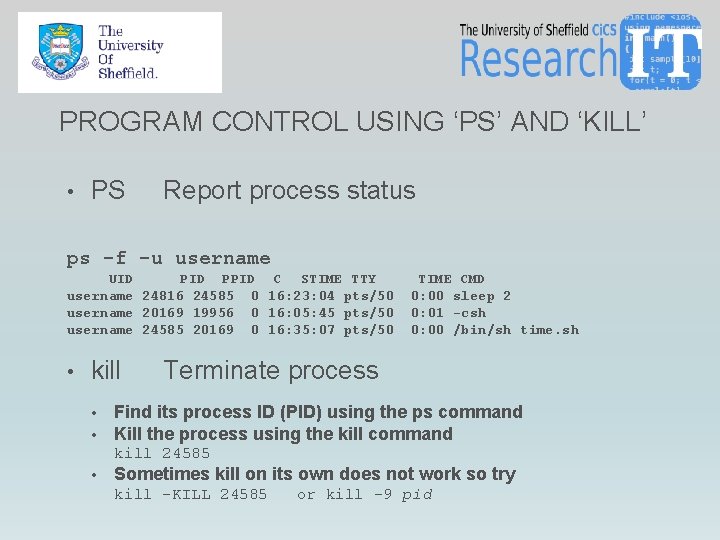
PROGRAM CONTROL USING ‘PS’ AND ‘KILL’ • PS Report process status ps -f -u username UID PPID username 24816 24585 0 username 20169 19956 0 username 24585 20169 0 • kill • • C STIME TTY 16: 23: 04 pts/50 16: 05: 45 pts/50 16: 35: 07 pts/50 TIME CMD 0: 00 sleep 2 0: 01 -csh 0: 00 /bin/sh time. sh Terminate process Find its process ID (PID) using the ps command Kill the process using the kill command kill 24585 • Sometimes kill on its own does not work so try kill -KILL 24585 or kill -9 pid
RUNNING PROGRAMS ON SHARC • • • Iceberg is the gateway to the cluster of worker nodes and the only one where direct logging in is allowed. Iceberg’s main purpose is to allow access to the worker nodes but NOT to run cpu intensive programs. All cpu intensive computations must be performed on the worker nodes. This is achieved by the qsh command for the interactive jobs and qsub command for the batch jobs. Once you log into iceberg, taking advantage of the power of a worker node for interactive work is done simply by typing qsh and working in the new shell window that is opened. This what appears to be a trivial task has would in fact have queried all the worker nodes for you and started a session on the least loaded worker in the cluster. The next set of slides assume that you are already working on one of the worker nodes (qsh session).
DEMONSTRATION 5 MANAGING PROCESSES • • Running an application in the foreground Checking the process id Running a process in the background Killing a process
PRACTICE SESSION 3 • Problem 7 -12 on the worksheet • Use >> to append the contents of all the files in audio_data directory whose names contain the number 4 into a file called all_data • Use the wordcount program (wc) to count the words in the audio_data/Bert directory • Use man to find how to use the sort command. From the audio_data folder. What does the following command do • wc Bert/* | sort –k 3 n
FURTHER INFORMATION Research Computing Pages • http: //www. shef. ac. uk/cics/research • Course Information • http: //www. shef. ac. uk/cics/research/training/ddpfull#hpc • Linux cheatsheet • http: //rcg. group. shef. ac. uk/courses/linux/shell-cheatsheet. html • Moba Xterm https: //mobaxterm. mobatek. net/ • Putty http: //www. chiark. greenend. org. uk/~sgtatham/putty/ • Win. SCP http: //winscp. net/eng/download. php •