
Introduction to Google Calendar Why Google Calendar Easy

- Slides: 27
Introduction to Google Calendar
Why Google Calendar? ▰ Easy to Use ▰ Accessible Anywhere ▻ Mobile App ▰ Collaborative ▰ Visually Effective ▻ Check for Conflicts ▻ Color Coding ▰ Display in Real Time 2
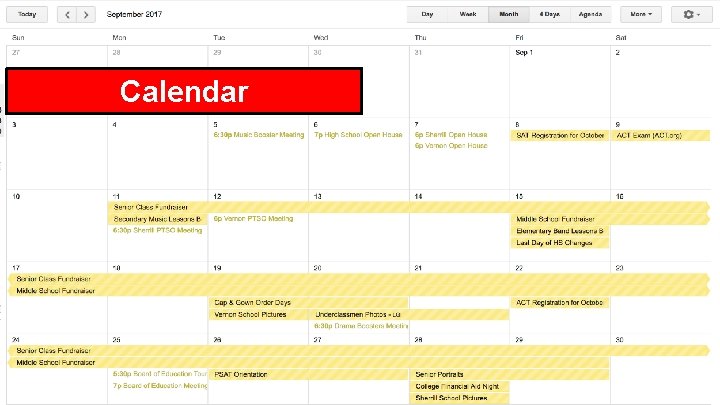
Calendar 3
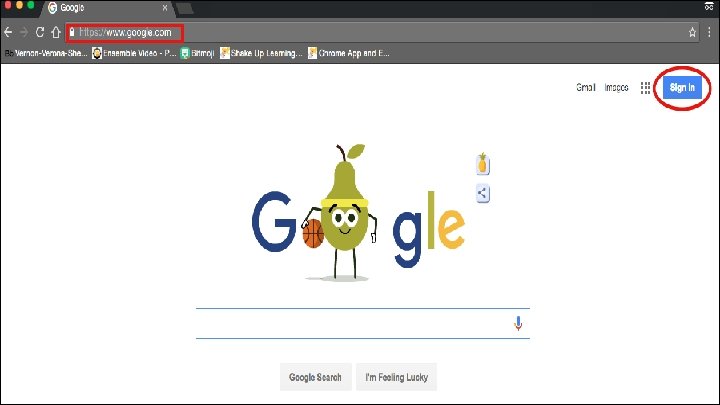
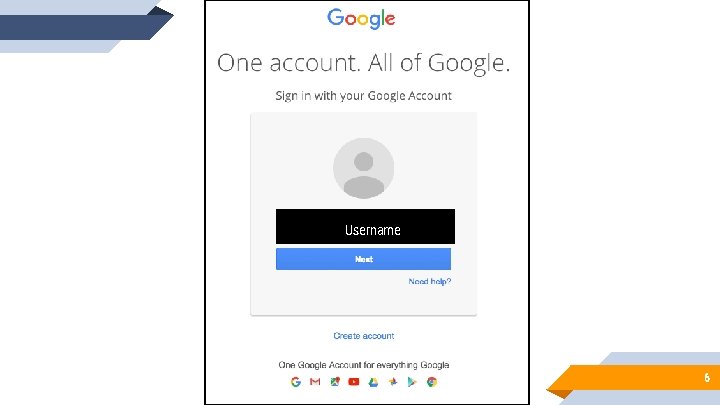
1 Signing in to Google www. google. com 4
Sign in to Google 5
Username 6
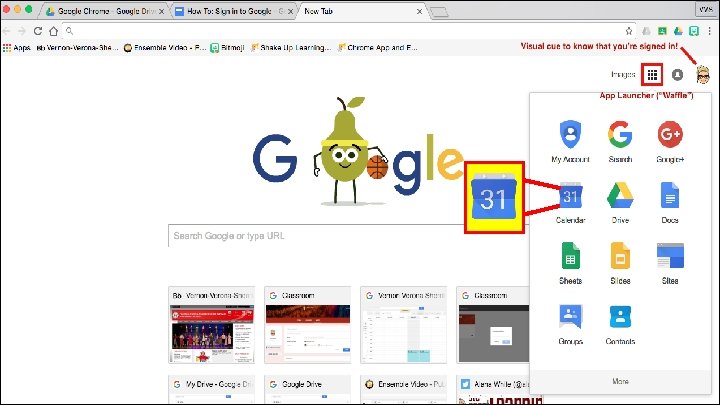
7
2 Using Google Calendar Multiple Calendars, One View 8
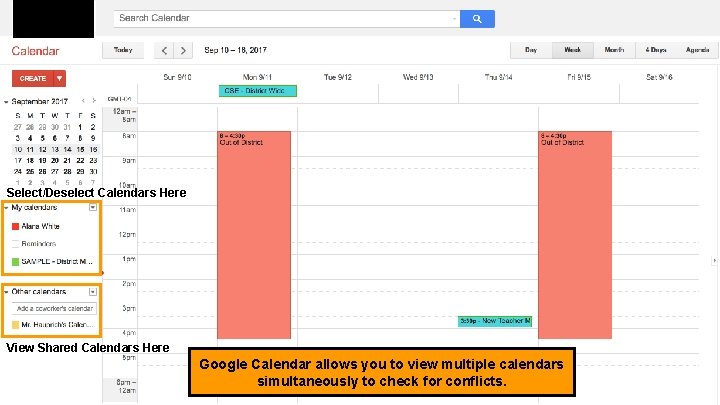
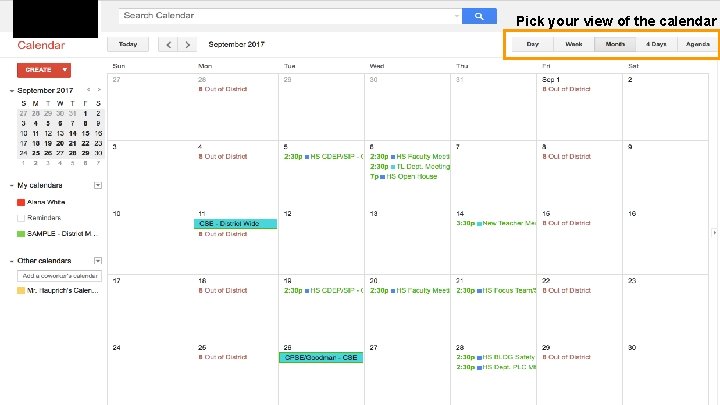
Select/Deselect Calendars Here View Shared Calendars Here Google Calendar allows you to view multiple calendars simultaneously to check for conflicts. 9
Pick your view of the calendar 10
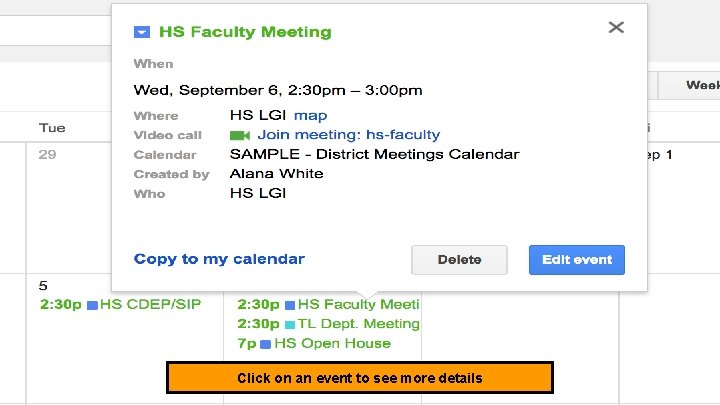
Click on an event to see more details 11
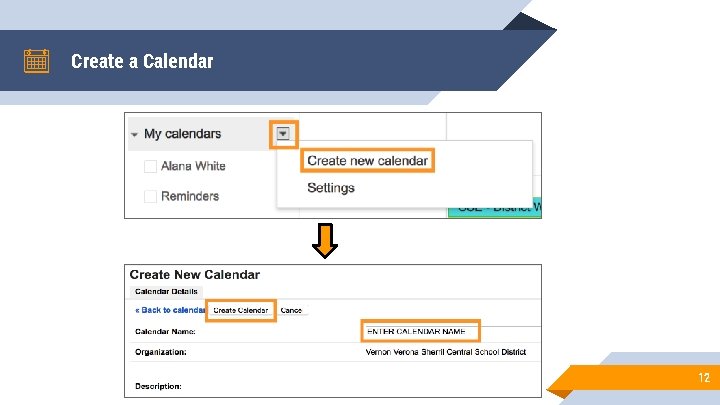
Create a Calendar 12
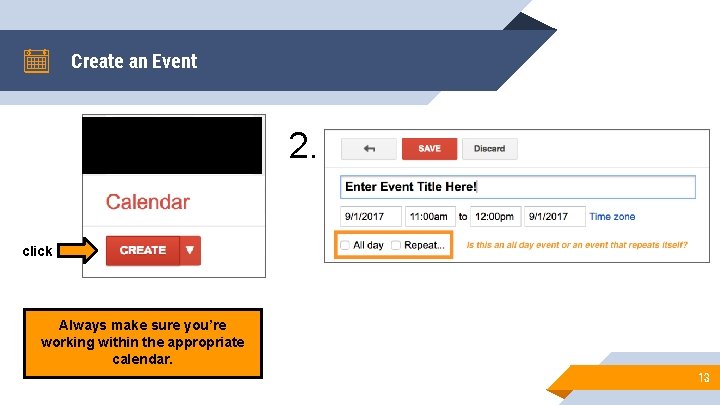
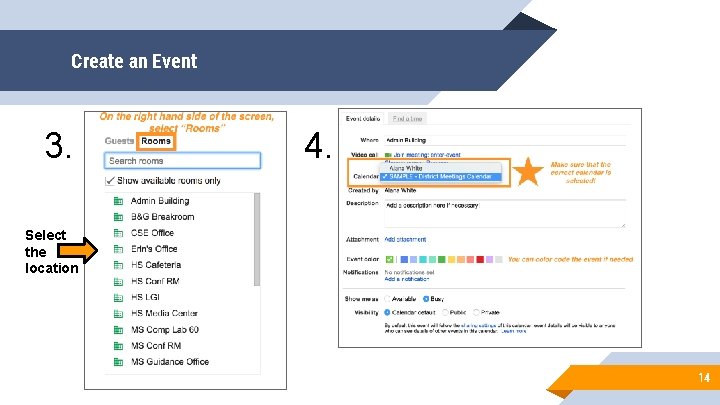
Create an Event 2. click Always make sure you’re working within the appropriate calendar. 13
Create an Event 3. 4. Select the location 14
3 Sharing Google Calendar One Calendar, Multiple Collaborators 15
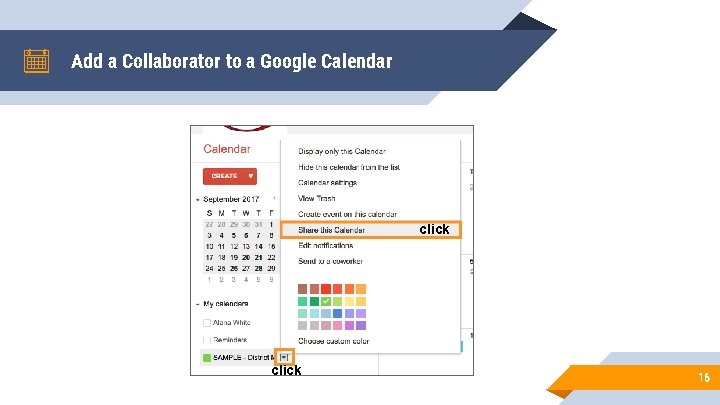
Add a Collaborator to a Google Calendar click 16
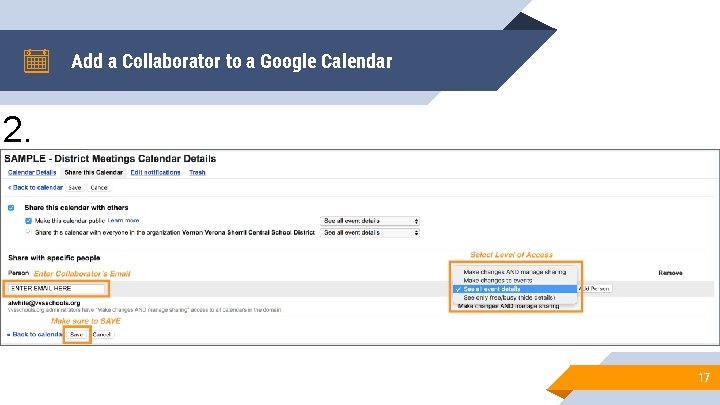
Add a Collaborator to a Google Calendar 2. 17
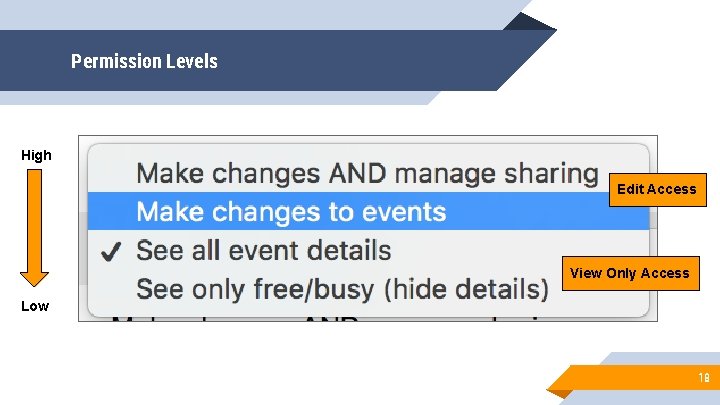
Permission Levels High Edit Access View Only Access Low 18
4 Share Google Calendar with the Public (View Only) One Calendar, Multiple Viewers 19
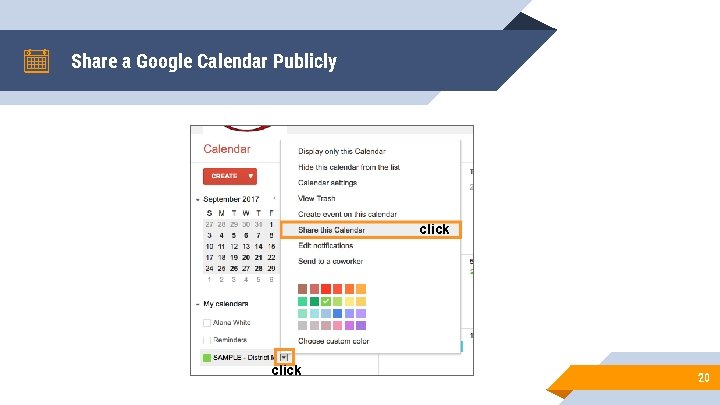
Share a Google Calendar Publicly click 20
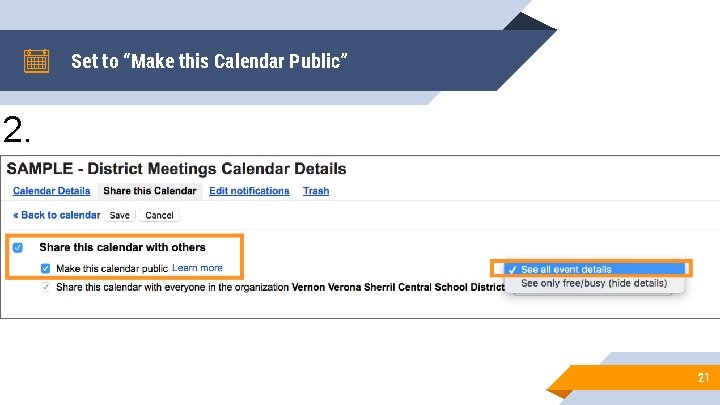
Set to “Make this Calendar Public” 2. 21
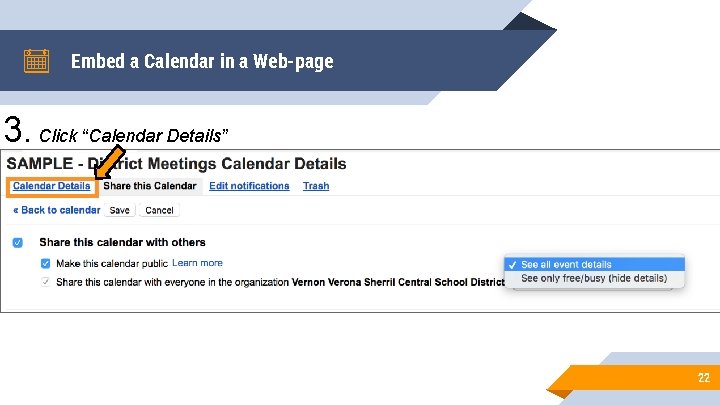
Embed a Calendar in a Web-page 3. Click “Calendar Details” 22
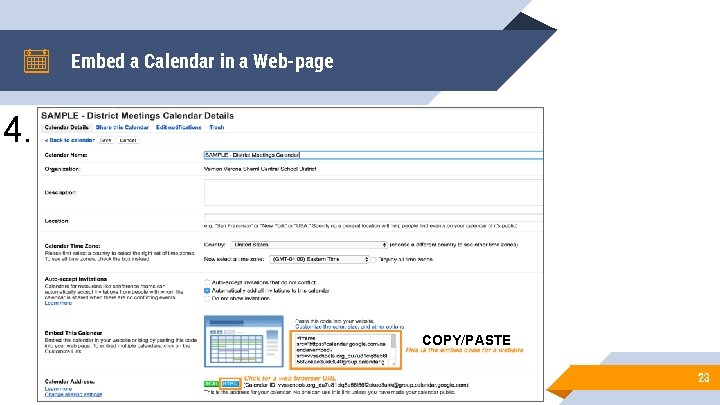
Embed a Calendar in a Web-page 4. COPY/PASTE 23
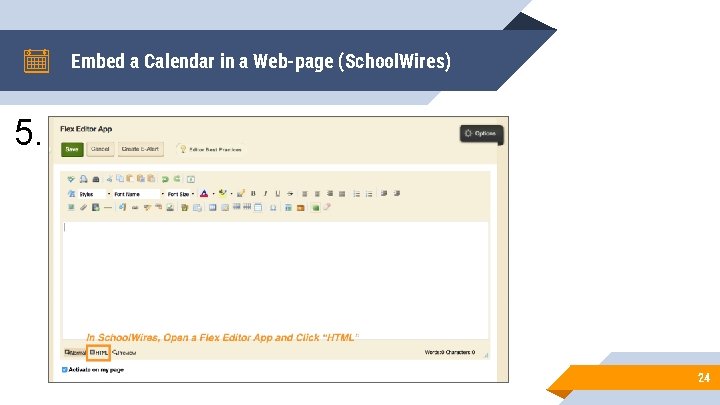
Embed a Calendar in a Web-page (School. Wires) 5. 24
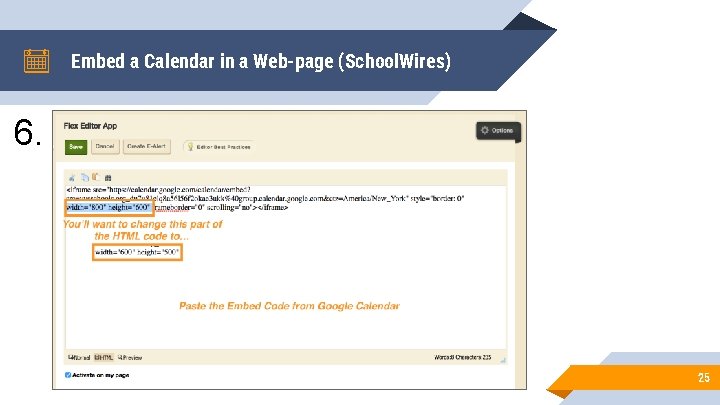
Embed a Calendar in a Web-page (School. Wires) 6. 25
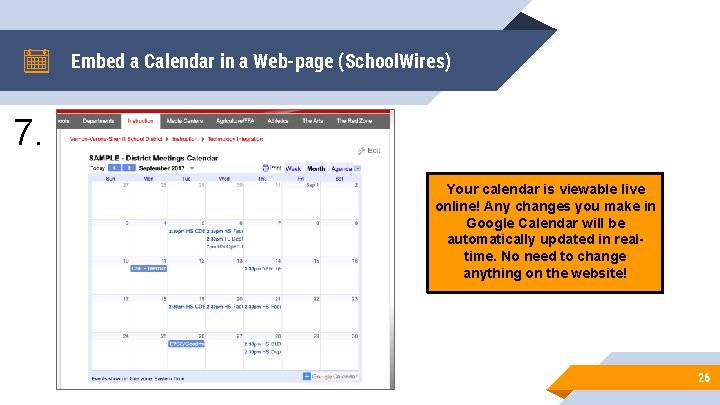
Embed a Calendar in a Web-page (School. Wires) 7. Your calendar is viewable live online! Any changes you make in Google Calendar will be automatically updated in realtime. No need to change anything on the website! 26
THANKS! Any questions? 27