
Introduction to Exchange server2003 For Basic Exchange understanding
Introduction to Exchange server-2003 For Basic Exchange understanding
Welcome To Microsoft World
Microsoft Exchange Server 2003
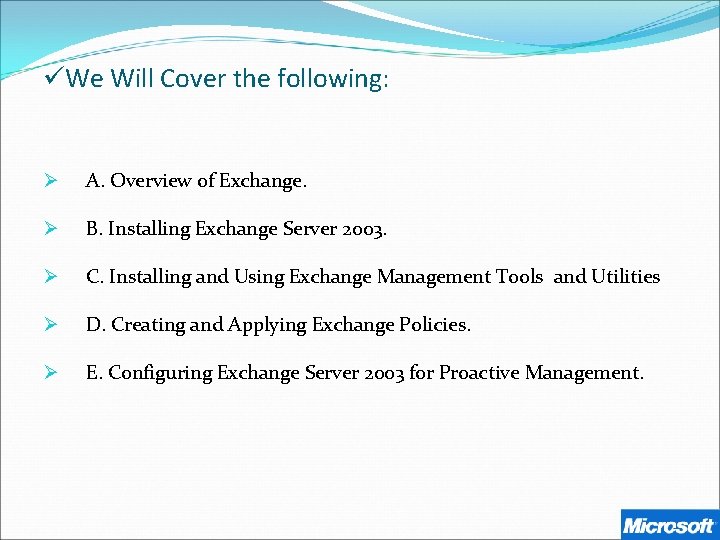
üWe Will Cover the following: Ø A. Overview of Exchange. Ø B. Installing Exchange Server 2003. Ø C. Installing and Using Exchange Management Tools and Utilities Ø D. Creating and Applying Exchange Policies. Ø E. Configuring Exchange Server 2003 for Proactive Management.
Ø A. Overview of Exchange Server : v Microsoft Exchange Server is a massaging and collaborative software product developed by Microsoft Corp. Microsoft Exchange Server provide us : 1) Electronic Mail. 2) calendaring. 3) contacts and tasks. 4) support for the mobile 5) web-based access to information. (OWA). 6) supporting data storage.
v Exchange Server 2003 & Active Directory Integration: � Exchange Server 2003 is tightly integrated with Active directory, in that Exchange server 2003 uses AD as the storage mechanism for its data although Exchange server 2003 still uses its own database for storing the content of massaging and transaction log. � The following three directory partitions in Active Directory contain Exchange-related data: ü Domain directory partition : Exchange recipient and system objects are stored in the domain directory partition in Active Directory. The domain directory partition is replicated to every domain controller in a particular domain. ü Configuration directory partition : Exchange configuration objects, such as administrative groups, global settings, recipient policies, system policies, and address list or address information are stored in the configuration directory partition. The configuration directory partition is replicated to all domain controllers in the forest. ü Schema directory partition : Exchange schema modifications (for example, objects, classes and attributes) are stored in the schema directory partition. The schema directory partition is replicated to all domain controllers in the forest.
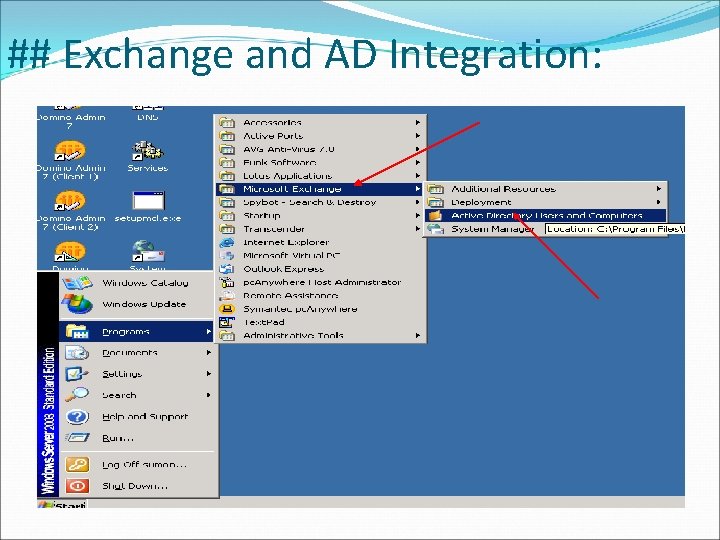
## Exchange and AD Integration:
v. Exchange 2003 uses two services to access global catalog : � 1. DSProxy : It’s allows outlook user to access global Catalog server. Its work as facilitator to allow outlook clients to access information within AD. � 2. DSAccess : It’s implement a directory access cache that stores recently accessed info for a configurable length or time.
Features in Exchange 2003 : v. Exchange Server 2003 debuted on September 28, 2003. Exchange Server 2003 is the Microsoft messaging and collaboration server designed to help you communicate more effectively. Along with the rich client functionality provided by Microsoft Office Outlook 2003, Exchange Server 2003 offers: ü Mobile, remote, and desktop e-mail access with stateof-the-art security and privacy. ü Lower cost of ownership through the services provided by Microsoft Windows Server 2003. ü High reliability and outstanding performance.
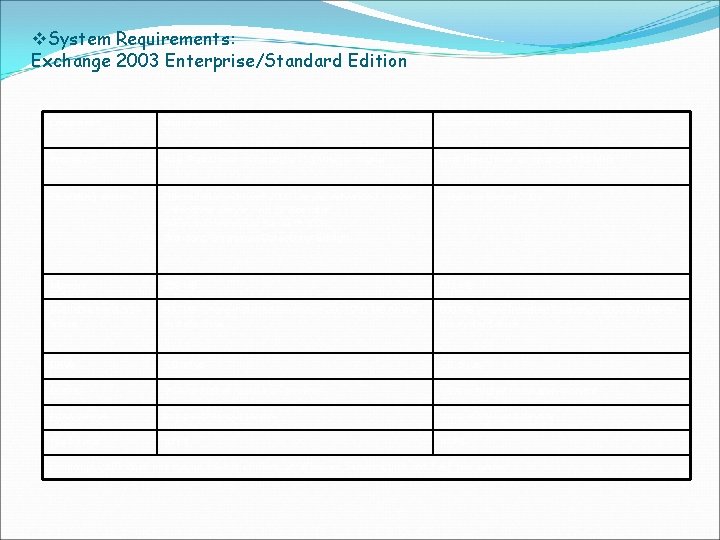
v. System Requirements: Exchange 2003 Enterprise/Standard Edition Component Requirement Recommendation Processor Intel Pentium or compatible 133(MHz) or higher Intel Pentium or compatible 733 -MHz Operating system *Microsoft Windows® 2000 Server/ Advanced Server/ Datacenter Server with SP 3 or later. *Microsoft Windows Server™ 2003, Standard/Enterprise/Datacenter Edition. Windows Server 2003 Memory 256 MB 512 MB Available hard-disk space 500 MB where installed Exchange 2003. 200 MB on the system drive. Drive CD drive Display VGA or higher resolution monitor Input device compatible input device File format NTFS Exchange 2003 does not run on 64 -bit editions of Windows Server 2003 and FAT file system
v In this training session we assume that we have a smoothly running DNS server with active directory & global catalog. AND v We are going to Learn Exchange Server Setup in a Single Server Topology.
Ø B. Installing Exchange Server 2003 : � Now we can start the installation. We divide the installation in four steps i. e. : I. Pre-Installation. II. Preparing the Forest & Domain. III. Exchange Server Installation. IV. Post-Installation Tasks.
I. Pre-Installation steps : a) Make sure the server is a member of the domain the Exchange server is supposed to operate within. b) Ensure that the Operating System is completely up to date and all updates / patches have been applied. c) Ensure that the following components and services be installed and enabled on the server :
be installed : �. NET Framework � ASP. NET � Internet Information Services (IIS) � World Wide Web Publishing Service (www) � Simple Mail Transfer Protocol (SMTP) service � Network News Transfer Protocol (NNTP) service
. d) Ensure that the Windows Server Support Tools have been installed – these are on the Windows 2003 CD - SupportToolssuptools. msi.
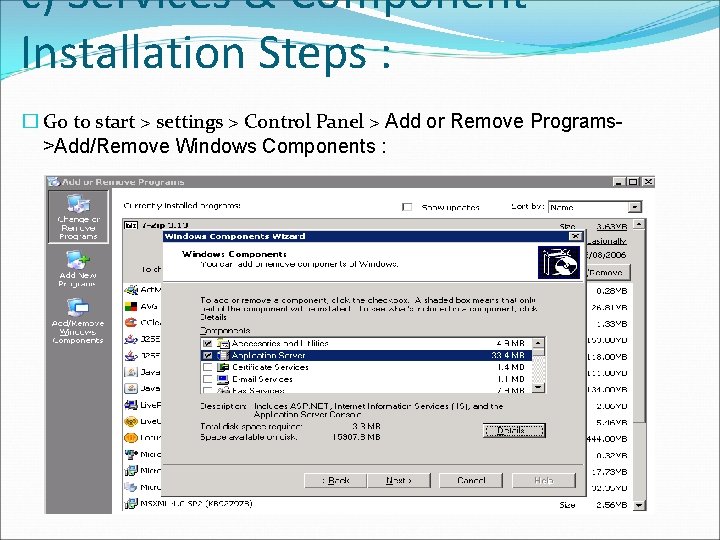
c) Services & Component Installation Steps : � Go to start > settings > Control Panel > Add or Remove Programs>Add/Remove Windows Components :
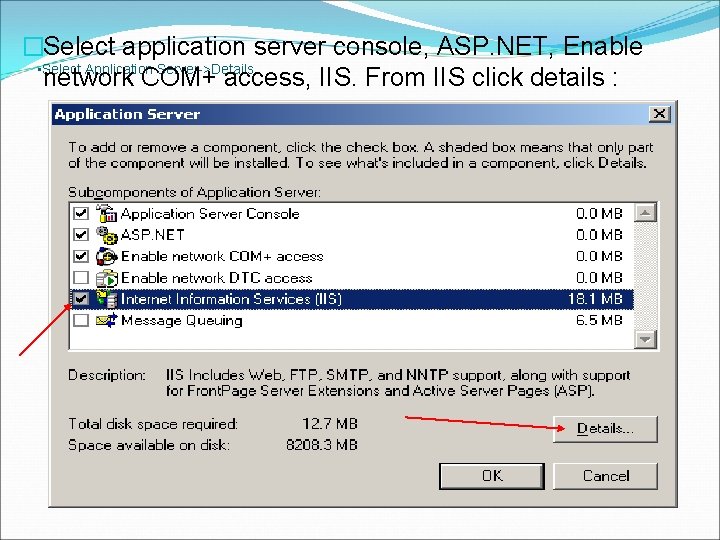
�Select application server console, ASP. NET, Enable • Select Application Server->Details network COM+ access, IIS. From IIS click details :
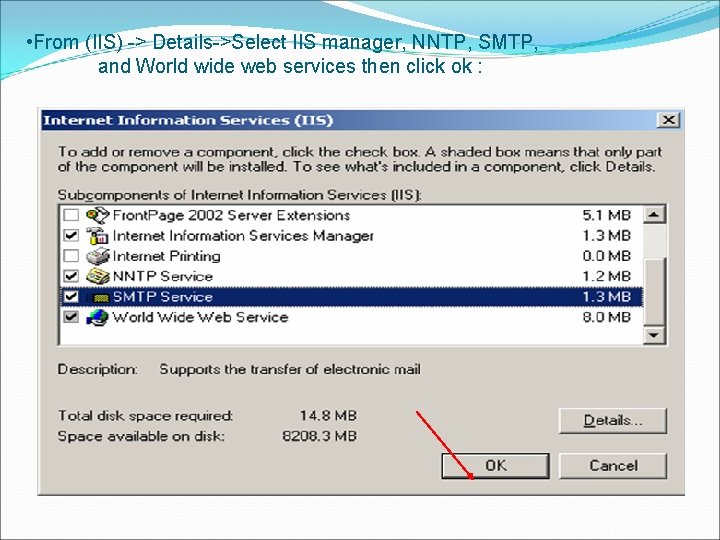
• From (IIS) -> Details->Select IIS manager, NNTP, SMTP, and World wide web services then click ok :
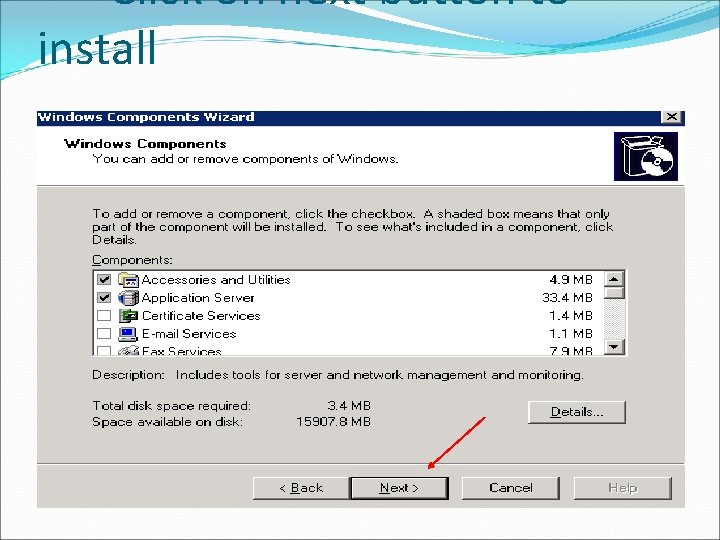
• Click on next button to install
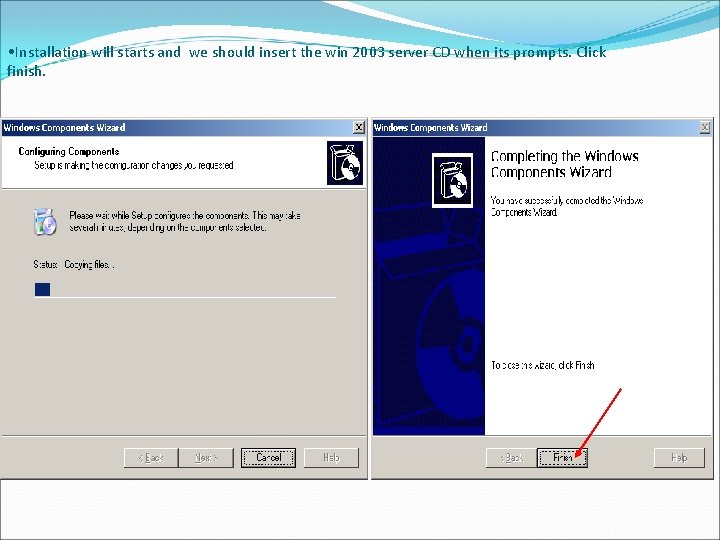
• Installation will starts and we should insert the win 2003 server CD when its prompts. Click finish.
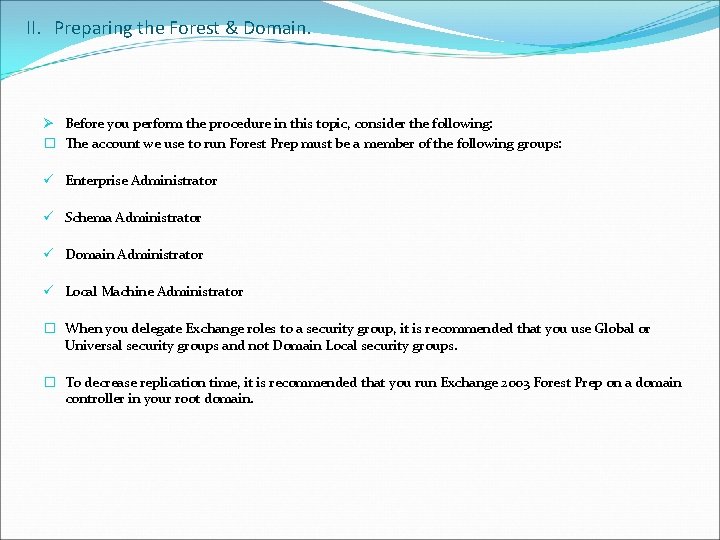
II. Preparing the Forest & Domain. Ø Before you perform the procedure in this topic, consider the following: � The account we use to run Forest Prep must be a member of the following groups: ü Enterprise Administrator ü Schema Administrator ü Domain Administrator ü Local Machine Administrator � When you delegate Exchange roles to a security group, it is recommended that you use Global or Universal security groups and not Domain Local security groups. � To decrease replication time, it is recommended that you run Exchange 2003 Forest Prep on a domain controller in your root domain.
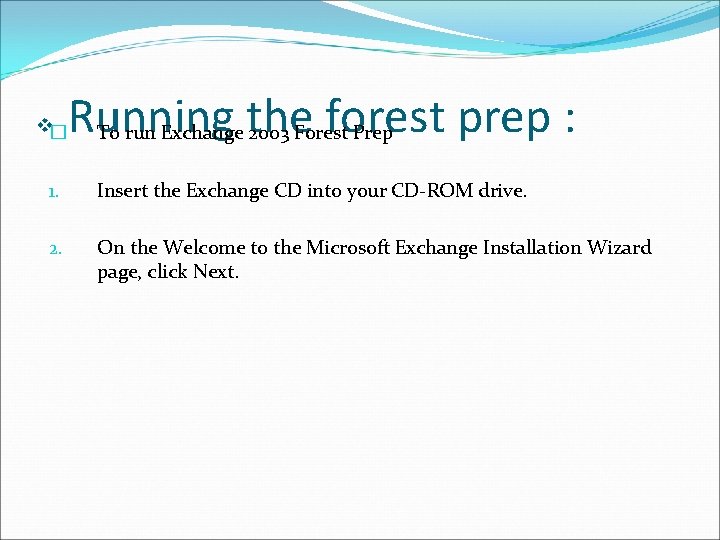
Running the forest prep : v� To run Exchange 2003 Forest Prep 1. Insert the Exchange CD into your CD-ROM drive. 2. On the Welcome to the Microsoft Exchange Installation Wizard page, click Next.
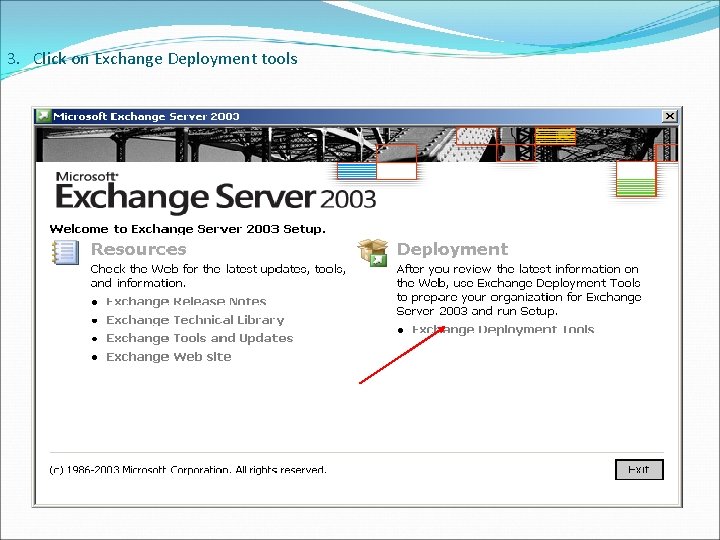
3. Click on Exchange Deployment tools
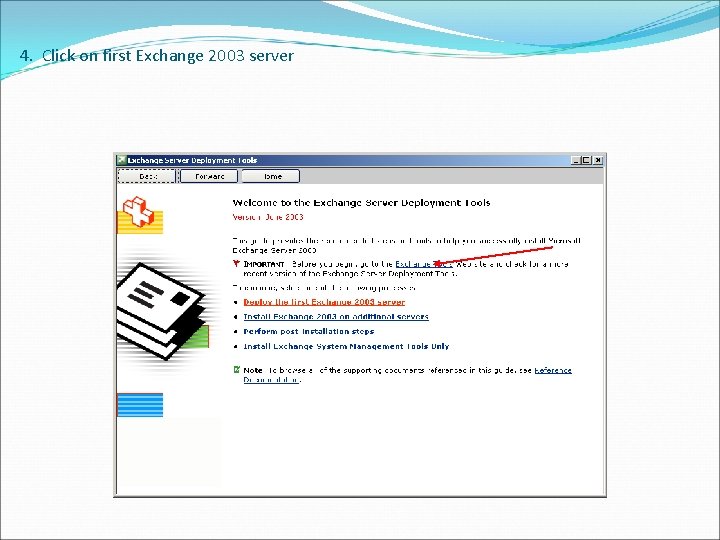
4. Click on first Exchange 2003 server
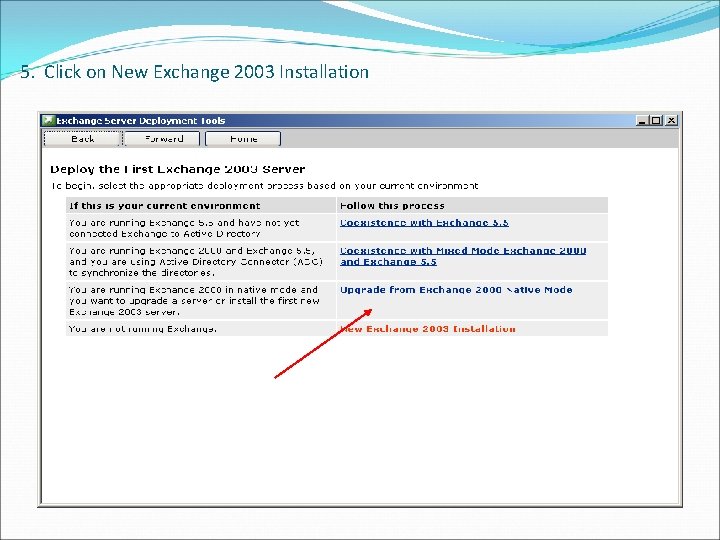
5. Click on New Exchange 2003 Installation
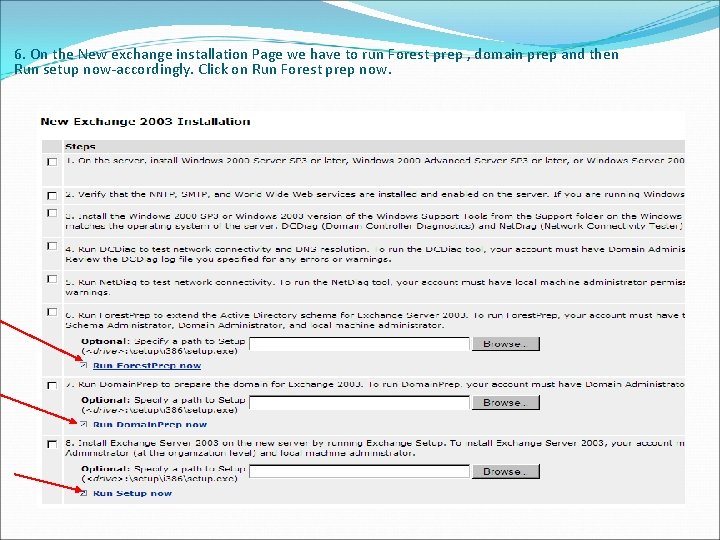
6. On the New exchange installation Page we have to run Forest prep , domain prep and then Run setup now-accordingly. Click on Run Forest prep now.
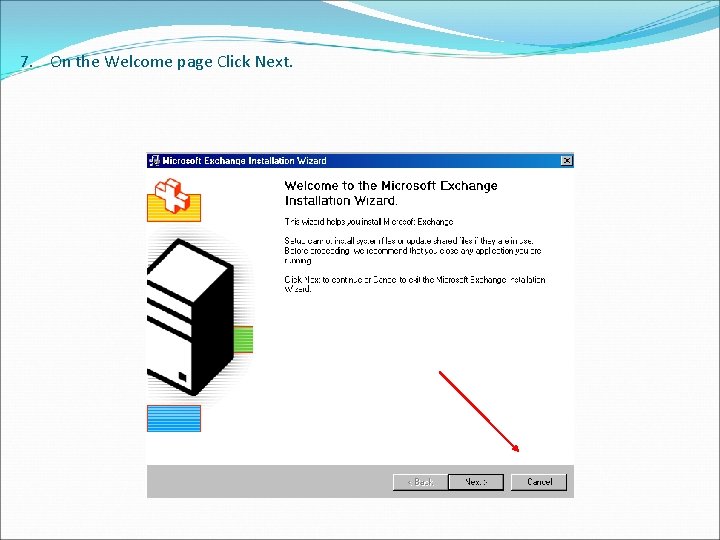
7. On the Welcome page Click Next.
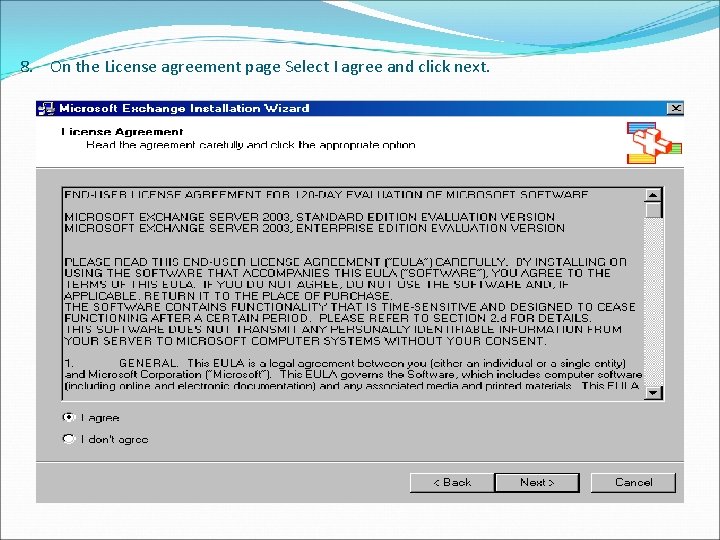
8. On the License agreement page Select I agree and click next.
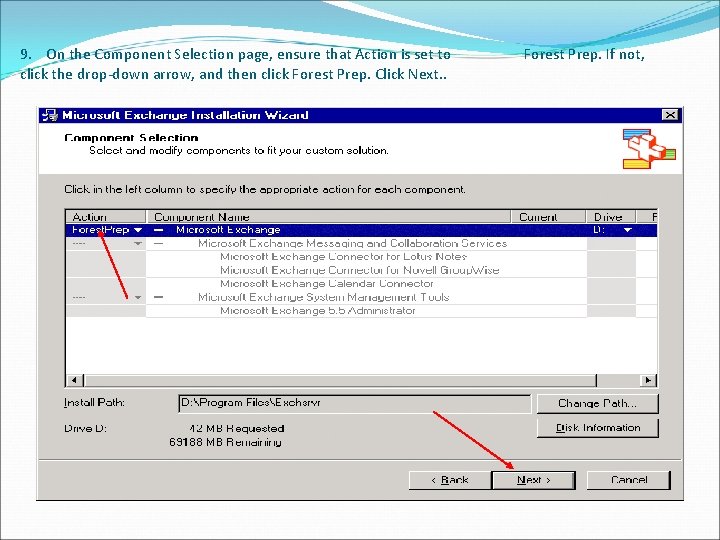
9. On the Component Selection page, ensure that Action is set to click the drop-down arrow, and then click Forest Prep. Click Next. . Forest Prep. If not,
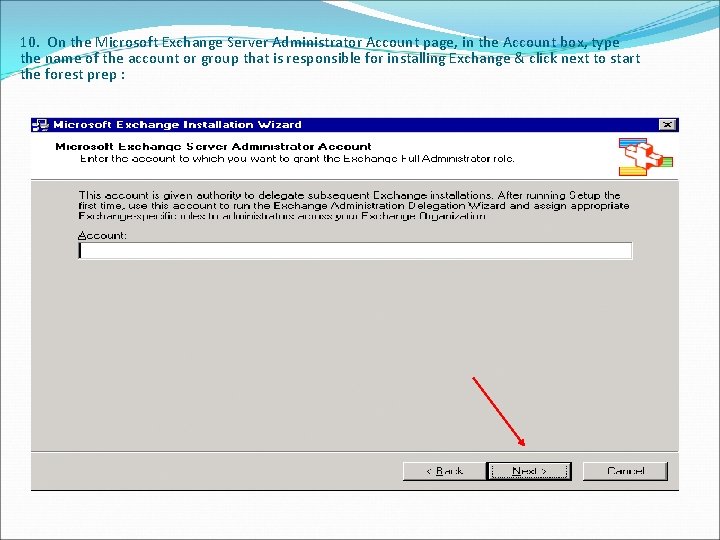
10. On the Microsoft Exchange Server Administrator Account page, in the Account box, type the name of the account or group that is responsible for installing Exchange & click next to start the forest prep : administrator
warning : 11. After Forest Prep starts, you cannot cancel the process. 12. On the Completing the Microsoft Exchange Wizard page, click Finish.
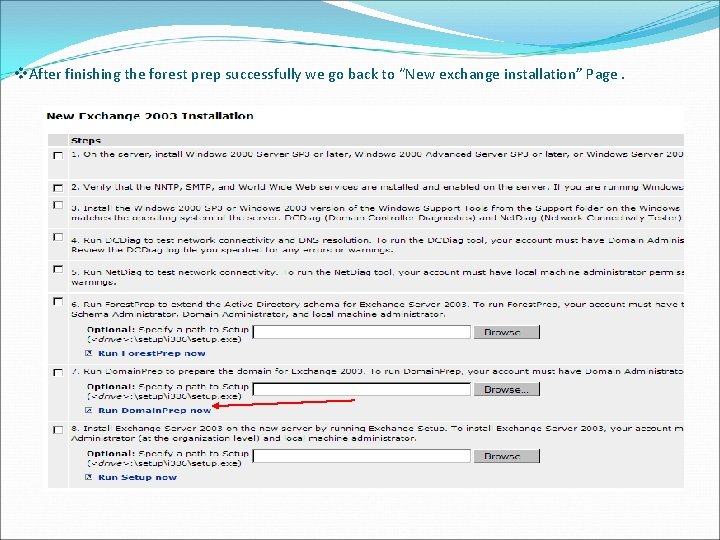
v. After finishing the forest prep successfully we go back to “New exchange installation” Page.
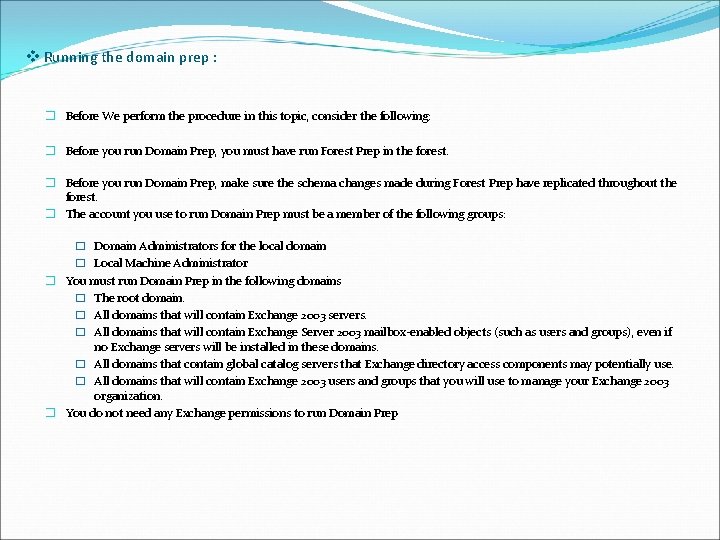
v Running the domain prep : � Before We perform the procedure in this topic, consider the following: � Before you run Domain Prep, you must have run Forest Prep in the forest. � Before you run Domain Prep, make sure the schema changes made during Forest Prep have replicated throughout the forest. � The account you use to run Domain Prep must be a member of the following groups: � Domain Administrators for the local domain � Local Machine Administrator � You must run Domain Prep in the following domains � The root domain. � All domains that will contain Exchange 2003 servers. � All domains that will contain Exchange Server 2003 mailbox-enabled objects (such as users and groups), even if no Exchange servers will be installed in these domains. � All domains that contain global catalog servers that Exchange directory access components may potentially use. � All domains that will contain Exchange 2003 users and groups that you will use to manage your Exchange 2003 organization. � You do not need any Exchange permissions to run Domain Prep
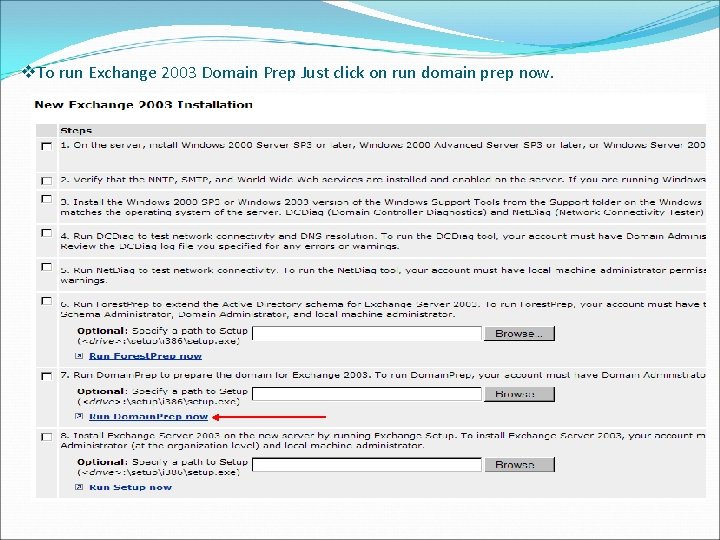
v. To run Exchange 2003 Domain Prep Just click on run domain prep now.
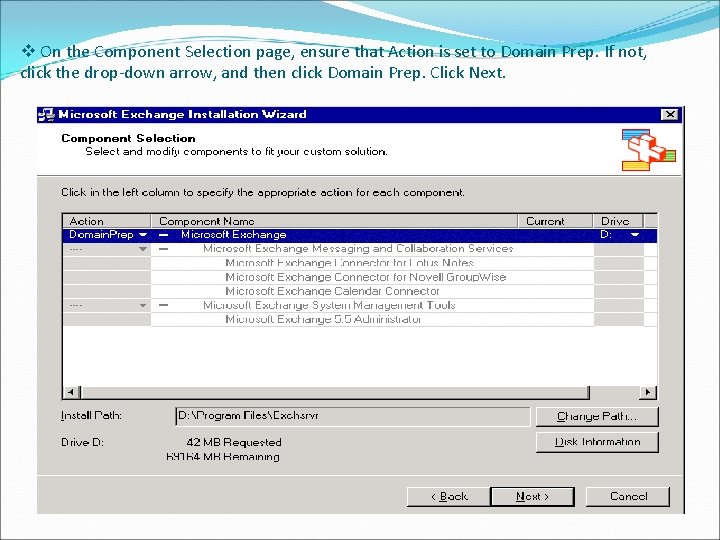
v On the Component Selection page, ensure that Action is set to Domain Prep. If not, click the drop-down arrow, and then click Domain Prep. Click Next.
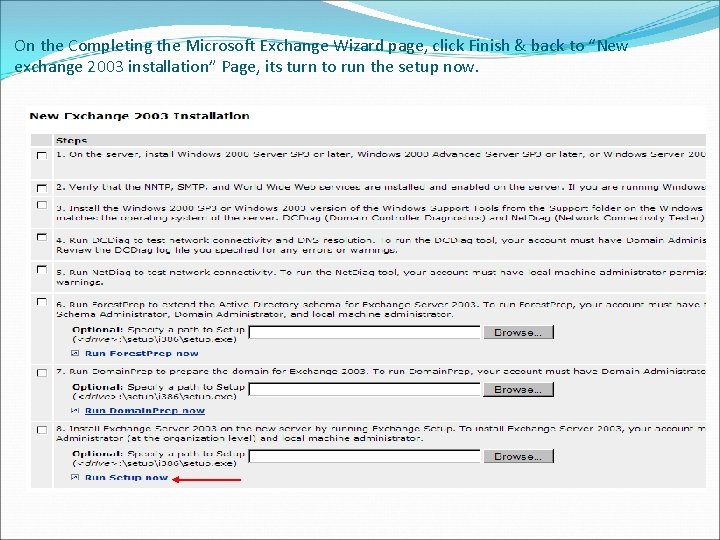
On the Completing the Microsoft Exchange Wizard page, click Finish & back to “New exchange 2003 installation” Page, its turn to run the setup now.
Installation. �To install the first Exchange 2003 server in the forest / Domain, our account must has the following permission : ü Exchange Domain server. ü xchange Enterprise server. ü Domain Administrator. ü Local Administrator.
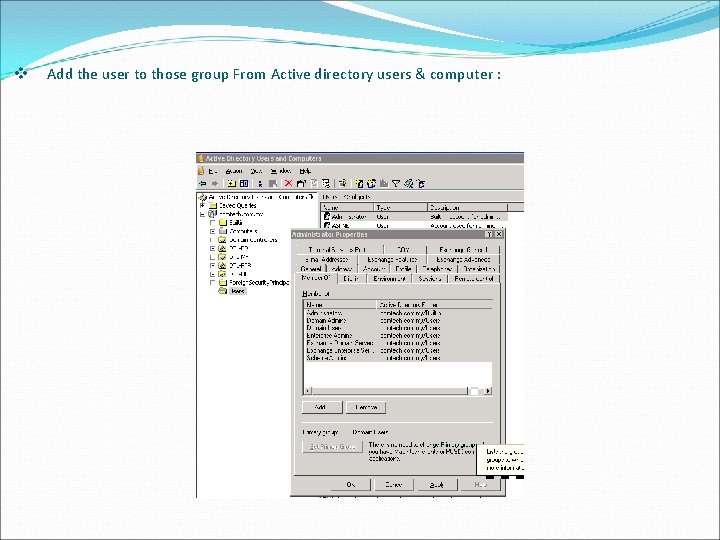
v Add the user to those group From Active directory users & computer :
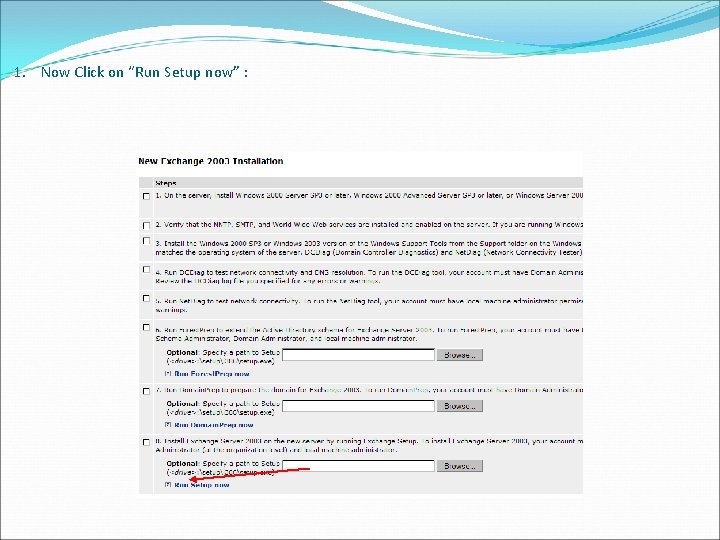
1. Now Click on “Run Setup now” :
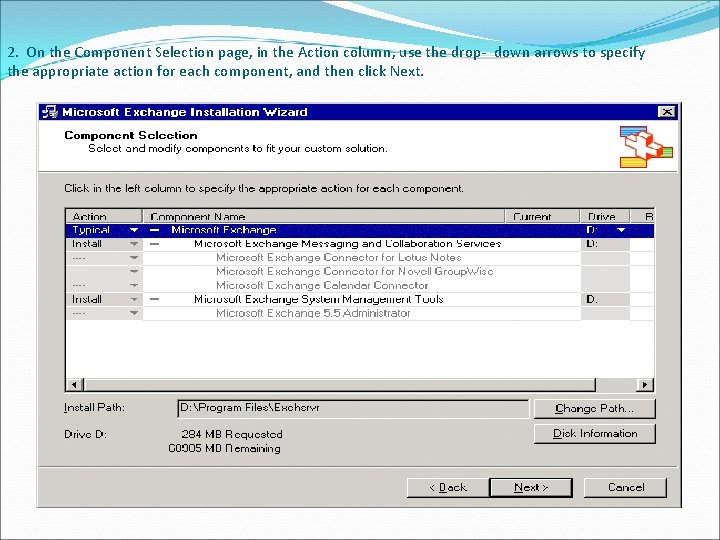
2. On the Component Selection page, in the Action column, use the drop- down arrows to specify the appropriate action for each component, and then click Next.
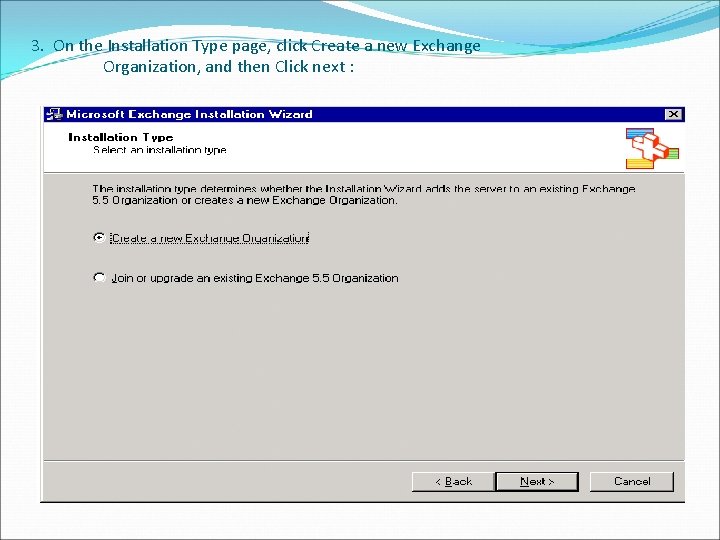
3. On the Installation Type page, click Create a new Exchange Organization, and then Click next :
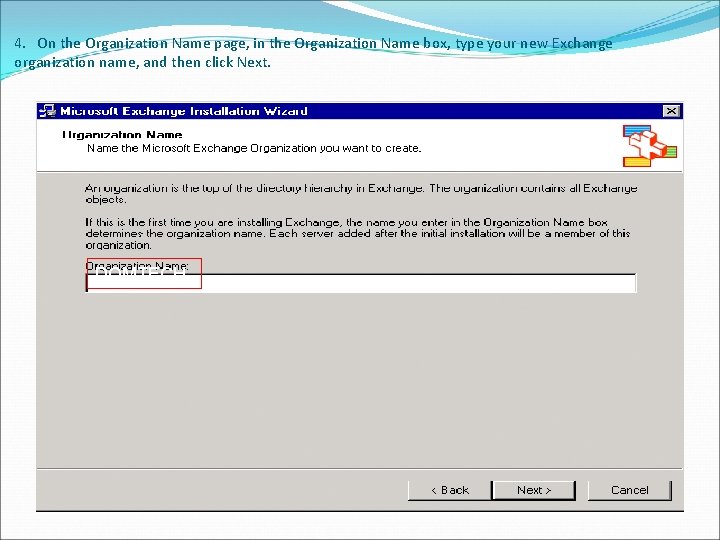
4. On the Organization Name page, in the Organization Name box, type your new Exchange organization name, and then click Next. DOMTECH
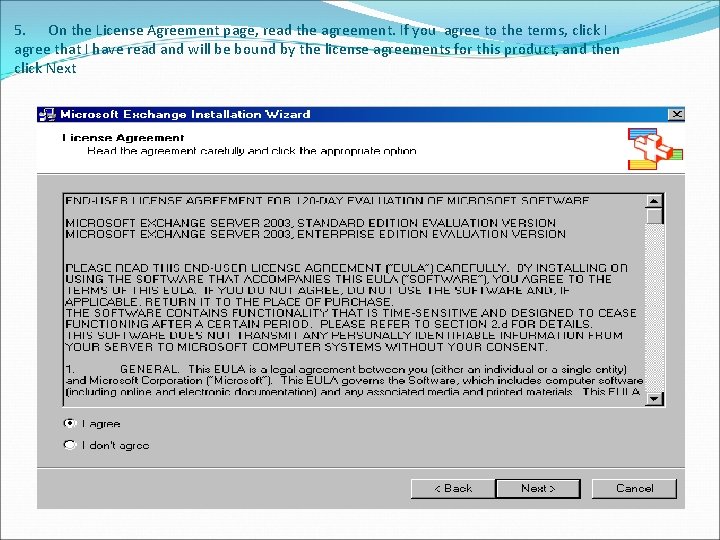
5. On the License Agreement page, read the agreement. If you agree to the terms, click I agree that I have read and will be bound by the license agreements for this product, and then click Next .
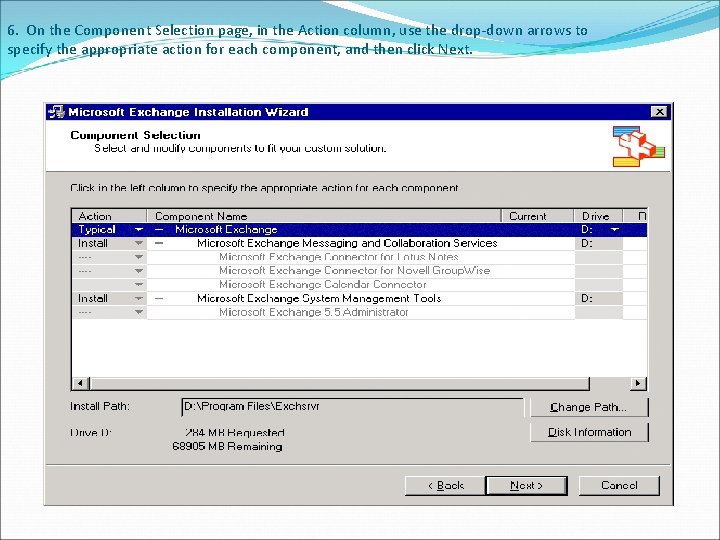
6. On the Component Selection page, in the Action column, use the drop-down arrows to specify the appropriate action for each component, and then click Next.
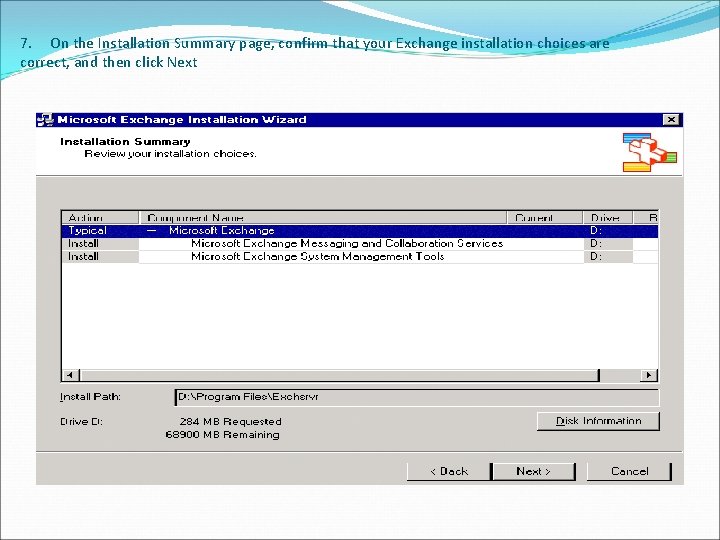
7. On the Installation Summary page, confirm that your Exchange installation choices are correct, and then click Next
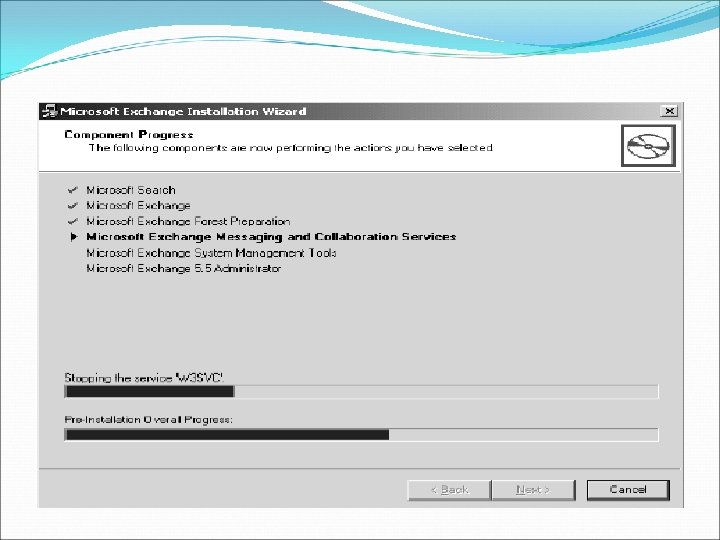
v It will take some time to install the component :
8. On the Completing the Microsoft Exchange Wizard page, click Finish. �We have done the exchange installation. �Now proceed to post installation steps.
Well now that Exchange Server has been successfully installed, We can take a vacation and everything will run correctly, right? Wrong. The following are some of the more important post-installation tasks that We will need to complete: IV. üPost-Installation Tasks : 1. Install the Latest Exchange Service Pack (SP 2) � http: //www. microsoft. com/technet/prodtechnol/exc hange/downloads/2003/sp 2/download. mspx � When installing SP 2, make sure you review the release notes! 2. Move Your Data / Streaming Files / Transaction
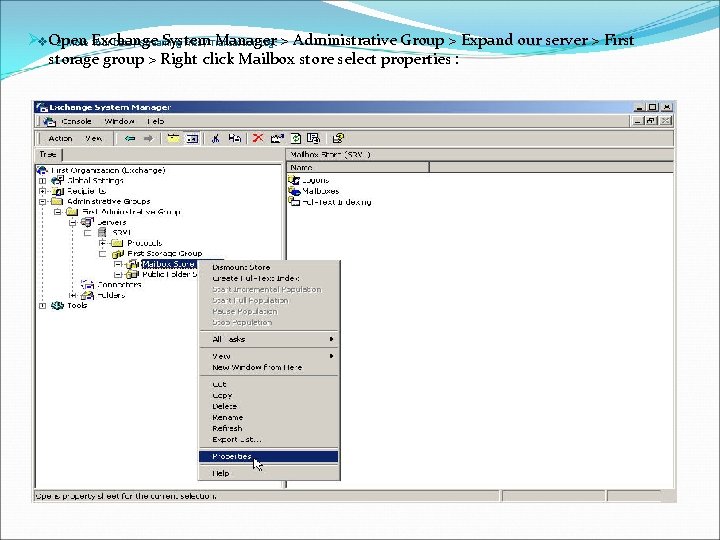
Øv. Open System Manager 2. Move Exchange Your Data / Streaming Files / Transaction Log: > Administrative Group > Expand our server > First storage group > Right click Mailbox store select properties :
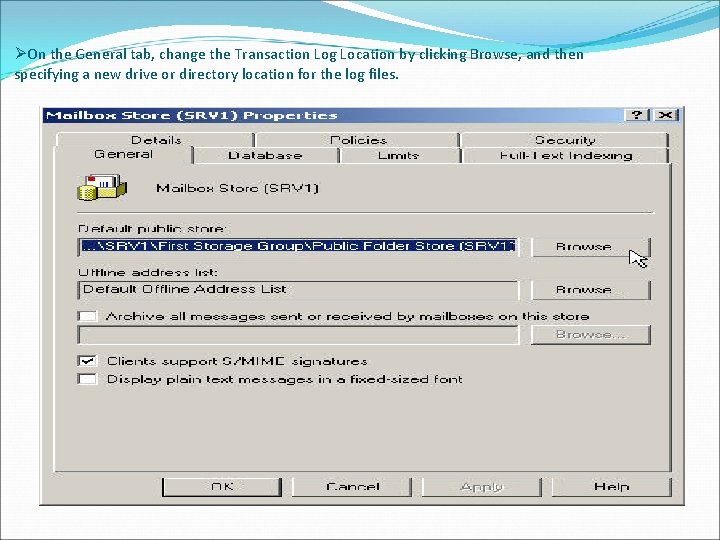
ØOn the General tab, change the Transaction Log Location by clicking Browse, and then specifying a new drive or directory location for the log files.
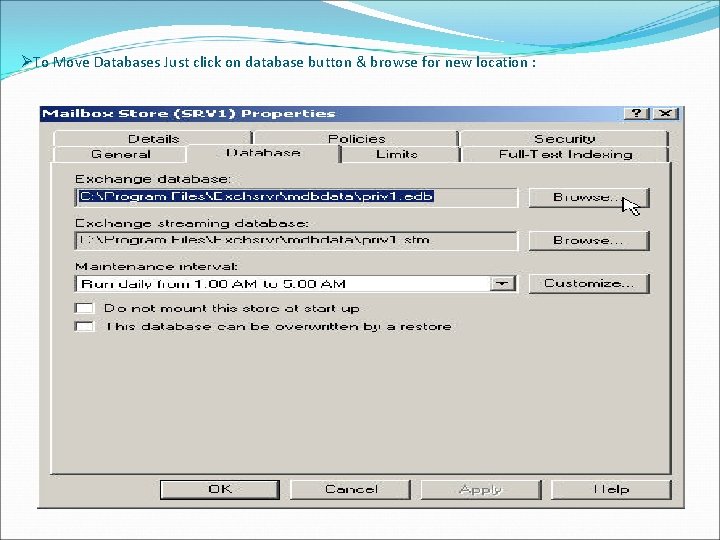
ØTo Move Databases Just click on database button & browse for new location :
. . � Choose a new location for the databases by clicking Browse, and specifying a new drive or directory location for the database files. With the databases, you can choose to move the Exchange Database (. edb file), Exchange Streaming Database (. stm file) or both. If the databases are still mounted, you receive the following message: � You are about to perform the following operation(s): -change Exchange database location To perform the requested operation(s), the store must be temporarily dismounted which will make it inaccessible to any user. Do you want to continue? � Click Yes to dismount the database automatically and move the location. � When you finish moving the databases, remount the databases manually.
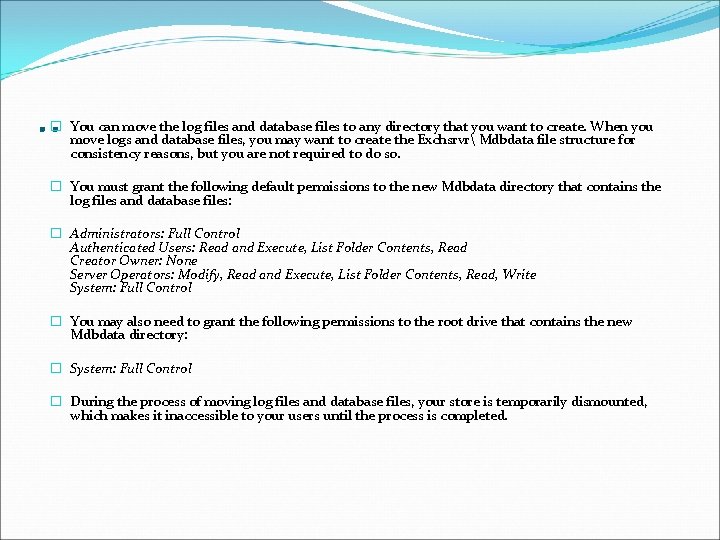
. . � You can move the log files and database files to any directory that you want to create. When you move logs and database files, you may want to create the Exchsrvr Mdbdata file structure for consistency reasons, but you are not required to do so. � You must grant the following default permissions to the new Mdbdata directory that contains the log files and database files: � Administrators: Full Control Authenticated Users: Read and Execute, List Folder Contents, Read Creator Owner: None Server Operators: Modify, Read and Execute, List Folder Contents, Read, Write System: Full Control � You may also need to grant the following permissions to the root drive that contains the new Mdbdata directory: � System: Full Control � During the process of moving log files and database files, your store is temporarily dismounted, which makes it inaccessible to your users until the process is completed.
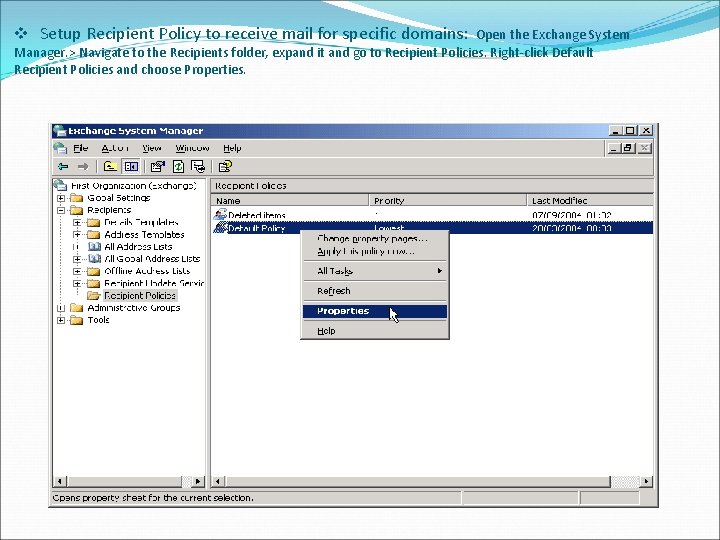
v Setup Recipient Policy to receive mail for specific domains: Open the Exchange System Manager. > Navigate to the Recipients folder, expand it and go to Recipient Policies. Right-click Default Recipient Policies and choose Properties.
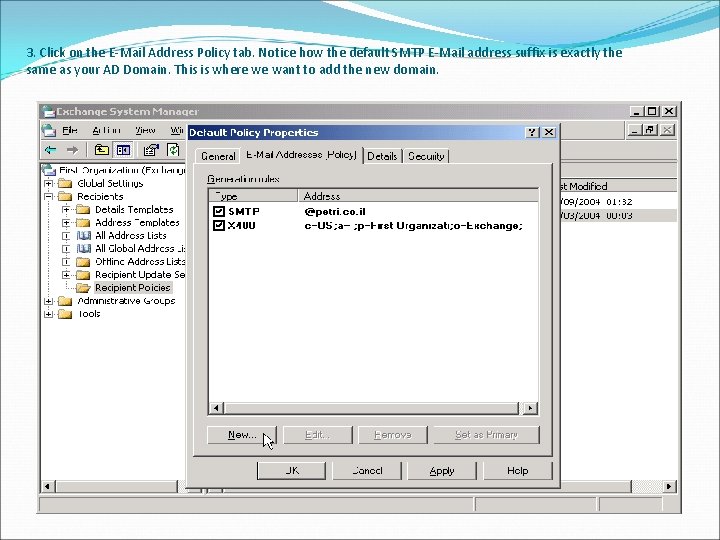
3. Click on the E-Mail Address Policy tab. Notice how the default SMTP E-Mail address suffix is exactly the same as your AD Domain. This is where we want to add the new domain.
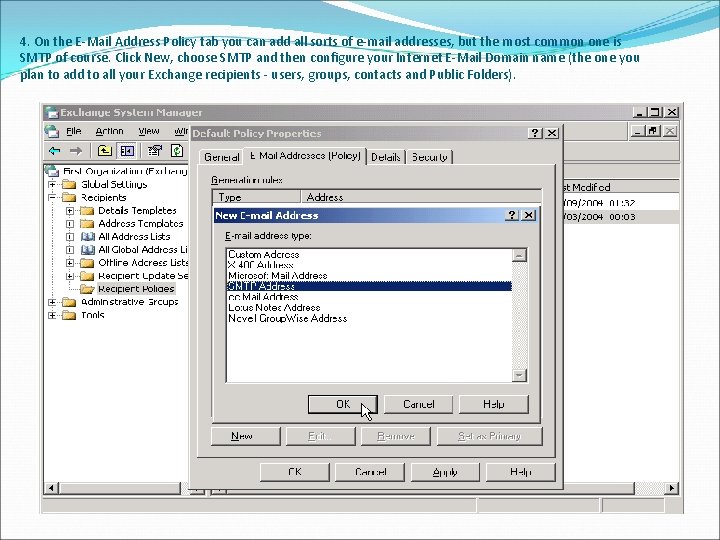
4. On the E-Mail Address Policy tab you can add all sorts of e-mail addresses, but the most common one is SMTP of course. Click New, choose SMTP and then configure your Internet E-Mail Domain name (the one you plan to add to all your Exchange recipients - users, groups, contacts and Public Folders).
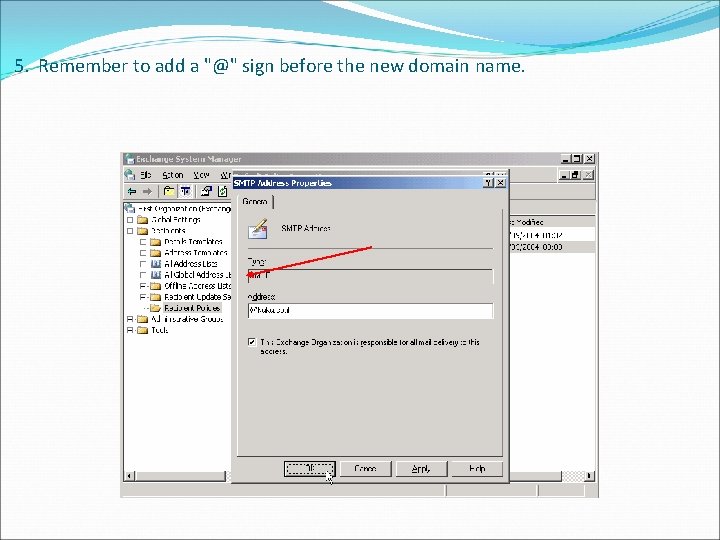
5. Remember to add a "@" sign before the new domain name.
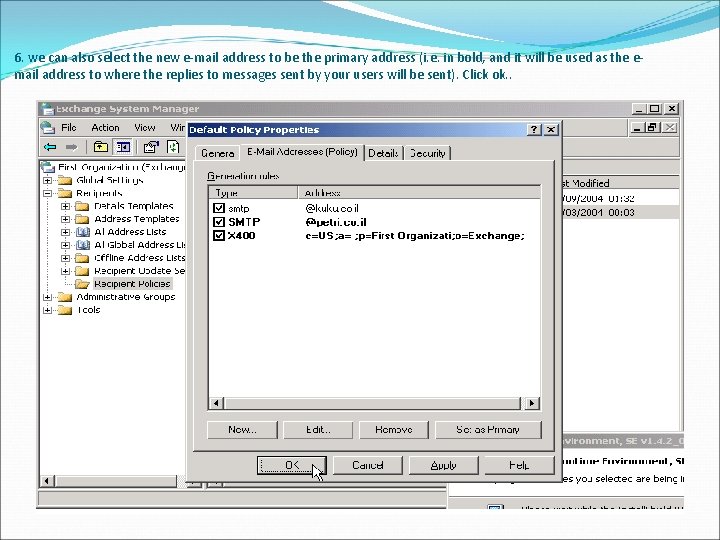
6. we can also select the new e-mail address to be the primary address (i. e. in bold, and it will be used as the email address to where the replies to messages sent by your users will be sent). Click ok. .
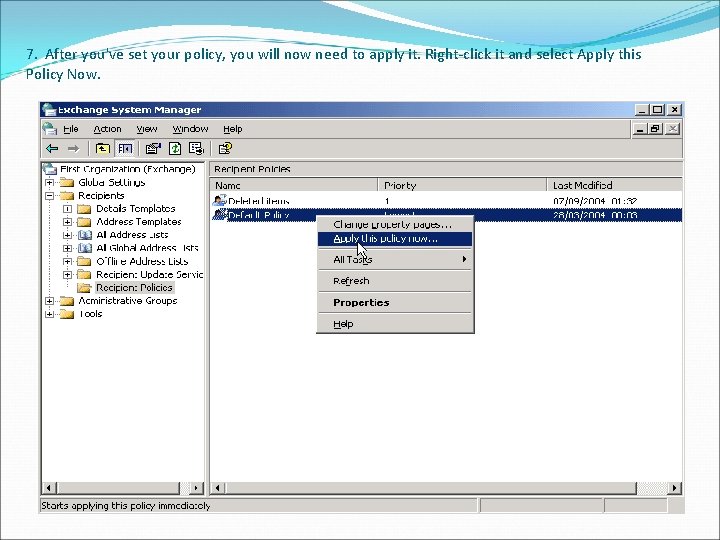
7. After you've set your policy, you will now need to apply it. Right-click it and select Apply this Policy Now.
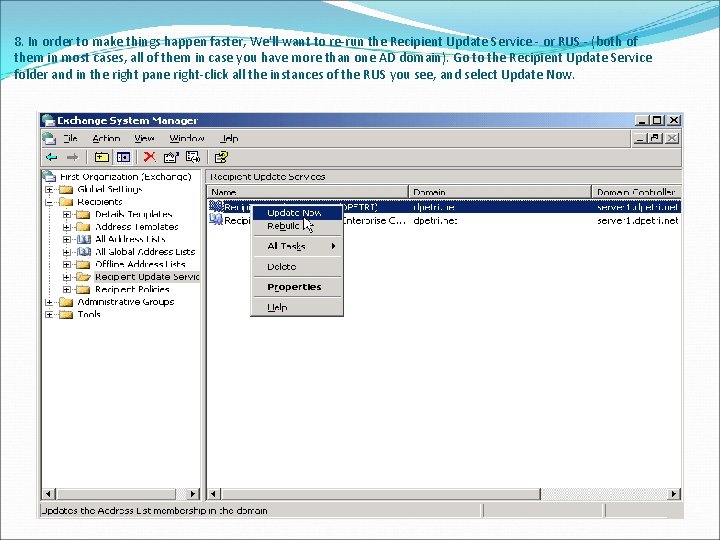
8. In order to make things happen faster, We'll want to re-run the Recipient Update Service - or RUS - (both of them in most cases, all of them in case you have more than one AD domain). Go to the Recipient Update Service folder and in the right pane right-click all the instances of the RUS you see, and select Update Now.
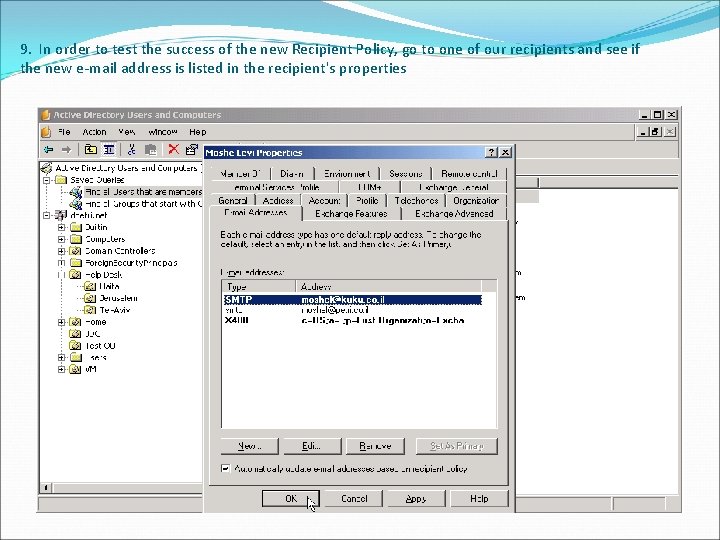
9. In order to test the success of the new Recipient Policy, go to one of our recipients and see if the new e-mail address is listed in the recipient's properties
v. Turn on Message Tracking and Mailbox Management � 1. Launch Exchange System Manager. � 2. Expand the Servers folder. � 3. Right click on your server and click Properties.
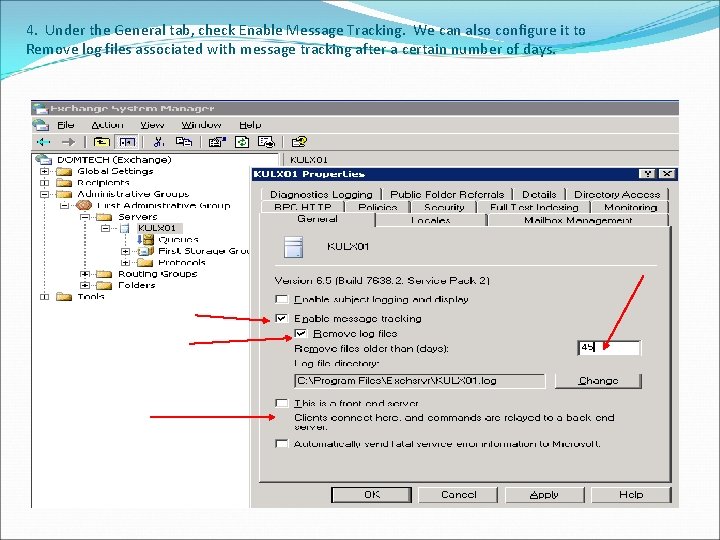
4. Under the General tab, check Enable Message Tracking. We can also configure it to Remove log files associated with message tracking after a certain number of days.
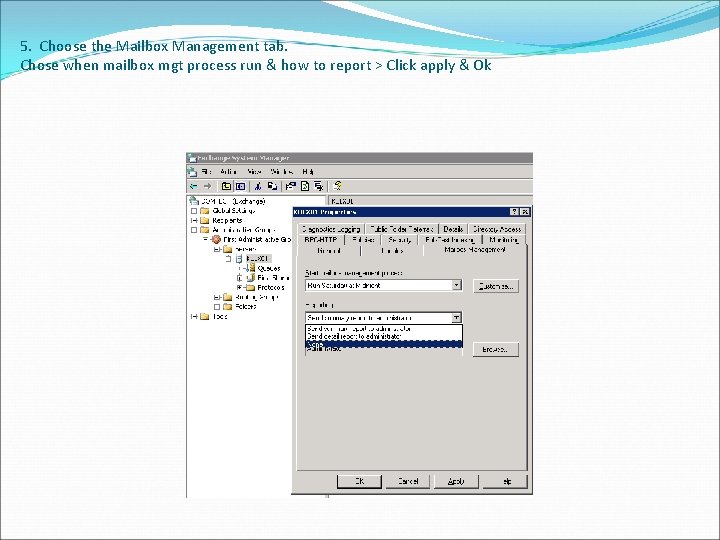
5. Choose the Mailbox Management tab. Chose when mailbox mgt process run & how to report > Click apply & Ok
v Disable Unused Protocols � 1. Launch Exchange System Manager. � 2. Expand the Servers folder. � 3. Expand the tree under your server and expand the Protocols folder.
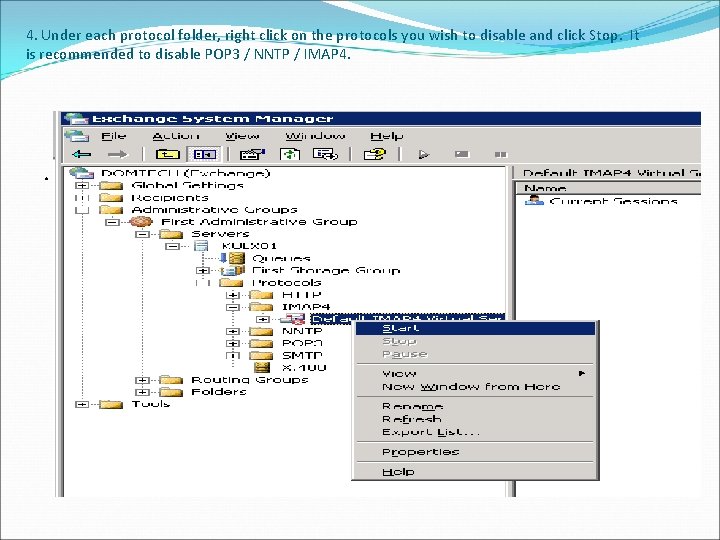
4. Under each protocol folder, right click on the protocols you wish to disable and click Stop. It is recommended to disable POP 3 / NNTP / IMAP 4. .
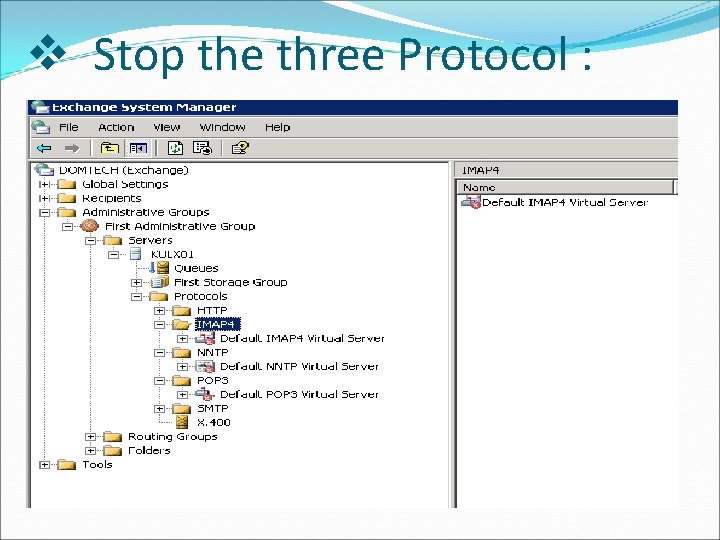
v Stop the three Protocol :
. . Mail authentication:
C. Creating and Applying Exchange Policies. v �A system policy is a collection of configuration settings that you apply to: üone or more servers, ü mailbox stores ü public folder stores.
. � The system policies that you create for an administrative group typically apply to objects in that group. However, a system policy can apply to objects outside its own administrative group.
�System policies use an apply-time implementation to affect configuration changes. You can create a policy, define settings for that policy, associate that policy with one or more servers or public folder stores, and then apply the policy. After you apply the policy, the corresponding settings that are specific to that individual object become unavailable and appear dimmed. This is because the policy, not the individual object, now controls those settings.
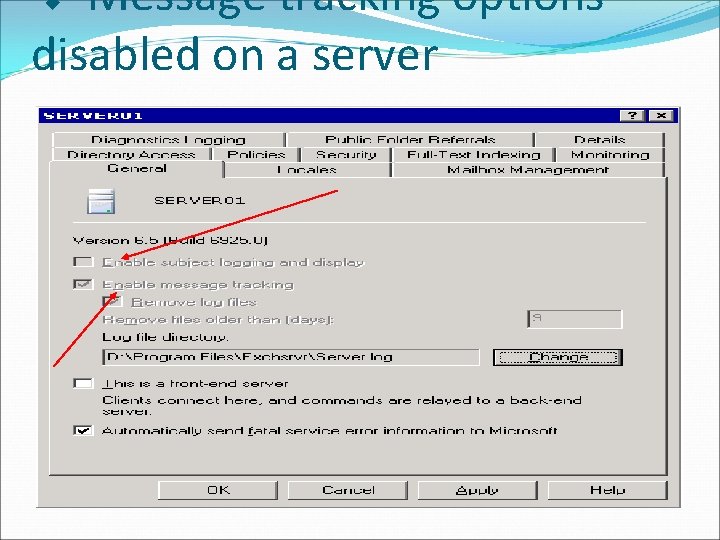
v Message tracking options disabled on a server
v Creating a System Policies container : � In order to be able to create and work with System Policies We will first need to manually create the System Policies container in ESM: 1. Open ESM, expand your organization tree, expand Administrative Groups, and then expand the desired Administrative Group.
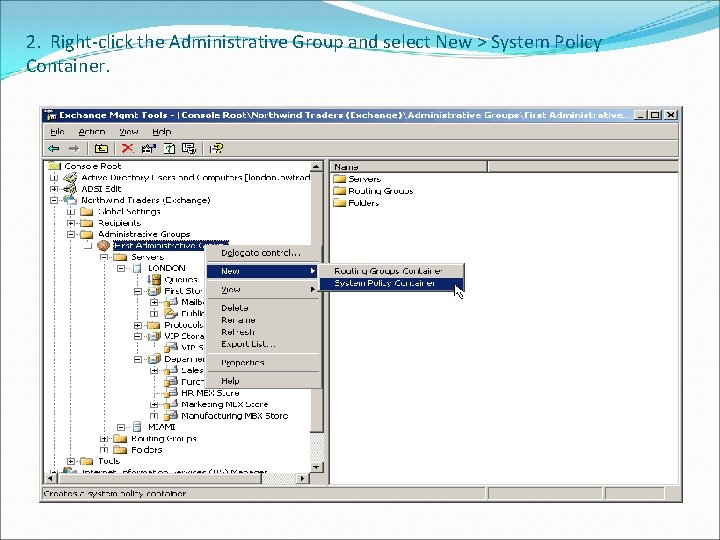
2. Right-click the Administrative Group and select New > System Policy Container.
. . �The number of settings that can be configured on the Mailbox and Public Folder Stores varies between the store's type. Mailbox Stores have 4 property tabs, while Public Folders, that can be configured to replicate between servers, have the same 4 properties tabs, plus a 5 th tab to control some replication settings.
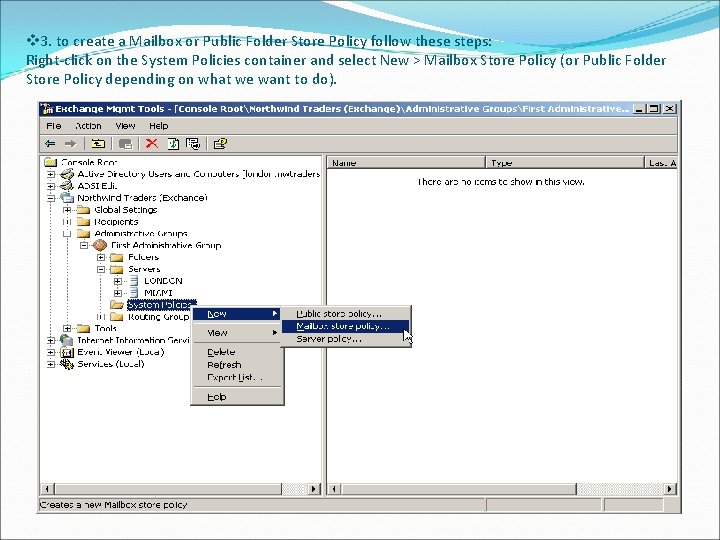
v 3. to create a Mailbox or Public Folder Store Policy follow these steps: Right-click on the System Policies container and select New > Mailbox Store Policy (or Public Folder Store Policy depending on what we want to do).
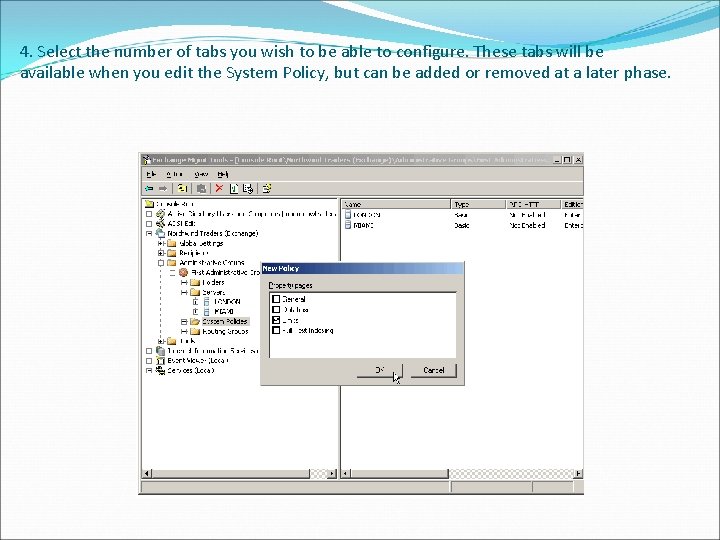
4. Select the number of tabs you wish to be able to configure. These tabs will be available when you edit the System Policy, but can be added or removed at a later phase.
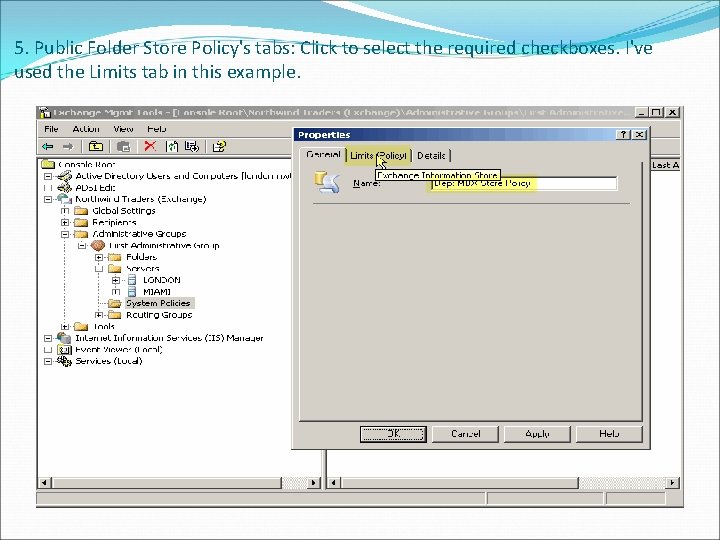
5. Public Folder Store Policy's tabs: Click to select the required checkboxes. I've used the Limits tab in this example.
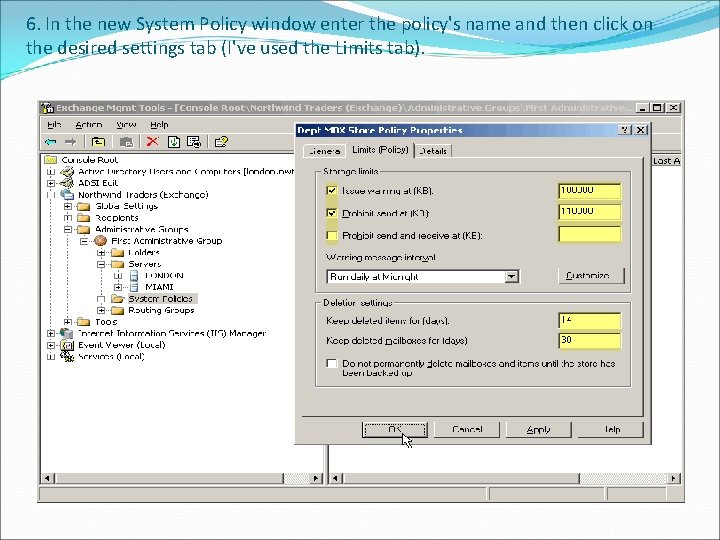
6. In the new System Policy window enter the policy's name and then click on the desired settings tab (I've used the Limits tab).
. . �Note that in in this specific example, in order to set mailbox limits over 2 GB you will need to manually edit the information in AD. The UI will not let you specify these sizes. �Also note that for this specific example, the mailbox limits settings on the User Account in ADUC overwrite the same limits on the Mailbox Store and/or the Mailbox Store System Policy
When done, click Ok �Note that the new policy can be seen under the System Policies container.
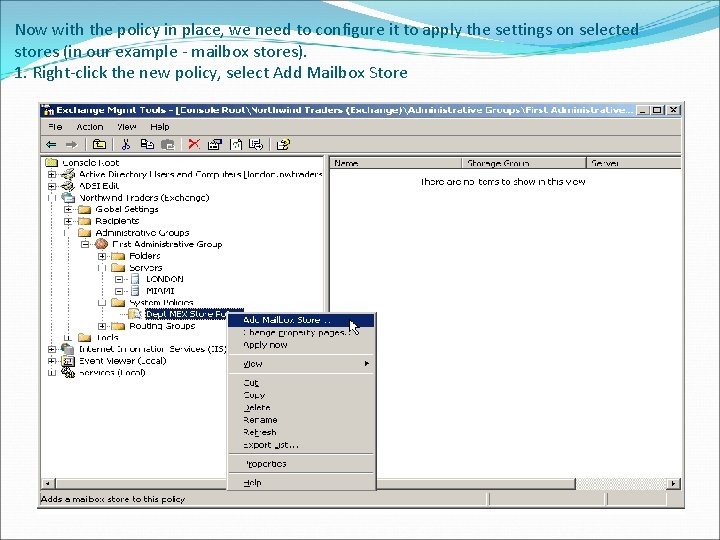
Now with the policy in place, we need to configure it to apply the settings on selected stores (in our example - mailbox stores). 1. Right-click the new policy, select Add Mailbox Store
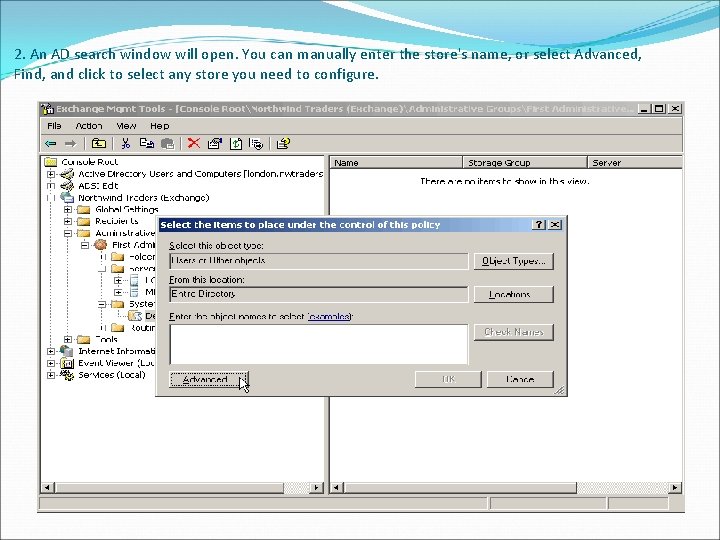
2. An AD search window will open. You can manually enter the store's name, or select Advanced, Find, and click to select any store you need to configure.
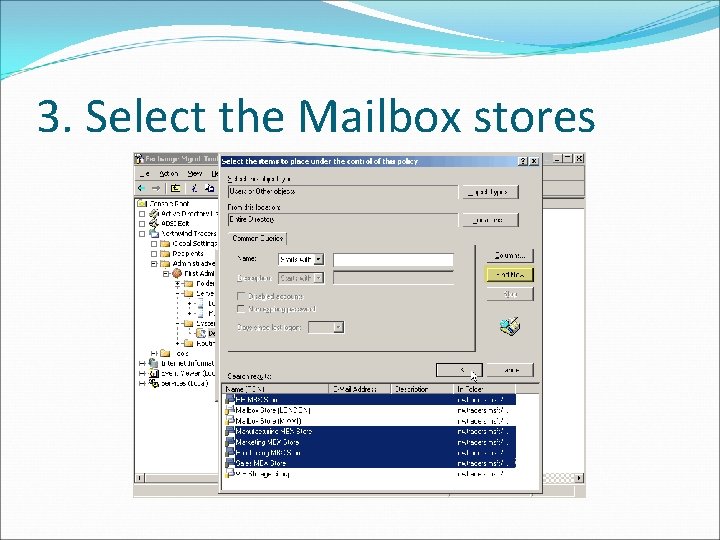
3. Select the Mailbox stores
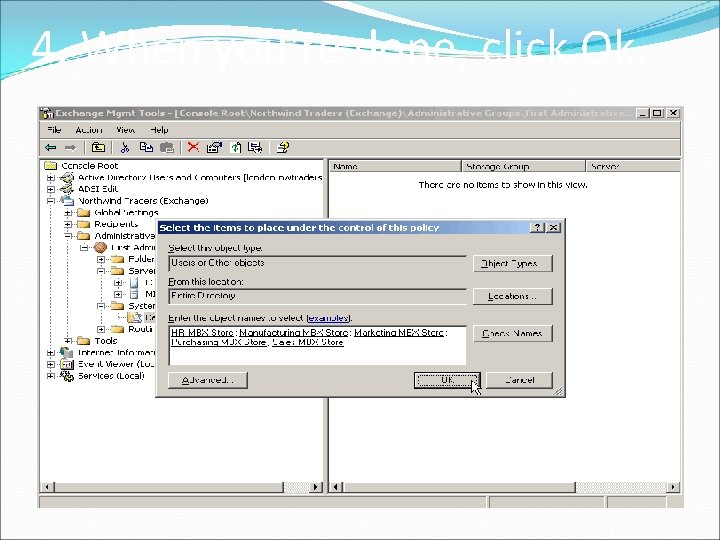
4. When you're done, click Ok.
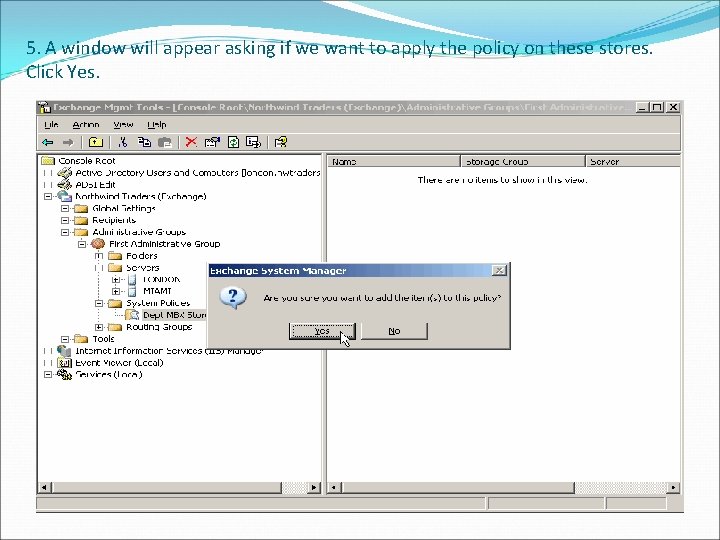
5. A window will appear asking if we want to apply the policy on these stores. Click Yes.
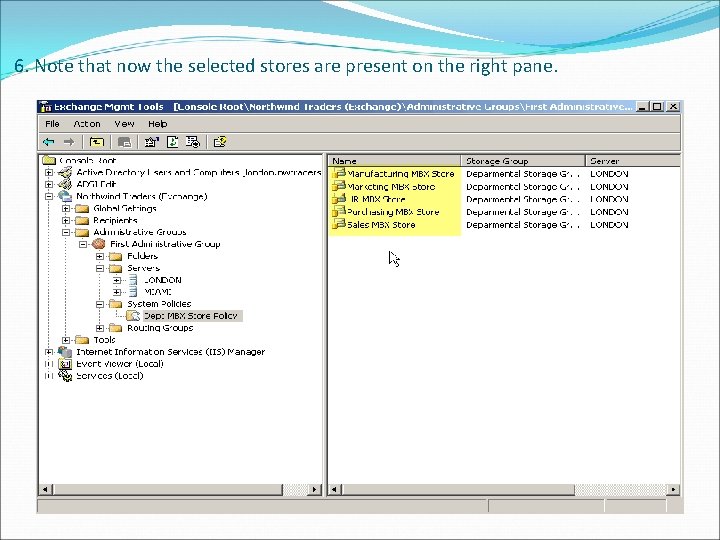
6. Note that now the selected stores are present on the right pane.
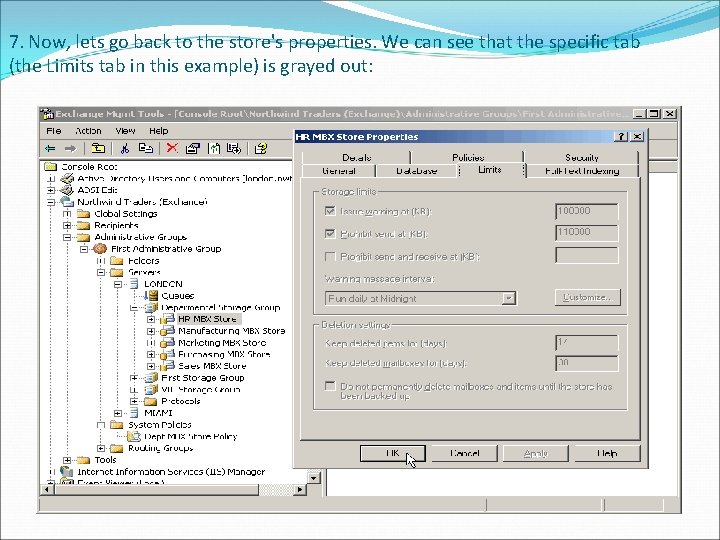
7. Now, lets go back to the store's properties. We can see that the specific tab (the Limits tab in this example) is grayed out:
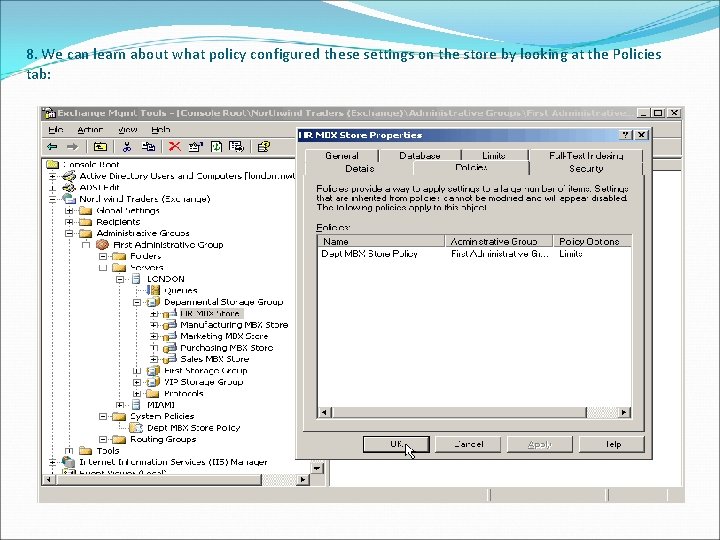
8. We can learn about what policy configured these settings on the store by looking at the Policies tab:
. . � We can remove selected stores from this list whenever you want them not to be under the policy's influence anymore
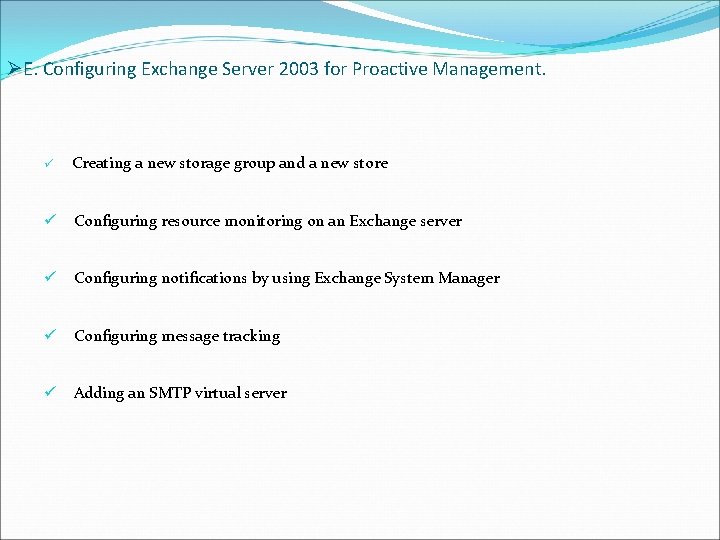
ØE. Configuring Exchange Server 2003 for Proactive Management. ü Creating a new storage group and a new store ü Configuring resource monitoring on an Exchange server ü Configuring notifications by using Exchange System Manager ü Configuring message tracking ü Adding an SMTP virtual server
� The Recovery Storage Group feature in Microsoft® Exchange Server 2003 allows you to mount a second copy of an Exchange mailbox database on the same server as the original database, or on any other Exchange server in the same Exchange administrative group. This can be done while the original database is running and serving clients. This capability allows you to recover data from an older backup copy of the database without disturbing user access to current data. The recovery storage group can also be useful in various disaster recovery scenarios, most notably the Messaging Dial Tone scenario.
§�The What is dial tone database ? dial tone database supports your users while you recover the original database. The first time that users log on to their mailbox after this database is created, Exchange creates a new, empty mailbox for them. Although the users do not have access to their previous data, they can send and receive messages normally. �The dial tone database supports your users while you recover the original database. If you have a large Microsoft® Exchange database, it can take several hours to restore it from backup after a disaster. However, by implementing the Messaging Dial Tone strategy you can restore e-mail service more quickly
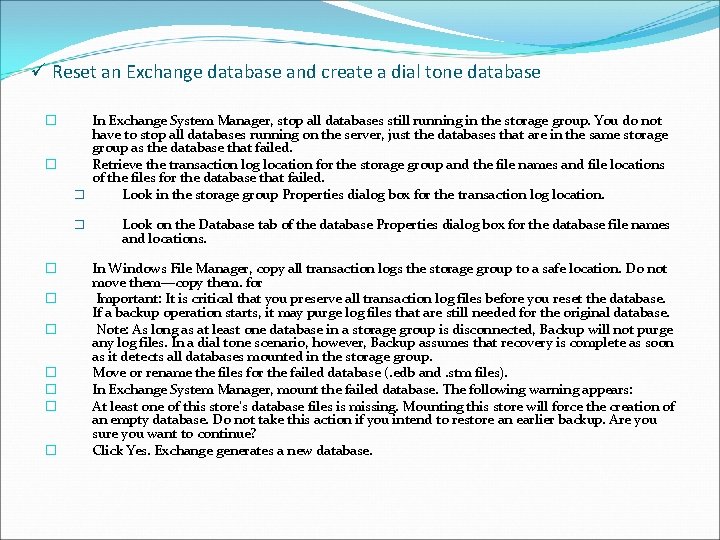
ü Reset an Exchange database and create a dial tone database � � In Exchange System Manager, stop all databases still running in the storage group. You do not have to stop all databases running on the server, just the databases that are in the same storage group as the database that failed. Retrieve the transaction log location for the storage group and the file names and file locations of the files for the database that failed. � Look in the storage group Properties dialog box for the transaction log location. � � � � Look on the Database tab of the database Properties dialog box for the database file names and locations. In Windows File Manager, copy all transaction logs the storage group to a safe location. Do not move them—copy them. for Important: It is critical that you preserve all transaction log files before you reset the database. If a backup operation starts, it may purge log files that are still needed for the original database. Note: As long as at least one database in a storage group is disconnected, Backup will not purge any log files. In a dial tone scenario, however, Backup assumes that recovery is complete as soon as it detects all databases mounted in the storage group. Move or rename the files for the failed database (. edb and. stm files). In Exchange System Manager, mount the failed database. The following warning appears: At least one of this store's database files is missing. Mounting this store will force the creation of an empty database. Do not take this action if you intend to restore an earlier backup. Are you sure you want to continue? Click Yes. Exchange generates a new database.
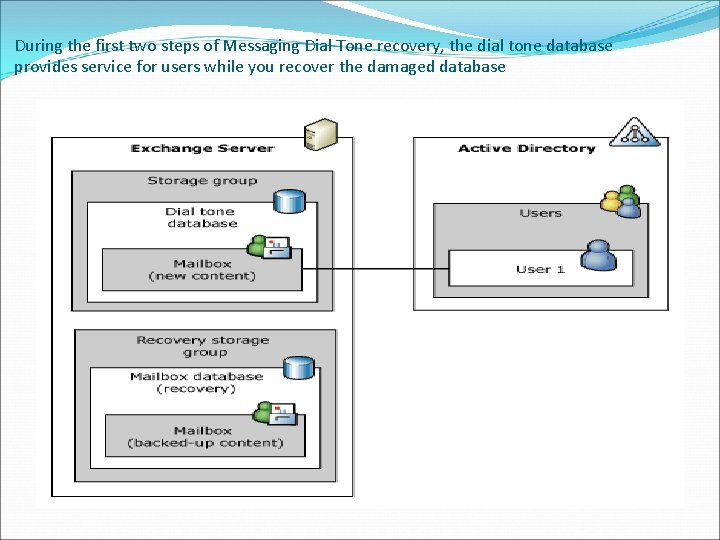
During the first two steps of Messaging Dial Tone recovery, the dial tone database provides service for users while you recover the damaged database
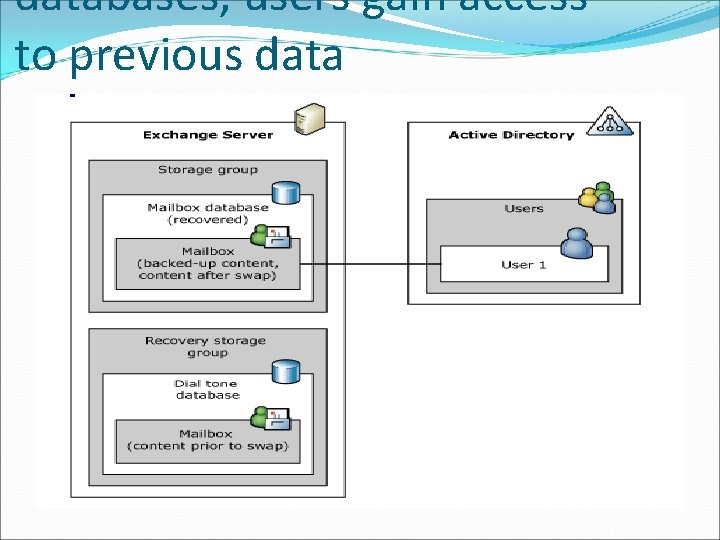
databases, users gain access to previous data
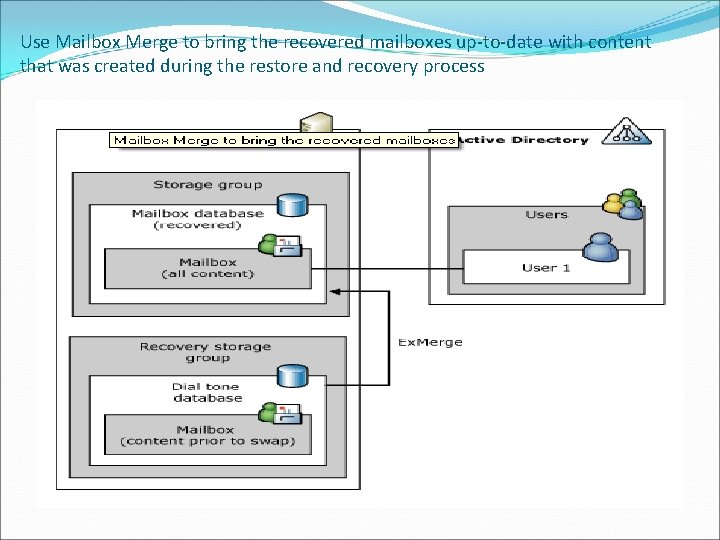
Use Mailbox Merge to bring the recovered mailboxes up-to-date with content that was created during the restore and recovery process
v. Benefits of Exchange Multiple Stores �Smaller stores mean that restore will be faster and backup more manageable. �Fewer users will be affected when one store is offline. �Each store can have its own policy for mailbox limits. �If you have multiple disks, dividing a single store into storage groups will improve performance. Note that all stores in one storage group share the same log file. �Rather than having lots of small Exchange 2003 servers, buy one big machine and configure multiple Storage Groups.
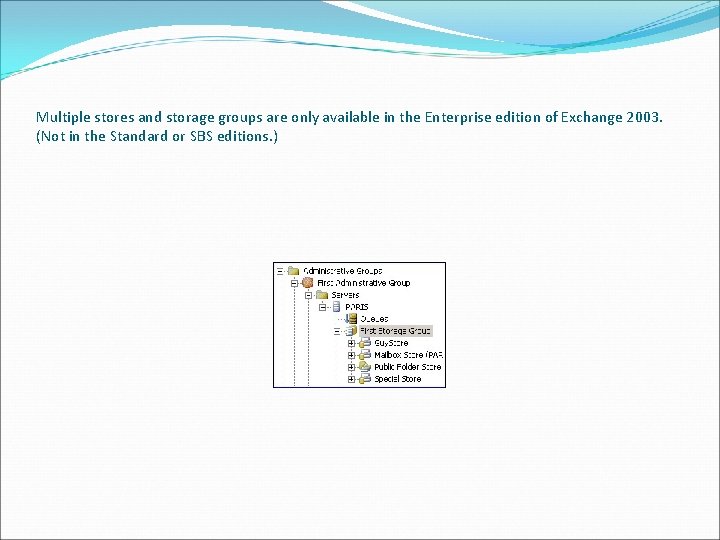
Multiple stores and storage groups are only available in the Enterprise edition of Exchange 2003. (Not in the Standard or SBS editions. )
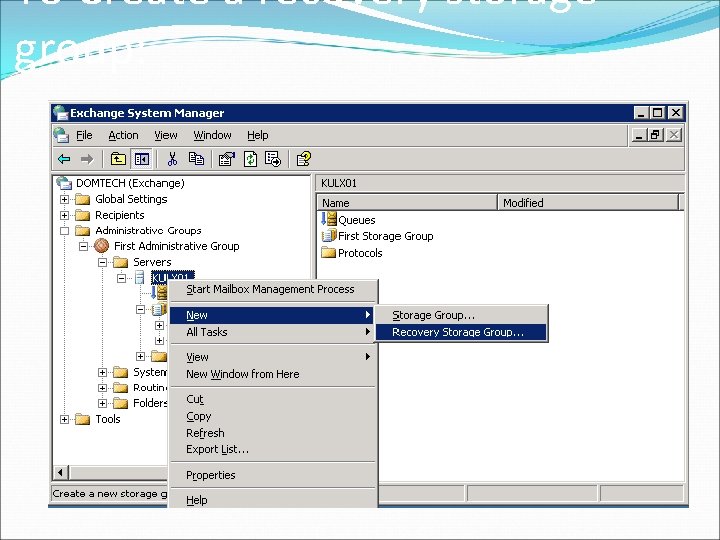
To Create a recovery storage group:
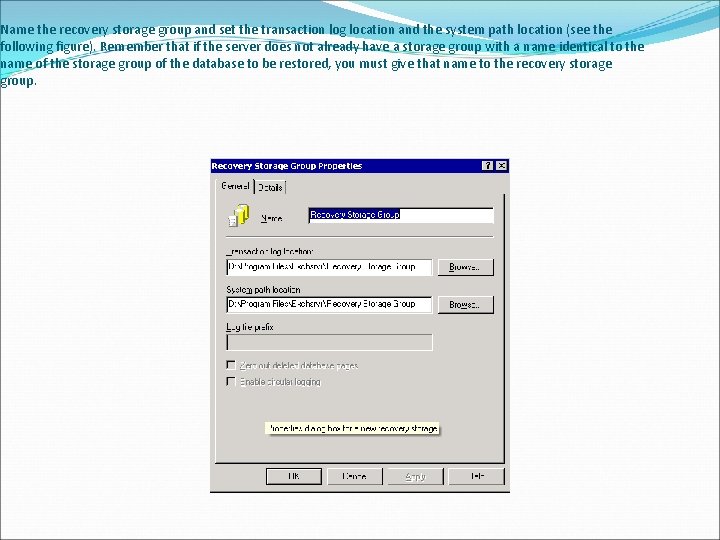
Name the recovery storage group and set the transaction log location and the system path location (see the following figure). Remember that if the server does not already have a storage group with a name identical to the name of the storage group of the database to be restored, you must give that name to the recovery storage group.
How Add Databases to Be Restored �In to Exchange System Manager, find the server on which you created the recovery storage group, right-click the recovery storage group and then click Add Database to Recover. �Exchange automatically determines which databases can be added to the recovery storage group and presents you with a list from which to choose.
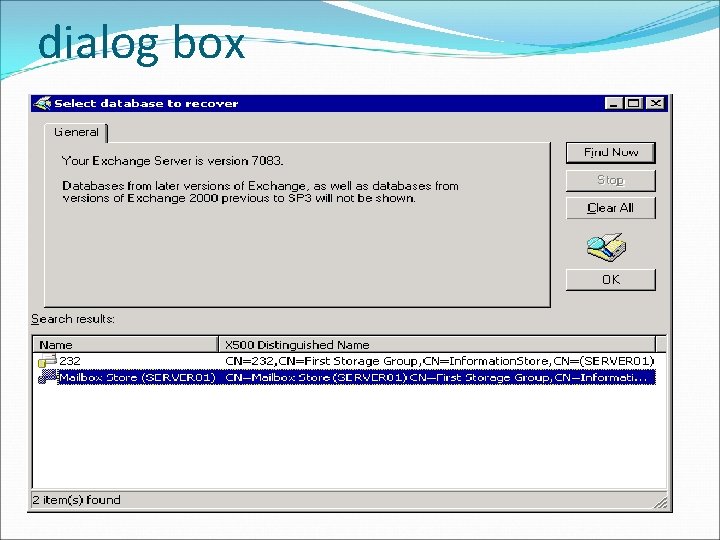
dialog box
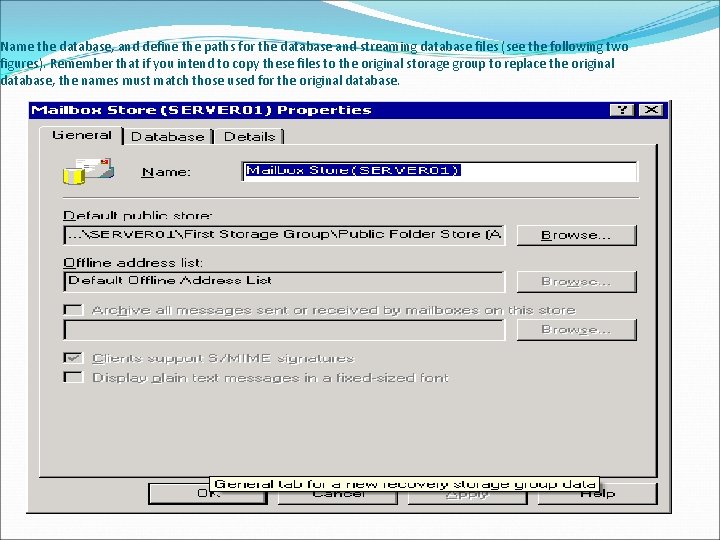
Name the database, and define the paths for the database and streaming database files (see the following two figures). Remember that if you intend to copy these files to the original storage group to replace the original database, the names must match those used for the original database.
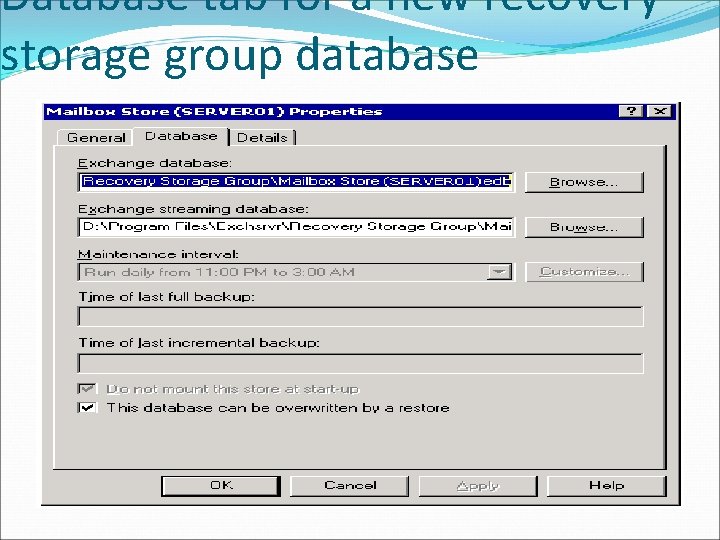
Database tab for a new recovery storage group database
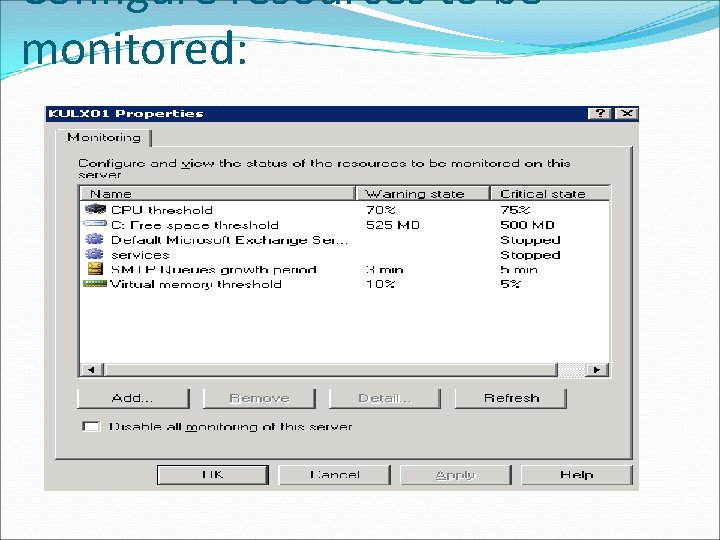
ü Configuring resource monitoring on an Exchange server �Both Exchange 2003 and SQL have built-in monitoring for resources such as memory or disk space. So ask yourself, ' Which services does my Exchange 2003 need? ' Once you have finalized the list of services, configure Resource Monitoring to email you should one of those services reach a critical level. �Think of resource monitoring rather like the oil warning light on your car dashboard. In the case of Exchange 2003, you can either visually check the Status folder, or configure automatic notification when thresholds are reached. For example, low disk space.
# Topics for Exchange 2003 Resource Monitoring �Exchange 2003 Services to Monitor �How to Monitor Exchange Server Resource �How to Configure Notifications
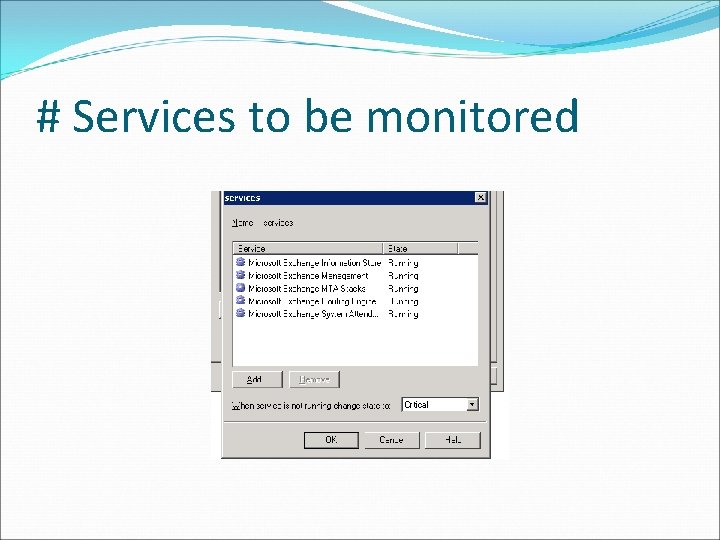
# Exchange 2003 Services to Monitor �The principle behind resource monitoring is rather like configuring alerts in performance monitor, or setting the trigger on a trap. The idea is that if one of the following Exchange services stops, then you get notified. i. e. : �System Attendant �Information Store �SMTP
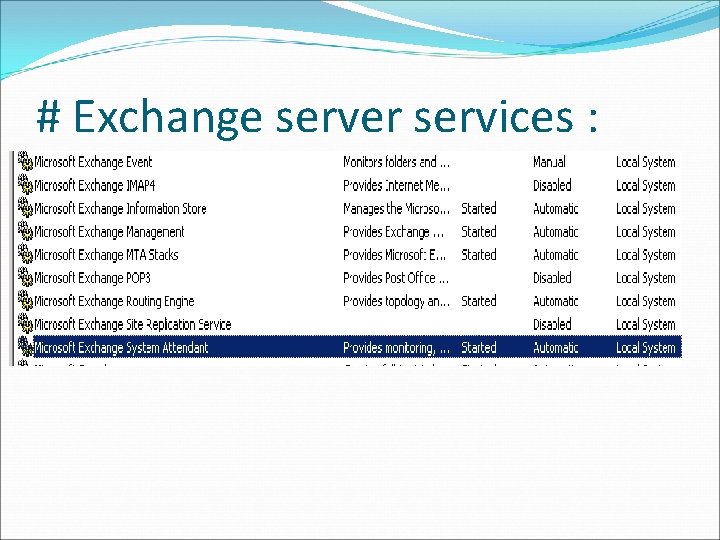
# Exchange server services :
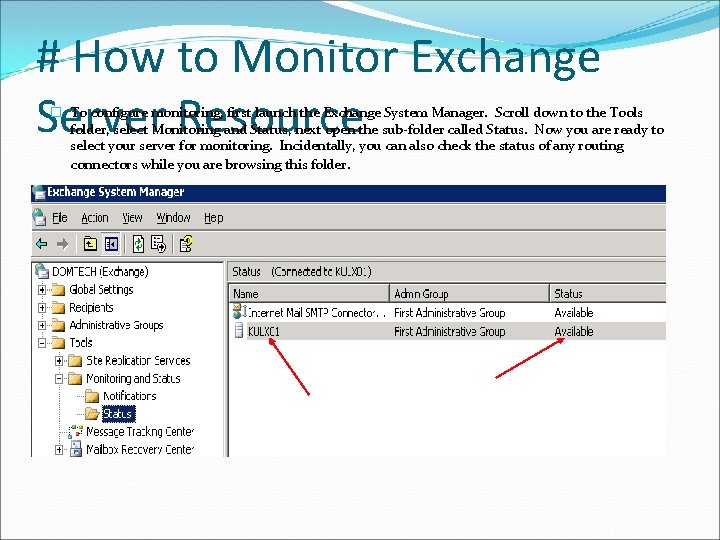
# How to Monitor Exchange Server Resource � To configure monitoring, first launch the Exchange System Manager. Scroll down to the Tools folder, select Monitoring and Status, next open the sub-folder called Status. Now you are ready to select your server for monitoring. Incidentally, you can also check the status of any routing connectors while you are browsing this folder.
#�From Vital Windows Server Services time to time you 2003 become aware : that Exchange relies on the underlying operating system. All the more reason to make sure that key Windows Server 2003 services are also up and running. �Once you have chosen which resources to monitor, then you need to decide thresholds. The critical state is the higher value and the warning state is must be a lower value. (For some strange reason, I always muddle them up, so be careful. ) When the levels you define are reached, the built-in monitor triggers Exchange to notify an administrator.
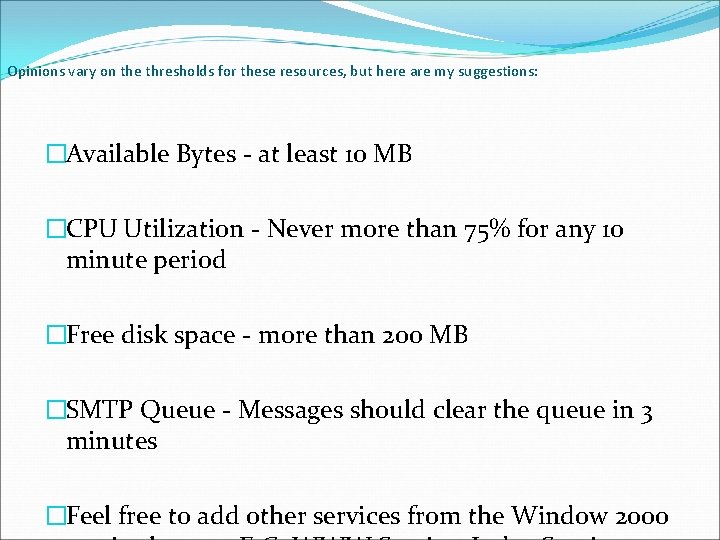
Opinions vary on the thresholds for these resources, but here are my suggestions: �Available Bytes - at least 10 MB �CPU Utilization - Never more than 75% for any 10 minute period �Free disk space - more than 200 MB �SMTP Queue - Messages should clear the queue in 3 minutes �Feel free to add other services from the Window 2000
Configure resources to be monitored:
# Services to be monitored
# How to Configure Notifications �Also in the Monitoring and Status folder is a subfolder called Notifications. Here are built-in scripts just waiting for you to add the names appropriate to user accounts. Exchange 2003 supplies pro-formas with variables which are substituted with figures at run time. �I expect that you have already thought of the classic trap of trying to send an email message when the exchange server is down! Exchange 2003 is cleverer than that, because it can monitor one server from another server. The trick is to choose users with
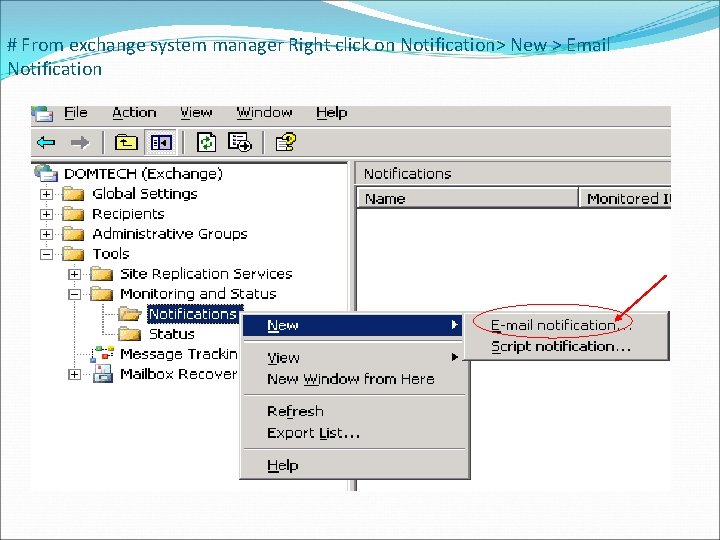
# From exchange system manager Right click on Notification> New > Email Notification
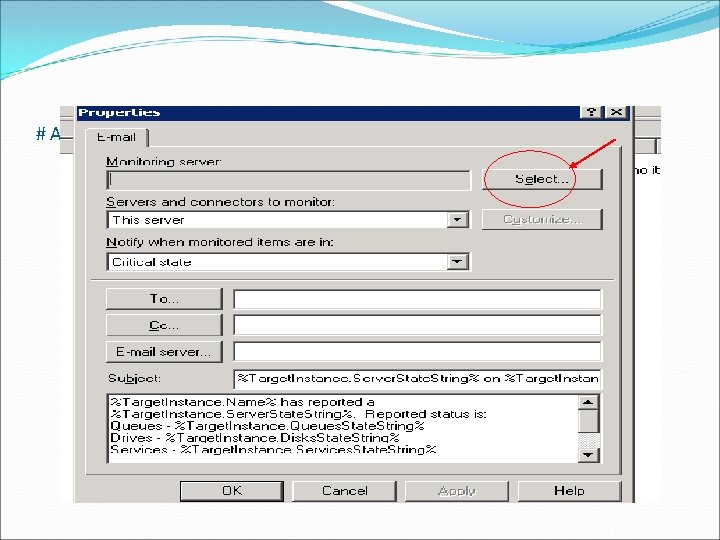
# A property box will open > Here we can select Monitoring server
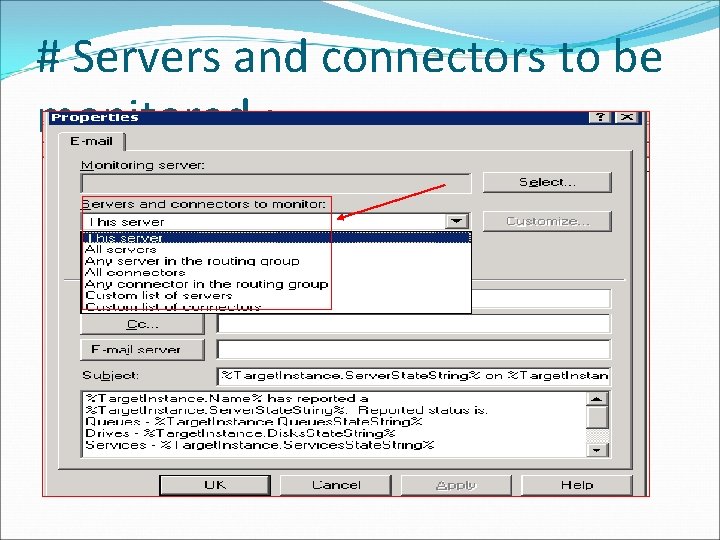
# Servers and connectors to be monitored :
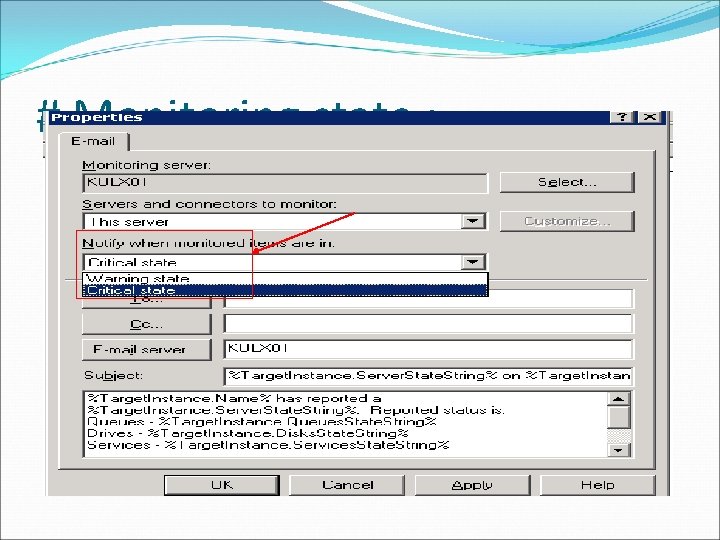
# Monitoring state :
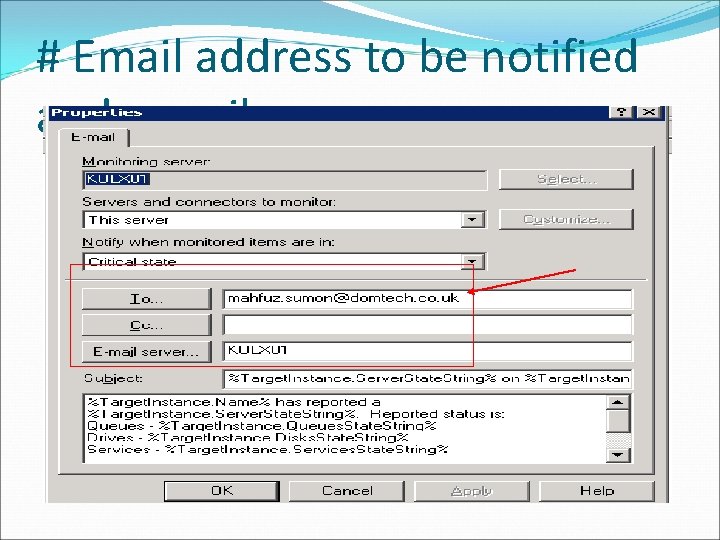
# Email address to be notified and e-mail servers:
## Configuring message tracking: �If you need to find a message, or check the status of an email, then configure the Message Tracking Center. One pleasant side effect of message tracking, is that you learn how Exchange 2003 server handles queues and categorizes messages
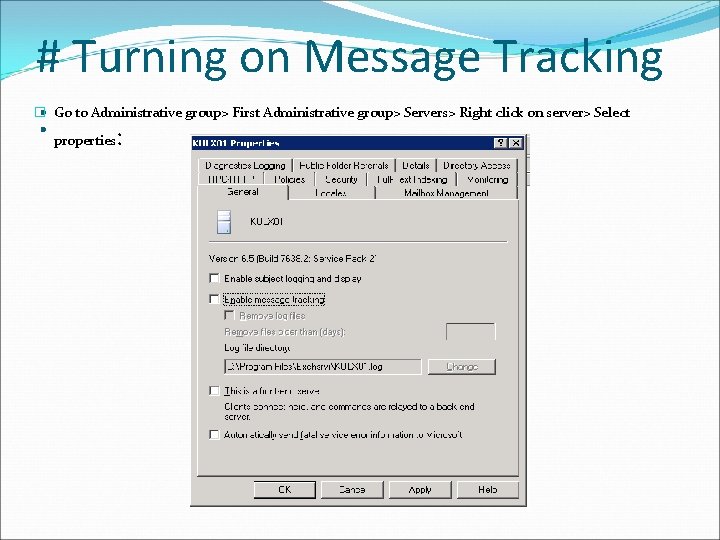
# Turning on Message Tracking : : � Go to Administrative group> First Administrative group> Servers> Right click on server> Select properties
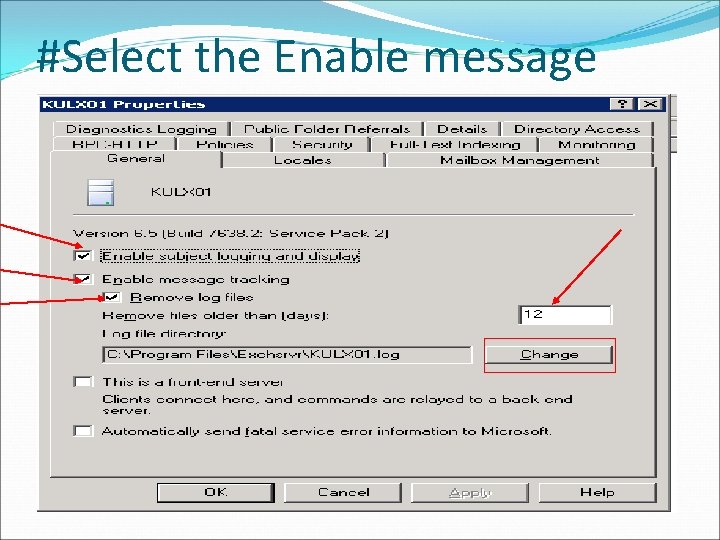
#Select the Enable message tracking and others:
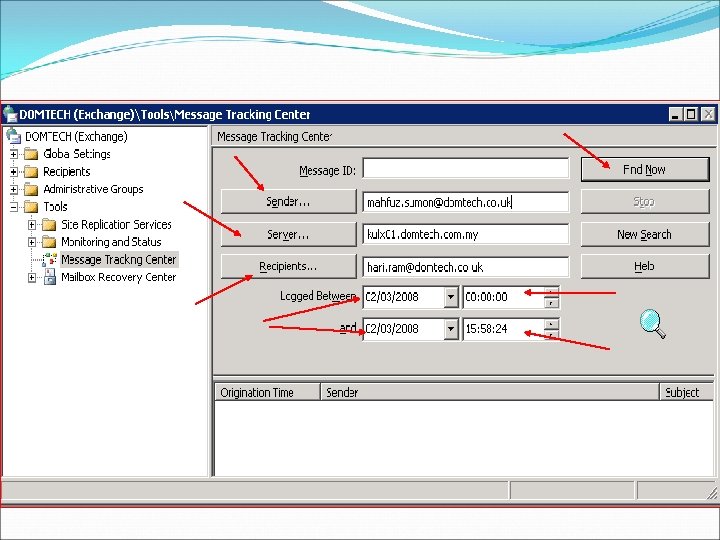
# Getting message history by Message tracking Center :
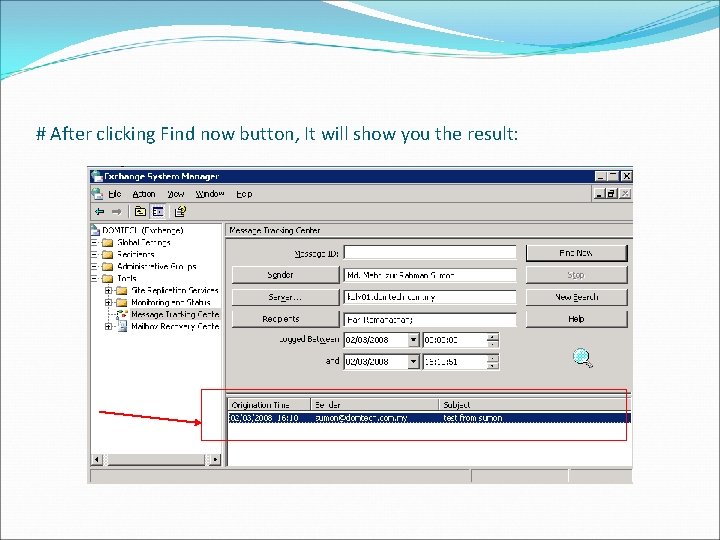
# After clicking Find now button, It will show you the result:
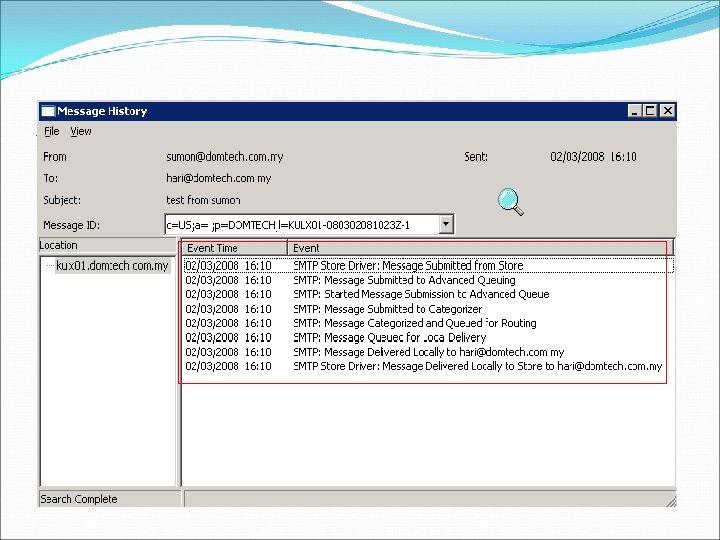
# Double click on this Search result, it will show you the Message History:
## Configure a Virtual SMTP server : �Windows Exchange Servers use the word 'Virtual' in many contexts. To begin with, one physical machine can act as a server for several Virtual SMTP domains, for example ourcomp. com and mergecomp. net. Moreover, in addition to SMTP, one Exchange Server can also control Virtual servers for IMAP 4, NNTP and POP 3. From another point of view, you could interpret these Exchange Virtual servers as aliases for physical folders in Microsoft's IIS. �In a completely different context, the term Virtual
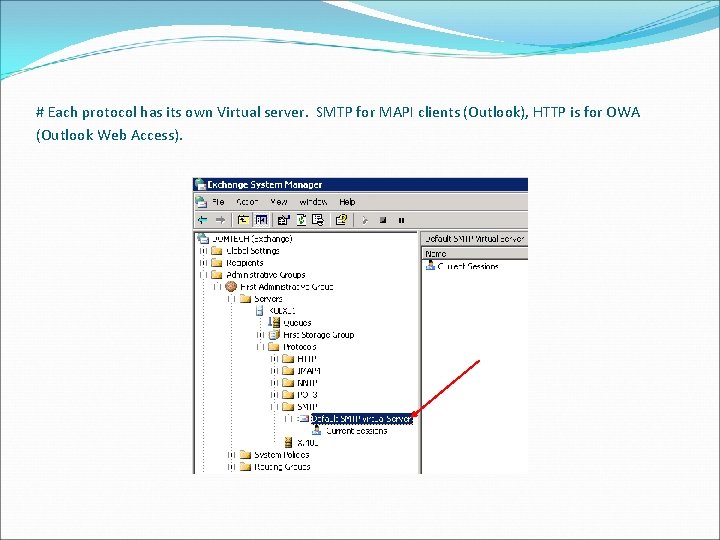
# Each protocol has its own Virtual server. SMTP for MAPI clients (Outlook), HTTP is for OWA (Outlook Web Access).
# We are most interested in the Default SMTP Virtual Server. As its name suggests, this is the container where you check settings for regular SMTP mail. @ Four tab found on SMTP Virtual Server : � 1. General Tab - For Connection Filter and Port Numbers � 2. Access Tab - For Permissions � 3. Messages Tab - For Limits � 4. Delivery Tab - DNS Settings.
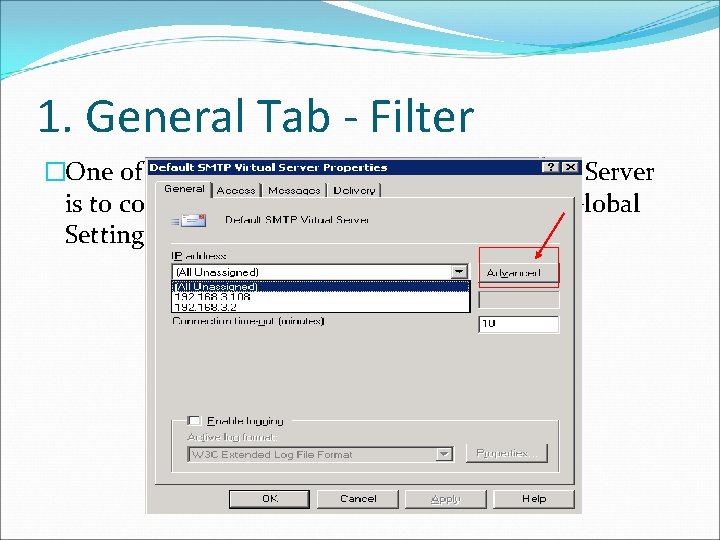
1. General Tab - Filter �One of the most important jobs in the Virtual Server is to configure any Filters that you set at the Global Settings, Message Delivery Tab
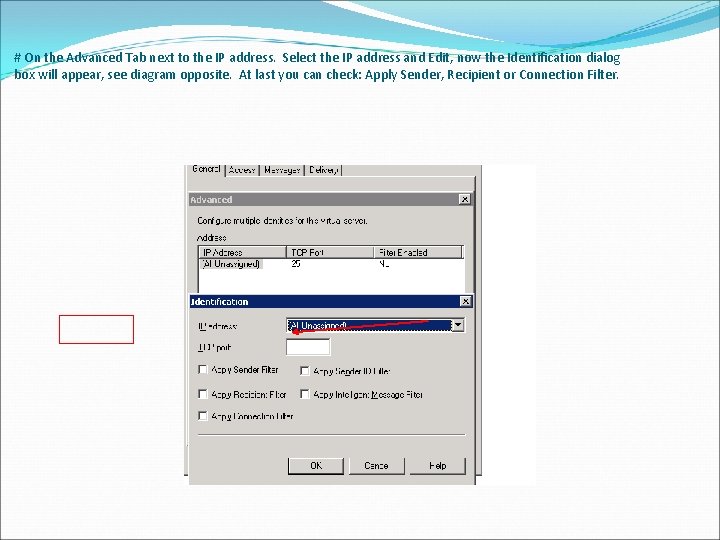
# On the Advanced Tab next to the IP address. Select the IP address and Edit, now the Identification dialog box will appear, see diagram opposite. At last you can check: Apply Sender, Recipient or Connection Filter.
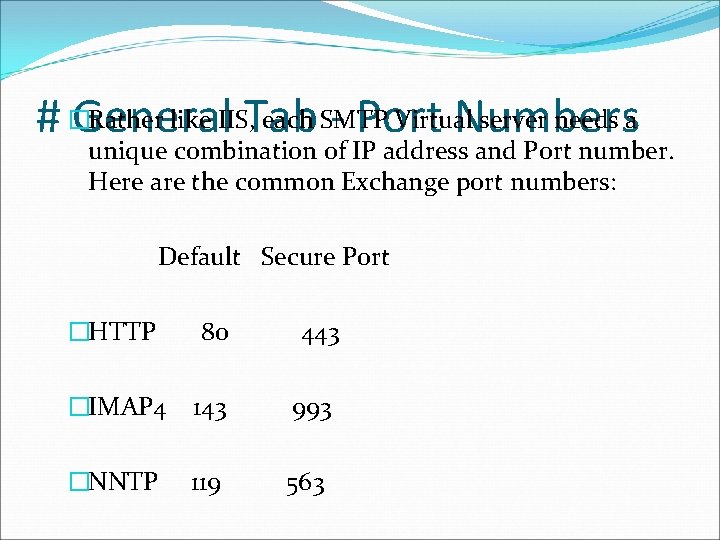
Rather like IIS, Tab each SMTP Virtual server needs a # �General - Port Numbers unique combination of IP address and Port number. Here are the common Exchange port numbers: Default Secure Port �HTTP 80 443 �IMAP 4 143 993 �NNTP 119 563
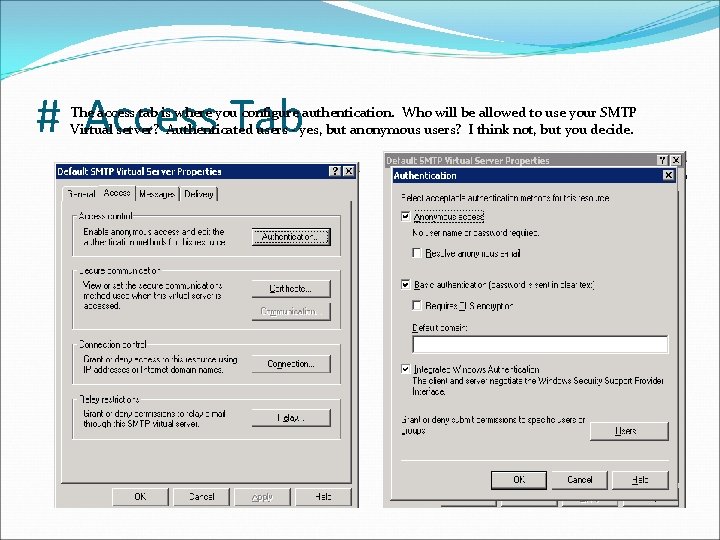
# Access Tab The access tab is where you configure authentication. Who will be allowed to use your SMTP Virtual server? Authenticated users - yes, but anonymous users? I think not, but you decide.
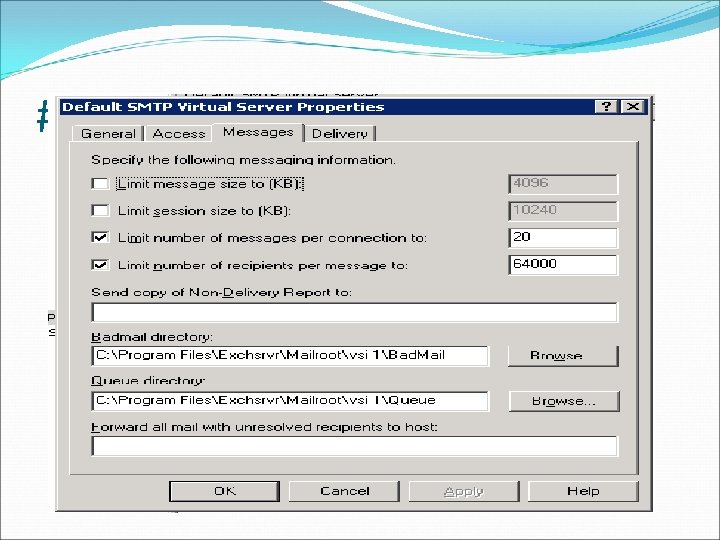
# Messages Tab �The first section deals with setting limits - if any. For example, what would be the maximum number of recipients for your company's emails? �The lower section invites you to configure accounts to hold NDR (non deliverable reports). This is where you troubleshoot the location of the Bad. Mail folder and the Queue directory.
# Messages Tab
# Delivery Tab �As ever, DNS plays a central role in name resolution. Most likely your servers are registered on the internet as being authoritative for your email domain. This involves MX (Mail exchange) records on the Inter. Nic servers that point to your Exchange 2003 server. �The other side of the DNS coin is that your server must be able to deliver outgoing email. If your server is (rightly) protected by a firewall delivering external email can be an extra challenge. The answer is to forward the name resolution to a Smart host on the
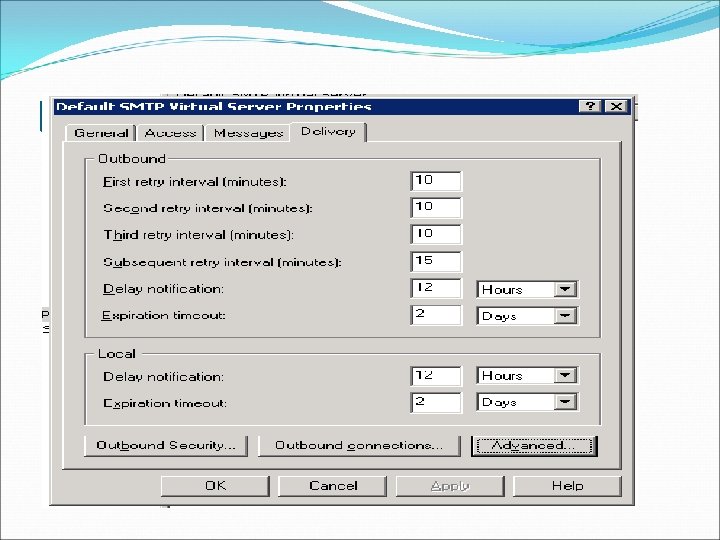
Delivery tab:
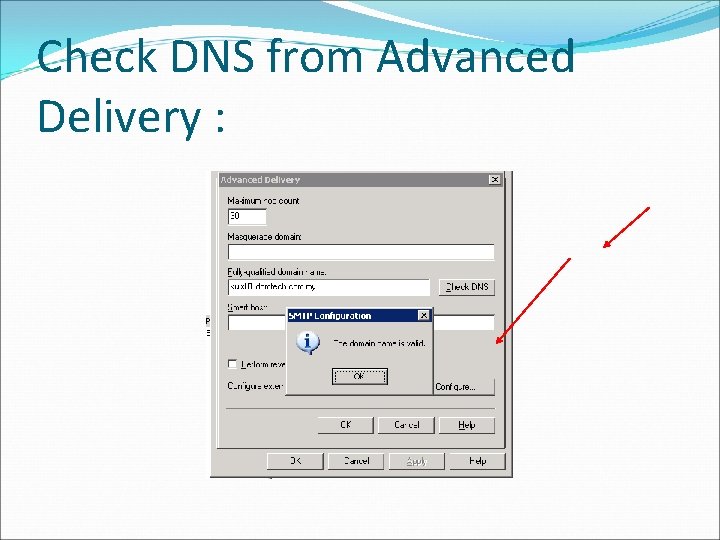
Check DNS from Advanced Delivery :
Reverse DNS �Configuring, Perform reverse DNS lookup, seems like a great idea to prevent spammers spoofing addresses in their evil emails. However, everyone that I have talked to has found that it slows down the system so much, that they put Reverse DNS lookup in that pigeon hole: ' more trouble than it's worth '.

Thank You.
- Slides: 140