
INTRODUCTION TO ELECTRONIC PRESENTATIONS Why use Electronic Presentation
- Slides: 12
INTRODUCTION TO ELECTRONIC PRESENTATIONS
Why use Electronic Presentation Software? Ø Ø Enhance oral presentation Captivate audience attention with: • Images • Graphs • Animation
Getting Started with Power. Point Ø Ø Title slide contains presentation title and your name Add slides with Ctrl-M or Home, New Slide Keep a consistent, neutral background Ensure that font colour contrasts with background
Power. Point Conventions Ø Ø The 7/7 Rule – maximum 7 bullets per page, 7 words per bullet as a rough guide 7/7 is outdated – too much text! Bullets should list key points only No more than 2 -3 graphic images per page (exception collage page)
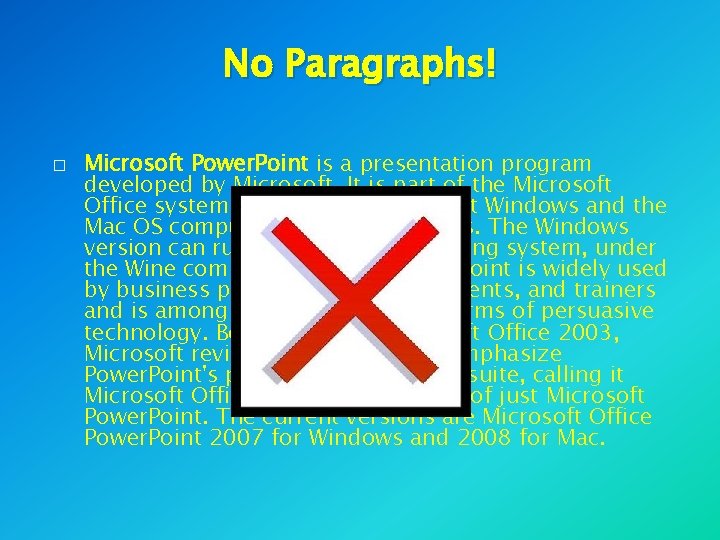
No Paragraphs! � Microsoft Power. Point is a presentation program developed by Microsoft. It is part of the Microsoft Office system, and runs on Microsoft Windows and the Mac OS computer operating systems. The Windows version can run on the Linux operating system, under the Wine compatibility layer. Power. Point is widely used by business people, educators, students, and trainers and is among the most prevalent forms of persuasive technology. Beginning with Microsoft Office 2003, Microsoft revised the branding to emphasize Power. Point's place within the office suite, calling it Microsoft Office Power. Point instead of just Microsoft Power. Point. The current versions are Microsoft Office Power. Point 2007 for Windows and 2008 for Mac.
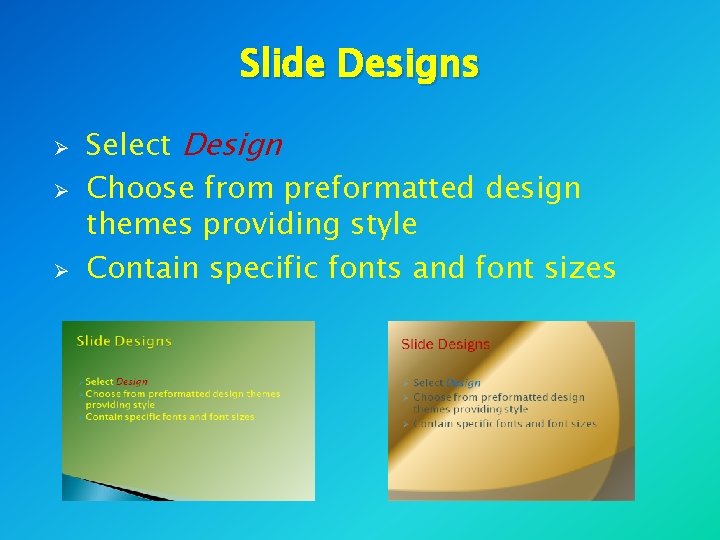
Slide Designs Ø Ø Ø Select Design Choose from preformatted design themes providing style Contain specific fonts and font sizes
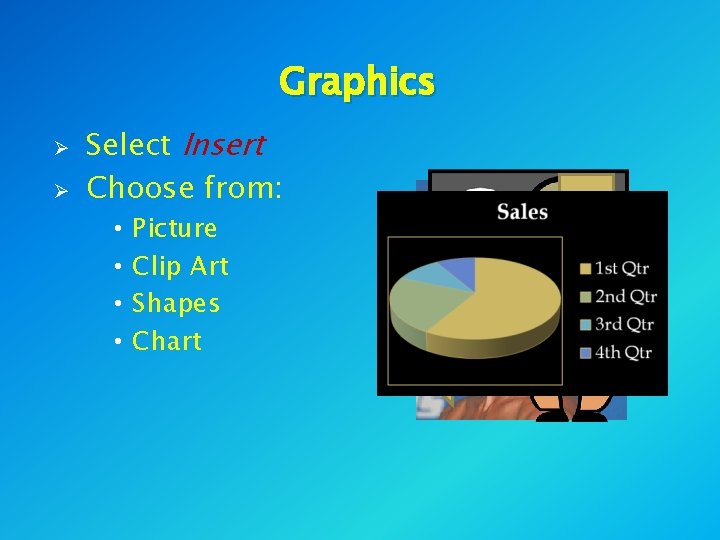
Graphics Ø Ø Select Insert Choose from: • • Picture Clip Art Shapes Chart
Animation Ø Ø Ø The way objects appear and disappear Select Animations, Custom Animation Highlight any object and select Add Effect Choose ways to enter, emphasise and exit Limit the number of different effects – distracts audience Limit sounds to avoid annoyance (like laser!)
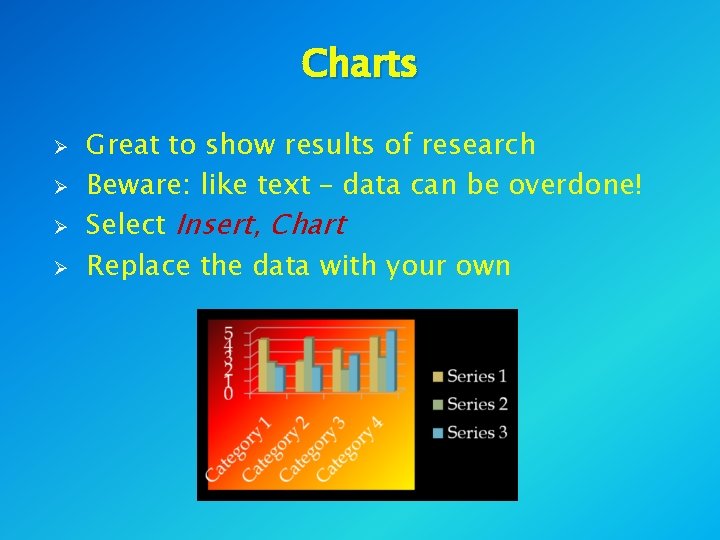
Charts Ø Ø Great to show results of research Beware: like text – data can be overdone! Select Insert, Chart Replace the data with your own
Video Ø Ø Select Insert, Movie or Insert, Sound Power. Point prefers avi and wmv files
Hyperlinks Ø Ø Highlight text or object and Insert, Hyperlink or Ctrl-K Hyperlink to: • A webpage • A program file • Another slide Ø Use Action Buttons
Slide Transition Ø Ø The change from slide to slide Select Animations Advance slide on mouse click or automatically after x seconds Whole presentation can be automated (Select Slide Show, Set Up Slide Show)