
Introduction to CVS Portions adapted from A Visual
![CVS Command • The general form of CVS commands is: cvs [cvs-options] command [command-options-and-arguments]](https://slidetodoc.com/presentation_image_h2/03fa3a21b801a20161920c2be26e0188/image-11.jpg "CVS Command • The general form of CVS commands is: cvs [cvs-options] command [command-options-and-arguments]")
![Our Example Java File [Dan@icarus grocery-list]$ cat src/edu/umbc/dhood 2/Grocery. List. java package edu. umbc.](https://slidetodoc.com/presentation_image_h2/03fa3a21b801a20161920c2be26e0188/image-15.jpg "Our Example Java File [Dan@icarus grocery-list]$ cat src/edu/umbc/dhood 2/Grocery. List. java package edu. umbc.")
![Handling Conflicts (continued) • So, we need to do an update… [Dan@daedalus grocery-list]$ cvs](https://slidetodoc.com/presentation_image_h2/03fa3a21b801a20161920c2be26e0188/image-29.jpg "Handling Conflicts (continued) • So, we need to do an update… [Dan@daedalus grocery-list]$ cvs")
![Ignoring Specific Resources (continued) • The contents of the. cvsignore file… [Dan@daedalus grocery-list]$ cat.](https://slidetodoc.com/presentation_image_h2/03fa3a21b801a20161920c2be26e0188/image-34.jpg "Ignoring Specific Resources (continued) • The contents of the. cvsignore file… [Dan@daedalus grocery-list]$ cat.")
![UNIX Shell Over SSH (checkout) [dan@icarus code]$ export CVS_RSH=ssh [dan@icarus code]$ export CVSROOT=dhood 2@linux.](https://slidetodoc.com/presentation_image_h2/03fa3a21b801a20161920c2be26e0188/image-70.jpg "UNIX Shell Over SSH (checkout) [dan@icarus code]$ export CVS_RSH=ssh [dan@icarus code]$ export CVSROOT=dhood 2@linux.")
- Slides: 70
Introduction to CVS Portions adapted from A Visual Guide to Version Control
Outline • Introduction to Source Code Management & CVS • CVS Terminology & Setup • Basic commands – Checkout, Add, Commit, Diff, Update, Remove, Log, Revert • Other CVS items of interest – – Handling conflicts Ignoring certain resources Creating your own repositories Adding modules to a repository • Popular clients – Tortoise. CVS – Eclipse – UNIX shell over SSH
What is Source Code Management • A source code management (SCM) system handles the management of revisions of resources – Typically, though not always source code • So, why should you use one?
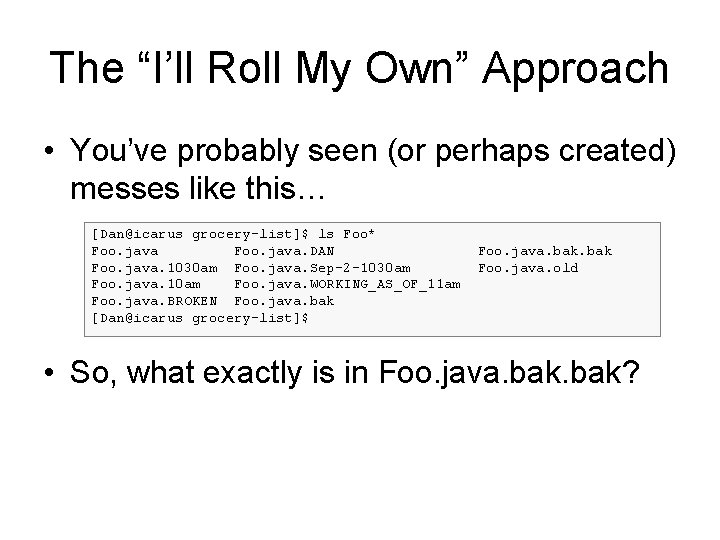
The “I’ll Roll My Own” Approach • You’ve probably seen (or perhaps created) messes like this… [Dan@icarus grocery-list]$ ls Foo* Foo. java. DAN Foo. java. 1030 am Foo. java. Sep-2 -1030 am Foo. java. 10 am Foo. java. WORKING_AS_OF_11 am Foo. java. BROKEN Foo. java. bak [Dan@icarus grocery-list]$ Foo. java. bak Foo. java. old • So, what exactly is in Foo. java. bak?
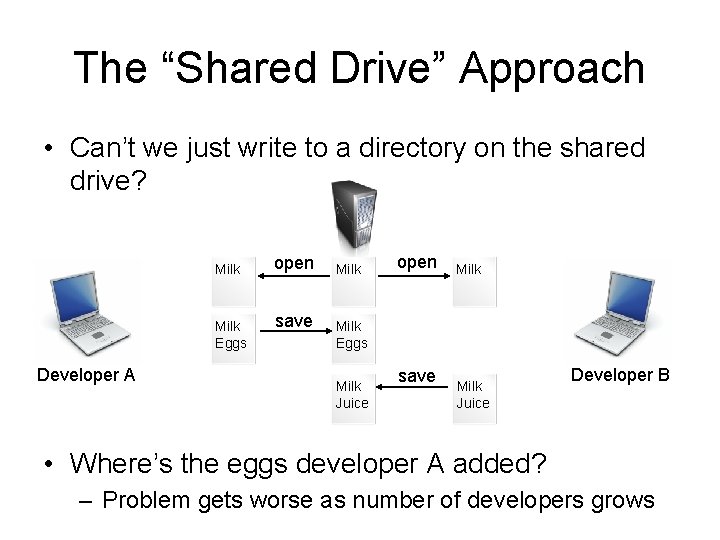
The “Shared Drive” Approach • Can’t we just write to a directory on the shared drive? Milk Eggs Developer A open save Milk open Milk Eggs Milk Juice save Milk Juice Developer B • Where’s the eggs developer A added? – Problem gets worse as number of developers grows
Use in Industry • Many development shops make use of some type of SCM system where there is a need for more discipline and management of source code – Can you check to see if class Foo exhibits a particular bug in that release A. B. C from last spring, we made for customer X, for Linux, specifically the i 686 build, and if so, what other releases are also affected? • Though there are many different SCM systems out there, the concepts remain pretty similar – CVS, Subversion, Git, Clear. Case, Source. Safe, etc…
What is CVS? • Concurrent Versioning System (CVS) is one of the earlier SCM systems which gained wide adoption – – Open source Easy to install and use Simple command line client Wide integration in a lot of development tools • For good introduction on version control and CVS see the following book… – Pragmatic Version Control using CVS
CVS Terminology • Repository – the place where resources are stored • Server – the computer hosting the repository • Client – the computer connecting to the repository • Working Set/Copy – your local copy of resources housed in the repository
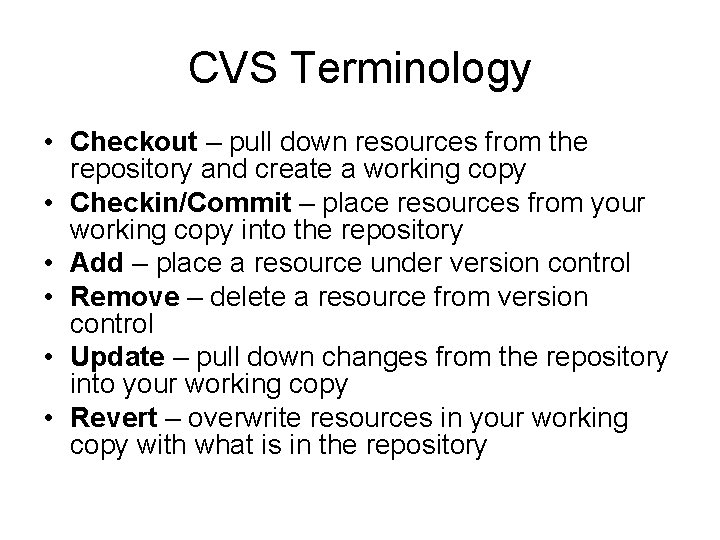
CVS Terminology • Checkout – pull down resources from the repository and create a working copy • Checkin/Commit – place resources from your working copy into the repository • Add – place a resource under version control • Remove – delete a resource from version control • Update – pull down changes from the repository into your working copy • Revert – overwrite resources in your working copy with what is in the repository
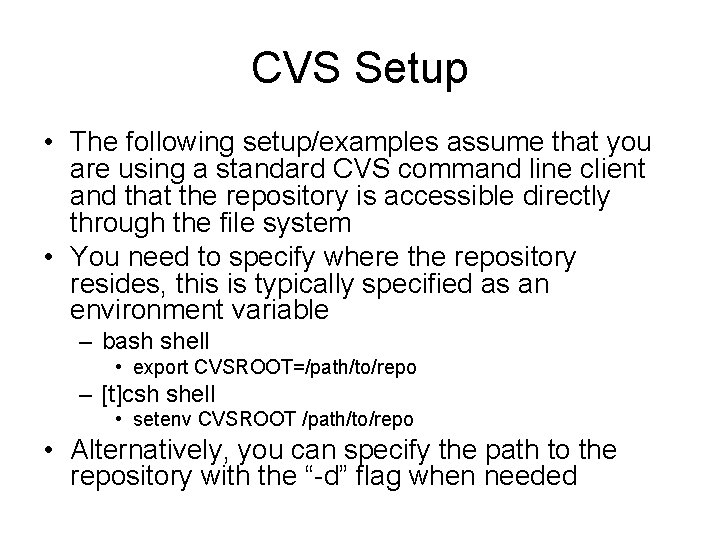
CVS Setup • The following setup/examples assume that you are using a standard CVS command line client and that the repository is accessible directly through the file system • You need to specify where the repository resides, this is typically specified as an environment variable – bash shell • export CVSROOT=/path/to/repo – [t]csh shell • setenv CVSROOT /path/to/repo • Alternatively, you can specify the path to the repository with the “-d” flag when needed
CVS Command • The general form of CVS commands is: cvs [cvs-options] command [command-options-and-arguments] – All CVS commands start out with “cvs” – The cvs command must also have a command specified to execute such as “checkout” or “commit” – Commands may also have flags and/or arguments which modify their behavior • For a more help… – General help: cvs --help – List of commands: cvs --help-commands
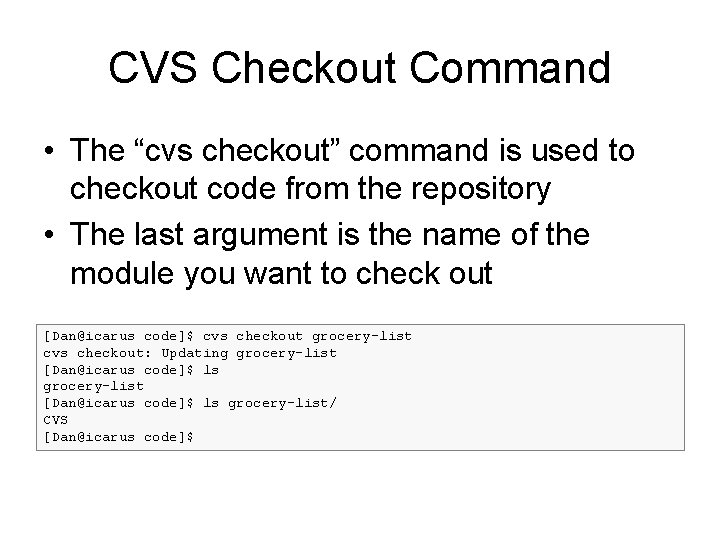
CVS Checkout Command • The “cvs checkout” command is used to checkout code from the repository • The last argument is the name of the module you want to check out [Dan@icarus code]$ cvs checkout grocery-list cvs checkout: Updating grocery-list [Dan@icarus code]$ ls grocery-list/ CVS [Dan@icarus code]$
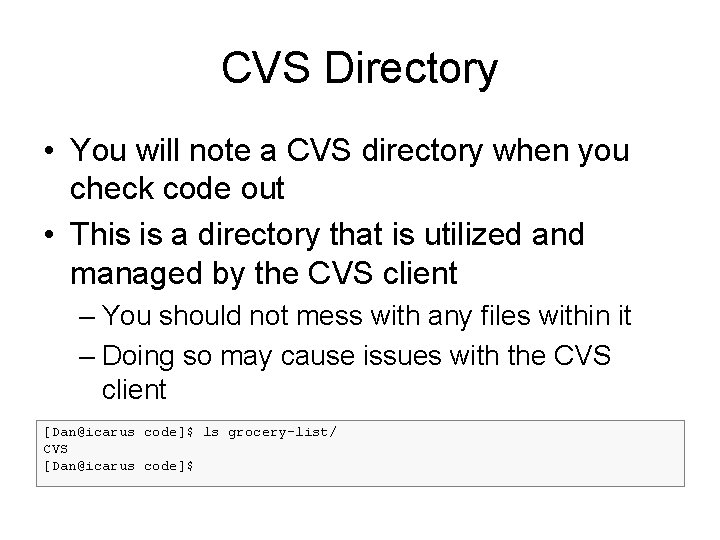
CVS Directory • You will note a CVS directory when you check code out • This is a directory that is utilized and managed by the CVS client – You should not mess with any files within it – Doing so may cause issues with the CVS client [Dan@icarus code]$ ls grocery-list/ CVS [Dan@icarus code]$
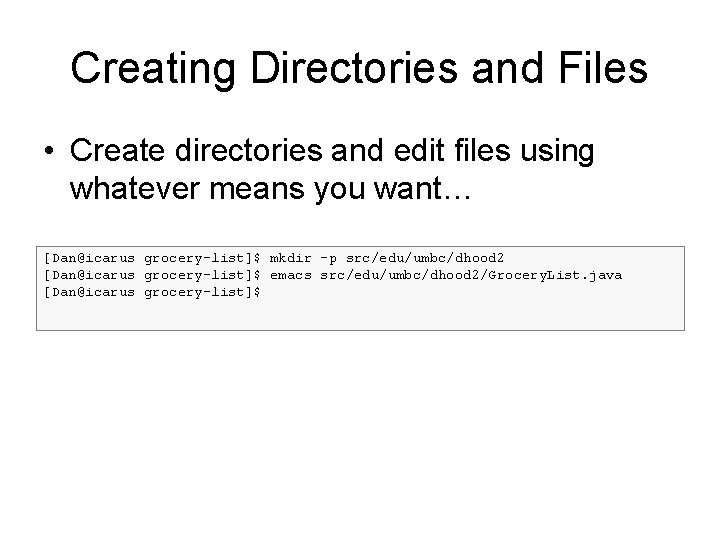
Creating Directories and Files • Create directories and edit files using whatever means you want… [Dan@icarus grocery-list]$ mkdir -p src/edu/umbc/dhood 2 [Dan@icarus grocery-list]$ emacs src/edu/umbc/dhood 2/Grocery. List. java [Dan@icarus grocery-list]$
Our Example Java File [Dan@icarus grocery-list]$ cat src/edu/umbc/dhood 2/Grocery. List. java package edu. umbc. dhood 2; import java. util. Linked. List; import java. util. List; public class Grocery. List { public static void main(String[] args) { List<String> list = new Linked. List<String>(); list. add("Milk"); for(String item : list) { System. out. println(item); } } } [Dan@icarus grocery-list]$
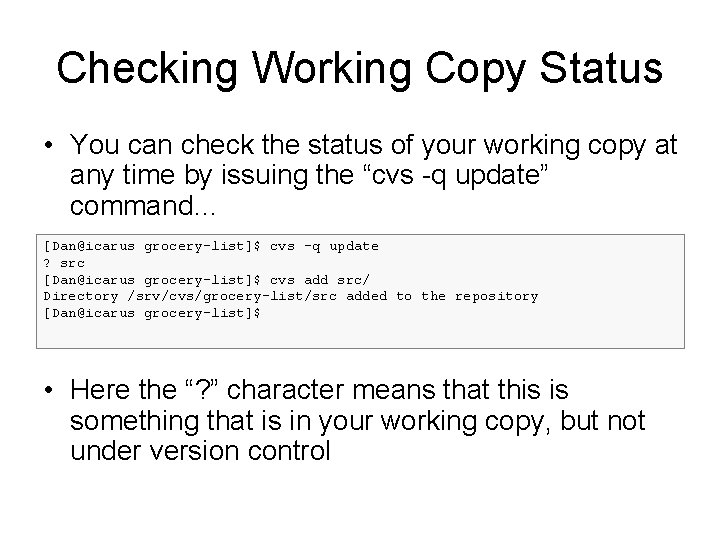
Checking Working Copy Status • You can check the status of your working copy at any time by issuing the “cvs -q update” command… [Dan@icarus grocery-list]$ cvs -q update ? src [Dan@icarus grocery-list]$ cvs add src/ Directory /srv/cvs/grocery-list/src added to the repository [Dan@icarus grocery-list]$ • Here the “? ” character means that this is something that is in your working copy, but not under version control
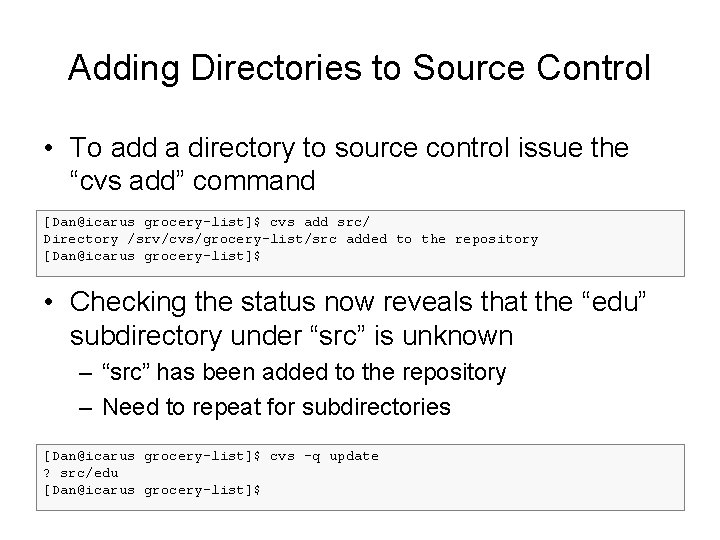
Adding Directories to Source Control • To add a directory to source control issue the “cvs add” command [Dan@icarus grocery-list]$ cvs add src/ Directory /srv/cvs/grocery-list/src added to the repository [Dan@icarus grocery-list]$ • Checking the status now reveals that the “edu” subdirectory under “src” is unknown – “src” has been added to the repository – Need to repeat for subdirectories [Dan@icarus grocery-list]$ cvs -q update ? src/edu [Dan@icarus grocery-list]$
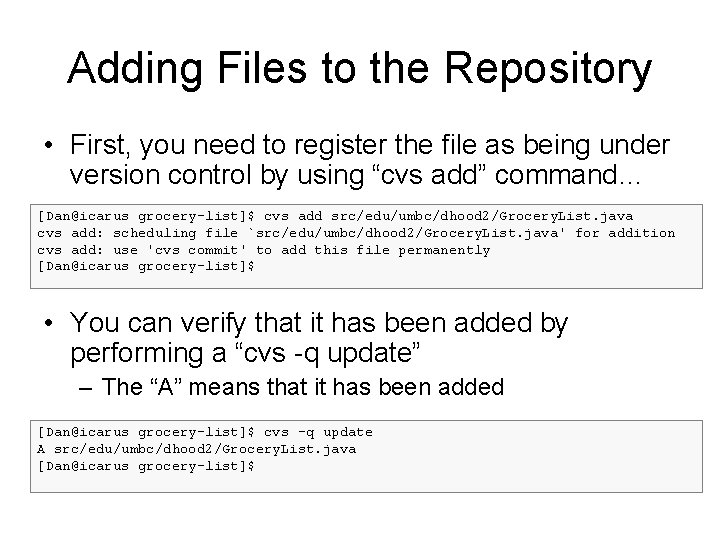
Adding Files to the Repository • First, you need to register the file as being under version control by using “cvs add” command… [Dan@icarus grocery-list]$ cvs add src/edu/umbc/dhood 2/Grocery. List. java cvs add: scheduling file `src/edu/umbc/dhood 2/Grocery. List. java' for addition cvs add: use 'cvs commit' to add this file permanently [Dan@icarus grocery-list]$ • You can verify that it has been added by performing a “cvs -q update” – The “A” means that it has been added [Dan@icarus grocery-list]$ cvs -q update A src/edu/umbc/dhood 2/Grocery. List. java [Dan@icarus grocery-list]$
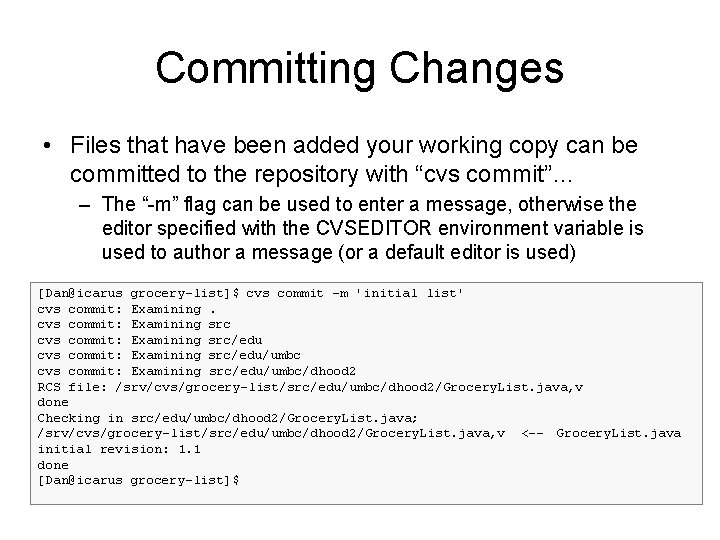
Committing Changes • Files that have been added your working copy can be committed to the repository with “cvs commit”… – The “-m” flag can be used to enter a message, otherwise the editor specified with the CVSEDITOR environment variable is used to author a message (or a default editor is used) [Dan@icarus grocery-list]$ cvs commit -m 'initial list' cvs commit: Examining src/edu/umbc/dhood 2 RCS file: /srv/cvs/grocery-list/src/edu/umbc/dhood 2/Grocery. List. java, v done Checking in src/edu/umbc/dhood 2/Grocery. List. java; /srv/cvs/grocery-list/src/edu/umbc/dhood 2/Grocery. List. java, v <-- Grocery. List. java initial revision: 1. 1 done [Dan@icarus grocery-list]$
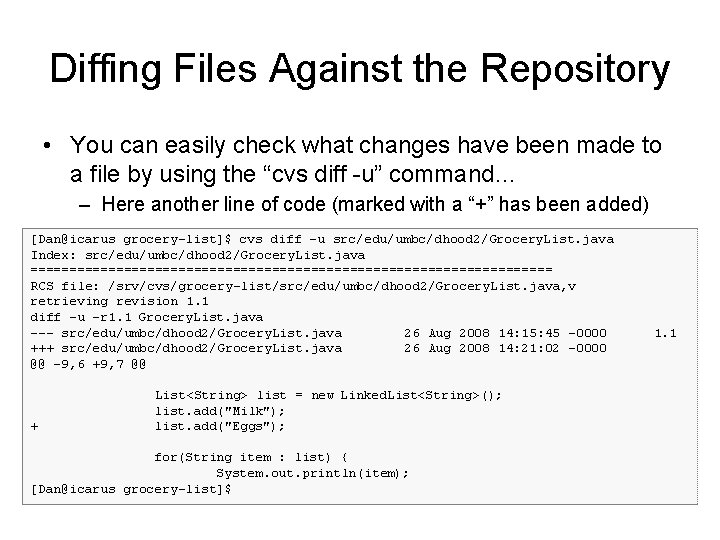
Diffing Files Against the Repository • You can easily check what changes have been made to a file by using the “cvs diff -u” command… – Here another line of code (marked with a “+” has been added) [Dan@icarus grocery-list]$ cvs diff -u src/edu/umbc/dhood 2/Grocery. List. java Index: src/edu/umbc/dhood 2/Grocery. List. java ================================== RCS file: /srv/cvs/grocery-list/src/edu/umbc/dhood 2/Grocery. List. java, v retrieving revision 1. 1 diff -u -r 1. 1 Grocery. List. java --- src/edu/umbc/dhood 2/Grocery. List. java 26 Aug 2008 14: 15: 45 -0000 +++ src/edu/umbc/dhood 2/Grocery. List. java 26 Aug 2008 14: 21: 02 -0000 @@ -9, 6 +9, 7 @@ + List<String> list = new Linked. List<String>(); list. add("Milk"); list. add("Eggs"); for(String item : list) { System. out. println(item); [Dan@icarus grocery-list]$ 1. 1
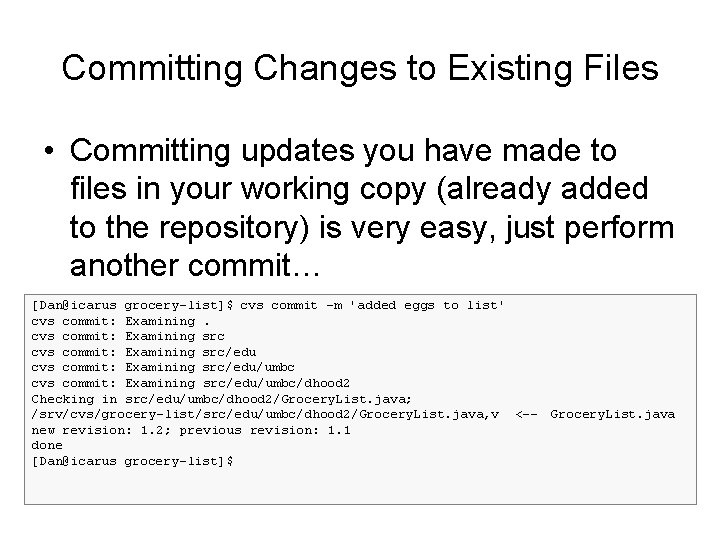
Committing Changes to Existing Files • Committing updates you have made to files in your working copy (already added to the repository) is very easy, just perform another commit… [Dan@icarus grocery-list]$ cvs commit -m 'added eggs to list' cvs commit: Examining src/edu/umbc/dhood 2 Checking in src/edu/umbc/dhood 2/Grocery. List. java; /srv/cvs/grocery-list/src/edu/umbc/dhood 2/Grocery. List. java, v <-- Grocery. List. java new revision: 1. 2; previous revision: 1. 1 done [Dan@icarus grocery-list]$
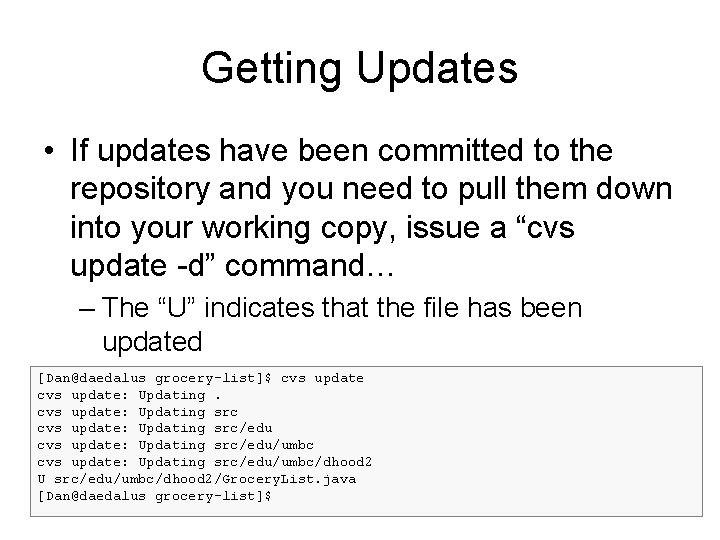
Getting Updates • If updates have been committed to the repository and you need to pull them down into your working copy, issue a “cvs update -d” command… – The “U” indicates that the file has been updated [Dan@daedalus grocery-list]$ cvs update: Updating src/edu/umbc/dhood 2 U src/edu/umbc/dhood 2/Grocery. List. java [Dan@daedalus grocery-list]$
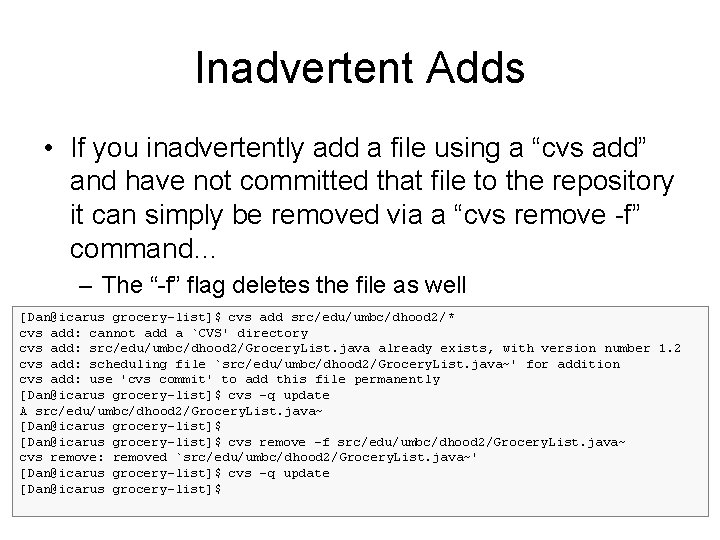
Inadvertent Adds • If you inadvertently add a file using a “cvs add” and have not committed that file to the repository it can simply be removed via a “cvs remove -f” command… – The “-f” flag deletes the file as well [Dan@icarus grocery-list]$ cvs add src/edu/umbc/dhood 2/* cvs add: cannot add a `CVS' directory cvs add: src/edu/umbc/dhood 2/Grocery. List. java already exists, with version number 1. 2 cvs add: scheduling file `src/edu/umbc/dhood 2/Grocery. List. java~' for addition cvs add: use 'cvs commit' to add this file permanently [Dan@icarus grocery-list]$ cvs -q update A src/edu/umbc/dhood 2/Grocery. List. java~ [Dan@icarus grocery-list]$ cvs remove -f src/edu/umbc/dhood 2/Grocery. List. java~ cvs remove: removed `src/edu/umbc/dhood 2/Grocery. List. java~' [Dan@icarus grocery-list]$ cvs -q update [Dan@icarus grocery-list]$
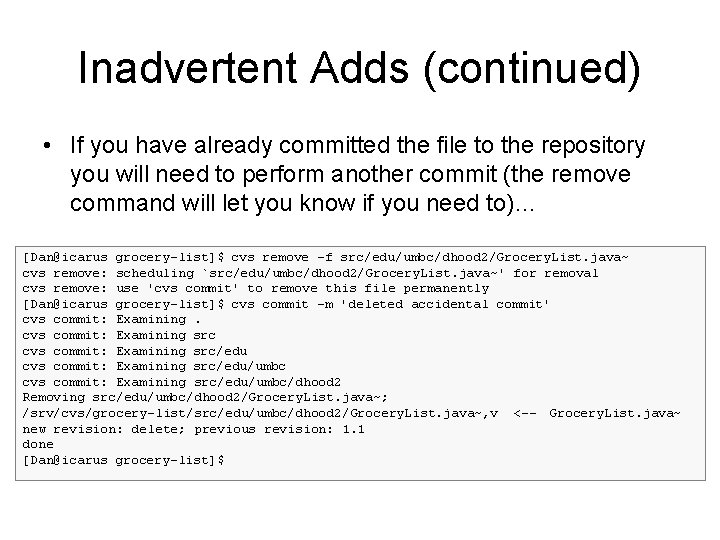
Inadvertent Adds (continued) • If you have already committed the file to the repository you will need to perform another commit (the remove command will let you know if you need to)… [Dan@icarus grocery-list]$ cvs remove -f src/edu/umbc/dhood 2/Grocery. List. java~ cvs remove: scheduling `src/edu/umbc/dhood 2/Grocery. List. java~' for removal cvs remove: use 'cvs commit' to remove this file permanently [Dan@icarus grocery-list]$ cvs commit -m 'deleted accidental commit' cvs commit: Examining src/edu/umbc/dhood 2 Removing src/edu/umbc/dhood 2/Grocery. List. java~; /srv/cvs/grocery-list/src/edu/umbc/dhood 2/Grocery. List. java~, v <-- Grocery. List. java~ new revision: delete; previous revision: 1. 1 done [Dan@icarus grocery-list]$
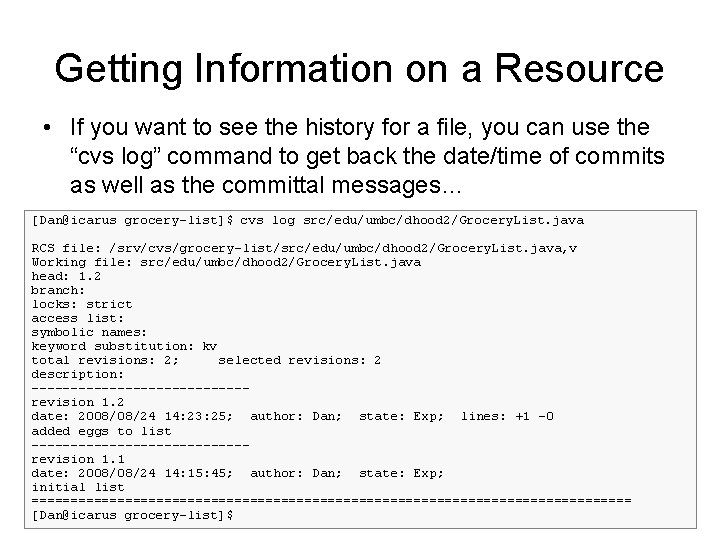
Getting Information on a Resource • If you want to see the history for a file, you can use the “cvs log” command to get back the date/time of commits as well as the committal messages… [Dan@icarus grocery-list]$ cvs log src/edu/umbc/dhood 2/Grocery. List. java RCS file: /srv/cvs/grocery-list/src/edu/umbc/dhood 2/Grocery. List. java, v Working file: src/edu/umbc/dhood 2/Grocery. List. java head: 1. 2 branch: locks: strict access list: symbolic names: keyword substitution: kv total revisions: 2; selected revisions: 2 description: --------------revision 1. 2 date: 2008/08/24 14: 23: 25; author: Dan; state: Exp; lines: +1 -0 added eggs to list --------------revision 1. 1 date: 2008/08/24 14: 15: 45; author: Dan; state: Exp; initial list ======================================= [Dan@icarus grocery-list]$
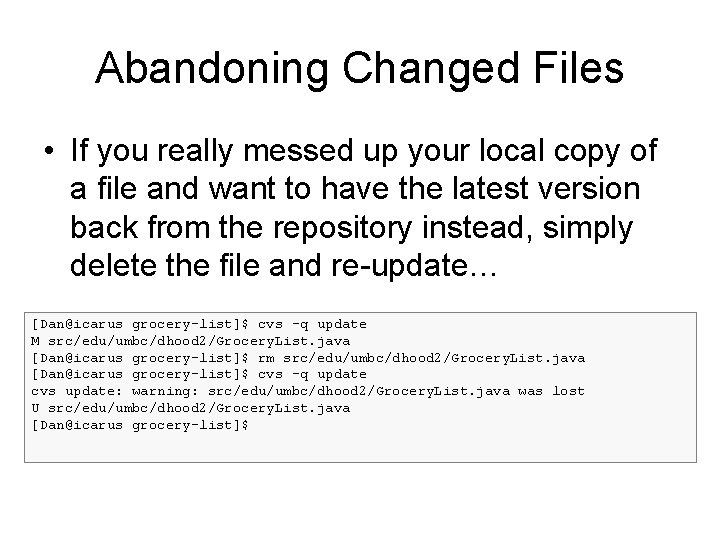
Abandoning Changed Files • If you really messed up your local copy of a file and want to have the latest version back from the repository instead, simply delete the file and re-update… [Dan@icarus grocery-list]$ cvs -q update M src/edu/umbc/dhood 2/Grocery. List. java [Dan@icarus grocery-list]$ rm src/edu/umbc/dhood 2/Grocery. List. java [Dan@icarus grocery-list]$ cvs -q update cvs update: warning: src/edu/umbc/dhood 2/Grocery. List. java was lost U src/edu/umbc/dhood 2/Grocery. List. java [Dan@icarus grocery-list]$
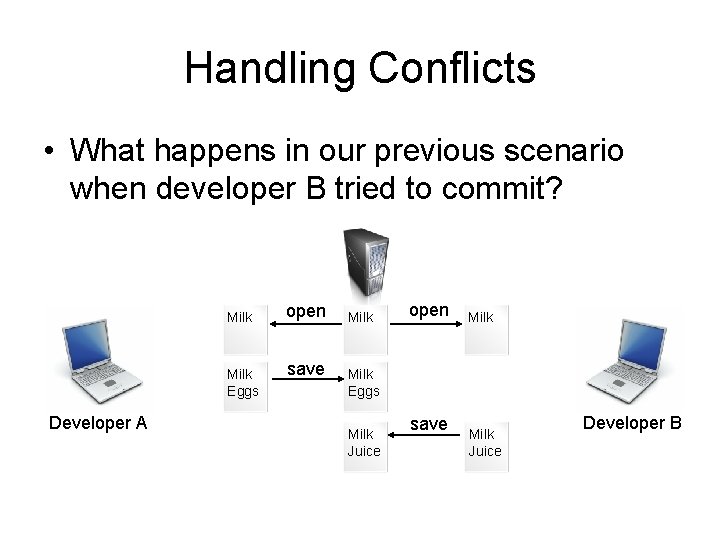
Handling Conflicts • What happens in our previous scenario when developer B tried to commit? Milk Eggs Developer A open save Milk open Milk Eggs Milk Juice save Milk Juice Developer B
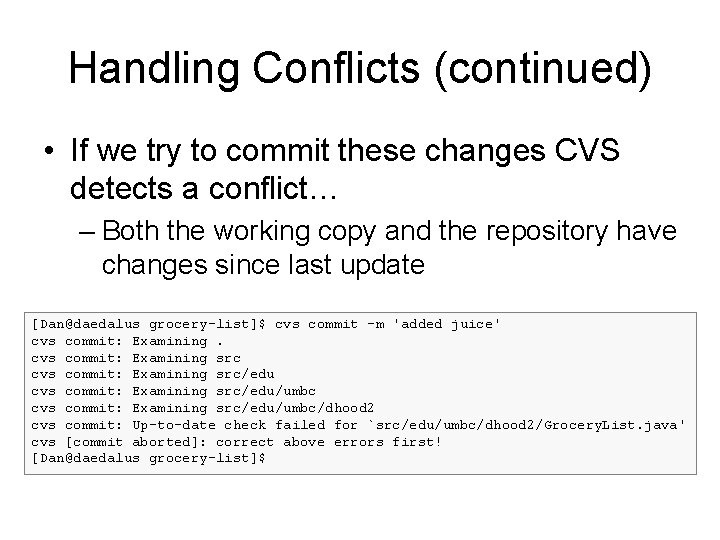
Handling Conflicts (continued) • If we try to commit these changes CVS detects a conflict… – Both the working copy and the repository have changes since last update [Dan@daedalus grocery-list]$ cvs commit -m 'added juice' cvs commit: Examining src/edu/umbc/dhood 2 cvs commit: Up-to-date check failed for `src/edu/umbc/dhood 2/Grocery. List. java' cvs [commit aborted]: correct above errors first! [Dan@daedalus grocery-list]$
Handling Conflicts (continued) • So, we need to do an update… [Dan@daedalus grocery-list]$ cvs update -d cvs update: Updating src/edu/umbc/dhood 2 RCS file: /srv/cvs/grocery-list/src/edu/umbc/dhood 2/Grocery. List. java, v retrieving revision 1. 1 retrieving revision 1. 2 Merging differences between 1. 1 and 1. 2 into Grocery. List. java rcsmerge: warning: conflicts during merge cvs update: conflicts found in src/edu/umbc/dhood 2/Grocery. List. java C src/edu/umbc/dhood 2/Grocery. List. java [Dan@daedalus grocery-list]$
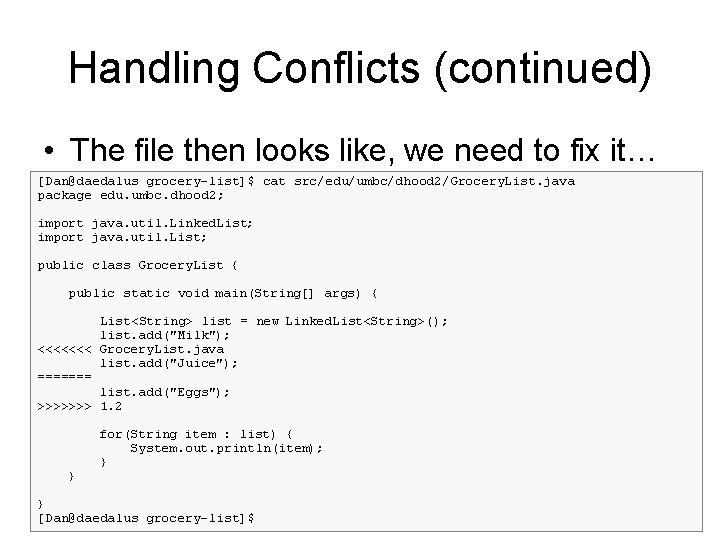
Handling Conflicts (continued) • The file then looks like, we need to fix it… [Dan@daedalus grocery-list]$ cat src/edu/umbc/dhood 2/Grocery. List. java package edu. umbc. dhood 2; import java. util. Linked. List; import java. util. List; public class Grocery. List { public static void main(String[] args) { List<String> list = new Linked. List<String>(); list. add("Milk"); <<<<<<< Grocery. List. java list. add("Juice"); ======= list. add("Eggs"); >>>>>>> 1. 2 } for(String item : list) { System. out. println(item); } } [Dan@daedalus grocery-list]$
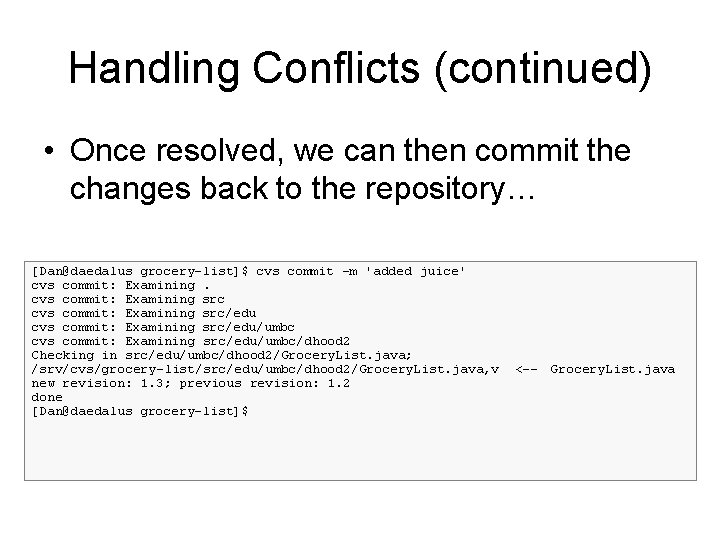
Handling Conflicts (continued) • Once resolved, we can then commit the changes back to the repository… [Dan@daedalus grocery-list]$ cvs commit -m 'added juice' cvs commit: Examining src/edu/umbc/dhood 2 Checking in src/edu/umbc/dhood 2/Grocery. List. java; /srv/cvs/grocery-list/src/edu/umbc/dhood 2/Grocery. List. java, v new revision: 1. 3; previous revision: 1. 2 done [Dan@daedalus grocery-list]$ <-- Grocery. List. java
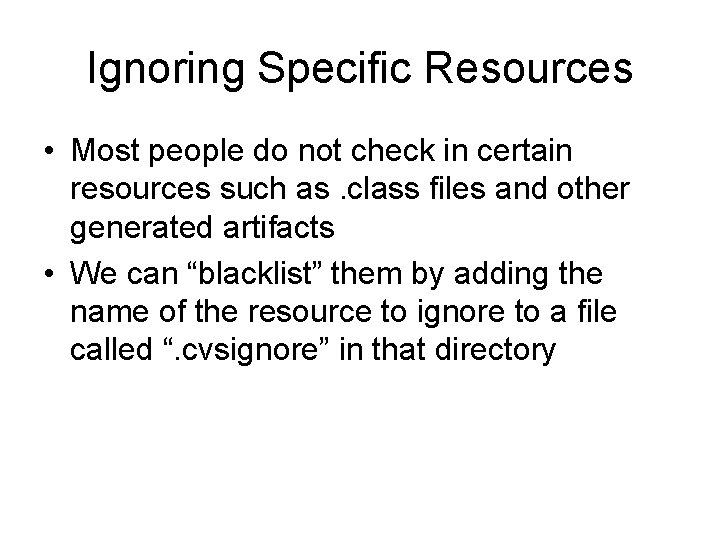
Ignoring Specific Resources • Most people do not check in certain resources such as. class files and other generated artifacts • We can “blacklist” them by adding the name of the resource to ignore to a file called “. cvsignore” in that directory
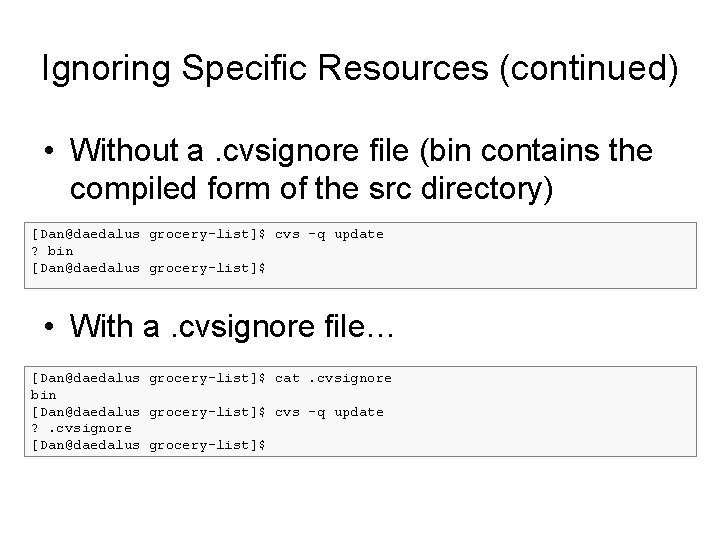
Ignoring Specific Resources (continued) • Without a. cvsignore file (bin contains the compiled form of the src directory) [Dan@daedalus grocery-list]$ cvs -q update ? bin [Dan@daedalus grocery-list]$ • With a. cvsignore file… [Dan@daedalus grocery-list]$ cat. cvsignore bin [Dan@daedalus grocery-list]$ cvs -q update ? . cvsignore [Dan@daedalus grocery-list]$
Ignoring Specific Resources (continued) • The contents of the. cvsignore file… [Dan@daedalus grocery-list]$ cat. cvsignore bin [Dan@daedalus grocery-list]$ • After committing… [Dan@daedalus grocery-list]$ cvs add. cvsignore cvs add: scheduling file `. cvsignore' for addition cvs add: use 'cvs commit' to add this file permanently [Dan@daedalus grocery-list]$ cvs commit -m 'added ignores' cvs commit: Examining src/edu/umbc/dhood 2 RCS file: /srv/cvs/grocery-list/. cvsignore, v done Checking in. cvsignore; /srv/cvs/grocery-list/. cvsignore, v <--. cvsignore initial revision: 1. 1 done [Dan@daedalus grocery-list]$ cvs -q update [Dan@daedalus grocery-list]$
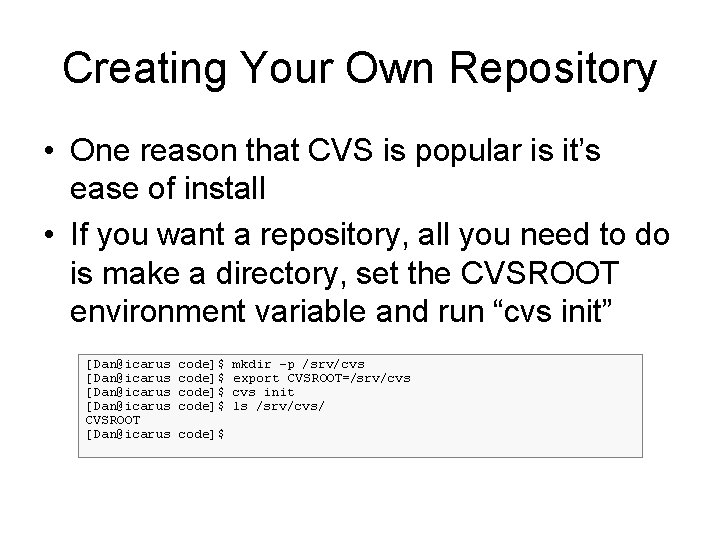
Creating Your Own Repository • One reason that CVS is popular is it’s ease of install • If you want a repository, all you need to do is make a directory, set the CVSROOT environment variable and run “cvs init” [Dan@icarus CVSROOT [Dan@icarus code]$ code]$ mkdir -p /srv/cvs export CVSROOT=/srv/cvs init ls /srv/cvs/
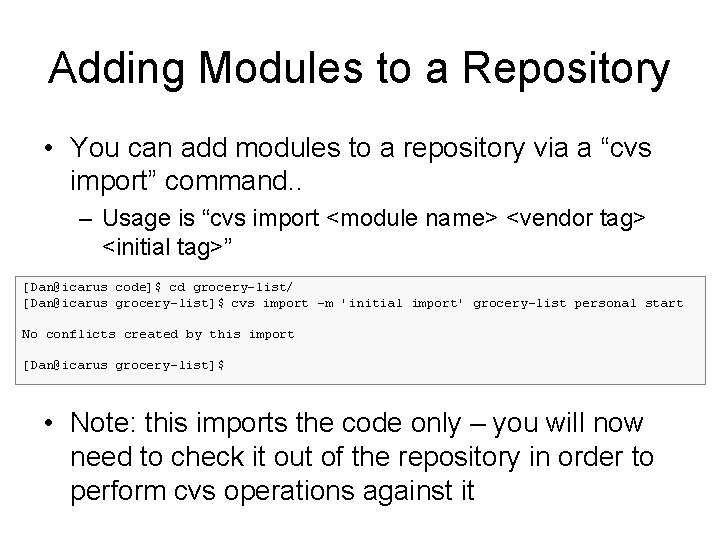
Adding Modules to a Repository • You can add modules to a repository via a “cvs import” command. . – Usage is “cvs import <module name> <vendor tag> <initial tag>” [Dan@icarus code]$ cd grocery-list/ [Dan@icarus grocery-list]$ cvs import -m 'initial import' grocery-list personal start No conflicts created by this import [Dan@icarus grocery-list]$ • Note: this imports the code only – you will now need to check it out of the repository in order to perform cvs operations against it
Tortoise. CVS • Tortoise. CVS is a popular Windows based CVS client • Tortoise. CVS integrates directly with Windows Explorer allowing you to perform CVS operations from context menus • You can get it free at: – http: //www. tortoisecvs. org/ (The following directions are for a default installation of Tortoise. CVS-1. 10. 7. exe)
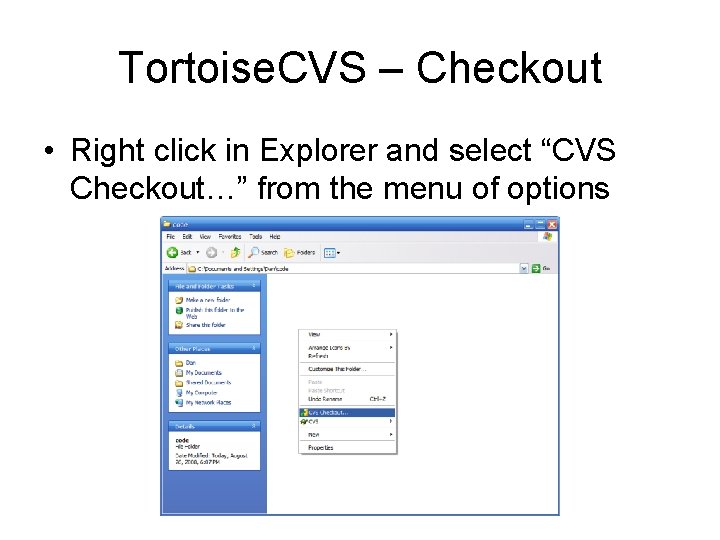
Tortoise. CVS – Checkout • Right click in Explorer and select “CVS Checkout…” from the menu of options
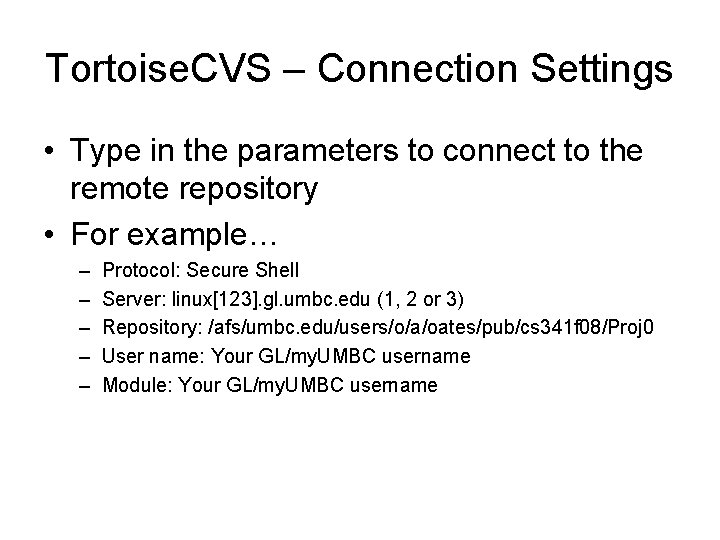
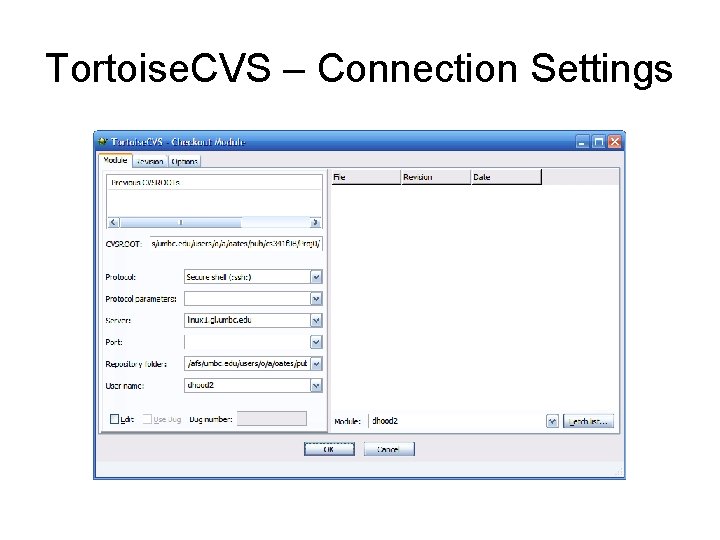
Tortoise. CVS – Connection Settings • Type in the parameters to connect to the remote repository • For example… – – – Protocol: Secure Shell Server: linux[123]. gl. umbc. edu (1, 2 or 3) Repository: /afs/umbc. edu/users/o/a/oates/pub/cs 341 f 08/Proj 0 User name: Your GL/my. UMBC username Module: Your GL/my. UMBC username
Tortoise. CVS – Connection Settings
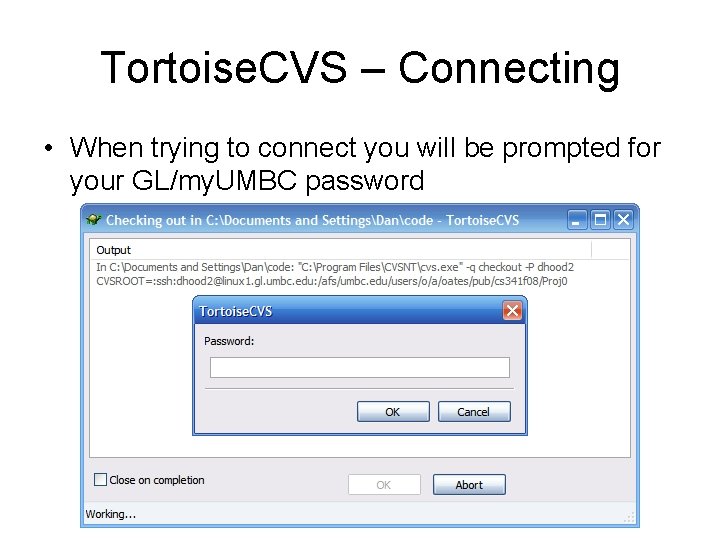
Tortoise. CVS – Connecting • When trying to connect you will be prompted for your GL/my. UMBC password
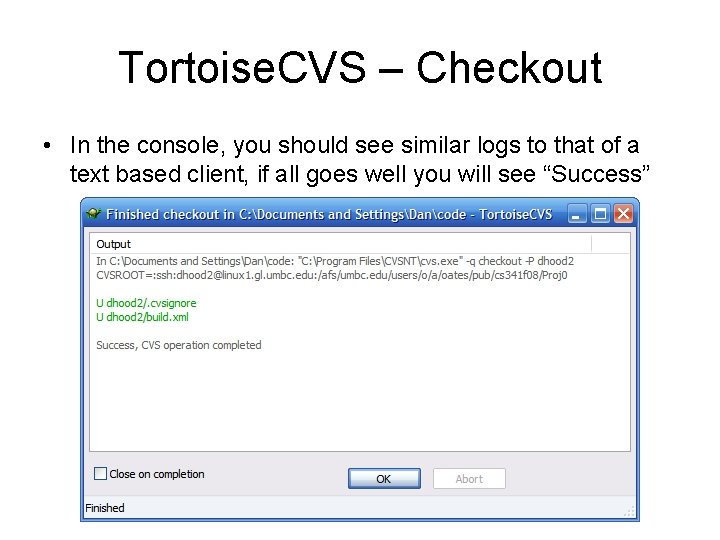
Tortoise. CVS – Checkout • In the console, you should see similar logs to that of a text based client, if all goes well you will see “Success”
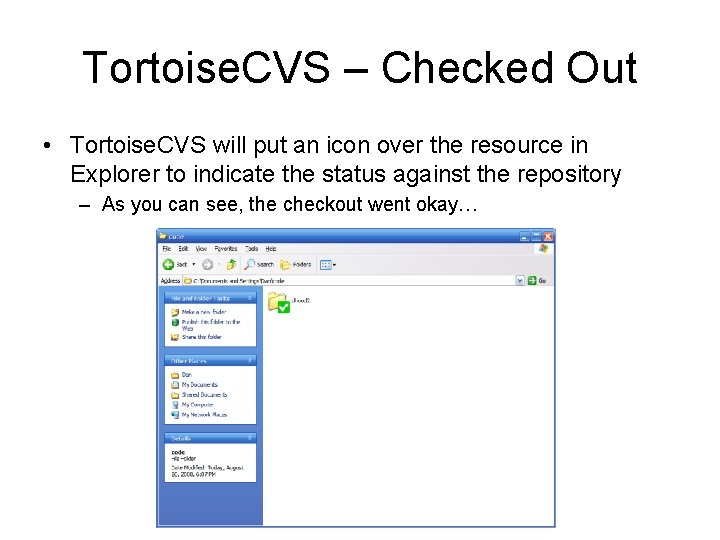
Tortoise. CVS – Checked Out • Tortoise. CVS will put an icon over the resource in Explorer to indicate the status against the repository – As you can see, the checkout went okay…
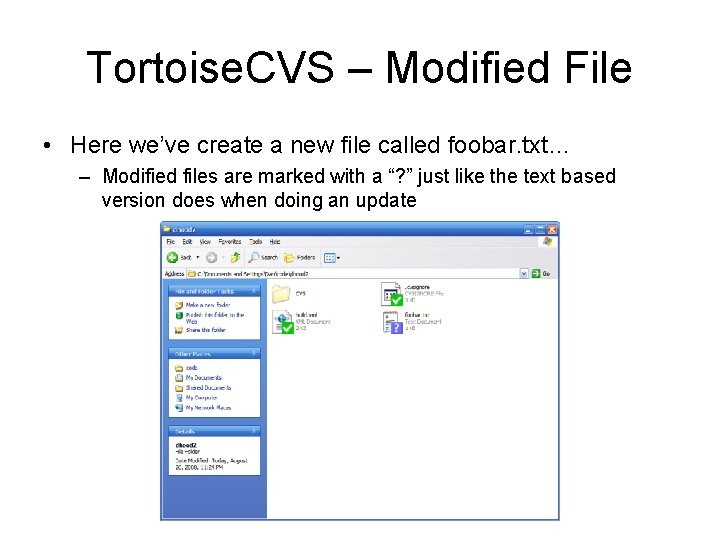
Tortoise. CVS – Modified File • Here we’ve create a new file called foobar. txt… – Modified files are marked with a “? ” just like the text based version does when doing an update
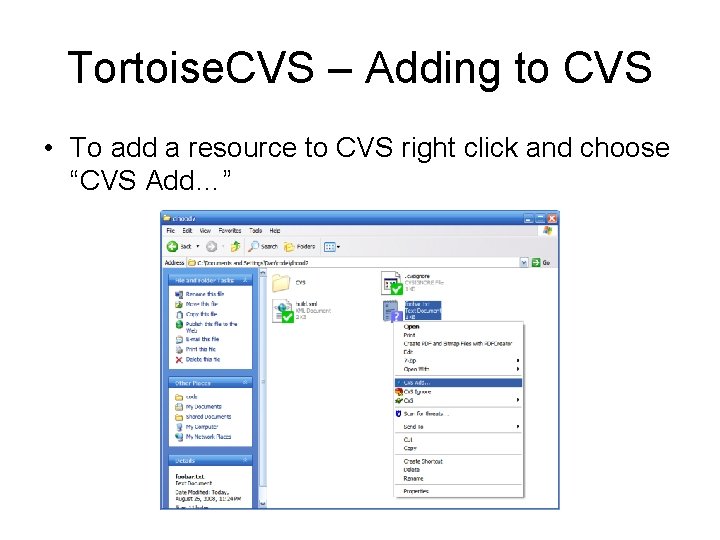
Tortoise. CVS – Adding to CVS • To add a resource to CVS right click and choose “CVS Add…”
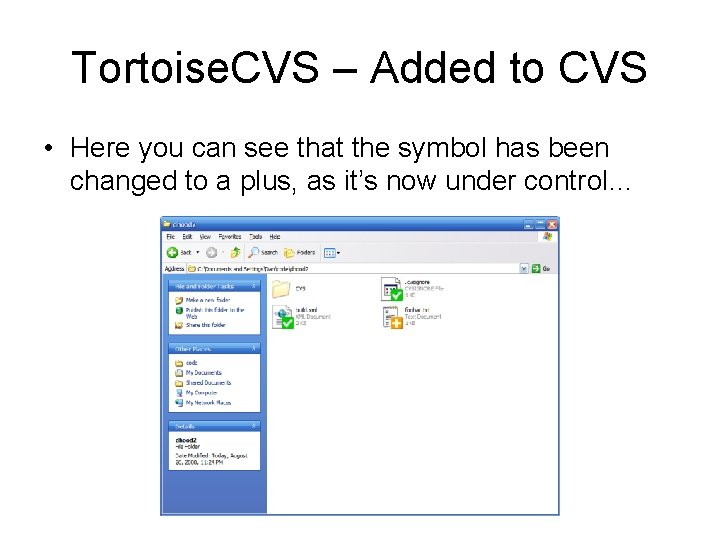
Tortoise. CVS – Added to CVS • Here you can see that the symbol has been changed to a plus, as it’s now under control…
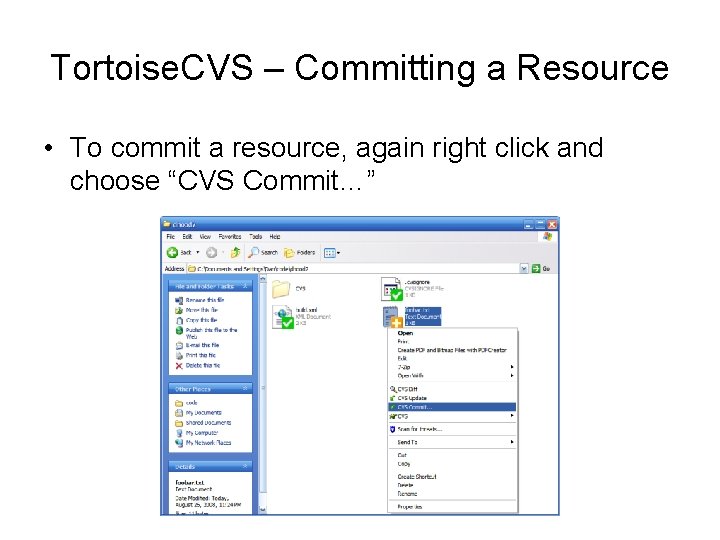
Tortoise. CVS – Committing a Resource • To commit a resource, again right click and choose “CVS Commit…”
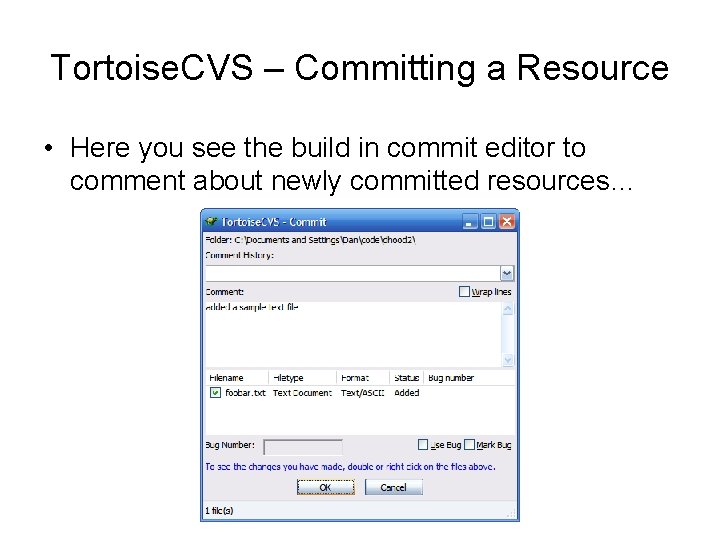
Tortoise. CVS – Committing a Resource • Here you see the build in commit editor to comment about newly committed resources…
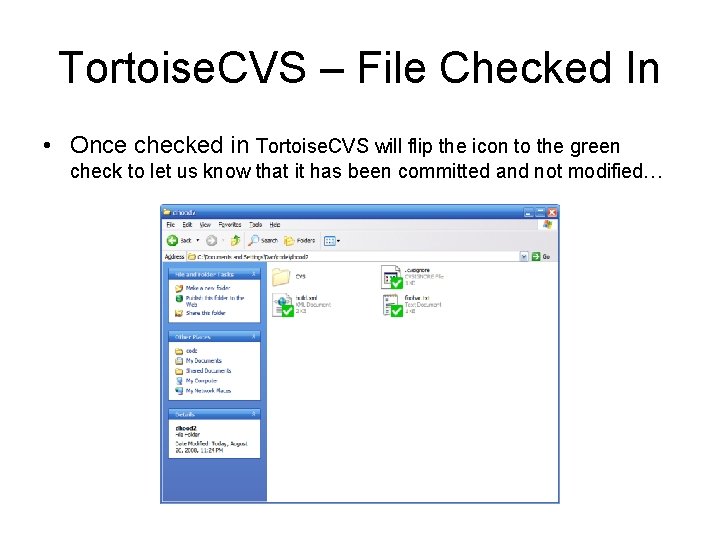
Tortoise. CVS – File Checked In • Once checked in Tortoise. CVS will flip the icon to the green check to let us know that it has been committed and not modified…
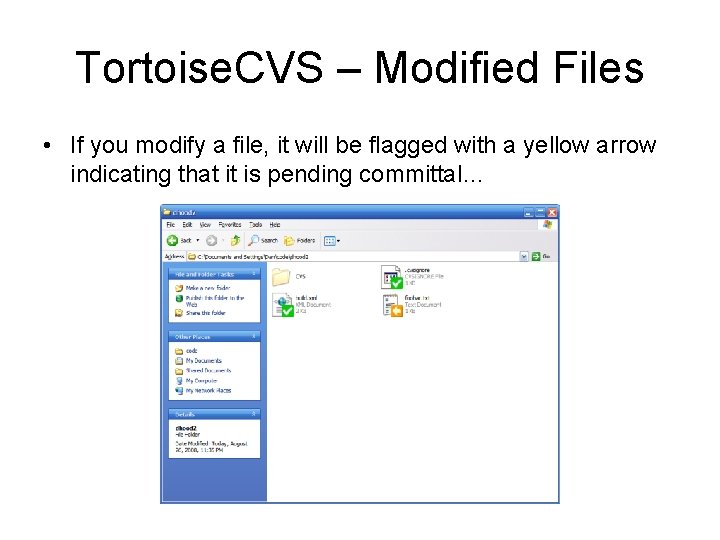
Tortoise. CVS – Modified Files • If you modify a file, it will be flagged with a yellow arrow indicating that it is pending committal…
Tortoise. CVS • For help and more documentation see… – FAQ: • http: //www. tortoisecvs. org/faq. shtml – User’s Guide: • http: //www. tortoisecvs. org/User. Guide_en. chm
Eclipse • Eclipse has a built-in perspective for CVS – All of the developer downloads come with it pre-installed (The following directions are for the Eclipse Ganymede Eclipse IDE for Java Developer release)
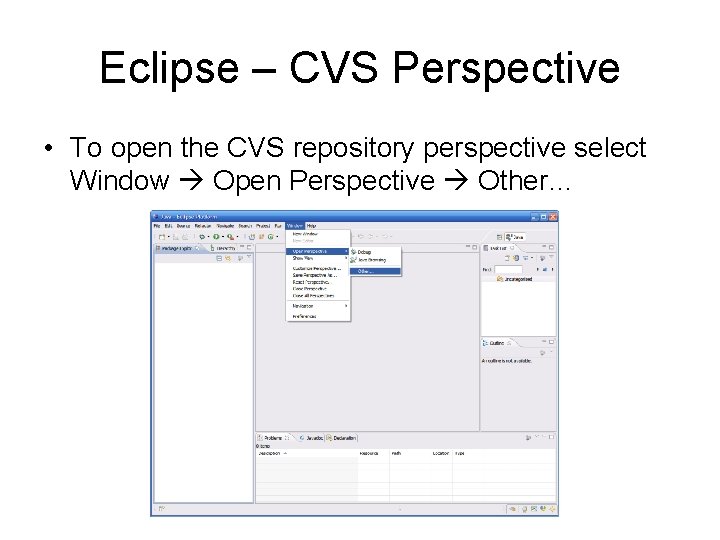
Eclipse – CVS Perspective • To open the CVS repository perspective select Window Open Perspective Other…
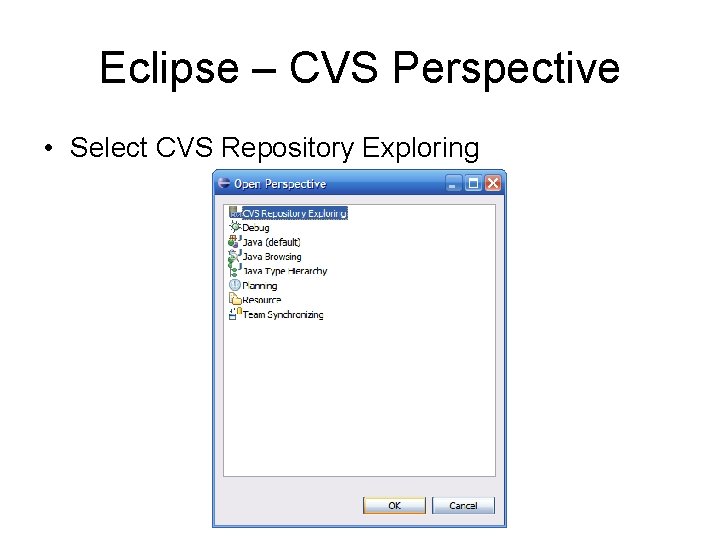
Eclipse – CVS Perspective • Select CVS Repository Exploring
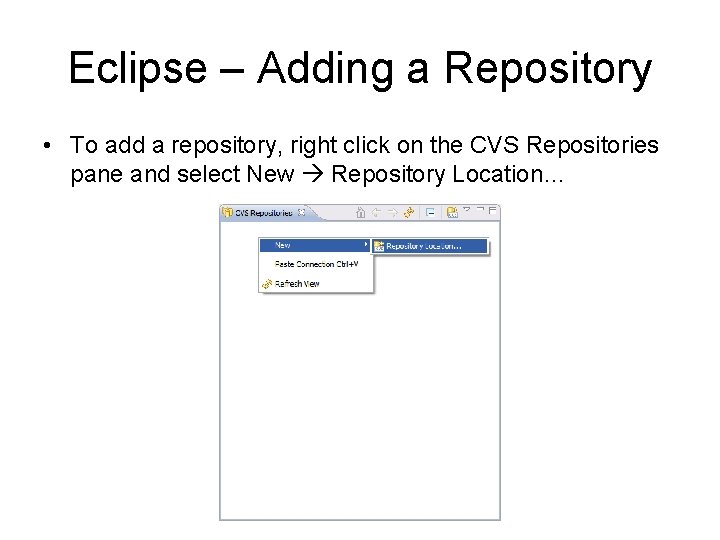
Eclipse – Adding a Repository • To add a repository, right click on the CVS Repositories pane and select New Repository Location…
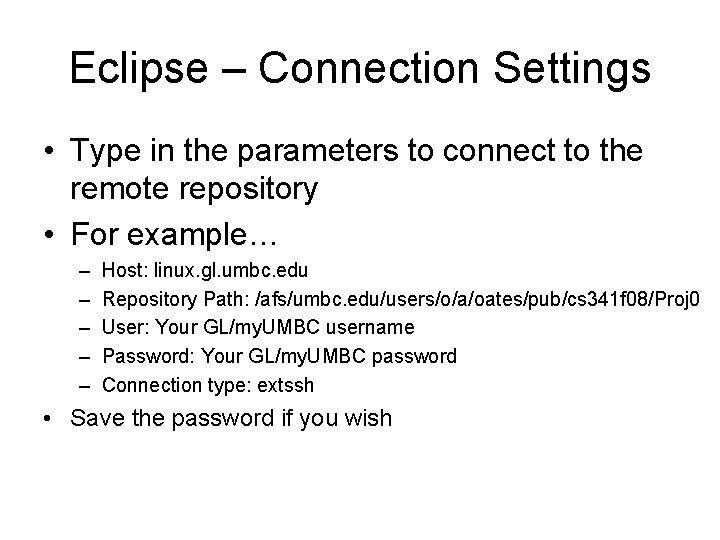
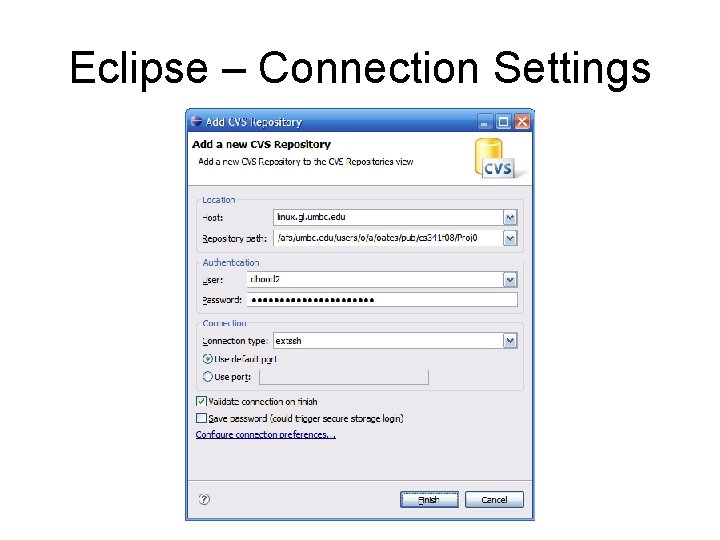
Eclipse – Connection Settings • Type in the parameters to connect to the remote repository • For example… – – – Host: linux. gl. umbc. edu Repository Path: /afs/umbc. edu/users/o/a/oates/pub/cs 341 f 08/Proj 0 User: Your GL/my. UMBC username Password: Your GL/my. UMBC password Connection type: extssh • Save the password if you wish
Eclipse – Connection Settings
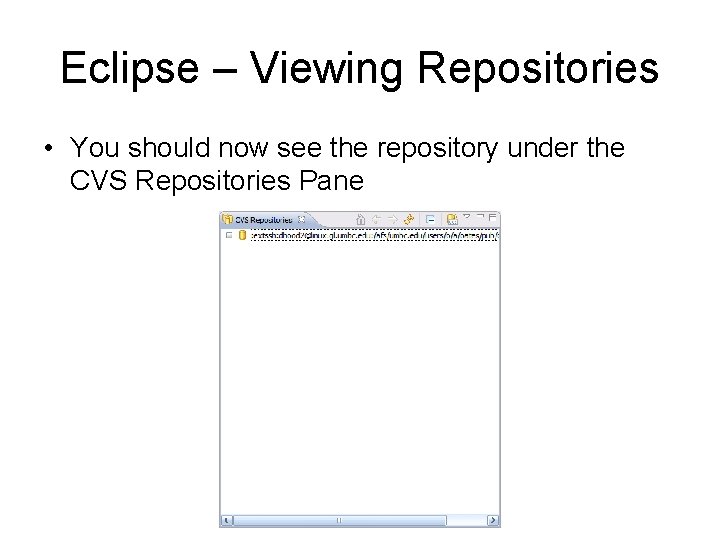
Eclipse – Viewing Repositories • You should now see the repository under the CVS Repositories Pane
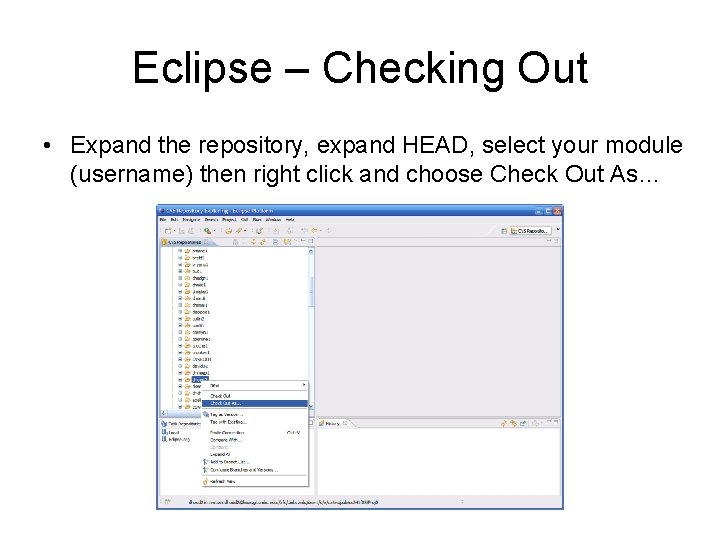
Eclipse – Checking Out • Expand the repository, expand HEAD, select your module (username) then right click and choose Check Out As…
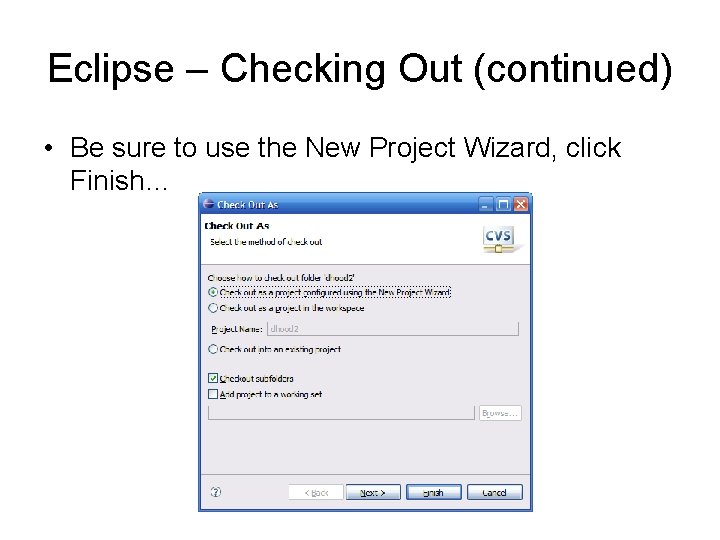
Eclipse – Checking Out (continued) • Be sure to use the New Project Wizard, click Finish…
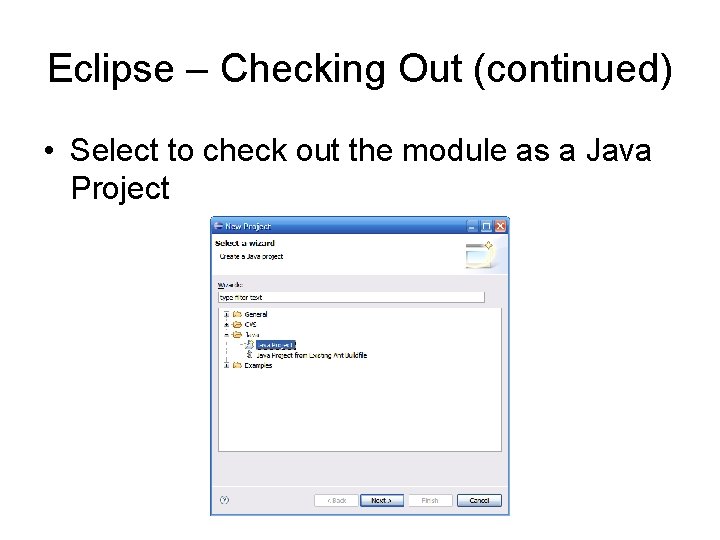
Eclipse – Checking Out (continued) • Select to check out the module as a Java Project
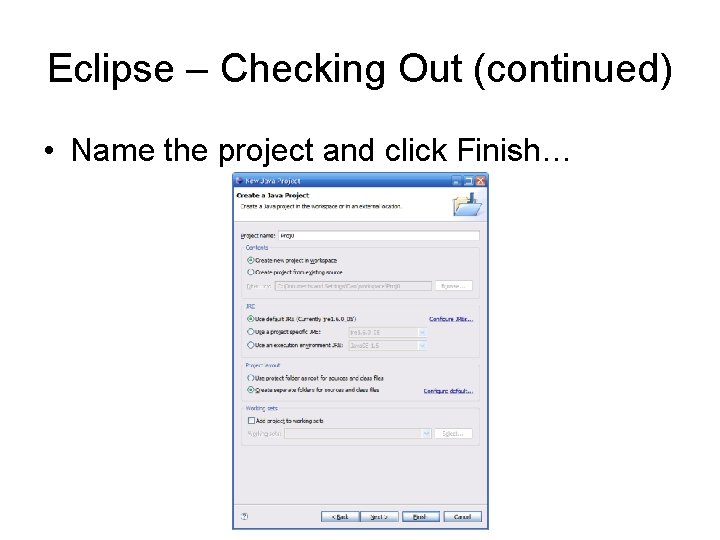
Eclipse – Checking Out (continued) • Name the project and click Finish…
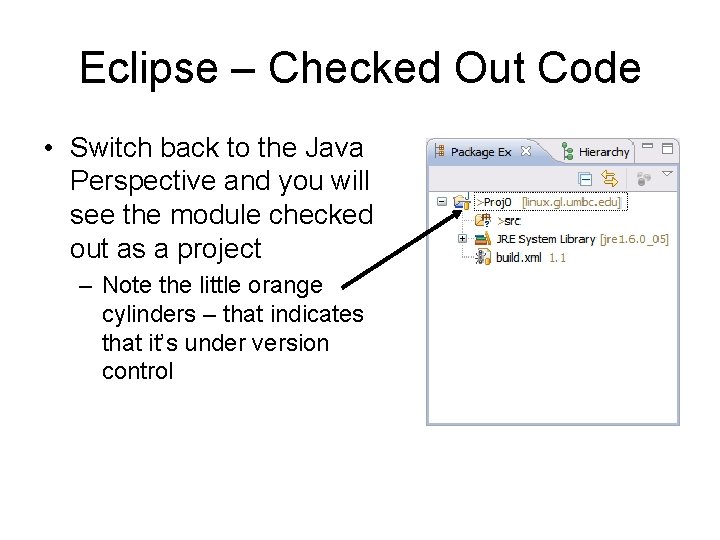
Eclipse – Checked Out Code • Switch back to the Java Perspective and you will see the module checked out as a project – Note the little orange cylinders – that indicates that it’s under version control
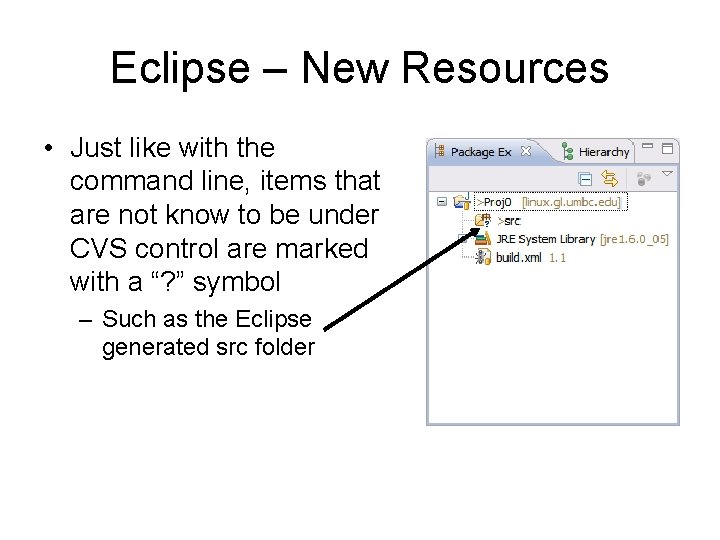
Eclipse – New Resources • Just like with the command line, items that are not know to be under CVS control are marked with a “? ” symbol – Such as the Eclipse generated src folder
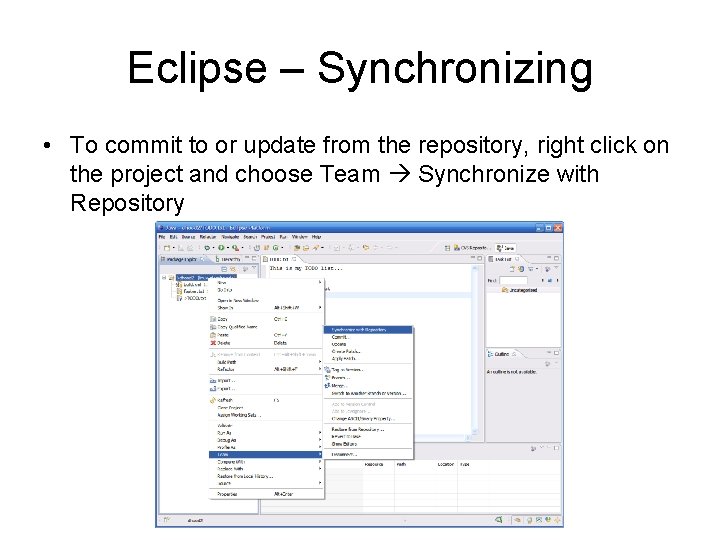
Eclipse – Synchronizing • To commit to or update from the repository, right click on the project and choose Team Synchronize with Repository
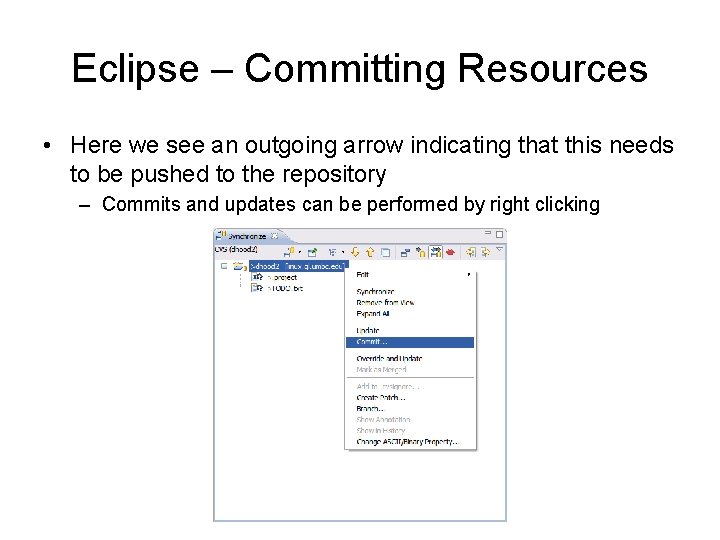
Eclipse – Committing Resources • Here we see an outgoing arrow indicating that this needs to be pushed to the repository – Commits and updates can be performed by right clicking
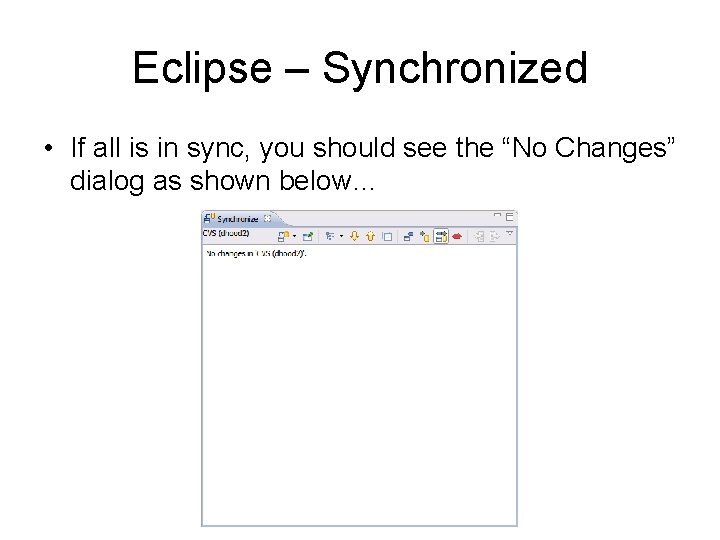
Eclipse – Synchronized • If all is in sync, you should see the “No Changes” dialog as shown below…
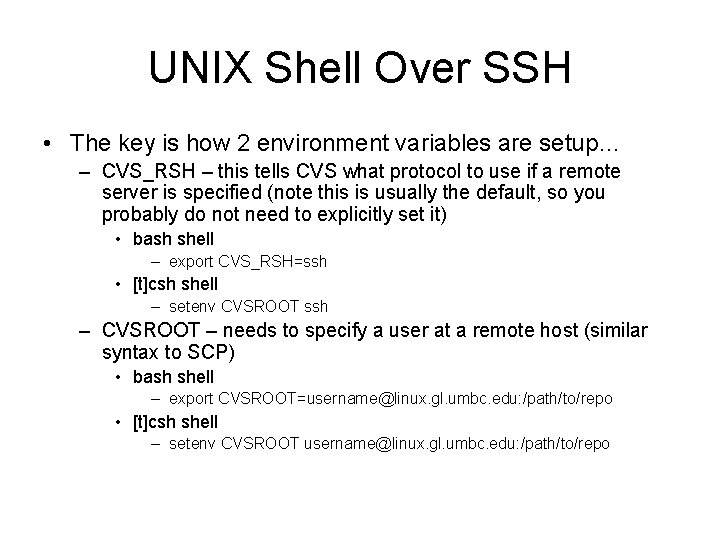
UNIX Shell Over SSH • If you are connecting from a UNIX-like machine, then you probably have everything you need to access the repository remotely – Most UNIX-like OS’s come with a command line cvs and ssh suite – You can easily configure cvs to use ssh to connect to a remote repository
UNIX Shell Over SSH • The key is how 2 environment variables are setup… – CVS_RSH – this tells CVS what protocol to use if a remote server is specified (note this is usually the default, so you probably do not need to explicitly set it) • bash shell – export CVS_RSH=ssh • [t]csh shell – setenv CVSROOT ssh – CVSROOT – needs to specify a user at a remote host (similar syntax to SCP) • bash shell – export CVSROOT=username@linux. gl. umbc. edu: /path/to/repo • [t]csh shell – setenv CVSROOT username@linux. gl. umbc. edu: /path/to/repo
UNIX Shell Over SSH (checkout) [dan@icarus code]$ export CVS_RSH=ssh [dan@icarus code]$ export CVSROOT=dhood 2@linux. gl. umbc. edu: /afs/umbc. edu/users/o/a/oates/pub/cs 341 f 08/Proj 0 [dan@icarus code]$ cvs checkout -d Proj 0 dhood 2 WARNING: UNAUTHORIZED ACCESS to this computer is in violation of Criminal Law Article section 8 -606 and 7 -302 of the Annotated Code of MD. NOTICE: This system is for the use of authorized users only. Individuals using this computer system without authority, or in excess of their authority, are subject to having all of their activities on this system monitored and recorded by system personnel. dhood 2@linux. gl. umbc. edu's password: cvs checkout: Updating Proj 0 U Proj 0/. cvsignore [dan@icarus code]$