
Introduction to Curriculum Manager Administrator CM Admin Next
- Slides: 12
Introduction to Curriculum Manager Administrator (CM Admin) Next Generation Student System (NGSS)
Roles within CM • User/Submitter • Subset of Penn Community; categories include FAC, STAF, & SFAC (grandfathered) • Able to create course or program proposals • Approver • Specific responsibilities within workflow, ie. department admins, faculty, registrars, etc. • CM Administrators • Enhanced function set • May have workflow roles in addition to CM Admin Roles • Can only act in workflow according to their assigned role • System Administrators • Sys Admin have total access to CM, may act in any capacity • Ability to modify course and program workflows and any other maintenance features Deloitte Consulting LLP © 2019 CM Working Session 051019 2
CM Admin Overview As CM Admin for your school/division, you will have more functions and responsibilities that will enhance the workflow process for curricular changes. These functions include: • • • Role Maintenance Shredding Proposals Admin Save Updating a Workflow In Progress Archive Courses • Reactivating Courses or Programs • Deleting Comments from Proposals Deloitte Consulting LLP © 2019 CM Working Session 051019 3
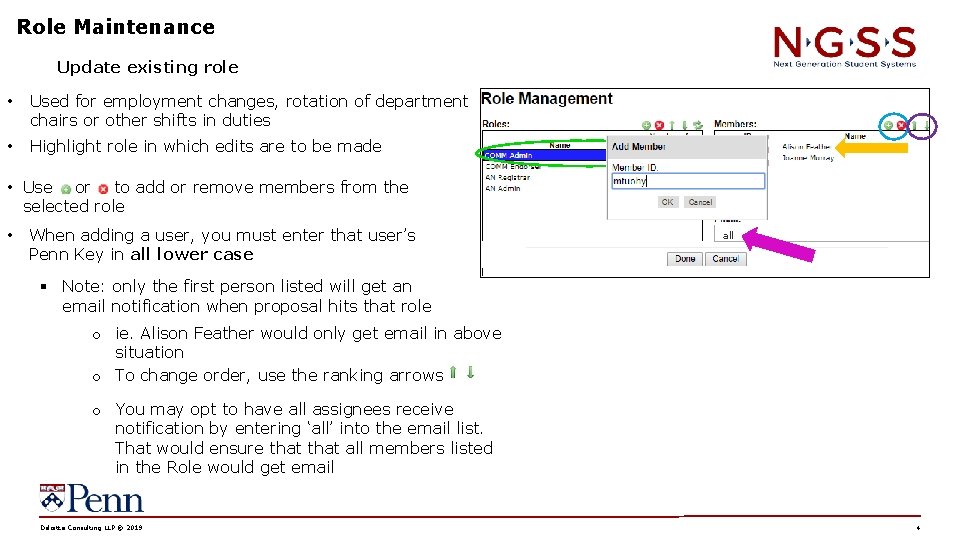
Role Maintenance Update existing role • Used for employment changes, rotation of department chairs or other shifts in duties • Highlight role in which edits are to be made • Use or to add or remove members from the selected role • When adding a user, you must enter that user’s Penn Key in all lower case all § Note: only the first person listed will get an email notification when proposal hits that role o ie. Alison Feather would only get email in above situation o To change order, use the ranking arrows o You may opt to have all assignees receive notification by entering ‘all’ into the email list. That would ensure that all members listed in the Role would get email Deloitte Consulting LLP © 2019 CM Working Session 051019 4
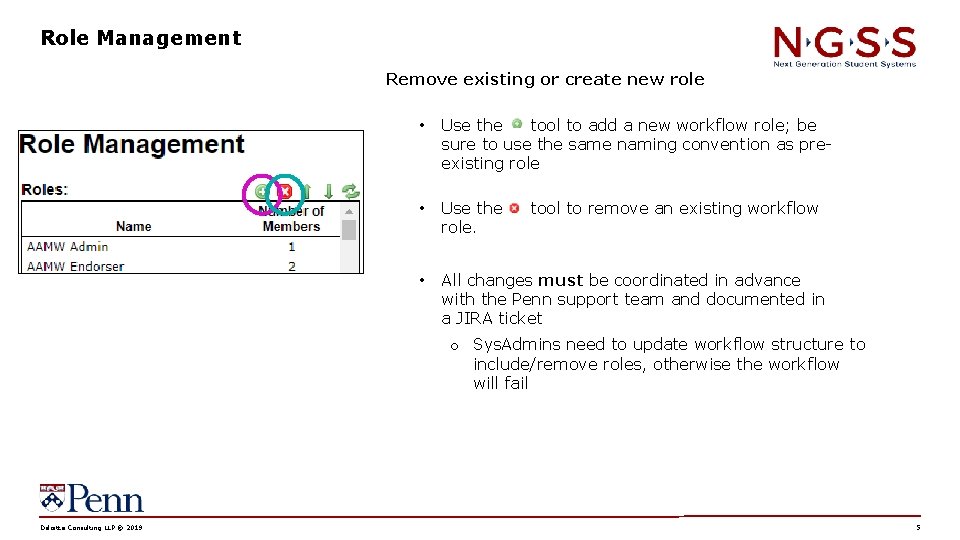
Role Management Remove existing or create new role • Use the tool to add a new workflow role; be sure to use the same naming convention as preexisting role • Use the role. • All changes must be coordinated in advance with the Penn support team and documented in a JIRA ticket tool to remove an existing workflow o Sys. Admins need to update workflow structure to include/remove roles, otherwise the workflow will fail Deloitte Consulting LLP © 2019 CM Working Session 051019 5
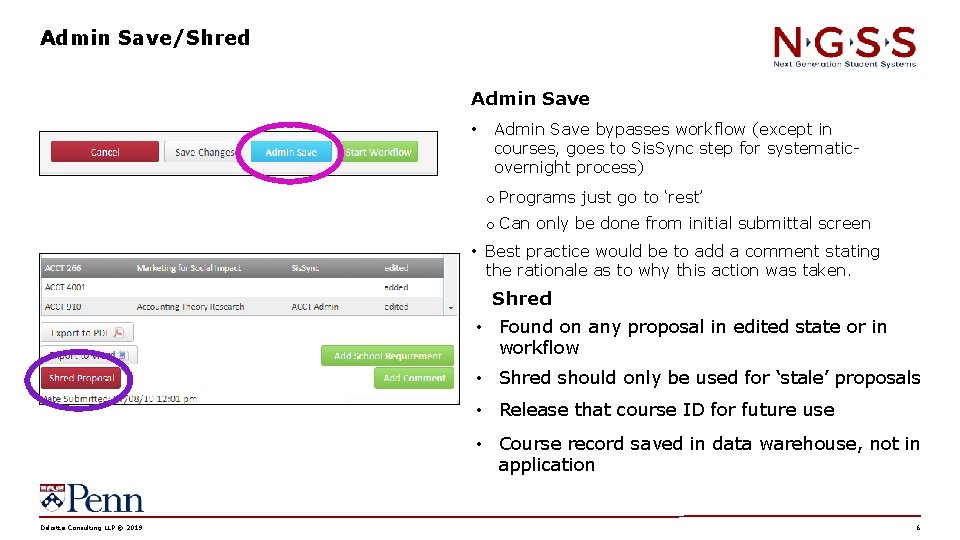
Admin Save/Shred Admin Save • Admin Save bypasses workflow (except in courses, goes to Sis. Sync step for systematicovernight process) o Programs just go to ‘rest’ o Can only be done from initial submittal screen • Best practice would be to add a comment stating the rationale as to why this action was taken. Shred • Found on any proposal in edited state or in workflow • Shred should only be used for ‘stale’ proposals • Release that course ID for future use • Course record saved in data warehouse, not in application Deloitte Consulting LLP © 2019 CM Working Session 051019 6
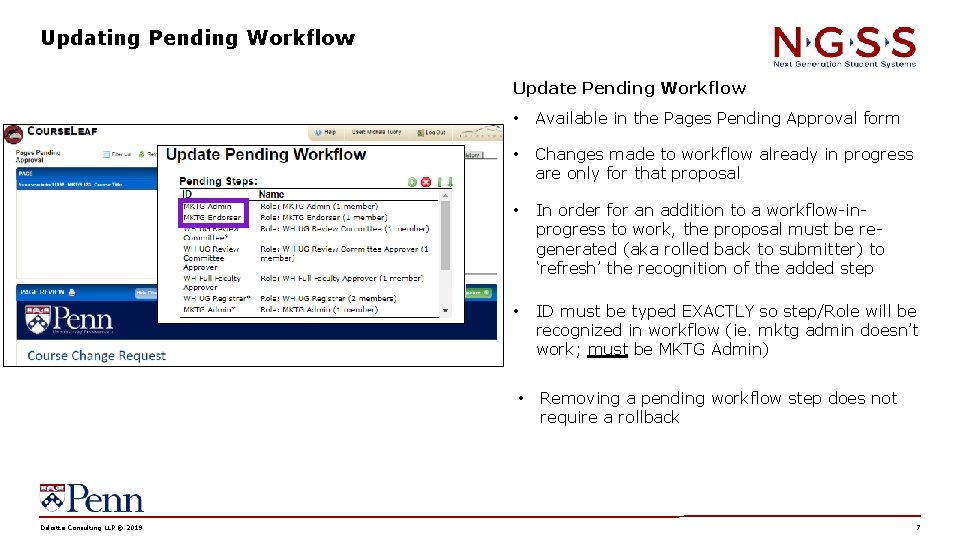
Updating Pending Workflow Update Pending Workflow Deloitte Consulting LLP © 2019 • Available in the Pages Pending Approval form • Changes made to workflow already in progress are only for that proposal • In order for an addition to a workflow-inprogress to work, the proposal must be regenerated (aka rolled back to submitter) to ‘refresh’ the recognition of the added step • ID must be typed EXACTLY so step/Role will be recognized in workflow (ie. mktg admin doesn’t work; must be MKTG Admin) • Removing a pending workflow step does not require a rollback CM Working Session 051019 7
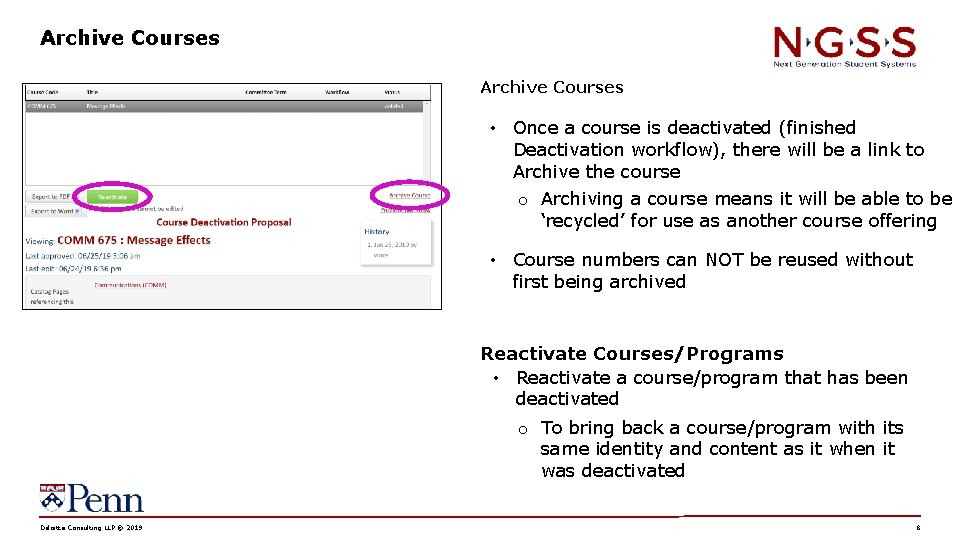
Archive Courses • Once a course is deactivated (finished Deactivation workflow), there will be a link to Archive the course o Archiving a course means it will be able to be ‘recycled’ for use as another course offering • Course numbers can NOT be reused without first being archived Reactivate Courses/Programs • Reactivate a course/program that has been deactivated o To bring back a course/program with its same identity and content as it when it was deactivated Deloitte Consulting LLP © 2019 CM Working Session 051019 8
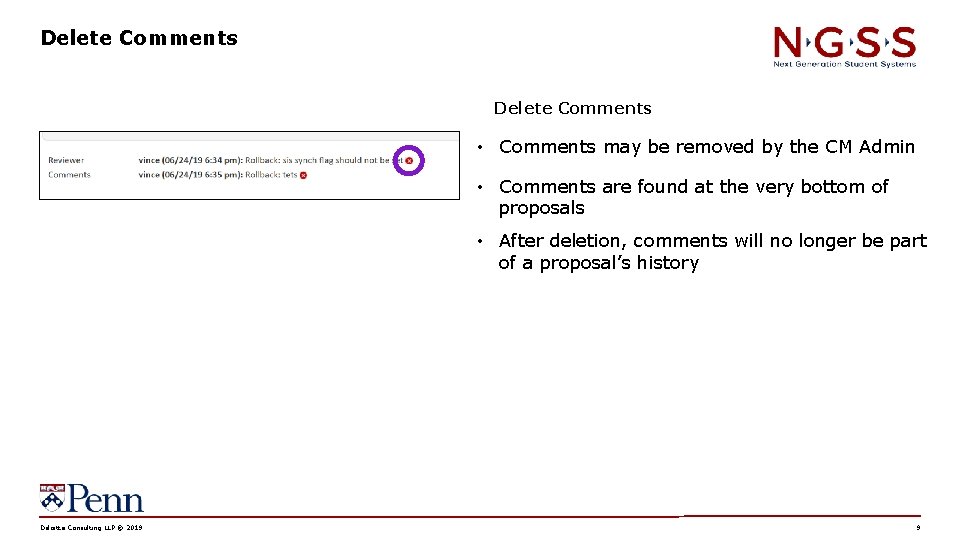
Delete Comments • Comments may be removed by the CM Admin • Comments are found at the very bottom of proposals • After deletion, comments will no longer be part of a proposal’s history Deloitte Consulting LLP © 2019 CM Working Session 051019 9
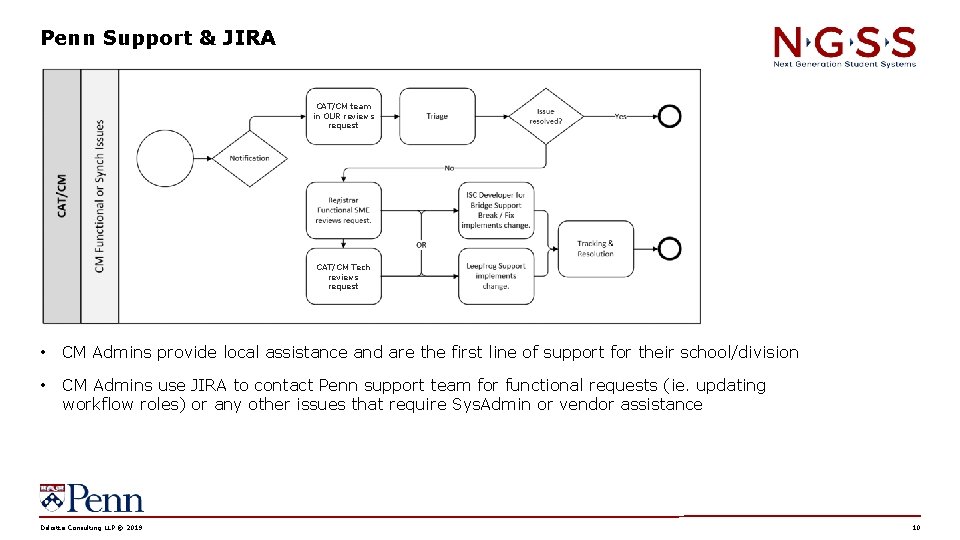
Penn Support & JIRA CAT/CM team in OUR reviews request CAT/CM Tech reviews request • CM Admins provide local assistance and are the first line of support for their school/division • CM Admins use JIRA to contact Penn support team for functional requests (ie. updating workflow roles) or any other issues that require Sys. Admin or vendor assistance Deloitte Consulting LLP © 2019 CM Working Session 051019 10
Penn Support & JIRA Login to Jira by going to - https: //jira. apps. upenn. edu/jira/projects/CS/summary. • • You will need to use your Penn Key credentials to login. • All CM support items may be logged in the CAT/CM Support (CS) project. • Please review the CAT/CM Support JIRA Quick Reference Gide, located at https: //srfs. upenn. edu/faculty-staff-resources/cm. Deloitte Consulting LLP © 2019 CM Working Session 051019 11
You have completed CM Admin Training! Please contact Michael Peterson (mipet@upenn. edu) or Michele Tuohy (mtuohy@upenn. edu) with any questions.