
Introduction to Computers ICT MS Can We Live
- Slides: 47
Introduction to Computers ICT MS
Can We Live Without Computers? l?
Examples of Computers l 20 years ago, few families have a single computer at home. l Now?
What is Computer l “A computer is a machine for manipulating data according to a list of instructions. ” -- wikipedia l “A computer is an electronic device used to store and process information. ” -- Microsoft
Forms of Computers l Today, computers can be made small enough to fit into a wrist watch and be powered from a watch battery.
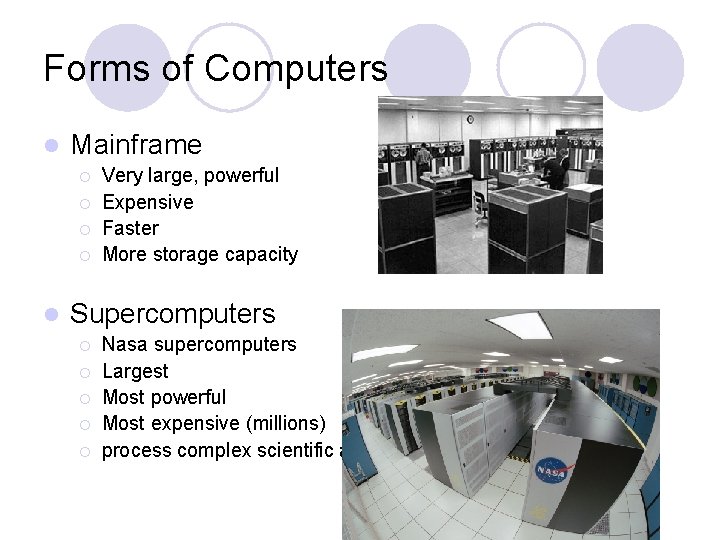
Forms of Computers l Mainframe ¡ ¡ l Very large, powerful Expensive Faster More storage capacity Supercomputers ¡ ¡ ¡ Nasa supercomputers Largest Most powerful Most expensive (millions) process complex scientific application
Forms of Computers l personal computers : laptop computer, desktop l Electronic organizers and palmtop computers l embedded computer -- small, simple devices that are often used to control other devices—for example, they may be found in machines ranging from fighter aircraft to industrial robots, digital cameras, and even children's toys.
Why do We Use Computers? l Because ¡ Smart? ¡ Fast? they are
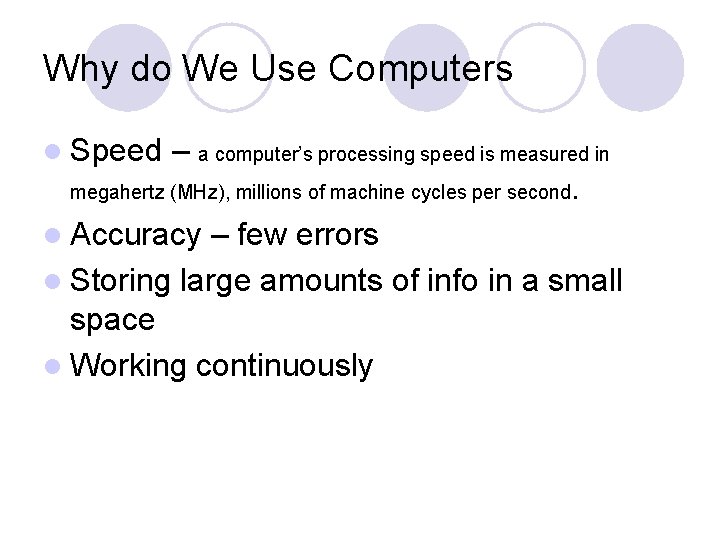
Why do We Use Computers l Speed – a computer’s processing speed is measured in megahertz (MHz), millions of machine cycles per second. l Accuracy – few errors l Storing large amounts of info in a small space l Working continuously
The Role of Computers l
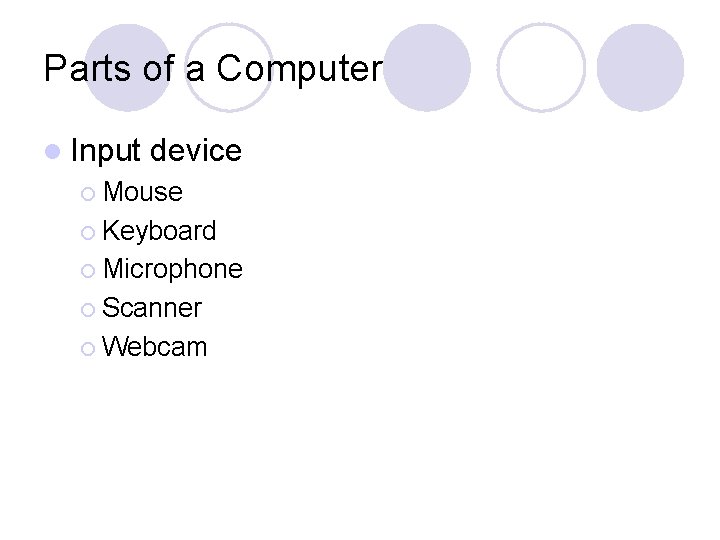
Parts of a Computer l Input device ¡ Mouse ¡ Keyboard ¡ Microphone ¡ Scanner ¡ Webcam
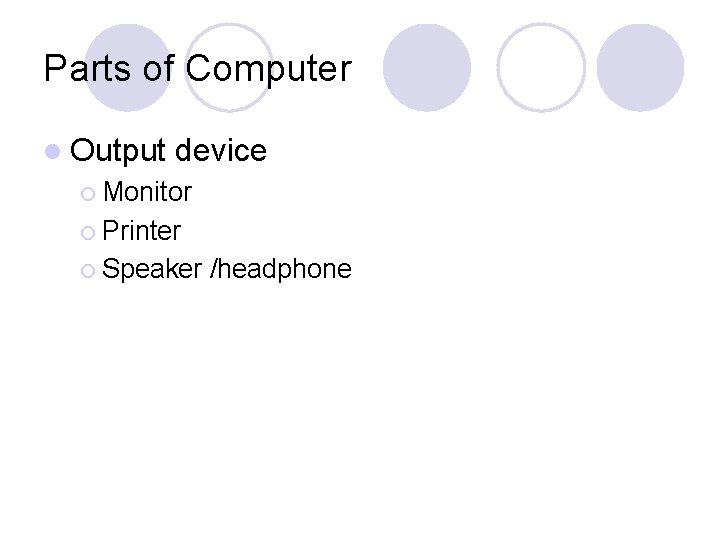
Parts of Computer l Output device ¡ Monitor ¡ Printer ¡ Speaker /headphone
Parts of Computer l Storage ¡ Hard device drive ¡ Floppy disk ¡ CD-Rom ¡ DVD-Rom
Sort Game on Computer Devices l
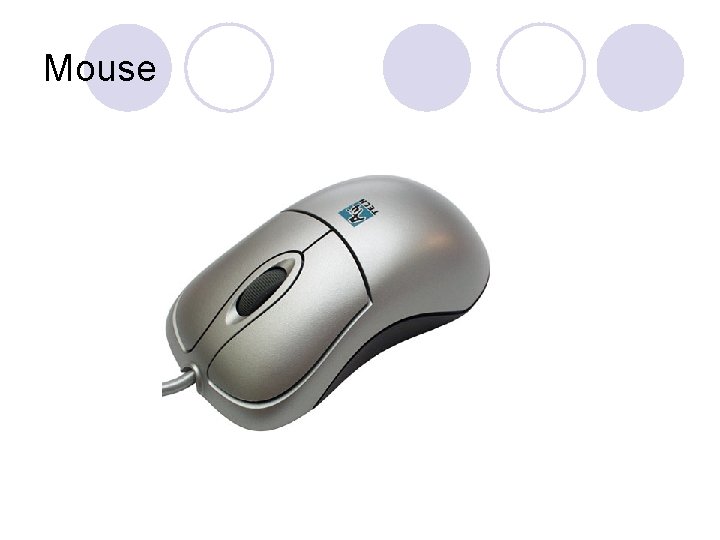
Mouse
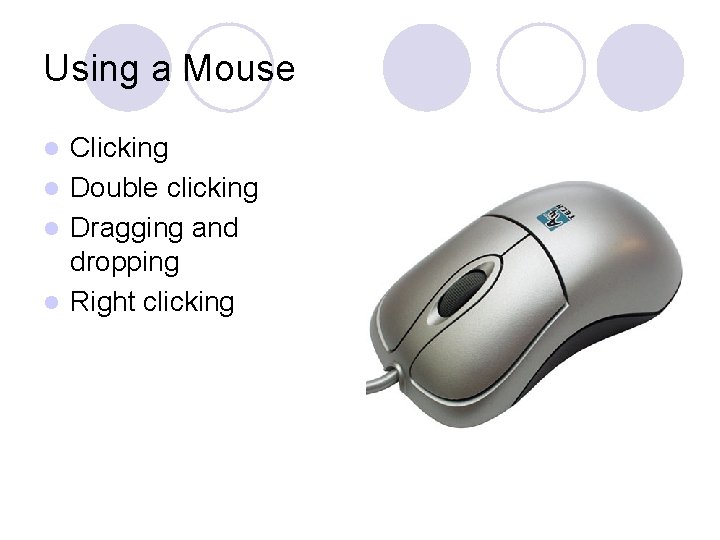
Using a Mouse Clicking l Double clicking l Dragging and dropping l Right clicking l
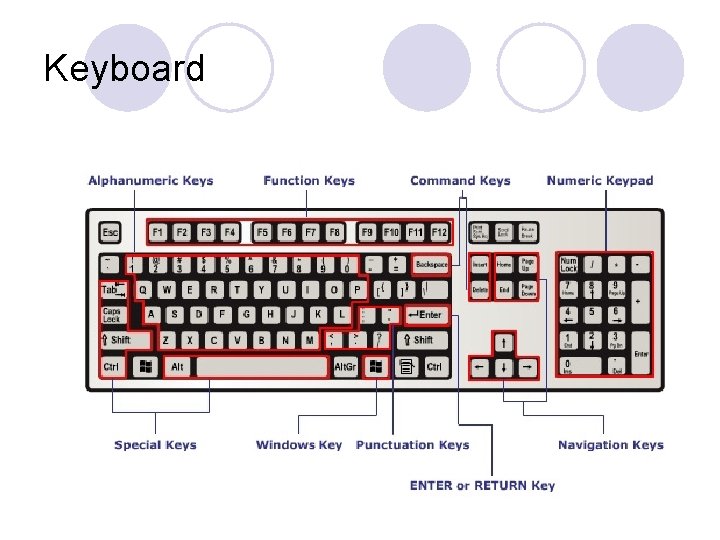
Keyboard
Using Keyboard Alphanumeric Keys: l Special Keys: Control (CTRL), SHIFT, SPACEBAR, ALT, CAPS LOCK, and TAB l Punctuation Keys: colon (: ), semicolon (; ), question mark (? ), single quotation l marks (‘ ’), and double quotation marks (“ ”). l l l Command Keys: INSERT (INS), DELETE (DEL), and BACKSPACE ENTER or RETURN Key: Navigation Keys: arrow keys, HOME, END, PAGE UP, PAGE DOWN Function Keys: F 1 to F 12 Numeric Keypad: a separate set of keys with numbers from 0 to 9 Windows Key: w/Microsoft Logo or the Windows flag. This key is used to open the Start menu, or is used in combination with a second key to perform common Windows tasks. The exact use may vary from program to program.
Using a Computer l start a computer l Turn off a computer l When problems happen, how to shut down the computer?
Start a Computer l Power On l POST - power-on self test l Operating System starts – logon screen ¡ Controls hardware, manages operations and tasks l Perform l l Log tasks Always save changes off / shut down
Hardware of a Computer
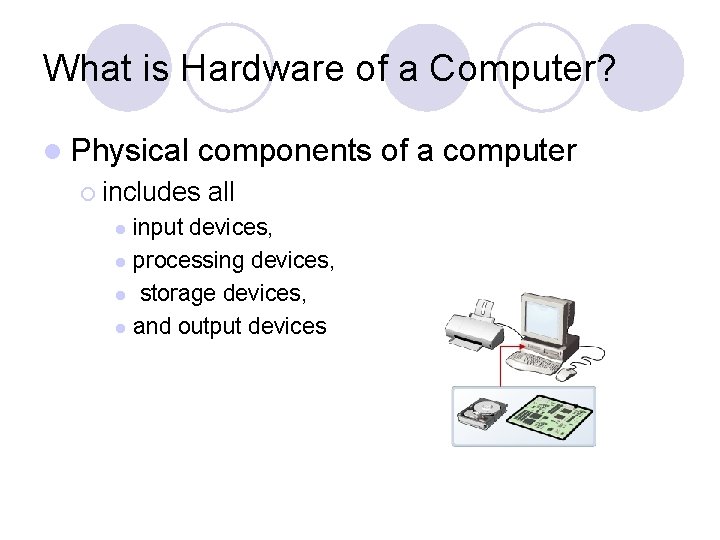
What is Hardware of a Computer? l Physical components of a computer ¡ includes all input devices, l processing devices, l storage devices, l and output devices l
CPU l The “brain” of a computer ¡ processes the input to perform calculations and produce output
Motherboard la large circuit board that connects input, output, and processing devices ¡ provide pathways that allow data to pass through these various components ¡ contains chips that determine how, when, and where data can flow through the computer
Software of a Computer
Software l sends to the instructions for the hardware to perform the necessary tasks.
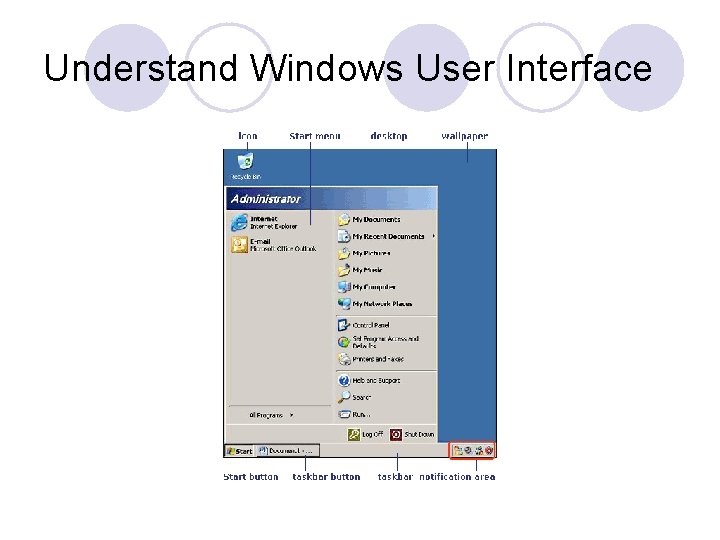
Operating System l controls and manages the hardware connected to your computer l a graphical user interface (GUI) l Manages files and memory l Maintains security l Manages tasks
Working with Windows-Based Programs l
Understand Windows User Interface
Programs
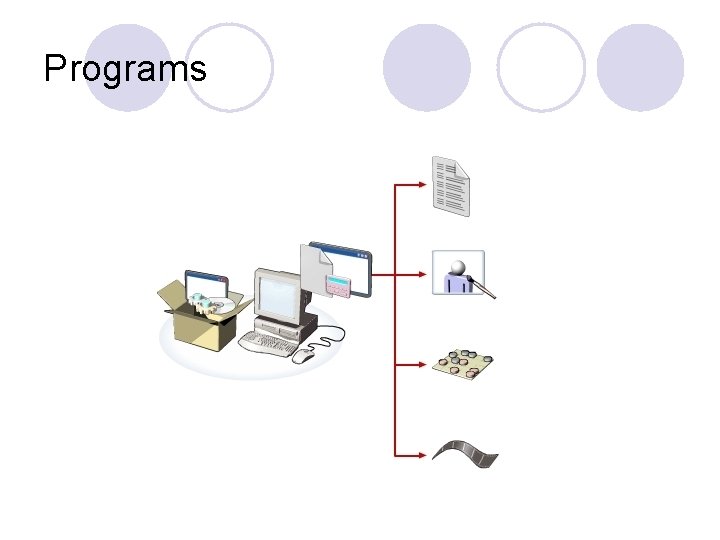
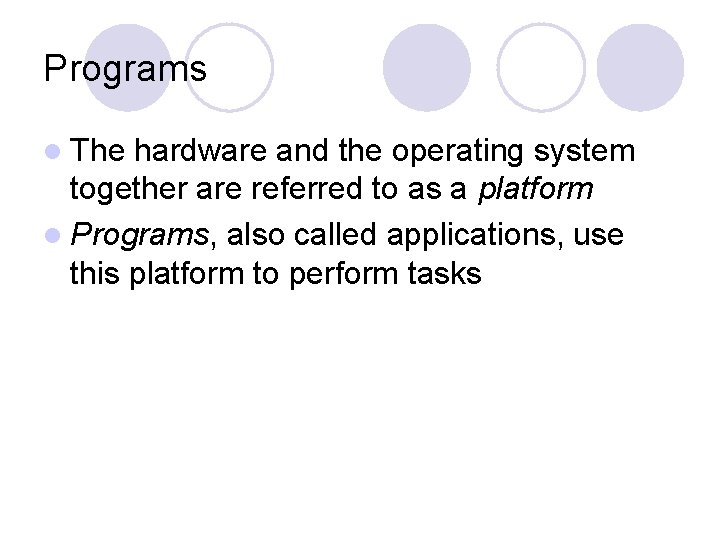
Programs l The hardware and the operating system together are referred to as a platform l Programs, also called applications, use this platform to perform tasks
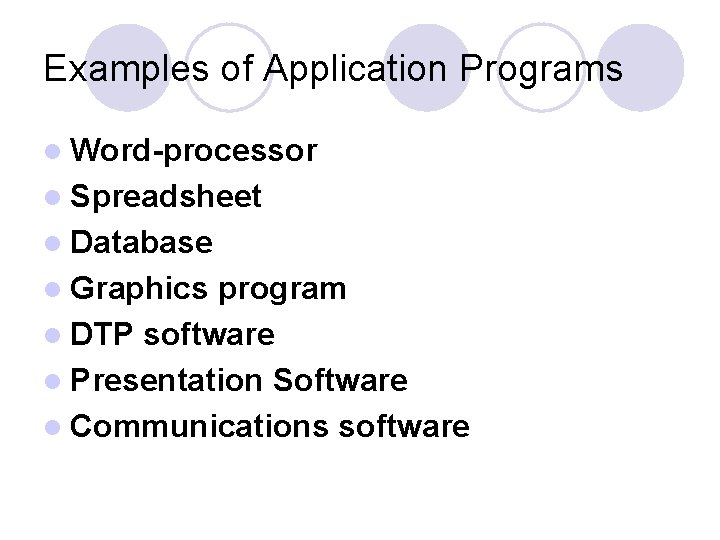
Examples of Application Programs l Word-processor l Spreadsheet l Database l Graphics program l DTP software l Presentation Software l Communications software
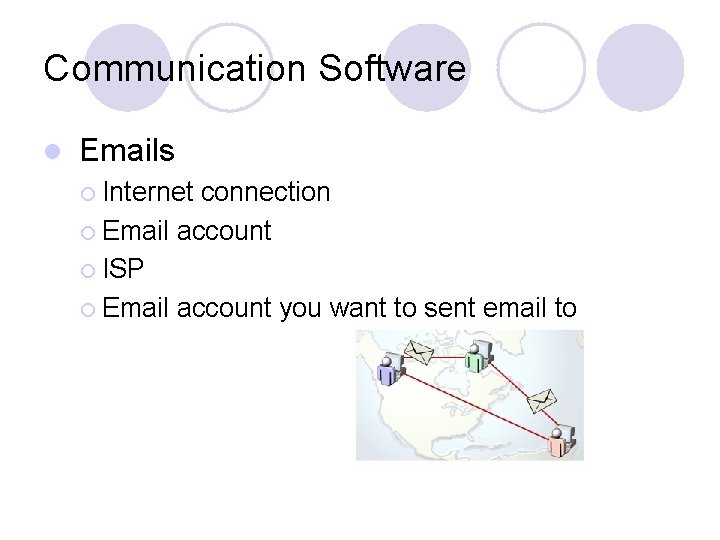
Communication Software l Emails ¡ Internet connection ¡ Email account ¡ ISP ¡ Email account you want to sent email to
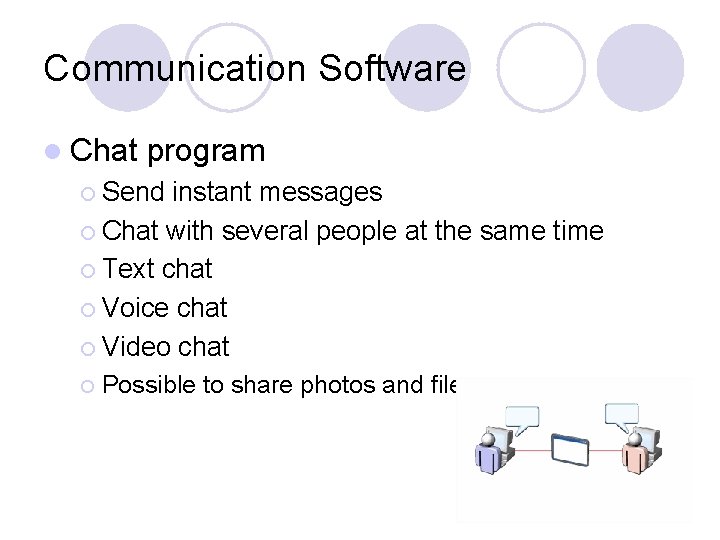
Communication Software l Chat program ¡ Send instant messages ¡ Chat with several people at the same time ¡ Text chat ¡ Voice chat ¡ Video chat ¡ Possible to share photos and files
Educational and Entertainment Programs l Educational Programs ¡ E. g. language learning ¡ audio-visual clips and games ¡ Used in school, office or home ¡ Formats: CD, DVD, or online available l Entertainment ¡ Games, Programs music, movie, photos, graphics …
Question l List three reasons why a school would teach its students how to use applications software.
Types of Computers –Desktop l made up of individual components l The components of desktop computers can easily be replaced or upgraded. l not portable and are generally placed on the surface of a desk or a table l usually have more memory, a larger hard drive, more ports, and a bigger display than laptops and other portable computers
Types of Computers -- Laptop Computers l l l Also called Notebook lightweight smaller in size as compared to a desktop computer and are designed for travel laptop computers consume more power than desktop computers with a similar hardware setup. Laptop computers perform the same tasks as desktop computers, but laptop computers generally cost more than desktop computers.
Network l. A group of computers and associated devices that are linked together to facilitate sharing information is called a network
Components of a Network l Server: The main computer on a network that provides services to other computers on the network. ¡ l Workstation: A computer connected to a network. ¡ l It decides which computers are allowed to access the hardware and software on the network. to access the hardware and software on a network. Communication channel: A path or link that connects computers or devices, such as printers and disk drives, to transfer information. ¡ Cables are commonly used as communication channels in a network, but networks can also transfer information through wireless connections.
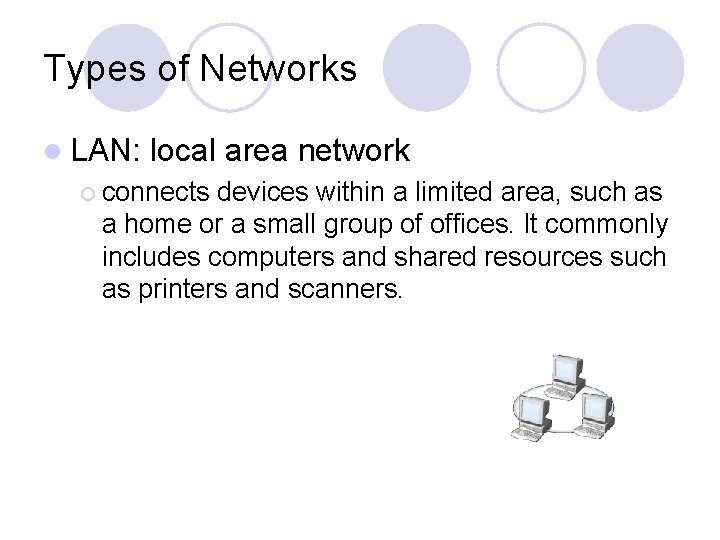
Types of Networks l LAN: local area network ¡ connects devices within a limited area, such as a home or a small group of offices. It commonly includes computers and shared resources such as printers and scanners.
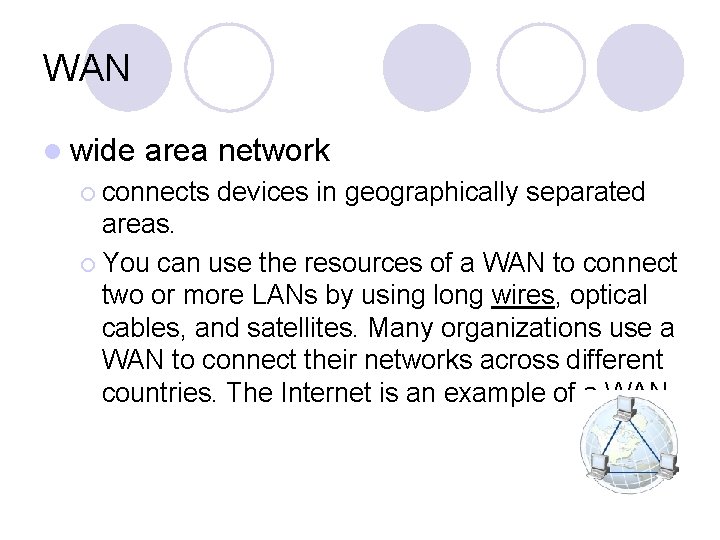
WAN l wide area network ¡ connects devices in geographically separated areas. ¡ You can use the resources of a WAN to connect two or more LANs by using long wires, optical cables, and satellites. Many organizations use a WAN to connect their networks across different countries. The Internet is an example of a WAN.
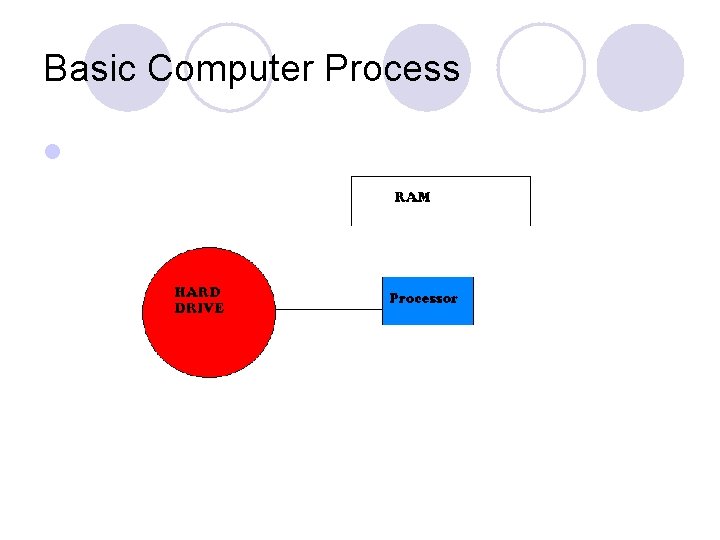
Basic Computer Process l
What is RAM? l RAM (Random Access Memory) is just a high speed way of letting the processor work with a package like Word l stores program information and data that needs to be readily available while performing a particular task
What is memory l Memory is a device where information can be stored and retrieved.
Memory of a Computer l Volatile Memory ¡ ¡ l RAM – Random Access Memory temporary memory Nonvolatile Memory ¡ ¡ ¡ ROM -- read-only memory The content stored on this type of memory is retained after the computer is turned off Flash memory --Memory similar to ROM, but allows the stored information to be erased or modified
More about Memory Bit --The information stored in the computer is internally represented in the form of 0 s and 1 s. Each 0 or 1 is called a bit Byte -- a combination of eight bits arranged in a particular sequence. The basic unit Kilobyte -- 1, 024 bytes (e. g an email, a text) Megabyte -- 1, 024 KB (e. g. a complete textbook) Gigabyte-- 1, 024 MB (a billion bytes) Terabyte -- 1, 024 GB