
Introduction to Computer Special Thanks S W A

- Slides: 28
Introduction to Computer Special Thanks S. W. A. Shah NIST
You will learn about: • Hardware including: • Input devices. • Processor or central processing unit (CPU). • Output devices. • Memory. • Software • Definitions of basic computer terms
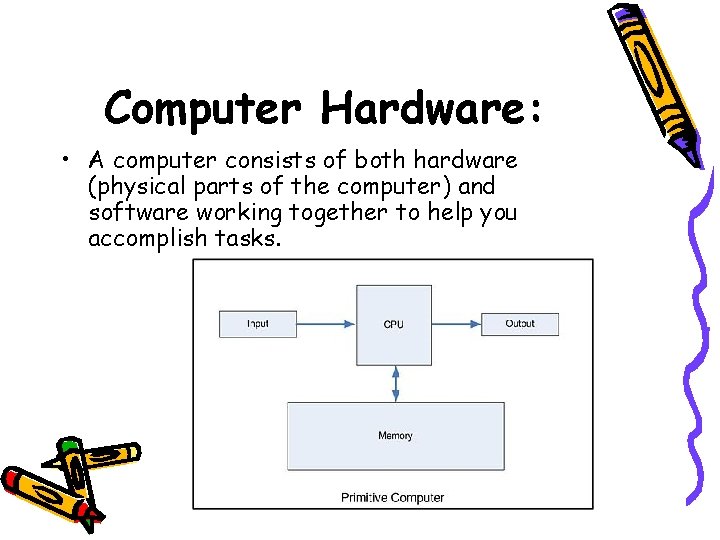
Computer Hardware: • A computer consists of both hardware (physical parts of the computer) and software working together to help you accomplish tasks.
• Hardware consists of: • Input devices • Processor or central processing unit (CPU) • Memory
Input devices: • Input devices are machines that communicate with the computer. • Examples of input devices are the keyboard and the mouse. • Input devices are controlled by the user.
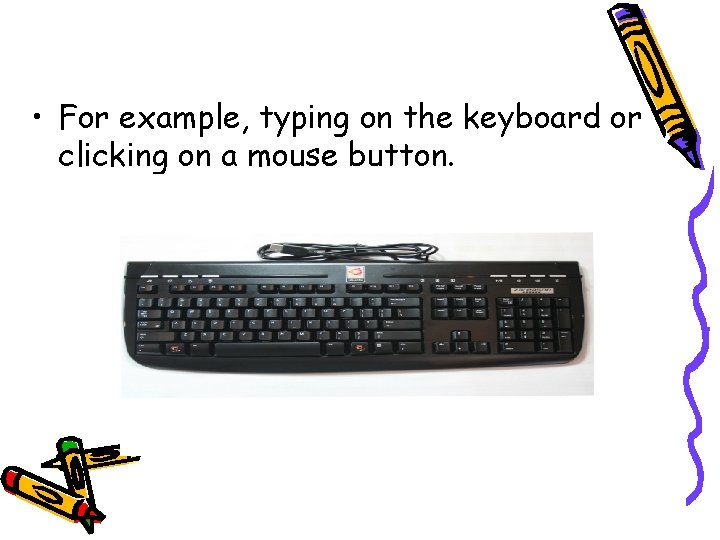
• For example, typing on the keyboard or clicking on a mouse button.
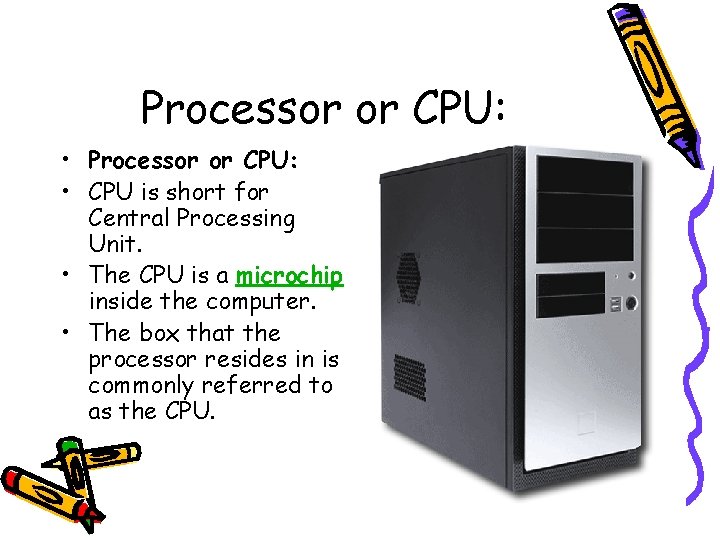
Processor or CPU: • CPU is short for Central Processing Unit. • The CPU is a microchip inside the computer. • The box that the processor resides in is commonly referred to as the CPU.
Processor or CPU: • The translation or processing of your input takes place in the CPU. • Processing is the thinking that the computer does - the calculations, comparisons, and decisions. • The box contains the microchip, the floppy disk drive, the CD-ROM drive, and memory.
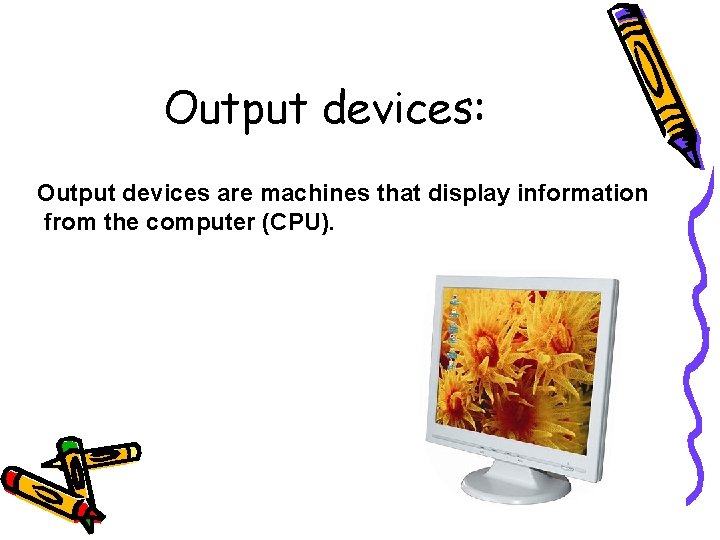
Output devices: Output devices are machines that display information from the computer (CPU).
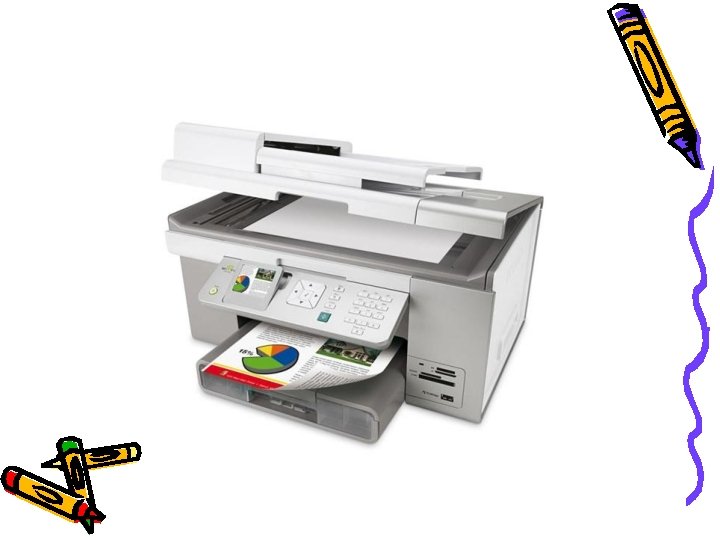
• Output devices are controlled by the computer. After the processor translates the information from the input devices, the output devices deliver the information to the user.
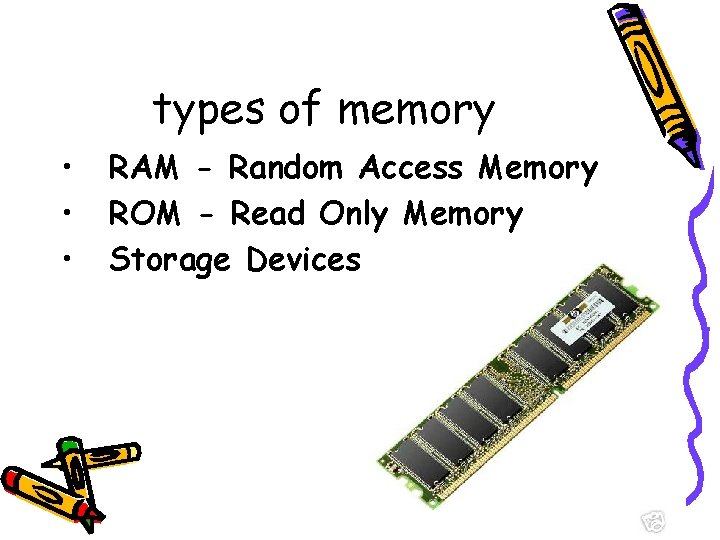
Memory: • The cycle (input - processing - output) would not be possible without a holding place for the instructions and data that the processor (CPU) can easily reach. • This holding place is known as memory. • There are three basic types of memory:
types of memory • • • RAM - Random Access Memory ROM - Read Only Memory Storage Devices
RAM: • The primary memory that holds data and instructions while the computer is in use. • Can be thought of as the memory the computer uses to obey instructions. • Can be written to and read from. • Important to remember that if you do not save the information in RAM to a storage device (such as a floppy disk or hard drive) before turning off the computer the information will be lost
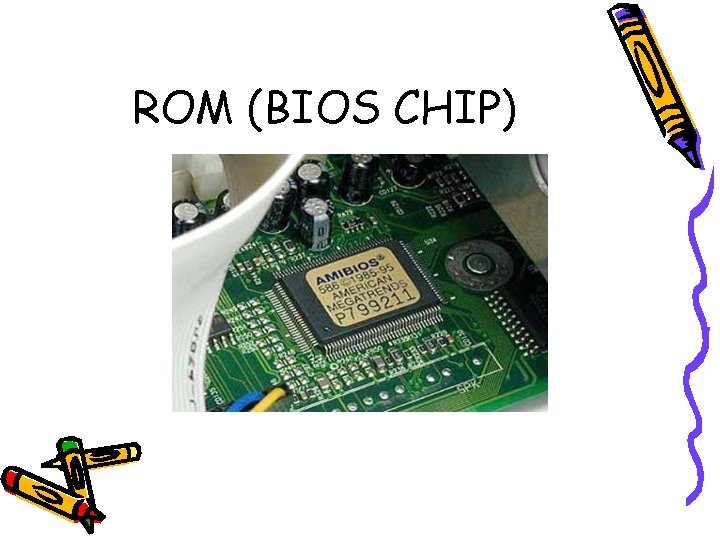
ROM: • ROM is more straight forward. • ROM is built in memory that permanently stores instructions and data. • The instructions and data in ROM are created when it is manufactured and it cannot be changed.
ROM (BIOS CHIP)
Storage Devices: • A storage device is a place to store data. Although there are several types of disks, for the purposes of this tutorial, only the following types will be discussed:
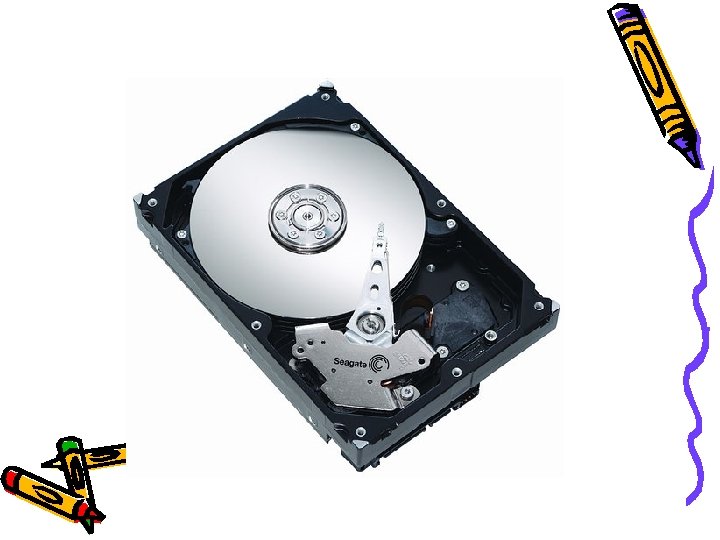
Hard Drive: • A permanent data storage device built into PCs that permits you to save and retrieve information. • Also, stores the computer's operating system and other software. • The size of a hard drive is usually expressed in terms of megabytes and gigabytes.
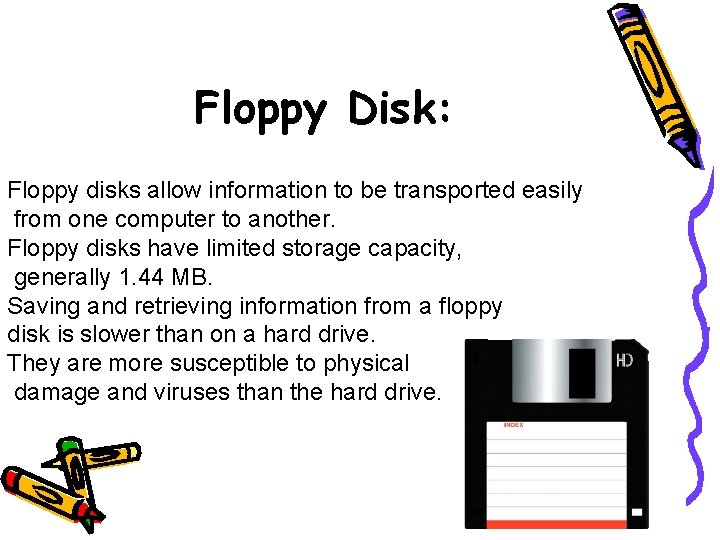
Floppy Disk: Floppy disks allow information to be transported easily from one computer to another. Floppy disks have limited storage capacity, generally 1. 44 MB. Saving and retrieving information from a floppy disk is slower than on a hard drive. They are more susceptible to physical damage and viruses than the hard drive.
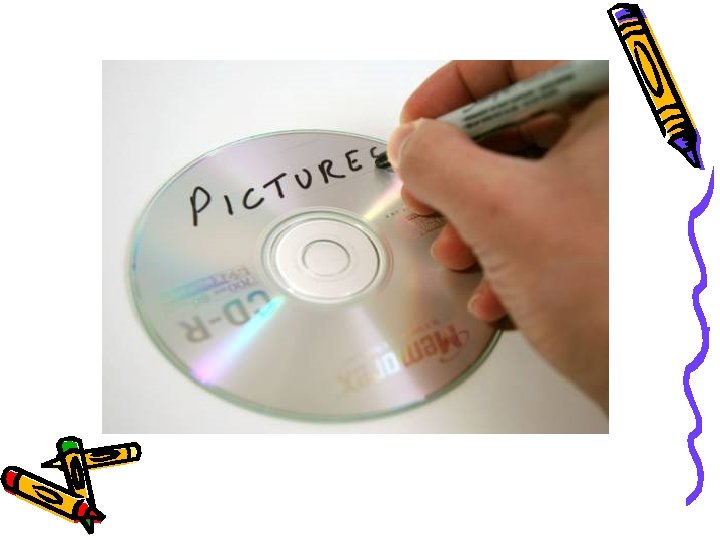
CD ROM: • CD ROMs are read only storage medium. • Typically, a CD ROM holds up to 650 MB of information. • While information retrieval is faster than from a floppy disk, it is still not as fast as from the hard drive.
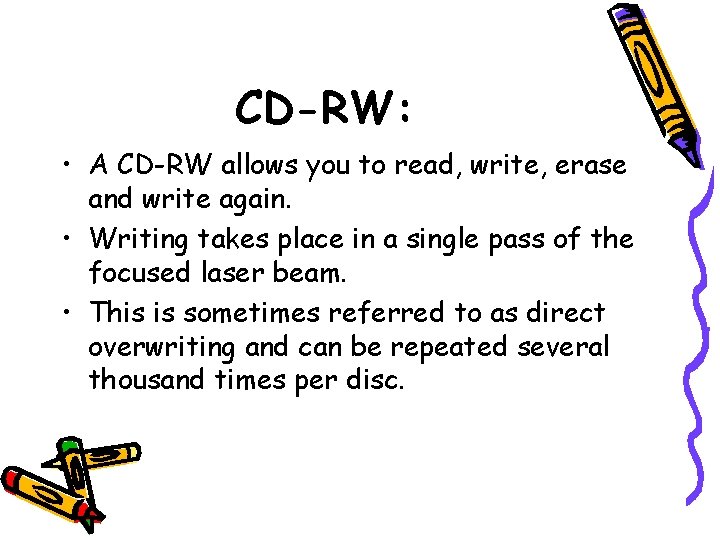
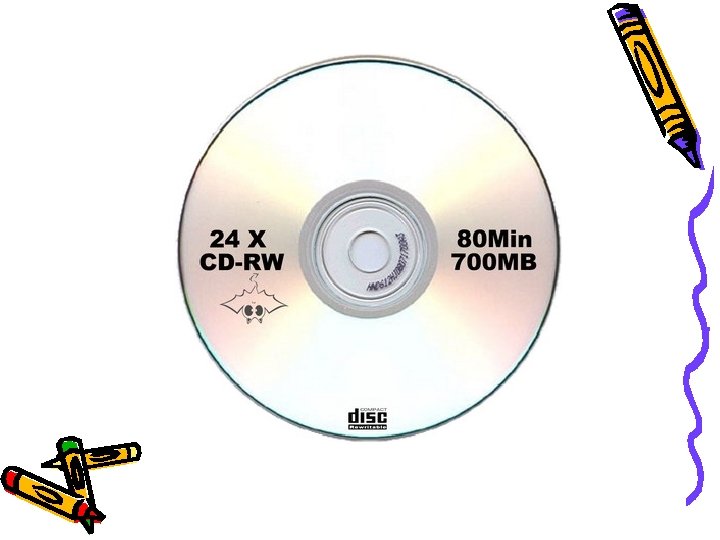
CD-RW: • A CD-RW allows you to read, write, erase and write again. • Writing takes place in a single pass of the focused laser beam. • This is sometimes referred to as direct overwriting and can be repeated several thousand times per disc.
Computer Software: • Software is: • What makes the computer work. • Software consists of an organized list of instructions that causes the computer to behave in a predetermined manner. • For work, for play, for kids, and for adults. • A computer game you play or a word processing program.
• Often divided into two categories: system software and application software. • System software includes the operating system, compilers and utilities that enable the computer to function.
• Application software includes programs that perform specific tasks (e. g. , games, word processors, spreadsheets, and databases). • Figuratively speaking, application software sits on top of system software because the computer is unable to run without the operating system and system utilities.
End of the Lecture ?