
Introduction to Computer Science Computer Software Lecture b
Introduction to Computer Science Computer Software Lecture b This material (Comp 4 Unit 3) was developed by Oregon Health & Science University, funded by the Department of Health and Human Services, Office of the National Coordinator for Health Information Technology under Award Number 90 WT 0001. This work is licensed under the Creative Commons Attribution-Non. Commercial-Share. Alike 4. 0 International License. To view a copy of this license, visit http: //creativecommons. org/licenses/by-nc-sa/4. 0/.
Computer Software Learning Objectives - 1 • Define computer software and major software types (Lecture a) • Describe application software classification and provide examples, including those focused on health care (Lecture a) 2
Computer Software Learning Objectives - 2 • Define what an operating system (OS) is (Lecture b) • Explain the features and functions of operating systems (Lecture b) • Classify operating systems (Lecture c) • Describe commonly used operating systems (Lecture c) 3
Computer Software Learning Objectives - 3 • Describe types and major attributes of files (Lecture d) • Explain the purpose of file systems (Lecture d) • Provide file management tips (Lecture d) • Identify different implementations of file systems (Lecture d) 4

System Software • Programs that control and maintain operations of computers • Two types – Operating Systems – Utility Programs 5
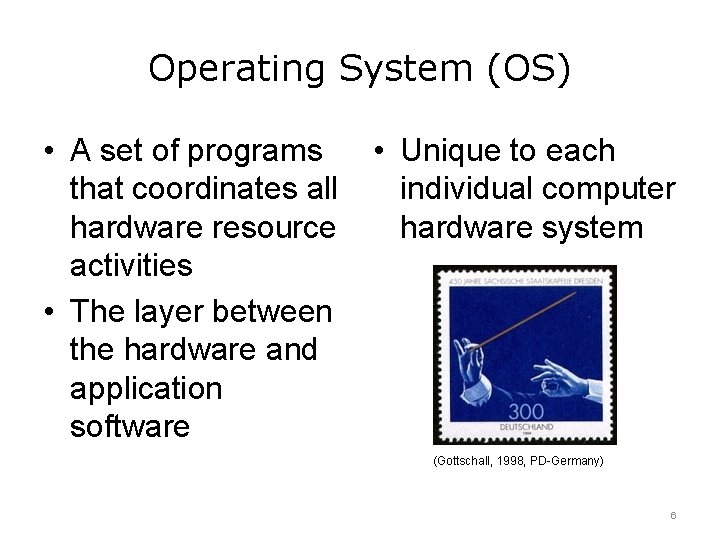
Operating System (OS) • A set of programs that coordinates all hardware resource activities • The layer between the hardware and application software • Unique to each individual computer hardware system (Gottschall, 1998, PD-Germany) 6
Example: Printing from Word Processor - 1 1. Start the word processor – User clicks on the word processor icon – OS finds, loads, and starts the program (Rollandin, 2010, PD-US) 7
Example: Printing from Word Processor - 2 2. Open the document – User selects the document to open; word processor sends request for the document to the OS – The OS finds document on the hard disk, loads it, and sends it back to word processor – The word processor displays the document (Rollandin, 2010, PD-US) 8
Example: Printing from Word Processor - 3 3. Print the document – User selects print; word processor tells OS to print document – The OS sends the document to printer – The printer prints it (Rollandin, 2010, PD-US) 9
Functions of an OS • • Provides an interface with user Boots the computer Configures and manages devices Manages processes, hardware resources, memory, and files • Provides computer security 10
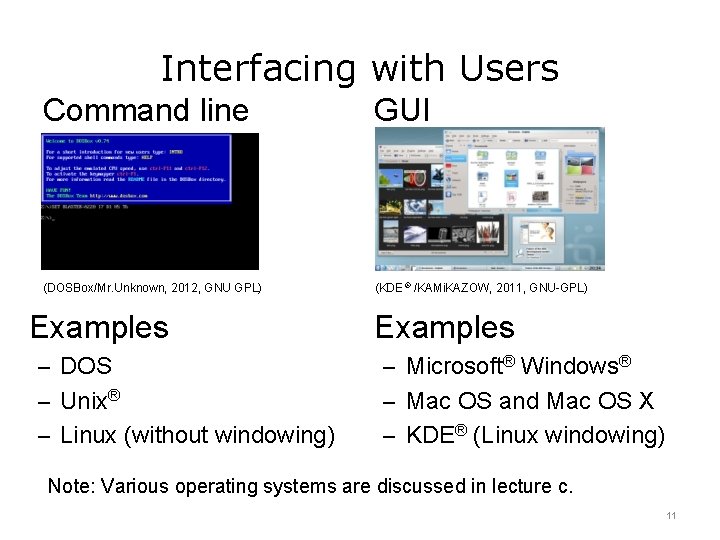
Interfacing with Users Command line GUI (DOSBox/Mr. Unknown, 2012, GNU GPL) (KDE ® /KAMi. KAZOW, 2011, GNU-GPL) Examples – DOS – Microsoft® Windows® – Unix® – Mac OS and Mac OS X – Linux (without windowing) – KDE® (Linux windowing) Note: Various operating systems are discussed in lecture c. 11
Booting the Computer - 1 • Booting is the first task when you turn on the computer • Booting starts the Basic Input/Output System (BIOS) – Set of instructions stored in Read-Only Memory (ROM) ROM persists after the computer is turned off o ROM is mounted on the motherboard o 12
Booting the Computer - 2 • The BIOS starts the OS: – The “kernel” gets started and runs as long as the computer is powered on – Other utility programs are started later as needed – Detects devices and ensures they are configured properly or prompts the user • Other applications are launched – Determined by startup scripts 13
Configuring Devices • Devices: Hardware components connected to the computer – Printer, scanner, etc. • OS configures devices – Device drivers: small programs used by the OS to communicate with and control the device – Drivers are unique to the OS (and version) and hardware 14
Device Drivers • Install new device drivers when: – Device driver is corrupted or overwritten – System changes occur – New/upgraded computer – New/upgraded device – Upgrade OS • If an updated driver is not available, frequently the device becomes obsolete 15
Managing Processes • Processes are programs that are running • Most PCs have operating systems that are single user/multitasking – One user – Multiple programs/processes running at once • The OS has to manage which process is active (foreground process) and which are not (background processes) 16
Managing Resources - 1 • Computer resources: – CPU (there may be more than one) – Memory – Devices – Disk storage – Network interface • The OS controls processes; processes control resources 17
Managing Resources - 2 • OS implements a scheduler for the processes so that each process gets a share of CPU time – Gives the illusion that multiple programs are running at the same time • OS controls how devices are shared among processes • OS provides access to memory, disk storage, and the network 18
Processes View • Every OS provides a way to view running processes and the resources they use – Microsoft Windows has Task Manager – Mac OS has Activity Monitor/Process Viewer – Unix/Linux have the “top” command 19
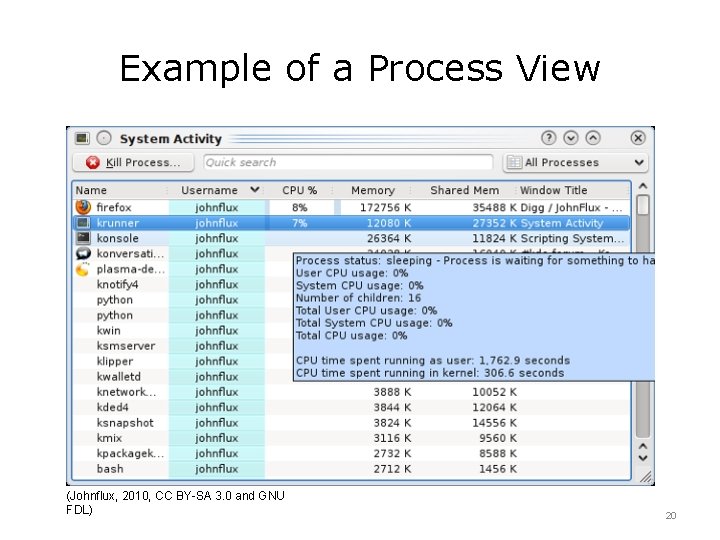
Example of a Process View (Johnflux, 2010, CC BY-SA 3. 0 and GNU FDL) 20
Managing Memory - 1 • The OS manages memory – Accessing/addressing data – Retrieving/storing data to/from memory (bsantos, 2007, PD-US) 21
Managing Memory - 2 • Modern operating systems use virtual memory to give the illusion of more memory – Virtual memory is larger than (bsantos, 2007, PD-US) physical memory – OS maps virtual memory to physical memory – Uses hard disk space (“swap space”) for the part of virtual memory not currently loaded into physical memory (RAM) 22
Managing Memory - 3 • “Swapping”: when instructions/data in “swap space” are loaded into RAM and some other instructions/data previously in RAM are saved in the “swap space” (bsantos, 2007, PD-US) – Memory intensive – Can cause system slowdown – Adding RAM can speed things up 23
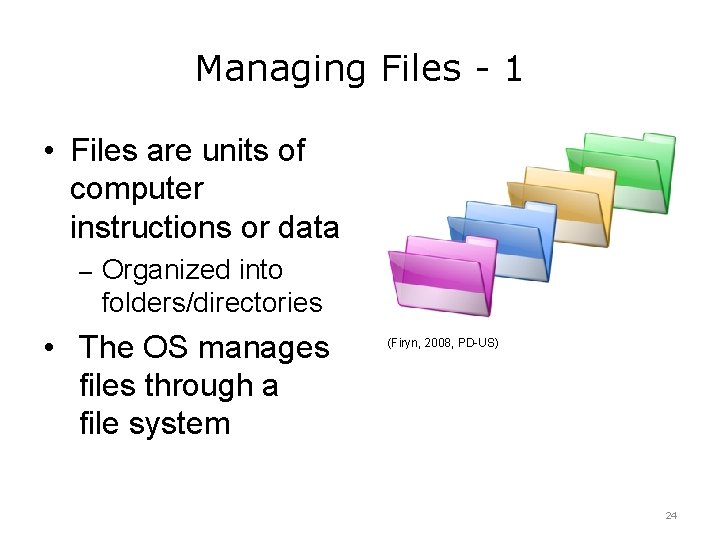
Managing Files - 1 • Files are units of computer instructions or data – Organized into folders/directories • The OS manages files through a file system (Firyn, 2008, PD-US) 24
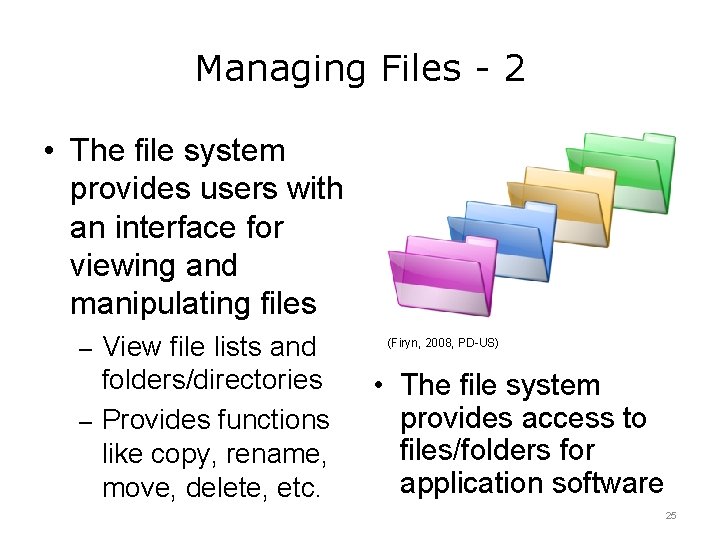
Managing Files - 2 • The file system provides users with an interface for viewing and manipulating files – View file lists and folders/directories – Provides functions like copy, rename, move, delete, etc. (Firyn, 2008, PD-US) • The file system provides access to files/folders for application software 25
Providing Security - 1 • OS: – Provides low- level – – security All processes related to OS run in (juanjo, 2006, PD-US) system mode Users can be assigned different levels of access to the computer Can be configured to update automatically Can include integrated firewall 26
Providing Security - 2 • Still need standalone security applications – Anti-malware o Anti-virus o Anti-spyware (juanjo, 2006, PD-US) 27
Utility Programs - 1 • Software that performs a system maintenance task – Backing up files, diagnosing system (warszawianka, 2010, PD-US) problems, searching for a file, compressing files, etc. • Can provide accessibility features 28
Utility Programs - 2 • Can be included in OS or added as a stand-alone program (warszawianka, 2010, PD-US) 29
Computer Software Summary - Lecture b • Operating systems control the functions of computers • They act as an intermediary between the hardware and the software • They also provide a way for the user to interact with the computer • There are many different versions and brands of operating systems 30
Computer Software References – 1 – Lecture b References Evans A, Martin K, Poatsey MA. (2010). Chapter 5: Using System Software: The Operating System, Utility Programs and File Management. In: Technology in Action: Complete. 7 th ed. New Jersey: Prentice Hall. KDE. [Webpage]. [updated 2011 Nov 12; cited 2011 Nov 12]. Available from: http: //www. kde. org. The Linux Foundation. [Webpage]. [updated 2011 Nov 12; cited 2011 Nov 12]. Available from: http: //www. linuxfoundation. org. Microsoft Windows. [Webpage]. [updated 2011 Nov 9; cited 2011 Nov 12]. Available from: http: //windows. microsoft. com/en-US/windows/home. Morley Deborah, Parker Charles S. (2010). Chapter 6: System Software: Operating Systems and Utility Programs. In: Understanding Computers Today and Tomorrow. 12 th ed. Boston: Course Technology. OS X. [Webpage]. [updated 2011 Nov 12; cited 2011 Nov 12]. Available from: http: //www. apple. com/macosx/. Parsons JJ, Oja D. (2010). Chapter 4: Operating Systems and File Management. In: New Perspectives on Computer Concepts 2011: Comprehensive. 13 th ed. Boston: Course Technology. 31
Computer Software References – 2 – Lecture b References Shelley GB, Vermaat ME. (2010). Chapter 8: Operating Systems and Utility Programs. In: Discovering Computers 2011: Introductory. 1 st ed. Boston: Course Technology. The Unix System Homepage. [Webpage]. [updated 2011 Nov 12; cited 2011 Nov 12]; Available from: http: //opengroup. org/unix. Why booting is called booting. (2012, March 11). Retrieved May 1, 2016, from http: //desktopreality. com/why-booting-is-called-booting/. Windows Embedded Web site. [Webpage]. [2015, cited 2016 Mar 07]; Available from: https: //www. microsoft. com/windowsembedded/en-us/products-solutions-overview. aspx. Images Slides 7 -9: Printer graphic “Architetto – stampante”. [image on the Internet]. Rollandin, F. (2010, March 27). Available from https: //openclipart. org/detail/34507/architetto-stampante. File has been released to the Public Domain. Slide 11: A screenshot of DOSbox v 0. 74. [image on the Internet]. DOSBox [software] and User: Mr. Unknown [image]. (2012, April 11). Retrieved February 24, 2017 from https: //commons. wikimedia. org/wiki/File: DOSBox_screenshot. png. Licensed under the GNU General Public License. Slide 11: A screenshot of KDE Plasma Desktop 4. 4. [image on the Internet]. KDE [software] and User: KAMi. KAZOW [image]. (2010, February 9). Retrieved from https: //commons. wikimedia. org/wiki/File: Plasma_Desktop_4. 4. jpg. Licensed under the GNU General Public License. 32
Computer Software References – 3 – Lecture b Images Slide 20: A screenshot of KDE System Activity. [image on the Internet]. KDE [software] and User: Johnflux. (2010, January 10). Available at https: //userbase. kde. org/images. userbase/archive/2/20/20130124232812%21 System activity_tooltip. png. Licensed under the GNU Free Documentation License 1. 2 and Creative Commons Attribution-Share. Alike 3. 0 Unported License Slides 21 -23: Empty Box Thinking. [image on the Internet]. bsantos. (2007, September 4). Available at https: //openclipart. org/detail/5173/empty-box-thinking. File has been released to the Public Domain. Slides 24 -25: Simple Green Yellow Blue Violet Folders. [image on the Internet]. Firyn, B (user: sarxos). (2008, February 12). Available at https: //openclipart. org/detail/13763/simple-green-yellow-blue-violet-folders. File has been released to the Public Domain. Slides 26 -27: Firewall. [image on the Internet]. juanjo. (2006, December 7). Available at https: //openclipart. org/detail/1919/firewall. File has been released to the Public Domain. Slide 28: System preferences icon from Tango Project. [image on the Internet]. warzawianka. (2010, March 29). Available at https: //openclipart. org/detail/35431/tango-preferences-system. File has been released to the Public Domain. 33
Introduction to Computer Science Computer Software Lecture b This material was developed by Oregon Health & Science University, funded by the Department of Health and Human Services, Office of the National Coordinator for Health Information Technology under Award Number 90 WT 0001. 34
- Slides: 34