
Introduction to Computer Application II Source Dr Hustinawaty

![Adding Link <A HREF = “URL” [ TARGET = “name frame” ] >. .](https://slidetodoc.com/presentation_image_h2/9e798240309eacccbcb988f01d2226ca/image-32.jpg "Adding Link <A HREF = “URL” [ TARGET = “name frame” ] >. .")
- Slides: 53
Introduction to Computer Application II Source Dr. Hustinawaty http: //staffsite. gunadarma. ac. id/hustina
Today‘s Subject • Power Point » Practice » Presentation • Summary Internet Application • HTML Program » Practice
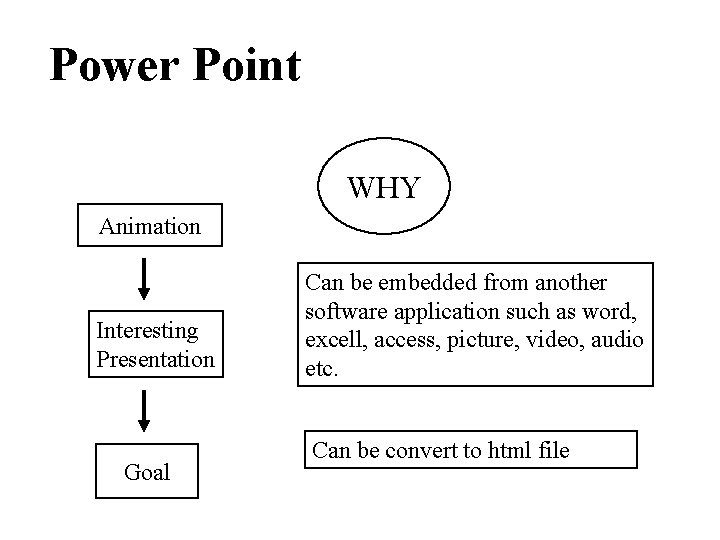
Power Point WHY Animation Interesting Presentation Goal Can be embedded from another software application such as word, excell, access, picture, video, audio etc. Can be convert to html file
Power Point Create a new presentation Learning one by one from Menu in Power Point Learning some features from Power Point such as: • Adding Picture • Adding Word Art Practice to make a presentation and present it in front of class
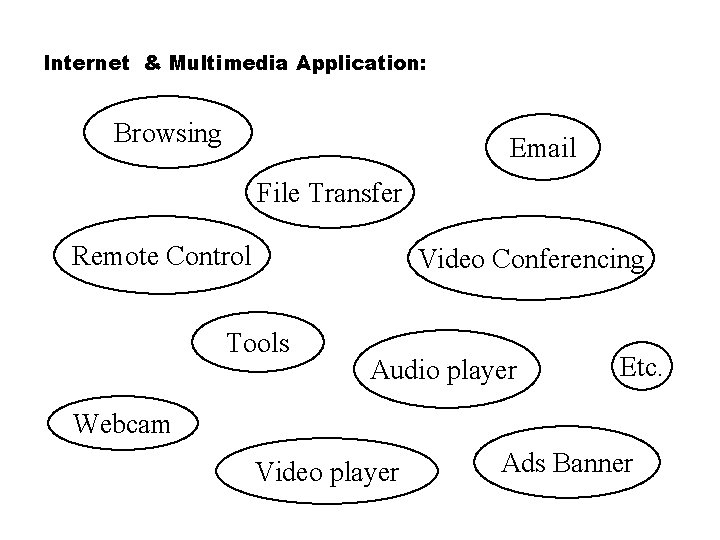
Internet & Multimedia Application: Browsing Email File Transfer Remote Control Video Conferencing Tools Audio player Etc. Webcam Video player Ads Banner
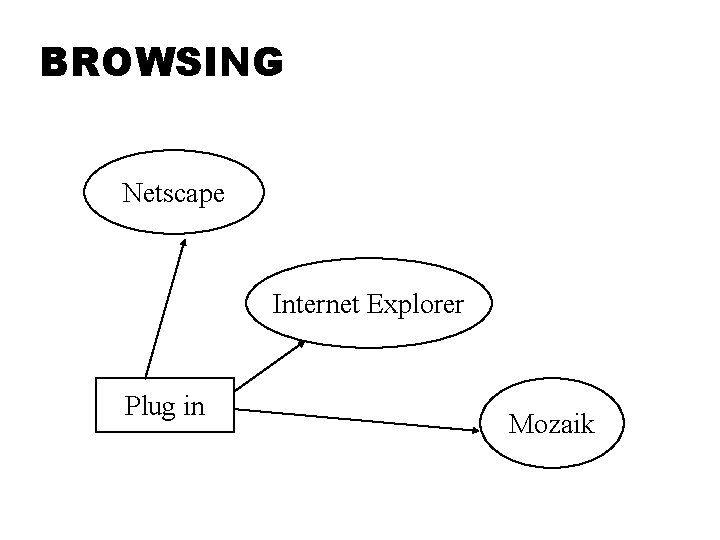
BROWSING Netscape Internet Explorer Plug in Mozaik
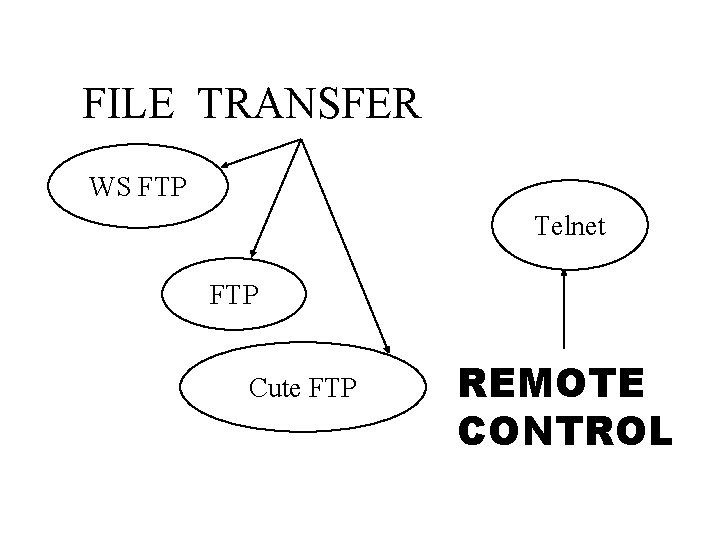
FILE TRANSFER WS FTP Telnet FTP Cute FTP REMOTE CONTROL
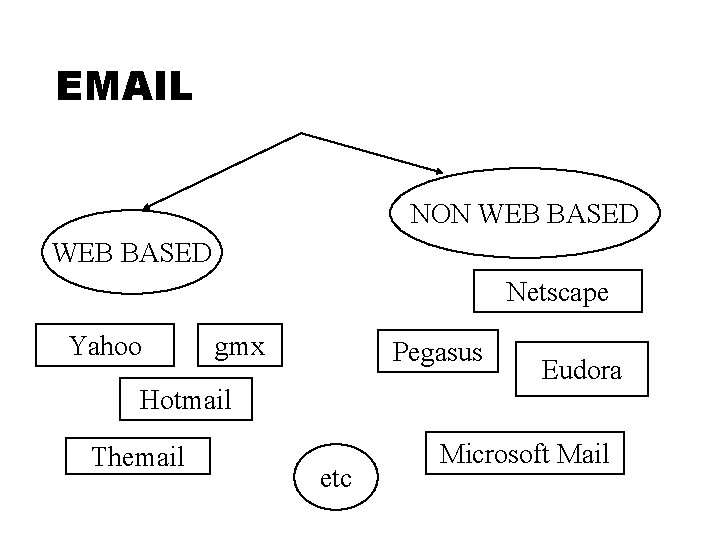
EMAIL NON WEB BASED Netscape Yahoo gmx Pegasus Hotmail Themail etc Eudora Microsoft Mail
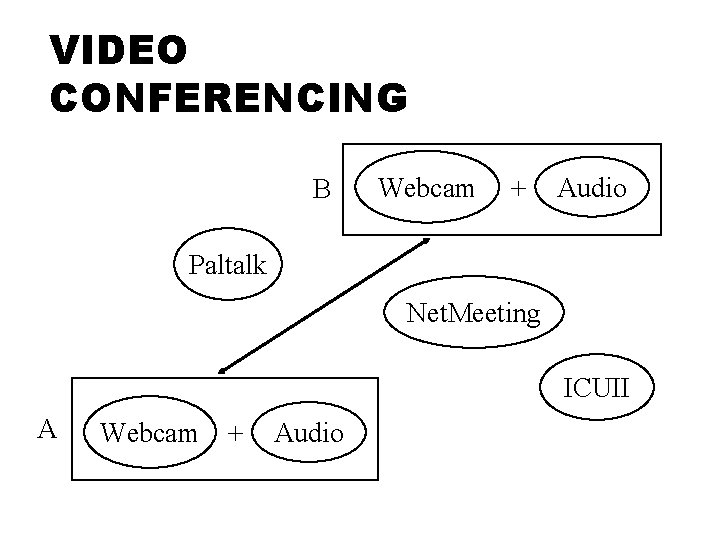
VIDEO CONFERENCING B Webcam + Audio Paltalk Net. Meeting ICUII A Webcam + Audio
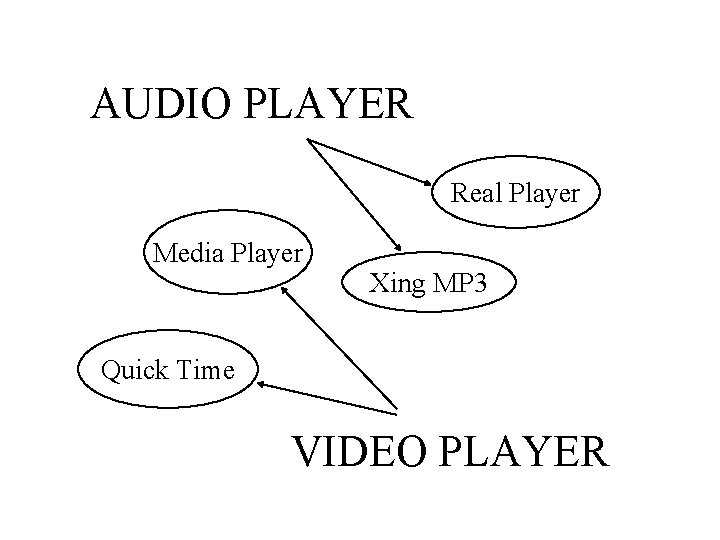
AUDIO PLAYER Real Player Media Player Xing MP 3 Quick Time VIDEO PLAYER
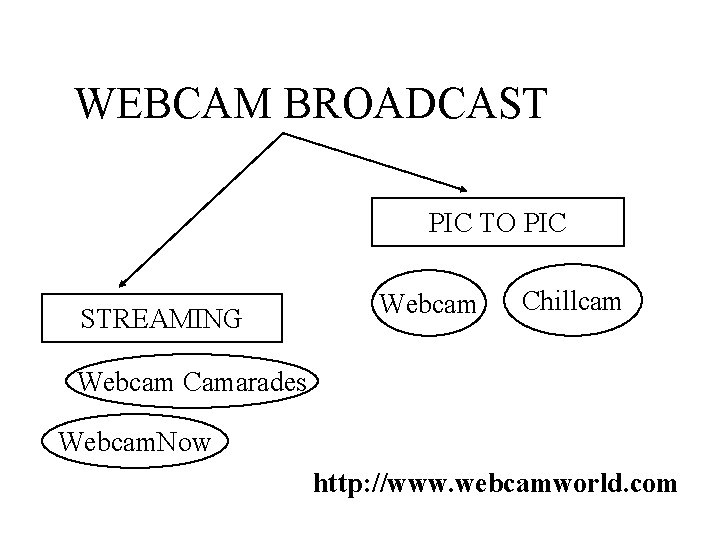
WEBCAM BROADCAST PIC TO PIC STREAMING Webcam Chillcam Webcam Camarades Webcam. Now http: //www. webcamworld. com
HTML Program Create a simple homepage to introduce your self with these features: » A Simple HTML » Heading, Font style, Font size » Color background » Order list and Unorder list » Hyperlink for email or for another homepage site » Adding Picture/ Image » Adding Animation » Adding Table
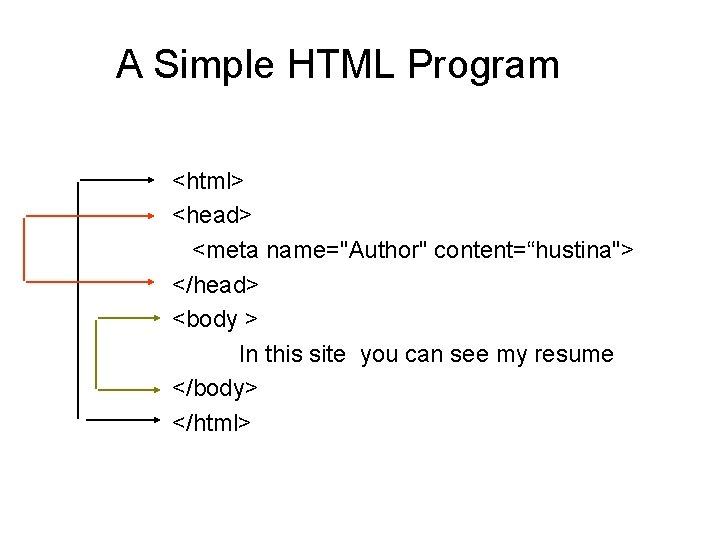
A Simple HTML Program <html> <head> <meta name="Author" content=“hustina"> </head> <body > In this site you can see my resume </body> </html>
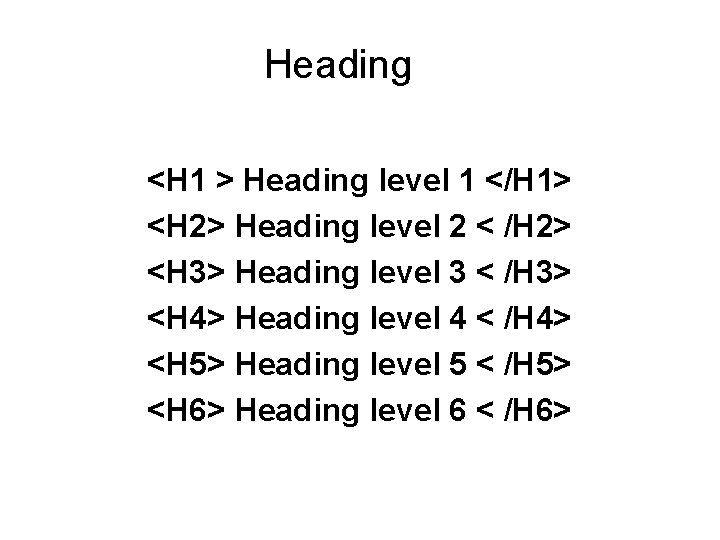
Heading <H 1 > Heading level 1 </H 1> <H 2> Heading level 2 < /H 2> <H 3> Heading level 3 < /H 3> <H 4> Heading level 4 < /H 4> <H 5> Heading level 5 < /H 5> <H 6> Heading level 6 < /H 6>
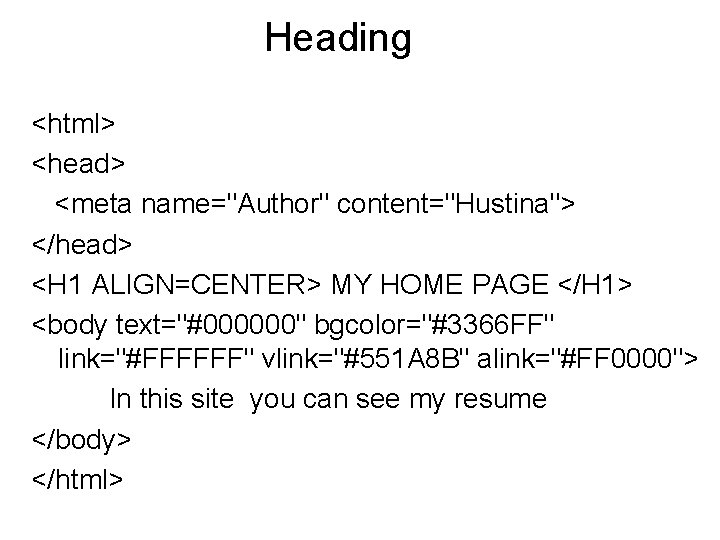
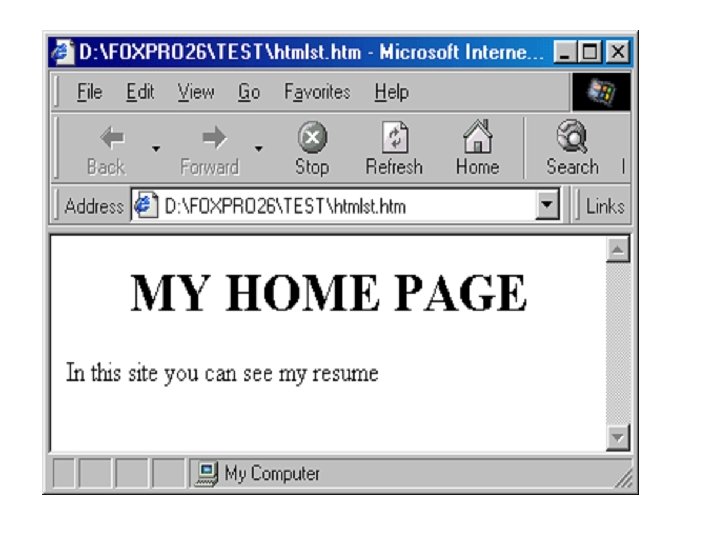
Heading <html> <head> <meta name="Author" content="Hustina"> </head> <H 1 ALIGN=CENTER> MY HOME PAGE </H 1> <body text="#000000" bgcolor="#3366 FF" link="#FFFFFF" vlink="#551 A 8 B" alink="#FF 0000"> In this site you can see my resume </body> </html>
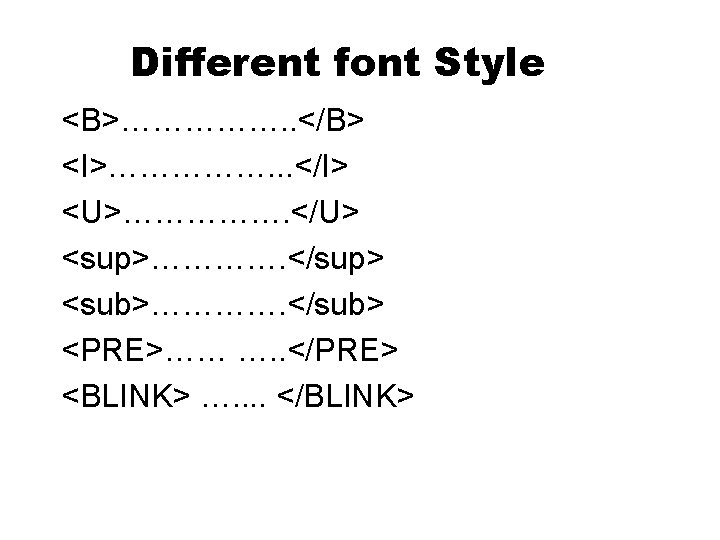
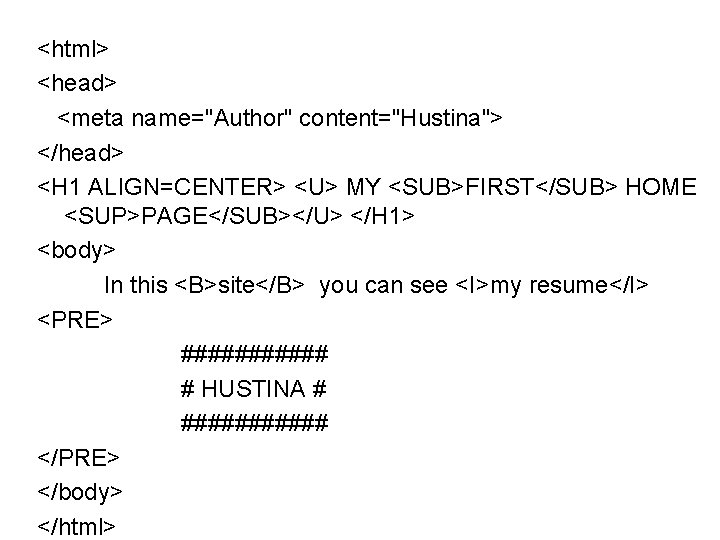
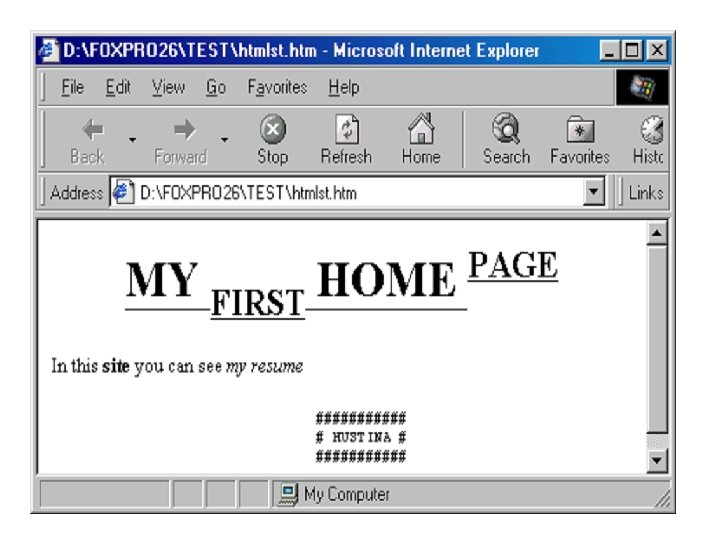
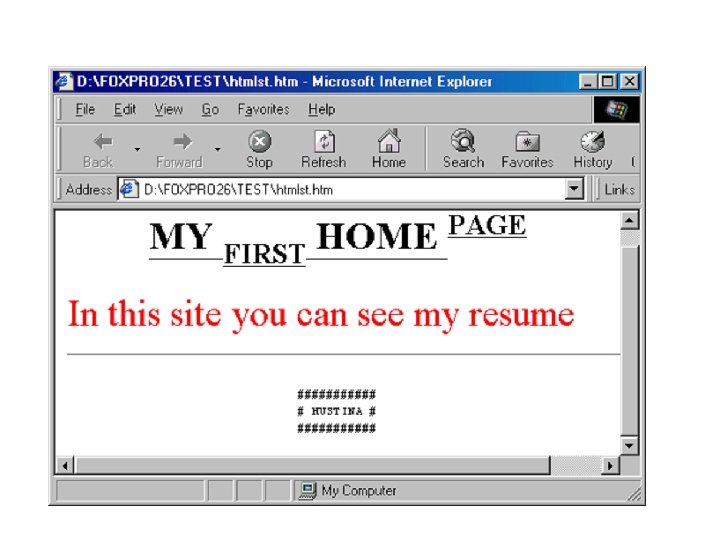
<html> <head> <meta name="Author" content="Hustina"> </head> <H 1 ALIGN=CENTER> <U> MY <SUB>FIRST</SUB> HOME <SUP>PAGE</SUB></U> </H 1> <body> In this <B>site</B> you can see <I>my resume</I> <PRE> ###### # HUSTINA # ###### </PRE> </body> </html>
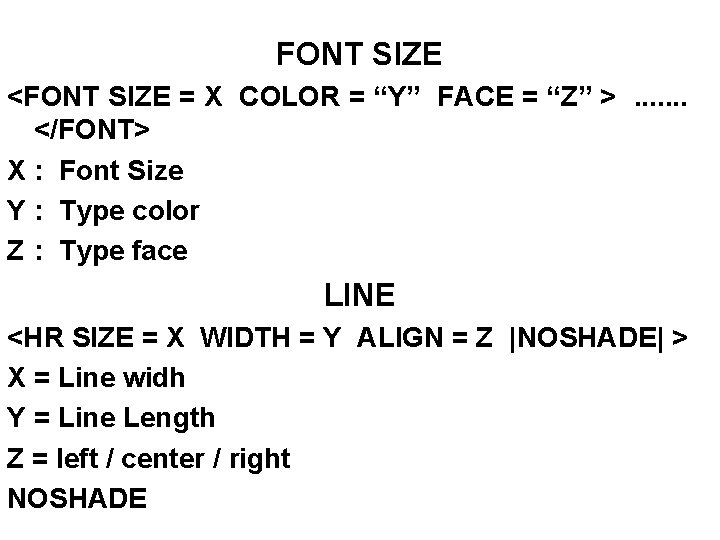
FONT SIZE <FONT SIZE = X COLOR = “Y” FACE = “Z” >. . . . </FONT> X : Font Size Y : Type color Z : Type face LINE <HR SIZE = X WIDTH = Y ALIGN = Z |NOSHADE| > X = Line widh Y = Line Length Z = left / center / right NOSHADE
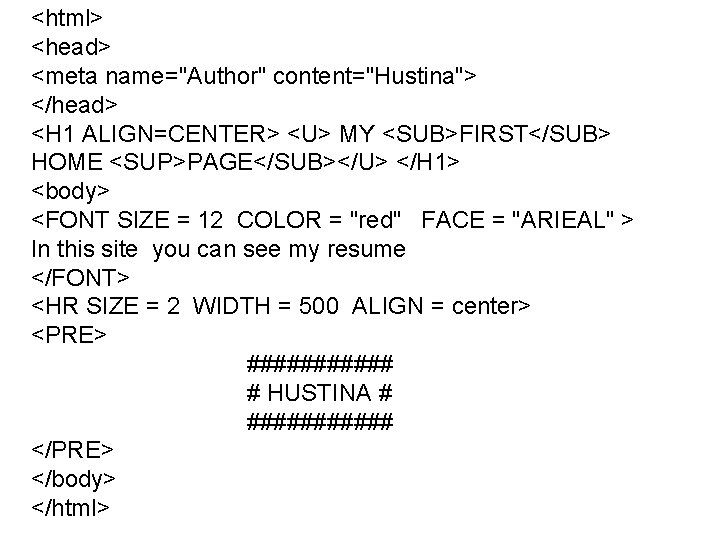
<html> <head> <meta name="Author" content="Hustina"> </head> <H 1 ALIGN=CENTER> <U> MY <SUB>FIRST</SUB> HOME <SUP>PAGE</SUB></U> </H 1> <body> <FONT SIZE = 12 COLOR = "red" FACE = "ARIEAL" > In this site you can see my resume </FONT> <HR SIZE = 2 WIDTH = 500 ALIGN = center> <PRE> ###### # HUSTINA # ###### </PRE> </body> </html>
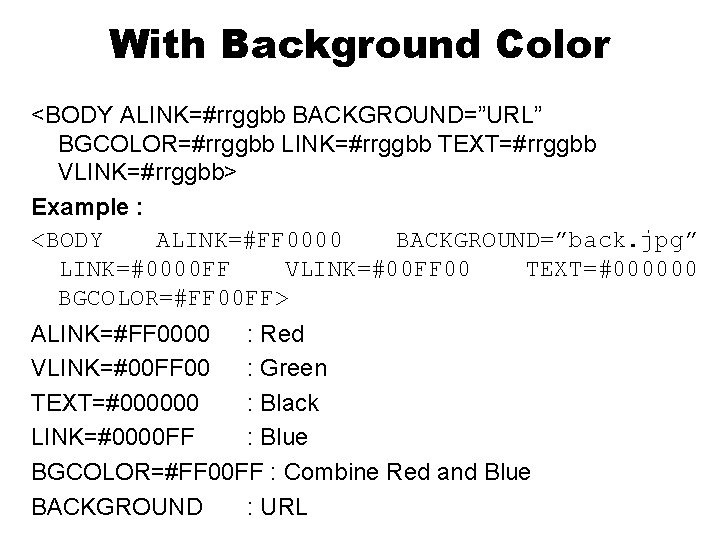
With Background Color <BODY ALINK=#rrggbb BACKGROUND=”URL” BGCOLOR=#rrggbb LINK=#rrggbb TEXT=#rrggbb VLINK=#rrggbb> Example : <BODY ALINK=#FF 0000 BACKGROUND=”back. jpg” LINK=#0000 FF VLINK=#00 FF 00 TEXT=#000000 BGCOLOR=#FF 00 FF> ALINK=#FF 0000 : Red VLINK=#00 FF 00 : Green TEXT=#000000 : Black LINK=#0000 FF : Blue BGCOLOR=#FF 00 FF : Combine Red and Blue BACKGROUND : URL
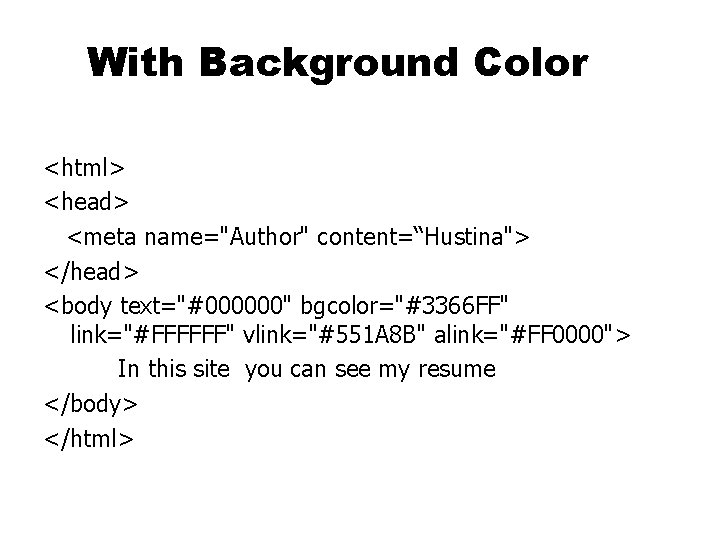
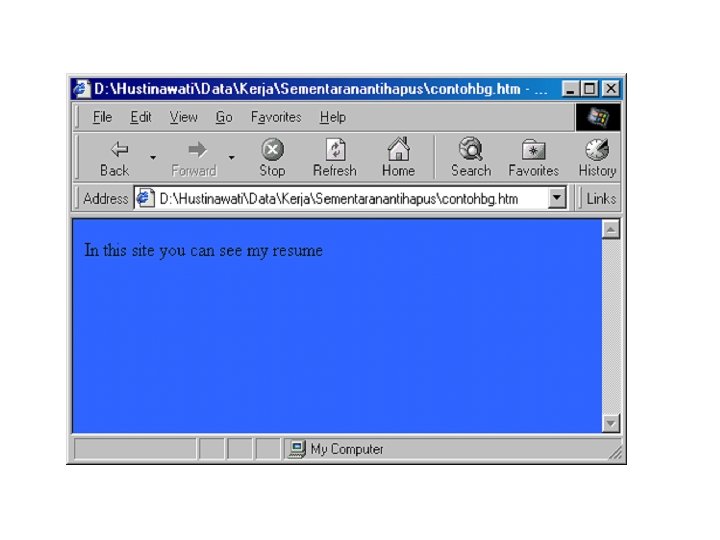
With Background Color <html> <head> <meta name="Author" content=“Hustina"> </head> <body text="#000000" bgcolor="#3366 FF" link="#FFFFFF" vlink="#551 A 8 B" alink="#FF 0000"> In this site you can see my resume </body> </html>
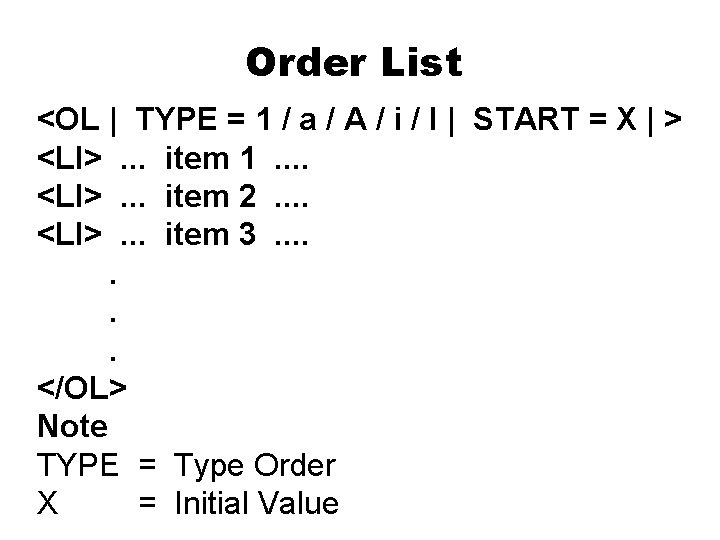
Order List <OL | TYPE = 1 / a / A / i / I | START = X | > <LI>. . . item 1. . <LI>. . . item 2. . <LI>. . . item 3. . . . </OL> Note TYPE = Type Order X = Initial Value
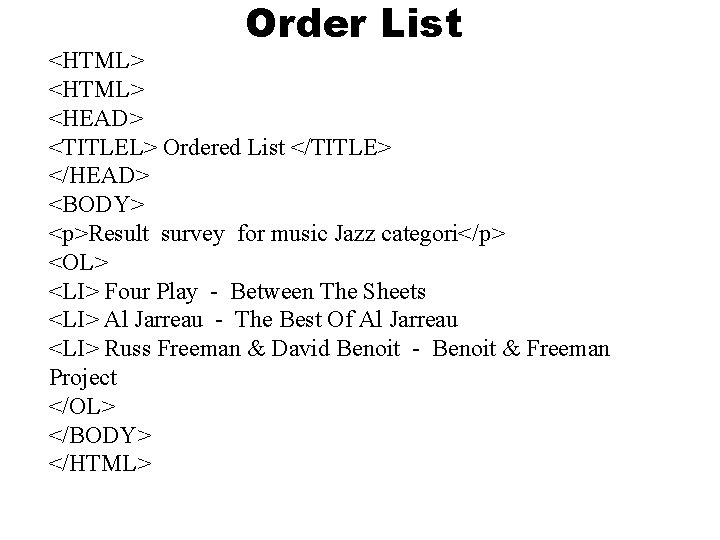
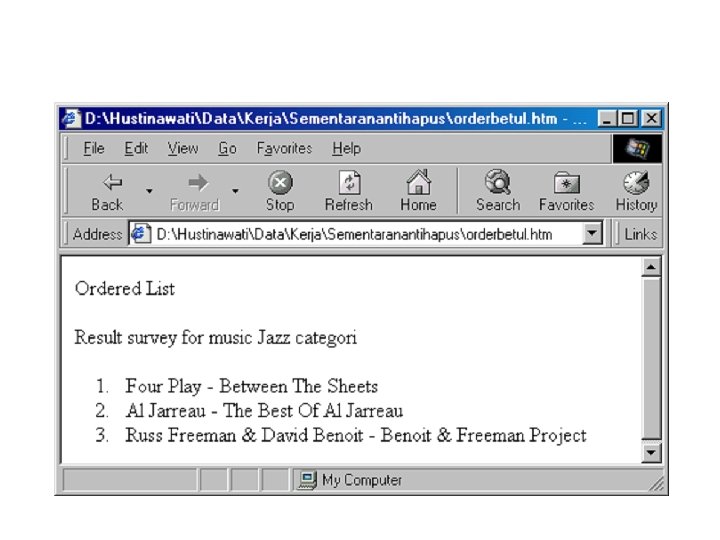
Order List <HTML> <HEAD> <TITLEL> Ordered List </TITLE> </HEAD> <BODY> <p>Result survey for music Jazz categori</p> <OL> <LI> Four Play - Between The Sheets <LI> Al Jarreau - The Best Of Al Jarreau <LI> Russ Freeman & David Benoit - Benoit & Freeman Project </OL> </BODY> </HTML>
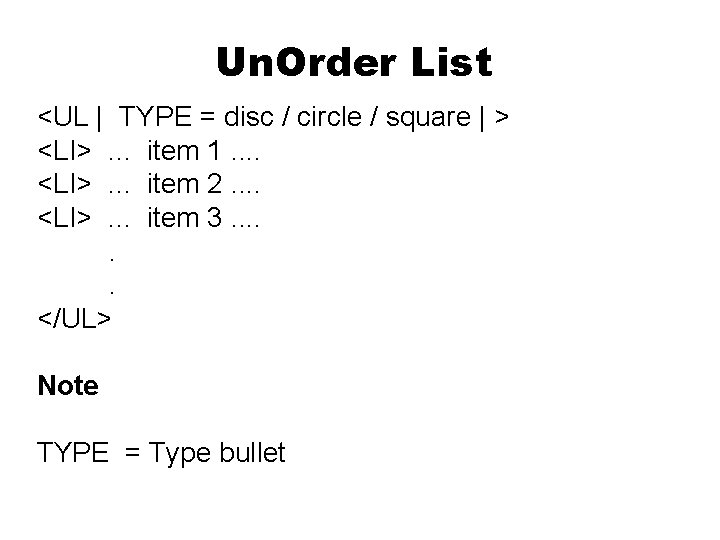
Un. Order List <UL | TYPE = disc / circle / square | > <LI>. . . item 1. . <LI>. . . item 2. . <LI>. . . item 3. . . </UL> Note TYPE = Type bullet
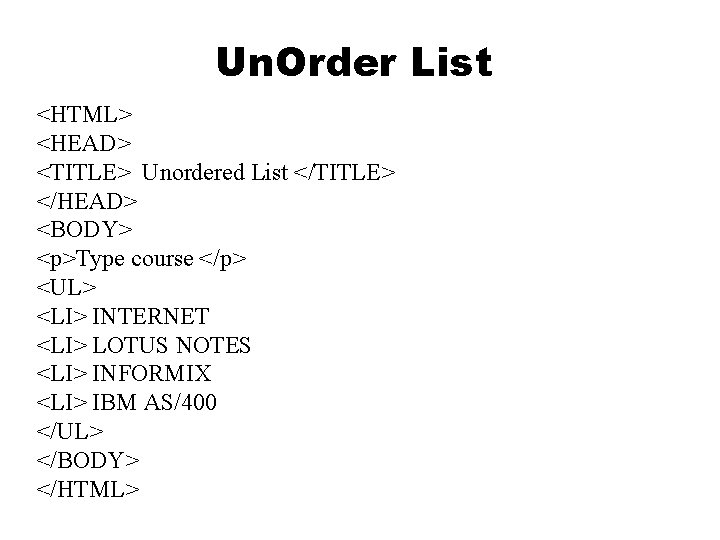
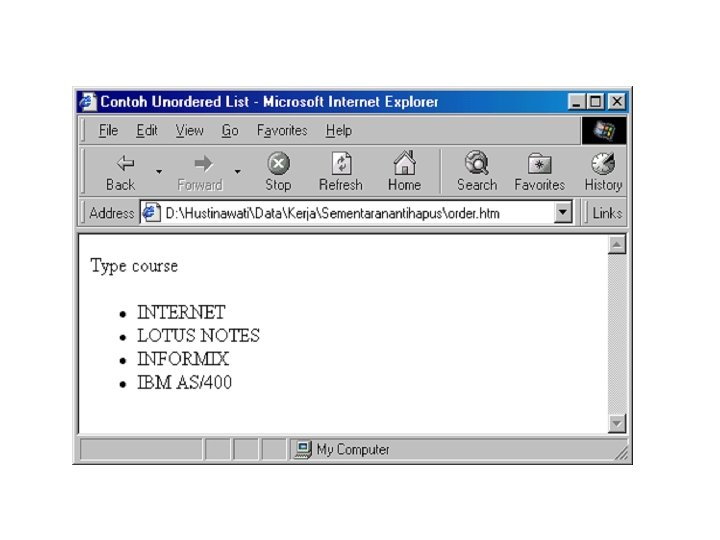
Un. Order List <HTML> <HEAD> <TITLE> Unordered List </TITLE> </HEAD> <BODY> <p>Type course </p> <UL> <LI> INTERNET <LI> LOTUS NOTES <LI> INFORMIX <LI> IBM AS/400 </UL> </BODY> </HTML>
Adding Link <A HREF = “URL” [ TARGET = “name frame” ] >. . . </A> Example: <A HREF = “mailto: webmaster@kursus. gunadarma. ac. id” > Send e-mail ke Webmaster Gunadarma </A> <A HREF = “http: //www. gunadarma. ac. id” > Universitas Gunadarma Homepage </A>
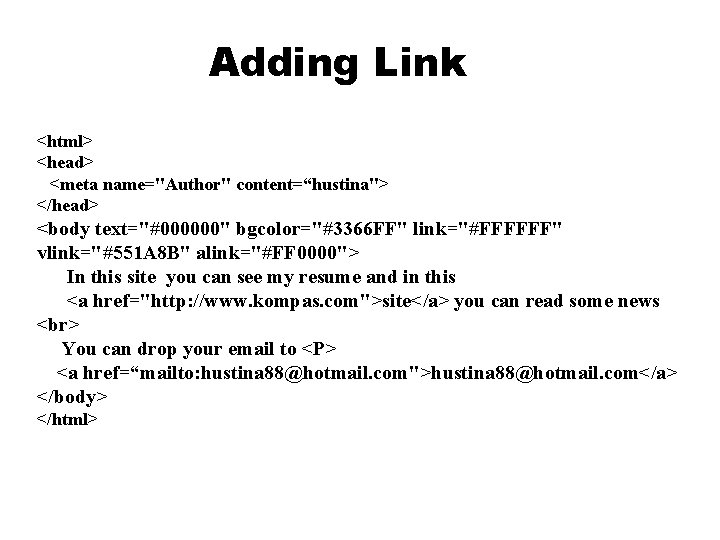
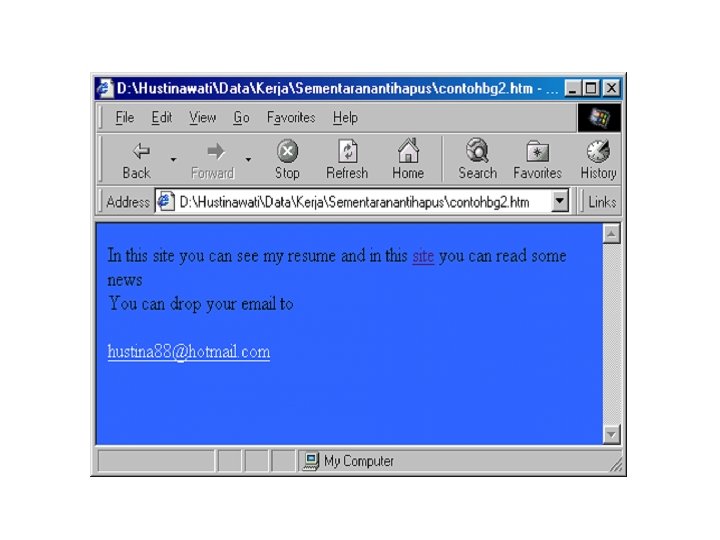
Adding Link <html> <head> <meta name="Author" content=“hustina"> </head> <body text="#000000" bgcolor="#3366 FF" link="#FFFFFF" vlink="#551 A 8 B" alink="#FF 0000"> In this site you can see my resume and in this <a href="http: //www. kompas. com">site</a> you can read some news You can drop your email to <P> <a href=“mailto: hustina 88@hotmail. com">hustina 88@hotmail. com</a> </body> </html>
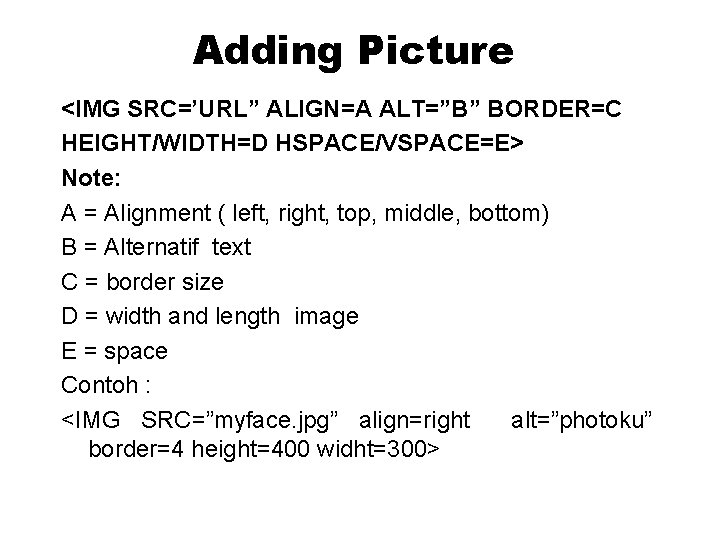
Adding Picture <IMG SRC=’URL” ALIGN=A ALT=”B” BORDER=C HEIGHT/WIDTH=D HSPACE/VSPACE=E> Note: A = Alignment ( left, right, top, middle, bottom) B = Alternatif text C = border size D = width and length image E = space Contoh : <IMG SRC=”myface. jpg” align=right alt=”photoku” border=4 height=400 widht=300>
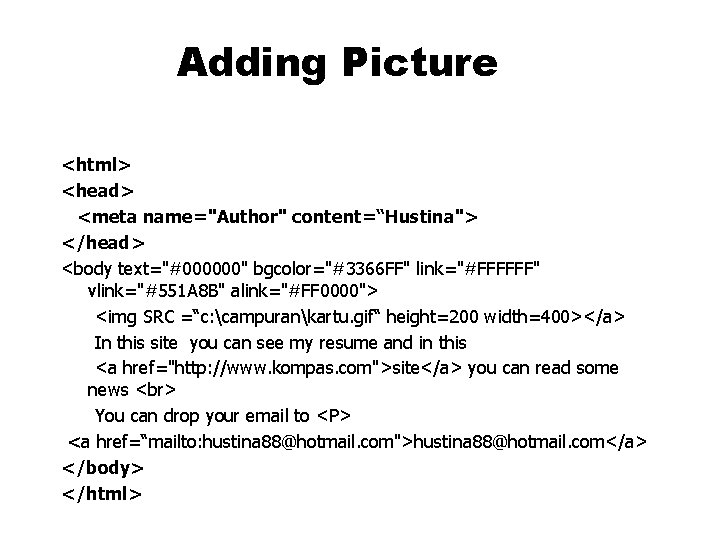
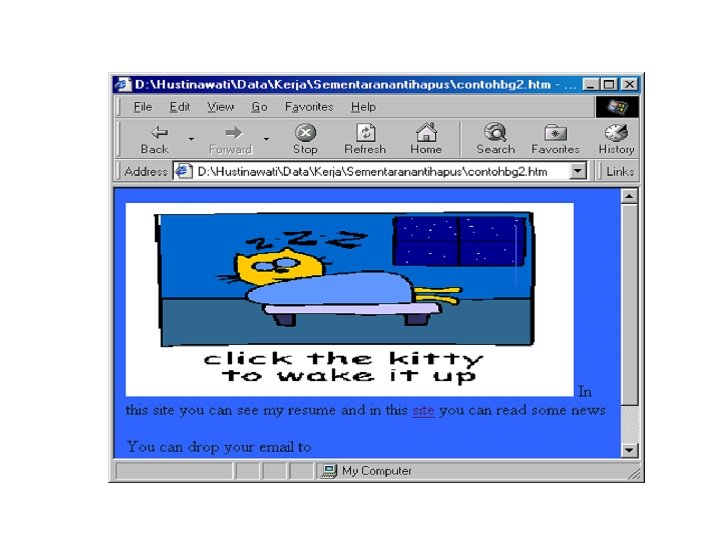
Adding Picture <html> <head> <meta name="Author" content=“Hustina"> </head> <body text="#000000" bgcolor="#3366 FF" link="#FFFFFF" vlink="#551 A 8 B" alink="#FF 0000"> <img SRC =“c: campurankartu. gif“ height=200 width=400></a> In this site you can see my resume and in this <a href="http: //www. kompas. com">site</a> you can read some news You can drop your email to <P> <a href=“mailto: hustina 88@hotmail. com">hustina 88@hotmail. com</a> </body> </html>
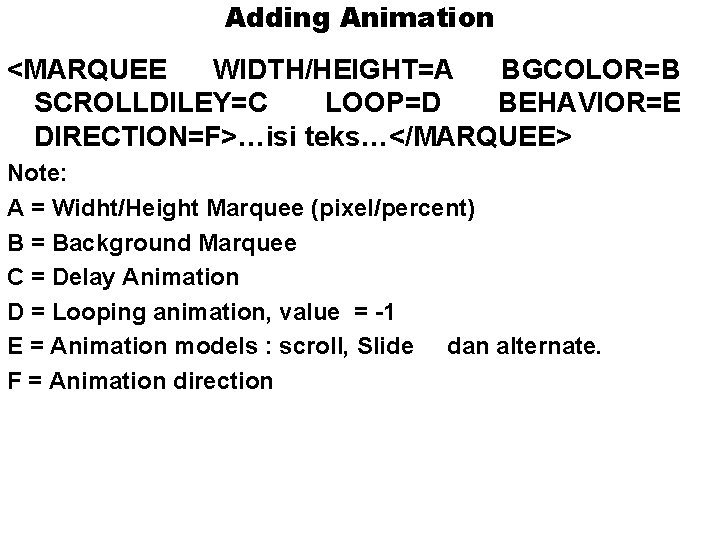
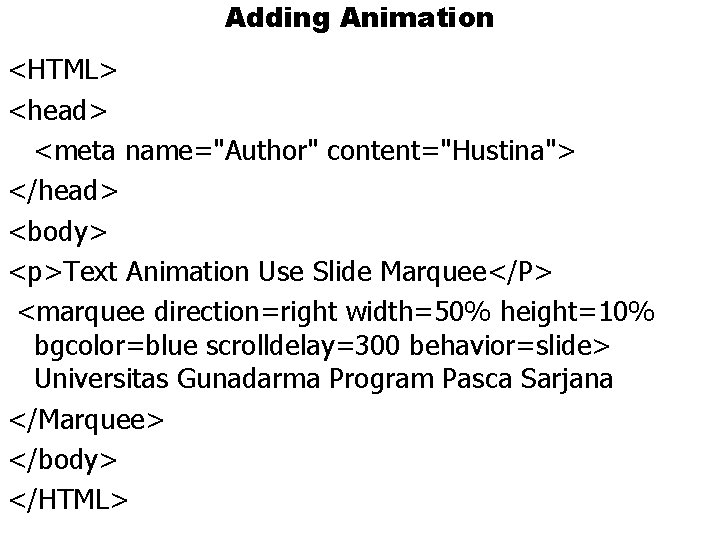
Adding Animation <MARQUEE WIDTH/HEIGHT=A BGCOLOR=B SCROLLDILEY=C LOOP=D BEHAVIOR=E DIRECTION=F>…isi teks…</MARQUEE> Note: A = Widht/Height Marquee (pixel/percent) B = Background Marquee C = Delay Animation D = Looping animation, value = -1 E = Animation models : scroll, Slide dan alternate. F = Animation direction
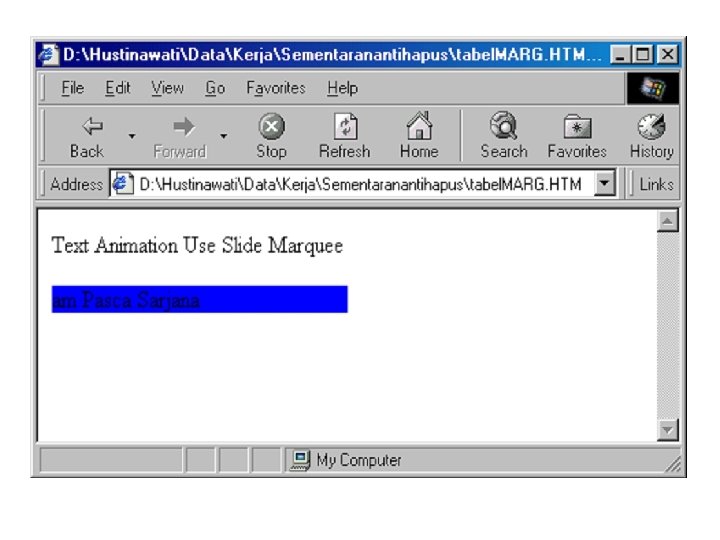
Adding Animation <HTML> <head> <meta name="Author" content="Hustina"> </head> <body> <p>Text Animation Use Slide Marquee</P> <marquee direction=right width=50% height=10% bgcolor=blue scrolldelay=300 behavior=slide> Universitas Gunadarma Program Pasca Sarjana </Marquee> </body> </HTML>
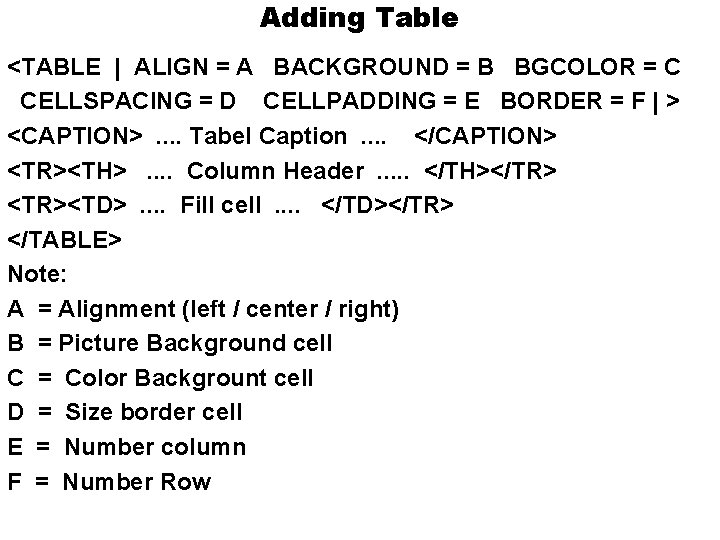
Adding Table <TABLE | ALIGN = A BACKGROUND = B BGCOLOR = C CELLSPACING = D CELLPADDING = E BORDER = F | > <CAPTION>. . Tabel Caption. . </CAPTION> <TR><TH>. . Column Header. . . </TH></TR> <TR><TD>. . Fill cell. . </TD></TR> </TABLE> Note: A = Alignment (left / center / right) B = Picture Background cell C = Color Backgrount cell D = Size border cell E = Number column F = Number Row
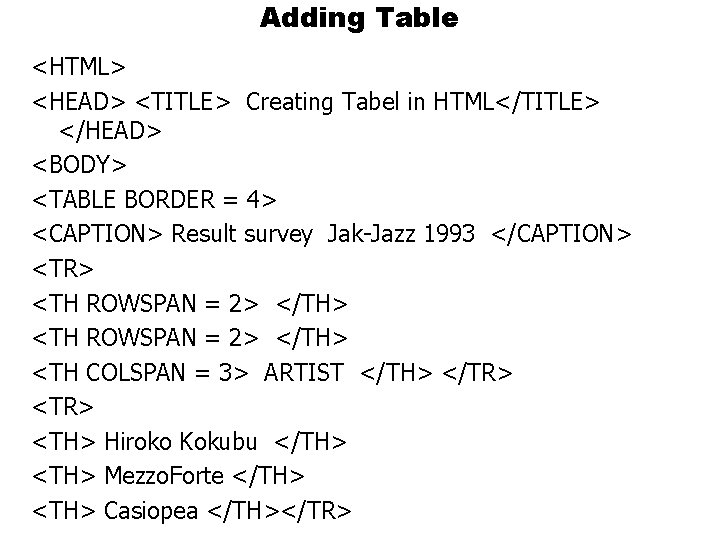
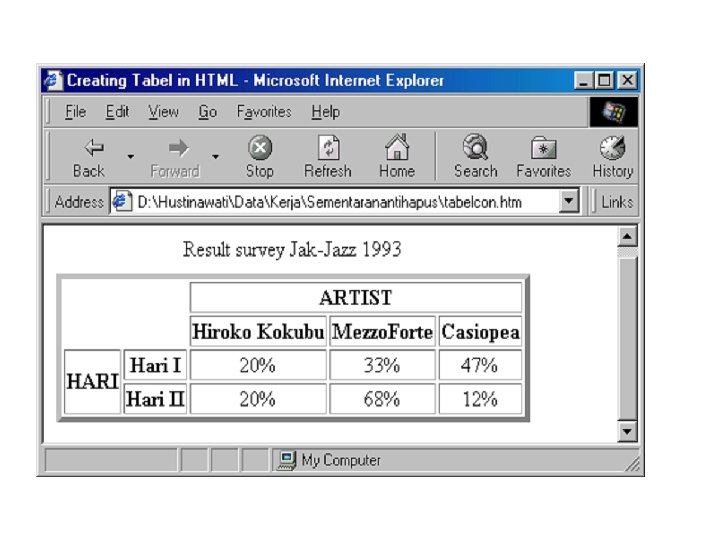
Adding Table <HTML> <HEAD> <TITLE> Creating Tabel in HTML</TITLE> </HEAD> <BODY> <TABLE BORDER = 4> <CAPTION> Result survey Jak-Jazz 1993 </CAPTION> <TR> <TH ROWSPAN = 2> </TH> <TH COLSPAN = 3> ARTIST </TH> </TR> <TH> Hiroko Kokubu </TH> <TH> Mezzo. Forte </TH> <TH> Casiopea </TH></TR>
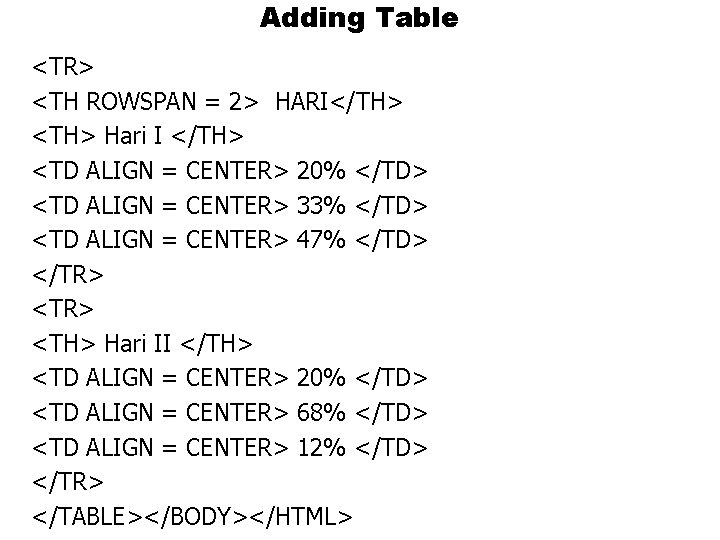
Adding Table <TR> <TH ROWSPAN = 2> HARI</TH> <TH> Hari I </TH> <TD ALIGN = CENTER> 20% </TD> <TD ALIGN = CENTER> 33% </TD> <TD ALIGN = CENTER> 47% </TD> </TR> <TH> Hari II </TH> <TD ALIGN = CENTER> 20% </TD> <TD ALIGN = CENTER> 68% </TD> <TD ALIGN = CENTER> 12% </TD> </TR> </TABLE></BODY></HTML>
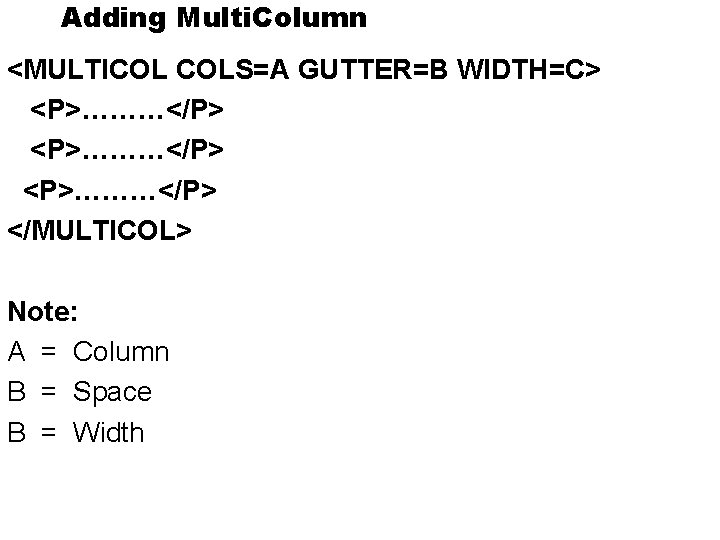
Adding Multi. Column <MULTICOL COLS=A GUTTER=B WIDTH=C> <P>………</P> </MULTICOL> Note: A = Column B = Space B = Width
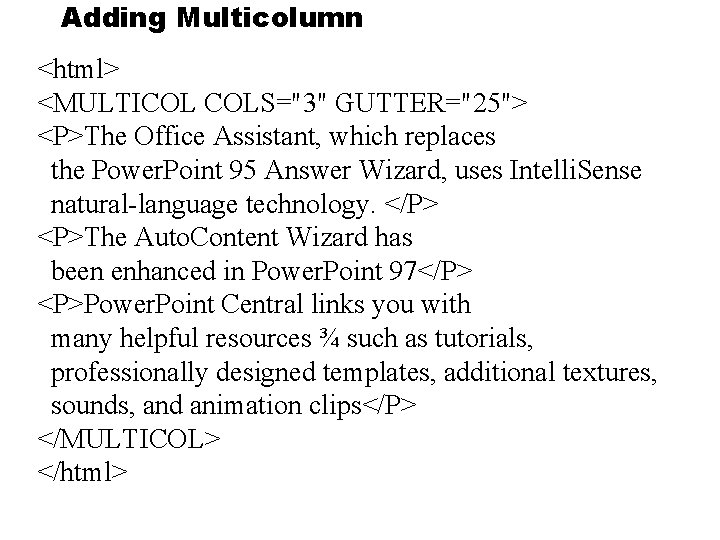
Adding Multicolumn <html> <MULTICOL COLS="3" GUTTER="25"> <P>The Office Assistant, which replaces the Power. Point 95 Answer Wizard, uses Intelli. Sense natural-language technology. </P> <P>The Auto. Content Wizard has been enhanced in Power. Point 97</P> <P>Power. Point Central links you with many helpful resources ¾ such as tutorials, professionally designed templates, additional textures, sounds, and animation clips</P> </MULTICOL> </html>
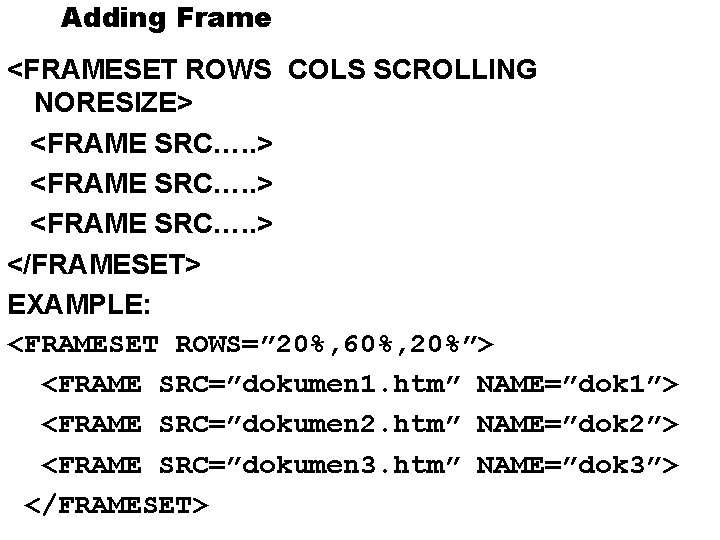
Adding Frame <FRAMESET ROWS COLS SCROLLING NORESIZE> <FRAME SRC…. . > </FRAMESET> EXAMPLE: <FRAMESET ROWS=” 20%, 60%, 20%”> <FRAME SRC=”dokumen 1. htm” NAME=”dok 1”> <FRAME SRC=”dokumen 2. htm” NAME=”dok 2”> <FRAME SRC=”dokumen 3. htm” NAME=”dok 3”> </FRAMESET>
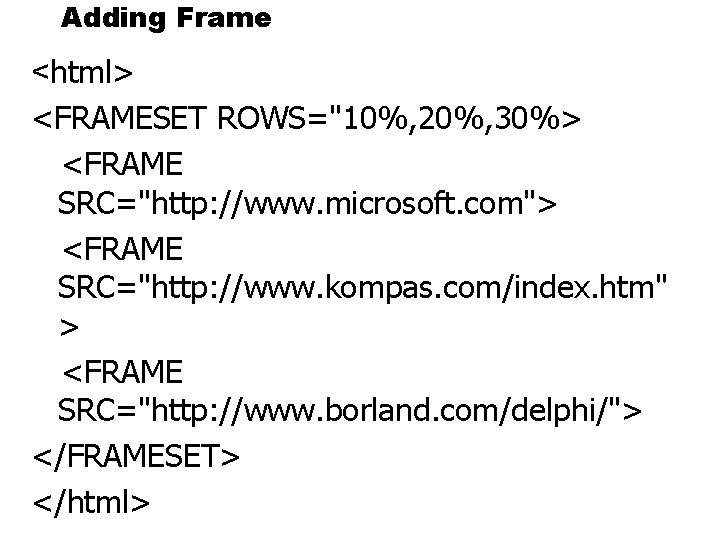
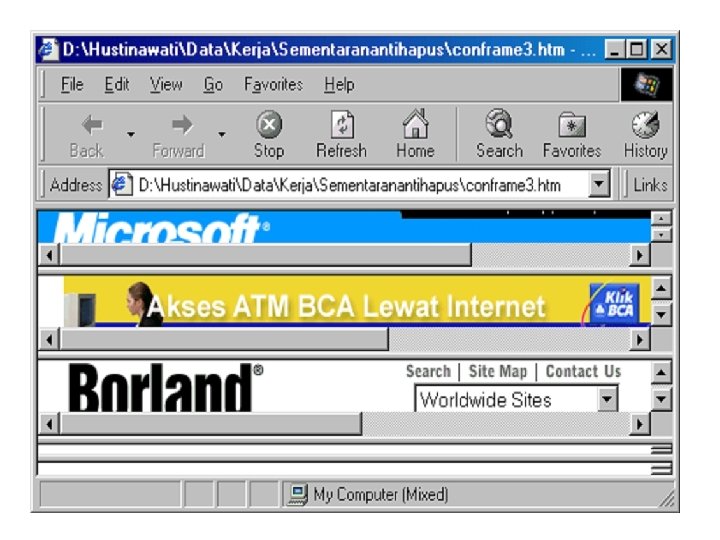
Adding Frame <html> <FRAMESET ROWS="10%, 20%, 30%> <FRAME SRC="http: //www. microsoft. com"> <FRAME SRC="http: //www. kompas. com/index. htm" > <FRAME SRC="http: //www. borland. com/delphi/"> </FRAMESET> </html>
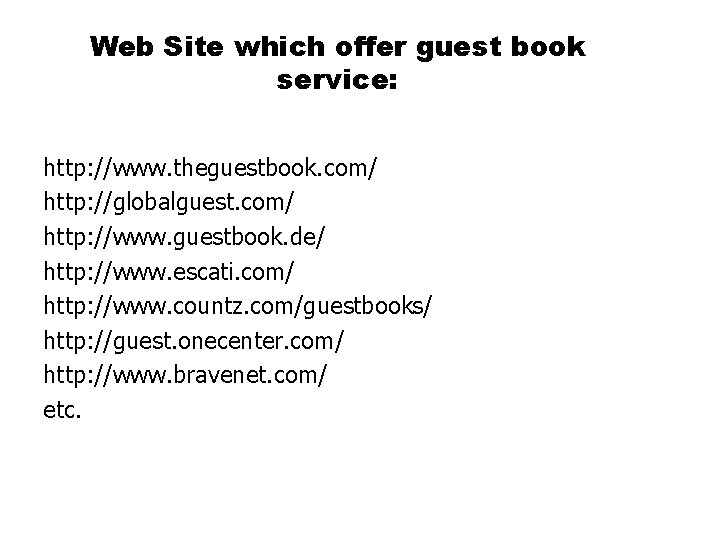
Web Site which offer guest book service: http: //www. theguestbook. com/ http: //globalguest. com/ http: //www. guestbook. de/ http: //www. escati. com/ http: //www. countz. com/guestbooks/ http: //guest. onecenter. com/ http: //www. bravenet. com/ etc.
Your first task Login with this command: login siswa. XX Create a directory to put all your files there Put your image file there begin to practice ; -)
Your second task Create a homepage about your self (time= 30 minutes)
ASP & Flash from- why Smart eye-catching interactive Flash interface. Viewing guest entries one at a time through a book-like interface. Guest book entries stored in a SQL Server or Access database. Loads 50 entries at a time beginning from the recent most. Using the 'load next batch of entries' button you can load the next batch of guest records. Fantastic load time due to highly optimized code and very small Flash file (9 KB). Client-side validation for Name and e-mail address fields.