
Introduction To Colleague USER INTERFACE 4 x West
- Slides: 30
Introduction To Colleague USER INTERFACE 4. x West Valley-Mission Community College District 1
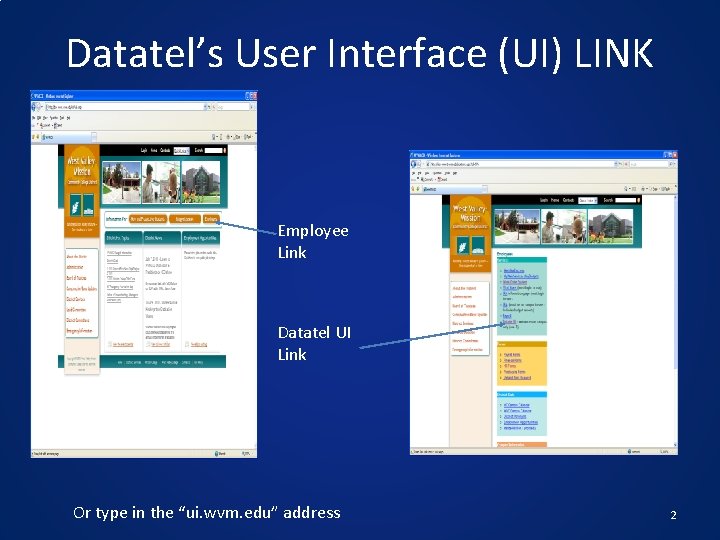
Datatel’s User Interface (UI) LINK Employee Link Datatel UI Link Or type in the “ui. wvm. edu” address 2
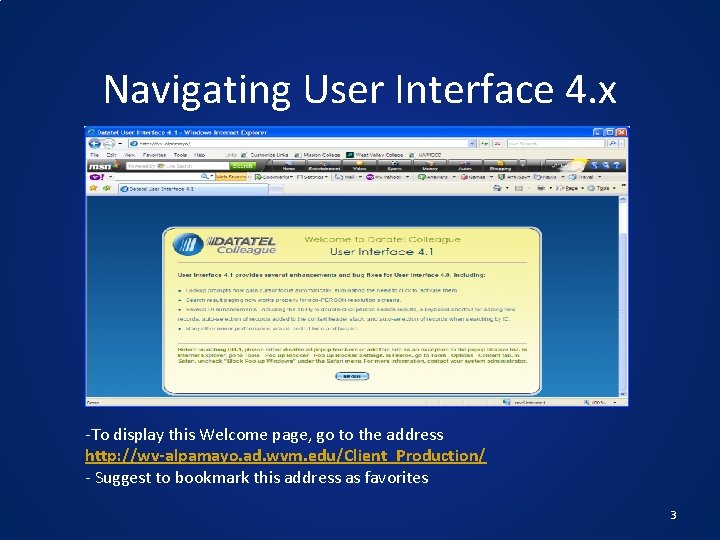
Navigating User Interface 4. x -To display this Welcome page, go to the address http: //wv-alpamayo. ad. wvm. edu/Client_Production/ - Suggest to bookmark this address as favorites 3
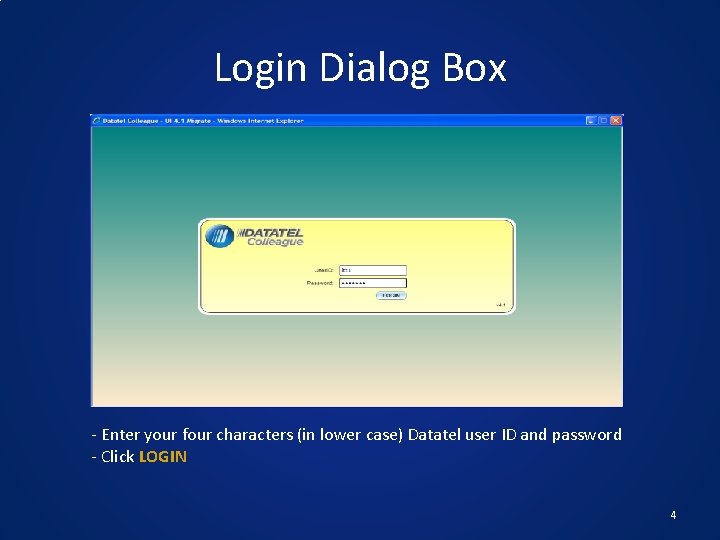
Login Dialog Box - Enter your four characters (in lower case) Datatel user ID and password - Click LOGIN 4
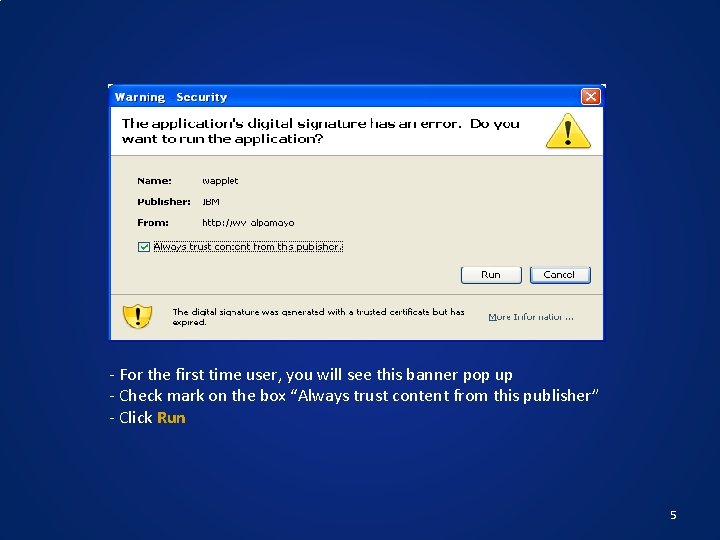
- For the first time user, you will see this banner pop up - Check mark on the box “Always trust content from this publisher” - Click Run 5
6
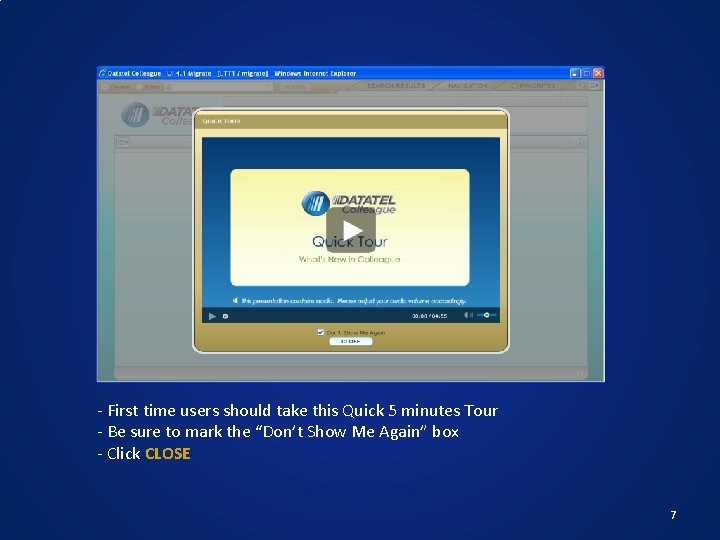
- First time users should take this Quick 5 minutes Tour - Be sure to mark the “Don’t Show Me Again” box - Click CLOSE 7
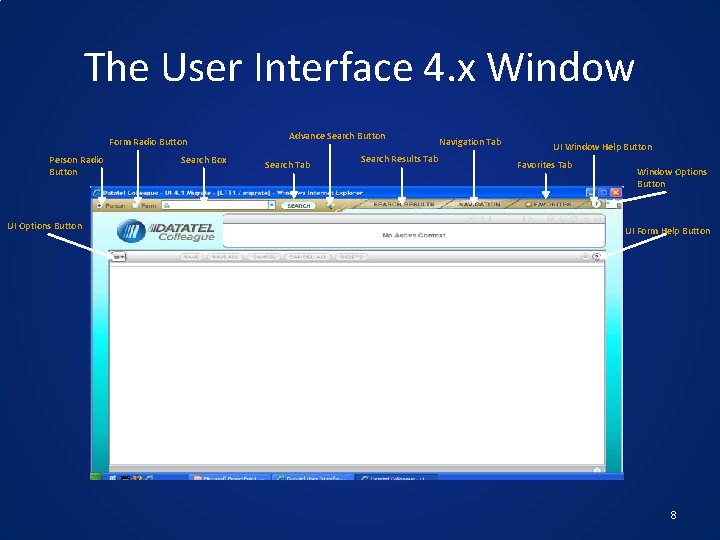
The User Interface 4. x Window Form Radio Button Person Radio Button UI Options Button Search Box Advance Search Button Search Tab Search Results Tab Navigation Tab UI Window Help Button Favorites Tab Window Options Button UI Form Help Button 8
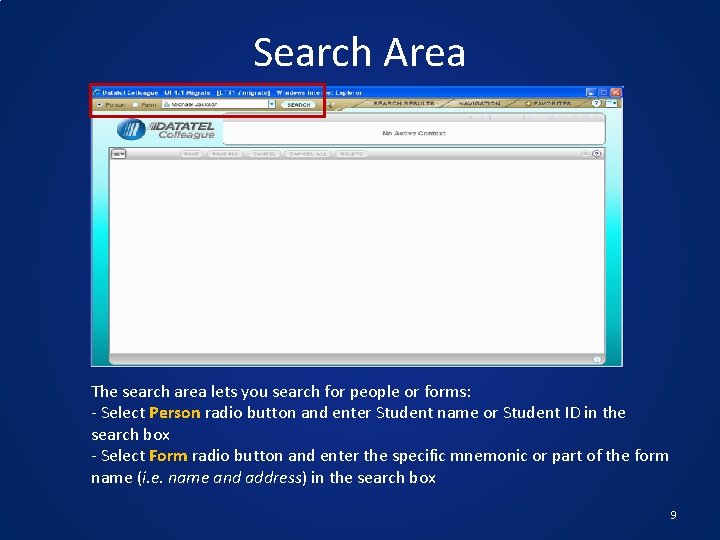
Search Area The search area lets you search for people or forms: - Select Person radio button and enter Student name or Student ID in the search box - Select Form radio button and enter the specific mnemonic or part of the form name (i. e. name and address) in the search box 9
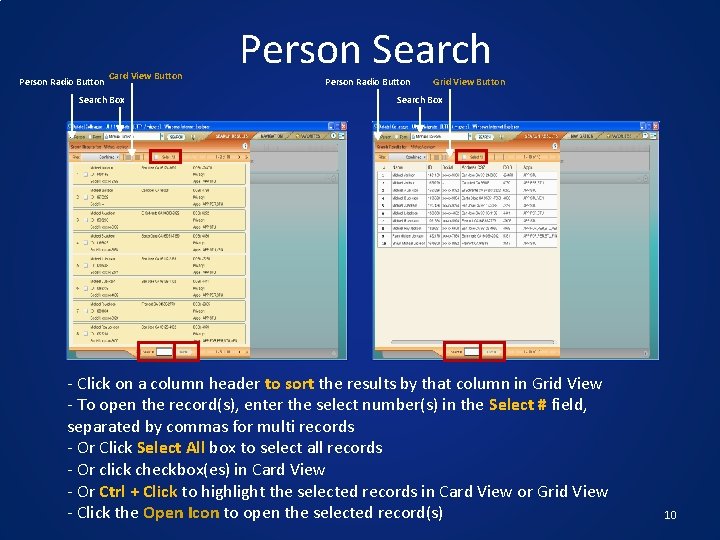
Person Radio Button Card View Button Search Box Person Search Person Radio Button Grid View Button Search Box - Click on a column header to sort the results by that column in Grid View - To open the record(s), enter the select number(s) in the Select # field, separated by commas for multi records - Or Click Select All box to select all records - Or click checkbox(es) in Card View - Or Ctrl + Click to highlight the selected records in Card View or Grid View - Click the Open Icon to open the selected record(s) 10
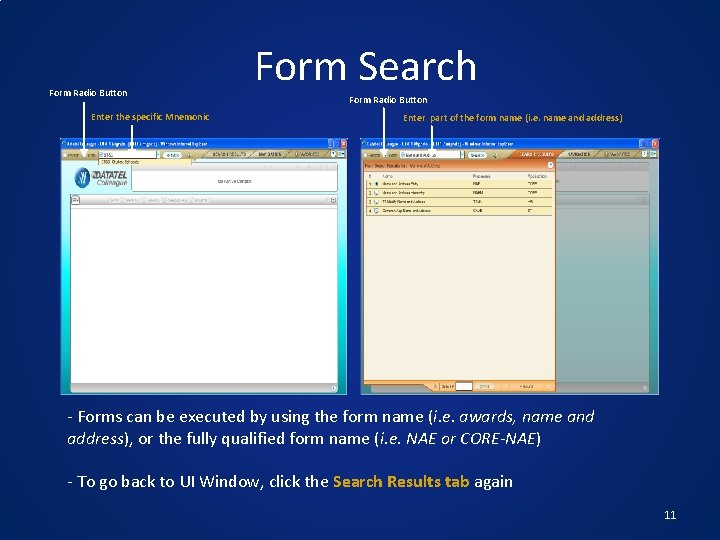
Form Radio Button Enter the specific Mnemonic Form Search Form Radio Button Enter part of the form name (i. e. name and address) - Forms can be executed by using the form name (i. e. awards, name and address), or the fully qualified form name (i. e. NAE or CORE-NAE) - To go back to UI Window, click the Search Results tab again 11
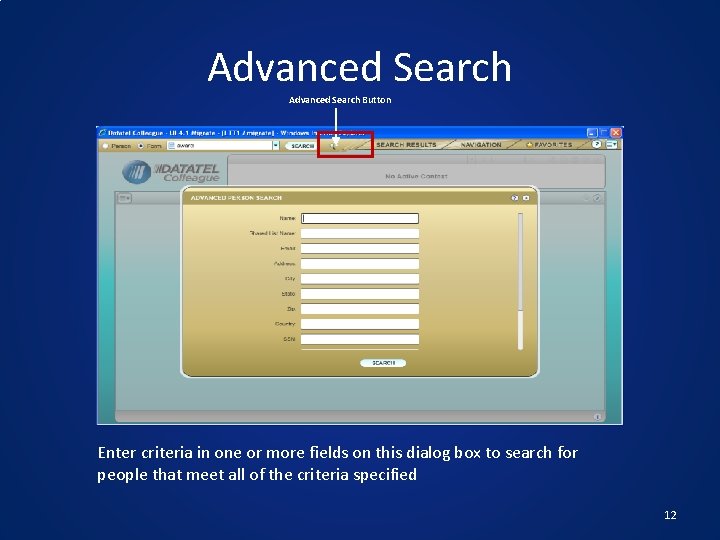
Advanced Search Button Enter criteria in one or more fields on this dialog box to search for people that meet all of the criteria specified 12
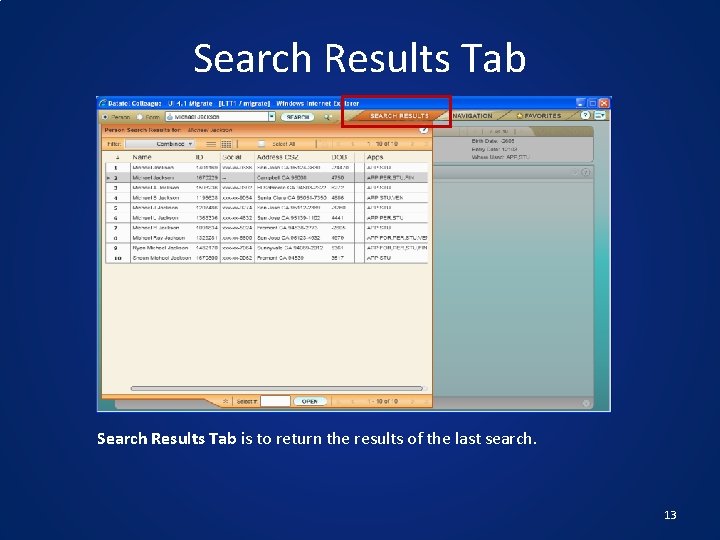
Search Results Tab is to return the results of the last search. 13
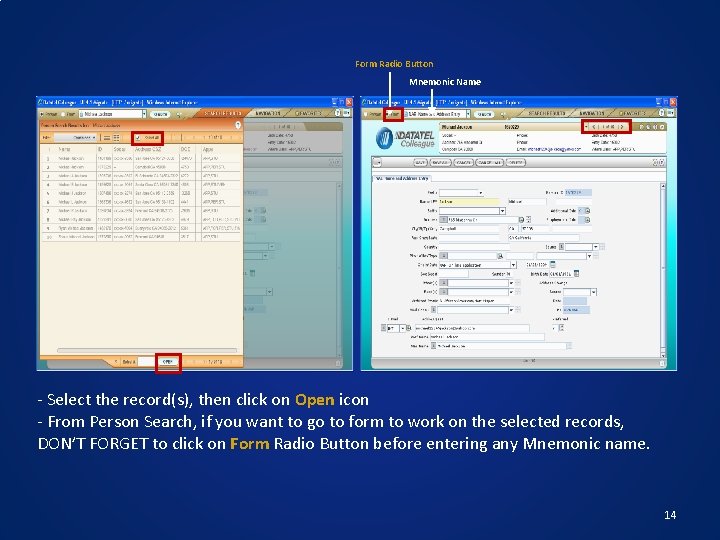
Form Radio Button Mnemonic Name - Select the record(s), then click on Open icon - From Person Search, if you want to go to form to work on the selected records, DON’T FORGET to click on Form Radio Button before entering any Mnemonic name. 14
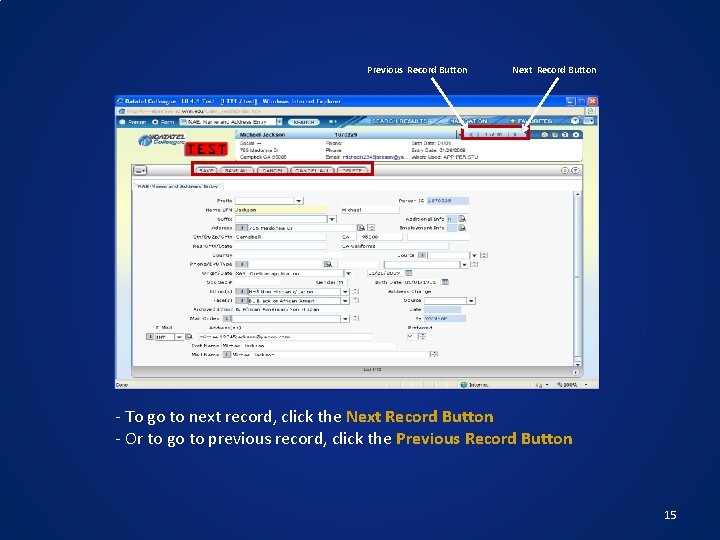
Previous Record Button Next Record Button - To go to next record, click the Next Record Button - Or to go to previous record, click the Previous Record Button 15
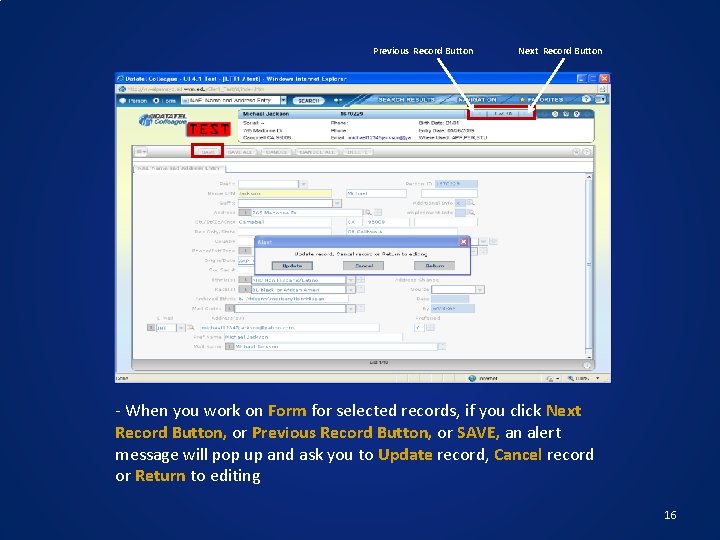
Previous Record Button Next Record Button - When you work on Form for selected records, if you click Next Record Button, or Previous Record Button, or SAVE, an alert message will pop up and ask you to Update record, Cancel record or Return to editing 16
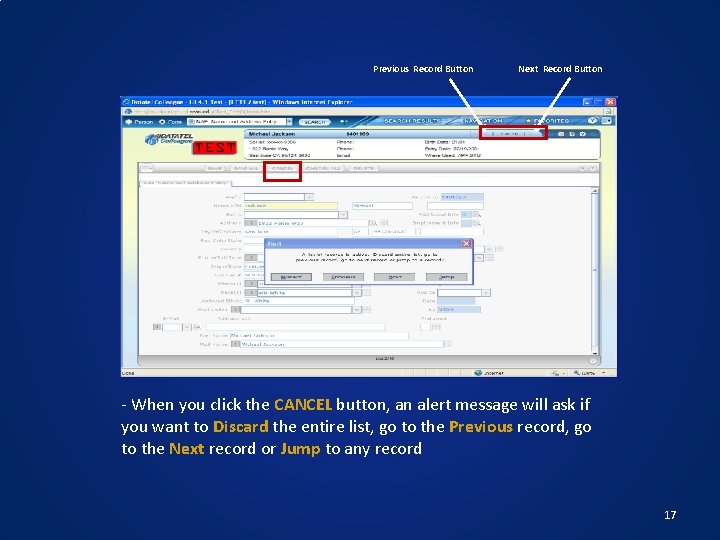
Previous Record Button Next Record Button - When you click the CANCEL button, an alert message will ask if you want to Discard the entire list, go to the Previous record, go to the Next record or Jump to any record 17
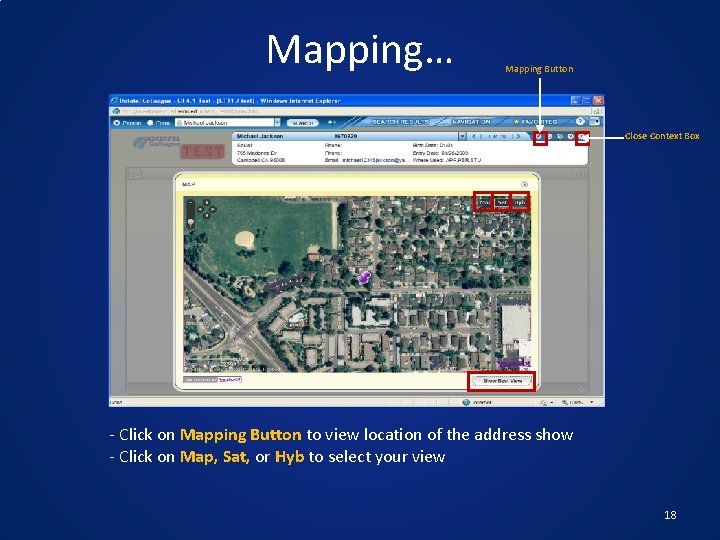
Mapping… Mapping Button Close Context Box - Click on Mapping Button to view location of the address show - Click on Map, Sat, or Hyb to select your view 18
Reminder If you SAVE ALL or CANCEL ALL while you are in a screen, you do NOT clear the Context Box. You MUST clear the Context Box by clicking on Close Context Box before you move to another student search; otherwise any new student search will ADD to the existing Context Box 19
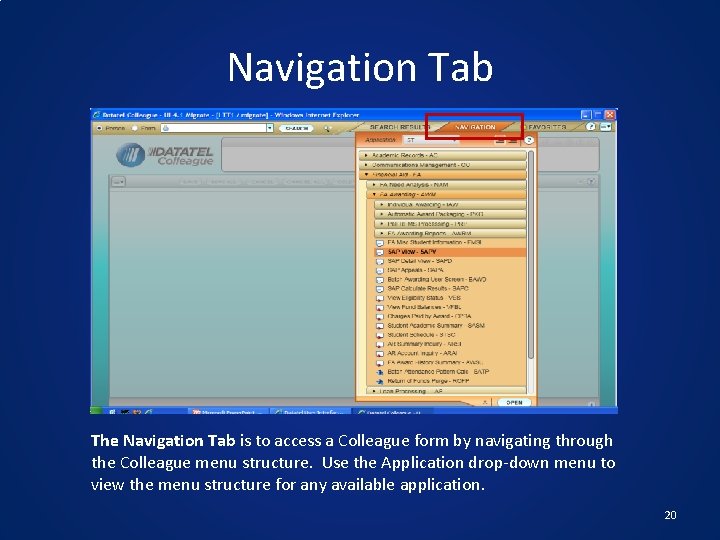
Navigation Tab The Navigation Tab is to access a Colleague form by navigating through the Colleague menu structure. Use the Application drop-down menu to view the menu structure for any available application. 20
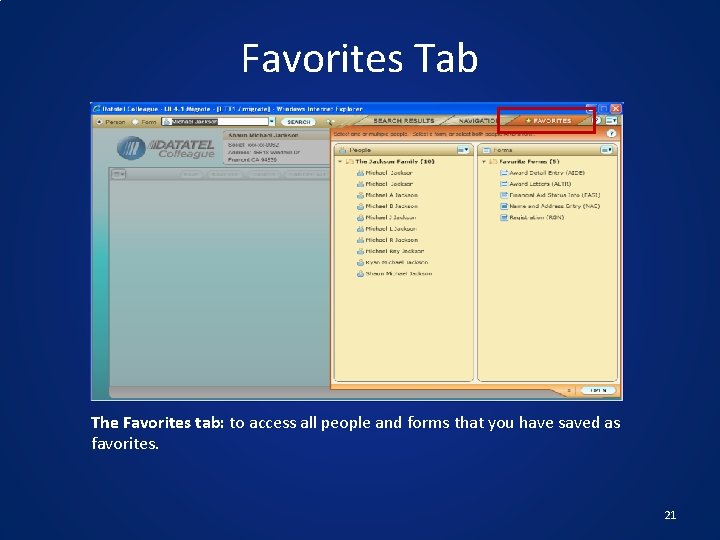
Favorites Tab The Favorites tab: to access all people and forms that you have saved as favorites. 21
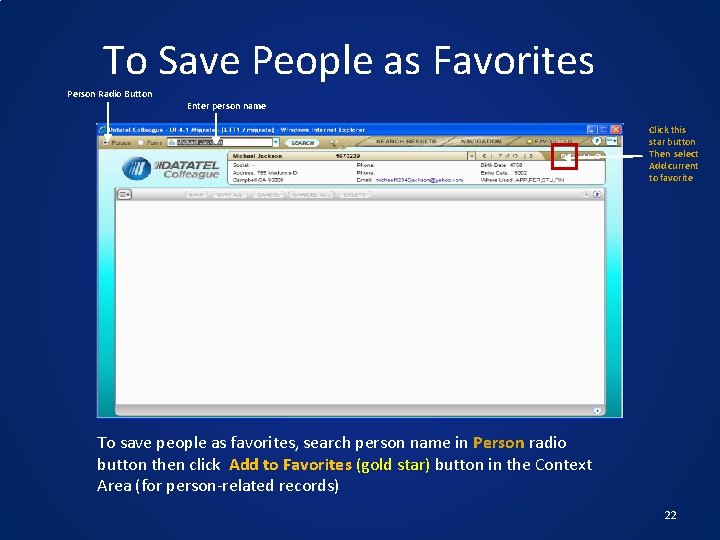
To Save People as Favorites Person Radio Button Enter person name Click this star button Then select Add current to favorite To save people as favorites, search person name in Person radio button then click Add to Favorites (gold star) button in the Context Area (for person-related records) 22
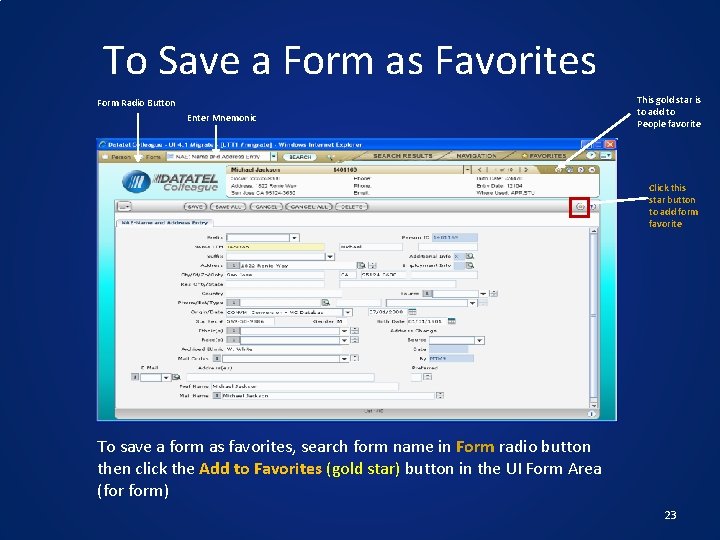
To Save a Form as Favorites Form Radio Button Enter Mnemonic This gold star is to add to People favorite Click this star button to add form favorite To save a form as favorites, search form name in Form radio button then click the Add to Favorites (gold star) button in the UI Form Area (for form) 23
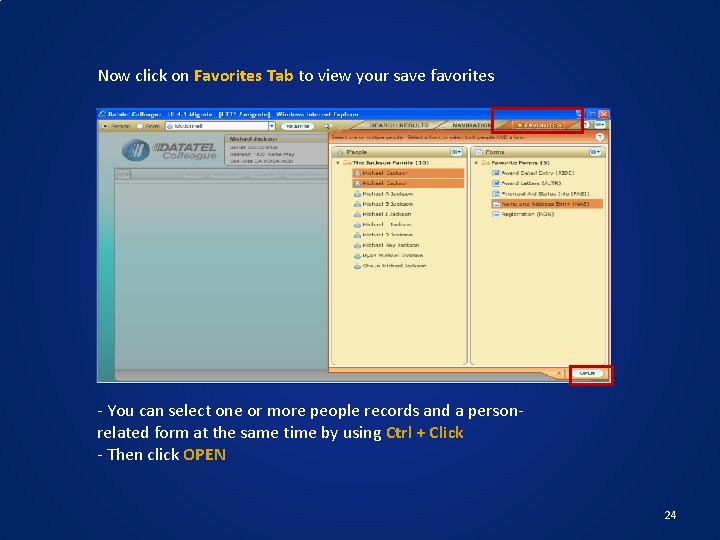
Now click on Favorites Tab to view your save favorites - You can select one or more people records and a personrelated form at the same time by using Ctrl + Click - Then click OPEN 24
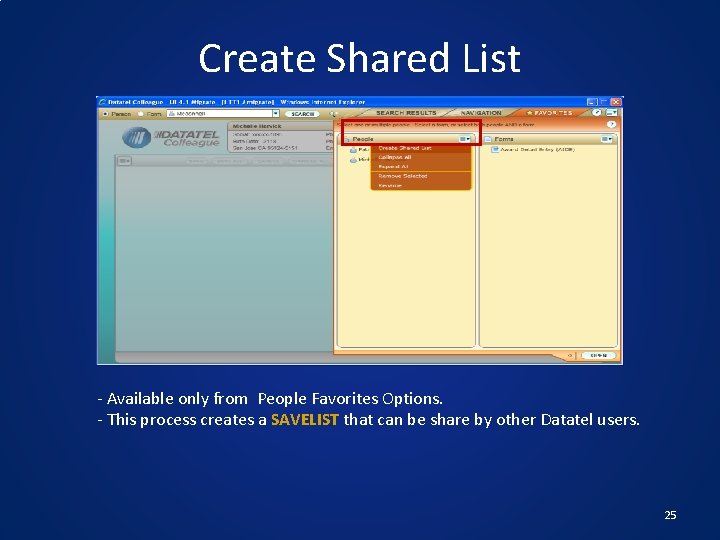
Create Shared List - Available only from People Favorites Options. - This process creates a SAVELIST that can be share by other Datatel users. 25
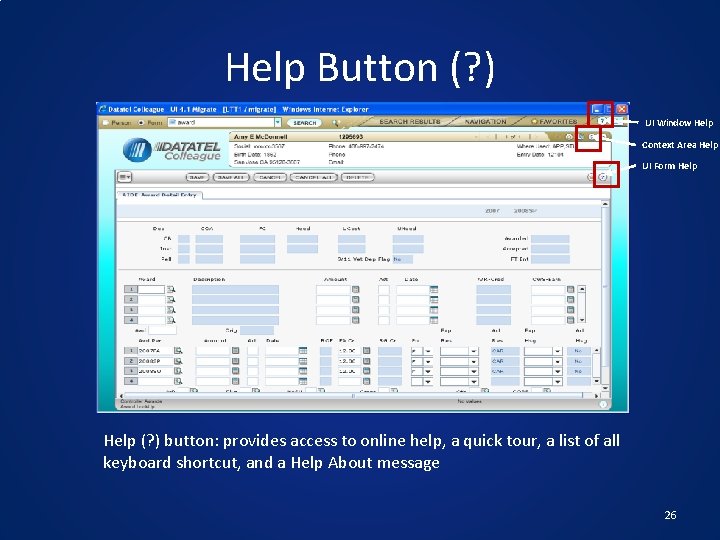
Help Button (? ) UI Window Help Context Area Help UI Form Help (? ) button: provides access to online help, a quick tour, a list of all keyboard shortcut, and a Help About message 26
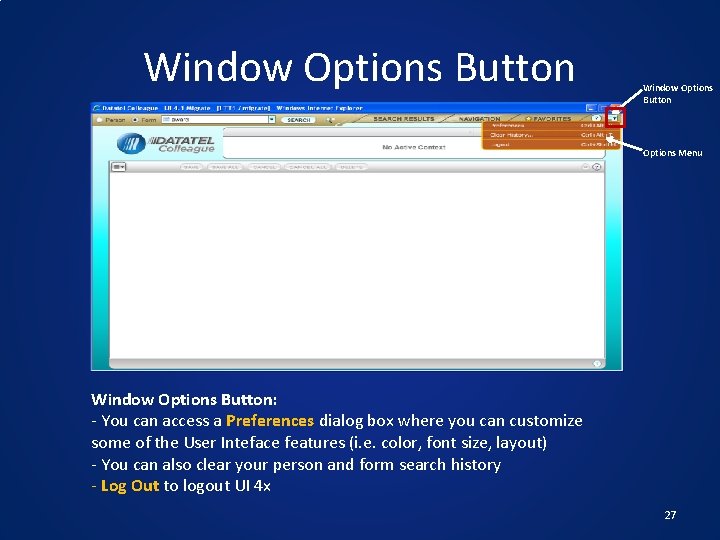
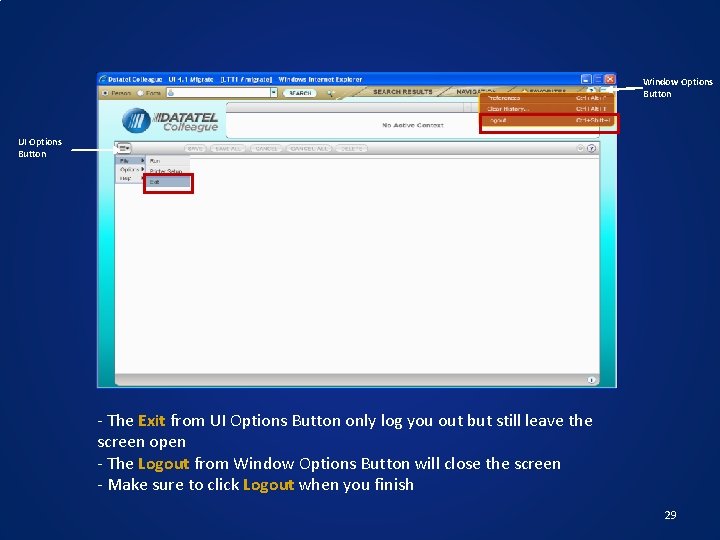
Window Options Button Options Menu Window Options Button: - You can access a Preferences dialog box where you can customize some of the User Inteface features (i. e. color, font size, layout) - You can also clear your person and form search history - Log Out to logout UI 4 x 27
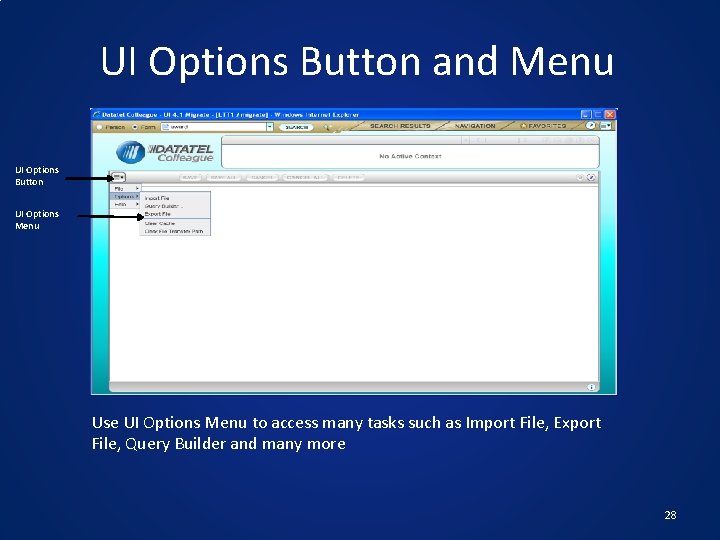
UI Options Button and Menu UI Options Button UI Options Menu Use UI Options Menu to access many tasks such as Import File, Export File, Query Builder and many more 28
Window Options Button UI Options Button - The Exit from UI Options Button only log you out but still leave the screen open - The Logout from Window Options Button will close the screen - Make sure to click Logout when you finish 29
Do you have any question for us? You may also contact the IS Help Desk at x 2696 for further assistance. 30