
Introduction to Canvas for Students Going Live SUMMER
- Slides: 10
Introduction to Canvas for Students Going Live SUMMER 2013 Traditional Courses Begin May 28 Online Courses Begin June 3
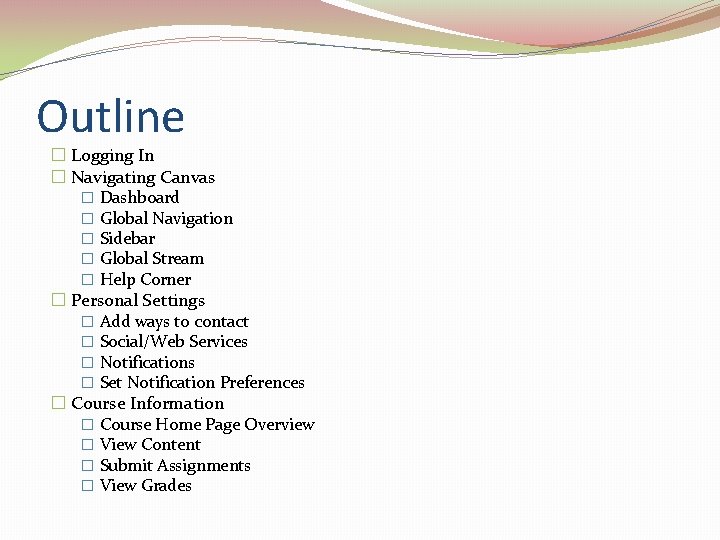
Outline � Logging In � Navigating Canvas � Dashboard � Global Navigation � Sidebar � Global Stream � Help Corner � Personal Settings � Add ways to contact � Social/Web Services � Notifications � Set Notification Preferences � Course Information � Course Home Page Overview � View Content � Submit Assignments � View Grades
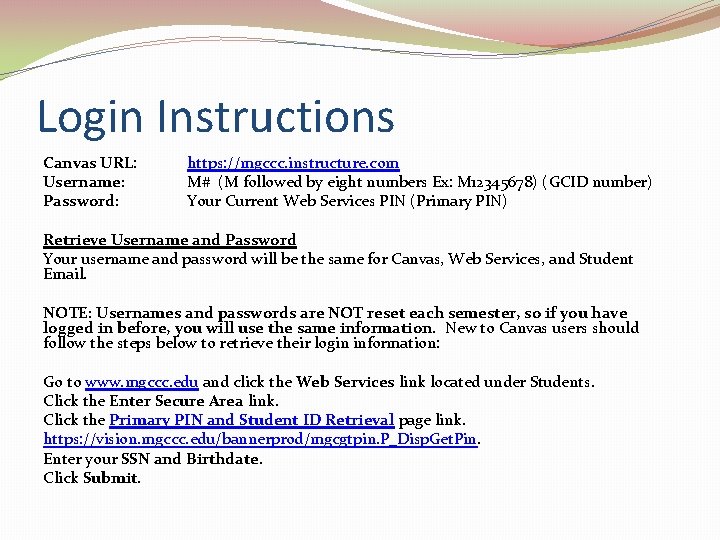
Login Instructions Canvas URL: Username: Password: https: //mgccc. instructure. com M# (M followed by eight numbers Ex: M 12345678) (GCID number) Your Current Web Services PIN (Primary PIN) Retrieve Username and Password Your username and password will be the same for Canvas, Web Services, and Student Email. NOTE: Usernames and passwords are NOT reset each semester, so if you have logged in before, you will use the same information. New to Canvas users should follow the steps below to retrieve their login information: Go to www. mgccc. edu and click the Web Services link located under Students. Click the Enter Secure Area link. Click the Primary PIN and Student ID Retrieval page link. https: //vision. mgccc. edu/bannerprod/mgcgtpin. P_Disp. Get. Pin. Enter your SSN and Birthdate. Click Submit.
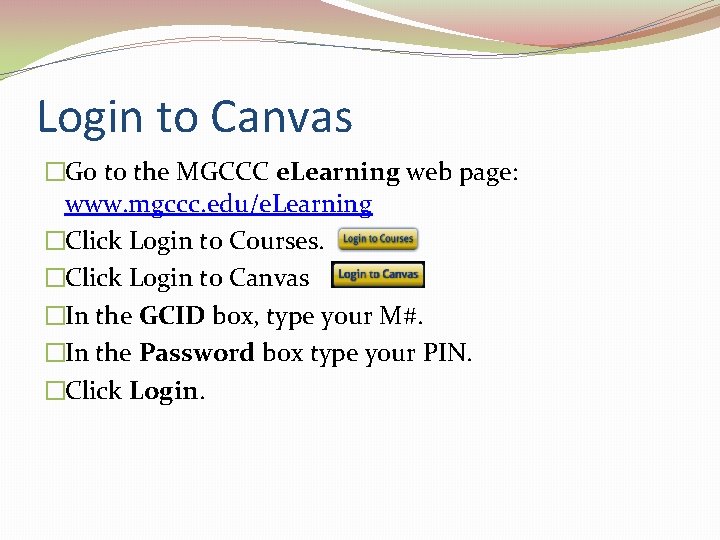
Login to Canvas �Go to the MGCCC e. Learning web page: www. mgccc. edu/e. Learning �Click Login to Courses. �Click Login to Canvas �In the GCID box, type your M#. �In the Password box type your PIN. �Click Login.
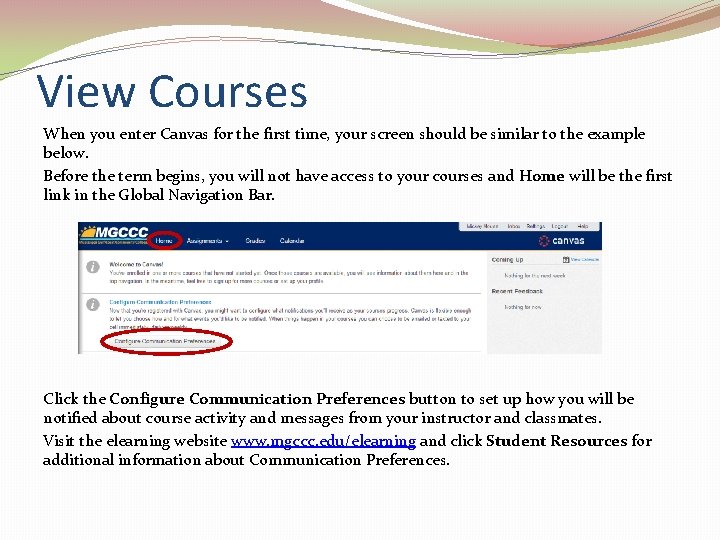
View Courses When you enter Canvas for the first time, your screen should be similar to the example below. Before the term begins, you will not have access to your courses and Home will be the first link in the Global Navigation Bar. Click the Configure Communication Preferences button to set up how you will be notified about course activity and messages from your instructor and classmates. Visit the elearning website www. mgccc. edu/elearning and click Student Resources for additional information about Communication Preferences.
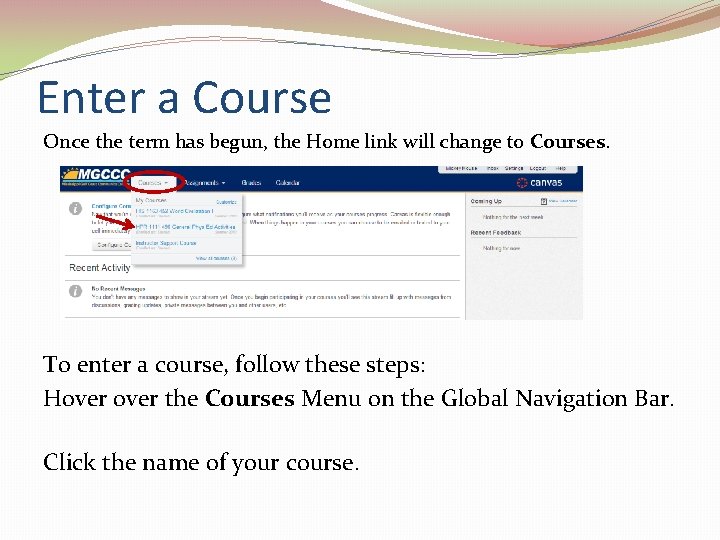
Enter a Course Once the term has begun, the Home link will change to Courses. To enter a course, follow these steps: Hover the Courses Menu on the Global Navigation Bar. Click the name of your course.
No Course? �If you do not see your courses listed in the Courses menu, it could be a result of one of the following: �The term has not yet begun. �You have been unenrolled from your course (contact your course instructor). �You have customized your courses menu and have deselected the course. �Click Customize on the Courses Menu to verify and correct if necessary. �The term has ended.
Navigating Canvas Visit the elearning website www. mgccc. edu/elearning and click Student Resources for additional information about Navigating Canvas. Once you have entered the course, click Modules on the left navigation menu to begin your course.
Navigating Canvas �DEMO
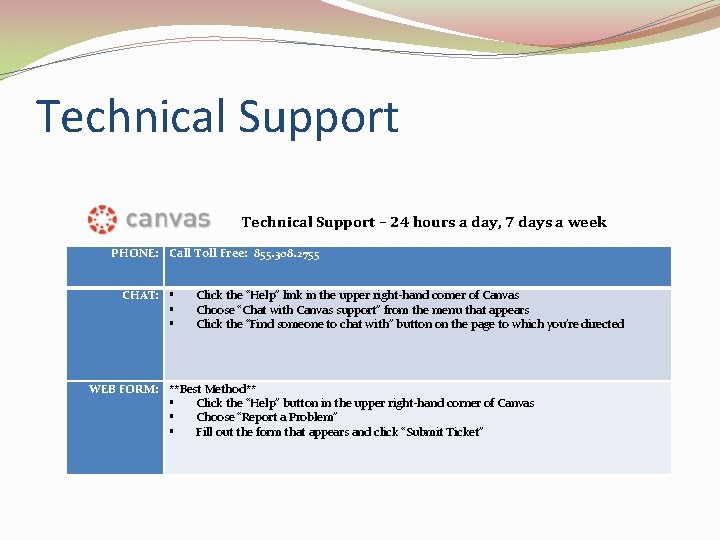
Technical Support – 24 hours a day, 7 days a week PHONE: Call Toll Free: 855. 308. 2755 CHAT: Click the “Help” link in the upper right-hand corner of Canvas Choose “Chat with Canvas support” from the menu that appears Click the “Find someone to chat with” button on the page to which you’re directed WEB FORM: **Best Method** Click the “Help” button in the upper right-hand corner of Canvas Choose “Report a Problem” Fill out the form that appears and click “Submit Ticket”