
Introduction to BIM Module 07 Materials Lights and
Introduction to BIM Module 07 – Materials, Lights, and Rendering
Lesson Overview • In this lesson, students explore how to use Autodesk® Revit® software to adjust the appearance of the building model elements that appear in their 2 D and 3 D views • Students will learn how to: – Assign materials to model elements through object styles, type properties, and instance properties – Adjust the render appearance of materials to display realistic views – Render views to create realistic views in daylight and artificial lighting conditions Introduction to BIM
Learning Objectives After completing this lesson, students will be able to: • Explore the visual effect of specifying various materials for different building elements • Appreciate the importance of providing adequate dayilighting and artificial lighting sources in a building • Accurately present views of buildings models in realistic and effective ways Introduction to BIM
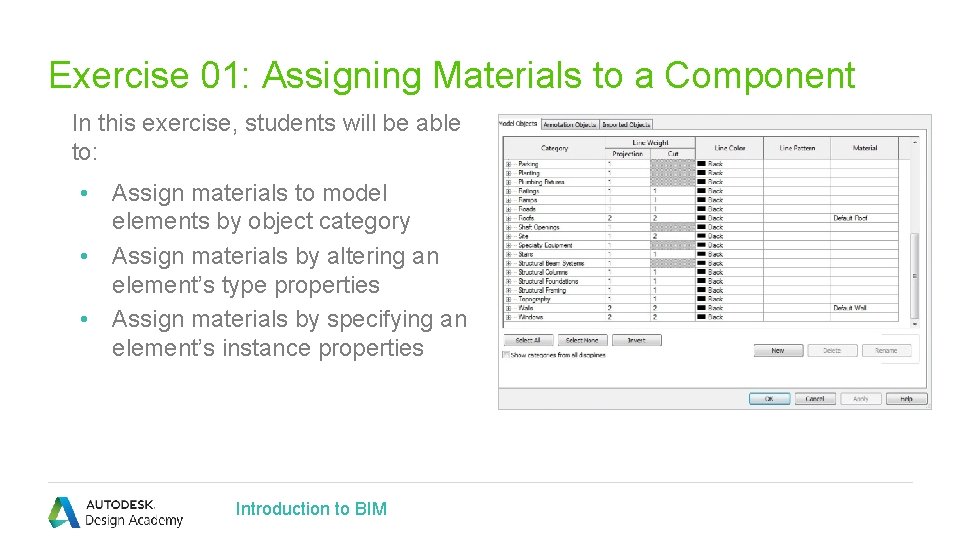
Exercise 01: Assigning Materials to a Component In this exercise, students will be able to: • Assign materials to model elements by object category • Assign materials by altering an element’s type properties • Assign materials by specifying an element’s instance properties Introduction to BIM
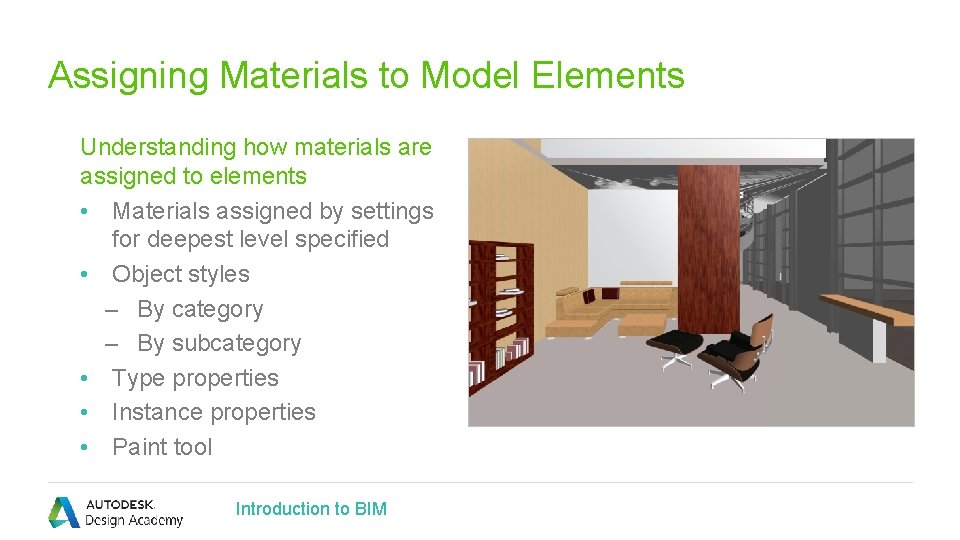
Assigning Materials to Model Elements Understanding how materials are assigned to elements • Materials assigned by settings for deepest level specified • Object styles – By category – By subcategory • Type properties • Instance properties • Paint tool Introduction to BIM
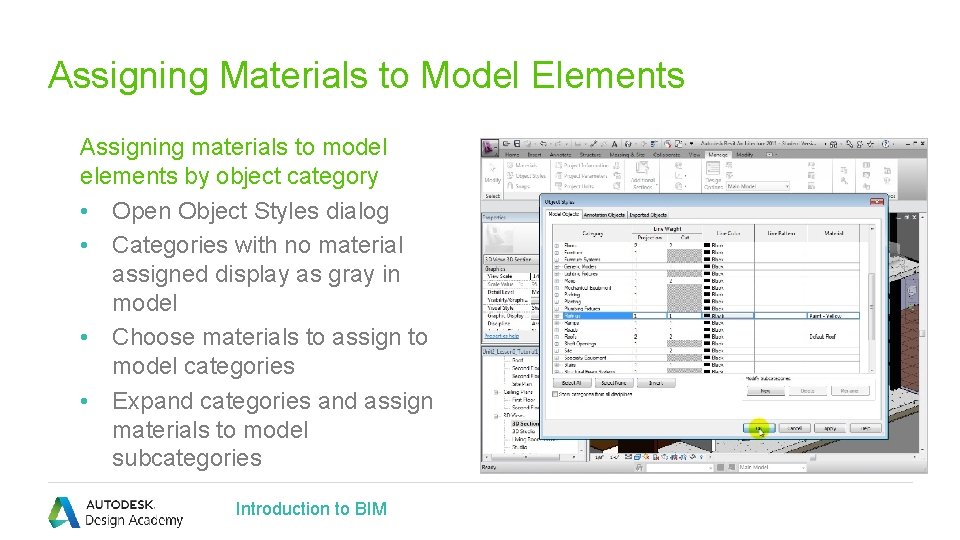
Assigning Materials to Model Elements Assigning materials to model elements by object category • Open Object Styles dialog • Categories with no material assigned display as gray in model • Choose materials to assign to model categories • Expand categories and assign materials to model subcategories Introduction to BIM
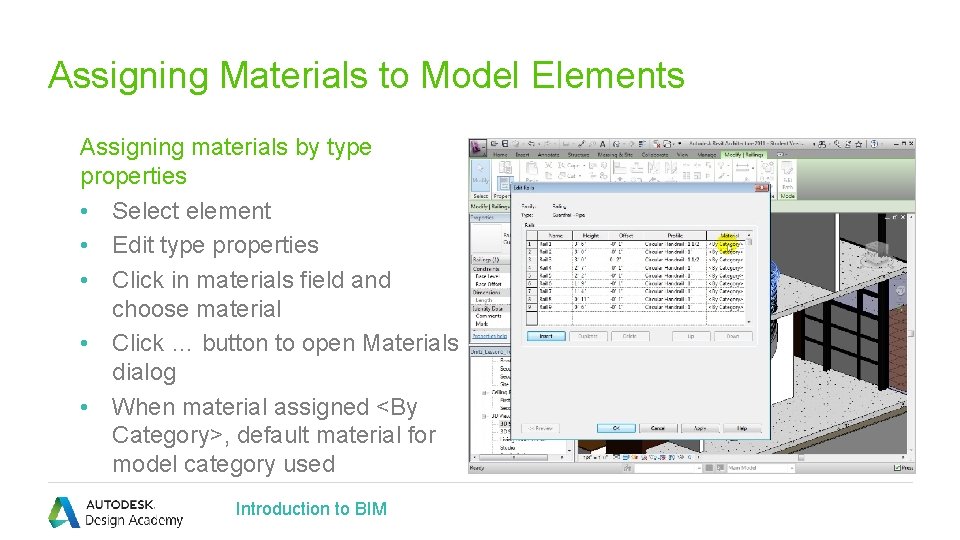
Assigning Materials to Model Elements Assigning materials by type properties • Select element • Edit type properties • Click in materials field and choose material • Click … button to open Materials dialog • When material assigned <By Category>, default material for model category used Introduction to BIM
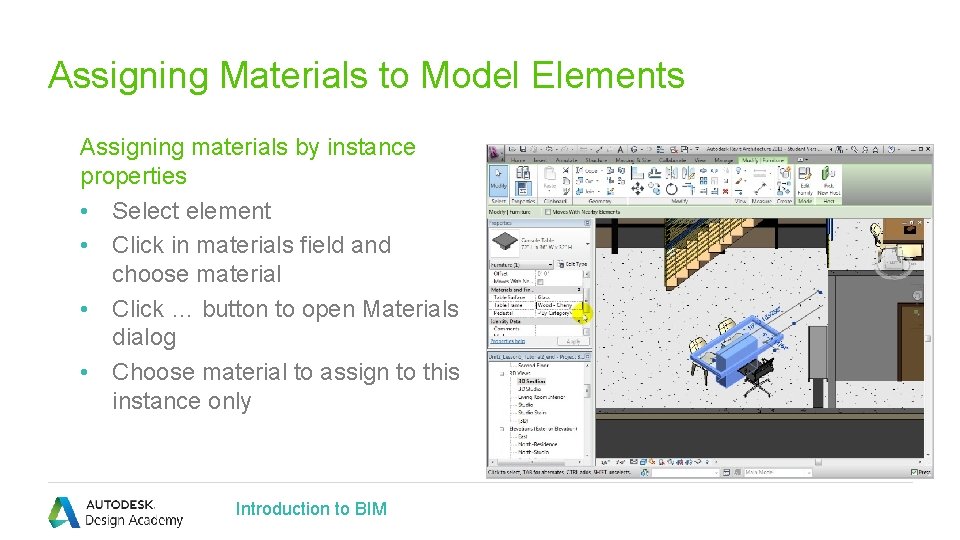
Assigning Materials to Model Elements Assigning materials by instance properties • Select element • Click in materials field and choose material • Click … button to open Materials dialog • Choose material to assign to this instance only Introduction to BIM
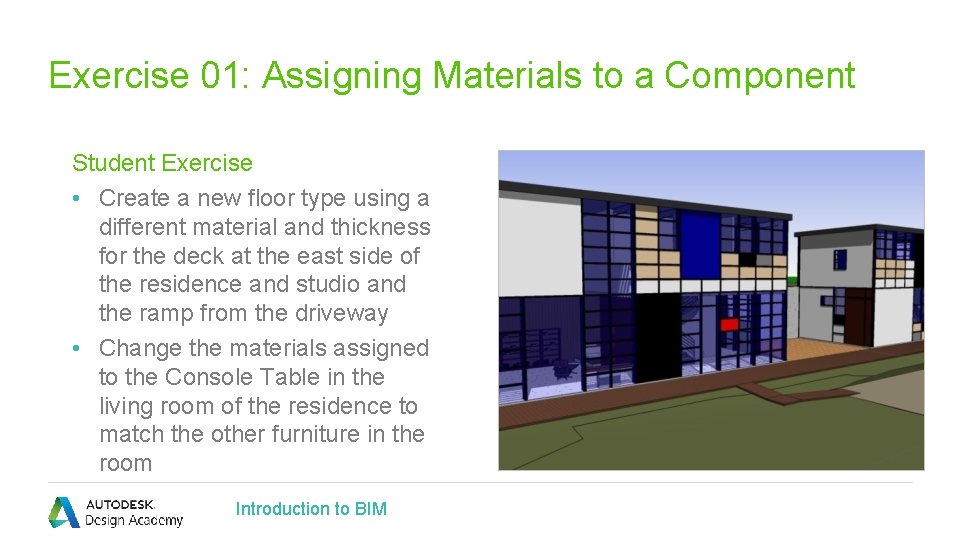
Exercise 01: Assigning Materials to a Component Student Exercise • Create a new floor type using a different material and thickness for the deck at the east side of the residence and studio and the ramp from the driveway • Change the materials assigned to the Console Table in the living room of the residence to match the other furniture in the room Introduction to BIM
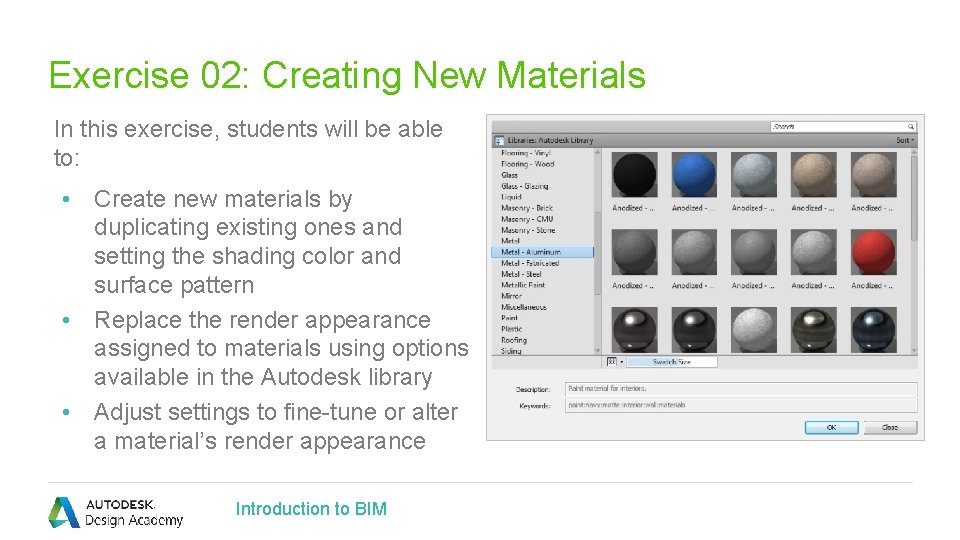
Exercise 02: Creating New Materials In this exercise, students will be able to: • Create new materials by duplicating existing ones and setting the shading color and surface pattern • Replace the render appearance assigned to materials using options available in the Autodesk library • Adjust settings to fine-tune or alter a material’s render appearance Introduction to BIM
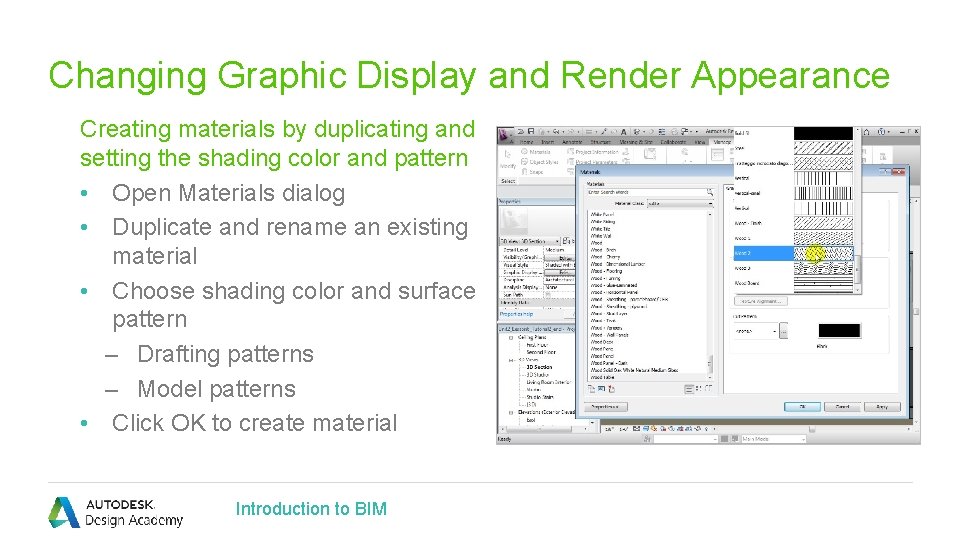
Changing Graphic Display and Render Appearance Creating materials by duplicating and setting the shading color and pattern • Open Materials dialog • Duplicate and rename an existing material • Choose shading color and surface pattern – Drafting patterns – Model patterns • Click OK to create material Introduction to BIM
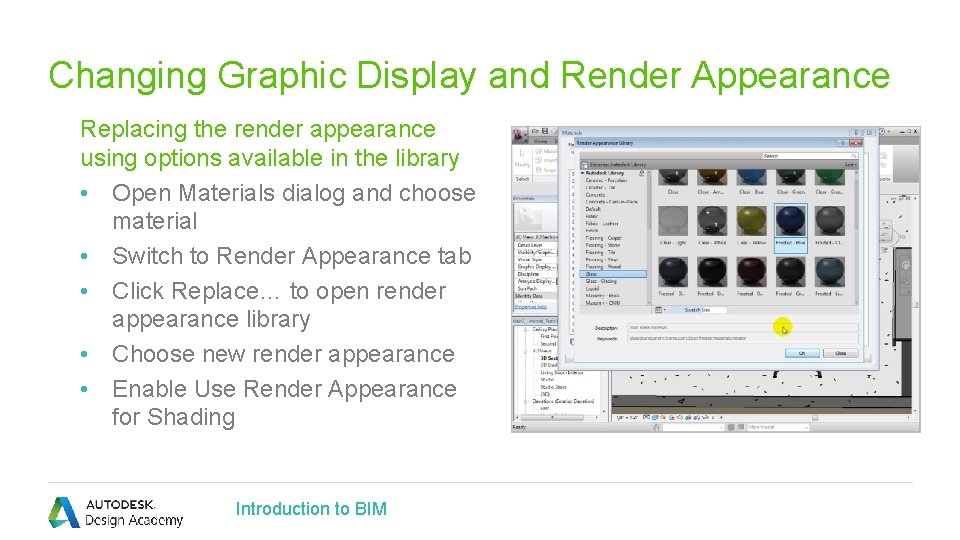
Changing Graphic Display and Render Appearance Replacing the render appearance using options available in the library • Open Materials dialog and choose material • Switch to Render Appearance tab • Click Replace… to open render appearance library • Choose new render appearance • Enable Use Render Appearance for Shading Introduction to BIM
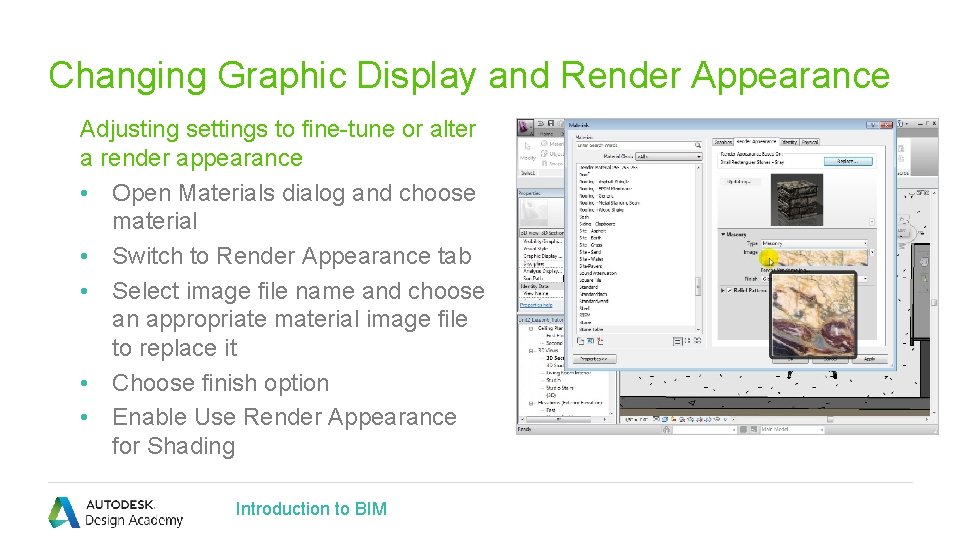
Changing Graphic Display and Render Appearance Adjusting settings to fine-tune or alter a render appearance • Open Materials dialog and choose material • Switch to Render Appearance tab • Select image file name and choose an appropriate material image file to replace it • Choose finish option • Enable Use Render Appearance for Shading Introduction to BIM
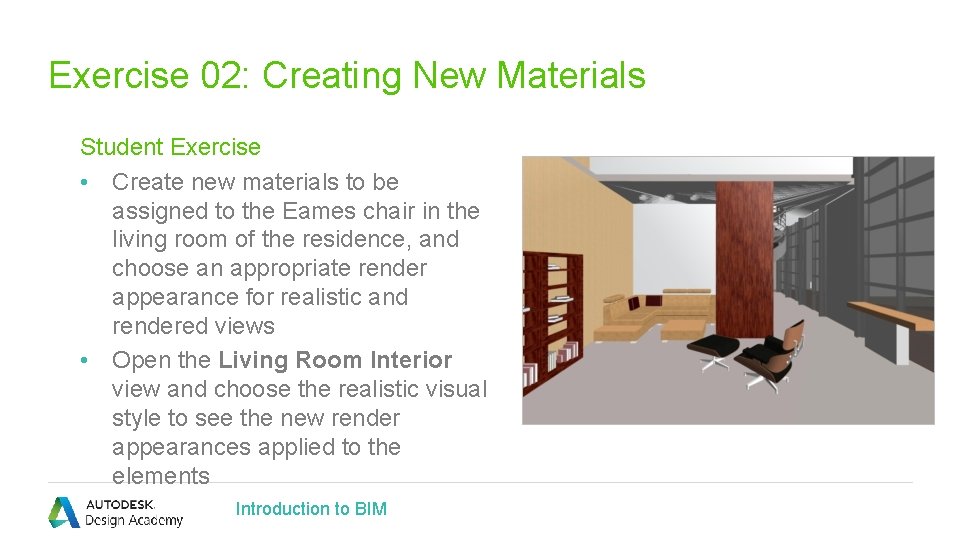
Exercise 02: Creating New Materials Student Exercise • Create new materials to be assigned to the Eames chair in the living room of the residence, and choose an appropriate render appearance for realistic and rendered views • Open the Living Room Interior view and choose the realistic visual style to see the new render appearances applied to the elements Introduction to BIM
Assessment Assigning Materials to Model Elements • If you cannot find material settings in an element’s type or instance properties, how can you assign materials to the object? • What are the advantages and disadvantages of assigning materials as type properties versus instance properties? • If you want to define a new material for some elements in you model, is it better to change an existing material or to duplicate one and change the settings of the new material? Introduction to BIM
Assessment Changing Material Display and Render Appearance • If you want to change the render appearance of some of the elements in your model, is it better to modify an existing material’s settings or to create a new material and assign it to those elements? • When creating new render appearances from photographs or scanned images of materials, what types of images work best? Introduction to BIM
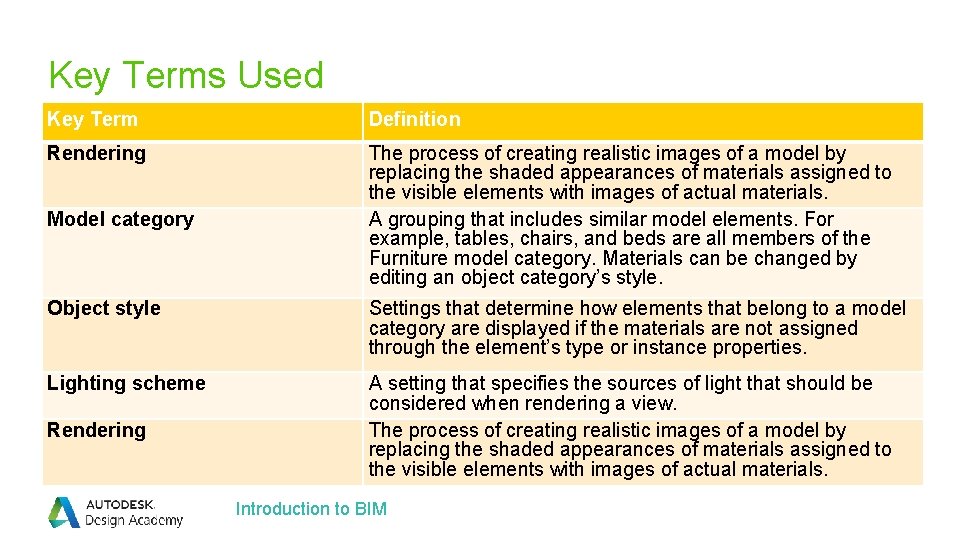
Key Terms Used Key Term Definition Rendering The process of creating realistic images of a model by replacing the shaded appearances of materials assigned to the visible elements with images of actual materials. A grouping that includes similar model elements. For example, tables, chairs, and beds are all members of the Furniture model category. Materials can be changed by editing an object category’s style. Model category Object style Settings that determine how elements that belong to a model category are displayed if the materials are not assigned through the element’s type or instance properties. Lighting scheme A setting that specifies the sources of light that should be considered when rendering a view. The process of creating realistic images of a model by replacing the shaded appearances of materials assigned to the visible elements with images of actual materials. Rendering Introduction to BIM

Autodesk Resources Autodesk® Education Community Free software for students and educators students. autodesk. com Autodesk® Design Academy The Autodesk Design Academy features a constantly growing collection of lessons, projects and curriculum support materials that help educators teach students creative confidence. academy. autodesk. com © 2015 Autodesk © 2014 Autodesk

- Slides: 19