
Introduction to Batch Files Ch 10 1 Overview
Introduction to Batch Files Ch 10 1
Overview Will learn to create batch files to automate a sequence of commands to accomplish various tasks. Ch 10 2
Overview The use of batch file subcommands will be discussed and then used with batch commands. Ch 10 3
Overview How to halt the execution of a batch file will be explained. Ch 10 4
Overview Will write batch files using replaceable parameters. Ch 10 5
Overview Learn how batch files can be used from the desktop. Ch 10 6

Concepts of Batch and Interactive Processing Batch file: è String together series of commands executed sequentially with one command without human interaction or interruption Ch 10 7
Concepts of Batch and Interactive Processing Batch file: è Must be an ASCII file è Created with Edit, COPY CON, text editor, or word processor which has “Save as text file” option è Has. BAT or. CMD extension è Each line in batch file contains only one command Ch 10 8
Concepts of Batch and Interactive Processing Why batch files used: è Minimize keystrokes è Automate frequent/consistent procedures è Do not need to interact with computer while batch files are running Ch 10 9
Concepts of Batch and Interactive Processing Batch processing: è Automate frequent/consistent procedures è Batch files can be run at anytime åNo user/computer interaction required Ch 10 10
Concepts of Batch and Interactive Processing Interactive processing: èAlso called online or real time mode èUser interacts directly with computer èInformation processed without delay Ch 10 11
How Batch Files Work The operating system determines if a file is a data file or a program file by its extension. Ch 10 12
How Batch Files Work To locate file, operating system: è Looks internally for command è Using Extension Priority Rules, searches on default drive and directory è Searches search path as set in PATH statement following Priority Rules Ch 10 13
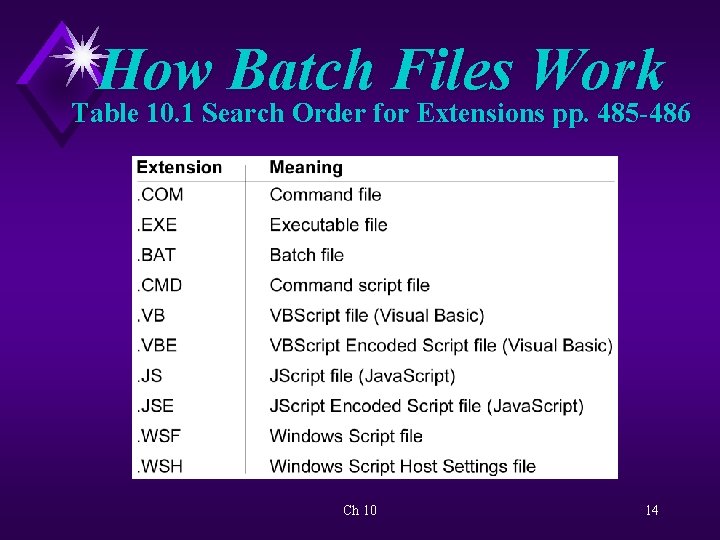
How Batch Files Work Table 10. 1 Search Order for Extensions pp. 485 -486 Ch 10 14
How Batch Files Work Priority rules are followed if there are files on a disk with the same file name but three different file extensions. Ch 10 15
How Batch Files Work If file not found, get error message: “Filename is not recognized as an internal or external command, operable program, or batch file. ” Ch 10 16
How Batch Files Work è A batch file is a program. è Each line in a batch file must contain only one command. Ch 10 17
Using EDIT to Write Batch Files To write a batch file you must use a program that creates ASCII text files. Ch 10 18
Using EDIT to Write Batch Files If a file is readable with the TYPE command, it is an ASCII text file. Ch 10 19
Using EDIT to Write Batch Files Word-processing programs can create text files if they have a nondocument or text mode. Ch 10 20

Using EDIT to Write Batch Files EDIT: èSimple text editor in Command Prompt window èUsed to write batch files. Ch 10 21
Using EDIT to Write Batch Files Notepad: èWindow’s text editor èUsed to write batch files Ch 10 22
Activity—Writing and Executing a Batch File KEY CONCEPTS: è Create batch files with: å EDIT - tool to write batch files å Any text editor or word processor with ASCII output è Batch file extensions -. BAT or. CMD è Execute the batch file the same ways as you do any command Ch 10 23
Writing and Executing a Batch File to Save Keystrokes Batch files can save keystrokes. Examples: DIR/AD DIR/OS and DIR/O-S Ch 10 24
Writing and Executing a Batch File to Save Keystrokes Sometimes easier to use COPY CON instead of EDIT to write simple batch file. Syntax: COPY CON filename Ch 10 25
Writing and Executing a Batch File to Save Keystrokes Drawbacks to using COPY CON: è Cannot correct errors once <Enter> is pressed è Cannot correct errors in existing files Ch 10 26
Writing and Executing a Batch File to Save Keystrokes è To correct errors need text editor like EDIT. è Nothing is faster than COPY CON. Ch 10 27
Activity—Writing & Executing a One-Letter Batch File KEY CONCEPTS: è Pressing <F 6> and <Enter> signals completion è <Ctrl> +Z same as pressing <F 6> è Displaying file with TYPE indicates it is ASCII file è Create one-line batch files è Directories have no size Ch 10 28
Using Batch Files to Alter Your Command Line Environment Open command line session by: èClicking icon on Start menu è Clicking shortcut åCan be altered to run in customized way Ch 10 29
Activity - Creating a Batch File to Alter the Command Line Session Environment KEY CONCEPTS: è Created shortcut to open command line session on desktop åCan decide what directory to be in è With /k parameter - include batch file that is executed each time command line session opened åValue limited on floppy åValuable on hard Chdrive 10 30
Writing a Batch File to Load Application Program è To execute BOG game took three steps. è Create a batch file to simplify loading an application program. Ch 10 31
Activity—Writing a Batch File to Execute BOG Game KEY CONCEPTS: è Create batch files with: å COPY CON å Any text editor or word processor with ASCII output (Example: Edit) è Why no conflict between BOG. BAT and BOG. EXE names è How to execute command that requires particular location Ch 10 32
Creating Shortcuts for Batch Files on the Desktop To run a batch file from Windows: èDouble-click file name in Windows Explorer/My Computer èCreate shortcut for file and place on desktop and click icon Ch 10 33
Creating Shortcuts for Batch Files on the Desktop Some things can be done with shortcut that cannot do in the command line interface. è Click shortcut to execute batch è Can change shortcut icon Ch 10 34
Activity—Creating a Shortcut on the Desktop KEY CONCEPTS: è Clicking shortcut executes file è Can change icon so it is more distinctive Ch 10 35
Batch Files to Run Windows Programs Where Windows system files reside will vary depending on installation of Windows XP Professional. Ch 10 36
Batch Files to Run Windows Programs Windows “keeps notes” about itself in system environment. è Path stored in environmental variable %Path% è Drive referred to in environment as %System. Drive% è Directory where system files are located referred to as %System. Root% Ch 10 37
Batch Files to Run Windows Programs With Notepad: è Can create batch file that allows you to run program without returning to desktop è Can create log file that adds current date and time to file created with Notepad Ch 10 38
Activity—Creating a Batch File to Run Notepad KEY CONCEPTS: è %SYSTEMROOT% (Environmental variable) åWindows knows where Windows files are located and substitutes correct name å%% signs around name - OS substitutes value for that variable. è Opened Notepad without returning to desktop è Used Notepad to create log file (case sensitive) è Created log file Ch 10 39
Activity—Creating a Batch File to Run Notepad KEY CONCEPTS: èSTART command: å Can start a program in new window while still executing batch program in previous window å If title following command is in quotes, will give window that title Ch 10 40
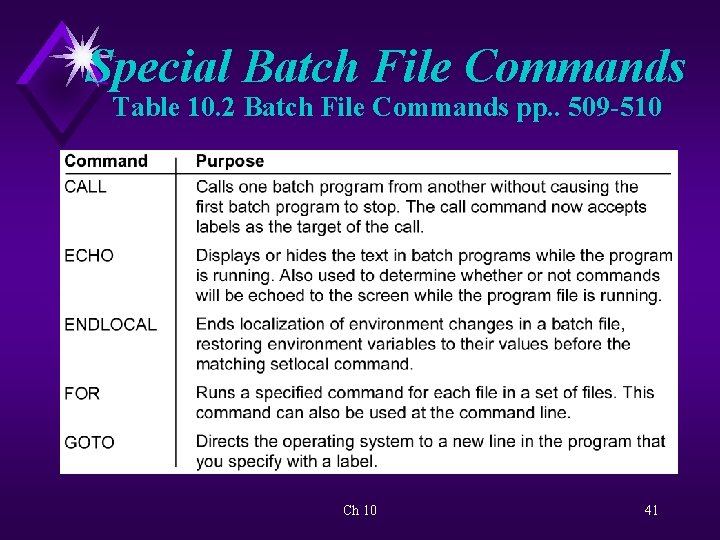
Special Batch File Commands Table 10. 2 Batch File Commands pp. . 509 -510 Ch 10 41
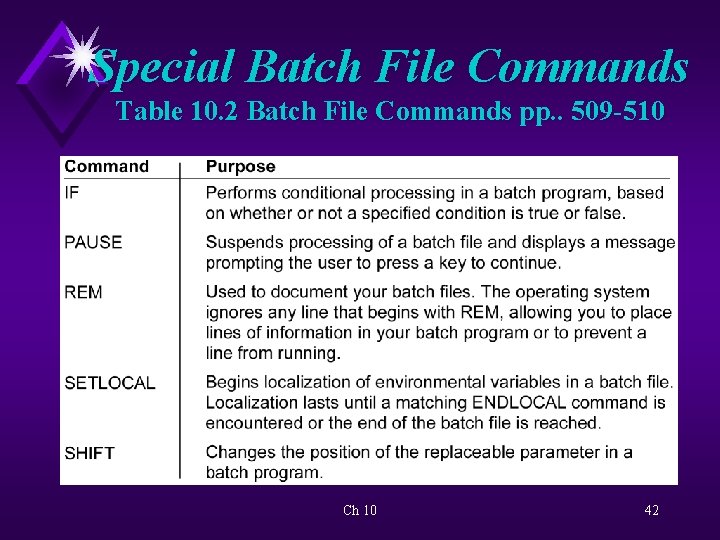
Special Batch File Commands Table 10. 2 Batch File Commands pp. . 509 -510 Ch 10 42
The REM Command REM command (remarks) allows user to place comments in file that are displayed but not executed Ch 10 43
The REM Command REM allows file to be documented: è Gives explanation of the purpose of a program è Can include name of batch file, last time it was updated, and author of batch file Ch 10 44
Activity—Using REM KEY CONCEPTS: è Used Edit to write batch file è Purpose of REM - provide explanatory remarks about the batch file è If line begins with REM - explanatory text follows and no action taken è No more lines in batch file -OS returns to system level Ch 10 45
The ECHO Command ECHO ON command: è Displays command the command’s output to the screen è Is the default value Ch 10 46
The ECHO Command ECHO OFF command: è Minimizes screen clutter è User turns off display of command then only see command’s output Ch 10 47
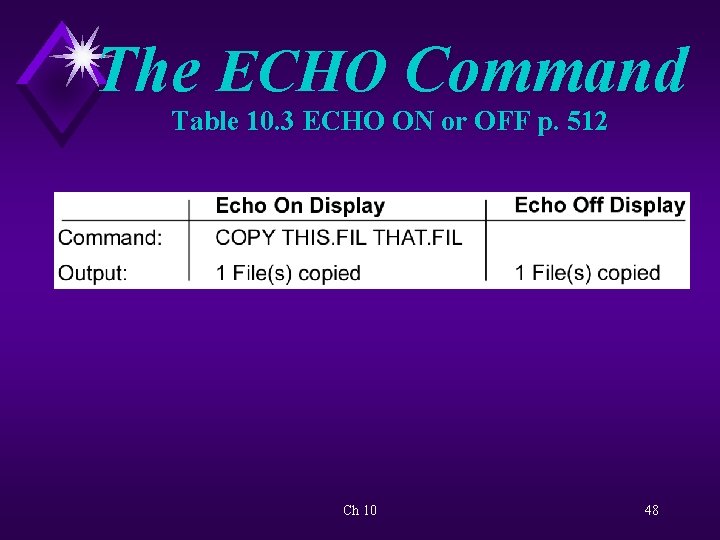
The ECHO Command Table 10. 3 ECHO ON or OFF p. 512 Ch 10 48
Activity—Using ECHO KEY CONCEPTS: è ECHO ON - see remarks and commands è ECHO OFF - output displayed not actual commands è @ECHO OFF - @ suppresses display of ECHO OFF è Purpose of batch files defeated if interaction required by user Ch 10 49
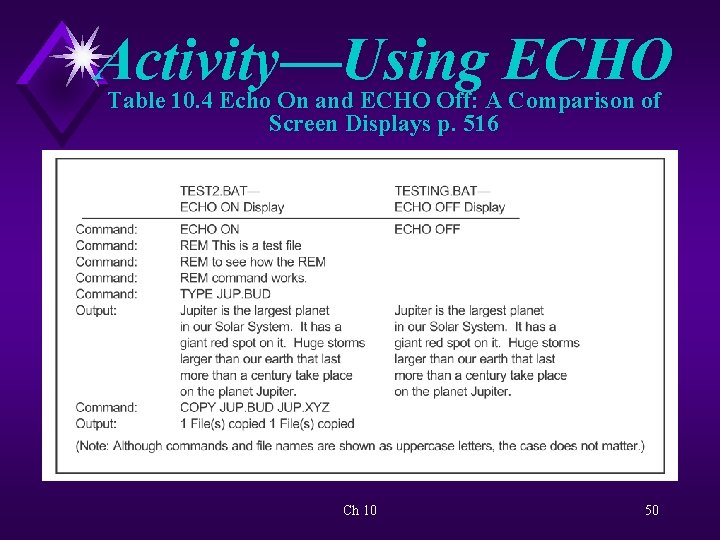
Activity—Using ECHO Table 10. 4 Echo On and ECHO Off: A Comparison of Screen Displays p. 516 Ch 10 50
The CLS Command CLS command used to clear screen when it becomes full of no longer needed information. Ch 10 51
Activity - Using CLS KEY CONCEPTS: èAfter ECHO turned off screen cleared Ch 10 52
The PAUSE Command PAUSE command instructs the batch file to stop executing until the user takes some action. Ch 10 53
Activity—Using Pause KEY CONCEPTS: è Batch file “paused” - stopped executing until some action is taken è Pause is not an order Ch 10 54
Stopping a Batch File from Executing To interrupt a batch file during execution: èPress <Ctrl> + C èPress <Ctrl> + <Break> Ch 10 55
Stopping a Batch File from Executing Return to system prompt when batch file interrupted. Ch 10 56
Activity—Quitting a Batch File KEY CONCEPTS: è Results of Pressing <Ctrl> + C è Because of speed of computer difficult to ascertain how many lines of batch file read when <Ctrl> + C pressed Ch 10 57
Replaceable Parameters in Batch Files Can use fixed or variable parameters with batch files. Ch 10 58
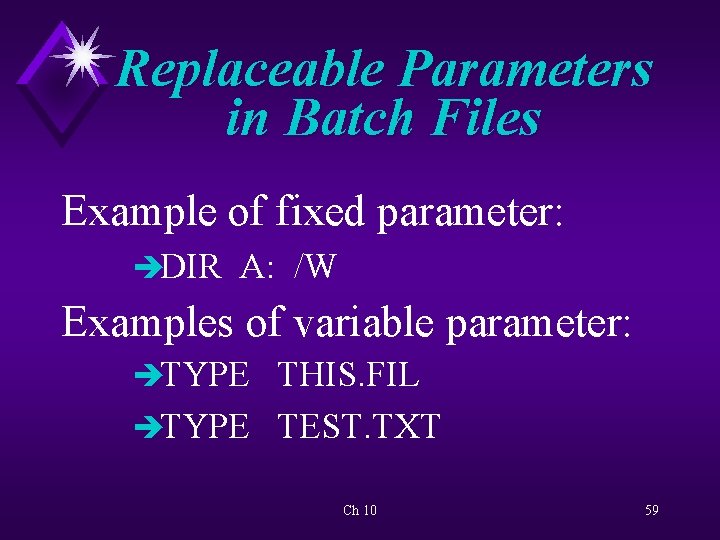
Replaceable Parameters in Batch Files Example of fixed parameter: èDIR A: /W Examples of variable parameter: èTYPE THIS. FIL èTYPE TEST. TXT Ch 10 59
Replaceable Parameters in Batch Files è Batch files can also use replaceable parameters. è Replaceable parameters also called dummy, substitute or positional parameters. Ch 10 60
Replaceable Parameters in Batch Files Can parse batch commands: è Keying in additional information on command line è Dividing computer language into parts that can be made useful to computer Ch 10 61
Replaceable Parameters in Batch Files User supplies markers (place holders) to let batch file know that variable will be keyed in with batch file name. Ch 10 62
Replaceable Parameters in Batch Files The place holder used in batch files is the percent sign (%), followed by a number (0 -9). Ch 10 63
Replaceable Parameters in Batch Files è The % sign is a signal to the operating system that a parameter is coming. è The numbers (0 -9) indicate what position the parameter is on in the command line. Ch 10 64
Activity—Using Replaceable Parameters KEY CONCEPTS: è Data still on disk when file deleted è To delete data overwrite file with new data è Create generic or “plain wrap” batch file å Supply specific parameter of file name of interest å Supply place (“replaceable parameters”)for name of file å View replaceable parameters as positional parameters î % sign followed by number Ch 10 65
Multiple Replaceable Parameters in Batch Files Many commands used in batch files may require more than one parameter. Ch 10 66
Multiple Replaceable Parameters in Batch File Batch files can have up to 10 replaceable (positional) parameters (%0 -%9). Ch 10 67
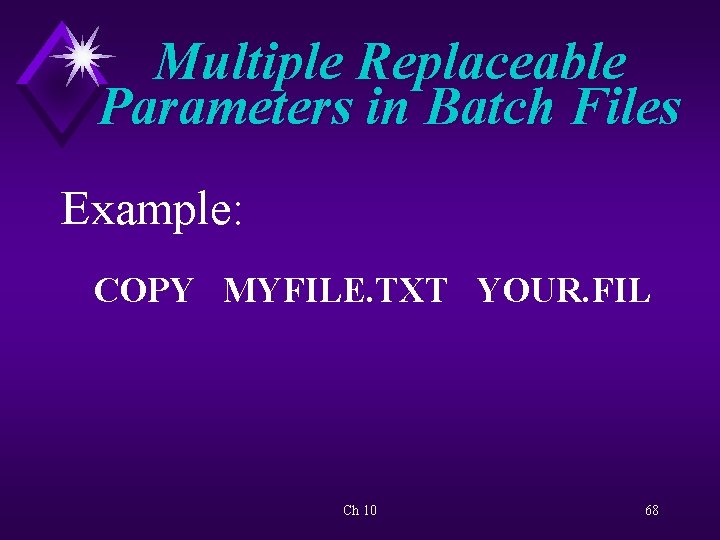
Multiple Replaceable Parameters in Batch Files Example: COPY MYFILE. TXT YOUR. FIL Ch 10 68
Activity—Using Multiple Replaceable Parameters KEY CONCEPTS: è Within batch files parameters do not have to be in order. è Order used on command line å %1 - refers to first position after command not first item on command line Ch 10 69
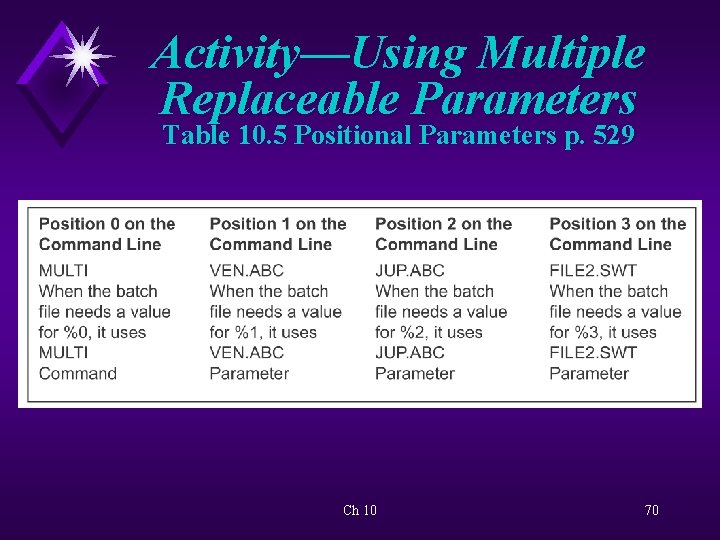
Activity—Using Multiple Replaceable Parameters Table 10. 5 Positional Parameters p. 529 Ch 10 70
Activity—Using Multiple Replaceable Parameters KEY CONCEPTS: è Think of them as positional not replaceable parameters è Copy files selectively (all except ones hidden) è Do not use < > or | in batch files as OS reads them as redirection or pipe symbols Ch 10 71
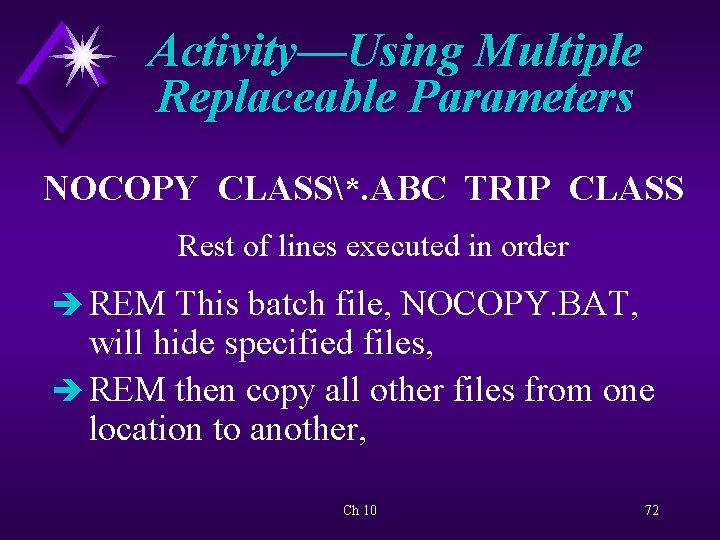
Activity—Using Multiple Replaceable Parameters NOCOPY CLASS*. ABC TRIP CLASS Rest of lines executed in order è REM This batch file, NOCOPY. BAT, will hide specified files, è REM then copy all other files from one location to another, Ch 10 72
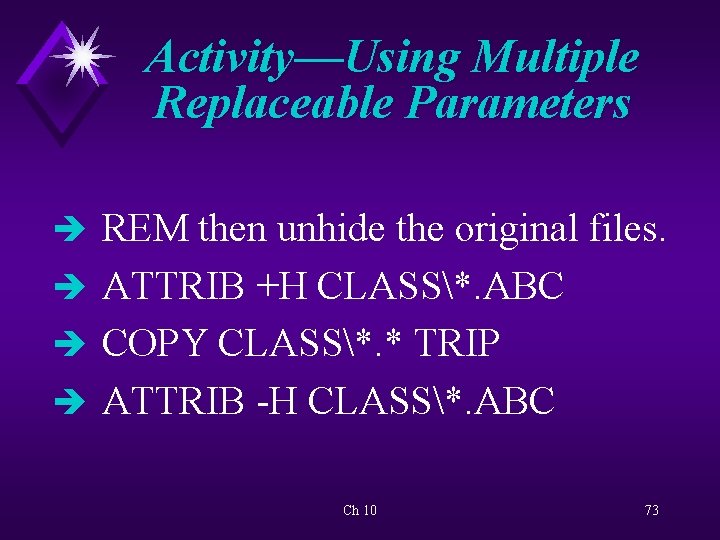
Activity—Using Multiple Replaceable Parameters è REM then unhide the original files. è ATTRIB +H CLASS*. ABC è COPY CLASS*. * TRIP è ATTRIB -H CLASS*. ABC Ch 10 73
Creating Useful Batch Files Can create commands that are not provided with the operating system. Ch 10 74
Activity—Writing Useful Batch Files KEY CONCEPTS: èCreate batch file that will compare file names in directories or on disks èAdd @ECHO OFF at beginning of batch file - see results of command not REM statements Ch 10 75
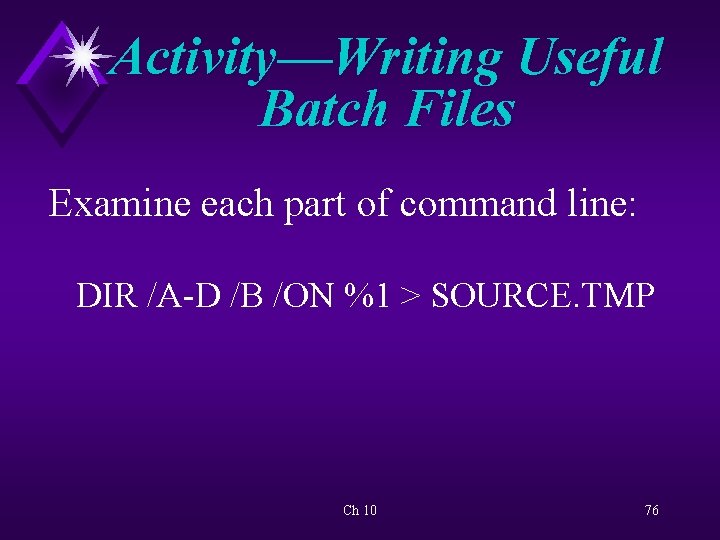
Activity—Writing Useful Batch Files Examine each part of command line: DIR /A-D /B /ON %1 > SOURCE. TMP Ch 10 76
- Slides: 76