
INTRODUCTION TO AUXDATA 4 Useful Reports Training Status



- Slides: 21
INTRODUCTION TO AUXDATA #4 Useful Reports Training Status Report November 2011 1
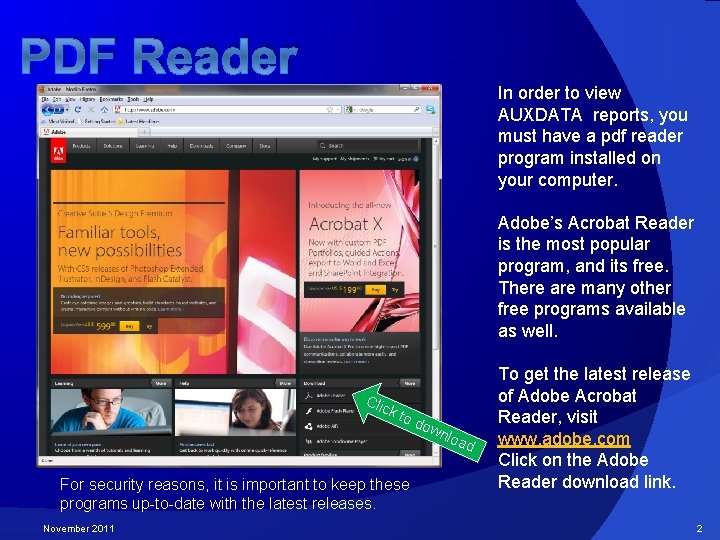
PDF Reader In order to view AUXDATA reports, you must have a pdf reader program installed on your computer. Adobe’s Acrobat Reader is the most popular program, and its free. There are many other free programs available as well. Clic k to d ow nlo ad For security reasons, it is important to keep these programs up-to-date with the latest releases. November 2011 To get the latest release of Adobe Acrobat Reader, visit www. adobe. com Click on the Adobe Reader download link. 2
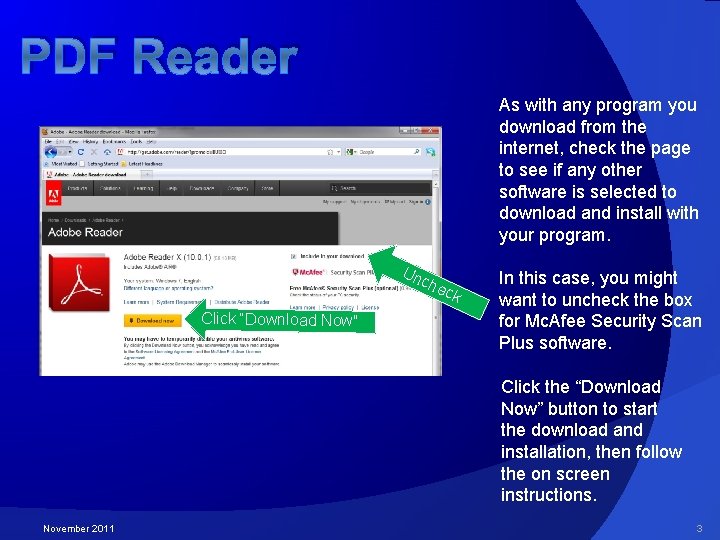
PDF Reader As with any program you download from the internet, check the page to see if any other software is selected to download and install with your program. Un che Click “Download Now” ck In this case, you might want to uncheck the box for Mc. Afee Security Scan Plus software. Click the “Download Now” button to start the download and installation, then follow the on screen instructions. November 2011 3
If you have not completed all the steps in the presentation “Introduction to AUXDATA #1 – How to access AUXDATA”, go back and complete the steps. Otherwise, continue with this presentation. November 2011 4
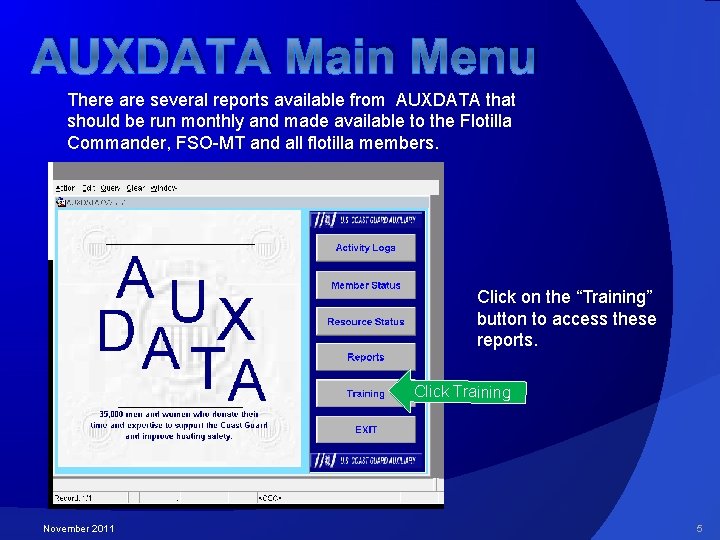
AUXDATA Main Menu There are several reports available from AUXDATA that should be run monthly and made available to the Flotilla Commander, FSO-MT and all flotilla members. Click on the “Training” button to access these reports. Click Training November 2011 5
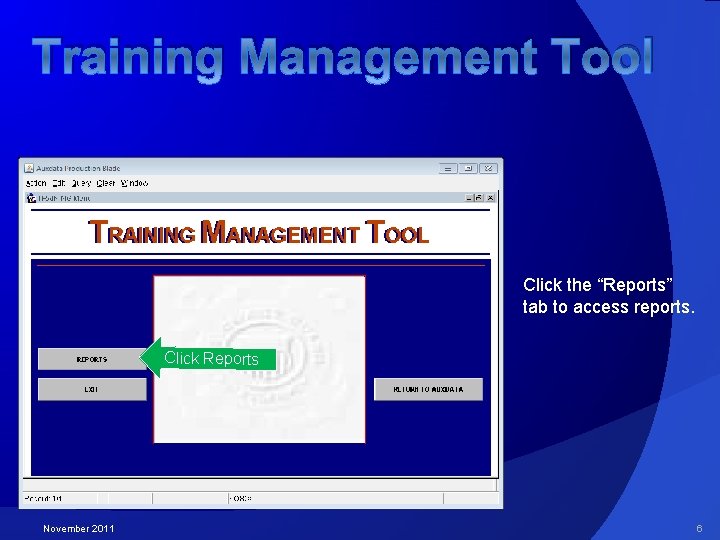
Training Management Tool Click the “Reports” tab to access reports. Click Reports November 2011 6
Training Status Reports are available for an individual member or the entire flotilla. ess Click to acc The Training Status Report lists all the Competencies a member has, the status of that competency, plus the tasks that are required to maintain that competency. Click “Training Status” to access this report. November 2011 7
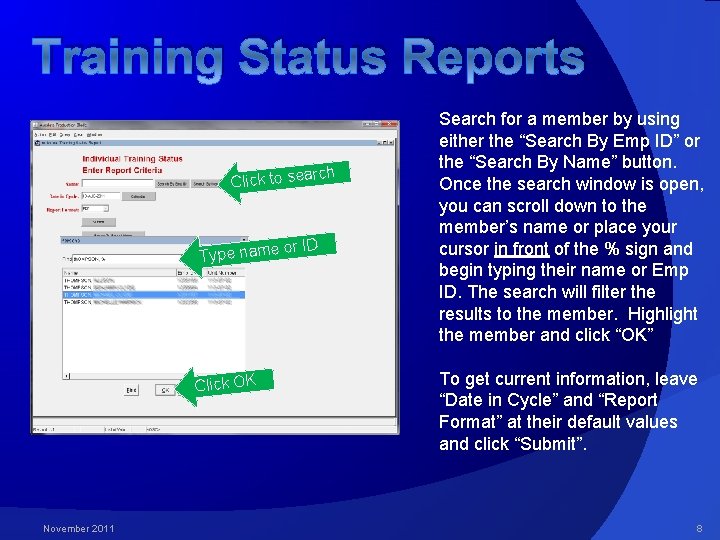
Training Status Reports rch Click to sea Type name Click OK November 2011 or ID Search for a member by using either the “Search By Emp ID” or the “Search By Name” button. Once the search window is open, you can scroll down to the member’s name or place your cursor in front of the % sign and begin typing their name or Emp ID. The search will filter the results to the member. Highlight the member and click “OK” To get current information, leave “Date in Cycle” and “Report Format” at their default values and click “Submit”. 8
Training Status Reports Com peten cy This multi-page report will give you information on the status of all of a members certifications. Competency / Currency Lists the competency and the currency of that competency (ie; Certified, REYR etc). Task November 2011 Lists all the tasks required for the competency. Tasks are color coded to indicate the status of currency. Green indicates the required tasks for the current year have been completed. Black indicates the member is current but the tasks required for the current year have yet to be completed. Red indicates the tasks for previous years and current years are not yet completed, and the date they were due. 9
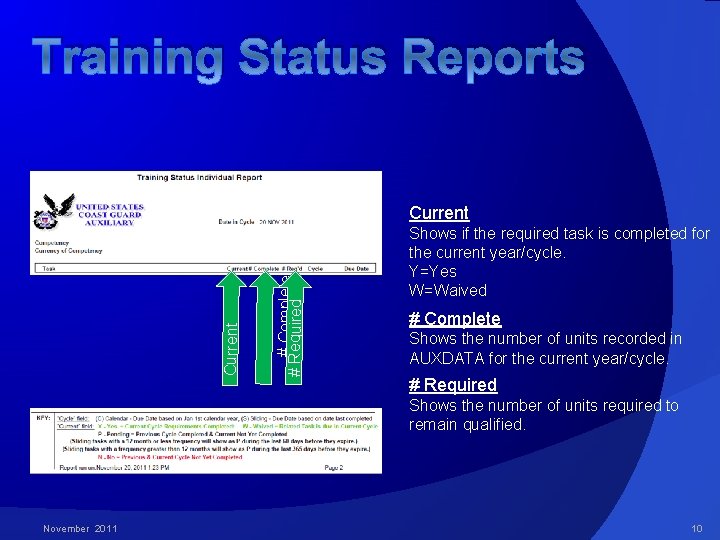
Training Status Reports # Complete # Required Current Shows if the required task is completed for the current year/cycle. Y=Yes W=Waived # Complete Shows the number of units recorded in AUXDATA for the current year/cycle. # Required Shows the number of units required to remain qualified. November 2011 10
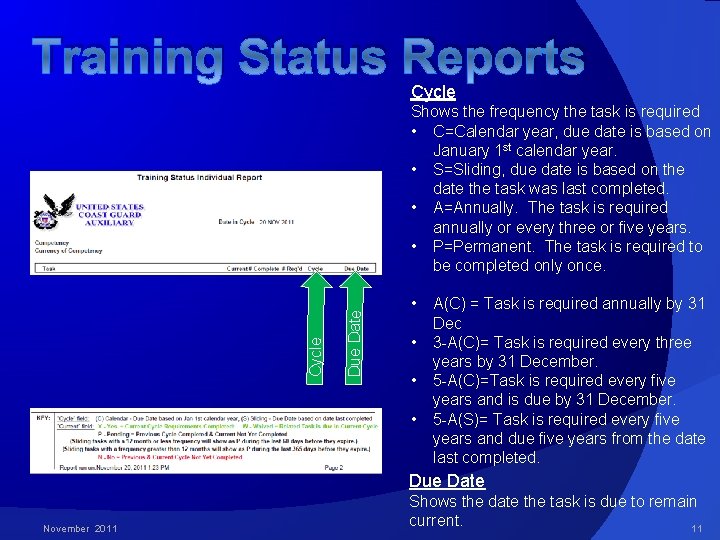
Training Status Reports Cycle Due Date Cycle Shows the frequency the task is required • C=Calendar year, due date is based on January 1 st calendar year. • S=Sliding, due date is based on the date the task was last completed. • A=Annually. The task is required annually or every three or five years. • P=Permanent. The task is required to be completed only once. • • A(C) = Task is required annually by 31 Dec 3 -A(C)= Task is required every three years by 31 December. 5 -A(C)=Task is required every five years and is due by 31 December. 5 -A(S)= Task is required every five years and due five years from the date last completed. Due Date November 2011 Shows the date the task is due to remain current. 11
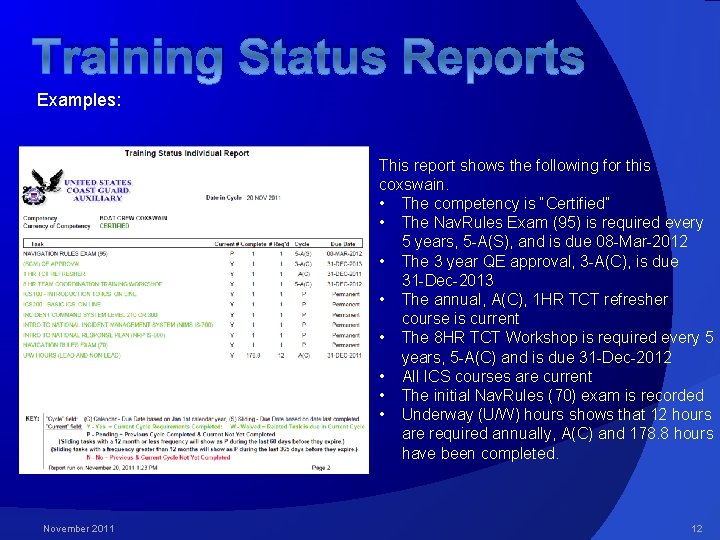
Training Status Reports Examples: This report shows the following for this coxswain. • The competency is “Certified” • The Nav. Rules Exam (95) is required every 5 years, 5 -A(S), and is due 08 -Mar-2012 • The 3 year QE approval, 3 -A(C), is due 31 -Dec-2013 • The annual, A(C), 1 HR TCT refresher course is current • The 8 HR TCT Workshop is required every 5 years, 5 -A(C) and is due 31 -Dec-2012 • All ICS courses are current • The initial Nav. Rules (70) exam is recorded • Underway (U/W) hours shows that 12 hours are required annually, A(C) and 178. 8 hours have been completed. November 2011 12
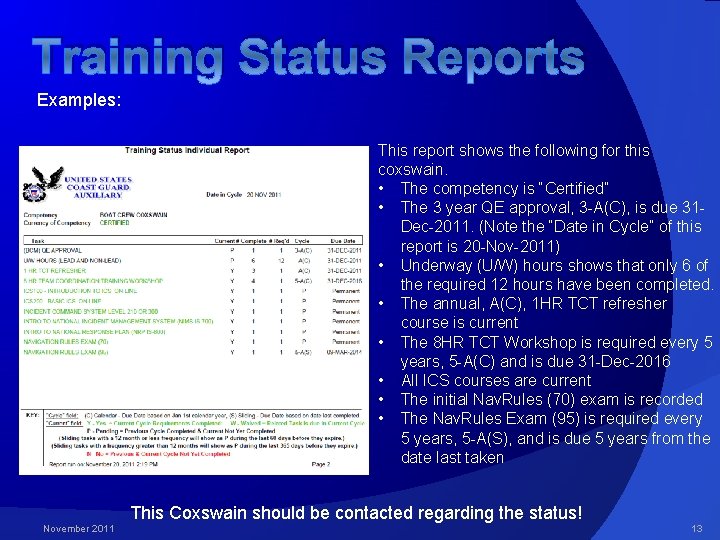
Training Status Reports Examples: This report shows the following for this coxswain. • The competency is “Certified” • The 3 year QE approval, 3 -A(C), is due 31 Dec-2011. (Note the “Date in Cycle” of this report is 20 -Nov-2011) • Underway (U/W) hours shows that only 6 of the required 12 hours have been completed. • The annual, A(C), 1 HR TCT refresher course is current • The 8 HR TCT Workshop is required every 5 years, 5 -A(C) and is due 31 -Dec-2016 • All ICS courses are current • The initial Nav. Rules (70) exam is recorded • The Nav. Rules Exam (95) is required every 5 years, 5 -A(S), and is due 5 years from the date last taken This Coxswain should be contacted regarding the status! November 2011 13
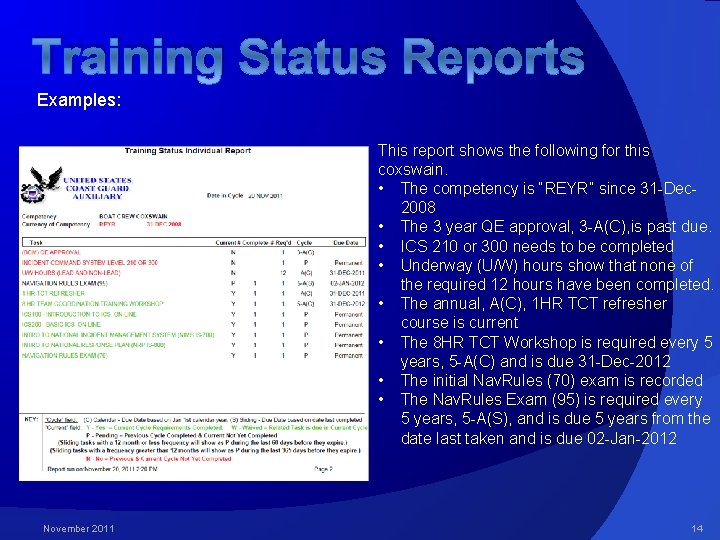
Training Status Reports Examples: This report shows the following for this coxswain. • The competency is “REYR” since 31 -Dec 2008 • The 3 year QE approval, 3 -A(C), is past due. • ICS 210 or 300 needs to be completed • Underway (U/W) hours show that none of the required 12 hours have been completed. • The annual, A(C), 1 HR TCT refresher course is current • The 8 HR TCT Workshop is required every 5 years, 5 -A(C) and is due 31 -Dec-2012 • The initial Nav. Rules (70) exam is recorded • The Nav. Rules Exam (95) is required every 5 years, 5 -A(S), and is due 5 years from the date last taken and is due 02 -Jan-2012 November 2011 14
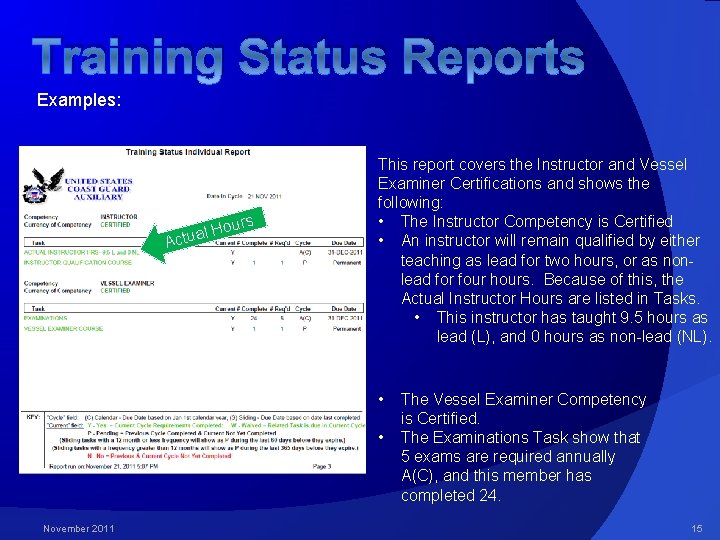
Training Status Reports Examples: Hou l a u t Ac rs This report covers the Instructor and Vessel Examiner Certifications and shows the following: • The Instructor Competency is Certified • An instructor will remain qualified by either teaching as lead for two hours, or as nonlead for four hours. Because of this, the Actual Instructor Hours are listed in Tasks. • This instructor has taught 9. 5 hours as lead (L), and 0 hours as non-lead (NL). • • November 2011 The Vessel Examiner Competency is Certified. The Examinations Task show that 5 exams are required annually A(C), and this member has completed 24. 15
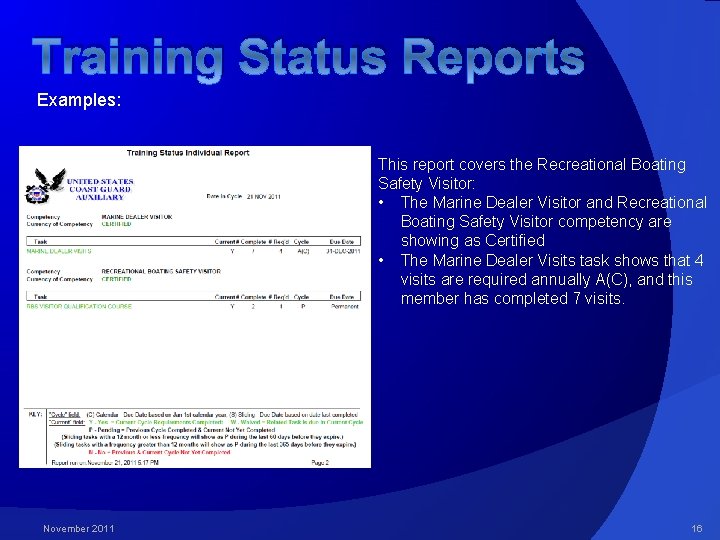
Training Status Reports Examples: This report covers the Recreational Boating Safety Visitor: • The Marine Dealer Visitor and Recreational Boating Safety Visitor competency are showing as Certified • The Marine Dealer Visits task shows that 4 visits are required annually A(C), and this member has completed 7 visits. November 2011 16
Reports – Special Instructions VERY IMPORTANT!! If you are experiencing problems with the reports loading properly, pop-up blockers must either be turned off or set to allow pop-ups from the AUXDATA site. The most common problem encountered is the Google Toolbar. In addition to the Internet Explorer pop-up blocker being turned off, the Google Toolbar pop-up blocker must be disabled or set to allow pop-ups from the AUXDATA website. November 2011 17
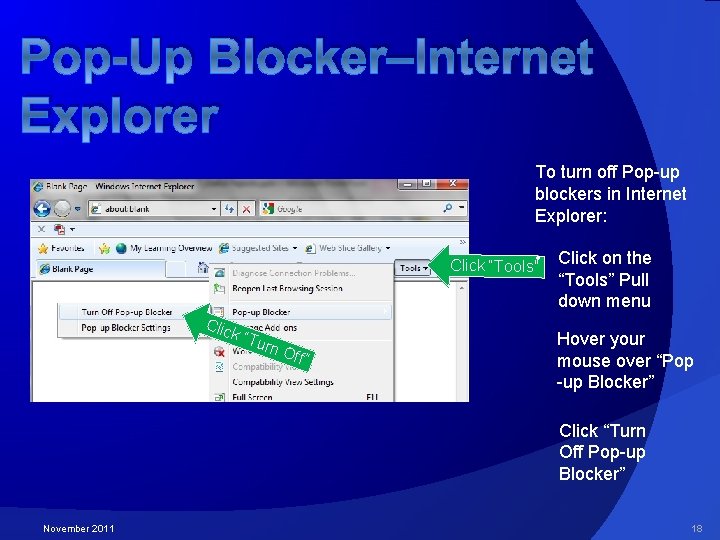
Pop-Up Blocker–Internet Explorer To turn off Pop-up blockers in Internet Explorer: Click “Tools” • Clic k “T urn Off” Click on the “Tools” Pull down menu Hover your mouse over “Pop -up Blocker” Click “Turn Off Pop-up Blocker” November 2011 18
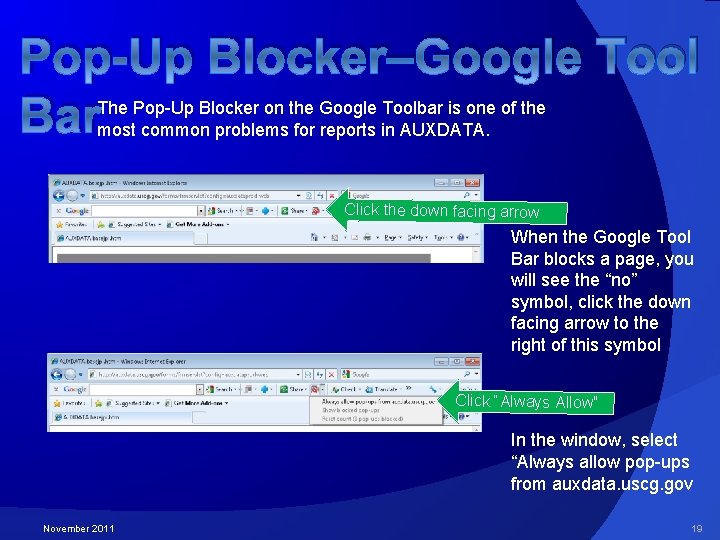
Pop-Up Blocker–Google Tool Bar The Pop-Up Blocker on the Google Toolbar is one of the most common problems for reports in AUXDATA. Click the down facing arrow When the Google Tool Bar blocks a page, you will see the “no” symbol, click the down facing arrow to the right of this symbol Click “Always Allow” In the window, select “Always allow pop-ups from auxdata. uscg. gov November 2011 19
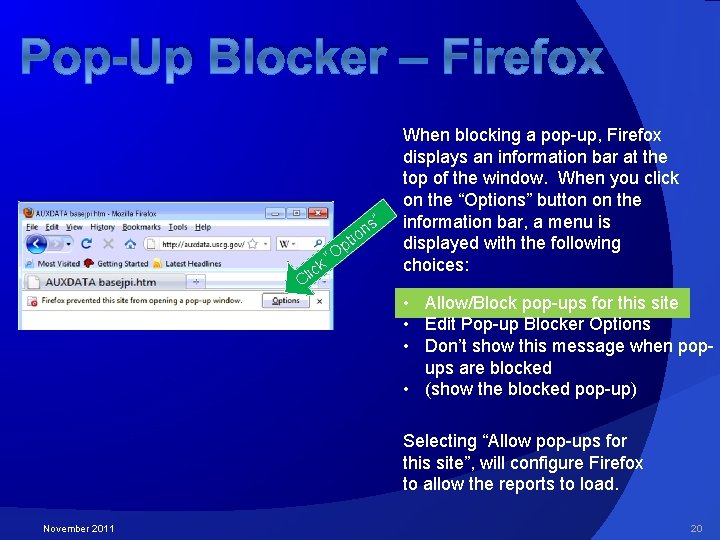
Pop-Up Blocker – Firefox s” n io k ic Cl pt O “ When blocking a pop-up, Firefox displays an information bar at the top of the window. When you click on the “Options” button on the information bar, a menu is displayed with the following choices: • Allow/Block pop-ups for this site • Edit Pop-up Blocker Options • Don’t show this message when popups are blocked • (show the blocked pop-up) Selecting “Allow pop-ups for this site”, will configure Firefox to allow the reports to load. November 2011 20
If you have any questions, contact your FSO-IS or SO-IS. Good Luck! November 2011 21