
Introduction to Arduino Integrated Development system IDE and



- Slides: 24
Introduction to Arduino Integrated Development system (IDE) and Software development Dr. KH Wong Stem 1: Introduction to Arduino v. 0. a 1
Introduction to Arduino • Arduino is a computation tool for sensing and controlling signals • It is more convenient and cost effective than using a personal computer PC. • It's an open-source system in terms of hardware and software. • You can download the Integrated Development Environment (IDE) for your own OS from http: //arduino. cc/en/Main/Software • Follow the instruction to install the IDE Stem 1: Introduction to Arduino v. 0. a 2
Embedded system comparison https: //en. wikipedia. org/wiki/STM 32 ARM 7, LPC 2100, LPC 2131, runs at 11 Mz Arduino UNO ATmega 328 Runs at 20 Mz STM 32 F 1 (M 3) , ¥ 7. 5 Cortex M 4, Nu. Micro family M 4, STM 32 F 4 , 180 MHz STM 32 F 4, @¥ 19. 40, • Raspberry Pi 3: 1. 1 GHz Cortex-A 53 550 MHz • Raspberry Pi 4: uses 64/32 -bit quad-core ARM Cortex-A 72, runs at 1. 5 GHz • Apple A 13, ARMv 8. 3 -A, instruction A 64, 7µm, 6 (2 x. Lightning+ 4 x. Thunder)2. 65 GHz • • Stem 1: Introduction to Arduino v. 0. a 3
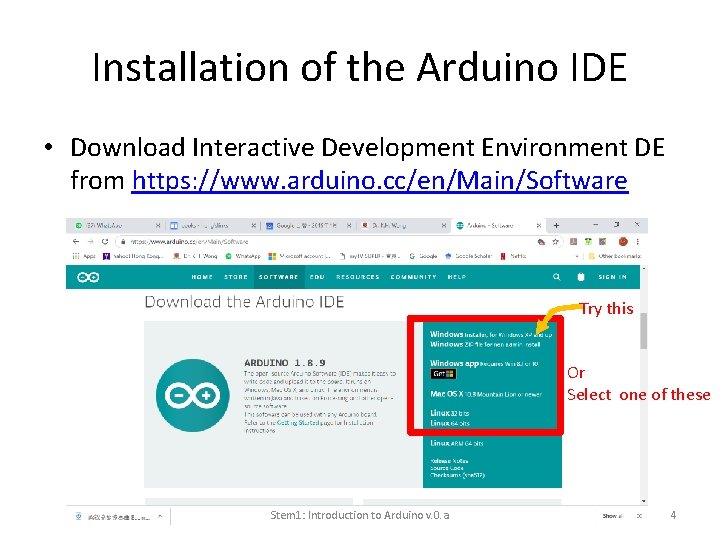
Installation of the Arduino IDE • Download Interactive Development Environment DE from https: //www. arduino. cc/en/Main/Software Try this Or Select one of these Stem 1: Introduction to Arduino v. 0. a 4
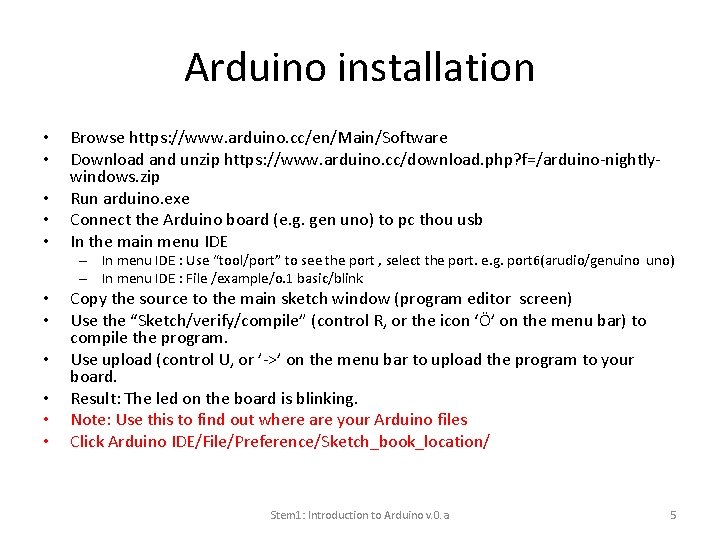
Arduino installation • • • Browse https: //www. arduino. cc/en/Main/Software Download and unzip https: //www. arduino. cc/download. php? f=/arduino-nightlywindows. zip Run arduino. exe Connect the Arduino board (e. g. gen uno) to pc thou usb In the main menu IDE – In menu IDE : Use “tool/port” to see the port , select the port. e. g. port 6(arudio/genuino uno) – In menu IDE : File /example/o. 1 basic/blink • • • Copy the source to the main sketch window (program editor screen) Use the “Sketch/verify/compile” (control R, or the icon ‘Ö’ on the menu bar) to compile the program. Use upload (control U, or ’->’ on the menu bar to upload the program to your board. Result: The led on the board is blinking. Note: Use this to find out where are your Arduino files Click Arduino IDE/File/Preference/Sketch_book_location/ Stem 1: Introduction to Arduino v. 0. a 5
Arduino UNO • Microcontroller is based on ATmega 328 14 digital input/output (I/O) pins 13, 12, … ……… 2, 1, 0 – If needed , download Arduino Integrated Development Environment IDE http: //arduino. cc/en/Main/Software#toc 1 • 14 digital input/output (I/O) pins plus • 6 analog input pins (these pins can also be programmed to be digital I/O pins) • A 16 MHz ceramic resonator Stem 1: Introduction to Arduino v. 0. a A 0 - A 5 6 Analog inputs, they can also be used as digital I/O pins 6
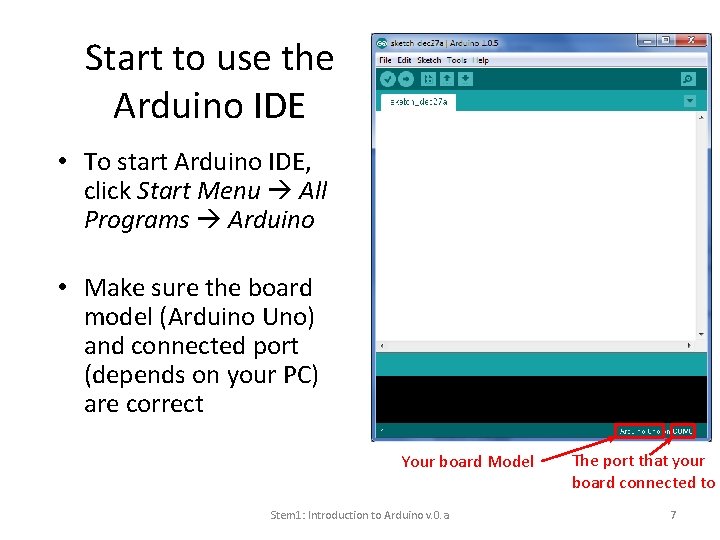
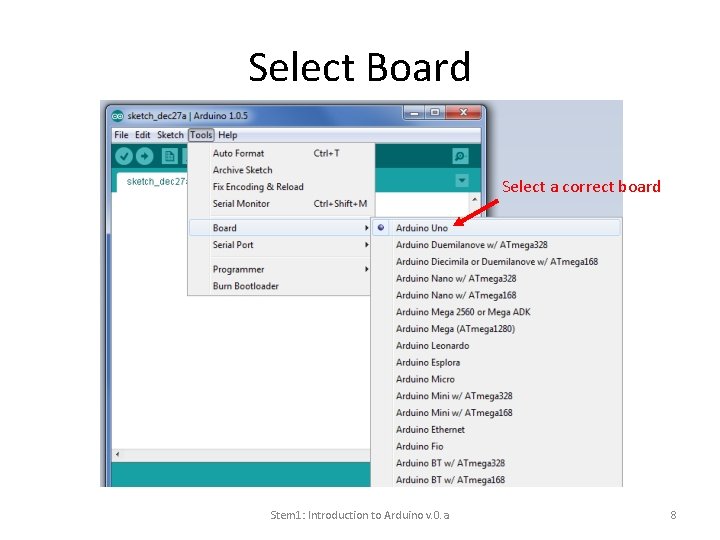
Start to use the Arduino IDE • To start Arduino IDE, click Start Menu All Programs Arduino • Make sure the board model (Arduino Uno) and connected port (depends on your PC) are correct Your board Model Stem 1: Introduction to Arduino v. 0. a The port that your board connected to 7
Select Board Select a correct board Stem 1: Introduction to Arduino v. 0. a 8
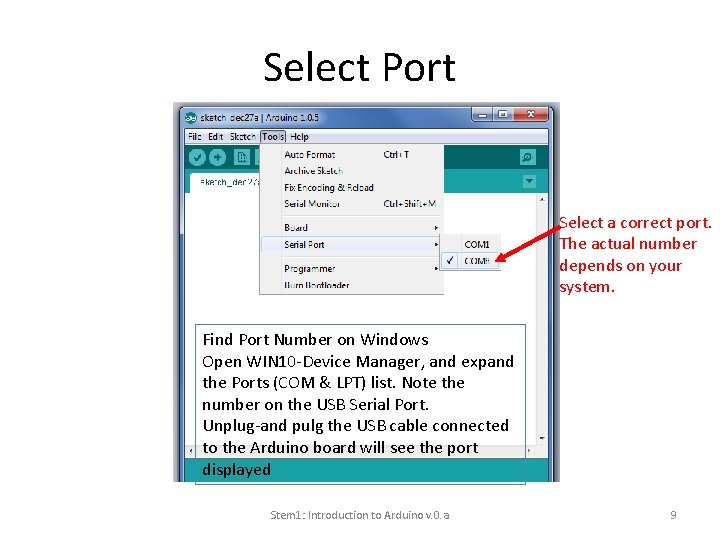
Select Port Select a correct port. The actual number depends on your system. Find Port Number on Windows Open WIN 10 -Device Manager, and expand the Ports (COM & LPT) list. Note the number on the USB Serial Port. Unplug-and pulg the USB cable connected to the Arduino board will see the port displayed Stem 1: Introduction to Arduino v. 0. a 9
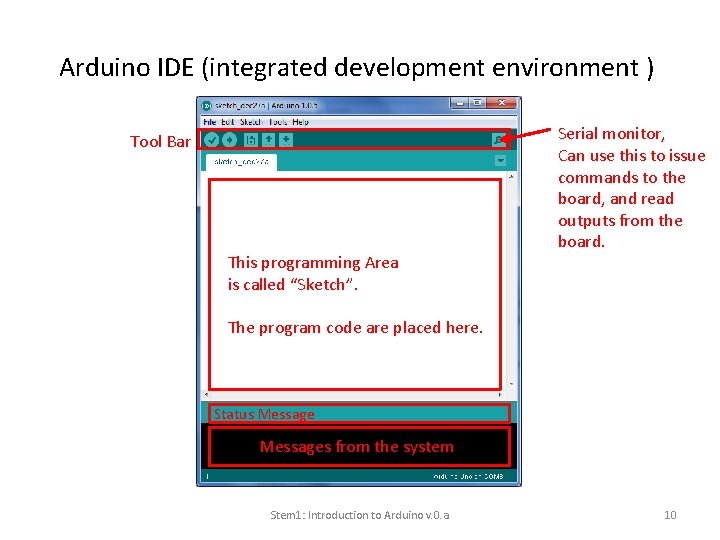
Arduino IDE (integrated development environment ) Tool Bar This programming Area is called “Sketch”. Serial monitor, Can use this to issue commands to the board, and read outputs from the board. The program code are placed here. Status Messages from the system Stem 1: Introduction to Arduino v. 0. a 10
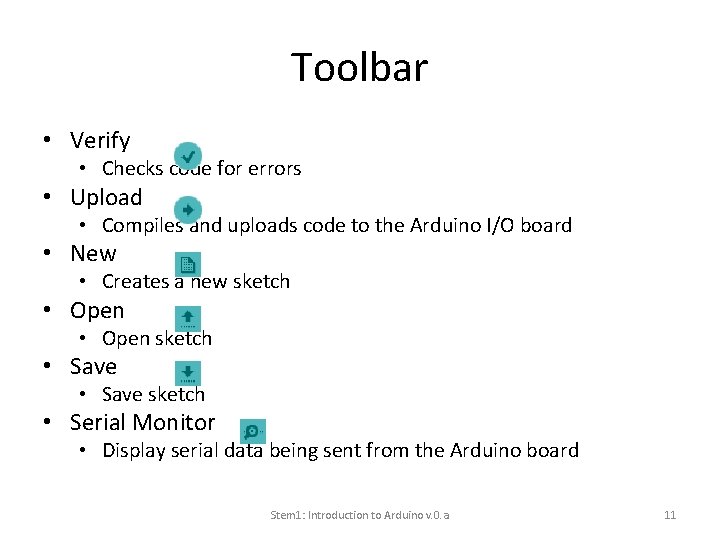
Toolbar • Verify • Checks code for errors • Upload • Compiles and uploads code to the Arduino I/O board • New • Creates a new sketch • Open sketch • Save sketch • Serial Monitor • Display serial data being sent from the Arduino board Stem 1: Introduction to Arduino v. 0. a 11
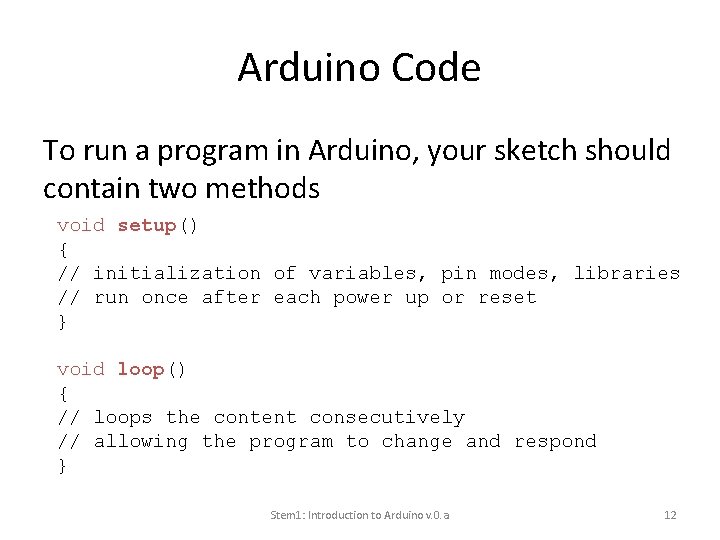
Arduino Code To run a program in Arduino, your sketch should contain two methods void setup() { // initialization of variables, pin modes, libraries // run once after each power up or reset } void loop() { // loops the content consecutively // allowing the program to change and respond } Stem 1: Introduction to Arduino v. 0. a 12
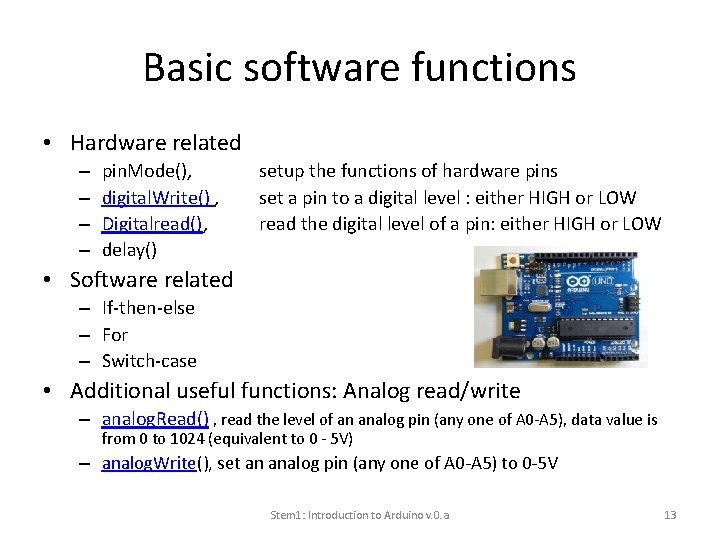
Basic software functions • Hardware related – – pin. Mode(), digital. Write() , Digitalread(), delay() setup the functions of hardware pins set a pin to a digital level : either HIGH or LOW read the digital level of a pin: either HIGH or LOW • Software related – If-then-else – For – Switch-case • Additional useful functions: Analog read/write – analog. Read() , read the level of an analog pin (any one of A 0 -A 5), data value is from 0 to 1024 (equivalent to 0 - 5 V) – analog. Write(), set an analog pin (any one of A 0 -A 5) to 0 -5 V Stem 1: Introduction to Arduino v. 0. a 13
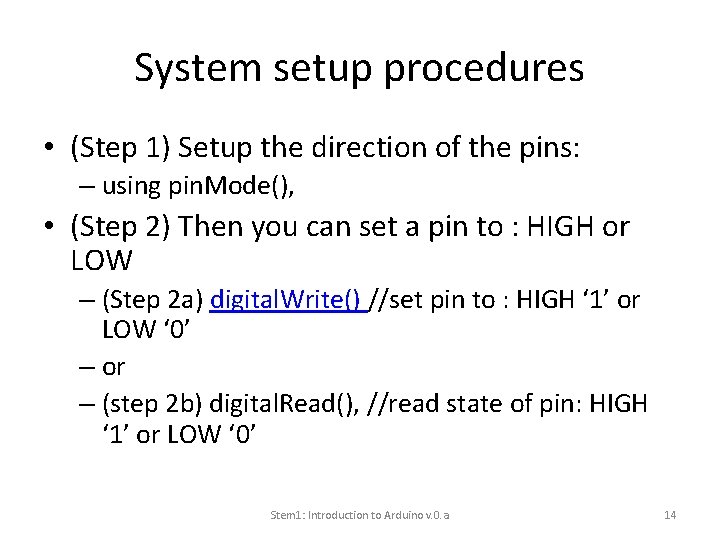
System setup procedures • (Step 1) Setup the direction of the pins: – using pin. Mode(), • (Step 2) Then you can set a pin to : HIGH or LOW – (Step 2 a) digital. Write() //set pin to : HIGH ‘ 1’ or LOW ‘ 0’ – or – (step 2 b) digital. Read(), //read state of pin: HIGH ‘ 1’ or LOW ‘ 0’ Stem 1: Introduction to Arduino v. 0. a 14
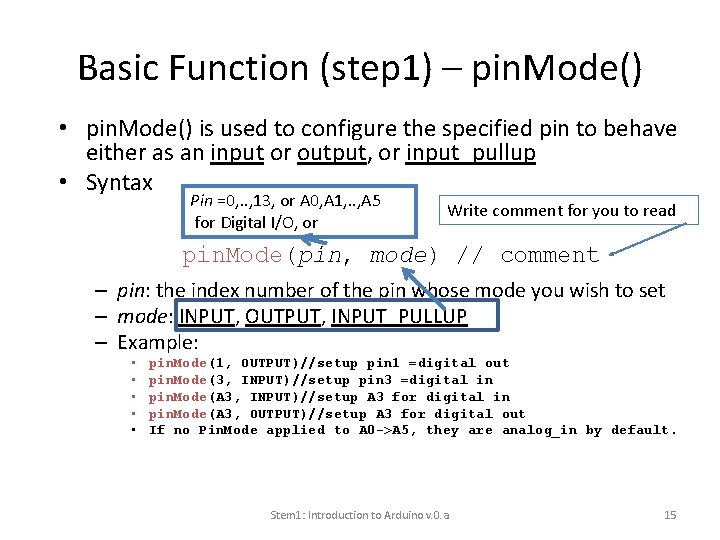
Basic Function (step 1) – pin. Mode() • pin. Mode() is used to configure the specified pin to behave either as an input or output, or input_pullup • Syntax Pin =0, . . , 13, or A 0, A 1, . . , A 5 for Digital I/O, or Write comment for you to read pin. Mode(pin, mode) // comment – pin: the index number of the pin whose mode you wish to set – mode: INPUT, OUTPUT, INPUT_PULLUP – Example: • • • pin. Mode(1, OUTPUT)//setup pin 1 =digital out pin. Mode(3, INPUT)//setup pin 3 =digital in pin. Mode(A 3, INPUT)//setup A 3 for digital in pin. Mode(A 3, OUTPUT)//setup A 3 for digital out If no Pin. Mode applied to A 0 ->A 5, they are analog_in by default. Stem 1: Introduction to Arduino v. 0. a 15
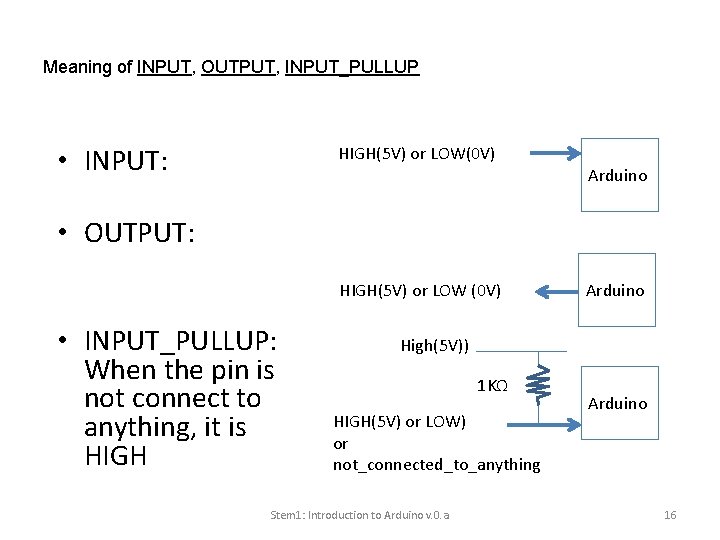
Meaning of INPUT, OUTPUT, INPUT_PULLUP • INPUT: HIGH(5 V) or LOW(0 V) Arduino • OUTPUT: HIGH(5 V) or LOW (0 V) • INPUT_PULLUP: When the pin is not connect to anything, it is HIGH Arduino High(5 V)) 1 KΩ HIGH(5 V) or LOW) or not_connected_to_anything Stem 1: Introduction to Arduino v. 0. a Arduino 16
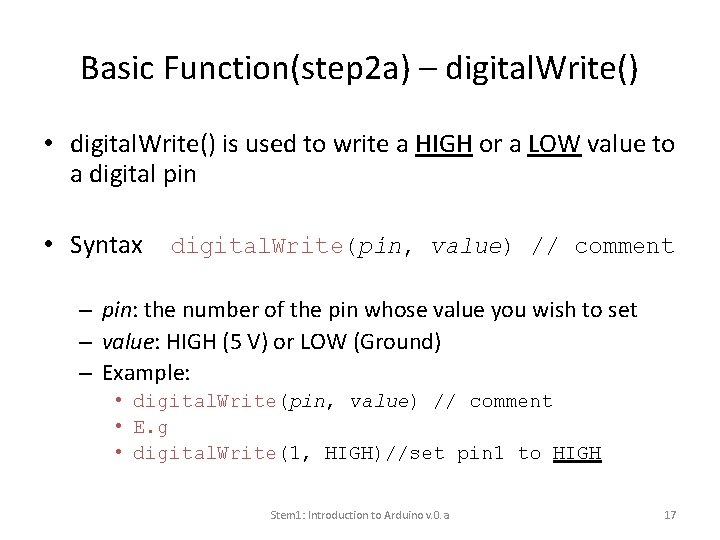
Basic Function(step 2 a) – digital. Write() • digital. Write() is used to write a HIGH or a LOW value to a digital pin • Syntax digital. Write(pin, value) // comment – pin: the number of the pin whose value you wish to set – value: HIGH (5 V) or LOW (Ground) – Example: • digital. Write(pin, value) // comment • E. g • digital. Write(1, HIGH)//set pin 1 to HIGH Stem 1: Introduction to Arduino v. 0. a 17
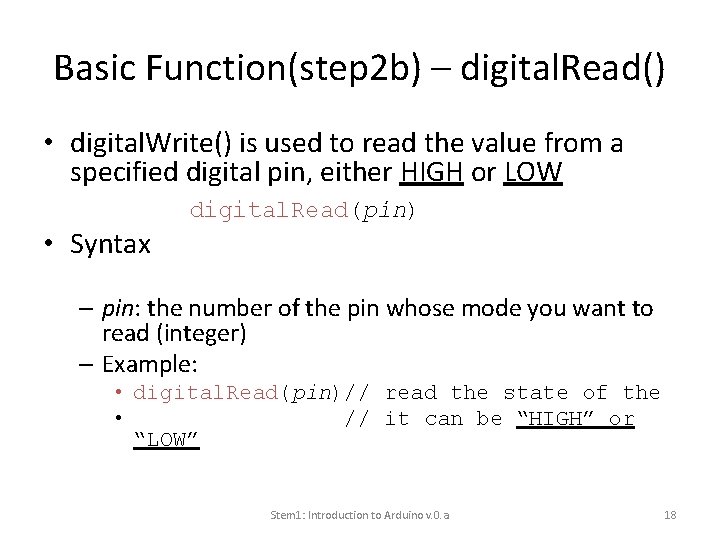
Basic Function(step 2 b) – digital. Read() • digital. Write() is used to read the value from a specified digital pin, either HIGH or LOW digital. Read(pin) • Syntax – pin: the number of the pin whose mode you want to read (integer) – Example: • digital. Read(pin)// read the state of the • // it can be “HIGH” or “LOW” Stem 1: Introduction to Arduino v. 0. a 18
Some other basic Function – delay() • delay() is used to pause the program for the amount of time (in milliseconds) delay(ms) • Syntax – ms: the number of milliseconds to pause (unsigned long) Stem 1: Introduction to Arduino v. 0. a 19
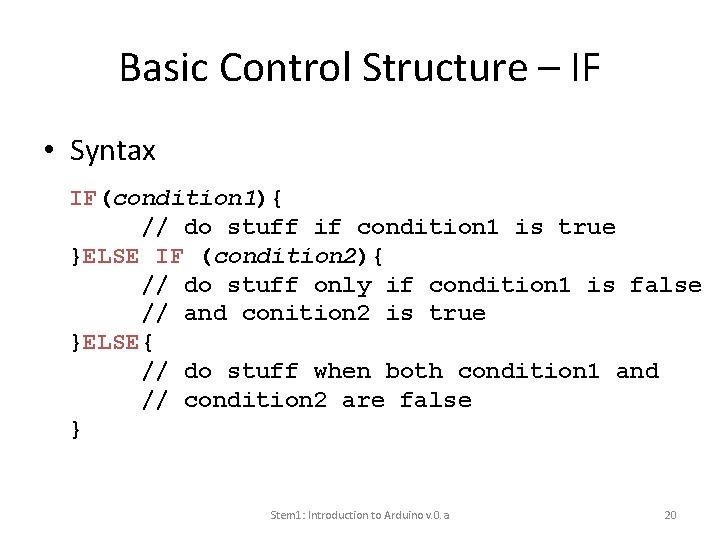
Basic Control Structure – IF • Syntax IF(condition 1){ // do stuff if condition 1 is true }ELSE IF (condition 2){ // do stuff only if condition 1 is false // and conition 2 is true }ELSE{ // do stuff when both condition 1 and // condition 2 are false } Stem 1: Introduction to Arduino v. 0. a 20
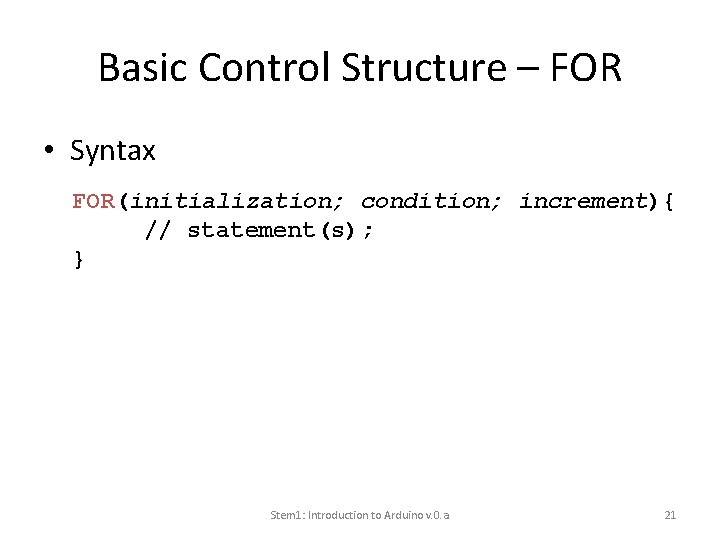
Basic Control Structure – FOR • Syntax FOR(initialization; condition; increment){ // statement(s); } Stem 1: Introduction to Arduino v. 0. a 21
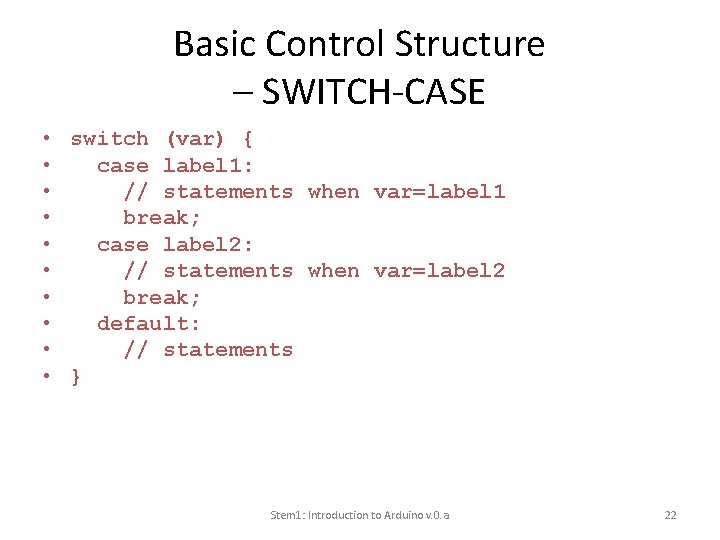
Basic Control Structure – SWITCH-CASE • switch (var) { • case label 1: • // statements when var=label 1 • break; • case label 2: • // statements when var=label 2 • break; • default: • // statements • } Stem 1: Introduction to Arduino v. 0. a 22
More Functions • Please visit http: //arduino. cc/en/Reference/ for Arduino Language Reference Stem 1: Introduction to Arduino v. 0. a 23
Conclusion • Learned how to use the IDE (interactive development environment) of Arduino • Learned how to upload program to the Arduino board • We studied the basic functions of an Arduino system Stem 1: Introduction to Arduino v. 0. a 24