
Introduction to Arc SDE Environmental Earth Ocean Science





- Slides: 58
Introduction to Arc. SDE Environmental, Earth & Ocean Science 381 - Spring 2011 - EEOS 381 Spring 2011 – Lecture 6
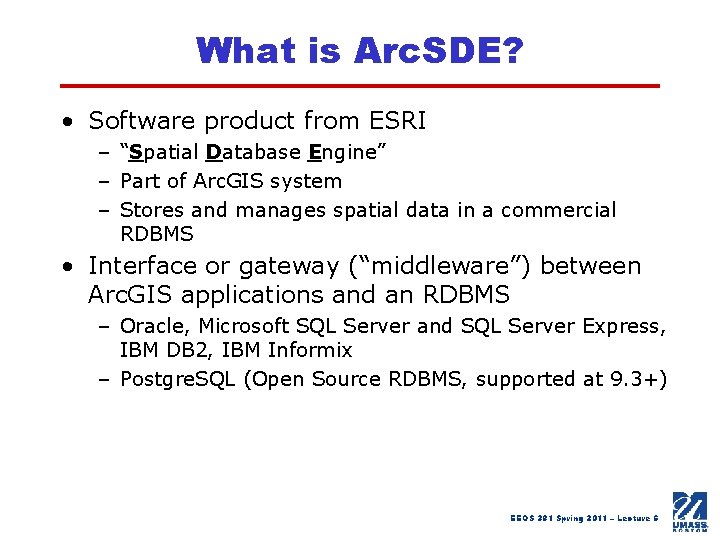
What is Arc. SDE? • Software product from ESRI – “Spatial Database Engine” – Part of Arc. GIS system – Stores and manages spatial data in a commercial RDBMS • Interface or gateway (“middleware”) between Arc. GIS applications and an RDBMS – Oracle, Microsoft SQL Server and SQL Server Express, IBM DB 2, IBM Informix – Postgre. SQL (Open Source RDBMS, supported at 9. 3+) EEOS 381 Spring 2011 – Lecture 6
What is Arc. SDE? • Typically installed on a server (for the Enterprise version) – Windows – Unix, Linux • Desktop and Workgroup SDE can be installed on your own PC as well Arc. SDE GDBs have all functionality of file and personal GDBs EEOS 381 Spring 2011 – Lecture 6
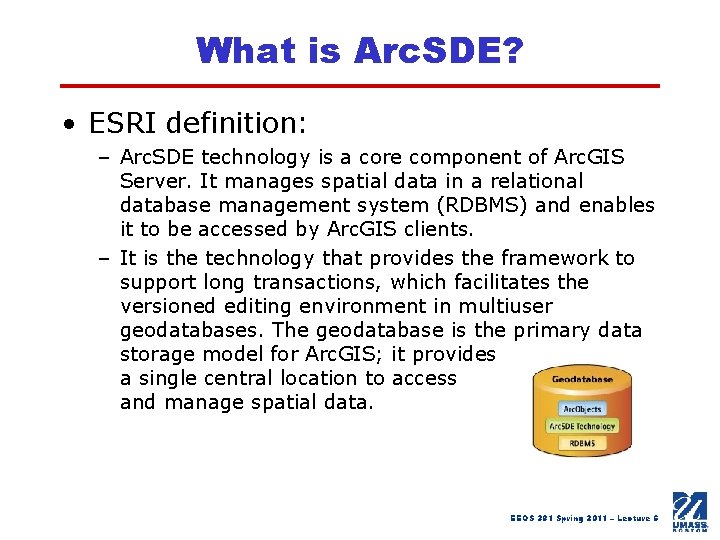
What is Arc. SDE? • ESRI definition: – Arc. SDE technology is a core component of Arc. GIS Server. It manages spatial data in a relational database management system (RDBMS) and enables it to be accessed by Arc. GIS clients. – It is the technology that provides the framework to support long transactions, which facilitates the versioned editing environment in multiuser geodatabases. The geodatabase is the primary data storage model for Arc. GIS; it provides a single central location to access and manage spatial data. EEOS 381 Spring 2011 – Lecture 6
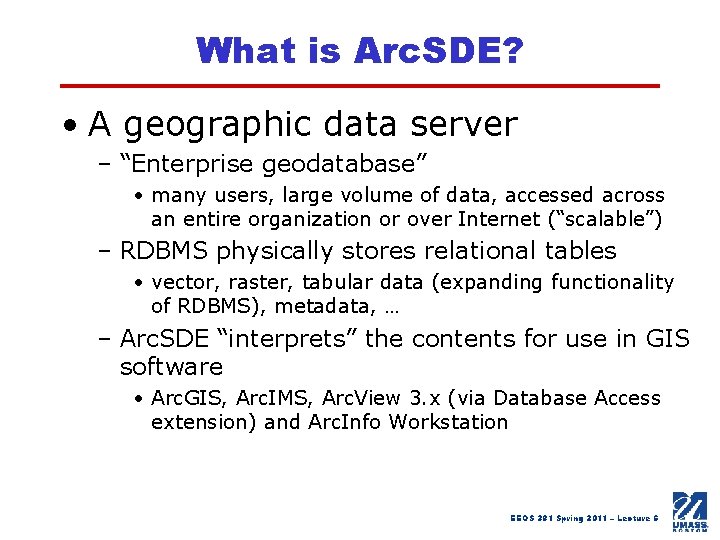
What is Arc. SDE? • A geographic data server – “Enterprise geodatabase” • many users, large volume of data, accessed across an entire organization or over Internet (“scalable”) – RDBMS physically stores relational tables • vector, raster, tabular data (expanding functionality of RDBMS), metadata, … – Arc. SDE “interprets” the contents for use in GIS software • Arc. GIS, Arc. IMS, Arc. View 3. x (via Database Access extension) and Arc. Info Workstation EEOS 381 Spring 2011 – Lecture 6
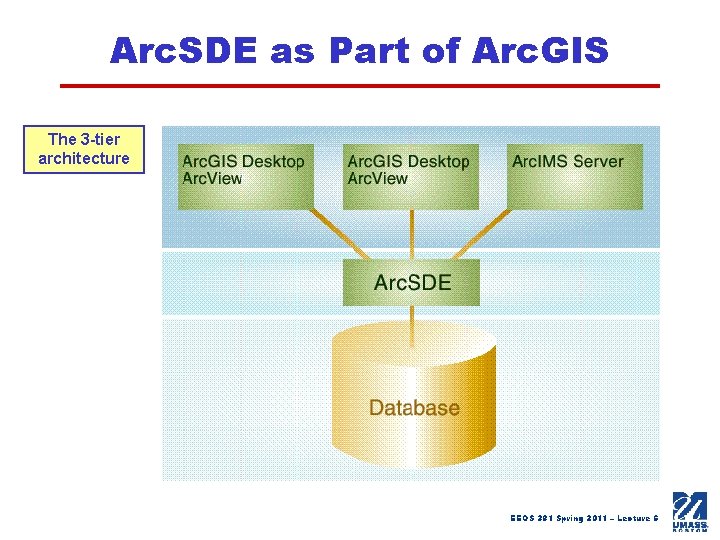
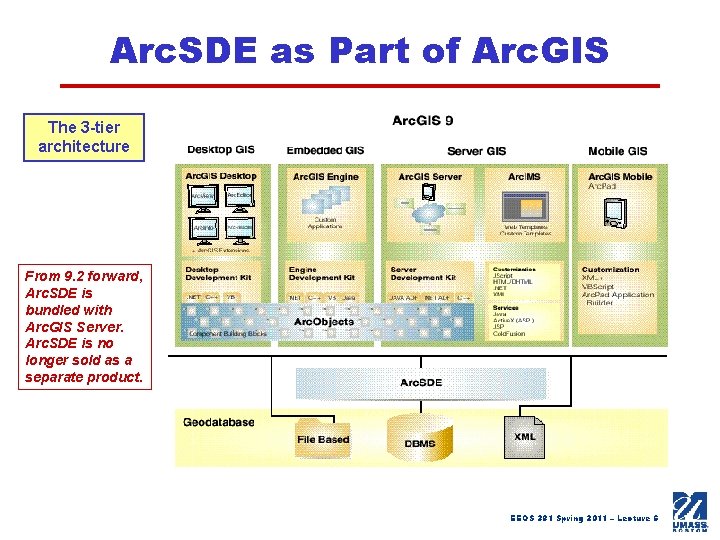
Arc. SDE as Part of Arc. GIS The 3 -tier architecture EEOS 381 Spring 2011 – Lecture 6
Arc. SDE as Part of Arc. GIS The 3 -tier architecture From 9. 2 forward, Arc. SDE is bundled with Arc. GIS Server. Arc. SDE is no longer sold as a separate product. EEOS 381 Spring 2011 – Lecture 6
Benefits of Arc. SDE • Centralized spatial database – – – Large volume of data Seamless, non-tiled layers Rapid spatial searching Storage and integration of vector, raster, tabular data Database and application portability • Concurrent access for MANY users – Versioning/Multi-user editing – Clients connect over TCP/IP network (e. g. WEB) – “Direct connect” also available EEOS 381 Spring 2011 – Lecture 6
Benefits of Arc. SDE • Use of robust RDBMS environment – Security, backup and recovery – Scalability, Indexing – Referential and data integrity – Can access GIS attribute data at the db level via SQL*Plus, OSQL, or in MS Access with ODBC connection, etc. – Link to data in existing RDBMS – Supports long transactions and Views – SDE administrators may be assisted by system administrators and RDBMS administrators EEOS 381 Spring 2011 – Lecture 6
Benefits of Arc. SDE • Spatial queries directly at SQL prompt if RDBMS supports spatially-enabled data types – Oracle Spatial, DB 2 Spatial Extender, Informix Spatial Data. Blade, SQL Server 2008 spatial data type • Use C, Java API for custom app. dev. • Fully integrated with Arc. GIS • Can batch data import/export and other processes using Administrator Commands EEOS 381 Spring 2011 – Lecture 6
Drawbacks of Arc. SDE • Requires separate purchase of RDBM$ – Need a DBA or be trained in your RDBMS software for backups, tuning (require time, money, expertise) • Can take a while to master intricacies, work around errors • May require re-working of legacy applications that may not be broken * • May require VBA/Arc. Objects or other programming skills to customize * * - for Arc. GIS/GDB in general EEOS 381 Spring 2011 – Lecture 6
Types of Arc. SDE (Arc. SDE GDBs are Scalable) Enterprise Geodatabase Workgroup Geodatabase Desktop Geodatabase (known as Personal SDE at 9. 2) Application Scenario Large-scale enterprise applications Small- to medium-sized departmental applications Small teams or a single user who requires the functionality of a multiuser geodatabase Supported RDBMS DB 2, Informix, Oracle, Postgre. SQL, SQL Server Express Management Interface Arc. Catalog, RDBMS, Arc. SDE command line Arc. Catalog Storage Capacity Depends on the server 4 GB Licensing Availability Arc. GIS Server Enterprise Arc. GIS Server Workgroup Arc. GIS Engine, Arc. Info, Arc. Editor Supported OS Platform Any platform Windows Number of Concurrent Users Unlimited editors and readers 10 editors and readers 1 editor and 3 readers Network Application Intranet and Internet Desktop and local network use Differentiating Characteristics Supports versioning and multiuser editing; Supports spatial types; integration with enterprise IT Supports versioning and multiuser editing Supports versioning NEW @ 9. 2 EEOS 381 Spring 2011 – Lecture 6
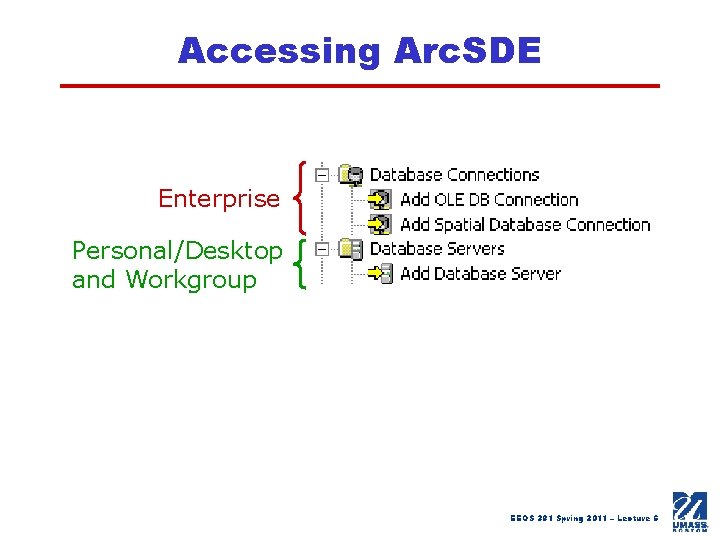
Accessing Arc. SDE Enterprise Personal/Desktop and Workgroup EEOS 381 Spring 2011 – Lecture 6
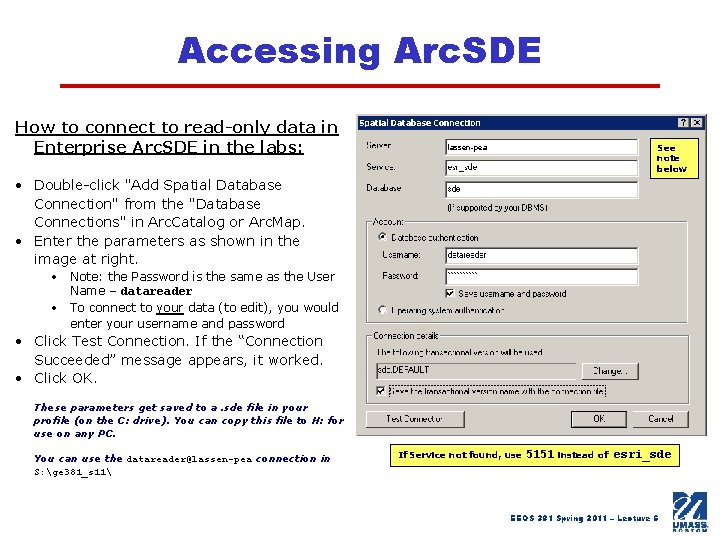
Accessing Arc. SDE How to connect to read-only data in Enterprise Arc. SDE in the labs: See note below lassen-pea • Double-click "Add Spatial Database Connection" from the "Database Connections" in Arc. Catalog or Arc. Map. • Enter the parameters as shown in the image at right. • Note: the Password is the same as the User Name – datareader • To connect to your data (to edit), you would enter your username and password • Click Test Connection. If the “Connection Succeeded” message appears, it worked. • Click OK. These parameters get saved to a. sde file in your profile (on the C: drive). You can copy this file to H: for use on any PC. You can use the datareader@lassen-pea connection in S: ge 381_s 11 If Service not found, use 5151 instead of esri_sde EEOS 381 Spring 2011 – Lecture 6
Arc. SDE Feature Classes • GDB “container” for vector data – One geometry type (point, line, polygon, annotation, etc. ) per feature class, and attributes – Owned by RDBMS users (i. e. Oracle accounts, like MGISDATA) • Stored as series of tables in the RDBMS – Joined at query time so that the client (i. e. Arc. Catalog) sees one object (layer) in the geodatabase – One row is one feature (single or multi-part) • Spatial column identifies geometry – “SHAPE” field – in RDBMS, actual coordinates stored in BLOB (binary long object) or long raw formats shape + attributes = feature EEOS 381 Spring 2011 – Lecture 6
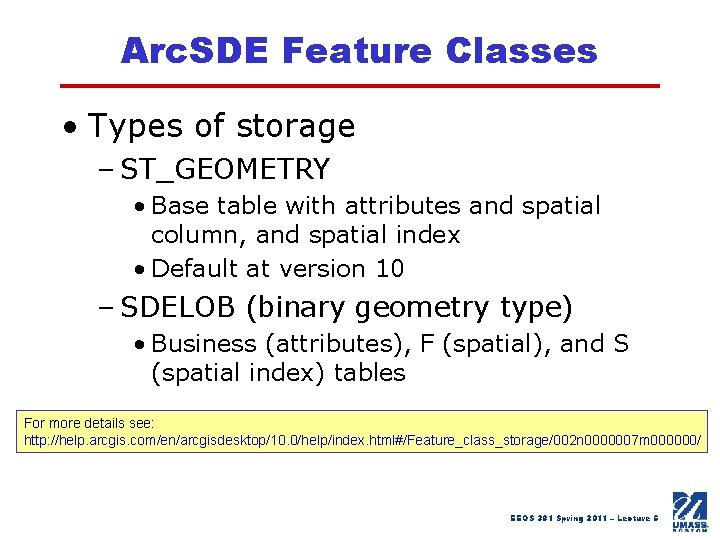
Arc. SDE Feature Classes • Types of storage – ST_GEOMETRY • Base table with attributes and spatial column, and spatial index • Default at version 10 – SDELOB (binary geometry type) • Business (attributes), F (spatial), and S (spatial index) tables For more details see: http: //help. arcgis. com/en/arcgisdesktop/10. 0/help/index. html#/Feature_class_storage/002 n 0000007 m 000000/ EEOS 381 Spring 2011 – Lecture 6
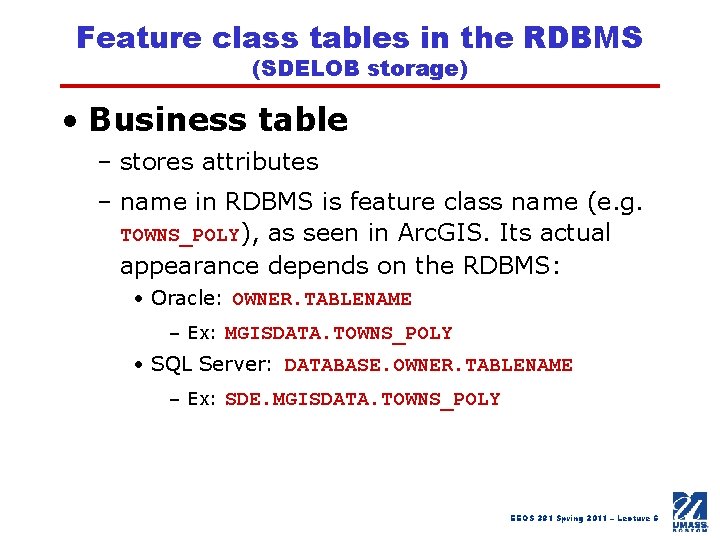
Feature class tables in the RDBMS (SDELOB storage) • Business table – stores attributes – name in RDBMS is feature class name (e. g. TOWNS_POLY), as seen in Arc. GIS. Its actual appearance depends on the RDBMS: • Oracle: OWNER. TABLENAME – Ex: MGISDATA. TOWNS_POLY • SQL Server: DATABASE. OWNER. TABLENAME – Ex: SDE. MGISDATA. TOWNS_POLY EEOS 381 Spring 2011 – Lecture 6
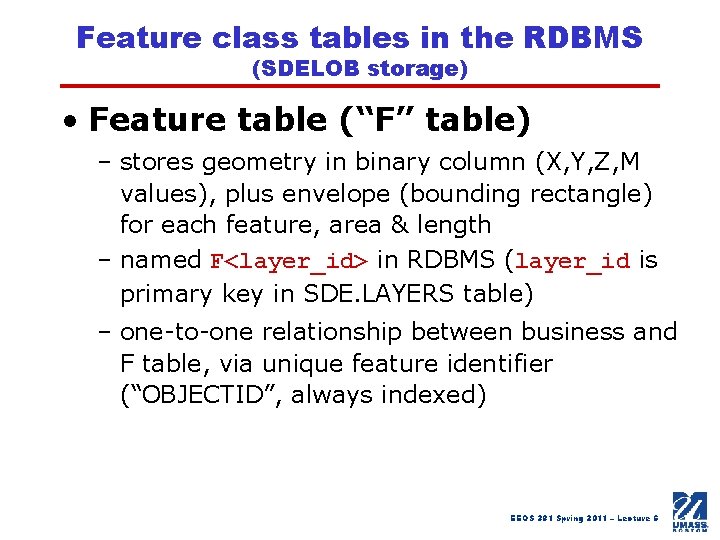
Feature class tables in the RDBMS (SDELOB storage) • Feature table (“F” table) – stores geometry in binary column (X, Y, Z, M values), plus envelope (bounding rectangle) for each feature, area & length – named F<layer_id> in RDBMS (layer_id is primary key in SDE. LAYERS table) – one-to-one relationship between business and F table, via unique feature identifier (“OBJECTID”, always indexed) EEOS 381 Spring 2011 – Lecture 6
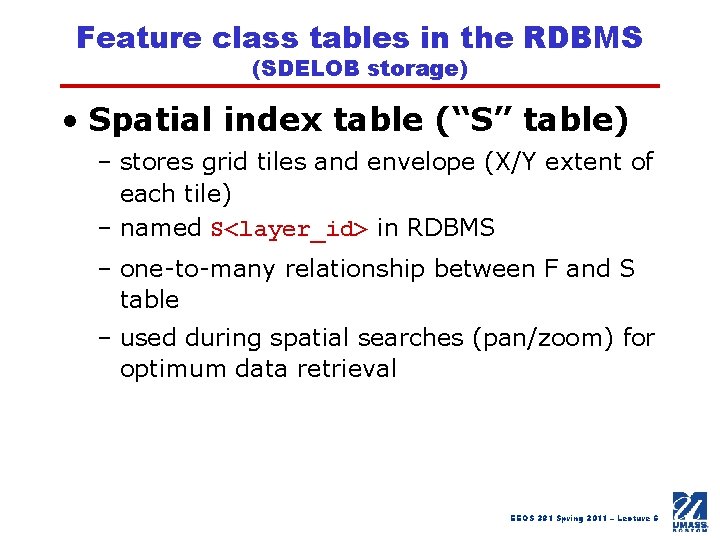
Feature class tables in the RDBMS (SDELOB storage) • Spatial index table (“S” table) – stores grid tiles and envelope (X/Y extent of each tile) – named S<layer_id> in RDBMS – one-to-many relationship between F and S table – used during spatial searches (pan/zoom) for optimum data retrieval EEOS 381 Spring 2011 – Lecture 6
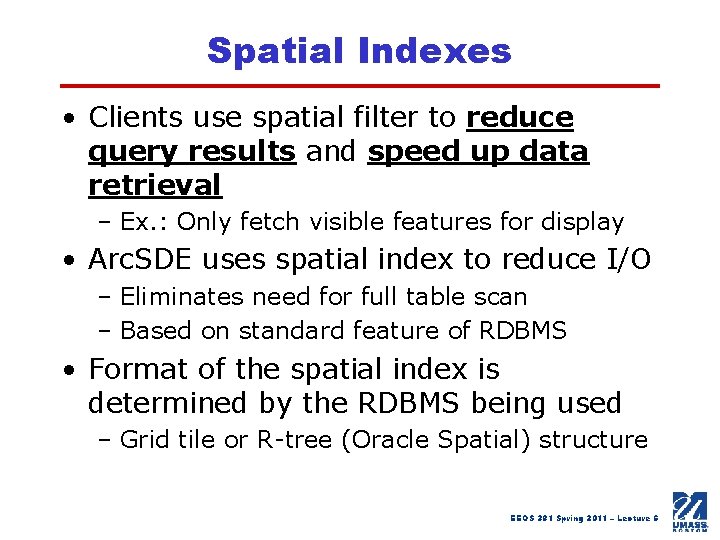
Spatial Indexes • Clients use spatial filter to reduce query results and speed up data retrieval – Ex. : Only fetch visible features for display • Arc. SDE uses spatial index to reduce I/O – Eliminates need for full table scan – Based on standard feature of RDBMS • Format of the spatial index is determined by the RDBMS being used – Grid tile or R-tree (Oracle Spatial) structure EEOS 381 Spring 2011 – Lecture 6
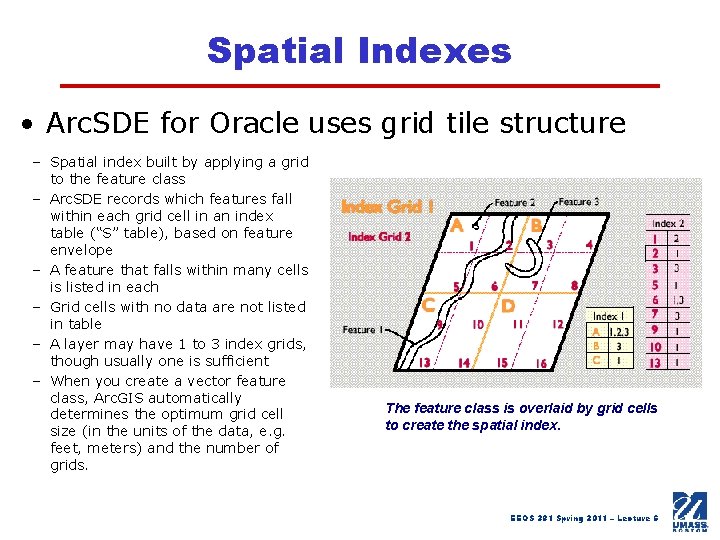
Spatial Indexes • Arc. SDE for Oracle uses grid tile structure – Spatial index built by applying a grid to the feature class – Arc. SDE records which features fall within each grid cell in an index table (“S” table), based on feature envelope – A feature that falls within many cells is listed in each – Grid cells with no data are not listed in table – A layer may have 1 to 3 index grids, though usually one is sufficient – When you create a vector feature class, Arc. GIS automatically determines the optimum grid cell size (in the units of the data, e. g. feet, meters) and the number of grids. The feature class is overlaid by grid cells to create the spatial index. EEOS 381 Spring 2011 – Lecture 6
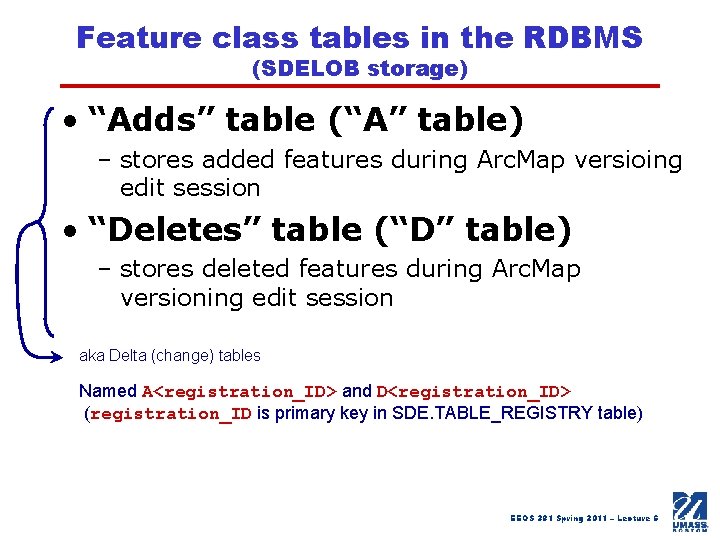
Feature class tables in the RDBMS (SDELOB storage) • “Adds” table (“A” table) – stores added features during Arc. Map versioing edit session • “Deletes” table (“D” table) – stores deleted features during Arc. Map versioning edit session aka Delta (change) tables Named A<registration_ID> and D<registration_ID> (registration_ID is primary key in SDE. TABLE_REGISTRY table) EEOS 381 Spring 2011 – Lecture 6
Arc. SDE Feature Classes • Arc. SDE manages integrity of tables (i. e. when a layer is renamed, deleted, edited) – users should never alter these tables’ schemas • i. e. add columns to layers in Arc. Catalog or Arc. Map only !! – You CAN use SQL*Plus or MS Access to edit business table attributes (and to add rows to non-feature class tables – but be careful! EEOS 381 Spring 2011 – Lecture 6
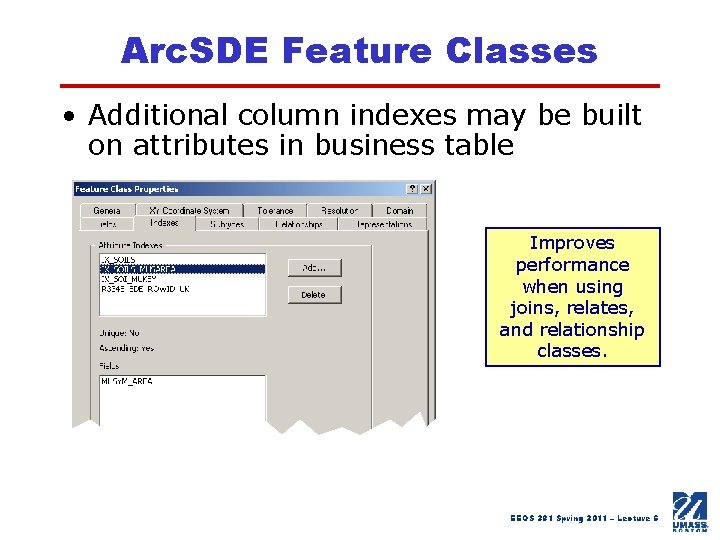
Arc. SDE Feature Classes • Additional column indexes may be built on attributes in business table Improves performance when using joins, relates, and relationship classes. EEOS 381 Spring 2011 – Lecture 6
Loading Data into Arc. SDE • Use Arc. Toolbox Conversion Tools > To Geodatabase • Right-click spatial database connection and choose Import – Supported data types or XML docs • Right-click existing SDE layer and choose Load > Load Data… • Create new empty FC with desired schema (can import from a table) and Load in features from any data source • Right-click non-SDE layers and choose Export > To Geodatabase • Use SDE commands – shp 2 sde, cov 2 sde, tbl 2 sde (for tables) • Use special tools/dialogs for labels and annotation EEOS 381 Spring 2011 – Lecture 6
After Loading Data into Arc. SDE • Right-click and – Assign privileges to data – way to control access • Enter db user or role • Check SELECT, UPDATE, INSERT, DELETE – Analyze • Updates DBMS statistics • Check/clear components to analyze • Rename layers? – Loaded data named the same as existing data will have “_1” in new name • Take a look at the data!!! EEOS 381 Spring 2011 – Lecture 6
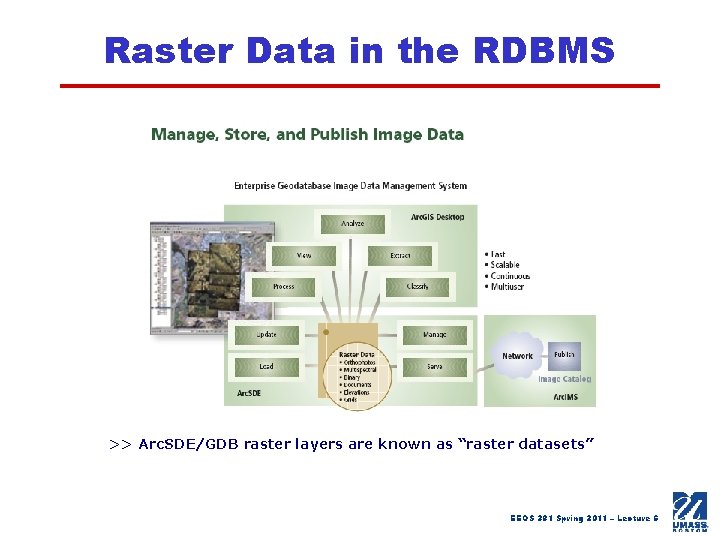
Raster Data in the RDBMS >> Arc. SDE/GDB raster layers are known as “raster datasets” EEOS 381 Spring 2011 – Lecture 6
Raster Data in the RDBMS • Benefits – RDBMS security, data management and retrieval – Common data format – Supports large seamless images (mosaics) or raster catalogs – Compression • LZ 77 lossless or lossy • JPEG and JPEG 2000 lossy – Pyramids stored in database for improved display performance EEOS 381 Spring 2011 – Lecture 6
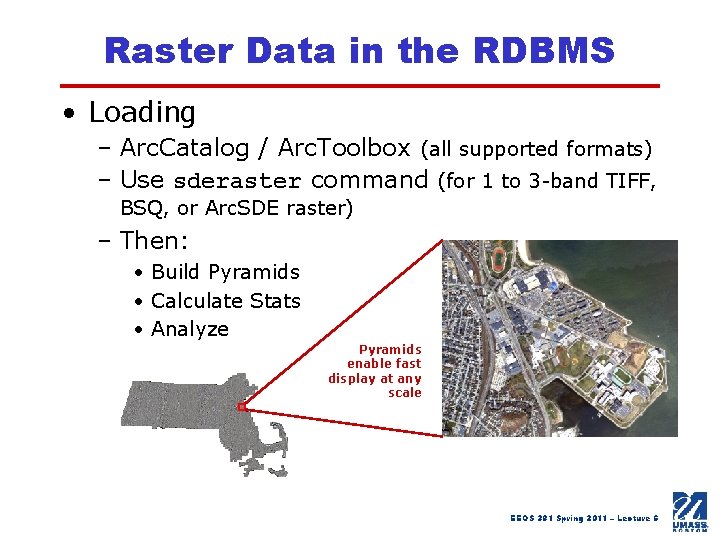
Raster Data in the RDBMS • Loading – Arc. Catalog / Arc. Toolbox (all supported formats) – Use sderaster command (for 1 to 3 -band TIFF, BSQ, or Arc. SDE raster) – Then: • Build Pyramids • Calculate Stats • Analyze Pyramids enable fast display at any scale EEOS 381 Spring 2011 – Lecture 6
Raster Data in the RDBMS • SDE. RASTER_COLUMNS table … – Stores information on every raster dataset in the database, one entry per dataset – Each layer has unique ID RASTERCOLUMN_ID - assigned by Arc. SDE For more details see: http: //help. arcgis. com/en/arcgisdesktop/10. 0/help/index. html#/Raster_storag e_types_in_an_Arc. SDE_geodatabase/002 n 0000006 v 000000/ EEOS 381 Spring 2011 – Lecture 6
Raster Data in the RDBMS • … and a series of many tables – Raster layer Business table (OWNER. IMAGE_NAME – as seen in Arc. GIS) • Link between supporting tables and RASTER_COLUMNS table – Raster layer Block Table (SDE_BLK_<RASTERCOLUMN_ID>) • Stores actual pixel data – Raster layer Metadata Table (SDE_RAS_<RASTERCOLUMN_ID>) • contains raster description – Raster layer Band Table (SDE_BND_<RASTERCOLUMN_ID>) • Information about each raster band – Raster layer Auxiliary table (SDE_AUX_<RASTERCOLUMN_ID>) • Stores colormaps and statistics EEOS 381 Spring 2011 – Lecture 6
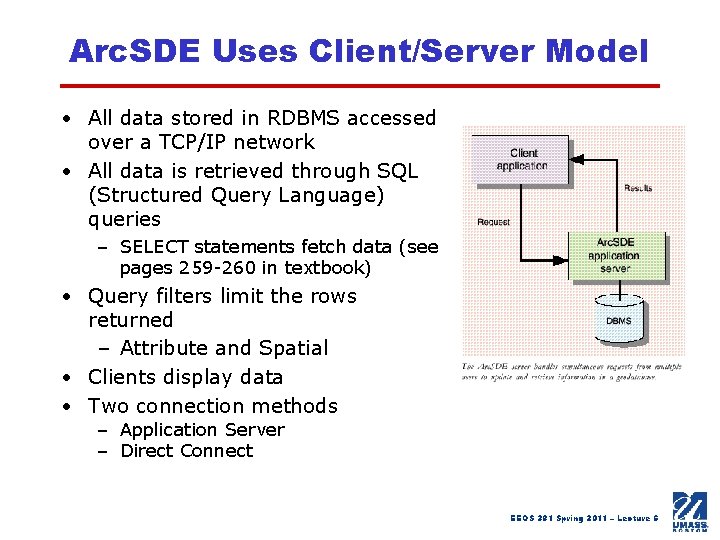
Arc. SDE Uses Client/Server Model • All data stored in RDBMS accessed over a TCP/IP network • All data is retrieved through SQL (Structured Query Language) queries – SELECT statements fetch data (see pages 259 -260 in textbook) • Query filters limit the rows returned – Attribute and Spatial • Clients display data • Two connection methods – Application Server – Direct Connect EEOS 381 Spring 2011 – Lecture 6
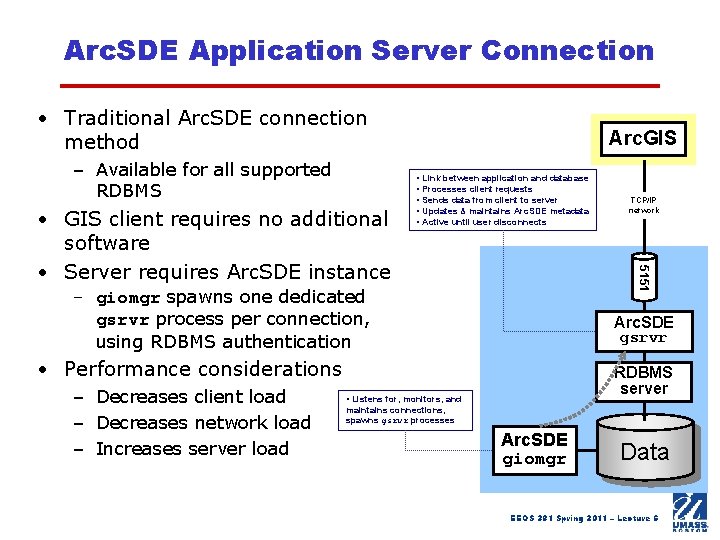
Arc. SDE Application Server Connection • Traditional Arc. SDE connection method – Available for all supported RDBMS • Link between application and database • Processes client requests • Sends data from client to server • Updates & maintains Arc. SDE metadata • Active until user disconnects – giomgr spawns one dedicated gsrvr process per connection, using RDBMS authentication Arc. SDE gsrvr • Performance considerations – Decreases client load – Decreases network load – Increases server load TCP/IP network 5151 • GIS client requires no additional software • Server requires Arc. SDE instance Arc. GIS RDBMS server • Listens for, monitors, and maintains connections, spawns gsrvr processes Arc. SDE giomgr Data EEOS 381 Spring 2011 – Lecture 6
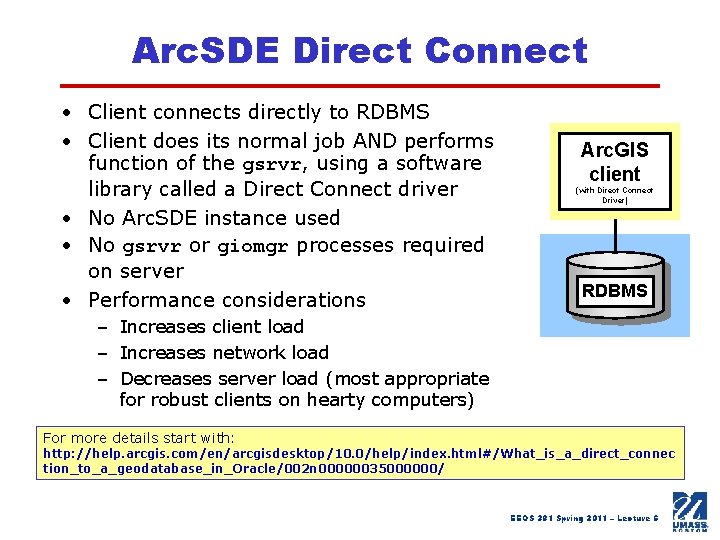
Arc. SDE Direct Connect • Client connects directly to RDBMS • Client does its normal job AND performs function of the gsrvr, using a software library called a Direct Connect driver • No Arc. SDE instance used • No gsrvr or giomgr processes required on server • Performance considerations Arc. GIS client (with Direct Connect Driver) RDBMS – Increases client load – Increases network load – Decreases server load (most appropriate for robust clients on hearty computers) For more details start with: http: //help. arcgis. com/en/arcgisdesktop/10. 0/help/index. html#/What_is_a_direct_connec tion_to_a_geodatabase_in_Oracle/002 n 00000035000000/ EEOS 381 Spring 2011 – Lecture 6
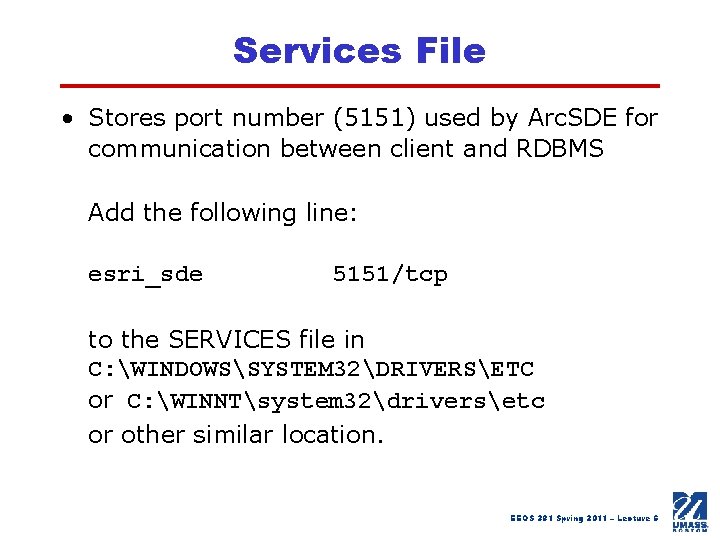
Services File • Stores port number (5151) used by Arc. SDE for communication between client and RDBMS Add the following line: esri_sde 5151/tcp to the SERVICES file in C: WINDOWSSYSTEM 32DRIVERSETC or C: WINNTsystem 32driversetc or other similar location. EEOS 381 Spring 2011 – Lecture 6
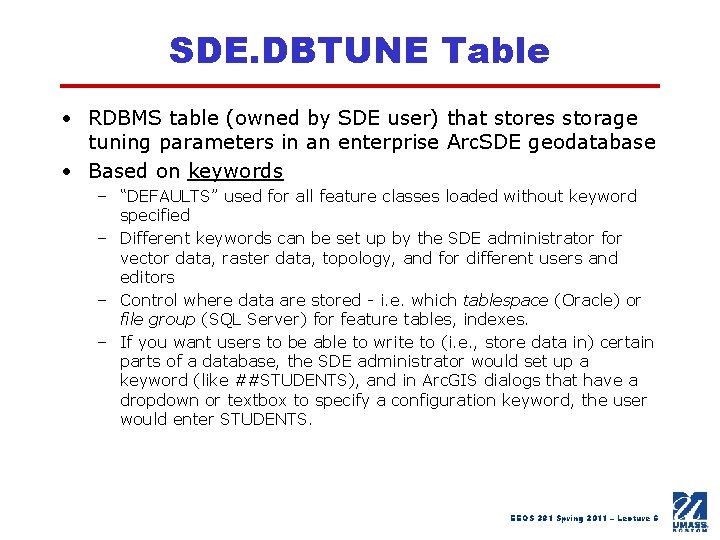
SDE. DBTUNE Table • RDBMS table (owned by SDE user) that stores storage tuning parameters in an enterprise Arc. SDE geodatabase • Based on keywords – “DEFAULTS” used for all feature classes loaded without keyword specified – Different keywords can be set up by the SDE administrator for vector data, raster data, topology, and for different users and editors – Control where data are stored - i. e. which tablespace (Oracle) or file group (SQL Server) for feature tables, indexes. – If you want users to be able to write to (i. e. , store data in) certain parts of a database, the SDE administrator would set up a keyword (like ##STUDENTS), and in Arc. GIS dialogs that have a dropdown or textbox to specify a configuration keyword, the user would enter STUDENTS. EEOS 381 Spring 2011 – Lecture 6
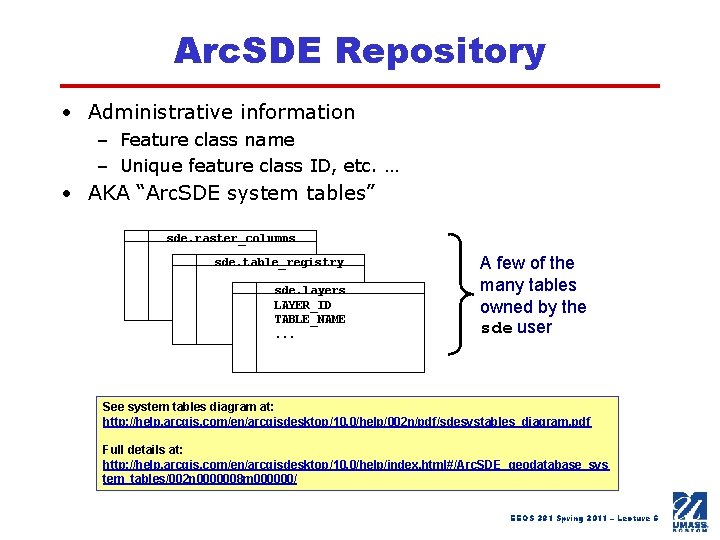
Arc. SDE Repository • Administrative information – Feature class name – Unique feature class ID, etc. … • AKA “Arc. SDE system tables” sde. raster_columns sde. table_registry sde. layers LAYER_ID TABLE_NAME. . . A few of the many tables owned by the sde user See system tables diagram at: http: //help. arcgis. com/en/arcgisdesktop/10. 0/help/002 n/pdf/sdesystables_diagram. pdf Full details at: http: //help. arcgis. com/en/arcgisdesktop/10. 0/help/index. html#/Arc. SDE_geodatabase_sys tem_tables/002 n 0000008 m 000000/ EEOS 381 Spring 2011 – Lecture 6
Arc. SDE Administration Tools • Command-line utilities for managing the Arc. SDE server – Executed at operating system prompt – May be used remotely – Command syntax found in the Arc. SDE Developer Help • See http: //help. arcgis. com/en/geodatabase/10. 0/admin_cmds/support_files /admincmdref. htm – Benefits • • • Easy to format Easy to debug Reusable Record of work (can write output to log files) Unattended execution (can batch) EEOS 381 Spring 2011 – Lecture 6
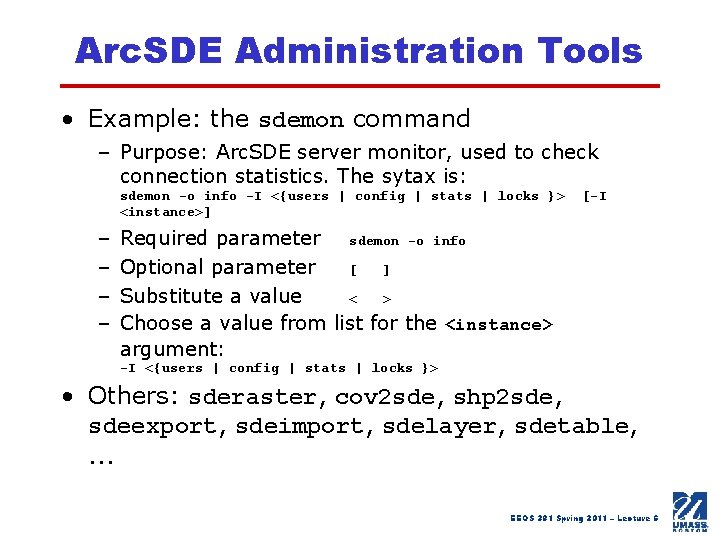
Arc. SDE Administration Tools • Example: the sdemon command – Purpose: Arc. SDE server monitor, used to check connection statistics. The sytax is: sdemon -o info -I <{users | config | stats | locks }> <instance>] – – [-I Required parameter sdemon -o info Optional parameter [ ] Substitute a value < > Choose a value from list for the <instance> argument: -I <{users | config | stats | locks }> • Others: sderaster, cov 2 sde, shp 2 sde, sdeexport, sdeimport, sdelayer, sdetable, . . . EEOS 381 Spring 2011 – Lecture 6
Versioning • Arc. SDE Geodatabase mechanism to allow multiple users to simultaneously edit the same database, including the same layers and features, without explicitly applying locks to prohibit other users from modifying the same data • Part of “multi-user editing” capability of SDE geodatabases • No need to extract or make copies of data for editing EEOS 381 Spring 2011 – Lecture 6
Versioning • What is a “version”? : – “In databases, an alternative state of the database that has an owner, a description, a permission (private, protected, or public), and a parent version. Versions are not affected by changes occurring in other versions of the database. ” - From ESRI GIS Dictionary – You can think of a version as your own “doorway” to the database, allowing you to make changes that don’t affect the database as a whole. – Also see ESRI Help: • http: //help. arcgis. com/en/arcgisdesktop/10. 0/help/index. html#/What_ is_a_version/00270000000 q 000000/ • http: //help. arcgis. com/en/arcgisdesktop/10. 0/help/index. html#/A_quic k_tour_of_versioning/00270000000 r 000000/ EEOS 381 Spring 2011 – Lecture 6
Versioning • Use versioning to: – Manage alternative engineering designs – Solve complex what-if scenarios without impacting the production database – Create point-in-time representations of the database – Conflict resolution dialog allows DBA to choose proper version EEOS 381 Spring 2011 – Lecture 6
Versioning • Versions are not copies of the database or layers – Only store edits made to database in A and D tables • Versions are named – default version (always present) is SDE. DEFAULT – syntax: OWNER. VERSION_NAME – AKA a named “state” of the database • Maintain parent-child relationships (see chapter 7 in Modeling Our World and chapter 10 in Building A Geodatabase) EEOS 381 Spring 2011 – Lecture 6
Versioning • Isolates user's work across multiple edit sessions, allowing the user to edit without locking features in the production version or immediately impacting other users. • Supports undo/redo capability • Multiple users can access a version • A user may access multiple versions – What the user can do is based on version permissions • Contains access to all the datasets in the geodatabase EEOS 381 Spring 2011 – Lecture 6
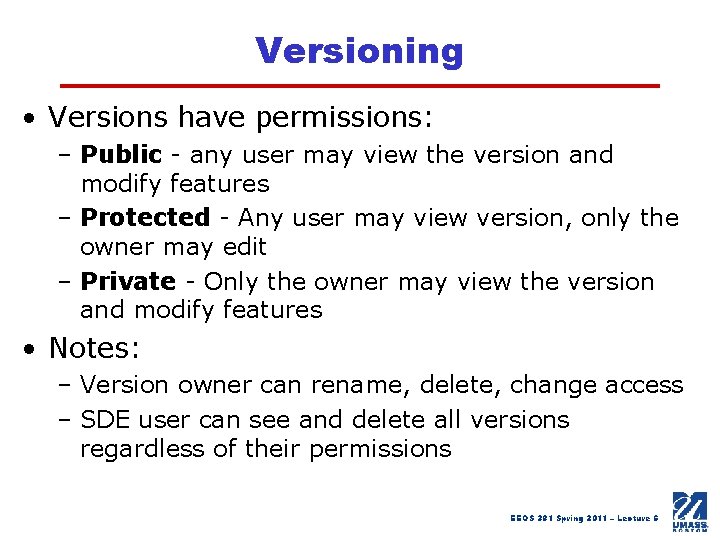
Versioning • Versions have permissions: – Public - any user may view the version and modify features – Protected - Any user may view version, only the owner may edit – Private - Only the owner may view the version and modify features • Notes: – Version owner can rename, delete, change access – SDE user can see and delete all versions regardless of their permissions EEOS 381 Spring 2011 – Lecture 6
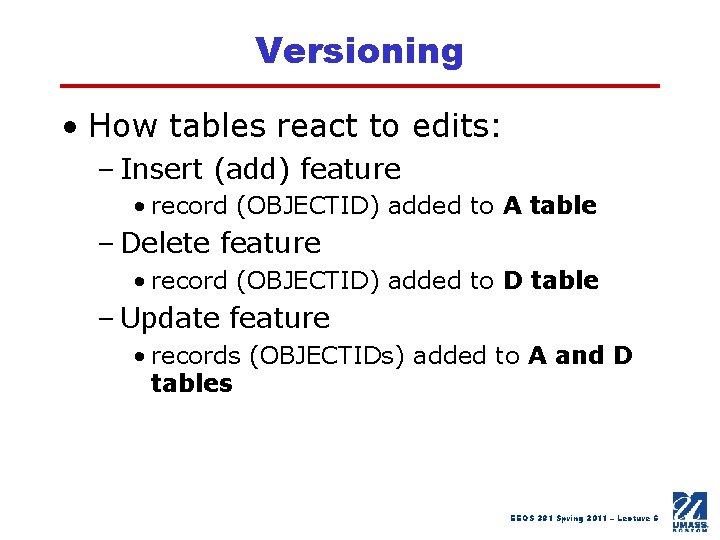
Versioning • How tables react to edits: – Insert (add) feature • record (OBJECTID) added to A table – Delete feature • record (OBJECTID) added to D table – Update feature • records (OBJECTIDs) added to A and D tables EEOS 381 Spring 2011 – Lecture 6
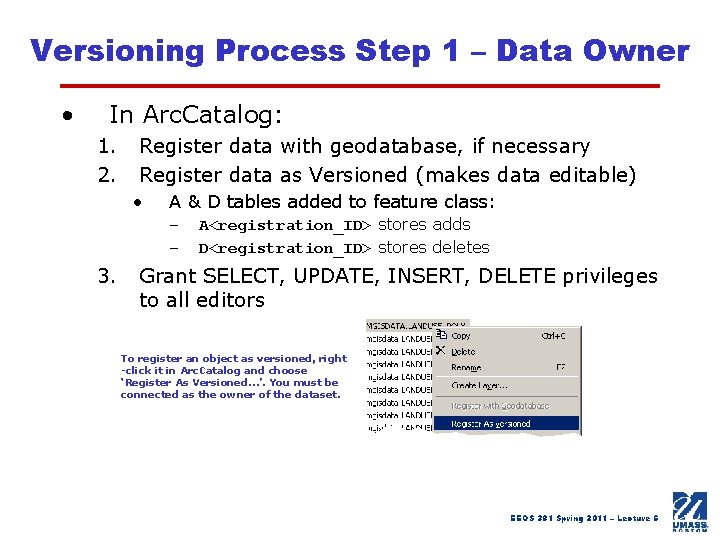
Versioning Process Step 1 – Data Owner • In Arc. Catalog: 1. 2. Register data with geodatabase, if necessary Register data as Versioned (makes data editable) • A & D tables added to feature class: – – 3. A<registration_ID> stores adds D<registration_ID> stores deletes Grant SELECT, UPDATE, INSERT, DELETE privileges to all editors To register an object as versioned, right -click it in Arc. Catalog and choose ‘Register As Versioned…’. You must be connected as the owner of the dataset. EEOS 381 Spring 2011 – Lecture 6
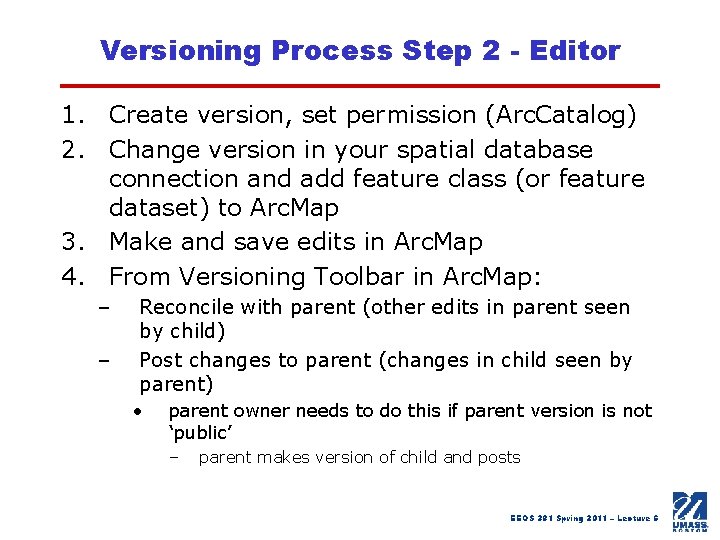
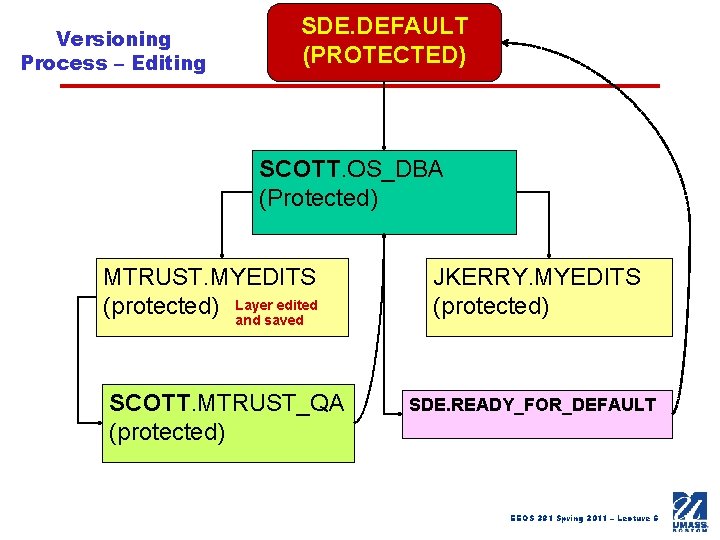
Versioning Process Step 2 - Editor 1. Create version, set permission (Arc. Catalog) 2. Change version in your spatial database connection and add feature class (or feature dataset) to Arc. Map 3. Make and save edits in Arc. Map 4. From Versioning Toolbar in Arc. Map: – – Reconcile with parent (other edits in parent seen by child) Post changes to parent (changes in child seen by parent) • parent owner needs to do this if parent version is not ‘public’ – parent makes version of child and posts EEOS 381 Spring 2011 – Lecture 6
Versioning Process – Editing SDE. DEFAULT (PROTECTED) SCOTT. OS_DBA (Protected) MTRUST. MYEDITS edited (protected) Layer and saved SCOTT. MTRUST_QA (protected) JKERRY. MYEDITS (protected) SDE. READY_FOR_DEFAULT EEOS 381 Spring 2011 – Lecture 6
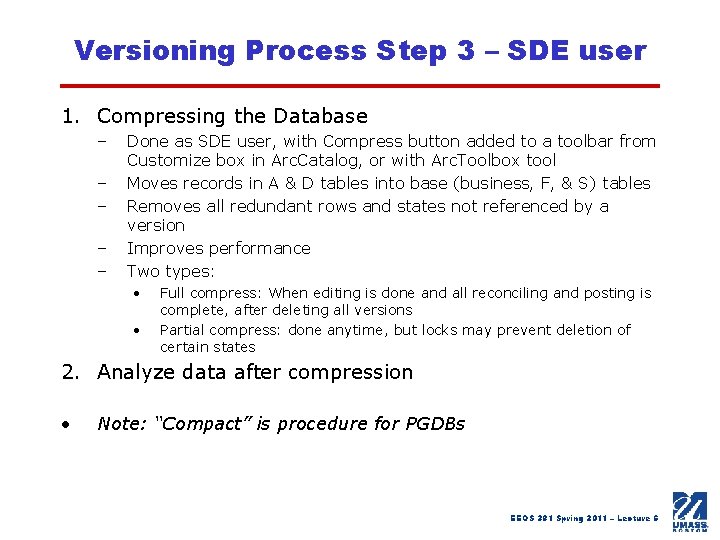
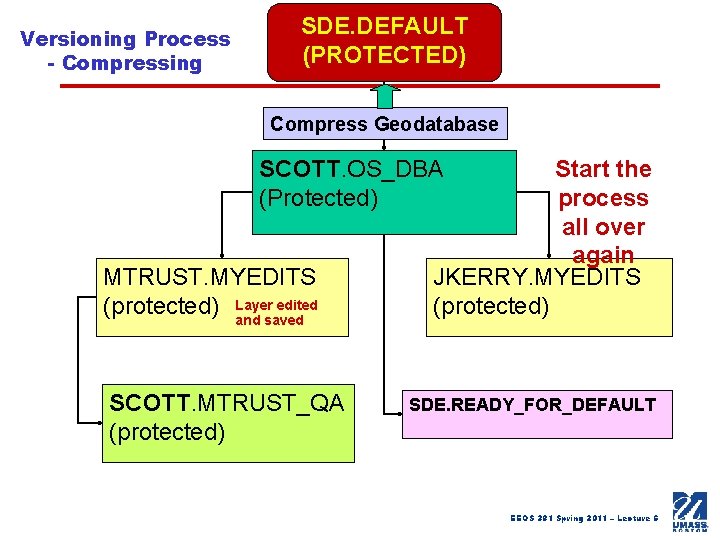
Versioning Process Step 3 – SDE user 1. Compressing the Database – – – Done as SDE user, with Compress button added to a toolbar from Customize box in Arc. Catalog, or with Arc. Toolbox tool Moves records in A & D tables into base (business, F, & S) tables Removes all redundant rows and states not referenced by a version Improves performance Two types: • • Full compress: When editing is done and all reconciling and posting is complete, after deleting all versions Partial compress: done anytime, but locks may prevent deletion of certain states 2. Analyze data after compression • Note: “Compact” is procedure for PGDBs EEOS 381 Spring 2011 – Lecture 6
Versioning Process - Compressing SDE. DEFAULT (PROTECTED) Compress Geodatabase SCOTT. OS_DBA (Protected) MTRUST. MYEDITS edited (protected) Layer and saved SCOTT. MTRUST_QA (protected) Start the process all over again JKERRY. MYEDITS (protected) SDE. READY_FOR_DEFAULT EEOS 381 Spring 2011 – Lecture 6
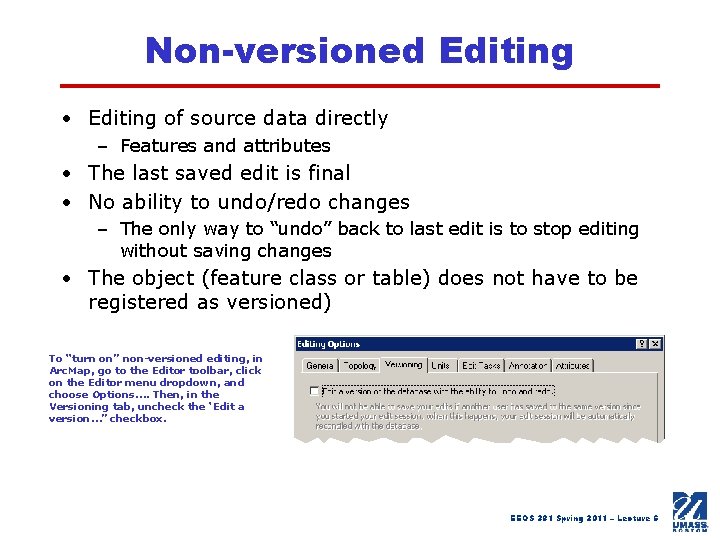
Non-versioned Editing • Editing of source data directly – Features and attributes • The last saved edit is final • No ability to undo/redo changes – The only way to “undo” back to last edit is to stop editing without saving changes • The object (feature class or table) does not have to be registered as versioned) To “turn on” non-versioned editing, in Arc. Map, go to the Editor toolbar, click on the Editor menu dropdown, and choose Options…. Then, in the Versioning tab, uncheck the ‘Edit a version…” checkbox. EEOS 381 Spring 2011 – Lecture 6
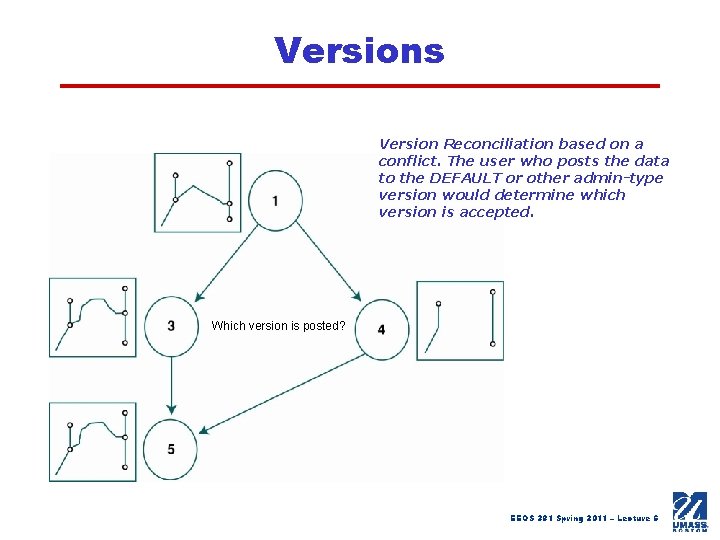
Versions Version tree schematic showing database states (saved edits, represented by the circled numbers) for a power plant geographic database EEOS 381 Spring 2011 – Lecture 6
Versions Version Reconciliation based on a conflict. The user who posts the data to the DEFAULT or other admin-type version would determine which version is accepted. Which version is posted? EEOS 381 Spring 2011 – Lecture 6
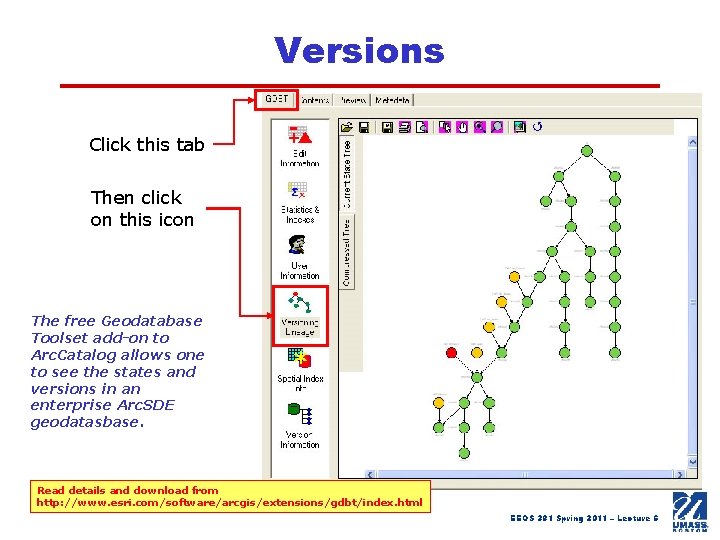
Versions Click this tab Then click on this icon The free Geodatabase Toolset add-on to Arc. Catalog allows one to see the states and versions in an enterprise Arc. SDE geodatasbase. Read details and download from http: //www. esri. com/software/arcgis/extensions/gdbt/index. html EEOS 381 Spring 2011 – Lecture 6
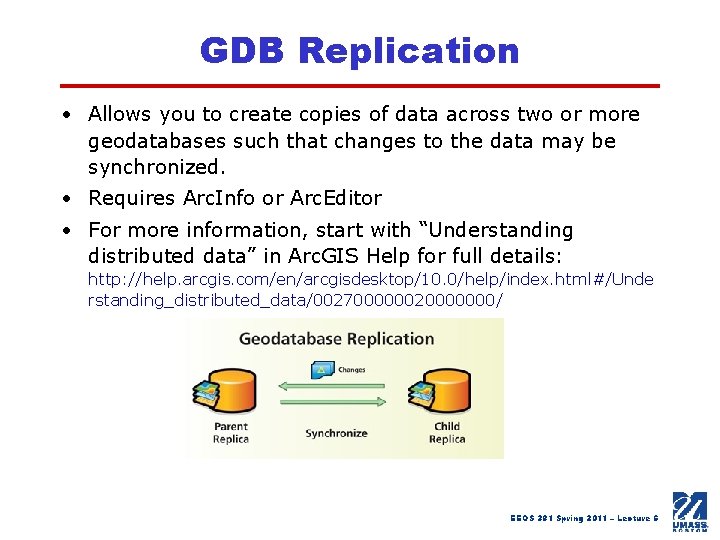
GDB Replication • Allows you to create copies of data across two or more geodatabases such that changes to the data may be synchronized. • Requires Arc. Info or Arc. Editor • For more information, start with “Understanding distributed data” in Arc. GIS Help for full details: http: //help. arcgis. com/en/arcgisdesktop/10. 0/help/index. html#/Unde rstanding_distributed_data/002700000020000000/ EEOS 381 Spring 2011 – Lecture 6
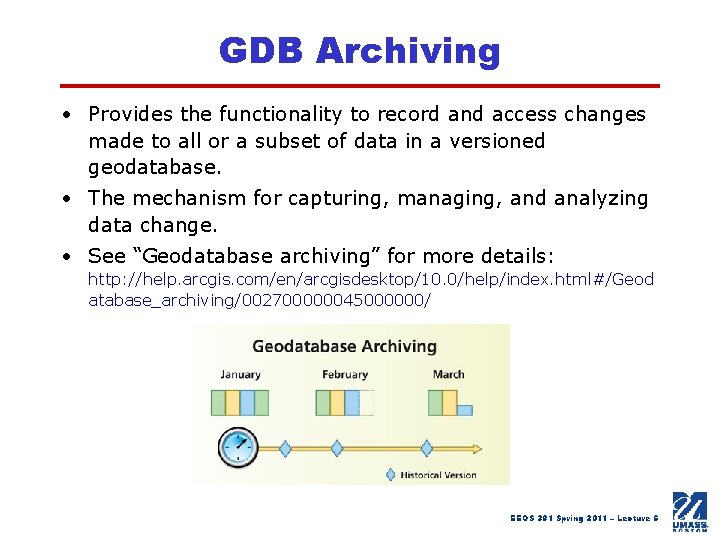
GDB Archiving • Provides the functionality to record and access changes made to all or a subset of data in a versioned geodatabase. • The mechanism for capturing, managing, and analyzing data change. • See “Geodatabase archiving” for more details: http: //help. arcgis. com/en/arcgisdesktop/10. 0/help/index. html#/Geod atabase_archiving/002700000045000000/ EEOS 381 Spring 2011 – Lecture 6
Views • A “virtual table” in a database that displays certain information in the database, based on a view definition • Not a table itself; the definition is stored and the view appears as a table when accessed by a user • Advantages – Can limit rows (use “where clause”) and include only certain fields • Simplicity and security – Can assign alias (more intuitive) field names – Can include joins to other tables When SHAPE field is included in an SDE view, the view appears as an Arc. SDE Feature Class (“Spatial view”) Use the sdetable –o create_view admin command See: http: //help. arcgis. com/en/arcgisdesktop/10. 0/help/index. html#/What_is_a_view/002 n 00000027000000/ EEOS 381 Spring 2011 – Lecture 6