
Introduction to AMED Allied Complementary Medicine database on
Introduction to AMED (Allied & Complementary Medicine) database on Ovid NHSES Tarja Huttunen 25 th August 2016
Agenda 1. Introduction to AMED 2. Basic & Advanced Search 3. Mapping and search tools 4. My Workspace (Personal Account) features (Saved Searches, Auto. Alerts, My Projects) 5. Manage Results (print, email, export) 6. Help & Support 2
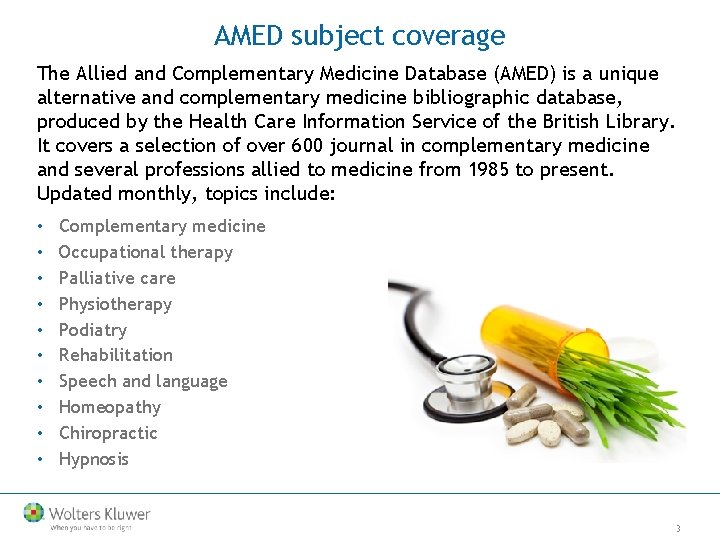
AMED subject coverage The Allied and Complementary Medicine Database (AMED) is a unique alternative and complementary medicine bibliographic database, produced by the Health Care Information Service of the British Library. It covers a selection of over 600 journal in complementary medicine and several professions allied to medicine from 1985 to present. Updated monthly, topics include: • Complementary medicine • Occupational therapy • Palliative care • Physiotherapy • Podiatry • Rehabilitation • Speech and language • Homeopathy • Chiropractic • Hypnosis 3
AMED facts • • Over 300 000 records, coverage 1985 to present Me. SH Tree style thesaurus and mapping Monthly updates 600 serials indexed including many unique UK and European titles Database specific limits, including alternative therapies and medical concepts and language 92% in English (+70 other languages, most with English summary) Over 52% of the records have abstracts Access to subscribed and open access full text 4
Bibliographic Databases • A bibliographic database is a database of bibliographic records, an organized digital collection of references to published literature, including journal articles, conference proceedings, reports, patents, books, etc. • In contrast to internet search engines, bibliographic databases provide field indexed searching: • title • author • abstract • subject / descriptor • keyword • They often contain a controlled vocabulary or Thesaurus with subject terms added to the database records by indexers that are specialists in their field. 5
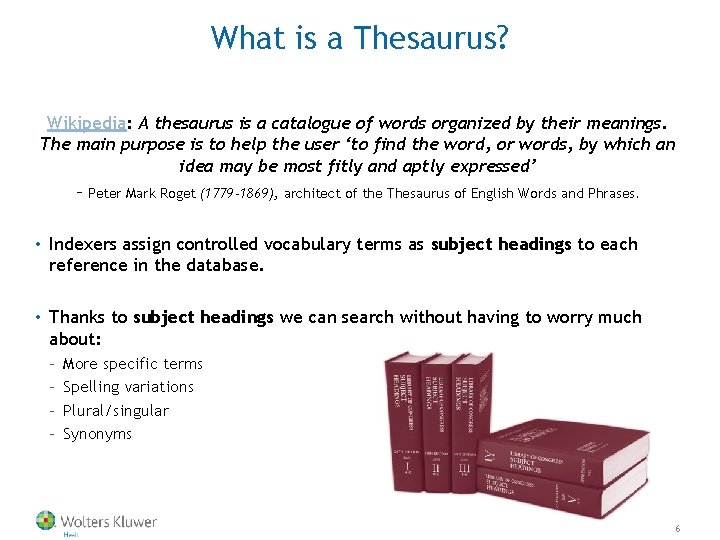
What is a Thesaurus? Wikipedia: A thesaurus is a catalogue of words organized by their meanings. The main purpose is to help the user ‘to find the word, or words, by which an idea may be most fitly and aptly expressed’ – Peter Mark Roget (1779 -1869), architect of the Thesaurus of English Words and Phrases. • Indexers assign controlled vocabulary terms as subject headings to each reference in the database. • Thanks to subject headings we can search without having to worry much about: – – More specific terms Spelling variations Plural/singular Synonyms 6
AMED search modes on Ovid offers a wide variety of search modes which will suit both an experienced researcher as well as a beginner. • Search for whole topics or questions using Basic Search • Search for subjects interactively using Advanced Search • Search combinations of fields and subjects with Multi-Field Searching • Find or check references with Find Citation • Explore the subject structure of the Me. SH thesaurus with Search Tools • Browse or search one, more or all fields with Search Fields 7
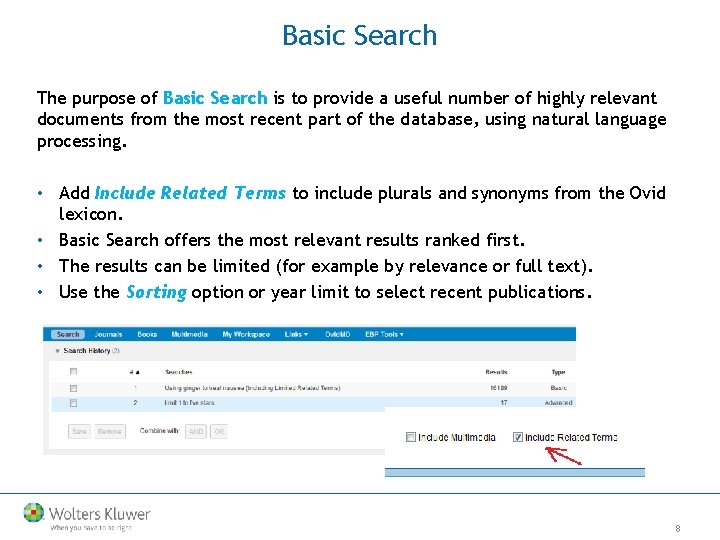
Basic Search The purpose of Basic Search is to provide a useful number of highly relevant documents from the most recent part of the database, using natural language processing. • Add Include Related Terms to include plurals and synonyms from the Ovid lexicon. • Basic Search offers the most relevant results ranked first. • The results can be limited (for example by relevance or full text). • Use the Sorting option or year limit to select recent publications. 8
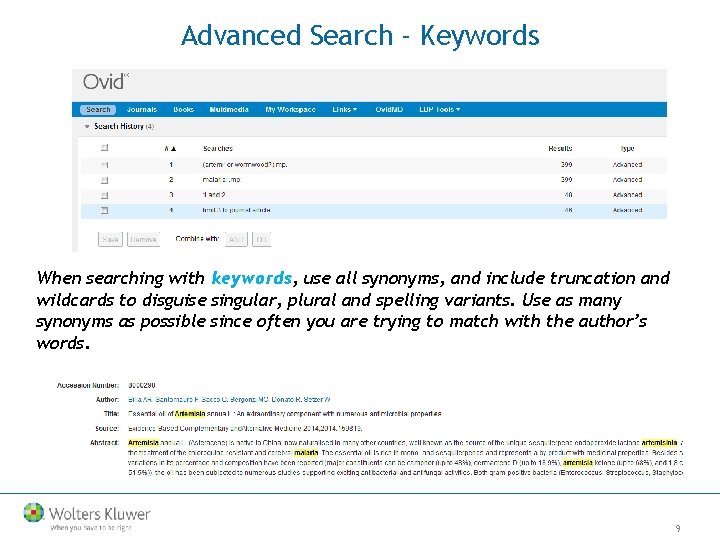
Advanced Search - Keywords When searching with keywords, use all synonyms, and include truncation and wildcards to disguise singular, plural and spelling variants. Use as many synonyms as possible since often you are trying to match with the author’s words. 9
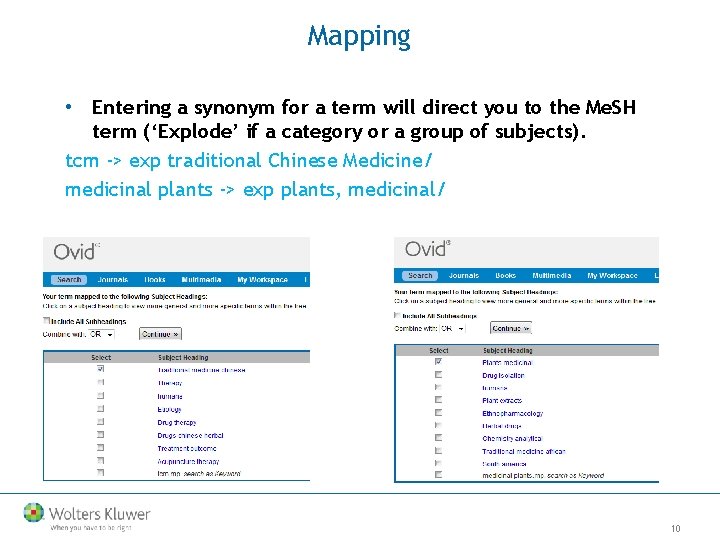
Mapping • Entering a synonym for a term will direct you to the Me. SH term (‘Explode’ if a category or a group of subjects). tcm -> exp traditional Chinese Medicine/ medicinal plants -> exp plants, medicinal/ 10
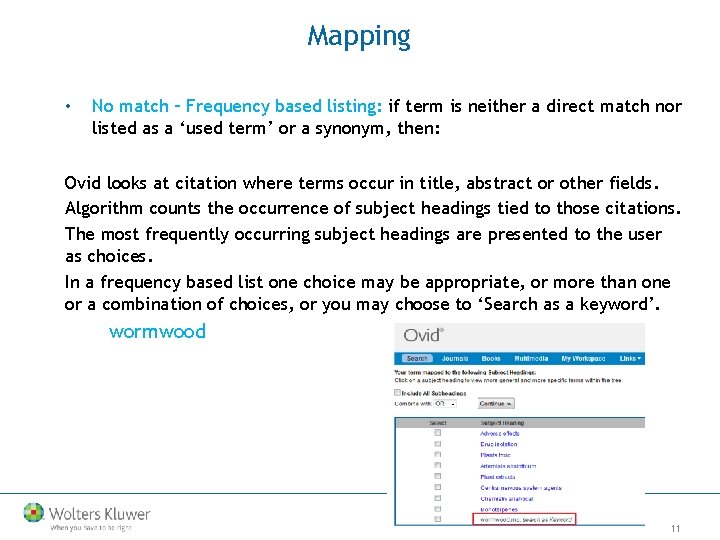
Mapping • No match – Frequency based listing: if term is neither a direct match nor listed as a ‘used term’ or a synonym, then: Ovid looks at citation where terms occur in title, abstract or other fields. Algorithm counts the occurrence of subject headings tied to those citations. The most frequently occurring subject headings are presented to the user as choices. In a frequency based list one choice may be appropriate, or more than one or a combination of choices, or you may choose to ‘Search as a keyword’. wormwood 11
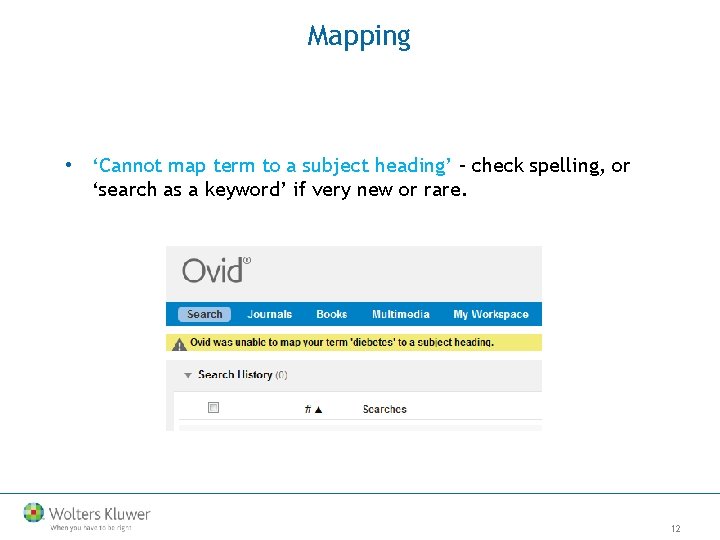
Mapping • ‘Cannot map term to a subject heading’ – check spelling, or ‘search as a keyword’ if very new or rare. 12
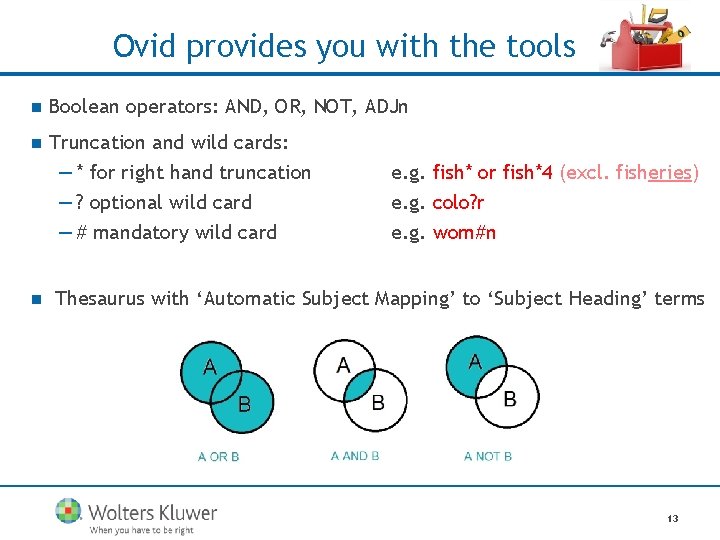
Ovid provides you with the tools n Boolean operators: AND, OR, NOT, ADJn n Truncation and wild cards: — * for right hand truncation — ? optional wild card — # mandatory wild card n e. g. fish* or fish*4 (excl. fisheries) e. g. colo? r e. g. wom#n Thesaurus with ‘Automatic Subject Mapping’ to ‘Subject Heading’ terms 13
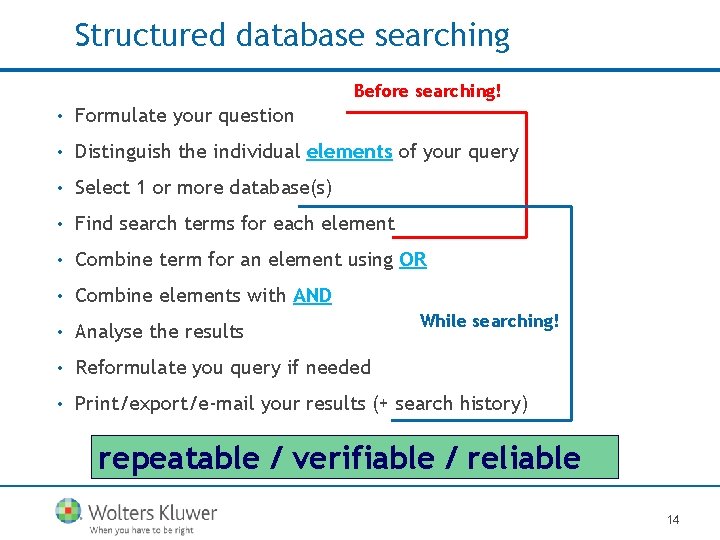
Structured database searching Before searching! • Formulate your question • Distinguish the individual elements of your query • Select 1 or more database(s) • Find search terms for each element • Combine term for an element using OR • Combine elements with AND • Analyse the results • Reformulate you query if needed • Print/export/e-mail your results (+ search history) While searching! repeatable / verifiable / reliable 14
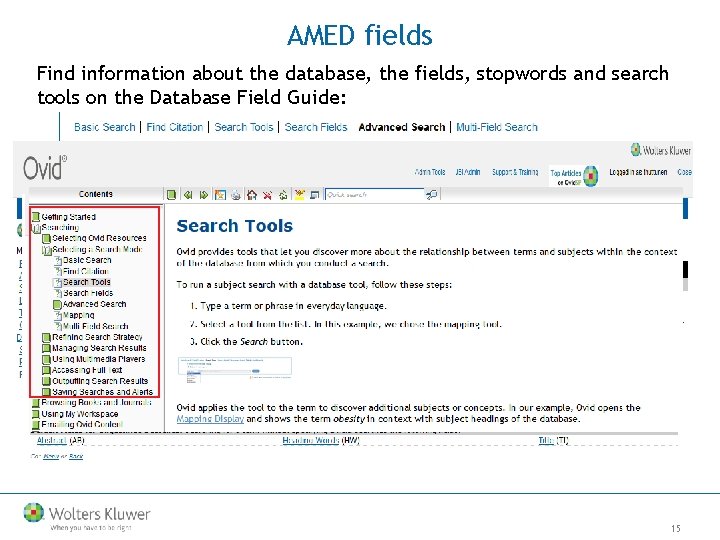
AMED fields Find information about the database, the fields, stopwords and search tools on the Database Field Guide: 15
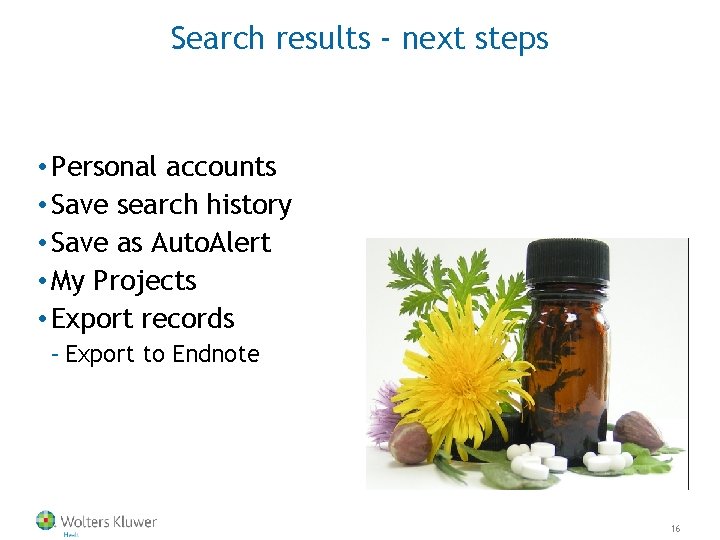
Search results - next steps • Personal accounts • Save search history • Save as Auto. Alert • My Projects • Export records – Export to Endnote 16
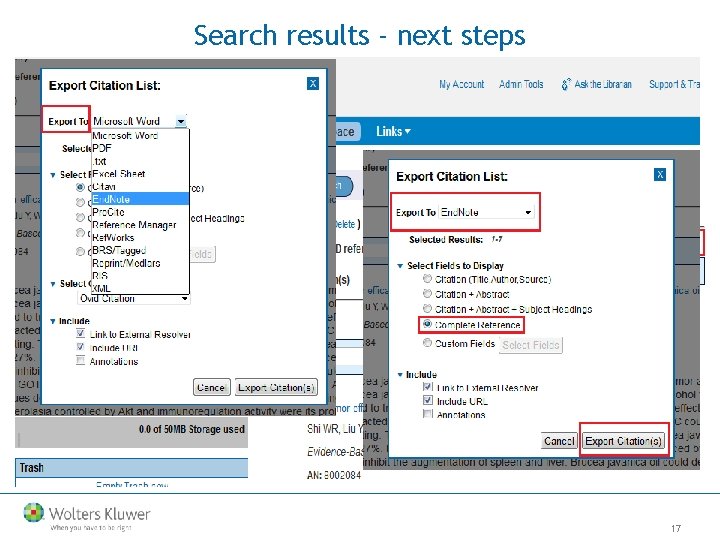
Search results - next steps 17
Useful commands Dot commands: . . nlp When in advanced mode, run a ‘natural language processing’ search. . . c/psyh To change a database. Also possible: use psyh. . . root diabetes. in To jump to the index. To search for ‘root caries’, use quotation marks!. . dedup n To remove duplicates (also works on a single database). . . pg 6 Remove a search line (. . pg 10 -18 removes a range of lines). . . ps Displays the search history in a print friendly view. docz. dz Display the total amount of records in a database. 18
Useful commands Backdoor commands: • ABOUT - If you enter ABOUT in capitals as a search, Ovid will return detailed information about you current session, such as the time and information about the Ovid data centre in use. In some cases this information is required by Ovid’s technical support team to analyse problems. • USERINFO - If you enter USERINFO in capitals as a search, Ovid will return information about your current login such as your username and your IP address, as seen by Ovid. 19
More Ovid tools • Online Training and Tools for searching: • • • Ovid platform Resource Center PICO Resource Center T 3 CONNECT - Train the Trainer website Expert Searches Search History jumpstarts and history launcher 20
Golden rules for structured searching • Define your query with care. • Use Advanced Search and structure your search. • More results are better, you can always limit at the end. • Review your results and reformulate if needed. • In case of multiple databases, one database at a time. • Save your search strategy in your Personal Account. For verifiable, reproducible, and reliable results 21

Thank you! Survey link tarja. huttunen@wolterskluwer. com Please send your questions to our sales and customer service teams at: support@ovid. com
- Slides: 22