
Introduction to ADAMS Course manual for Multibody Dynamics
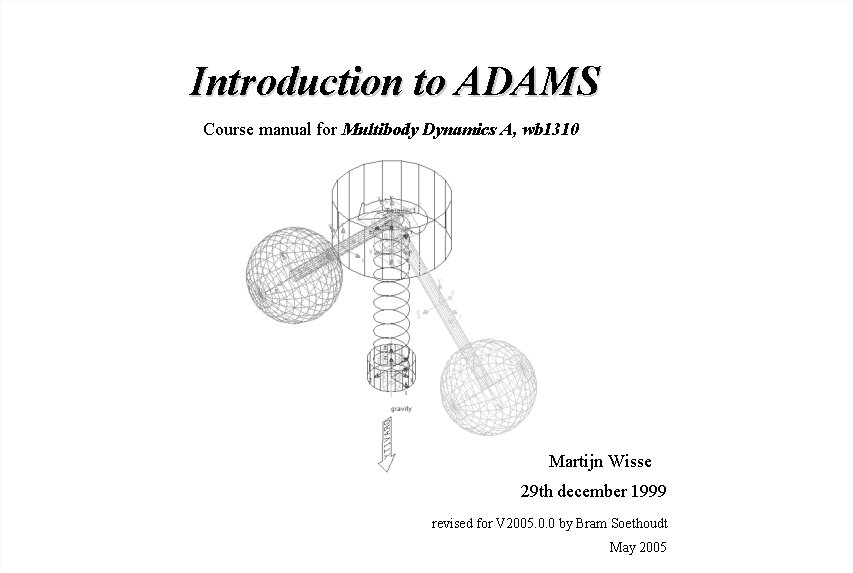
Introduction to ADAMS Course manual for Multibody Dynamics A, wb 1310 Martijn Wisse 29 th december 1999 revised for V 2005. 0. 0 by Bram Soethoudt May 2005
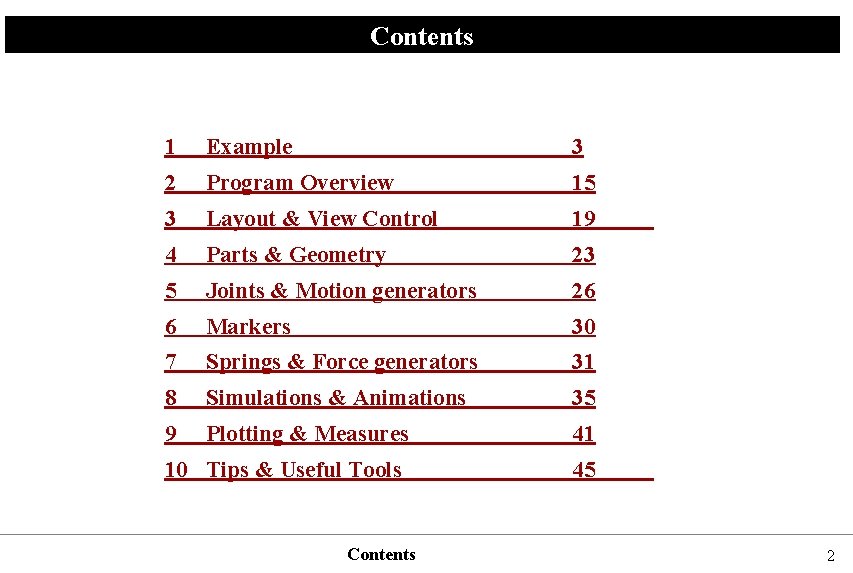
Contents 1 Example 3 2 Program Overview 15 3 Layout & View Control 19 4 Parts & Geometry 23 5 Joints & Motion generators 26 6 Markers 30 7 Springs & Force generators 31 8 Simulations & Animations 35 9 Plotting & Measures 41 10 Tips & Useful Tools Contents 45 2
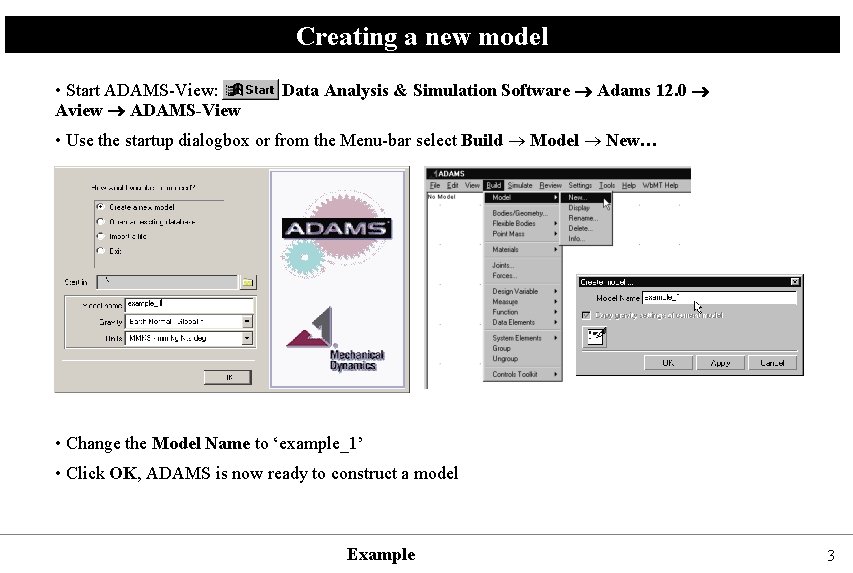
Creating a new model • Start ADAMS-View: Aview ADAMS-View Data Analysis & Simulation Software Adams 12. 0 • Use the startup dialogbox or from the Menu-bar select Build Model New… • Change the Model Name to ‘example_1’ • Click OK, ADAMS is now ready to construct a model Example 3
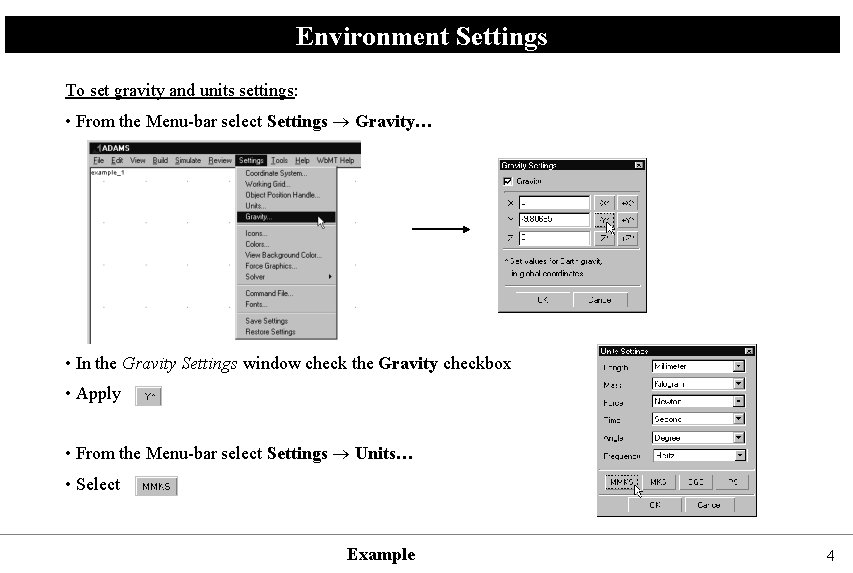
Environment Settings To set gravity and units settings: • From the Menu-bar select Settings Gravity… • In the Gravity Settings window check the Gravity checkbox • Apply • From the Menu-bar select Settings Units… • Select Example 4
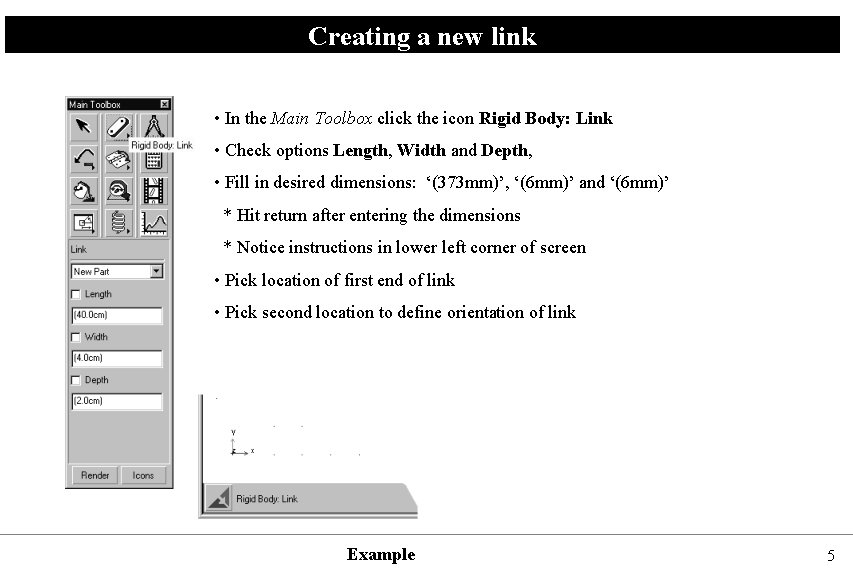
Creating a new link • In the Main Toolbox click the icon Rigid Body: Link • Check options Length, Width and Depth, • Fill in desired dimensions: ‘(373 mm)’, ‘(6 mm)’ and ‘(6 mm)’ * Hit return after entering the dimensions * Notice instructions in lower left corner of screen • Pick location of first end of link • Pick second location to define orientation of link Example 5
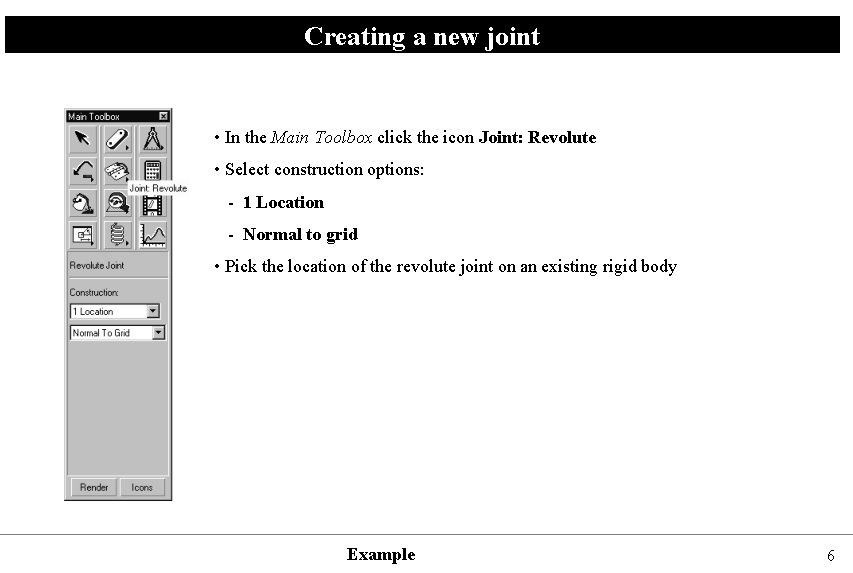
Creating a new joint • In the Main Toolbox click the icon Joint: Revolute • Select construction options: - 1 Location - Normal to grid • Pick the location of the revolute joint on an existing rigid body Example 6
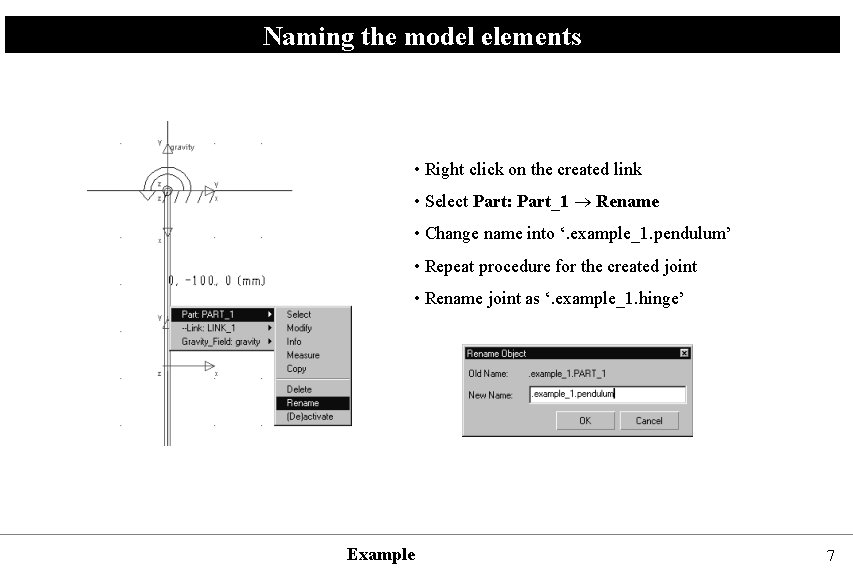
Naming the model elements • Right click on the created link • Select Part: Part_1 Rename • Change name into ‘. example_1. pendulum’ • Repeat procedure for the created joint • Rename joint as ‘. example_1. hinge’ Example 7
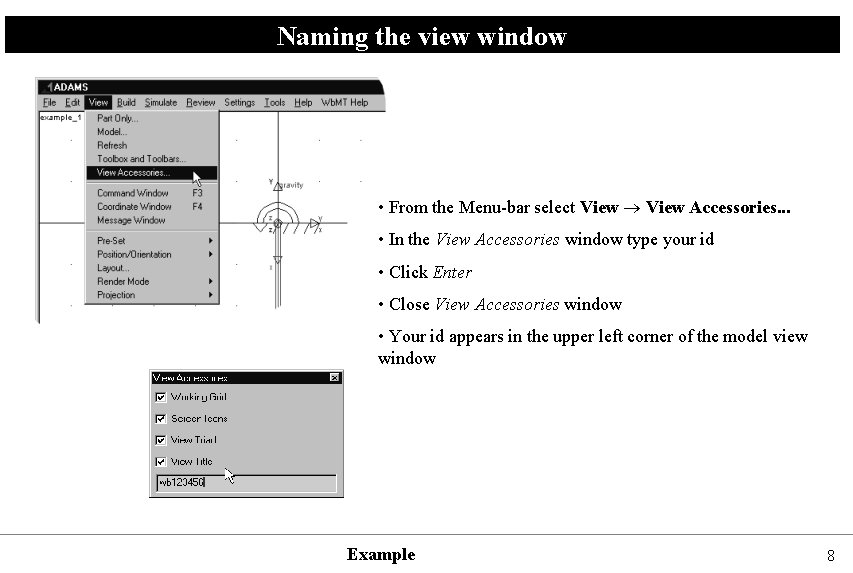
Naming the view window • From the Menu-bar select View Accessories. . . • In the View Accessories window type your id • Click Enter • Close View Accessories window • Your id appears in the upper left corner of the model view window Example 8
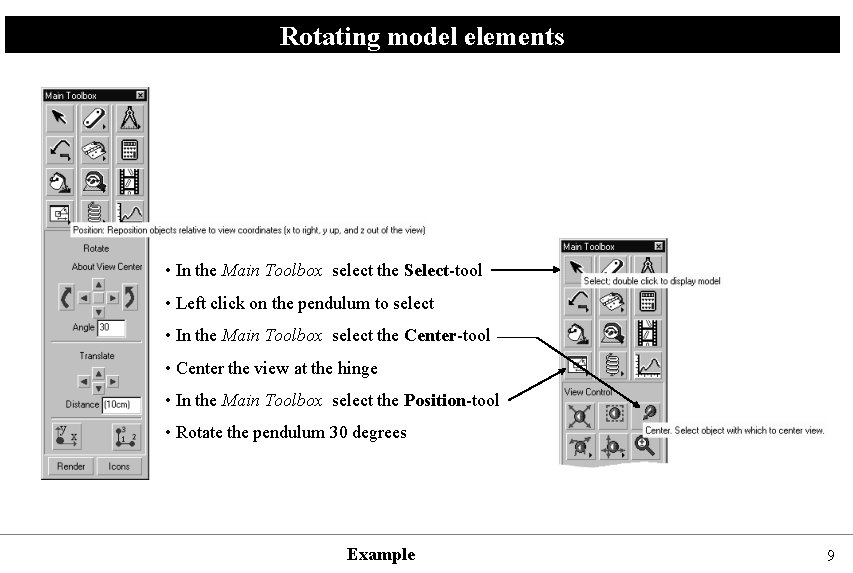
Rotating model elements • In the Main Toolbox select the Select-tool • Left click on the pendulum to select • In the Main Toolbox select the Center-tool • Center the view at the hinge • In the Main Toolbox select the Position-tool • Rotate the pendulum 30 degrees Example 9
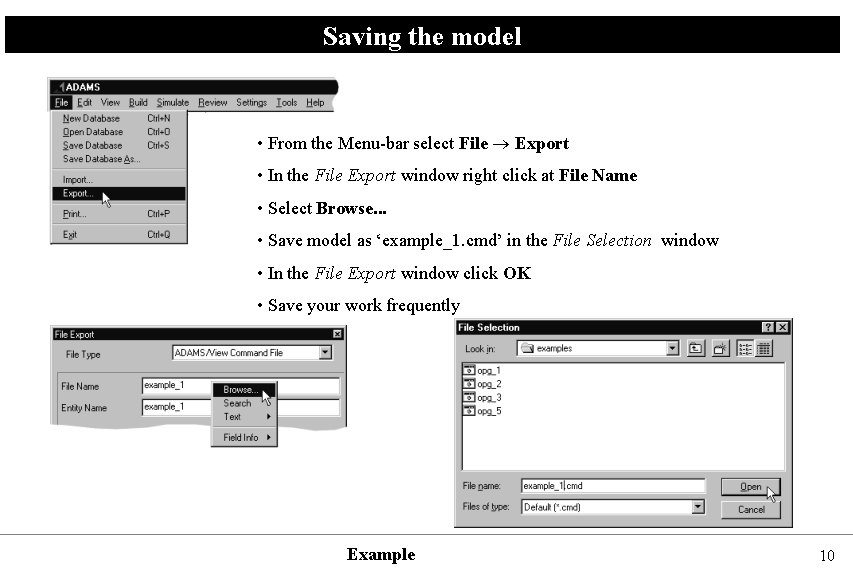
Saving the model • From the Menu-bar select File Export • In the File Export window right click at File Name • Select Browse. . . • Save model as ‘example_1. cmd’ in the File Selection window • In the File Export window click OK • Save your work frequently Example 10
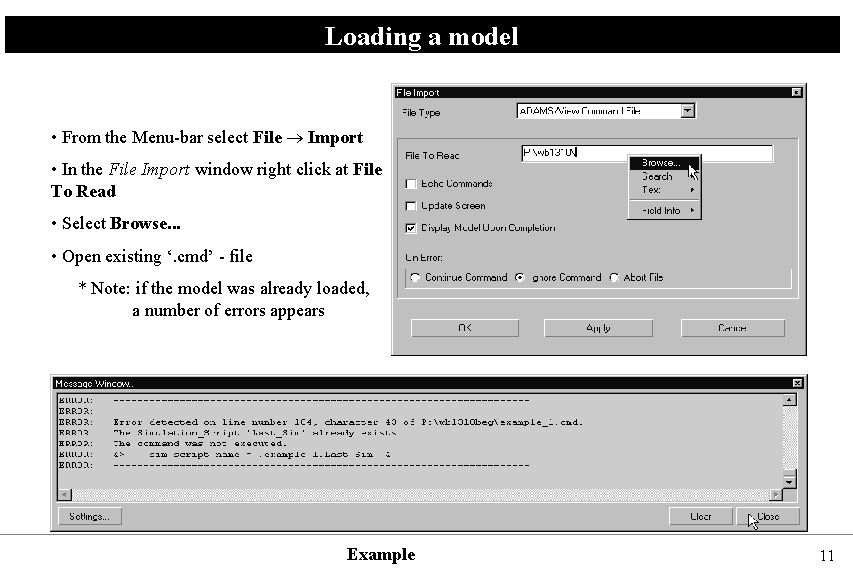
Loading a model • From the Menu-bar select File Import • In the File Import window right click at File To Read • Select Browse. . . • Open existing ‘. cmd’ - file * Note: if the model was already loaded, a number of errors appears Example 11
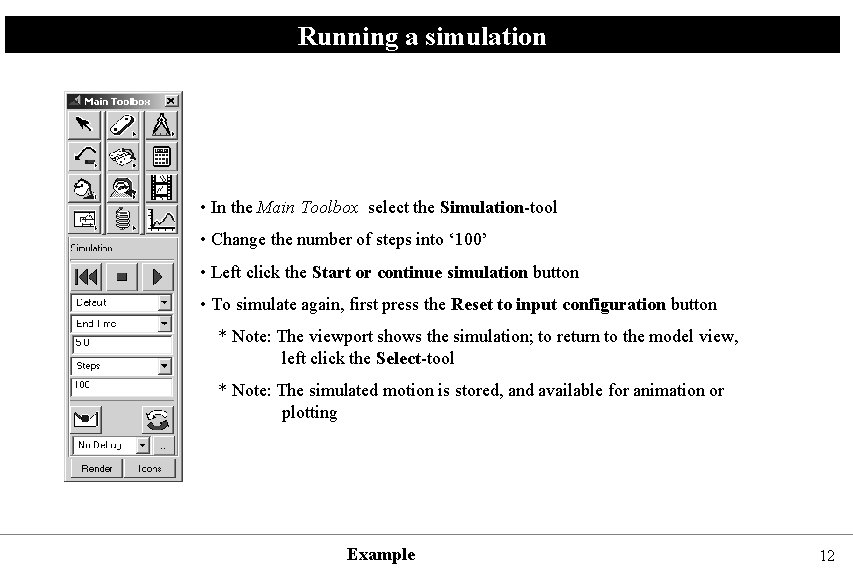
Running a simulation • In the Main Toolbox select the Simulation-tool • Change the number of steps into ‘ 100’ • Left click the Start or continue simulation button • To simulate again, first press the Reset to input configuration button * Note: The viewport shows the simulation; to return to the model view, left click the Select-tool * Note: The simulated motion is stored, and available for animation or plotting Example 12
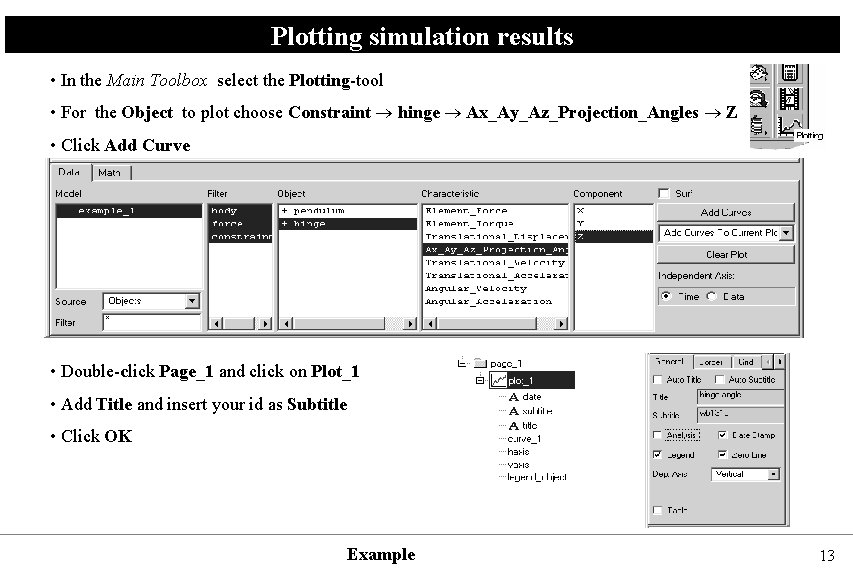
Plotting simulation results • In the Main Toolbox select the Plotting-tool • For the Object to plot choose Constraint hinge Ax_Ay_Az_Projection_Angles Z • Click Add Curve • Double-click Page_1 and click on Plot_1 • Add Title and insert your id as Subtitle • Click OK Example 13
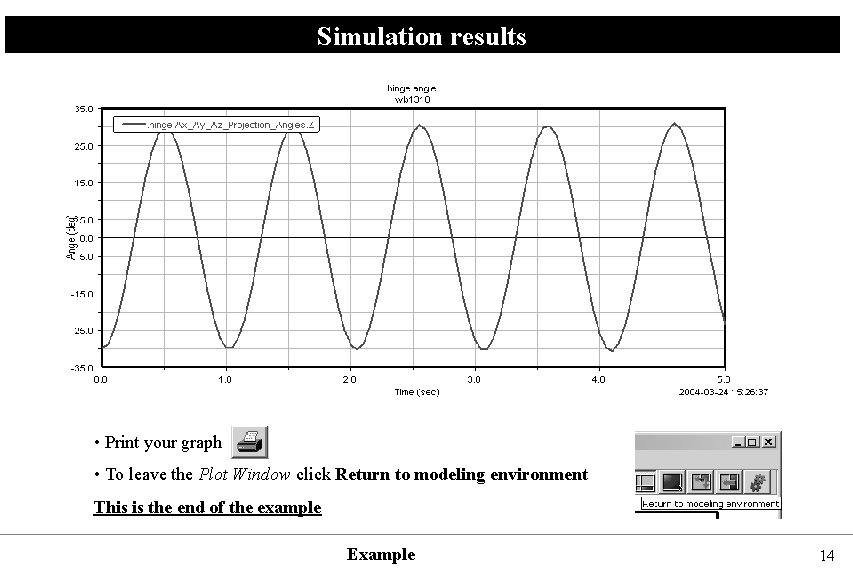
Simulation results • Print your graph • To leave the Plot Window click Return to modeling environment This is the end of the example Example 14
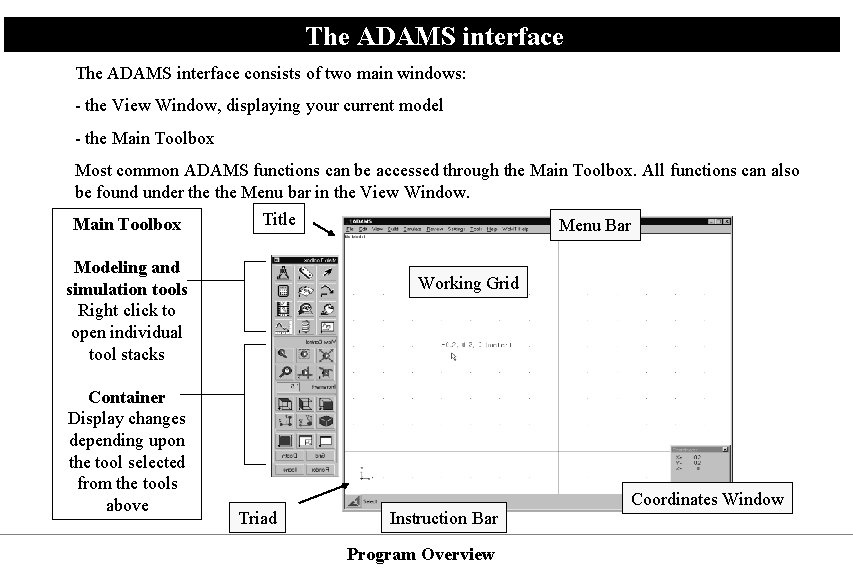
The ADAMS interface consists of two main windows: - the View Window, displaying your current model - the Main Toolbox Most common ADAMS functions can be accessed through the Main Toolbox. All functions can also be found under the Menu bar in the View Window. Main Toolbox Title Modeling and simulation tools Right click to open individual tool stacks Container Display changes depending upon the tool selected from the tools above Menu Bar Working Grid Triad Instruction Bar Program Overview Coordinates Window
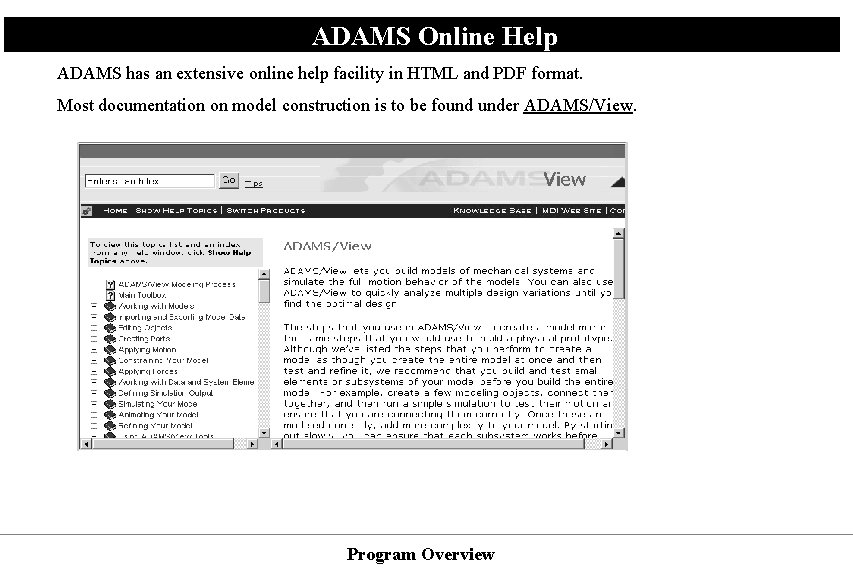
ADAMS Online Help ADAMS has an extensive online help facility in HTML and PDF format. Most documentation on model construction is to be found under ADAMS/View. Program Overview
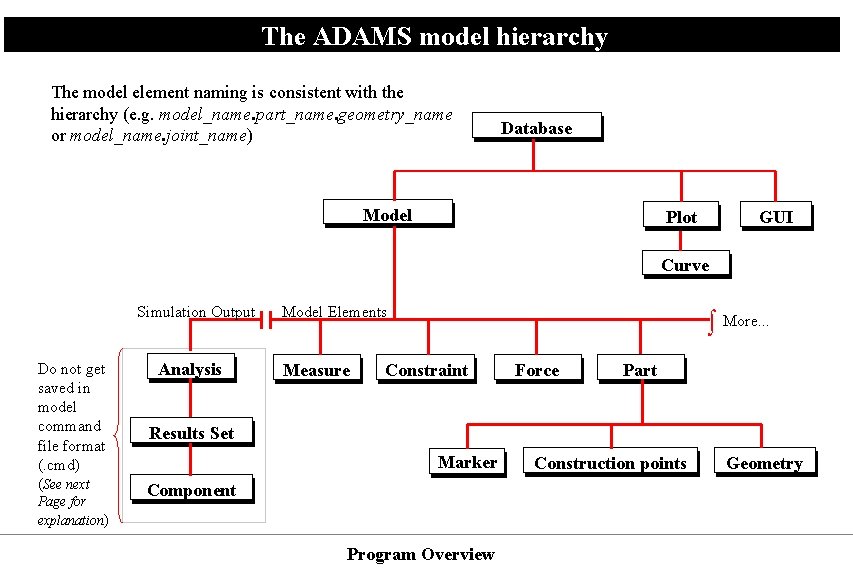
The ADAMS model hierarchy The model element naming is consistent with the hierarchy (e. g. model_name. part_name. geometry_name or model_name. joint_name) Database Model Plot GUI Curve Simulation Output Do not get saved in model command file format (. cmd) (See next Page for explanation) Analysis Model Elements Measure More. . . Constraint Force Part Results Set Marker Component Program Overview Construction points Geometry
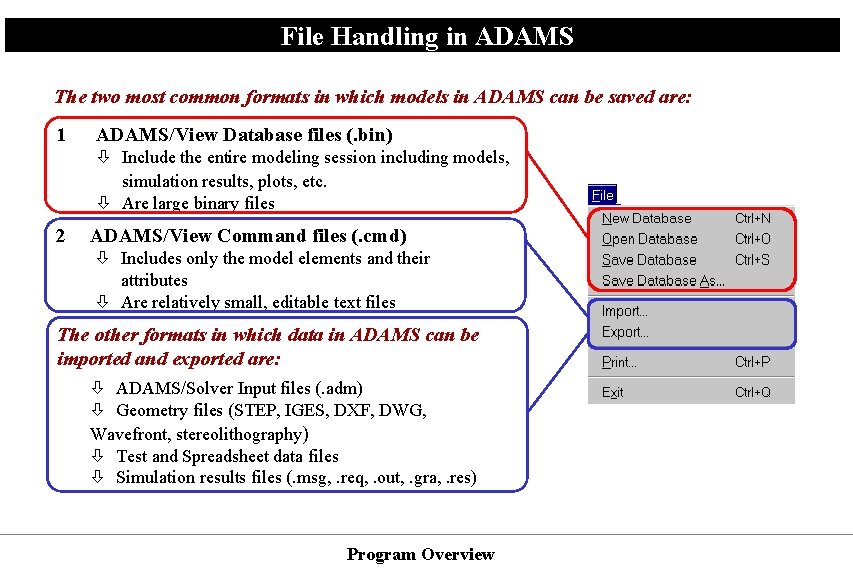
File Handling in ADAMS The two most common formats in which models in ADAMS can be saved are: 1 ADAMS/View Database files (. bin) Include the entire modeling session including models, simulation results, plots, etc. Are large binary files 2 ADAMS/View Command files (. cmd) Includes only the model elements and their attributes Are relatively small, editable text files The other formats in which data in ADAMS can be imported and exported are: ADAMS/Solver Input files (. adm) Geometry files (STEP, IGES, DXF, DWG, Wavefront, stereolithography) Test and Spreadsheet data files Simulation results files (. msg, . req, . out, . gra, . res) Program Overview
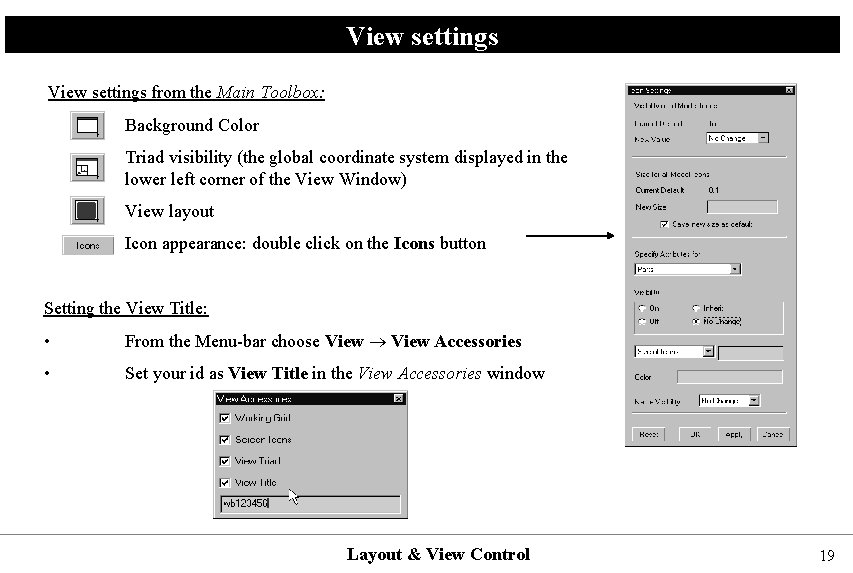
View settings from the Main Toolbox: Background Color Triad visibility (the global coordinate system displayed in the lower left corner of the View Window) View layout Icon appearance: double click on the Icons button Setting the View Title: • From the Menu-bar choose View Accessories • Set your id as View Title in the View Accessories window Layout & View Control 19
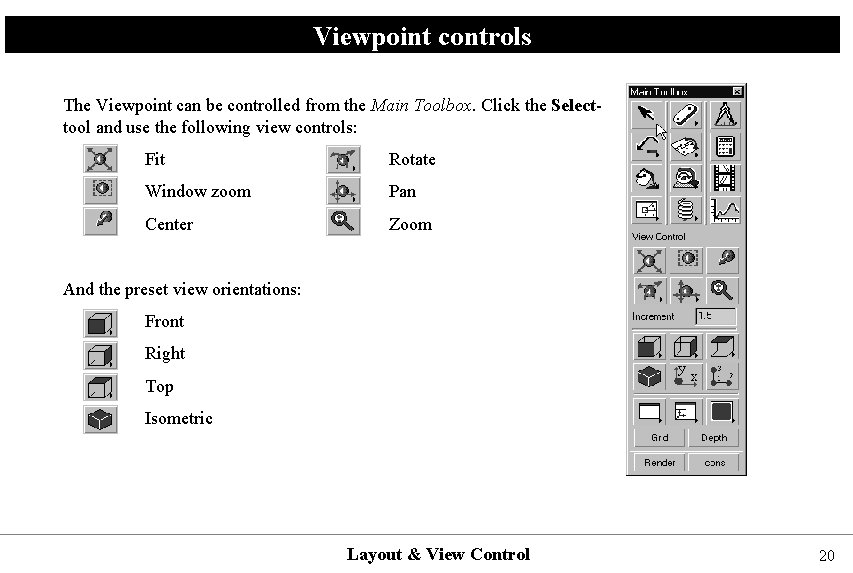
Viewpoint controls The Viewpoint can be controlled from the Main Toolbox. Click the Selecttool and use the following view controls: Fit Rotate Window zoom Pan Center Zoom And the preset view orientations: Front Right Top Isometric Layout & View Control 20
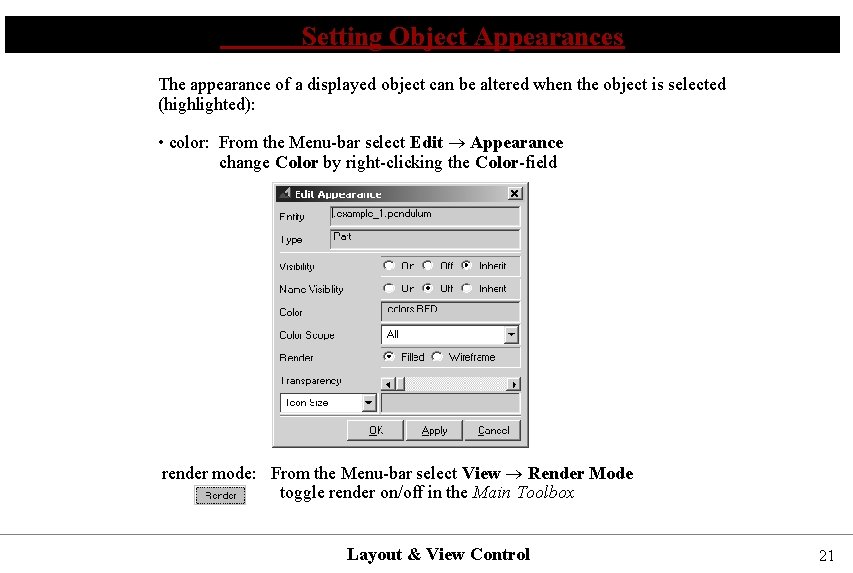
Setting Object Appearances The appearance of a displayed object can be altered when the object is selected (highlighted): • color: From the Menu-bar select Edit Appearance change Color by right-clicking the Color-field render mode: From the Menu-bar select View Render Mode toggle render on/off in the Main Toolbox Layout & View Control 21
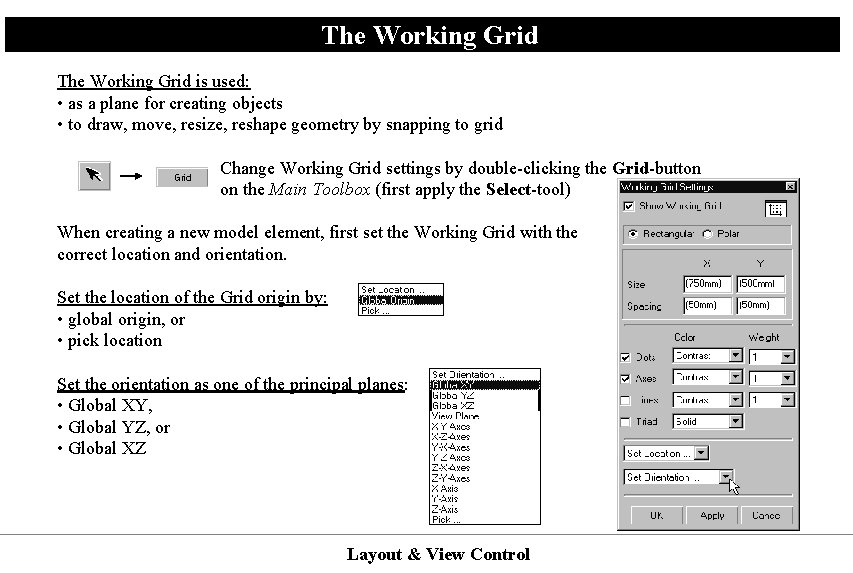
The Working Grid is used: • as a plane for creating objects • to draw, move, resize, reshape geometry by snapping to grid Change Working Grid settings by double-clicking the Grid-button on the Main Toolbox (first apply the Select-tool) When creating a new model element, first set the Working Grid with the correct location and orientation. Set the location of the Grid origin by: • global origin, or • pick location Set the orientation as one of the principal planes: • Global XY, • Global YZ, or • Global XZ Layout & View Control
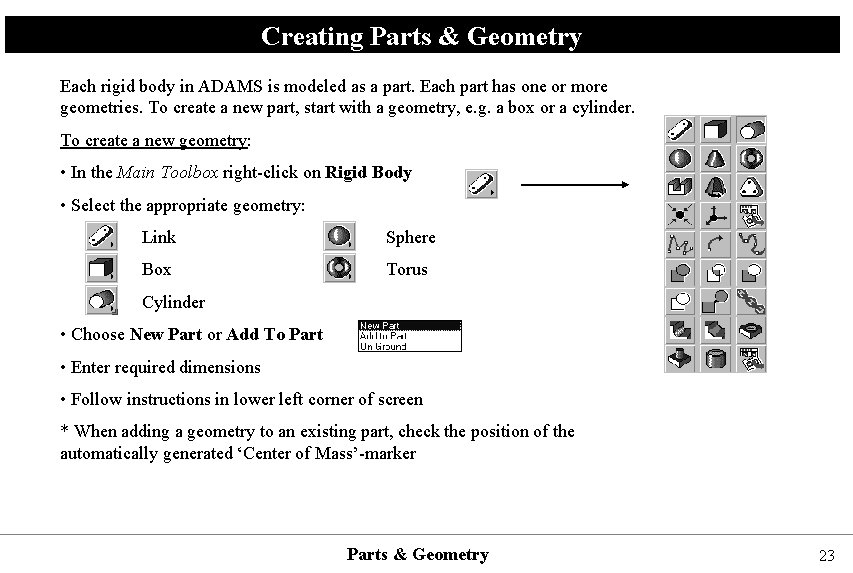
Creating Parts & Geometry Each rigid body in ADAMS is modeled as a part. Each part has one or more geometries. To create a new part, start with a geometry, e. g. a box or a cylinder. To create a new geometry: • In the Main Toolbox right-click on Rigid Body • Select the appropriate geometry: Link Sphere Box Torus Cylinder • Choose New Part or Add To Part • Enter required dimensions • Follow instructions in lower left corner of screen * When adding a geometry to an existing part, check the position of the automatically generated ‘Center of Mass’-marker Parts & Geometry 23
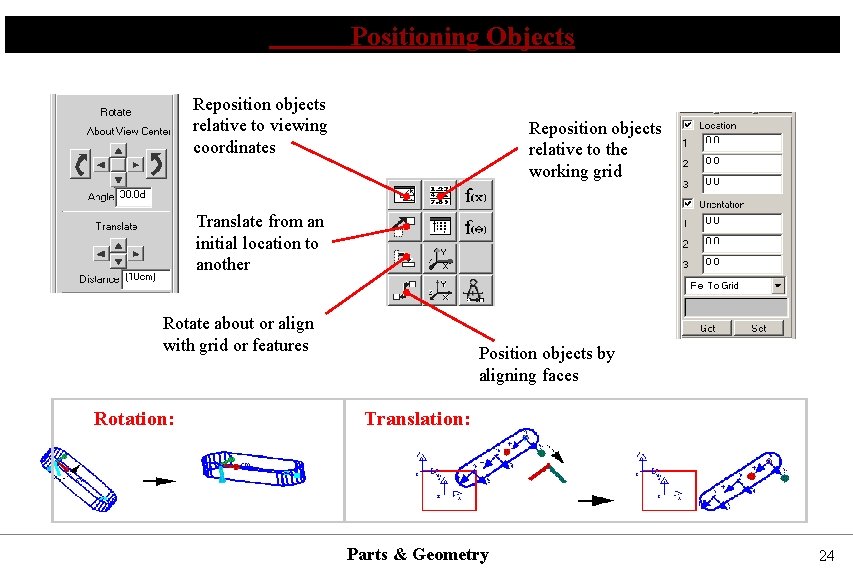
Positioning Objects Reposition objects relative to viewing coordinates Reposition objects relative to the working grid Translate from an initial location to another Rotate about or align with grid or features Rotation: Position objects by aligning faces Translation: Parts & Geometry 24
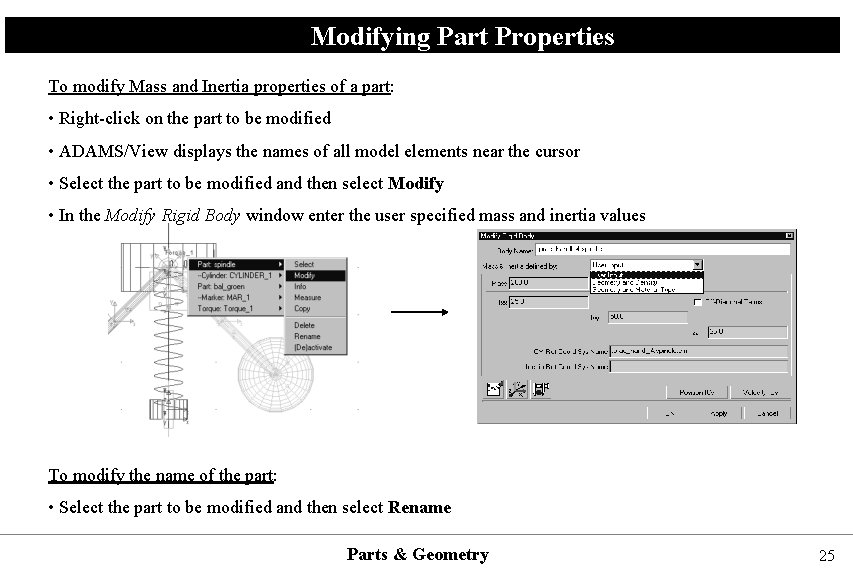
Modifying Part Properties To modify Mass and Inertia properties of a part: • Right-click on the part to be modified • ADAMS/View displays the names of all model elements near the cursor • Select the part to be modified and then select Modify • In the Modify Rigid Body window enter the user specified mass and inertia values To modify the name of the part: • Select the part to be modified and then select Rename Parts & Geometry 25
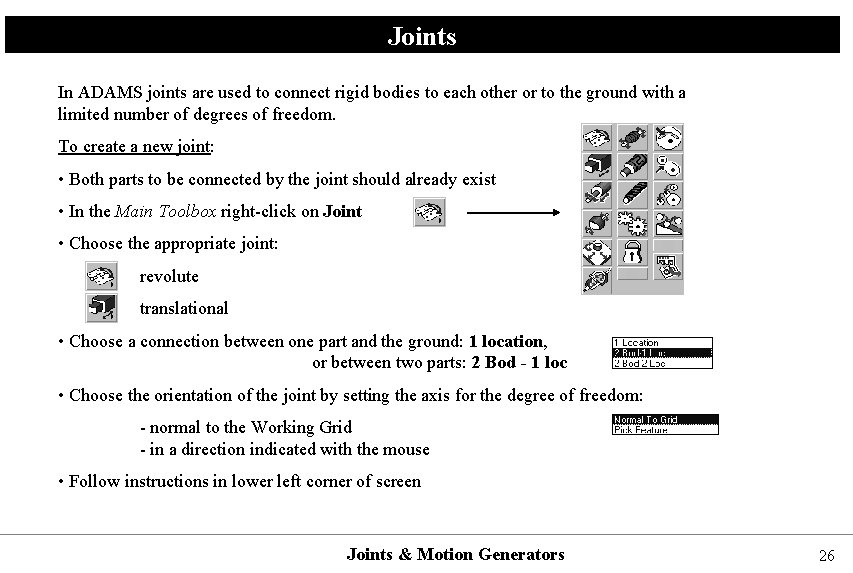
Joints In ADAMS joints are used to connect rigid bodies to each other or to the ground with a limited number of degrees of freedom. To create a new joint: • Both parts to be connected by the joint should already exist • In the Main Toolbox right-click on Joint • Choose the appropriate joint: revolute translational • Choose a connection between one part and the ground: 1 location, or between two parts: 2 Bod - 1 loc • Choose the orientation of the joint by setting the axis for the degree of freedom: - normal to the Working Grid - in a direction indicated with the mouse • Follow instructions in lower left corner of screen Joints & Motion Generators 26
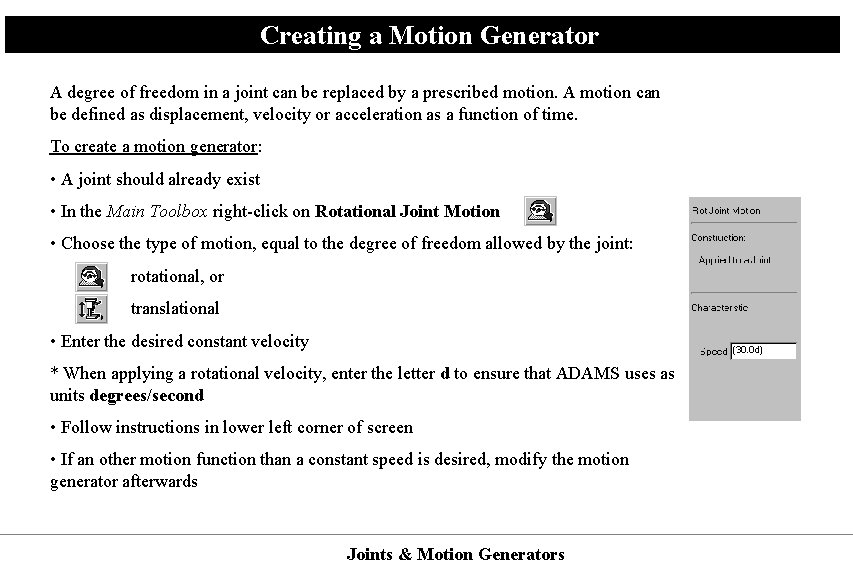
Creating a Motion Generator A degree of freedom in a joint can be replaced by a prescribed motion. A motion can be defined as displacement, velocity or acceleration as a function of time. To create a motion generator: • A joint should already exist • In the Main Toolbox right-click on Rotational Joint Motion • Choose the type of motion, equal to the degree of freedom allowed by the joint: rotational, or translational • Enter the desired constant velocity * When applying a rotational velocity, enter the letter d to ensure that ADAMS uses as units degrees/second • Follow instructions in lower left corner of screen • If an other motion function than a constant speed is desired, modify the motion generator afterwards Joints & Motion Generators
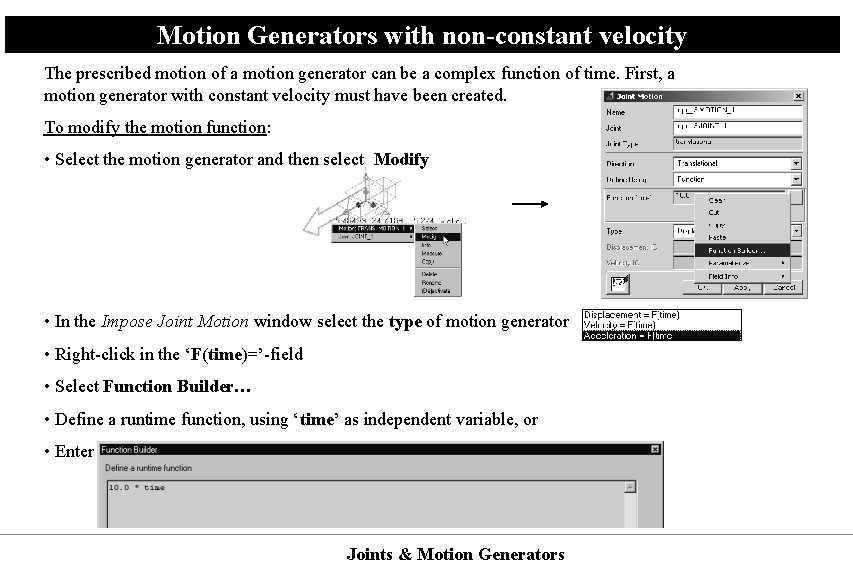
Motion Generators with non-constant velocity The prescribed motion of a motion generator can be a complex function of time. First, a motion generator with constant velocity must have been created. To modify the motion function: • Select the motion generator and then select Modify • In the Impose Joint Motion window select the type of motion generator • Right-click in the ‘F(time)=’-field • Select Function Builder… • Define a runtime function, using ‘time’ as independent variable, or • Enter a more complex predefined function (next page) Joints & Motion Generators
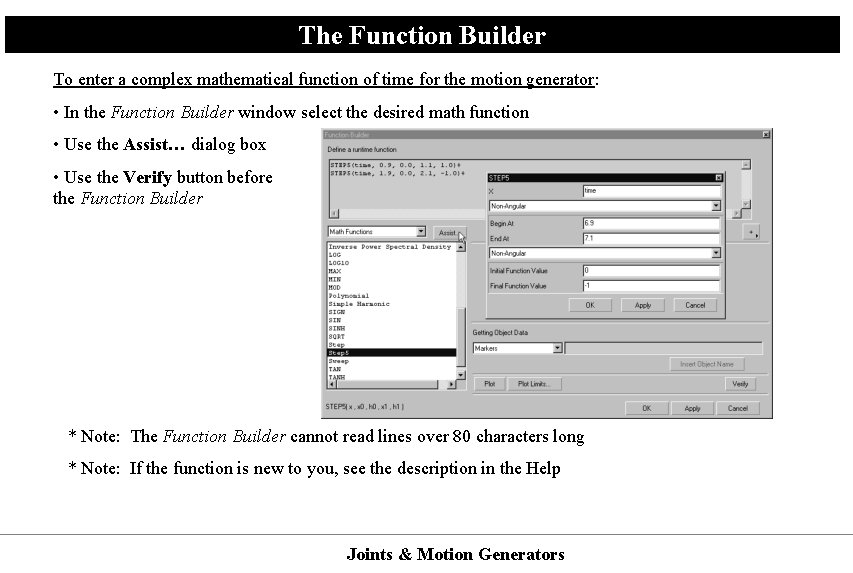
The Function Builder To enter a complex mathematical function of time for the motion generator: • In the Function Builder window select the desired math function • Use the Assist… dialog box • Use the Verify button before the Function Builder closing * Note: The Function Builder cannot read lines over 80 characters long * Note: If the function is new to you, see the description in the Help Joints & Motion Generators
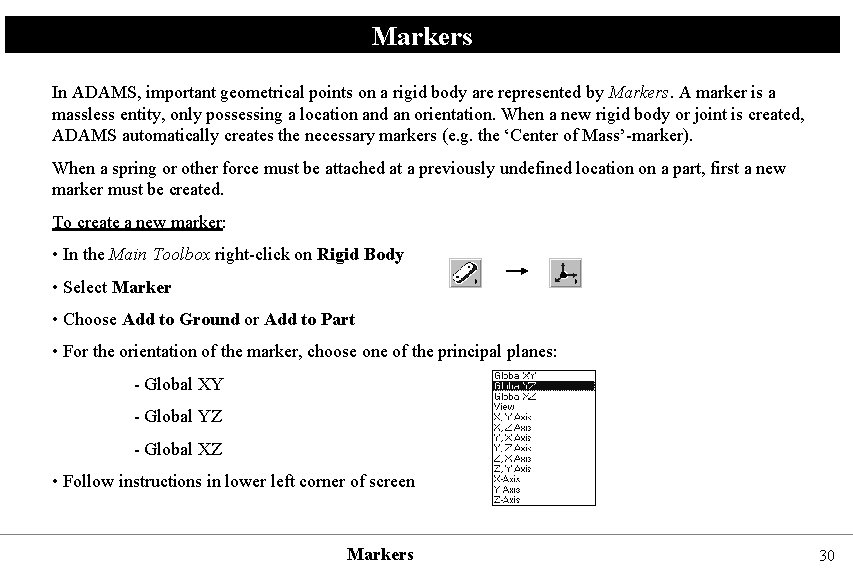
Markers In ADAMS, important geometrical points on a rigid body are represented by Markers. A marker is a massless entity, only possessing a location and an orientation. When a new rigid body or joint is created, ADAMS automatically creates the necessary markers (e. g. the ‘Center of Mass’-marker). When a spring or other force must be attached at a previously undefined location on a part, first a new marker must be created. To create a new marker: • In the Main Toolbox right-click on Rigid Body • Select Marker • Choose Add to Ground or Add to Part • For the orientation of the marker, choose one of the principal planes: - Global XY - Global YZ - Global XZ • Follow instructions in lower left corner of screen Markers 30
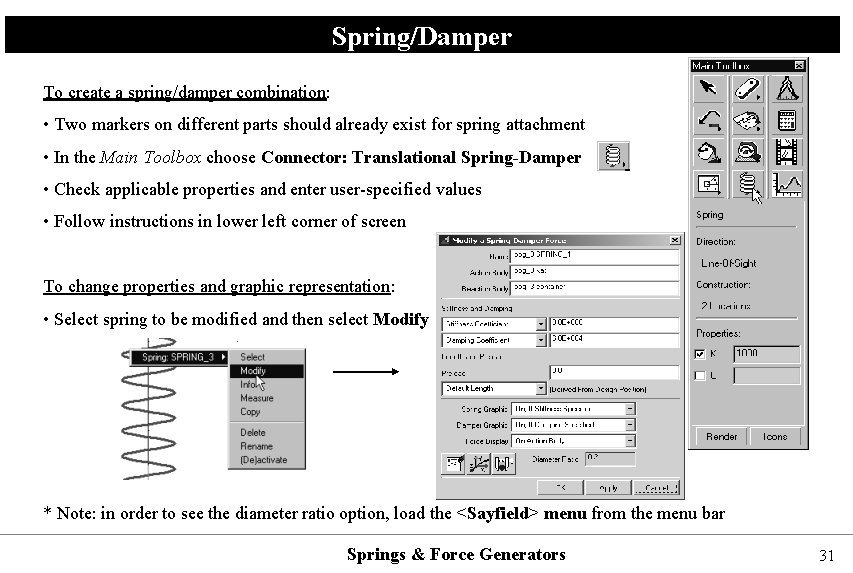
Spring/Damper To create a spring/damper combination: • Two markers on different parts should already exist for spring attachment • In the Main Toolbox choose Connector: Translational Spring-Damper • Check applicable properties and enter user-specified values • Follow instructions in lower left corner of screen To change properties and graphic representation: • Select spring to be modified and then select Modify * Note: in order to see the diameter ratio option, load the <Sayfield> menu from the menu bar Springs & Force Generators 31
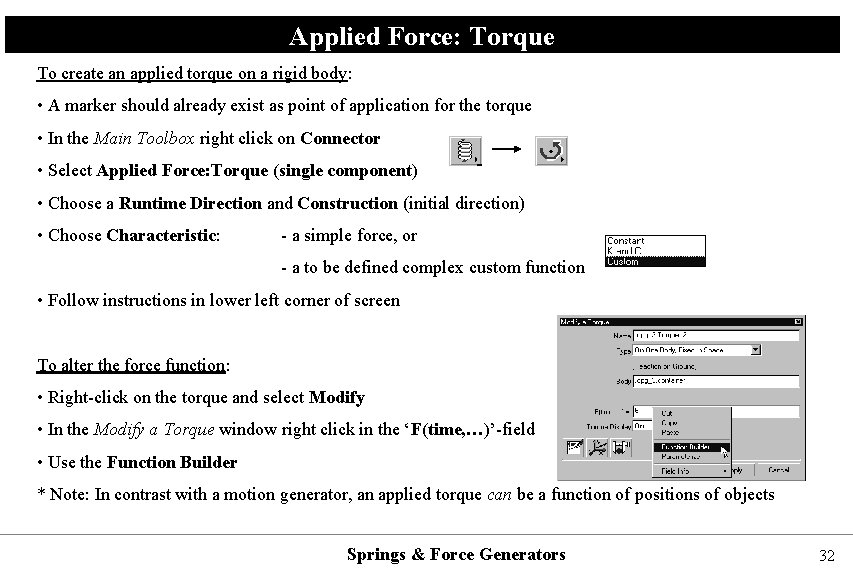
Applied Force: Torque To create an applied torque on a rigid body: • A marker should already exist as point of application for the torque • In the Main Toolbox right click on Connector • Select Applied Force: Torque (single component) • Choose a Runtime Direction and Construction (initial direction) • Choose Characteristic: - a simple force, or - a to be defined complex custom function • Follow instructions in lower left corner of screen To alter the force function: • Right-click on the torque and select Modify • In the Modify a Torque window right click in the ‘F(time, …)’-field • Use the Function Builder * Note: In contrast with a motion generator, an applied torque can be a function of positions of objects Springs & Force Generators 32
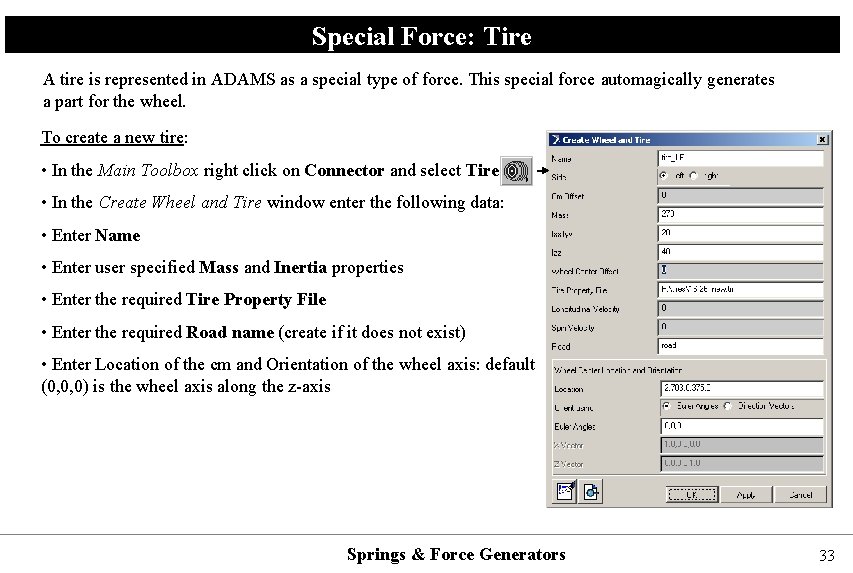
Special Force: Tire A tire is represented in ADAMS as a special type of force. This special force automagically generates a part for the wheel. To create a new tire: • In the Main Toolbox right click on Connector and select Tire • In the Create Wheel and Tire window enter the following data: • Enter Name • Enter user specified Mass and Inertia properties • Enter the required Tire Property File • Enter the required Road name (create if it does not exist) • Enter Location of the cm and Orientation of the wheel axis: default (0, 0, 0) is the wheel axis along the z-axis Springs & Force Generators 33
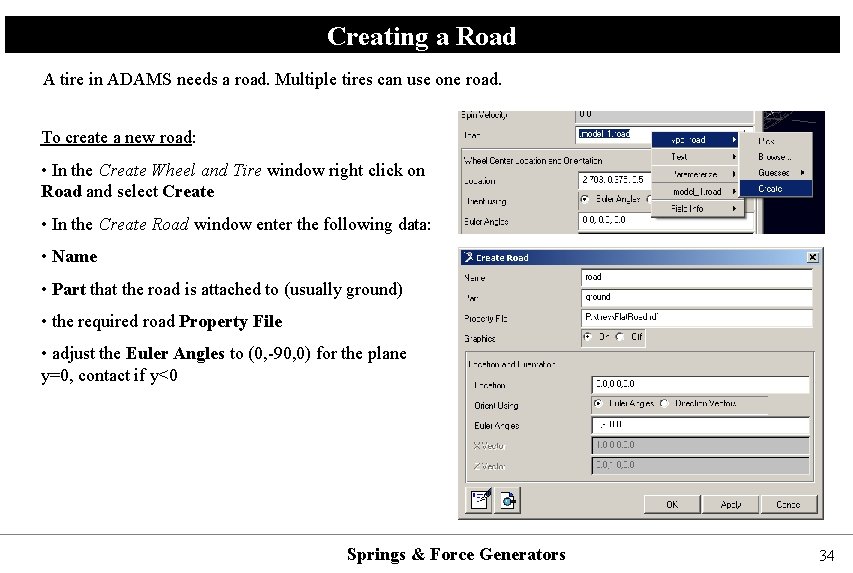
Creating a Road A tire in ADAMS needs a road. Multiple tires can use one road. To create a new road: • In the Create Wheel and Tire window right click on Road and select Create • In the Create Road window enter the following data: • Name • Part that the road is attached to (usually ground) • the required road Property File • adjust the Euler Angles to (0, -90, 0) for the plane y=0, contact if y<0 Springs & Force Generators 34
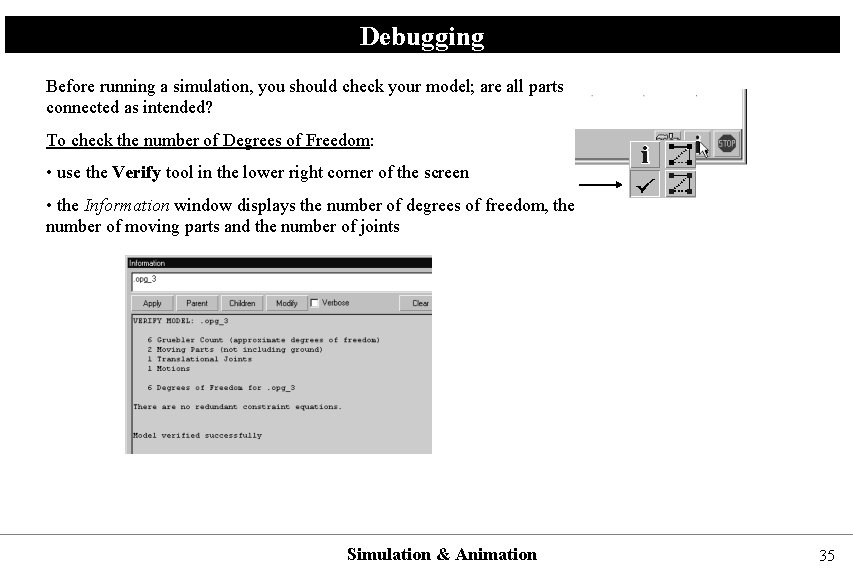
Debugging Before running a simulation, you should check your model; are all parts connected as intended? To check the number of Degrees of Freedom: • use the Verify tool in the lower right corner of the screen • the Information window displays the number of degrees of freedom, the number of moving parts and the number of joints Simulation & Animation 35
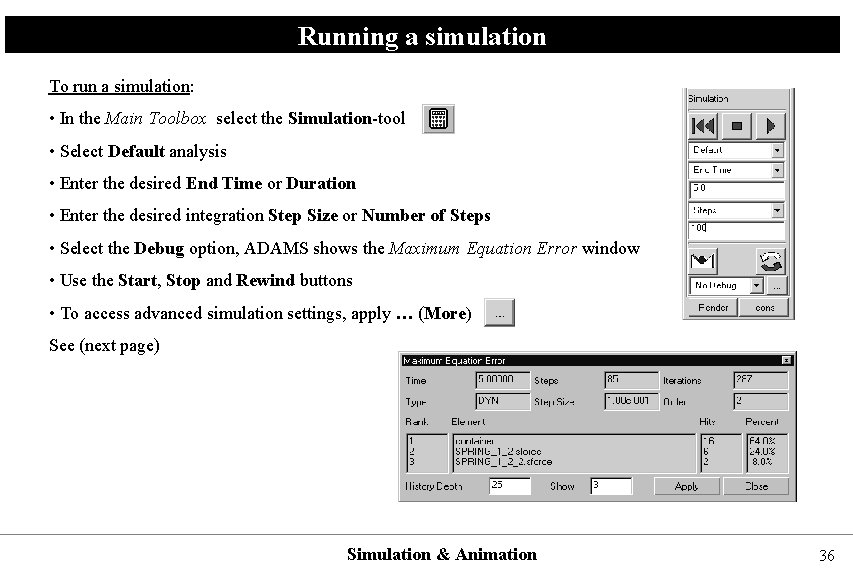
Running a simulation To run a simulation: • In the Main Toolbox select the Simulation-tool • Select Default analysis • Enter the desired End Time or Duration • Enter the desired integration Step Size or Number of Steps • Select the Debug option, ADAMS shows the Maximum Equation Error window • Use the Start, Stop and Rewind buttons • To access advanced simulation settings, apply … (More) See (next page) Simulation & Animation 36
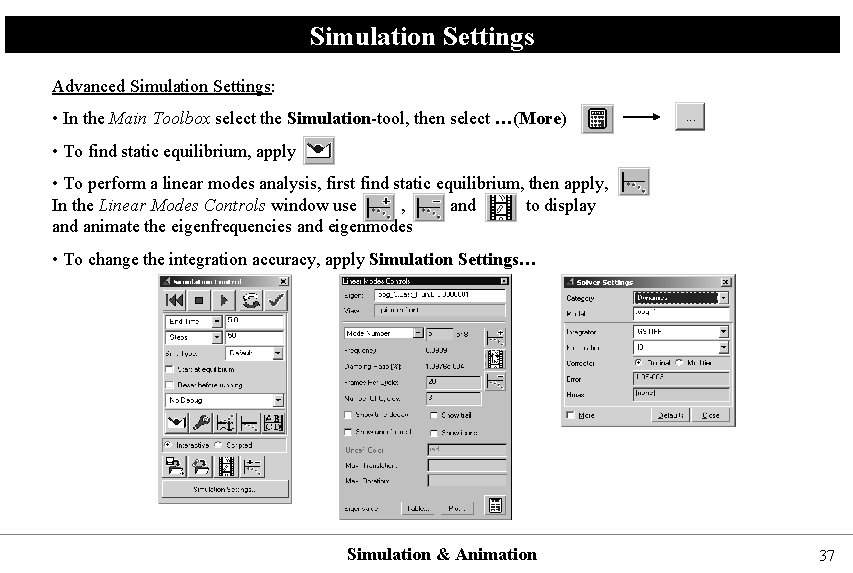
Simulation Settings Advanced Simulation Settings: • In the Main Toolbox select the Simulation-tool, then select …(More) • To find static equilibrium, apply • To perform a linear modes analysis, first find static equilibrium, then apply, In the Linear Modes Controls window use , and to display and animate the eigenfrequencies and eigenmodes • To change the integration accuracy, apply Simulation Settings… Simulation & Animation 37
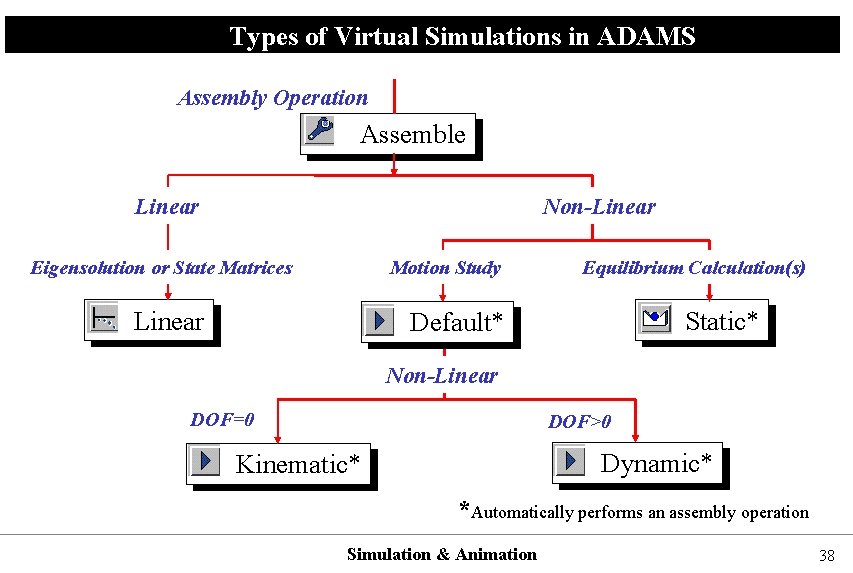
Types of Virtual Simulations in ADAMS Assembly Operation Assemble Linear Non-Linear Eigensolution or State Matrices Motion Study Linear Equilibrium Calculation(s) Static* Default* Non-Linear DOF=0 DOF>0 Dynamic* Kinematic* *Automatically performs an assembly operation Simulation & Animation 38
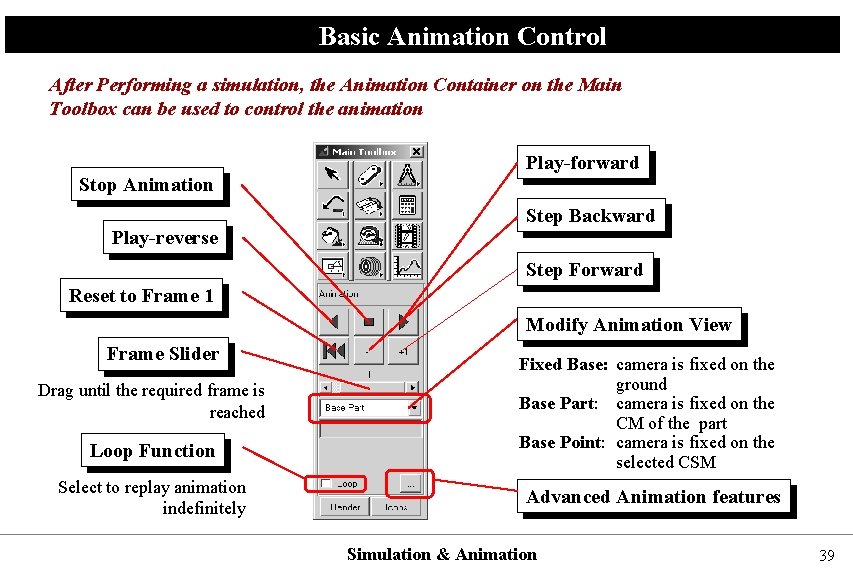
Basic Animation Control After Performing a simulation, the Animation Container on the Main Toolbox can be used to control the animation Stop Animation Play-reverse Play-forward Step Backward Step Forward Reset to Frame 1 Modify Animation View Frame Slider Drag until the required frame is reached Loop Function Select to replay animation indefinitely Fixed Base: camera is fixed on the ground Base Part: camera is fixed on the CM of the part Base Point: camera is fixed on the selected CSM Advanced Animation features Simulation & Animation 39
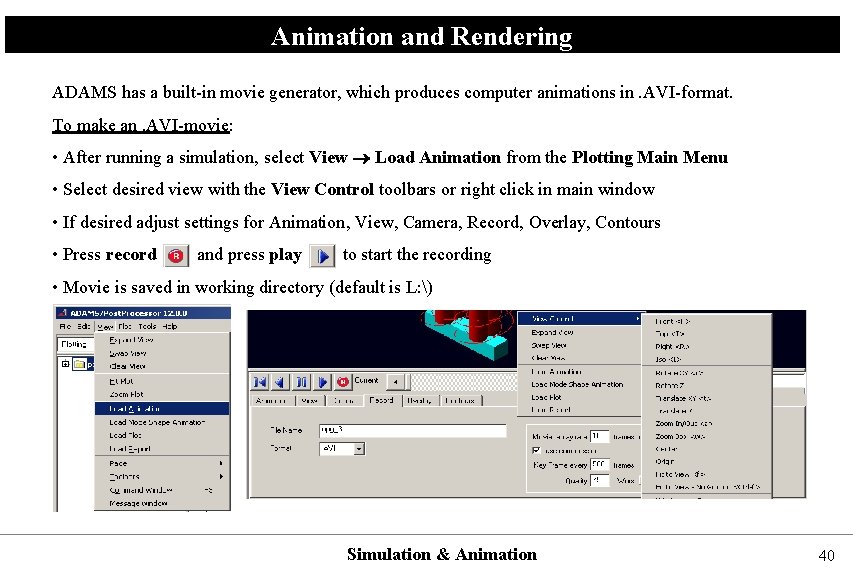
Animation and Rendering ADAMS has a built-in movie generator, which produces computer animations in. AVI-format. To make an. AVI-movie: • After running a simulation, select View Load Animation from the Plotting Main Menu • Select desired view with the View Control toolbars or right click in main window • If desired adjust settings for Animation, View, Camera, Record, Overlay, Contours • Press record and press play to start the recording • Movie is saved in working directory (default is L: ) Simulation & Animation 40
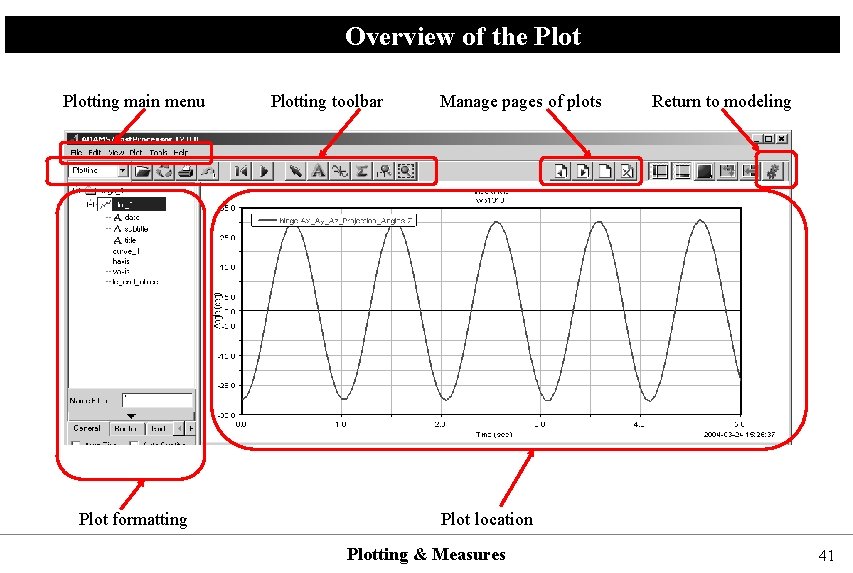
Overview of the Plotting main menu Plot formatting Plotting toolbar Manage pages of plots Return to modeling Plot location Plotting & Measures 41
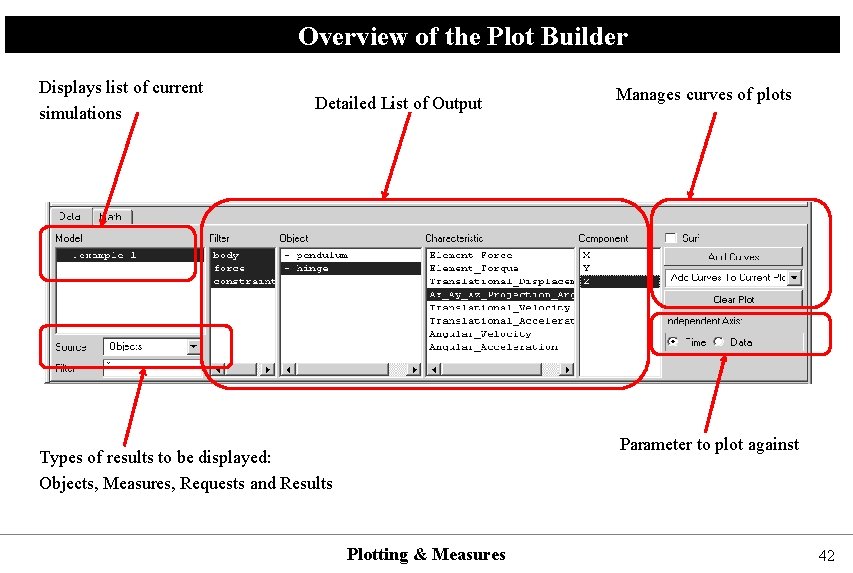
Overview of the Plot Builder Displays list of current simulations Detailed List of Output Manages curves of plots Parameter to plot against Types of results to be displayed: Objects, Measures, Requests and Results Plotting & Measures 42
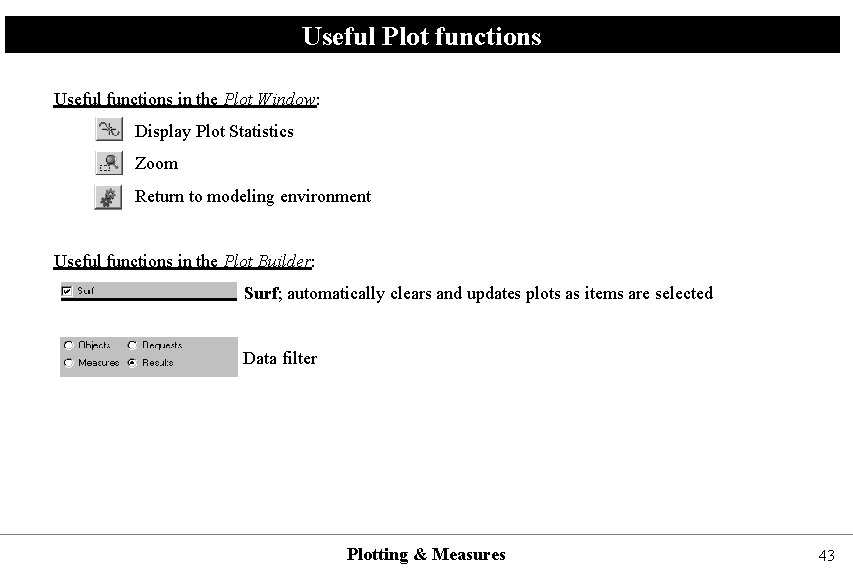
Useful Plot functions Useful functions in the Plot Window: Display Plot Statistics Zoom Return to modeling environment Useful functions in the Plot Builder: Surf; automatically clears and updates plots as items are selected Data filter Plotting & Measures 43
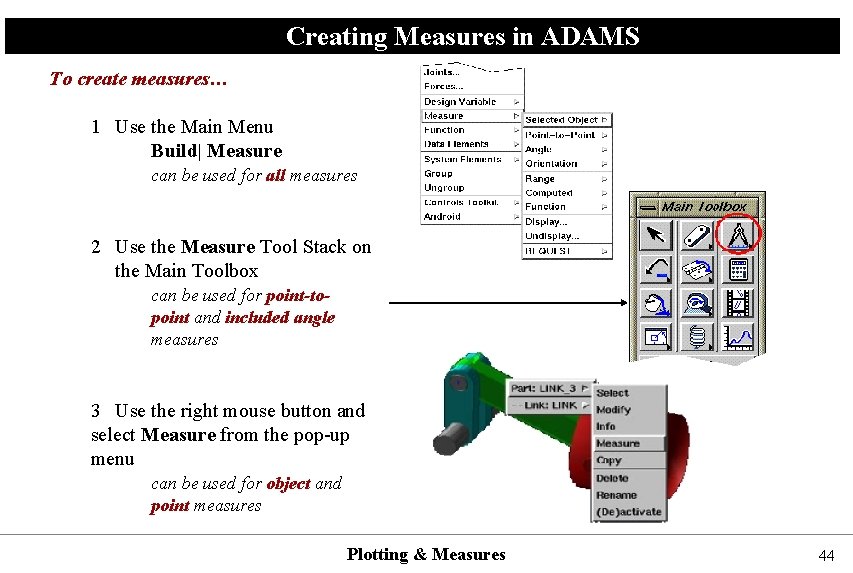
Creating Measures in ADAMS To create measures… 1 Use the Main Menu Build| Measure can be used for all measures 2 Use the Measure Tool Stack on the Main Toolbox can be used for point-topoint and included angle measures 3 Use the right mouse button and select Measure from the pop-up menu can be used for object and point measures Plotting & Measures 44
Tips & Tricks Some general tips & tricks: • Use the Escape key to abort a command. • Press ‘Enter’ after input to make sure that the new value is set. • Edit Copy generates a copy at the same location as the original. Right -click on the model to select the copied element. • Right click on any field for suggestions or options. Tips & Useful Tools 45
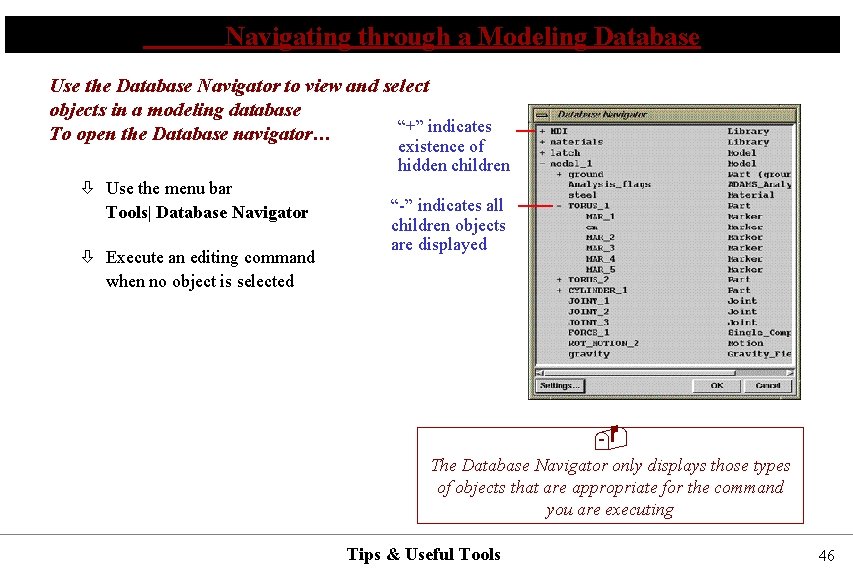
Navigating through a Modeling Database Use the Database Navigator to view and select objects in a modeling database “+” indicates To open the Database navigator… existence of hidden children Use the menu bar Tools| Database Navigator Execute an editing command when no object is selected “-” indicates all children objects are displayed The Database Navigator only displays those types of objects that are appropriate for the command you are executing Tips & Useful Tools 46
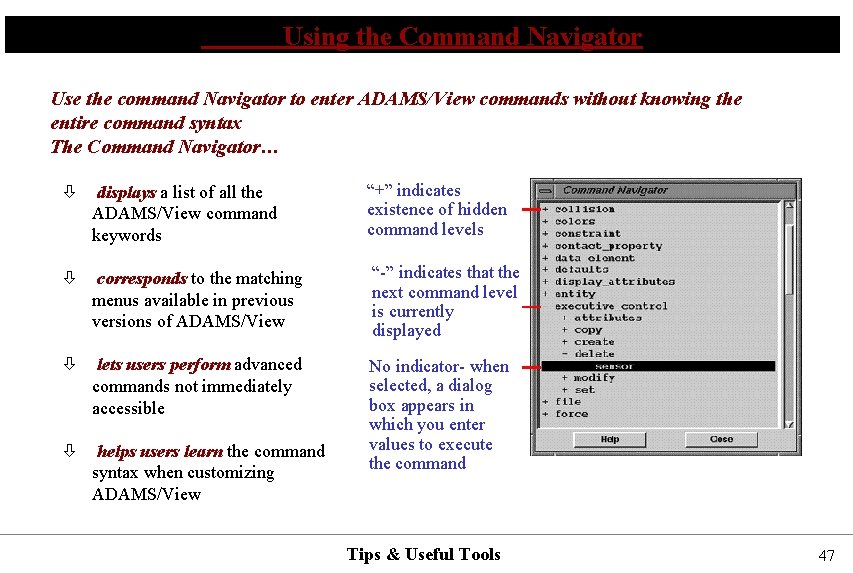
Using the Command Navigator Use the command Navigator to enter ADAMS/View commands without knowing the entire command syntax The Command Navigator… displays a list of all the ADAMS/View command keywords “+” indicates existence of hidden command levels corresponds to the matching menus available in previous versions of ADAMS/View “-” indicates that the next command level is currently displayed lets users perform advanced commands not immediately accessible helps users learn the command syntax when customizing ADAMS/View No indicator- when selected, a dialog box appears in which you enter values to execute the command Tips & Useful Tools 47
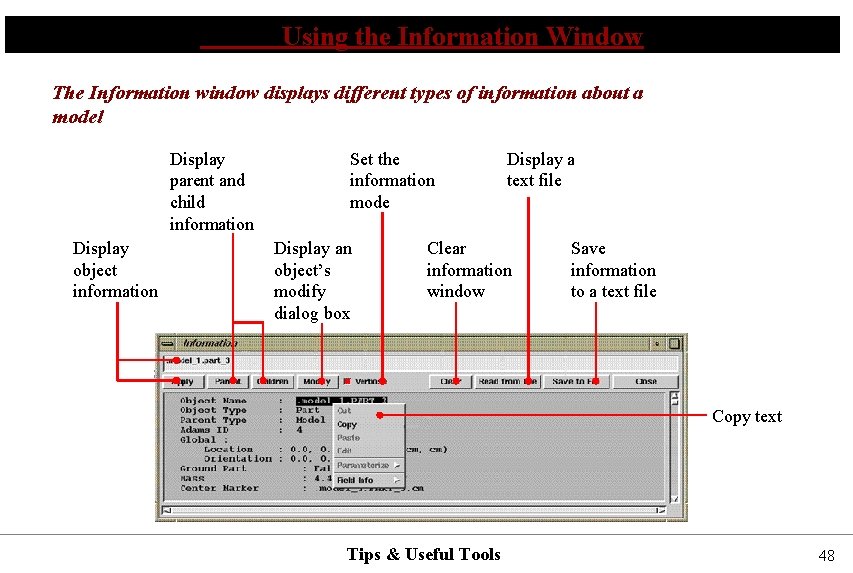
Using the Information Window The Information window displays different types of information about a model Display parent and child information Display object information Set the information mode Display an object’s modify dialog box Display a text file Clear information window Save information to a text file Copy text Tips & Useful Tools 48
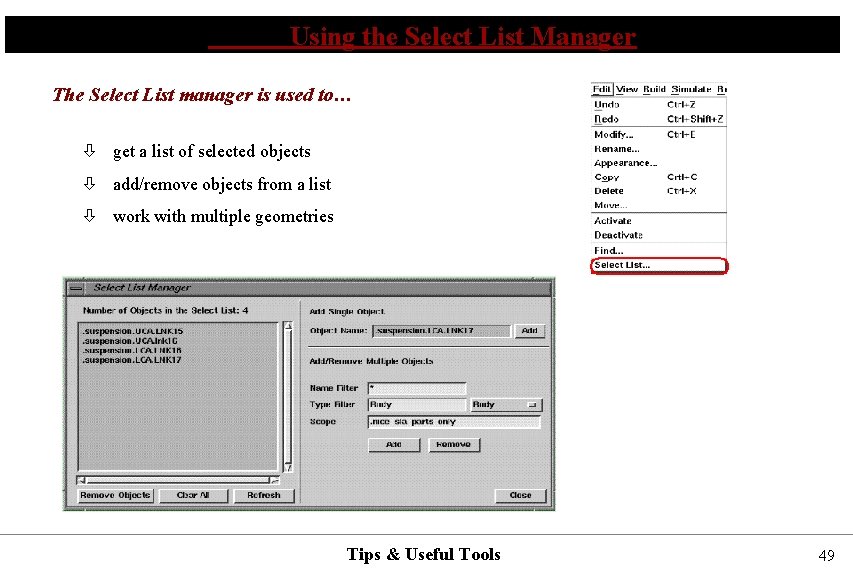
Using the Select List Manager The Select List manager is used to… get a list of selected objects add/remove objects from a list work with multiple geometries Tips & Useful Tools 49
- Slides: 49