
Introduction to ACAD Objectives Understand fundamental CAD concepts
Introduction to A+CAD
Objectives • • Understand fundamental CAD concepts Start A+CAD Tour the A+CAD interface Explore the different A+CAD data input methods
What is CAD? • Computer-aided drafting is better known as CAD • Benefits of CAD include: – Increased productivity – Improved precision – Better collaboration – 3 D visualization and analysis
Fundamental CAD Concepts • Drawing actual size – Unlike drawing on the board, in CAD-based drafting, the scaling occurs when the drawing is set up to be printed or plotted
Fundamental CAD Concepts • The Cartesian Coordinate System – This is a grid-based system where points are represented by their X and Y coordinate values separated by a comma
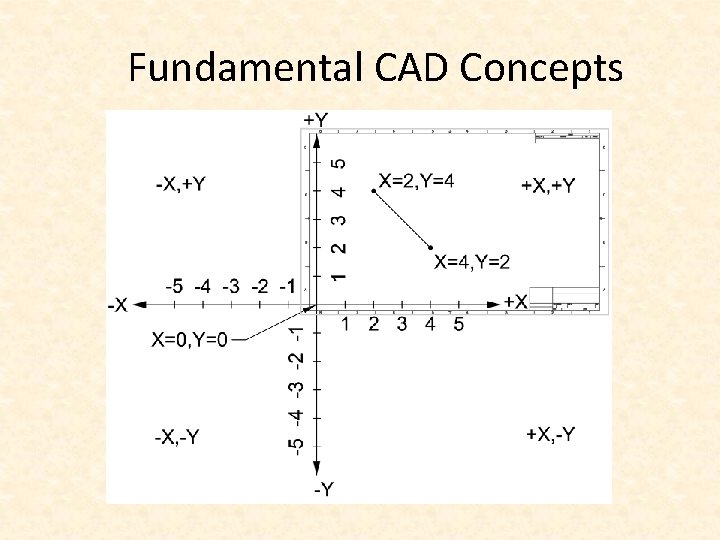
Fundamental CAD Concepts
Fundamental CAD Concepts • Right-Hand Rule – Using the right-hand rule, your fingers point in the positive direction of the X, Y and Z axis
Fundamental CAD Concepts • Grid Units – In A+CAD, one unit on the Cartesian coordinate system can represent whatever you want it to represent – Most of the drawings in this book will rely on: • 1 unit = 1 inch for Imperial drawings • 1 unit = 1 millimeter for Metric drawings
Fundamental CAD Concepts • Angle Measurement – By default, angles in A+CAD are measured counterclockwise from 0 which is due east, or right, on the positive X-axis
Fundamental CAD Concepts • Object Properties – In A+CAD, all drawing objects have properties associated with them that control their appearance and behavior, these properties include: • • • Layers Colors Linetypes Lineweights Transparency
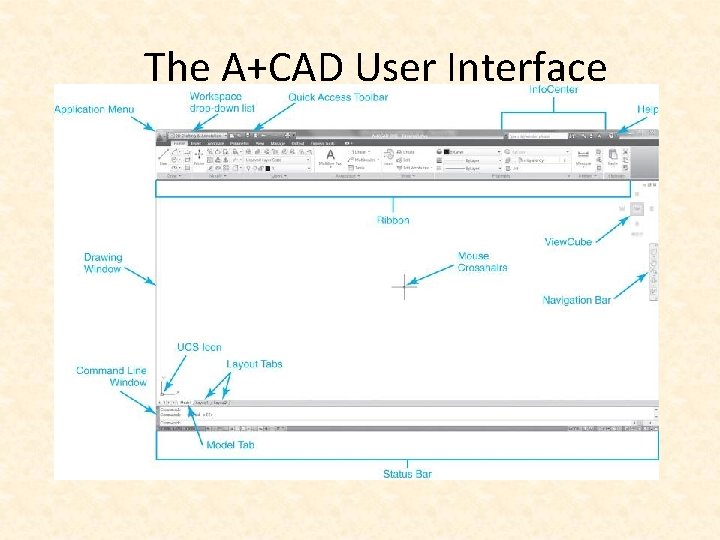
The A+CAD User Interface
A+CAD Options • The Options dialog box allows the user to control and maintain most Auto. CAD features and settings including options such as: – Color of window elements – Size of cursor crosshairs – Default print settings – And many other options
Configuring A+CAD • Let us use A+CAD • Type options on Command Line or Tools/options or right click Drawing windows • You can display – colors of screen • Change cross hair etc.
Line Weight Settings • Command line: Lineweight Settings: Drawing settings – displays • Dimension settings
Status Bar • • • Snap : F 9 Grid: F 7 Ortho: F 8 – Horizontal or Vertical Esnap: F 3 LWT: Line Weight

Toolbars

The Web-Based Help System • Auto. CAD provides substantial online help via a web–based help system • You can also set help to work from your local computer drive • Help can be accessed via: – The <F 1> function key – The Help menu – Clicking on the Question Mark on the top right of the Auto. CAD window – Or by entering a question mark <? > at the keyboard
Saving Your Work • The QSAVE command is short for “Quick Save” – The first time QSAVE is used, the standard Windows “Save Drawing As” dialog box is displayed – Subsequent use of QSAVE updates the file in its specified location and also creates a backup of the previous saved version as a. BAK file
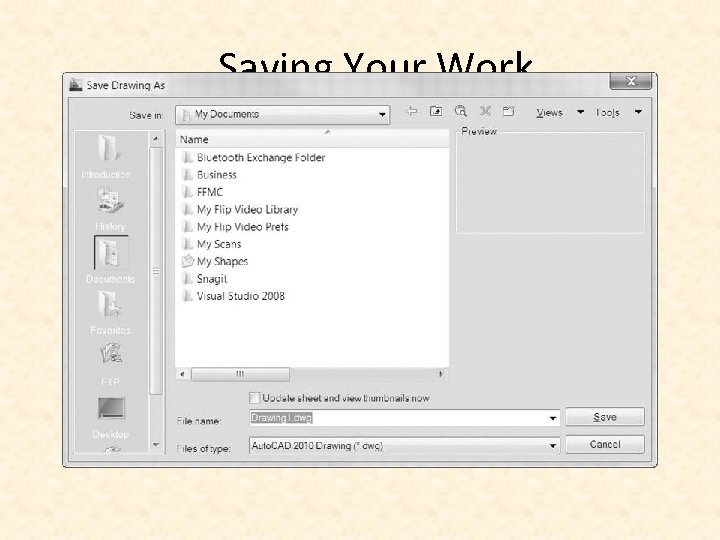
Saving Your Work
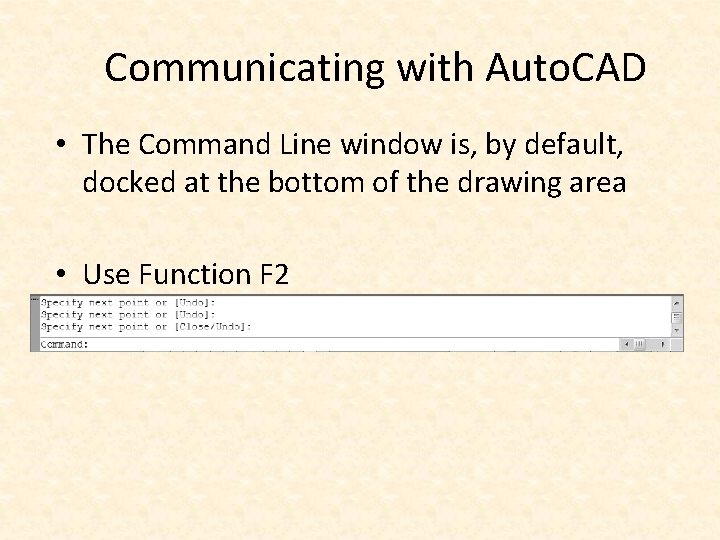
Communicating with Auto. CAD • The Command Line window is, by default, docked at the bottom of the drawing area • Use Function F 2
Object Snaps • Object Snaps/ESNAP are geometric points on objects such as the endpoints or midpoints of a line or the center or an arc or circle – You can right click on the ESNAPin the status bar and choose Settings to change the defaults
Ortho • Ortho Mode, when turned on, restricts the crosshair movement to either horizontal or vertical
Undo/Redo • Auto. CAD keeps a running history of all the commands used in a drawing session which allows you to back up to any point in the drawing – UNDO takes you back one command at a time – REDO moves you forward one command at a time if you go back too far with the UNDO
Grid and Snap • Crosshair movement can be tracked by turning on Snap mode which locks crosshair movement to a predefined increment • The Grid Display button toggles the display of a grid – The grid does not print or control cursor movement
Navigating Around the Drawing • In order to work effectively, you must be able to navigate around the drawing and control what is displayed on the screen • Commands used for these functions include: – Pan – Zoom
Layers • Layers give you a way to group objects together logically • Each layer consists of: – Name – Color – Linetype – Lineweight – Transparency level – Several on/off settings
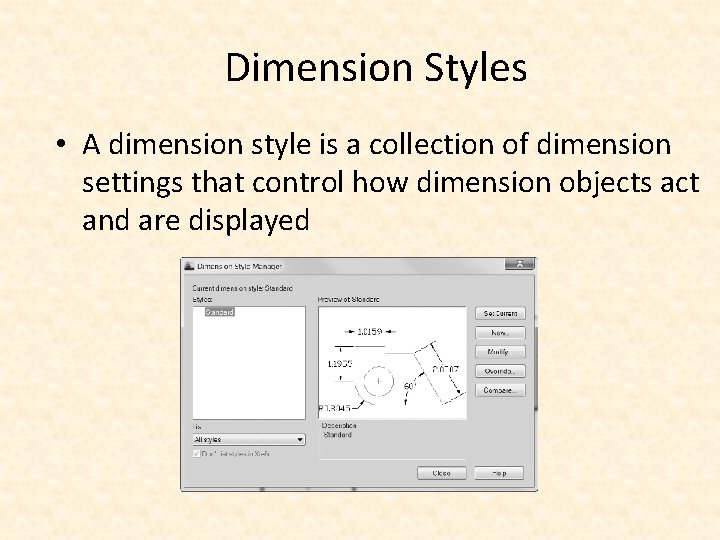
Dimension Styles • A dimension style is a collection of dimension settings that control how dimension objects act and are displayed
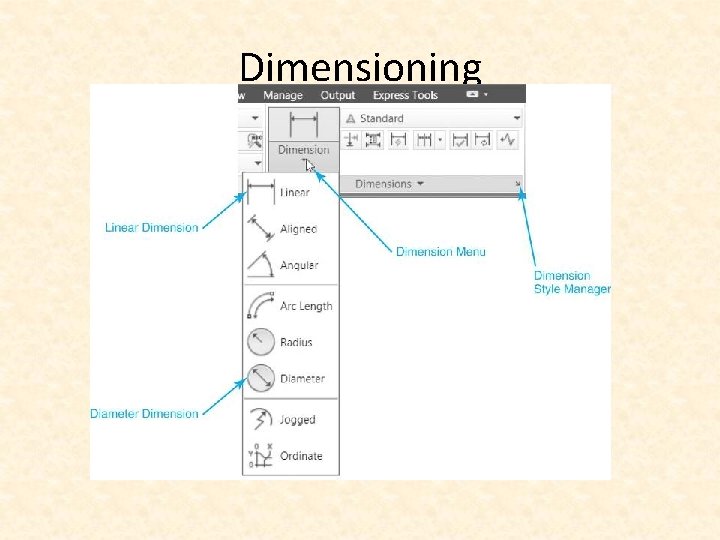
Dimensioning • Insert - Dimensions • Auto. CAD’s dimensioning tools measure distances and place dimensions on your drawing – Dimension tools can be accessed from the Dimensions panel on the Annotate tab
Dimensioning
Modifying Drawing Objects • The general process for modifying objects is to:
Plotting and Page Setups • When plotting, A+CAD needs to know a number of different settings including: – Printer – Paper size – Orientation – Margins – Color settings – Plot scale – And many other settings
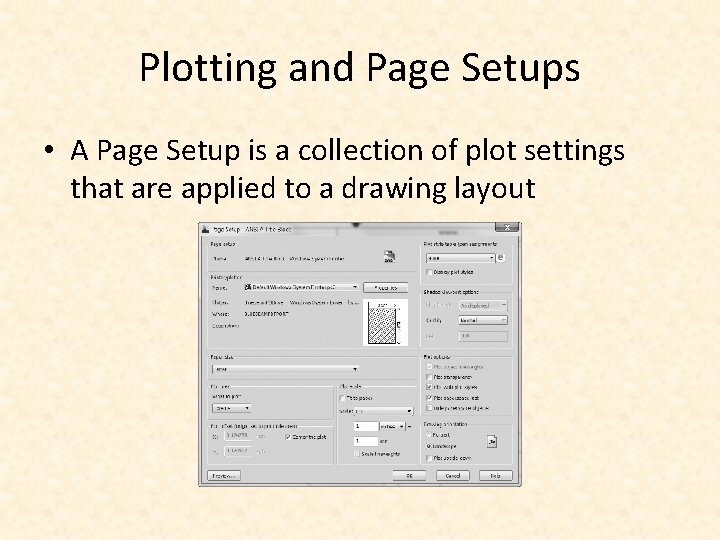
Plotting and Page Setups • A Page Setup is a collection of plot settings that are applied to a drawing layout
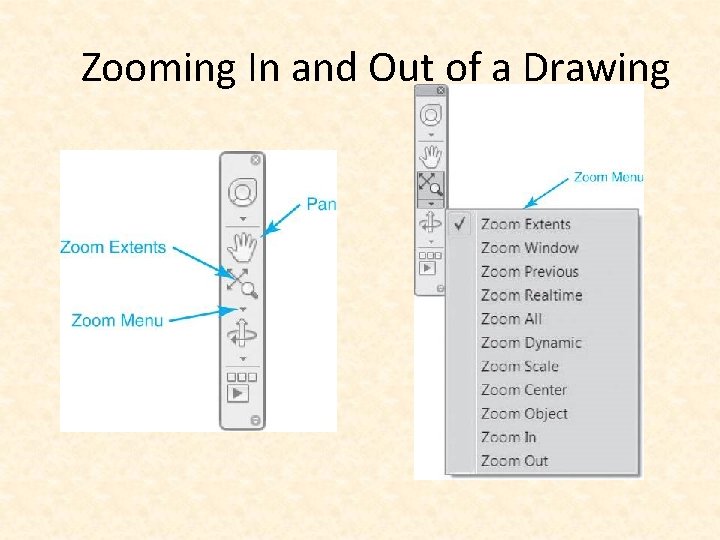
Zooming In and Out of a Drawing • The A+CAD drawing display is like a camera lens allowing you to zoon in and out • The Zoom tools are located on the navigation bar located on the right side of the drawing window
Zooming In and Out of a Drawing
Panning Around a Drawing • Panning is the process of moving your drawing from side to side in the display window so the location of the view changes without affecting the zoom scale – When using the Pan tool, your mouse pointer changes to a hand icon
Splitting the Screen into Tiled Viewports • View: Viewport
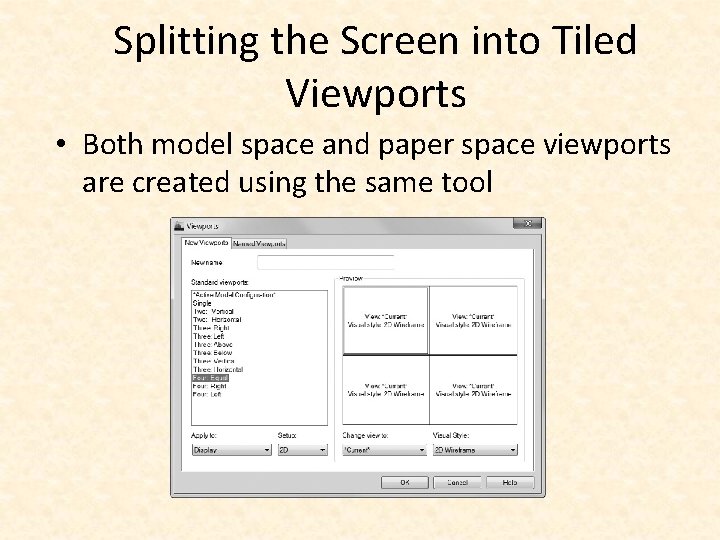
Splitting the Screen into Tiled Viewports • Both model space and paper space viewports are created using the same tool
Drawing Setup • Setting Units is typically the first step in setting up your drawing – Setting – Drawing Setting • Units can represent any measurement in A+CAD including: – Inches – Feet – Millimeters – Meters – Nautical leagues, etc.
Drawing Setup • Auto. CAD can provide unlimited space for drawing – In model space, drawing area is not critical and can be changed any time – In paper space, the drawing area determines paper size and is set up using the LIMITS command while in model space
Drawing Lines • Lines are one of the fundamental drawing objects in Auto. CAD • The LINE command prompts you for the first point, then for the next point and will continue to prompt you for points until you press <Enter> or <Esc>
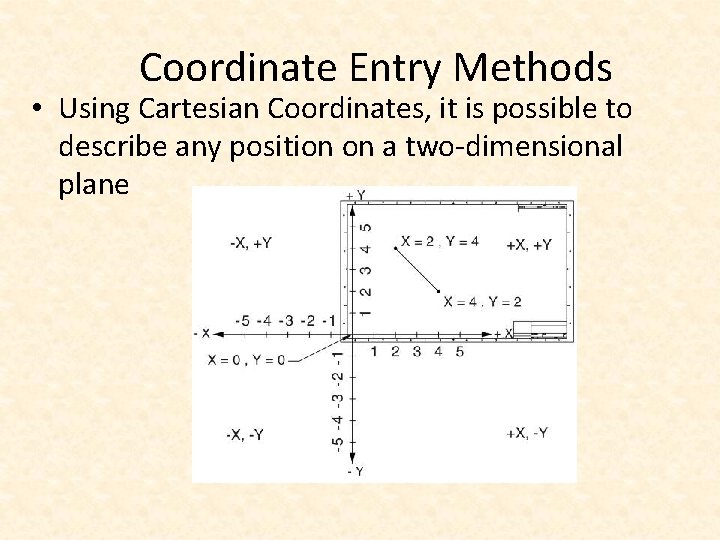
Coordinate Entry Methods • Using Cartesian Coordinates, it is possible to describe any position on a two-dimensional plane
Coordinate Entry Methods • A+CAD has different ways of specifying coordinates – Absolute coordinates – measures from the absolute origin of the drawing (0, 0) – Relative coordinates – measures from the last specified point by using the @ character in front of the coordinate, for example @4, 2
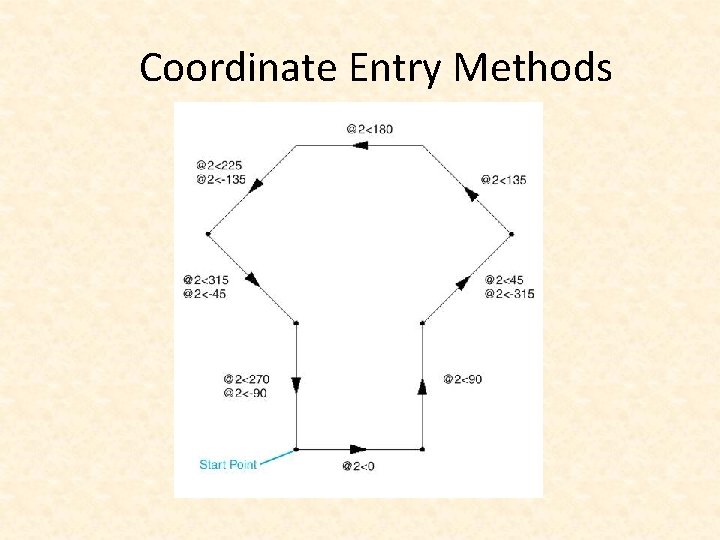
Coordinate Entry Methods
Drawing Circles • There are six different options for creating a circle in Auto. CAD including: – Center Radius (default option) – Center Diameter – 2 Point – 3 Point – Tangent Radius – Tangent
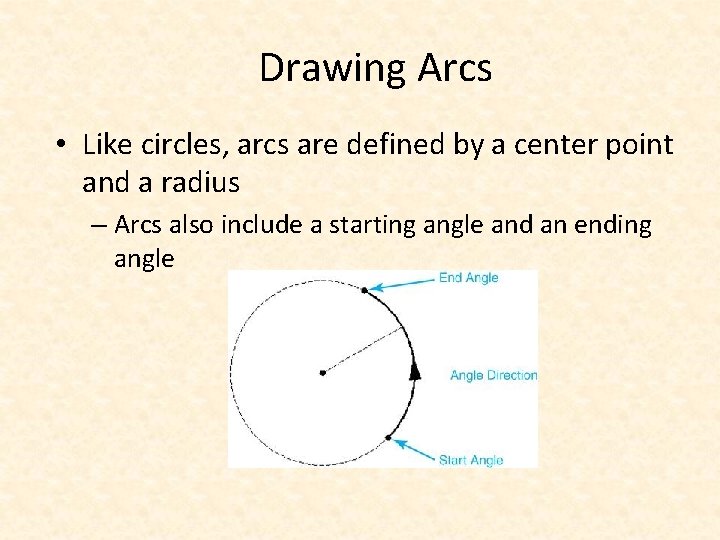
Drawing Arcs • Like circles, arcs are defined by a center point and a radius – Arcs also include a starting angle and an ending angle
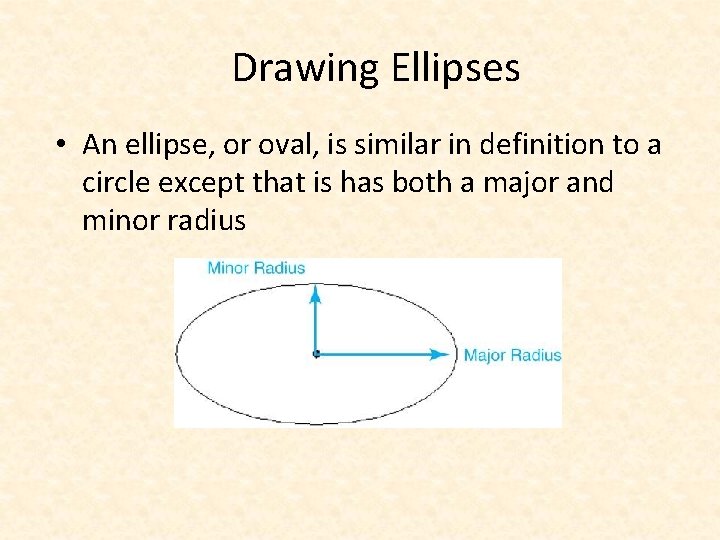
Drawing Ellipses • An ellipse, or oval, is similar in definition to a circle except that is has both a major and minor radius
- Slides: 46