
Introduction Digital Mood Ring with TINspire and TIInnovator

- Slides: 11
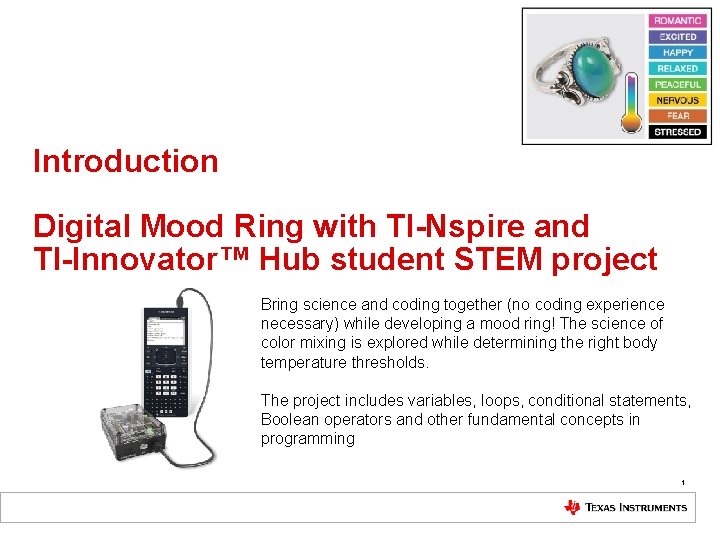
Introduction Digital Mood Ring with TI-Nspire and TI-Innovator™ Hub student STEM project Bring science and coding together (no coding experience necessary) while developing a mood ring! The science of color mixing is explored while determining the right body temperature thresholds. The project includes variables, loops, conditional statements, Boolean operators and other fundamental concepts in programming 1
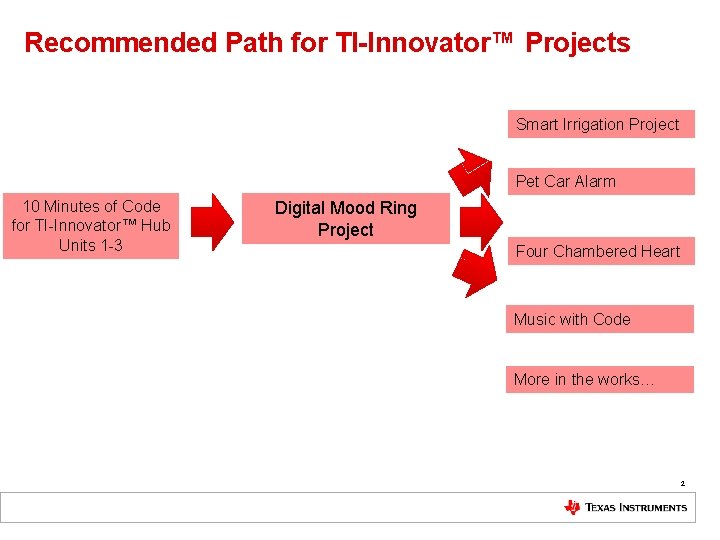
Recommended Path for TI-Innovator™ Projects Smart Irrigation Project Pet Car Alarm 10 Minutes of Code for TI-Innovator™ Hub Units 1 -3 Digital Mood Ring Project Four Chambered Heart Music with Code More in the works… 2
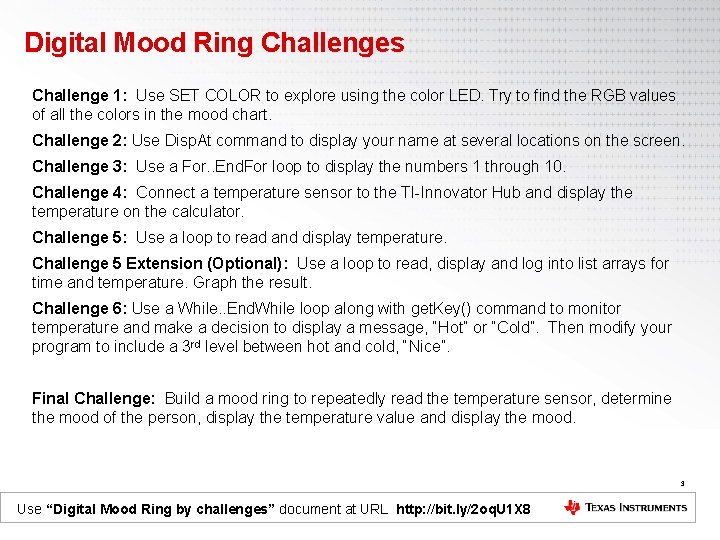
Digital Mood Ring Challenges Challenge 1: Use SET COLOR to explore using the color LED. Try to find the RGB values of all the colors in the mood chart. Challenge 2: Use Disp. At command to display your name at several locations on the screen. Challenge 3: Use a For. . End. For loop to display the numbers 1 through 10. Challenge 4: Connect a temperature sensor to the TI-Innovator Hub and display the temperature on the calculator. Challenge 5: Use a loop to read and display temperature. Challenge 5 Extension (Optional): Use a loop to read, display and log into list arrays for time and temperature. Graph the result. Challenge 6: Use a While. . End. While loop along with get. Key() command to monitor temperature and make a decision to display a message, “Hot” or “Cold”. Then modify your program to include a 3 rd level between hot and cold, “Nice”. Final Challenge: Build a mood ring to repeatedly read the temperature sensor, determine the mood of the person, display the temperature value and display the mood. 3 Use “Digital Mood Ring by challenges” document at URL http: //bit. ly/2 oq. U 1 X 8
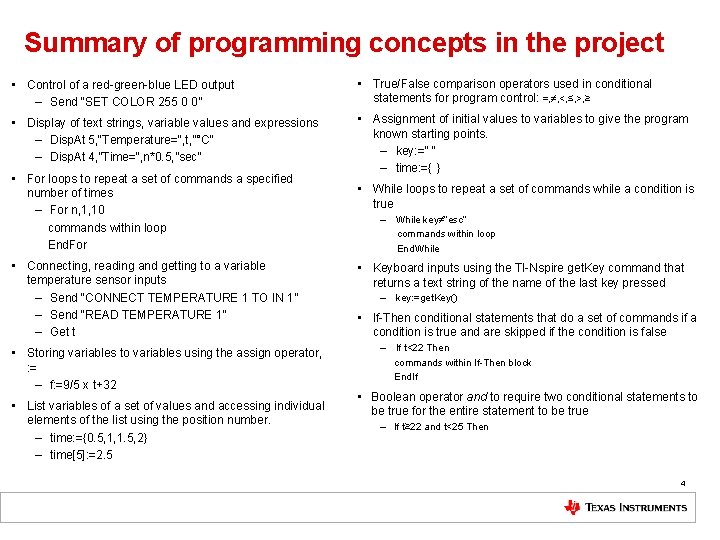
Summary of programming concepts in the project • Control of a red-green-blue LED output – Send “SET COLOR 255 0 0” • True/False comparison operators used in conditional statements for program control: =, ≠, <, ≤, >, ≥ • Display of text strings, variable values and expressions – Disp. At 5, “Temperature=“, t, ”°C” – Disp. At 4, ”Time=“, n*0. 5, ”sec” • Assignment of initial values to variables to give the program known starting points. – key: =“ “ – time: ={ } • For loops to repeat a set of commands a specified number of times – For n, 1, 10 commands within loop End. For • Connecting, reading and getting to a variable temperature sensor inputs – Send “CONNECT TEMPERATURE 1 TO IN 1” – Send “READ TEMPERATURE 1” – Get t • Storing variables to variables using the assign operator, : = – f: =9/5 x t+32 • List variables of a set of values and accessing individual elements of the list using the position number. – time: ={0. 5, 1, 1. 5, 2} – time[5]: =2. 5 • While loops to repeat a set of commands while a condition is true – While key≠”esc” commands within loop End. While • Keyboard inputs using the TI-Nspire get. Key command that returns a text string of the name of the last key pressed – key: =get. Key() • If-Then conditional statements that do a set of commands if a condition is true and are skipped if the condition is false – If t<22 Then commands within If-Then block End. If • Boolean operator and to require two conditional statements to be true for the entire statement to be true – If t≥ 22 and t<25 Then 4
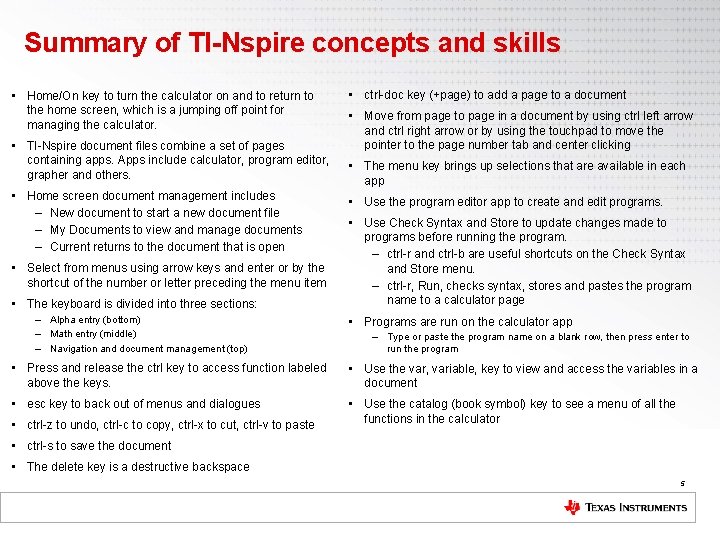
Summary of TI-Nspire concepts and skills • Home/On key to turn the calculator on and to return to the home screen, which is a jumping off point for managing the calculator. • TI-Nspire document files combine a set of pages containing apps. Apps include calculator, program editor, grapher and others. • Home screen document management includes – New document to start a new document file – My Documents to view and manage documents – Current returns to the document that is open • Select from menus using arrow keys and enter or by the shortcut of the number or letter preceding the menu item • The keyboard is divided into three sections: – Alpha entry (bottom) – Math entry (middle) – Navigation and document management (top) • ctrl-doc key (+page) to add a page to a document • Move from page to page in a document by using ctrl left arrow and ctrl right arrow or by using the touchpad to move the pointer to the page number tab and center clicking • The menu key brings up selections that are available in each app • Use the program editor app to create and edit programs. • Use Check Syntax and Store to update changes made to programs before running the program. – ctrl-r and ctrl-b are useful shortcuts on the Check Syntax and Store menu. – ctrl-r, Run, checks syntax, stores and pastes the program name to a calculator page • Programs are run on the calculator app – Type or paste the program name on a blank row, then press enter to run the program • Press and release the ctrl key to access function labeled above the keys. • Use the var, variable, key to view and access the variables in a document • esc key to back out of menus and dialogues • Use the catalog (book symbol) key to see a menu of all the functions in the calculator • ctrl-z to undo, ctrl-c to copy, ctrl-x to cut, ctrl-v to paste • ctrl-s to save the document • The delete key is a destructive backspace 5
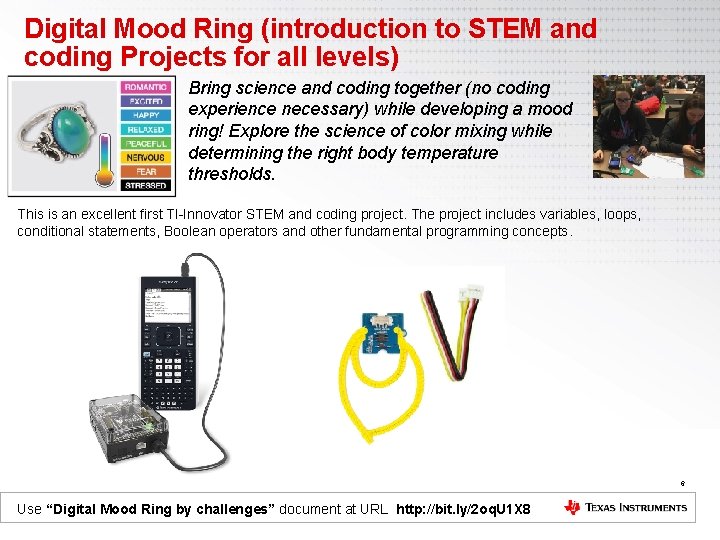
Digital Mood Ring (introduction to STEM and coding Projects for all levels) Bring science and coding together (no coding experience necessary) while developing a mood ring! Explore the science of color mixing while determining the right body temperature thresholds. This is an excellent first TI-Innovator STEM and coding project. The project includes variables, loops, conditional statements, Boolean operators and other fundamental programming concepts. 6 Use “Digital Mood Ring by challenges” document at URL http: //bit. ly/2 oq. U 1 X 8
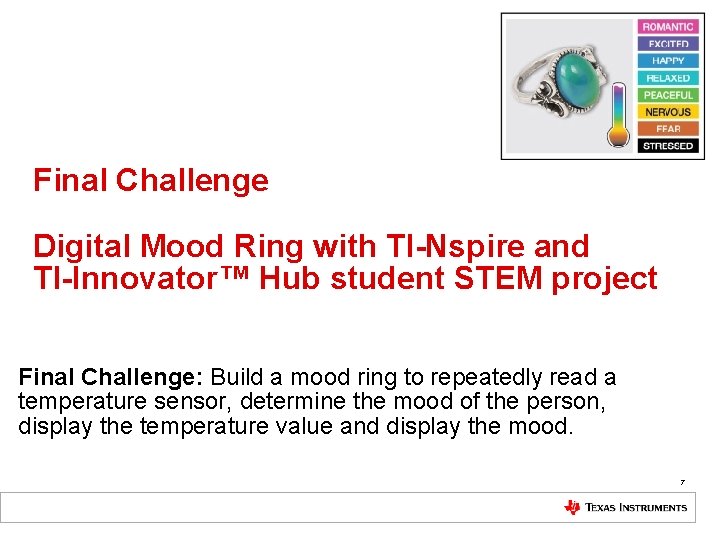
Final Challenge Digital Mood Ring with TI-Nspire and TI-Innovator™ Hub student STEM project Final Challenge: Build a mood ring to repeatedly read a temperature sensor, determine the mood of the person, display the temperature value and display the mood. 7
Chenille Wire (AKA “Pipe Cleaner”) 8
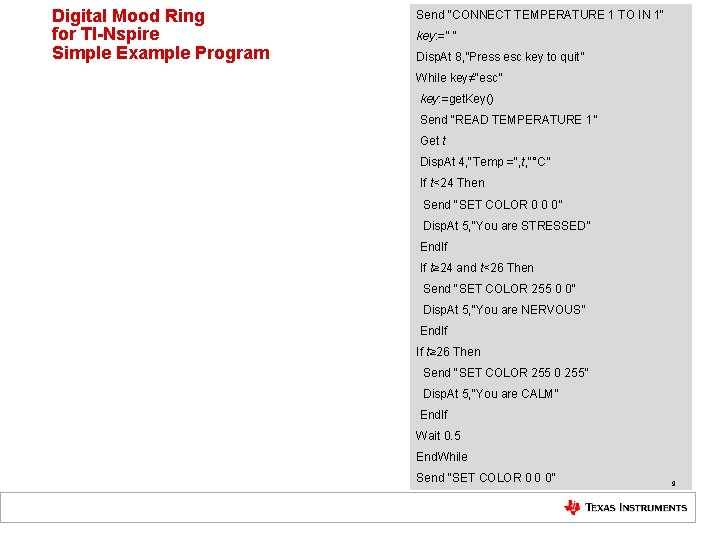
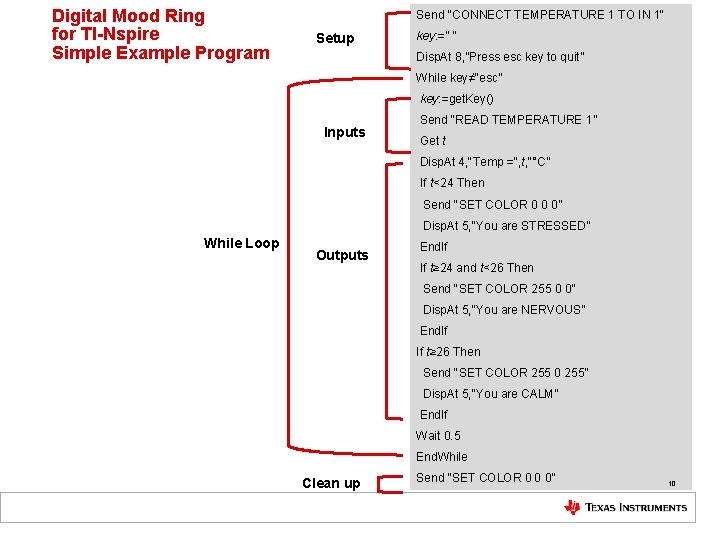
Digital Mood Ring for TI-Nspire Simple Example Program Send "CONNECT TEMPERATURE 1 TO IN 1" key: =” " Disp. At 8, ”Press esc key to quit” While key≠"esc” key: =get. Key() Send "READ TEMPERATURE 1” Get t Disp. At 4, "Temp =", t, "°C” If t<24 Then Send "SET COLOR 0 0 0” Disp. At 5, "You are STRESSED” End. If If t≥ 24 and t<26 Then Send "SET COLOR 255 0 0” Disp. At 5, "You are NERVOUS” End. If If t≥ 26 Then Send "SET COLOR 255 0 255” Disp. At 5, "You are CALM” End. If Wait 0. 5 End. While Send "SET COLOR 0 0 0” 9
Digital Mood Ring for TI-Nspire Simple Example Program Send "CONNECT TEMPERATURE 1 TO IN 1" Setup key: =” " Disp. At 8, ”Press esc key to quit” While key≠"esc” key: =get. Key() Inputs Send "READ TEMPERATURE 1” Get t Disp. At 4, "Temp =", t, "°C” If t<24 Then Send "SET COLOR 0 0 0” Disp. At 5, "You are STRESSED” While Loop Outputs End. If If t≥ 24 and t<26 Then Send "SET COLOR 255 0 0” Disp. At 5, "You are NERVOUS” End. If If t≥ 26 Then Send "SET COLOR 255 0 255” Disp. At 5, "You are CALM” End. If Wait 0. 5 End. While Clean up Send "SET COLOR 0 0 0” 10
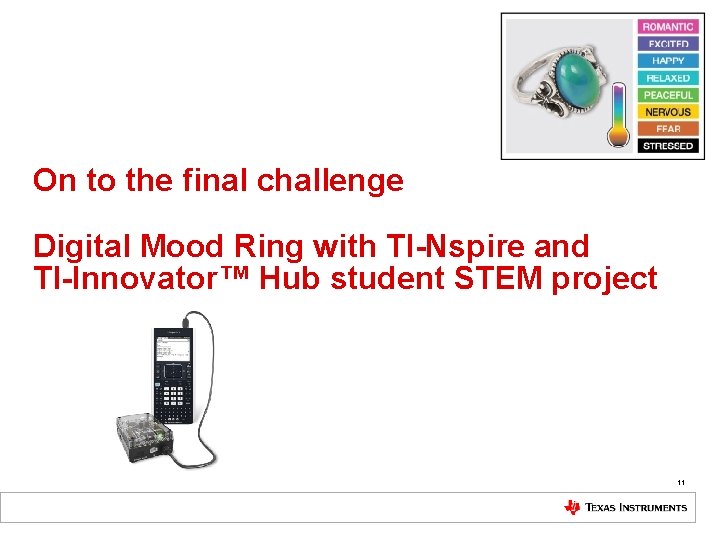
On to the final challenge Digital Mood Ring with TI-Nspire and TI-Innovator™ Hub student STEM project 11