
Introducing Windows Operating Systems Objectives Learn what an
Introducing Windows Operating Systems
Objectives Learn what an operating system is and about different operating systems 2 Exam Objectives: Compare and contrast various features and requirements of Microsoft Operating Systems (Windows Vista, Windows 7, Windows 8. 1)
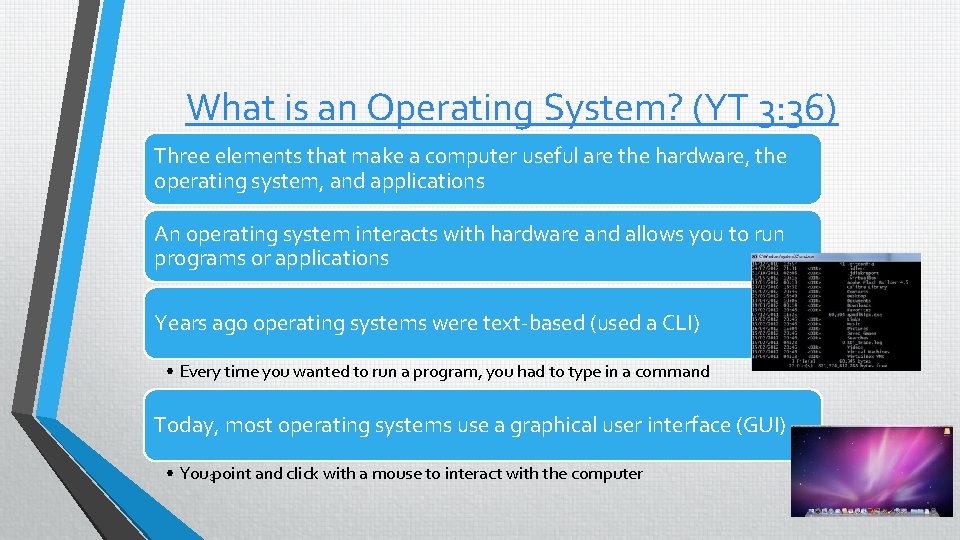
What is an Operating System? (YT 3: 36) Three elements that make a computer useful are the hardware, the operating system, and applications An operating system interacts with hardware and allows you to run programs or applications Years ago operating systems were text-based (used a CLI) • Every time you wanted to run a program, you had to type in a command Today, most operating systems use a graphical user interface (GUI) • You 3 point and click with a mouse to interact with the computer
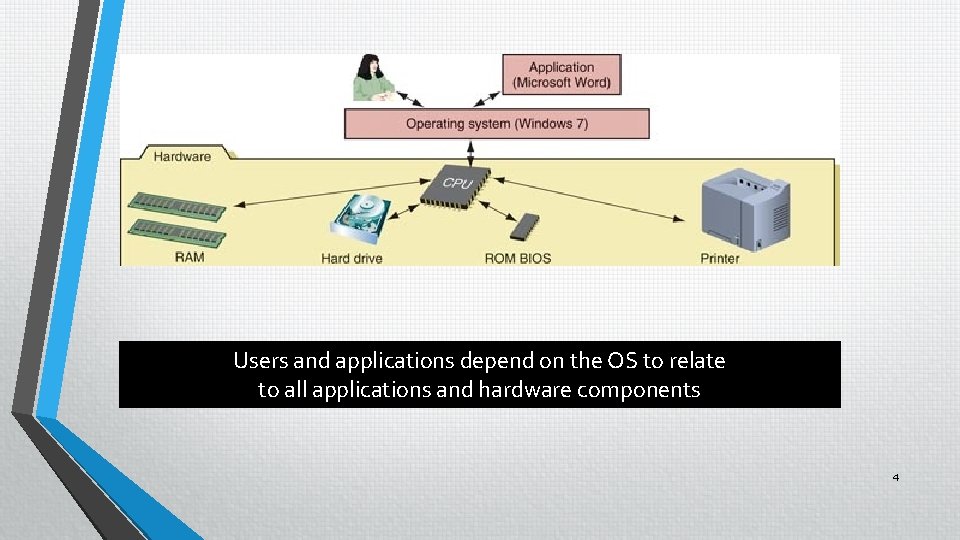
Users and applications depend on the OS to relate to all applications and hardware components 4
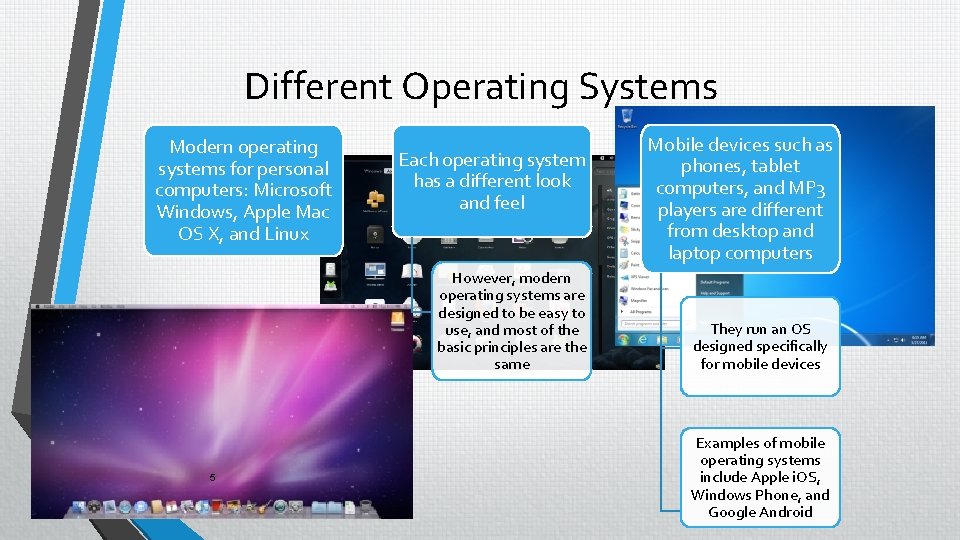
Different Operating Systems Modern operating systems for personal computers: Microsoft Windows, Apple Mac OS X, and Linux Each operating system has a different look and feel However, modern operating systems are designed to be easy to use, and most of the basic principles are the same 5 Mobile devices such as phones, tablet computers, and MP 3 players are different from desktop and laptop computers They run an OS designed specifically for mobile devices Examples of mobile operating systems include Apple i. OS, Windows Phone, and Google Android
Windows Operating System Windows operating systems are used more than any other OS The primary Windows operating systems are Windows Vista, Windows 7, Windows 8, and Windows 8. 1 • Windows Vista is the oldest • Windows 7 was released between Vista and 8 • Windows 8 and 8. 1 are the most recent (for the exams) Windows 7 is considered an upgrade to Vista, Windows 8 is an upgrade to Windows 7, and Windows 8. 1 is an upgrade to Windows 8 Every PC support technician needs to be a power user of Windows 7 and be familiar with Windows Vista and Windows 8/8. 1 6
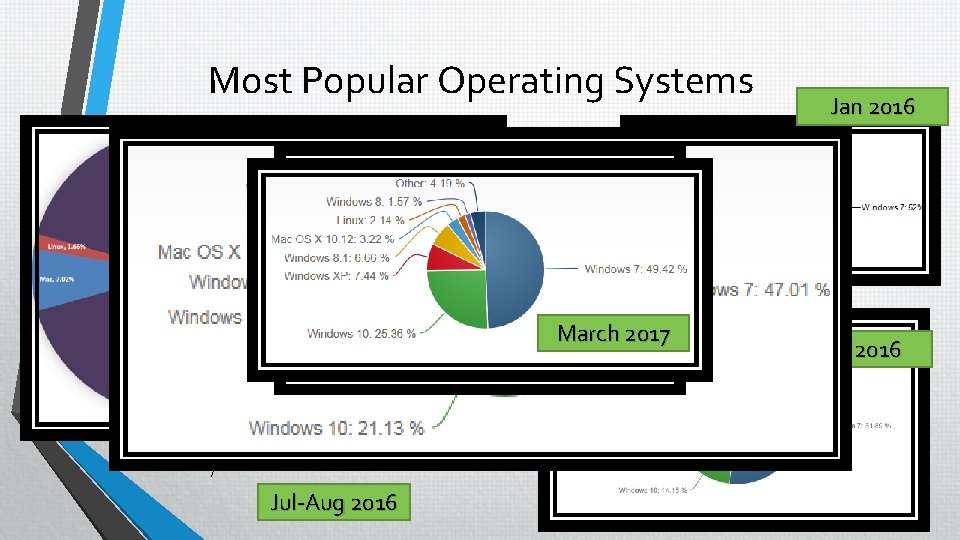
Most Popular Operating Systems March 2017 Oct 2016 7 Jul-Aug 2016 Jan 2016 Mar 2016
Windows Operating System Features The Comp. TIA A+ exams focus on the different features available in different Windows editions 21 Many features are common to Vista, 7, 8 and 8. 1 • Some features are only in specific versions Some important features we’ll discuss include: • Aero Desktop • User Account Control • Sidebar and Gadgets • Windows Libraries
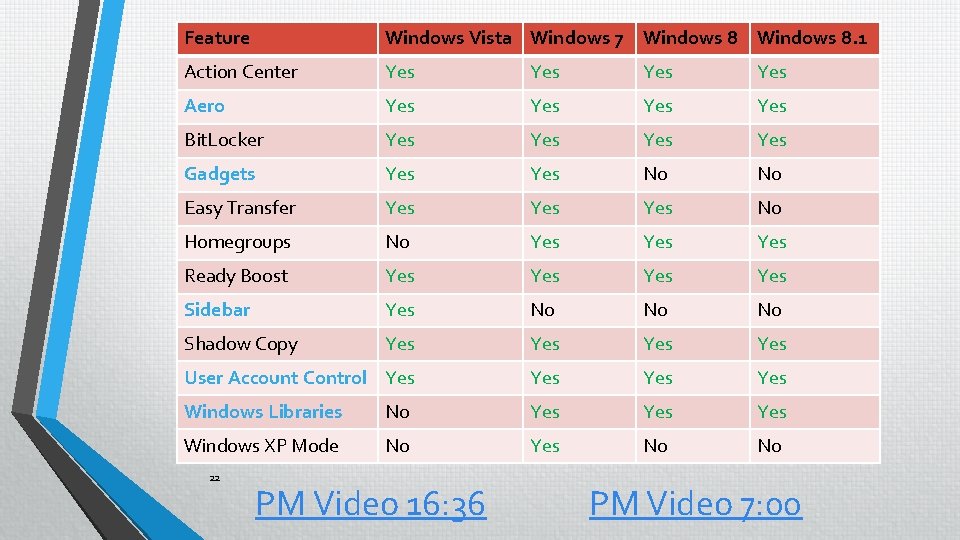
Feature Windows Vista Windows 7 Windows 8. 1 Action Center Yes Yes Aero Yes Yes Bit. Locker Yes Yes Gadgets Yes No No Easy Transfer Yes Yes No Homegroups No Yes Yes Ready Boost Yes Yes Sidebar Yes No No No Shadow Copy Yes Yes User Account Control Yes Yes Windows Libraries No Yes Yes Windows XP Mode No Yes No No 22 PM Video 16: 36 PM Video 7: 00
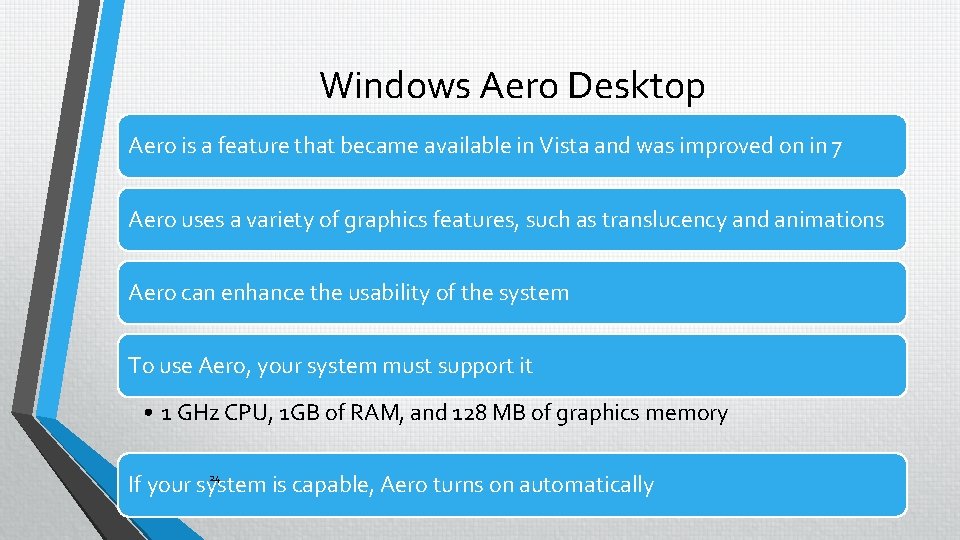
Windows Aero Desktop Aero is a feature that became available in Vista and was improved on in 7 Aero uses a variety of graphics features, such as translucency and animations Aero can enhance the usability of the system To use Aero, your system must support it • 1 GHz CPU, 1 GB of RAM, and 128 MB of graphics memory 24 If your system is capable, Aero turns on automatically
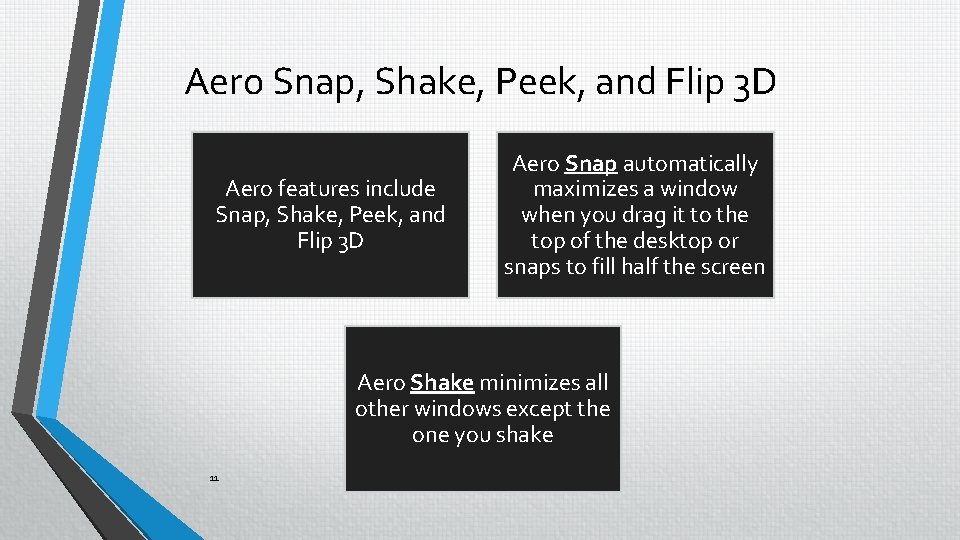
Aero Snap, Shake, Peek, and Flip 3 D Aero features include Snap, Shake, Peek, and Flip 3 D Aero Snap automatically maximizes a window when you drag it to the top of the desktop or snaps to fill half the screen Aero Shake minimizes all other windows except the one you shake 11
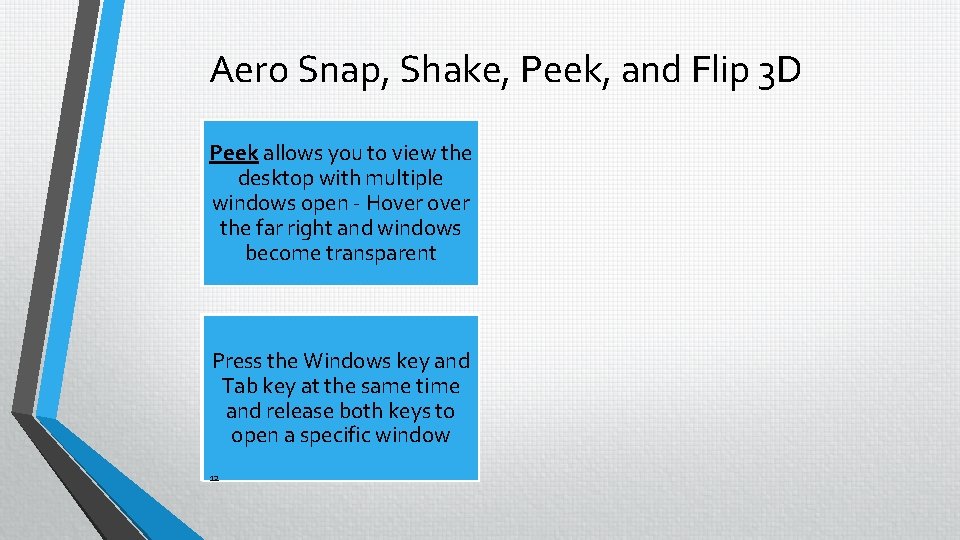
Aero Snap, Shake, Peek, and Flip 3 D Peek allows you to view the With Aerowith Peek mouse desktop multiple windows over any open taskbar - Hover icon and over the Aero farpreviews right andthe windows item become transparent Press. Flip the 3 D Windows Aero enableskey youand to Tab keyand at the same time view select open and release keys to windows in both a 3 D format open a specific window 12
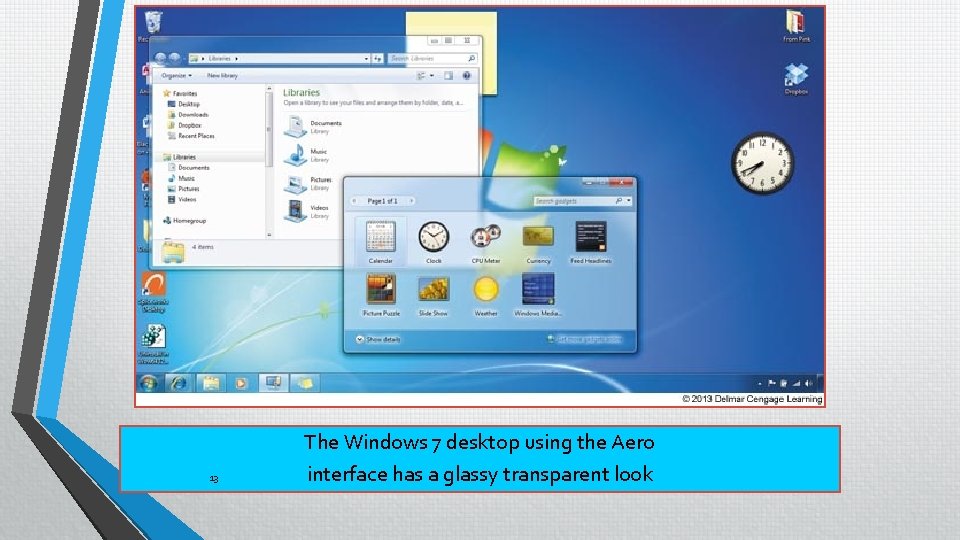
13 The Windows 7 desktop using the Aero interface has a glassy transparent look
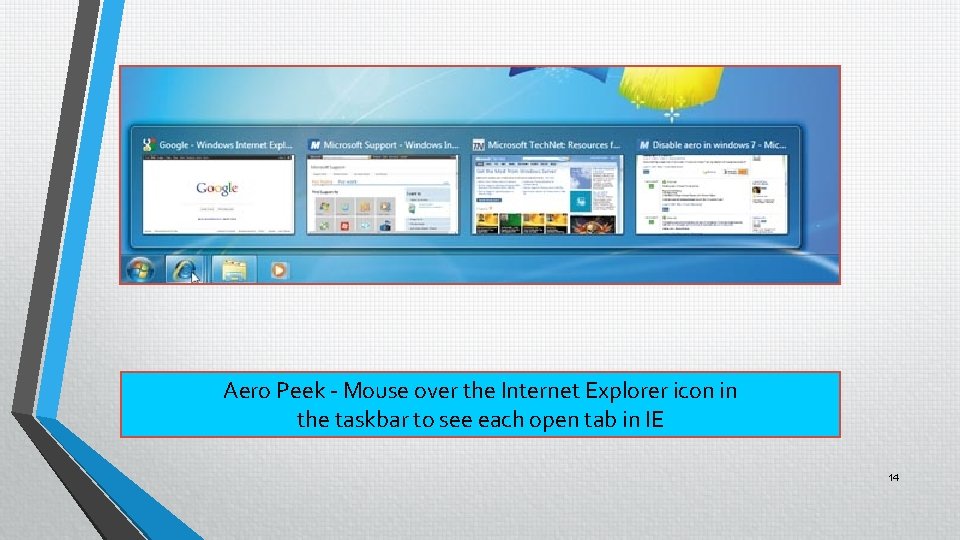
Aero Peek - Mouse over the Internet Explorer icon in the taskbar to see each open tab in IE 14
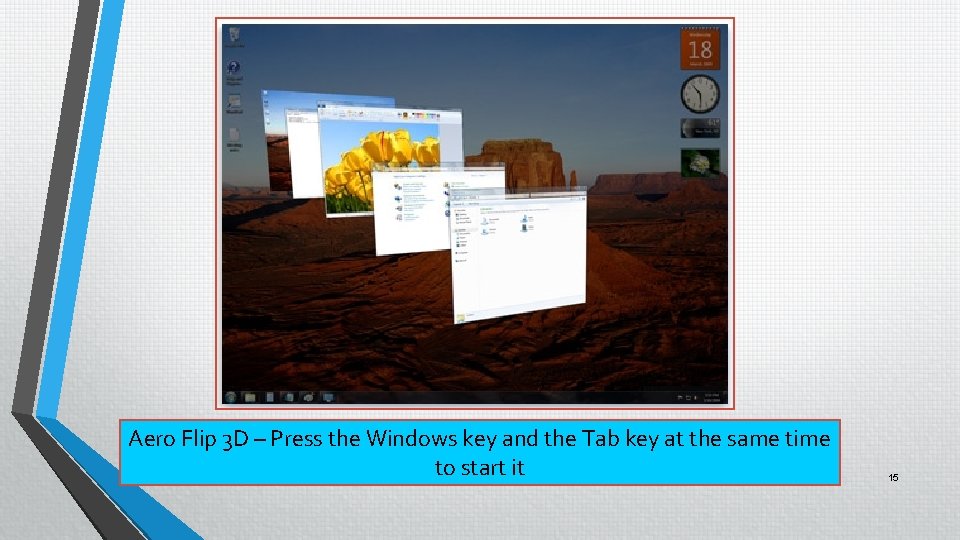
Aero Flip 3 D – Press the Windows key and the Tab key at the same time to start it 15
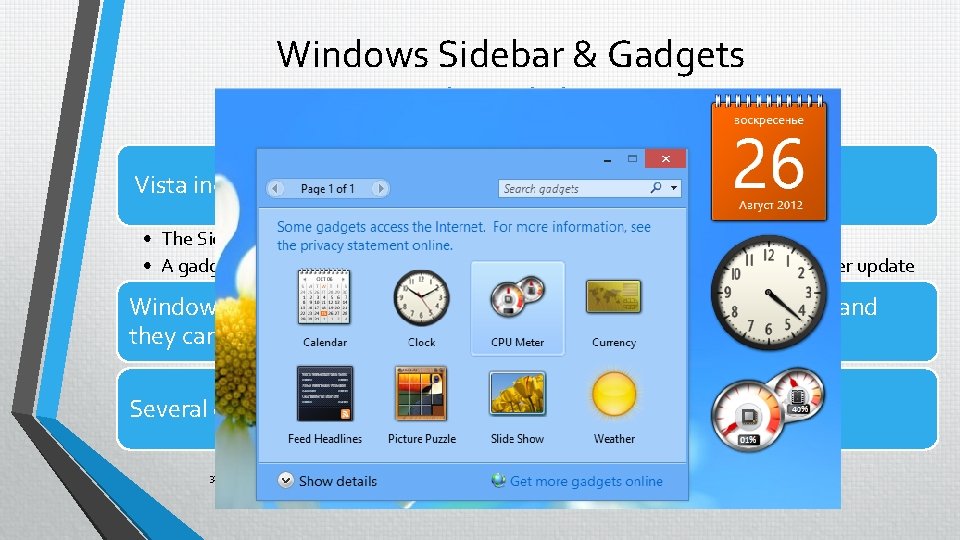
Windows Sidebar & Gadgets =vulnerabilities Vista includes a GUI feature called the Windows Sidebar • The Sidebar sits on the side of the desktop and hosts gadgets that users can add • A gadget is a mini-program that has specific functionality, such as a clock or weather update Windows 7 also includes gadgets but removes the sidebar concept and they can be placed anywhere on the desktop Several gadgets are available by default, but many more are online 32
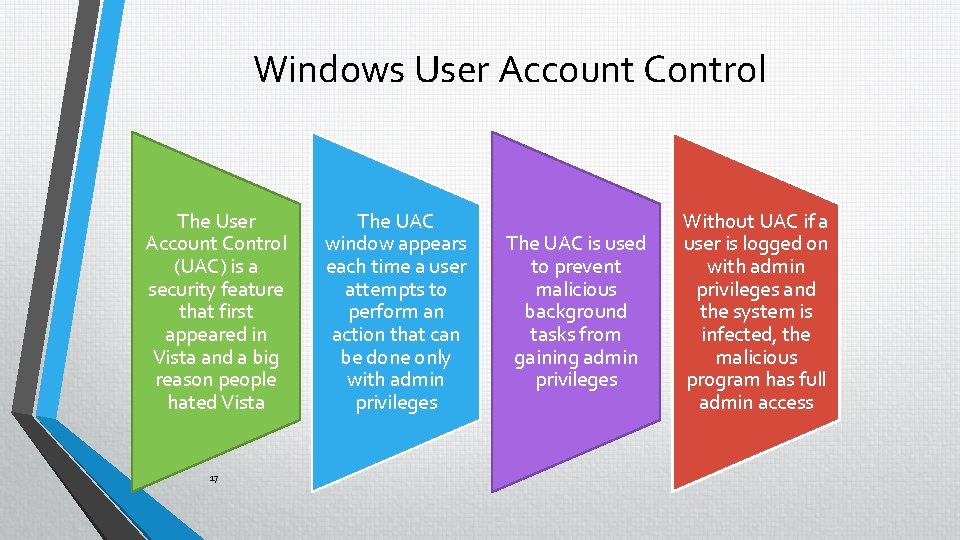
Windows User Account Control The User Account Control (UAC) is a security feature that first appeared in Vista and a big reason people hated Vista 17 The UAC window appears each time a user attempts to perform an action that can be done only with admin privileges The UAC is used to prevent malicious background tasks from gaining admin privileges Without UAC if a user is logged on with admin privileges and the system is infected, the malicious program has full admin access
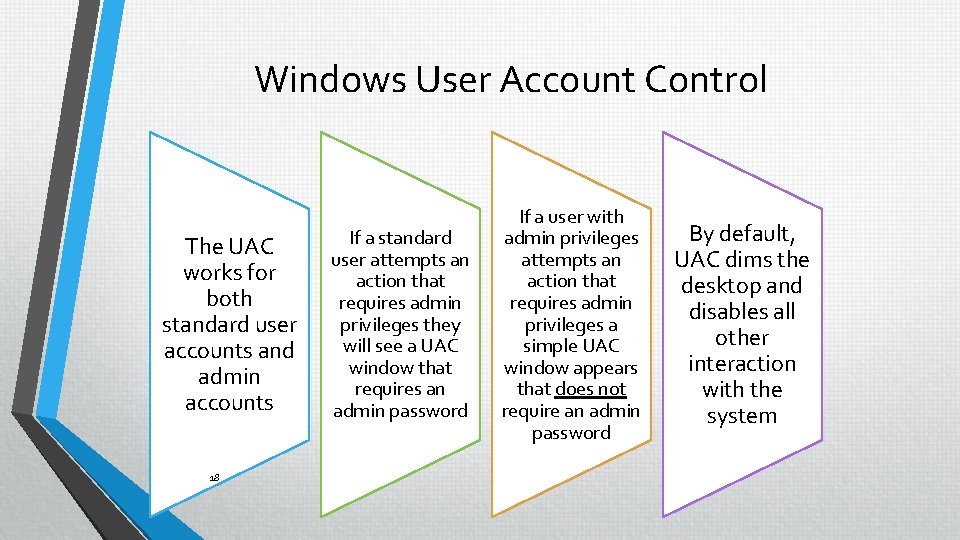
Windows User Account Control The UAC works for both standard user accounts and admin accounts 18 If a standard user attempts an action that requires admin privileges they will see a UAC window that requires an admin password If a user with admin privileges attempts an action that requires admin privileges a simple UAC window appears that does not require an admin password By default, UAC dims the desktop and disables all other interaction with the system
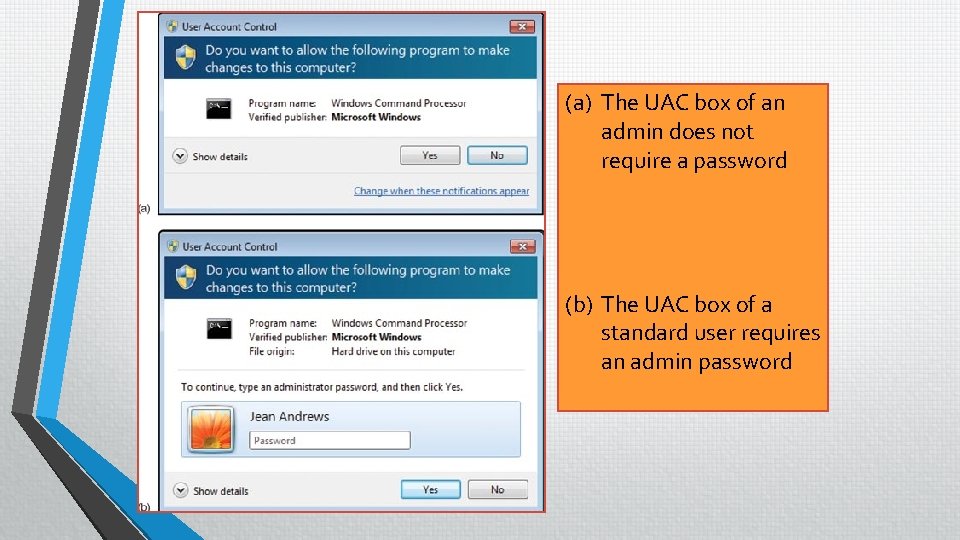
(a) The UAC box of an admin does not require a password (b) The UAC box of a standard user requires an admin password 19
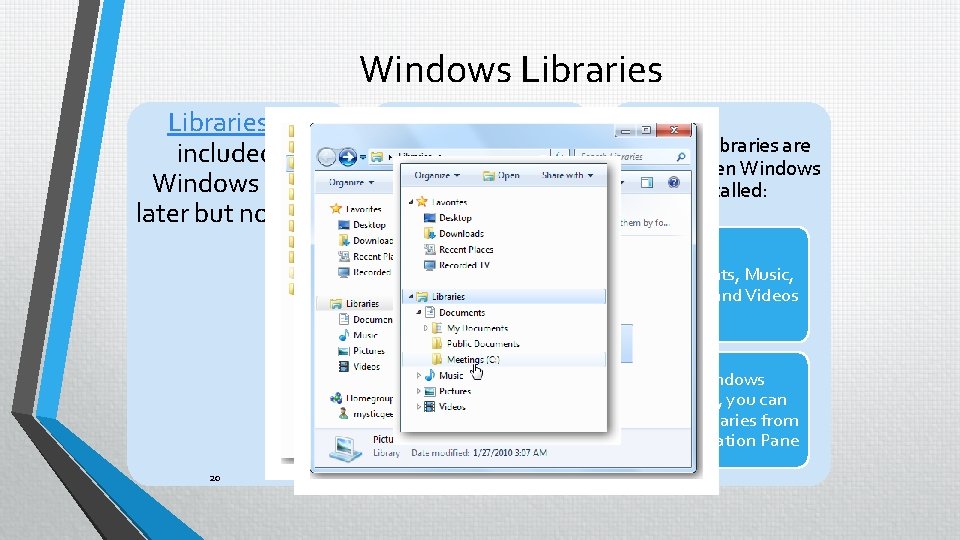
Windows Libraries are included in Windows 7 and later but not Vista 20 A library provides a central place to manage files that are located in multiple locations 4 default libraries are created when Windows is installed: Libraries don’t hold any data but are pointers to the actual location Documents, Music, Pictures, and Videos When you add a folder to a library, that folder is still in it’s original location In Windows Explorer, you can access libraries from the Navigation Pane
- Slides: 20