
INTRODUCING EMPLOYEE SELF SERVICE ESS For Online HR
- Slides: 37
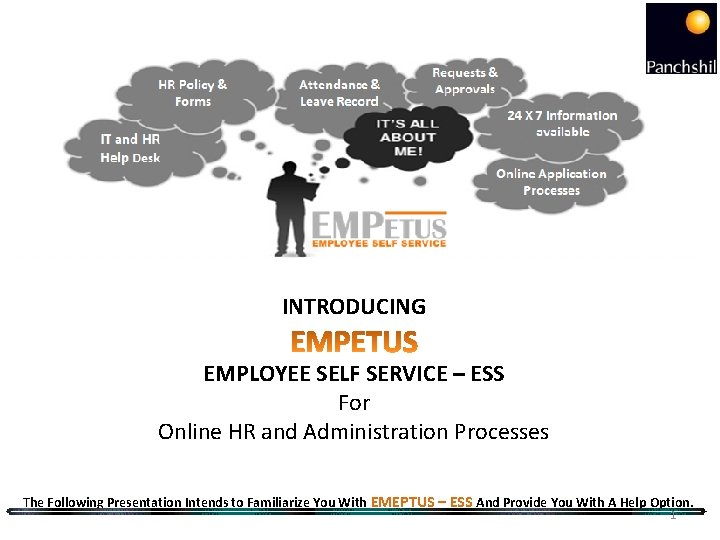
INTRODUCING EMPLOYEE SELF SERVICE – ESS For Online HR and Administration Processes The Following Presentation Intends to Familiarize You With EMEPTUS – ESS And Provide You With A Help Option. 1
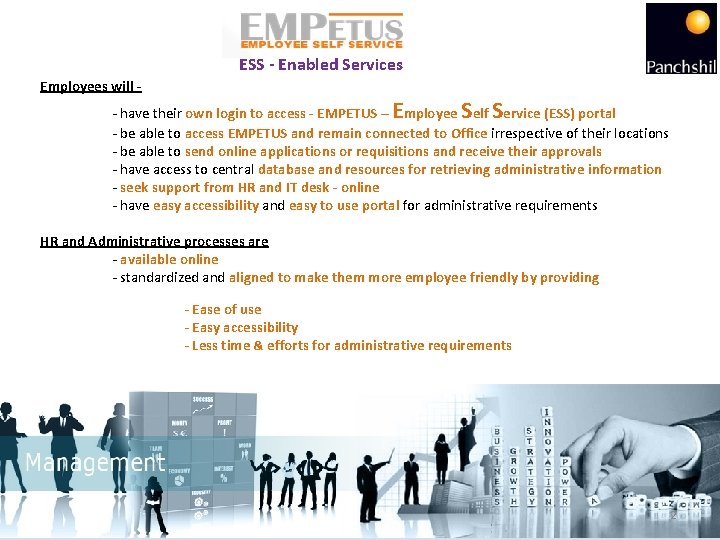
ESS - Enabled Services Employees will - E S S - have their own login to access - EMPETUS – mployee elf ervice (ESS) portal - be able to access EMPETUS and remain connected to Office irrespective of their locations - be able to send online applications or requisitions and receive their approvals - have access to central database and resources for retrieving administrative information - seek support from HR and IT desk - online - have easy accessibility and easy to use portal for administrative requirements HR and Administrative processes are - available online - standardized and aligned to make them more employee friendly by providing - Ease of use - Easy accessibility - Less time & efforts for administrative requirements 2
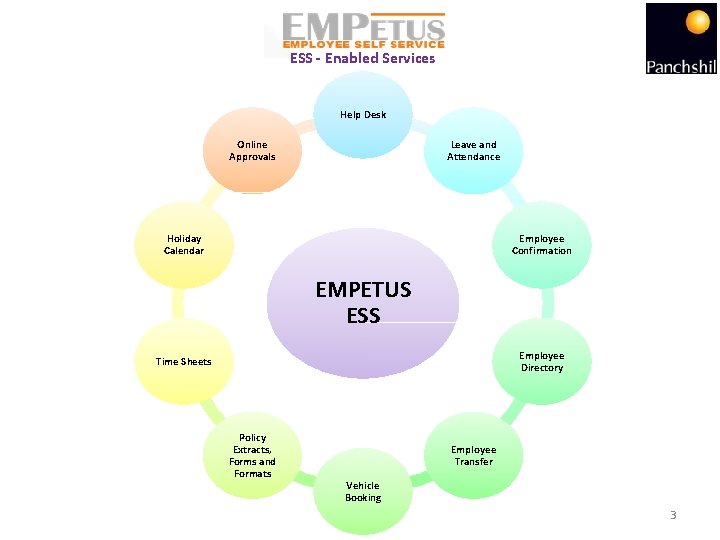
ESS - Enabled Services Help Desk Online Approvals Leave and Attendance Holiday Calendar Employee Confirmation EMPETUS ESS Employee Directory Time Sheets Policy Extracts, Forms and Formats Employee Transfer Vehicle Booking 3
Use Firefox Browser to access EMPETUS - ESS 4
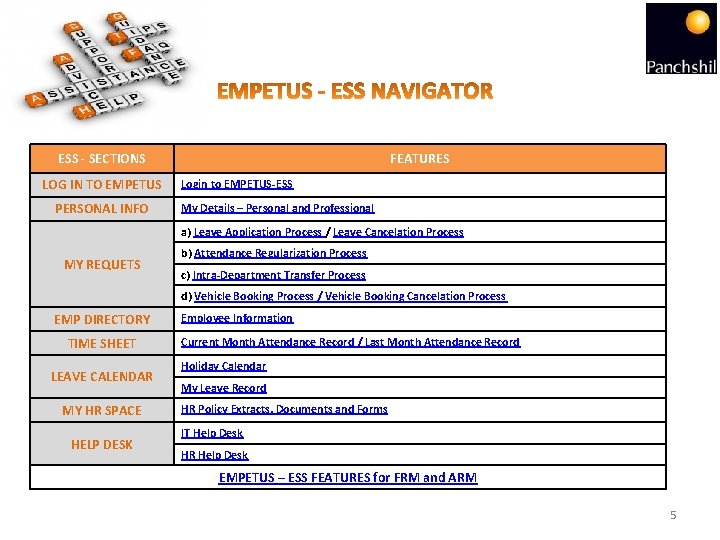
ESS - SECTIONS LOG IN TO EMPETUS PERSONAL INFO FEATURES Login to EMPETUS-ESS My Details – Personal and Professional a) Leave Application Process / Leave Cancelation Process MY REQUETS b) Attendance Regularization Process c) Intra-Department Transfer Process d) Vehicle Booking Process / Vehicle Booking Cancelation Process EMP DIRECTORY TIME SHEET LEAVE CALENDAR MY HR SPACE HELP DESK Employee Information Current Month Attendance Record / Last Month Attendance Record Holiday Calendar My Leave Record HR Policy Extracts, Documents and Forms IT Help Desk HR Help Desk EMPETUS – ESS FEATURES for FRM and ARM 5
LOGIN TO EMPETUS - ESS 6
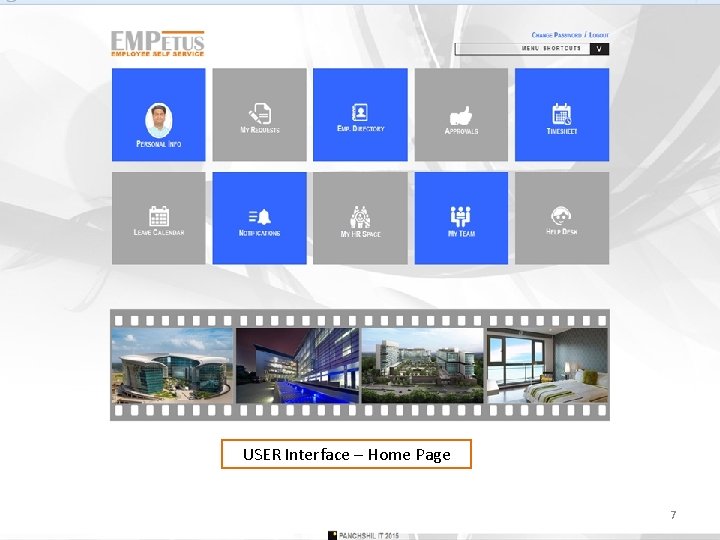
USE : Firefox Browser & enter - http: //empetus. panchshil. com: 82/ link OR Empetus – ESS Logo on Commune Use your Employee Number for USERNAME Use system generated Password for first time and later you can change your PASSWORD What if an employee forgets password? ü The login page provides an option – Forgot Password. It will help to generate a new password and same will be emailed to your registered email ID. USER Interface – Home Page 7
EMPLOYEE PERSONAL INFORMATION 8
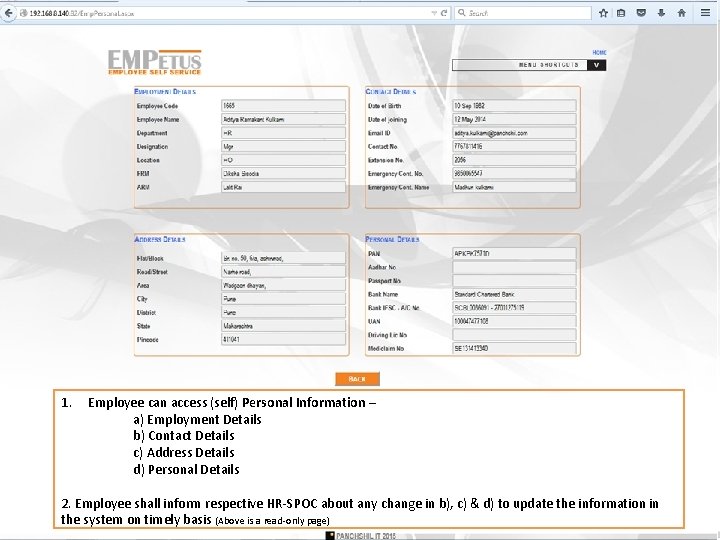
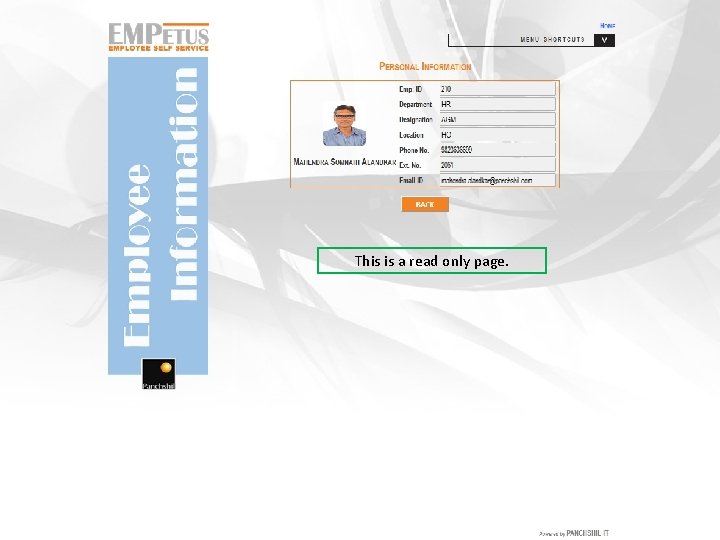
1. Employee can access (self) Personal Information – a) Employment Details b) Contact Details c) Address Details d) Personal Details 2. Employee shall inform respective HR-SPOC about any change in b), c) & d) to update the information in 9 the system on timely basis (Above is a read-only page)
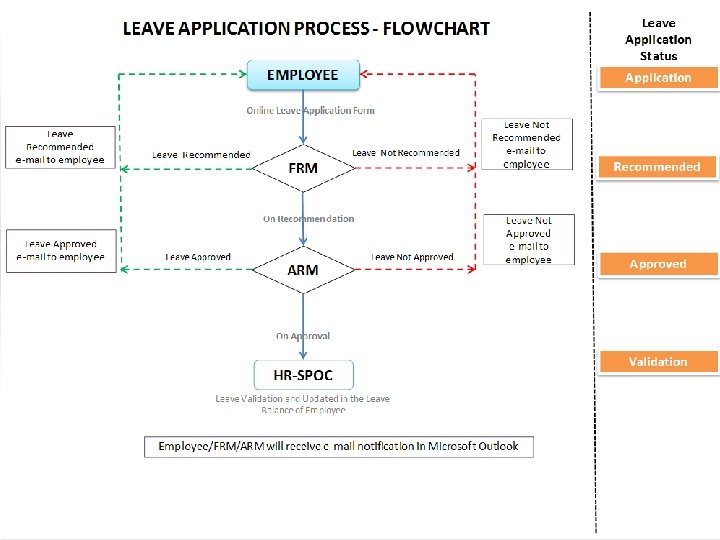
LEAVE APPLICATION PROCESS 10
Provide – Leave Period and Type of Leave Information (Select Leave Dates from the Calendar) Fill the Requested Information 11
LEAVE CANCELATION PROCESS 12
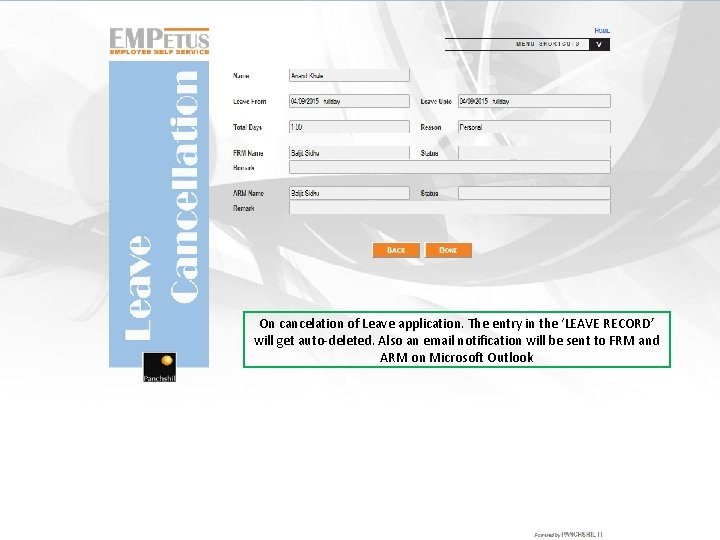
On cancelation of Leave application. The entry in the ‘LEAVE RECORD’ will get auto-deleted. Also an email notification will be sent to FRM and ARM on Microsoft Outlook 13
ATTENDANCE REGULARIZATION PROCESS 14
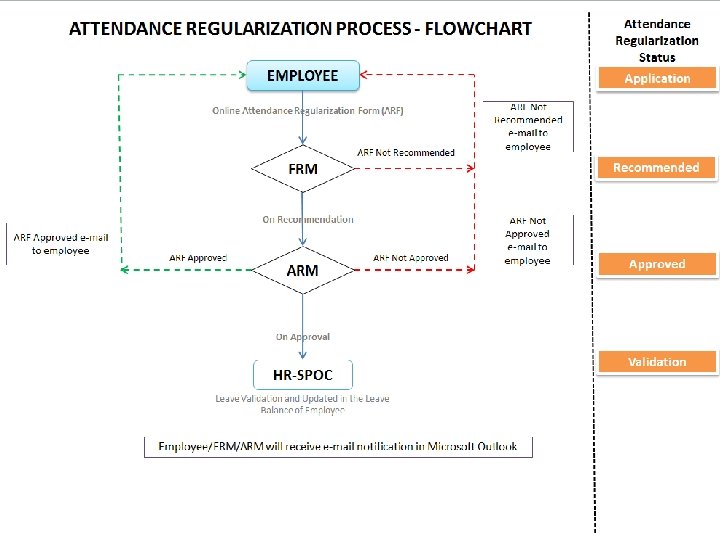
1. SELECT appropriate Reason: a) PUNCH MISSED b) OUT DUTY (Less than 1 day) c) OUT DUTY (More than 1 day) 2. Complete relevant details - Date, Timing, Purpose and Place 15
TRANSFER REQUISITION PROCESS 16
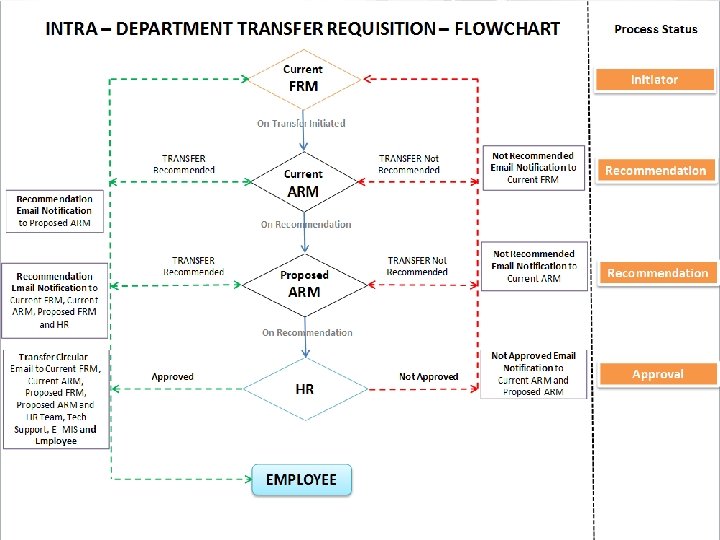
Above Transfer Requisition Form is for INTRA-DEPARTMENT Transfer This Transfer is to be initiated by Current FRM. He/She shall provide information of Current and Proposed (including) – - Location, FRM and ARM details Also, critical information in the Form, like - Reason of Transfer, IT Setup Requirement, Change in Role (if any) and Date of Transfer 17
VEHICLE BOOKING PROCESS 18
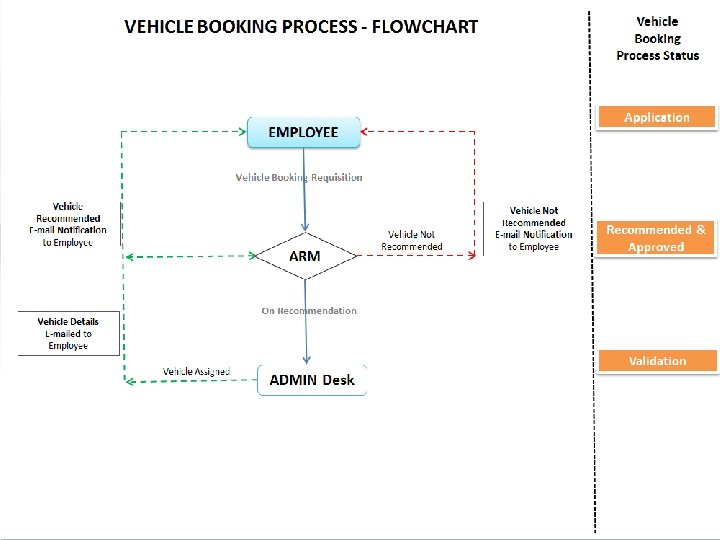
Provide detail information. This will help ADMIN to allocate vehicles and make optimum use of resources. 19
EMPLOYEE DIRECTORY 20
Mahendra This is a read only page. 21
TIME SHEET 22
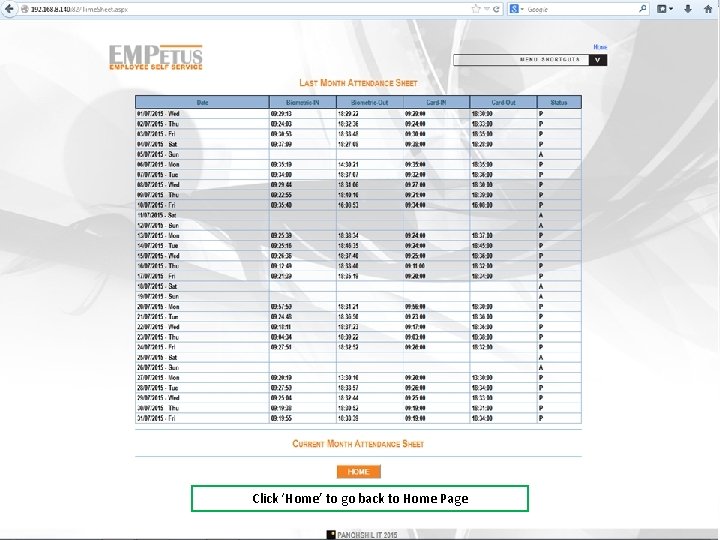
An employee can view Attendance Data of i) Last Month and ii) Current Month Click ‘Home’ to go back to Home Page 23
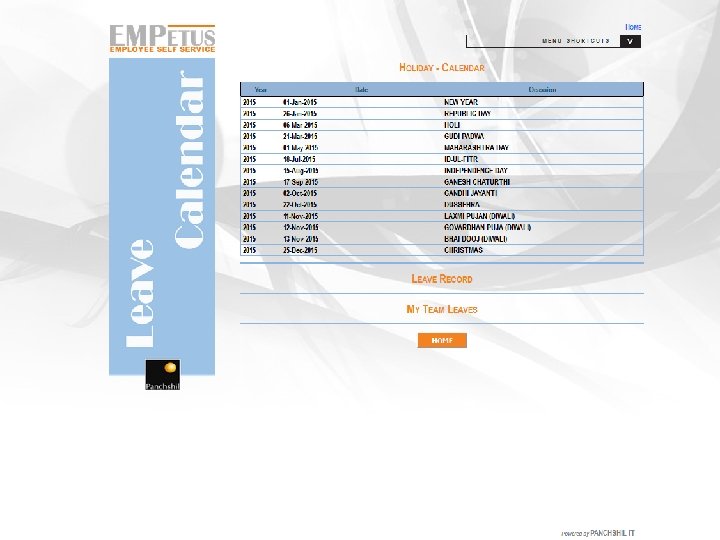
HOLIDAY CALENDAR 24
25
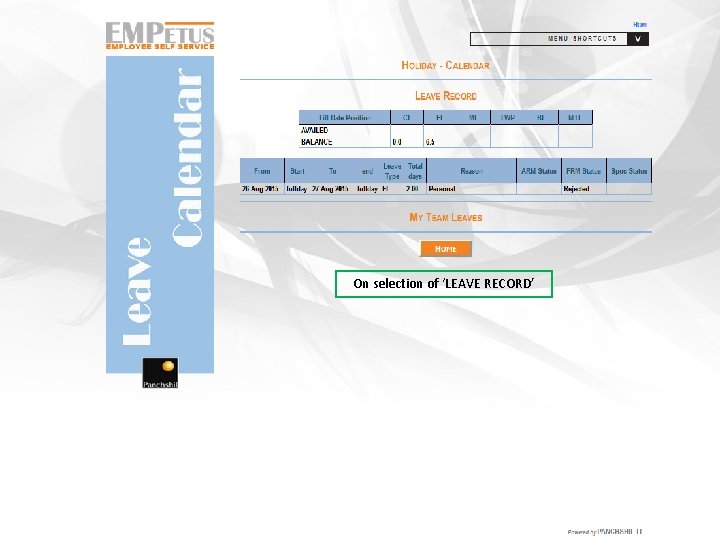
On selection of ‘LEAVE RECORD’ 26
MY HR SPACE 27
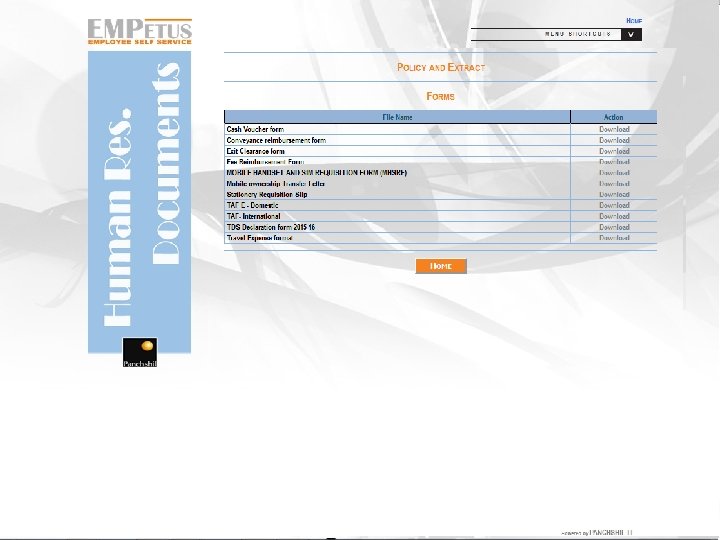
An employee can select the relevant Policy Extract/Document. Similarly he can access HR and Administration Forms. 28
MY TEAM 29
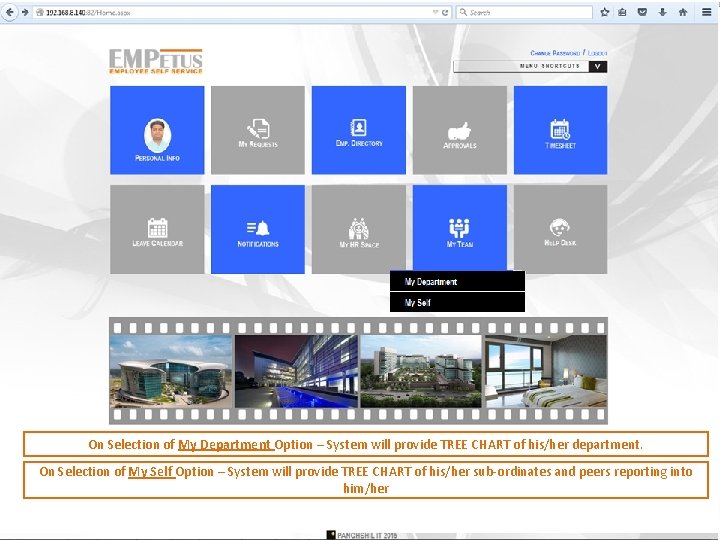
On Selection of My Department Option – System will provide TREE CHART of his/her department. On Selection of My Self Option – System will provide TREE CHART of his/her sub-ordinates and peers reporting into him/her
HELP DESK - IT 31
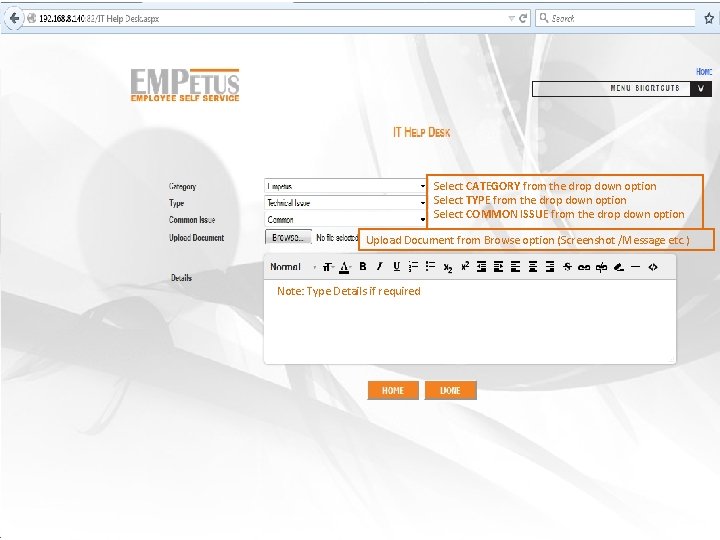
Select CATEGORY from the drop down option Select TYPE from the drop down option Select COMMON ISSUE from the drop down option Upload Document from Browse option (Screenshot /Message etc. ) Note: Type Details if required
HELP DESK - HR 33
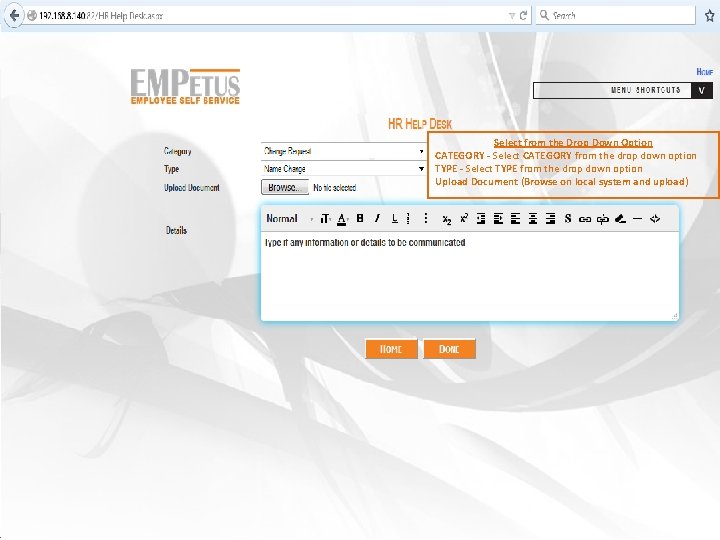
Select from the Drop Down Option CATEGORY - Select CATEGORY from the drop down option TYPE - Select TYPE from the drop down option Upload Document (Browse on local system and upload)
ESS - FEATURES FOR FRM and ARM 35
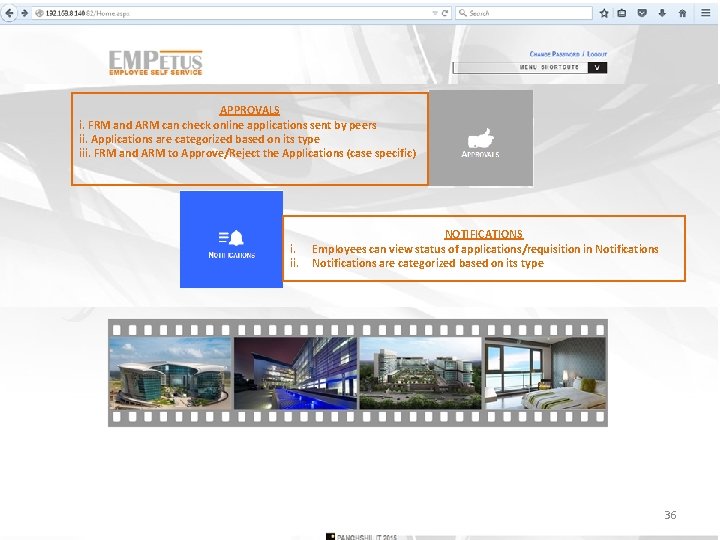
APPROVALS i. FRM and ARM can check online applications sent by peers ii. Applications are categorized based on its type iii. FRM and ARM to Approve/Reject the Applications (case specific) i. ii. NOTIFICATIONS Employees can view status of applications/requisition in Notifications are categorized based on its type 36
Thank you! 37