
INTRO TO PHOTOSHOP GET TO KNOW THE PHOTOSHOP
- Slides: 13
INTRO TO PHOTOSHOP
GET TO KNOW THE PHOTOSHOP INTERFACE ▶ Set menu (top right) to “PHOTOGRAPHY” ▶ OPEN NEW PHOTO FILE (top left) : This will be “BACKGROUND LAYER” in the layers column (on the right side of interface) left click on layer to unlock, or right click to duplicate layer. This will give you an unlocked layer to begin editing with. ▶ ▶
PHOTO PROPERTIES: Right Side Of The Interface : ▶ What you are doing to your photos, layer by layer ▶ Add new layers with icon on the bottom left. ▶ Layers move up as they are added, oldest layer on the bottom. ▶ You can move layers, or select more than one at a time. ▶ LAYER MUST BE HIGHLIGHTED TO MAKE ADJUSTMENTS!!! Editing History: ▶ Window-View History ▶ Image history moves down as you go, oldest change on the bottom. ▶ You can go back and change your editing history. Histogram ▶ Value Scale ▶ Many other Adjustment layers-color, contrast, B&W, etc.
EDITING TOOL BAR: LEFT SIDE OF THE INTERFACE : EDITING TOOLS SUCH AS: Paint Brush, Lasso, Marquee, Clone Stamp, Magnifying Glass, etc. ▶ Left click on a tool to select ▶ Right click to see variations of that tool ▶ Once selection is made you will see the “Crawling or Marching ANTS ” pattern ▶ Then you can adjust & edit that selection
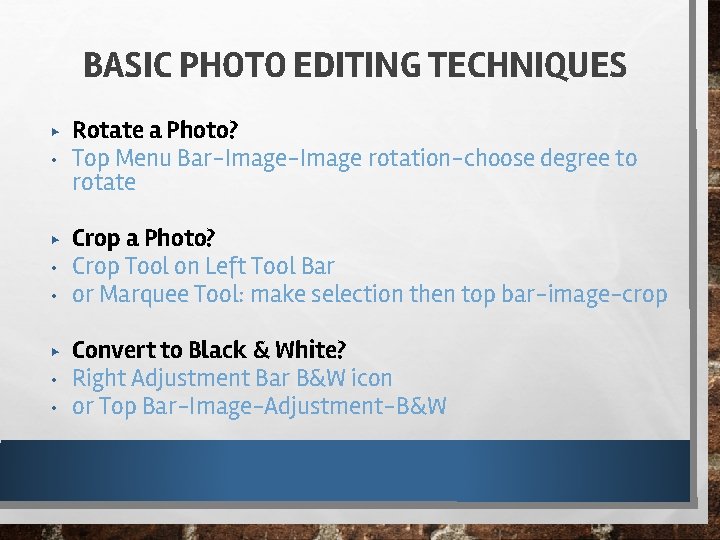
BASIC PHOTO EDITING TECHNIQUES ▶ • • Rotate a Photo? Top Menu Bar-Image rotation-choose degree to rotate Crop a Photo? Crop Tool on Left Tool Bar or Marquee Tool: make selection then top bar-image-crop Convert to Black & White? Right Adjustment Bar B&W icon or Top Bar-Image-Adjustment-B&W
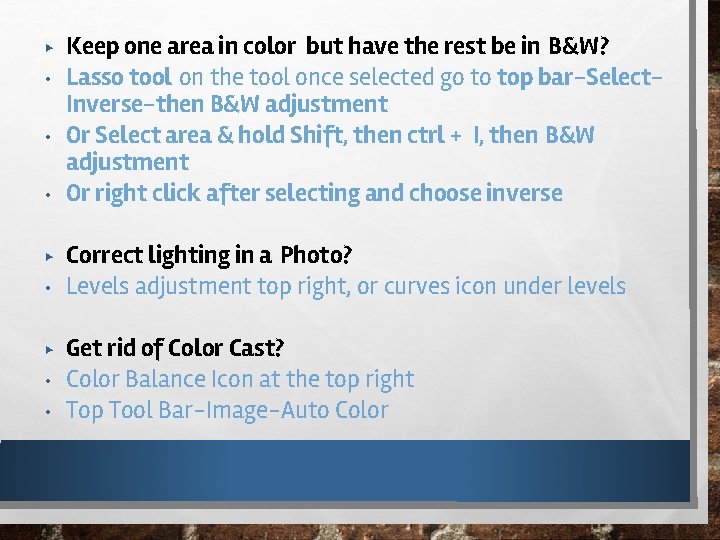
▶ • • • ▶ • • Keep one area in color but have the rest be in B&W? Lasso tool on the tool once selected go to top bar-Select. Inverse-then B&W adjustment Or Select area & hold Shift, then ctrl + I, then B&W adjustment Or right click after selecting and choose inverse Correct lighting in a Photo? Levels adjustment top right, or curves icon under levels Get rid of Color Cast? Color Balance Icon at the top right Top Tool Bar-Image-Auto Color
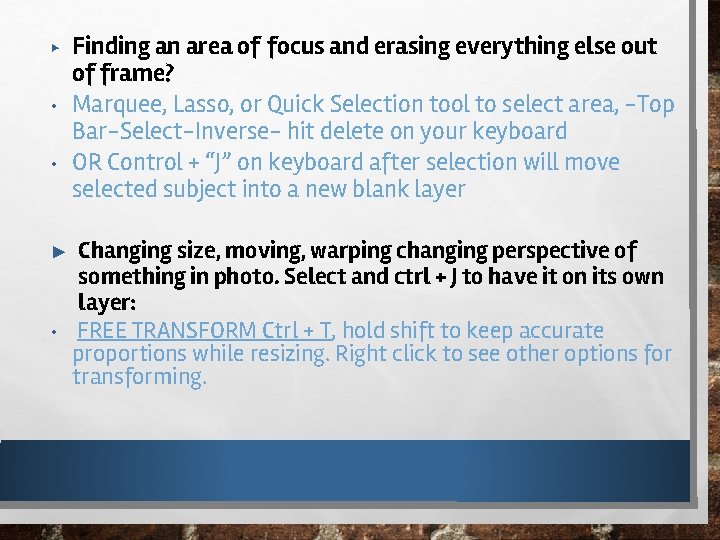
▶ • • ► • Finding an area of focus and erasing everything else out of frame? Marquee, Lasso, or Quick Selection tool to select area, -Top Bar-Select-Inverse- hit delete on your keyboard OR Control + “J” on keyboard after selection will move selected subject into a new blank layer Changing size, moving, warping changing perspective of something in photo. Select and ctrl + J to have it on its own layer: FREE TRANSFORM Ctrl + T, hold shift to keep accurate proportions while resizing. Right click to see other options for transforming.
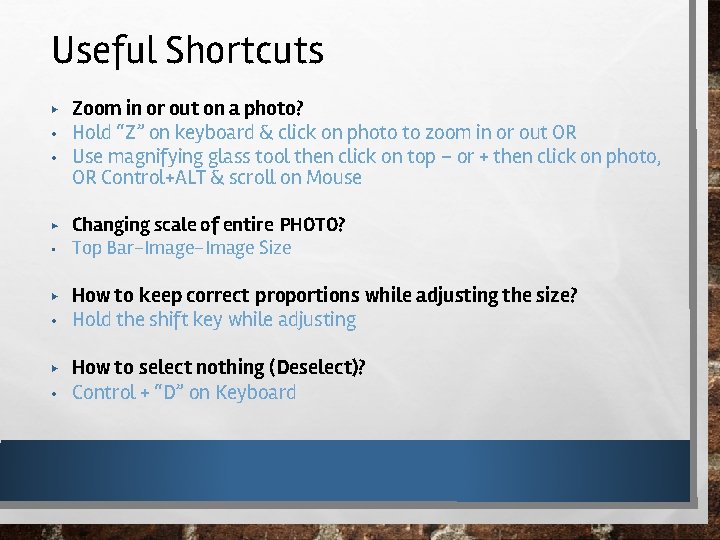
Useful Shortcuts ▶ • • ▶ • ▶ • Zoom in or out on a photo? Hold “Z” on keyboard & click on photo to zoom in or out OR Use magnifying glass tool then click on top – or + then click on photo, OR Control+ALT & scroll on Mouse Changing scale of entire PHOTO? Top Bar-Image Size How to keep correct proportions while adjusting the size? Hold the shift key while adjusting How to select nothing (Deselect)? Control + “D” on Keyboard
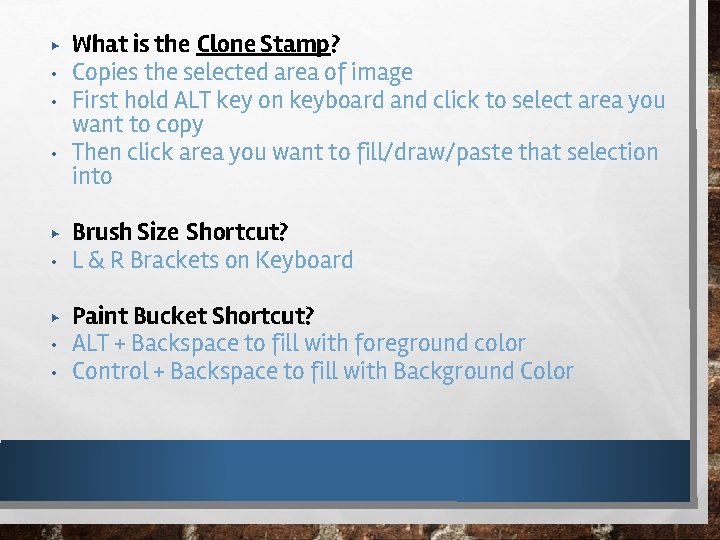
▶ • • • ▶ • • What is the Clone Stamp? Copies the selected area of image First hold ALT key on keyboard and click to select area you want to copy Then click area you want to fill/draw/paste that selection into Brush Size Shortcut? L & R Brackets on Keyboard Paint Bucket Shortcut? ALT + Backspace to fill with foreground color Control + Backspace to fill with Background Color
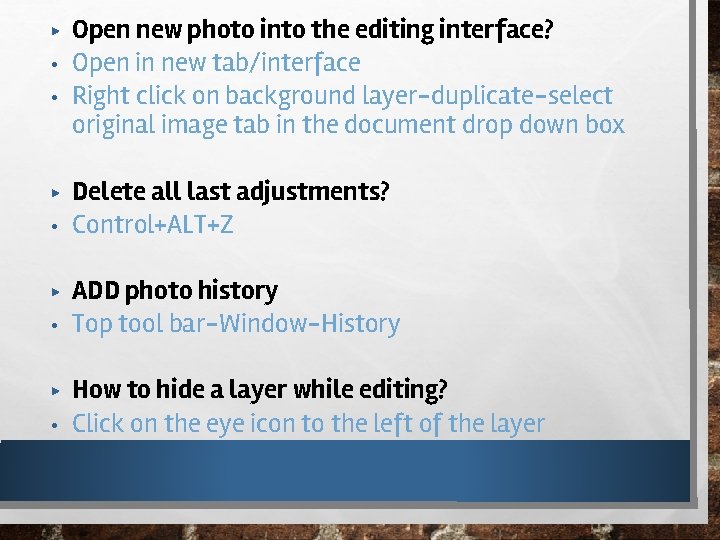
▶ • • ▶ • ▶ • Open new photo into the editing interface? Open in new tab/interface Right click on background layer-duplicate-select original image tab in the document drop down box Delete all last adjustments? Control+ALT+Z ADD photo history Top tool bar-Window-History How to hide a layer while editing? Click on the eye icon to the left of the layer
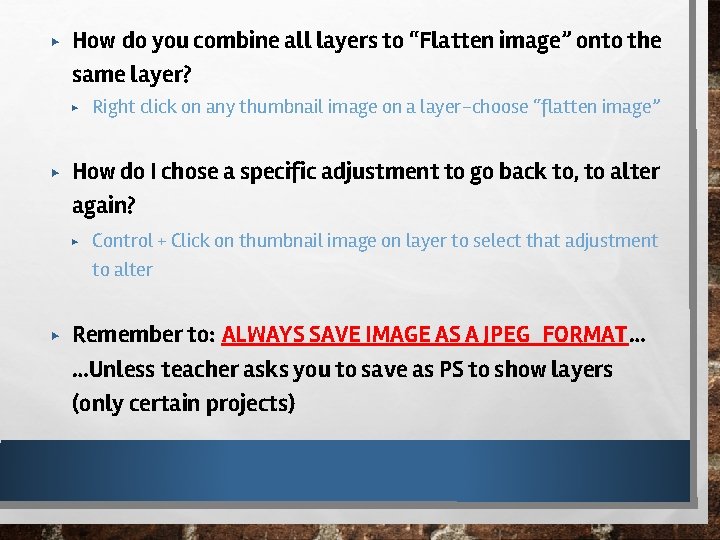
▶ How do you combine all layers to “Flatten image” onto the same layer? ▶ ▶ How do I chose a specific adjustment to go back to, to alter again? ▶ ▶ Right click on any thumbnail image on a layer-choose “flatten image” Control + Click on thumbnail image on layer to select that adjustment to alter Remember to: ALWAYS SAVE IMAGE AS A JPEG FORMAT… …Unless teacher asks you to save as PS to show layers (only certain projects)
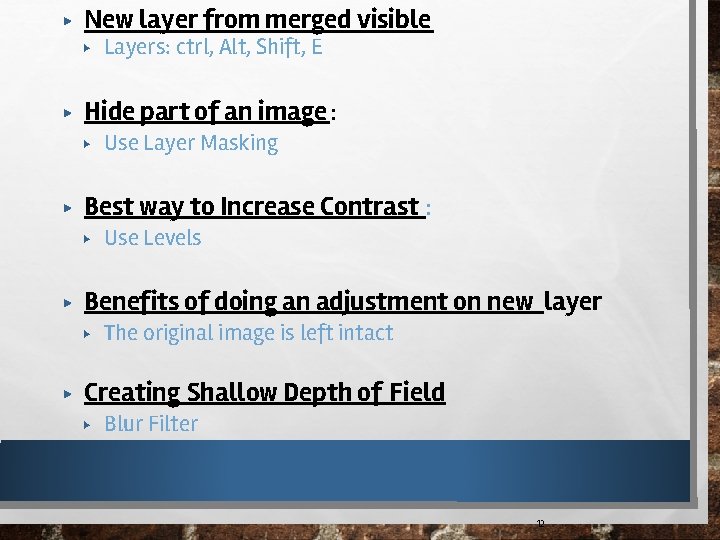
▶ New layer from merged visible ▶ ▶ Hide part of an image: ▶ ▶ Use Levels Benefits of doing an adjustment on new layer ▶ ▶ Use Layer Masking Best way to Increase Contrast : ▶ ▶ Layers: ctrl, Alt, Shift, E The original image is left intact Creating Shallow Depth of Field ▶ Blur Filter 12
▶ Improve White Balance ▶ ▶ Use midtones eye dropper in levels & Click on something that should be 50% gray. You’ve added a layer mask & you begin to alter it with paintbrush tool, but nothing happens. Why? ▶ You are on thumbnail of image & painting on actual photo. 13