
Intro to Lab VIEW Programming for Symon University
Intro to Lab. VIEW: Programming for Symon University of Houston Len Trombetta de la Rosa-Pohl
TUTORIALS de la Rosa-Pohl
Tutorials The tutorial provided here will show you some useful Lab. VIEW programming constructs. If you follow the whole thing, you will be able to create the game “Symon” – a software version of the Milton Bradley game “Simon”. National Instruments also provides a lot of help on their website: Tutorials: http: //www. ni. com/academic/students/learn-labview/environment/ “Getting Started with Lab. VIEW” pdf: http: //www. ni. com/pdf/manuals/373427 j. pdf de la Rosa-Pohl
Lab. VIEW Programming Intro Table of Contents • • de la Rosa-Pohl Boolean Control of LEDs T/F Case Structure and Sequence Local Variables While Loop Random Numbers; General Case Structure, For Loop Array Build Controls and Indicators; Read and Write Other Stuff • Finer Points • Errors and De-Bugging

BOOLEAN CONTROLS: SOFTWARE LED de la Rosa-Pohl
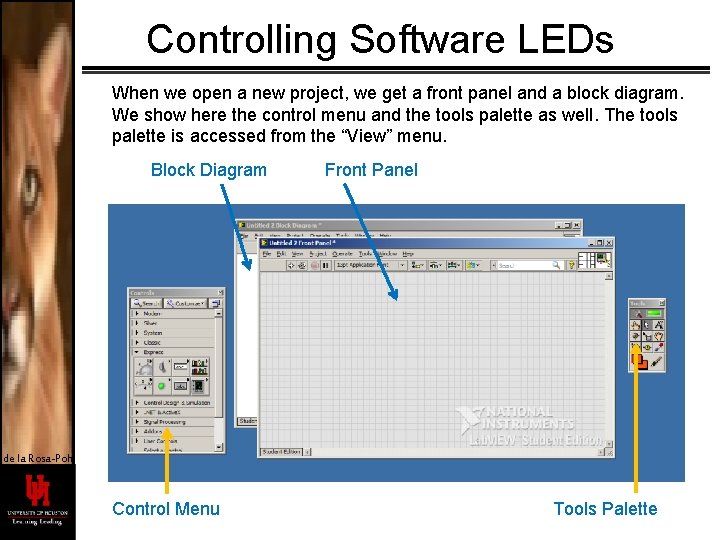
Controlling Software LEDs When we open a new project, we get a front panel and a block diagram. We show here the control menu and the tools palette as well. The tools palette is accessed from the “View” menu. Block Diagram Front Panel de la Rosa-Pohl Control Menu Tools Palette
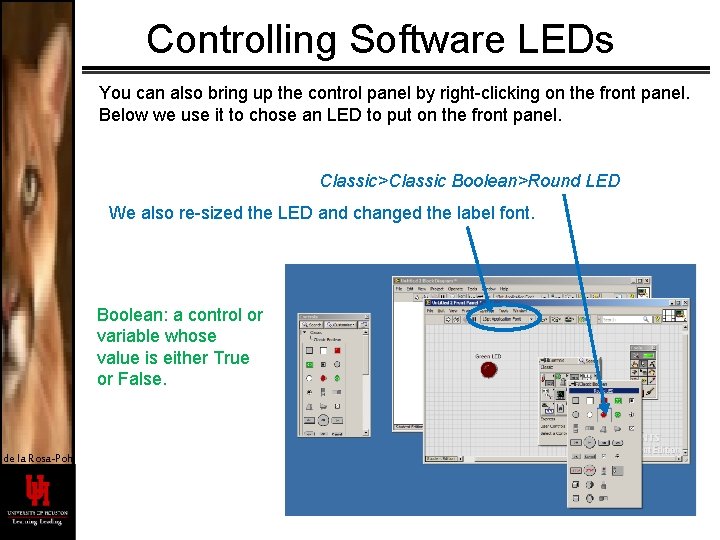
Controlling Software LEDs You can also bring up the control panel by right-clicking on the front panel. Below we use it to chose an LED to put on the front panel. Classic>Classic Boolean>Round LED We also re-sized the LED and changed the label font. Boolean: a control or variable whose value is either True or False. de la Rosa-Pohl
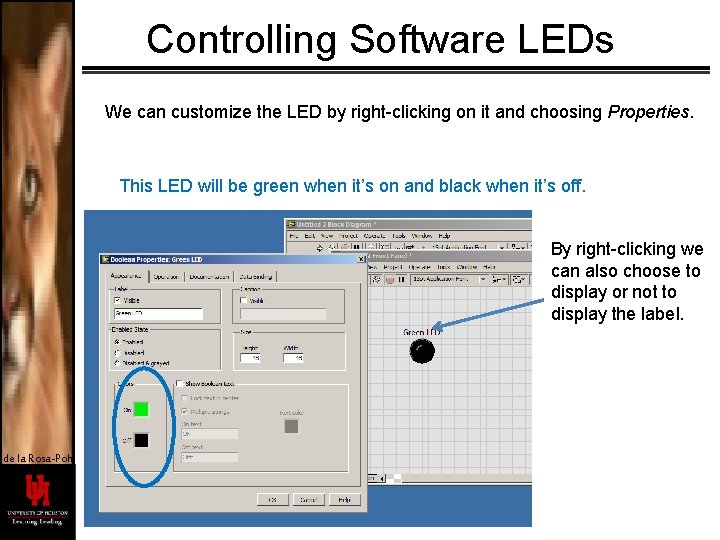
Controlling Software LEDs We can customize the LED by right-clicking on it and choosing Properties. This LED will be green when it’s on and black when it’s off. By right-clicking we can also choose to display or not to display the label. de la Rosa-Pohl
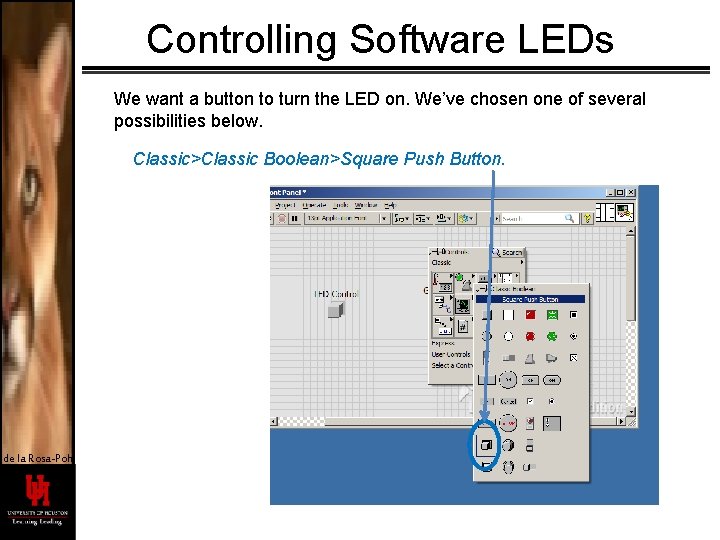
Controlling Software LEDs We want a button to turn the LED on. We’ve chosen one of several possibilities below. Classic>Classic Boolean>Square Push Button. de la Rosa-Pohl
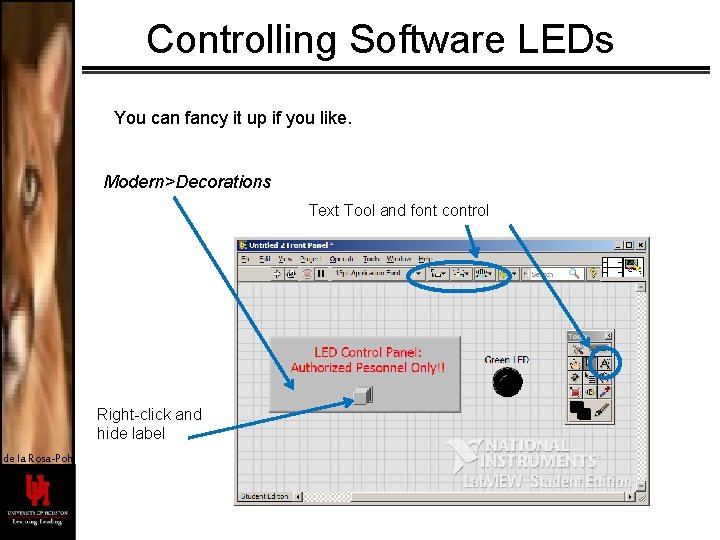
Controlling Software LEDs You can fancy it up if you like. Modern>Decorations Text Tool and font control Right-click and hide label de la Rosa-Pohl
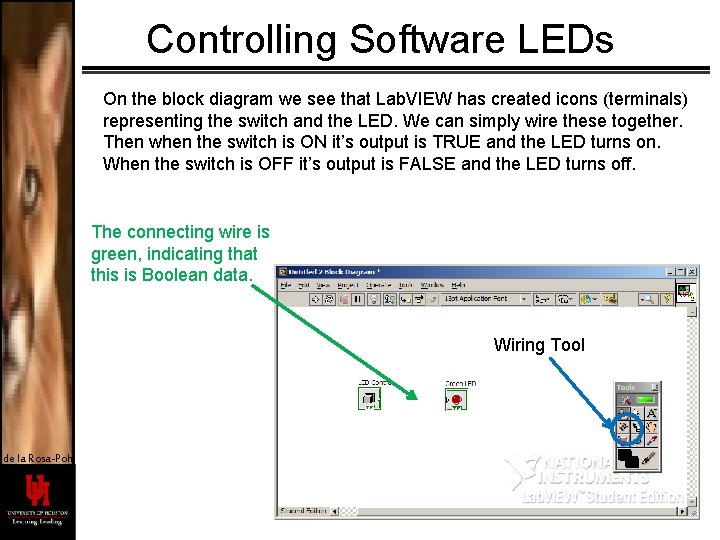
Controlling Software LEDs On the block diagram we see that Lab. VIEW has created icons (terminals) representing the switch and the LED. We can simply wire these together. Then when the switch is ON it’s output is TRUE and the LED turns on. When the switch is OFF it’s output is FALSE and the LED turns off. The connecting wire is green, indicating that this is Boolean data. Wiring Tool de la Rosa-Pohl
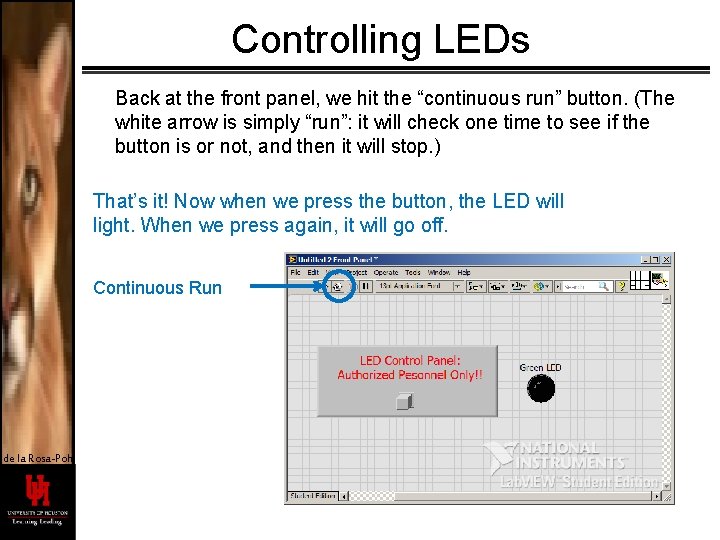
Controlling LEDs Back at the front panel, we hit the “continuous run” button. (The white arrow is simply “run”: it will check one time to see if the button is or not, and then it will stop. ) That’s it! Now when we press the button, the LED will light. When we press again, it will go off. Continuous Run de la Rosa-Pohl
T/F CASE STRUCTURE SEQUENCE de la Rosa-Pohl
T/F Case and Sequence To make Symon, we will want to turn a light on and then off again after a brief time. We illustrate the use of a T/F case structure and a sequence by configuring Lab. VIEW to do this when we push a button on the front panel. de la Rosa-Pohl
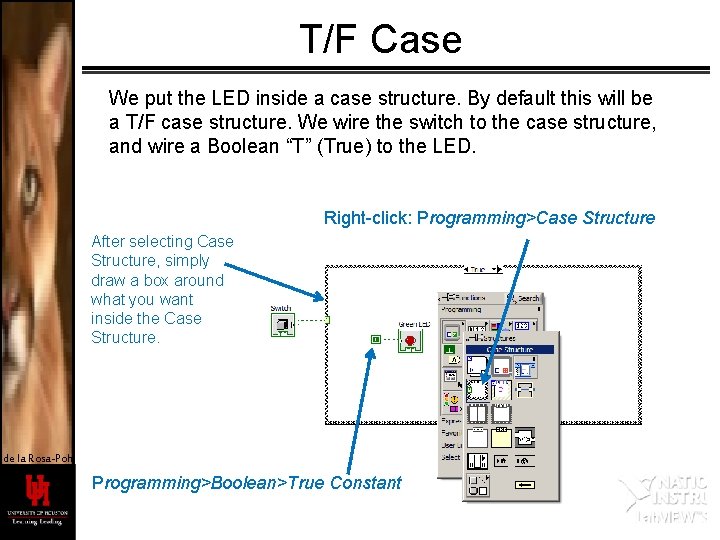
T/F Case We put the LED inside a case structure. By default this will be a T/F case structure. We wire the switch to the case structure, and wire a Boolean “T” (True) to the LED. Right-click: Programming>Case Structure After selecting Case Structure, simply draw a box around what you want inside the Case Structure. de la Rosa-Pohl Programming>Boolean>True Constant
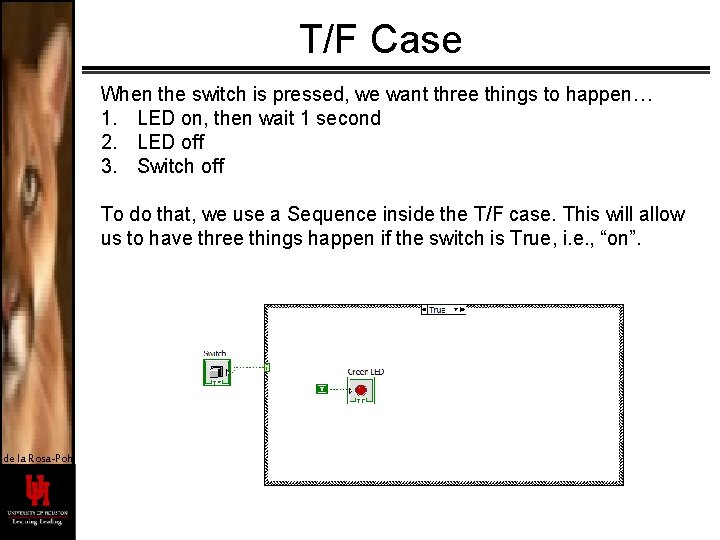
T/F Case When the switch is pressed, we want three things to happen… 1. LED on, then wait 1 second 2. LED off 3. Switch off To do that, we use a Sequence inside the T/F case. This will allow us to have three things happen if the switch is True, i. e. , “on”. de la Rosa-Pohl
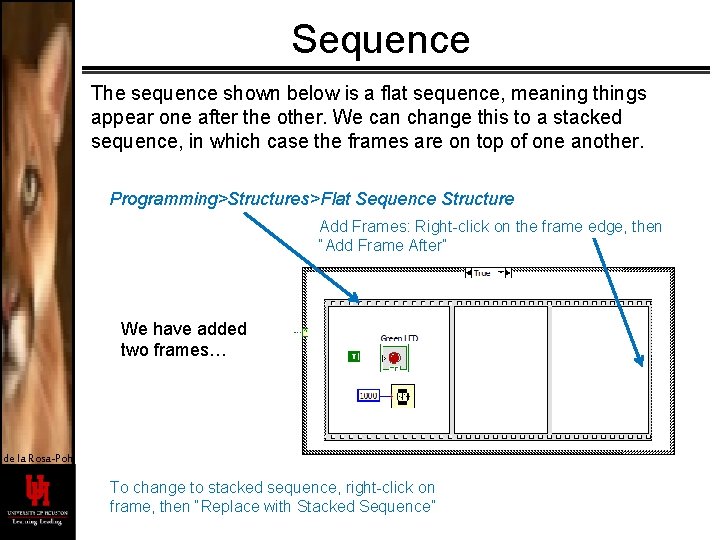
Sequence The sequence shown below is a flat sequence, meaning things appear one after the other. We can change this to a stacked sequence, in which case the frames are on top of one another. Programming>Structures>Flat Sequence Structure Add Frames: Right-click on the frame edge, then “Add Frame After” We have added two frames… de la Rosa-Pohl To change to stacked sequence, right-click on frame, then “Replace with Stacked Sequence”
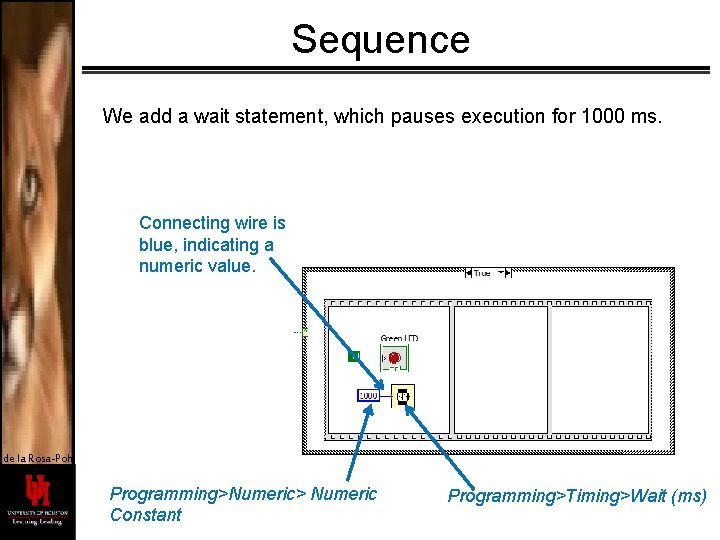
Sequence We add a wait statement, which pauses execution for 1000 ms. Connecting wire is blue, indicating a numeric value. de la Rosa-Pohl Programming>Numeric> Numeric Constant Programming>Timing>Wait (ms)
LOCAL VARIABLES de la Rosa-Pohl
Local Variables In the remaining two frames, I want to turn off the LED, and then turn off the switch (otherwise when the program loops around again the switch is still on, and the LED keeps lighting). To do that, I need to write to the LED and the switch somehow. I do that with local variables. Local variables create a “proxy” for another variable in the program. What you do to the local variable will be done to the original variable. de la Rosa-Pohl
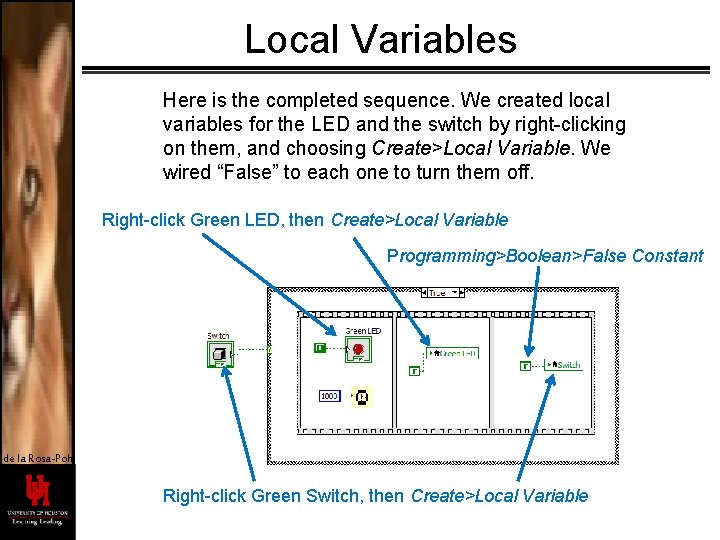
Local Variables Here is the completed sequence. We created local variables for the LED and the switch by right-clicking on them, and choosing Create>Local Variable. We wired “False” to each one to turn them off. Right-click Green LED, then Create>Local Variable Programming>Boolean>False Constant de la Rosa-Pohl Right-click Green Switch, then Create>Local Variable
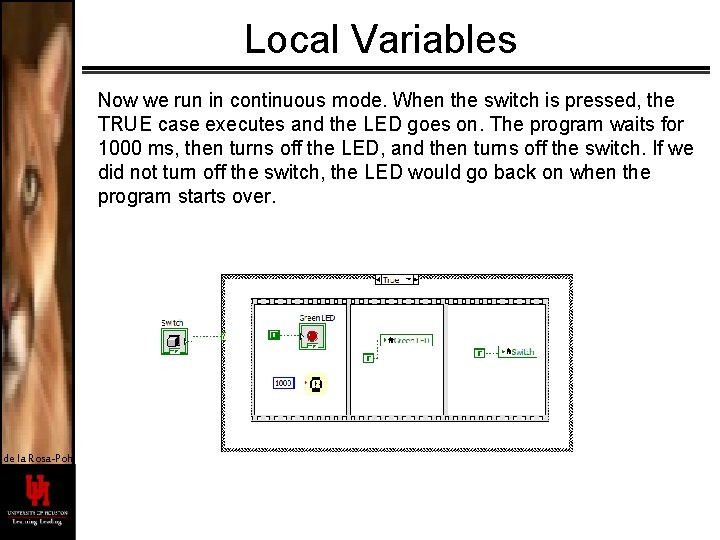
Local Variables Now we run in continuous mode. When the switch is pressed, the TRUE case executes and the LED goes on. The program waits for 1000 ms, then turns off the LED, and then turns off the switch. If we did not turn off the switch, the LED would go back on when the program starts over. de la Rosa-Pohl
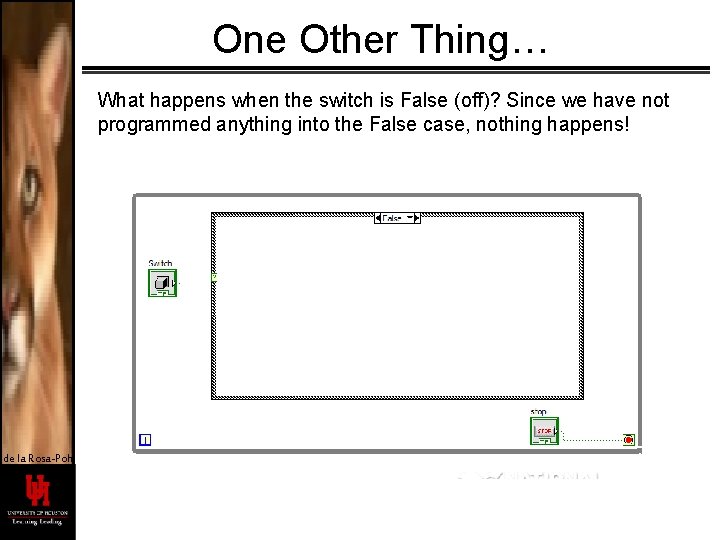
One Other Thing… What happens when the switch is False (off)? Since we have not programmed anything into the False case, nothing happens! de la Rosa-Pohl
WHILE LOOP de la Rosa-Pohl
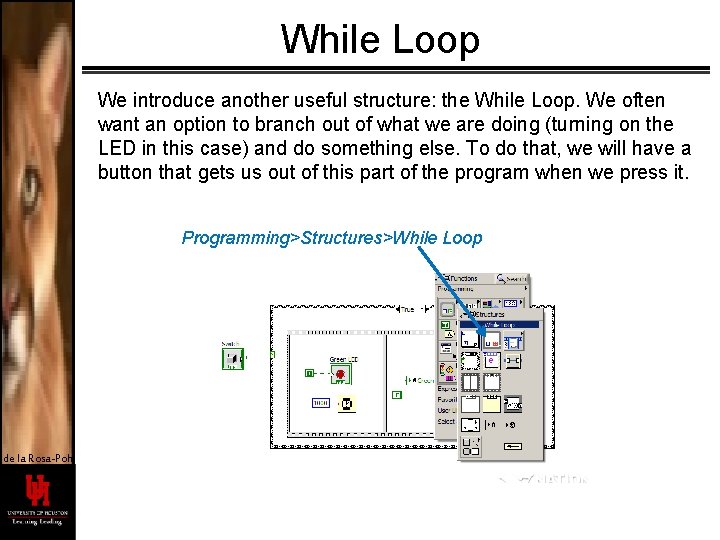
While Loop We introduce another useful structure: the While Loop. We often want an option to branch out of what we are doing (turning on the LED in this case) and do something else. To do that, we will have a button that gets us out of this part of the program when we press it. Programming>Structures>While Loop de la Rosa-Pohl
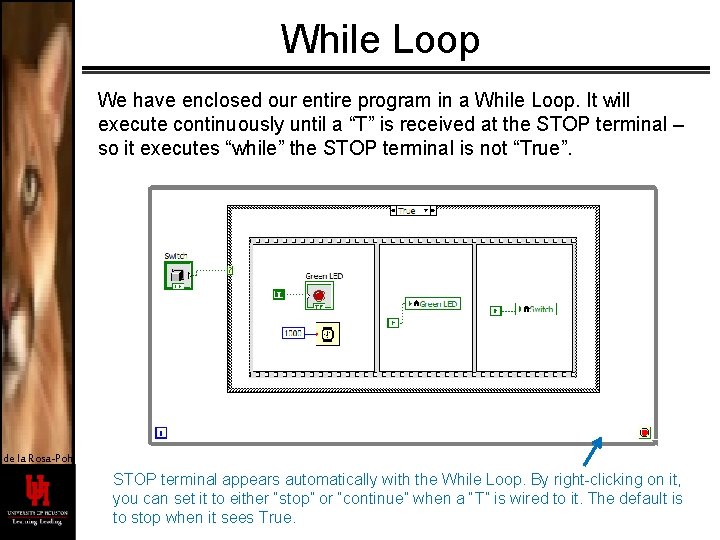
While Loop We have enclosed our entire program in a While Loop. It will execute continuously until a “T” is received at the STOP terminal – so it executes “while” the STOP terminal is not “True”. de la Rosa-Pohl STOP terminal appears automatically with the While Loop. By right-clicking on it, you can set it to either “stop” or “continue” when a “T” is wired to it. The default is to stop when it sees True.
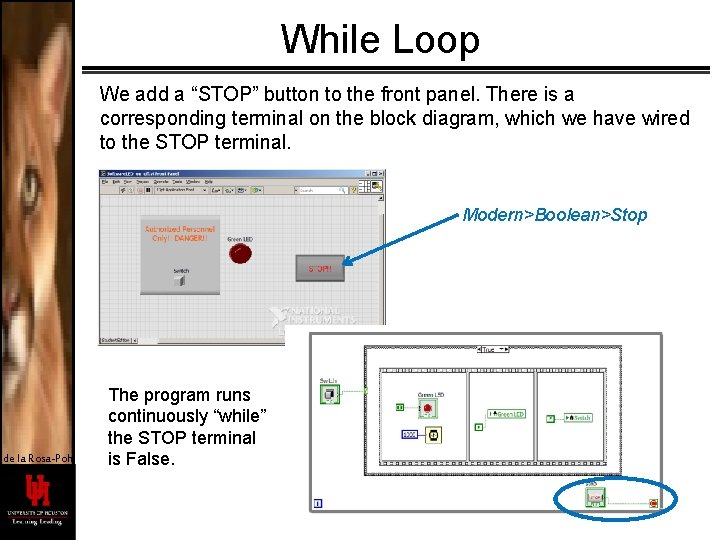
While Loop We add a “STOP” button to the front panel. There is a corresponding terminal on the block diagram, which we have wired to the STOP terminal. Modern>Boolean>Stop de la Rosa-Pohl The program runs continuously “while” the STOP terminal is False.
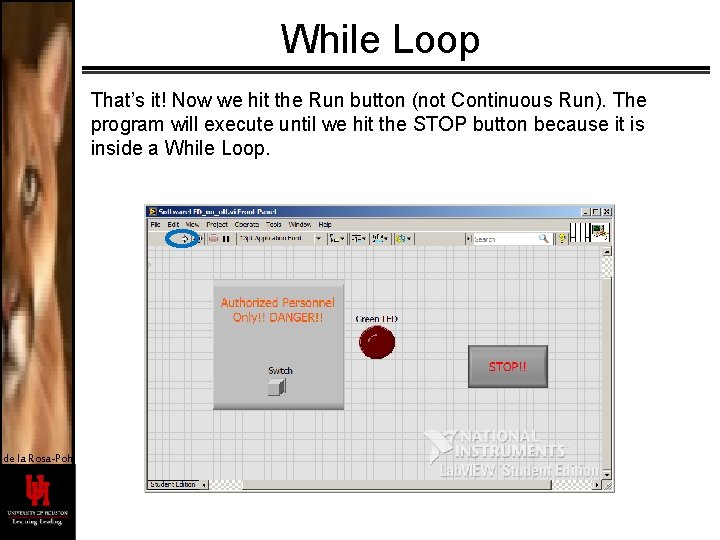
While Loop That’s it! Now we hit the Run button (not Continuous Run). The program will execute until we hit the STOP button because it is inside a While Loop. de la Rosa-Pohl
de la Rosa-Pohl RANDOM NUMBER GENERATOR GENERAL CASE STRUCTURE FOR LOOP
Random LEDs In this section we will use a random number generator to randomly turn on one of four LEDs four times. This will make use of a general case structure and a For Loop. de la Rosa-Pohl
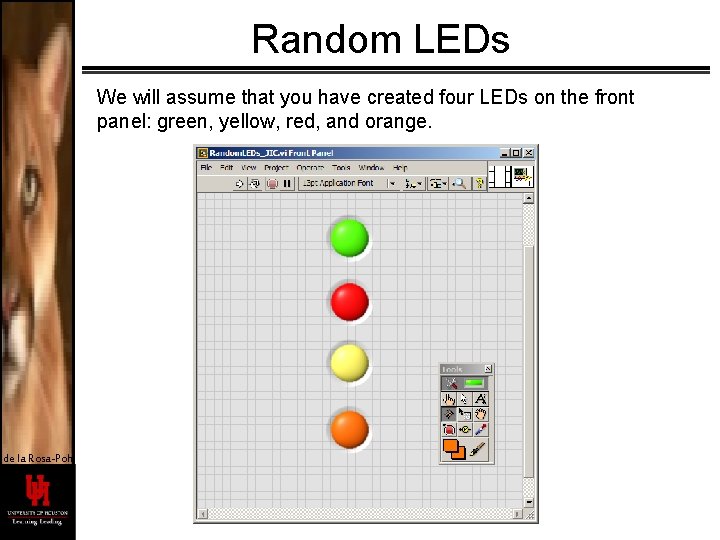
Random LEDs We will assume that you have created four LEDs on the front panel: green, yellow, red, and orange. de la Rosa-Pohl
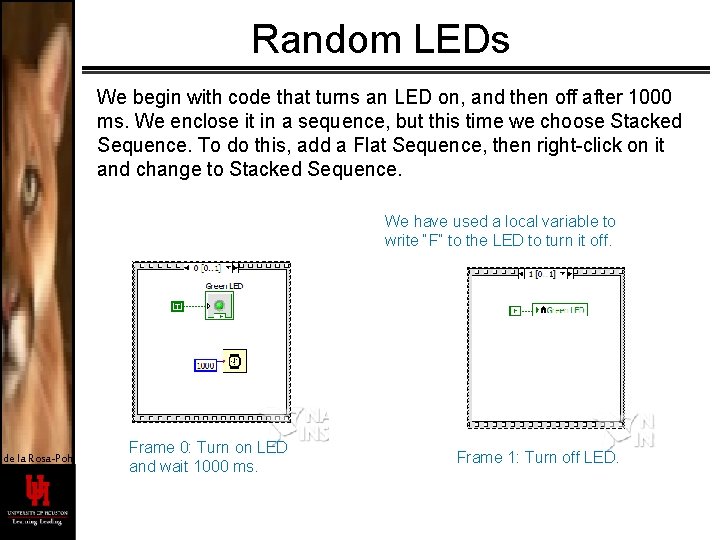
Random LEDs We begin with code that turns an LED on, and then off after 1000 ms. We enclose it in a sequence, but this time we choose Stacked Sequence. To do this, add a Flat Sequence, then right-click on it and change to Stacked Sequence. We have used a local variable to write “F” to the LED to turn it off. de la Rosa-Pohl Frame 0: Turn on LED and wait 1000 ms. Frame 1: Turn off LED.
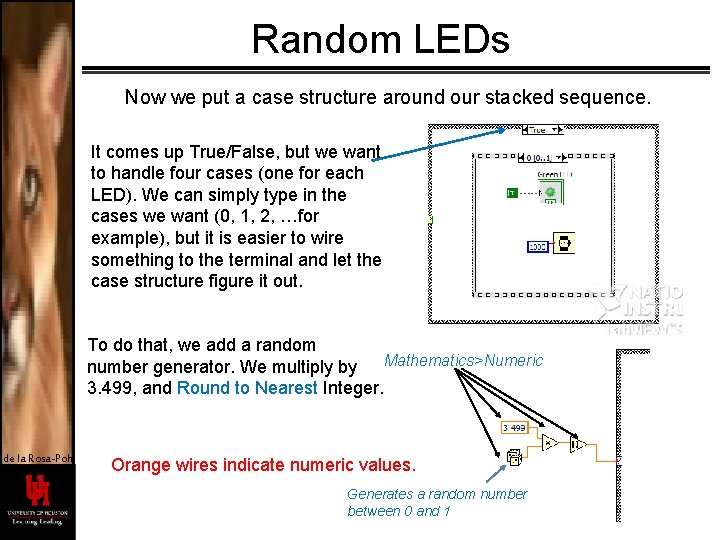
Random LEDs Now we put a case structure around our stacked sequence. It comes up True/False, but we want to handle four cases (one for each LED). We can simply type in the cases we want (0, 1, 2, …for example), but it is easier to wire something to the terminal and let the case structure figure it out. To do that, we add a random number generator. We multiply by Mathematics>Numeric 3. 499, and Round to Nearest Integer. de la Rosa-Pohl Orange wires indicate numeric values. Generates a random number between 0 and 1
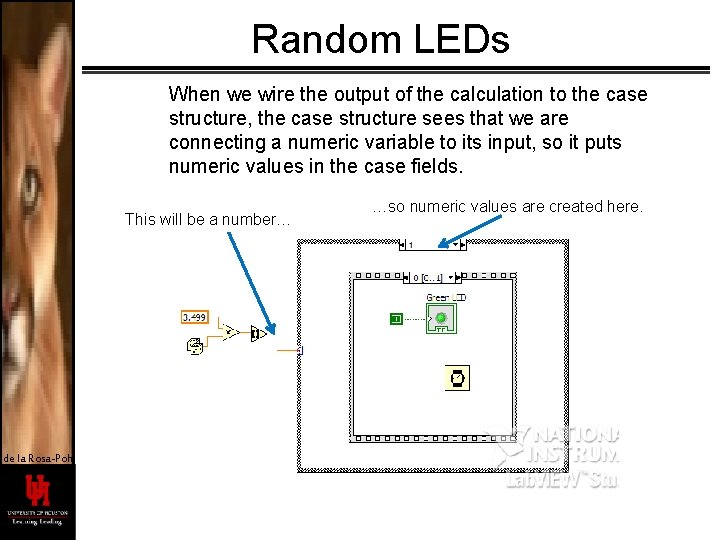
Random LEDs When we wire the output of the calculation to the case structure, the case structure sees that we are connecting a numeric variable to its input, so it puts numeric values in the case fields. This will be a number… de la Rosa-Pohl …so numeric values are created here.
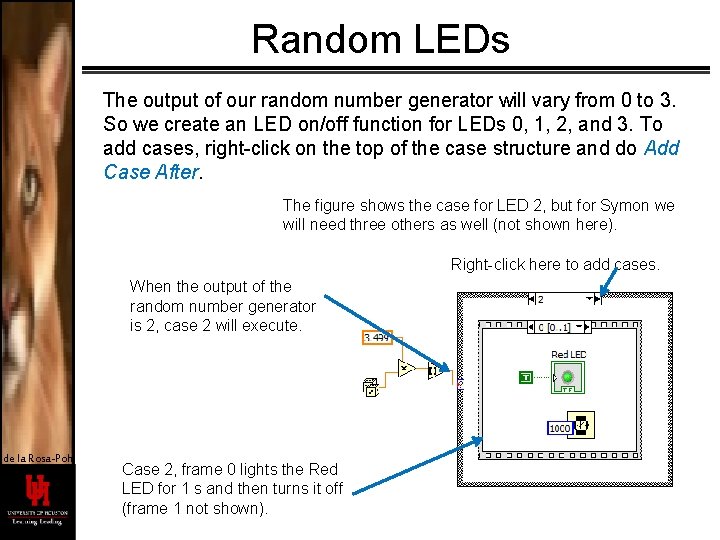
Random LEDs The output of our random number generator will vary from 0 to 3. So we create an LED on/off function for LEDs 0, 1, 2, and 3. To add cases, right-click on the top of the case structure and do Add Case After. The figure shows the case for LED 2, but for Symon we will need three others as well (not shown here). Right-click here to add cases. When the output of the random number generator is 2, case 2 will execute. de la Rosa-Pohl Case 2, frame 0 lights the Red LED for 1 s and then turns it off (frame 1 not shown).
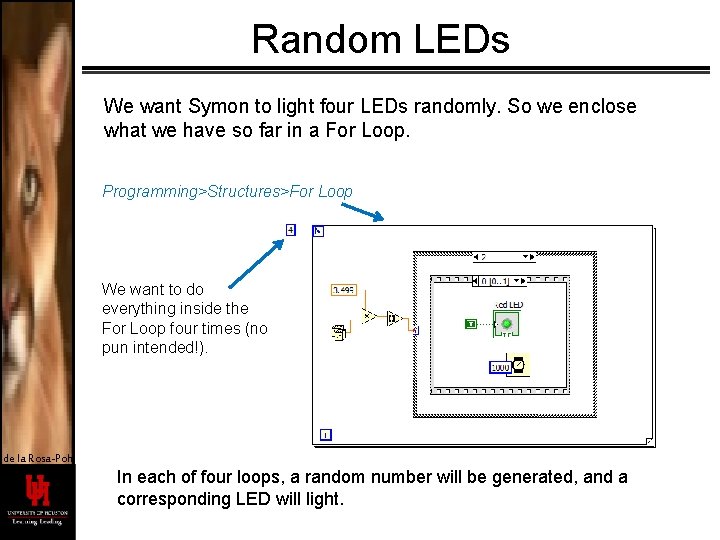
Random LEDs We want Symon to light four LEDs randomly. So we enclose what we have so far in a For Loop. Programming>Structures>For Loop We want to do everything inside the For Loop four times (no pun intended!). de la Rosa-Pohl In each of four loops, a random number will be generated, and a corresponding LED will light.
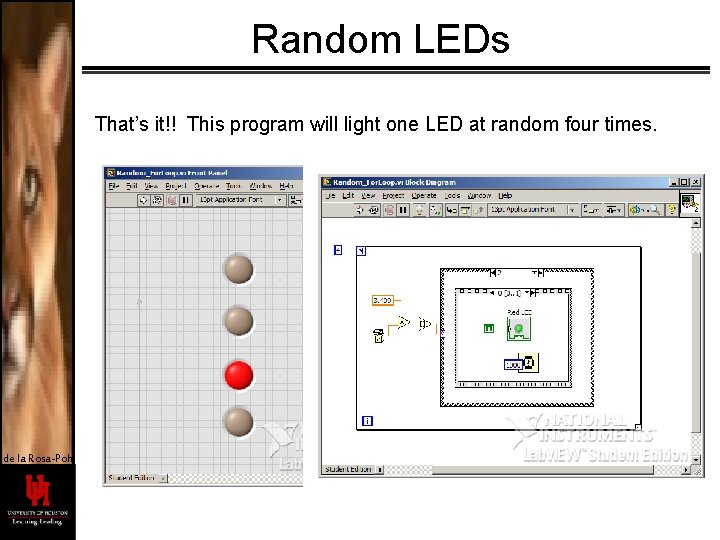
Random LEDs That’s it!! This program will light one LED at random four times. de la Rosa-Pohl
One More Thing… With this construction, the LEDs will not light completely at random. Here’s why: The “dice” generate a random number between 0 and 1, and then we multiply by 3. 499. (The Round to Nearest function will round 3. 5 to 4, and we don’t have a case for 4. ) But the Round function will return 0 only half as often as it will return 1, 2, or 3. This happens because for 0 to 0. 5, the Round function will return 0 but for 0. 5001 to 1. 499 it will return 1; for 1. 5 to 2. 5 it will return 2; for 2. 5 to 3. 499 it will return 3. These latter intervals are twice as big as the interval that returns 0. So we will see the LED corresponding to 0 only half as often as the others. We will revisit this issue in a later presentation, but for now we just leave it as is. de la Rosa-Pohl
ARRAY BUILD de la Rosa-Pohl
Array Building an array is useful in many circumstances. We use it here to keep track of Symon’s random choices, and of the user’s responses. The resulting arrays will be compared to see if they match! An array, for our purposes, can be though of as a matrix of 1 or more dimensions. A one-dimensional array is a list of elements; a 2 -D array is a table with rows and columns; a 3 -D array can be thought of as cube with regularly spaced entries in three dimensions. A 4 -D array is possible but difficult to picture! de la Rosa-Pohl
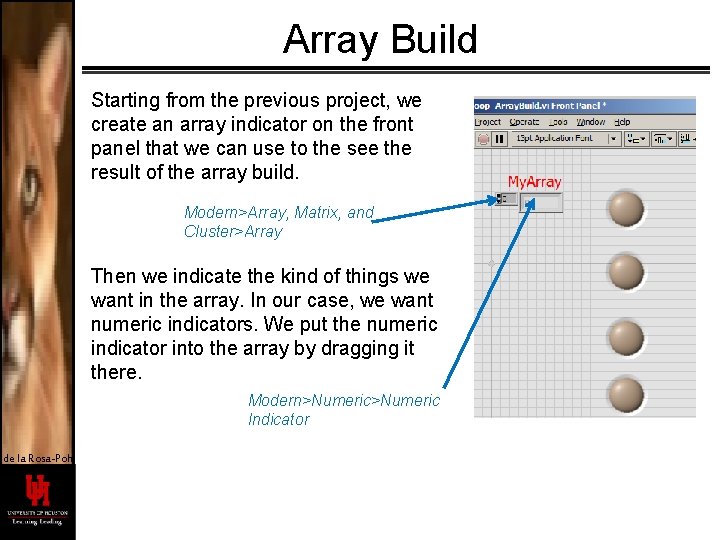
Array Build Starting from the previous project, we create an array indicator on the front panel that we can use to the see the result of the array build. Modern>Array, Matrix, and Cluster>Array Then we indicate the kind of things we want in the array. In our case, we want numeric indicators. We put the numeric indicator into the array by dragging it there. Modern>Numeric Indicator de la Rosa-Pohl
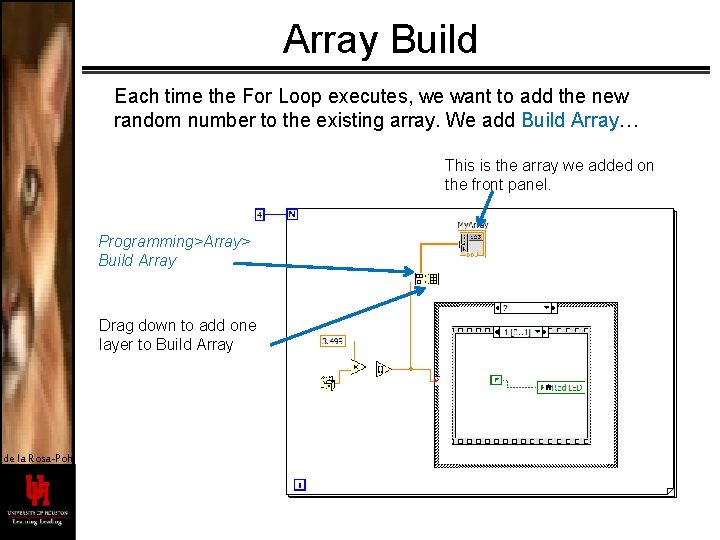
Array Build Each time the For Loop executes, we want to add the new random number to the existing array. We add Build Array… This is the array we added on the front panel. Programming>Array> Build Array Drag down to add one layer to Build Array de la Rosa-Pohl
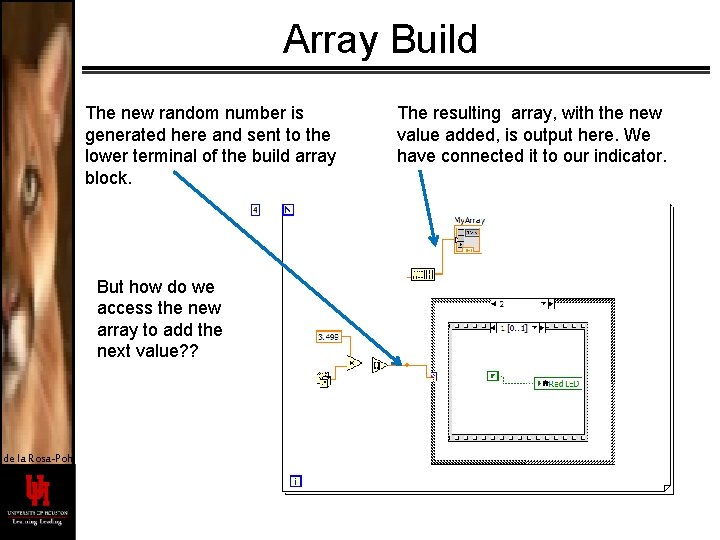
Array Build The new random number is generated here and sent to the lower terminal of the build array block. But how do we access the new array to add the next value? ? de la Rosa-Pohl The resulting array, with the new value added, is output here. We have connected it to our indicator.
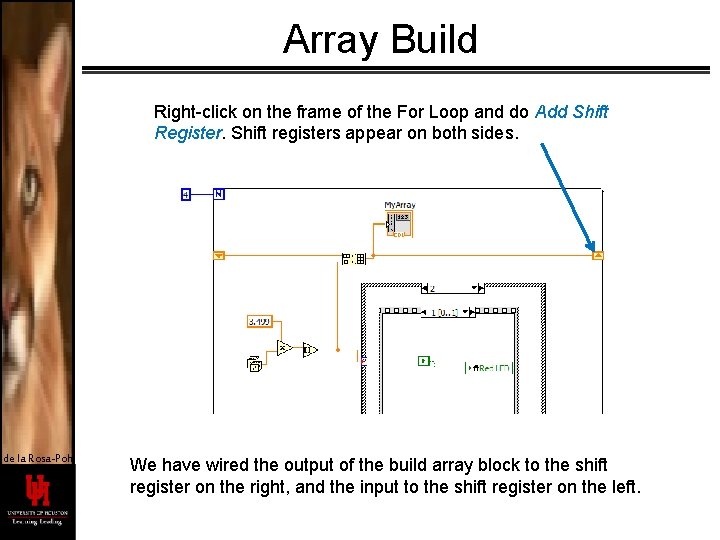
Array Build Right-click on the frame of the For Loop and do Add Shift Register. Shift registers appear on both sides. de la Rosa-Pohl We have wired the output of the build array block to the shift register on the right, and the input to the shift register on the left.
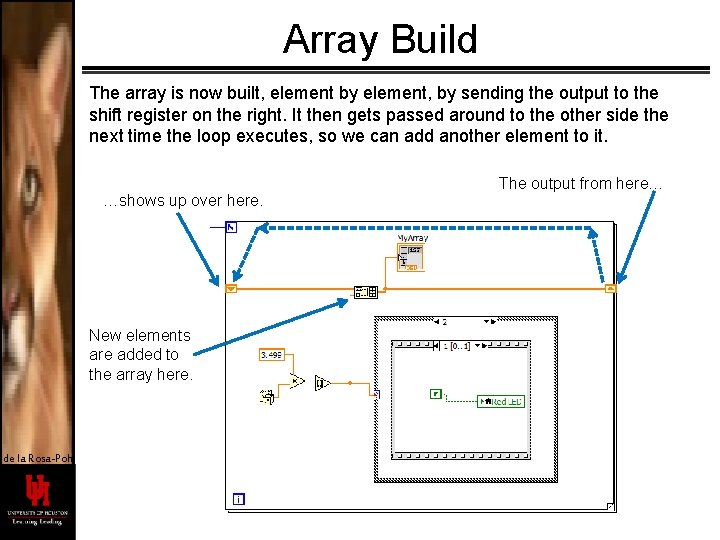
Array Build The array is now built, element by element, by sending the output to the shift register on the right. It then gets passed around to the other side the next time the loop executes, so we can add another element to it. …shows up over here. New elements are added to the array here. de la Rosa-Pohl The output from here…
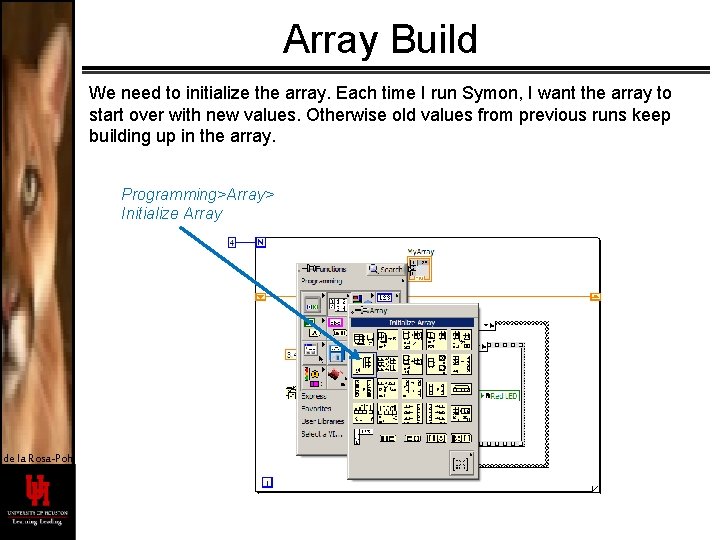
Array Build We need to initialize the array. Each time I run Symon, I want the array to start over with new values. Otherwise old values from previous runs keep building up in the array. Programming>Array> Initialize Array de la Rosa-Pohl
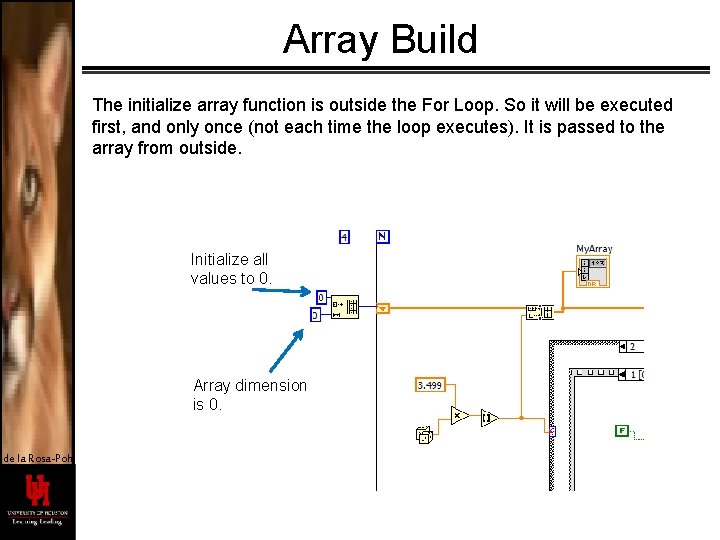
Array Build The initialize array function is outside the For Loop. So it will be executed first, and only once (not each time the loop executes). It is passed to the array from outside. Initialize all values to 0. Array dimension is 0. de la Rosa-Pohl
CONTROLS AND INDICATORS READ AND WRITE de la Rosa-Pohl
Controls and Indicators Here we show that an LED can be turned on and off manually from the front panel (by pressing it), or automatically under program control. We can use this in the Symon program to indicate which LEDs Symon has chosen to turn on (program control), as well as to register the user response (front panel control). de la Rosa-Pohl
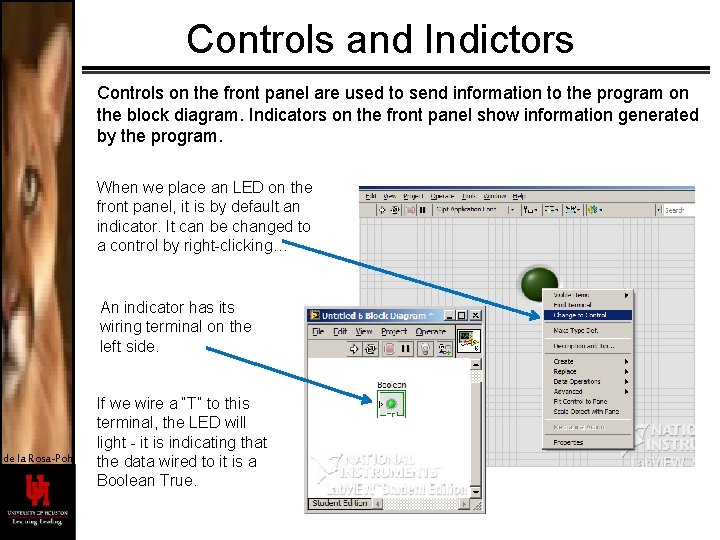
Controls and Indictors Controls on the front panel are used to send information to the program on the block diagram. Indicators on the front panel show information generated by the program. When we place an LED on the front panel, it is by default an indicator. It can be changed to a control by right-clicking… An indicator has its wiring terminal on the left side. de la Rosa-Pohl If we wire a “T” to this terminal, the LED will light - it is indicating that the data wired to it is a Boolean True.
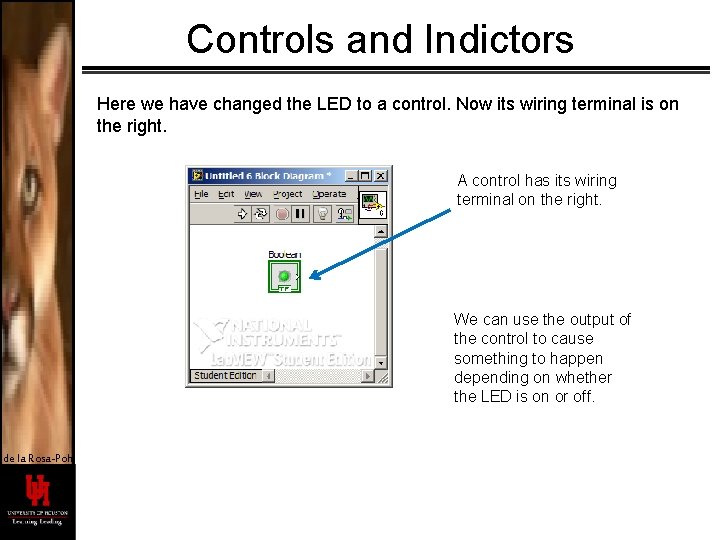
Controls and Indictors Here we have changed the LED to a control. Now its wiring terminal is on the right. A control has its wiring terminal on the right. We can use the output of the control to cause something to happen depending on whether the LED is on or off. de la Rosa-Pohl
Controls and Indictors To demonstrate front panel action, we configure the LED as a control. We then create a local variable and set up a while loop with a front panel stop button. Inside the while loop we check to see if the LED is on or off, and indicate the result on the front panel… de la Rosa-Pohl
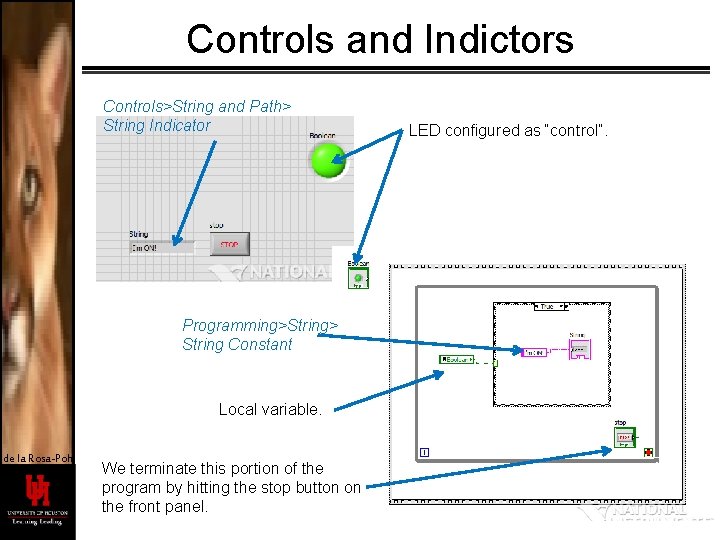
Controls and Indictors Controls>String and Path> String Indicator Programming>String> String Constant Local variable. de la Rosa-Pohl We terminate this portion of the program by hitting the stop button on the front panel. LED configured as “control”.
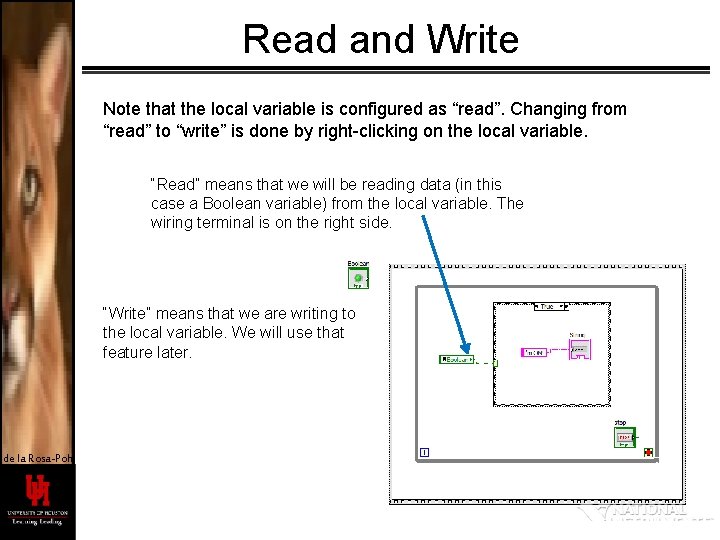
Read and Write Note that the local variable is configured as “read”. Changing from “read” to “write” is done by right-clicking on the local variable. “Read” means that we will be reading data (in this case a Boolean variable) from the local variable. The wiring terminal is on the right side. “Write” means that we are writing to the local variable. We will use that feature later. de la Rosa-Pohl
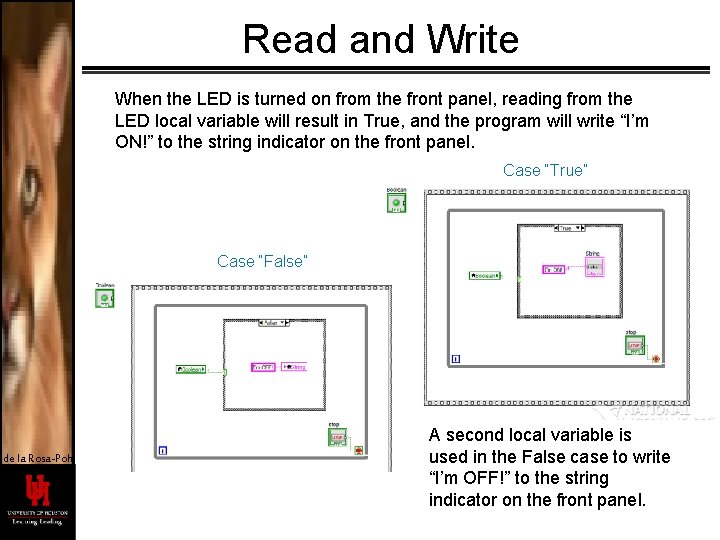
Read and Write When the LED is turned on from the front panel, reading from the LED local variable will result in True, and the program will write “I’m ON!” to the string indicator on the front panel. Case “True” Case “False” de la Rosa-Pohl A second local variable is used in the False case to write “I’m OFF!” to the string indicator on the front panel.
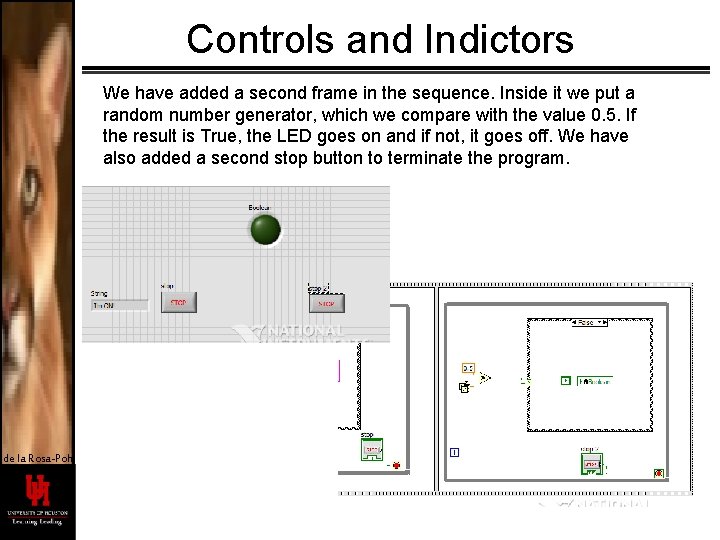
Controls and Indictors We have added a second frame in the sequence. Inside it we put a random number generator, which we compare with the value 0. 5. If the result is True, the LED goes on and if not, it goes off. We have also added a second stop button to terminate the program. de la Rosa-Pohl
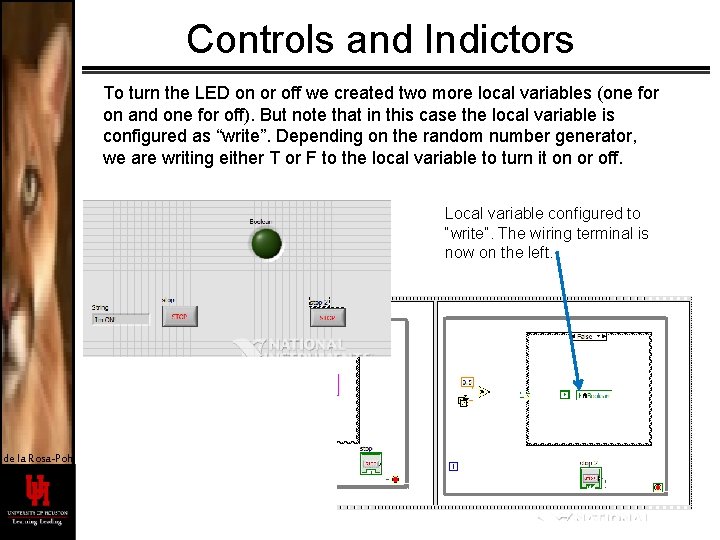
Controls and Indictors To turn the LED on or off we created two more local variables (one for on and one for off). But note that in this case the local variable is configured as “write”. Depending on the random number generator, we are writing either T or F to the local variable to turn it on or off. Local variable configured to “write”. The wiring terminal is now on the left. de la Rosa-Pohl
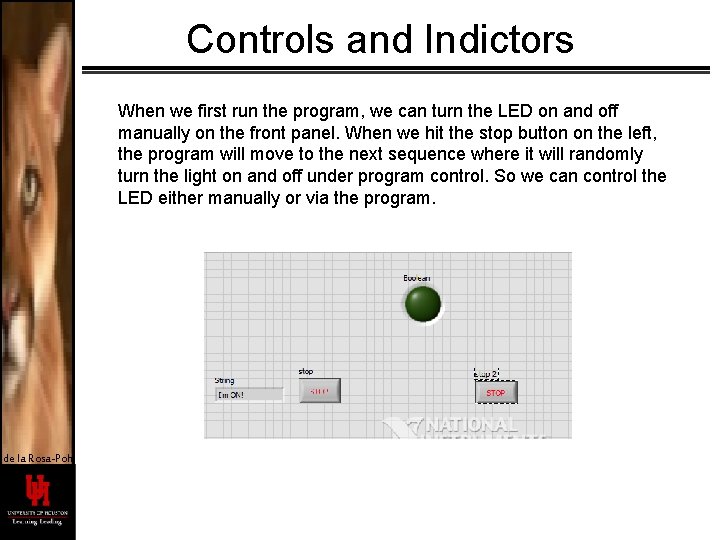
Controls and Indictors When we first run the program, we can turn the LED on and off manually on the front panel. When we hit the stop button on the left, the program will move to the next sequence where it will randomly turn the light on and off under program control. So we can control the LED either manually or via the program. de la Rosa-Pohl
OTHER STUFF… de la Rosa-Pohl
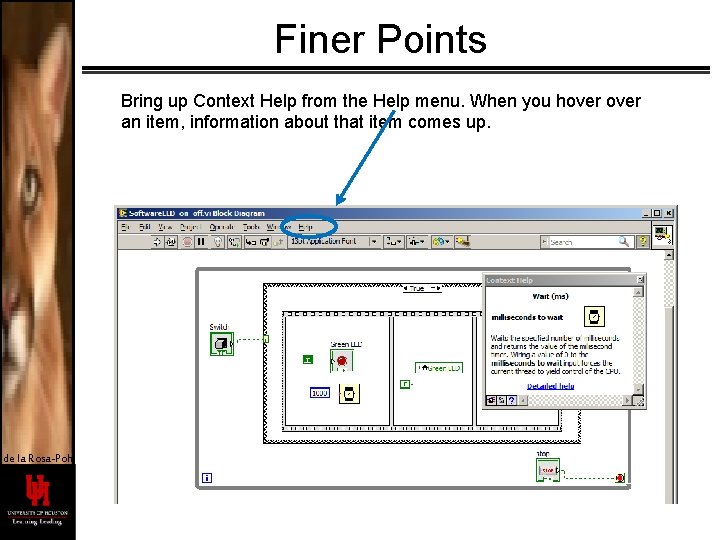
Finer Points Bring up Context Help from the Help menu. When you hover an item, information about that item comes up. de la Rosa-Pohl
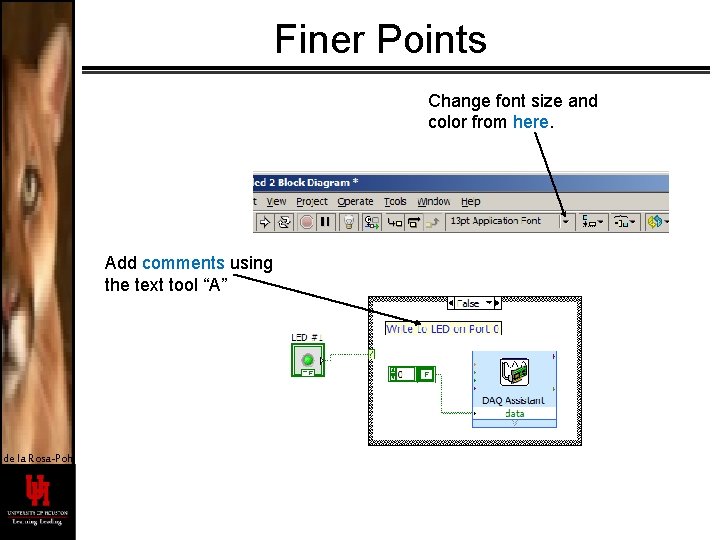
Finer Points Change font size and color from here. Add comments using the text tool “A” de la Rosa-Pohl
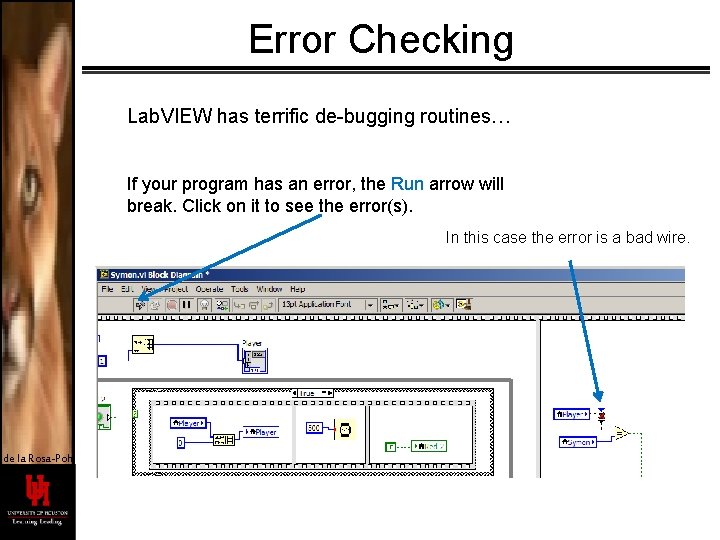
Error Checking Lab. VIEW has terrific de-bugging routines… If your program has an error, the Run arrow will break. Click on it to see the error(s). In this case the error is a bad wire. de la Rosa-Pohl
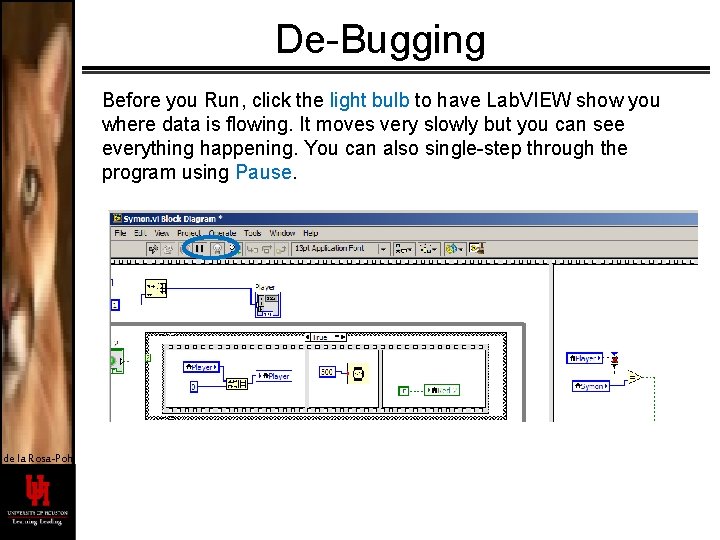
De-Bugging Before you Run, click the light bulb to have Lab. VIEW show you where data is flowing. It moves very slowly but you can see everything happening. You can also single-step through the program using Pause. de la Rosa-Pohl
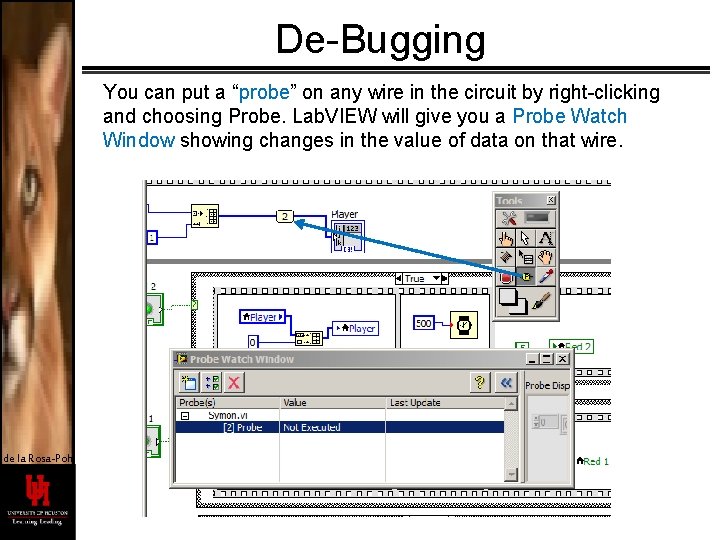
De-Bugging You can put a “probe” on any wire in the circuit by right-clicking and choosing Probe. Lab. VIEW will give you a Probe Watch Window showing changes in the value of data on that wire. de la Rosa-Pohl
de la Rosa-Pohl
- Slides: 65