
Internet Telephony PBX System IPX300 Series PBX with

Internet Telephony PBX System IPX-300 Series PBX with VIP-191 Install Procedure www. planet. com. tw Copyright © PLANET Technology Corporation. All rights reserved.
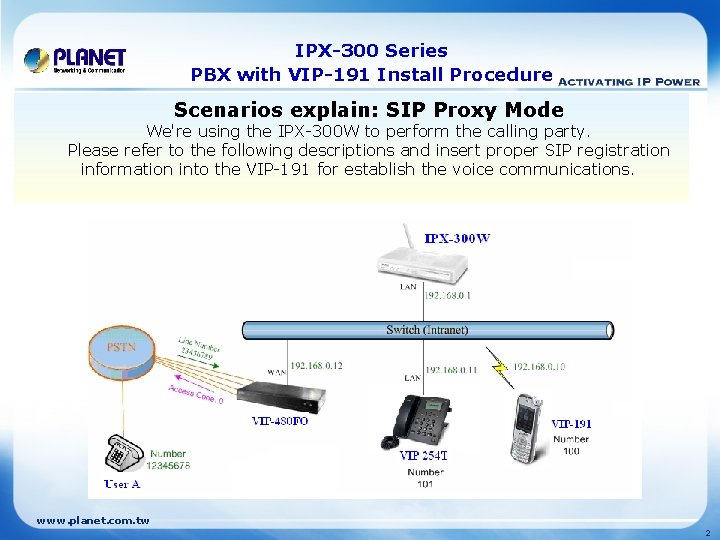
IPX-300 Series PBX with VIP-191 Install Procedure Scenarios explain: SIP Proxy Mode We're using the IPX-300 W to perform the calling party. Please refer to the following descriptions and insert proper SIP registration information into the VIP-191 for establish the voice communications. www. planet. com. tw 2
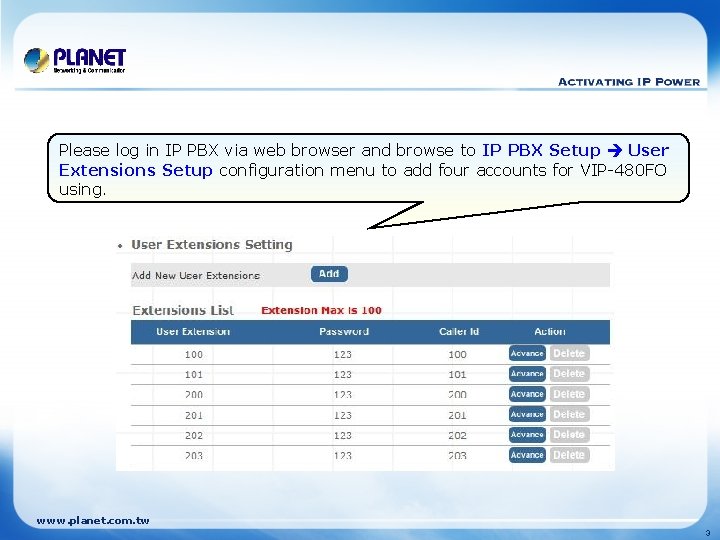
Please log in IP PBX via web browser and browse to IP PBX Setup User Extensions Setup configuration menu to add four accounts for VIP-480 FO using. www. planet. com. tw 3

Browse to IP PBX Setup Attendant Extension configuration menu. Assign an attendant number which inexistence extension in Extension List and the sample configuration screen is shown below: www. planet. com. tw 4
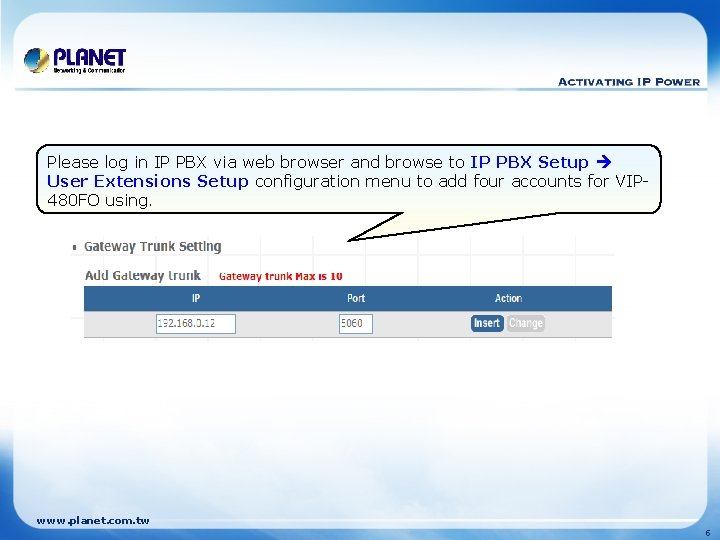
Please log in IP PBX via web browser and browse to IP PBX Setup User Extensions Setup configuration menu to add four accounts for VIP 480 FO using. www. planet. com. tw 5

Browse to IP PBX Setup Trunk Management Trunk Group configuration menu. Add a Trunk Group for making off-Net calls via VIP 480 FO. www. planet. com. tw 6
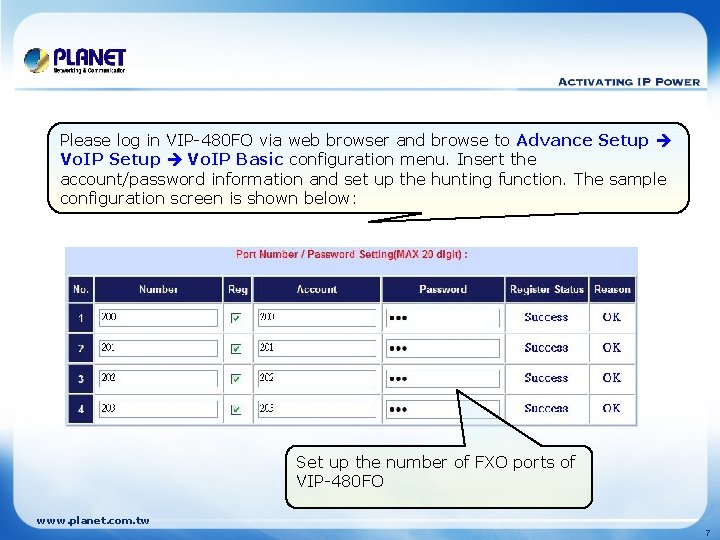
Please log in VIP-480 FO via web browser and browse to Advance Setup Vo. IP Basic configuration menu. Insert the account/password information and set up the hunting function. The sample configuration screen is shown below: Set up the number of FXO ports of VIP-480 FO www. planet. com. tw 7
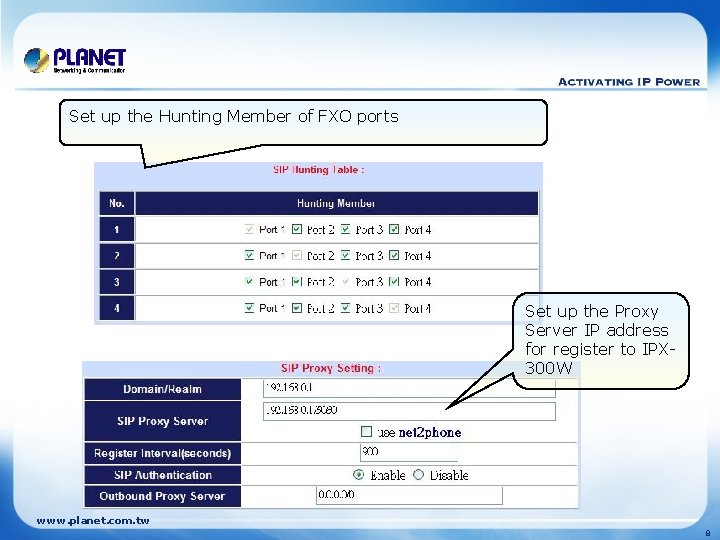
Set up the Hunting Member of FXO ports Set up the Proxy Server IP address for register to IPX 300 W www. planet. com. tw 8
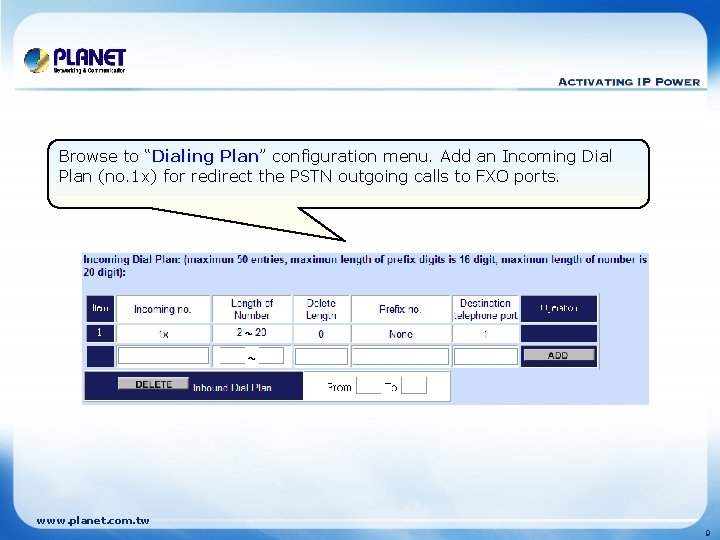
Browse to “Dialing Plan” configuration menu. Add an Incoming Dial Plan (no. 1 x) for redirect the PSTN outgoing calls to FXO ports. www. planet. com. tw 9
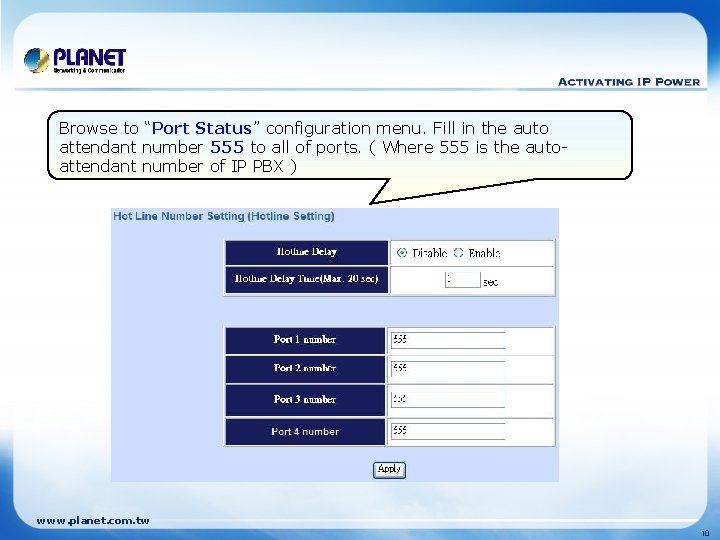
Browse to “Port Status” configuration menu. Fill in the auto attendant number 555 to all of ports. ( Where 555 is the autoattendant number of IP PBX ) www. planet. com. tw 10
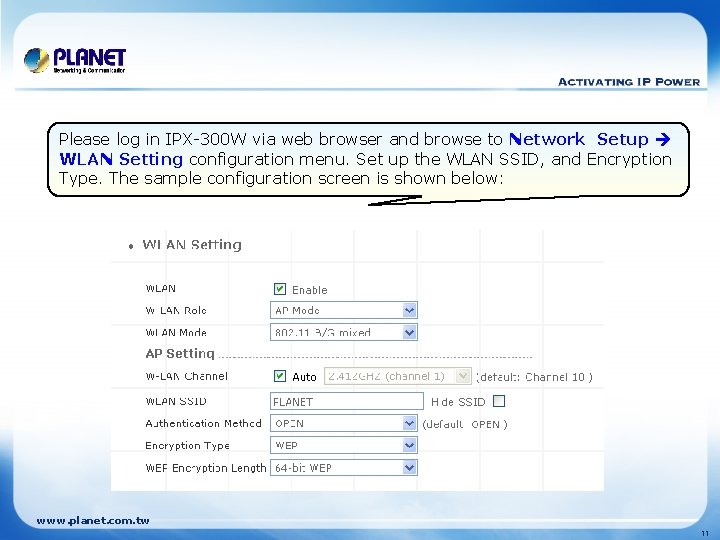
Please log in IPX-300 W via web browser and browse to Network Setup WLAN Setting configuration menu. Set up the WLAN SSID, and Encryption Type. The sample configuration screen is shown below: www. planet. com. tw 11
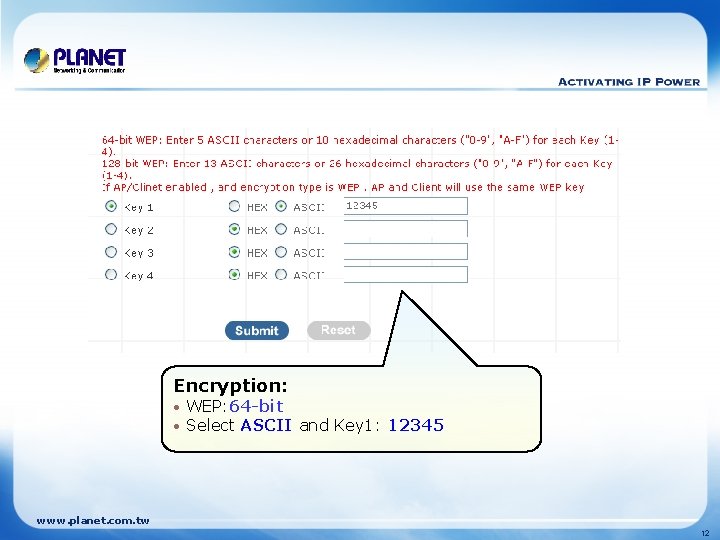
Encryption: • • WEP: 64 -bit Select ASCII and Key 1: 12345 www. planet. com. tw 12
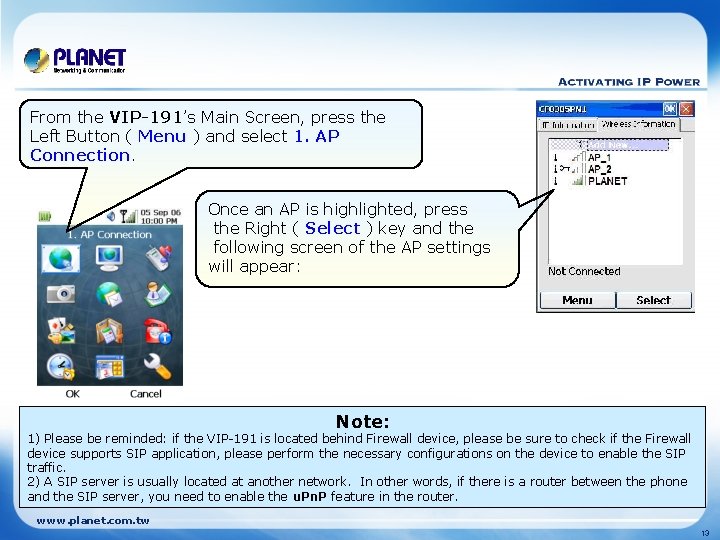
From the VIP-191’s Main Screen, press the Left Button ( Menu ) and select 1. AP Connection. Once an AP is highlighted, press the Right ( Select ) key and the following screen of the AP settings will appear: Note: 1) Please be reminded: if the VIP-191 is located behind Firewall device, please be sure to check if the Firewall device supports SIP application, please perform the necessary configurations on the device to enable the SIP traffic. 2) A SIP server is usually located at another network. In other words, if there is a router between the phone and the SIP server, you need to enable the u. Pn. P feature in the router. www. planet. com. tw 13
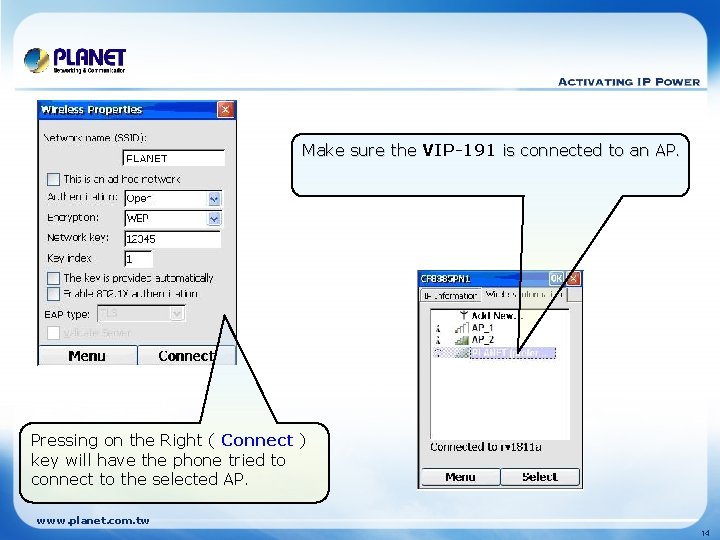
Make sure the VIP-191 is connected to an AP. Pressing on the Right ( Connect ) key will have the phone tried to connect to the selected AP. www. planet. com. tw 14
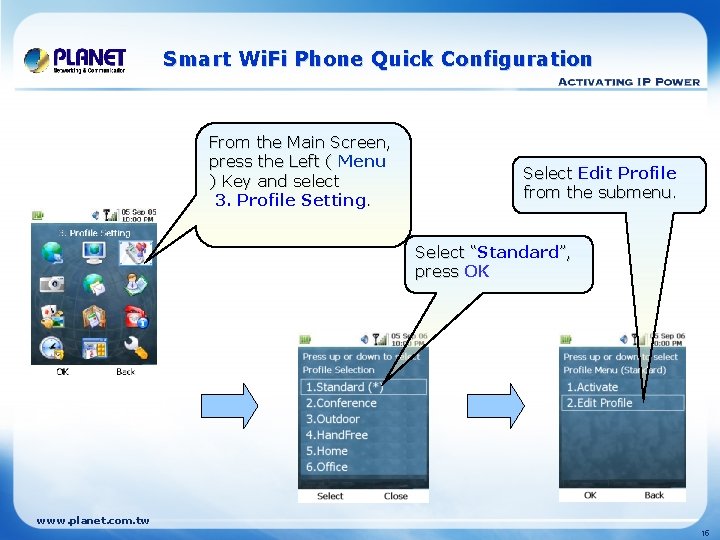
Smart Wi. Fi Phone Quick Configuration From the Main Screen, press the Left ( Menu ) Key and select 3. Profile Setting. Select Edit Profile from the submenu. Select “Standard ”, “ press OK www. planet. com. tw 15
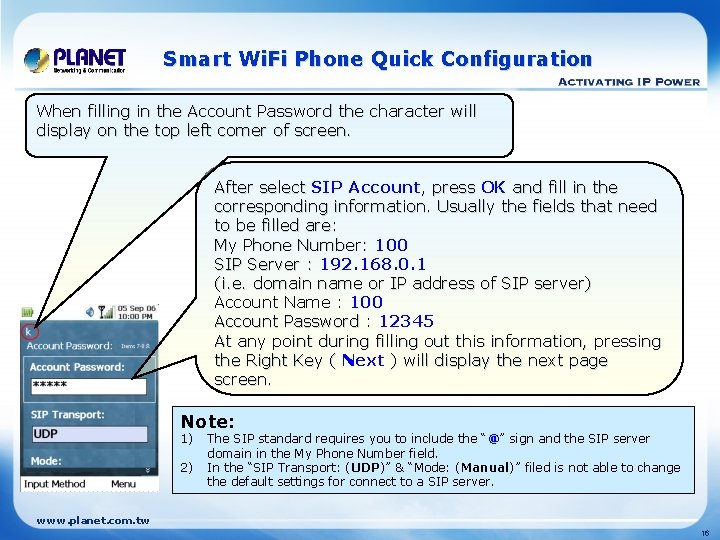
Smart Wi. Fi Phone Quick Configuration When filling in the Account Password the character will display on the top left comer of screen. After select SIP Account, press OK and fill in the corresponding information. Usually the fields that need to be filled are: My Phone Number: 100 SIP Server : 192. 168. 0. 1 (i. e. domain name or IP address of SIP server) Account Name : 100 Account Password : 12345 At any point during filling out this information, pressing the Right Key ( Next ) will display the next page screen. Note: 1) 2) The SIP standard requires you to include the “@” sign and the SIP server domain in the My Phone Number field. In the “SIP Transport: (UDP)” & “Mode: (Manual)” filed is not able to change the default settings for connect to a SIP server. www. planet. com. tw 16
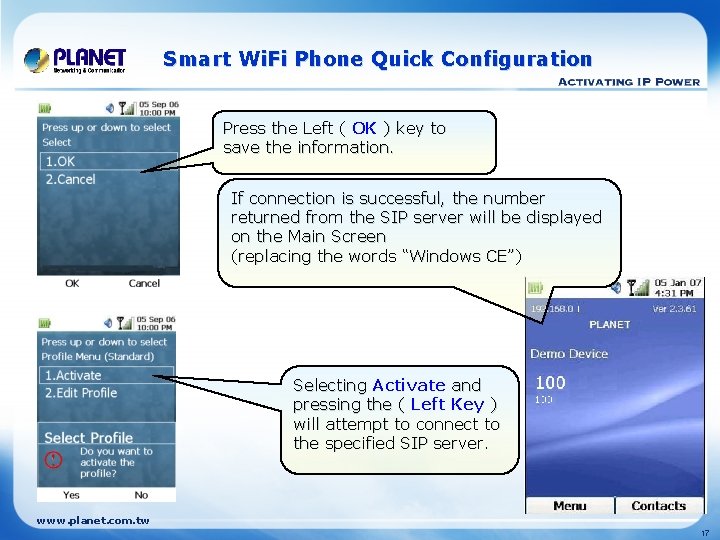
Smart Wi. Fi Phone Quick Configuration Press the Left ( OK ) key to save the information. If connection is successful, the number returned from the SIP server will be displayed on the Main Screen (replacing the words “Windows CE”) Selecting Activate and pressing the ( Left Key ) will attempt to connect to the specified SIP server. www. planet. com. tw 17
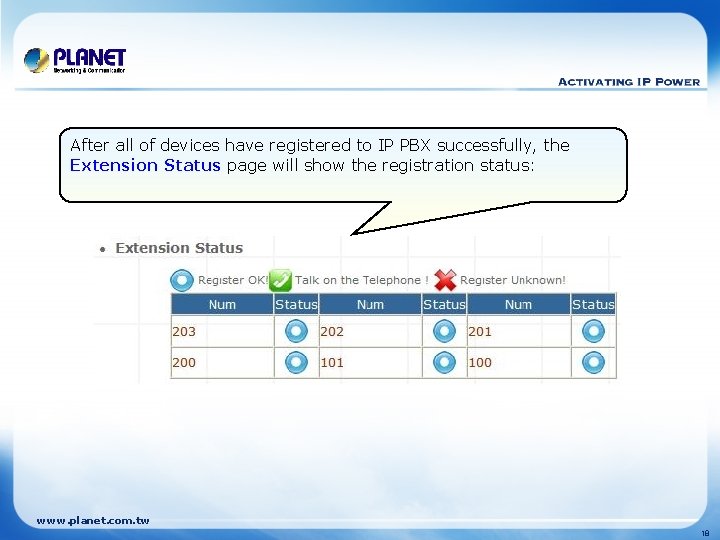
After all of devices have registered to IP PBX successfully, the Extension Status page will show the registration status: www. planet. com. tw 18
Test the Scenario: l l l l VIP-191 pick up the telephone Dial the number: 0 will hear the dial tone, and dial the number: 12345678. This call will hunt the FXO port of VIP-480 FO and shall be able connect to the User A. Then the telephone of User A will ringing, User A can pick up the handset and talk with VIP-191. Both VIP-191 and User A hang up the calls. User A pick up the telephone and dial the number: 23456789 should be able to connect to the Auto Attendant System of IP PBX. The User A will hear the prompts, and dial the extension number: 100 shall be able connect to the VIP-254 T. Then the VIP-254 T should ringing and it to pick up the call then talk with User A. www. planet. com. tw 19
www. planet. com. tw
- Slides: 20