
Internet Telephony PBX System GSM Gateway VIP281 GS
Internet Telephony PBX System GSM Gateway VIP-281 GS and ATA P 2 P Configuration www. planet. com. tw Copyright © PLANET Technology Corporation. All rights reserved.
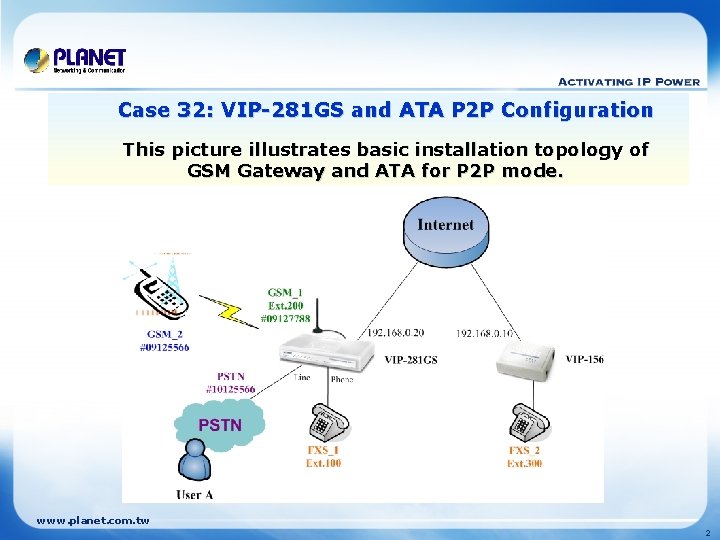
Case 32: VIP-281 GS and ATA P 2 P Configuration This picture illustrates basic installation topology of GSM Gateway and ATA for P 2 P mode. www. planet. com. tw 2
![GSM Gateway Configuration 1 Select the [ Advance>WAN Setting ] of Gateway to set](http://slidetodoc.com/presentation_image_h/e7aa2bb87c3e1ec2773eb494b5a09470/image-3.jpg "GSM Gateway Configuration 1 Select the [ Advance>WAN Setting ] of Gateway to set")
GSM Gateway Configuration 1 Select the [ Advance>WAN Setting ] of Gateway to set up the WAN interface for the gateway. Setup the WAN interface of VIP-281 GS follow the information of IP that provides by ISP WAN Type Setting : Static IP IP Address : 192. 168. 0. 20 Subnet Mask : 255. 0 Default Router : 192. 168. 0. 254 2 www. planet. com. tw 3
![GSM Gateway Configuration 3 Select the [Main Menu] -> [GSM Dialplan] of gateway to](http://slidetodoc.com/presentation_image_h/e7aa2bb87c3e1ec2773eb494b5a09470/image-4.jpg "GSM Gateway Configuration 3 Select the [Main Menu] -> [GSM Dialplan] of gateway to")
GSM Gateway Configuration 3 Select the [Main Menu] -> [GSM Dialplan] of gateway to add the GSM Dialplan Number. GSM Routing Table: Phone Number: 09 x Length: 8 4 www. planet. com. tw 4
![GSM Gateway Configuration Select the [Advance->Vo. IP Basic] of Gateway to set up the](http://slidetodoc.com/presentation_image_h/e7aa2bb87c3e1ec2773eb494b5a09470/image-5.jpg "GSM Gateway Configuration Select the [Advance->Vo. IP Basic] of Gateway to set up the")
GSM Gateway Configuration Select the [Advance->Vo. IP Basic] of Gateway to set up the Port Number 5 Settings port number Port 1 (FXS): 100 Port 2 (GSM): 200 6 www. planet. com. tw 5
![GSM Gateway Configuration 7 8 Select the [Advance->Dialing Plan] of Gateway to add the](http://slidetodoc.com/presentation_image_h/e7aa2bb87c3e1ec2773eb494b5a09470/image-6.jpg "GSM Gateway Configuration 7 8 Select the [Advance->Dialing Plan] of Gateway to add the")
GSM Gateway Configuration 7 8 Select the [Advance->Dialing Plan] of Gateway to add the incoming and outgoing dial plan for gateway call to ip phone used. Outgoing no: 300 Length of Number: 3 ~ 3 (The Number max/min allowed length you can dial ) Delete Length: 3 Destination IP/DNS: 192. 168. 0. 10 (remote ATA address ) Destination Port : 5060 www. planet. com. tw 6
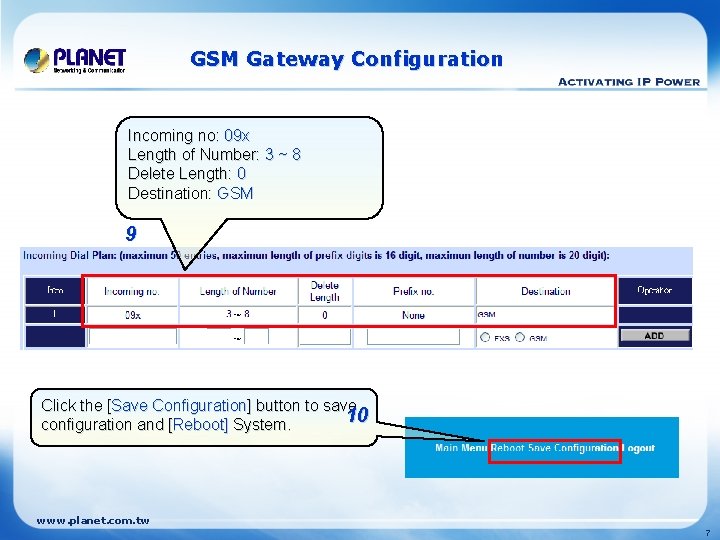
GSM Gateway Configuration Incoming no: 09 x Length of Number: 3 ~ 8 Delete Length: 0 Destination: GSM 9 Click the [Save Configuration] button to save 10 configuration and [Reboot] System. www. planet. com. tw 7
![ATA Configuration Select the [ Network Settings ] of ATA configuration menu to modifies](http://slidetodoc.com/presentation_image_h/e7aa2bb87c3e1ec2773eb494b5a09470/image-8.jpg "ATA Configuration Select the [ Network Settings ] of ATA configuration menu to modifies")
ATA Configuration Select the [ Network Settings ] of ATA configuration menu to modifies the IP address. 11 12 Insert IP address into each item. IP Type: Fixed IP (According as your application) IP : 192. 168. 0. 10 Mask : 255. 0 Gateway : 192. 168. 0. 254 Remember click Submit button after modified the parameters. www. planet. com. tw 8
![ATA Configuration Select the [ Network Settings ] of ATA configuration menu to modifies](http://slidetodoc.com/presentation_image_h/e7aa2bb87c3e1ec2773eb494b5a09470/image-9.jpg "ATA Configuration Select the [ Network Settings ] of ATA configuration menu to modifies")
ATA Configuration Select the [ Network Settings ] of ATA configuration menu to modifies the IP address. 13 Add a phone number into the phone book list, as the picture indicated that. 14 www. planet. com. tw 9
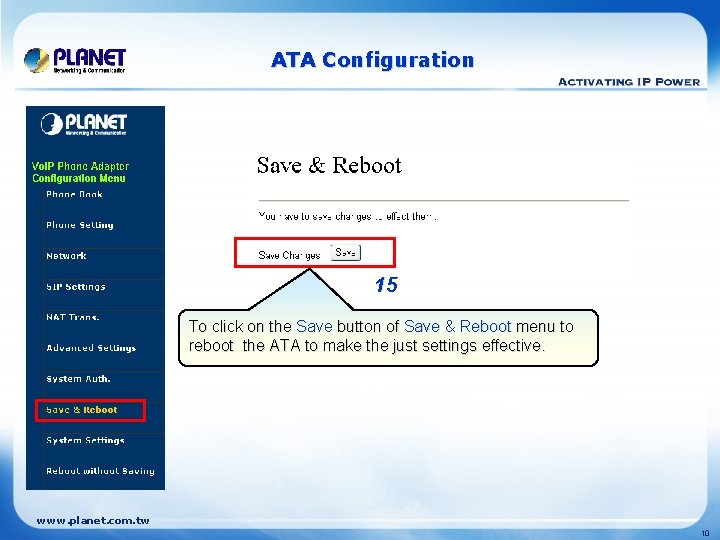
ATA Configuration 15 To click on the Save button of Save & Reboot menu to reboot the ATA to make the just settings effective. www. planet. com. tw 10
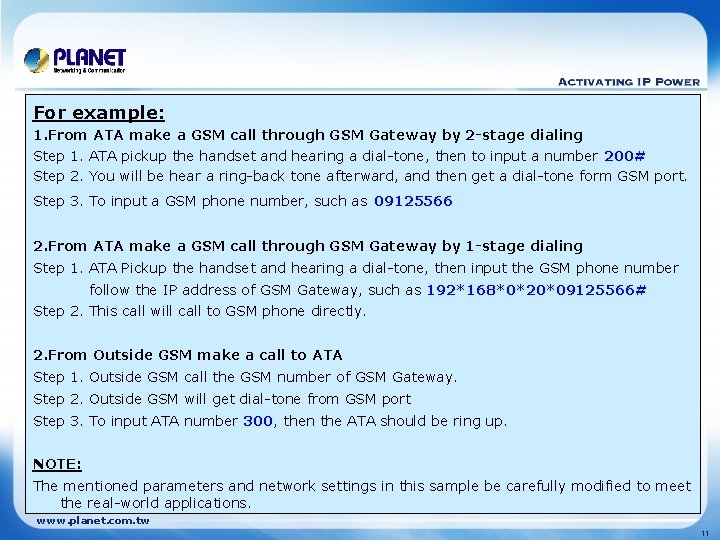
For example: 1. From ATA make a GSM call through GSM Gateway by 2 -stage dialing Step 1. ATA pickup the handset and hearing a dial-tone, then to input a number 200# Step 2. You will be hear a ring-back tone afterward, and then get a dial-tone form GSM port. Step 3. To input a GSM phone number, such as 09125566 2. From ATA make a GSM call through GSM Gateway by 1 -stage dialing Step 1. ATA Pickup the handset and hearing a dial-tone, then input the GSM phone number follow the IP address of GSM Gateway, such as 192*168*0*20*09125566# Step 2. This call will call to GSM phone directly. 2. From Outside GSM make a call to ATA Step 1. Outside GSM call the GSM number of GSM Gateway. Step 2. Outside GSM will get dial-tone from GSM port Step 3. To input ATA number 300, then the ATA should be ring up. NOTE: The mentioned parameters and network settings in this sample be carefully modified to meet the real-world applications. www. planet. com. tw 11

www. planet. com. tw
- Slides: 12