
Internet Basics and Information Literacy Microsoft Office 2013
Internet Basics and Information Literacy Microsoft Office 2013 ® ®
Objectives XP • Learn about the Internet and the World Wide Web • Start the Internet Explorer app and the Internet Explorer desktop application • Develop search techniques for locating information on the web • Use a search engine to conduct a search • Find and evaluate information on the web • Learn about copyright laws • Document web resources New Perspectives on Microsoft Office 2013 2
Visual Overview New Perspectives on Microsoft Office 2013 XP 3
Microsoft Internet Explorer 10 New Perspectives on Microsoft Office 2013 XP 4
Understanding the Internet and the World Wide Web XP • The web (World Wide Web) is a collection of electronic documents or files – called webpages – that are available through the Internet. • The Internet is a worldwide collection of computer networks. • Webpages are stored on web servers, which are the computers connected to the Internet. • A website is a collection of related webpages. New Perspectives on Microsoft Office 2013 5
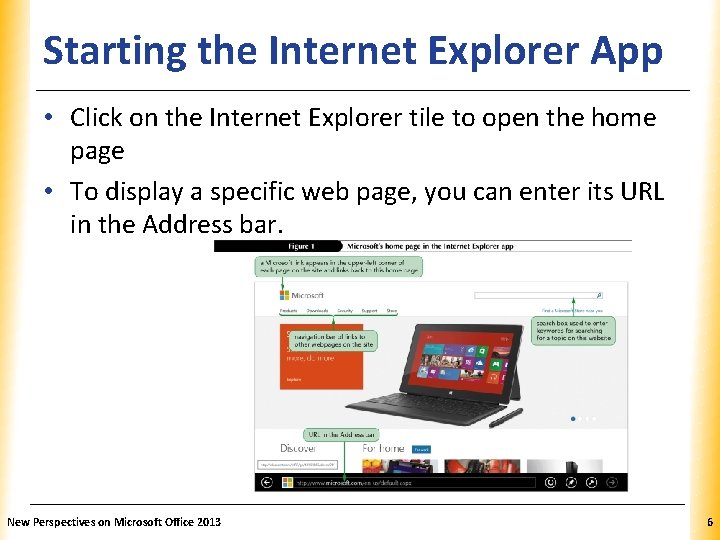
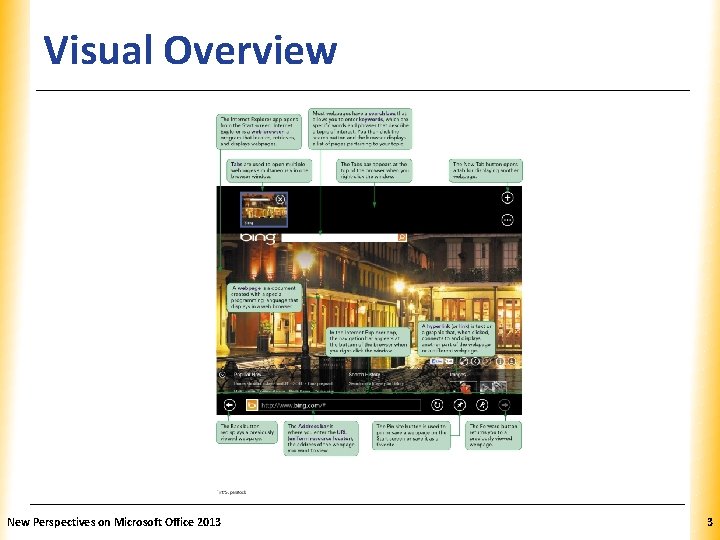
Starting the Internet Explorer App. XP • Click on the Internet Explorer tile to open the home page • To display a specific web page, you can enter its URL in the Address bar. New Perspectives on Microsoft Office 2013 6
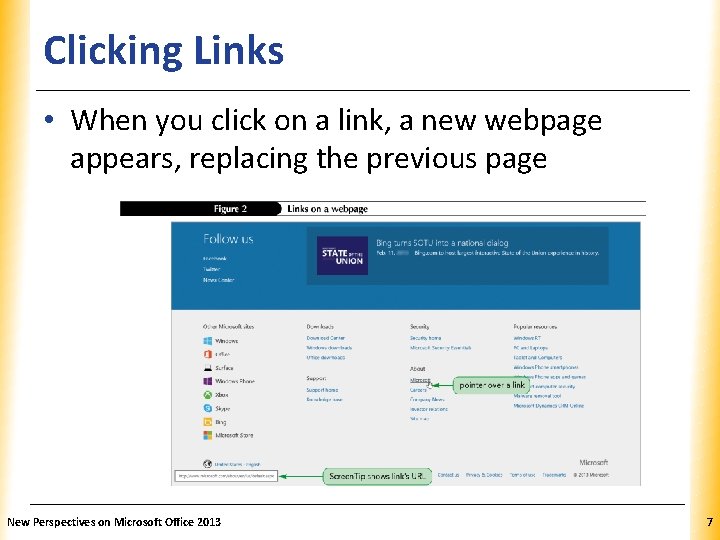
Clicking Links XP • When you click on a link, a new webpage appears, replacing the previous page New Perspectives on Microsoft Office 2013 7
Understanding Search Engines XP • If you don’t know the URL of a site you want to visit you can use a search engine to locate information. • Search engines use a program called a spider or bot to compile databases that are indexed by keywords • When you enter a keyword in a search engine, it searches the database to find webpages that include those keywords • Results are displayed as a list of links to the webpages New Perspectives on Microsoft Office 2013 8
Finding Information on the Web XP • Formulating a Search Strategy – Identify your topic – List keywords that represent your topic – Refine your keywords list – Develop your search query • A search query is the translation of your original question into a form that a search engine can understand. – Refine your search query New Perspectives on Microsoft Office 2013 9
Starting the Internet Explorer Desktop XP Application • To start the Internet Explorer Desktop application: 1. Click on the Start screen 2. Click on the Desktop tile 3. Click on the Internet Explorer button New Perspectives on Microsoft Office 2013 10
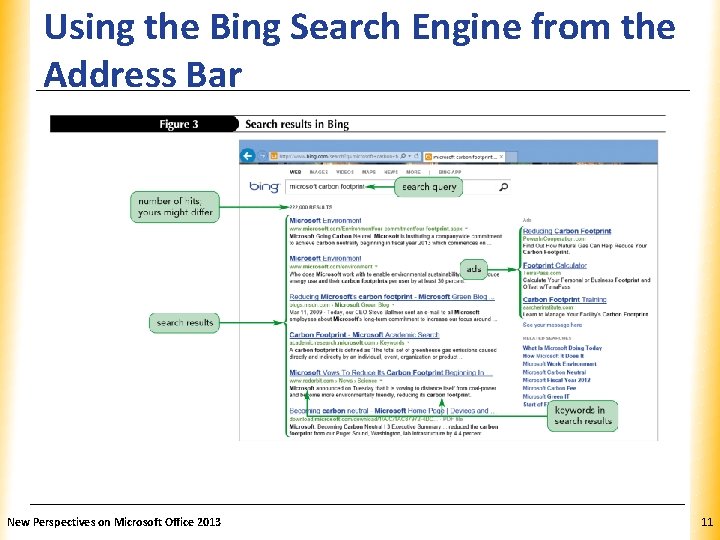
Using the Bing Search Engine from the. XP Address Bar New Perspectives on Microsoft Office 2013 11
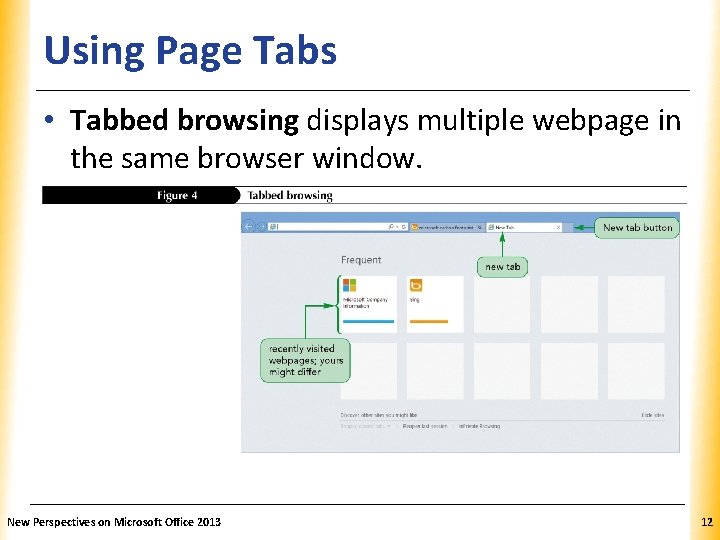
Using Page Tabs XP • Tabbed browsing displays multiple webpage in the same browser window. New Perspectives on Microsoft Office 2013 12
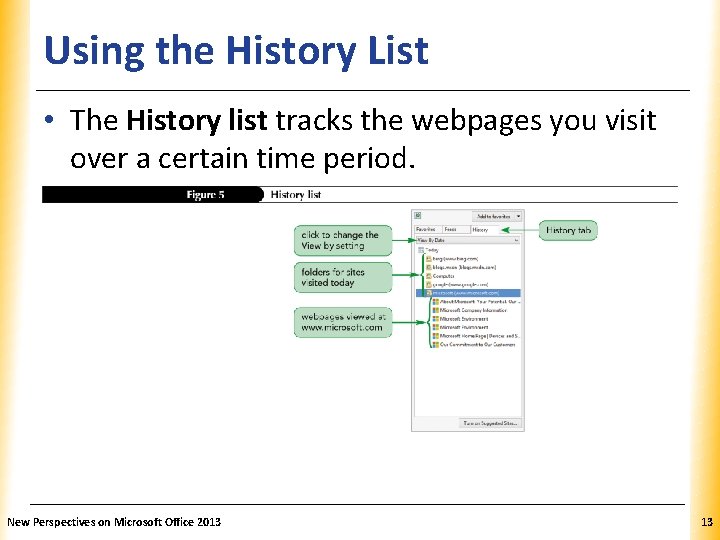
Using the History List XP • The History list tracks the webpages you visit over a certain time period. New Perspectives on Microsoft Office 2013 13
Evaluating the Search Results • • • XP Identify the author Check for objectivity/bias Verify currency Assess accuracy Determine validity Consider relevancy New Perspectives on Microsoft Office 2013 14
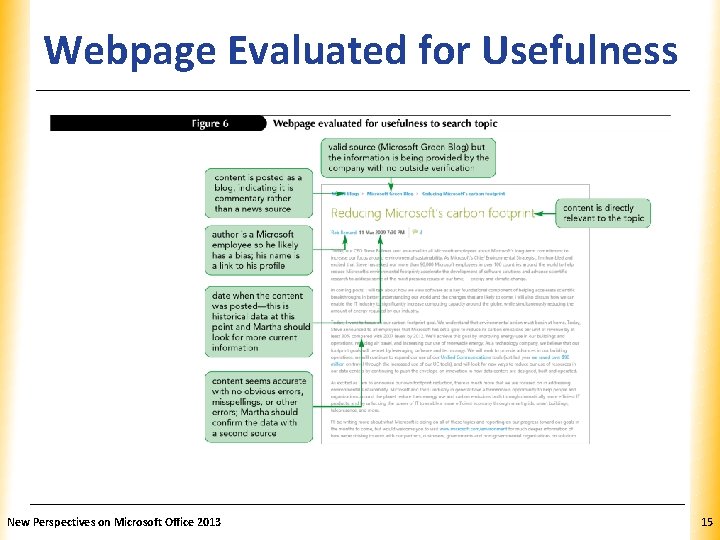
Webpage Evaluated for Usefulness. XP New Perspectives on Microsoft Office 2013 15
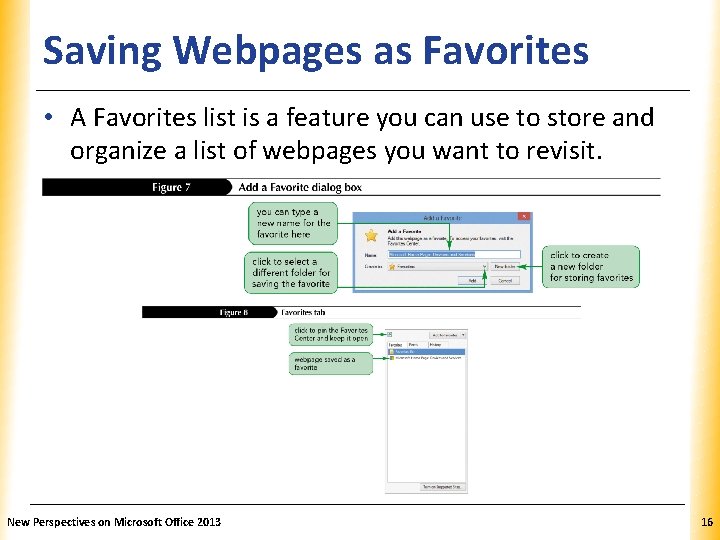
Saving Webpages as Favorites XP • A Favorites list is a feature you can use to store and organize a list of webpages you want to revisit. New Perspectives on Microsoft Office 2013 16
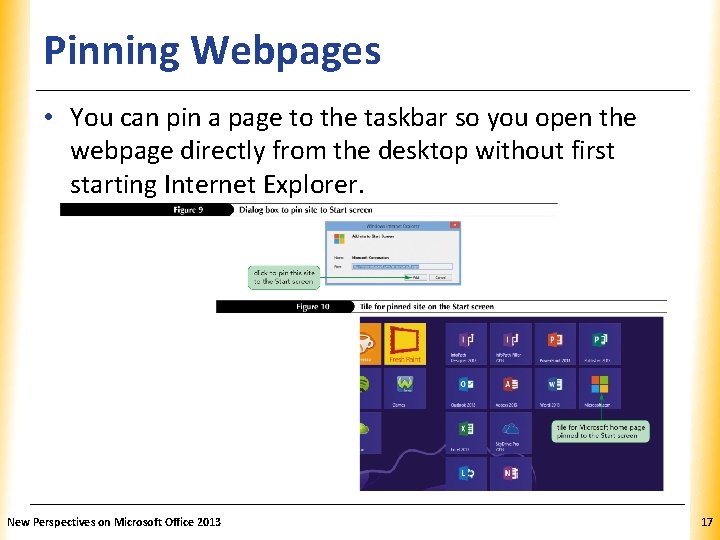
Pinning Webpages XP • You can pin a page to the taskbar so you open the webpage directly from the desktop without first starting Internet Explorer. New Perspectives on Microsoft Office 2013 17
Using the Information you Find XP • The content found on the web is a form of intellectual property. – Intellectual property includes all creations of the human mind presented in a form that can be shared with others. • A copyright is a protection granted by law to the author or creator of an original work who creates a tangible expression of that work or creation. New Perspectives on Microsoft Office 2013 18
Determining Fair Use XP • U. S. copyright law allows portions of copyrighted works to be used without obtaining permission if that use is a fair use. • Four factors usually determine fair use: – The purpose and character of the new work – The nature of the copyrighted work – The amount and substantiality of the portion used in relation to the copyrighted work as a whole – The effect of the use on the potential market, or value, of the copyrighted work New Perspectives on Microsoft Office 2013 19
Identifying Works in the Public Domain XP • When the term of the copyright has expired, the work moves into the public domain and can be copied without requesting permission. • New print editions or audio recordings of public domain work can be copyrighted and protected under current copyright laws. • Authors or creators can place their own work into the public domain voluntarily at any time. • The source of public domain work must be acknowledged to avoid plagiarism. New Perspectives on Microsoft Office 2013 20
Avoiding Plagiarism XP • Failure to cite the source of material you use is called plagiarism. • Claiming someone else’s work as your own is a serious legal violation. • Be sure to properly reference the sources of works that you use. • You must obtain the copyright holder’s permission to use work in a way that falls outside of fair use. New Perspectives on Microsoft Office 2013 21
Documenting Web Resources XP • Material protected by copyright or in the public domain needs to be properly cited. • For academic research, the two most widely used standards for citation are: – American Psychological Association (APA) – Modern Language Association (MLA) New Perspectives on Microsoft Office 2013 22
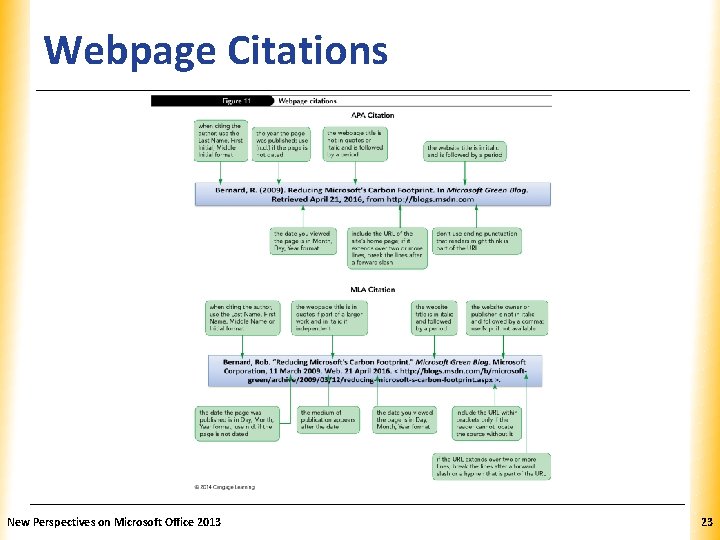
Webpage Citations New Perspectives on Microsoft Office 2013 XP 23
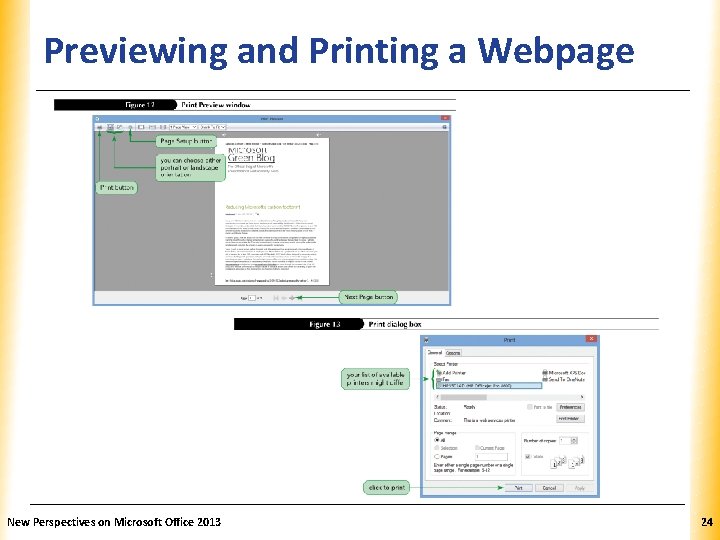
Previewing and Printing a Webpage New Perspectives on Microsoft Office 2013 XP 24
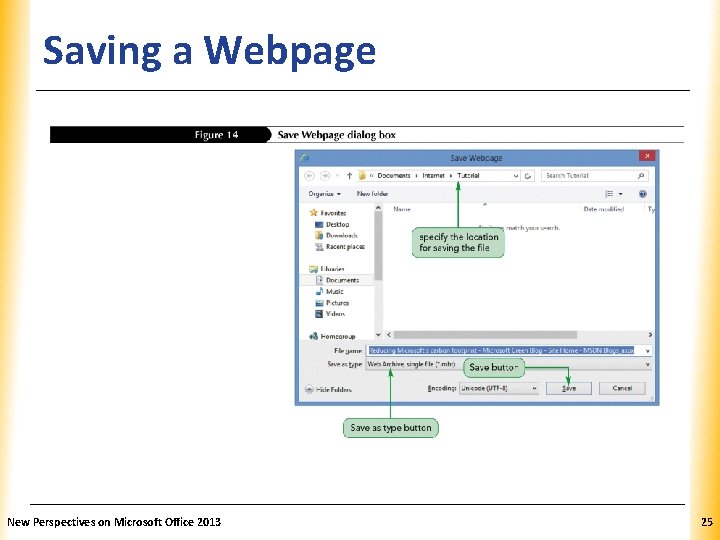
Saving a Webpage New Perspectives on Microsoft Office 2013 XP 25
- Slides: 25