
Internet Basics ADE 100 Computer Literacy Lecture 07
Internet Basics ADE 100 - Computer Literacy Lecture 07
Knowledge test • What do you know about disk format? • What is disk fragmentation? • What is the purpose of device manager? • What happens when we perform disk clean up? • What do you mean by burning a CD?
Topics covered • Introduction to Internet and World Wide Web • Internet browsing applications • Web addresses and links • Interfacing with the Internet browser window
Internet • A huge network of networks • A global communication system that links together thousands of individual networks • Internet provide services • To exchange messages and communicate in real time (seeing messages & responses immediately) • To share data, programs and access limitless store of information
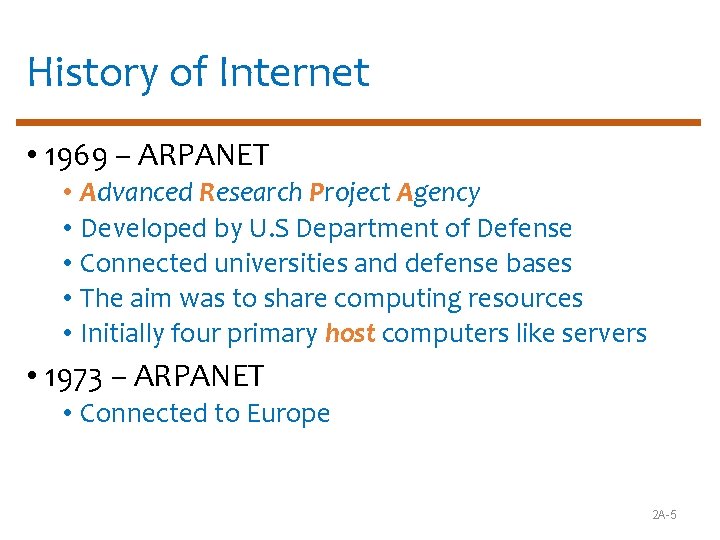
History of Internet • 1969 – ARPANET • Advanced Research Project Agency • Developed by U. S Department of Defense • Connected universities and defense bases • The aim was to share computing resources • Initially four primary host computers like servers • 1973 – ARPANET • Connected to Europe 2 A-5
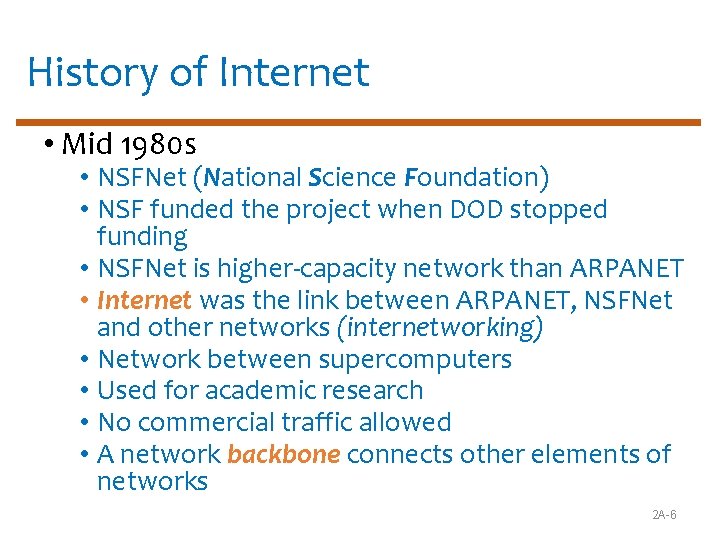
History of Internet • Mid 1980 s • NSFNet (National Science Foundation) • NSF funded the project when DOD stopped funding • NSFNet is higher-capacity network than ARPANET • Internet was the link between ARPANET, NSFNet and other networks (internetworking) • Network between supercomputers • Used for academic research • No commercial traffic allowed • A network backbone connects other elements of networks 2 A-6
History of Internet • 1990 s • ARPANET shut down • NSFNet was discontinued • Commercial networks take over

Today and the Future • 100, 000 new web sites per month • More than 50% of U. S. households online • Access is available throughout the U. S. • Eventually access will be global 2 A-8
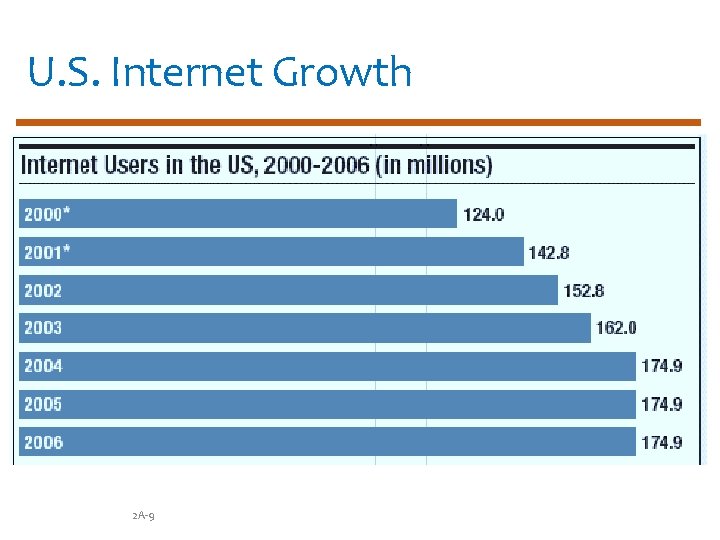
U. S. Internet Growth 2 A-9

Major Services of Internet • The World Wide Web (WWW) • Developed in 1993 by Tim-Berners Lee at European Particle Physics Lab in Geneva, Switzerland • Web of interconnected information/documents • Required a browser to read documents • Web is a service (a system of accessing documents) that is supported by the internet • Electronic mail (e-mail) • Instantaneous transmission of documents 2 A-10
Major Services of Internet • News • Often called newsgroups • Electronic discussions on several topics • File Transfer Protocol (FTP) • Sends and receives files 2 A-11
Major Services of Internet • Chat • Public real time conversation • Instant messaging • Private real time conversation • Peer-to-peer services • Allows sharing of files among users • Napster and Kazaa are examples • Illegal to share copyrighted material 2 A-12
Accessing The Internet • Internet Service Provider (ISP) • Company that provides Internet access • Dialup • Connects to Internet through phone line • Modem connects to the phone line • Slow connection • High-speed access • Connect through a special line • 2 – 25 times faster than dialup • DSL, Cable are common 2 A-13
Understanding the Internet • The Internet allows accessing resources • The Web simplifies the Internet • The Web connects documents • Hypertext creates links between documents • Documents are stored on a web server • HTTP delivers documents 2 A-14
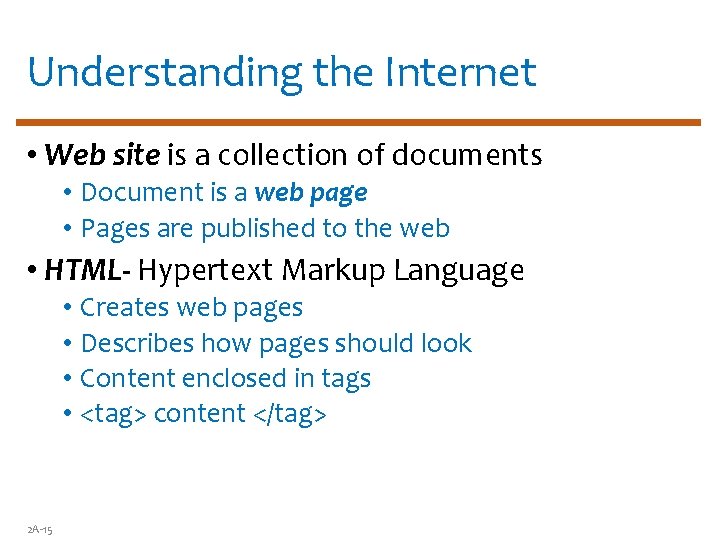
Understanding the Internet • Web site is a collection of documents • Document is a web page • Pages are published to the web • HTML- Hypertext Markup Language • Creates web pages • Describes how pages should look • Content enclosed in tags • <tag> content </tag> 2 A-15

Understanding The Internet • Browsers • Read and translate HTML documents • Display web content • Uniform Resource Locator (URL) • Address of a web page in a special format • Syntax/format: type: //address/path • Type: type of server in which file is located • Address: address of the server • Path: location of file on the server 2 A-16
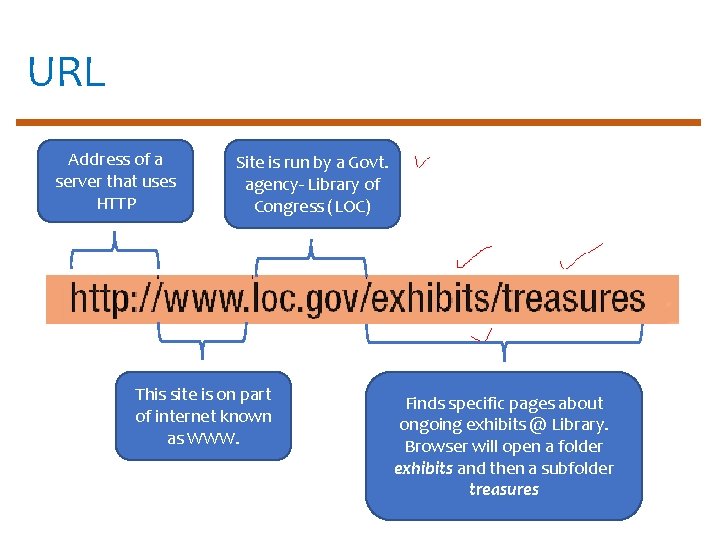
URL Address of a server that uses HTTP Site is run by a Govt. agency- Library of Congress (LOC) This site is on part of internet known as WWW. Finds specific pages about ongoing exhibits @ Library. Browser will open a folder exhibits and then a subfolder treasures

Understanding The Internet • Helper applications • ‘Plug-ins’ required to run special contents online like special formats of audio & video files. • Adobe flash player • Enhance a browser’s functionality • Streaming audio and video • Sends the file in small chunks • Chunks downloaded while others play 2 A-18

Streaming Audio
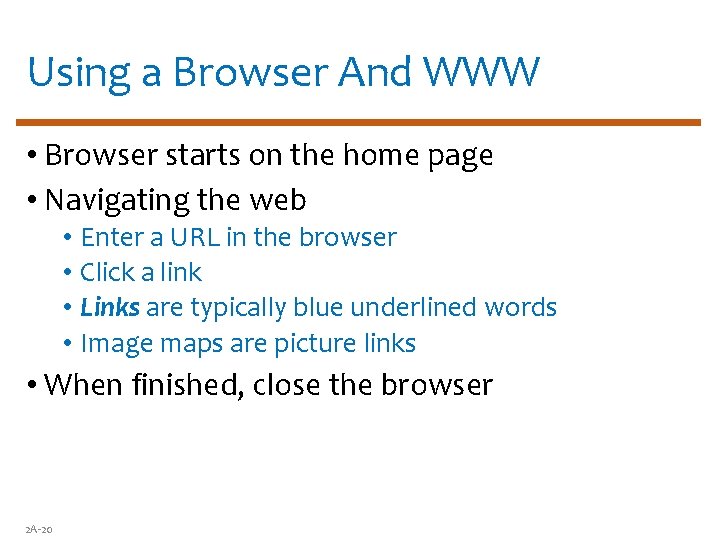
Using a Browser And WWW • Browser starts on the home page • Navigating the web • Enter a URL in the browser • Click a link • Links are typically blue underlined words • Image maps are picture links • When finished, close the browser 2 A-20
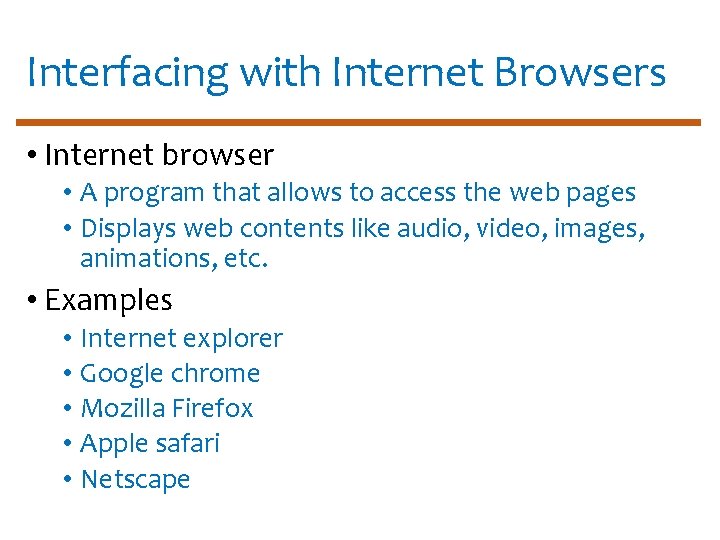
Interfacing with Internet Browsers • Internet browser • A program that allows to access the web pages • Displays web contents like audio, video, images, animations, etc. • Examples • Internet explorer • Google chrome • Mozilla Firefox • Apple safari • Netscape

Internet explorer

Google chrome

Mozilla Firefox
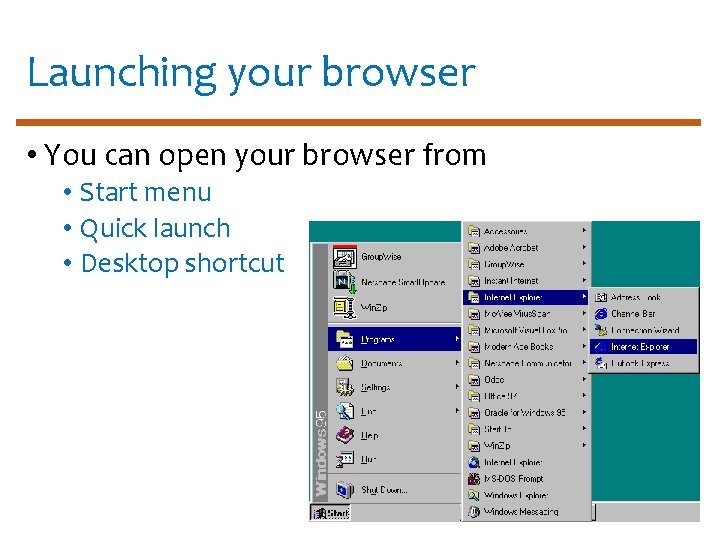
Launching your browser • You can open your browser from • Start menu • Quick launch • Desktop shortcut
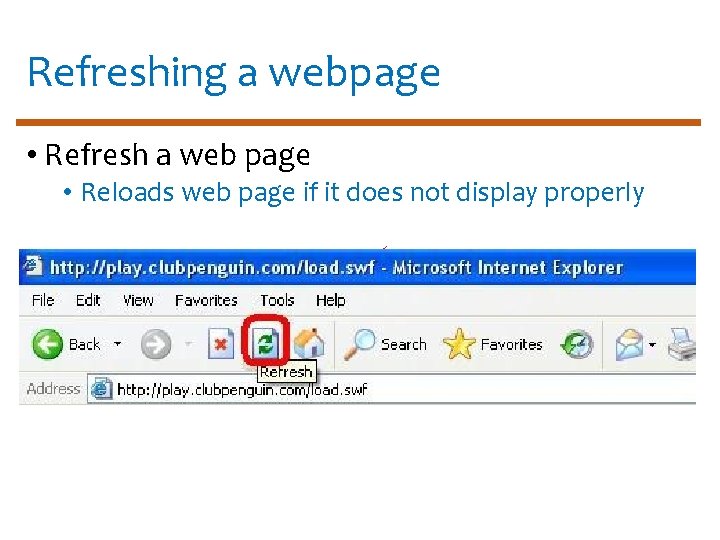
Refreshing a webpage • Refresh a web page • Reloads web page if it does not display properly
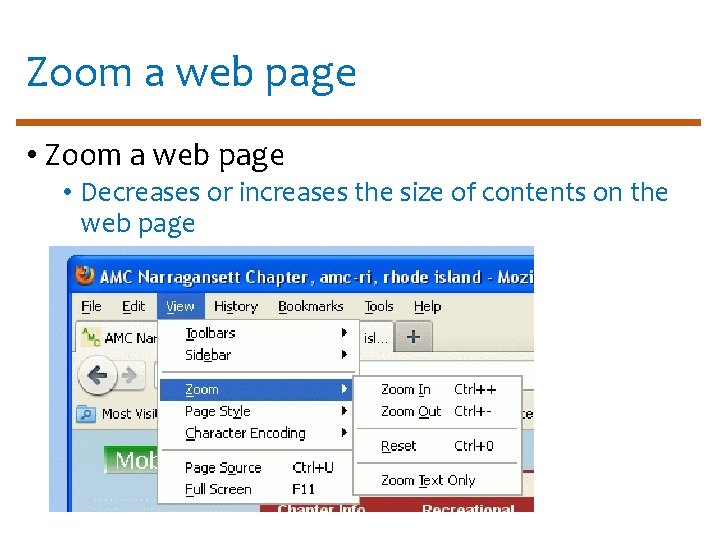
Zoom a web page • Decreases or increases the size of contents on the web page
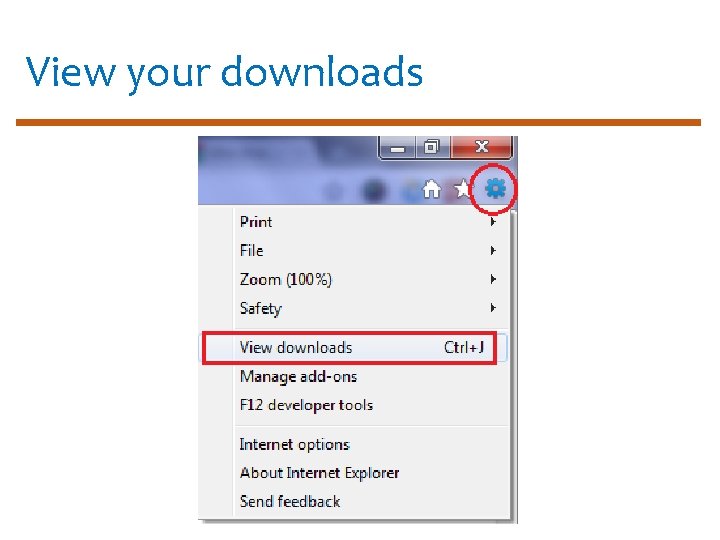
View your downloads
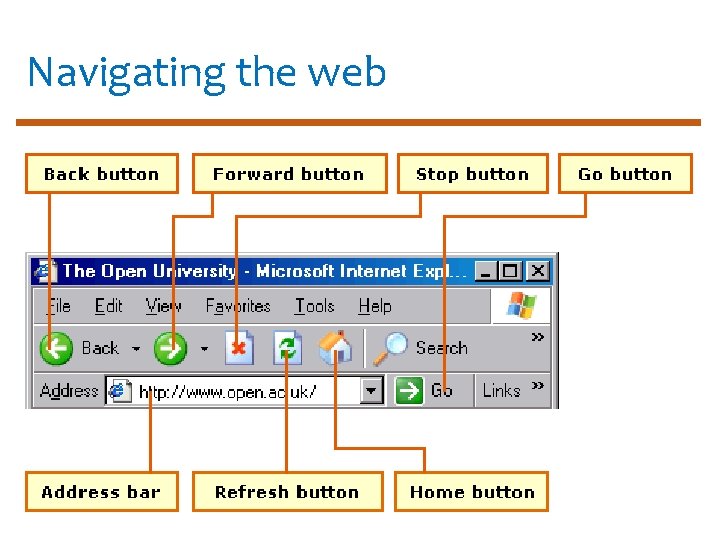
Navigating the web
Navigating the web • Navigating the web means • Moving from one web page/website to another • Different ways to navigate the web • Using URLS • Every website has a unique address • Browser finds the URL page and transfer to your PC • Several ways to enter URL • Type URL in address box • Click a hyperlink • open from Favorites list
Navigating the web • Using hyperlinks • Hyperlink is a part of webpage, linked to a URL • May appear as text, image, button or arrow • Usually underlined • When your mouse pointer touches hyperlink text, the pointer shape changes to resemble a hand with a pointing index finger • Using browser navigation tools • Bookmarks • Back and forward buttons • Choose a URL from history list in the address box
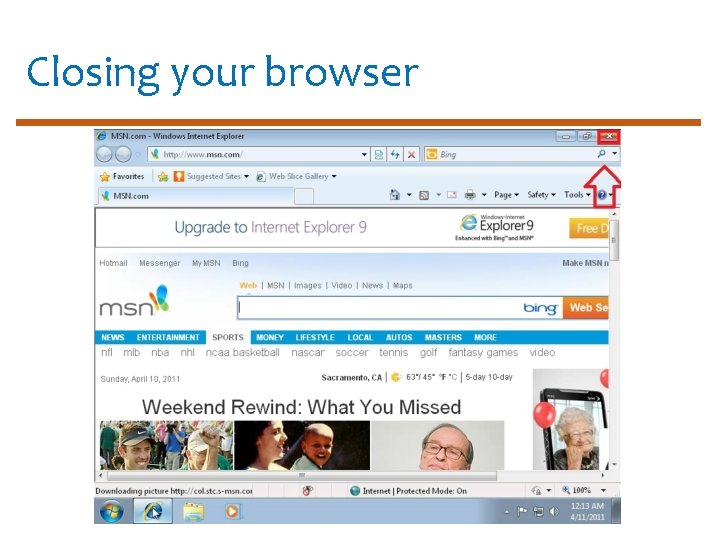
Closing your browser
Getting help with your browser • Open browser’s Help menu • Choose Contents and Index (depending on browser, it may be Contents, Help Contents or something similar) • A Help window will appear listing all the topics • Select a topic of your interest and its help will be opened. • When done then click Close button

Getting Browser Help
Activity- (20 minutes) • Open and explore menu bar, toolbars, scroll bars and buttons of your browser. • Enter some URLs you know from address box. • Choose a URL from your favorites and bookmarks. • Move from your current webpage to the previous and then next page you currently viewed. • Go to your home web page. • Refresh or reload a web page.
Activity- (20 minutes) • Zoom in and Zoom out your web page. • View your browser settings.
Further reading • Introduction to Computers, 7/e by Peter Norton • Lesson 8 A: The Internet and the World Wide Web
Thanks End of Lecture 07

Allah Hafiz
- Slides: 39