
Intermediate Power Point Lorrie Jackson ljacksonlausanneschool com Steps



- Slides: 68
Intermediate Power. Point Lorrie Jackson ljackson@lausanneschool. com
Steps to Making a Power. Point Presentation • Plan - What is your topic? • Prepare Create the presentation • Practice Rehearse • Present!
Some Vocabulary to Know: • Presentation - a Power. Point file • Slide - a page in a Power. Point file • Slide Show - displaying the pages in order • Background - the color or picture behind the text • Template - a pre-designed background (ex. the crayons)
Step 1: Plan! • Think of something you know about but many of your labmates won’t. • Think of three things you can teach us about it.
Step 2: Prepare • Open up Microsoft Office • Open up Power. Point • Opens with the title slide
Title Slide • Type the name of your topic in the title blank • In the second blank, type your full name, today’s date, and the phrase “Power. Point Activity 1. ”
3 Ways To Create a Slide 1. CTRL M 2. Click on the white paper icon with a starburst on top right corner of screen 3. Insert>New Slide
Slide #2 • Create a new slide and scroll to Text and Content Layouts in the Slide Layout task pane (new in XP) • Click on top left choice (Title, Text, and Content) • Title: your topic • Text: Describe your topic in three short bullets (don’t use periods or complete sentences)
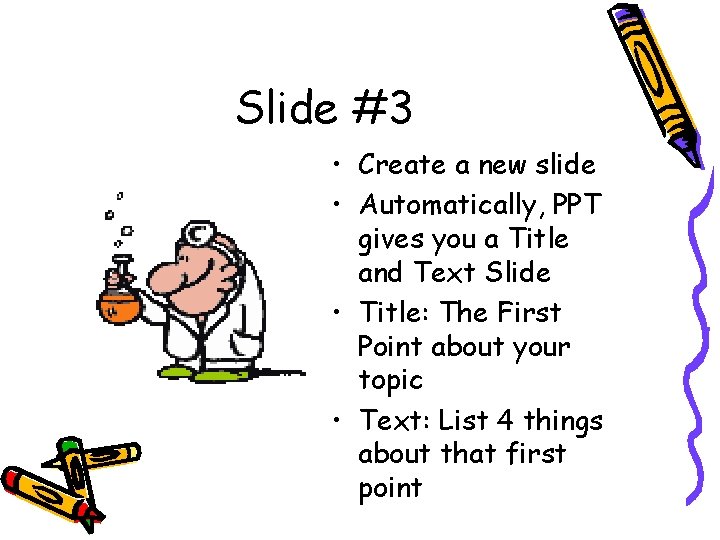
Slide #3 • Create a new slide • Automatically, PPT gives you a Title and Text Slide • Title: The First Point about your topic • Text: List 4 things about that first point
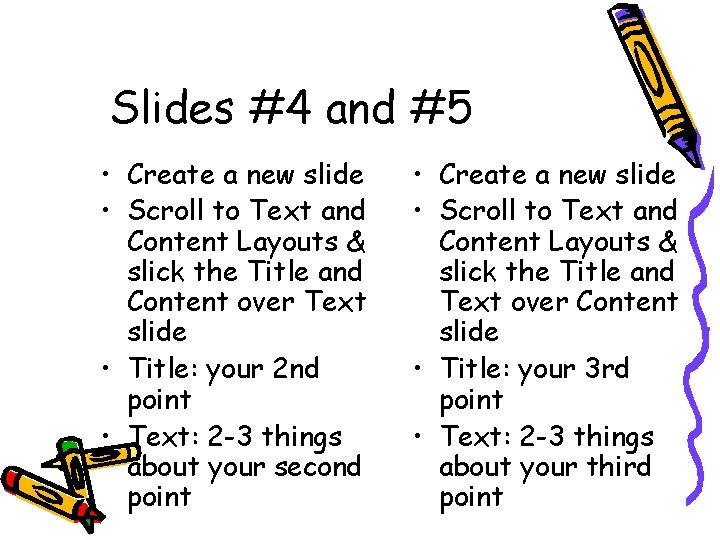
Slides #4 and #5 • Create a new slide • Scroll to Text and Content Layouts & slick the Title and Content over Text slide • Title: your 2 nd point • Text: 2 -3 things about your second point • Create a new slide • Scroll to Text and Content Layouts & slick the Title and Text over Content slide • Title: your 3 rd point • Text: 2 -3 things about your third point
Last Slide • Create a new slide, scroll up to the top of the task pane and click the Title Only slide • Title: The End!
Save your work • • Save your work to your floppy Go to Slide Show>View Show (or F 5) Watch show Use arrow keys or right-click to navigate by title for more control
Text is in, Now for Fun! • Go to Design on top right corner of screen • Select a template you want to use (click it once) • If you want more control, go to Format>Background and click the down arrow for options of colors, fill effects, etc. • Good for customizing your show and being unique
Fonts • Go to Format>Replace Fonts • Click in the With blank and choose the font you want to use • Change the color of the text by clicking on color schemes in the slide design task pane • Change the size of the font by highlighting it and clicking on the number besides the font name above
Inserting Images • Go to your title page • Go to Insert>Picture>Clip Art • Type a search or just scroll and click on the image you like • Want more, click on Globe at bottom right corner, and find many more images at Microsoft Clip Art Gallery on the Net
Using Images from the Web • Right-click on an image on the Internet, the select copy • Click back into your slide show and right-click and select paste • Legal? Fair Use – one copy for classroom use (not on your Web page) • Ask your school!
Images • Once the picture is on your slide, you can adjust its size by clicking on it until white circles appear around it and dragging those boxes in or out. • Green circle rotates image • Click until you see an icon with icons going up and down, left and right, then hold the mouse button down and drag the pic where you want it.
White Box around image? ? • Click on image • Go to View>Toolbars>Picture • Click on 2 nd icon from right (blue pen) • Click on white box • Gone!
Other Images • Can scan photos or retrieve them from email, floppy, or hard drive • Insert>Picture>From File • Browse and find photo and hit Insert • Scanning pics can be tricky (watch extensions: jpg, gif, etc. )
SAVE YOUR WORK
Look at bottom left corner: There are 3 ways to look at your slide show: 1. Normal: 2. Slide Sorter: to change order 3. Slide Show:
Slide Sorter • Click on the middle icon above the word Draw in the bottom left-hand corner • You should now see all your slides. • Click on your 5 th slide and drag it in front of your 4 th slide. See how the slide show is changed! • Save your work!
Sounds! • Double-click your title slide • Go to Insert>Movies and Sounds>From Clip Organizer • Click on the sound you want to insert in your first slide • Click Yes when it asks if you want to hear it when you first move to that slide
Sounds • Follow these steps to insert sound on your last slide as well • Click F 5, go to Slide Show>View Slide Show, or click on the 5 th view icon to see your show so far!
More with sound • Add CD tracks • Hide the speaker icon – create a white square with white fill and no line to cover it • Add your voice!
Animation • Save Your Work And Let’s get moving! • Animation Schemes – new in XP • Combine the old custom animation (pictures and text move) and slide transition (whole slide moves) • Go to your title slide, then to Design>Animation Schemes in task pane
Animation • • Click on a scheme Subtle, Moderate, Exciting Click Apply to All Slides if desired Play - preview
Animation • For more control: go to Slide Show>Custom Animation or Slide Transitions • Save your work • View your slide show
Inserting Hyperlinks • A way to connect you to a web site • Go to your second slide, • Click on some text or your piece of clip art • Go to Insert>Hyperlink or CTRL K • Type in a web site’s address on your topic
Inserting a link to email • • • Go to your title slide Highlight your name Hit CTRL K or Insert>Hyperlink Click E-Mail address Type your email address
Congrats! • Play around with what you’ve learned today • Save your work and print your slide show (select Handouts and 6 to a page on Print Window)
Wait for further instructions before proceeding!
What are we doing? • Most Power. Point presentations are linear • Linear – one slide after another • Interactive Power. Points – way to review concepts • Teachers and students can make them • Will view a demo and create your own
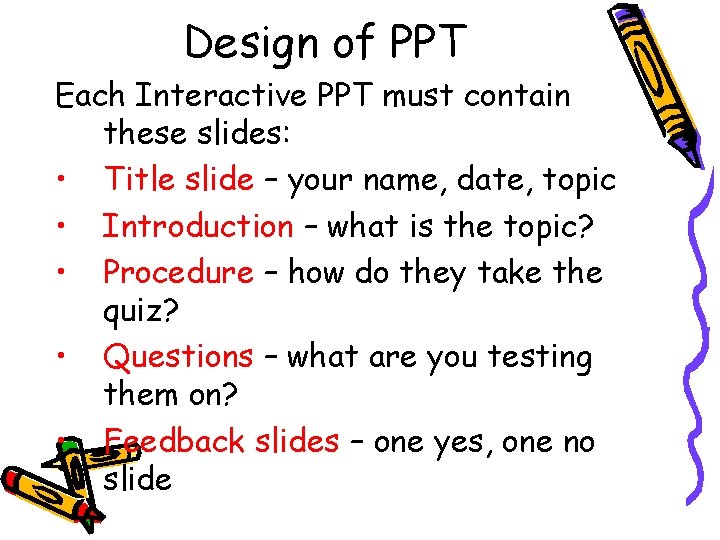
Design of PPT Each Interactive PPT must contain these slides: • Title slide – your name, date, topic • Introduction – what is the topic? • Procedure – how do they take the quiz? • Questions – what are you testing them on? • Feedback slides – one yes, one no slide
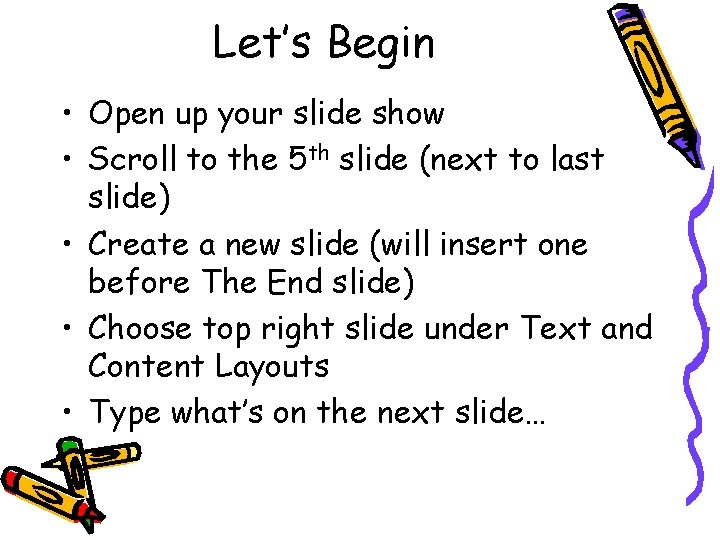
Let’s Begin • Open up your slide show • Scroll to the 5 th slide (next to last slide) • Create a new slide (will insert one before The End slide) • Choose top right slide under Text and Content Layouts • Type what’s on the next slide…
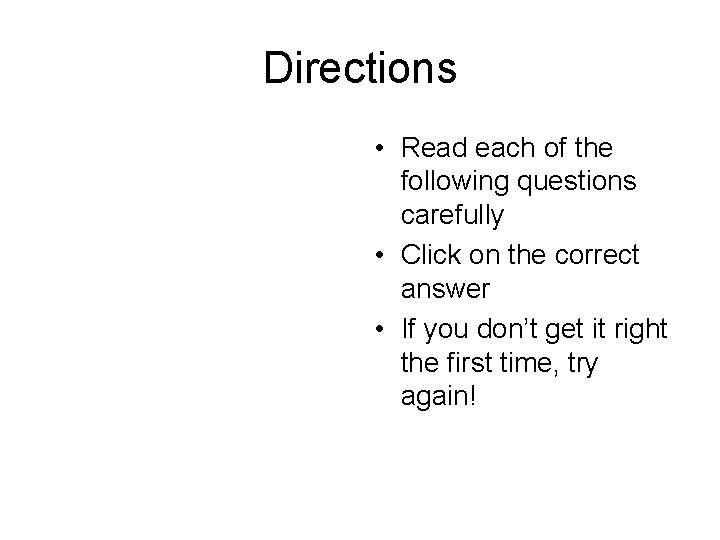
Directions • Read each of the following questions carefully • Click on the correct answer • If you don’t get it right the first time, try again!
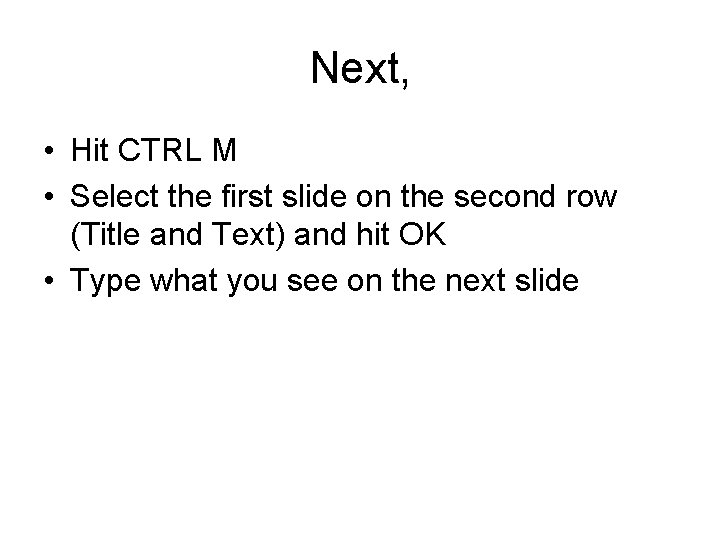
Next, • Hit CTRL M • Select the first slide on the second row (Title and Text) and hit OK • Type what you see on the next slide
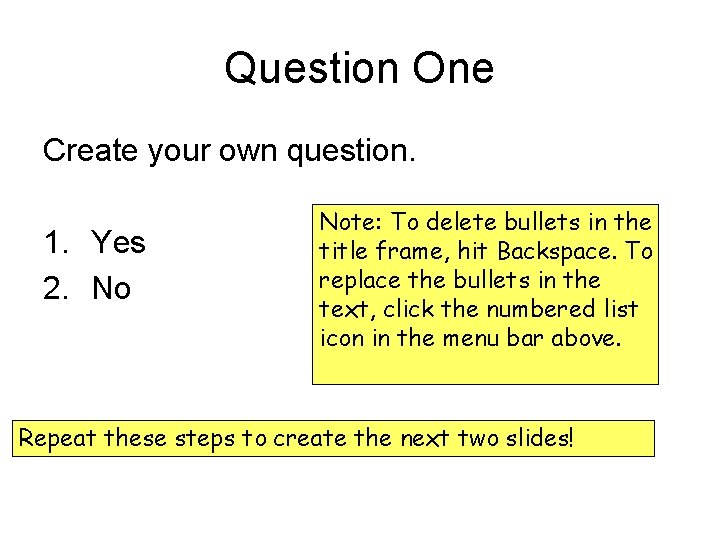
Question One Create your own question. 1. Yes 2. No Note: To delete bullets in the title frame, hit Backspace. To replace the bullets in the text, click the numbered list icon in the menu bar above. Repeat these steps to create the next two slides!
Question Two Create your own question. 1. Yes 2. No
Question Three Create your own question. 1. Yes 2. No
Finally, • Scroll to last slide in show (page down) • Replace “The End” with…
Great Job, Class!!
What have we done? We’ve typed the: 1. title slide 2. introduction 3. directions 4. questions What’s left? ? The feedback slides!
Feedback slides • Even though there are three questions, we only need to make two feedback slides (one for yes, one no) • We’ll copy them later • Hit CTRL M and select top right slide (Title Only) • Type what you see in the next slide
You’re right! Hit CTRL M again, then select the top Right slide (title only) and type what you see on the next slide!
Uh-Oh! Try again!
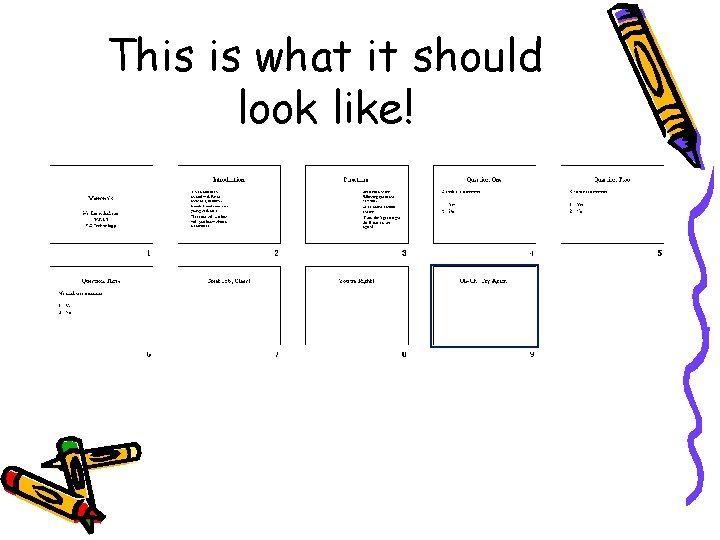
This is what it should look like! put mock-up of side sorter here!
Save! CTRL S and save your Power. Point as: Your. Name and put it on the desktop
The Tough Stuff • Click on Slide Sorter in bottom left corner of screen • Click on the “You’re Right” slide, and hit CTRL C • Click just behind the slide for Question One and hit CTRL V
More Tough Stuff • Click behind the slide for question two and hit CTRL V (“You’re Right” slide should be there too now!) • Repeat this process for the “Uh-Oh!” slide for both questions (click it, hit CTRL C, click behind each “You’re Right” slide, and hit CTRL V) • Drag the “Great Job” slide behind the last “Uh-Oh” slide to end the show!
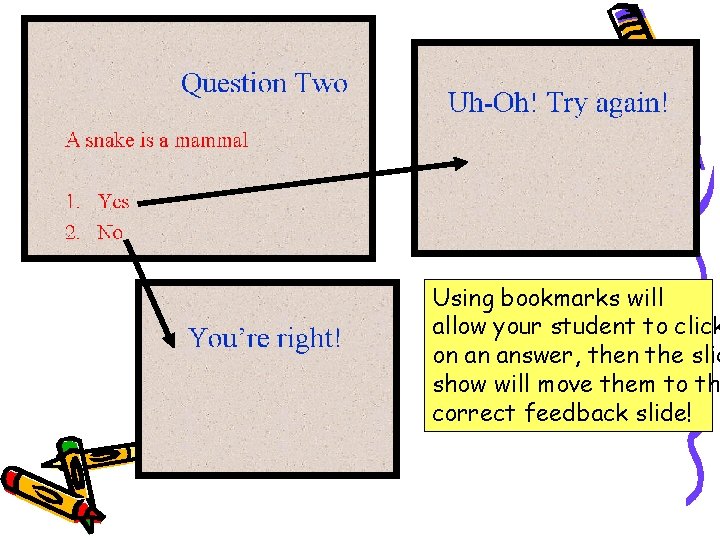
Bookmarking • Bookmarks - links to other parts of your document. • We will bookmark each answer on your question slides to a feedback slide • See the next slide to see how this works.
Using bookmarks will allow your student to click on an answer, then the slid show will move them to th correct feedback slide!
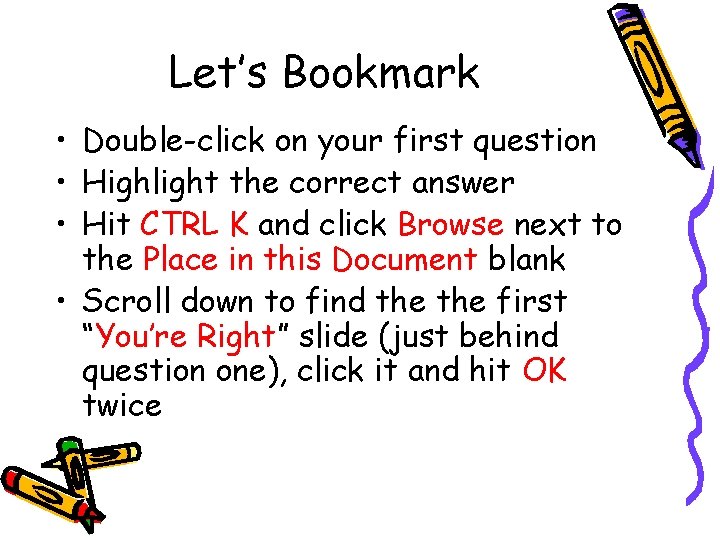
Let’s Bookmark • Double-click on your first question • Highlight the correct answer • Hit CTRL K and click Browse next to the Place in this Document blank • Scroll down to find the first “You’re Right” slide (just behind question one), click it and hit OK twice
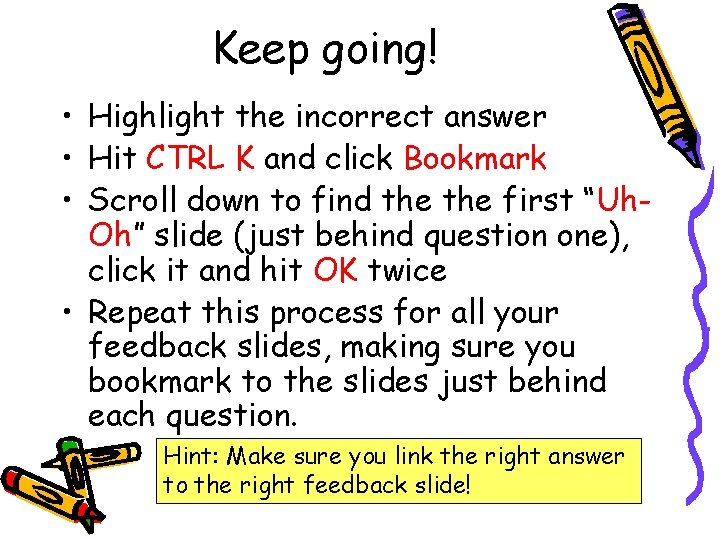
Keep going! • Highlight the incorrect answer • Hit CTRL K and click Bookmark • Scroll down to find the first “Uh. Oh” slide (just behind question one), click it and hit OK twice • Repeat this process for all your feedback slides, making sure you bookmark to the slides just behind each question. Hint: Make sure you link the right answer to the right feedback slide!
Action Buttons • • • Save your work View your show What works? What doesn’t work? What’s missing? Action Buttons!
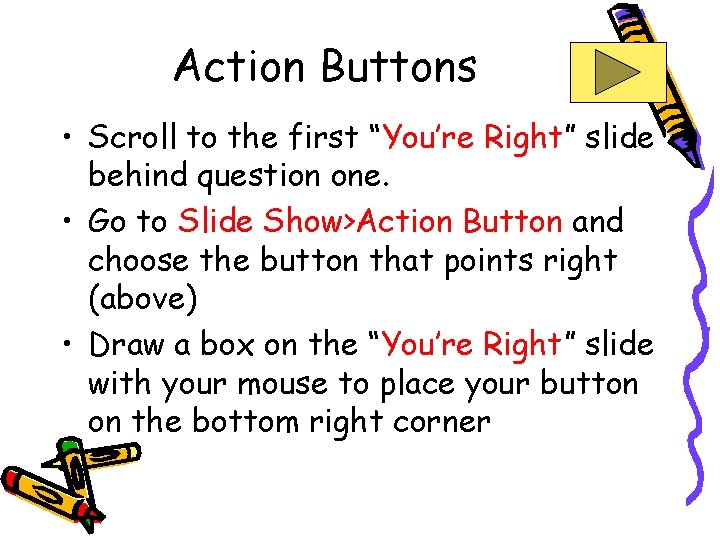
Action Buttons • Scroll to the first “You’re Right” slide behind question one. • Go to Slide Show>Action Button and choose the button that points right (above) • Draw a box on the “You’re Right” slide with your mouse to place your button on the bottom right corner
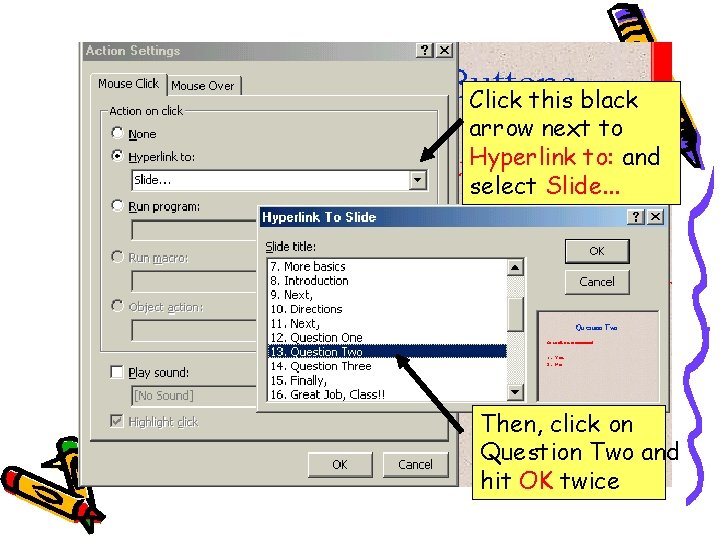
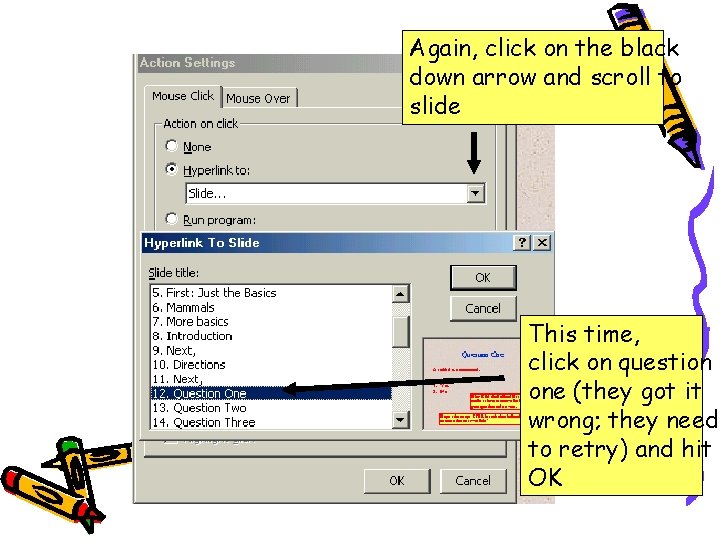
Click this black arrow next to Hyperlink to: and select Slide. . . Then, click on Question Two and hit OK twice
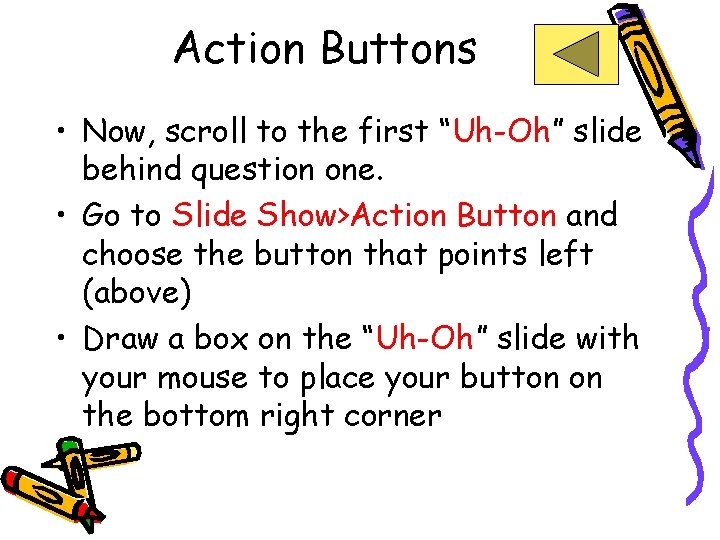
Action Buttons • Now, scroll to the first “Uh-Oh” slide behind question one. • Go to Slide Show>Action Button and choose the button that points left (above) • Draw a box on the “Uh-Oh” slide with your mouse to place your button on the bottom right corner
Again, click on the black down arrow and scroll to slide This time, click on question one (they got it wrong; they need to retry) and hit OK
Repeat This Process • Now, go to the “You’re Right” slide behind question two and repeat the process (making sure you make your action button go to Question Three) • Do the same for: “Uh-Oh” (Question Two) Question Two “You’re Right” (Q 3) Last Slide “Uh-Oh” (Q 3) Question Three
Save and Test! • Save your work (CTRL S) • Go to Slide Show> View Show • Even if you didn’t get it all, you’re learned a lot!!
Relax! Fun Facts • Printing PPTs- go to File>Print • Click Handouts • Choose Black and White unless actually printing in color • 6 slides (or less if wanting others to take notes on handouts)
Students and PPT • Time – only allow ¼ of your time on PPT (very end of a project) • Give them a chance to play with bells and whistles, then show each other • Kids will get tired of the sounds and motion • 6 x 6 rule – no more than 6 words per bullet, 6 bullets per page
Teaching with PPT • Studies find that teachers move more quickly in lectures with PPT • But…kids can’t think as fast as we click • Most of the time: put only outline on PPT • Or…make a “skeleton” PPT for them to fill in as you talk
Presenting with PPT • Conferences, etc. – most are bored with PPT (esp. transitions and “spoon people”) • Keep design appropriate for audience • Dark background with light text easier on eyes but feels strange • Take lighting into account
Tricks to Impress • • Kiosk – go to Slide Show>Set Up Show Click Browsed at a Kiosk and hit OK This will have the slide show run non-stop Do this for Parents’ Night or when you want to display a show continuously while you do something else (like a poster) • Can be used for a science fair or other display of student work
Other Resources • http: //school. discovery. com/clipart/categ ory/anmt 01. html - for clip art you can use legally on your Web page • http: //www. powerpointers. com • http: //www. microsoft. com/office/powerpo int/ • http: //www. presentersuniversity. com/inde x. cfm • http: //www. presentationpro. com/Power. TI PS/
Congratulations! Email me at ljackson@lausanneschool. com with any questions Check this presentation out at www. lausanneschool. com/ techtuesdays. html