
Interactive maps pz ttCSUN 16 map www accessibilityoz
Interactive maps pz. tt/CSUN 16 -map www. accessibilityoz. com. au @accessibilityoz
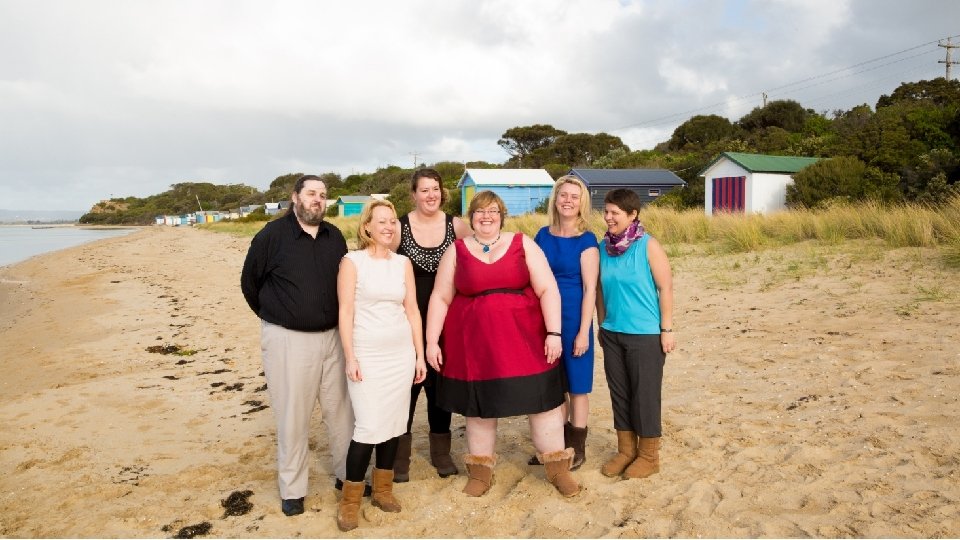
Dyslexia Moderate vision impairment Severe vision impairment Epilepsy Migraines Physical impairment Fibromyalgia Multiple Sclerosis Crohns Disease PTSD Aspergers

It’s not just about vision impairments
Our Services § § § Audits Mobile testing Building web sites CMS testing Accessible design Video accessibility @accessibilityoz § § User testing OS / browser testing Consultation Accessible documents
Our Products § Oz. Player § Oz. ART § Oz. Wiki @accessibilityoz More information: www. accessibilityoz. com
Oz. Wiki Interactive maps factsheet A 11 yoz. com/fsmap gian@accessibilityoz. com. au
Impact on the end user gian@accessibilityoz. com
Impacts: Lack of description Some maps do not have any text description: § There are some people with disabilities that will not be able to see or interact with the map at all – they need a text description @accessibilityoz
Impacts: Lack of screen reader accessibility “Maps are very important source of information for blind users. Maps designers should never assume the data they prepare won't ever be used by people with visual impairment. Parking areas for instance are quite often places of meeting with one's befriended driver. One must know the area to be sure that the place of meeting is not a large three-story building where finding your friend's car and not being killed by other cars is a real possibility. “ @accessibilityoz
Impacts: Keyboard inaccessibility Some maps cannot be operated with the keyboard or do not have a highly visible keyboard focus indicator § This limits the map use to mouse users only § Many assistive technologies mimic the keyboard – they will not be able to interact with the map either @accessibilityoz

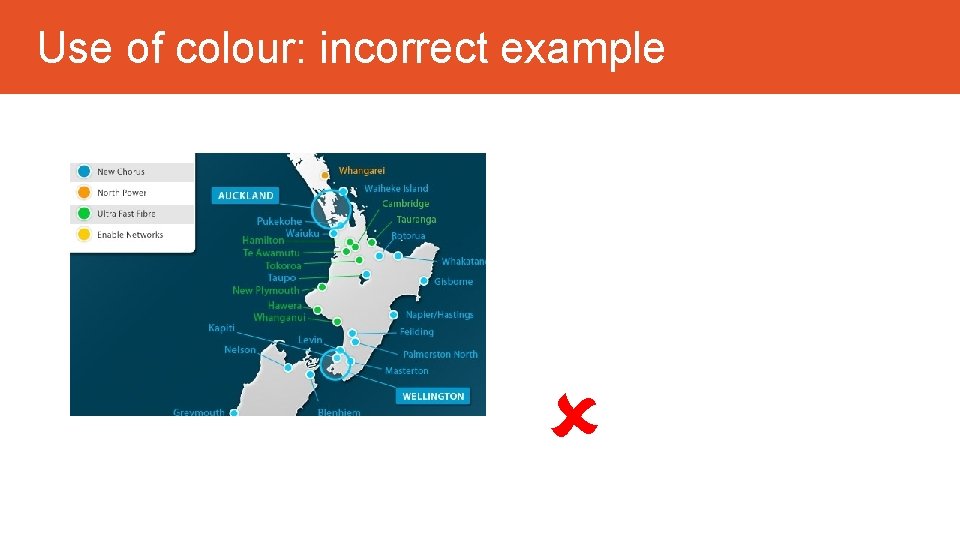
Impact: Use of colour Some maps rely on colour to convey information, or colour contrast is not sufficient § People who are colorblind may not be able to understand features of the map @accessibilityoz
Impact: Increase text size Some map text content cannot be increased § People who have mild vision impairments may not be able to read the content on the map @accessibilityoz

So how do you create an accessible interactive map?
Accessible interactive maps 1. 2. 3. 4. 5. 6. Provide a long description in text Make the map screen reader accessible Make the map keyboard accessible Meet colour contrast requirements Use icons in addition to colour Ensure users can increase text size @accessibilityoz
Accessible interactive maps 1. 2. 3. 4. 5. Provide a long description in text Make the map keyboard accessible Meet colour contrast requirements Use icons in addition to colour Ensure users can increase text size @accessibilityoz
Step One Long description gian@accessibilityoz. com. au
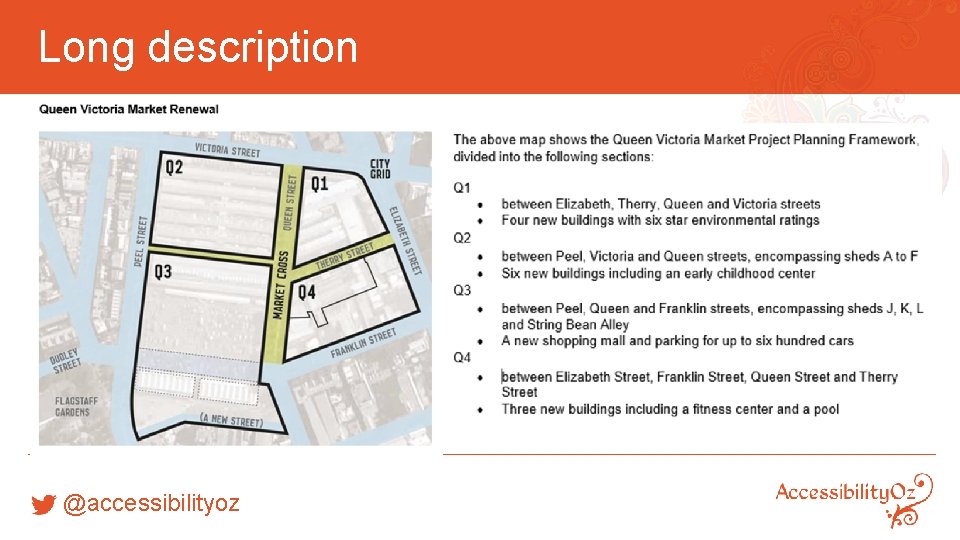
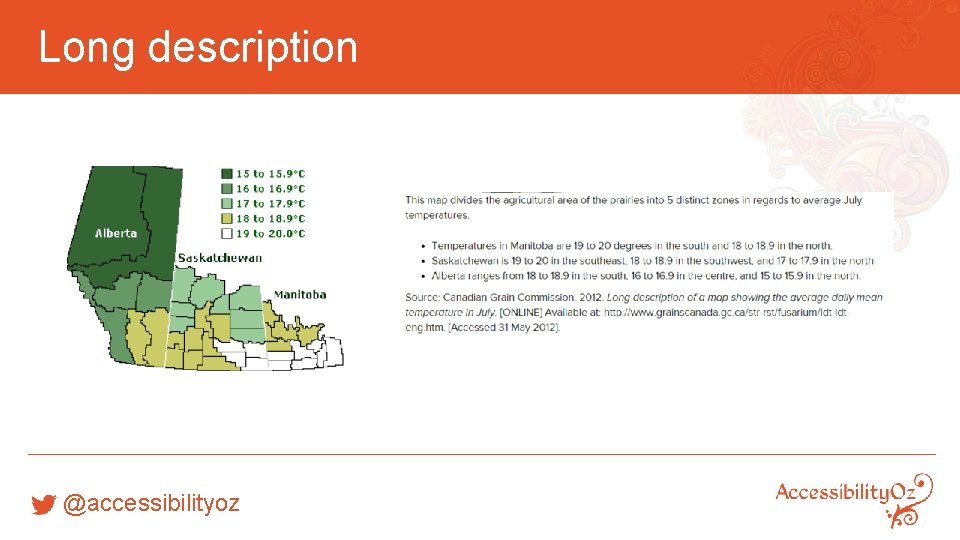
Long description § Providing an ALT attribute for image-based maps. § Ensure client-side image maps have accurate ALT attributes to indicate areas of a map or important markers § Provide a text version in a table of the important locations @accessibilityoz
§ Describe only those aspects of the map that are relevant, e. g. the most important point or the most common feature of the map § Describe the distance (in kilometres or metres) from important points. § If the map will be used for transport, give directions for car, public transport and/or walking. @accessibilityoz
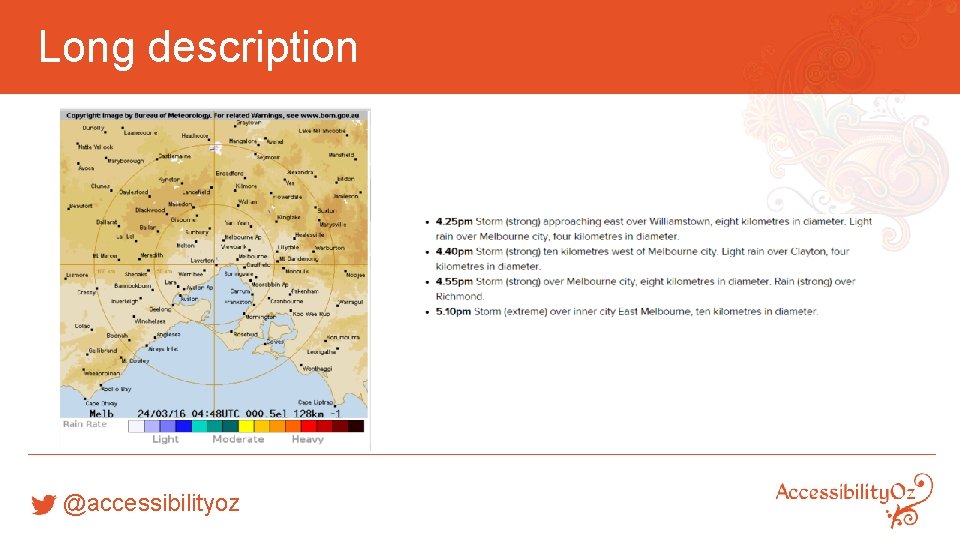
§ If the map is time-sensitive, mark the times in the long description. § If the map is a transport map, organise the map by train, bus or train line and describe the locations and distances travelled. § If the map is a topographical map, mark the height at which important points occur. @accessibilityoz
Long description @accessibilityoz
Long description @accessibilityoz
Long description @accessibilityoz
Step Two Screen reader accessibility gian@accessibilityoz. com. au
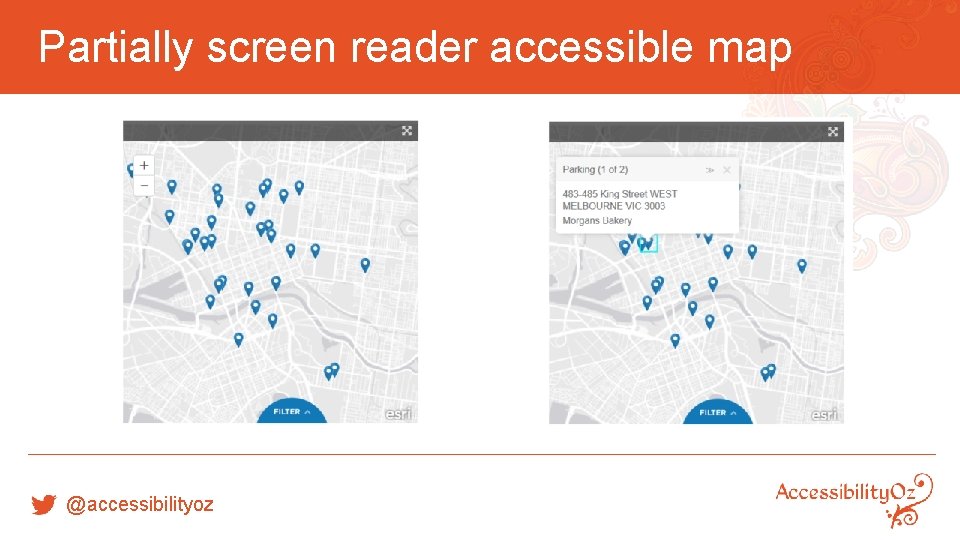
Partially screen reader accessible map @accessibilityoz
“Icons representing parking areas on the map could only be selected randomly. ” “All icons have the same label "graphic, Map. Marker. Icons/blue_pin" (JAWS) or "graphic [number]" (NVDA). Only after I selected the parking area I could read its name and address. ” @accessibilityoz
“I could select the area the same way as parkings: randomly, on Firefox with JAWS and NVDA. Without labels (for instance names of districts) such selection makes no sense. I've never learnt what area I actually selected. ” @accessibilityoz
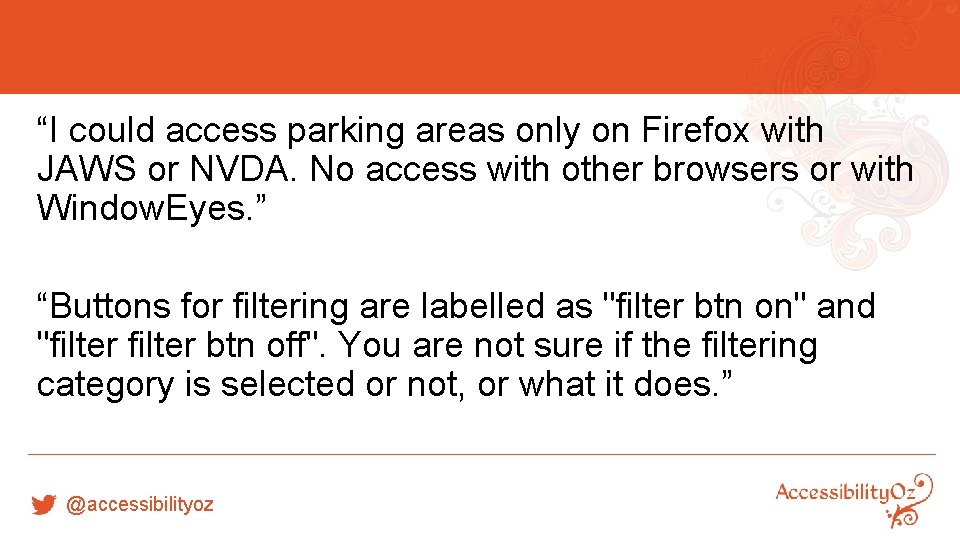
“I could access parking areas only on Firefox with JAWS or NVDA. No access with other browsers or with Window. Eyes. ” “Buttons for filtering are labelled as "filter btn on" and "filter btn off". You are not sure if the filtering category is selected or not, or what it does. ” @accessibilityoz
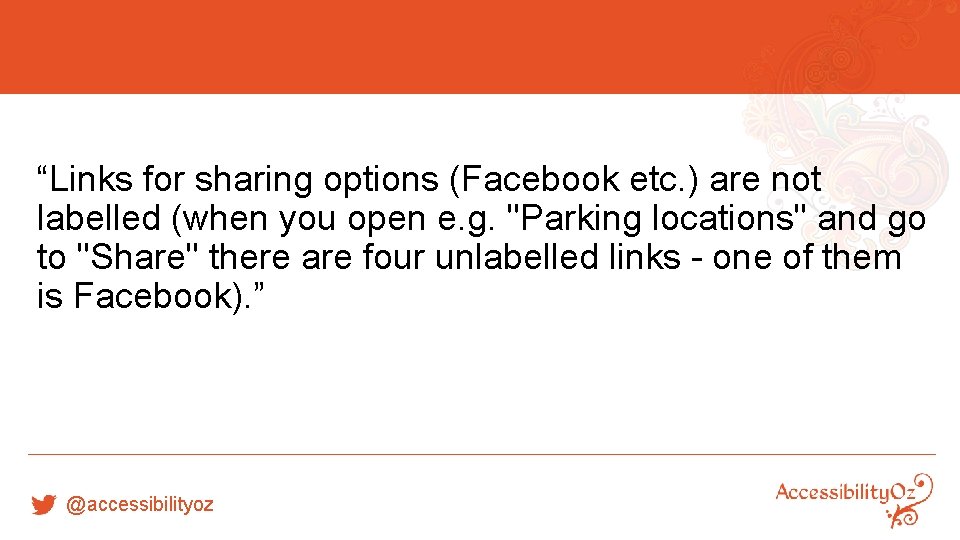
“Links for sharing options (Facebook etc. ) are not labelled (when you open e. g. "Parking locations" and go to "Share" there are four unlabelled links - one of them is Facebook). ” @accessibilityoz
Step Three Keyboard accessibility gian@accessibilityoz. com. au
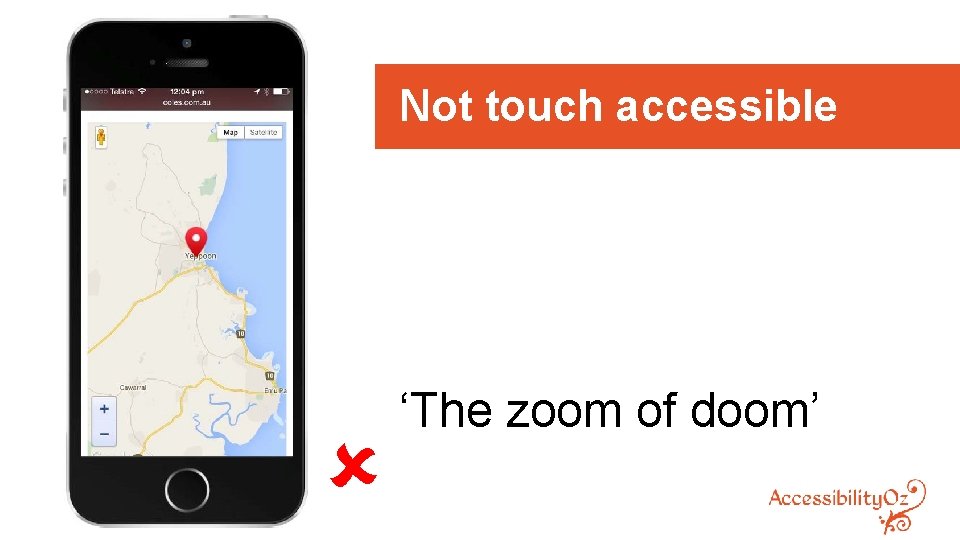
Not touch accessible û ‘The zoom of doom’
Keyboard accessibility Ensure all actions that can be achieved using the mouse can also be achieved using the keyboard or via touch § Zoom in and zoom out § Moving around the map § Activating an icon for more information @accessibilityoz
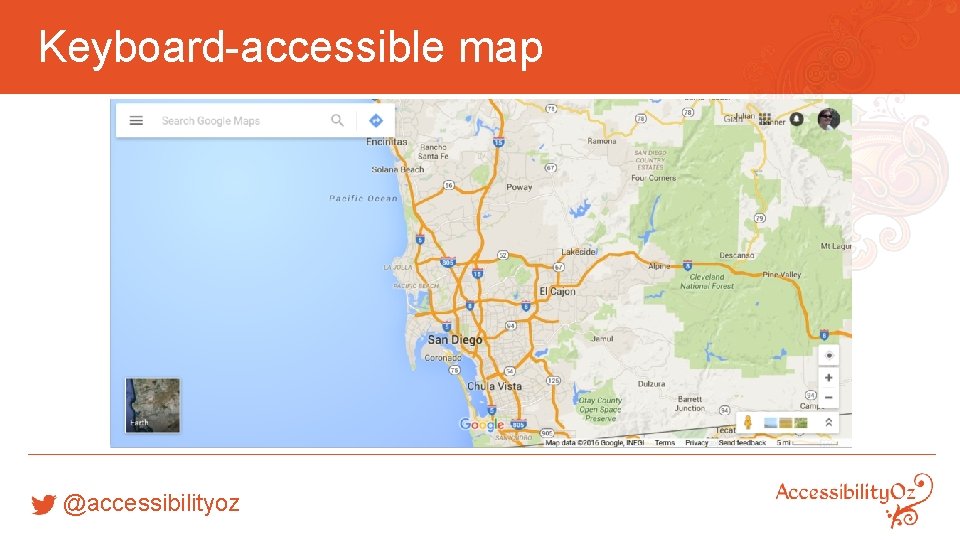
Keyboard-accessible map @accessibilityoz
Step Four Colour contrast gian@accessibilityoz. com. au

Colour contrast – incorrect example û @accessibilityoz
Colour contrast Ensure that your map design complies with the 4. 5: 1 colour contrast ratio. Use colour contrast testers: § Juicy Studio Luminosity Colour Contrast Analyser (by HEX value) § The Paciello Group’s Colour Contrast Analyser (by eye-dropper) @accessibilityoz
Step Five Use icons in addition to colour gian@accessibilityoz. com. au
Use of colour: incorrect example û
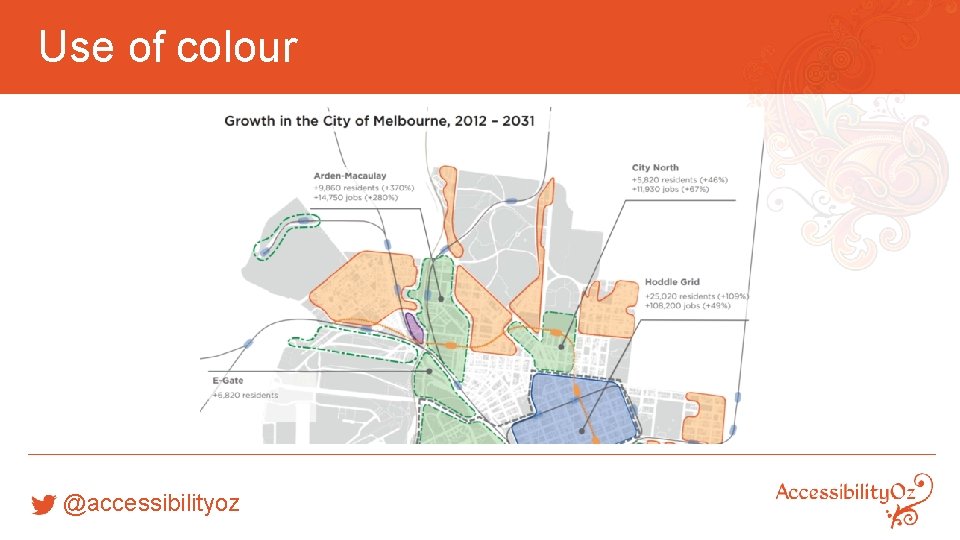
Use of colour Do not rely on colour to differentiate important parts of the map. Ensure that your maps use: § borders to separate one area from another § different types of shading and change of colour to indicate different areas § label markers with an icon and individual colours/icons for different markers. @accessibilityoz
Use of colour @accessibilityoz
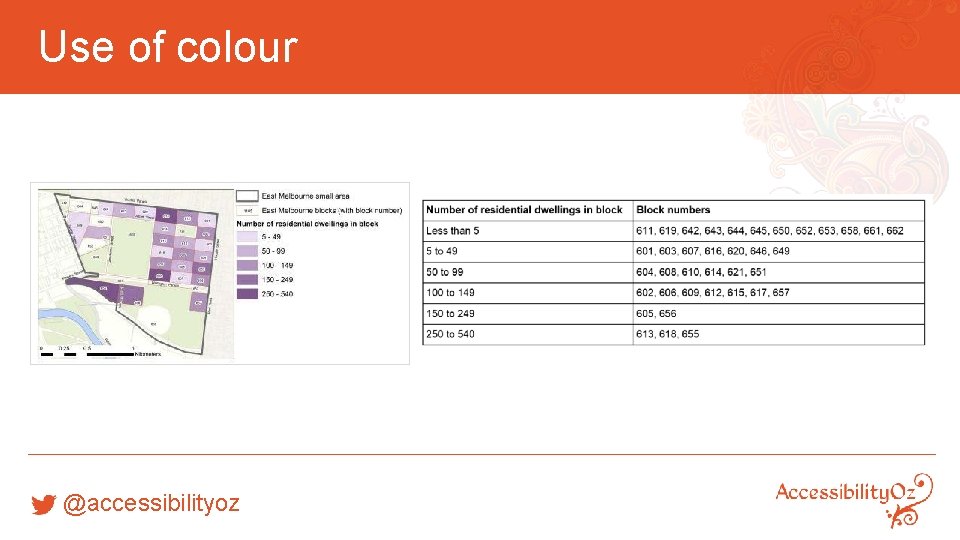
Use of colour @accessibilityoz
Step Six Ensure users can increase text size gian@accessibilityoz. com. au
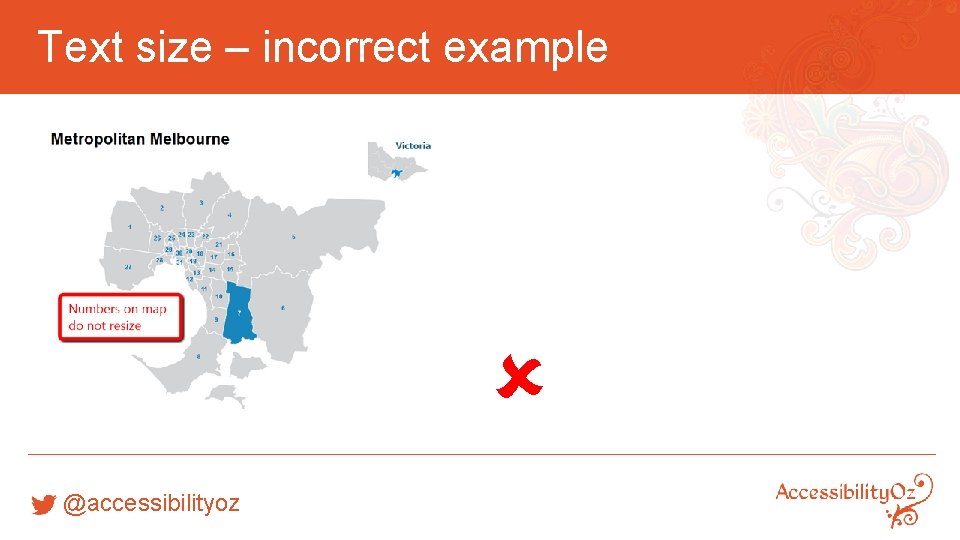
Text size – incorrect example û @accessibilityoz
Text size Ensure users can increase the size of the map, legend any text. @accessibilityoz
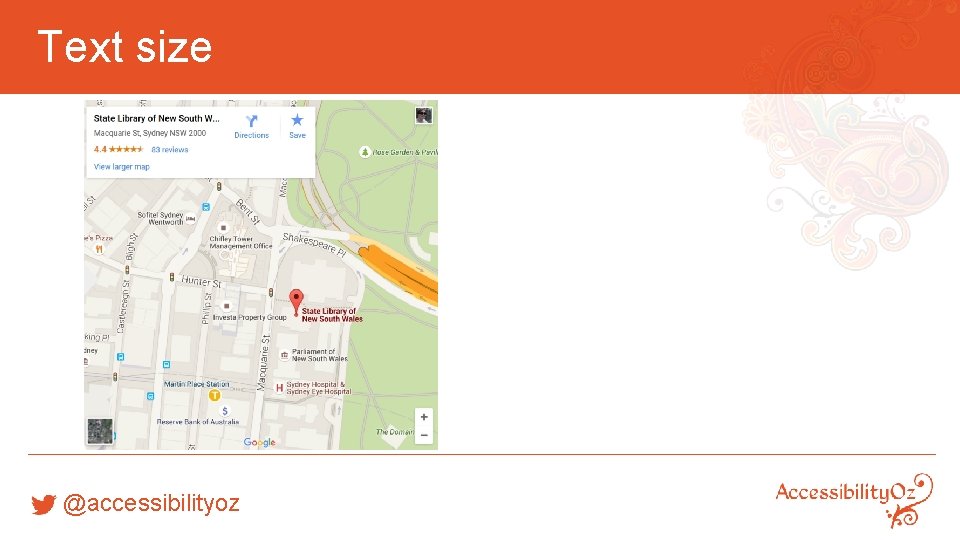
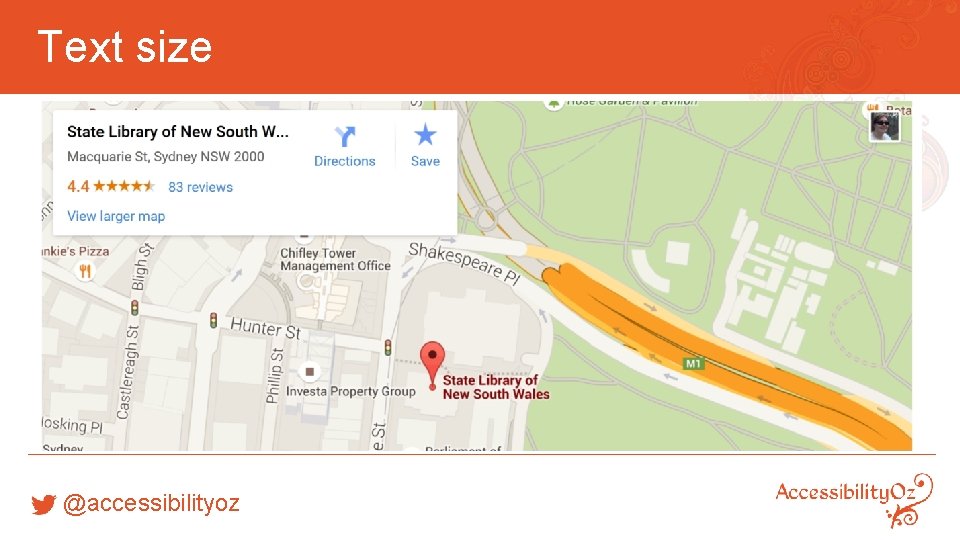
Text size Often maps do not respond to browser requests to increase size, therefore additional methods may be required to: § provide a “large” version of the map, where the user has increased the normal text size by 200%; and § maximise a particular point/area, or add a highlight box that shows the particular point/area in a larger size. @accessibilityoz
Text size @accessibilityoz
Text size @accessibilityoz
Questions? pz. tt/CSUN 16 -map gian@accessibilityoz. com. au
- Slides: 48