
Interactive Graphics Eric Roberts CS 106 A January
Interactive Graphics Eric Roberts CS 106 A January 25, 2016
Once upon a time. . .
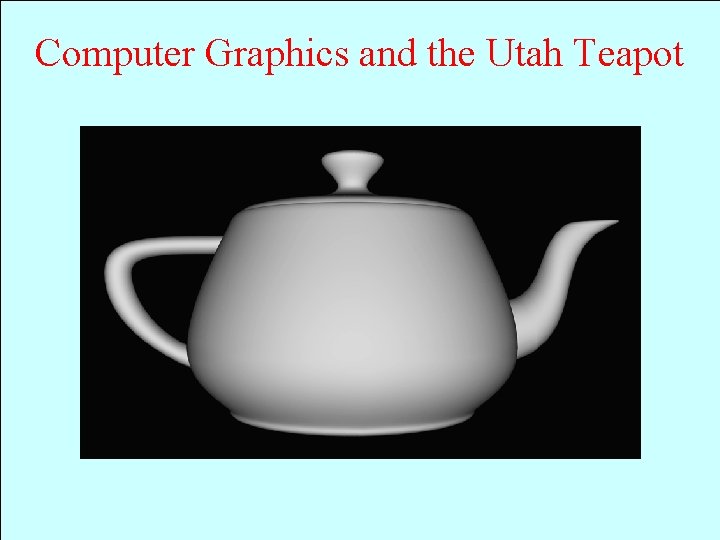
Computer Graphics and the Utah Teapot

Interactive Graphics
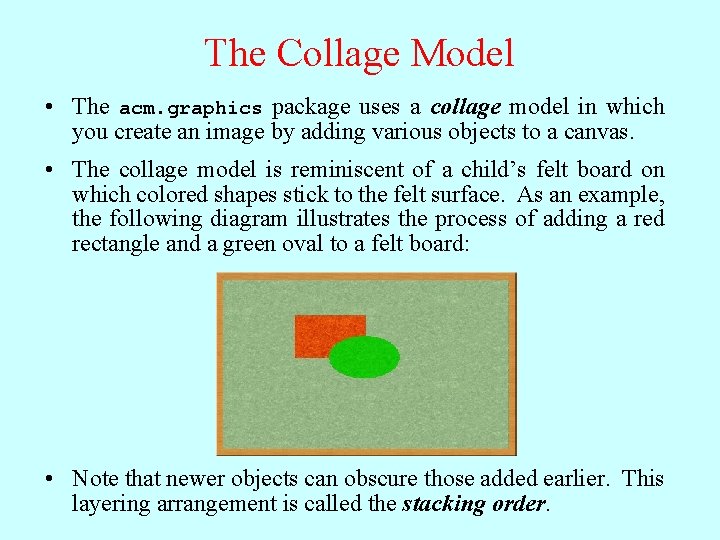
The Collage Model • The acm. graphics package uses a collage model in which you create an image by adding various objects to a canvas. • The collage model is reminiscent of a child’s felt board on which colored shapes stick to the felt surface. As an example, the following diagram illustrates the process of adding a red rectangle and a green oval to a felt board: • Note that newer objects can obscure those added earlier. This layering arrangement is called the stacking order.
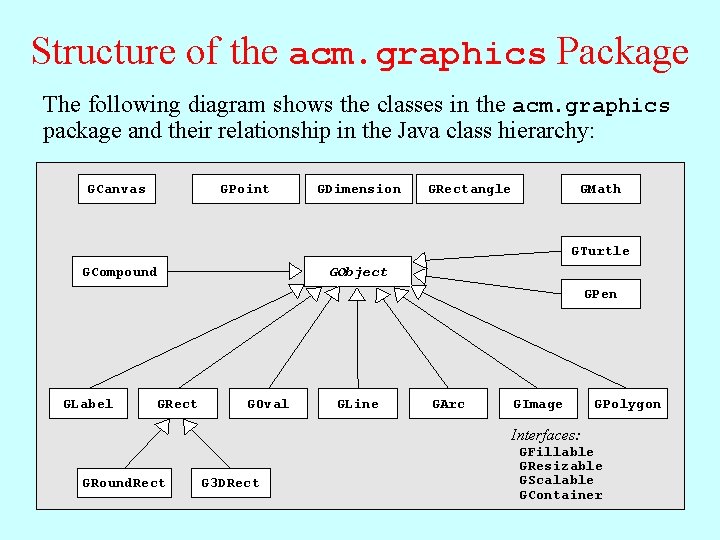
Structure of the acm. graphics Package following GObject diagram class forms shows the root classes ofare the in hierarchy theshape acm. graphics graphical The remaining classes at the classes bottom and ofinterfaces the figure are discussed the inof classes subsequent and objects. Anything you add to the canvas a GObject indicate slides, packageeither specific and their today types relationship or on of Friday. graphical in the objects Javamust class thatbe hierarchy: you can draw. . GCanvas GPoint GDimension GRectangle GMath GTurtle GCompound GObject GPen GLabel GRect GOval GLine GArc GImage GPolygon Interfaces: GRound. Rect G 3 DRect GFillable GResizable GScalable GContainer
The GCanvas Class • The GCanvas class is used to represent the background canvas for the collage model and therefore serves as a virtual felt board. When you use the acm. graphics package, you create pictures by adding various GObjects to a GCanvas. • For simple applications, you won’t actually need to work with an explicit GCanvas object. Whenever you run a program that extends Graphics. Program, the initialization process for the program automatically creates a GCanvas and resizes it so that it fills the program window. • Most of the methods defined for the GCanvas class are also available in a Graphics. Program, thanks to an important strategy called forwarding. If, for example, you call the add method in a Graphics. Program, the program passes that message along to the underlying GCanvas object by calling its add method with the same arguments.
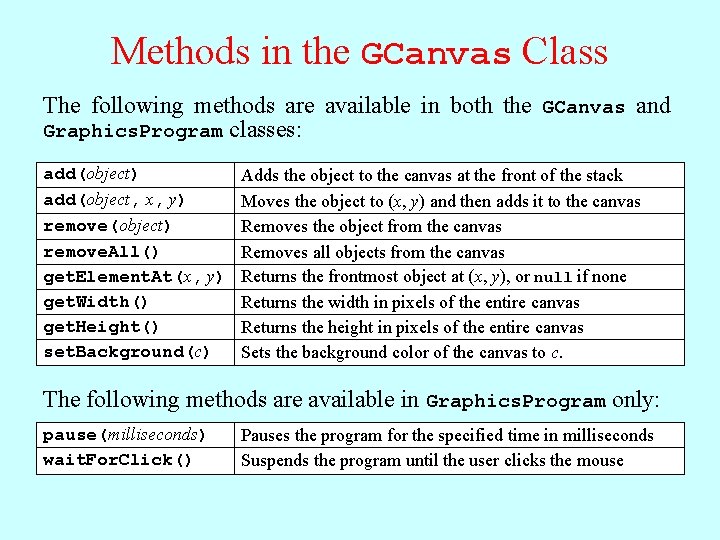
Methods in the GCanvas Class The following methods are available in both the GCanvas and Graphics. Program classes: add(object) add(object, x, y) remove(object) remove. All() get. Element. At(x, y) get. Width() get. Height() set. Background(c) Adds the object to the canvas at the front of the stack Moves the object to (x, y) and then adds it to the canvas Removes the object from the canvas Removes all objects from the canvas Returns the frontmost object at (x, y), or null if none Returns the width in pixels of the entire canvas Returns the height in pixels of the entire canvas Sets the background color of the canvas to c. The following methods are available in Graphics. Program only: pause(milliseconds) wait. For. Click() Pauses the program for the specified time in milliseconds Suspends the program until the user clicks the mouse
The Two Forms of the add Method • The add method comes in two forms. The first is simply add(object); which adds the object at the location currently stored in its internal structure. You use this form when you have already set the coordinates of the object, which usually happens at the time you create it. • The second form is add(object, x, y); which first moves the object to the point (x, y) and then adds it there. This form is useful when you need to determine some property of the object before you know where to put it. If, for example, you want to center a GLabel, you must first create it and then use its size to determine its location.
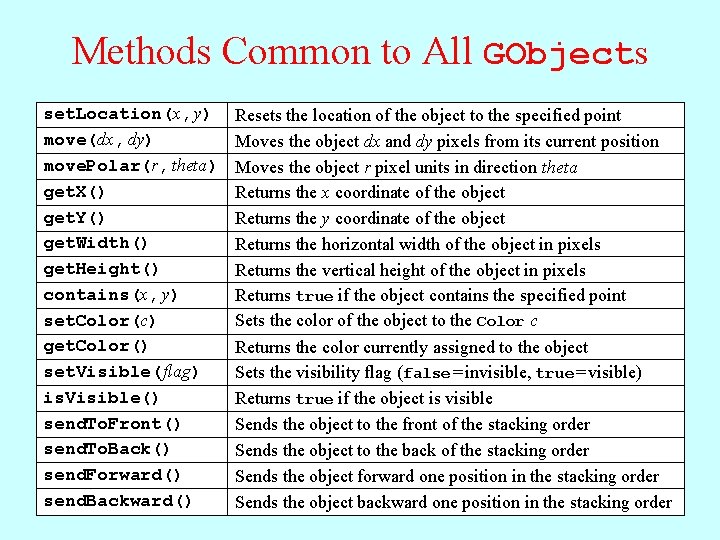
Methods Common to All GObjects set. Location(x, y) move(dx, dy) move. Polar(r, theta) get. X() get. Y() get. Width() get. Height() contains(x, y) set. Color(c) get. Color() set. Visible( flag) is. Visible() send. To. Front() send. To. Back() send. Forward() send. Backward() Resets the location of the object to the specified point Moves the object dx and dy pixels from its current position Moves the object r pixel units in direction theta Returns the x coordinate of the object Returns the y coordinate of the object Returns the horizontal width of the object in pixels Returns the vertical height of the object in pixels Returns true if the object contains the specified point Sets the color of the object to the Color c Returns the color currently assigned to the object Sets the visibility flag (false = invisible, true = visible) Returns true if the object is visible Sends the object to the front of the stacking order Sends the object to the back of the stacking order Sends the object forward one position in the stacking order Sends the object backward one position in the stacking order
Sharing Behavior through Interfaces • In addition to the methods defined for all GObjects shown on the preceding slide, there a few methods that apply to some GObject subclasses but not others. You already know, for example, that you can call set. Filled on either a GOval or a GRect. At the same time, it doesn’t make sense to call set. Filled on a GLine because there is no interior to fill. • In Java, the best strategy when you have methods that apply to some subclasses but not others is to define an interface that specifies the shared methods. An interface definition is similar to a class definition except that the interface omits the implementation of each method, retaining only the header line that shows the types of each argument. • In the acm. graphics package, there are three interfaces that define methods for certain GObject subclasses: GFillable, GResizable, and GScalable. The methods in these interfaces appear on the next slide.
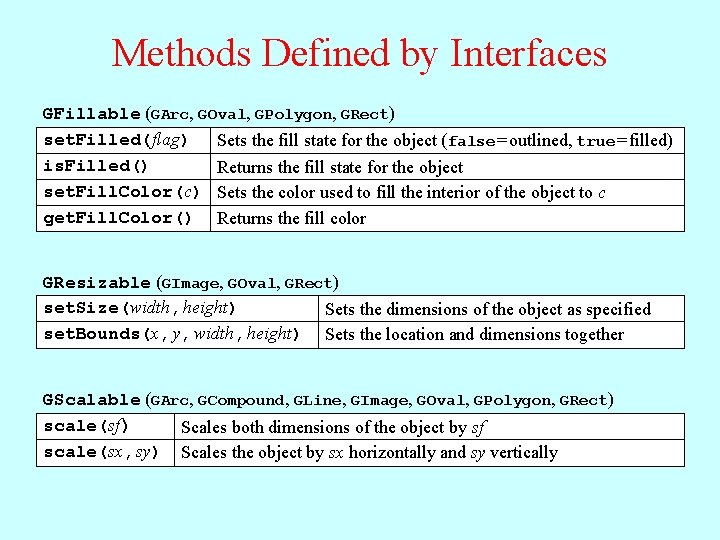
Methods Defined by Interfaces GFillable (GArc, GOval, GPolygon, GRect) set. Filled( flag) Sets the fill state for the object (false = outlined, true = filled) is. Filled() Returns the fill state for the object set. Fill. Color(c) Sets the color used to fill the interior of the object to c get. Fill. Color() Returns the fill color GResizable (GImage, GOval, GRect) set. Size(width, height) Sets the dimensions of the object as specified set. Bounds(x, y, width, height) Sets the location and dimensions together GScalable (GArc, GCompound, GLine, GImage, GOval, GPolygon, GRect) scale(sf ) Scales both dimensions of the object by sf scale(sx, sy) Scales the object by sx horizontally and sy vertically
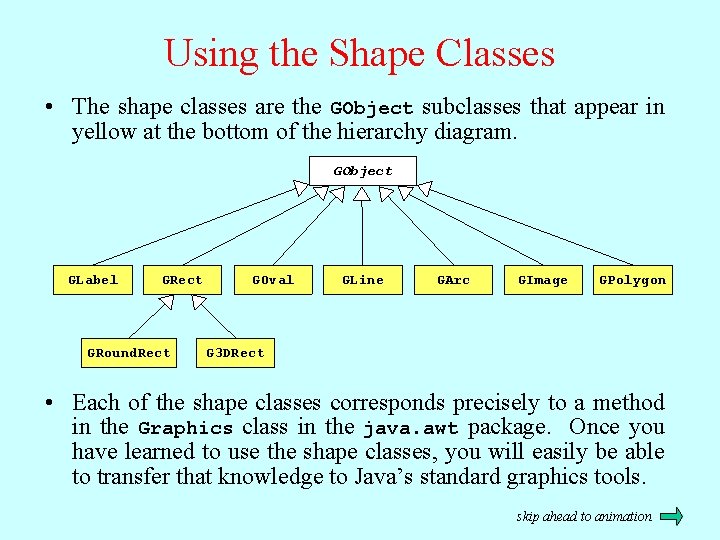
Using the Shape Classes • The shape classes are the GObject subclasses that appear in yellow at the bottom of the hierarchy diagram. GObject GLabel GRect GRound. Rect GOval GLine GArc GImage GPolygon G 3 DRect • Each of the shape classes corresponds precisely to a method in the Graphics class in the java. awt package. Once you have learned to use the shape classes, you will easily be able to transfer that knowledge to Java’s standard graphics tools. skip ahead to animation
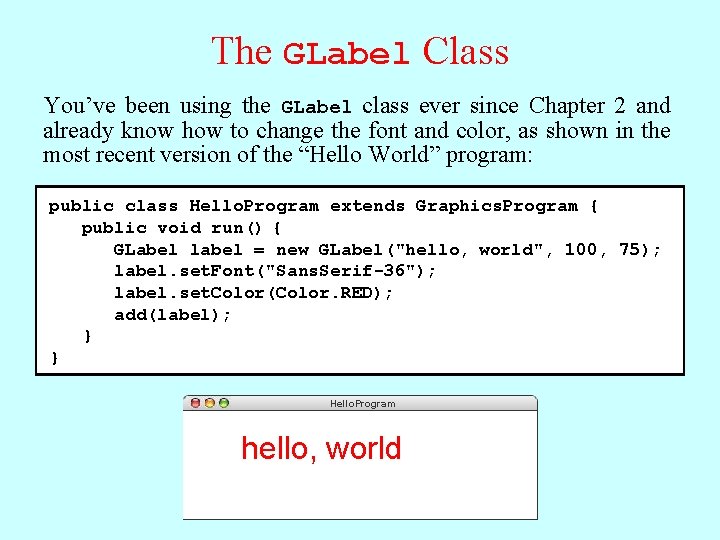
The GLabel Class You’ve been using the GLabel class ever since Chapter 2 and already know how to change the font and color, as shown in the most recent version of the “Hello World” program: public class Hello. Program extends Graphics. Program { public void run() { GLabel label = new GLabel("hello, world", 100, 75); label. set. Font("Sans. Serif-36"); label. set. Color(Color. RED); add(label); } } Hello. Program hello, world
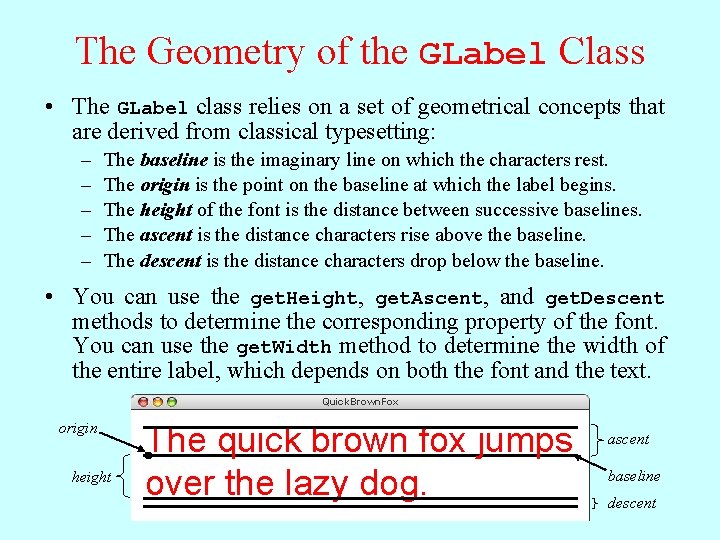
The Geometry of the GLabel Class • The GLabel class relies on a set of geometrical concepts that are derived from classical typesetting: – – – The baseline is the imaginary line on which the characters rest. The origin is the point on the baseline at which the label begins. The height of the font is the distance between successive baselines. The ascent is the distance characters rise above the baseline. The descent is the distance characters drop below the baseline. • You can use the get. Height, get. Ascent, and get. Descent methods to determine the corresponding property of the font. You can use the get. Width method to determine the width of the entire label, which depends on both the font and the text. Quick. Brown. Fox origin height The quick brown fox jumps over the lazy dog. ascent baseline descent
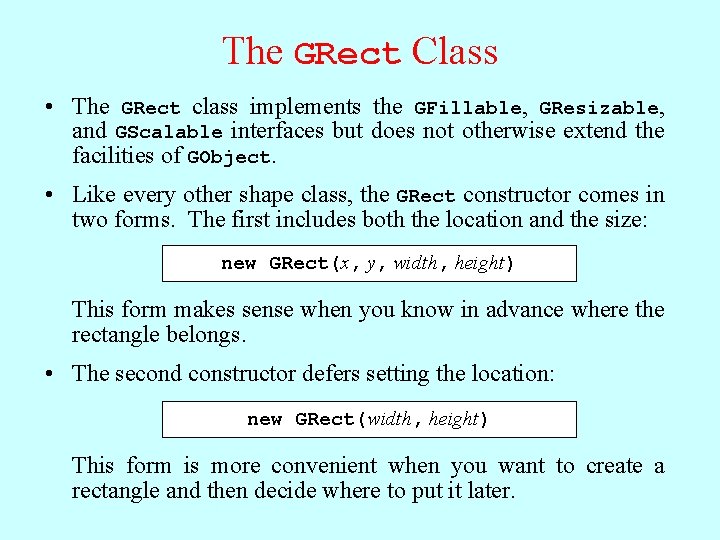
The GRect Class • The GRect class implements the GFillable, GResizable, and GScalable interfaces but does not otherwise extend the facilities of GObject. • Like every other shape class, the GRect constructor comes in two forms. The first includes both the location and the size: new GRect(x, y, width, height) This form makes sense when you know in advance where the rectangle belongs. • The second constructor defers setting the location: new GRect(width, height) This form is more convenient when you want to create a rectangle and then decide where to put it later.
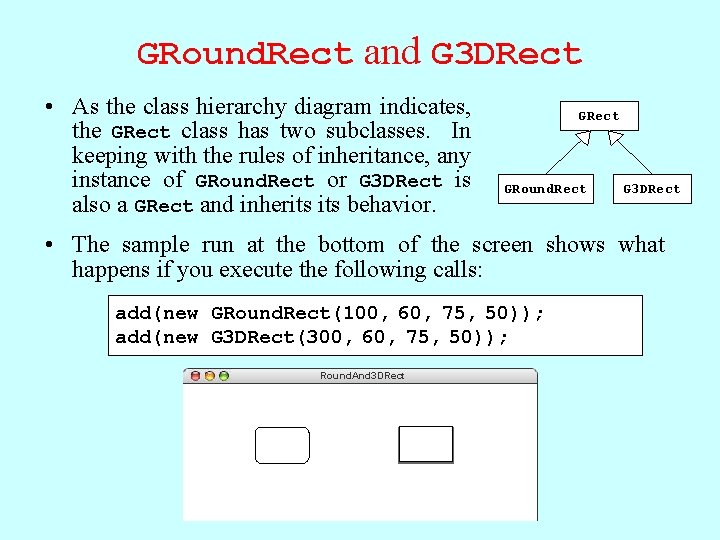
GRound. Rect and G 3 DRect • As the class hierarchy diagram indicates, the GRect class has two subclasses. In keeping with the rules of inheritance, any instance of GRound. Rect or G 3 DRect is also a GRect and inherits behavior. GRect GRound. Rect G 3 DRect • The sample run at the bottom of the screen shows what happens if you execute the following calls: add(new GRound. Rect(100, 60, 75, 50)); add(new G 3 DRect(300, 60, 75, 50)); Round. And 3 DRect
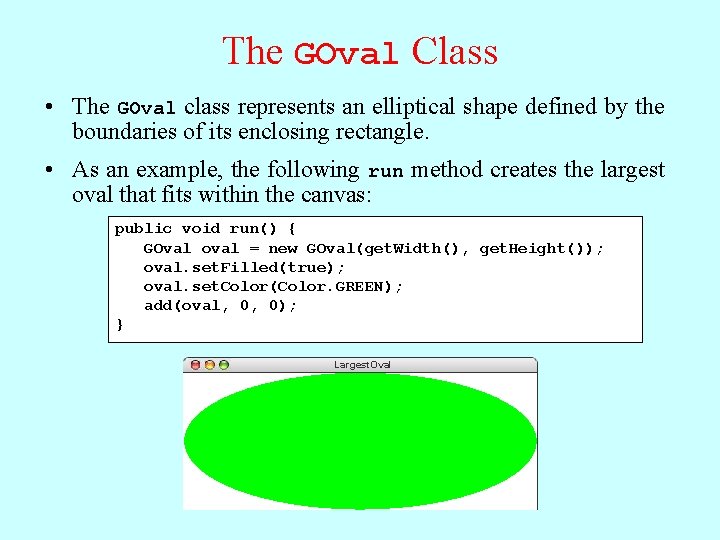
The GOval Class • The GOval class represents an elliptical shape defined by the boundaries of its enclosing rectangle. • As an example, the following run method creates the largest oval that fits within the canvas: public void run() { GOval oval = new GOval(get. Width(), get. Height()); oval. set. Filled(true); oval. set. Color(Color. GREEN); add(oval, 0, 0); } Largest. Oval
The GLine Class • The GLine class represents a line segment that connects two points. The constructor call looks like this: new GLine(x 0, y 0, x 1, y 1) The points (x 0, y 0) and (x 1, y 1) are called the start point and the end point, respectively. • The GLine class does not support filling or resizing but does implement the GScalable interface. When you scale a line, its start point remains fixed. • Given a GLine object, you can get the coordinates of the two points by calling get. Start. Point and get. End. Point. Both of these methods return a GPoint object. • The GLine class also exports the methods set. Start. Point and set. End. Point, which are illustrated on the next slide.
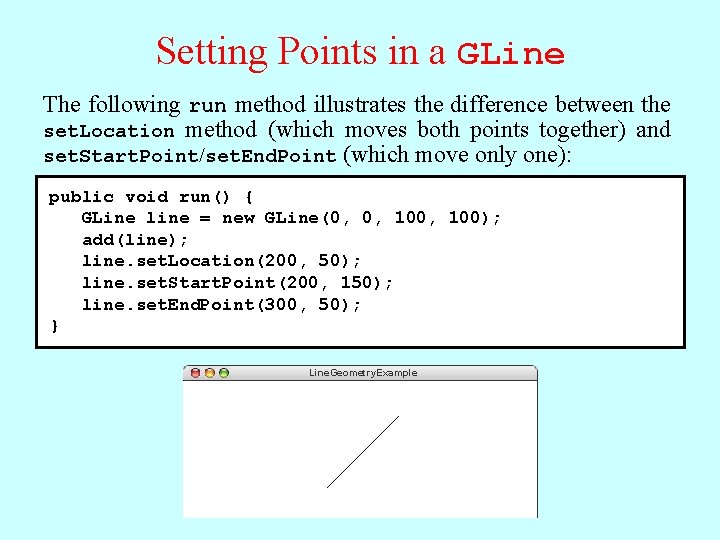
Setting Points in a GLine The following run method illustrates the difference between the set. Location method (which moves both points together) and set. Start. Point/set. End. Point (which move only one): public void run() { GLine line = new GLine(0, 0, 100); add(line); line. set. Location(200, 50); line. set. Start. Point(200, 150); line. set. End. Point(300, 50); } Line. Geometry. Example
The Java Event Model • Graphical applications usually make it possible for the user to control the action of a program by using an input device such as a mouse. Programs that support this kind of user control are called interactive programs. • User actions such as clicking the mouse are called events. Programs that respond to events are said to be event-driven. • In modern interactive programs, user input doesn’t occur at predictable times. A running program doesn’t tell the user when to click the mouse. The user decides when to click the mouse, and the program responds. Because events are not controlled by the program, they are said to be asynchronous. • When you write a Java program, you indicate the events to which you wish to respond by designating some object as a listener for that event. When the event occurs, a message is sent to the listener, which triggers the appropriate response.
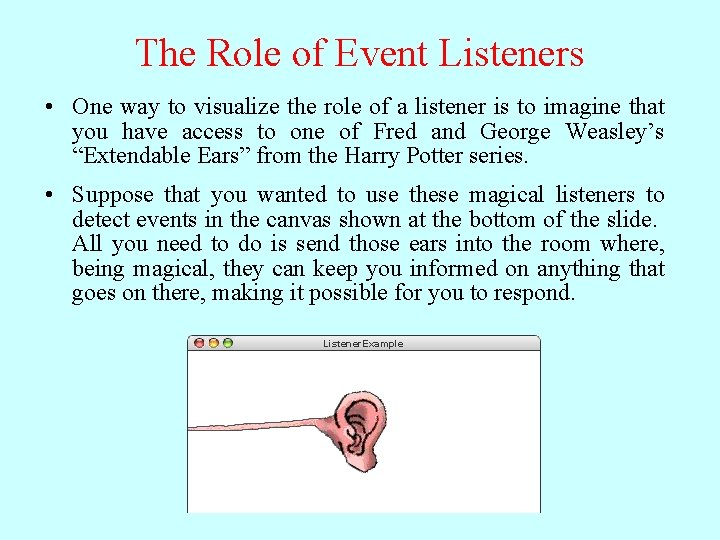
The Role of Event Listeners • One way to visualize the role of a listener is to imagine that you have access to one of Fred and George Weasley’s “Extendable Ears” from the Harry Potter series. • Suppose that you wanted to use these magical listeners to detect events in the canvas shown at the bottom of the slide. All you need to do is send those ears into the room where, being magical, they can keep you informed on anything that goes on there, making it possible for you to respond. Listener. Example
Responding to Mouse Events • On a more practical level, the process of making a program respond to mouse events requires the following steps: 1. Define an init method that calls add. Mouse. Listeners. 2. Write new definitions of any listener methods you need. • The most common mouse events are shown in the following table, along with the name of the appropriate listener method: mouse. Clicked( e) mouse. Pressed( e) mouse. Released(e) mouse. Moved(e) mouse. Dragged(e) Called when the user clicks the mouse Called when the mouse button is pressed Called when the mouse button is released Called when the user moves the mouse Called when the mouse is dragged with the button down The parameter e is a Mouse. Event object, which gives more data about the event, such as the location of the mouse.
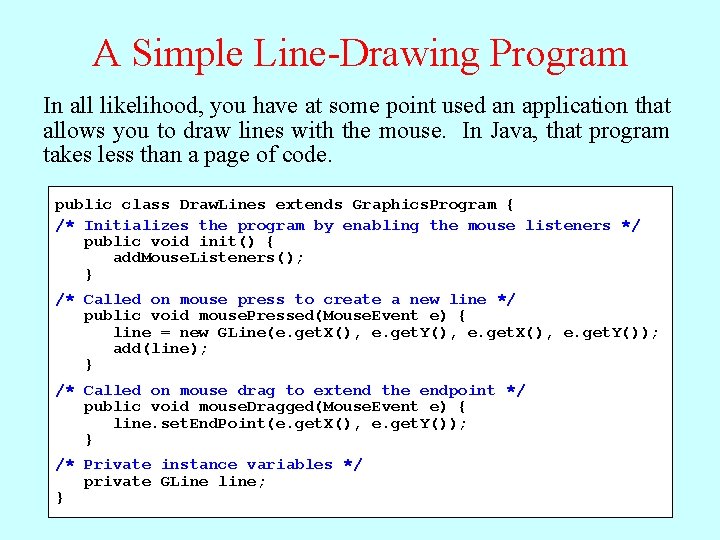
A Simple Line-Drawing Program Dragging mouse. Pressed mouse results method in responds awill series toof that mouse. Dragged event byas creating calls Drawing The As you effect drag athe of line this using mouse, strategy this the program isatline that the requires user stretch, sees three contract, the line and itpressing change grows, In all likelihood, you have some point used anactions: application thata the mouse new that providing direction come zero-length asin the button ifrapid the necessary line two atsuccession the that points starting visual begins were each feedback point and connected time ends ofthe at tocomputer by the line, position ancurrent elastic dragging reads the mouse band. line the allows you to draw lines with the mouse. In Java, that program position. mouse correctly. This technique to the position. Each therefore end call point, simply called and rubber-banding. resets then the releasing end point the of mouse. the line. takes less thandesired aispage of code. public class Draw. Lines extends Graphics. Program { /* Initializes the program by enabling the mouse listeners */ public void init() { add. Mouse. Listeners(); } /* Called on mouse press to create a new line */ public void mouse. Pressed(Mouse. Event e) { line = new GLine(e. get. X(), e. get. Y(), e. get. X(), e. get. Y()); add(line); } /* Called on mouse drag to extend the endpoint */ public void mouse. Dragged(Mouse. Event e) { line. set. End. Point(e. get. X(), e. get. Y()); } /* Private instance variables */ private GLine line; }
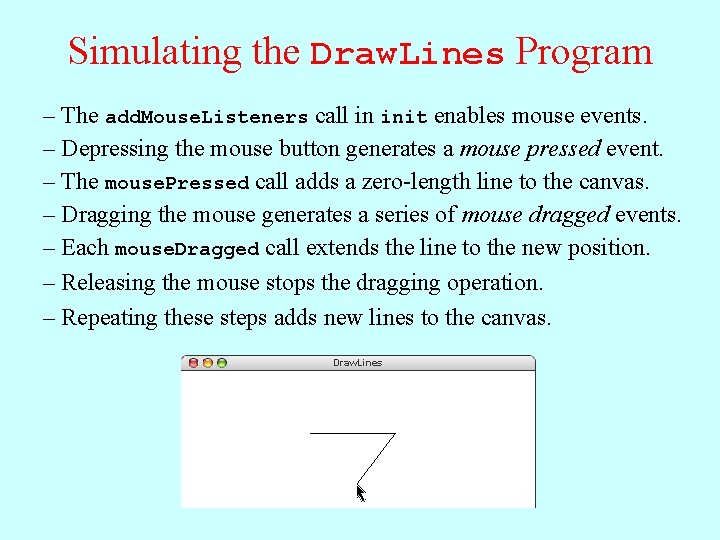
Simulating the Draw. Lines Program – The add. Mouse. Listeners call in init enables mouse events. – Depressing the mouse button generates a mouse pressed event. – The mouse. Pressed call adds a zero-length line to the canvas. – Dragging the mouse generates a series of mouse dragged events. – Each mouse. Dragged call extends the line to the new position. – Releasing the mouse stops the dragging operation. – Repeating these steps adds new lines to the canvas. Draw. Lines mouse mouse pressed dragged dragged
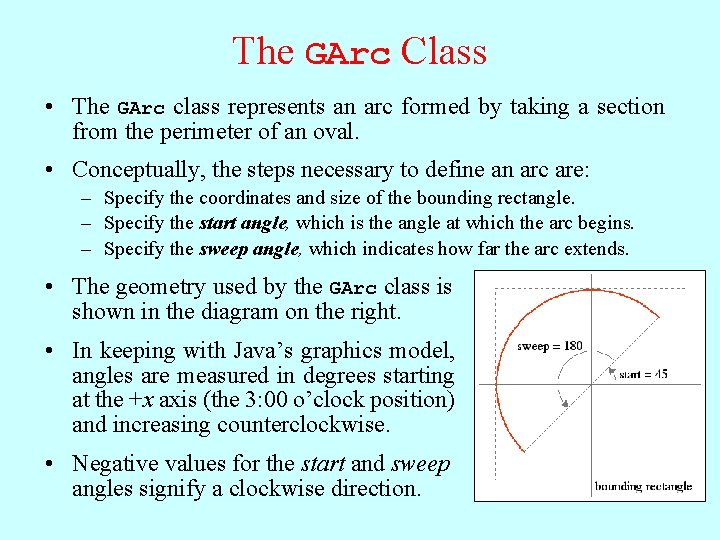
The GArc Class • The GArc class represents an arc formed by taking a section from the perimeter of an oval. • Conceptually, the steps necessary to define an arc are: – Specify the coordinates and size of the bounding rectangle. – Specify the start angle, which is the angle at which the arc begins. – Specify the sweep angle, which indicates how far the arc extends. • The geometry used by the GArc class is shown in the diagram on the right. • In keeping with Java’s graphics model, angles are measured in degrees starting at the +x axis (the 3: 00 o’clock position) and increasing counterclockwise. • Negative values for the start and sweep angles signify a clockwise direction.
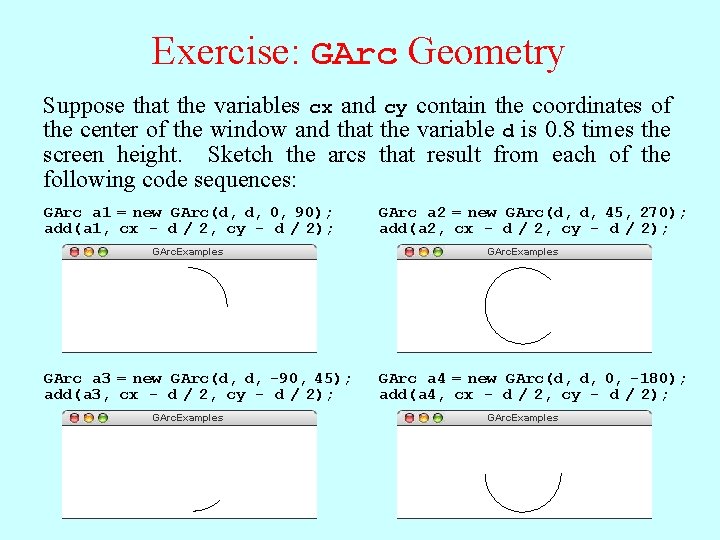
Exercise: GArc Geometry Suppose that the variables cx and cy contain the coordinates of the center of the window and that the variable d is 0. 8 times the screen height. Sketch the arcs that result from each of the following code sequences: GArc a 1 = new GArc(d, d, 0, 90); add(a 1, cx - d / 2, cy - d / 2); GArc. Examples GArc a 3 = new GArc(d, d, -90, 45); add(a 3, cx - d / 2, cy - d / 2); GArc. Examples GArc a 2 = new GArc(d, d, 45, 270); add(a 2, cx - d / 2, cy - d / 2); GArc. Examples GArc a 4 = new GArc(d, d, 0, -180); add(a 4, cx - d / 2, cy - d / 2); GArc. Examples
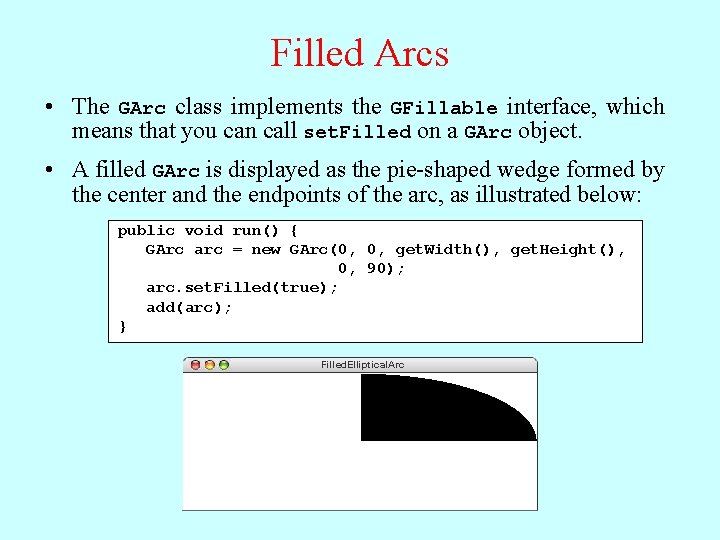
Filled Arcs • The GArc class implements the GFillable interface, which means that you can call set. Filled on a GArc object. • A filled GArc is displayed as the pie-shaped wedge formed by the center and the endpoints of the arc, as illustrated below: public void run() { GArc arc = new GArc(0, 0, get. Width(), get. Height(), 0, 90); arc. set. Filled(true); add(arc); } Filled. Elliptical. Arc
The GImage Class • The GImage class is used to display an image from a file. The constructor has the form new GImage(image file, x, y) where image file is the name of a file containing a stored image and x and y are the coordinates of the upper left corner of the image. • When Java executes the constructor, it looks for the file in the current directory and then in a subdirectory named images. • To make sure that your programs will run on a wide variety of platforms, it is best to use one of the most common image formats: the Graphical Interchange Format (GIF), the Joint Photographic Experts Group (JPEG) format, or the Portable Network Graphics (PNG) format. Image files using these formats typically have the suffixes. gif, . jpg, and. png.
Images and Copyrights • Most images that you find on the web are protected by copyright under international law. • Before you use a copyrighted image, you should make sure that you have the necessary permissions. For images that appear of the web, the hosting site often specifies what rules apply for the use of that image. For example, images from the www. nasa. gov site can be used freely as long as you include the following citation identifying the source: Courtesy NASA/JPL-Caltech • In some cases, noncommercial use of an image may fall under the “fair use” doctrine, which allows some uses of proprietary material. Even in those cases, however, academic integrity and common courtesy both demand that you cite the source of any material that you have obtained from others.
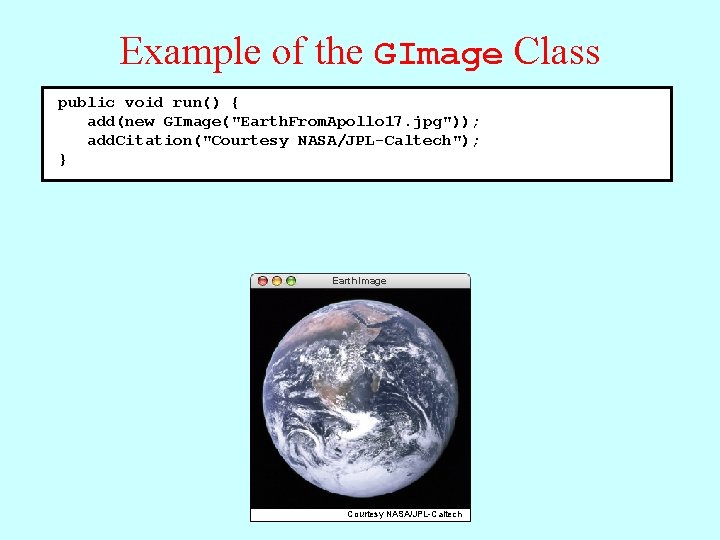
Example of the GImage Class public void run() { add(new GImage("Earth. From. Apollo 17. jpg")); private void add. Citation(String text) { add. Citation("Courtesy NASA/JPL-Caltech"); GLabel label = new GLabel(text); } label. set. Font(CITATION_FONT); double x = get. Width() - label. get. Width(); double y = get. Height() - CITATION_MARGIN + label. get. Ascent(); add(label, x, y); } Earth. Image Courtesy NASA/JPL-Caltech
The End
- Slides: 32