
Intelligent Integration GE MAC 600 ECG INTEGRATION MAC
- Slides: 16
Intelligent Integration GE MAC 600 ECG INTEGRATION MAC 600 SD Card – EMIS WEB
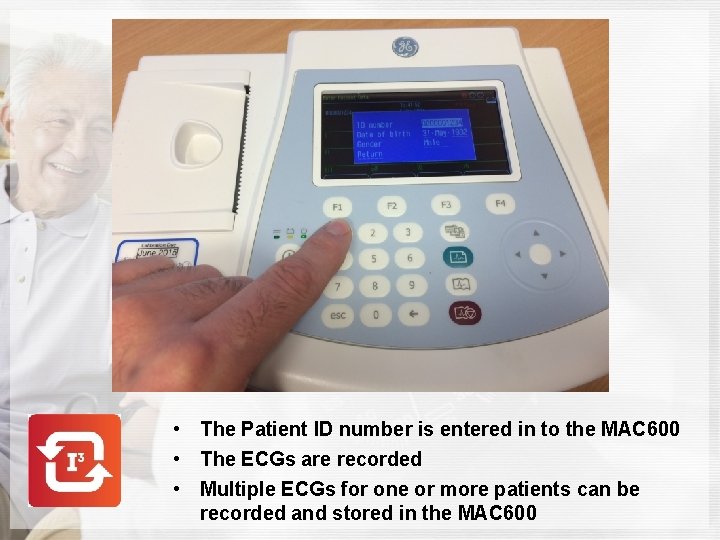
• The Patient ID number is entered in to the MAC 600 • The ECGs are recorded • Multiple ECGs for one or more patients can be recorded and stored in the MAC 600
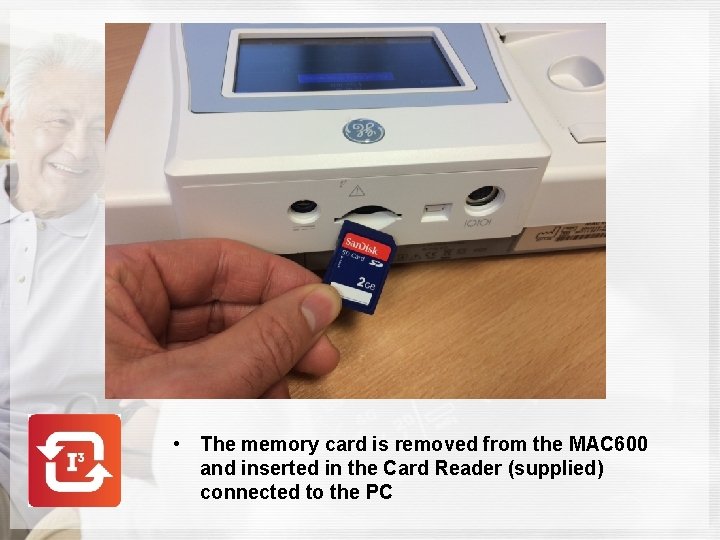
• The memory card is removed from the MAC 600 and inserted in the Card Reader (supplied) connected to the PC
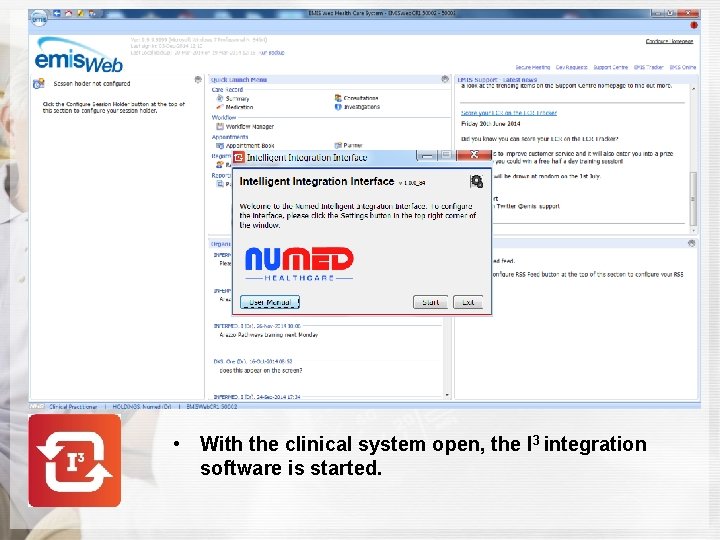
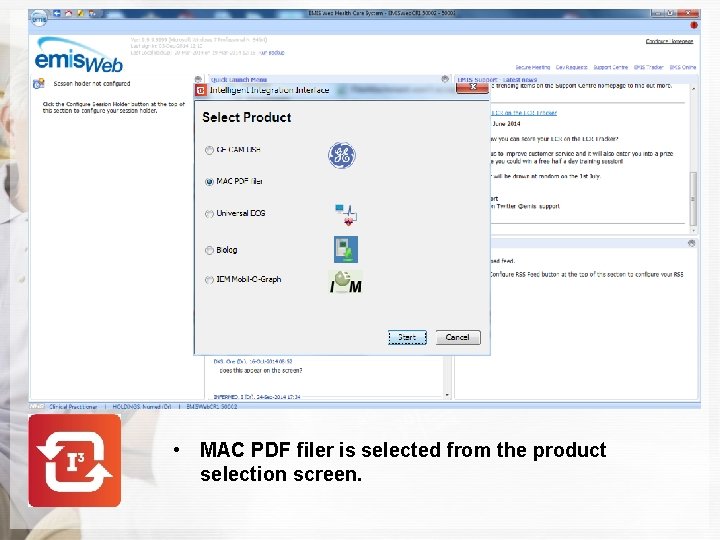
• With the clinical system open, the I 3 integration software is started.
• MAC PDF filer is selected from the product selection screen.
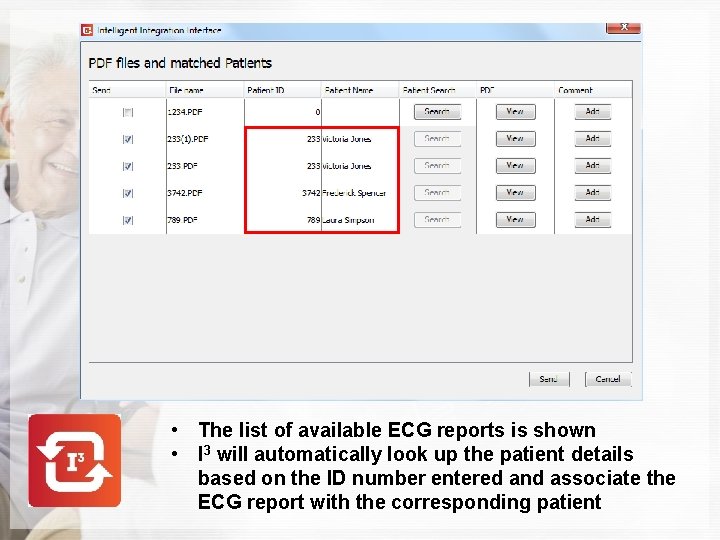
• The list of available ECG reports is shown • I 3 will automatically look up the patient details based on the ID number entered and associate the ECG report with the corresponding patient
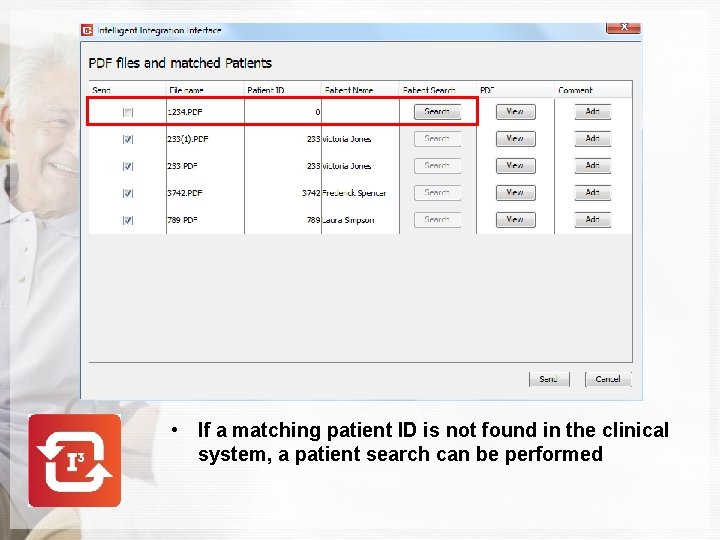
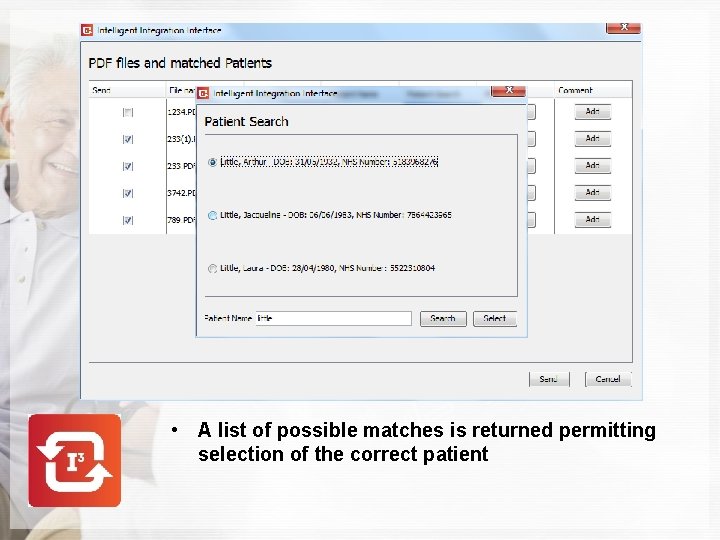
• If a matching patient ID is not found in the clinical system, a patient search can be performed
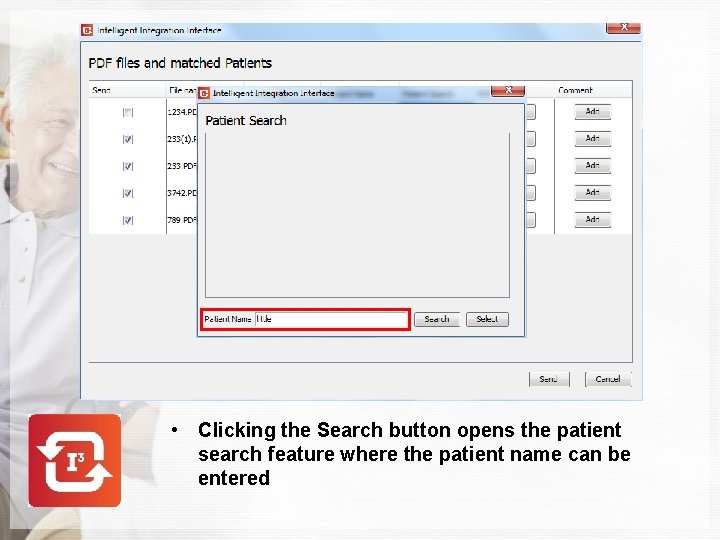
• Clicking the Search button opens the patient search feature where the patient name can be entered
• A list of possible matches is returned permitting selection of the correct patient
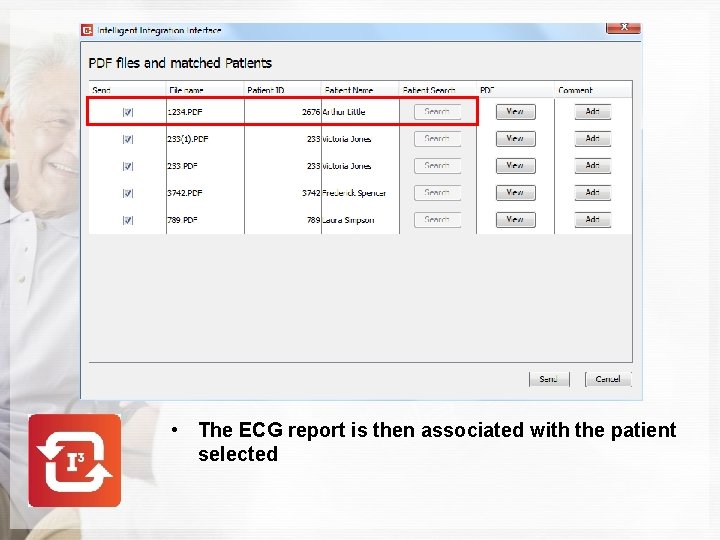
• The ECG report is then associated with the patient selected
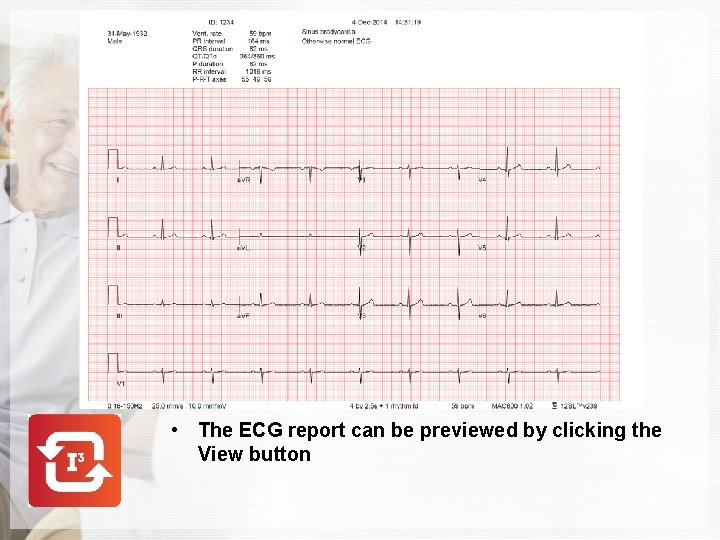
• The ECG report can be previewed by clicking the View button
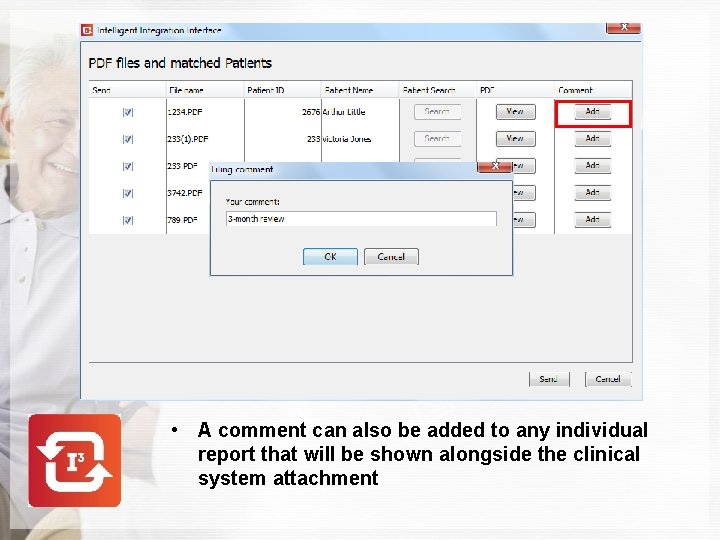
• A comment can also be added to any individual report that will be shown alongside the clinical system attachment
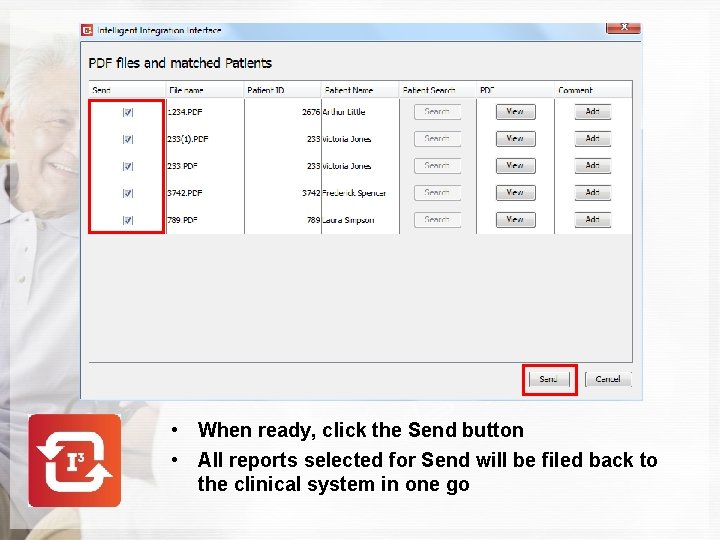
• When ready, click the Send button • All reports selected for Send will be filed back to the clinical system in one go
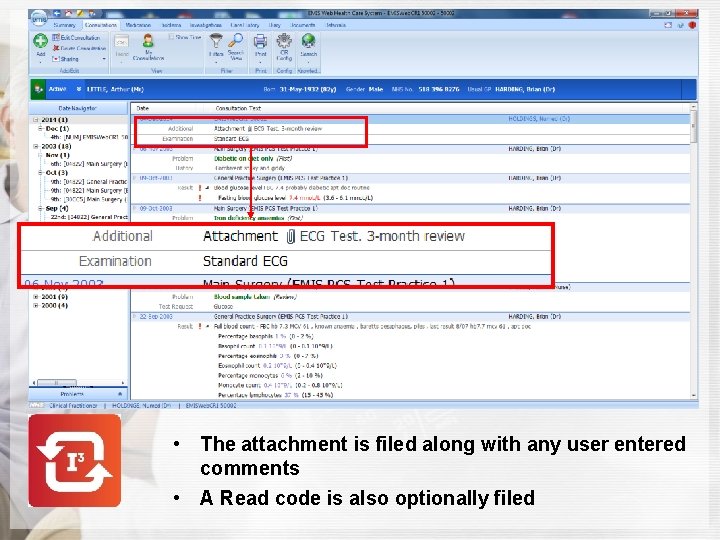
• The attachment is filed along with any user entered comments • A Read code is also optionally filed
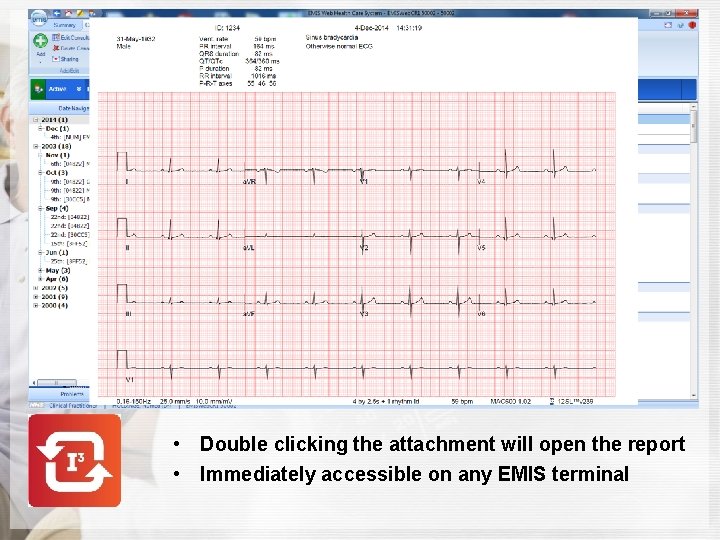
• Double clicking the attachment will open the report • Immediately accessible on any EMIS terminal
Intelligent Integration GE MAC 600 ECG INTEGRATION MAC 600 SD Card – EMIS WEB For more information contact us on 0114 243 3896 or visit www. numed. co. uk