
Integration framework of SAP Business One Training Solution
Integration framework of SAP Business One Training Solution Architects Team February 2011 Creating new Web Services with the Integration framework INTE RNA L
B 1 if Training: Creating new Web Services with B 1 if This document guides you through how to extend SAP Business One Mobile Solution, creating a new web service function with B 1 if, getting the document list by type, status and sale employee. Mainly focus on back-end side. After this chapter, you should be able to: Describe how to create Web Services with B 1 i. C How to generate a scenario step for mobile package to extend service How to additional call to SAP Business One in the process of scenario step How to implement the XSL to transform the result into the final response message How to test the Web Service hosted in B 1 i. C © 2011 SAP AG. All rights reserved. 2
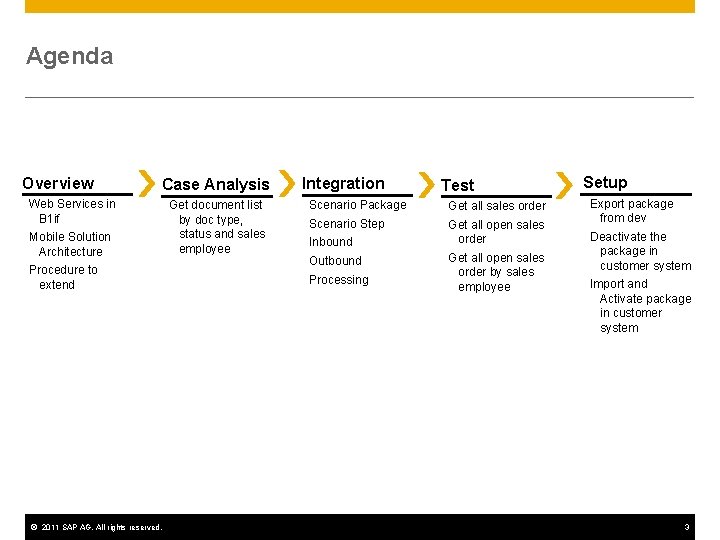
Agenda Overview Case Analysis Web Services in B 1 if Mobile Solution Architecture Procedure to extend © 2011 SAP AG. All rights reserved. Get document list by doc type, status and sales employee Integration Test Scenario Package Get all sales order Scenario Step Get all open sales order Inbound Outbound Processing Get all open sales order by sales employee Setup Export package from dev system Deactivate the package in customer system Import and Activate package in customer system 3
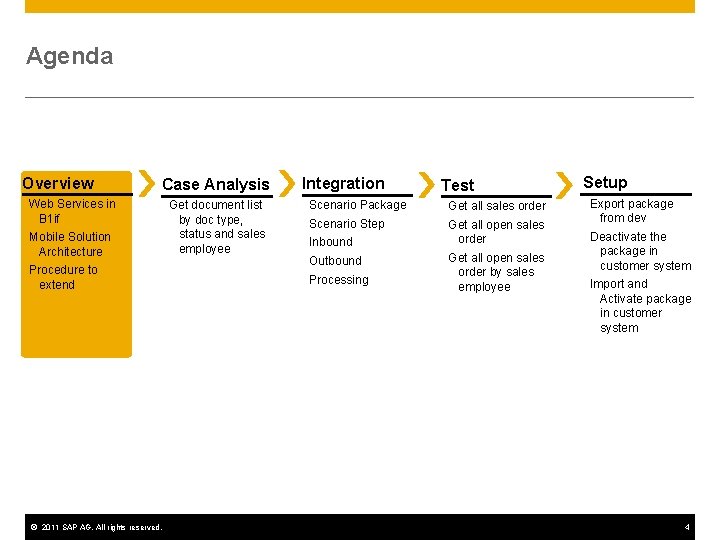
Agenda Overview Case Analysis Web Services in B 1 if Mobile Solution Architecture Procedure to extend © 2011 SAP AG. All rights reserved. Get document list by doc type, status and sales employee Integration Test Scenario Package Get all sales order Scenario Step Get all open sales order Inbound Outbound Processing Get all open sales order by sales employee Setup Export package from dev system Deactivate the package in customer system Import and Activate package in customer system 4
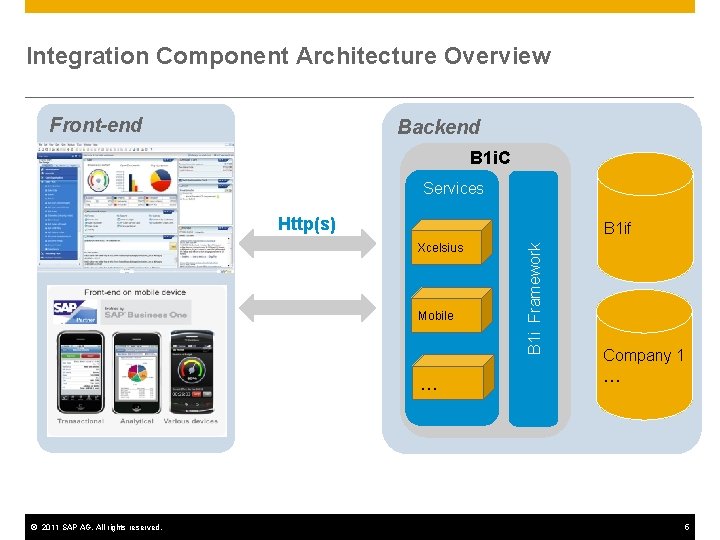
Integration Component Architecture Overview Front-end Backend B 1 i. C Services Http(s) Xcelsius Mobile … © 2011 SAP AG. All rights reserved. B 1 i Framework B 1 if Company 1 … 5
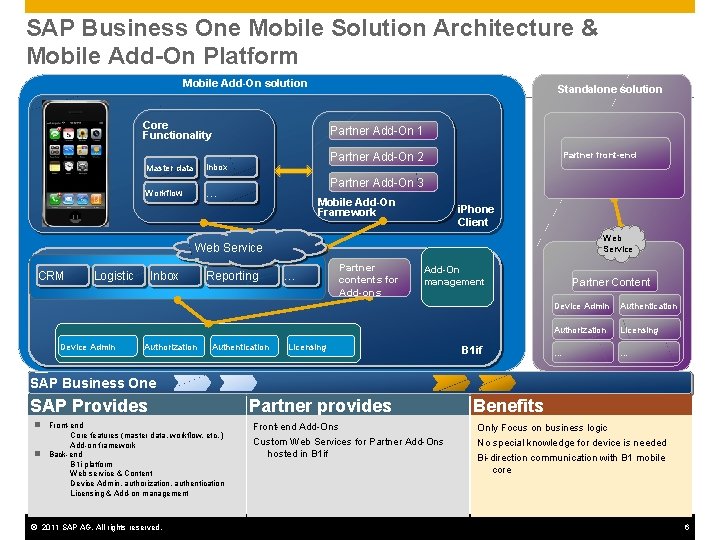
SAP Business One Mobile Solution Architecture & Mobile Add-On Platform Mobile Add-On solution Standalone solution Core Functionality Master data Inbox Workflow … Partner Add-On 1 Partner front-end Partner Add-On 2 Partner Add-On 3 Mobile Add-On Framework i. Phone Client Web Service CRM Logistic Device Admin Inbox Authorization Reporting Authentication … Partner contents for Add-ons Add-On management Licensing B 1 if Partner Content Device Admin Authentication Authorization Licensing … … SAP Business One SAP Provides n Front-end Core features (master data, workflow, etc. ) Add-on framework n Back-end B 1 i platform Web service & Content Device Admin, authorization, authentication Licensing & Add-on management © 2011 SAP AG. All rights reserved. Partner provides Front-end Add-Ons Custom Web Services for Partner Add-Ons hosted in B 1 if Benefits Only Focus on business logic No special knowledge for device is needed Bi-direction communication with B 1 mobile core 6
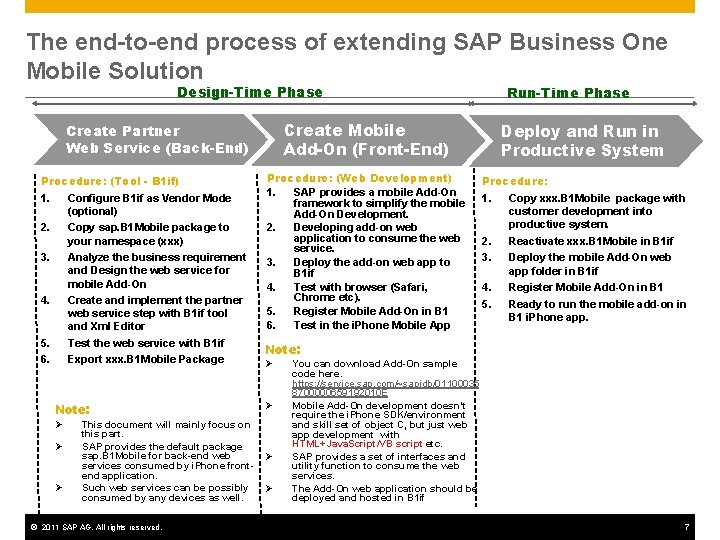
The end-to-end process of extending SAP Business One Mobile Solution Design-Time Phase Create Mobile Add-On (Front-End) Create Partner Web Service (Back-End) Procedure: (Tool - B 1 if) 1. Configure B 1 if as Vendor Mode (optional) Copy sap. B 1 Mobile package to your namespace (xxx) Analyze the business requirement and Design the web service for mobile Add-On Create and implement the partner web service step with B 1 if tool and Xml Editor Test the web service with B 1 if Export xxx. B 1 Mobile Package 2. 3. 4. 5. 6. Note: Ø Ø Ø This document will mainly focus on this part. SAP provides the default package sap. B 1 Mobile for back-end web services consumed by i. Phone frontend application. Such web services can be possibly consumed by any devices as well. © 2011 SAP AG. All rights reserved. Run-Time Phase Procedure: (Web Development) 1. SAP provides a mobile Add-On framework to simplify the mobile Add-On Development. 2. Developing add-on web application to consume the web service. 3. Deploy the add-on web app to B 1 if 4. Test with browser (Safari, Chrome etc). 5. Register Mobile Add-On in B 1 6. Test in the i. Phone Mobile App Deploy and Run in Productive System Procedure: 1. 2. 3. 4. 5. Copy xxx. B 1 Mobile package with customer development into productive system. Reactivate xxx. B 1 Mobile in B 1 if Deploy the mobile Add-On web app folder in B 1 if Register Mobile Add-On in B 1 Ready to run the mobile add-on in B 1 i. Phone app. Note: Ø Ø You can download Add-On sample code here. https: //service. sap. com/~sapidb/01100035 8700000659192010 E Mobile Add-On development doesn’t require the i. Phone SDK/environment and skill set of object C, but just web app development with HTML+Java. Script/VB script etc. SAP provides a set of interfaces and utility function to consume the web services. The Add-On web application should be deployed and hosted in B 1 if 7
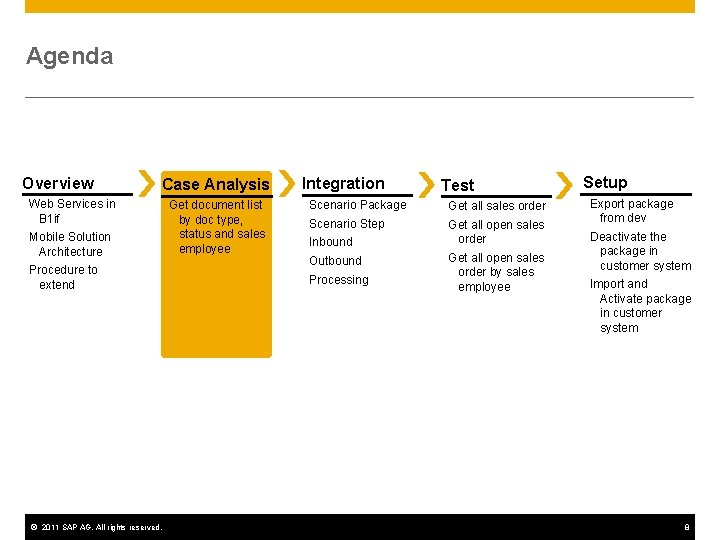
Agenda Overview Case Analysis Web Services in B 1 if Mobile Solution Architecture Procedure to extend © 2011 SAP AG. All rights reserved. Get document list by doc type, status and sales employee Integration Test Scenario Package Get all sales order Scenario Step Get all open sales order Inbound Outbound Processing Get all open sales order by sales employee Setup Export package from dev system Deactivate the package in customer system Import and Activate package in customer system 8
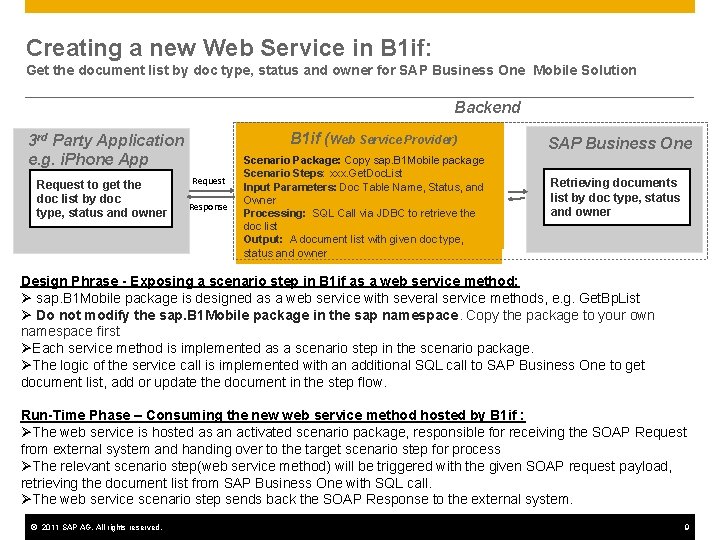
Creating a new Web Service in B 1 if: Get the document list by doc type, status and owner for SAP Business One Mobile Solution Backend B 1 if (Web Service Provider) 3 rd Party Application e. g. i. Phone App Request to get the doc list by doc type, status and owner Request Response Scenario Package: Copy sap. B 1 Mobile package Scenario Steps: xxx. Get. Doc. List Input Parameters: Doc Table Name, Status, and Owner Processing: SQL Call via JDBC to retrieve the doc list Output: A document list with given doc type, status and owner SAP Business One Retrieving documents list by doc type, status and owner Design Phrase - Exposing a scenario step in B 1 if as a web service method: Ø sap. B 1 Mobile package is designed as a web service with several service methods, e. g. Get. Bp. List Ø Do not modify the sap. B 1 Mobile package in the sap namespace. Copy the package to your own namespace first ØEach service method is implemented as a scenario step in the scenario package. ØThe logic of the service call is implemented with an additional SQL call to SAP Business One to get document list, add or update the document in the step flow. Run-Time Phase – Consuming the new web service method hosted by B 1 if : ØThe web service is hosted as an activated scenario package, responsible for receiving the SOAP Request from external system and handing over to the target scenario step for process ØThe relevant scenario step(web service method) will be triggered with the given SOAP request payload, retrieving the document list from SAP Business One with SQL call. ØThe web service scenario step sends back the SOAP Response to the external system. © 2011 SAP AG. All rights reserved. 9
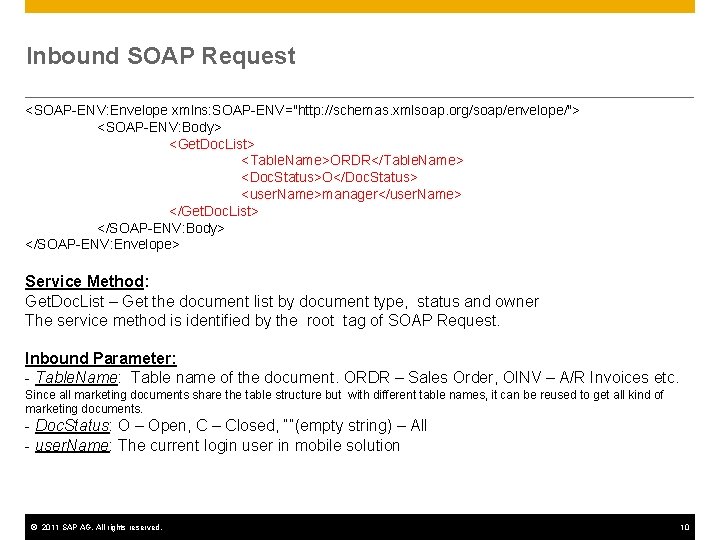
Inbound SOAP Request <SOAP-ENV: Envelope xmlns: SOAP-ENV="http: //schemas. xmlsoap. org/soap/envelope/"> <SOAP-ENV: Body> <Get. Doc. List> <Table. Name>ORDR</Table. Name> <Doc. Status>O</Doc. Status> <user. Name>manager</user. Name> </Get. Doc. List> </SOAP-ENV: Body> </SOAP-ENV: Envelope> Service Method: Get. Doc. List – Get the document list by document type, status and owner The service method is identified by the root tag of SOAP Request. Inbound Parameter: - Table. Name: Table name of the document. ORDR – Sales Order, OINV – A/R Invoices etc. Since all marketing documents share the table structure but with different table names, it can be reused to get all kind of marketing documents. - Doc. Status: O – Open, C – Closed, “”(empty string) – All - user. Name: The current login user in mobile solution © 2011 SAP AG. All rights reserved. 10
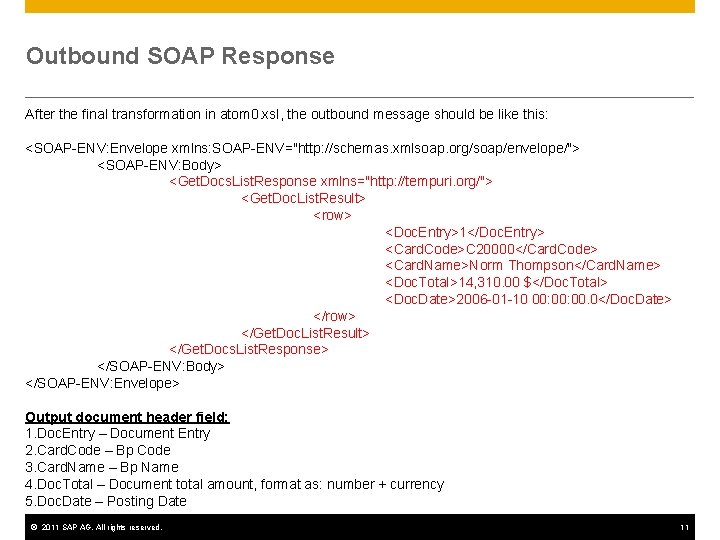
Outbound SOAP Response After the final transformation in atom 0. xsl, the outbound message should be like this: <SOAP-ENV: Envelope xmlns: SOAP-ENV="http: //schemas. xmlsoap. org/soap/envelope/"> <SOAP-ENV: Body> <Get. Docs. List. Response xmlns="http: //tempuri. org/"> <Get. Doc. List. Result> <row> <Doc. Entry>1</Doc. Entry> <Card. Code>C 20000</Card. Code> <Card. Name>Norm Thompson</Card. Name> <Doc. Total>14, 310. 00 $</Doc. Total> <Doc. Date>2006 -01 -10 00: 00. 0</Doc. Date> </row> </Get. Doc. List. Result> </Get. Docs. List. Response> </SOAP-ENV: Body> </SOAP-ENV: Envelope> Output document header field: 1. Doc. Entry – Document Entry 2. Card. Code – Bp Code 3. Card. Name – Bp Name 4. Doc. Total – Document total amount, format as: number + currency 5. Doc. Date – Posting Date © 2011 SAP AG. All rights reserved. 11
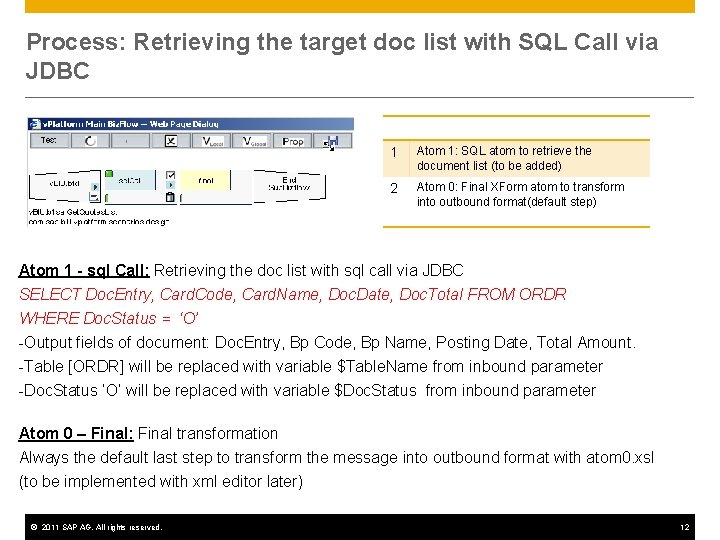
Process: Retrieving the target doc list with SQL Call via JDBC 1 Atom 1: SQL atom to retrieve the document list (to be added) 2 Atom 0: Final XForm atom to transform into outbound format(default step) Atom 1 - sql Call: Retrieving the doc list with sql call via JDBC SELECT Doc. Entry, Card. Code, Card. Name, Doc. Date, Doc. Total FROM ORDR WHERE Doc. Status = ‘O’ -Output fields of document: Doc. Entry, Bp Code, Bp Name, Posting Date, Total Amount. -Table [ORDR] will be replaced with variable $Table. Name from inbound parameter -Doc. Status ‘O’ will be replaced with variable $Doc. Status from inbound parameter Atom 0 – Final: Final transformation Always the default last step to transform the message into outbound format with atom 0. xsl (to be implemented with xml editor later) © 2011 SAP AG. All rights reserved. 12
Agenda Overview Case Analysis Web Services in B 1 if Mobile Solution Architecture Procedure to extend © 2011 SAP AG. All rights reserved. Get document list by doc type, status and sales employee Integration Test Scenario Package Get all sales order Scenario Step Get all open sales order Inbound Outbound Processing Get all open sales order by sales employee Setup Export package from dev system Deactivate the package in customer system Import and Activate package in customer system 13
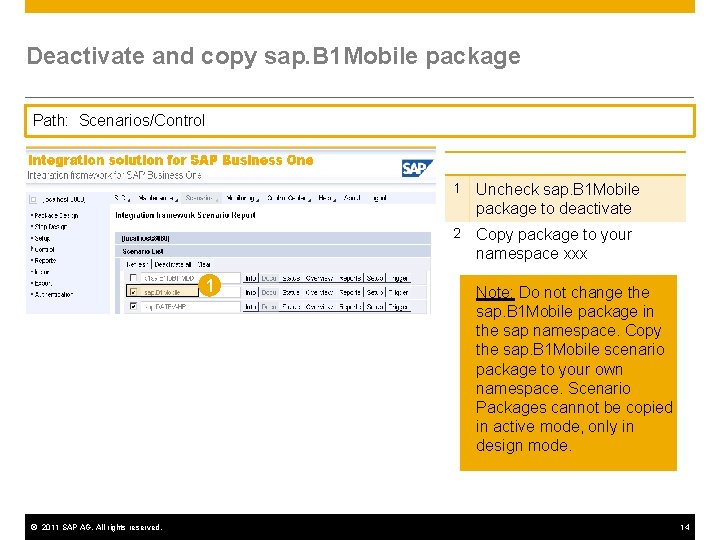
Deactivate and copy sap. B 1 Mobile package Path: Scenarios/Control 1 © 2011 SAP AG. All rights reserved. 1 Uncheck sap. B 1 Mobile package to deactivate 2 Copy package to your namespace xxx Note: Do not change the sap. B 1 Mobile package in the sap namespace. Copy the sap. B 1 Mobile scenario package to your own namespace. Scenario Packages cannot be copied in active mode, only in design mode. 14
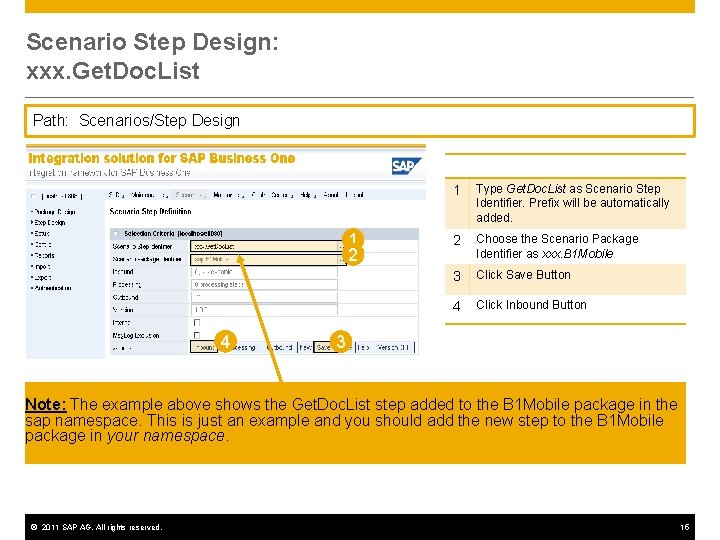
Scenario Step Design: xxx. Get. Doc. List Path: Scenarios/Step Design 1 2 4 1 Type Get. Doc. List as Scenario Step Identifier. Prefix will be automatically added. 2 Choose the Scenario Package Identifier as xxx. B 1 Mobile 3 Click Save Button 4 Click Inbound Button 3 Note: The example above shows the Get. Doc. List step added to the B 1 Mobile package in the sap namespace. This is just an example and you should add the new step to the B 1 Mobile package in your namespace. © 2011 SAP AG. All rights reserved. 15
![Scenario Step Design: xxx. Get. Doc. List: Inbound (2/3) Path: Scenarios/Step Design/Working Step/[Inbound] Identification](http://slidetodoc.com/presentation_image_h/7edf39ff1442532eaf546eec53f79f18/image-16.jpg "Scenario Step Design: xxx. Get. Doc. List: Inbound (2/3) Path: Scenarios/Step Design/Working Step/[Inbound] Identification")
Scenario Step Design: xxx. Get. Doc. List: Inbound (2/3) Path: Scenarios/Step Design/Working Step/[Inbound] Identification method and trigger Identification method as root tag and identifier as root tag name. In our case, the SOAP Request body should be like: <SOAP: Body> <Get. Doc. List> ……. </Get. Doc. List> </SOAP: Body> Root tag <Get. Doc. List> in SOAP request will trigger the process of scenario step – xxx. Get. Doc. List © 2011 SAP AG. All rights reserved. 16
![Scenario Step Design: xxx. Get. Doc. List: Inbound (1/3) Path: Scenarios/Step Design/Working Step/[Inbound] 1](http://slidetodoc.com/presentation_image_h/7edf39ff1442532eaf546eec53f79f18/image-17.jpg "Scenario Step Design: xxx. Get. Doc. List: Inbound (1/3) Path: Scenarios/Step Design/Working Step/[Inbound] 1")
Scenario Step Design: xxx. Get. Doc. List: Inbound (1/3) Path: Scenarios/Step Design/Working Step/[Inbound] 1 2 3 4 5 6 7 8 © 2011 SAP AG. All rights reserved. 9 1 Click on Channel 2 Using the ellipsis button (…) select Web Service Call as Inbound Type 3 Using the ellipsis button (…) select Synchronous as Process Mode 4 Using the ellipsis button (…) select Call as Process Trigger 5 Using the ellipsis button (…) select Root Tag as Identification Method 6 Input Get. Doc. List as Identifier 7 Input xmlns: b 1 mb="http: //tempuri. org/" as Identification namespace, defined by SAP for mobile package. 8 Click Save 9 Click Close 17
![Scenario Step Design: xxx. Get. Doc. List: Inbound (3/3) Path: Scenarios/Step Design/Working Step/[Inbound] 1](http://slidetodoc.com/presentation_image_h/7edf39ff1442532eaf546eec53f79f18/image-18.jpg "Scenario Step Design: xxx. Get. Doc. List: Inbound (3/3) Path: Scenarios/Step Design/Working Step/[Inbound] 1")
Scenario Step Design: xxx. Get. Doc. List: Inbound (3/3) Path: Scenarios/Step Design/Working Step/[Inbound] 1 Click on Retrieval 2 Click Save 3 Click Close 1 Retrieval as Handover, B 1 if will decide how to retrieve the inbound message 2 © 2011 SAP AG. All rights reserved. 3 18
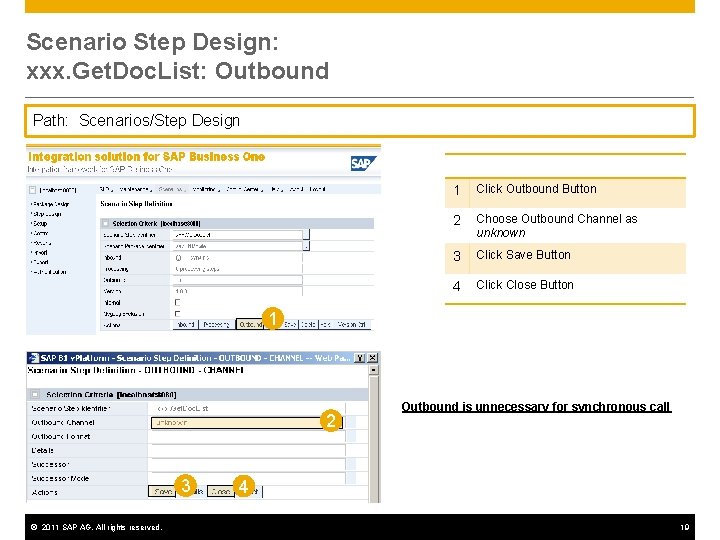
Scenario Step Design: xxx. Get. Doc. List: Outbound Path: Scenarios/Step Design 1 Click Outbound Button 2 Choose Outbound Channel as unknown 3 Click Save Button 4 Click Close Button 1 2 3 © 2011 SAP AG. All rights reserved. Outbound is unnecessary for synchronous call 4 19
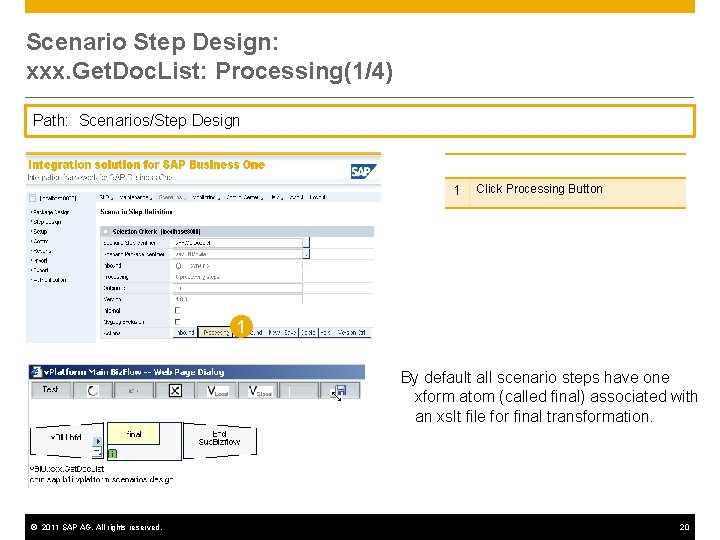
Scenario Step Design: xxx. Get. Doc. List: Processing(1/4) Path: Scenarios/Step Design 1 Click Processing Button 1 By default all scenario steps have one xform atom (called final) associated with an xslt file for final transformation. © 2011 SAP AG. All rights reserved. 20
![Scenario Step Design: xxx. Get. Doc. List: Processing(2/4) Path: Scenarios/Step Design/Working Step/[Processing] 1 1](http://slidetodoc.com/presentation_image_h/7edf39ff1442532eaf546eec53f79f18/image-21.jpg "Scenario Step Design: xxx. Get. Doc. List: Processing(2/4) Path: Scenarios/Step Design/Working Step/[Processing] 1 1")
Scenario Step Design: xxx. Get. Doc. List: Processing(2/4) Path: Scenarios/Step Design/Working Step/[Processing] 1 1 Click on triangle icon to add a new atom 2 Select Call SQL as new Flow Atom 3 Click Add Button 4 Click Close 2 3 © 2011 SAP AG. All rights reserved. 4 21
![Scenario Step Design: xxx. Get. Doc. List: Processing(3/4) Path: Scenarios/Step Design/Working Step/[Processing] 1 2](http://slidetodoc.com/presentation_image_h/7edf39ff1442532eaf546eec53f79f18/image-22.jpg "Scenario Step Design: xxx. Get. Doc. List: Processing(3/4) Path: Scenarios/Step Design/Working Step/[Processing] 1 2")
Scenario Step Design: xxx. Get. Doc. List: Processing(3/4) Path: Scenarios/Step Design/Working Step/[Processing] 1 2 3 4 © 2011 SAP AG. All rights reserved. 5 1 Click on pen icon to edit sql. Call atom 2 Select #B 1 System, based on User as Sys. Id 3 Enter #SELECT Doc. Entry, Card. Code, Card. Name, Doc. Date, Doc. Total FROM ORDR as SQL Statement 4 Click Save Button 5 Click Close Button Note: All the sales orders are retrieved in one shot. Variables. Table. Name and Doc. Status will be introduced later, to support dynamically retrieving the document list by document type , status, and its owner 22
![Scenario Step Design: xxx. Get. Doc. List: Processing(4/4) Path: Scenarios/Step Design/Working Step/[Processing] After the](http://slidetodoc.com/presentation_image_h/7edf39ff1442532eaf546eec53f79f18/image-23.jpg "Scenario Step Design: xxx. Get. Doc. List: Processing(4/4) Path: Scenarios/Step Design/Working Step/[Processing] After the")
Scenario Step Design: xxx. Get. Doc. List: Processing(4/4) Path: Scenarios/Step Design/Working Step/[Processing] After the configuration the Processing diagram should be showing a green light icon at the left and top of sql. Call atoms. The next step is to modify the XSLT file of the Final atom using your preferred XML Editor. In order to have access to the XSLT file, Web. DAV should be enabled as “full”. Refer to B 1 if Installation slides for instruction. © 2011 SAP AG. All rights reserved. 23
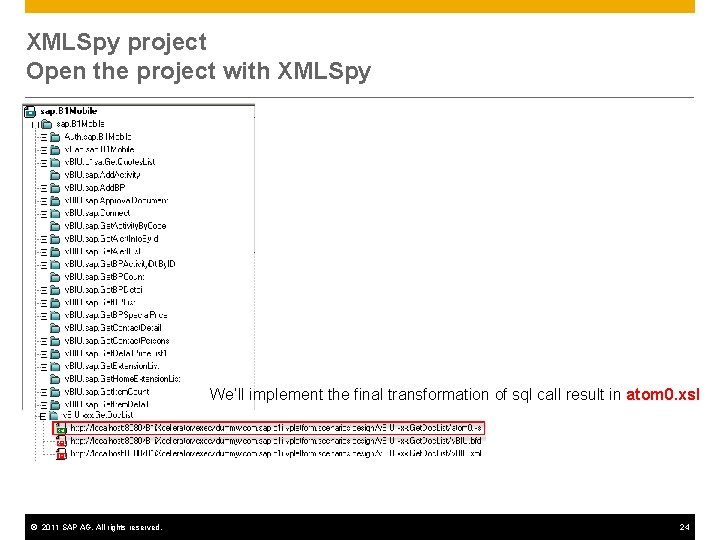
XMLSpy project Open the project with XMLSpy We’ll implement the final transformation of sql call result in atom 0. xsl © 2011 SAP AG. All rights reserved. 24
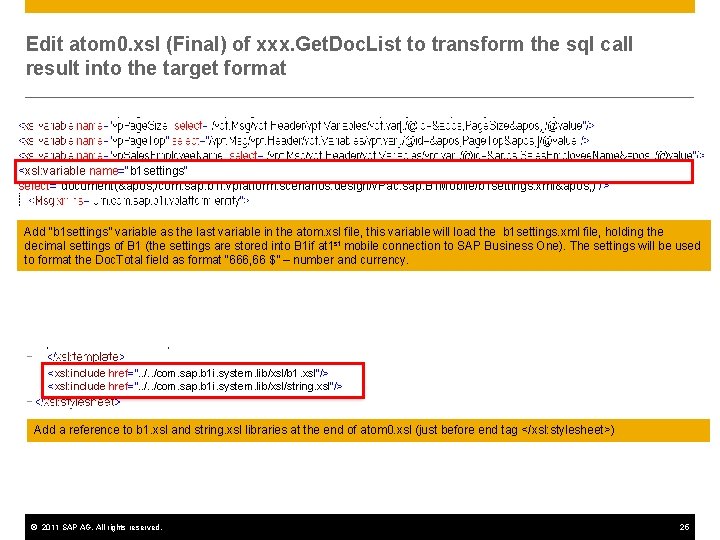
Edit atom 0. xsl (Final) of xxx. Get. Doc. List to transform the sql call result into the target format <xsl: variable name="b 1 settings" select="document(' /com. sap. b 1 i. vplatform. scenarios. design/v. Pac. sap. B 1 Mobile/b 1 settings. xml' )"/> Add “b 1 settings” variable as the last variable in the atom. xsl file, this variable will load the b 1 settings. xml file, holding the decimal settings of B 1 (the settings are stored into B 1 if at 1 st mobile connection to SAP Business One). The settings will be used to format the Doc. Total field as format “ 666, 66 $” – number and currency. <xsl: include href=". . /com. sap. b 1 i. system. lib/xsl/b 1. xsl"/> <xsl: include href=". . /com. sap. b 1 i. system. lib/xsl/string. xsl"/> Add a reference to b 1. xsl and string. xsl libraries at the end of atom 0. xsl (just before end tag </xsl: stylesheet>) © 2011 SAP AG. All rights reserved. 25
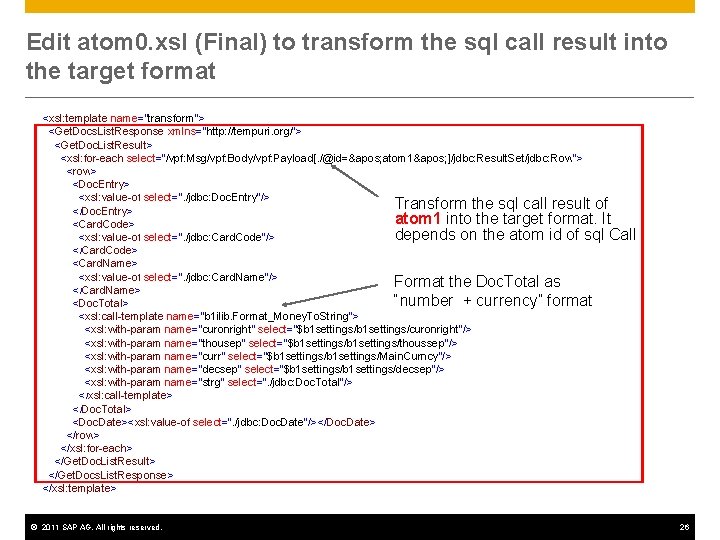
Edit atom 0. xsl (Final) to transform the sql call result into the target format <xsl: template name="transform"> <Get. Docs. List. Response xmlns="http: //tempuri. org/"> <Get. Doc. List. Result> <xsl: for-each select="/vpf: Msg/vpf: Body/vpf: Payload[. /@id=' atom 1' ]/jdbc: Result. Set/jdbc: Row"> <row> <Doc. Entry> <xsl: value-of select=". /jdbc: Doc. Entry"/> Transform the sql call result of </Doc. Entry> atom 1 into the target format. It <Card. Code> depends on the atom id of sql Call <xsl: value-of select=". /jdbc: Card. Code"/> </Card. Code> <Card. Name> <xsl: value-of select=". /jdbc: Card. Name"/> Format the Doc. Total as </Card. Name> “number + currency” format <Doc. Total> <xsl: call-template name="b 1 ilib. Format_Money. To. String"> <xsl: with-param name="curonright" select="$b 1 settings/curonright"/> <xsl: with-param name="thousep" select="$b 1 settings/thoussep"/> <xsl: with-param name="curr" select="$b 1 settings/Main. Curncy"/> <xsl: with-param name="decsep" select="$b 1 settings/decsep"/> <xsl: with-param name="strg" select=". /jdbc: Doc. Total"/> </xsl: call-template> </Doc. Total> <Doc. Date><xsl: value-of select=". /jdbc: Doc. Date"/></Doc. Date> </row> </xsl: for-each> </Get. Doc. List. Result> </Get. Docs. List. Response> </xsl: template> © 2011 SAP AG. All rights reserved. 26
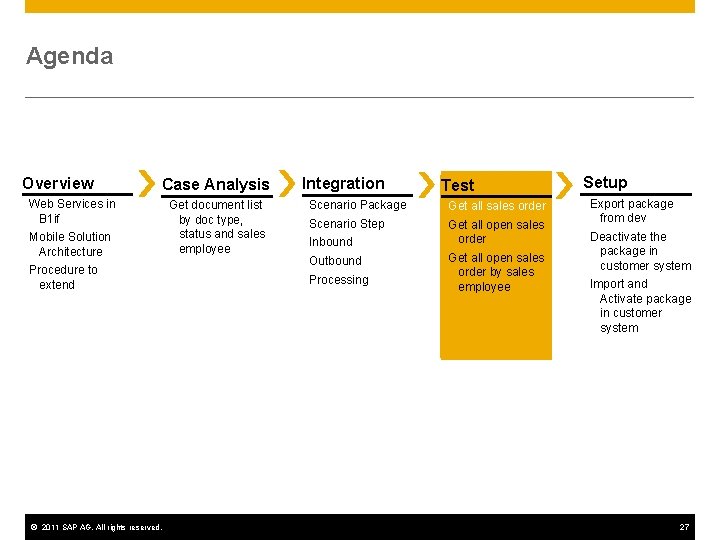
Agenda Overview Case Analysis Web Services in B 1 if Mobile Solution Architecture Procedure to extend © 2011 SAP AG. All rights reserved. Get document list by doc type, status and sales employee Integration Test Scenario Package Get all sales order Scenario Step Get all open sales order Inbound Outbound Processing Get all open sales order by sales employee Setup Export package from dev system Deactivate the package in customer system Import and Activate package in customer system 27
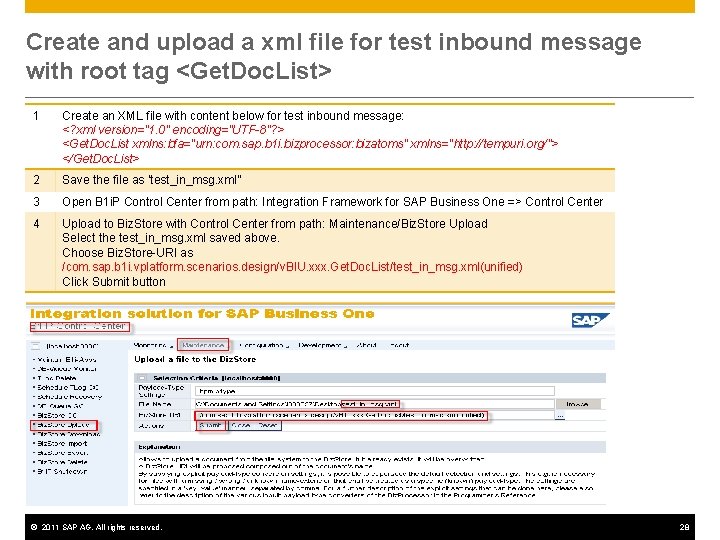
Create and upload a xml file for test inbound message with root tag <Get. Doc. List> 1 Create an XML file with content below for test inbound message: <? xml version="1. 0" encoding="UTF-8"? > <Get. Doc. List xmlns: bfa="urn: com. sap. b 1 i. bizprocessor: bizatoms" xmlns="http: //tempuri. org/"> </Get. Doc. List> 2 Save the file as ‘test_in_msg. xml” 3 Open B 1 i. P Control Center from path: Integration Framework for SAP Business One => Control Center 4 Upload to Biz. Store with Control Center from path: Maintenance/Biz. Store Upload Select the test_in_msg. xml saved above. Choose Biz. Store-URI as /com. sap. b 1 i. vplatform. scenarios. design/v. BIU. xxx. Get. Doc. List/test_in_msg. xml(unified) Click Submit button © 2011 SAP AG. All rights reserved. 28
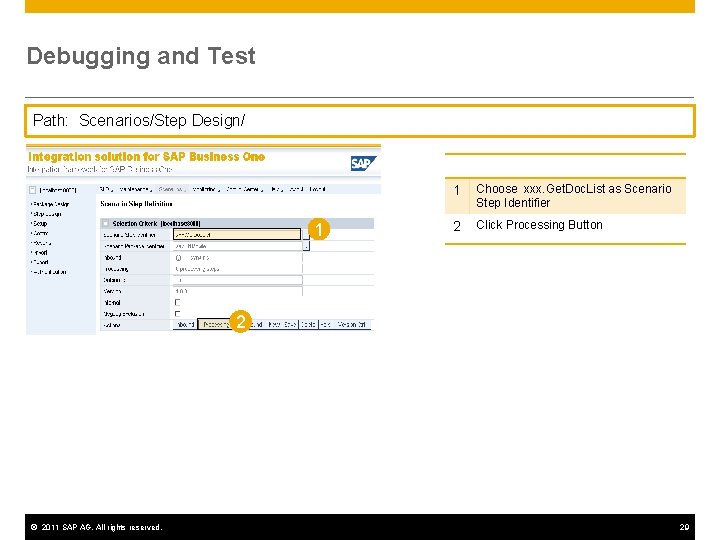
Debugging and Test Path: Scenarios/Step Design/ 1 1 Choose xxx. Get. Doc. List as Scenario Step Identifier 2 Click Processing Button 2 © 2011 SAP AG. All rights reserved. 29
![Debugging and Test Path: Scenarios/Step Design/Working Step/[Processing] 1 5 © 2011 SAP AG. All](http://slidetodoc.com/presentation_image_h/7edf39ff1442532eaf546eec53f79f18/image-30.jpg "Debugging and Test Path: Scenarios/Step Design/Working Step/[Processing] 1 5 © 2011 SAP AG. All")
Debugging and Test Path: Scenarios/Step Design/Working Step/[Processing] 1 5 © 2011 SAP AG. All rights reserved. 6 7 8 1 Click Test Button 2 Choose 001 sap 0003 WSfor. Mobile as Test Sender System 3 Choose <Target B 1 company> as Test user based B 1 4 Choose test_in_msg. xml as Inbound. Message 5 Click Save Button 2 6 Click Run Button 3 4 7 Click Debug Button 8 Click Result Button 30
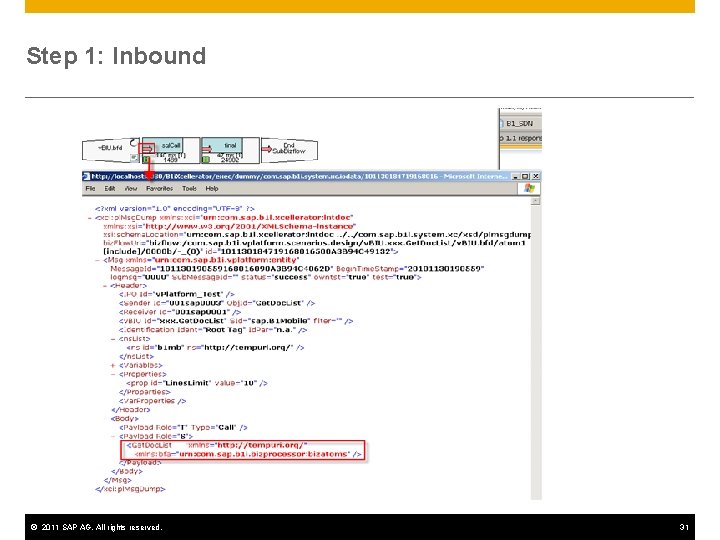
Step 1: Inbound © 2011 SAP AG. All rights reserved. 31
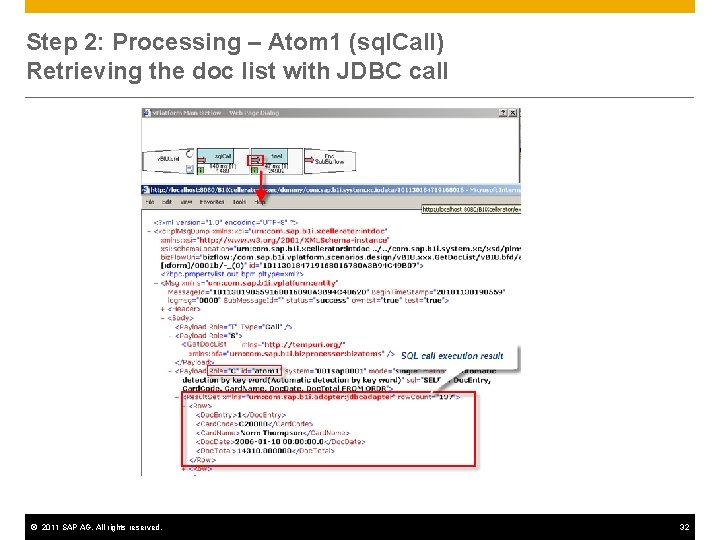
Step 2: Processing – Atom 1 (sql. Call) Retrieving the doc list with JDBC call © 2011 SAP AG. All rights reserved. 32
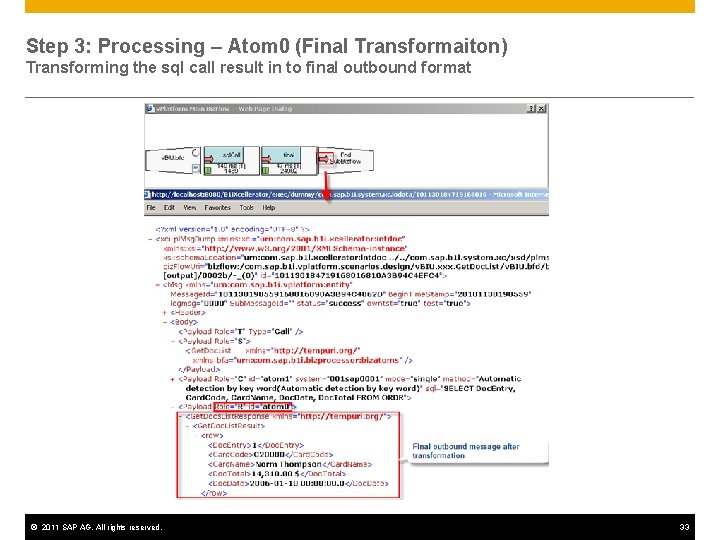
Step 3: Processing – Atom 0 (Final Transformaiton) Transforming the sql call result in to final outbound format © 2011 SAP AG. All rights reserved. 33
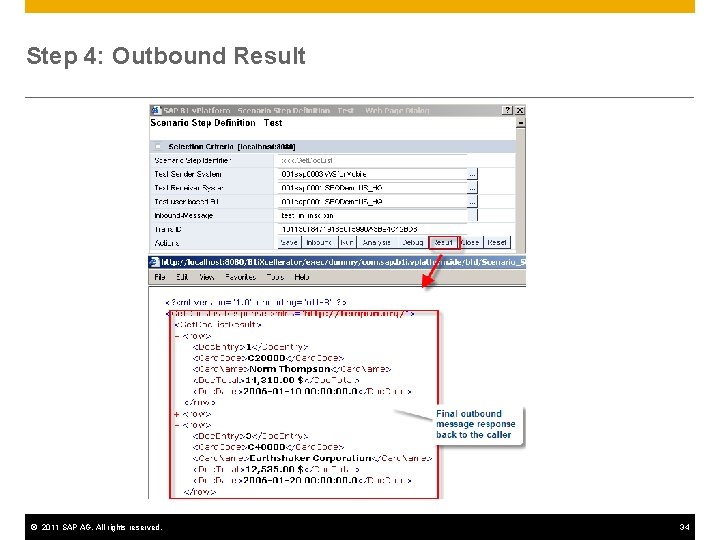
Step 4: Outbound Result © 2011 SAP AG. All rights reserved. 34
Agenda Overview Case Analysis Web Services in B 1 if Mobile Solution Architecture Procedure to extend © 2011 SAP AG. All rights reserved. Get document list by doc type, status and sales employee Integration Test Scenario Package Get all sales order Scenario Step Get all open sales order Inbound Outbound Processing Get all open sales order by sales employee Setup Export package from dev system Deactivate the package in customer system Import and Activate package in customer system 35
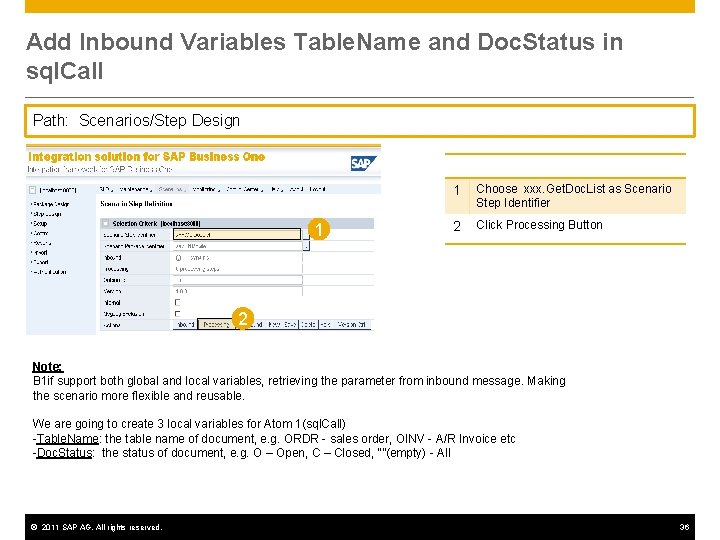
Add Inbound Variables Table. Name and Doc. Status in sql. Call Path: Scenarios/Step Design 1 1 Choose xxx. Get. Doc. List as Scenario Step Identifier 2 Click Processing Button 2 Note: B 1 if support both global and local variables, retrieving the parameter from inbound message. Making the scenario more flexible and reusable. We are going to create 3 local variables for Atom 1(sql. Call) -Table. Name: the table name of document, e. g. ORDR - sales order, OINV - A/R Invoice etc -Doc. Status: the status of document, e. g. O – Open, C – Closed, “”(empty) - All © 2011 SAP AG. All rights reserved. 36
![Add Local Variables for sql. Call: Variable#1 - Table. Name Path: Scenarios/Step Design/Working Step/[Processing]](http://slidetodoc.com/presentation_image_h/7edf39ff1442532eaf546eec53f79f18/image-37.jpg "Add Local Variables for sql. Call: Variable#1 - Table. Name Path: Scenarios/Step Design/Working Step/[Processing]")
Add Local Variables for sql. Call: Variable#1 - Table. Name Path: Scenarios/Step Design/Working Step/[Processing] 1 3 1 Click the pen icon to edit the sql. Call atom 2 Click “Lcl. Vars” button in edit SQL CALL window 3 Click Add button to add a new variable 4 Enter Table. Name as variable name 5 Click Select button 6 Enter $msg/*/b 1 mb: Table. Name as Xpath for variable Table. Name 7 Click Save button 4 2 5 6 7 Inbound Parameter - Table Name of Document - Retrieving from inbound request message - Xpath: $msg/*/b 1 mb: Table. Name © 2011 SAP AG. All rights reserved. 37
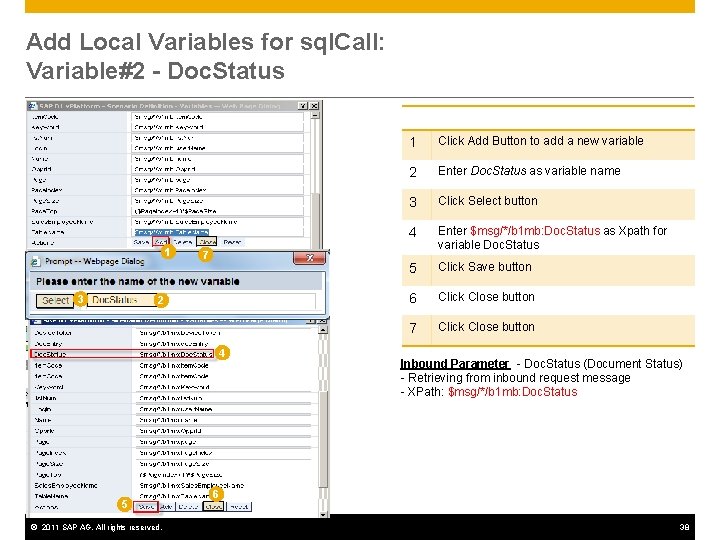
Add Local Variables for sql. Call: Variable#2 - Doc. Status 1 3 7 2 4 5 © 2011 SAP AG. All rights reserved. 1 Click Add Button to add a new variable 2 Enter Doc. Status as variable name 3 Click Select button 4 Enter $msg/*/b 1 mb: Doc. Status as Xpath for variable Doc. Status 5 Click Save button 6 Click Close button 7 Click Close button Inbound Parameter - Doc. Status (Document Status) - Retrieving from inbound request message - XPath: $msg/*/b 1 mb: Doc. Status 6 38
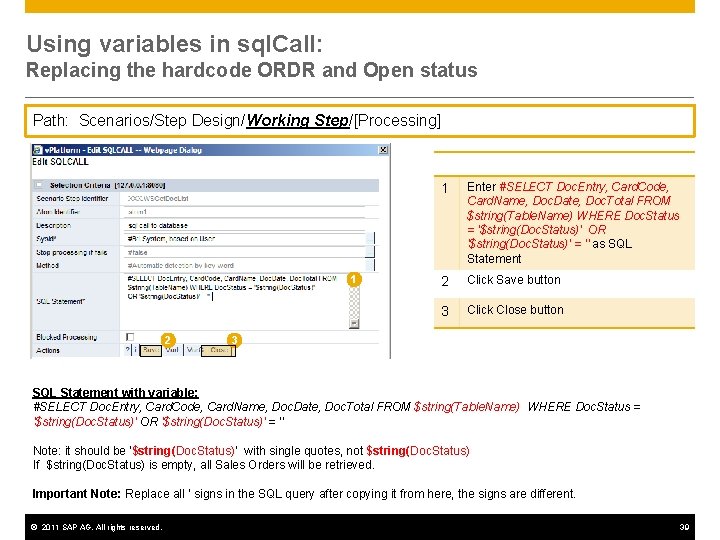
Using variables in sql. Call: Replacing the hardcode ORDR and Open status Path: Scenarios/Step Design/Working Step/[Processing] 1 2 1 Enter #SELECT Doc. Entry, Card. Code, Card. Name, Doc. Date, Doc. Total FROM $string(Table. Name) WHERE Doc. Status = '$string(Doc. Status)' OR '$string(Doc. Status)' = '' as SQL Statement 2 Click Save button 3 Click Close button 3 SQL Statement with variable: #SELECT Doc. Entry, Card. Code, Card. Name, Doc. Date, Doc. Total FROM $string(Table. Name) WHERE Doc. Status = '$string(Doc. Status)' OR '$string(Doc. Status)' = '' Note: it should be ‘$string(Doc. Status)’ with single quotes, not $string(Doc. Status) If $string(Doc. Status) is empty, all Sales Orders will be retrieved. Important Note: Replace all ‘ signs in the SQL query after copying it from here, the signs are different. © 2011 SAP AG. All rights reserved. 39
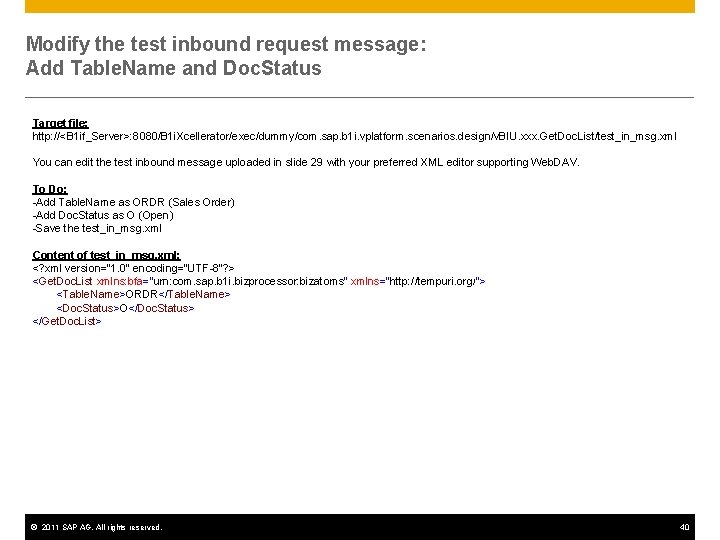
Modify the test inbound request message: Add Table. Name and Doc. Status Target file: http: //<B 1 if_Server>: 8080/B 1 i. Xcellerator/exec/dummy/com. sap. b 1 i. vplatform. scenarios. design/v. BIU. xxx. Get. Doc. List/test_in_msg. xml You can edit the test inbound message uploaded in slide 29 with your preferred XML editor supporting Web. DAV. To Do: -Add Table. Name as ORDR (Sales Order) -Add Doc. Status as O (Open) -Save the test_in_msg. xml Content of test_in_msg. xml: <? xml version="1. 0" encoding="UTF-8"? > <Get. Doc. List xmlns: bfa="urn: com. sap. b 1 i. bizprocessor: bizatoms" xmlns="http: //tempuri. org/"> <Table. Name>ORDR</Table. Name> <Doc. Status>O</Doc. Status> </Get. Doc. List> © 2011 SAP AG. All rights reserved. 40
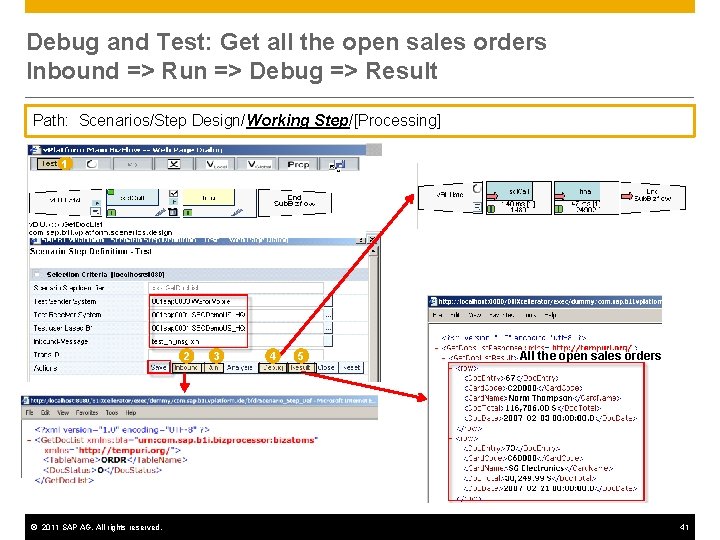
Debug and Test: Get all the open sales orders Inbound => Run => Debug => Result Path: Scenarios/Step Design/Working Step/[Processing] 1 2 © 2011 SAP AG. All rights reserved. 3 4 5 All the open sales orders 41
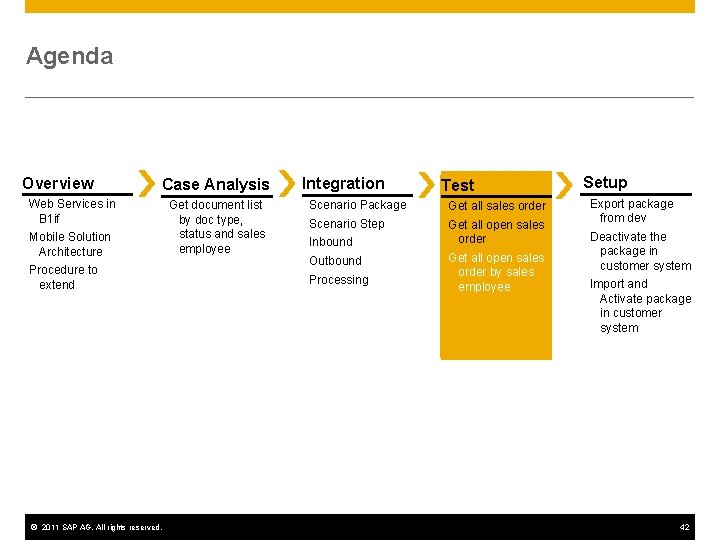
Agenda Overview Case Analysis Web Services in B 1 if Mobile Solution Architecture Procedure to extend © 2011 SAP AG. All rights reserved. Get document list by doc type, status and sales employee Integration Test Scenario Package Get all sales order Scenario Step Get all open sales order Inbound Outbound Processing Get all open sales order by sales employee Setup Export package from dev system Deactivate the package in customer system Import and Activate package in customer system 42
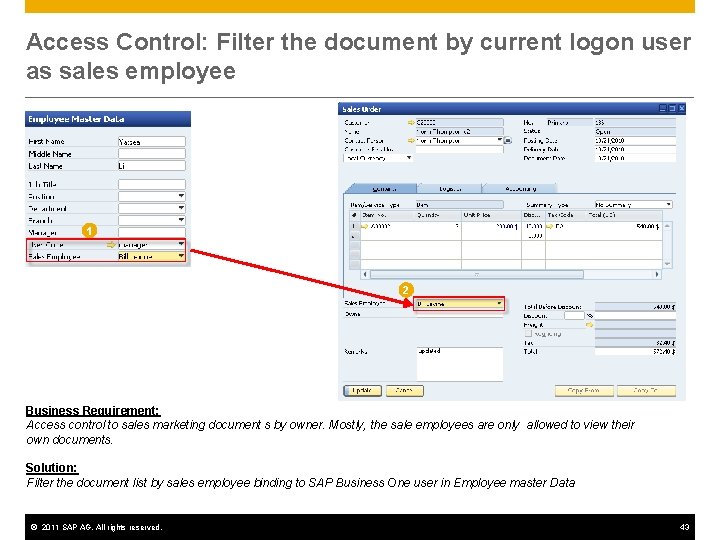
Access Control: Filter the document by current logon user as sales employee 1 2 Business Requirement: Access control to sales marketing document s by owner. Mostly, the sale employees are only allowed to view their own documents. Solution: Filter the document list by sales employee binding to SAP Business One user in Employee master Data © 2011 SAP AG. All rights reserved. 43
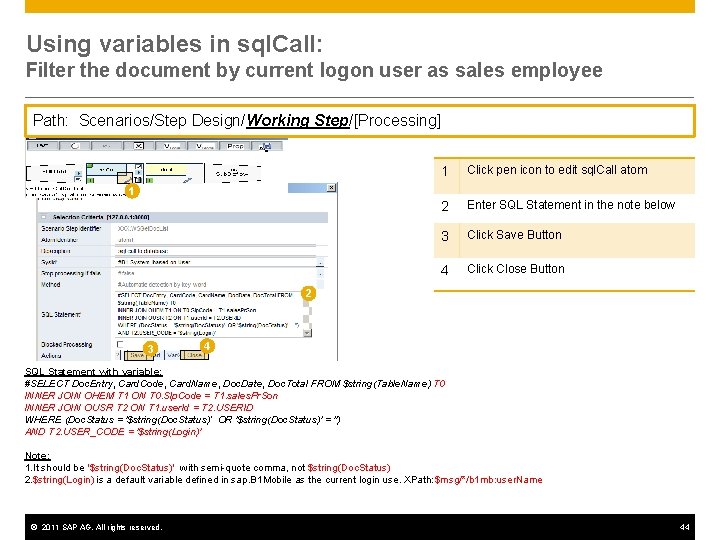
Using variables in sql. Call: Filter the document by current logon user as sales employee Path: Scenarios/Step Design/Working Step/[Processing] 1 Click pen icon to edit sql. Call atom 2 Enter SQL Statement in the note below 3 Click Save Button 4 Click Close Button 1 2 3 4 SQL Statement with variable: #SELECT Doc. Entry, Card. Code, Card. Name, Doc. Date, Doc. Total FROM $string(Table. Name) T 0 INNER JOIN OHEM T 1 ON T 0. Slp. Code = T 1. sales. Pr. Son INNER JOIN OUSR T 2 ON T 1. user. Id = T 2. USERID WHERE (Doc. Status = '$string(Doc. Status)‘ OR '$string(Doc. Status)' = '') AND T 2. USER_CODE = '$string(Login)' Note: 1. It should be ‘$string(Doc. Status)’ with semi-quote comma, not $string(Doc. Status) 2. $string(Login) is a default variable defined in sap. B 1 Mobile as the current login use. XPath: $msg/*/b 1 mb: user. Name © 2011 SAP AG. All rights reserved. 44
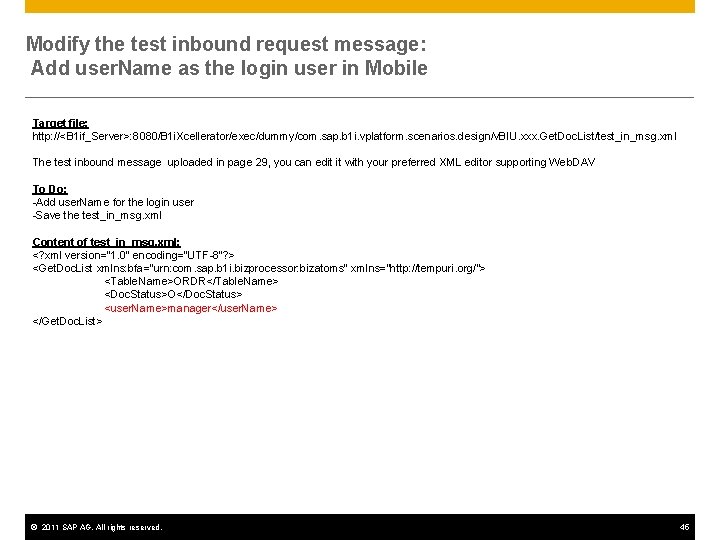
Modify the test inbound request message: Add user. Name as the login user in Mobile Target file: http: //<B 1 if_Server>: 8080/B 1 i. Xcellerator/exec/dummy/com. sap. b 1 i. vplatform. scenarios. design/v. BIU. xxx. Get. Doc. List/test_in_msg. xml The test inbound message uploaded in page 29, you can edit it with your preferred XML editor supporting Web. DAV To Do: -Add user. Name for the login user -Save the test_in_msg. xml Content of test_in_msg. xml: <? xml version="1. 0" encoding="UTF-8"? > <Get. Doc. List xmlns: bfa="urn: com. sap. b 1 i. bizprocessor: bizatoms" xmlns="http: //tempuri. org/"> <Table. Name>ORDR</Table. Name> <Doc. Status>O</Doc. Status> <user. Name>manager</user. Name> </Get. Doc. List> © 2011 SAP AG. All rights reserved. 45
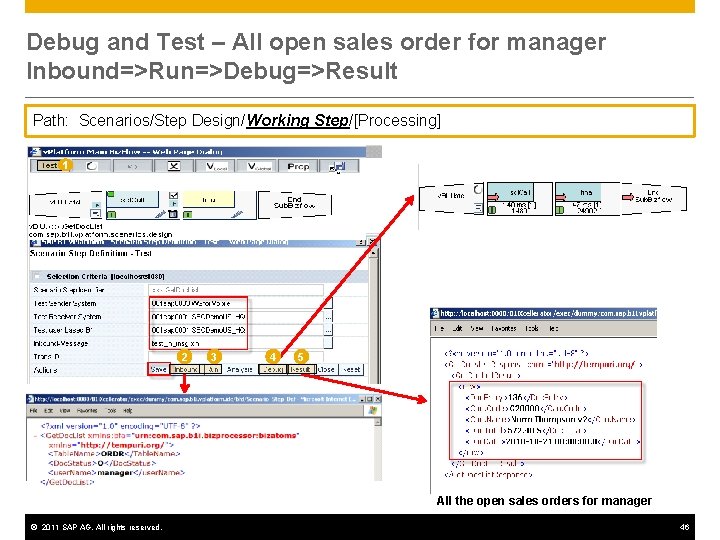
Debug and Test – All open sales order for manager Inbound=>Run=>Debug=>Result Path: Scenarios/Step Design/Working Step/[Processing] 1 2 3 4 5 All the open sales orders for manager © 2011 SAP AG. All rights reserved. 46
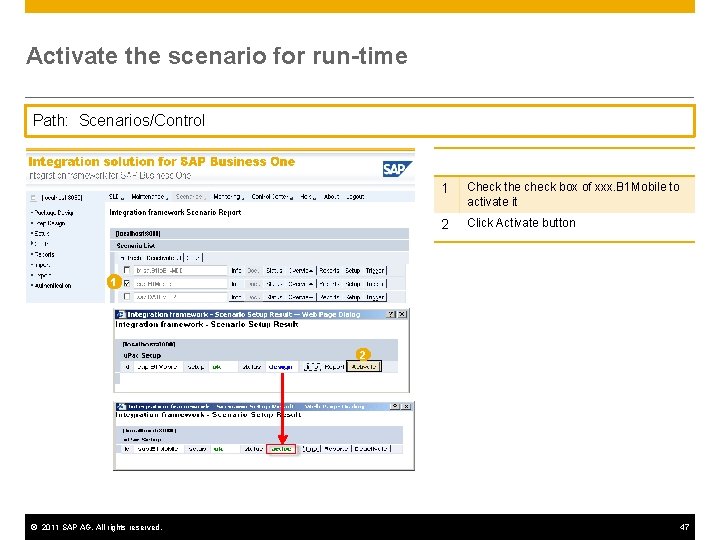
Activate the scenario for run-time Path: Scenarios/Control 1 Check the check box of xxx. B 1 Mobile to activate it 2 Click Activate button 1 2 © 2011 SAP AG. All rights reserved. 47
Agenda Overview Case Analysis Web Services in B 1 if Mobile Solution Architecture Procedure to extend © 2011 SAP AG. All rights reserved. Get document list by doc type, status and sales employee Integration Test Scenario Package Get all sales order Scenario Step Get all open sales order Inbound Outbound Processing Get all open sales order by sales employee Setup Export package from dev system Deactivate the package in customer system Import and Activate package in customer system 48
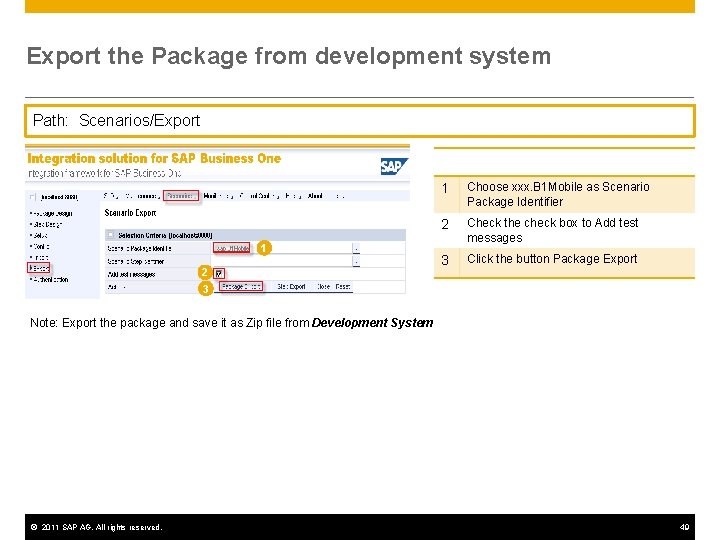
Export the Package from development system Path: Scenarios/Export 1 2 3 1 Choose xxx. B 1 Mobile as Scenario Package Identifier 2 Check the check box to Add test messages 3 Click the button Package Export Note: Export the package and save it as Zip file from Development System © 2011 SAP AG. All rights reserved. 49
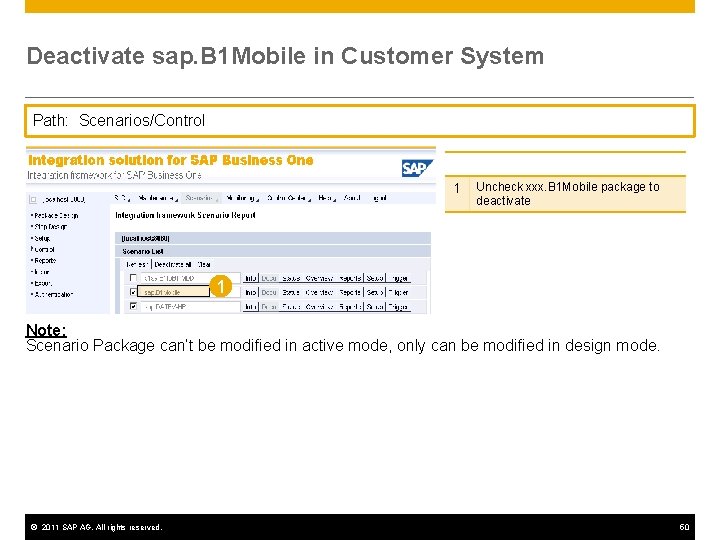
Deactivate sap. B 1 Mobile in Customer System Path: Scenarios/Control 1 Uncheck xxx. B 1 Mobile package to deactivate 1 Note: Scenario Package can’t be modified in active mode, only can be modified in design mode. © 2011 SAP AG. All rights reserved. 50
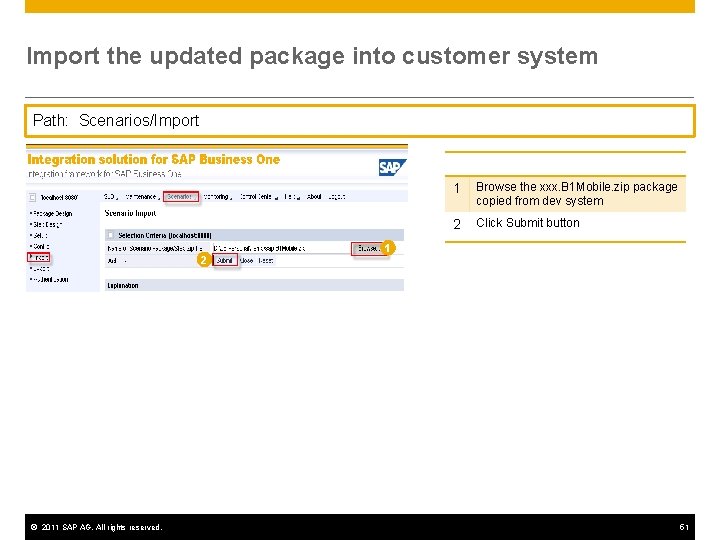
Import the updated package into customer system Path: Scenarios/Import 2 © 2011 SAP AG. All rights reserved. 1 Browse the xxx. B 1 Mobile. zip package copied from dev system 2 Click Submit button 1 51
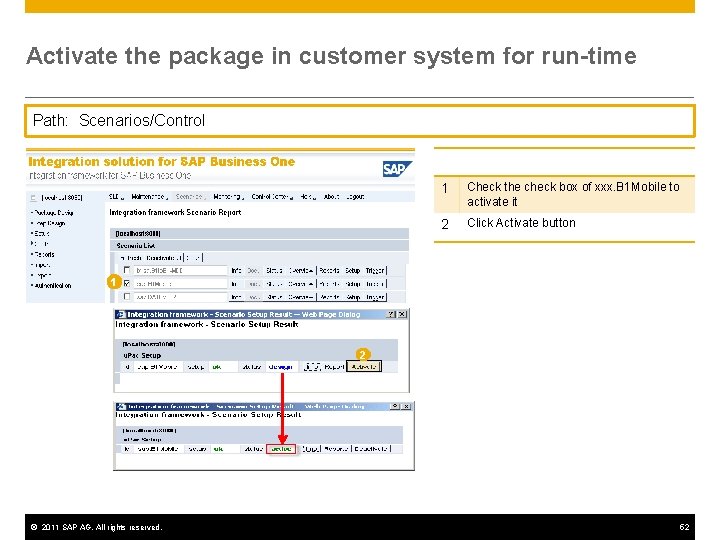
Activate the package in customer system for run-time Path: Scenarios/Control 1 Check the check box of xxx. B 1 Mobile to activate it 2 Click Activate button 1 2 © 2011 SAP AG. All rights reserved. 52
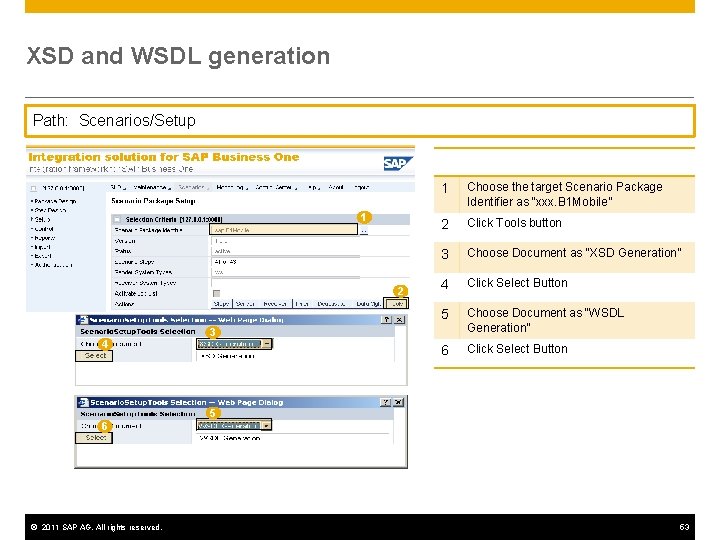
XSD and WSDL generation Path: Scenarios/Setup 1 2 4 1 Choose the target Scenario Package Identifier as “xxx. B 1 Mobile” 2 Click Tools button 3 Choose Document as “XSD Generation” 4 Click Select Button 5 Choose Document as “WSDL Generation” 6 Click Select Button 3 5 6 © 2011 SAP AG. All rights reserved. 53
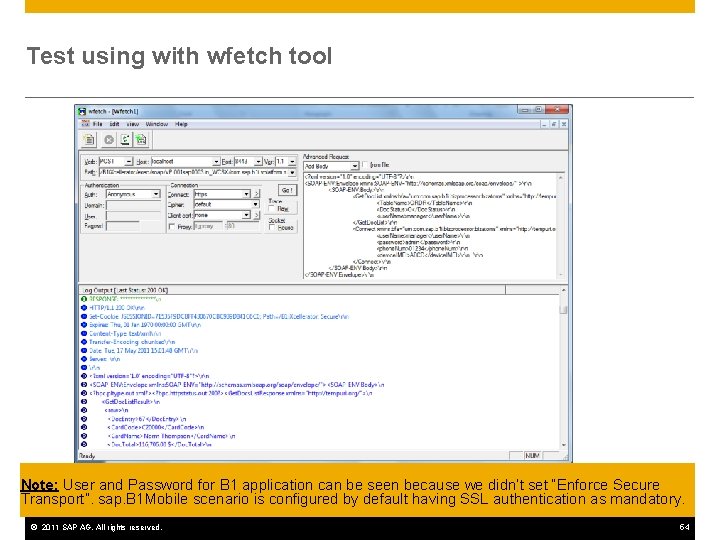
Test using with wfetch tool Note: User and Password for B 1 application can be seen because we didn’t set “Enforce Secure Transport”. sap. B 1 Mobile scenario is configured by default having SSL authentication as mandatory. © 2011 SAP AG. All rights reserved. 54
Thank You! For more information visit SDN at http: //sdn. sap. com
© 2011 SAP AG. All rights reserved No part of this publication may be reproduced or transmitted in any form or for any purpose without the express permission of SAP AG. The information contained herein may be changed without prior notice. Some software products marketed by SAP AG and its distributors contain proprietary software components of other software vendors. Microsoft, Windows, Excel, Outlook, and Power. Point are registered trademarks of Microsoft Corporation. IBM, DB 2 Universal Database, System i 5, System p 5, System x, System z 10, System z 9, z 10, z 9, i. Series, p. Series, x. Series, z. Series, e. Server, z/VM, z/OS, i 5/OS, S/390, OS/400, AS/400, S/390 Parallel Enterprise Server, Power. VM, Power Architecture, POWER 6+, POWER 6, POWER 5+, POWER 5, POWER, Open. Power, Power. PC, Batch. Pipes, Blade. Center, System Storage, GPFS, HACMP, RETAIN, DB 2 Connect, RACF, Redbooks, OS/2, Parallel Sysplex, MVS/ESA, AIX, Intelligent Miner, Web. Sphere, Netfinity, Tivoli and Informix are trademarks or registered trademarks of IBM Corporation. Linux is the registered trademark of Linus Torvalds in the U. S. and other countries. Adobe, the Adobe logo, Acrobat, Post. Script, and Reader are either trademarks or registered trademarks of Adobe Systems Incorporated in the United States and/or other countries. Oracle is a registered trademark of Oracle Corporation. UNIX, X/Open, OSF/1, and Motif are registered trademarks of the Open Group. Citrix, ICA, Program Neighborhood, Meta. Frame, Win. Frame, Video. Frame, and Multi. Win are trademarks or registered trademarks of Citrix Systems, Inc. HTML, XHTML and W 3 C are trademarks or registered trademarks of W 3 C®, World Wide Web Consortium, Massachusetts Institute of Technology. Java is a registered trademark of Sun Microsystems, Inc. Java. Script is a registered trademark of Sun Microsystems, Inc. , used under license for technology invented and implemented by Netscape. SAP, R/3, SAP Net. Weaver, Duet, Partner. Edge, By. Design, SAP Business. Objects Explorer, Stream. Work, and other SAP products and services mentioned herein as well as their respective logos are trademarks or registered trademarks of SAP AG in Germany and other countries. © 2011 SAP AG. All rights reserved. Business Objects and the Business Objects logo, Business. Objects, Crystal Reports, Crystal Decisions, Web Intelligence, Xcelsius, and other Business Objects products and services mentioned herein as well as their respective logos are trademarks or registered trademarks of Business Objects Software Ltd. Business Objects is an SAP company. Sybase and Adaptive Server, i. Anywhere, Sybase 365, SQL Anywhere, and other Sybase products and services mentioned herein as well as their respective logos are trademarks or registered trademarks of Sybase, Inc. Sybase is an SAP company. All other product and service names mentioned are the trademarks of their respective companies. Data contained in this document serves informational purposes only. National product specifications may vary. The information in this document is proprietary to SAP. No part of this document may be reproduced, copied, or transmitted in any form or for any purpose without the express prior written permission of SAP AG. This document is a preliminary version and not subject to your license agreement or any other agreement with SAP. This document contains only intended strategies, developments, and functionalities of the SAP® product and is not intended to be binding upon SAP to any particular course of business, product strategy, and/or development. Please note that this document is subject to change and may be changed by SAP at any time without notice. SAP assumes no responsibility for errors or omissions in this document. SAP does not warrant the accuracy or completeness of the information, text, graphics, links, or other items contained within this material. This document is provided without a warranty of any kind, either express or implied, including but not limited to the implied warranties of merchantability, fitness for a particular purpose, or non-infringement. SAP shall have no liability for damages of any kind including without limitation direct, special, indirect, or consequential damages that may result from the use of these materials. This limitation shall not apply in cases of intent or gross negligence. The statutory liability for personal injury and defective products is not affected. SAP has no control over the information that you may access through the use of hot links contained in these materials and does not endorse your use of third-party Web pages nor provide any warranty whatsoever relating to third-party Web pages. 56
- Slides: 56