
Integration Drawing Exchange Solution IDES david mcginnisesss se
![Integration Drawing Exchange Solution [IDES] david. mcginnis@esss. se nick. gazis@esss. se carljohan. hardh@esss. se](https://slidetodoc.com/presentation_image_h/00ed56dca7a5d44bcf28189c4416047b/image-1.jpg "Integration Drawing Exchange Solution [IDES] david. mcginnis@esss. se nick. gazis@esss. se carljohan. hardh@esss. se")
- Slides: 29
Integration Drawing Exchange Solution [IDES] david. mcginnis@esss. se nick. gazis@esss. se carljohan. hardh@esss. se daniel. lundgren@esss. se www. europeanspallationsource. se Mar. 2015
Purpose • The ESS Linac will be built with contributions from 25 different institutions located throughout Europe – Most of the components in the tunnel will be provided by in-kind partners – With each partner possibly using a different CAD system to design their respective contribution • ESS needs to integrate all these contributions. – ESS needs to assimilate all the different design packages into one design – The ESS design is constituted out of Released contributions: • A released contribution is defined as the currently agreed upon state of design between ESS & IKC – Without requiring in-kind partners to use a specific CAD software • ESS needs current status and rapid feedback on the progress of in-kind partner designs. – Civil construction of the ESS facility is well underway – ESS needs to keep up with changes in designs as soon as they are available to assess impact on civil construction – To keep track of changes, ESS uses file versioning and released revisions. 2
Platform • ESS uses Catia V 6 as its CAD platform – – Decision was fixed in October 2014 ESS does require in-house designs to use Catia V 6 ESS will not require in-kind partners to use Catia V 6 Accelerator Integration Group (AIG) is responsible to convert In. Kind partner CAD models to Catia V 6 and integrate them in the ESS master model • ESS uses CHESS from Enovia as its PLM and document management system. – AIG uses CHESS as the CAD file version and CAD model revision system – In-Kind users will exchange ESS CAD designs in CHESS – In-Kind users will need CHESS login’s. 3
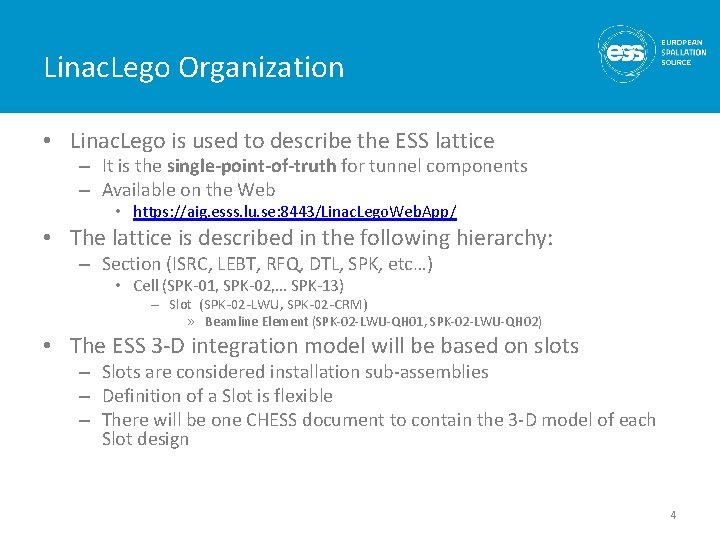
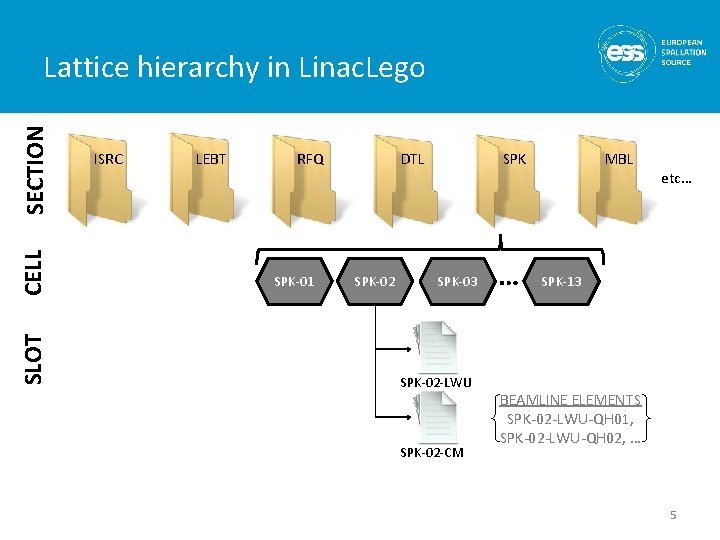
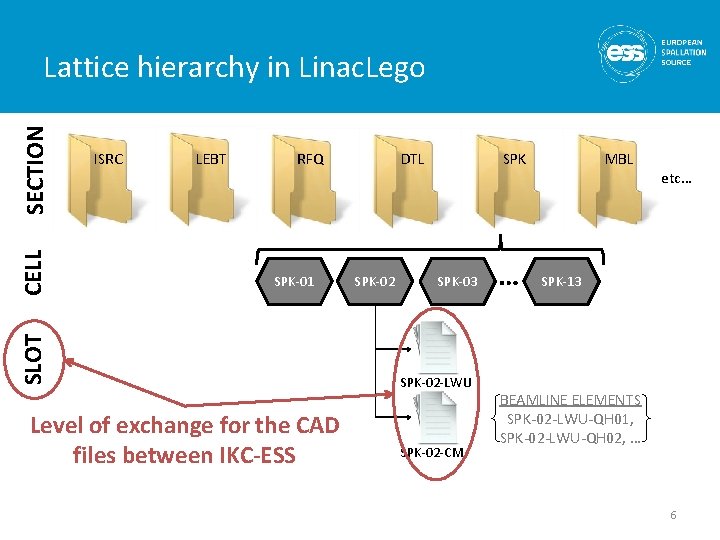
Linac. Lego Organization • Linac. Lego is used to describe the ESS lattice – It is the single-point-of-truth for tunnel components – Available on the Web • https: //aig. esss. lu. se: 8443/Linac. Lego. Web. App/ • The lattice is described in the following hierarchy: – Section (ISRC, LEBT, RFQ, DTL, SPK, etc…) • Cell (SPK-01, SPK-02, … SPK-13) – Slot (SPK-02 -LWU, SPK-02 -CRM) » Beamline Element (SPK-02 -LWU-QH 01, SPK-02 -LWU-QH 02) • The ESS 3 -D integration model will be based on slots – Slots are considered installation sub-assemblies – Definition of a Slot is flexible – There will be one CHESS document to contain the 3 -D model of each Slot design 4
SLOT CELL SECTION Lattice hierarchy in Linac. Lego ISRC LEBT RFQ SPK-01 SPK DTL SPK-02 SPK-03 SPK-02 -LWU SPK-02 -CM … MBL etc… SPK-13 BEAMLINE ELEMENTS SPK-02 -LWU-QH 01, SPK-02 -LWU-QH 02, … 5
ISRC LEBT RFQ SPK-01 SLOT CELL SECTION Lattice hierarchy in Linac. Lego Level of exchange for the CAD files between IKC-ESS SPK DTL SPK-02 SPK-03 SPK-02 -LWU SPK-02 -CM … MBL etc… SPK-13 BEAMLINE ELEMENTS SPK-02 -LWU-QH 01, SPK-02 -LWU-QH 02, … 6
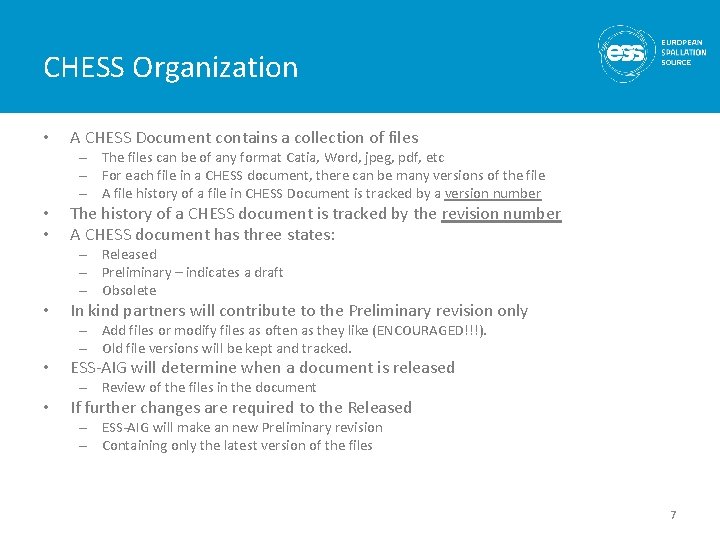
CHESS Organization • A CHESS Document contains a collection of files – The files can be of any format Catia, Word, jpeg, pdf, etc – For each file in a CHESS document, there can be many versions of the file – A file history of a file in CHESS Document is tracked by a version number • • The history of a CHESS document is tracked by the revision number A CHESS document has three states: – Released – Preliminary – indicates a draft – Obsolete • In kind partners will contribute to the Preliminary revision only – Add files or modify files as often as they like (ENCOURAGED!!!). – Old file versions will be kept and tracked. • ESS-AIG will determine when a document is released – Review of the files in the document • If further changes are required to the Released – ESS-AIG will make an new Preliminary revision – Containing only the latest version of the files 7
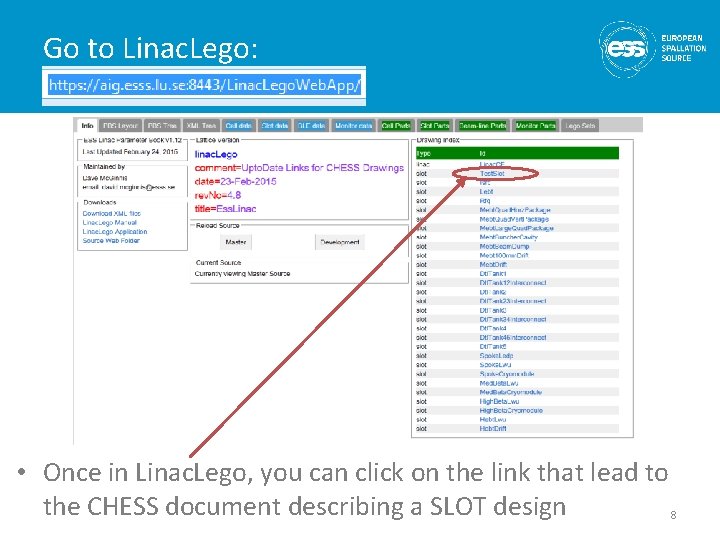
Go to Linac. Lego: • Once in Linac. Lego, you can click on the link that lead to the CHESS document describing a SLOT design 8
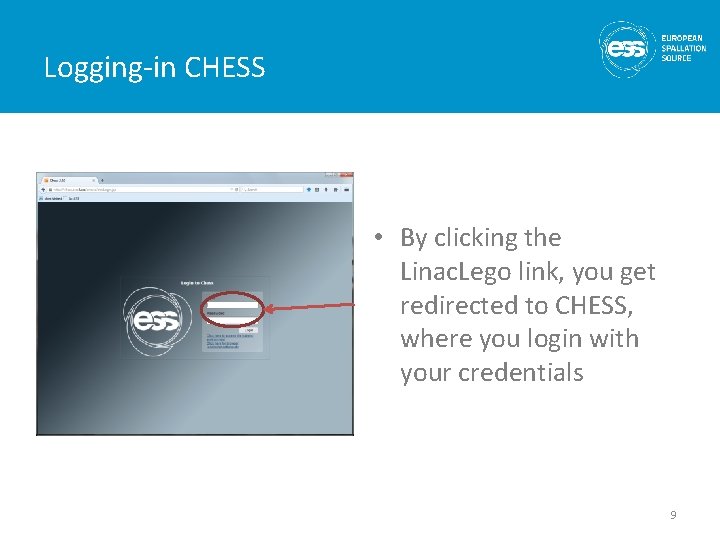
Logging-in CHESS • By clicking the Linac. Lego link, you get redirected to CHESS, where you login with your credentials 9
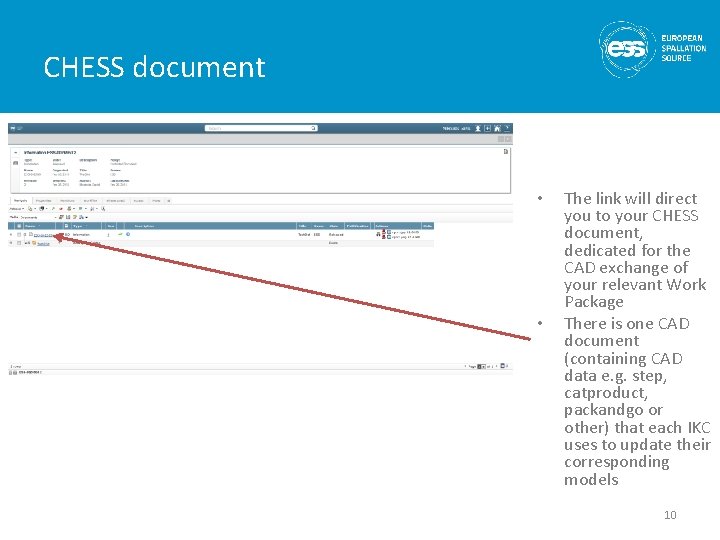
CHESS document • • The link will direct you to your CHESS document, dedicated for the CAD exchange of your relevant Work Package There is one CAD document (containing CAD data e. g. step, catproduct, packandgo or other) that each IKC uses to update their corresponding models 10
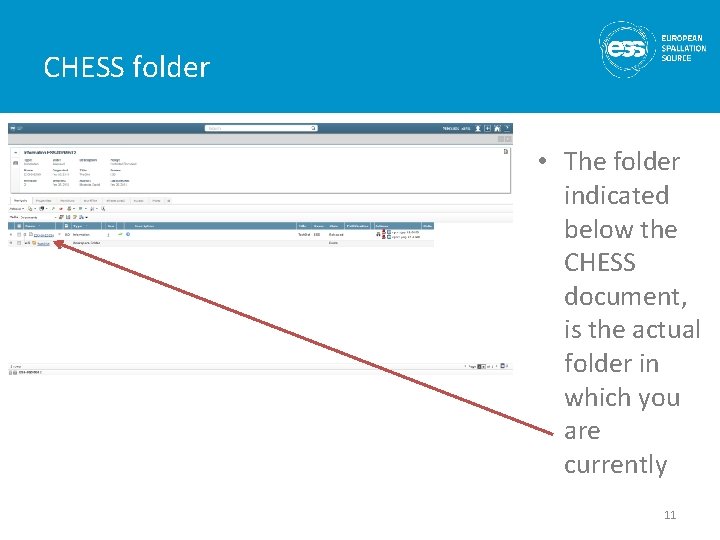
CHESS folder • The folder indicated below the CHESS document, is the actual folder in which you are currently 11
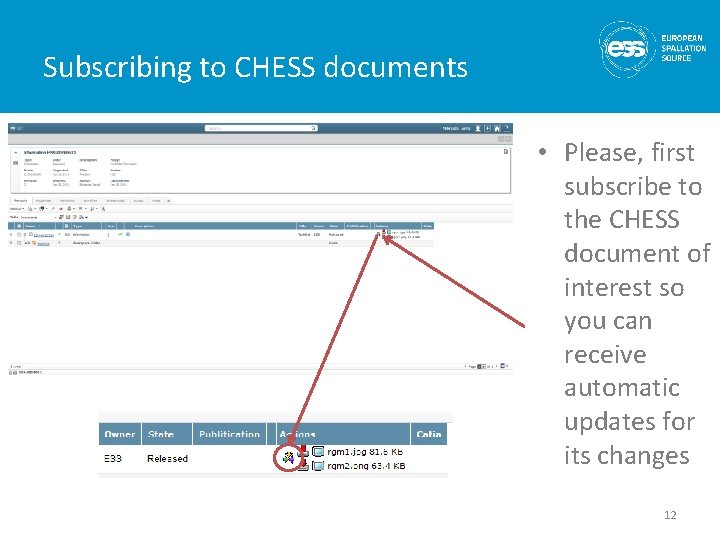
Subscribing to CHESS documents • Please, first subscribe to the CHESS document of interest so you can receive automatic updates for its changes 12
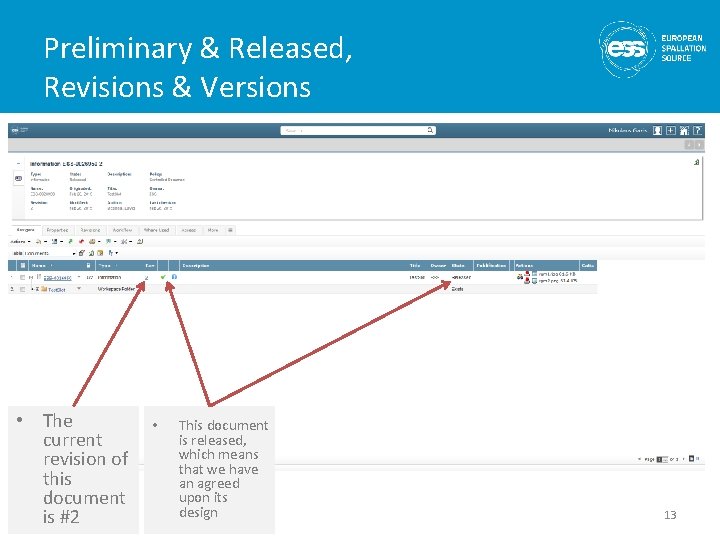
Preliminary & Released, Revisions & Versions • The current revision of this document is #2 • This document is released, which means that we have an agreed upon its design 13
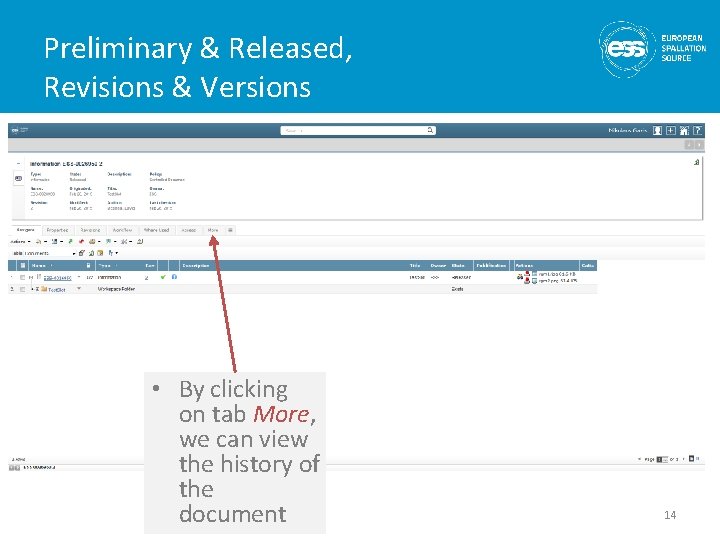
Preliminary & Released, Revisions & Versions • By clicking on tab More, we can view the history of the document 14
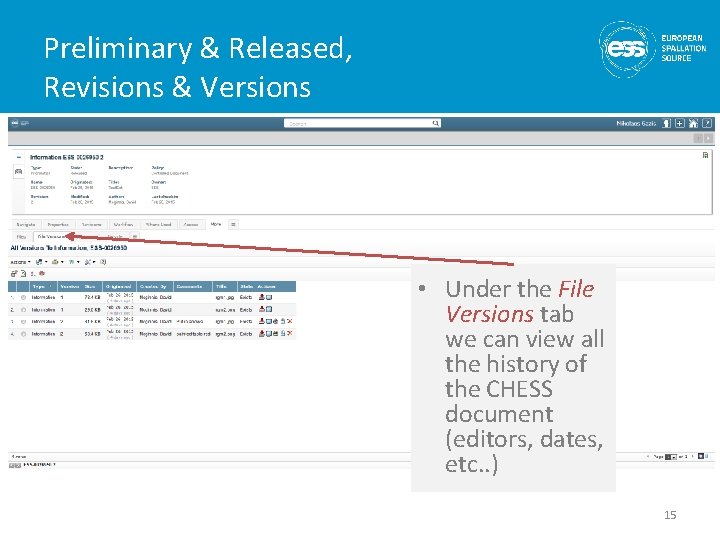
Preliminary & Released, Revisions & Versions • Under the File Versions tab we can view all the history of the CHESS document (editors, dates, etc. . ) 15
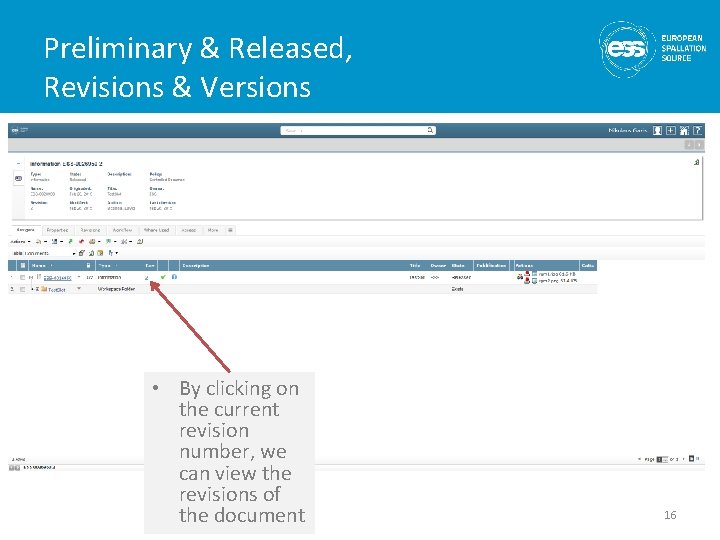
Preliminary & Released, Revisions & Versions • By clicking on the current revision number, we can view the revisions of the document 16
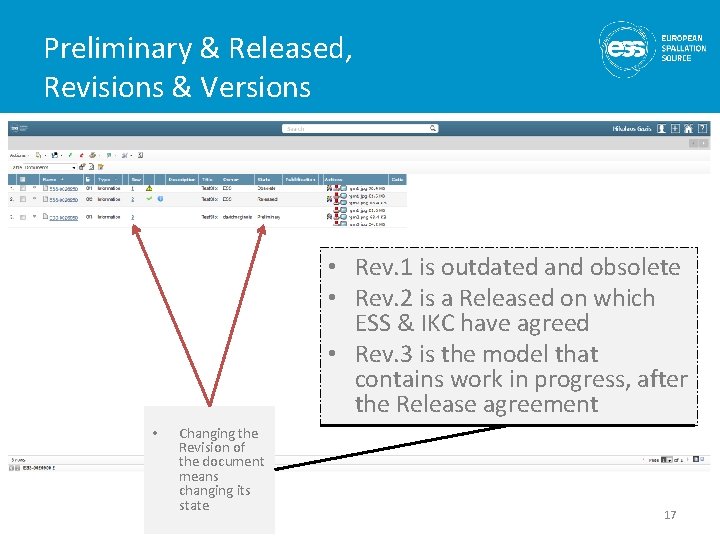
Preliminary & Released, Revisions & Versions • Rev. 1 is outdated and obsolete • Rev. 2 is a Released on which ESS & IKC have agreed • Rev. 3 is the model that contains work in progress, after the Release agreement • Changing the Revision of the document means changing its state 17
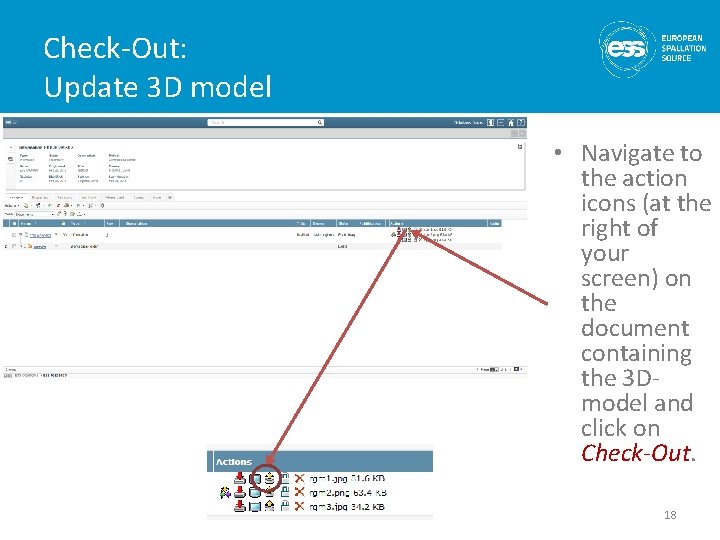
Check-Out: Update 3 D model • Navigate to the action icons (at the right of your screen) on the document containing the 3 Dmodel and click on Check-Out. 18
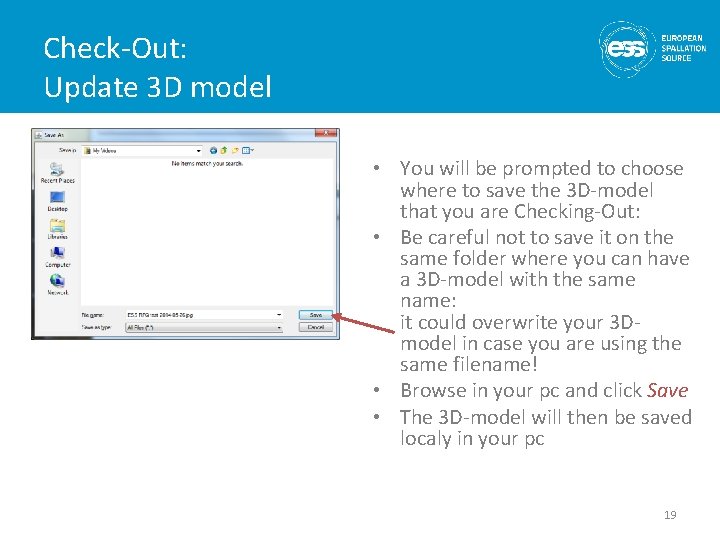
Check-Out: Update 3 D model • You will be prompted to choose where to save the 3 D-model that you are Checking-Out: • Be careful not to save it on the same folder where you can have a 3 D-model with the same name: it could overwrite your 3 Dmodel in case you are using the same filename! • Browse in your pc and click Save • The 3 D-model will then be saved localy in your pc 19
Check-Out: Update 3 D model • You have now Checked-Out the 3 D-model from CHESS and put it locally in your pc: – You can either open and change/update the 3 D-model or – Your updates could already be included in a new 3 D-model which is locally stored in your pc; therefore you need to upload (Check-In) this new 3 D-model in the place of the old one • You can now Check-In (upload) your updated 3 Dmodel in CHESS 20
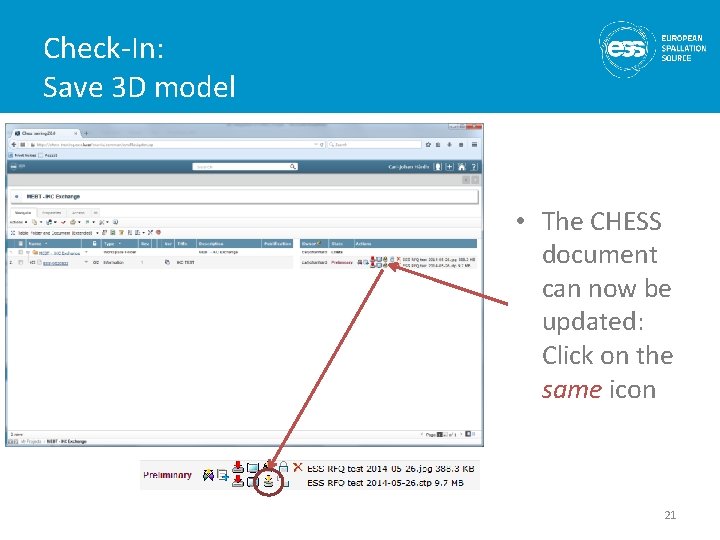
Check-In: Save 3 D model • The CHESS document can now be updated: Click on the same icon 21
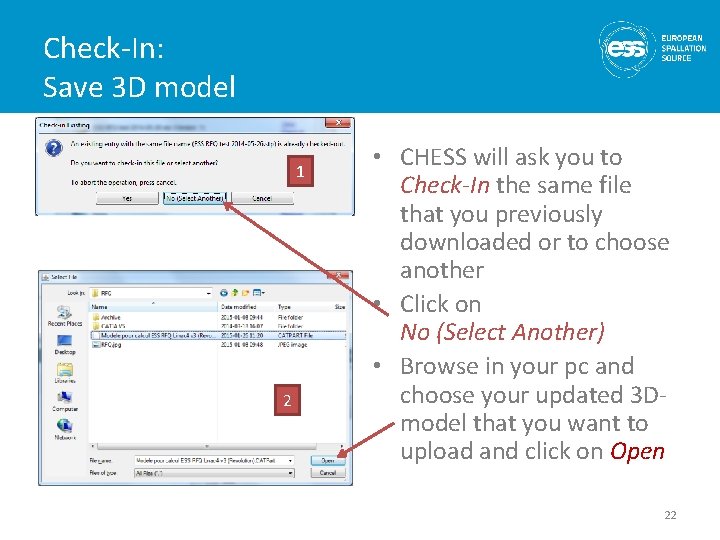
Check-In: Save 3 D model 1 2 • CHESS will ask you to Check-In the same file that you previously downloaded or to choose another • Click on No (Select Another) • Browse in your pc and choose your updated 3 Dmodel that you want to upload and click on Open 22
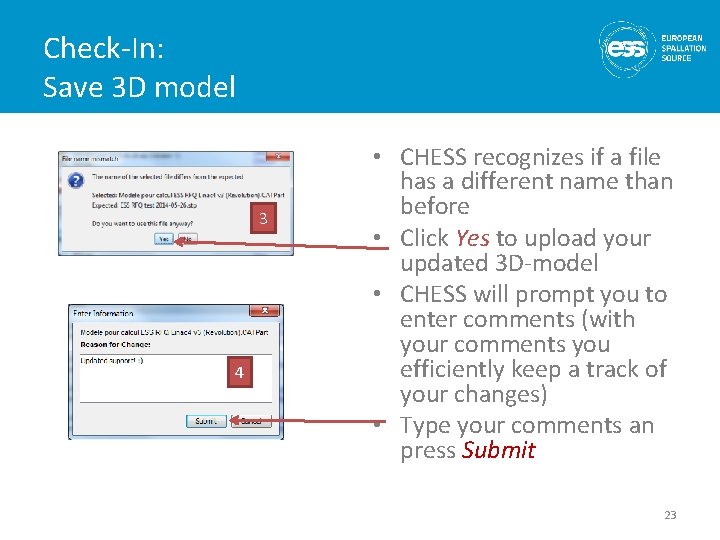
Check-In: Save 3 D model 3 4 • CHESS recognizes if a file has a different name than before • Click Yes to upload your updated 3 D-model • CHESS will prompt you to enter comments (with your comments you efficiently keep a track of your changes) • Type your comments an press Submit 23
End Thank you for your updates! 24
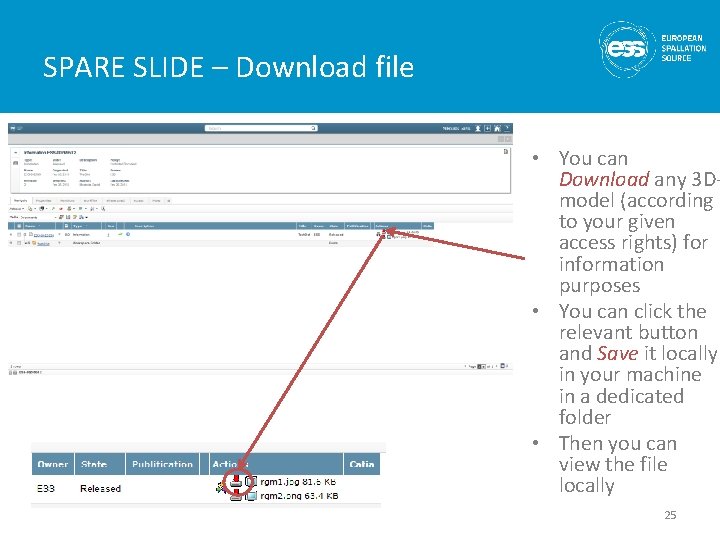
SPARE SLIDE – Download file • You can Download any 3 Dmodel (according to your given access rights) for information purposes • You can click the relevant button and Save it locally in your machine in a dedicated folder • Then you can view the file locally 25
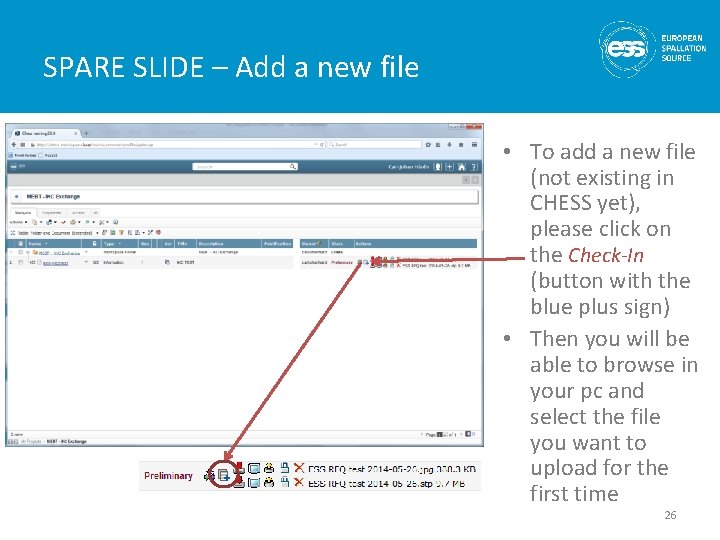
SPARE SLIDE – Add a new file • To add a new file (not existing in CHESS yet), please click on the Check-In (button with the blue plus sign) • Then you will be able to browse in your pc and select the file you want to upload for the first time 26
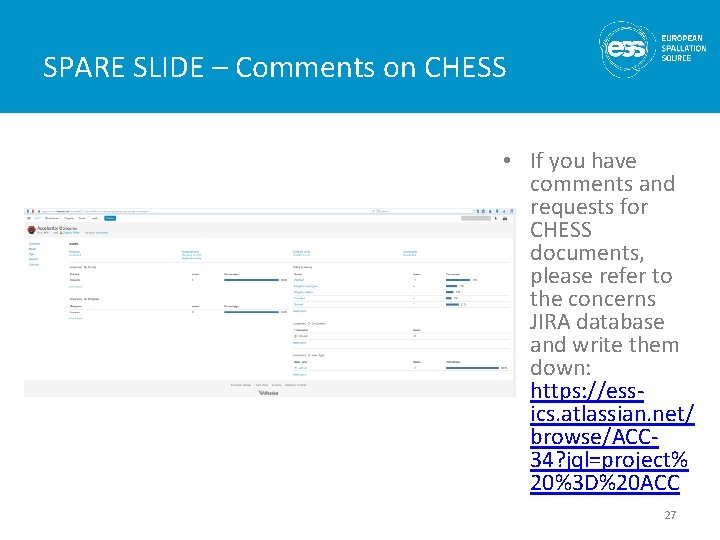
SPARE SLIDE – Comments on CHESS • If you have comments and requests for CHESS documents, please refer to the concerns JIRA database and write them down: https: //essics. atlassian. net/ browse/ACC 34? jql=project% 20%3 D%20 ACC 27
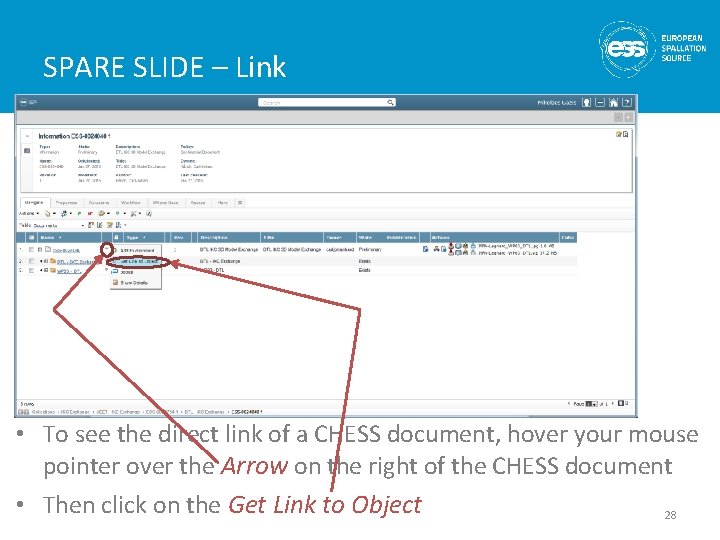
SPARE SLIDE – Link • To see the direct link of a CHESS document, hover your mouse pointer over the Arrow on the right of the CHESS document • Then click on the Get Link to Object 28
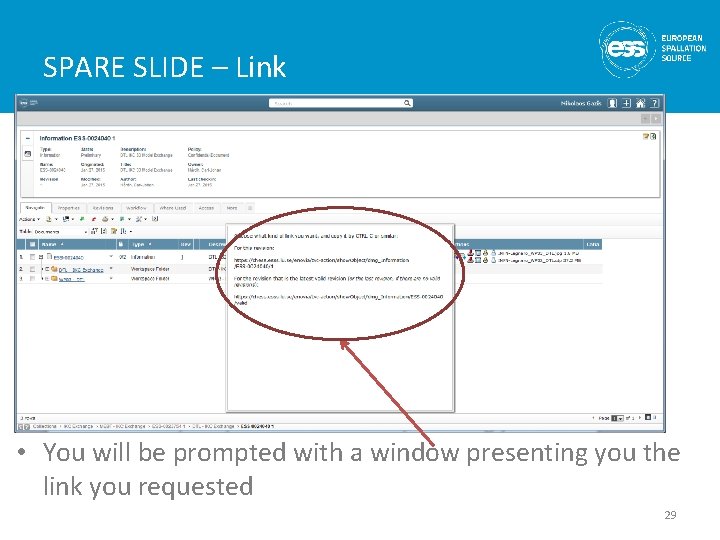
SPARE SLIDE – Link • You will be prompted with a window presenting you the link you requested 29