
Integrated Enterprise System Employee Self Service Submit A
Integrated Enterprise System Employee Self Service – Submit A Travel Expense Adjustment Request 01/20/2017 ESS Submit a Travel Expense Adjustment Request ECC 6. 07 vers 1. 0 1
Integrated Enterprise System Tips and Tricks • Internet Explorer is the only browser that is supported for this transaction • This form is to be use to submit adjustments to paid Travel Expense Reimbursement requests. • Do not use your browser buttons to navigate while in the travel request, use the ESS navigation buttons. • You may need to use the scroll bars to navigate in order to access all options. • When selecting the services, they will open in a new window. 01/20/2017 ESS Submit a Travel Expense Adjustment Request ECC 6. 07 vers 1. 0 2
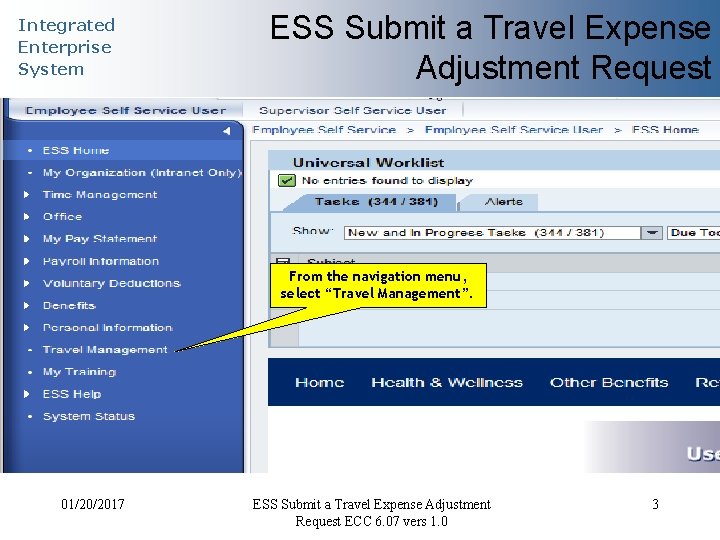
Integrated Enterprise System ESS Submit a Travel Expense Adjustment Request From the navigation menu, select “Travel Management”. 01/20/2017 ESS Submit a Travel Expense Adjustment Request ECC 6. 07 vers 1. 0 3
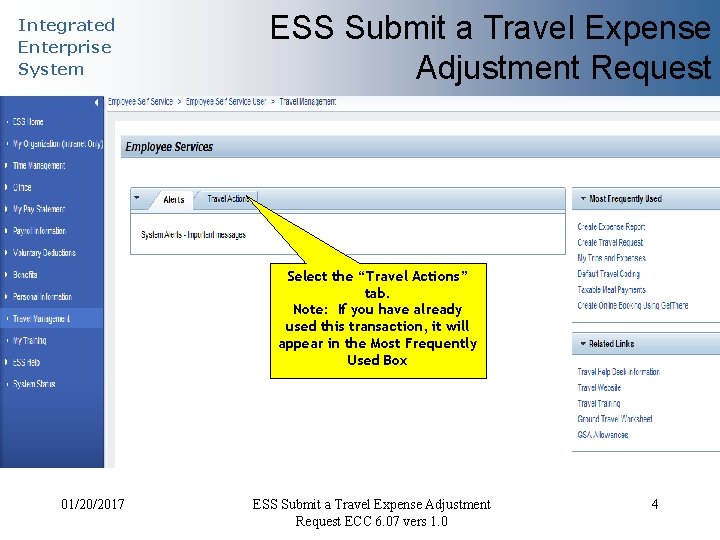
Integrated Enterprise System ESS Submit a Travel Expense Adjustment Request Select the “Travel Actions” tab. Note: If you have already used this transaction, it will appear in the Most Frequently Used Box 01/20/2017 ESS Submit a Travel Expense Adjustment Request ECC 6. 07 vers 1. 0 4
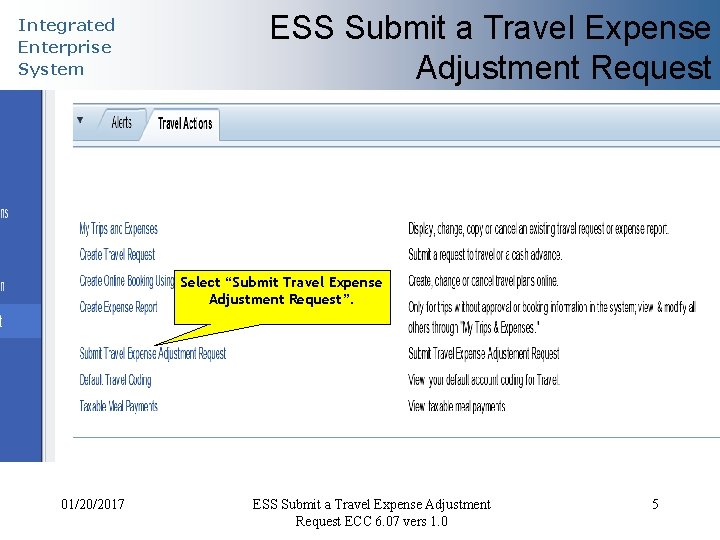
Integrated Enterprise System ESS Submit a Travel Expense Adjustment Request Select “Submit Travel Expense Adjustment Request”. 01/20/2017 ESS Submit a Travel Expense Adjustment Request ECC 6. 07 vers 1. 0 5
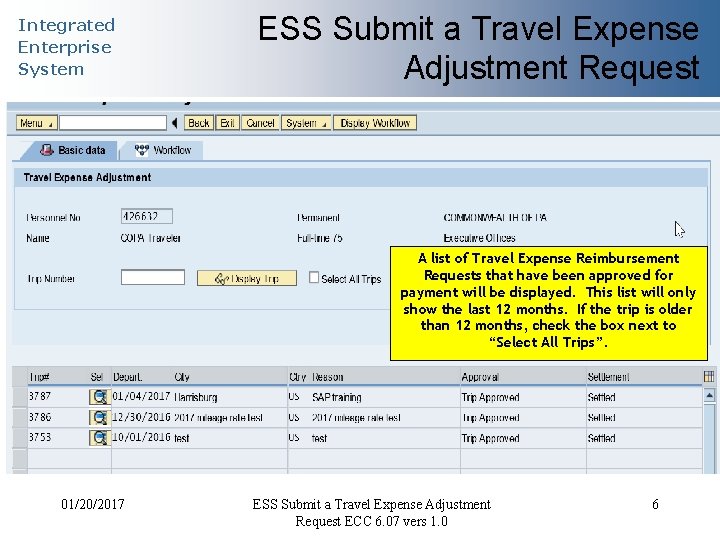
Integrated Enterprise System ESS Submit a Travel Expense Adjustment Request A list of Travel Expense Reimbursement Requests that have been approved for payment will be displayed. This list will only show the last 12 months. If the trip is older than 12 months, check the box next to “Select All Trips”. 01/20/2017 ESS Submit a Travel Expense Adjustment Request ECC 6. 07 vers 1. 0 6
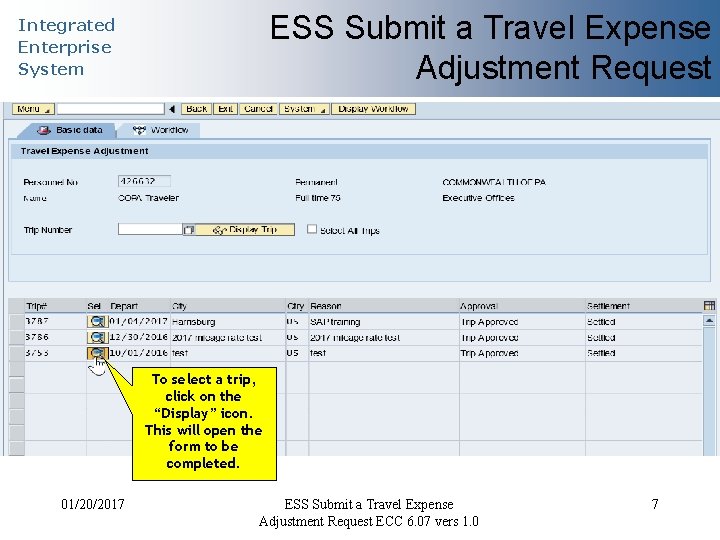
ESS Submit a Travel Expense Adjustment Request Integrated Enterprise System To select a trip, click on the “Display” icon. This will open the form to be completed. 01/20/2017 ESS Submit a Travel Expense Adjustment Request ECC 6. 07 vers 1. 0 7
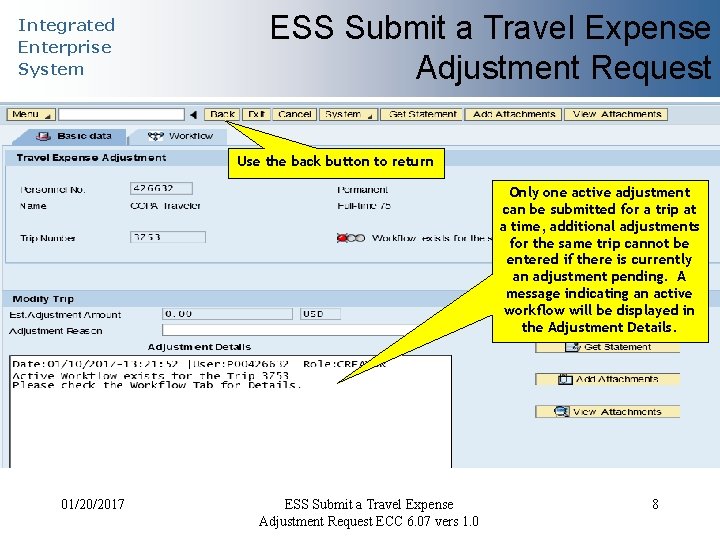
Integrated Enterprise System ESS Submit a Travel Expense Adjustment Request Use the back button to return Only one active adjustment can be submitted for a trip at a time, additional adjustments for the same trip cannot be entered if there is currently an adjustment pending. A message indicating an active workflow will be displayed in the Adjustment Details. 01/20/2017 ESS Submit a Travel Expense Adjustment Request ECC 6. 07 vers 1. 0 8
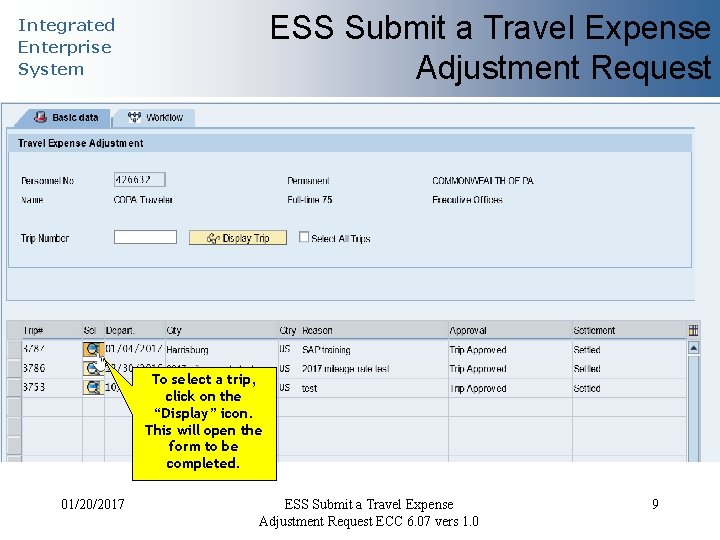
ESS Submit a Travel Expense Adjustment Request Integrated Enterprise System To select a trip, click on the “Display” icon. This will open the form to be completed. 01/20/2017 ESS Submit a Travel Expense Adjustment Request ECC 6. 07 vers 1. 0 9
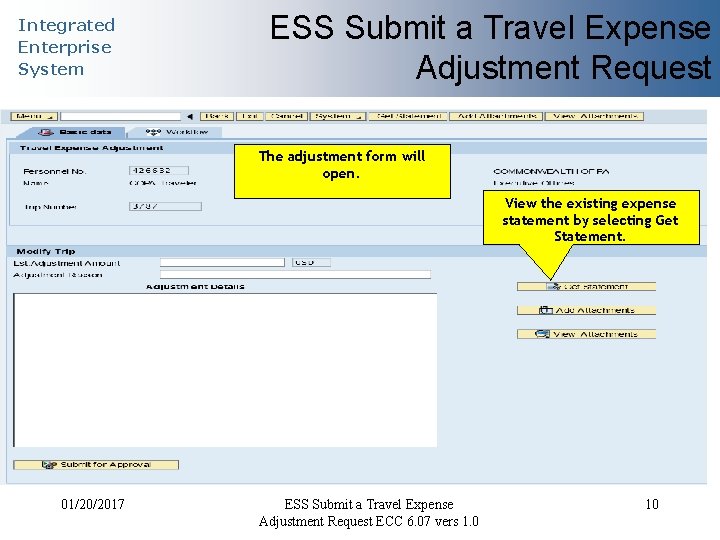
Integrated Enterprise System ESS Submit a Travel Expense Adjustment Request The adjustment form will open. View the existing expense statement by selecting Get Statement. 01/20/2017 ESS Submit a Travel Expense Adjustment Request ECC 6. 07 vers 1. 0 10
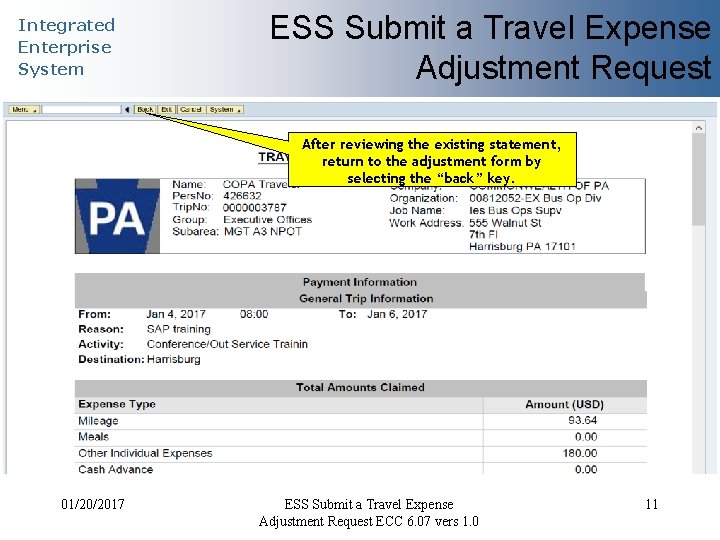
Integrated Enterprise System ESS Submit a Travel Expense Adjustment Request After reviewing the existing statement, return to the adjustment form by selecting the “back” key. 01/20/2017 ESS Submit a Travel Expense Adjustment Request ECC 6. 07 vers 1. 0 11
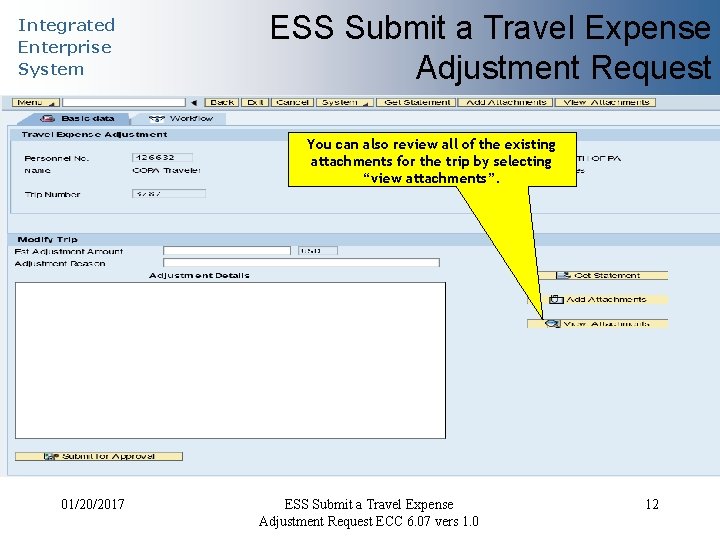
Integrated Enterprise System ESS Submit a Travel Expense Adjustment Request You can also review all of the existing attachments for the trip by selecting “view attachments”. 01/20/2017 ESS Submit a Travel Expense Adjustment Request ECC 6. 07 vers 1. 0 12
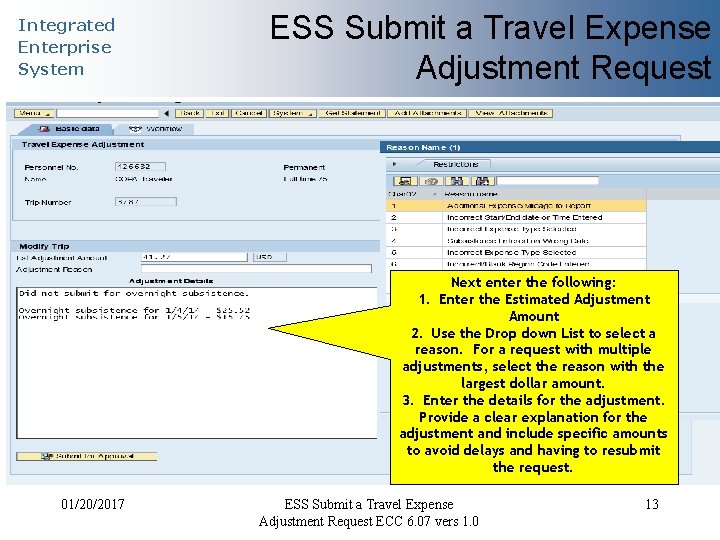
Integrated Enterprise System ESS Submit a Travel Expense Adjustment Request Next enter the following: 1. Enter the Estimated Adjustment Amount 2. Use the Drop down List to select a reason. For a request with multiple adjustments, select the reason with the largest dollar amount. 3. Enter the details for the adjustment. Provide a clear explanation for the adjustment and include specific amounts to avoid delays and having to resubmit the request. 01/20/2017 ESS Submit a Travel Expense Adjustment Request ECC 6. 07 vers 1. 0 13
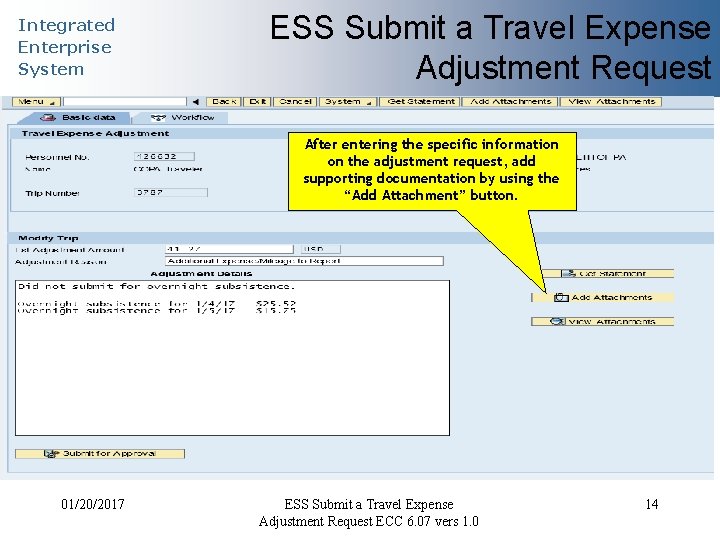
Integrated Enterprise System ESS Submit a Travel Expense Adjustment Request After entering the specific information on the adjustment request, add supporting documentation by using the “Add Attachment” button. 01/20/2017 ESS Submit a Travel Expense Adjustment Request ECC 6. 07 vers 1. 0 14
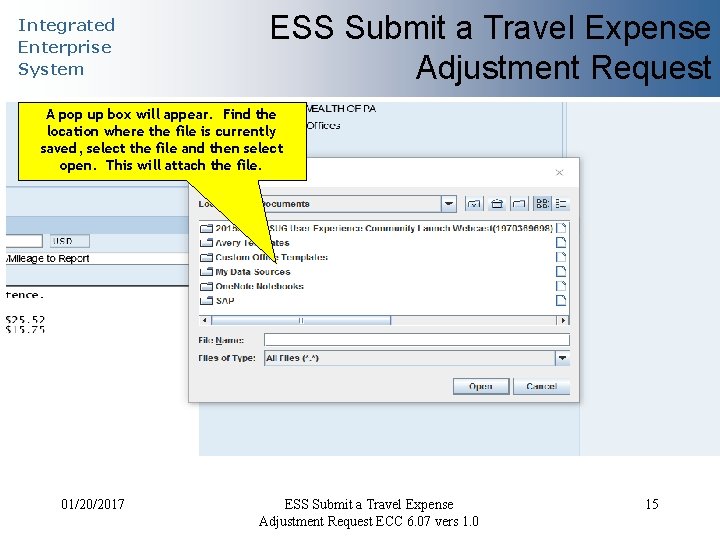
Integrated Enterprise System ESS Submit a Travel Expense Adjustment Request A pop up box will appear. Find the location where the file is currently saved, select the file and then select open. This will attach the file. 01/20/2017 ESS Submit a Travel Expense Adjustment Request ECC 6. 07 vers 1. 0 15
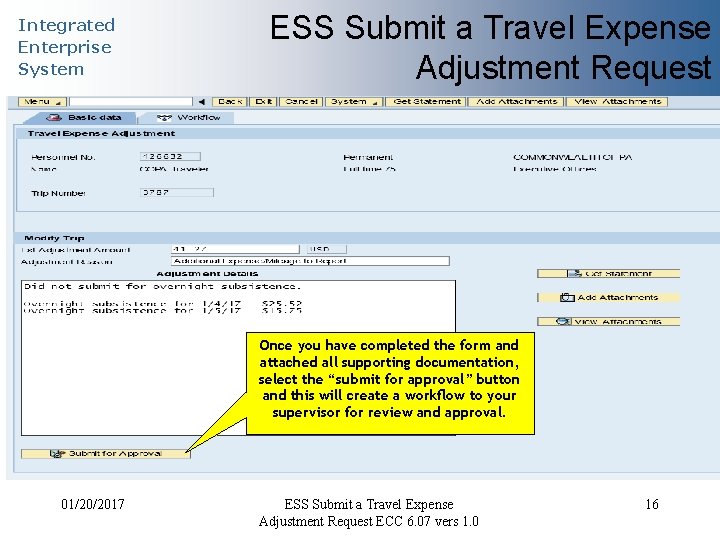
Integrated Enterprise System ESS Submit a Travel Expense Adjustment Request Once you have completed the form and attached all supporting documentation, select the “submit for approval” button and this will create a workflow to your supervisor for review and approval. 01/20/2017 ESS Submit a Travel Expense Adjustment Request ECC 6. 07 vers 1. 0 16
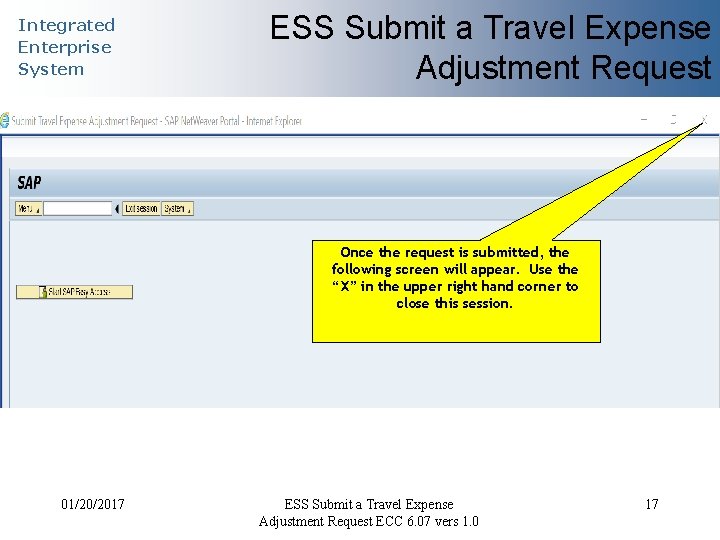
Integrated Enterprise System ESS Submit a Travel Expense Adjustment Request Once the request is submitted, the following screen will appear. Use the “X” in the upper right hand corner to close this session. 01/20/2017 ESS Submit a Travel Expense Adjustment Request ECC 6. 07 vers 1. 0 17
Integrated Enterprise System Additional Resources Need help? Contact the Travel Expense Help Desk: • 1 -800 -824 -0626 outside the Harrisburg area • 717 -346 -3401 within the Harrisburg area • Co-travelaudits@pa. gov 01/20/2017 ESS Submit a Travel Expense Adjustment Request ECC 6. 07 vers 1. 0 18
- Slides: 18