
Integrated Circuit Simulation Using SPICE David W Graham
- Slides: 33
Integrated Circuit Simulation Using SPICE David W. Graham Lane Department of Computer Science and Electrical Engineering West Virginia University © David W. Graham 2008
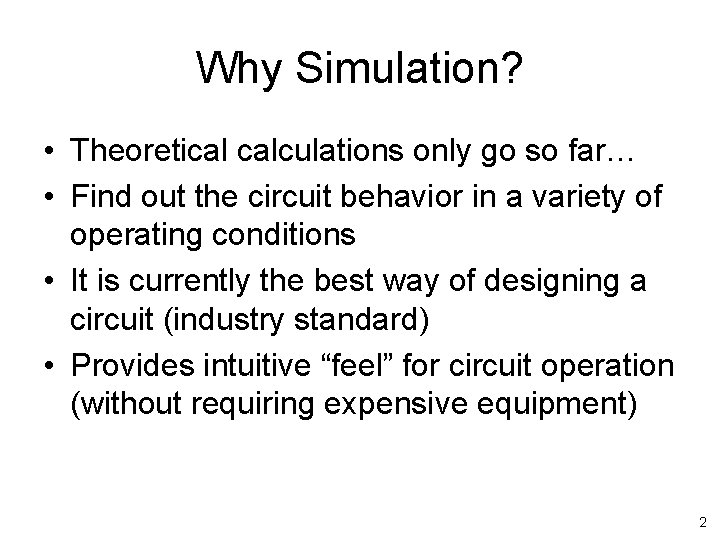
Why Simulation? • Theoretical calculations only go so far… • Find out the circuit behavior in a variety of operating conditions • It is currently the best way of designing a circuit (industry standard) • Provides intuitive “feel” for circuit operation (without requiring expensive equipment) 2
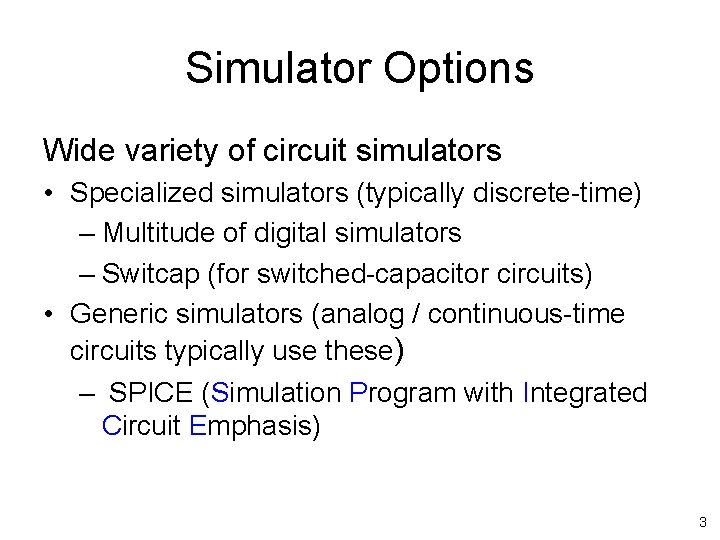
Simulator Options Wide variety of circuit simulators • Specialized simulators (typically discrete-time) – Multitude of digital simulators – Switcap (for switched-capacitor circuits) • Generic simulators (analog / continuous-time circuits typically use these) – SPICE (Simulation Program with Integrated Circuit Emphasis) 3
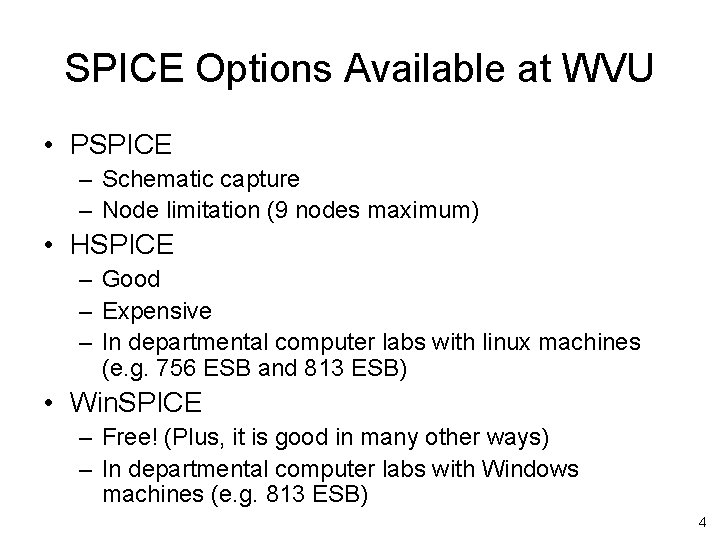
SPICE Options Available at WVU • PSPICE – Schematic capture – Node limitation (9 nodes maximum) • HSPICE – Good – Expensive – In departmental computer labs with linux machines (e. g. 756 ESB and 813 ESB) • Win. SPICE – Free! (Plus, it is good in many other ways) – In departmental computer labs with Windows machines (e. g. 813 ESB) 4
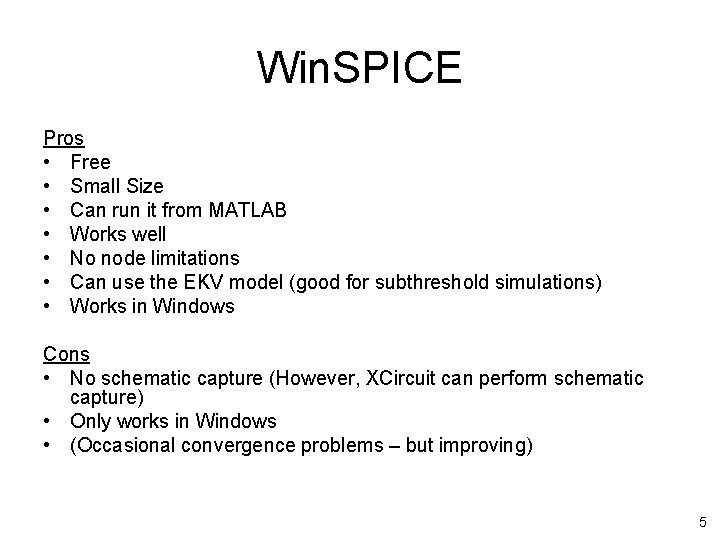
Win. SPICE Pros • Free • Small Size • Can run it from MATLAB • Works well • No node limitations • Can use the EKV model (good for subthreshold simulations) • Works in Windows Cons • No schematic capture (However, XCircuit can perform schematic capture) • Only works in Windows • (Occasional convergence problems – but improving) 5
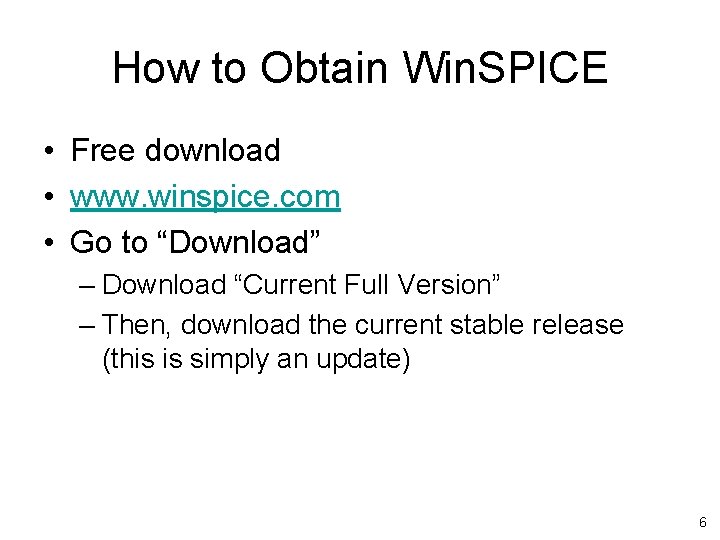
How to Obtain Win. SPICE • Free download • www. winspice. com • Go to “Download” – Download “Current Full Version” – Then, download the current stable release (this is simply an update) 6
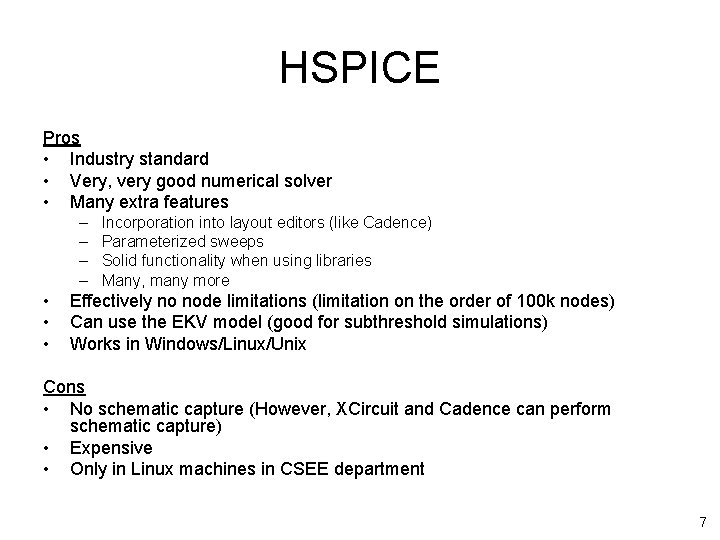
HSPICE Pros • Industry standard • Very, very good numerical solver • Many extra features – – • • • Incorporation into layout editors (like Cadence) Parameterized sweeps Solid functionality when using libraries Many, many more Effectively no node limitations (limitation on the order of 100 k nodes) Can use the EKV model (good for subthreshold simulations) Works in Windows/Linux/Unix Cons • No schematic capture (However, XCircuit and Cadence can perform schematic capture) • Expensive • Only in Linux machines in CSEE department 7
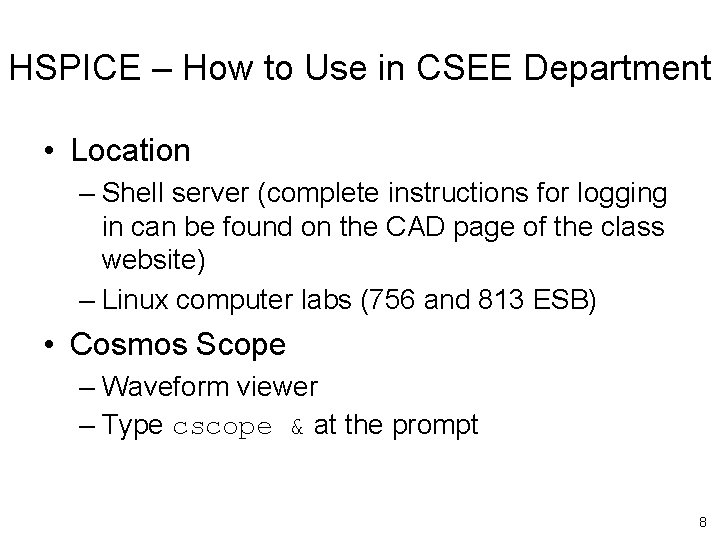
HSPICE – How to Use in CSEE Department • Location – Shell server (complete instructions for logging in can be found on the CAD page of the class website) – Linux computer labs (756 and 813 ESB) • Cosmos Scope – Waveform viewer – Type cscope & at the prompt 8
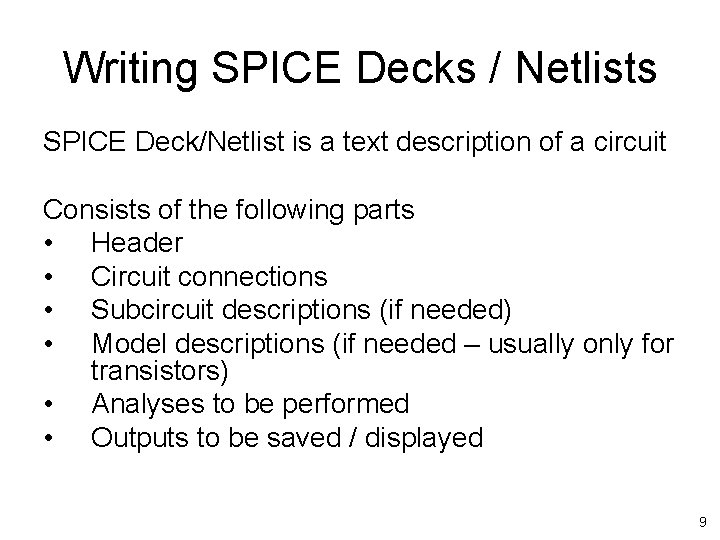
Writing SPICE Decks / Netlists SPICE Deck/Netlist is a text description of a circuit Consists of the following parts • Header • Circuit connections • Subcircuit descriptions (if needed) • Model descriptions (if needed – usually only for transistors) • Analyses to be performed • Outputs to be saved / displayed 9
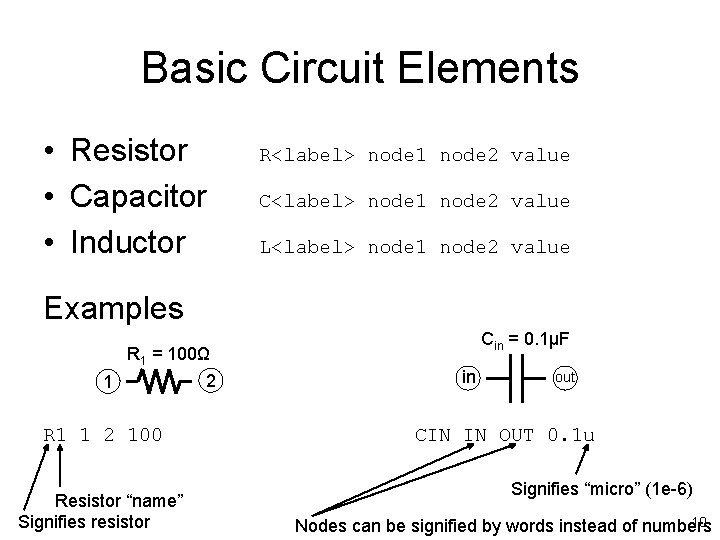
Basic Circuit Elements • Resistor • Capacitor • Inductor R<label> node 1 node 2 value C<label> node 1 node 2 value L<label> node 1 node 2 value Examples R 1 = 100Ω 2 1 R 1 1 2 100 Resistor “name” Signifies resistor Cin = 0. 1μF in out CIN IN OUT 0. 1 u Signifies “micro” (1 e-6) 10 Nodes can be signified by words instead of numbers
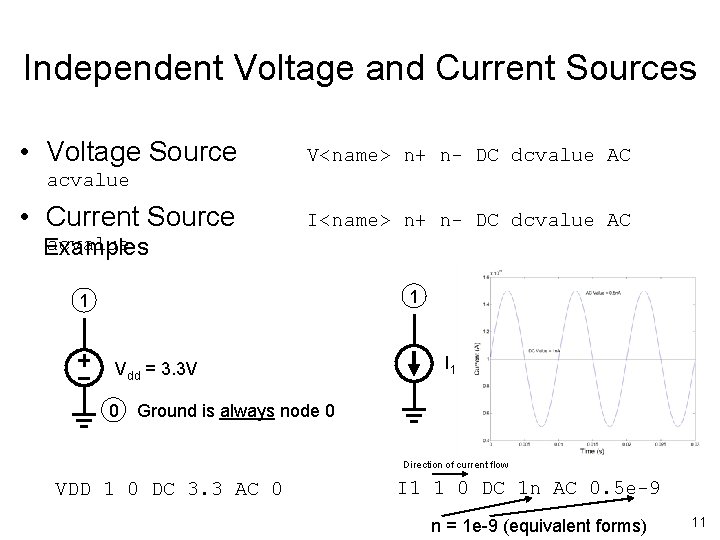
Independent Voltage and Current Sources • Voltage Source V<name> n+ n- DC dcvalue AC acvalue • Current Source I<name> n+ n- DC dcvalue AC acvalue Examples 1 1 Vdd = 3. 3 V I 1 0 Ground is always node 0 Direction of current flow VDD 1 0 DC 3. 3 AC 0 I 1 1 0 DC 1 n AC 0. 5 e-9 n = 1 e-9 (equivalent forms) 11
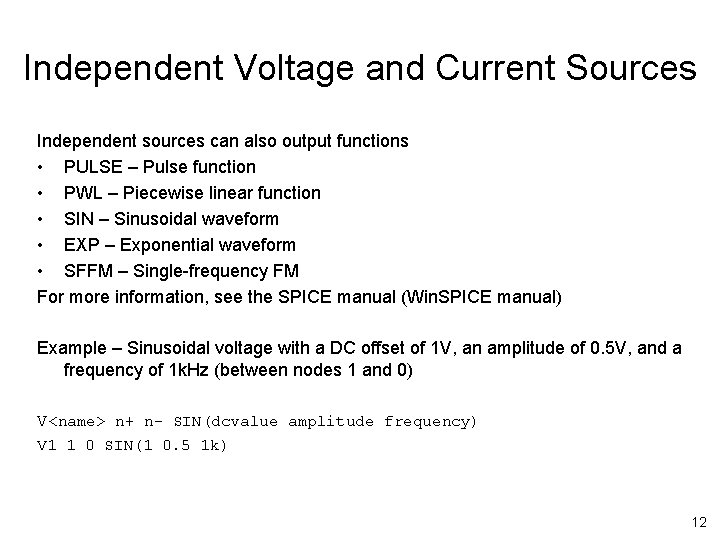
Independent Voltage and Current Sources Independent sources can also output functions • PULSE – Pulse function • PWL – Piecewise linear function • SIN – Sinusoidal waveform • EXP – Exponential waveform • SFFM – Single-frequency FM For more information, see the SPICE manual (Win. SPICE manual) Example – Sinusoidal voltage with a DC offset of 1 V, an amplitude of 0. 5 V, and a frequency of 1 k. Hz (between nodes 1 and 0) V<name> n+ n- SIN(dcvalue amplitude frequency) V 1 1 0 SIN(1 0. 5 1 k) 12
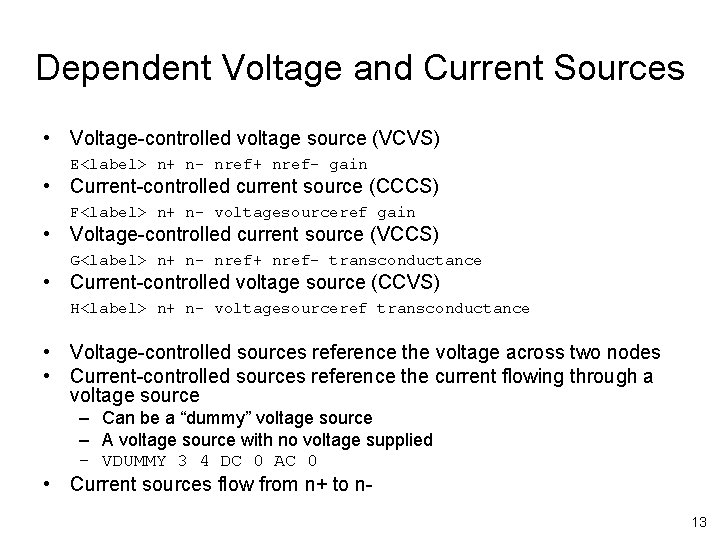
Dependent Voltage and Current Sources • Voltage-controlled voltage source (VCVS) E<label> n+ n- nref+ nref- gain • Current-controlled current source (CCCS) F<label> n+ n- voltagesourceref gain • Voltage-controlled current source (VCCS) G<label> n+ n- nref+ nref- transconductance • Current-controlled voltage source (CCVS) H<label> n+ n- voltagesourceref transconductance • Voltage-controlled sources reference the voltage across two nodes • Current-controlled sources reference the current flowing through a voltage source – Can be a “dummy” voltage source – A voltage source with no voltage supplied – VDUMMY 3 4 DC 0 AC 0 • Current sources flow from n+ to n 13
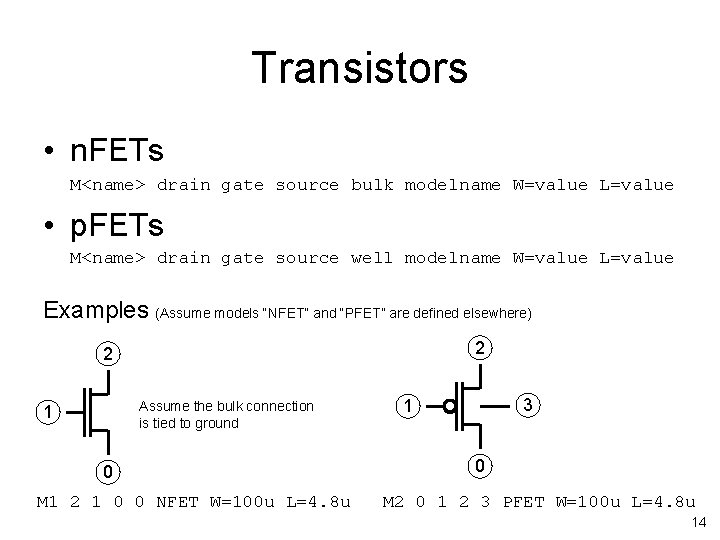
Transistors • n. FETs M<name> drain gate source bulk modelname W=value L=value • p. FETs M<name> drain gate source well modelname W=value L=value Examples (Assume models “NFET” and “PFET” are defined elsewhere) 2 2 Assume the bulk connection is tied to ground 1 0 M 1 2 1 0 0 NFET W=100 u L=4. 8 u 3 1 0 M 2 0 1 2 3 PFET W=100 u L=4. 8 u 14
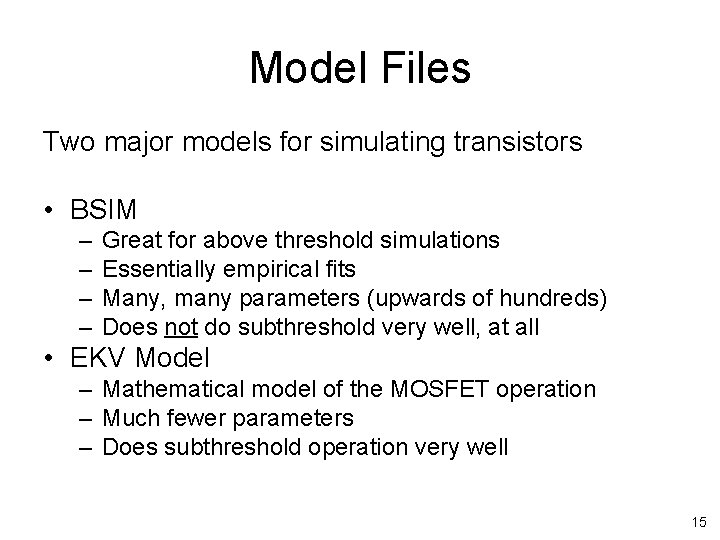
Model Files Two major models for simulating transistors • BSIM – – Great for above threshold simulations Essentially empirical fits Many, many parameters (upwards of hundreds) Does not do subthreshold very well, at all • EKV Model – Mathematical model of the MOSFET operation – Much fewer parameters – Does subthreshold operation very well 15
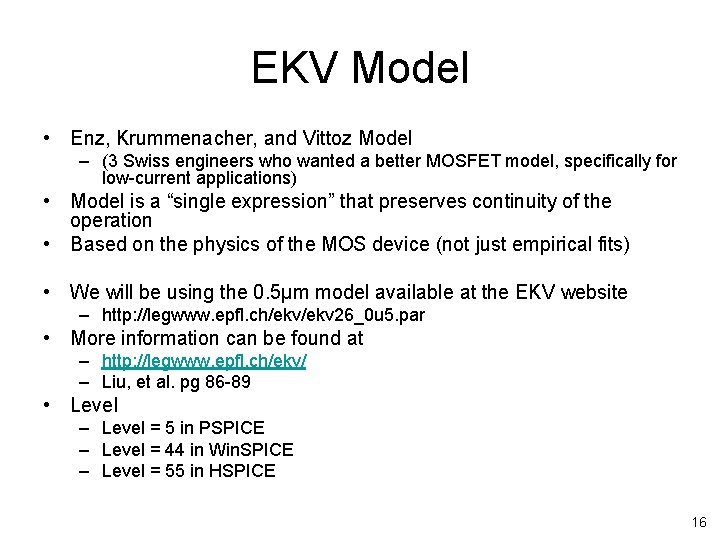
EKV Model • Enz, Krummenacher, and Vittoz Model – (3 Swiss engineers who wanted a better MOSFET model, specifically for low-current applications) • Model is a “single expression” that preserves continuity of the operation • Based on the physics of the MOS device (not just empirical fits) • We will be using the 0. 5μm model available at the EKV website – http: //legwww. epfl. ch/ekv 26_0 u 5. par • More information can be found at – http: //legwww. epfl. ch/ekv/ – Liu, et al. pg 86 -89 • Level – Level = 5 in PSPICE – Level = 44 in Win. SPICE – Level = 55 in HSPICE 16
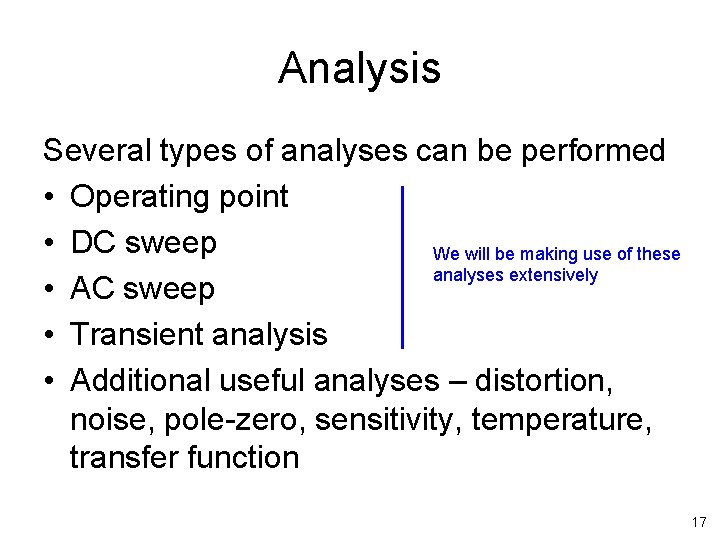
Analysis Several types of analyses can be performed • Operating point • DC sweep We will be making use of these analyses extensively • AC sweep • Transient analysis • Additional useful analyses – distortion, noise, pole-zero, sensitivity, temperature, transfer function 17
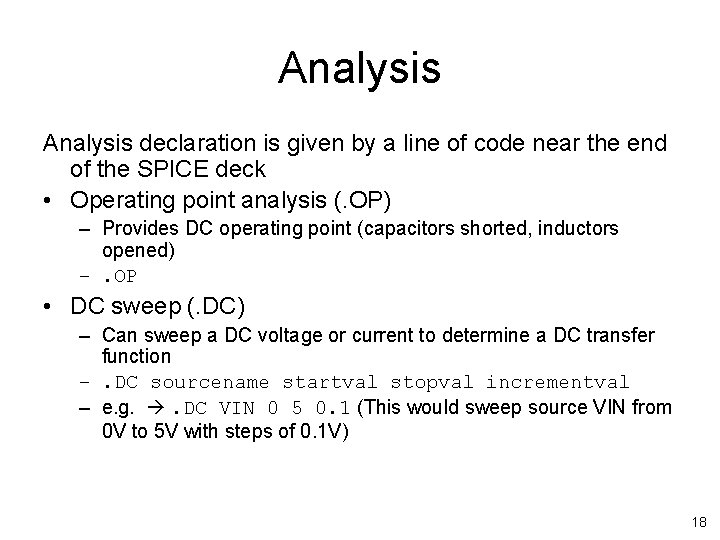
Analysis declaration is given by a line of code near the end of the SPICE deck • Operating point analysis (. OP) – Provides DC operating point (capacitors shorted, inductors opened) –. OP • DC sweep (. DC) – Can sweep a DC voltage or current to determine a DC transfer function –. DC sourcename startval stopval incrementval – e. g. . DC VIN 0 5 0. 1 (This would sweep source VIN from 0 V to 5 V with steps of 0. 1 V) 18
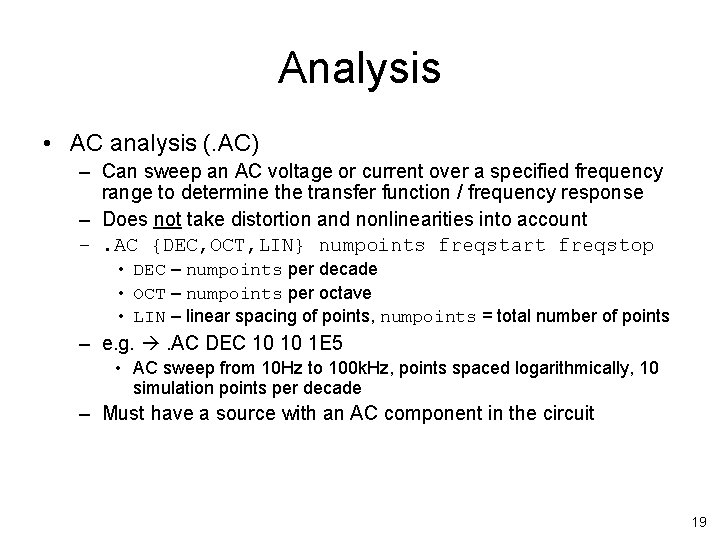
Analysis • AC analysis (. AC) – Can sweep an AC voltage or current over a specified frequency range to determine the transfer function / frequency response – Does not take distortion and nonlinearities into account –. AC {DEC, OCT, LIN} numpoints freqstart freqstop • DEC – numpoints per decade • OCT – numpoints per octave • LIN – linear spacing of points, numpoints = total number of points – e. g. . AC DEC 10 10 1 E 5 • AC sweep from 10 Hz to 100 k. Hz, points spaced logarithmically, 10 simulation points per decade – Must have a source with an AC component in the circuit 19
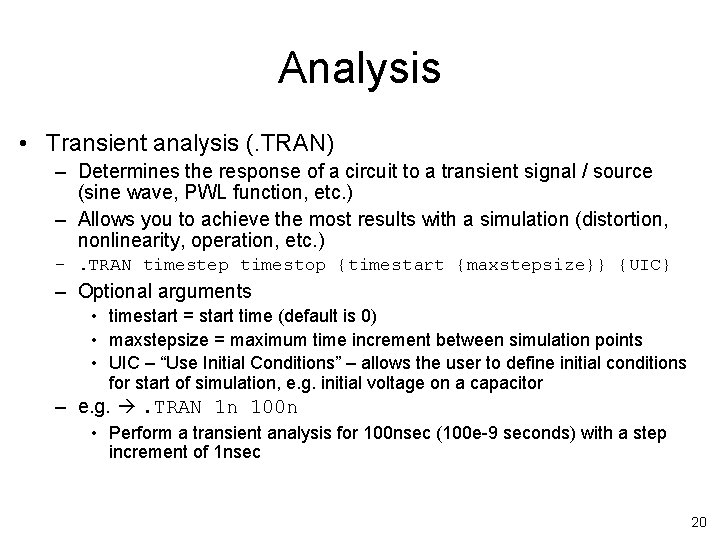
Analysis • Transient analysis (. TRAN) – Determines the response of a circuit to a transient signal / source (sine wave, PWL function, etc. ) – Allows you to achieve the most results with a simulation (distortion, nonlinearity, operation, etc. ) –. TRAN timestep timestop {timestart {maxstepsize}} {UIC} – Optional arguments • timestart = start time (default is 0) • maxstepsize = maximum time increment between simulation points • UIC – “Use Initial Conditions” – allows the user to define initial conditions for start of simulation, e. g. initial voltage on a capacitor – e. g. . TRAN 1 n 100 n • Perform a transient analysis for 100 nsec (100 e-9 seconds) with a step increment of 1 nsec 20
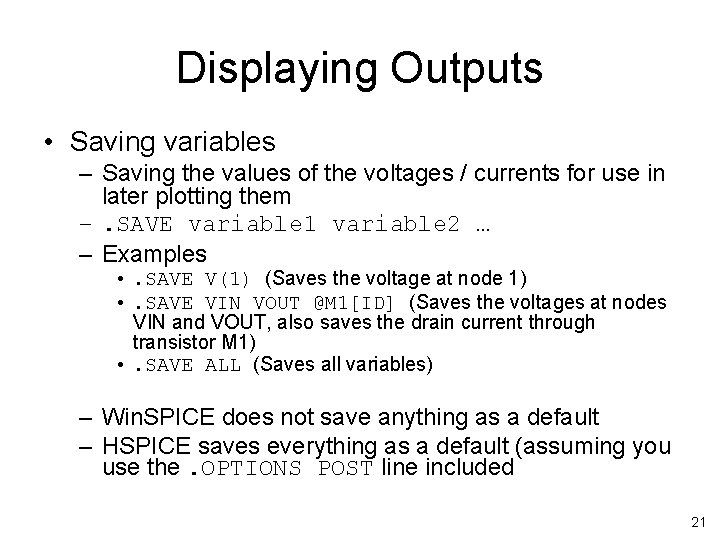
Displaying Outputs • Saving variables – Saving the values of the voltages / currents for use in later plotting them –. SAVE variable 1 variable 2 … – Examples • . SAVE V(1) (Saves the voltage at node 1) • . SAVE VIN VOUT @M 1[ID] (Saves the voltages at nodes VIN and VOUT, also saves the drain current through transistor M 1) • . SAVE ALL (Saves all variables) – Win. SPICE does not save anything as a default – HSPICE saves everything as a default (assuming you use the. OPTIONS POST line included 21
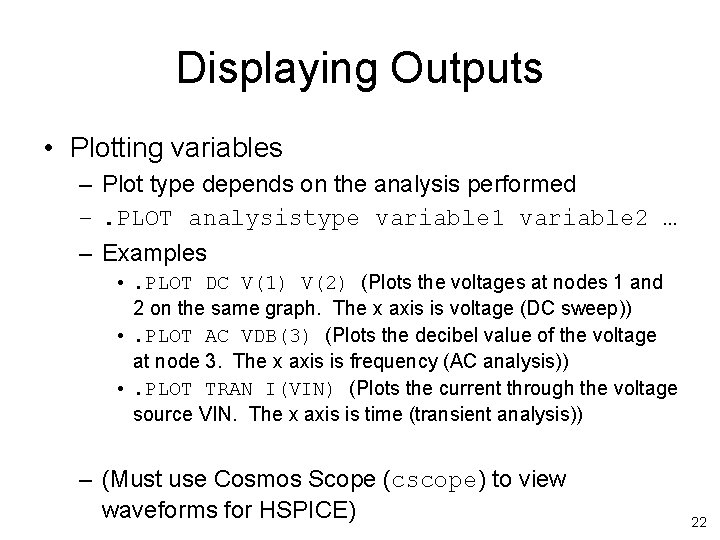
Displaying Outputs • Plotting variables – Plot type depends on the analysis performed –. PLOT analysistype variable 1 variable 2 … – Examples • . PLOT DC V(1) V(2) (Plots the voltages at nodes 1 and 2 on the same graph. The x axis is voltage (DC sweep)) • . PLOT AC VDB(3) (Plots the decibel value of the voltage at node 3. The x axis is frequency (AC analysis)) • . PLOT TRAN I(VIN) (Plots the current through the voltage source VIN. The x axis is time (transient analysis)) – (Must use Cosmos Scope (cscope) to view waveforms for HSPICE) 22
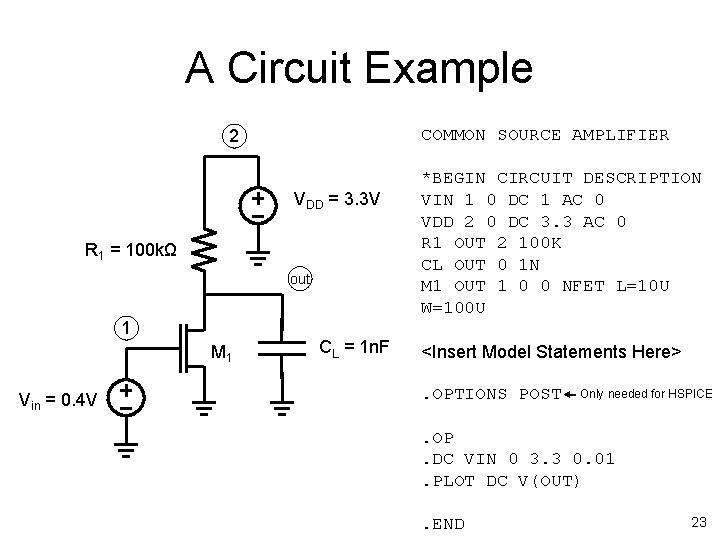
A Circuit Example COMMON SOURCE AMPLIFIER 2 VDD = 3. 3 V R 1 = 100 kΩ out 1 M 1 Vin = 0. 4 V CL = 1 n. F *BEGIN CIRCUIT DESCRIPTION VIN 1 0 DC 1 AC 0 VDD 2 0 DC 3. 3 AC 0 R 1 OUT 2 100 K CL OUT 0 1 N M 1 OUT 1 0 0 NFET L=10 U W=100 U <Insert Model Statements Here>. OPTIONS POST Only needed for HSPICE . OP. DC VIN 0 3. 3 0. 01. PLOT DC V(OUT). END 23
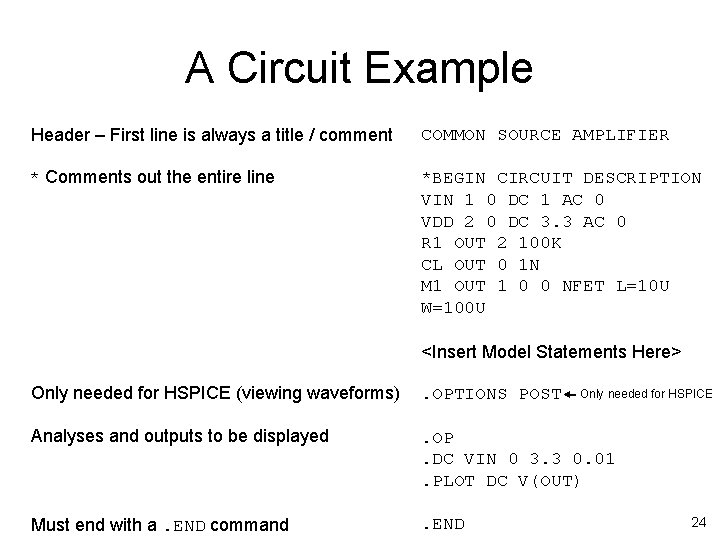
A Circuit Example Header – First line is always a title / comment COMMON SOURCE AMPLIFIER * Comments out the entire line *BEGIN CIRCUIT DESCRIPTION VIN 1 0 DC 1 AC 0 VDD 2 0 DC 3. 3 AC 0 R 1 OUT 2 100 K CL OUT 0 1 N M 1 OUT 1 0 0 NFET L=10 U W=100 U <Insert Model Statements Here> Only needed for HSPICE (viewing waveforms) . OPTIONS POST Analyses and outputs to be displayed . OP. DC VIN 0 3. 3 0. 01. PLOT DC V(OUT) Must end with a. END command . END Only needed for HSPICE 24
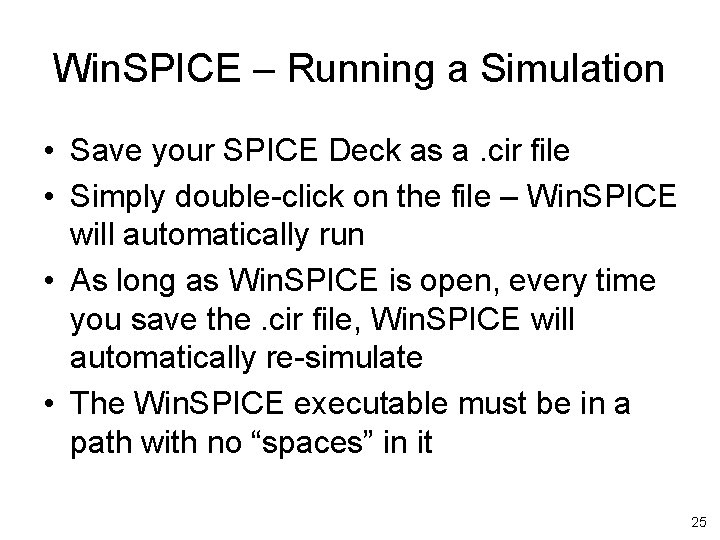
Win. SPICE – Running a Simulation • Save your SPICE Deck as a. cir file • Simply double-click on the file – Win. SPICE will automatically run • As long as Win. SPICE is open, every time you save the. cir file, Win. SPICE will automatically re-simulate • The Win. SPICE executable must be in a path with no “spaces” in it 25
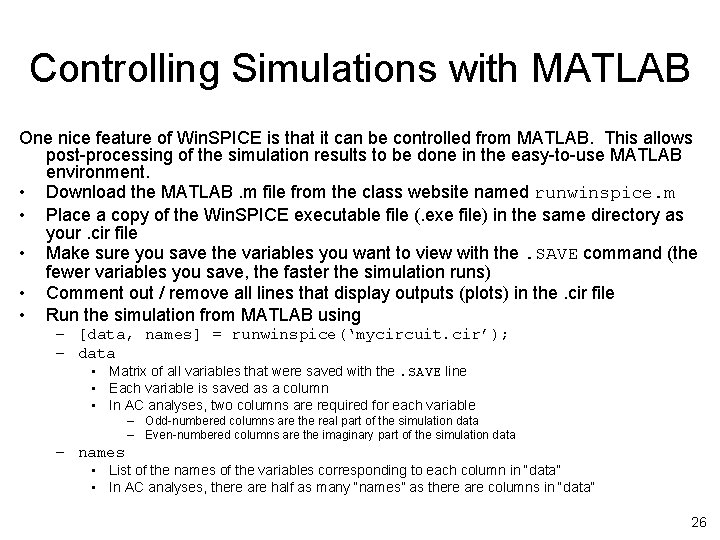
Controlling Simulations with MATLAB One nice feature of Win. SPICE is that it can be controlled from MATLAB. This allows post-processing of the simulation results to be done in the easy-to-use MATLAB environment. • Download the MATLAB. m file from the class website named runwinspice. m • Place a copy of the Win. SPICE executable file (. exe file) in the same directory as your. cir file • Make sure you save the variables you want to view with the. SAVE command (the fewer variables you save, the faster the simulation runs) • Comment out / remove all lines that display outputs (plots) in the. cir file • Run the simulation from MATLAB using – [data, names] = runwinspice(‘mycircuit. cir’); – data • Matrix of all variables that were saved with the. SAVE line • Each variable is saved as a column • In AC analyses, two columns are required for each variable – Odd-numbered columns are the real part of the simulation data – Even-numbered columns are the imaginary part of the simulation data – names • List of the names of the variables corresponding to each column in “data” • In AC analyses, there are half as many “names” as there are columns in “data” 26
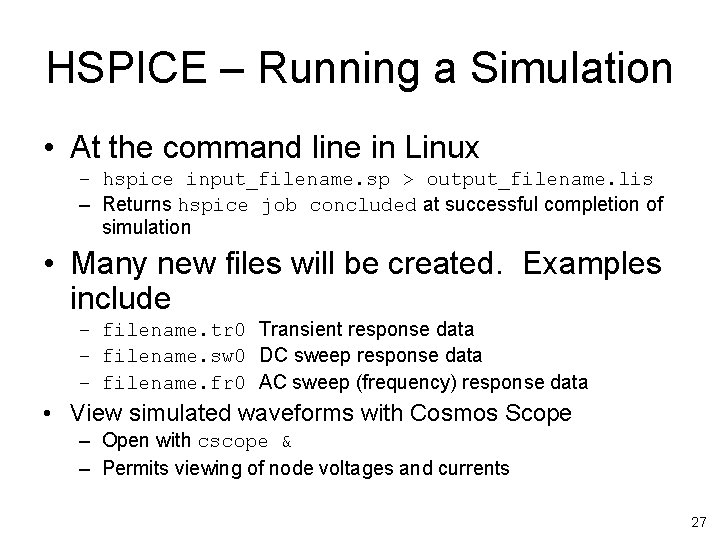
HSPICE – Running a Simulation • At the command line in Linux – hspice input_filename. sp > output_filename. lis – Returns hspice job concluded at successful completion of simulation • Many new files will be created. Examples include – filename. tr 0 Transient response data – filename. sw 0 DC sweep response data – filename. fr 0 AC sweep (frequency) response data • View simulated waveforms with Cosmos Scope – Open with cscope & – Permits viewing of node voltages and currents 27
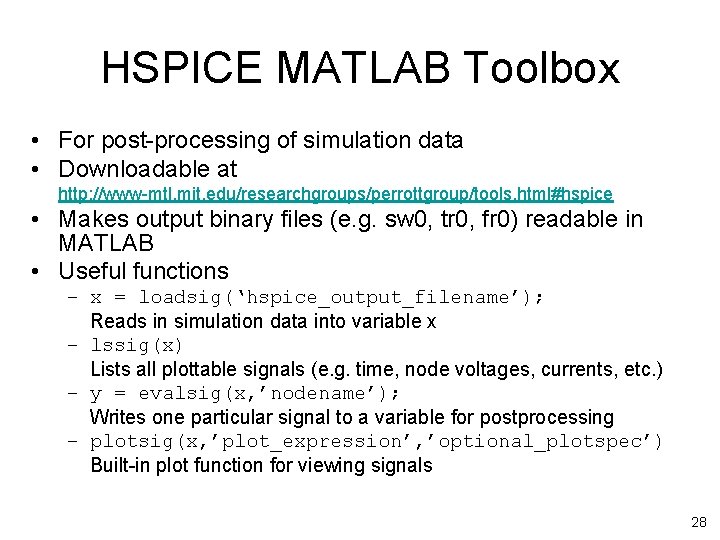
HSPICE MATLAB Toolbox • For post-processing of simulation data • Downloadable at http: //www-mtl. mit. edu/researchgroups/perrottgroup/tools. html#hspice • Makes output binary files (e. g. sw 0, tr 0, fr 0) readable in MATLAB • Useful functions – x = loadsig(‘hspice_output_filename’); Reads in simulation data into variable x – lssig(x) Lists all plottable signals (e. g. time, node voltages, currents, etc. ) – y = evalsig(x, ’nodename’); Writes one particular signal to a variable for postprocessing – plotsig(x, ’plot_expression’, ’optional_plotspec’) Built-in plot function for viewing signals 28
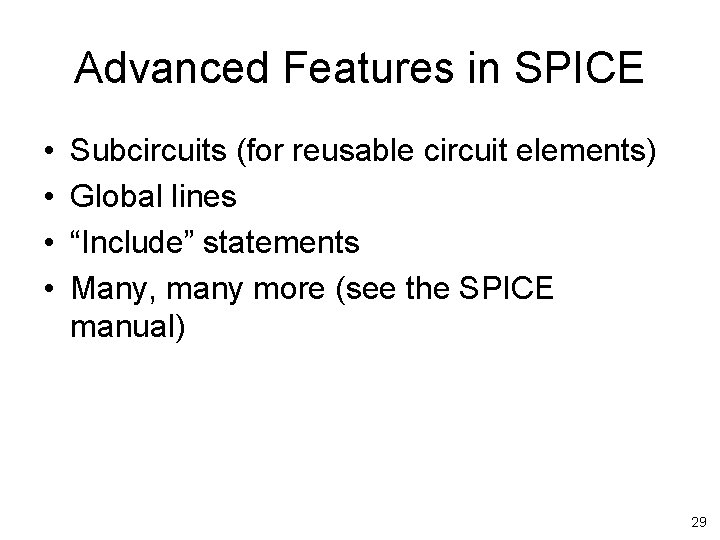
Advanced Features in SPICE • • Subcircuits (for reusable circuit elements) Global lines “Include” statements Many, many more (see the SPICE manual) 29
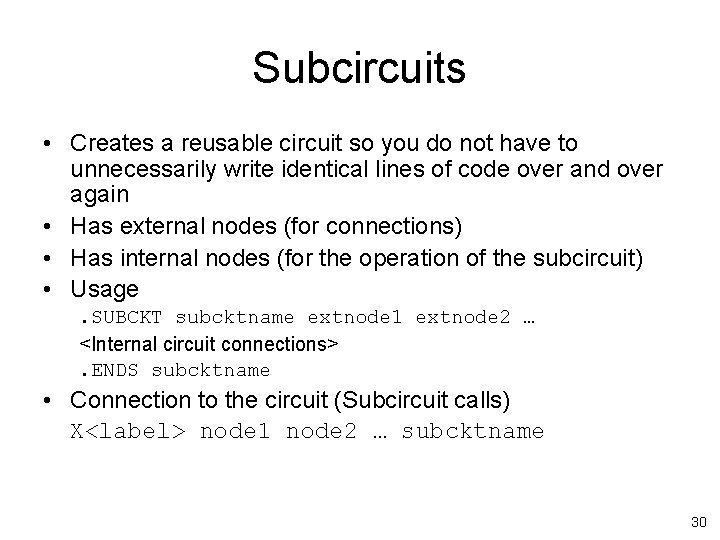
Subcircuits • Creates a reusable circuit so you do not have to unnecessarily write identical lines of code over and over again • Has external nodes (for connections) • Has internal nodes (for the operation of the subcircuit) • Usage. SUBCKT subcktname extnode 1 extnode 2 … <Internal circuit connections>. ENDS subcktname • Connection to the circuit (Subcircuit calls) X<label> node 1 node 2 … subcktname 30
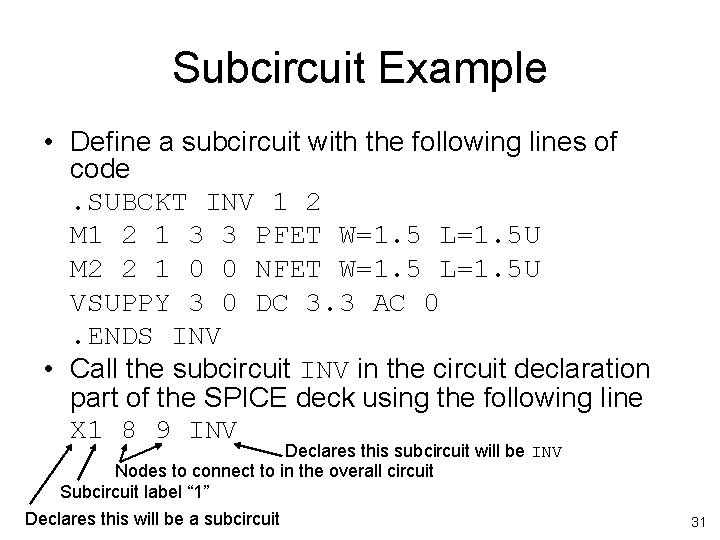
Subcircuit Example • Define a subcircuit with the following lines of code. SUBCKT INV 1 2 M 1 2 1 3 3 PFET W=1. 5 L=1. 5 U M 2 2 1 0 0 NFET W=1. 5 L=1. 5 U VSUPPY 3 0 DC 3. 3 AC 0. ENDS INV • Call the subcircuit INV in the circuit declaration part of the SPICE deck using the following line X 1 8 9 INV Declares this subcircuit will be INV Nodes to connect to in the overall circuit Subcircuit label “ 1” Declares this will be a subcircuit 31
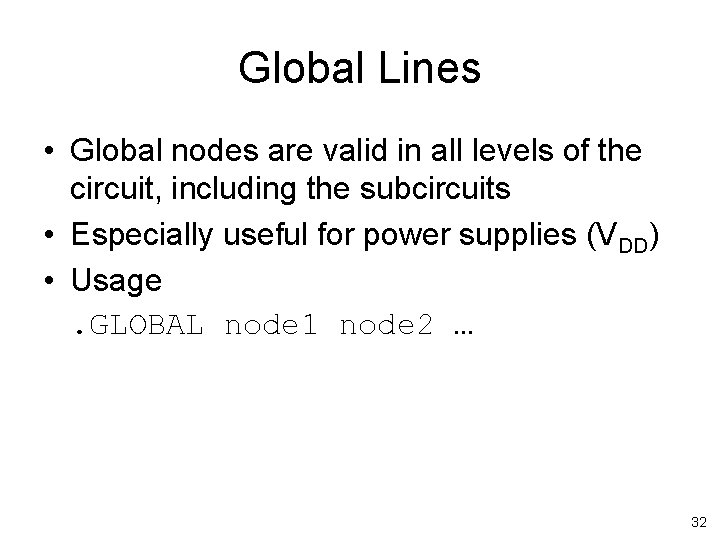
Global Lines • Global nodes are valid in all levels of the circuit, including the subcircuits • Especially useful for power supplies (VDD) • Usage. GLOBAL node 1 node 2 … 32
Include Statements • Useful for adding large, reusable lines of code – Model files – Subcircuits – Large, specific input signals (PWL) • Usage –. INCLUDE filename – Effectively replaces the. INCLUDE line with the lines of code in the file 33