
INSTRUCTIONS FOR PRERECORDED PRESENTATIONS USING ZOOM GUIDELINES Skip
- Slides: 26
INSTRUCTIONS FOR PRE-RECORDED PRESENTATIONS USING ZOOM GUIDELINES Skip to Slide 7 if you have zoom preloaded in your computer
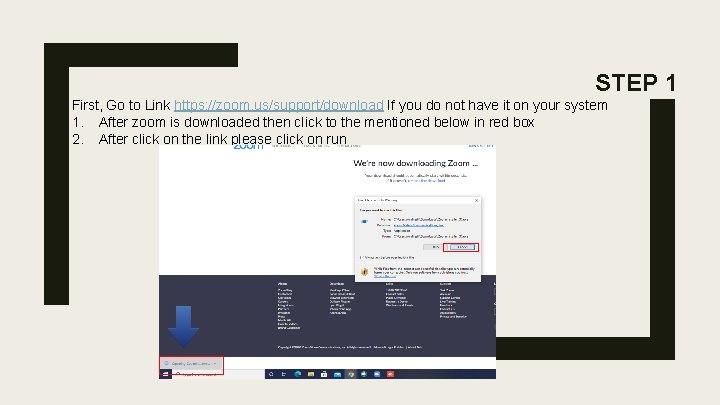
STEP 1 First, Go to Link https: //zoom. us/support/download If you do not have it on your system 1. After zoom is downloaded then click to the mentioned below in red box 2. After click on the link please click on run
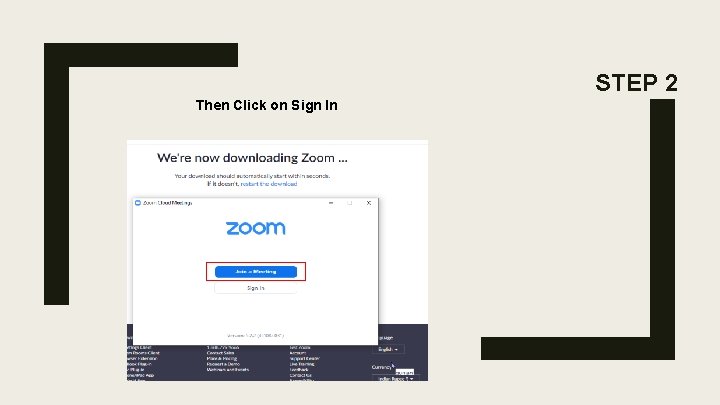
STEP 2 Then Click on Sign In
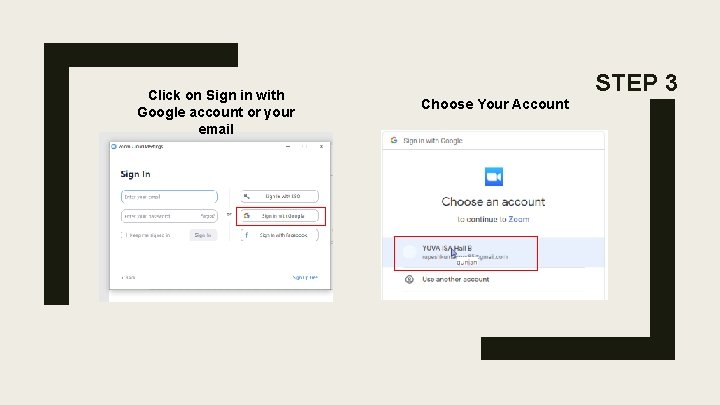
Click on Sign in with Google account or your email STEP 3 Choose Your Account
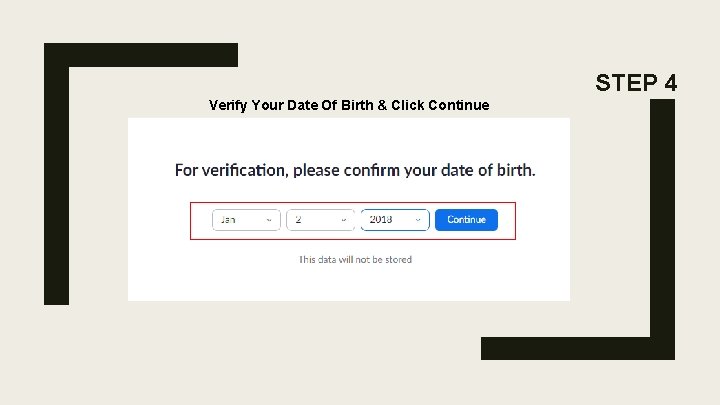
STEP 4 Verify Your Date Of Birth & Click Continue
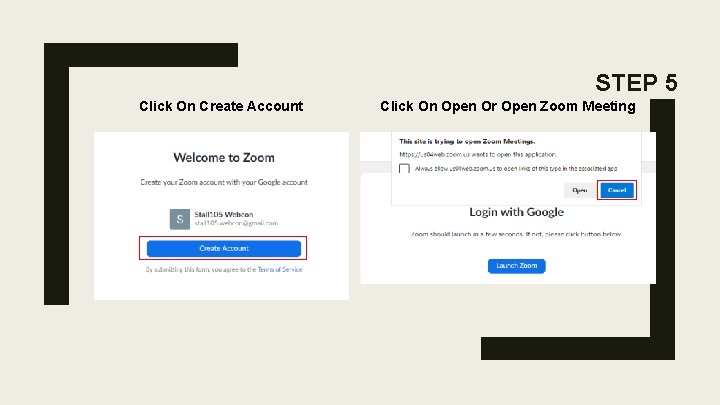
STEP 5 Click On Create Account Click On Open Or Open Zoom Meeting
Presentation Enhancement Recommendations Lighting/Camera — Diffused light in front of you will usually work best to avoid shadows. Try to position your camera so that it just above your eye level. If you will be on camera – check the visible background – use of a zoom background may be helpful. Click on “Start Video” or “Stop Video” to turn your camera on or off. Sound/Audio — We recommend using a headset and/or microphone as it will lead to better sound quality than using your computer audio. Turn off all sound notifications on all your devices. Internet/Bandwidth — It is recommended to use hardwired internet, using an ethernet cable to connect. This helps reduce the variability of wi-fi strength. Other applications/Sharing Screen — For live presentations, close other applications on your computer so that notifications do not appear during your presentation, and have ready any files you wish to share. You are recommended to share the specific Power. Point and not your desktop.
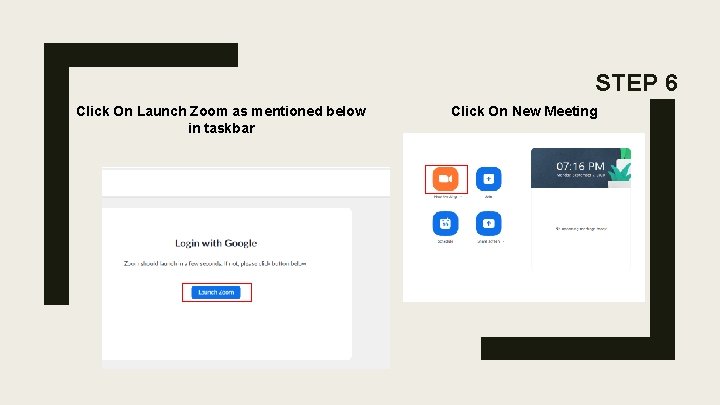
STEP 6 Click On Launch Zoom as mentioned below in taskbar Click On New Meeting
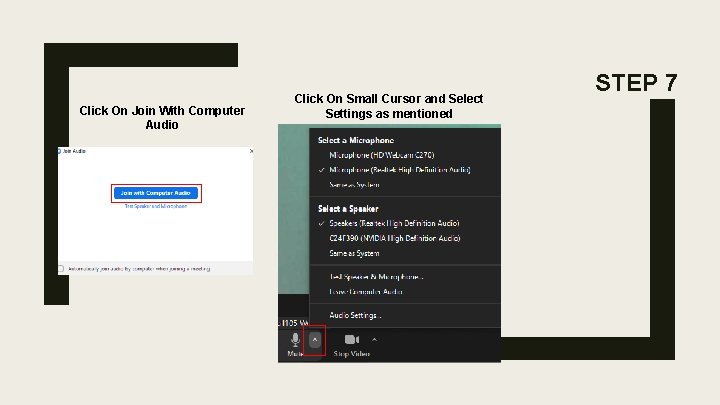
Click On Join With Computer Audio Click On Small Cursor and Select Settings as mentioned STEP 7
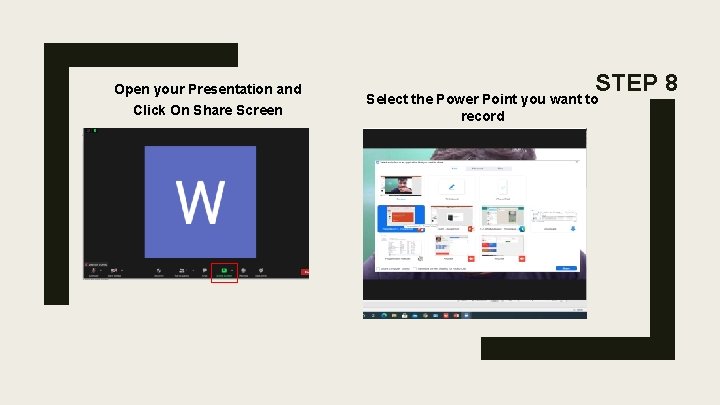
Open your Presentation and Click On Share Screen STEP 8 Select the Power Point you want to record
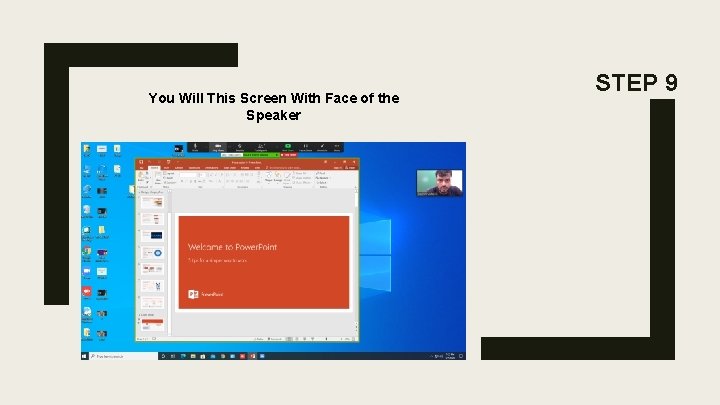
You Will This Screen With Face of the Speaker STEP 9
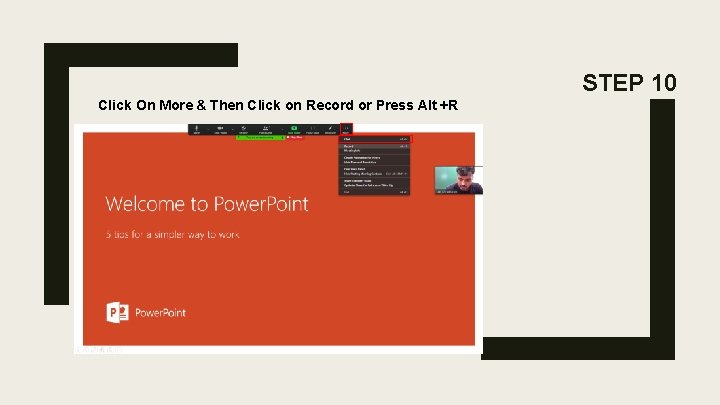
STEP 10 Click On More & Then Click on Record or Press Alt +R
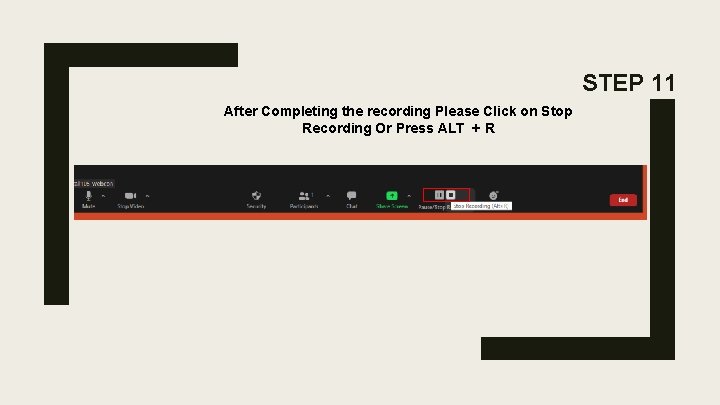
STEP 11 After Completing the recording Please Click on Stop Recording Or Press ALT + R
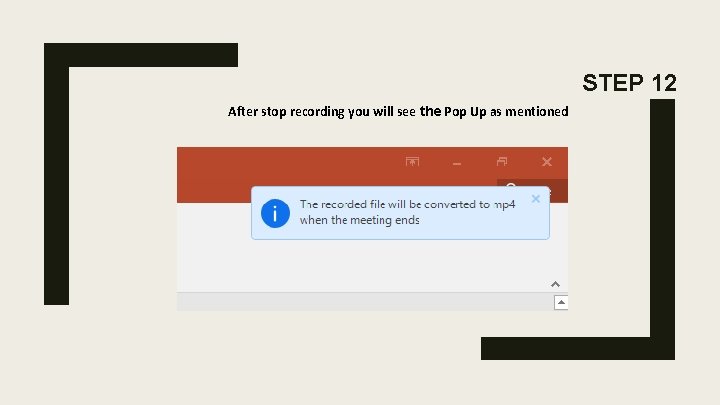
STEP 12 After stop recording you will see the Pop Up as mentioned
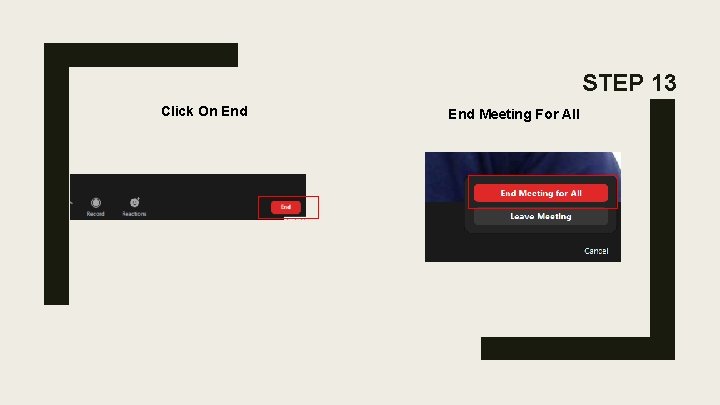
STEP 13 Click On End Meeting For All
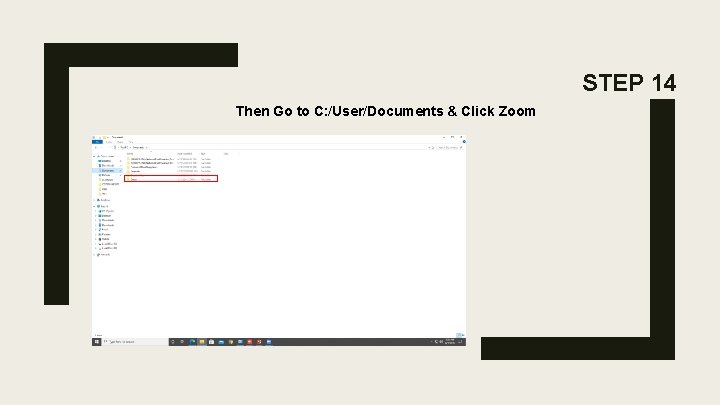
STEP 14 Then Go to C: /User/Documents & Click Zoom
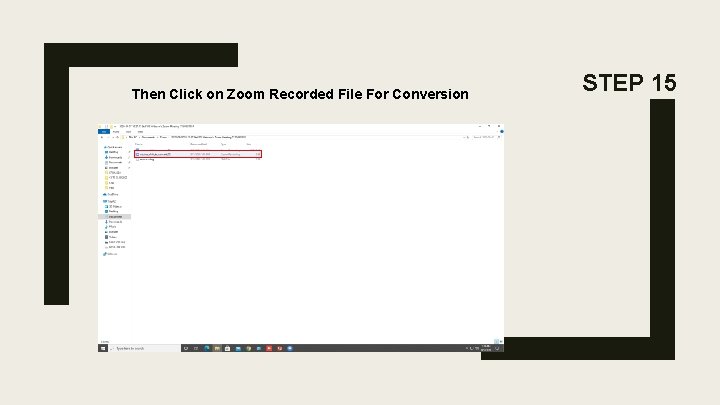
Then Click on Zoom Recorded File For Conversion STEP 15
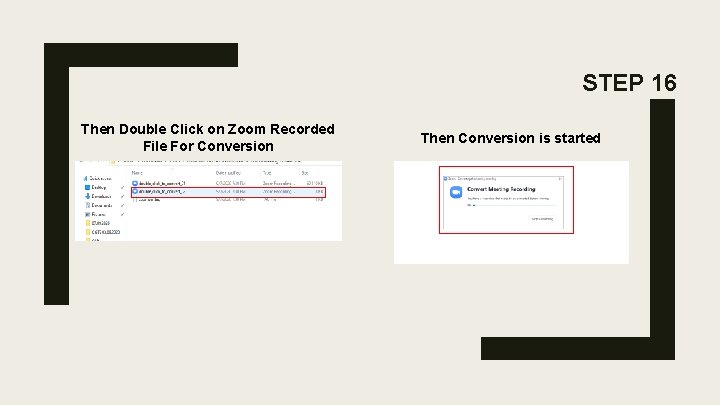
STEP 16 Then Double Click on Zoom Recorded File For Conversion Then Conversion is started
Additional settings if you are not getting Screen & Video recorded together STEP 17 a) To get a picture in picture display go to video settings – recording – Click on record video during screen sharing & Place video next to screen sharing. b) Record screen and image side by following setting. Video Setting – Share Screen – Side by Side mode. c) Another setting for placing the video and screen separately. Video setting – Record video during screen sharing – Place video next to the shared screen in the recording.
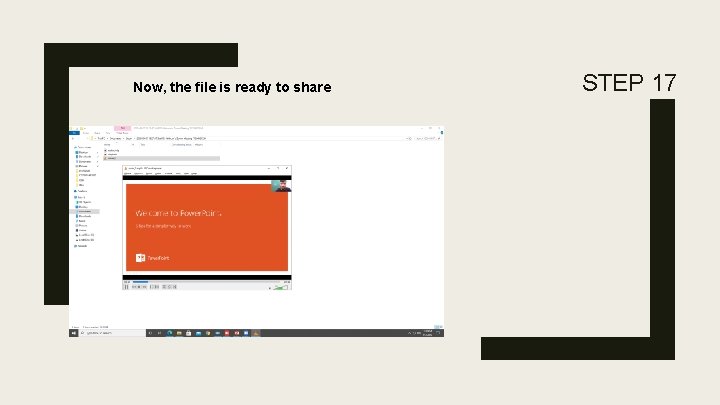
Now, the file is ready to share STEP 17
Share the file via wetransfer. com Send file via wetransfer. com 1. Put in wetransfer. com 2. Click on I Agree & No Thanks 3. Add your file/ recording 4. Email to – info@isgcon 2020. com 5. Your email 6. Click on transfer & enter the verification code that you will receive 7. Skip further slides if you are able to share the recording via above method STEP 17
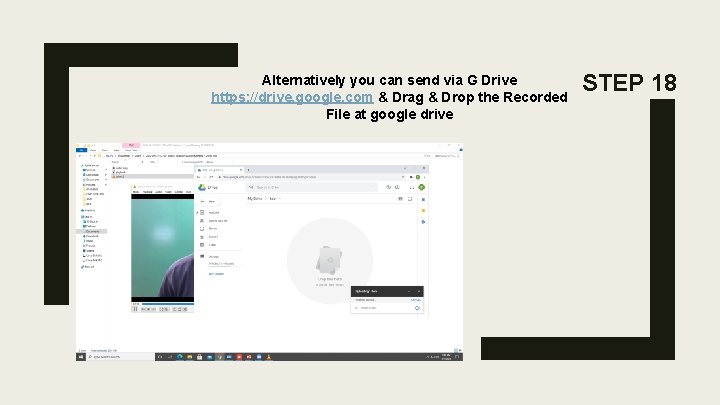
Alternatively you can send via G Drive https: //drive. google. com & Drag & Drop the Recorded File at google drive STEP 18
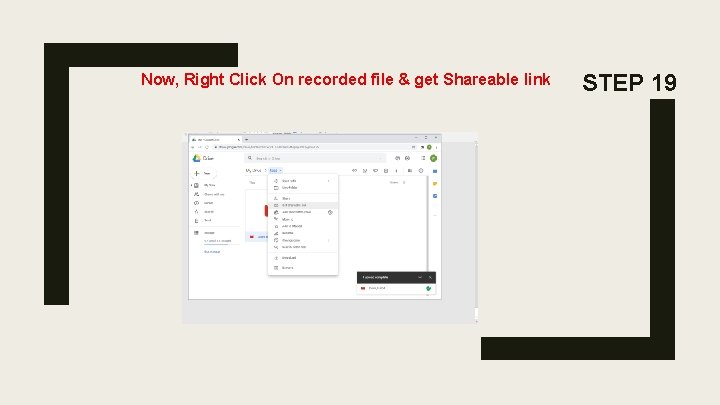
Now, Right Click On recorded file & get Shareable link STEP 19
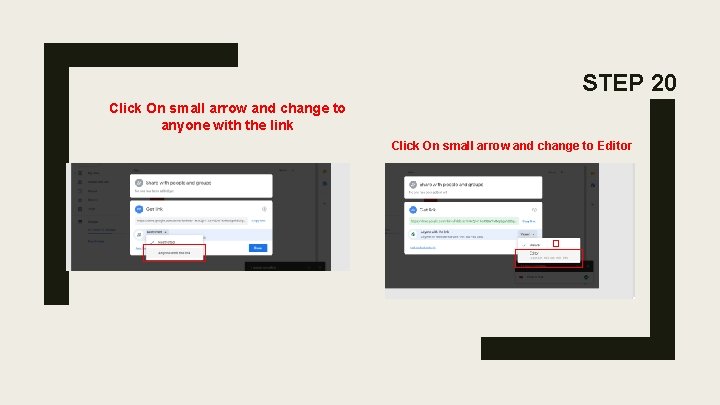
STEP 20 Click On small arrow and change to anyone with the link Click On small arrow and change to Editor
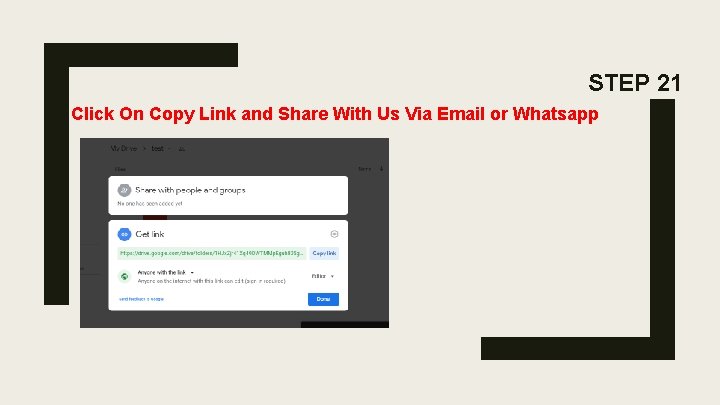
STEP 21 Click On Copy Link and Share With Us Via Email or Whatsapp
Please Remember , before sharing link it should be in “Editor” and “anyone with this link “ like you see in step 20 of Google Drive You can share by we-transfer or Dropbox also