
Instructions for Claimant Password Reset in UI Online
- Slides: 14
Instructions for Claimant Password Reset in UI Online Department of Unemployment Assistance Mass. gov
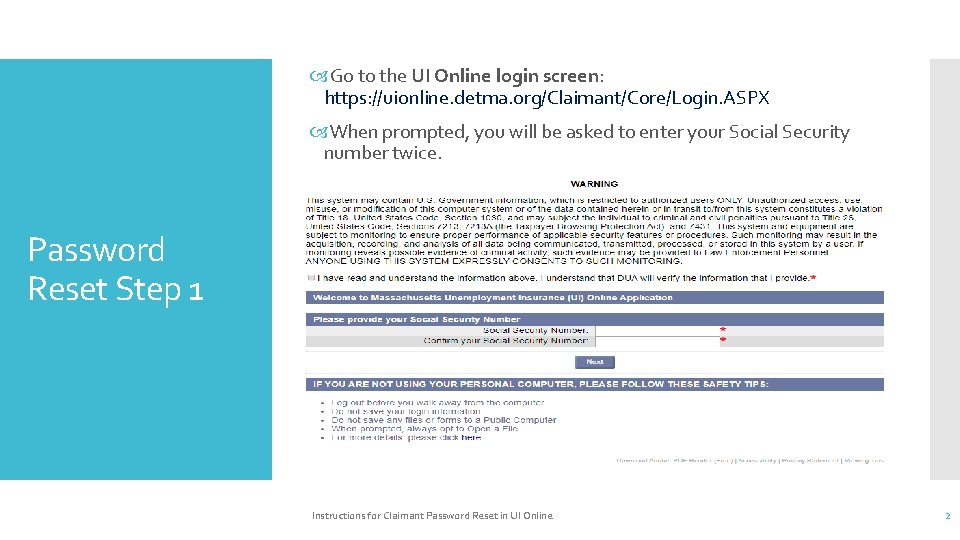
Go to the UI Online login screen: https: //uionline. detma. org/Claimant/Core/Login. ASPX When prompted, you will be asked to enter your Social Security number twice. Password Reset Step 1 Instructions for Claimant Password Reset in UI Online 2
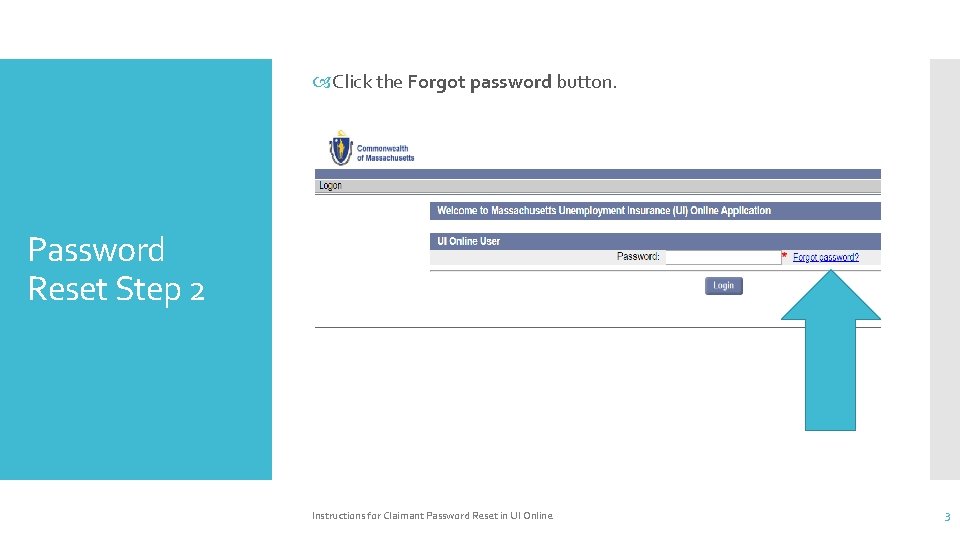
Click the Forgot password button. Password Reset Step 2 Instructions for Claimant Password Reset in UI Online 3
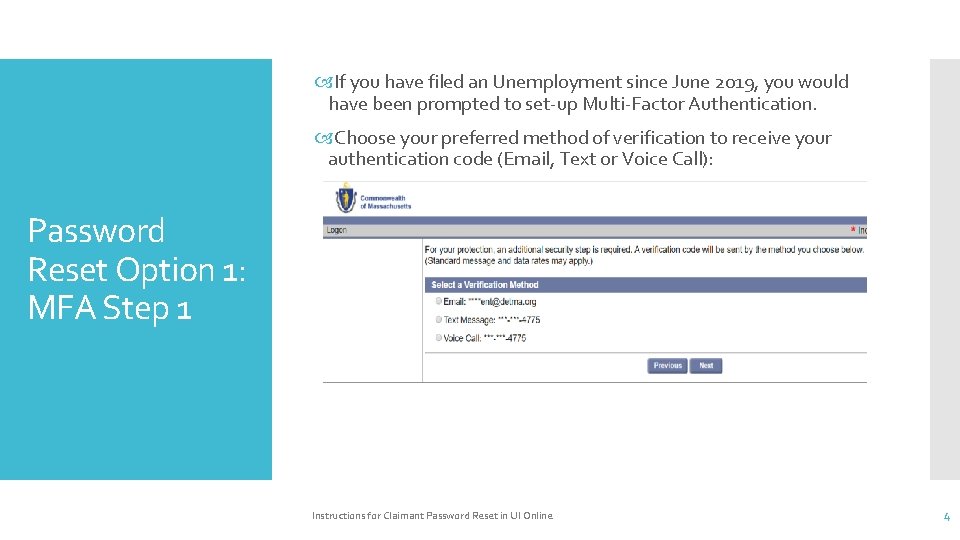
If you have filed an Unemployment since June 2019, you would have been prompted to set-up Multi-Factor Authentication. Choose your preferred method of verification to receive your authentication code (Email, Text or Voice Call): Password Reset Option 1: MFA Step 1 Instructions for Claimant Password Reset in UI Online 4
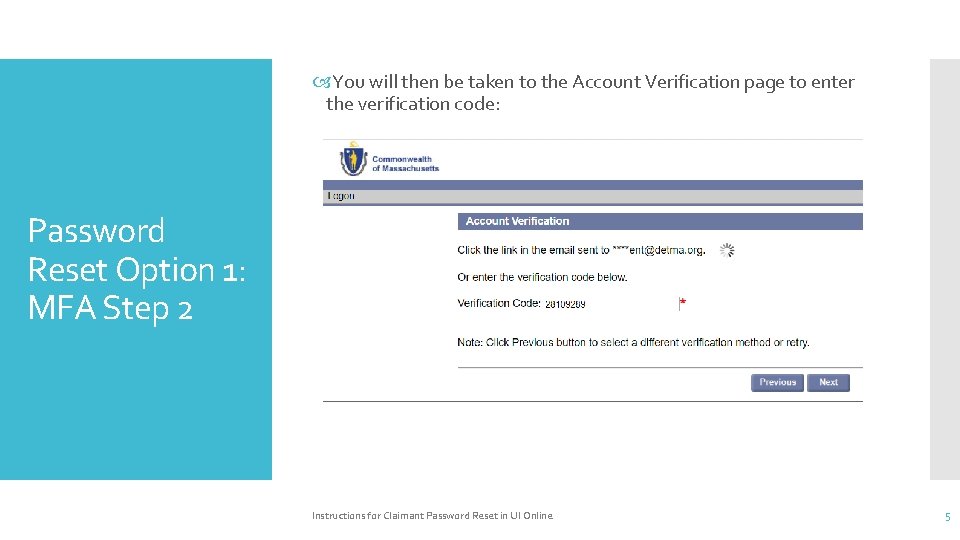
You will then be taken to the Account Verification page to enter the verification code: Password Reset Option 1: MFA Step 2 Instructions for Claimant Password Reset in UI Online 5
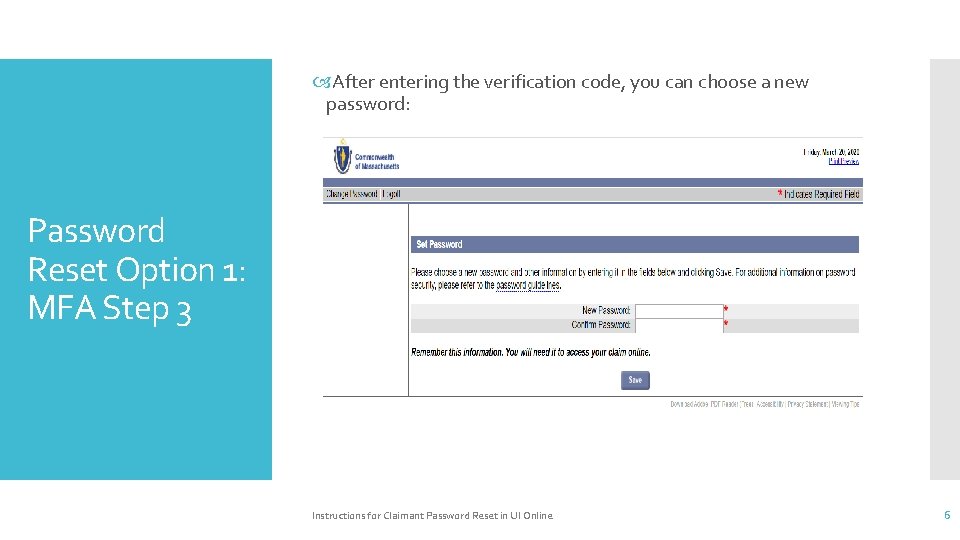
After entering the verification code, you can choose a new password: Password Reset Option 1: MFA Step 3 Instructions for Claimant Password Reset in UI Online 6
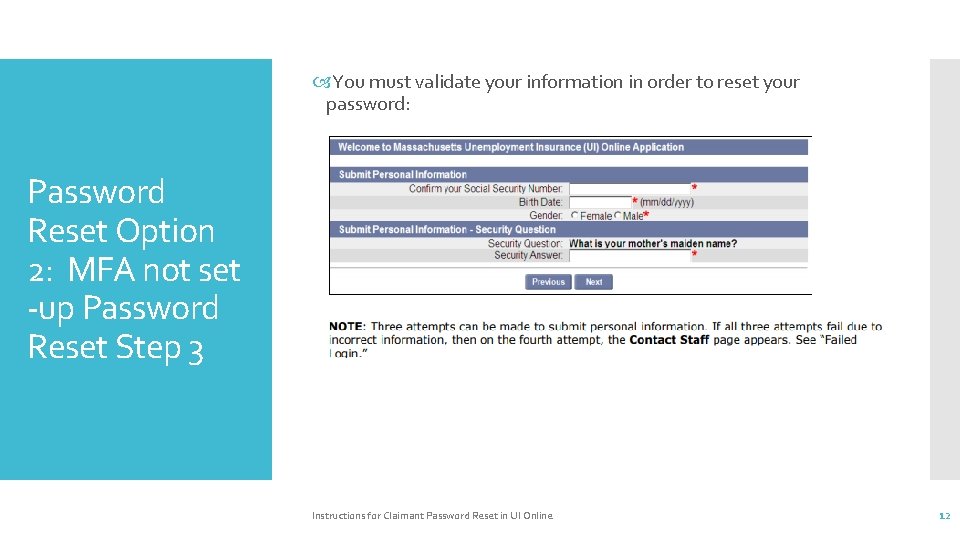
If you have NOT filed an Unemployment claim since June 2019, you will be prompted to enter your verification information including: Password Reset Option 2: MFA not set -up Your Social Security number Date of birth Gender The answer to your security question IMPORTANT NOTE: The answer to your security question is case sensitive. If you can't remember the answer to your security question, you must contact DUA to confirm your identity. ) Instructions for Claimant Password Reset in UI Online 7
Helpful Hints If you are trying to login into UI Online and last had a claim prior to 7/1/2013, you will be required to enter in the answer to your security question (your mother's maiden name) upon clicking the 'forgot password' link. Only enter in the first four letters of your mother's maiden name. For claims filed after 7/1/2013, the answer to your security question required to reset your password is only one word (example: If the answer to your security question is 'New Orleans', you should be entering 'New. Orleans'). Instructions for Claimant Password Reset in UI Online 8
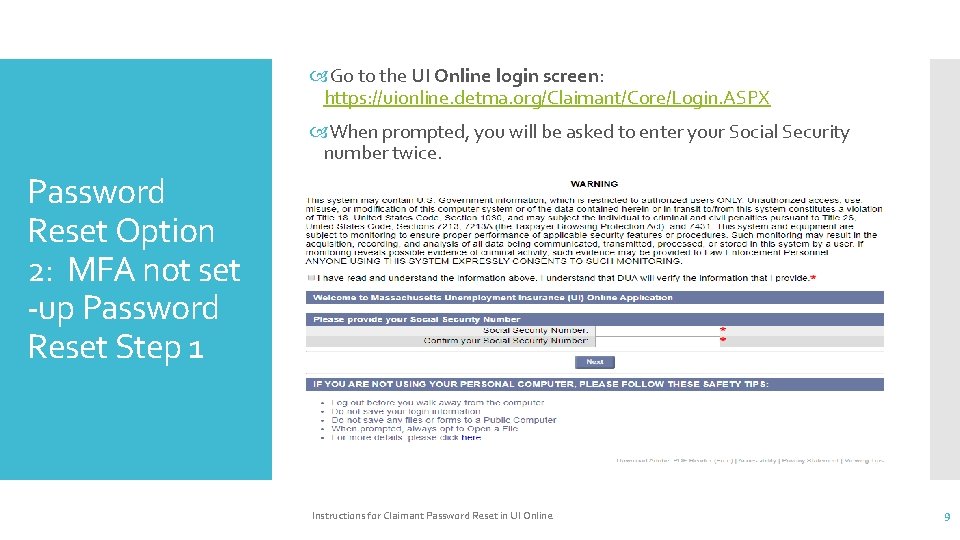
Go to the UI Online login screen: https: //uionline. detma. org/Claimant/Core/Login. ASPX When prompted, you will be asked to enter your Social Security number twice. Password Reset Option 2: MFA not set -up Password Reset Step 1 Instructions for Claimant Password Reset in UI Online 9
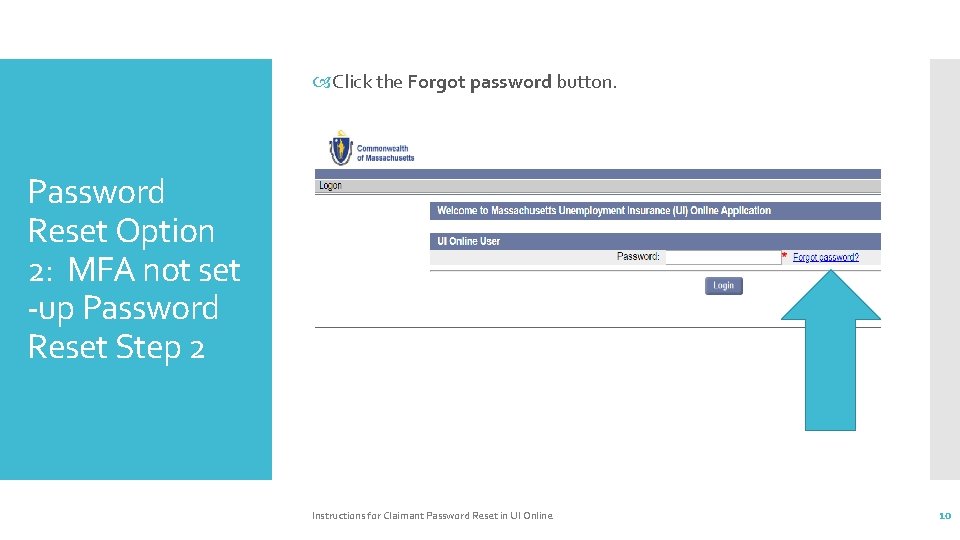
Click the Forgot password button. Password Reset Option 2: MFA not set -up Password Reset Step 2 Instructions for Claimant Password Reset in UI Online 10
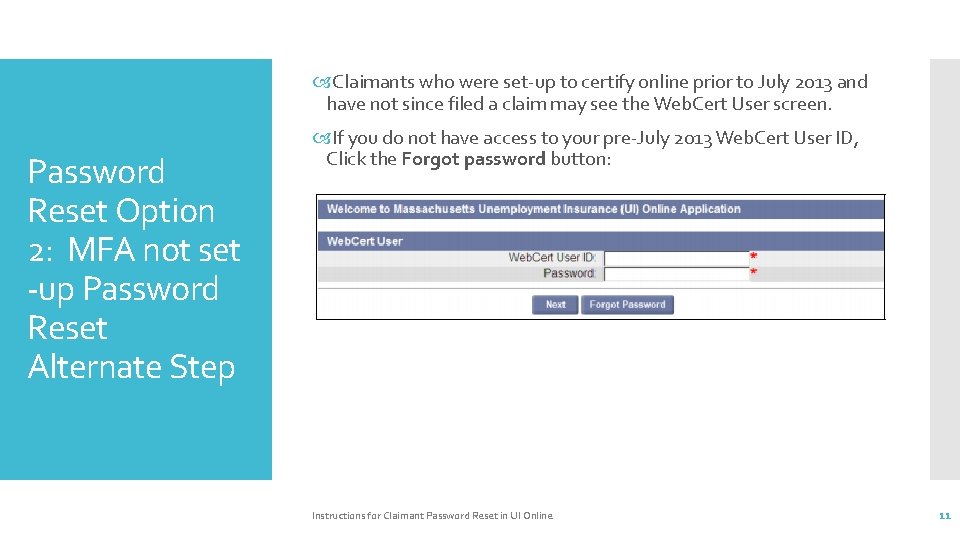
Claimants who were set-up to certify online prior to July 2013 and have not since filed a claim may see the Web. Cert User screen. Password Reset Option 2: MFA not set -up Password Reset Alternate Step If you do not have access to your pre-July 2013 Web. Cert User ID, Click the Forgot password button: Instructions for Claimant Password Reset in UI Online 11
You must validate your information in order to reset your password: Password Reset Option 2: MFA not set -up Password Reset Step 3 Instructions for Claimant Password Reset in UI Online 12
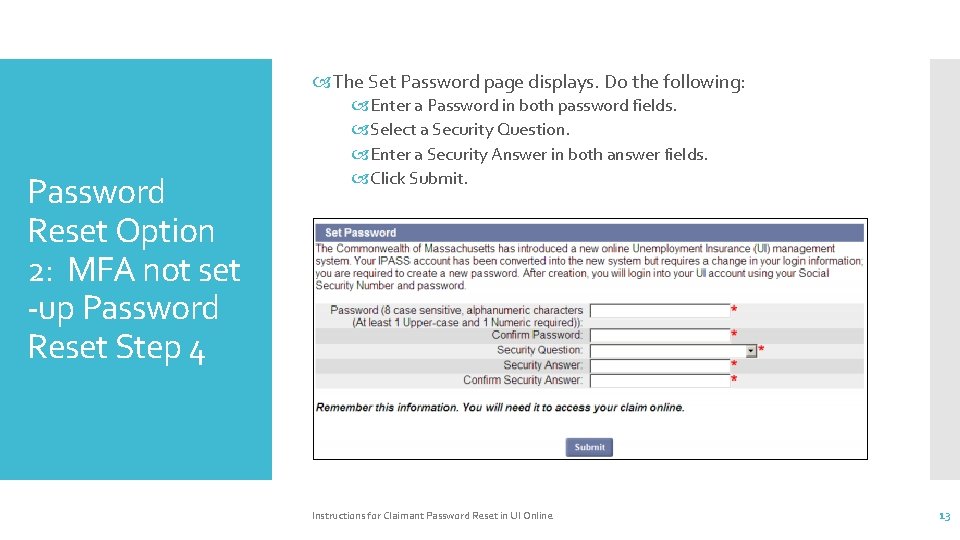
The Set Password page displays. Do the following: Password Reset Option 2: MFA not set -up Password Reset Step 4 Enter a Password in both password fields. Select a Security Question. Enter a Security Answer in both answer fields. Click Submit. Instructions for Claimant Password Reset in UI Online 13
Password Reset: Failed Login If you have been unable to log in because you forgot your password (or were unable to provide the correct answer to the Security Question, or were unable to provide the PIN information for MFA), and you are unable to proceed using the instructions in the “Forgot Password” section, you will need to contact the Department of Unemployment Assistance (DUA) so a DUA Staff member can help get your password reset. Instructions for Claimant Password Reset in UI Online 14