
INSTRUCTIONAL POWERPOINT Creating slides and format text To
- Slides: 6
INSTRUCTIONAL POWERPOINT
Creating slides and format text � To insert a new slide go to “ New Slide” button and click on it � If you want a different layout go to the “ New Slide” and click on the arrow pointing down � A easier way to accesses is to right click the slide go down to “layouts” � To format a text use the “Font commands” on the top of the tool bar � You can use different kinds of fonts ( bold, italic, underline, shadow. . etc)
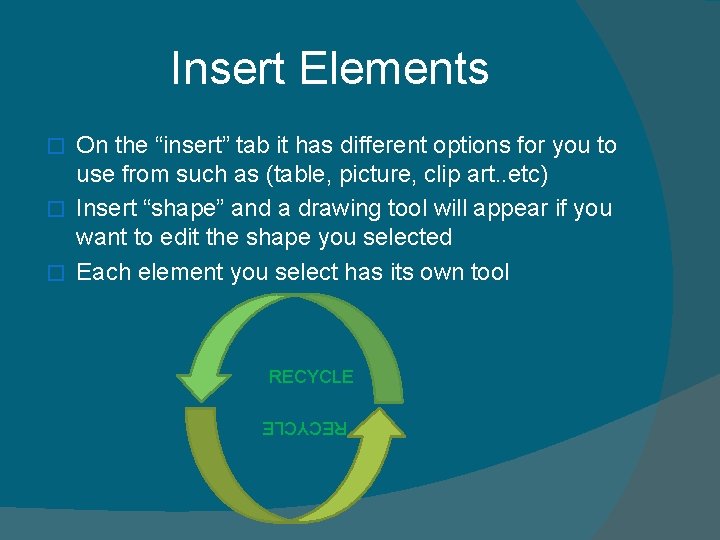
Insert Elements On the “insert” tab it has different options for you to use from such as (table, picture, clip art. . etc) � Insert “shape” and a drawing tool will appear if you want to edit the shape you selected � Each element you select has its own tool � RECYCLE
Designs and animate � To add designs to the powerpoint to go “Design” tab � Designs are also called THEMES � Also can make Transistion’s such as Fade, push, or split. Thoes will allow you to let each slide as you play it to fade or split.
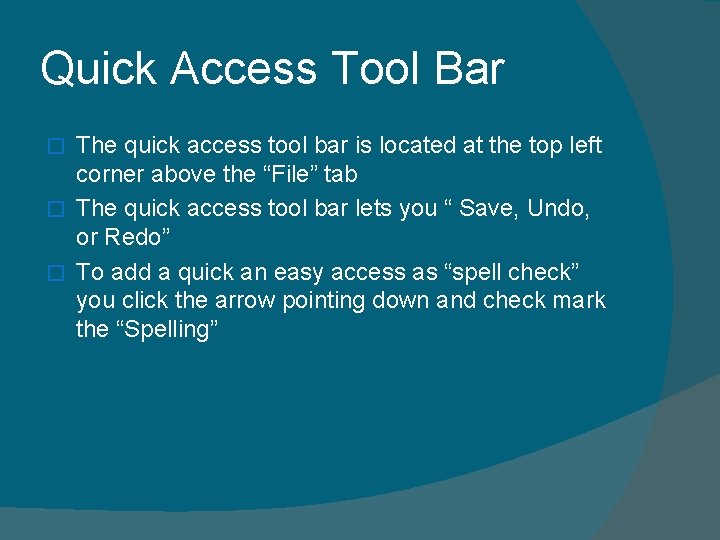
Quick Access Tool Bar The quick access tool bar is located at the top left corner above the “File” tab � The quick access tool bar lets you “ Save, Undo, or Redo” � To add a quick an easy access as “spell check” you click the arrow pointing down and check mark the “Spelling” �
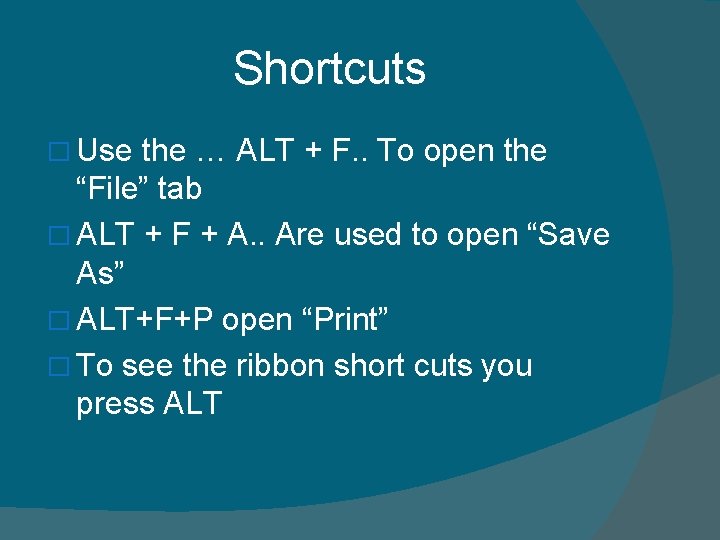
Shortcuts � Use the … ALT + F. . To open the “File” tab � ALT + F + A. . Are used to open “Save As” � ALT+F+P open “Print” � To see the ribbon short cuts you press ALT