
Instructional Design for Online Learning Microsoft Office Online
- Slides: 22
Instructional Design for Online Learning Microsoft Office Online and One. Drive for Work Collaboration Maggie Mc. Neill ED 6229 Intersession 2014 Instructor - Tammy Mc. Leod June 24, 2014
Project Introduction § This project evolved around a common workplace scenario involving document sharing and collaboration among coworkers. At issue within the company were documents too large to e-mail, and limited group access to documents when collaboration was necessary. § Management conducted a study and examined possible solutions. Of the viable choices, management decided on a two step approach to resolve document issues. § Step 1: Provide introductory online training for One. Drive and Office Online to employees for document collaboration. Assess staff learning outcomes. § Step 2: 2 Implement the use of One. Drive as a solution to resolve ongoing issues with document collaboration among staff. § Step 3: Review project and overall staff evaluations to determine if anticipated goals have been met, and take appropriate steps based on outcome. § This would allow employees to continue to work with tools that they were familiar with, while exploring enhanced options available within Microsoft Office and Microsoft Online Apps. The scope of this work will center on staff training in the use of Microsoft Office Online with One. Drive.
Training Context and Tools Used § Training tutorials will be provided to staff in a blended synchronous/asynchronous online format § Staff will be assigned a team to work with Microsoft Office Online using: § Word Online § Excel Online § Outlook Online § Power. Point Online § Microsoft Office at workstations § Weebly will be used for training webpage
Training Context and Tools Used § Learner Outcomes: § Upon successfully completing these topics, the learner will be able to: § Discuss the benefits of a shared drive § Understand the concept of shared drives and One. Drive § Download and set-up a One. Drive shared folder on their computer § Create an ID to access Microsoft Online applications § Work with the following Microsoft Online software: § Outlook, People, Calendar, Word, Excel Power. Point and One. Note § Use One. Drive to upload documents for sharing/collaboration § Use One. Drive to download documents to work on § Create documents using Microsoft Office
Learning Topics One Two Three • Working Better Together • Working with Office Online and One. Drive • Working with Excel Online
Working Better Together Benefits of Office Online: § Office Online is a web version of Office 2013 and is available to use with your web Internet Explorer or Chrome browser for document collaboration. § It can be used with: § Your tablet § Phone § Your laptop or PC § With others in collaboration § Individually with centralized document storage at One. Drive
Working Better Together What you will learn from the webinar: § An understanding of what Office Online is § Uses for Office Online § Fundamentals of collaboration with Office Online
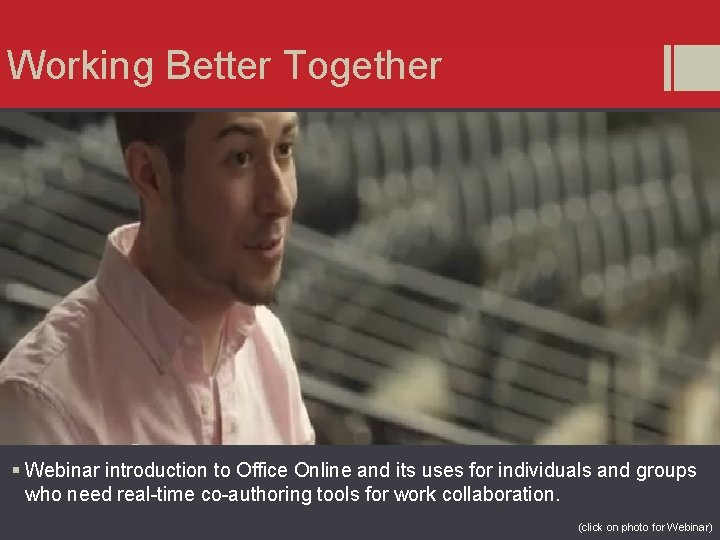
Working Better Together § Webinar introduction to Office Online and its uses for individuals and groups who need real-time co-authoring tools for work collaboration. (click on photo for Webinar)
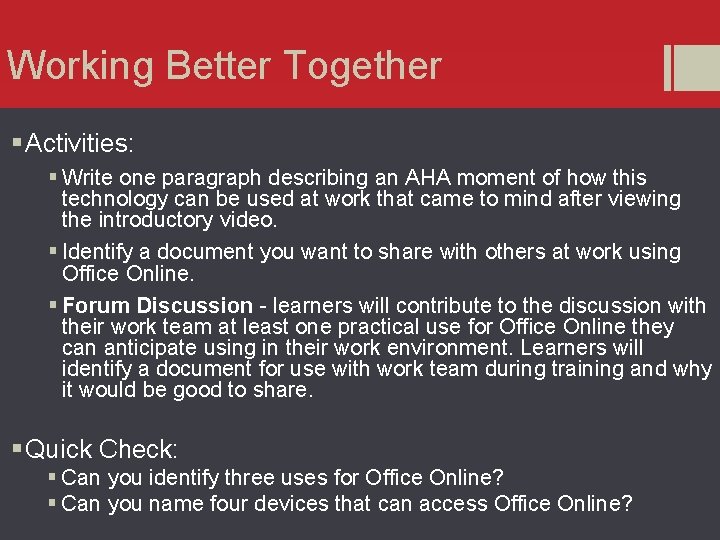
Working Better Together § Activities: § Write one paragraph describing an AHA moment of how this technology can be used at work that came to mind after viewing the introductory video. § Identify a document you want to share with others at work using Office Online. § Forum Discussion - learners will contribute to the discussion with their work team at least one practical use for Office Online they can anticipate using in their work environment. Learners will identify a document for use with work team during training and why it would be good to share. § Quick Check: § Can you identify three uses for Office Online? § Can you name four devices that can access Office Online?
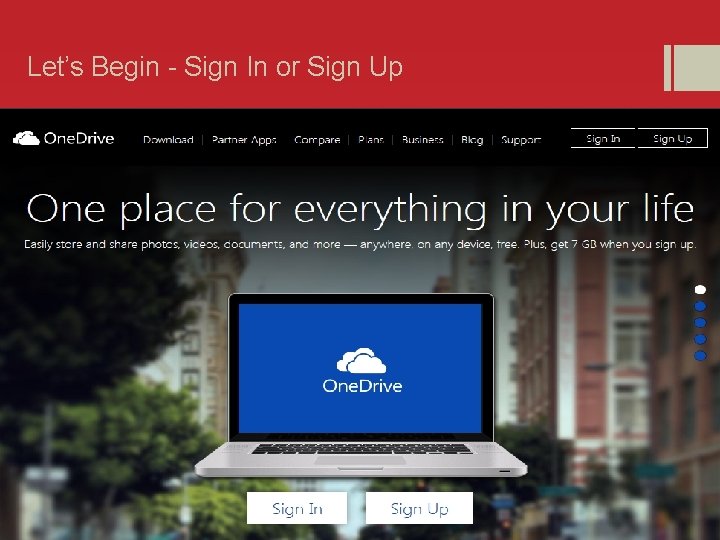
Let’s Begin - Sign In or Sign Up www. office. com/start/default. aspx
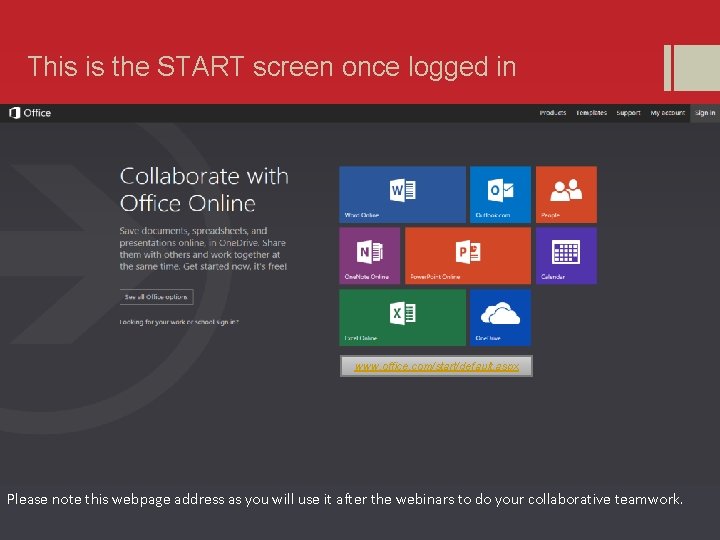
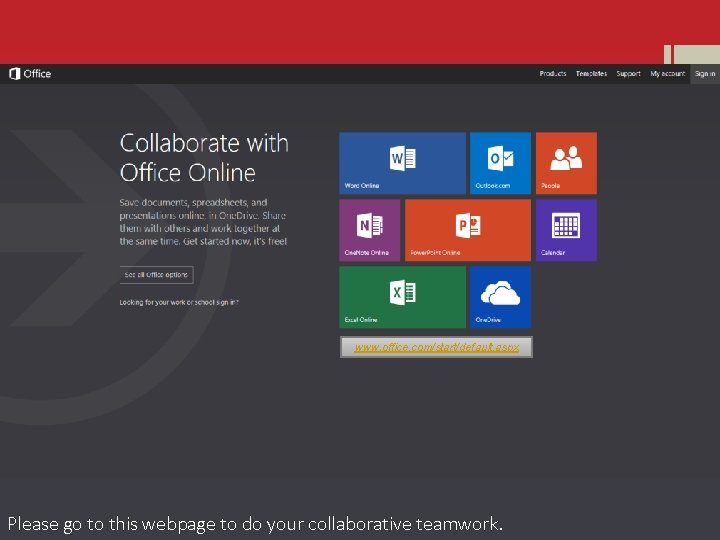
This is the START screen once logged in www. office. com/start/default. aspx Please note this webpage address as you will use it after the webinars to do your collaborative teamwork.
Learning Topics One Two Three • Working Better Together • Working with Office Online and One. Drive • Working with Excel Online
Working with Office Online What you will learn from the webinar: § Create & share docs with Office Online § Storing docs with One. Drive § New things with Office Online (templates, anyone? ) § Working on a doc with someone else at the same time
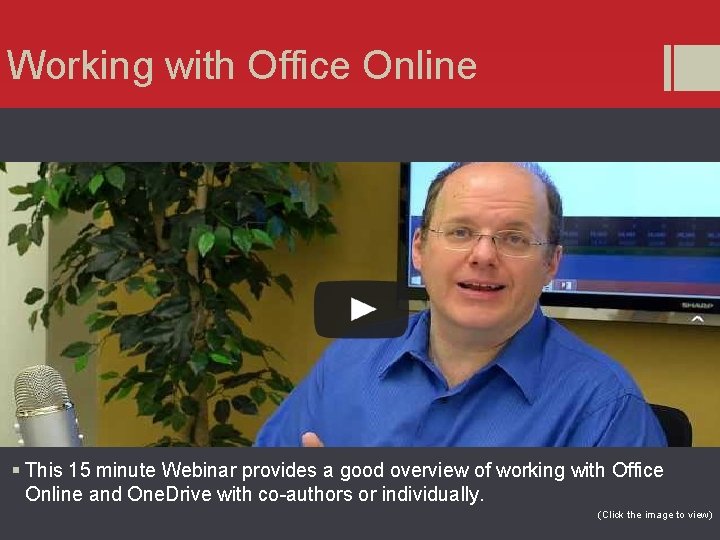
Working with Office Online § This 15 minute Webinar provides a good overview of working with Office Online and One. Drive with co-authors or individually. (Click the image to view)
Working with Office Online § Activities: § Create an ID at the Microsoft. com site, OR § Login using a Microsoft account (x. Box, Live, Hotmail or Outlook. com) § Explore Office Online interface § Using Outlook Online, learners will import contacts and create email groups for teamwork; email your work team and the instructor § Work with Outlook Online People features and connect to an account they may have with Skype, Face. Book, Google, etc… § Forum Discussion – Describe Public folders; permission and where they are set; security for work. § Quick Check: § Do you know how to find the Office Online Webpage? § Do you have a Microsoft ID or have you created one for this training? § Name four of the Microsoft Office Online applications.
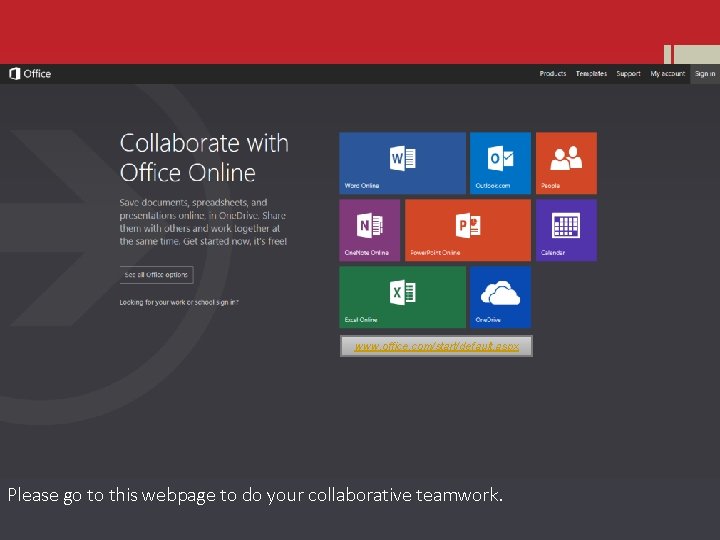
www. office. com/start/default. aspx Please go to this webpage to do your collaborative teamwork.
Learning Topics One Two Three • Working Better Together • Working with Office Online and One. Drive • Working with Excel Online
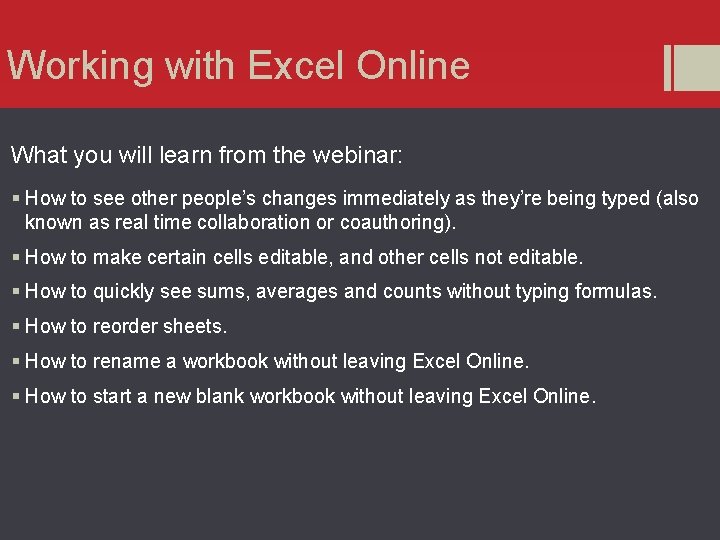
Working with Excel Online What you will learn from the webinar: § How to see other people’s changes immediately as they’re being typed (also known as real time collaboration or coauthoring). § How to make certain cells editable, and other cells not editable. § How to quickly see sums, averages and counts without typing formulas. § How to reorder sheets. § How to rename a workbook without leaving Excel Online. § How to start a new blank workbook without leaving Excel Online.
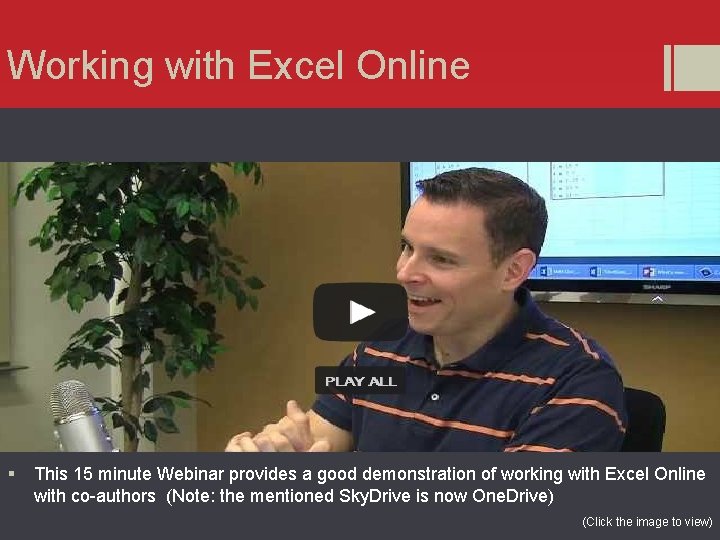
Working with Excel Online § This 15 minute Webinar provides a good demonstration of working with Excel Online with co-authors (Note: the mentioned Sky. Drive is now One. Drive) (Click the image to view)
www. office. com/start/default. aspx Please go to this webpage to do your collaborative teamwork.
Working with Excel Online § Activities: § Create and work with a collaborative document in Excel Online § Work individually with material covered with work documents moved to One. Drive § Forum Discussion – Describe Public folders; permission and where they are set; security for work. § Learner survey and collaborative group Final Project § Quick Check: § Describe the steps in starting an Excel Document from a template § Describe how to determine if others are using a document at the same time you are § Can you describe the steps in renaming a workbook without leaving Excel Online?
Summary In the Topics covered – Working Better Together – Office Online – Excel Online § Learners viewed webinars, and collaborated in activities involving: § Discussing the benefits of a shared drive § Understanding the concept of shared drives and the cloud § Downloading and setting-up a One. Drive shared folder on their computer § Creating an ID to access Microsoft Online applications § Working with the following Microsoft Online software: § Outlook, People, Calendar, Word, Excel Power. Point and One. Note § Using One. Drive to upload documents for sharing/collaboration § Using One. Drive to download documents to work on individually § Creating documents using Microsoft Office