
Installing Windows Deployment Services on Windows Server 2008

- Slides: 17
Installing Windows Deployment Services on Windows Server 2008 R 2. Make sure you have installed the following pre-requisites before proceeding with these instructions: • • • Active Directory DNS Server DHCP Server These instructions assume that the above roles have been installed on the same physical server as the one you are about to install WDS. Also bear in mind that you need a NTFS partition to store your images when.
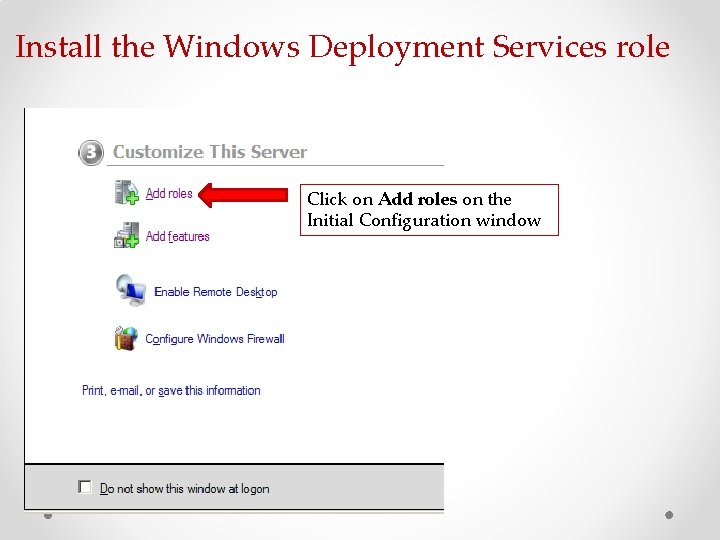
Install the Windows Deployment Services role Click on Add roles on the Initial Configuration window
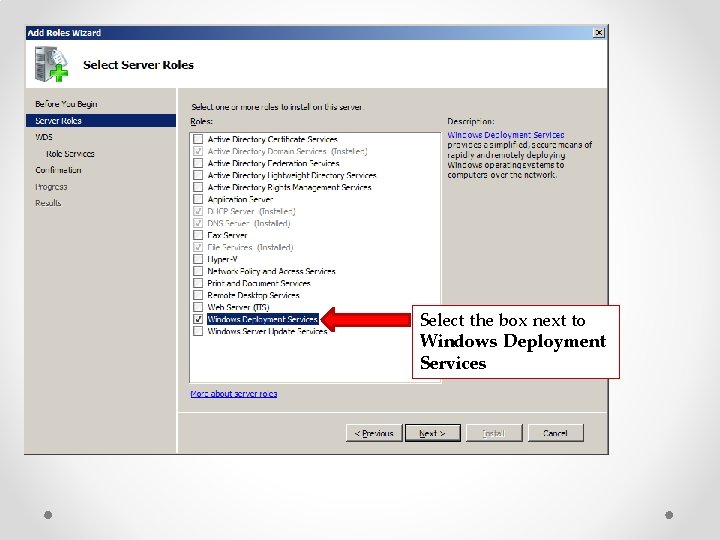
Select the box next to Windows Deployment Services
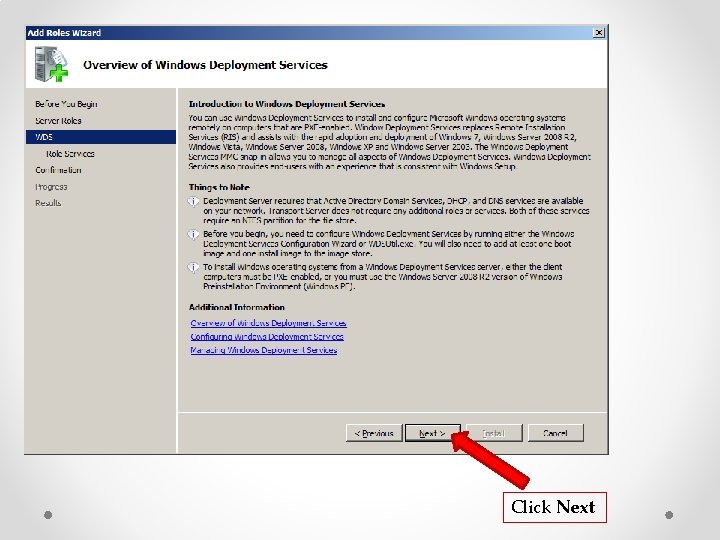
Click Next
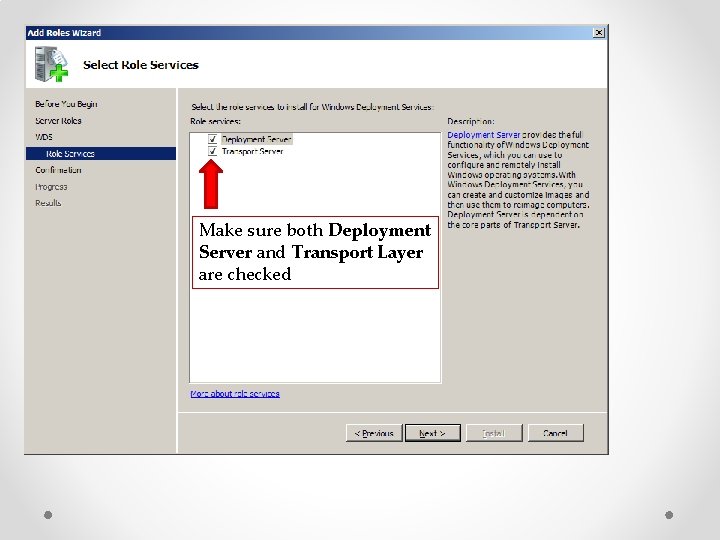
Make sure both Deployment Server and Transport Layer are checked
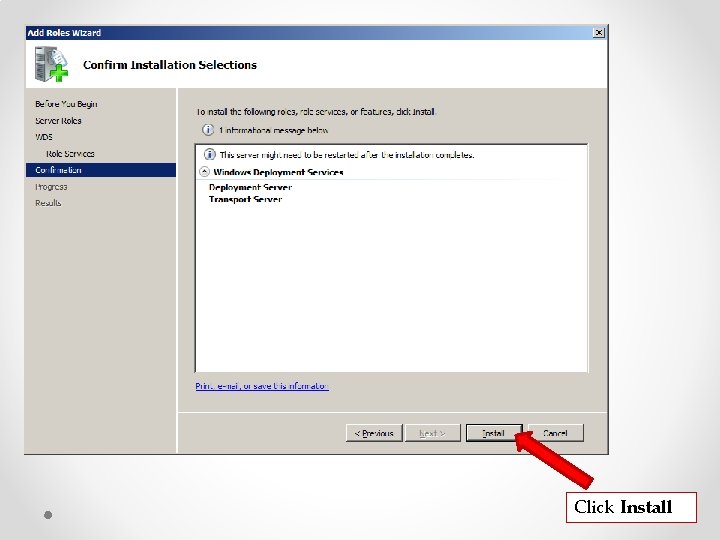
Click Install
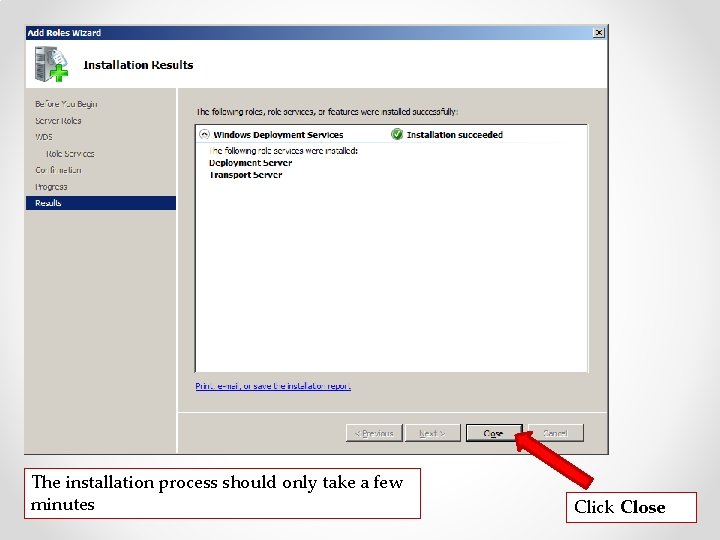
The installation process should only take a few minutes Click Close
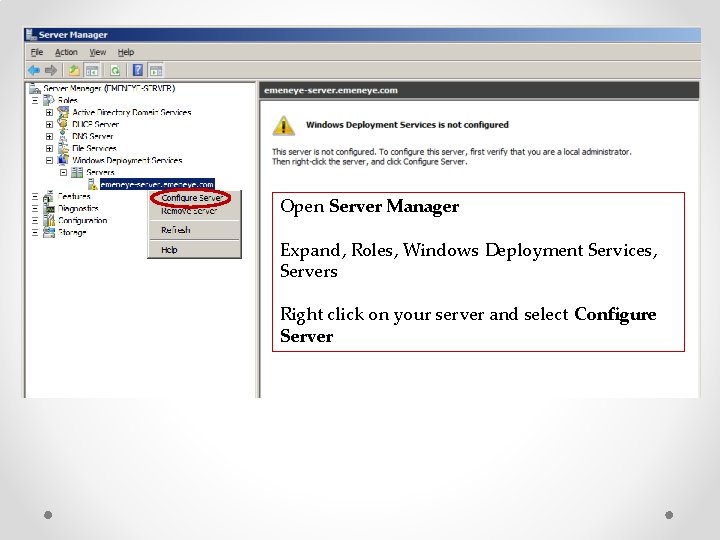
Open Server Manager Expand, Roles, Windows Deployment Services, Servers Right click on your server and select Configure Server
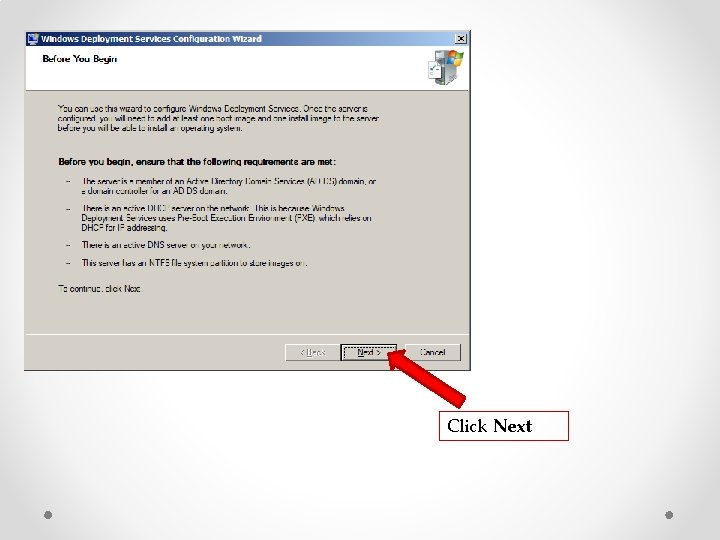
Click Next
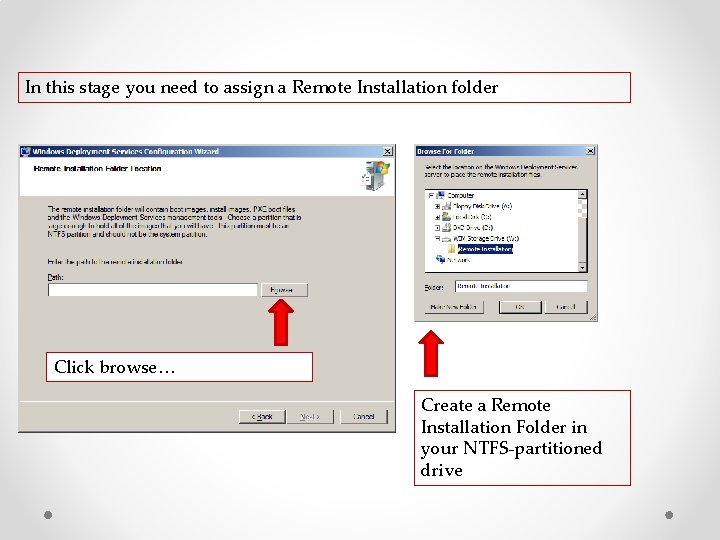
In this stage you need to assign a Remote Installation folder Click browse… Create a Remote Installation Folder in your NTFS-partitioned drive
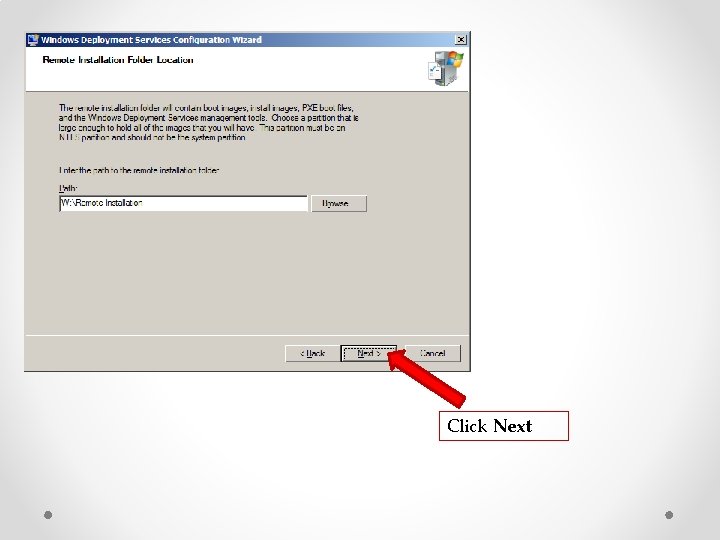
Click Next
Check both boxes (this guide assumes DHCP server role is installed on this same server) Click Next
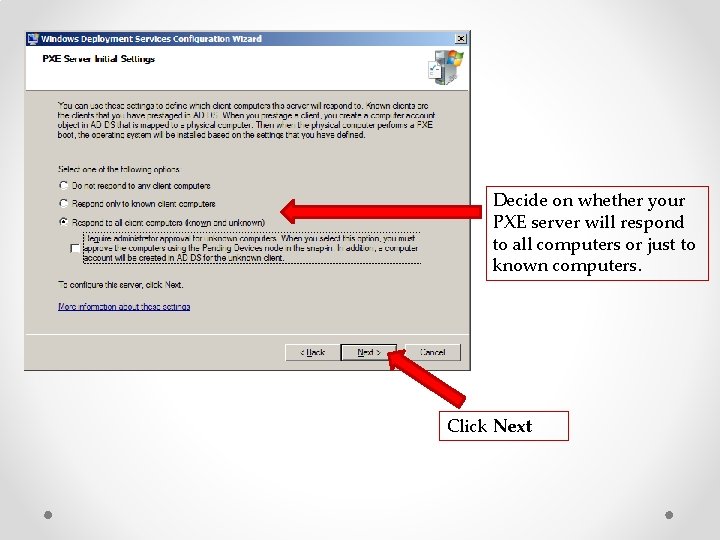
Decide on whether your PXE server will respond to all computers or just to known computers. Click Next
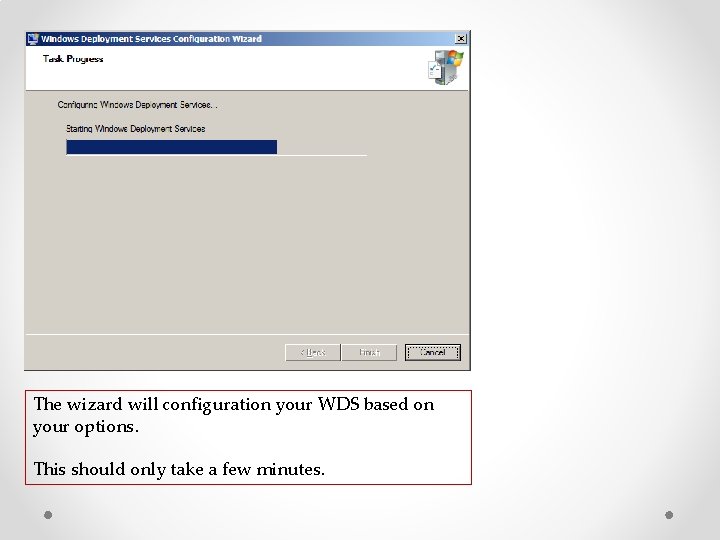
The wizard will configuration your WDS based on your options. This should only take a few minutes.
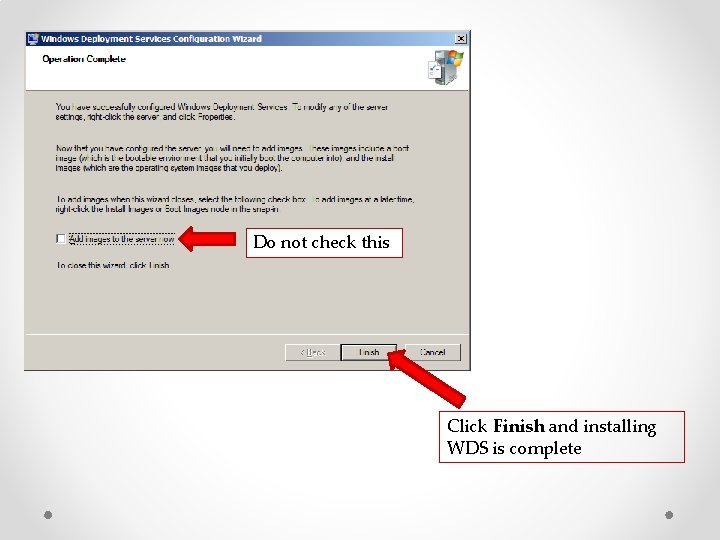
Do not check this Click Finish and installing WDS is complete
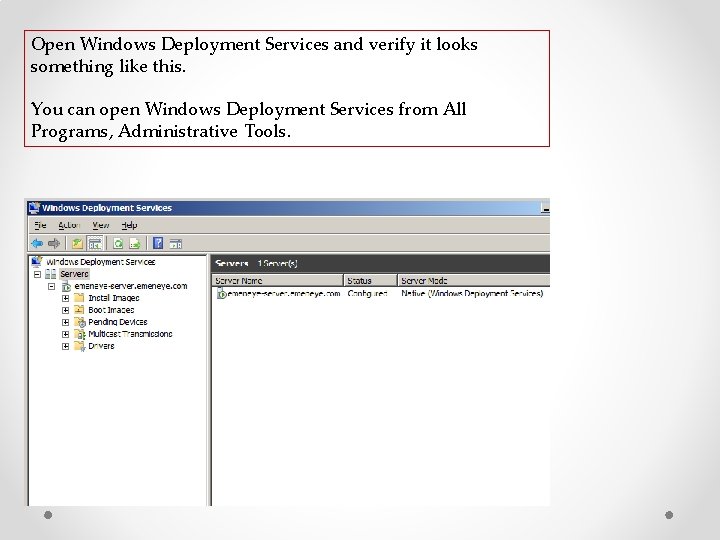
Open Windows Deployment Services and verify it looks something like this. You can open Windows Deployment Services from All Programs, Administrative Tools.
That’s it. With WDS installed you can go ahead and install MDT 2010 on your server. Instructions are available on my blog. http: //emeneye. wordpress. com