
Installing VMware the Data ONTAP Simulator SE Technical
![Hostname[]: Enter Something Here timezone [GMT]: US/Pacific New password: netapp Note: Hostname will show](https://slidetodoc.com/presentation_image_h/2f8ae63173975ae86b9a03945c7ac3a0/image-18.jpg "Hostname[]: Enter Something Here timezone [GMT]: US/Pacific New password: netapp Note: Hostname will show")
- Slides: 23
Installing VMware & the Data ONTAP Simulator SE Technical Academy
Installation Overview 4 Copy the trial version of vmware™ – When you return to your office you should request approval from your manager for a fully licensed version. You will be able to just plug in the serial number once you receive it. You will not have to reinstall. – http: //se-web. corp. netapp. com/cgibin/form_engine. pl/se_tools/iwant/inde x. html? conf=vm_license 4 Install vmware 4 Copy the Linux Image 4 Setup the simulator
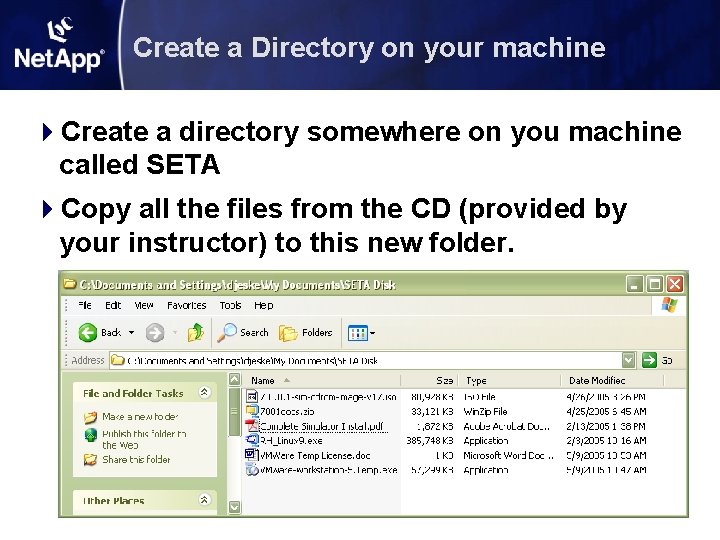
Create a Directory on your machine 4 Create a directory somewhere on you machine called SETA 4 Copy all the files from the CD (provided by your instructor) to this new folder.
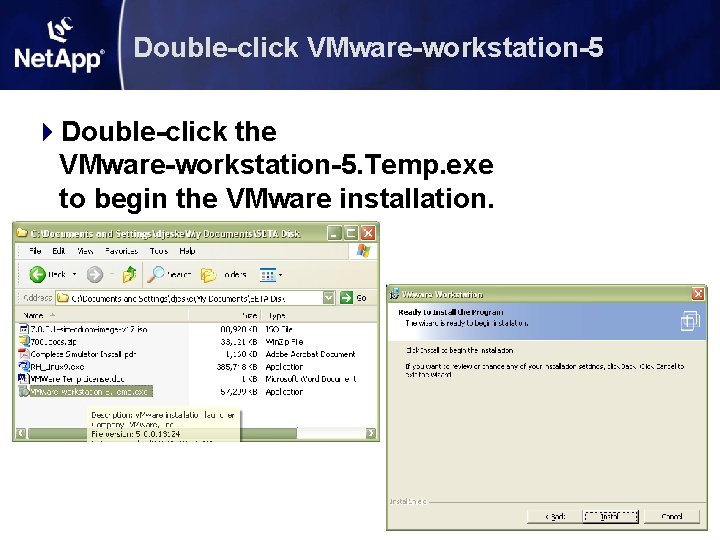
Double-click VMware-workstation-5 4 Double-click the VMware-workstation-5. Temp. exe to begin the VMware installation.
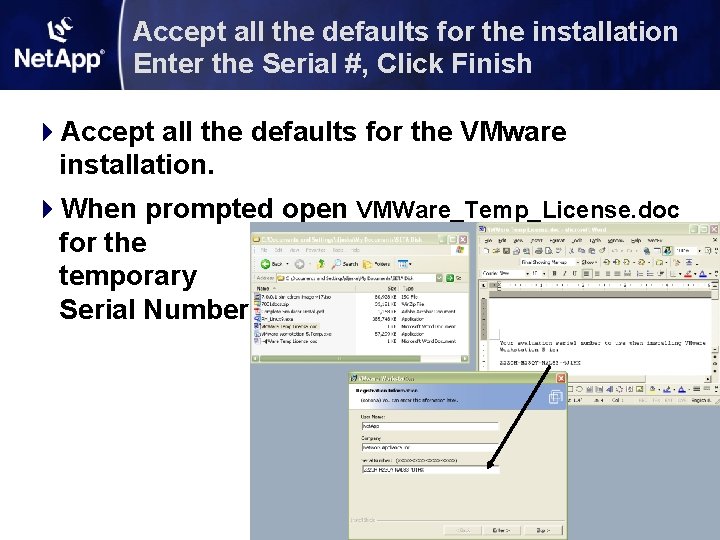
Accept all the defaults for the installation Enter the Serial #, Click Finish 4 Accept all the defaults for the VMware installation. 4 When prompted open VMWare_Temp_License. doc for the temporary Serial Number.
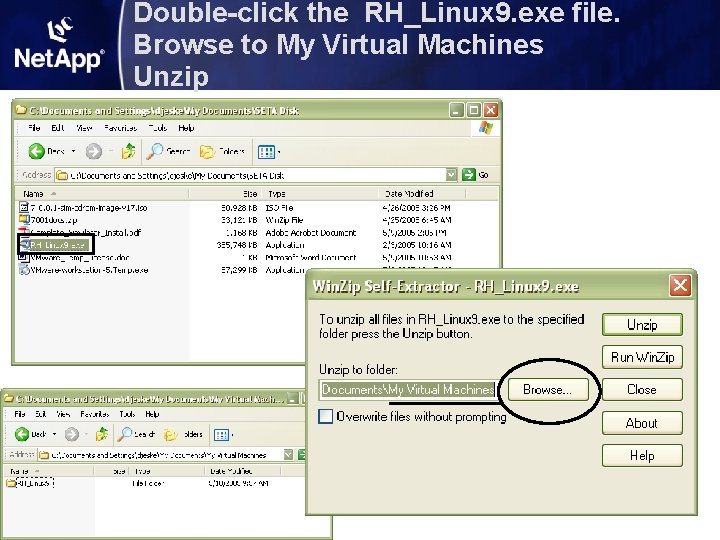
Double-click the RH_Linux 9. exe file. Browse to My Virtual Machines Unzip
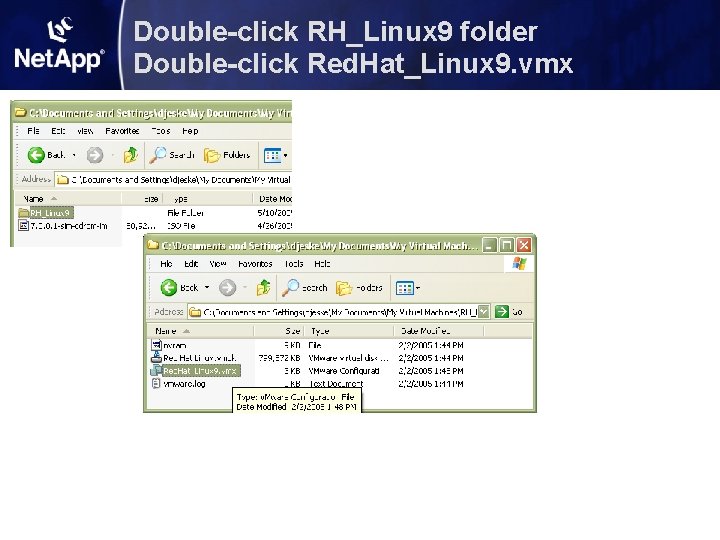
Double-click RH_Linux 9 folder Double-click Red. Hat_Linux 9. vmx
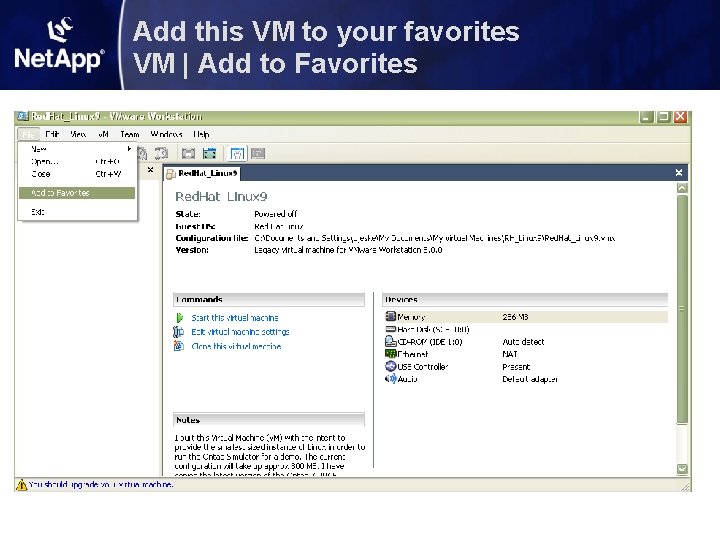
Add this VM to your favorites VM | Add to Favorites
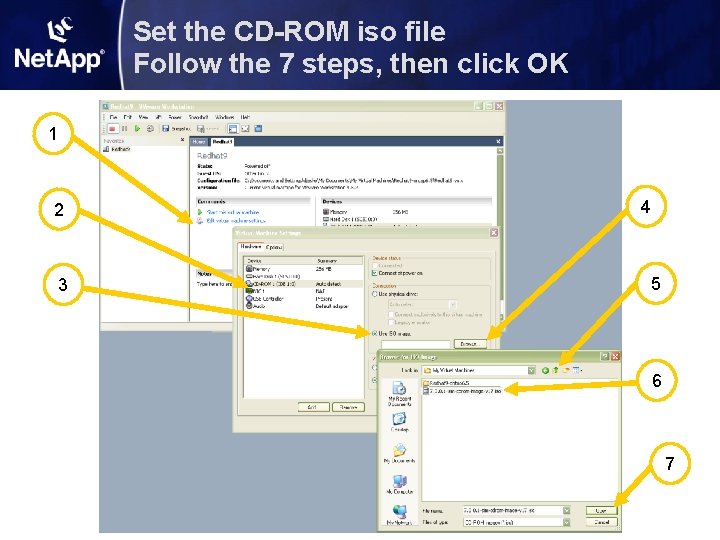
Set the CD-ROM iso file Follow the 7 steps, then click OK 1 2 3 4 5 6 7
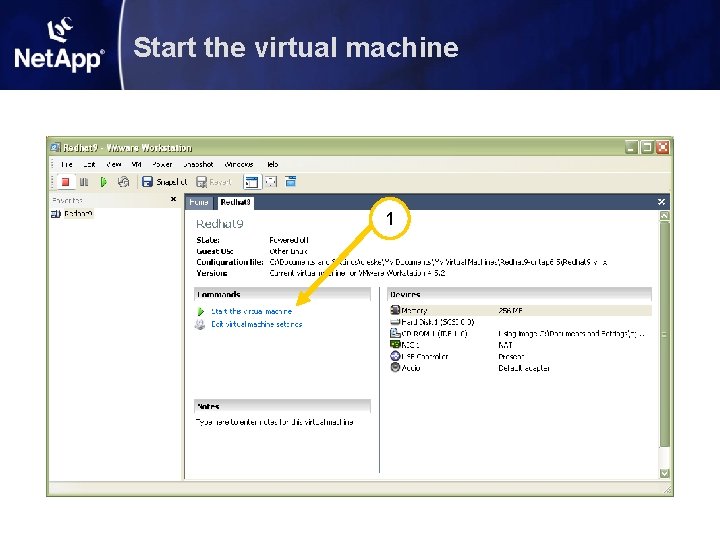
Start the virtual machine 1
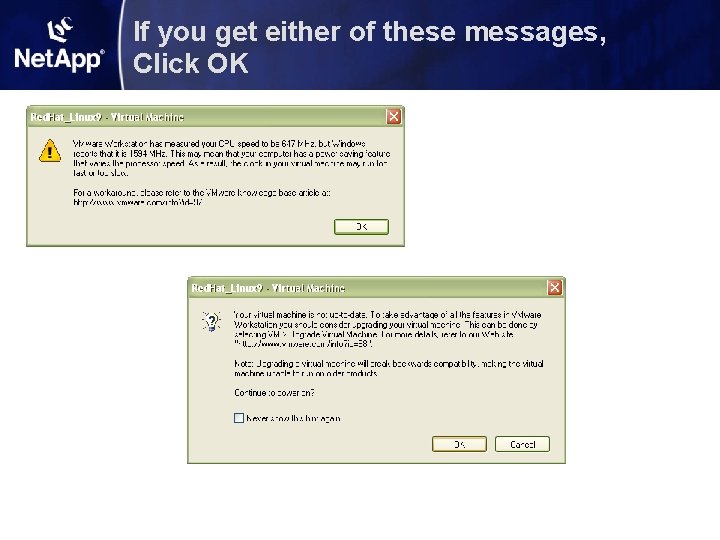
If you get either of these messages, Click OK
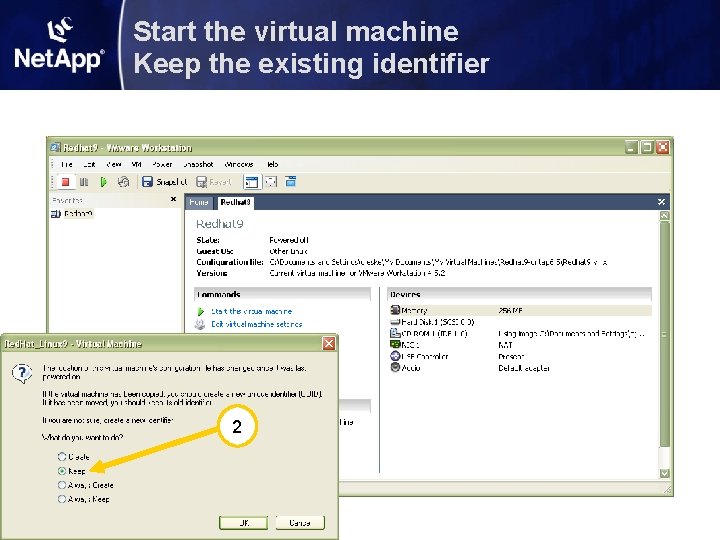
Start the virtual machine Keep the existing identifier 2
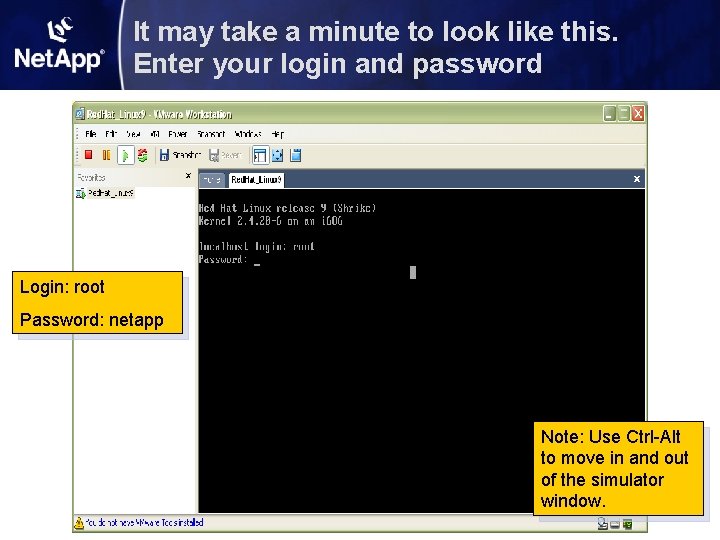
It may take a minute to look like this. Enter your login and password Login: root Password: netapp Note: Use Ctrl-Alt to move in and out of the simulator window.
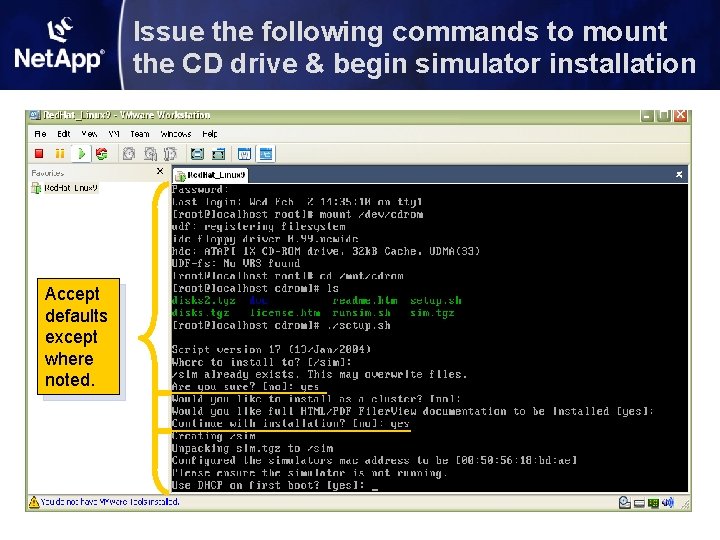
Issue the following commands to mount the CD drive & begin simulator installation Accept defaults except where noted.
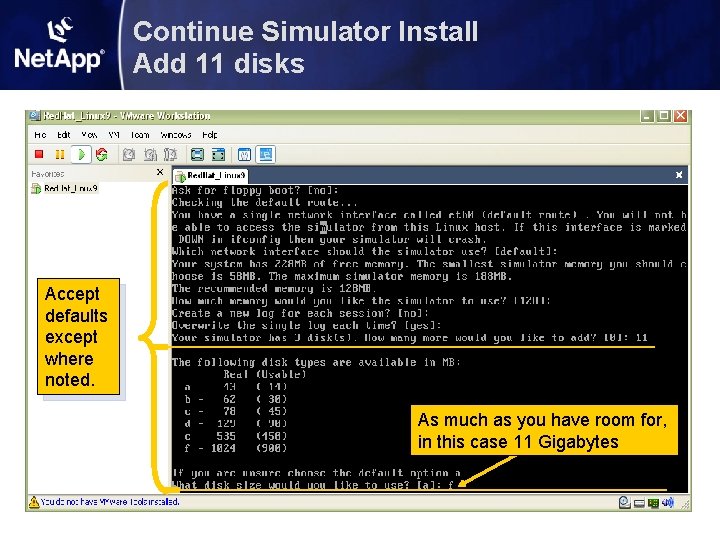
Continue Simulator Install Add 11 disks Accept defaults except where noted. As much as you have room for, in this case 11 Gigabytes
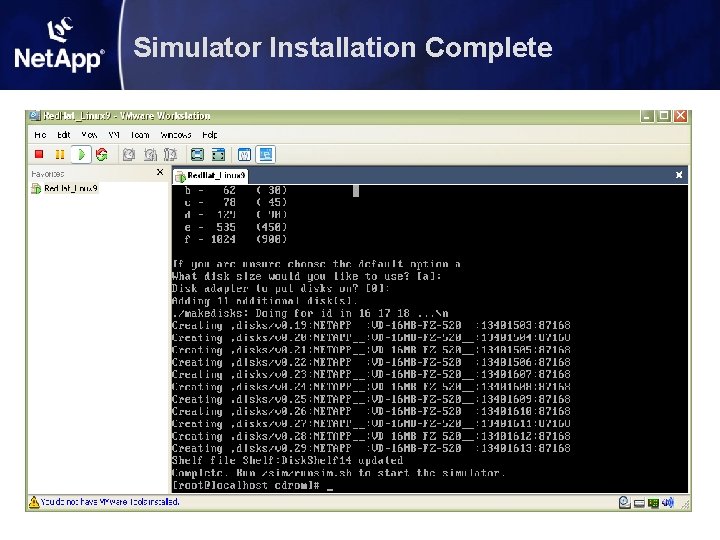
Simulator Installation Complete
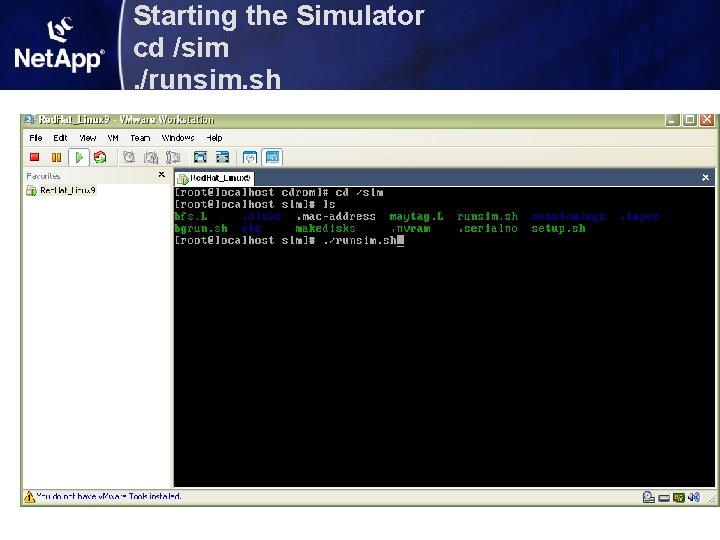
Starting the Simulator cd /sim. /runsim. sh
Hostname[]: Enter Something Here timezone [GMT]: US/Pacific New password: netapp Note: Hostname will show up as your CLI prompt “filer 70>” in this case. Accept defaults except where noted. netapp
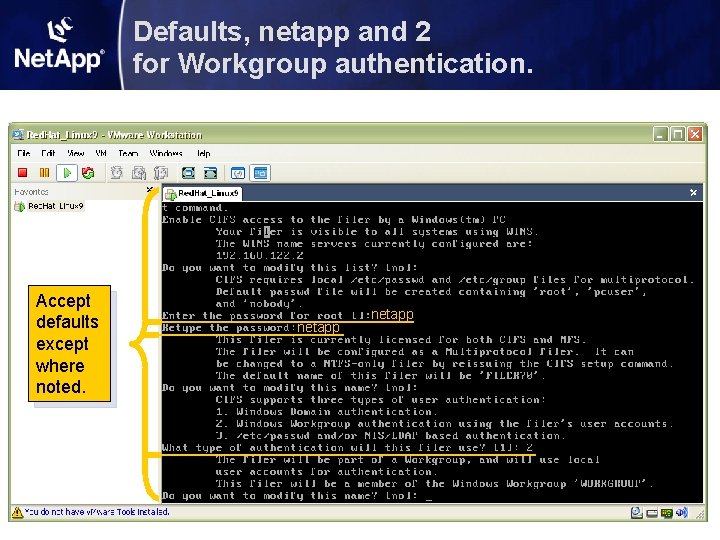
Defaults, netapp and 2 for Workgroup authentication. Accept defaults except where noted. netapp
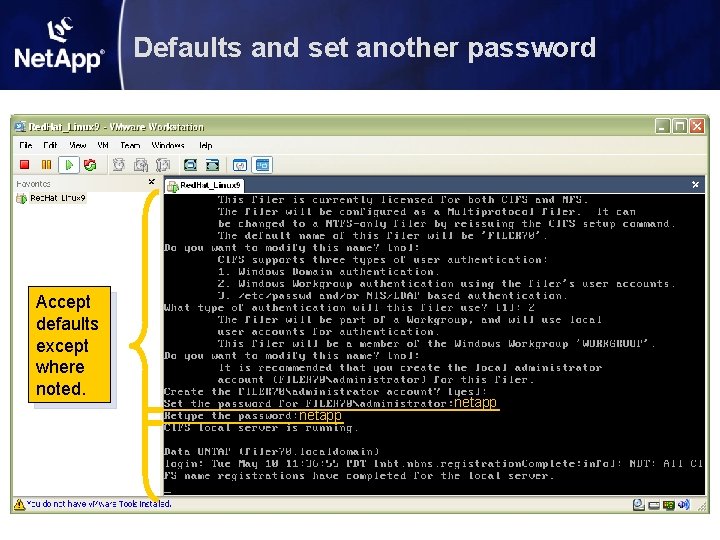
Defaults and set another password Accept defaults except where noted. netapp
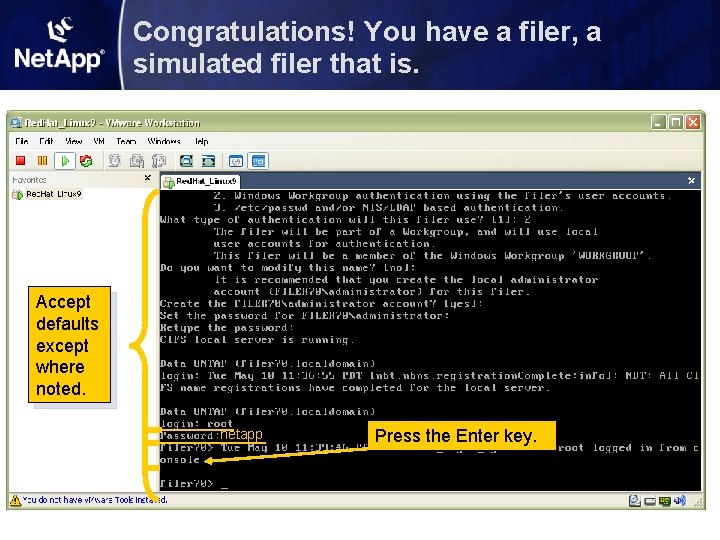
Congratulations! You have a filer, a simulated filer that is. Accept defaults except where noted. netapp Press the Enter key.
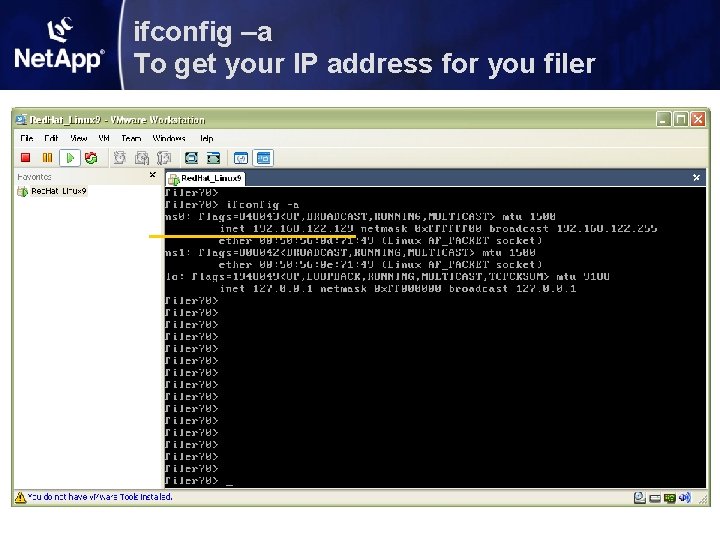
ifconfig –a To get your IP address for you filer
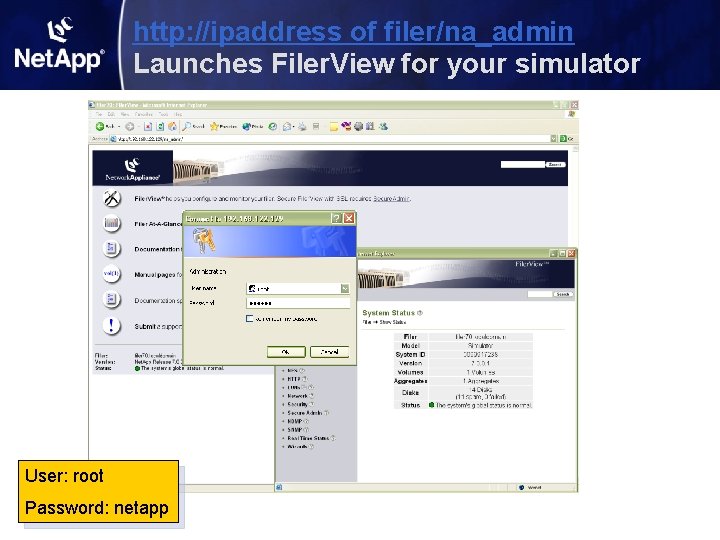
http: //ipaddress of filer/na_admin Launches Filer. View for your simulator User: root Password: netapp