
Installing Tomcat on Windows u u u You
- Slides: 5
Installing Tomcat on Windows u u u You may find the Tomcat install shield has some problems recognizing JSDK 1. 4 beta installations. You can nevertheless install Tomcat, using the UNIX style commands suggested earlier, if you have Cygwin running (www. cygwin. com). Alternatively, uninstall JSDK 1. 4 beta (if you have installed it), and install JDK 1. 3 instead. dbc@csit. fsu. edu 1
Installing JDK 1. 3 on Windows u u If your computer has an administrator account, log in as such. Point Internet Explorer at http: //java. sun. com/j 2 se/1. 3 Follow the “Microsoft Windows” link. Click “continue”, and accept the license. Click, e. g. , “FTP download”. A File Download dialog will probably pop up. Select “Run this program from its current location” if you have the option. – Otherwise, or if you want to install on a different machine, save the. exe to a file, transfer it by suitable media (34 M) to the target machine, and run it there. u u Click through the installation shield. Accept all defaults unless you have a good reason not to. The software should now be installed. Add C: jdk 1. 3. 1_01bin to your PATH. – Item 4. of http: //java. sun. com/j 2 se/1. 3/install-windows. html gives painstaking instructions for every known variant of Windows. u u While you are doing this, create a new environment variable called JAVA_HOME, and set its value to be C: jdk 1. 3. 1_01. This is for the benefit of Tomcat. Type the command java –version in a new command prompt window, to test. dbc@csit. fsu. edu 2
Installing Tomcat 4 on Windows u Go to the Jakarta home page: http: //jakarta. apache. org u Follow the Binaries link under Download. u Under the heading Release Builds, follow the Tomcat 4. 0. 1 link. u Follow one of the links labeled bin/ or binary. u Click on jakarta-tomcat-4. 0. 1. exe. A File Download dialog will probably pop up. Select “Run this program from its current location”, if you have the option. – Otherwise, or if you want to install on a different machine, save the. exe to a file, transfer it by suitable media (7 M) to the target machine, and run it there. u u Click through the installation shield. Accept all defaults if you like, although I chose C: jakarta-tomcat as the installation directory (rather than the default, which is under C: Program Files). The software should now be installed. Set the environment variable JAVA_HOME, if you haven’t already done so (see previous slide). In a similar way, create an environment variable CATALINA_HOME with value C: jakarta-tomcat, or your selected installation directory. dbc@csit. fsu. edu 3
Starting and Stopping your Server u To start your server, start a Command Prompt Window, and run the command C: jakarta-tomcatbinstartup. bat. u To stop your server run the command C: jakarta-tomcatbinshutdown. bat. – Of course, replace c: jakarta-tomcat here with your selected installation directory, if you chose a different one. dbc@csit. fsu. edu 4
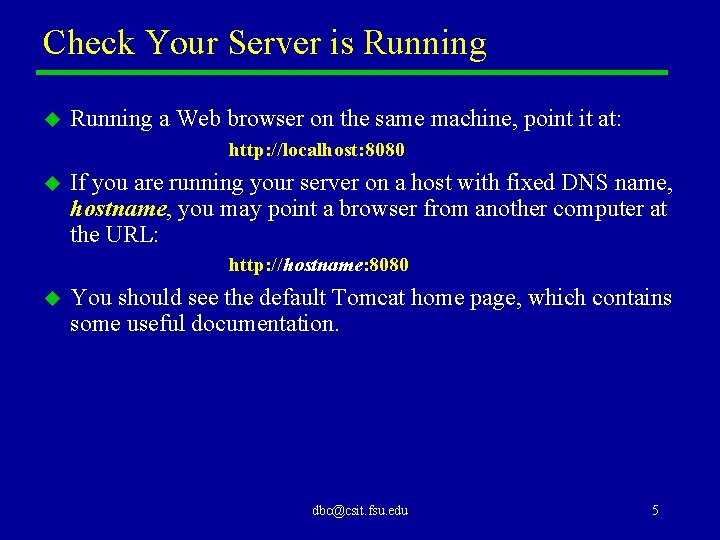
Check Your Server is Running u Running a Web browser on the same machine, point it at: http: //localhost: 8080 u If you are running your server on a host with fixed DNS name, hostname, you may point a browser from another computer at the URL: http: //hostname: 8080 u You should see the default Tomcat home page, which contains some useful documentation. dbc@csit. fsu. edu 5